Category: For Ghanaians

  • How to Access and Use UCC E-learning Online Portal

    How to Access and Use UCC E-learning Online Portal

    The management of the University of Cape Coast, Ghana (UCC) as part of methods to help enhance student learning has finally set up an online learning portal for all students.

    The UCC e-learning online portal allows you to access courses and view resources provided by the University. To access the portal, all you need to do is register and login with your UCC email address and password.

    In this guide, we’ll teach you how to access the UCC e-learning online portal.

    What is the UCC e-learning portal?

    The University of Cape Coast, Ghana (UCC) offers a free, easy-to-use website that helps students locate and participate in on campus training opportunities.

    The E-Learning Portal in addition to the schools website will provide basic information about each class, the instructor, the time and location of the course, plus links to all course syllabi. You can also search for the course you want and apply directly.

    How do I access the UCC E-learning portal

    The steps below will guide you on how to access your UCC e-learning portal as a student of the institution. Note that, the platform is gradually getting it maintenance and not yet perfect. For that, we will provide the available steps and if there are more steps later, we won’t hesitate to add. To access the portal:

    1. Visit https://elearning.ucc.edu.gh.
    2. Login with your index number when required. (As a student, you automatically must be able to login with your index number as your username and password). You can later change that.
    3. When you login, you will have a dashboard of options. Access the UCC theoretical courses on the platform.
    4. When you login the portal with MTN or Vodafone network, Internet charges are free. (You can access the platform even with a zero data on MTN and Vodafone).

    What are the steps involved in registering for a course?

    1. On your dashboard, you can search for the name of the course you want to register into your module.
    2. Click on the course after the search and tap on register course.
    3. Incase you are asked for enrollment key, enter the code and if you don’t know, ask your course rep for the code or the course lecturer.
    4. After, you can be able to access all the available materials for the course and will also be able to participate in all activities on the particulsr course.

    What happens after registration?

    • After logging into your dashboard, you will be able to enroll in a variety of courses available from the course library.
    • Each course has a different enrollment key and instructions, so make sure that you select the appropriate course accordingly.
    • You can also submit an assessments and/or presentations that are due throughout the duration of your enrollment.

    Where can I find information on courses?

    Once you register for the course, all needed information will be shown in the course outline and others sides. Be sure to look through the course module for all your answers.

    What should I do if I need help while taking part in an online course?

    If you need help while taking part in an online course, please contact your immediate course rep or the course lecturer for assistance.

    Can anyone take part in a course?

    Not anyone except students of that particular course and students of the University of Cape Coast, Ghana (UCC).

    Conclusion

    In conclusion, the e-learning platform introduction will help UCC students to be more independent and self-sufficient. The system is very user friendly and will helped students manage their time efficiently.

  • How to Access and Use UPSA Virtual Learning Platform

    How to Access and Use UPSA Virtual Learning Platform

    UPSA Virtual Learning platform is accessible to everyone as long as you have an internet connection and are equipped with any of the following devices: Desktop/Laptop Computer, iPad, iPhone, or Android Tablet. This tutorial will show you how to access and use the UPSA Virtual Learning Platform through your desktop or laptop computer and phone or tablet device.

    About UPSA Virtual Learning Platform

    University of Professional Studies, Accra Virtual Learning Platform is a state-of-the-art, cloud-based learning management system set up by the institutionto help enhance student learning.

    The platform can be accessed from any device with internet connection, providing students of UPSA a flexible method of delivering content and for instructors to manage their coursework.

    How to access UPSA Virtual Learning Platform

    • Enter your Index Number as Username and Google1 as Password. (Google1 is the general password for first time login.
    • After login into your dashboard, you will then be required to change your password.
    • Enter a new password and click save.
    • Congrats! You now have a virtual portal account.

    Steps involved in registering for a course?

    1. Whiles on the dashboard, your left under the Navigation button, click on courses from the drop-down list.
    2. Afterwards click on Undergraduate Programmes and select your Programme Category (ie. Bachelors or Diploma).
    3. Select your Level (ie. Level 100, 200, 300 or 400)
    4. Now, click on the Course Codes available to access the course you want. Example: Click on PBPR308 to display “Media Relations.”
    5. Afterwards enter the Enrolment Key already provided by your respective course Lecturer to open and explore the available resources to read or download.

    What to do if you need help whiles taking a course

    Whiles on a course and you need an assistant, contact your course mates who have been able to access it with ease. You can also contact your immediate course rep or your course lecturer.

    How to recover your portal password when you forget

    Recovering your password means you have forgotten your login details. To recover password,

    1. Visit https://upsasip.com/home/studPassReset and you will be directly taken to the password reset page.
    2. Your new password link will be sent to your UPSA email so make sure your email is activa before beginning.
    3. Enter your index number and select “Reset Password”, a password reset link will be sent to your email.
    4. Open your email inbox and click on the activation link to set your UPSA student password.
    5. Click on the link and enter your new password. Re-enter the password again and click on save.
    6. Make sure your new password is one you can remember to avoid requesting for another password reset.

    Conclusion

    UPSA Virtual Learning portal is a step to help student enhance their learning wherever they find themselves. You dont need to be at the lecture hall to access the virtual portal. All you need is your PC or mobile phone and your internet connection.

  • How to Login and Validate E-SPV Return System in Ghana

    How to Login and Validate E-SPV Return System in Ghana

    Ghana has gone a step further to enforce the E-SPV return system for all taxpayers in the country to help the department of revenue reduce fraudulent taxpayers base in the country.

    Some of these strong measures will also limit tax avoidance which is being used by traditional business owners to underput their competitors and gain larger share of market.

    Wha is E-SPV Return System in Ghana

    The Electronic Salary Payment Voucher (E-SPV) is a special electronic portal system which was introduced by thr Controller and Accountant General Department in Ghana.

    The portal is accessible to all Management Units and Human Resource (HR) officers to validate employees before their salaries are paid by the Controller and Accountant General’s Department.

    Importance of E-SPV Return System in Ghana

    The Controller and Accountant General department compute data from heads of companies and uses that data to pay workers. This was always done manually and has been a difficult task as usual.

    The salary validation process is not an easy thing and requires accuracy and being keen on details, a lot of money may be lost in the process or mishandled.

    For this reason, the government introduced the E-SPV salary validation system to replace the manual and old system used to manage, certify and approve government of Ghana salary payment vouchers, which was challenging and time-consuming.

    How to login and validate E-SPV return system in Ghana

    The login portal is not accessible to anyone. Only the Head of Management Unit, Human Resource Manager are eligible to access the portal in order to validate employees. To log in,

    • Check the status of each employee by choosing either Approve, With Issue or Unknown. Make sure your resolve or state the issues of employees with issues
    • Click on Continue Validation on the Upper Right corner of your screen.
    • A Summary will be displayed to you. Click to Forward PV.

    Conclusion

    Validating salary in Ghana has been a topic on board always due tto how inaccurate and delayed the system has been. But with the introduction of the E-SPV system, all those worries will gradually be a thing of the past. The E-SPV system is here to stay and we must get used to it as early as now.

  • MTN MoMo Airtime Reversal: How to Convert your Credit to Cash

    MTN MoMo Airtime Reversal: How to Convert your Credit to Cash

    Have we not all been there before? That moment when you mistakenly send airtime to someone as money. It has happened to me a couple of times, through which I have learnt my hard lessons.

    However, with the new set of rules that MTN has put in place on their popular Mobile Money Platform, such mistakes of sending money as airtime (credit) can easily be reversed.

    MTN recently announced that mobile money subscribers in Ghana can now reverse money transfers that are mistakenly sent as airtime. The minimum airtime that can be reversed is GHS 10.00. Any transactions below this amount cannot be reversed.

    The MTN Mobile money reversal allows you to convert airtime wrongly sent back into cash.
    The MTN Mobile money reversal allows you to convert airtime wrongly sent back into cash.

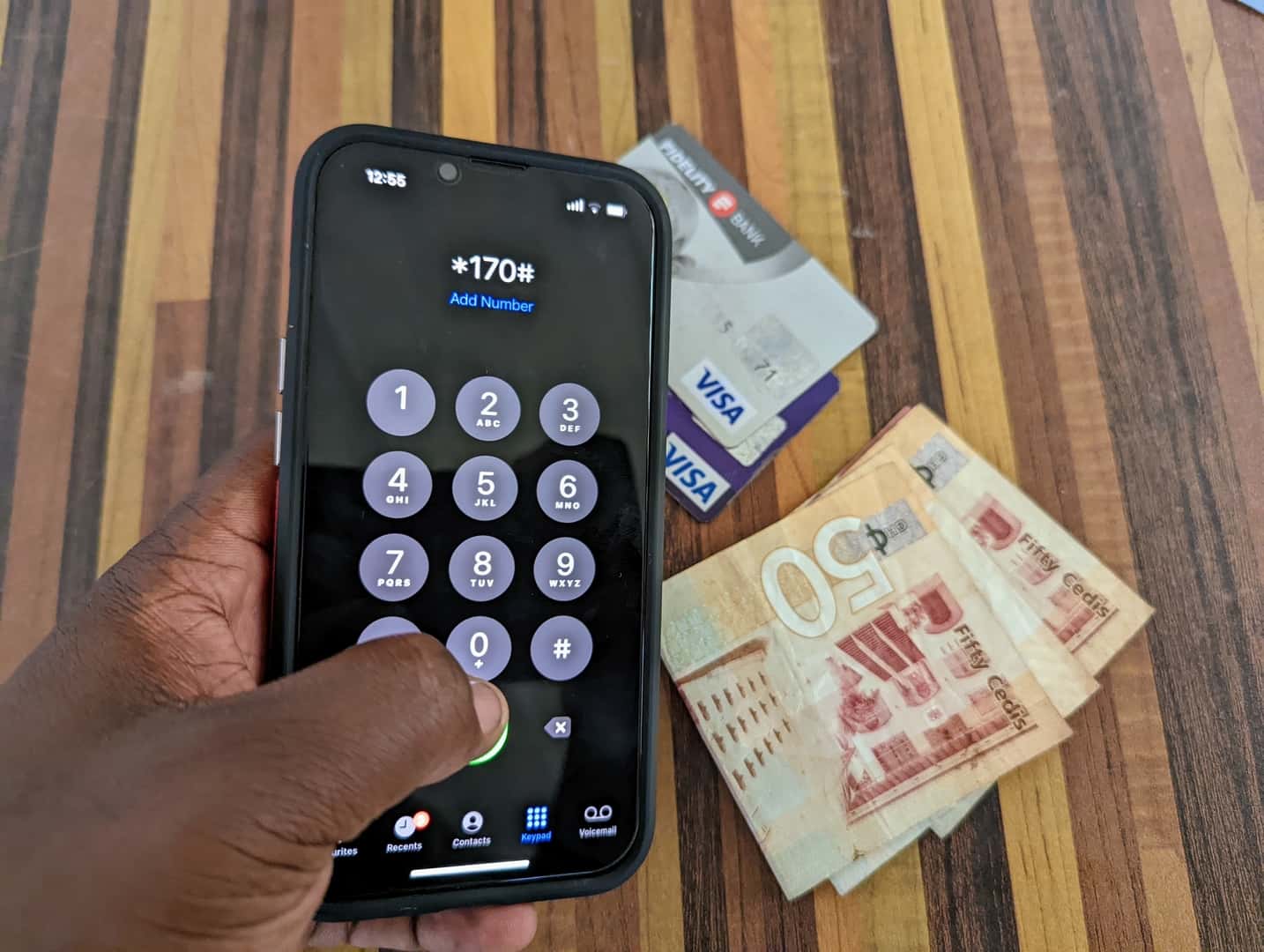
    The airtime reversal is currently available for only MoMo subscribers on the USSD menu – *170#.

    How to reverse MTN Mobile Money Transactions (Change Airtime back into cash)

    1. Dial *170#
    2. Enter 7 for Wallet
    3. Enter 5 for Airtime Reversal
    4. Enter 1 to confirm the reversal.

    A pop-up message will be sent to the receiver to approve reversal. You will receive an SMS to confirm the reversal after the receiver approves.

    However, to avoid abuse of the reversal system, MTN has put some terms and conditions in place. This will help prevent people from taking advantage of the system. Hopefully, it does. Read them below.

    The Credit reversal from MTN comes as a relief to millions of subscribers on Mobile Money

    Terms and Conditions for Reversing Airtime Transactions on MTN Mobile Money

    1. Reversals cover only airtime purchased from a MoMo subscriber’s wallet
    2. Reversals are initiated by the subscriber from their own wallets.
    3. Reversals from Merchant / Agent airtime purchase is not allowed.
    4. Minimum airtime to be reversed is GHS 10. Transactions below GHS 10 cannot be reversed.
    5. No partial reversal is allowed. The subscriber needs to ensure that the full value of airtime purchased and the bonus amount received is available before the reversal can be effected.
    6. In case some part of the bonus or main airtime has been used by the customer, the transaction cannot be reversed. The customer has the opportunity to top-up to ensure that the full amount is available to be able to reverse.
    7. The sender of the Airtime needs to contact the receiver to approve the reversal after initiating the reversal.
    8. Airtime reversal can only be done within 72 hours of performing the transaction.
    9. No reversal can be processed after 72 hours of purchase.
    10. Notification will be sent to both the sender and receiver upon completion of the reversal.

    Conclusion

    We hope that this is useful for when you mistakenly buy credit instead of transferring airtime. Remember never to use the bonus should you find yourself in such a situation.

    Always call the MTN Call centre number if you have issues.

  • Fast Way to use your smartphone to Verify your Ghana Card info

    Fast Way to use your smartphone to Verify your Ghana Card info

    According to the National Identification Authority, over 12 million Ghana Cards have gone through the printing cycle. This is good news because more and more Ghanaians are receiving their Ghana Cards which is proving to be a requisite for a lot of things.

    However, there has been no way to verify the information on your Ghana Card once you have received it. You literally see the basic details, but what about all the other information that has been saved?

    It is important to know this information because they are saved on the card and if there is an error within them, that error will most likely be carried on to other services you use the Ghana Card for.

    Mfidie.com has uncovered a way for you to verify all the information on your Ghana Card by using your smartphone. In fact, you can know if your card is genuine or not.

    This requires that your phone has a feature called Near Field Communication.

    Common phones that support the service are iPhones from 6 to 11, and including the iPhone SE. Also, If you use the Google Pixel 2, Pixel 3 and Pixel 4, this tutorial will work for you. A friend tested on the Xiaomi Mi 8 and it works too.

    You can check or search if your phone supports NFC in this list here and then continue to how to check your Ghana Card details.

    How to verify the details on your Ghana Card and check if it is genuine

    Please follow these steps if you have a smartphone with Near Field Communication (NFC) feature, and follow the steps below to read your Ghana Card:

    1. Go to App Store (for IOS) Apple phone owners. Or the Google Play Store for Android phone users.
    2. Download the ReadID NFC Application for Android or iOS
    3. Enable NFC function after you download
    4. Click on “Get Started”
    5. The next screen will ask “what kind of document do you want to use” here select ID CARD or PASSPORT
    6. Use your phone camera to read the Passport MRZ at the back of your card (its the characters at the bottom of the back of your card) and keep it in focus until it fills the window. It turns green when the Card Access Number (CAN) has been extracted.
    7. Place your Ghanacard on the NFC zone of your phone and move slowly till it starts to read.
    8. All the e-passport details on your Ghana Card will show on your phone.
    9. You have successfully verified the details of your Ghana Card.

    If you go through the steps very well, you should have an image like the one below.

    There you have it. You can now successfully check the genuineness of your Ghana Card by using your smartphone.

    If you are able to do this successfully with your phone, you might let us know what phone it was in the comments below.

  • Kabfam Ghana Limited: Price of TVs, Phones, Air Conditions & All Branches

    Kabfam Ghana Limited: Price of TVs, Phones, Air Conditions & All Branches

    Kabfam Ghana is an all-inclusive electrical appliance retailer in Ghana specializing in electronics gadgets such as televisions, home theatres, audio systems, refrigerators, deep freezers, air conditioners, gas cookers, washing machines, microwaves ovens, dishwashers, etc.

    When it comes to selling quality electronic products, Kabfam is the place to head to.

    Sometimes due to certain hindrances, going to the market to buy any gadget of your choice maybe delayed, in this scenario Kabfam also has a website to serve the needs of its consumers which offers delivery to your respective location.

    Payment mode on their website is by Mobile Money, hence you have full control of your payment. This somehow saves you a lot of time going to the market to get the items.

    KabFam Unique Services

    • Fast Shipping Delivery: At Kabfam, quick delivery of your product is assured right after payment confirmation. They make sure your item is delivered exactly the same after your purchase has been confirmed.
    • 24/7 Customer Support: Kabfam ensures that their customer service is always with you to assist on your order queries 24/7.
    • Customer Satisfaction: Kabfam ensures their customers are satisfied right from their order to delivery.
    • Secured Payment Method: Payments are secured and it’s not controlled by any third party.
    • Returns & Replacements: In situations where your product gets damage before reaching you, Kabfam offers a return policy for you to change the product.

    Let’s quickly take a look at some of the prices of the electronic gadgets including Tv, Freezer, Air condition, and phones they offer.

    Price Of TVs at Kabfam

    BrandSpecsPrice
    Samsung55″ UHD/4K Smart TVGHS 3,990.00
    Samsung40″ Smart TV  GHS 1,899.00  
    Nasco43″ Led Smart Satelite TVGHS 1,599.00  

    Price Of Freezer at Kabfam

    BrandSpecsPrice
    Midea411LTR Display FridgeGHS 2,390.00
    Midea145LTR Double Door FridgeGHS 1,249.00  
    Nasco330 LTR Bottom Freezer FridgeGHS 2,090.00
    MideaHS-546GHS 2,290.00
    MideaHS-384GHS 1,949.00

    Price of Air Condition at Kabfam

    BrandSpecsPrice
    Nasco12CR GoldenGHS 1,499.00
    Nasco AC-5001R/LG035EGHS 499.00
    Nasco2.5HP Floor Standing ACGHS 4,250.00

    Price of Phones at Kabfam

    BrandSpecsPrice
    Infinix  Hot 8 Lite X650  GHS 589.00  
    Samsung Galaxy S20+GHS 5,699.00
    SamsungGalaxy S20GHS 5,199.00
    SamsungGalaxy A71GHS 2,499.00
    Samsung Galaxy A2 Core 16GBGHS 479.00

    Kabfam Branches In Ghana

    • Accra Central – Behind UTC (Ground Floor of Menaba House)
    • Achimota Old Station, Traffic Light
    • Darkuman Junction Off the Kaneshie-Odorkor Highway, near MTN
    • Legon Opposite UPSA
    • Kasoa Brigade
    • Nungua Linaks House (Opp. Brigade Washing Bay)
    • Oyarefa Ghana UPSA.
    • Tema Comm. 4, Ground Floor of the Barcadis Building
    • Kumasi Krofrom, Opposite Krofrom Magazine (Mechanic Workshop), of the Airport Roundabout – Krofrom Road.
    • Takoradi Near Bank of Ghana.

    KabFam Ghana Official Contact Information.

    Contact: 050 000 0106 / 0500 000 105

    Email Address: [email protected]

    Working Hours:
    Mondays – Saturdays
    8:00 AM – 6:30 PM

    Facebook: facebook.com/kabfamghltd
    Twitter: @kabfamgh

    Website: http://www.kab-fam.com/

    Conclusion

    For quality and affordable electronic gadgets in Ghana, Kabfam is definitely the best to buy from.

    This article looked at the quality products, prices, branches and the official contact of Kabfam Ghana Limited.

  • How to Use Google Translate for Twi

    How to Use Google Translate for Twi

    Google translate with their latest update has added the Ghanaian language “Twi” into their system in addition with other 24 new languages.

    The Twi language is a language spoken by the people of Ghana in the western part of Africa. Over 10 million inhabitants in the country are conversant with the language. For that, its a good move to make language barrier easier for outsiders to communicate online with the Ghanaian community.

    What is Google Translate?

    Google Translate is a free online language translation service that can instantly translate text and web pages into different languages. It supports over 100 languages and can be used on any device with an internet connection.

    How to access Google translate

    Google translate offers a website interface, mobile apps for Android and iOS, and an API that helps developers build browser extensions and software applications.

    There are two ways you can use Google translate for Twi:

    Access google translate directly on Google

    You can access the translate page in two ways. The first way is to go on google chrome or any other web browser. To do that,

    1. Open the prefered web browser.
    2. In the search bar tab, type google translate and press enter.
    3. The google translate interface will be open. Now, click on the language from tab and select the language you want to use.
    4. After, click on the language to tab and search “Twi”.
    5. Now, click translate and your typed text will be translated from the chosen language to Twi.

    Access google translate using the mobile app

    The mobile version of Google translate is the same as the web version. But with the mobile version, the translator feels more closer than ever. Following the same process as the web, you can successfully translate your preferred language to Twi for an easier communication with your Twi friend.

    1. Open the Google translate app on your mobile.
    2. The google translate interface will be open. Now, click on the language from tab and select the language you want to use.
    3. After, click on the language to tab and search “Twi”.
    4. Now, click translate and your typed text will be translated from the chosen language to Twi.
  • Kennedy Digital Satellite: Prices, Shops, Locations and Contact Info

    Kennedy Digital Satellite: Prices, Shops, Locations and Contact Info

    If you’re shopping around to find the best deals on Satellite television, then you need to check out Kennedy Digital Satellite. Kennedy Digital Satellite offers competitive prices on all of their packages, with some of the best HD channels available.

    Customers can visit any one of their many shop locations across the country or call in an order to get hooked up with their services quickly and easily.

    Kennedy Digital Satellite Ghana

    Kennedy Digital Satellite offers a wide range of digital satellite services that provide users with high quality TV viewing experiences at an affordable price. The company has multiple shops located across Ghana, as well as a robust online presence.

    Kennedy Digital Satellite also offers a variety of value-added services, such as installation and maintenance support. For more information on pricing, shop locations or to contact the company, please finish reading this article.

    Available products at Kennedy Digital Satellite

    • Digital Decoders
    • Nasco TVs
    • Projectors
    • Midea devices
    • Samsung devices
    • Phillips devices
    • Chigo devices
    • Strong products
    • Quality products
    • Wisdom products DSTV
    • Canal decoder’s
    • Deep freezes
    • Double and single door fridges
    • Air condition 1.5hp to 2.5
    • Stand fan
    • Ceiling fan
    • Blenders
    • Kettles
    • TVs from 24 inches to 75 inches
    • Electric iron, etc.

    Kennedy Digital Satellite shop locations and branches

    Kennedy Digital satellite is located in Accra and Kumasi and has several branches across the country.

    • Kumasi – Adum family plaza building.
    • Kumasi – Patasi police depo Adom house building.
    • Accra – Weija, Old Barrier Traffic Light.
    • Koforidua – Oteng House 1st Floor.
    • Nkawkaw – Apolo Building Agboboshi Market.
    • Sunyani – Opposite Universal Merchant Bank, Swedum, Odokaw And Sons Building.
    • Takoradi – Antaf Orbit Technology, Collins Avenue Davi Ama Chop.
    • Cape Coast.
    • Takwa.
    • Bogoso.
    • Asankragua.
    • Essiama.
    • Nzema.
    • Anyinasi.
    • Twifo Praso.

    Kennedy Digital Satellite products and prizes

    ProductsPrices
    Satellite Led TV “24 – 54” INCHESGHS 549 – GHS 1799
    65” LED TV Smart/4K DisplayGHS 5099
    Double Door Refrigerator “95 – 450” LTRSGHS 849 – GHS 2599
    Combo Refrigerator “90 – 398” LTRSGHS 799 – GHS 2099
    Table Top Double DoorGHS 749
    Rice cooker 1.8 LTRSGHS 159
    Fufu MachineGHS 349
    Nasco Glass BlenderGHS 129
    Zara Air ConditionerGHS 1399
    Sewing MachineGHS 349
    Washing MachineGHS 1399

    Kennedy Digital Satellite Contact Info

    For more information, you can contact any of the following branches:

    Accra (Weija Old Barrier): 

    0244 385 136

    0243 074 750

    Kumasi (Pataase): 

    0207 653 031

    0244 385 128

    Sunyani:

    0248031976

    Cape Coast:

    0243319456

    You can also email them at: [email protected]

  • Passion Air Ghana: Flight Prices and How to Make a Reservation

    Passion Air Ghana: Flight Prices and How to Make a Reservation

    If you’re looking to make a flight reservation in Ghana, Passion Air has great prices, and an easy-to-use website that makes it simple to book your flights.

    While you may have been nervous to book before, we’ve made the process much easier by providing step-by-step instructions on how to make a flight reservation in Ghana with Passion Air, whether you’re flying out of Sunyani Airport or Accra Airport.

    About Passion Air Ghana

    Passion Air is a domestic airline based in Ghana that flies to ten destinations within the country. It was founded in 2010 and its main base is at Kotoka International Airport in Accra. The airline currently has a fleet of five aircraft.

    Why Fly With Passion Air Ghana?

    Passion Air Ghana is one of the leading airlines in the country. The company has been operational for over 10 years and has a strong reputation. Passion Air flies to many destinations, both domestic and international, making it a great option for travelers.

    The airline also offers competitive prices, making it a great option for budget-minded travelers. When flying with Passion Air, you can be sure that you’re getting a good value for your money.

    How to book a flight with Passion Air Ghana online

    1. Visit www.flypassionair.com
    2. Select your departing airport from the booking section.
    3. In the next section, select your arriving airport. The place you are travelling to. Eg. Kumasi airport, Takoradi airport, etc.
    4. Select your departure date. The exact day you will be travelling.
    5. Now, Select the number of people travelling. If its only you, select one and if its not only you, select the exact number of people boarding.
    6. Select one way or round trip depending on the type of trip you prefer.
    7. Click on the “Flight Search” button to get the next available flight depending on your departure date.
    8. When done, a confirmation code will be sent to the phone number used in the contact information of the passenger when registering. If you used an email address, a confirmation email will be sent which includes a unique confirmation code, flight number, date and time of travel, departure and destination details, total cost, to make a reservation.

    Making a Reservation

    At this stage, you are almost about to complete your bookings and make payment.

    1. You will see the available tickets and departure times and then, you choose the one that fits your preferred time and click continue.
    2. The next page is about the passenger information and you are required to enter your correct personal details. When done, click continue.
    3. You can chose to select a preferred seat which will cost you an additional GHS5 or move to the next page for any available seat to be given to you and you save your GHS5.
    4. On the payment section, you select your preferred payment method. Either with credit/debit card, Mobile Money (MTN, AirtelTigo, Vodafone), or you can choose to pay when you are going to board the flight.
    5. Confirm your payment. Congratulations! You have successfully booked a flight with passion Air using their website.

    How to book a flight with Passion Air Ghana using their mobile app

    You may want to book a flight with passion Air using their mobile app instead of their website. Below is a step by step guide on how to successfully book a flight with passion Air Ghana using the mobile app.

    1. Download the PASSION AIR app on Google Play Store or App Store.
    2. Launch the app, register and tap on Book a Flight.
    3. Select either One Way or Round Trip depending on the type you want.
    4. Select your departure airport and arrival airport.
    5. Choose departure date.
    6. Choose the number of people boarding the flight.
    7. Click on the Search Flight button.
    8. Select your prefered time and type of ticket.
    9. Enter your personal details and that of those you are travelling with if you are flying with more than one person.
    10. Selecting your prefered seat is an option which will increase an extra GHS5. You can decide not to choose and you will save yourself GHS5.
    11. Glance through to confirm your details and tap on CONTINUE.
    12. Select your prefered payment method. Credit card/debit card or Mobile Money (MTN, Tigo, Vodafone).
    13. Confirm your payment method. Congratulations! You have successfully booked a flight with passion Air using the mobile app.

    Passion Air Ghana Flight Ticket Prices

    Passion Air flight ticket price from Accra to Kumasi – Kumasi to Accra.

    Ticket pricing from Accra to Kumasi and Kumasi to Accra ranges from GHS179.00 to GHS400 for one person (adult). The price depends on the type of ticket, time and day.

    Passion Air flight ticket price from Accra to Takoradi – Takoradi to Accra.

    Ticket pricing from Accra to Takoradi and Takoradi to Accra ranges from GHS199.00 to GHS349 for one person (adult). The price depends on the type of ticket, time and day.

    Passion Air flight ticket price from Accra to Tamale – Tamale to Accra.

    Ticket pricing from Accra to Tamale and Tamale to Accra ranges from GHS350.00 to GHS390 for one person (adult). The price depends on the type of ticket, time and day.

  • What Can Cause a Mobile Money Account to Be Dormant?

    What Can Cause a Mobile Money Account to Be Dormant?

    For your mobile money account to be useful, you need to be able to access the money it contains. However, if you haven’t used the account for a long time, you may find that it has become dormant and inactive. This article will take a look at what can cause this to happen and offer some tips on how to avoid or overcome it if it does happen to you.

    What is dormant account

    A dormant account is an account that has had no activity for a period of time. The account may be considered dormant if there have been no deposits or withdrawals for a certain period of time, usually 12 months.

    In some cases, the account may be charged a fee for being dormant. The account holder may also be contacted by the financial institution to see if they wish to keep the account open.

    What can cause a mobile money account to be dormant?

    There are a few things that can cause your mobile money account to become dormant. If you haven’t used your account in a while, your account may become inactive.

    Additionally, if you move to a new location or change your phone number, your account may also become dormant. Another thing that can cause your account to become dormant is if you stop using the service for an extended period of time.

    If any of these things happen, you may need to contact customer service in order to reactivate your account.

    What happens to a Mobile Money account when it becomes dormant

    If you don’t use your mobile money account for an extended period of time, it may become dormant. This means that the account is still active, but all transactions have been frozen.

    In order to reactivate a dormant account, you’ll need to contact your mobile money provider and follow their instructions.

    There are a few reasons why your account may have become dormant in the first place. Maybe you switched to a different mobile money provider, or you simply forgot about your account.

    Can a dormant MobilMo account receive money?

    If you have a mobile money account that has been inactive for some time, you may be wondering if it is still possible to receive money into that account.

    The answer is yes, a dormant MoMo account can still receive money. However, there are some things that can cause an account to become dormant in the first place, and these same things can also prevent money from being received or withdrawn into the account.

    One of the main reasons for an account becoming dormant is when one of the phone numbers associated with the account becomes out of service. When this happens, there’s no way to send or receive money on that number because the phone company will not accept any incoming or outgoing calls on that line.

    It doesn’t matter if someone changes their number or not; as long as one of those numbers has gone out of service then the account will remain dormant until they get it working again.

    Another reason why accounts might become inactive is when a customer fails to login within 90 days, unless they were logged-in within two hours before 9:00 pm and their login expires by default after this period elapses.

    Can a dormant mobile money account be active again?

    If you have a mobile money account that has become dormant, don’t worry! There are ways to reactivate your dormant mobile money account. The most common way is to visit any nearby customer care office, lodge a complain and you will be assisted.

    You can call your network customer care by dialing 100 or 111 on all networks, talk to a customer agent and lodge your complains. The agent will assist you and your account will be reactivated for you to be able to do your transactions again.

    If you want to make further enquiries online, visit your mobile network providers website to read more.

    If you are an MTN user, visit; https://mtn.com.gh.

    Airteltigo users, visit; https://www.airteltigo.com.gh.

    Vodafone users, visit; https://vodafone.com.gh.

    Glo Ghana users, visit: https://www.gloworld.com/gh.