Category: Videos

370

  • Top 10 Cheapest Android Phones in 2020

    Top 10 Cheapest Android Phones in 2020

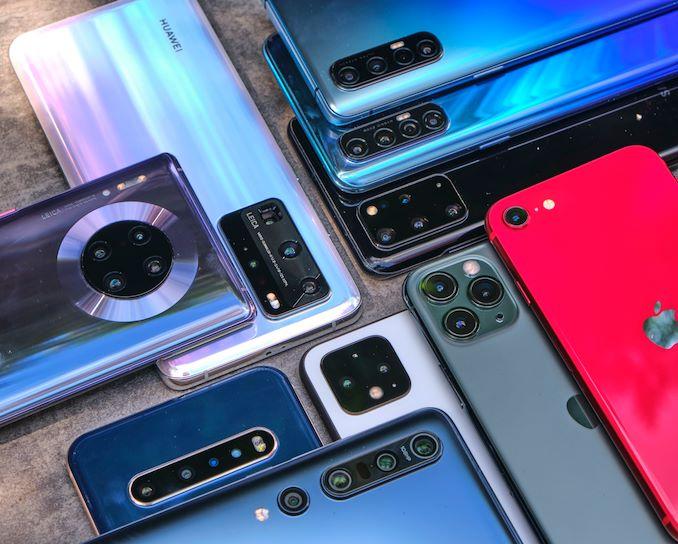
    Smartphones have become a necessity in this day and age. But there’s no reason to sell your kidney in order to buy an expensive flagship phone when there are affordable Android phones with great specs that can serve the same purpose. I have rounded up the top 10 cheapest Android phones in 2020 and will be sharing them with you in this video so let’s get started.

    Check out the video blow

    Realme X50 5G – $390

    Realme is famous for building the cheapest smartphones and the Realme X50 5G deserves great attention in this aspect. The phone has a very good battery life due to its large 4200mAh battery with a storage capacity of up to 128GB and RAM of up to 8GB. Realme X50 5G is powered by the snapdragon 765G hence giving the phone a strong performance even with gaming. It sports a large 6.57-inch screen with a resolution of 1080 by 2400 and an incredible 120hz refresh rate.

     The phone houses a QUAD rear camera system which is made up of a 64MP wide camera, 12MP telephoto with 2x optical zoom, 8MP ultrawide camera, and a 2MP macro camera. It also has 2 selfie cameras made up of a 16mp wide lens and an 8mp ultrawide lens. You can also record 4k video in 30fps with the rear camera. You can all these great specs together with its premium glass back design for just $390. It also runs on Android 10

    Samsung Galaxy A71 – $375

    Samsung, as we all know, has some really expensive phones but they are also able to give us some affordable phones as well such as the Galaxy A71 with a $375 price range. The phone also has a quad-camera system with a 64 MP wide camera, 12 MP wide-angle camera, 5mp macro, and 5mp depth camera. You’re assured of a long-lasting battery with the phone’s 4500mAh battery. The Galaxy A71 has a 6.7inch Super AMOLED screen with a resolution of 1080 x 2400. The phone runs on a 730 Snapdragon processor with a RAM of up to 8gb and a storage capacity of up to 128gb. Samsung announced the phone in December 2019 and released it in January 2020. The phone comes with USB-C charging and a headphone jack.

    Google Pixel 4a – $350 

    The cheapest Google Pixel phone released in 2020 is the pixel 4a. The phone has great specs and is a very good budget phone with a $350 price tag. The phone comes with 6gb of RAM and 128gb storage capacity. It sports a cute 5.81 inch OLED screen with a 1080 x 2340 resolution. With a 3140 mAh battery and a Qualcomm Snapdragon 730G processor, you’re assured of enough battery power and good performance.

    The Pixel 4a has a 12.2mp rear camera and an 8mp selfie camera which produces great photos together with Google’s awesome camera software. The phone runs on Android 10 which can be upgraded to Android 11. So if you want an affordable phone from a trusted brand and have a great camera and large storage capacity together with guaranteed software updates, then get the pixel 4a.

    TCL 10L – $250

    TCL is venturing into the smartphone business with its 10L. The TCL 10L has a large 6.53-inch LCD display with a resolution of 1080 x 2340. This screen technology was developed by TCL to provide real-life colours and support HDR videos. The phone comes with 6GB RAM and a 128gb maximum storage capacity. It has a 4000 mAh non-removable battery and is powered by the Snapdragon 665 processor. The TCL 10L also has a quad rear camera system that consists of a 48MP wide camera, 8MP ultra-wide camera, 2MP macro camera, and 2MP depth camera. With just $250, you can get yourself a TCL 10L.

    Moto G Power – $250

    Motorola is renowned for inventing good but cheap Android phones and the Moto G Power with a $250 price range is no different. It has a 5000 mAh battery, 6.4-inches Full HD display, 4GB RAM, and a storage capacity of 64gb. The phone is ideal for gaming with improved performance due to the Snapdragon 665 processor.

     Moto G Power has three rear cameras made up of a 16mp wide camera, 8mp ultrawide, and 2mp macro. You also get a 16mp front camera for selfies. It comes in only one color called Smoke Black. The Moto G Power also a fingerprint scanner, 4k video capacity and runs on Android 10

    Moto G Fast – $200

    You would be amazed to know that Moto G Fast is strangely similar to Moto G Power in many ways. G Fast has all the amazing features of Moto G Power but with a lesser price of $200. The phone has a Qualcomm Snapdragon 665 processor, 3GB RAM, and Adreno 610 GPU for gaming. It also has 32GB internal storage, and a lasting 4000 mAh battery.

     Same as the Moto G Power, the G Fast has three rear cameras which consist of a 16mp wide camera, 8mp ultrawide, and 2mp macro camera plus an 8mp selfie camera. G Fast comes with a 6.4-inch HD display with a 720 by 1560 resolution which I believe is acceptable considering the price. In all, the phone works well for day-to-day use.

    Nokia 5.3 – $200

    Nokia 5.3 has high-quality hardware and build plus a thin metallic frame which makes the phone easy to hold. With a Snapdragon 665 processor, 4GB RAM, and 4000 mAh battery, the phone offers good performance for its $200 price tag. It also has four rear cameras consisting of a 13MP wide camera, 5mp ultrawide, 2mp macro, and 2mp depth camera. It has an 8mp front camera for selfies. The Nokia 5.3 has a storage capacity of 64gb and comes in 3 colors namely Cyan, Sand, and charcoal.

    Oppo A5 – $180

    Oppo A5 is another great budget smartphone with a $180 price tag. Paying $180 for a smartphone with four rear cameras, 64 to 128GB storage capacity and 3GB RAM is a great deal if you asked me. The phone also sports a 6.5-inch screen with a 720 x 1600 resolution.

     It has a large 5000 mAh battery and is powered by the Snapdragon 665 processor for good phone performance. The Oppo A5 also has an 8mp selfie camera, fingerprint sensor and comes in mirror black and dazzling white colours.

    Xiaomi Redmi Note 7 – $155

    The Xiaomi Redmi Note 7 is one of the cheapest phones you can lay your hands on. Note 7 operates on its own MIUI 10 software and also runs on Android 9 with a planned upgrade to Android 10. It has a 48-megapixel rear camera, 13mp selfie camera, and a large 6.3-inch full HD screen with a 1080 x 2340 resolution. The phone is powered by the Snapdragon 660 plus a 4000mah battery. It has a storage capacity of up to128gb with 4gb RAM. The Xiaomi Redmi Note 7 offers a good phone with great specs for just $155

    Moto E – $150

    The Moto E is very cheap yet has some good specs to boast of. It has a 6.2-inch HD screen with a 720×1520 resolution. It runs on the Snapdragon 632 processor, with 2GB RAM and a storage capacity of 32gb. It runs on a 3550 mAh battery which is enough juice for a phone with its specs. It has a 16mp rear camera and a 5mp front camera for selfies. It also has a fingerprint scanner, runs on Android 10, and costs just $150.

    Conclusion

    That’s a wrap of the top 10 cheapest android phones in 2020. Do you plan on getting any of the phones listed? Let us know in the comments below. Don’t forget to like this video and subscribe for more videos like this. Thanks for watching! See you in the next one!
  • Google Pixel 5 Vs Pixel 4 Vs Pixel 4XL – Should You Upgrade?

    Google Pixel 5 Vs Pixel 4 Vs Pixel 4XL – Should You Upgrade?

    Last Wednesday, Google launched the new Pixel 5 alongside the Pixel 4a 5G, with both being the first Pixel phones with 5G wireless capabilities. I’m sure some of you are already considering an upgrade either from the Pixel 3 to a 4 or from the 4 to a 5.

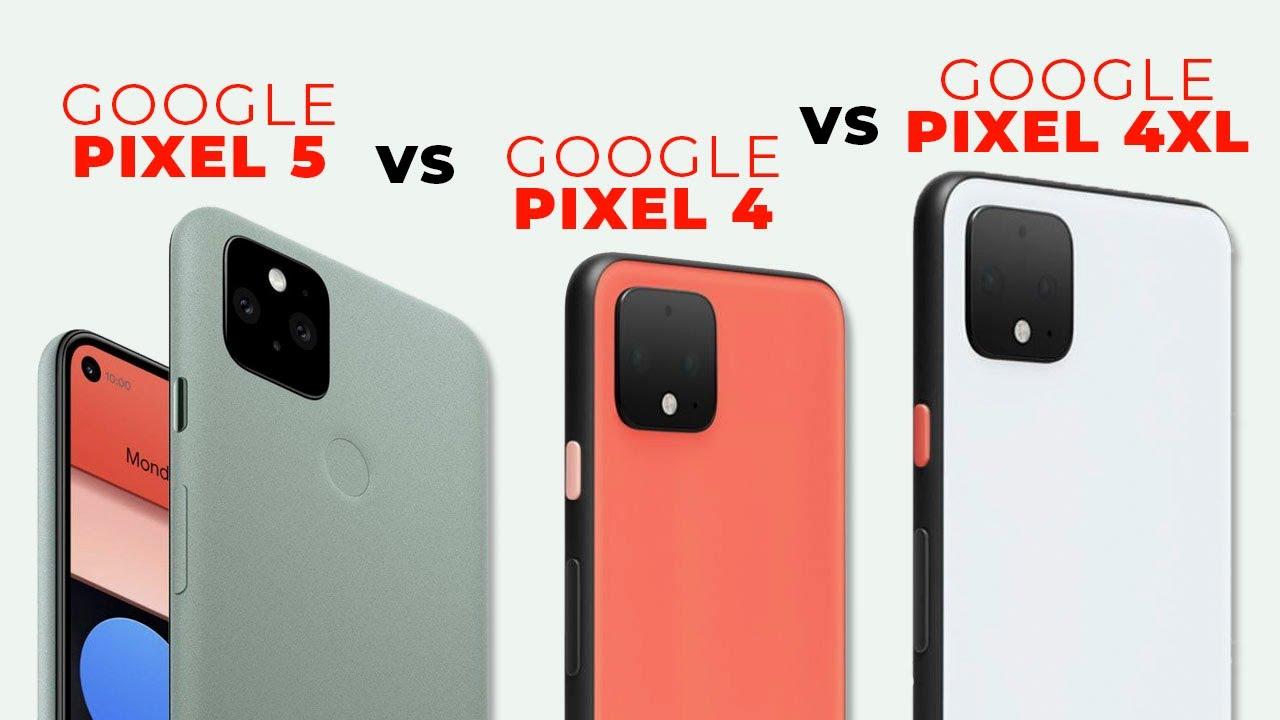
    No matter which of the Pixels you want to use next, this video will help make your decision easier as I compare this year’s Pixel 5 to the Pixel 4 and in some cases the 4xl which were released last year. I’ll be comparing specs, design, price and other features I believe will help you make the right decision. So without much ado, let’s dive in.

    Specs and Features

    In terms of specs, the Pixel 5 got an upgrade in some areas and a downgrade in other aspects of the phone. The Pixel 5 comes with a 6 inch OLED screen with 2340 by 1080 resolution while the Pixel 4 sports a smaller 5.7 inch pOled with 2280 by 1080 resolution. The Pixel 4xl on the other hand features a larger 6.3-inch pOled display with a resolution of 3040 by 1440.

    It might interest you to know that the Pixel 4xl has a QUAD HD+ panel whereas the Pixel 4 and 5 have full hd+ displays. All 3 phones however have a 90Hz refresh rate.

    When it comes to processor power and performance, the Pixel 5 is powered by the Snapdragon 765G which is a downgrade compared to the Pixel 4 and 4xl with both sporting the Snapdragon 855. The difference between these two processors is minimal as both can handle various simple tasks.

    The Pixel 5 got an upgrade in the memory department with 8GB of RAM and 128GB storage capacity. The Pixel 4 and 4xl came short with both offering 6gb of ram and 64gb storage with the option to upgrade to 128GB storage capacity – that’s if you want to pay more.

    Last year, the Pixel 4 came with just 2800mah battery which is not enough juice for a smart phone in this era. The 4xl got a 3700mah battery but still not a match to the 4080mah battery power the Pixel 5 has. So yes, we can say the Pixel 5 got an upgrade in the battery department.

    Pixel phones have never had a problem when it comes to camera quality because that’s the phone’s main selling point. All previous Pixel phones over the years have the best camera which is powered by Google’s awesome camera software. The story is not different from this year’s Pixel 5 which comes with a 12.2mp rear camera the same as the Pixel 4 and 4xl, with an f1.7 aperture to give you that sweet background blur in portrait mode. For selfies, the Pixel 5, 4, and 4xl all got an 8mp camera with an F2.8 aperture.

    The Pixel 4 and 4xl had an extra 16mp telephoto lens which has now been replaced with a 16mp ultra-wide-angle lens in the Pixel 5. You can still get your zoom shots on the Pixel 5 with Google’s Super Resolution zoom software.

    Other features on the Pixel 5 include Google’s Pixel imprint fingerprint sensor for unlocking the phone which denied the Pixel 5 motion sense feature. The Pixel 4 and 4xl have 3d face unlock for unlocking the phone and also motion sense that allows you to snooze alarm and silence calls without touching your phone.

    The Pixel 5 supports 5G whereas you only get 4G LTE on the Pixel 4 and 4xl.

    Design

    We all know Google is not big on design when it comes to their Pixel phones but I think they still try to give us something good. At first glance, Pixel 5 and 4 look very similar but a closer look reveals some differences such as the punch-hole display on the Pixel 5 which the Pixel 4 lacks. The Pixel 5 also has an aluminum back with the Pixel 4 sporting a glass back. Both are great if you asked me but you should know that aluminum is more durable.

    In terms of colors, Pixel 5 comes in just black which is my favorite and sorta sage. The sorta sage color is greenish though I doubt a lot of people will like it. Just black and clearly white are the main colors the Pixel 4s come in plus a limited edition color called Oh So Orange.

    Price

    The Pixel 5 was launched with a $699 price tag which I believe is the right price considering the specs it comes with. The Pixel 4s are however expensive with the 4 selling for $799 and the XL version going for $899. One good thing to note is that you might get the Pixel 4 or 4xl for less due to the fact that they’ve been on the market for about a year now.

    So, should you upgrade?

    I believe the answer to the question could be a yes or no. Yes, you can upgrade if you want a phone that supports 5G, has longer battery life with a modern design together with some new extra features.

    You don’t need to upgrade to Pixel 5 if you already own a Pixel 4 or 4xl. You can upgrade to Pixel 4 or 4xl if you own a Pixel 3 or 2. However, if having some new features, more RAM, and reverse wireless charging means a lot to you, then you can upgrade to the new Pixel 5.

    You can also upgrade to Pixel 5 if you want to enjoy new android updates from Android 12 to 14 because Google will end updates for the Pixel 4 with Android 13.

    The displays and processor power of the Pixel 5 and 4 should not really influence your decision because unless you’re superhuman, you won’t see much difference between an OLED display or a pOled display. And as for the processors, the Snapdragon 765G in the Pixel 5 can perform all the activities u undertake with ur phone the same as the Snapdragon 855 in the Pixel 4s. But then, if you plan on playing very high demanding 3d games on your phone, then you will need the Pixel 4.

    So, guys, that brings us to the end of my Pixel 5 and 4 comparisons. Do you plan on upgrading or do you even think an upgrade is necessary? Share your thoughts in the comments. Remember to subscribe and as always, catch you in the next video. Bye

  • Top 5 Photo Editing Apps For Android and iOS

    Top 5 Photo Editing Apps For Android and iOS

    What’s up guys and welcome to today’s new video on the top 5 photo editing apps for Android. There are lots of photo editing apps on Playstore and Appstore and instead of trying to figure out which one to use, I have put together the best 5 you should download and use. So without much ado, let’s get started.

    Lightroom mobile

    The first app on the list is Lightroom mobile. This I can boldly say is the most professional mobile photo editing app from Adobe. The app offers lots of tools to make editing of photos on your phone very simple.

    You can edit raw photos and easily change brightness, contrast, highlights, saturation, and other properties with simple sliders. These sliders give you full control over your editing process even on mobile.

    There are tools to help you crop your photo and give it a proper composition if need be. You can also view and compare different versions of your photo and select the look you want without losing the original photo.

    For people who do not really have the time or know which features to adjust to get the look they want, Lightroom offers good looking presets which you can apply for instant results. One of the features I like about this app is its smart organization feature.

    This feature uses Artificial intelligence to organize your photos by giving them tags based on the people or objects in them. This makes it easier to search for your photos with a single keyword. So if you’re looking for a professional photo editing app with all the features you can think of, then get Adobe Lightroom.

    Snapseed

    I found out about Snapseed a few years ago and I instantly fell in love with the app. It’s my go-to photo editing app for most of my photos. As soon as you import your photo into snapseed, the app gives you some looks or filters you can use to transform your photos instantly.

    You choose any of the looks and edit them to suit your photo or start your own custom editing with the variety of editing tools the app has to offer. There’s a tuning tool for editing the brightness, contrast, ambience, shadows, and even warmth of your photo.

    Other tools include the details tool to make details of photos pop. The crop tool for reducing your photos to standard sizes. You can fix skewed lines with the perspective tool. The white balance tool helps adjust the colors in your photo to give it a natural look. If there are unwanted objects or persons in your photo, you can remove them with the healing tool.

    You can also use the text tool to apply text to your photo. There are different types of text styles to choose from. The drama tool, vintage, lens blur, brush, face enhance and other editing tools make Google’s snapseed one of the best photo editing apps you can download.

    Afterlight

    Afterlight is the next app on the list. This photo editing app offers simple tools for quick and straightforward editing. It features basic photo editing tools to give you instant results. Just like any other editing app, Afterlight has vintage filters you can apply to your photo to give that old film look. Other textures and photo effects such as light leaks can be added to better enhance your photo.

    Afterlight also has a cropping tool that gives you 15 different presets to crop your photo to your liking. In all this app is a good photo editor for quick and easy edits.

    VSCO

    If you’ve just taken a photo and want to quickly edit and post it on social media, then VSCO is your go-to app. This app has a library of over 200 awesome filters that can drastically improve your photo instantly. You can even reduce the intensity of the filters to your preference.

    As if not enough, Vsco also has custom photo editing tools you can use to make your own changes to your photo. You can adjust exposure, contrast, clarity, white balance, skin tones, split toning, and more.

    After editing, you can share your photo directly to your Instagram feed or stories and even on WhatsApp and other social media platforms. There’s also the VSCO community where you can share your photos and also pick inspirations from other users in the community.

    Inshot photo editor

    Inshot photo editor is a decent photo editor that offers a new editing style with loads of filters, stickers, and other effects together with its traditional photo editing tools. With over 60 filters such as Lomo, pink, dew, dark and warm, you can change the look of your photo with a single tap.

    Filters can be adjusted to suit your photo. Other photo effects such as background blur, glitch, light leaks, splash, dust and scratches, fog, and others are all available to add even more dimension to your photo.

    You can create collages with your photos from over a hundred grids, frames, and filters. Inshot is a very good and simple photo editing app and I bet you’ll like it for all the many photo effects it has to offer.

    That brings us to the end of my top 5 professional photo editing apps for Android. If I missed any other awesome photo editing app, share it with us in the comments section. Remember to subscribe if you haven’t and see you in the next video.

  • Top 6 Professional and Best Video Editing Apps for Android [2020]

    Top 6 Professional and Best Video Editing Apps for Android [2020]

    What’s up guys and welcome to today’s video where I will be sharing with you 5 awesome apps you can use to edit videos on your phone professionally. without much ado, let’s get into it.

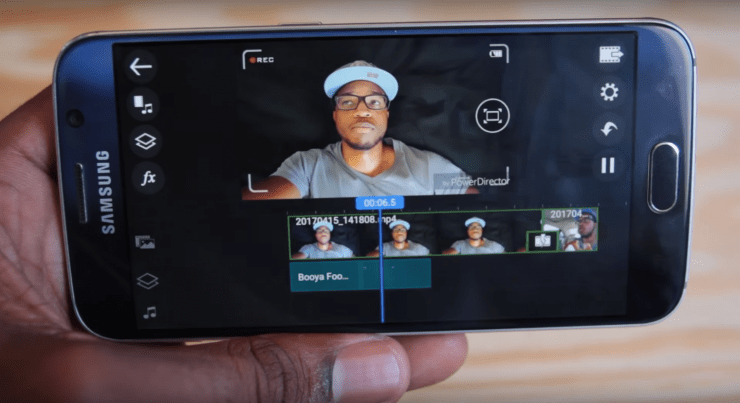
    Power Director

    The first app on the list is Power Director. this is one of the popular video editing apps and I can boldly say the best on Playstore. This app offers lots of features to make your video editing as seamless as possible’

    You can trim, rotate videos, control brightness, colour, saturation, and video temperature. Animated texts ad titles can also be added to give your video that professional look.

    You can choose from the numerous filters available to give your video a nice colour grade

    If your video is not stabilized, the app offers a feature to help with that. There are lots of transitions to also choose from and the good thing is, you get to preview them before applying them to your video. Once you’re done editing, you can export in 720p or upgrade to pro to be able to export in 1080p or 4k. The pro feature also comes with lots of stock videos and photos you can use in your videos

    Filmorago

    Filmorago is one of the simplest video editing apps because it features a very simple UI that makes the app easy and fun to use. You can easily trim or split your videos, add and control music volume, add titles and text, and more. The app also allows you to bring life to your video by adding stickers, filters, and other effects.

    Filmorago also offers some smooth transitions and also gives you full control over them by letting you decide its duration. the free version only supports exports in 360p, 480p, and 720p. you have to upgrade to be able to export in 1080p and also remove the filmorago watermark.

    KineMaster

    The next video editing app u should try is Kinemaster. Just like its predecessors, this app offers some simple features u can use in editing your videos. Some of its key features include the ability to combine different layers of photos, videos, text, and other effects. There are also tools you can use to adjust colour and enhance the overall look and feel of your video. the app also allows u to add music or even record a voice over for your project. Exports can be done in your preferred resolution, frame rate, and bitrate. higher resolutions come at a cost.

    Quik

    Just as the name implies, Quik is a video editing app for creating short and easy video montages for social media. It offers a variety of video styles to get you started. you can add transitions, graphics, and filters within minutes.

    There is the option to add custom text and even emojis to your video. The app also has a music library with lots of music you can use for your video and if you don’t like any, you can upload your own music. Once you are done editing, u can save the video on your phone and post it on social media.

    Pixel Flow

    When you’re done editing your video and want some cool titles to complete it, then get pixel flow. this app’s main purpose is to provide you with lots of title animations for your video. these animations can be previewed before adding them to your videos.

    You can choose titles based on the theme of your video. There are gaming titles for gaming videos, cooking titles for cooking videos, sports, tech, and more. u can stick with the free version and still get some cool titles to work with but if you want more options, then you can upgrade to pro.

    That’s all for today’s video guys. if you have any video editing apps you would like us to try, share them with us in the comments.

  • Top 8 Android 11 Features You Need To Look Out For

    Top 8 Android 11 Features You Need To Look Out For

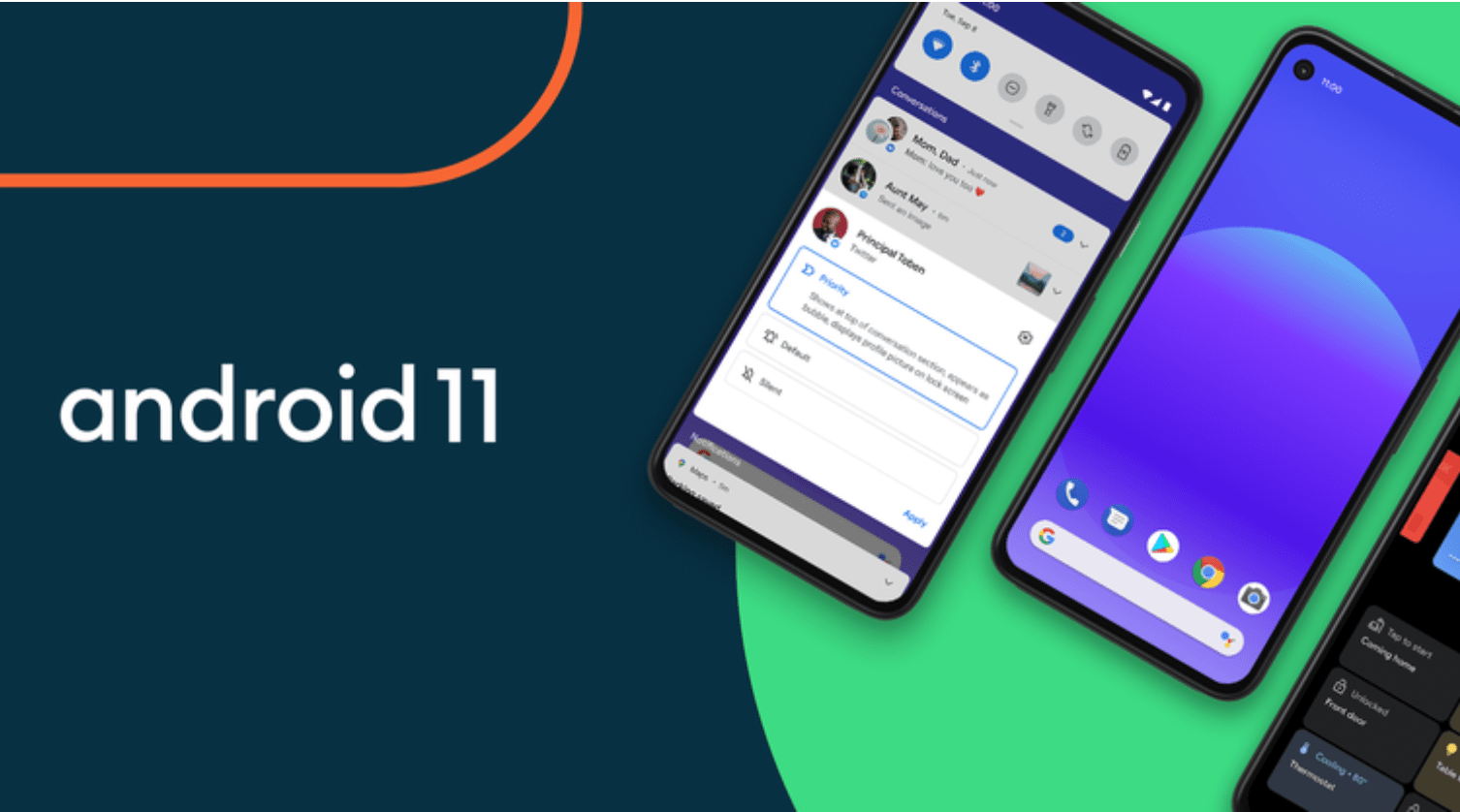
    Google has officially released Android 11 and it’s available for download on all Pixel phones from Pixel 2 to Pixel 4a. 

    Some other phones such as OnePlus, Xiaomi, Oppo, and Realme will also get the new update.

    The new Android 11 comes with lots of great features and I’ll be sharing some of them with you in this video. So without much ado, let’s dive in.

    One key feature is bubbles. Bubbles make it easier for you to reply messages from apps such as Facebook messenger, telegram and Google messages by displaying a floating circle or bubble of the app on your screen.

    You should be used to this if you use Facebook messenger app often. You can turn bubbles on or off for various apps. This feature is however not compatible with a lot of apps.

    One of the highly requested and talked about features is the built-in screen recorder. You can now record your screen with a single tap. You can choose which audio to record, be it from a microphone or your phone. There’s also an option to not record audio at all. This feature means You no longer need third-party apps to record your screen.

    The recent apps section has also received 2 new features namely screenshot and select. You can now take a screenshot of the recent app with just a tap and even share or edit the screenshot instantly. The select feature allows you to select text on the recent app. Lots of apps make it difficult to select text but that’s going to change with this new feature. 

    The dark theme can now be customized. You can turn it turn off and on automatically so it takes effects at specific times. If you’re a dark theme lover like myself, then you can leave it on as long as you want. 

    New icon shapes and styles have also been added. You can choose from the 4 styles available or create your own custom style by choosing your font, icons colour and icon shapes. 

    For added security, Google revamped the permissions feature. Previously, you could only allow apps permission when the app is in use or make the app request permission every time or even deny the app permissions altogether. Now, you have the ability to remove app permissions if the app has not been used for some months. 

    There’s now a notification history that keeps track of all your notifications in the past 24 hours. It’s turned off by default and to turn it on, go-to apps and notifications, tap on notifications and select notification history and turn it on. It’s that simple. 

    There’s also a sound menu which pops up when you tap the volume control button. It makes it easy for you to control the various sound settings for media, calls,, alarms and ring tones. U can tap see more for access to the complete sound settings for your device. 

    So, guys, these are the Android 11 features I’ll like to share with you today. If there are other cool features I didn’t touch on, share them with us in the comments.

  • Watch: How to Use GhanaPostGPS to get your Digital Address in Ghana

    Watch: How to Use GhanaPostGPS to get your Digital Address in Ghana

    Update: The Digital Address is a requirement for the Ghana Card Registration. You should check and know your digital address and keep it safe.