Category: Mobile Apps

87425

  • Twitter’s 140 limit no longer affects @usernames in Replies

    In a blog post today, twitter has said it it is no longer counting usernames against character limits on tweets. If you are an ardent user of twitter, you should know tweets are limited to 140 characters (and even videos to 140 seconds). Usernames, especially when mentioning tweets or replying to tweets had the tendency to limit the user on the amount of characters that could be tweeted.


    This update to twitter comes as no news, especially when twitter has already stopped counting links and images against the 140 rule.

    We wrote an article on how you can take advantage of the new rules to tweet better. You can read that here: How to use Twitter’s new 140 Rule

    Here are excerpts from Twitter’s original blog post earlier today:

    With this change, we’ve simplified conversations in a few ways:

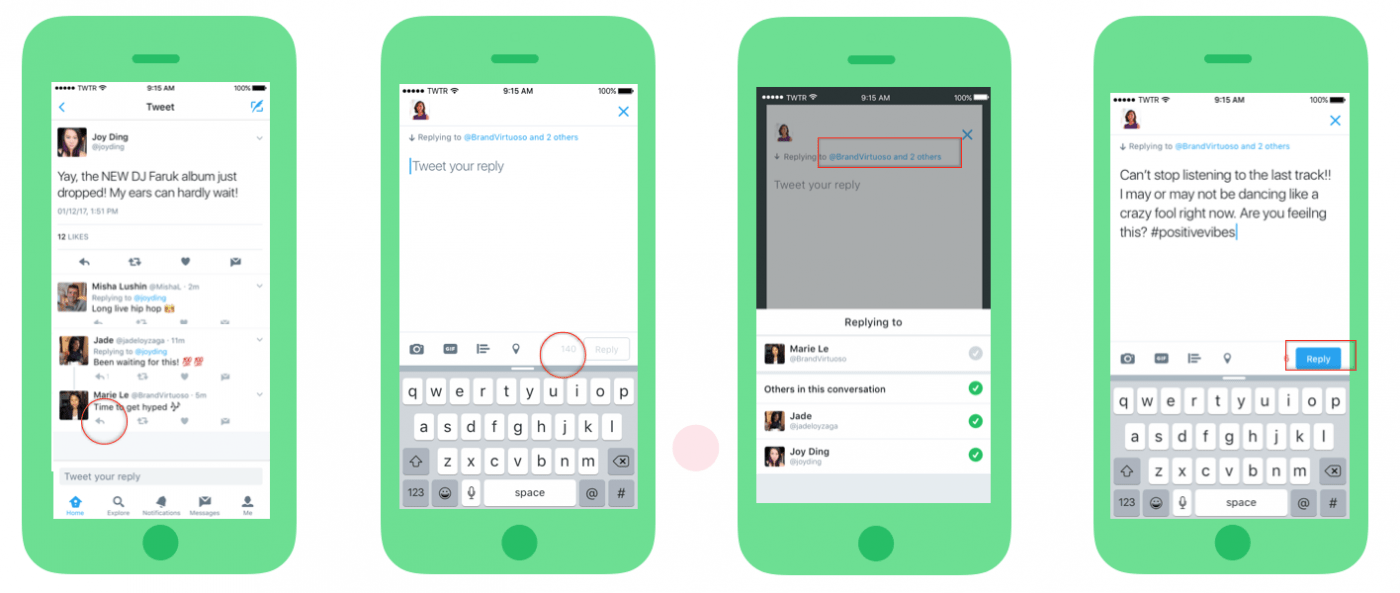
    Who you are replying to will appear above the Tweet text rather than within the Tweet text itself, so you have more characters to have conversations.

    You can tap on “Replying to…” to easily see and control who’s part of your conversation.

    When reading a conversation, you’ll actually see what people are saying, rather than seeing lots of @usernames at the start of a Tweet.

    With this change, we expect a lot more people to enjoy the twitter experience. Keep in mind however that replies can display up to a 50 people only!

    Don’t you love twitter now? Tweet at us: @mfidiedotcom

  • 3 Reasons why Snapchat is still way better than the new WhatsApp Status

    WhatsApp Status – the latest addition to the popular Instant Messaging App seems to be fun for a lot of users. Snapchat, on the other hand, is still very much popular and I personally have not seen any significant drop in the number of snaps my friends send in.

    This morning, my friends were speaking about how WhatsApp is killing snapchat and why snapchat will not survive the hit. I personally think when it comes to the art of storytelling on smartphones, Snapchat is leading the way. Today, I look at 3 ways snapchat is killing the storytelling game. Maybe in the future, WhatsApp may catch up. For now, snapchat is doing it all right.

    1. Photo and Video Filters

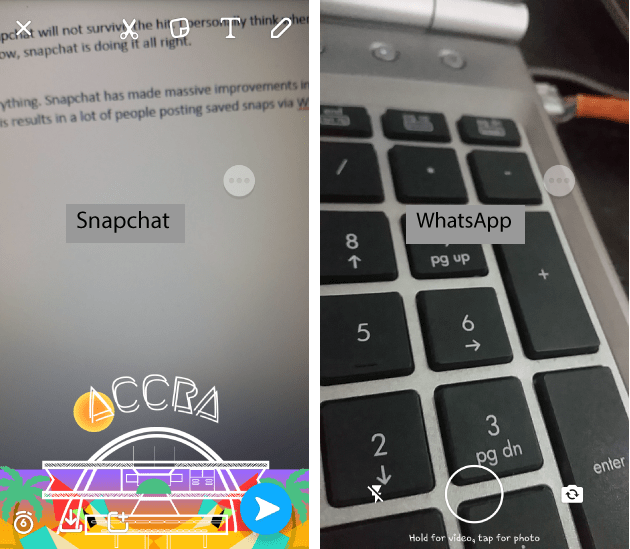
      In the world of mobile photography and videography, filters seem to be almost everything. Snapchat has made massive improvements in the scene of filters. Geofilter, Data, Color, Rewind, and all those funny faces and emotions – Snapchat is all about the filters. It’s quite sad WhatsApp does not offer any filters as at now and this results in a lot of people posting saved snaps via WhatsApp stories. What a pity!

    Filters are present in Snapchat but WhatsApp status does not have the feature
    Filters are present in Snapchat but WhatsApp status does not have the feature
    1. Snapchat Discover

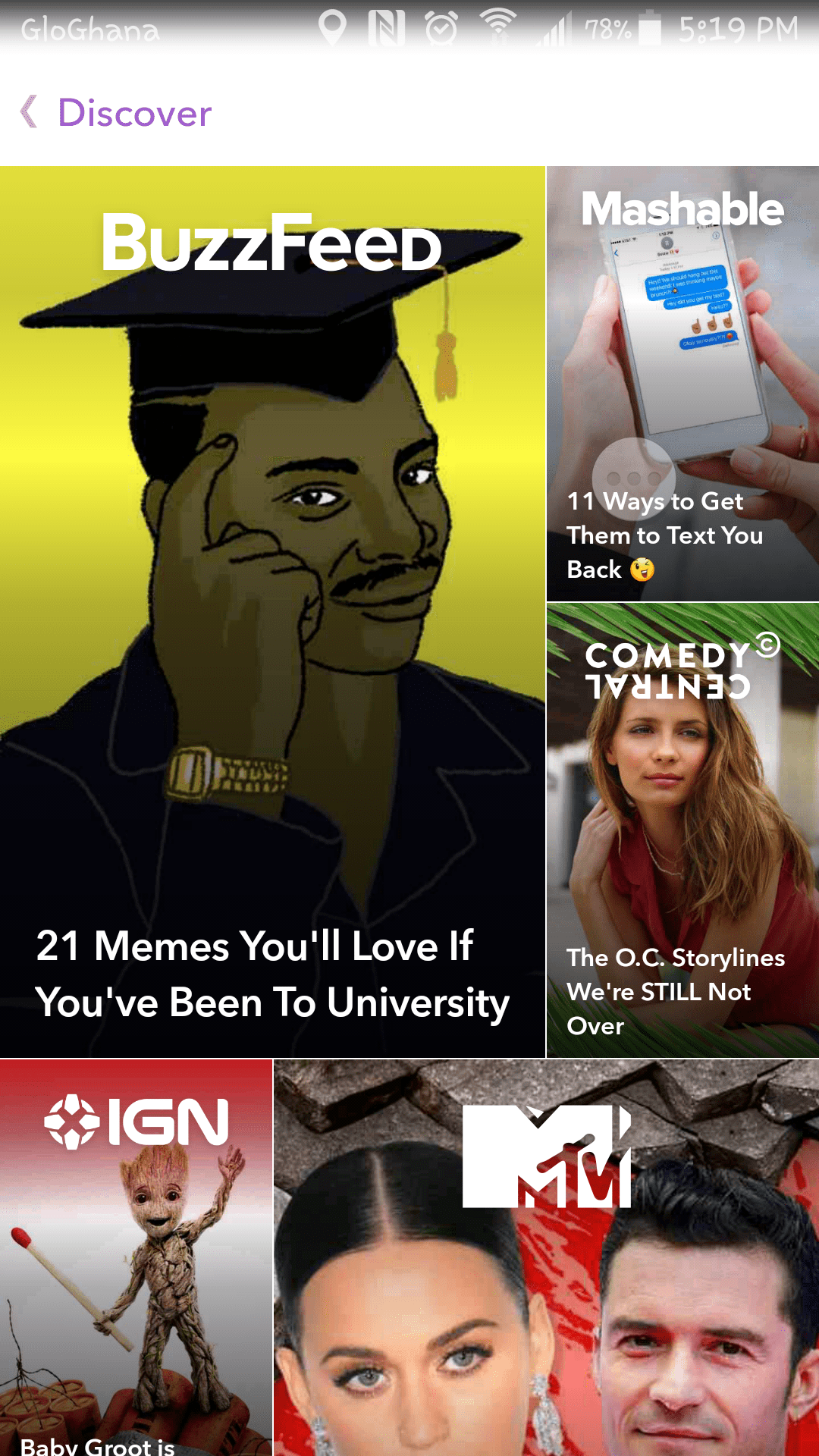
      Snapchat combines the best of social networks, magazines, and television in a way that keeps users informed about the stuff that matters to them. This feature allows you to see stories from popular publishers like IGN, Buzz Feed, Cosmopolitan and Daily Mail. This helps users to get more from the app when stories get boring (which is gladly never the case for me). WhatsApp status does not have this fine feature, although I suspect it will be added soon – for the ads.

    The Snapchat Discover Feature
    The Snapchat Discover Feature
    1. Privacy

      This is one reason why it may take a long time for me to send a status on WhatsApp. Privacy is a big issue nowadays and WhatsApp’s privacy settings are just not enough. For one, a lot of people have contacts on their WhatsApp because they have saved their numbers one way or the other. Imaging sending a status that can be seen by your boss, friend, family, business friend and workmate? Snapchat solves this by giving you maximum control over you even add in the first place. Snapchat certainly handles privacy on stories better than WhatsApp.

    Well, WhatsApp just entered the storytelling game and sure has a lot of ways to improve; but right now, I would choose snapchat over it for a lot more reasons than the three mentioned in this post – including the lack of a data saver.

    Have you used the WhatsApp Status feature? What’s the experience so far?

  • How to go back to an Older Version of WhatsApp: A Step by Step Guide by Mfidie.com

    How to go back to an Older Version of WhatsApp: A Step by Step Guide by Mfidie.com

    Over the last days, WhatsApp has been trending with the latest update. This update adds additional functionality to the app in a revamp style of the “status”. Although a lot of Users are happy with the update and are enjoying the user experience, a few more people seem not to love the idea and would rather go for an older version of WhatsApp. Check out what people have been saying about the update on Social Media. Now how do you get a WhatsApp Older Version that you are used to?

    First of all, Whatsapp does not allow users to downgrade their version of the application. We would have to do this through the manual way, but relax, it is easy and not harmful. This guide applies to Android Smart Phone users only.

    WhatsApp does not want you to downgrade your app
    WhatsApp does not want you to downgrade your app

    How to Downgrade your WhatsApp

    1. On your Androip Phone, Go to Settings > Security and toggle on the Unknown Sources option that will allow you to install apps from third-party sources. The box next to “Unknown Sources” should be unchecked.
    2. You’ll get a prompt warning you that installing apps from unknown sources could put your device at risk. Tap on OK.
    unchecked. 2.You’ll get a prompt warning you that installing apps from unknown sources could put your device at risk. Tap on OK.
    unchecked.
    2. You’ll get a prompt warning you that installing apps from unknown sources could put your device at risk. Tap on OK.
    1. Open WhatsApp on your device and go to Settings > Chats > Chat Backup and click on the green back up option to take a complete backup.
    Open WhatsApp on your device and go to Settings > Chats > Chat Backup and click on the green back up option to take a complete backup.
    Open WhatsApp on your device and go to Settings > Chats > Chat Backup and click on the green back up option to take a complete backup.
    1. Uninstall WhatsApp from your device by going to Settings > Applications Manager and Tap on WhatsApp. Then Tap Uninstall.
    4.Uninstall WhatsApp from your device by going to Settings > Applications Manager and Tap on WhatsApp. Then Tap Uninstall.
    4. Uninstall WhatsApp from your device by going to Settings > Applications Manager and Tap on WhatsApp. Then Tap Uninstall.
    1. Open your smartphone browser and go to this link. It leads to WhatsApp version 2.17.60. Download V2.17.60 APK file. Download the file and wait for it to finish loading.
    5.Open your smartphone browser and go to this link. It leads to WhatsApp version 2.17.60. Download V2.17.60 APK file.
    5. Open your smartphone browser and go to this link. It leads to WhatsApp version 2.17.60. Download V2.17.60 APK file.
    1. You can click  on the notification to open the download for install or Go to the Downloads folder on your Android phone and tap on the downloaded APK file.
    1. On the next screen, tap Install at the bottom right to begin the installation.
    6.Go to the Downloads folder on your Android phone and tap on the downloaded APK file. 7. On the next screen, tap Install at the bottom right to begin the installation.
    6. Go to the Downloads folder on your Android phone and tap on the downloaded APK file. 7. On the next screen, tap Install at the bottom right to begin the installation.
    1. Open WhatsApp, Verify your number and Click on Restore. That’s it! You are back on the good old whatsapp.


    8.Open WhatsApp, Verify your number and Click on Restore. That’s it! You are back on the good old whatsapp.
    8. Open WhatsApp, Verify your number and Click on Restore. That’s it! You are back on the good old whatsapp.

    Once you do all these, remember to disable automatic updates for your WhatsApp. Would you go back to an older version of the app? Was this guide useful? Leave a comment.


  • I don’t like the New WhatsApp Update (WhatsApp Status) and this is why

    I don’t like the New WhatsApp Update (WhatsApp Status) and this is why

    Another WhatsApp Update! It has been said countless times that “Change is a Constant” and we should expect it, whether positive or negative. WhatsApp has been one of the best Instant Messaging (IM) apps in a very long time and it has kept this position by constantly changing and offering the best services for a very small charge and more recently, even for free.

    Features such as group chats, end to end encryption, voice and video calling and two step verification have all been necessary updates to make the application relevant. Is the addition of the new Status feature really relevant? I don’t think so.

    To many of its users, WhatsApp is a fundamental IM app – and that’s all they want it to be. Personally, it’s frustrating each minute I pick up my device, launch WhatsApp and see that Status thing. I simply don’t like it and I am thinking of reverting to an earlier version of the app. Well, the feature was not an opt-in and so I may have to cope it with sooner. I may not be a fan of the status feature right now, but in reality, what I don’t like is the new overall update to the app.

    Why I don’t like the Whatsapp Update

    1. Old Status is gone!

      Yeah! If you haven’t realized, old status is gone. You can’t write those one liner text emoji updates there anymore to let people know what you have been up to. Even more recently, most people have used the old status as a way to advertise their goods and services; and in just one update its gone? For most people – even those who enjoy the new status, it would be great to have the old status back. It has been rumored to come back in a new update as “tagline”. I can’t wait for that.

    2. Mobile Data Usage

      When you are not on Wi-Fi all you think about is “Mobile Data”. For Instagram and Snapchat, there is a built in mechanism, which users can use to reduce the amount of data they use in the apps. You can read about that here – How to use less data on Instagram and Snapchat. However, WhatsApp does not have this for their Status. This means you are likely to use 5X more data on WhatsApp if you are going to frequent the status feature. What’s worse in this case is that once you start viewing a status, the next status in line starts loading and plays automatically. Ahba! WhatsApp should have included mobile data controls for their status feature and I expect to see that in subsequent updates. Until then, sorry.

    3. Where are my contacts?

      At first glance, it is difficult to even send a message to a new contact, because that functionality has been “revamped”. You will have to tap the bottom right green floating bar to access your contacts, and there are no statuses attached to them. Well, status now are media files. I loved to be able to scroll through my contacts and snoop, reading status and checking profile photos every now and then. Thanks to this Update, I can’t enjoy that anymore.

    When you first get the status feature in the whatsapp update
    When you first get the status feature in the whatsapp update

    There are other reasons why I don’t like this update, but which may be able to control. One of these is the privacy settings. Well, I don’t expect all of my contacts to be seeing my updates, If I am going to be using it like I use snapchat. This could get a lot of people into trouble. Most people won’t check those privacy settings and as it is in every social media app (I can’t refer to WhatsApp as a mere IM anymore), privacy is key.

    Don’t be surprised if you don’t see status from me. Just know this – I don’t like it.

    Have you tried the status feature yet? Any reason why you like or hate it? Let’s hear you in the comments section below.

  • Why do we say WhatsApp “DP” when it’s just a profile photo?

    Why do we say WhatsApp “DP” when it’s just a profile photo?

    The internet slang that is quite the norm – WhatsApp DP. When I first heard the word DP, I was sort of confused as to what it meant. Someone asked me innocently – “Shepherd, won’t you change your WhatsApp DP?’.

    I was very new on WhatsApp then and in order to prove to the person that I was very tech savvy, I refused to ask what the “WhatsApp DP” actually meant. I spent the next thirty or so minutes scrambling through all of WhatsApp’s settings just to find where this “DP” thing was hidden. I had no luck. There was nothing I could find in the settings like DP or some words which could be shortened as such.

    Later that day though, I realized what my dear friend was referring to as a DP was actually a profile picture. I was confused then, why call something DP when you could just say Profile Picture or PP? Sometime later, I found out the real meaning of “DP”. “DP” actually stood for Display Photo. DP aka Display Photo is how BBM calls its version of “Profile Photo”. BBM was leading the Instant Messaging (IM) race on mobile then and it had quite a lot of users.

    BBM was released in 2006; the first version of WhatsApp came out in 2010.

    Many of the people who started using WhatsApp might have had prior experience or interaction with BBM. It is no surprise that the WhatsApp Profile Photo overtime continued to be referred to as a DP – an unworthy adaptation of the now almost defunct Black Berry Messenger. In my opinion, the continuous use of “DP” instead of “Profile Photo” is typical case of the “Bandwagon Effect”.

    Bonus

    Did you know you can hide your WhatsApp Profile Photo from people who are not in your contact list? This is especially useful if you want to make sure no one is stalking you just because they have your contact on your phone? It’s simple and takes just less than two minutes to do.

    On iOS:

    1. Go to your WhatsApp application and open “Settings”, see the picture.
    2. Tap on “Account” option and then follow “Privacy” button.
    3. On this screen you can see the second and third options of “Profile Photo” and “Status”
    4. Open both options one by one and set them to “My Contacts” if you want to show your profile picture to your contacts only and to hide them from everyone, choose “Nobody” from the options. You’re done.

    On Android:

    1. Open WhatsApp application on your phone.
    2. Go to Settings -> Account -> Privacy.
    3. Look for Profile photo , click on it and select “My contacts” if you want to show your profile picture to your contacts only and to hide them from everyone, choose “Nobody” from the options. You’re done.

    I don’t see people referring to the “DP” rightly as a profile photo anytime in the future. Did you even know DP meant display photo? Let’s hear what you think below.

  • How to use Twitter’s 140 Characters Rule to the fullest

    Everyone seems to be making updates and changes nowadays and Twitter has just made a big change to the way tweets work. This is important!

    Twitter is limiting what types of content will use up its 140-character limit.

    Slow down. This is twitter

    Now, @names in replies, media attachments (like photos, GIFs, videos) and quoted Tweets will no longer be counted against the valuable 140 characters that make up a tweet. This means that people can interact more and attach more without having to give up some bits of their text.

    Well Done Twitter. Now we can express ourselves more

    But how can you make use of these new changes? Well, here are a few tips.

    • Say More when you reply a tweet

    With this new update, @names will no longer count against the 140 characters. Now, whenever you start a tweet in reply to another user, you still have room to say everything you wanted to in your tweet, without having to consider the length of their Twitter handle.

    You could even add Media files at the end of the tweet and it would still not count into the 140 characters. Say more, express yourself better.

    • More Visuals, Engage your followers.

    A study by Twitter found that photos average a 35% boost in Retweets and videos get a 28% boost.

    Visuals give you more reach and engagements on twitter

    Although Visuals present numerous benefits, they had the tendency to reduce the length of what has to be said. That is in the past now! Photos, Videos and GIFS added at the end of tweets will not add up to the 140 Characters. Go on and add that meme.

    Why? At least we will manage this new update

    Do you love twitter? What do these updates mean to you? Tweet at me @Pidho1, let’s get the convo going. 

  • Top Dating Apps in Ghana (2017) according to Google Play Store

    Top Dating Apps in Ghana (2017) according to Google Play Store

    This post was part of the Valentine Series. 

    We look at the top Dating Apps in Ghana, according to Google Play Store! 14th February is Valentines Day. In this era of  technology and smartphones, technology the love affairs go online too.

    In February 2017, Mfidie.com put up posts dubbed “#ValentineSpecial” with a focus on Technology and our love lives. This was the third Post in the series.

    You can read the first part here: #ValentineSpecial: For Lovers – Every Couple should be using this app and the second part here: #ValentineSpecial: Valentine Messages for your Boyfriend or Girlfriend

    Well, if you are single and looking to date, there are a lot of online resources you can resort to. Most likely, you will be tempted to check out an app that would link you to a possible match.

    We look at the top 10 dating apps on the Google Play Store. You should check them out especially if you are single and have still not found a date for Valentine or if you simple want to “explore”.

    Top 10 Dating Apps in Ghana

    Tap on the name of the app to automatically download it from the Google Play Store.

    Rank App Name Publisher
    1 Hitwe – meet people for free Hitwe
    2 Meet4U – Chat, Love, Flirt! WILDEC LLC
    3 OkCupid Dating okcupid.com
    4 Mingle2: Online Dating & Chat Minglenet
    5 FastMeet: Chat, Flirt and Love Mobiljoy
    6 Find Real Love—Premium Dating WILDEC LLC
    7 Jelly – Meet new People Jaumo
    8 Sugar Mommas Dating Apprelate
    9 Adult Dating Găsește Millionai Online Dating, Meet and Date
    10 Moco – Chat, Meet People JNJ Mobile, Inc

    What do you make of these Dating Apps in Ghana? Do you use any dating app that is not on the list? What do you think of these apps?

    Share your thoughts with us in the comments below and don’t forget to share, tweet and rate this post.

    This post originally appeared as part of Mfidie.com’s “Valentine Special” series in February.

  • How to prevent someone from Hacking your Whatsapp using 2 step verification

    How to prevent someone from Hacking your Whatsapp using 2 step verification

    Hackers are always looking for ways to exploit individuals. Most people share sensitive information on social media every day and it is important to stay safe when using our various mobile apps. In this tutorial, we look at how to enable WhatsApp’s feature for Android, iOS and Windows Phone – the 2 step verification.

    When activated, this feature would enable you to verify your number on Whatsapp on a new device more securely by using a six-digit passcode.

    This would prevent someone from cutting you off WhatsApp and installing the app on a new device even if they successfully clone your phone number or have access to your text messages. It is strongly recommended to activate this feature and this tutorial will guide you right through it.

    When activated, this feature would enable you to verify your number on Whatsapp on a new device more securely by using a six-digit passcode.

    This would prevent someone from cutting you off WhatsApp and installing the app on a new device. It is strongly recommended to activate this feature and this tutorial will guide you right through it.

    How to Activate 2 Step Verification on WhatsApp to stop hacking

    1. Open Whatsapp, tap on the menu button and go to your settings. Click on “Account”

      Open Whatsapp, tap on the menu button and go to your settings. Click on "Account"
      Open Whatsapp, tap on the menu button and go to your settings. Click on “Account”
    2. Under account, tap on “two-step verification”. On the next screen, tap on “enable”. You will then be presented with a screen to enter a “6-digit passcode”.

      Under account, tap on “two-step verification”. On the next screen, tap on “enable”. You will then be presented with a screen to enter a “6-digit passcode”.
    3. Enter your 6 digit passcode and make sure it is passcode you can remember, but another person can not guess. Don’t use a birthday or an anniversary.
      On the next screen, you would be required to enter an email address which you can use to reset your passcode in any case you forget it.
      You could skip this, but I recommend you enter an email you have access to and confirm the email on the next screen.

      Enter your 6 digit passcode and make sure it is passcode you can remember, but another person can not guess. Don't use a birthday or an anniversary. On the next screen, you would be required to enter an email address which you can use to reset your passcode in any case you forget it. You could skip this, but I reccommend you enter an email you have access to and confirm the emal on the next screen.
      Enter your 6 digit passcode and make sure it is passcode you can remember, but another person can not guess. Don’t use a birthday or an anniversary. On the next screen, you would be required to enter an email address which you can use to reset your passcode in any case you forget it. You could skip this, but I recommend you enter an email you have access to and confirm the email on the next screen.
    4. Whatsapp will take a few seconds to apply the settings. Once completed, tap on “Done”. That’s great. You have enabled two step verification for your WhatsApp account.

      Whatsapp will take a few seconds to apply the settings. Once completed, tap on "Done". That's great. You have enabled two step verification for your whatsapp account.
      Whatsapp will take a few seconds to apply the settings. Once completed, tap on “Done”. That’s great. You have enabled two step verification for your WhatsApp account.

    Kindly note that if you ever receive an email to disable 2-step verification, but didn’t request it, do not click on the link.

    It could mean that someone is attempting to verify your phone number (hack you) on WhatsApp.


    Hackers will always try to steal your information and get into your WhatsApp. it is your responsibility to secure your account.

  • Is an antivirus necessary for an android smartphone?

    Is an antivirus necessary for an android smartphone?

    Do you use an antivirus on your android phone?

    Sometime this year, a friend posted in a WhatsApp group that he had lost all of his contacts because his phone was attacked by a virus. Another friend quickly suggested that he installed a certain anti virus on his phone to prevent such loss.

    I couldn’t help but think of the many reasons that could lead to the loss of contacts. At a point, I imagined his contacts may just be “hidden” or his “contacts” app does not even have permission to access this “contacts’. Anyway, I later realized he was running Android version 5.1 Lollipop. Did he really need an antivirus on his phone? I doubt it.

    What is an anti-virus?

    In simple terms, an antivirus is any software (or app) that is used to detect and destroy computer viruses. Your smartphone is a computer too. The Android OS has been taunted over the years has been very vulnerable to viruses and with this “fear of viruses”

    Do you need an antivirus?

    You certainly don’t need an antivirus if you run Android version 4.2 and above. This is because Google includes automatic scanning as part of the Play Services to keep you and your device safe.

    Google’s security services for Android are designed to provide the best security for mobile devices — by default and free for all Android users. As a result, data about the Android ecosystem has shown that Android users face very low risk from potentially harmful applications and other threats. Users can, of course, use any solution they would like, either in addition to or as a replacement for the Google solution, but our goal is to make that purely a matter of choice, not a matter of protection.

    As an added step of protection, you should only install apps from the Google Play Store and avoid pirating or installing apps from other sources. Most often, these side-loaded apps (apps that have been installed) outside of the play store. Most of these “cracked” apps contain malicious software.

    Percentage of Android Version Users Worldwide
    Percentage of Android Version Users Worldwide

    What can you do to be safe?

    • Make sure Android Device Manager is on
      Be prepared if you ever lose your phone by confirming Android Device Manager is set up on your device. Make sure to sign in with your Google Account and turn on “Remotely locate this device” and “Allow remote lock and erase.”
    • Encrypt your device
      Encryption helps keep your data safe if you lose your device. If your Android device is running Jelly Bean (Android 4.1) or higher, you can encrypt the data on your device in Settings > Security > Encrypt phone.
    • Review Security Settings
      Go to Settings > Security and review all of the options there. Make sure they are satisfactory enough for you and you understand what all of those mean.

    If you are still interested in android antivirus and would want to check them out, there is a lot on the play store. My favourite of them is ESET Mobile Security & Antivirus. Most of these anti-viruses apps on the play store offer additional functionality you can explore. All the best!

    Have you ever used an antivirus on your android smartphone? Do you look forward to using one? Let us know in the comments.

  • How to Send Secret Messages on Facebook

    How to Send Secret Messages on Facebook

    ​Facebook Messenger’s End-To-End Encryption Is Now Live For All Users after being in beta for some time now.

    WhatsApp (which is also owned by Facebook) already has end-to-end encryption. Now, Facebook has finally introduced this end-to-end encryption to it’s Messenger platform.

    You can also access the option when you click on “details” on any of your contacts on Messenger

    There are an estimated 900 million Facebook users and they can all now access this “Secret Conversations” option on Messenger. Secret Conversations is an opt-in (meaning you have to choose to use it) functionality that allows users to encrypt their messages so no one can read them, not even Facebook itself.

    Due to encryption, you can only use one device at a time to chat when using the feature.

    Once you make use of the Secret Conversations, you are presented with a message that reads, “Your messages are already secure, but Secret Conversations are encrypted from one device to another.”

    If your Messenger app has been updated, you will see a Secret option located on the top right-hand side of the “new message” screen.

    The encryption feature allows users to choose an expiration time for the message, like on Snapchat.

    Secret Conversations take you to a whole new chat screen

    The time period will range from five seconds to a complete day. This way, your messages will be deleted from the core as soon as the set time expires.

    You can choose how long it takes for your message to disappear after it has been seen.

    Remember, the feature is only available to those who have updated their apps. If you want to secure your conversations, then be sure to update your Messenger app.

    What do you think about this feature? Would you use it?