Author: Gabriel Agbobli

  • How To Find out When a Twitter Account Was Created

    How To Find out When a Twitter Account Was Created

    There are several social media platforms in the world – some of them are free and some are not free. Among these social media platforms, one of the most popular and most used social media platforms is Twitter. Prominent individuals in the world like presidents, footballers, CEOs, and even companies use Twitter as their official medium of commenting on issues.

    The reason why most of them prefer Twitter is the fact that the tweets that are made on the platform are regulated in order to avoid misinformation, language, violence, etc. Users who s

    According to research conducted by Statista, there are 211 million monetizable daily active users on Twitter. Apart from Twitter being a social media platform, users can also get breaking news from entertainment to sports, technology, and politics from the top news agencies around the world.

    On certain occasions, there is the need to find out when a Twitter account was created for one reason or the other. But unlike Facebook, telling when a Twitter account was created by mere inspection will yield no good result. Instead, there are several apps, software, and websites you can use to find out when a Twitter user created his or her account in a few clicks.

    This guide is going to show you how to tell when a Twitter account was created for free in just a few clicks. To begin with, all you need is a device that can connect to the internet and an active internet connection.

    How To Tell When a Twitter Account Was Created

    There are several ways you can tell when a Twitter account was created. Some of the methods cost money and some of them are completely free. But in this guide, I am going to show some of the free methods.

    How To Tell When a Twitter Account Was Created Using Twitter Join Date

    1. Open a browser on your device and type twitterjoindate.com in the address bar and press ENTER
    2. Enter the username of the Twitter account you want to find out without adding the at sign
    3. Click on Search
    4. On the next page, you will find the day, month, and the year the Twitter account was created in addition to the first ten tweets that were made from the Twitter account.

    How To Tell When a Twitter Account Was Created by Viewing the Page Source Code

    This method is a bit technical, and it also includes two (2) main steps. The first step is by viewing the source code and the second is by doing a simple word search.

    • Visit Twitter on your computer
    • Search for the user whose account you want to find the date the account was created
    • Click on the profile to go to the person profile page
    • Right-click on any page of the screen
    • Select View Page Source or (View HTML Source). Depending on the browser, this may vary slightly
    • A bunch of code will be displayed on the screen
    • Bring up the search box of your browser. Usually, this could be done by typing Ctrl+F
    • Once the search box appears, type in created_
    • The browser will locate it and next to it you will find a date and time. This is the date and time the account was created.
    • This method changes from time to time as Twitter often changes its source code but you can try this method out and see if it works for you.

    Conclusion

    After reading this article and following all the methods, you should be able to find out when a Twitter account was created for free. This guide focused mainly on the freeways you can go around this, but you can also search online to see if there are some paid methods that are worth trying.

    The second method could be a little bit difficult for non-tech geeks but if you follow the steps one by one, you should be able to do it. Nevertheless, in case you come across any challenge in the process, you can write it in the comments section below and I will check it through for you.

    Can you check when a Twitter account was created?

    Yes. You can check when a Twitter account was created by following any of the methods in the article.

    Can you trace a Twitter account?

    Yes, you can trace a Twitter account by following the location of the Tweets made by the user. But, this only works if geotagging is enabled on the person’s device.

    Does Twitter know my IP address?

    Yes. According to the privacy policies, Twitter collects data on your IP address, the device you are using, and some other personal information. This is why Twitter is able to tell whether a tweet is made from Android, iOS, or the web.
  • What is a .crdownload File and How to Open It?

    What is a .crdownload File and How to Open It?

    Have you been finding it difficult to open a .crdownload file on your computer or laptop? Or have you been wondering what the .crdownload file means in the first place? Well, if you have then continue reading this article because I am going to show you what a .crdownload file is and to open it.

    Google Chrome is one of the most popular web browsers in the world. Developed by the developers of the biggest search engine in the world, it is no surprise that most devices come with the Google Chrome browser already installed on them.

    Most of you who have Google Chrome or Microsoft installed on your devices might have come across a file with the .crdownload file extension after downloading a video, documents, music, image, or any other file on your computer. But unlike the other file extensions, not every software can open a .crdownload file on your computer; there is some specific software you can use to open a .crdownload file.

    What is a .crdownload File?

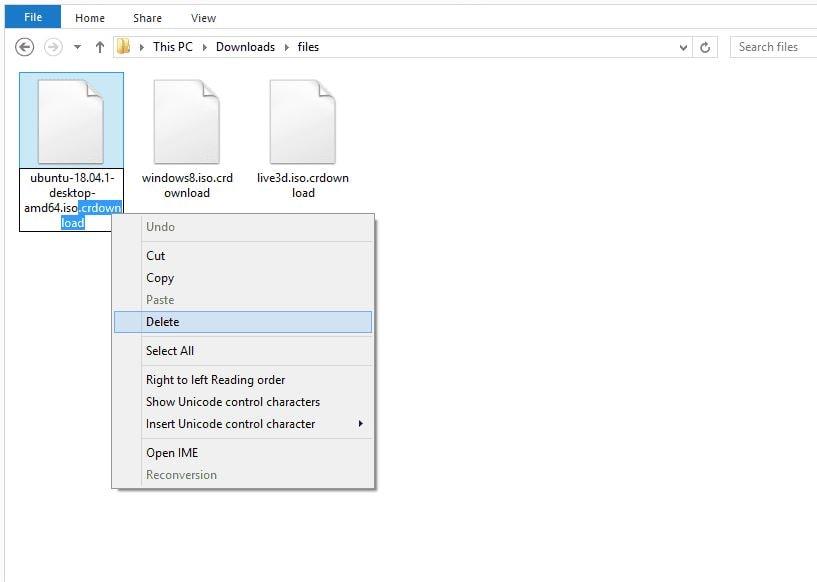
    When the browser starts to download a file, Chrome or Microsoft Edge automatically adds the .crdownload file extension to the name of the file and once the download is complete, the .crdownload file extension name is removed and replaced with the appropriate extension.

    A .crdownload file is an incomplete or partial file which is commonly known as Chrome partial download files. Thus, any file which has the .crdownload file extension is a file that is incomplete or partially downloaded, and as such, not all the contents on the file can be viewed on your device.

    Some of the reasons why a file will have this type of file extension could be as a result of poor internet connection, or some unintended interruption from you or the server. Not every browser has this type of file extension, it is specific to Chromium-based browsers like Google Chrome – and even Microsoft Edge Chromium browser.

    Chromium according to Wikipedia is a free and open-source codebase for a web browser, principally developed and maintained by Google. Simply put, it is a free open-source code used for several web browsers, mainly Google Chrome and some other browsers including Microsoft Edge, Samsung Internet, Opera, etc.

    How To Open .crdownload Files?

    Crdownload files are incompletely downloaded files and so, if you want to get access to the complete file you will have to re-download it or resume the download (if it has been paused). You can resume the download using the method below

    1. Open your browser and go to the download page
    2. Locate the file you have paused downloading
    3. Click on the resume icon to resume your download or the retry icon to start the download all over again

    Also, if you prefer to open the .crdownload file like that then below is a step-by-step method of how you can go about it.

    1. First of all, make sure you have VLC installed on your device
    2. Open the folder containing the file with the .crdownload extension
    3. Right-click on the file and then select Rename to change the name of the file
    4. At the last part of the name remove the .crdownload from the file. For example, if a file is called audio.mp4.crdownload, rename it audio2021.mp4 and press the ENTER key afterward
    5. Right-click on the renamed file and select Open With
    6. Next, select VLC from the available files to open the file

    Conclusion

    Normally, the browser will automatically remove the .crdownload name attached to the file once the download is complete. In cases where the download was interrupted or incomplete then you must rename the file to access to open the incomplete file.

    The size of a .crdownload file depends on the size of the actual file that was being downloaded. For example, a 50GB video might have a .crdownload file as big as 40GB but that is not the complete file. Therefore, you cannot just look at the size of the file and use that as a means of saying the file is complete.

    Once the file has a .crdownload file extension, then it means the file is partial or it is incomplete. The size of the file has nothing to do with it being complete or otherwise.

    How do I convert a crdownload to PDF?

    Since the file is partial or incomplete, there’s no way you can convert it to PDF.

    What is a .crdownload file?

    It is a file that hasn’t finished downloading yet. It can usually be seen in browsers like Google Chrome and Microsoft Edge.

    How do I fix crdownload?

    You can fix crdownload by going to your browser and resuming or restarting the download.

  • How to Subscribe For Unlimited AirtelTigo Call Bundles

    How to Subscribe For Unlimited AirtelTigo Call Bundles

    Call making is one of the main reasons why most people use mobile phones. But the making of calls on the phone is not free; you have to buy airtime before you can be able to call someone. The cost of airtime on the other hand is a very big problem for most people especially users of some specific telecommunication network.

    Previously, a GHS 1 worth of airtime could warrant you a talk time of some time but now, GHS 1 airtime will finish in the middle of your call after a short duration. These could be attributed to several factors other than the actions of the telecommunication network, as claimed by most Ghanaians.

    One of the biggest names in the telecommunication industry in Ghana is AirtelTigo. As a result, there are a number of Ghanaians who are active users on the network. To help customers who usually make calls on the network reduce the cost of buying airtime, AirtelTigo has introduced an unlimited call bundle.

    Just as the name suggests, the AirtelTigo unlimited call bundle gives active subscribers unlimited airtime to call all their friends and loved ones who also use AirtelTigo for up to seventy-five (75) days with as low as GHS 1 using airtime or their AirtelTigo Money wallet.

    How To Subscribe For Unlimited AirtelTigo Call Bundles

    1. Dial *111# on your mobile phone
    2. Select option 3 (Unlimited Calls)
    3. Select the package you want (GHS 1, GHS 2, GHS 5, GHS 6, GHS 10, or GHS 20)
    4. Select option 1 to Buy for Self (Auto-renewal) or option 2 to Buy for self (One-Time)
    5. Select your payment option from the available payment options listed
    6. Once the transaction is successful, a confirmation message will be sent to you via SMS

    How To To Buy Unlimited AirtelTigo Call Bundle For Someone

    Aside from you buying the unlimited AirtelTigo call bundle for yourself, you can also buy it for someone at no extra cost. To do so, follow the steps listed below.

    1. Dial *111# on your mobile phone
    2. Select option 3 (Unlimited Calls)
    3. Select the package you want (GHS 1, GHS 2, GHS 5, GHS 6, GHS 10, or GHS 20)
    4. Select option 3 (Gift it)
    5. Select your payment option from the available payment options listed
    6. Once the transaction is successful, a confirmation message will be sent to both you and the person you buy the bundle for via SMS

    How To Unsubscribe From AirtelTigo Unlimited Call Bundle

    The AirtelTigo unlimited call bindle is a very good package, and its price is relatively cheaper as compared to the normal airtime. But at some point, you may need to unsubscribe from it. In case you want to do that, then you can follow the steps below.

    1. Dial *111# on your mobile phone
    2. Select option 3 (Unlimited Calls)
    3. Select option 7 (Unsubscribe)
    4. Your request will be processed and when it’s successful, a confirmation message will be sent to you via SMS

    AirtelTigo Unlimited Call Bundle Prices and Validity Period

    PriceOn-net MinutesValidity
    GHS 1.00Unlimited (1,440 Mins FUP)1 day
    GHS 2.00Unlimited (10,080 Mins FUP)3 days
    GHS 5.00Unlimited (43,200 Mins FUP)10 days
    GHS 6.00Unlimited (86,400 Mins FUP)14 days
    GHS 10.00Unlimited (129,600 Mins FUP)30 days
    GHS 20.00Unlimited (259,200 Mins FUP)75 days

    Conclusion

    AirtelTigo since its rebranding some few years back has been introducing some cool packages for their customers. The rebranding was criticized by many but after some time, they have proven to Ghanaians that the merging was somehow beneficial.

    The AirtelTigo unlimited call bundle is available to both prepaid and hybrid AirtelTigo customers and can be paid through either airtime or AirtelTigo Money wallet. As said by AirtelTigo at the launch of the product, “in our constant quest of making consumer’s life simple, we provide innovative products that give more value to our customers and improve their experience.” “With AirtelTigo, consumers can always expect more value for their money”, customers are in the hearts of AirtelTigo.

    What is the code for AirtelTigo bundle?

    The shortcode for buying a bundle on AirtelTigo bundle is *111#

    Does AirtelTigo have bundles with no expiry?

    Yes. Dial *111#, select no expiry bundle, and follow the on-screen instructions.

    How do you borrow credit on AirtelTigo?

    You can borrow by dialing *130#.

  • How To Access and Check Your E-Payslip Online in Ghana

    How To Access and Check Your E-Payslip Online in Ghana

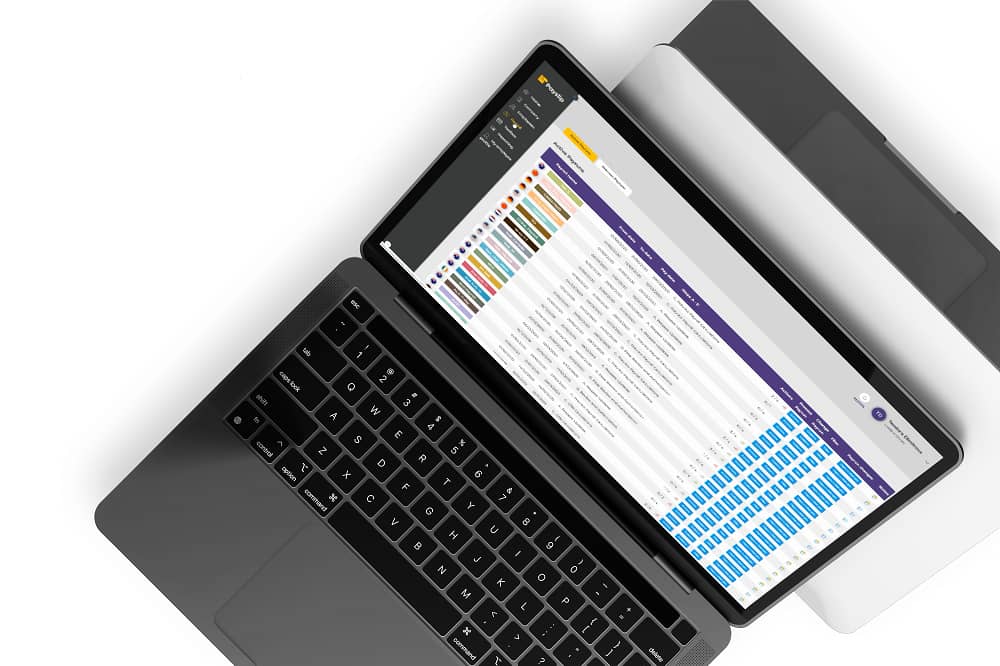
    Basically, a payslip is just a piece of paper that contains details about your salary or “pay”. Aside from it being just a piece of paper, a payslip is a very important document as it contains several important information about an employee and his financial records or data.

    Payslips can also perform several other important functions when you need them to. For example, you need your payslip as proof of employment when applying for a loan or mortgage for your house. This assures the bank that every month, there is some minimum amount of money that could be deducted from your salary since you have a job.

    Even in some cases, payslips are required when you are seeking a new job or promotion from your old job. In such cases, the employer uses your payslip as proof of how much you were earning in your previous job and they can either top-up or maintain the same pay structure, etc.

    These and many others are the reasons why payslips are very important for every employee. But, although payslips are very important, getting them in Ghana can be very difficult. For some jobs, this will not be the case but for others, this will be a little problem.

    Due to these unforeseen circumstances and situations, the Controller & Accountant General’s Department have introduced an E-Payslip platform where workers can access their payslips whenever and wherever they need it, and this guide is going to walk you through how you can access it and check it.

    How To Access and Check Your E-Payslip in Ghana

    Accessing your E-Payslip in Ghana is an easy and straightforward process. But, before you can access the platform, you must first register. Follow the steps below to register for the E-Payslip platform in Ghana.

    How To Register For The E-Payslip Platform

    1. Visit gogpayslip.com on your smartphone or computer
    2. Click on REGISTER FOR E-PAYSLIP
    3. Ask your Head of Department or your immediate supervisor for the first-time registration code to continue
    4. Enter the employee number and confirm it
    5. Create a password and re-enter it in the confirm box to confirm your password
    6. Enter your registration code obtained from your HoD or supervisor
    7. Enter your email (if any) and phone number (02XXXXXXXX) in the spaces provided
    8. Enter the code shown and click on the Register button to complete the process
    9. After that, you will be automatically directed to the homepage of the E-Payslip platform
    10. Enter the required login to log into the E-Payslip system or platform

    How To Access and Check Your E-Payslip Online in Ghana

    Now that you have successfully registered for the platform and you have the login details, you can now access your E-Payslip.

    1. Visit gogpayslip.com on your smartphone or computer
    2. Enter your Employee Number and the password you created to sign in
    3. Click on My Payslip and then select the month you want to have a look or download the payslip
    4. Click on Generate and then the Save or Print button at the upper part of the screen
    5. Lastly, click to save or print the payslip for that specific month

    How To View, Save and Print Your Payslip Using My Payroll

    1. Visit gogpayslip.com on your smartphone or computer
    2. Enter your Employee Number and the password you created to sign in
    3. Select My Payroll
    4. Select the Payslips tab
    5. Click on a Payslip to download it in PDF format
    6. Click on Print and the PDF will be opened in a new tab
    7. Finally, you can either print or save the payslip as a PDF on your phone or computer for future reference

    Conclusion

    Having access to your payslip should not be a very difficult task for you. Instead, it should be very easy, fast, accessible, and reliable. Therefore, this intervention by the Controller and Accountant General’s Department to introduce an E-Payslip platform in Ghana will go a long way to help Ghanaian workers.

    Now, you can simply go on your phone or computer and print or download your payslip for your loan, mortgage, proof of employment, and whatever else you may need your payslip for. Also, since this is now accessible on phones, you should be very careful about where you keep them and also be careful about your password and login details.

    Keeping them at a safer and more reliable place will go a long way to help save you from a catastrophe in the near future. Payslips are very important documents and they should be kept as such.

    How do I open an e-payslip file?

    Make sure you have a pdf reader app or software on your smartphone or computer and open your e-payslip with this pdf reader app or software preferably Adobe.

    How do I register my payslip online?

    You cannot register your payslip online unless you are the administrator of your company. But, you can register to view, access, or download your e-payslip using the steps outlined in this article.

    How can I check my payslip online in Ghana?

    Log into gogpayslip.com and then click on My Payslips, select the month and then you can view, download, or print your payslip in pdf format.

  • How To Change Your Default Music Player on an iPhone

    How To Change Your Default Music Player on an iPhone

    For many years now, many people have been of the view that once you use an Apple product (iPhone to be precise), you are being restricted to some point. Although this is not entirely true, there is some truth in it. For example, if you are an iPhone user, you are only restricted to apps on the Apple App Store and nowhere else.

    Among these, one of the things that iPhone users were limited to do was the inability to change the default music player from the default Apple Music app/player. This had been bothering many iPhone users who preferred other music players like Spotify, Pandora, YouTube Music, etc. until iOS 14.5 was introduced earlier this year.

    If you are an iPhone user, then there are several things you enjoyed from the introduction of iOS 14 in 2020. Personally, some of the new features I enjoyed include the option to set a default browser and email app on your iPhone, all of which were not available in the iOS 13 or the earlier iOS versions.

    This guide, therefore, is going to show you how to change your default music app on your iPhone and everything else related to how you can make the most out of this feature introduced by Apple in iOS 14.

    How To Change Your Default Music Player on an iPhone

    Currently, there is only one way you can change the default music player on your iPhone, i.e. using the Siri command on all iPhones running iOS 14.5 or later.

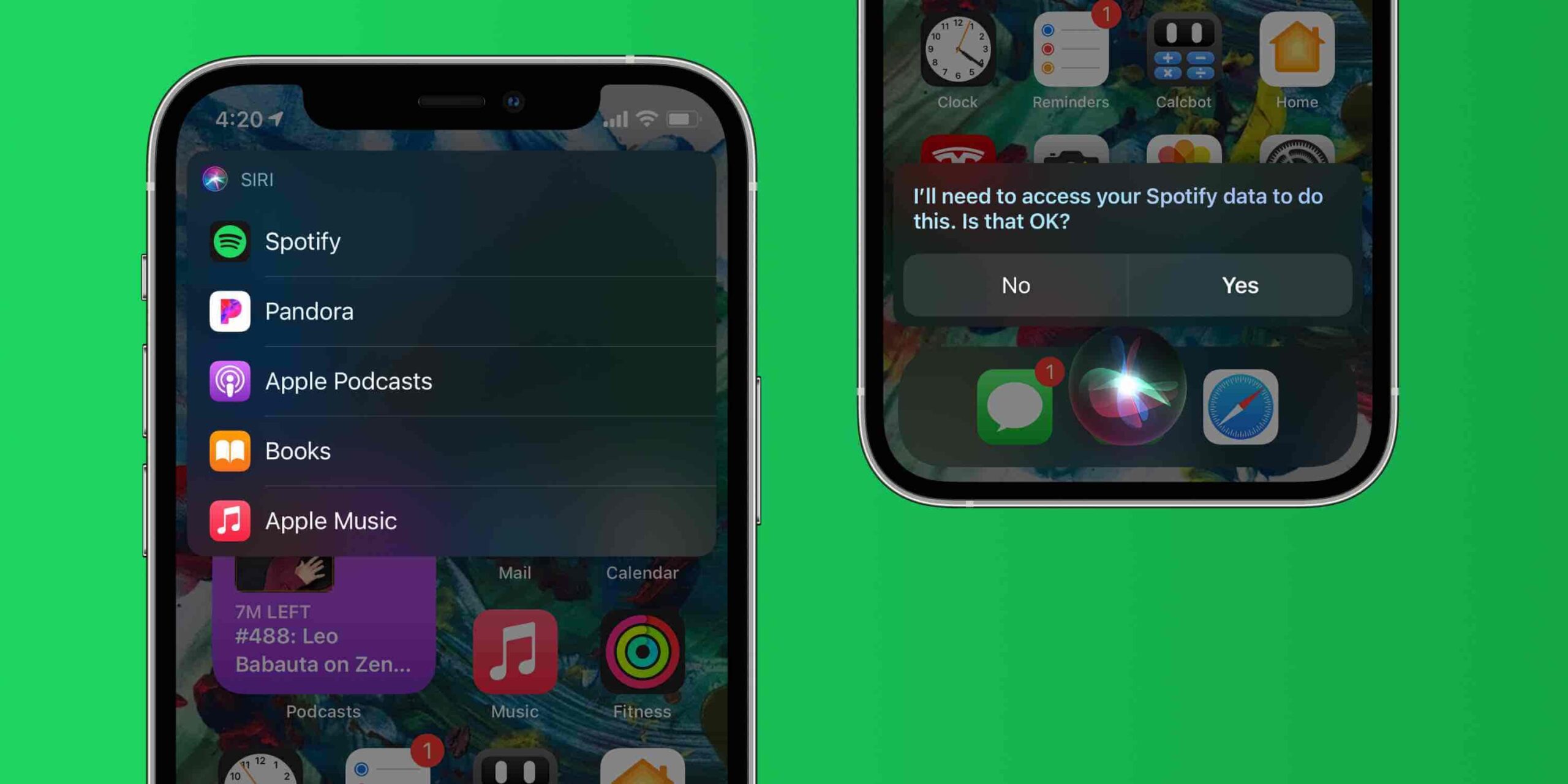
    How To Change Your Default Music Player on an iPhone Using Siri

    1. Update your iPhone to iOS 14.5 or later
    2. If you are using the newer versions of the iPhone you can ask to play an artist, song, or album. You can do so by saying “Hey Siri, play Madina to the Universe by M.anifest”
    3. If you don’t have the latest versions of the iPhone, you can press and hold the power button (iPhone X and above) or the home button (iPhone 8 Plus and below)
    4. A list of all the music apps you have installed on your iPhone will pop up and Siri will ask “Which app would you like to use”?
    5. From the list of music players shown, choose your preferred music player
    6. When asked, confirm that Siri can access data from your music player
    7. Afterward, Siri will play the music in the app of your choice. For example, if you choose YouTube Music, the music will play in YouTube Music.

    Changing Your Default Music Player on an iPhone Manually?

    As of the time of writing this article, there has not been any official document on how to change the default music player on an iPhone manually. But many iPhone and technology analysts have concluded that this feature will be introduced in the iPhone sooner or later.

    As newer versions are introduced to the iPhone’s iOS, it is likely that Apple will add this feature in some of the newer iOS versions.

    Conclusion

    Up until the introduction of iOS 14.5, iPhone users had to tell Siri which app to play music from the onset. For example, “Hey Siri, play Madina to the Universe by M.anifest in YouTube Music. But after iOS 14.5, this is no longer going to be an issue for iPhone users since they can go ahead and use Siri’s intelligence to change the default music player.

    Although you can now change the default music player on your iPhone, you can still use the old method of asking Siri to play music for you if you wish to use a different music player other than the default player. For example, you can say “Hey Siri, play Petite by NSG in Spotify” and Siri will play Petite by NSG in Spotify.

    In conclusion, this intervention by Apple to allow iPhone users to change the default music app is a good thing since it now lifts the restriction that has been placed on iPhone users. Gradually, Apple is trying to allow its users to modify their devices.

    Can you change the default music player on your iPhone?

    Yes. All you have to do is to ask Siri to play a song or an album and then choose your preferred music player from the apps listed.

    What does it mean to set a default music player on iPhone?

    Simply put, setting a default music player on an iPhone means choosing a music app that will play your music whenever you want to listen to music. Or, whenever you ask Siri to play a song, the default app is where the song will be played.

    What is iPhone’s default music player?

    The Apple Music app is the default music player on the iPhone.

  • How To Open a UBA Bank Account on Your Phone

    How To Open a UBA Bank Account on Your Phone

    In 2020, the coronavirus pandemic took the whole world by surprise. Most people had already laid out their plans for the year but just a few months into the year, all those plans got thrown into the trash. 

    In all this, one thing that most of us learned is the need for a mobile banking partner or service. Currently, in Ghana, there are over 10 banks that offer mobile banking services and one of the trusted banks that most people rely on is the United Bank for Africa (popularly known by many as UBA). 

    But unlike the rest, not all the banks in Ghana allow their prospective customers to create a bank account on their phones from the comfort of their homes. UBA on the other hand, allows users to open a bank account on their phones for free; and in this article, I am going to show you how to open a UBA bank account on your phone.

    Types of Accounts Available at UBA

    Before we get into the main reason for this article, you must know the various types of accounts that are available for UBA’s prospective customers. This way, you rest assured that you have chosen the right type of account for the right job.

    There are mainly five (5) types of accounts available at UBA. These are professional, student, self-employed, diaspora, mass retail, and business. All these five accounts are mainly classified under two main categories i.e. savings and business accounts. You can visit the UBA website to read about each type of account and its details.

    How To Open a UBA Account on Your Phone

    Opening a UBA account on your phone is straightforward. Also, there are several ways you can go about it but in this article, I am going to show the two (2) main ways you can go about it. You can do so by using the web, Messenger/WhatsApp.

    How To Open a UBA Account on Your Phone Using the Web 

    1. Open a web browser on your phone and visit www.ubagroup.com/open-a-uba-account-online/
    2. Click on OPEN ACCOUNT or OPEN A CURRENT ACCOUNT under the type of account you want to create (Savings Account or Business Account respectively) 
    3. On the welcome page, choose your country of residence and click Submit afterward
    4. Enter your name, gender, phone number, date of birth, email address, address, in the spaces provided
    5. Under Select a branch, choose a UBA branch that is closer to where you stay
    6. Upload your passport-sized photo, signature, and proof of residence in the spaces provided
    7. Afterward, tap on I agree to the terms and conditions and then Submit
    8. Upon successful completion, a congratulations message will be shown on the next page with your account name and account number

    How To Open a UBA Account on Your Phone Using Messenger or WhatsApp

    1. Send Hi to Leo on WhatsApp (+233577822822) or Messenger (search for UBA ChatBanking)
    2. Select option B (Account Opening)
    3. Enter your first name and last name after the question What is your first name? and What is your last name? respectively
    4. After the next question, enter your date of birth in the format DD/MM/YYYY
    5. Next, select your gender using A (Female) or B (Male)
    6. After the next question, enter your physical address (to receive communication materials from UBA)
    7. Enter your email address or type skip if you don’t have any
    8. The next step is to upload your passport photograph
    9. Choose the letter next to the type of account you want to open
    10. Enter the City or street name close to the nearest UBA branch
    11. Type the letter next to the UBA branch nearest to you
    12. Finally, download and read the terms and conditions for Account opening. If you agree with the terms, type Yes or No otherwise
    13. A congratulations message will be sent to you with your account number and the next steps.

    Conclusion

    Creating a bank account on your mobile phone has never been this easy. In just a few minutes, you can get a UBA account with your account details right on your phone without having to visit any UBA branch to join any queue. In this COVID-19 period, you and I can both agree that this is a good way to create a bank account.

    Even though most people are afraid of creating a bank account in Ghana due to the collapse of several banks some few years back, UBA was one of the banks which were able to meet the minimum capital requirement and as such, it is one of the trusted banks to do business with.

    Since it is an African (international) bank, UBA customers can use their accounts in almost every African country whenever they travel outside their country of residence. Therefore, if you are interested in transacting with UBA, then follow the steps outlined in this article to create your UBA account on your mobile phone for free. 

    How can I open a UBA account using USSD?

    To use the UBA USSD code for your account opening, dial *822# and follow the screen prompts.

    What can you do with the UBA transfer code?

    If you have a UBA account, you can use the shortcode *822# to buy airtime, or transfer money to a UBA account, your UBA Prepaid, or other bank accounts.

    How can I upgrade my UBA mobile account?

    You can visit any of the UBA branches spread throughout the country with your National ID to upgrade your mobile account to your preferred choice.

    Is the UBA Prepaid card for UBA customers only?

    No. You can visit any UBA account with your National ID and proof of residence and you will be issued a UBA prepaid card in less than two (2) hours.

  • How to Clear a Car at the Tema Port

    How to Clear a Car at the Tema Port

    Getting a confirmation from your shipping agency that your car is arriving anytime soon is one of the happiest moment that everyone experiences when they ship car (s) from abroad.

    But the fact that your car is arriving at the port is not a guarantee that you will get your car easily. You can ship your car, but if you don’t know how to clear your car from the port, it’s a total waste of time and money.

    Clearing your car from the port is one of the major problems many people face when they import car (s) from abroad.

    Due that we are writing this article to guide you through the process of clearing your car from the port.

    The process of clearing your car from the port is a very tedious process but after following this article, you’re going to find it easier because this article is going to cover all the aspects of the clearing your car from the port.

    How to Clear A Car at the Tema Port

    The clearing of the car from the Tema port involves three (3) major stages and these are:

    • Pre-vessel arrival
    • Post-vessel arrival and
    • Final clearance and delivery.

    Under each stage, there’re some processes that need to be followed and now let’s take each stage one after the other and discuss the processes under each stage.

    Pre-vessel arrival

    The pre-vessel arrival is the stage where you are allowed to begin the process of clearing your car even before the car actually arrives at the port.

    This makes shipment to be processed faster when the car arrives at the Tema Port.

    Also under this stage, there are some certain processes and these are:

    Submit car clearance documents to the clearing agent

    The first process is to submit your clearance documents to the clearing agent who will be doing the clearing of the vehicle for you. These include a bill of lading, commercial invoice, packing and other shipment documents.

    Clearing agent reviews documents

    After you submit the documents to the clearing agent, he/she will read through the documents to check for errors or missing documents.

    Clearing agent creates UCR for you

    Once all the errors have been corrected or all missing documents have been submitted, the agent will use the shipment documents to create a Unique Consignment Reference (UCR) on the GCNet platform.

    Clearing agent proceeds to the Pre-Clearance Assessment Report System (PARS)

    The clearing agent will then proceed to the PARS to send a request to the Ministry of Trade and Industry for them to issue you an Import Declaration Form (IDF) using the UCR he created on the GCNet platform.

    Clearing agent applies for Customs Classification and Valuation Report (CCVR)

    When the IDF is received, the agent will apply for the Customs Classification and Valuation Report (CCVR), which will be issued on the WEST BLUE IT platform.

    The CCVR will give an assessment of duties due and will also show the risk level assigned to the cargo containing the car. Green represents a low risk, Yellow represents medium risk and Red represents a high risk.

    Post vessel arrival

    The post vessel arrival stage is where the car arrives at the port and the last but one stage. This stage involves two main processes.

    Submit Bill of Entry and make payments

    Once the cargo containing the car arrives at the port, the agent will obtain rotation number, location of the container and all information related to the cargo from the shipping line.

    The information together with the CCVR and IDF will be used to prepare a Bill of Entry (Customs Declaration which will be sent to the Customs Management System.

    The declaration will be validated and a unique reference number will be assigned. After that, you will be required to pay the assessed duty and taxes on the declaration at the assigned Bank.

    Review of all submitted documents

    When the payment is confirmed, the Customs Compliance Officer assigned to the Declaration will start verification of the Declaration with the supporting documents.

    Depending on the risk level of the container, additional tests will be done before a “Delivery Allowed Message” will be issued for the car to be released. You might also pay some terminal charges.

    Final clearance and delivery

    This is the final stage of the clearing process of your car. This stage involves one main process.

    Exit verification

    The driver of the vehicle conveying the car out of the port will report to the Customs Preventive Section for Exit Verification before the car will exit the port.

    After the Customs Preventive Section performs their review, and it’s safe for the car to exit the port, the car will be approved for exit through the gate.

    The Customs gate will also check whether the Customs Preventive Section has performed their review and then update the status of the container containing your car as “Exited Port”.

    Finally, your car will be delivered to you.

    Conclusion

    In summary, the clearing of a car from the Tema port is a little bit complicated but this article has simplified the process for you to understand it clearly.

    Due to the fact that most of the clearing process involves a clearing agent, make sure that the agent you select is trusted and genuine.

    Have you ever cleared your car from the Tema port? Please share your experience with us in the comments section below.

  • How To Link Your NHIS To Your Ghana Card For Fast Renewals

    How To Link Your NHIS To Your Ghana Card For Fast Renewals

    Do you know that you can now link your NHIS to your Ghana card for fast renewals?

    Ghana card (NIA card) is one of the most popular identification documents in Ghana. Since its registration started over a year ago, the majority of Ghanaians have put their names on the register.

    Few weeks after the registration ended, the National Health Insurance Authority (NHIA) and the National Identification Authority (NIA) has successfully deployed the Ghana card integration onto the national mobile renewal platform.

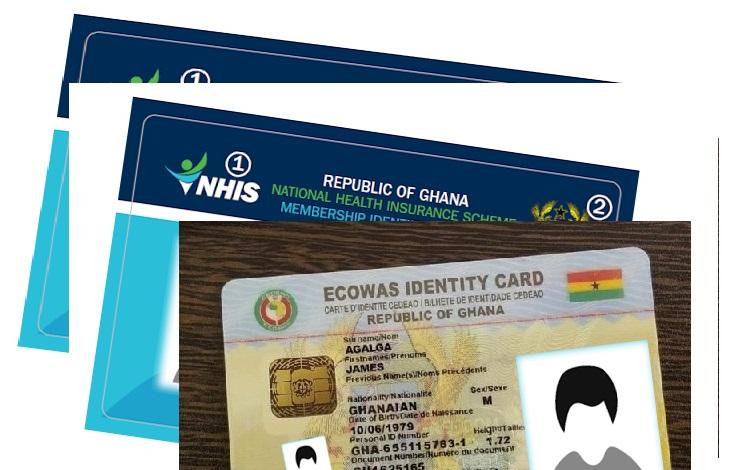
    In simple terms, Ghanaians with the Ghana Card and the NHIS card can now link their Ghana card to their NHIS card or vice versa. Upon successful completion, you can visit the health center with your NHIS card.

    Also, you can renew your health insurance card with your Ghana card. This means that when you misplace your NHIS card, you can use your Ghana card for everything you that you would have used the NHIS card for.

    Enough of the plenty talk, let’s jump right into it.

    How To Link Your NHIS To Ghana Card For Fast Renewals

    How to link your NHIS to your Ghana Card

    To get started, you need to have your Ghana Card and your NHIS card with you. Once you have these two documents, follow the steps below:

    1. Dial the shortcode *929# on your mobile device
    2. From the list of the options provided, select option 4 (Link Ghana Card).
    3. Enter your 13-digit Ghana Card Identification number (GHA *************). (Please include the GHA, and the 10 digits after the GHA, without the hyphen).
    4. Check to see if the ID number you enter matches the one on the Ghana Card. If so, press Send.
    5. Enter your 8-digit NHIS identification number.
    6. Check to see if the ID number you enter matches the one on the NHIS Card. If so, press Send.
    7. Wait for a confirmation message stating that your operation has been successful.

    Conclusion

    Now that you have successfully linked your Ghana Card to your NHIS card, make sure to enjoy all the benefits that come with it. There’s no need to join a long queue only to renew or replace your NHIS card, link Ghana to your NHIS card for far renewals.

    Since this is a new deployment, please make sure to try it out and write your feedbacks in the comments section below; this will help the team to address any mistakes they make.

    Also, if you face any difficulty feel free to write it down in the comments section below and I will attend to you as soon as possible.

  • Ways To Know If Someone Has Saved Your Contact

    Ways To Know If Someone Has Saved Your Contact

    Knowing whether someone has saved your contact or not can be a little bit difficult depending on where you are looking and how you are looking at it. But after reading this article, you are going to find out some ways to know if someone has saved your contact or not.

    At times, we all want to know if someone we are chatting with or have known for some time has saved our contacts or not. Even though it is debatable, this situation usually happens when you meet someone for the first time, and you have been chatting with him or her for some time.

    This is usually the point where you check to see if the person really enjoys chatting with you or he/she is just pretending to enjoy chatting with you. Also, it could be that you have to chat with someone for a long time but suddenly, they seem to be ignoring your chats, etc. and you want to find out if they have saved your contact on their device.

    Whatever your reason may be to know if someone has saved your contact, it is good that you know the right way of going about it without causing any incidence between you and the person or paying any amount of money for it to be done for you.

    Ways To Know If Someone Has Saved Your Contact

    There are several ways of telling if someone has saved your contact or not; some of them are considered a little bit technical whiles the others are considered a little bit easy and straightforward. After doing my research, these are some of the effective ways you can go about checking whether someone has saved your contact or not.

    How To Know If Someone Has Saved Your Contact Using WhatsApp

    Currently, WhatsApp is one of (if not) the biggest social media messaging platforms in the world. Almost everyone in every country uses WhatsApp on their device; whether iPhone, iPad, Android phone, Tablet, and even personal computers (PCs).

    Aside from the messaging and call features in the WhatsApp app, there are several other features available in the app, some of which can help to check whether someone has saved your contact or not.

    If you use Android, follow the steps below:

    1. Open the WhatsApp app on your Android device
    2. Click on three vertical lines at the upper right corner of the screen
    3. Tap on New Broadcast and add the contact (s) you think has not saved your contact and also add someone you are sure has saved your contact (for example, your mum, dad, or best friend)
    4. Send a short message to the Broadcast List, for example, good morning, hello, hi, etc.
    5. Once the message has been sent, press and hold the message you sent. Next, click on the three vertical lines and select Info
    6. Check to see if the person’s name is written under either Read by or Delivered. If the name is written under either of these headings, then it means the person has saved your contact on his/her device or vice versa.

    If you use an iOS device, follow the steps below:

    1. Open WhatsApp on your iOS device
    2. Click on Broadcast Lists on the upper left page of the screen)
    3. Click on New List at the bottom centre of the screen
    4. Add the contact (s) you think has not saved your contact and add someone you are sure has saved your contact (for example, your mum, dad, or best friend)
    5. Send a short message to the Broadcast List, for example, good morning, hello, hi, etc.
    6. Once the message is sent, tap and swipe (to the left) of the message you have sent

    Check to see if the person’s name is written under either Read by or Delivered. If the name is written under either of these headings, then it means the person has saved your contact on his/her device or vice versa.

    How To Know If Some Has Saved Your Contact Using A Third-Party App or Software

    There are several third-party apps and software available on the internet that tells you whether your contact has been saved by someone or not. Most of these apps are free and the rest are paid.

    Truecaller and Telegram can also be used to tell if someone has saved your contact or not. But all of these are sometimes a little bit technical. Therefore, to save you the time and money of using these third-party apps, just use WhatsApp and you will be good to go.

  • How To Apply For Vodafone Cash Ready Loan

    How To Apply For Vodafone Cash Ready Loan

    Are you in need of a quick loan in your Vodafone Cash wallet in just a few minutes? If you do, then this article is going to show you how to apply for Vodafone Cash Ready Loan. In addition, I am also going to show you everything you need to know about the Vodafone Cash loan.

    Obtaining a loan in Ghana at this time is very easy, quick, and free. Due to the high number of banks and credit institutions, people who are looking to get a loan in Ghana have several alternatives to choose from.

    But almost all these banks and credit institutions have their own requirements and interest rates they require from each borrower. One of the main requirements that people are usually scared about is collateral, which is usually in the form of a car, land, house, or any valuable property they can sell to get back the money should you fail to pay the money on time.

    All these issues are somehow resolved when it comes to online digital lending platforms like the Vodafone Cash Ready Loan.

    What is Vodafone Cash Ready Loan?

    Vodafone Cash Ready Loan is a quick, easy, and convenient method by which very active customers of Vodafone Cash can access low-interest loans using the Vodafone Cash wallet. Unlike the traditional methods of acquiring loans, Vodafone Ready Loan does not require you to bring any bank statement or collateral.

    Ready Loan was established by Vodafone Cash in collaboration with Consolidated Bank Ghana (CBG) to help Vodafone Cash users with quick financial assistance on their mobile phones. The least amount you could get is GHS 10.00, but the maximum amount is not known yet.

    Requirements for Vodafone Cash Ready Loan

    Before you can be offered a Vodafone Cash Ready Loan, you must meet the following requirements:

    • You need to be 18 years and above.
    • You need to be an active Vodafone user.
    • You have to be registered on Vodafone Cash and actively use your wallet for transactions, i.e., sending money, receiving money, buying airtime, paying bills, etc.
    • You must repay your already existing loan before you can apply for a new one (if it applies to you).

    How To Apply For Vodafone Cash Ready Loan

    1. Dial *110# on your Vodafone mobile device
    2. Choose option 5 (Financial Services) from the options
    3. Choose option 3 (Loans) to access the Loans option
    4. Choose option 1 for Ready Loan
    5. Select option 2 (Ready Loan Request)
    6. Select option 1 to opt-in
    7. Enter your four-digit Vodafone Cash PIN to confirm that you understand all the terms and conditions relating to Vodafone Cash Ready Loan and Consolidated Bank Ghana (CBG).
    8. If you qualify, a confirmation message will be shown in the next window. If you do not qualify, a message will be shown asking you to perform more transactions with your Vodafone Cash wallet.

    Afterward, a confirmation message will be sent to you via SMS to show you the amount, the repayment date, and the amount you are supposed to repay on the due date (30 days after the day of borrowing).

    How To Repay Your Vodafone Ready Loan

    Before you begin, make sure you have enough money in your Vodafone Cash wallet to repay your loan. If not, visit the nearest Vodafone Cash vendor to deposit money into your account for free.

    1. Dial *110# on your Vodafone mobile device
    2. Choose option 5 (Financial Services) from the options
    3. Choose option 3 (Loans) to access the Loans option
    4. Choose option 1 for Ready Loan
    5. Select option 4 (Ready Loan Repayment)
    6. Enter your four-digit Vodafone Cash PIN to proceed
    7. Follow the remaining steps to complete your payment.

    What Happens When You Fail to Repay Your Vodafone Cash Ready Loan on Time?

    Your Ready Loan repayment is fixed for 30 days; however, you can always make payments before the due date. If you fail to repay the loan on the due date, a late payment charge will be applied, and your information submitted to credit-related institutions and blacklisted.

    Therefore, it is advisable to pay the loan on time to avoid paying extra charges and also to increase your chances of attracting higher loans in the near future.

    Conclusion

    The Vodafone Cash Ready Loan is a good initiative from Vodafone and Consolidated Bank Ghana (CBG) to help Vodafone Cash users. Its introduction is going to help a lot of people to get loans in the comfort of their loans.

    Before you decide to apply for the loan, make sure to read and understand the terms and conditions involved in it to avoid any future regrets.