Author: Gabriel Agbobli

  • How to Set Casio Touch Watch

    How to Set Casio Touch Watch

    Do you have a Casio touch watch you want to set the time on? If you do then this article is going to show you how to do exactly that.

    In the olden days, clocks were what was used to tell the time in homes, offices, churches, and even schools. Even though we still use clocks in our homes, offices, churches, etc. you will agree with me that almost 50% of the population now have clocks on their smartphones.

    As a result, most people prefer using their smartphones to the clock. Due to the gradual “disappearance” of clocks, watches, and smartwatches manufacturing companies are now taking over the industry.

    One of such brands is Casio. Casio is known for its excellent manufacturing of calculators, watches, etc. In their watch series, one of the most popular watches is the Casio Touch watch.

    Unlike the normal watches that have buttons for setting the time, the Touch watch, just as the name suggests does not have any button for setting the time. As such, you need to use touch the screen to set the time.

    Although setting the time on the Casio Touch watch is not that difficult, most people find it difficult to set the time; and that is the reason why we decided to write this article to guide you through the process of setting the Casio Touch watch.

    How To Set Casio Touch Watch

    Obviously, the only thing you need before you set the time on your Casio Touch watch is the Casio Touch watch itself. So, if you have it, then you can follow the steps below to set the time on your Casio Touch watch.

    1. Tap the touch once to show the digital time display.
    2. Touch and hold the Hour area for 4-6 seconds to change the Hour. It can only go forward and not backward.
    3. Once the Hour is set, touch and hold on to the touch screen to change the Minute. (Likewise, you can only go forward and not backward)
    4. Again, touch and hold to switch to the Date
    5. Similar to setting the time, tap on the Day to change the day.
    6. Tap on the Year and the Month to change the year and month also.

    Once it is set to the correct date and time, then you are done. That is all it takes.

    Some features of the Casio Touch Watch

    • It is unisex (this means both males and females can wear it)
    • It is made of stainless steel.
    • In terms of the display, it has an LED and it is water-resistant
    • There are several colours available for you to choose from.

    Conclusion

    Casio Touch watch is one of the sleekest watches that is available on the market. Unlike some of the fake Touch watches, you will agree with me that Casio is one of the leading names in the watch manufacturing industry.

    Also, in terms of the price, the Casio Touch watch is unbelievably cheap as compared to the other touch watches we have.  Whether you are a male or female, you can get yourself the Casio Touch watch and enjoy all the amazing features that come with it.
  • How To Stop Delaying GBWhatsApp Messages

    How To Stop Delaying GBWhatsApp Messages

    https://mfidie.com/not-just-you-whatsapp-instagram-facebook-are-down-for-many-users/

    WhatsApp, since its inception some few years ago, has grown to become one of (if not) the most used social media platforms in the entire world. This is as a result of its’ easy access and low cost of data charges when using the app, as compared to the other social media platforms.

    What is even more interesting is its sense of privacy as compared to other platforms like Twitter and Facebook where anyone at all can just send you a friend request. Before can contact you on WhatsApp, he or she needs to have your number first.

    Also, the old and the young alike are all able to use the platform to interact with their loved ones both home and abroad at a cheaper cost. Amazingly, due to the voice note feature, many people who are not educated are also able to use the app at ease.

    But just like all the other apps in the world, WhatsApp has its ups and downs. One of the main downs that people complain about every day is the inability to save the photo or video on someone’s status without having to take a screenshot or screen recording.

    Some of these concerns were very challenging for many people, especially those who didn’t have phones that could do screen recording. And currently, these problems still exist.

    Because of such problems, an easier version of WhatsApp called GBWhatsApp was developed to help solve some of these problems. The main one being the inability to download photos and videos on people’s status.

    This was going smoothly until when messages started delaying when using the app. Because of this, many people were frustrated and didn’t know what to do.

    If you were one of them, then I will urge you to read this article to the end. This is because I am going to show you how to stop delaying GBWhatsApp messages.

    Why Does GBWhatsApp Messages Delay?

    Many people have been wondering why their messages keep on delaying when using the GBWhatsApp app. It is worth noting that, this problem is not something that happens to only GBWhatsApp users, but the original WhatsApp users as well.

    These phenomena are caused by several factors and the main reason is internet connection problems on the part of you the user. But that is not always true, mostly the reason might from the device you are using or the GBWhatsApp system in general.

    How To Stop Delaying GBWhatsApp Messages

    There are several ways you can stop delaying GBWhatsApp messages. Below are some of the tried and tested ways of going about it.

    Restart the GBWhatsApp app on your device

    One of the best ways to go about stopping delaying GBWhatsApp messages are by restarting the app on your device. There is a difference between restarting the device as a whole and restarting the app (the two are not the same).

    To restart the app, all you need to do is to close the app, clear from the recent tab, turn off and on your internet data, and then open the GBWhatsApp app again.

    Clear the cache on your device

    Another way to stop the delaying GBWhatsApp message is simply by clearing the cache on your device. This helps remove some of the unwanted cache created by the GBWhatsApp app on your device.

    On most Android devices, to clear the cache, follow the steps below:

    1. Go to Settings
    2. Tap Apps and then GBWhatsApp
    3. Tap on Force Stop
    4. Chose Clear cache from the options and then exit the Settings app

    Enable Background Data

    Also, there might be instances where you can only see GBWhatsApp messages only when you open the app. If such a thing happens, it could mean that the background data is disabled.

    This is something that is often overlooked but after following the simple steps below, you should be good to go.

    1. Open the Settings app on your phone
    2. Choose Data Usage >> Mobile data usage or Cellular data usage (depending on your device)
    3. Tap on GBWhatsApp
    4. Enable Background data

    Close the Settings app and then you should start receiving your notifications

    Finally, update your GBWhatsApp

    After using all these methods and it still doesn’t work then there is one thing left. i.e. to update your GBWhatsApp. Make sure to go to wherever you download your GBWhatsApp and make sure that you have the latest version of the app.

    Once you have the latest version, all this problem and some other small problems should be fixed.

  • How To Use Split Screen on Mac

    How To Use Split Screen on Mac

    The main reason why laptops and computers were made was to make work easier, faster, and efficient. This is the main foundation on which all subsequent computer models have been developed and manufactured.

    There are over a hundred computer manufacturing companies in the world. Lenovo, ASUS, Apple, Toshiba, HP, Dell, Acer, Google, Huawei, LG, Nokia, Panasonic, Samsung, VAIO, Xiaomi, etc. All these brands are unique in their own way and most of them even have their own Operating Systems (OS).

    But today, we are going to look at only one of these brands, Apple which is known mainly for its MacBook and Mac computers. Among all the brands mentioned above, one thing that makes Mac stand out from the rest is the efficiency and Operating System (OS).

    As a result, most people who use their laptops for work purposes prefer Mac to the other mentioned brands. But what happens when you are working with your Mac, and you need to open multiple apps at the same time? Is it going to be a problem?

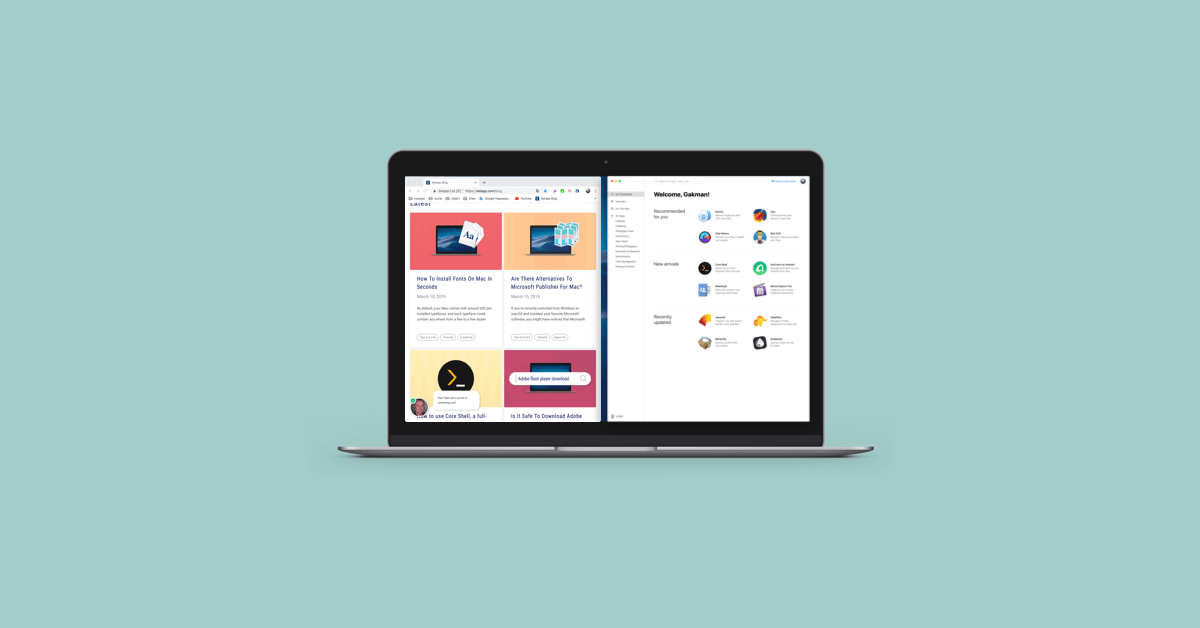
    After reading this article, it is no longer to be difficult for you to open two (2) apps at the same time on your Mac. In this article, I am going to show you how to use Split Screen on Mac.

    The Split View (or split-screen) feature was first introduced in Mac when the macOS Catalina was launched in October 2019. Thus, making macOS Catalina one of the best macOS that has ever been released (it’s debatable though).

    How To Use Split Screen on Mac

    Before you can use Split Screen on Mac, you must use Mac running macOS X El Capitan or later. If your device meets the requirements, then you are good to go.

    How To Use Split Screen on Mac with macOS Catalina or later

    1. Open an app you wish to use while using split screen on your Mac. (Red, yellow, and green buttons will appear at the upper left of the screen)
    2. Place your mouse pointer over the green button and a pop-up menu with three options will be displayed (Enter Full Screen, Tile Window to Left of Screen, Tile Window to Right of Screen).
    3. Click Tile Window to Left of Screen or Tile Window to Right of Screen to shift the window to the left or right of the screen respectively
    4. Next, choose another app from the options available.

    How To Use Split Screen on Mac with macOS Mojave, High Sierra, Sierra, or El Capitan

    1. Open the two apps you wish to use while using split-screen on your Mac
    2. Place your mouse pointer on the green full-screen button at the upper left and hold it
    3. Keep holding and then drag it to the right or left of the screen
    4. Release the button and choose the window on the other side to view the apps in split-screen view

    How To Use Split Screen on Mac Using Mac Mission Control

    1. Open any app window in the full-screen view on your Mac
    2. Launch Mission Control using any of the following methods
    3. On your keyboard, press the F3 key
    4. Press Control and the up arrow at the same time
    5. Swipe up with three or four fingers on the trackpad
    6. Afterward, two thumbnails will be displayed the top of the screen
    7. Drag and drop another app to the full-screen view thumbnail
    8. Automatically, it will enter Split View mode
    9. Finally, click the Split View thumbnail to open the split-screen

    Conclusion

    Split Screen is a cool and amazing feature that was introduced by Apple to help people who work on their Mac increase productivity and efficiency. But on the downside, not all the apps support the split-screen mode.

    Others will not allow you to reduce their window size to 50%, meaning they will take up more space than the other apps. Aside from that, everything is cool, and all you need to do is to follow the steps listed in the article and you are good to go.

  • 4 Best Invoice Apps For iPhone and iPad Users

    4 Best Invoice Apps For iPhone and iPad Users

    Are you a business owner or an entrepreneur who finds it difficult to create invoices? Well, do not worry anymore because in this article I am going to show you the 4 best apps apps on iPhone and iPads for invoices.

    Starting a business or entrepreneurship is one of the most interesting and yet difficult tasks you could ever take in your life. All the hard work you do is just because of only one thing and that is your finances or money.

    Because of this, when it comes to managing your finances as a business owner, freelancer, accountant, or entrepreneur, it is very important and must be done with high attention to detail. Gone are the days where invoices had to be written on papers and then sent to the person looking to do the business with you.

    Due to technological advances, the hard job of writing invoices on pieces of paper is long gone and now they can be done on your iPhone or iPad. Since this is a critical and a very important feature in your business’s growth and development, knowing the right apps will go a long way.

    The Apple App Store is a very big store that consists of different types of apps that perform the same or similar functions. However, I have compiled a comprehensive list of the top 3 apps I recommend you use to create invoices on your iPhone or iPad.

    1. QuickBooks Accounting

    Featuring as the no. 119th app on the Business apps chart on the Apple App Store, QuickBooks Accounting is a very useful app for businesses, especially small and start-up companies.

    QuickBooks has several amazing features which include a real-time dashboard where you can track all your expenses, invoices, and payments. On the same dashboard, you can view your profit and loss to see what you are making and spending together with your financial report.

    The Invoice generator featured in it allows you to trace and track all invoices you have sent so that you can always know who owes you and who doesn’t. Interestingly, the invoice can be created in multiple currencies, therefore all you must do is to choose your preferred currency.

    This app is free and has in-app purchases.

    2. Zintego

    Zintego is another invoicing app that provides efficient, convenient, and fast invoicing solutions for small business owners, freelancers, and creatives. With the ability to create estimates and invoices in a matter of minutes, Zintego allows users to optimize their time and receive faster payments through credit or debit cards and other online methods.

    The app also offers customizable invoice templates and a receipt generator to help businesses look professional and attractive. Zintego features a secure, easy-to-use platform accessible from any device, anywhere, and comes with various invoice templates for different industries, including photography, web design, consulting, and more.

    The app can be tried for free with a 30-day trial on the website – https://www.zintego.com and has different pricing plans to fit the needs of any business.

    3. Zoho Invoice – Invoicing App

    Zoho Invoice is the second invoice app on the App Store for iPhone and iPad users. This app according to the developers, Zoho Corporation, this app was created specifically to help small business owners and freelancers.

    Available in the app is a professionally created invoice template that helps you to create your professional invoice in just a matter of minutes. The template is designed specifically to help you tweak it to suit your business goals and your brand.

    You can also keep track of your business by checking the dashboard to make informed business decisions. There are also quick insights that are available with vibrant graphs and charts together with business reports.

    Also, you can print your invoices by using the Air Print feature if your iPhone or iPad has this feature. Zoho Invoice is also completely free.

    4. Invoicera

    Invoicera is a cloud-based invoice and billing app which is used by over 3 million businesses, according to Invoicera on the App Store. It helps you to automate and simplify the creation of invoices on your iPhone or iPad with the multi-lingual and multi-currency features also in it.

    Some of the features in the Invoicera app include easy, quick, and efficient ways to create professional invoices from your iPhone or iPad 24/7. Also, you can easily generate pdf formats of your invoice, review and then send it to your clients right on your iPhone or iPad.

    You can also add customers from your customer list and item from the item list to your invoice in just a few taps and clicks. Also, you can easily manage your accounts using the language and the currency of your choice.

    Once invoices are paid, they are automatically reflected on your dashboard for you to know who has paid and who has not. (This feature varies depending on your location). This app is also free and has paid subscriptions available depending on your budget and the number of businesses you wish to manage in the Invoicera app.

    Conclusion

    Creating invoices in this modern technology age is very easy, fast, and more importantly, portable. You no longer have to go around carrying your invoice book with your invoices. You can do so using your iPhone or iPad.

    Several invoicing apps are available on the App Store but in this article, I have recommended some of the 4 best invoicing apps for iPhone and iPad users. All the apps in the article are completely free so you can try all of them and choose the one that suits your preference.

  • 5 Proven Ways To Recover Deleted Photos on Mac

    5 Proven Ways To Recover Deleted Photos on Mac

    Have you recently lost a photo on your Mac due to an accident or intentionally and were wondering how to recover these photos? If you have, then this article is going to show you 5 proven ways to recover deleted photos on Mac.

    Photos are usually memorable events and scenes we really cherish and want to keep for future references. Even if your photos are not memorable events, then they are something important you want to keep for future reference. They could be screenshots, videos, flipcharts, infographics, etc.

    Unlike most Windows, Linus, and other Operating System users, Mac users usually don’t have external hard drives where they keep these photos since they have iCloud and other backup options. Even if these photos are on hard drives, they are likely to be lost either due to an accident or whatever the reason may be. Being it formatting, malware, faulty macOS upgrade, corruption, these are all likely.

    Because of these unforeseen circumstances, it is good to know some proven ways you can recover deleted photos on your Mac. On the flip side, four (4) of these methods we are going to talk about below are free and do not require you to be a “techy” to be able to go about it. One of the methods although might require you to pay something but there are also free alternatives available.

    5 Proven Ways To Recover Deleted Photos on Mac

    There are several ways you can recover deleted photos on your Mac. You can simply follow a few steps and you will be done, or you can follow a complicated procedure. Better still, you can pay for software to do this for you. But in this article, I am going to talk about only 5 of the top proven methods.

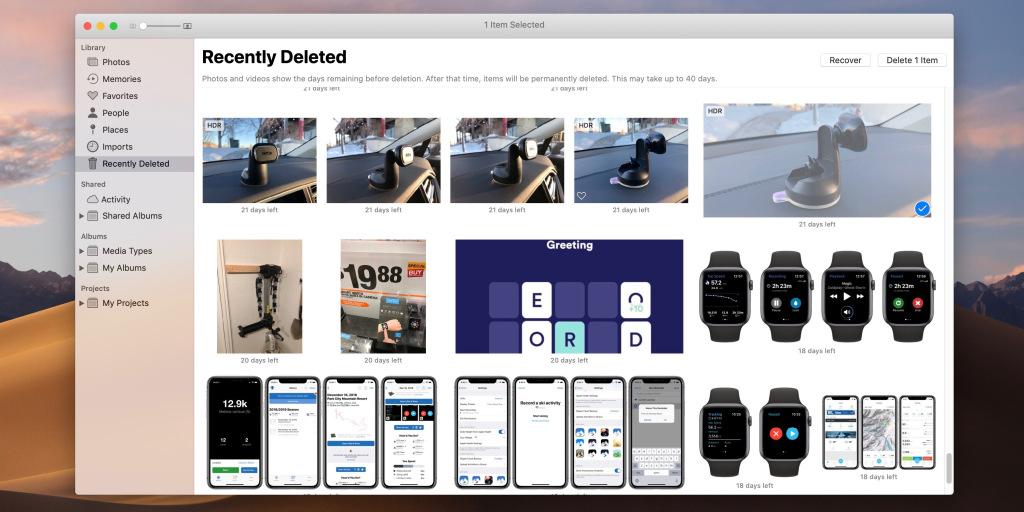
    How To Recover Deleted Photos on Mac Using The Recently Deleted Folder

    All Apple devices allow users to recover photos they deleted within 30 days after they deleted the photos. Mac computers with macOS Big Sur, Catalina, and Mojave also have this feature.

    To be able to use this method, your Mac must be running either of the macOS listed above and the photo must have been deleted within the last 30 days. If you meet the requirement then follow the steps below:

    1. Open the Photos app on your Mac
    2. Click on Recently Deleted in the left pane of the page
    3. Tap or select the photo (s) you wish to restore and then click Recover at the top
    4. Your photo will now be automatically restored to the photos app. Open the app and view your photo.

    How To Recover Deleted Photos on Mac From iCloud

    1. Visit iCloud.com and log in with your Apple ID and password
    2. Click on Photos
    3. Locate the Recently Deleted album
    4. Choose the photo you wish to restore and click Restore

    How To Recover Deleted Photos on Mac From Trash

    In situations where you can’t find the Recently Deleted folder then the Trash bin of macOS comes in handy. Like the Recently Deleted folder, the Trash bin also stores deleted photos in it for 30 days before it is finally deleted.

    1. Open Trash on your Mac
    2. Locate and right-click on the photo you wish to restore
    3. Select Put Back and the photo will return to the original folder

    How To Recover Deleted Photos on Mac Using Time Machine Backup

    Depending on the last time you backed up your Mac, you can recover your deleted photos using the Time Machine backup. Follow the steps below if you wish to use this method.

    1. Connect the external drive with Time Machine backup to Mac
    2. Open Finder and click on the file destination where the photos were deleted
    3. Click to open the Time Machine icon in the menu
    4. Click on the last backup or the date of the backup that contains your photo
    5. Find the photo library backup, select, and Click Restore

    How To Recover Deleted Photos on Mac Using A Photo Recovery Software

    After following all the above methods and you can’t find your photo then the next alternative is to use photo recovery software. Most of these software are paid but there are free ones also available.

    Research on the ones that suit your budget, and you will be good to go. Most of these photo recovery software allows you to restore almost every photo format, from .png, .jpeg, .dng, etc.

    Conclusion

    Recovering deleted photos on your Mac is very easy and straightforward. After reading this article you should be able to recover your deleted photos on your Mac easily.

  • Top 5 Best Email Apps For iPhone and iPad

    Top 5 Best Email Apps For iPhone and iPad

    Managing your emails is one of the most important things to do in this modern era. Unlike previously where most people preferred text messages to emails, now most people prefer emails to text messages.

    One of the reasons most people have attributed to this change of taste in the form of sending text messages is the fact that emails can be accessed on different devices, provided you have an active internet connection. The same could not be said about text messages since they can only be accessed on the phone in which the sim card is inserted.

    With that in mind, choosing the right email app on your iPhone and iPad will go a long way. Thankfully, there are a lot of alternatives on the App Store for you to choose from but not all of the so-called “email” apps are recommended, mainly due to security reasons.

    In this guide, I am going to recommend to you the top 5 best email apps you should use on your iPhone or iPad, or both. Please note that these apps are not listed in any particular order.

    1. Mail (Apple Mail) App

    The Mail app is also known as the Apple Mail app is the default mail app on every Apple device, being it iPhone or iPad. Usually, all new iPhones and iPads come with the Mail app already installed on them.

    Since this is the default mailing app on iPhones and iPads, it comes with a lot of amazing features and settings. Even though it is developed by Apple, you can add multiple accounts in the app, whether it is an Apple, Google, Yahoo, Outlook, Hotmail, or your organizational email account.

    Also featured in it are complete text formatting tools which help you to compose emails as if you were using your computer. You can add attachments with just a few clicks, use swipe gestures to mark, delete, or archive emails.
    Additionally, you can mute emails from a particular sender or add certain email addresses as VIP and their emails will be sent as a priority notification. Interestingly, it is completely FREE.

    2. Gmail: Email from Google

    Gmail has one of (if not) the highest number of active users. As a result, it is no wonder a surprise that Gmail: Email from Google is the number one ranked productivity app on the Apple App Store.

    Similar to the Mail app, you can add multiple accounts and switch between them whenever you wish to do so. After sending a wrong or unwanted message, you can quickly use the undo feature to unsend the email ASAP.

    Also, if there is an email containing an event, there is an option for you to add it to your calendar so that you don’t miss out on your event. There is also a swipe gesture feature available for you to use as and when necessary.

    There are also different languages available for you to choose from depending on your location and preference. Also, it is completely FREE.

    3. Yahoo Mail

    Yahoo is also one of the top email providers in the world. In the earlier days of email, most people were using Yahoo and most people still do till this day. As a result, the Yahoo Mail app is one of the best email apps available on the App Store for iPhones and iPads. Once you open the app, you are greeted with an elegant user interface which makes your emailing very fun.

    Unlike the rest of the apps mentioned earlier, the Yahoo Mail app comes with 1TB  of free cloud storage for you to use for your emails and also to keep your data safe and sound.

    Even though developed by Yahoo, you can add other email provider platforms like Apple, Gmail, Outlook, etc. The swipe gestures can also be customized to suit whatever you want them to be.

    Although the Yahoo Mail app is free, you can also subscribe to the Yahoo Mail Pro which comes with other features for $0.99 per month.

    4. Microsoft Outlook

    The Microsoft Outlook app is similar to all these apps and at the same time has its own unique features. You are allowed to view all your emails and calendars in one place without installing or opening any calendar app.

    There is also another feature for you to schedule emails to be sent at the time you set for it. Also, you can navigate through the files synced with OneDrive, Dropbox and easily attach them to your emails.

    Several languages are available for you to choose from and it is completely FREE.

    5. myMail

    The last app on my list is the myMail app. Personally, myMail app is one of the best email apps I have used on an iPhone.

    Apart from adding several accounts on the myMail app, there are tons of other settings and features available for you to choose from.

    Head towards the settings pane to navigate through all the settings available. You can assign avatar and profile photos to each email account for easy identification when using the app and also, it is FREE.

    Conclusion

    Now, you have been given a list of some of the best email apps on the App Store for iPhones and iPads. If possible download all of them and let us know your best app in the comments section below.


  • 3 iCloud Tips You Should Know to Make The Most Out Of It

    3 iCloud Tips You Should Know to Make The Most Out Of It

    iCloud is not just a cloud storage space for your Apple device. There are some cool features that are featured in it, and I am going to show some top 3 iCloud tips you should know to make the most out of it.

    Can you imagine an Apple device, i.e., iPhone, iPad, Mac, or Apple Watch without iCloud? How do you see it to be? It doesn’t look right, correct?

    iCloud is one of the several features that make Apple devices unique from some of the other electronic device manufacturers. Launched in October 2011, iCloud serves as cloud storage and cloud computing on all Apple devices.

    It enables Apple device users to store important data such as photos, documents, music, backup files on the cloud and access it whenever they need it, no matter the type of device they are using. According to Wikipedia, iCloud replaced Apple’s MobileMe service, acting as a data syncing center for email, contacts, calendars, bookmarks, notes, reminders, documents, photos, and other important data.

    Apart from all these amazing features that are available on iCloud, there are some other iCloud tips that will help you make the most out of it. Continue reading to find out these cool tips.

    1. Access iCloud on Different Apple Devices

    As I stated in the introduction, iCloud can be accessed on different devices either on the web, computer, or even mobile device. Knowing this method will help you in your times of need.

    In this guide, I am going to show only how to open it on Mac, iPhone, and iPad.

    How To Access iCloud on Mac

    1. Click the Apple logo at the upper left and select System Preference
    2. Select Apple ID from the System Preference menu
    3. Click iCloud
    4. Enable or disable your desired options

    How To Access iCloud on iPhone and iPad

    1. Open the Settings app on your iPhone or iPad
    2. Tap on your name at the top of the Settings page and then tap on iCloud
    3. Toggle on or off the various options available for you to choose from.

    2. Free Up iCloud Space by Using Google Photos

    All brand new Apple devices come with a free 5GB iCloud storage space. If you love saving a lot of videos and pictures on your device, then there is a high chance of you elapsing your iCloud storage in just a matter of days.

    Therefore, if you have a lot of photos and videos on your device, then I recommend that you use Google Photos and then use the iCloud storage for something else. You can easily do this by disabling Photos under the iCloud settings.

    The reason why I recommend Google Photos is the fact that it comes with 15GB of free storage space for your photos and videos, unlike the 5GB provided by iCloud for everything.

    3. Sync All Your Passwords With Keychain

    Memorizing all the passwords for your accounts on your Apple device can be a little difficult, especially for people with multiple accounts with varying passwords. Even though there are different password manager apps available on the App Store, not all of them can be trusted.

    Thus, using Keychain, a free password manager which you can sync with your iCloud account can do the trick. Keychain stores, protect, and encrypt all your username, email address, password, etc., and enables you to use it all your Apple device.

    To sync Keychain with your iCloud account, open the Settings app >> tap on your name at the top of the page >> iCloud Keychain and enable it. On Mac open System Preferences >> Apple ID >> iCloud >> Keychain.

    If you use Chrome on your Windows PC, install the iCloud Passwords Chrome extension and you can use all the passwords synced with your iCloud account.

    Conclusion

    There are some other cools tips you can use to make your iCloud account interesting but these three (3) are some of the “must-know” iCloud tips. The explanation is basic and the way you can carry out all these methods has been shown in the article.

    To make it easier and accessible to everyone, if you find it difficult to understand anything in the article, feel free to write it in the comments section below or get in touch with me and I will be glad to assist you.

  • UFL: Everything You Need To Know About The New Football Video Game

    UFL: Everything You Need To Know About The New Football Video Game

    Football gaming has over the years changed as time progresses. From playing it for fun to now playing it as a full-time occupation on YouTube, Twitch, and Discord, you and I can both agree that football gaming has changed.

    But over the years, the competition in football gaming has been between only two (2) main developers, i.e., Pro Evolution Soccer (now eFootball) by Konami and FIFA by EA Sports. As a result, football gamers are left with no other choice but to play either one or both football video games.

    Even though these two (2) developers have improved on their gameplay and features, it appears as if they are enjoying some monopoly power in the football video game development industry. But now, that is going to change completely since a new football game is coming soon.

    At the 2021 edition of the annual video game event, Gamescom 2021, Strikerz Inc. together with Unreal Engine revealed their new football game expected to be released this fall called UFL. This was revealed at the Opening Night Live of Gamescom 2021 and in this article, I am going to show you everything you need to know about the new football video game.

    What is UFL?

    UFL (full meaning unknown yet) is a new football video game developed by Strikerz Inc, in collaboration with Unreal Engine to be released soon. The collaboration between Unreal Engine means that the game is optimized for next-gen consoles, enabling you to feel the reality as you play the game.

    According to Strikerz Inc, UFL is going to be an online league which is not big news since eFootball and FIFA are already doing this, although we are not certain whether it will be completely online or both online and offline.

    From the reveal trailer, which is available on YouTube, UFL is going to be a pain in the neck of both eFootball and FIFA due to the realistic nature of the players and their attention to detail. In the introductory section of the trailer, very detailed attention could be seen in the realistic nature of the jersey.

    Just a few days after the release trailer, Unreal Engine has launched uploaded the gameplay on their YouTube channel. The gameplay also shows the surreal stadium appearance, football kits and shoes, and the details in the players (both face and tattoos).

    Strikerz Inc. has partnered with FIFPRO, the world’s biggest representative organization for 65,000 professional footballers, as well as InStat, one of the leading sports performance analysis companies, who will provide detailed data and up-to-date statistics for each player.

    The official press release by Strikerz Inc. states that UFL has been in development since 2016 and the game will be available for free and regular updates will be added as and when necessary.

    Image Credit: FootyHeadlines.com

    When is UFL Going to Be Released?

    According to Strikerz Inc, the developers of the game, the official date for the release of the game has not been officially announced to the public yet. But on the website and social media platforms, it states that is COMING SOON.

    Since most of the newest video games are expected to be released this fall, per our analysis and predictions, UFL could be released somewhere in the early or later part of October 2021. This analysis is purely based on the fact that eFootball 2022 and FIFA 22 will be released on September 30th, 2021, and October 1st respectively.

    Also, because UFL is a new video game entering the scene, it is likely that they will allow those already in the scene to do their releases before they release theirs. This will make sure that they are not competing with the “big names”.

    What Platforms Will UFL Be Available On?

    UFL is going to be available on the major gaming consoles or platforms, according to Strikerz Inc. On the website, it states that it will be available on PlayStation and Xbox consoles. Per the time of my writing, Strikerz Inc. states that they are now considering PC but it highly possible.

    Thus, in the early release, we expect it to be available on PlayStation 4 and 5, Xbox X, S, and One by this fall, and hopefully available on PC in the latter part of the year or somewhere next year.

    Conclusion

    With football gaming evolving over the years and the competition only between eFootball and FIFA, we expect UFL to change the entire video game industry.

    To know all the latest information about UFL, all you have to do is to follow us on our social media platforms, and we will update you whenever any new update is shared by Strikerz Inc.

  • How To Use The “Do Not Disturb” Feature on Android

    How To Use The “Do Not Disturb” Feature on Android

    Does your Android device keep making unnecessary noise from the notifications that keep popping on your device? This noise can be annoying especially when you are at a serious meeting or when you are trying to take a nap or sleep.

    There’s no need to worry anymore because, in this article, I am going to show you how to use the “Do Not Disturb” feature on your Android phone and everything you need to know about it.

    Most people will say that why don’t you just put your phone on silent and have your peace of mind. Well, yes, that will work but what if there is something important (call or notification) that you are expecting from someone? If that’s the case, then putting your phone on silent will not solve the problem but turning on “do not disturb” is going to solve this problem.

    Unlike the silence feature, the “Do Not Disturb” feature allows you to silence your Android device, but also permit certain people and apps on your device to send you notifications; this way, only people and apps allowed by you can send you a notification and the rest will be muted.

    What is “Do Not Disturb”?

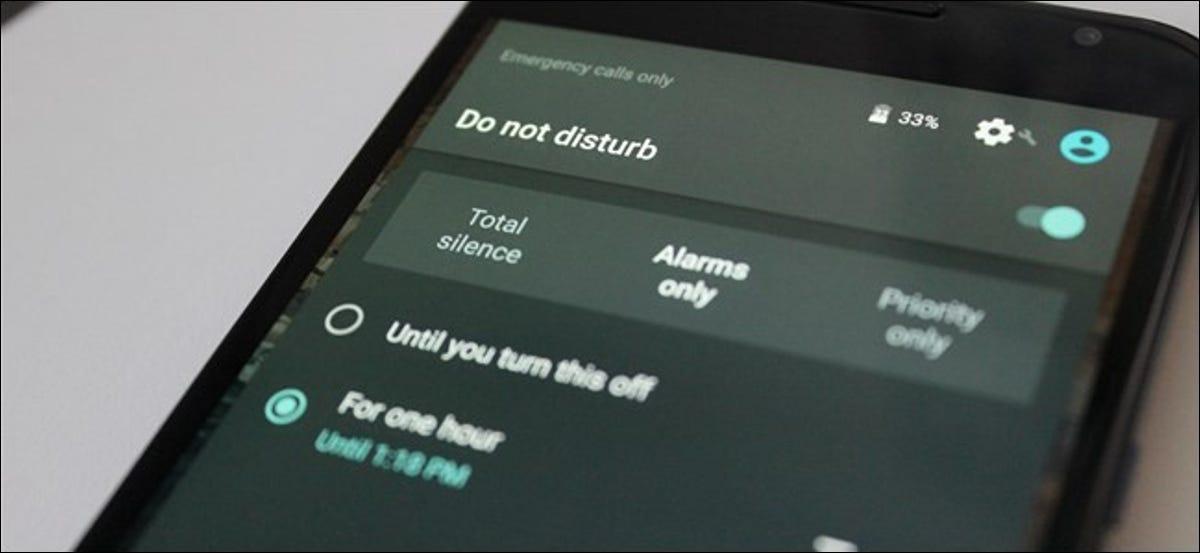
    “Do Not Disturb” is a feature that was introduced in Android 5.0 Lollipop and allows users to partially or completely mute calls and notifications on their Android device. There are three (3) levels of silence you can have control over using the “Do Not Disturb” feature.

    • Total Silence: this feature will completely silence everything, from notifications, calls, and even alarms will not be permitted to disturb you.
    • Alarms only: this feature works like the Total Silence feature but with this feature, only alarms are allowed to blow on your Android device.
    • Priority only:  this feature silences everything except alarms, people, reminders, and events that you choose.

    How to Turn On “Do Not Disturb” Feature on Android

    There are two (2) main ways you can turn on “Do Not Disturb” on your Android device. You can turn them on manually or automatically.

    How To Turn On “Do Not Disturb” Feature on Your Android Device Automatically

    1. Swipe down the screen from the top of the screen
    2. Swipe down again (if Do Not Disturb does not appear in the list)
    3. Tap on Do Not Disturb to turn it on

    How To Turn On “Do Not Disturb” Automatically

    1. Open Settings on your device
    2. Tap on Sound and then Do Not Disturb >> Automatic rules
    3. Choose from Weekend, Weeknight, and Event, or choose a new rule. You can name the rule however you want it
    4. Choose whether you want it to be Alarm only, Priority only, or Total silence
    5. Tweak the other settings to your preference

    Depending on the type of Android device you are using and the Android version you are using, the “Do Not Disturb” feature will be slightly different from the method listed above. But whatever the case may be, the Do Not Disturb feature will be similar to what I stated in the steps above.

    What Happens to Missed Calls in the Do Not Disturb Mode?

    When you are using the Do Not Disturb, your phone will still be connected to your network provider but depending on the type of DND you have enabled, calls will not be allowed.

    Because of this, you would have to manually check your phone to see if someone tried to call you. If that’s the case, then you can call the person back. If your device is on Total Silence, anyone who calls you will not go through, but a missed call notification will pop up on your phone.

    Conclusion

    Using Do Not Disturb, you can now walk into your meeting or go to sleep without worrying about unnecessary notifications waking you up or disrupting your meeting. Follow the steps listed in this article and you will be good to go.

    In case of any challenge, feel free to write it in the comments section below and I will be glad to assist you. Finally, please share this with all your Android device users.

  • Top Expected Tech Releases This Fall – iPhone 13, Pixel 6, FIFA 22 & More

    Top Expected Tech Releases This Fall – iPhone 13, Pixel 6, FIFA 22 & More

    In the technological space, Fall is one of the best seasons. If you follow technology and its related products, then you will agree with me that, whenever we enter September, there’s a new release somewhere waiting for us.
    Because of the COVID-19 pandemic, the technology calendar was interrupted and as a result, most of the product releases had to be pushed forward. But this year, this has changed completely and everything is back on track.

    Christmas as we all know comes in December but in the “tech” space, our Christmas starts from September through to December. This fall, we are all expecting some of the biggest names in the technology industry to finally launch the products and services they’ve been working on throughout the year.

    In this article, I am going to reveal to you some of the top expected products expected to be released this fall. With summer over, it’s now time for us to buckle our shoes and expect nothing but the best from the top tech companies.


    iPhone 13 Series and iOS 15

    We can never mention top releases of the year without starting with the iPhone 13 series. Apple, the manufacturers of iPhones, has been noted to usually releasing its products in September each year (with the exception of last year because of COVID).

    iPhone launches are known to be one of the most anticipated product launches each year and this year is no different. According to YouTuber Aaron Zollo of Zollo Tech, all the signs are pointing towards the Apple event happening this month under which the iPhone 13 is expected to be released.

    If you are among the iOS 15 Beta testers, you will have released that Apple has been moving up the release of the new beta. Initially, it used to be once in a while but now, new betas are released every week, this shows that the release of the iOS 15 and iPhone 13 series will happen any time soon.

    So far what we know about the iPhone 13 series is that the 5G has been improved with the new modem, you can now use Portrait mode in video, satellite communications capability for emergency texts, and a faster A15 Bionic chip.

    Google Pixel 6 Series

    Over the past few years, Google has shown that when it comes to the manufacturing of smartphones, they are one of the best. Since the release of the first generation of Google Pixel smartphones in October 2016, Google has kept on releasing improved versions of the previous releases.

    This year also, it is expected that Google will release the Pixel 6 this fall. The Google Pixel 6 will be a direct successor to the Pixel 5 which was released in September 2020.

    According to the information I have gathered on the official Google Store website, the Google Pixel 6 and Pixel 6 Pro will be released this Fall.

    Google Pixel 6 and Pixel 6 Pro have the new Google Tensor, a custom-made for the Pixel. It helps the Pixel 6 and Pixel 6 Pro “the fastest, smartest, and most secure Pixel phones yet.” In addition, new colours have been made to reflect your personal style.


    eFootball 2022

    Originally known as Pro Evolution Soccer (PES), eFootball 2022 has been announced to be released on 30th September according to the information I gathered on the official Konami website.

    Unlike the previous editions, this year’s, eFootball 2022 is going to be Free to Play on multiple devices. As time goes on, it is even expected to become completely cross-platform whereby no matter the device you are using, you will be able to play with your friend using another type of device.

    According to Konami, the supported devices for eFootball 2022 are PlayStation 5, PlayStation 4, Xbox Series X, Xbox Series S, Xbox One, Windows 10 (PC), Steam (PC), iOS, and Android.


    FIFA 22

    FIFA, one of the most played sports (football) games in the world, is also expected to release FIFA 22 this fall. Since 1993, EA Sports have been serving football gamers with nothing but the best in soccer gaming.

    FIFA 22 is going to be the first of its kind in the FIFA Series to be made for next-gen consoles, i.e., PlayStation 5 and Xbox Series X/S. Since EA Sports always release god stuff, we expect the FIFA 22 to be nothing but the best.

    Unlike the other releases, there is limited information about the release of FIFA 22. Since we do not want to speculate, I will like to pause here and promise to update you whenever there is enough news. But with Messi moving to PSG and Ronaldo moving back to Manchester United, you know FIFA 22 is going to be amazing.

    Windows 11


    After several years of waiting for Windows 11, Microsoft has finally announced that Windows 11 will become available from October 5, 2021. Also, computers that come with Windows 11 will also start to be released from October 5.

    As a beta tester of Windows 11, I can assure you that you will love Windows 11. According to Microsoft, Windows 11 is coming to empower your productivity and inspire your creativity.

    For PC gamers, Windows 11 will deliver the best Windows gaming experience ever. With DirectX12 Ultimate, DirectStorage, and Auto HDR, you are in for a fun gaming experience on your PC.

    Conclusion

    These are just a few of the releases we expect this fall. For all your updates, continue visiting our website and follow us on all our social media pages to stay updated on these releases.