Author: Gabriel Agbobli

  • How to print and frame your pictures & canvas paintings in Ghana

    How to print and frame your pictures & canvas paintings in Ghana

    Do you know that you can now print and frame your picture and canvas paintings and have them delivered to your home in Ghana? Yes, you heard me right; you can absolutely sit in the comfort of your home and get your framed picture or canvas paintings delivered to you just the way you designed it.

    In the olden days, pictures were taken on special occasions, especially those of us who lived in the rural areas. As for those whose parents were rich or had their personal cameras, they had the opportunity to take photos as and when they had the chance to spend time with their families.

    Now, all these have changed due to the availability of cameras on smartphones and cameras. Thus, you can now take a photo with your smartphone or tablet whenever you want without paying anything.

    But if there’s one thing that hasn’t changed, then it is the frames we put our pictures in. Picture frames are not only meant to make our pictures look good but also to protect our pictures from other substances like dust, water, and even fire.

    Although frames are nice, it is very hard to find a place where you can get quality and also affordable frames for your photos and even canvas paintings. That shouldn’t be a problem for you anymore because not only will this article show you where to do that, but also show you how to get them delivered to your home right here in Ghana.

    How to print and frame Your pictures & canvas paintings and have them delivered to your home in Ghana

    Depending on what you want from Picture Frames Hub, there are different ways you can go about it. There are four (4) main features options available for you. There are Frames, Canvases, Pre-Framed Pictures, Pre-Made Canvases.

    How to print and frame your pictures and have them delivered to your home in Ghana

    1. Open your browser and type in www.pictureframeshub.com
    2. Click on the menu icon and then click on FRAMES
    3. Scroll through the available frames and click on the one, you wish to use for your photo (the prices are also listed under them)
    4. Choose the orientation of your photo (Landscape or Portrait)
    5. From the sizes available, select the one you like
    6. Click on Upload Your Picture to upload your picture
    7. Scroll to the bottom and check the price, preview of your photo (in the frame) and then click on Add to Cart and then checkout

    How to print your canvas and have them delivered to your home in Ghana

    1. Open your browser and type in www.pictureframeshub.com
    2. Click on the menu icon and then click on CANVASES
    3. Scroll through and choose your preferred choice
    4. Choose the orientation of your photo (Landscape or Portrait)
    5. From the sizes available, select the one you like
    6. Click on Upload Your Picture to upload your picture
    7. Scroll to the bottom and check the price, preview of your photo (in the frame) and then click on Add to Cart and then checkout

    How to buy pre-framed pictures and have them delivered to your home in Ghana

    1. Open your browser and type in www.pictureframeshub.com
    2. Click on the menu icon and then click on PRE-FRAMED PICTURES
    3. Scroll through and choose your preferred pre-framed picture
    4. Choose your preferred size and click on Add to Cart
    5. Proceed to checkout and enter the relevant information

    How to buy pre-framed canvases and have them delivered to your home in Ghana

    1. Open your browser and type in www.pictureframeshub.com
    2. Click on the menu icon and then click on PRE-FRAMED CANVASES
    3. Scroll through and choose your preferred pre-framed picture
    4. Choose your preferred size and click on Add to Cart
    5. Proceed to checkout and enter the relevant information

    Conclusion

    Picture Frames Hub makes it easy to sit at the comfort of your home and order your picture frames and canvas and get them delivered to you. During checkout, the phone number you use will be the same number your tracking code will be sent to.

    If you want to track your order, visit Picture Frames Hub’s official website and click on the menu icon and then TRACK YOUR ORDER, enter the order code, and then you will be able to find the progress of your order.

    For more information, you can get in touch with Picture Frames hub on 0206652744 or [email protected].

  • How To Use Microsoft Edge to Solve Math Problems

    How To Use Microsoft Edge to Solve Math Problems

    Finding a place to learn Mathematics online is not difficult; there are several free sites you can visit to learn any Math topic. But have you ever wondered where you can solve those Math problems that seem to bother you?

    In almost every part of the world, one of the subjects that seem to bother students very often is Mathematics, from the basic level throughout to the tertiary level. Usually, this is not the fault of the students neither is it the fault of the teacher but it is because of our perception towards the subject, Mathematics.

    Because of some of the challenges, some of us face in Mathematics, Microsoft and the developers of Microsoft Edge have added a new feature that helps to solve Math problems. It is called the Math Solver.

    What is Microsoft Edge’s Math Solver?

    Microsoft Edge’s Math Solver is a new feature developed by Microsoft on the Microsoft Edge browser that captures mathematical problems from an image and then solves them for you for FREE. If you have been using Windows for a long time, you will realize that this feature is not something new.

    But the new thing is that, unlike previously, now the Math Solver has been integrated into the Microsoft Edge browser’s 91 updates. This means you can simply solve your math problems without switching windows, that’s cool, right?

    Additionally, if you search for any mathematical concept on Bing using Microsoft Edge, the Math Solver will automatically pop up. And with this, you can even draw your question, and wait for Microsoft to do the rest for you.

    Some of the math problems that can be solved with the Microsoft Ede Math Solver include:

    Pre-Algebra: Least Common Multiple (LCM), Greatest Common Factor (GCF), Mixed Fractions, Radicals, Exponents

    Algebra: Inequalities, Systems of equations (simultaneous equations), Matrices, Linear and Quadratic Equations, etc

    Trigonometry: Basic trig functions, Trigonometric equations, Trigonometric graphs

    Calculus: Differentiation, Finding limits, and Integration

    How To Add Math Solver to the Microsoft Edge Toolbar

    Before you use the Math Solver, there are some simple steps you need to follow to add the Math Solver to your Edge toolbar. This will aid you in solving your math problems quickly, without going through any hassle.

    1. Update your Microsoft Edge browser to the latest version (without this, it won’t work)
    2. Open the Microsoft Edge browser
    3. Click on the More icon (3 dots) on the upper right corner of the screen. Or you can use the shortcut Alt+F
    4. Click on Settings from the menu
    5. Select Appearance on the left side of the screen and then scroll to the button and toggle on Show Math Solver
    6. Afterward, the Math Solver icon will appear on your Edge’s toolbar

    Now that you’ve added the Math Solver icon to the toolbar, let’s jump into how you can use the Math Solver.

    How To Use Microsoft Edge to Solve Math Problems

    There are several ways you can use the Microsoft Edge browser to solve Math problems. In this article, I am going to show you two (2) important ways.

    How To Use Microsoft Edge to Solve Math Problems by Typing in the Question

    1. Click on the Math Solver icon in the Edge toolbar
    2. There are several tabs. Tab 1 has the numbers and the four (4) basic operations; Tab 2 allows you to input log, fractions, inequalities, radicals, etc; Tab 3 contains all the trigonometric functions; Tab 4 is for statistics like mean, mode, LCM, GCF, etc; Tab 5 has alphabets that can be used as variables. There is also a tab for Matrices.
    3. Click on the tab and type in your question. You can also use your keyboard if you prefer and click Solve afterward.

    You will then see a detailed solution to your question.

    How To Use Microsoft Edge to Solve Math Problems by Highlighting the Question

    This method works for questions that are in picture format or in a document. If you have anything like that, then follow the steps below:

    1. Open the image or the document containing the question in your Edge browser
    2. Click on Select Math problem in the Math Solver pane
    3. A pop-up screen will be displayed for you to highlight the question
    4. Drag and resize the selection box around the question
    5. Click on Solve and wait for Microsoft Math Solver to handle the rest for you.

    Conclusion

    After reading this article, solving a math problem should no longer be a difficulty for you. Although the Math Solver can solve Math questions, there are some advanced questions outside the highlighted areas that cannot be solved.

    Also, you need to connect your device to an active internet source before using the Math solver, otherwise, it won’t work.

  • How to install Windows 3.1 on an iPad

    How to install Windows 3.1 on an iPad

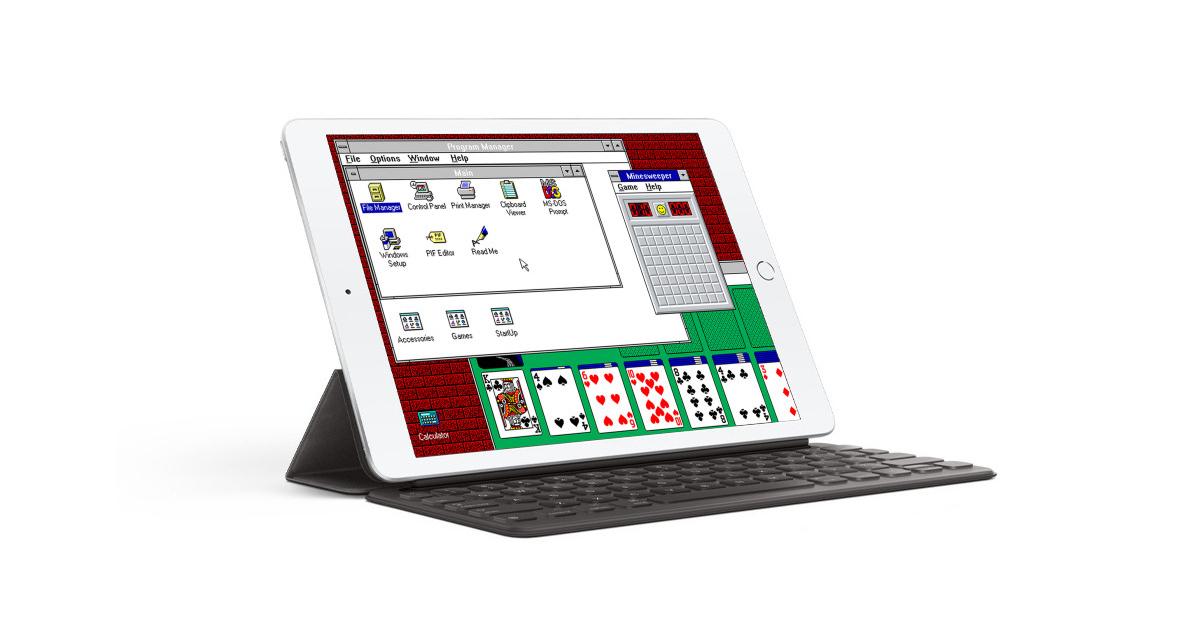
    Do you love both Windows and Apple at the same time? Do you miss your olden days Windows 3.1 when you were using your desktop machine?  If you do, then continue reading this article to find out how you can revisit that moment right on your iPad.

    Windows 3.1, one of the earliest versions of the Windows operating system was released on the 6th of April 1992 (this is a long time right ?). Probably most of us were not having our own PCs by then.

    But thanks to iDOS you can be able to re-live this moment right on your iPad or iPad Pro. With iDOS, you are given the chance to install Windows 3.1 and enjoy all the amazing details that come with it.

    A Brief About Windows 3.1

    Windows 3.1 is a series of 16-bit operating environments produced by Microsoft for use on personal computers, released on April 6, 1992. The series began with Windows 3.1, which was first sold in April 1992 as a successor to Windows 3.0. Subsequent versions were released between 1992 and 1993, notably Windows 3.11 until the series was superseded by the Windows 9X series starting in 1995 with Windows 95. During its lifespan, Windows 3.1 introduced several enhancements to the still MS-DOS-based platform, including improved system stability, expanded support for multimedia, True type fonts, and workgroup networking.

    On December 31, 2001, Microsoft declared Windows 3.1 obsolete and stopped providing support and updates for the system. However, OEM licensing for Windows for Workgroups 3.11 on embedded systems continued to be available (despite the OS no longer being officially supported) until November 1, 2008.

     How To Install Windows 3.1 on iPad

    The process of installing the Windows 3.1 OS on an iPad is a little bit tricky, therefore you need to read this article very carefully otherwise you will not understand the process properly.

    NOTE: THE IDOS APP COMES AT A PRICE ($4.99)

    1. Download and install the iDOS app on your iPad

    On your iPad, go to the App Store and search for iDOS 2. Once you are done with the installation, run the app, and check your Files app to see if it has created a new folder under the name iDOS in the On My iPad.

    2. Set up your Bluetooth accessories (Mouse, Pen, Keyboard)

    To enable you to enjoy Windows 3.1 on your iPad to the fullest, it would be better if you connect Bluetooth accessories to your iPad. This will make you feel the reality of the interface. But if you don’t have any Bluetooth accessories, feel free to go on to the next step.

    3. Prepare the setup files for the Windows 3.1

    With this step, it depends on the type of PC you have. Go to the internet and search for the setup files for Windows 3.1.

    4.Copy the setup files from the PC to the iPad

    You can use whatever transfer method to transfer the setup files from the PC to your iPad. Upon successful completion, make sure to copy all the files into the iDOS folder in the Files app. (If you need help make sure to let me know in the comments section below).

    5. Install Windows 3.1. in iDOS 2

    Launch iDOS 2 app and type in w3setup\setup at the C:\> and then press Enter. A welcome screen will be shown, press Enter again >> Select Express Setup and wait for the setup files to finish copying.

    Once it is done, the installation screen will be displayed, wait for the installation to finish. When the installation is done, click on Exit Setup.

    6. Quit iDOS 2 and restart the app to start enjoying Windows 3.1 right on your iPad

    Conclusion

    The main purpose of this article is to help you enjoy what the earlier version of Windows looked like. Although the steps seem confusing, once you follow the steps listed in the article, you will be able to do it.

    In conclusion, if you come across any challenge please feel free to write it down in the comments section below, and will check it out as soon as I can. Also, make sure to share this with all your friends and Windows OS lovers.

  • A quick guide on how To Create YouTube Shorts

    A quick guide on how To Create YouTube Shorts

    Have you seen Shorts anytime you open the YouTube app on your device? Have you been wondering what the meaning of YouTube Shorts; how does it operate, and how you can create your own YouTube shorts?

    If you have, then worry no more. In this video, I will explain everything you need to know about YouTube Shorts and how to create your own YouTube Shorts.

    For some time now, TikTok has taken over the social media space. Almost everyone, including young, middle-aged, and older people, has TikTok installed on their devices. This is mainly because the videos are free to watch and download. Thus, you can watch the videos and download them on your device for future viewing.

    This is very different from all the other popular social media platforms where you have to go through lengthy processes to download videos – most of them being illegal or unethical.

    Due to the pressure placed by TikTok on the other video applications, YouTube has also created its very own “TikTok-like” feature called the “YouTube Shorts.” If you are very observant, then you will have already spotted this in your YouTube app. But what at all is YouTube Shorts?

    What is YouTube Shorts?

    Shorts is a new video streaming feature introduced by YouTube to allow viewers to enjoy short videos while using the YouTube app. This system functions as a “social media” platform for short videos, similar to TikTok and Instagram Reels.

    On the regular YouTube platform, video creators had to use quality cameras to record and upload their videos if they ever thought of gaining followers. Although this isn’t a big issue, people who were using their smartphones to create videos on YouTube were not gaining much traffic compared to those with High-Quality HD cameras.

    But with the new Shorts platform, video creators can now use their smartphones to record up to 60 seconds of video content right from the YouTube app. In terms of editing, some free-to-use tools will help you edit your videos; and interestingly, you don’t need to be “techy” to use the editing tools.

    How To Create YouTube Shorts

    1. Open the YouTube app on your iPad, iPhone, or Android device
    2. Tap on the Create (+) button in the bottom toolbar of the page. (Between Shorts and Subscriptions)
    3. Tap Create a Short from the menu
      • Some of the options that will appear in this menu include
      • Add Music: this option is used to choose the music you will play during the video.
      • Flip: This is used to switch between front and rear cameras.
      • Speed: you can use this to adjust the speed of the video from the min 0.3X to 3.0X
      • Timer: this is used to set a time to start recording so that you can place your phone somewhere and stand somewhere else.
      • Short Length: use this to change the length of the video between 15 and 60 seconds.
      • Gallery: use this to choose or add a video from your phone’s gallery.
      • Record: press and hold this button to record your video.
    4. Once you are done with the recording, tap on the checkmark
    5. After this, you will be taken to the editing page. Here you will find Alignment, Text background, Brush, Text Size, and Text color icons.
    6. Next, tap on Adjust to edit the music and when you are done tap DONE.
    7. If you included text, tap on Timeline to tell when the text should appear on the screen. Afterwards, tap DONE >> NEXT
    8. Finally, add the Title of the shorts, choose visibility, and select whether it is meant for kids or not. Lastly, tap on UPLOAD and wait for your Shorts to be uploaded

    Conclusion

    As simple as that, you have now successfully uploaded your first ever YouTube Shorts in less than 5 minutes. That is less than ten times the time you would have spent uploading a video on YouTube.

    At the moment, the platform is in its BETA stage, and we cannot tell whether you can monetize your Shorts or not. But, as soon as the entire platform is launched, we will update you on future developments.

  • How To Message Someone on YouTube

    How To Message Someone on YouTube

    We all enjoy watching video content on YouTube, even though we might find the ads annoying. Once in a while, we wish to contact the individuals behind some of the YouTube channels we have subscribed to.

    Have you been willing to send someone a direct message (DM) on YouTube?  If you have then you will agree with me that YouTube no longer has a messaging service where you can send someone a message.

    But does it mean that there is no way around it? The answer is an absolute NO! Even though YouTube does not have a messaging app, there are several alternative ways you can go about it.

    If you have ever wanted to message someone on YouTube, then continue reading this article to find out how you can message someone on YouTube.

    YouTube as we all know is one of the biggest video streaming platforms in the world. According to YouTube themselves, there are over 2 billion logged-in users who visit YouTube each month, and every day people watch over a billion hours of videos. With this stat, you and I can agree that YouTube is the biggest video streaming platform in the world.

    Because of the large number of active users on the platform, and no messaging app it is very difficult to chat with someone. But the need for you to chat with someone might be very necessary for some situations. In situations like that, there are a few ways, you can go about it.

    How To Message Someone on YouTube

    There are two (2) main methods you can use to send someone on YouTube a message. And they are:

    By searching for the person’s email address attached to his or her channel

    By sending a message through the social media account attached to the channel

    This might sound difficult, but relax, I am going to show you how you can go about both of the methods listed above.

    How To Message Someone on YouTube by Using the Email

    With this method, what you have to do first is to search for the user’s email address. After that, then you can send him/her your message via email. To search for a YouTube user’s email address, follow the steps below:

    1. Visit YouTube on your PC or request the web version (if you are using your smartphone). Do not open the YouTube app
    2. Enter the channel name of the person in the search bar above the page and then press Enter
    3. Click on the channel name and then ABOUT
    4. From the ABOUT tab, click on Details and then View Email Address. If the person has added his/her email address, you should be able to see it and then copy it
    5. Open your email provider and paste the email address in the address bar
    6. Type your desired message and then hit Send

    You are done, your message will now be successfully delivered to the YouTube user’s email address, and you should expect your reply in a few days.

    How To Send Someone A Message on YouTube By Using the Social Media

    If the person has not listed his/her email in the Details page of their YouTube channel, then there is another alternative you can try. You can also check the Links tab to see all the links that have been attached by the channel owner.

    With this method, you will use the social media account of the YouTuber and then send him/her a DM or find their email address there. To see this, you must check the description of the person’s video or watch his/her video to find if the social media links have been attached.

    Once you find the link there, you can then proceed to send a DM. Mostly, the DMs do not get replied to early. So, if you need the person urgently, then search the social media bio to see if the person has added his/her email. This is because emails usually get replied to quickly.

    Conclusion

    YouTube has many active users, as such getting in touch with video creators is sometimes difficult. This article has outlined some of the methods you can try to send a message to a YouTuber.

    Read and try both methods and once you find the one that works best for you then you stick with that.

  • PES Officially Renamed to ‘eFootball’ + Fan WhatsApp Group

    PES Officially Renamed to ‘eFootball’ + Fan WhatsApp Group

    Konami, the official developer of one of the most popular football games in the world, Pro Evolution Soccer (PES) has changed the name to eFootball.

    Pro Evolution Soccer, popularly known by many as PES has been one of the top football games in the world and has served gamers for over 25 years. Over the years, the name has always been Pro Evolution Soccer (PES).

    But now, that is going to change after Konami officially announced on Wednesday 21st July 2021 that they will be changing the name from Pro Evolution Soccer (PES) to eFootball. If you are a PES follower, then you might have realized that the 2020 version of the game was called eFootball PES but now there will be no PES attached to it.

    This news was revealed after an official reveal trailer was released on the official YouTube channel of eFootball (the video has been embedded below).

    This rebranding is expected to take place when the new release comes out in early autumn this year. The game will be released on PS4, PS5, Xbox Series X/S, Xbox One, PC, Android, and iOS devices.

    In addition to the rebranding, the game will now be a digital-only, and free-to-play game. When the game is released, you will be able to play exhibition matches and a selection of 9 teams (clubs) to play with but as time goes on, Konami promises to add more features.

    Also added to eFootball is the new cross-platform feature. With this feature, a user on either Xbox, PS, Android, or iOS device will be able to play against each other without any restrictions.

    In terms of the graphics, eFootball is built on Unreal Engine which has allowed the developers to unveil their Motion Matching animation system. This according to Konami “converts the vast range of movements that players make on the pitch into a series of animations, selecting the most accurate one in real-time”.

    To find out more about the rebranding, watch the video below.

    NOTE: if you are an active eFootball PES Mobile version player on either Android or iOS, make sure to text +233509464229 on WhatsApp to be added to the new WhatsApp group where more guides and information will be shared for free.

    https://www.youtube.com/watch?v=Jzd7OpCHCi0
  • Tecno Phantom X (2021): Prices, Specs, Features & Best Deals

    Tecno Phantom X (2021): Prices, Specs, Features & Best Deals

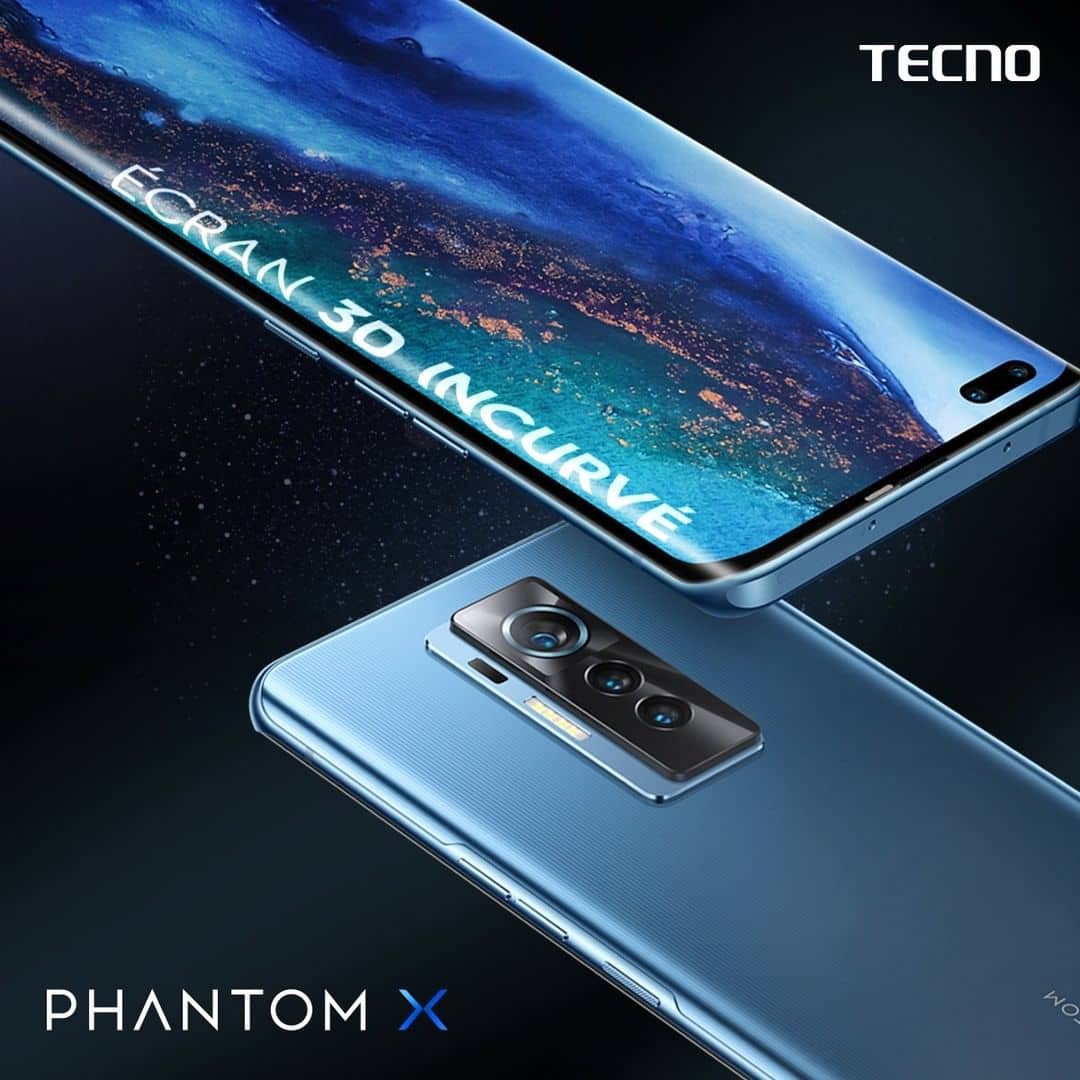
    Tecno has once again added a new baby to their Phantom series called the Tecno Phantom X. The Tecno Phantom X is the direct successor to the Phantom 9 which was released in July 2019.

    That sounds a little bit weird to the normal frequency new phones in a series are released right? Normally, new smartphones are released just a year after their predecessor. But you and I can agree that the COVID-19 pandemic did its worse last year and that might have caused an interruption in the normal release frequency.

    None of that matters at the moment since the Tecno Phantom X has finally arrived after much anticipation from the Phantom 9 users and lovers of the Phantom series.

    This year, although Phantom X’s design cues are not new to the system, it is undoubtedly one of the best designs we have seen so far in the Phantom series of smartphones. The curved edges are one of the main things that will draw your attention if you ever used the Phantom 9.

    The camera arrangement has a triple layout with the main camera having a 50MP camera, and the remaining cameras having a 13MP telephoto camera and 8MP ultrawide camera. Enough of the plenty talk, let’s jump right into the details.

    Tecno Phantom X Specs

    Tecno Phantom XSpecs
    Operating SystemAndroid 11, HIOS 7.6
    Display6.7″ Super AMOLED, with ~91.3% screen-to-body ratio
    ChipsetMediatek Helio g95 (12nm)
    Memory8GB RAM
    Storage256GB ROM (expandable to 512GB)
    Main CameraTriple Setup 50 MP, f/1.9, (wide), 1/1.3″,
    13 MP, f/2.4, 50mm (telephoto),
    8 MP, f/2.3, (ultrawide)
    Selfie CameraDual camera, 48 MP, f/2.2 (wide)
    8 MP, f/2.2 (ultrawide)
    BatteryLi-Po 4700 mAh, non-removable
    ConnectivityDual SIM (Nano-SIM)
    Special FeaturesFingerprint (can be found under display), accelerometer, gyro, proximity, 3.5 mm audio jack
    ColoursStarry Night Blue, Monet Summer

    What is found in the Tecno Phantom X box?

    Once you open the Tecno Phantom X box, you will find the following:

    • 1 Tecno Phantom X smartphone
    • 1 Tecno Phantom X phone case
    • 33 watts fast charger
    • USB Type-C cable
    • 1 Earphone
    • 1 Sim Removal tool
    • Warranty card

    Features of the Tecno Phantom X

    Android 11, HIOS 7.6

    Since the first release of the HIOS some few years ago, Tecno has gradually been upgrading it and now we are in the 7th generation. As a result, the Tecno Phantom X runs Android 11 and the latest HIOS version, 7.6. With this collaboration, the uses of the new Phantom X are assured of nothing but the best in their device’s Operating System (OS).

    The new HIOS 7.6 has an all-new design that comes with a Cosmos Blue structured with some ocean elements giving you the feeling of the breeze right on your phone. Also, you can set the dark mode on your phone to a preferred time. This means whenever the time is up your device will automatically switch from light to dark mode.

    Fingerprint Sensor for Strong Security

    Whenever we buy a new smartphone, the first setting we do is to place a security lock on it. Gone were the days where we had to go through the hassle of inputting passwords or PIN codes whenever we wanted to open our phones. The fingerprint provided by Tecno on the Phantom X is very secured making sure only you have access to your device. You can also set it up in other apps as well to enhance your security.

    6.7″ OLED Display

    Apart from the sensors and the Operating System, the Phantom X can also boast of a big 6.7 inch curved OLED screen. With this size, you can enjoy your game and videos in high quality. With the 1080×2340 pixel resolution, you are assured of nothing but the best colours and display.

    Triple Layout Camera

    We can never talk about the Tecno Phantom X without talking about the camera. At the back of the Phantom X you will see a vertical triple camera layout with 50 MP, f/1.9, (wide), 1/1.3″, 13 MP, f/2.4, 50mm (telephoto), 8 MP, f/2.3, (ultrawide). With this, you rest assured that you can capture all your moments in clear pictures. If you are the night outing type, you are still sorted because you can still capture your amazing moments at night in clear pixels.

    4700 mAh Li-Po Battery

    Finally, the Tecno Phantom X is powered by a 4700 mAh Li-Po battery. This is a very huge upgrade as compared to the 3500mAh battery of the Phantom 9. With this capacity, you can use your device to the fullest without worrying about having to charge your phone. For game lovers, you can also enjoy your game without having problems with a low battery.

    Price of the Tecno Phantom X in Ghana

    The TECNO Phantom X is available to buy in Ghana right now Here are the shops you can get from and their prices.

    StorePriceContact
    Mfidie Shop (Nationwide Delivery)GHS 27950546090871
    Jumia Ghana (Nationwide Delivery)GHS 27950544991140
    Franko PhonesGHS 2795Contact Store
  • How To Remove Clock From Lock Screen in Android

    How To Remove Clock From Lock Screen in Android

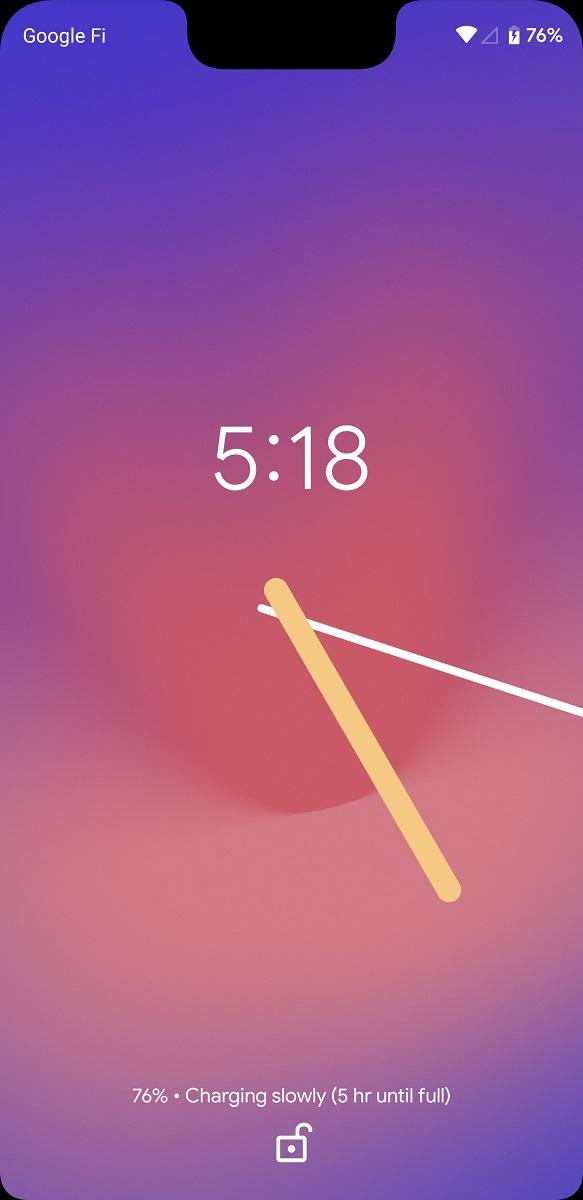
    Most Android users have clocks on their lock screen. This was placed there by the developers of the phone to help them easily tell the time without opening pressing the power button.

    Although the developers placed it there for easy accessibility, not all Android users appreciate this gesture. If you are a person like that, then this article is going to help you solve this problem.

    In this article, I am going to show you how to remove the clock from the lock screen in Android. Just continue reading this article to find out.

    Android devices are generally known to be one of the most customizable devices, unlike other Operating Systems like iOS, etc. As a result, Android users can customize their devices to their preferences.

    Although Android devices are customizable, some features are pre-installed on them by the developer. One of such features is the clock that is placed on the lock screen in some Android devices.

    By default, removing the clock from the lock screen in Android is not possible. But, since mfidie.com is your most reliable tech source, we have a method that will help you out.

    How To Remove Clock From Lock Screen in Android

    There are several methods you can remove the clock from your lock screen in Android. When you search online, you will find several methods but, in this article, I am going to recommend to you some of the trusted methods you can use.

    How To Remove Clock From Lock Screen in Android Using Resurrection Remix (RR)

    Resurrection Remix (RR) is a tool that Android users have been using over the years to customize their Android phones. Aside from all the features Resurrection Remix (RR) has, it can also be used to remove the clock from the lock screen on Android devices.

    Before you can use Resurrection Remix (RR) to remove the clock from your Android device’s lock screen, your Android device needs to be rooted and you have to install Resurrection Remix (RR) on your device.

    Once you have installed the app and your device has been rooted, then you can follow the steps below:

    1.  After installing the Resurrection Remix (RR) on your Android device, restart your device
    2. Open Settings and then navigate to Configurations
    3. Choose Lock UI from the options. A list of toggles will be shown on the next page
    4. Turn off the toggle next to Show lock screen clock

    That’s all it takes to remove the clock from your Android device’s lock screen. If it does not work, restart your device, and the clock will no longer show in the lock screen.

    How To Remove the Clock From the Lock Screen From Clocks You Installed Yourself

    If you installed a clock app on your device to show the clock on your lock screen. Then follow these simple steps to remove it from your lock screen:

    1. Open the Settings app on your Android device
    2. Select Apps & notifications and then App info
    3. Tap on the clock app you wish to hide
    4. Select Uninstall or Disable

     Conclusion

    Removing the clock from your Android device seems impossible by default but with the help of these provided in this article, you should be able to do it easily. Also, as I indicated earlier, there are several ways you can perform this task but some of them might damage your device in the long run.

    But, if you have tried any other method apart from the ones stated in this article and it worked for you, then you can write it in the comments section below and I will make sure to check it out.

    In addition, if you have any questions, comments, and or suggestions, feel free to write them in the comments section below. Finally, if you found this article helpful, then feel free to share this article with your friends and loved ones.

  • How to use Twitter in Nigeria Even When Banned

    How to use Twitter in Nigeria Even When Banned

    Are you a Nigerian or resident of Nigeria thinking of how to use Twitter despite the ban in Nigeria? If this, is you then this article is the perfect fit for you? In this article, I am going to show you exactly how to use Twitter in Nigeria even when banned.

    Twitter, a sub-company of Facebook is one of the most used social media networks in the world. Since its launch on July 15, 2006, Twitter can now boast of about 330 million users all over the world (according to research conducted in the first quarter of 2019).

    One of the continents that use Twitter often is Africa, of which Nigeria is part. Recently, Twitter was banned in Nigeria a few days ago after the government decided to ban the social media platform.

    Why is Twitter Banned in Nigeria?

    On Tuesday, 1st June 2021, the president of Nigeria, Muhammadu Buhari made a post on his official Twitter account. This post according to some popular sources was flagged as a threat to suspected separatist militants in the southeastern part of Nigeria.

    Since this the post goes against the policies and terms of Twitter, the post was deleted on Wednesday, 2nd June 2021. The main reason given by Twitter was that the post was abusive.

    After the post was deleted, the Nigerian government under the leadership of the President, Muhammadu Buhari announced on Friday that they are banning Twitter indefinitely.

    The original post that was deleted read as “Many of those misbehaving today are too young to be aware of the destruction and loss of lives that occurred during the Nigerian Civil War”. “Those of us in the fields for 30 months, who went through the war, will treat them in the language they understand.”

    As a result, Nigerian citizens and residents of Nigeria were not able to log in to their Twitter accounts on Friday, 4th June 2021. Funny enough, the announcement by the Federal Government to suspend Twitter indefinitely was made on Twitter.

    But that should make you let your guard down because, in this article, I am going to show you how to use Twitter in Nigeria even when you are banned.

    How To Use Twitter in Nigeria with a VPN

    Since the ban of Twitter in Nigeria, many people especially those who earn their living off Twitter are finding it worried about how they are going to work. Many have tried several methods and it still did not work.

    The most effective way to use Twitter in Nigeria in this period is by using a Virtual Private Network (VPN). What the VPN does is that it takes your original IP address and then changes it into a virtual network or IP address usually outside your country.

    What it means is that whiles you are in Nigeria, the VPN will change your address from Nigeria to a different country in the world. For example, the United Kingdom, United States, Germany, Netherlands, etc.

    Before you proceed, make sure to logout of your Twitter account (if it’s still logged in).

    To use a VPN to log into your Twitter account in Nigeria:

    1. Download and install your preferred VPN app from the Google Play Store or the Apple App Store
    2. Open the app and login or signup with your details
    3. If it is paid, add your payment method, and choose your preferred package, otherwise proceed to the next step
    4. Set up the VPN on your device and make sure to turn it on
    5. Once you are done with that, open the Twitter app (if you have it) or visit the official Twitter website
    6. Log in with your details and you are good to go.

    Precautions to Take When Using VPN

    Although VPNs are incredibly good for bypassing certain restrictions, there are some precautions you need to take when you are using them. Some of them are listed below:

    • Never use VPN for your cryptocurrency apps
    • Do not log into your mobile banking app with your VPN turned on
    • Make sure the developers of the VPN are authentic and genuine before signing up
    • Check the reviews from past users of the platform

    Some VPN to Use For Bypassing the Ban on Twitter in Nigeria

    There are over one thousand VPNs available on the internet but not all these VPNs can be trusted. Therefore, below are some of the authentic VPNs that have been tried and tested. You can check out our tutorial on using a VPN on an iPhone if that’s your preferred device.

    • Express VPN
    • CyberGhost VPN
    • NordVPN
    • Surfshark
    • IPVanish
    • VyprVPN
    • ZenMate, etc.

    Conclusion

    In this article, I have explained how to use Twitter in Nigeria even when banned. Unlike the other methods stated on some websites, the method shown in this article is 100% genuine and authentic.

    Read through the article carefully and you will be able to find your way out of it. If you have any concerns, feel free to write them in the comments section below and I will make sure to reply to you as soon as I can.

  • What Happens When You Report And Block Someone On WhatsApp?

    What Happens When You Report And Block Someone On WhatsApp?

    Do you know what happens when you Report And Block someone on WhatsApp?

    We often report and block people on WhatsApp but little do we know about what actually happens afterward. In this article, you are going to find all that happens when you report and block someone on WhatsApp.

    Because WhatsApp is one of the most used social media platforms, most of the spammers use it to their advantage. This was the reason why Whatsapp introduced the ‘Report And Block’ feature about five (5) years ago.

    Since the introduction of this feature, most WhatsApp accounts have been suspended and others have also been banned. But what exactly will cause an account to be banned?

    Before an account will be banned/suspended, it needs to violate WhatsApp’s terms and policies, otherwise, the account cannot be banned.

    Some of these include engaging in fraudulent activities, sharing pornographic contents, and sending threats to a WhatsApp user.

    How To Report And Block Someone On WhatsApp

    • Open the WhatsApp app on your mobile phone.
    • Tap on the person you would like to ‘Report And Block’ to open a chat.
    • On the top of the screen, tap on the name of the person.
    • Scroll to the bottom of the page and tap on Report Contact.
    • Tap on Report And Block
    • A confirmation will be sent stating that a report has been sent and the contact has been blocked.

    What Happens When You Report And Block Someone On WhatsApp

    Your last seen will not be visible to the reported contact

    Once you report and block someone on WhatsApp, automatically your last seen will no longer be visible to the person you blocked. Thus, the person will not be able to tell whether you are online at the moment or not.

    Your WhatsApp status will be hidden from the reported contact

    Similar to the last seen becoming hidden, the person you blocked will also not be able to see your WhatsApp status. The WhatsApp status is similar to Instagram and Facebook stories.

    This is where you share media or text with your contacts and is visible to only your contacts by default. But, you can also change this in your WhatsApp settings.

    Your profile photo will not be visible to the reported contact

    After you report and block someone on WhatsApp, your profile photo will no longer be visible to him/her. The profile photo will become blank for the reported contact.

    Calls and messages from the reported contact will not be delivered

    This is one of the most obvious things that happens when you report and block someone on WhatsApp. All calls from the contact will not be delivered, it will just ring but it will not be delivered to you.

    Also, messages sent by the reported contact will not be delivered. It will tick on once on the person’s phone but it will not be delivered to you.

    Group chats will remain unaffected

    If you are in the same group with the person you reported and blocked, all messages sent by him/her in the group will be delivered to you. Calls made by the group involving him/her will be visible and delivered to you.

    WhatsApp will investigate the contact

    Finally, once you report someone, WhatsApp will perform an internal investigation of the report. This is mostly done by monitoring the person’s chats to find out if they have violated any of WhatsApp’s terms and policies.

    If they are found guilty, their WhatsApp accounts will be suspended or banned.

    Conclusion

    Now I believe you know what happens when you report and block someone on WhatsApp. These are not all the things that happen, but these are the most important things that happen.

    I hope this article was helpful. If you have any suggestions and comments, please write it down in the comments section below and I would assist you.

    Also, make sure to share this article with your friends and loved ones.