Author: Gabriel Agbobli

  • How To Turn Off Find My iPhone Without Password

    How To Turn Off Find My iPhone Without Password

    Generally, iPhones are seen to be one of the most secure smartphones in the world. This is as a result of many factors and one of them includes the closed-source operating system.

    Unlike most of the other smartphones and operating systems in the world, penetrating an iOS device is very difficult. For example, you cannot turn off your Find My iPhone when you forget your password.

    But if you are reading this article right now, then you are among the lucky ones because I am going to show you exactly how to turn off Find My iPhone without a password.

    Just like I stated earlier, turning off Find My iPhone without a password is not possible. That is the reason why Tenorshare 4MeKey was created to help ease the burden on people who have forgotten their passwords.

    What Is Tenorshare 4MeKey?

    Tenorshare 4MeKey is a software package that was created to help smartphone users with their everyday unlocking problems. Unlike most software that ends up causing damage to your device, Tenorshare 4MeKey is the exact opposite of that.

    The team at Tenorshare 4MeKey has over 10 years of experience in the smartphone solutions field and has helped several people with software solution needs.

    During the over 10 years of existence, there has been over 78.9 million downloads and currently has over 63 million+ satisfied clients.

    Some of the products Tenorshare 4MeKey has to include UltraData – iPhone Data Recovery, UltraData – Android recovery, iCareFone – Free iOS Backup Tool, 4uKey – Password Manager, 4uKey – iPhone Passcode Unlocker, 4MeKey – iPhone Activation Unlocker, 4uKey – iPhone Backup Unlocker, iAnyGo – iOS Location Changer, etc.

    What is Find My iPhone and How Does Tenorshare 4MeKey Help To Turn It Off Without Password?

    Find My iPhone is a tool developed by Apple to help locate iPhones whenever you cannot find them. Find My iPhone comes in very handy when you misplace your iPhone or when someone steals it from you.

    What you might be thinking is that, if this tool is very useful, why then do I need to turn it off. One of the reasons why you need to turn it off is that it drains your battery faster when your phone is being tracked. Also, you will not be able to restore your iPhone even when you really need to do that.

    If you remember your password then this wouldn’t be a problem but if you can’t remember your password then Tenorshare 4MeKey comes in. What it does is, locates the loophole in the tool and then bypass it in just a few minutes.

    This way, you don’t need any password to be able to turn it off. As long as you have Tenorshare 4MeKey, then you are good to go.

    How To Turn Off Find My iPhone Without Password Using Tenorshare 4MeKey

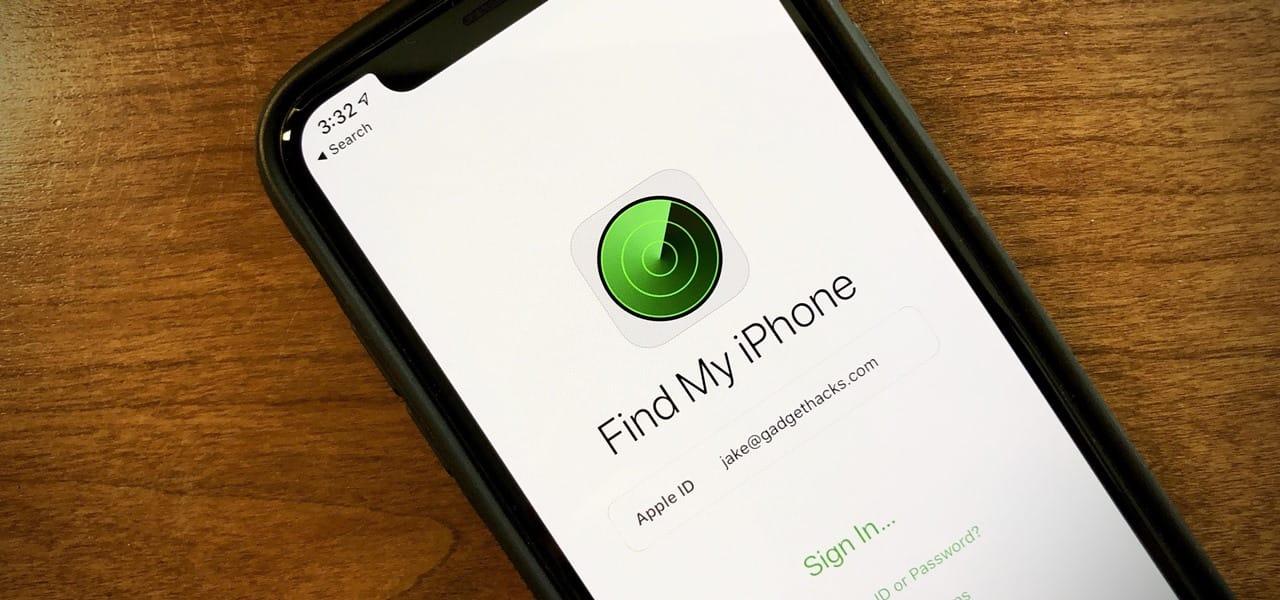
    By default, whenever you try to turn off Find My iPhone on your iPhone, you’ll be asked to enter your Apple ID password. If you could remember then this wouldn’t be a problem but due to one or two issues, we sometimes forget our passwords, especially for those with many Apple accounts.

    To be able to use Tenorshare 4MeKey to turn off Find My iPhone, you must have an iPhone 6s, 6S Plus, 7, 7 Plus, 8, 8 Plus, or X. If you have any of these devices, then you can follow the steps below to turn off your Find My iPhone without a password.

    1. Download the Tenorshare 4MeKey on your Windows PC or Mac. Once you have finished the download, install the software on your PC
    2. Open the Tenorshare 4MeKey and choose Turn Off Find My iPhone
    3. Connect your iPhone to your PC and wait for the software to recognize your device
    4. The next thing is for the device to be jailbroken
    5. Wait for some time while the jailbreak tool is downloading on your device. Do not remove the iPhone during the download otherwise, it will interfere with the jailbreaking process
    6. Once the jailbreak is done, confirm your device info and then wait for Tenorshare 4MeKey to turn off the Find My iPhone
    7. Upon completion, the Find My iPhone will be successfully turned off on your device
    8. Also, your device will go back to factory reset and the activation lock will not appear again on your device

    Conclusion

    Before reading this article, it seemed impossible to turn off Find My iPhone without a password. But after reading this article, I am confident that you now know how to turn off Find My iPhone without a password.

    Although iPhones are one of the secured smartphones in the world, some technical loopholes are only penetrable by Tenorshare 4MeKey. And in this article, I have shown you how you can use Tenorshare 4MeKey to bypass that security and turn off Find My iPhone.

  • How to Buy and Import Used Cars From Abroad To Ghana

    How to Buy and Import Used Cars From Abroad To Ghana

    In Ghana, over 50% of the vehicles we use are imported from abroad. As easy as it may sound, buying a car from abroad is not an easy task at all.

    Most people have either paid more than they were supposed to pay or have not been able to complete the process at all due to ignorance. In view of this, today we are going to discuss the process of shipping a used or new car from abroad to Ghana.

    The most important factor in the entire shipping process is the selection of the online car selling platform. There are numerous selling platforms available on the internet but shopping from a renowned and trusted online vendor is the best option that you should make.

    The reason being that these platforms are well established and has been proven to be trusted and authentic. Some of these sites include eBay, Copart, Auction expert and a host of others.

    Before you select a certain platform, it’s advisable to check the reviews on the website especially, from people in Ghana who have used the platform before. Or, you can also ask people who have imported cars before to find out which platform they used.

    Because there’re some platforms whose services vary from country to country and the fact that someone in Nigeria had his/her car delivered safely does not mean you will also get yours. That’s why it’s advisable to read from people in your local country.

    Also, I would recommend that you use more than one platform. The reason is simple; it will help you to select from different types of vehicles and could, in the end, save you some money.

    How to Buy and Import Used Cars From Abroad To Ghana

    Now that you have read the reviews and have done your consultation (s), let’s now look at the steps involved in buying and importing used cars from abroad to Ghana.

    1. Signup on the platform (s) you selected
    2. Scan through the cars
    3. Look out for the specific features of the car you want
    4. Pay the required fees and process the shipping
    5. Clear and collect the car from the port

    The steps stated above might sound a little broad so I’m going to take each step and explain a little further for a clearer understanding.

    Signup on the platform (s) you selected

    Once you’ve selected the platform (s) you want to use, the next thing to do is to create an account or signup on the platform. In signing up the main requirements are going to be your name, location (country) and your email address.

    On most of the platforms, only registered members are allowed to access certain features.  Even on some platforms, registered members receive a discount on the purchases they make on the platform.

    Therefore, it’s at your own interest to register on the platform (s) you selected.

    Scan through the cars

    Upon successful registration, you will now be able to access all the features that are available to registered members on the platform. Now, the next step is to scan or look through the cars.

    This could easily be done by just typing the name of the vehicle you want to buy or searching through the categories tab available on most platforms. The main requirement for this step is to know the make and the model of your preferred car.

    The make of the car is simply the name of the manufacturer of the car, for example, Toyota or Hyundai. The model of the car, on the other hand, is the name of the specific car you are purchasing without the name of the manufacturer. For example, the model name of Mercedes Benz 4Matic is 4Matic.

    Look out for the specific features of the car you want

    This is one of the (if not the most important) steps in the entire buying process. In this step, you are required to read carefully about the specific features of the car you have selected.

    The features should include the mileage, the series, the manufacture year, the condition (whether new or used), anybody damages, etc.

    This step is also where you check to see whether the car you have chosen can be shipped to Ghana or not. Most of the people make this mistake by checking the shipping eligibility and then later pay extra charges.

    Their documents you will need to provide include:

    • Valid National ID
    • Taxpayer’s Certificate
    • Dealers’ License (if you are buying as a dealer)

    Pay the required fees and process the shipping

    Now that you have selected the particular car you want and have carefully checked the features of the car, it’s now time to start the bidding process and pay the required fees.

    Most platforms allow you to directly contact the vendor of the vehicle to make bidding and bargain on the price. But, never be fooled to make transactions outside the platform; this is where most people are scammed.

    If you make transactions outside the platform and you don’t receive the car, there’s nothing the platform can do for you.

    Also, make sure to check whether the cost of shipping has been added to the fee before you make any payments. But more importantly, provide accurate shipping details.

    Clear and collect the car from the port

    Finally, wait for a confirmation from the platform with the shipping details and the estimated time of arrival in Ghana.

    After that, go to the port, pay the required duty and then clear your car from the port.

    Conclusion

    The entire process of buying a car from abroad is quite difficult but in this article, we have discussed all the processes involved and how to go about it.

    This article has been carefully written to guide you throughout the entire process and if you read carefully, you will be able to complete your purchase successfully.

    But, in case you find any difficulty when going through your purchase, feel to ask for help in the comments section below.

  • Tips To Take Great Photos With Your Smartphone (Android & iOS)

    Tips To Take Great Photos With Your Smartphone (Android & iOS)

    In the olden days, before you could take a photograph, you needed to have a digital camera. Not only were these cameras expensive but they were also rare and hard to come by.

    For people who were living in the villages, they took photos only on special occasions. Either on Christmas, Easter, wedding, engagement, funerals, or special family gatherings.

    And as a result, only a few people who had digital cameras were automatically called photographers. These people would intentionally go to places where events were ongoing to take photographs of a person who needed it.

    That is not the case anymore, as almost every smartphone in the world now has at least one camera built into it. Some phones have as many as four (4) cameras joined together to give you that amazing photograph you need.

    This has resulted in the reduction of demand for professional photographers. But taking a great photograph with your smartphone either Android or iOS is not as easy as it sounds.

    So what at all is the secret to taking great photos with your smartphone (Android & iOS)? To answer this question, we have decided to write this article to show you some of the top tips to take great photos with your smartphone (Android & iOS).

    Tips To Take Great Photos With Your Smartphone (Android & iOS)

    Set your camera’s focus

    Most of the smartphones in the world have autofocus on the foreground of your frame, but this does not always work with some photographs due to the absence of a specific subject.

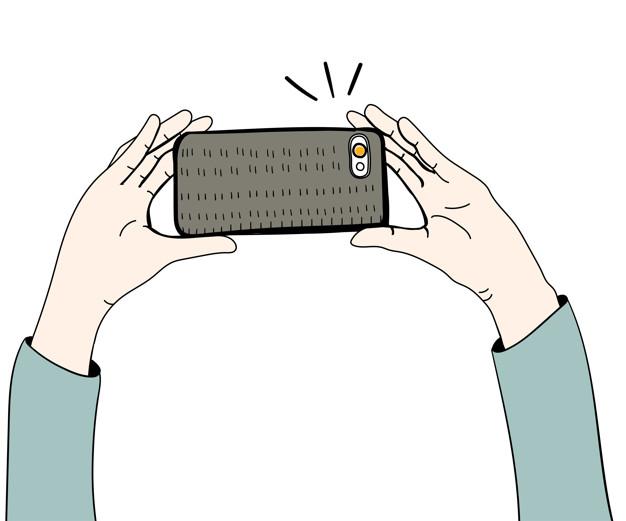
    To set focus on your camera, simply touch the part of the screen you want to focus on. For example, if you are taking a selfie, all you have to do is to tap your face and then the camera will focus on your face.

    Once you tap on the screen for the camera to focus, a square or circle will appear on the part of the screen you want to focus on.

    Find different perspectives

    In photography, one of the best ways to get a great photo is by snapping your photo from different angles. Most photos on the internet are taken either straight or sideways.

    Therefore, taking your photo from a slightly different angle will make your image stand out from the rest of the images on the internet. You can slightly take the photo from upwards or a little downward.

    You can try different angles until you come across the perfect angle that will make your photo unique. For example, when you are taking a photo of a bookshelf, you can snap it from upwards and your image will be different from all the bookshelf images you’ve ever seen.

    Capture multiple shots

    One other way of taking a great photo with your smartphone is by capturing as many shots as you can.  After taking these multiple shots, you can easily view them on your phone to see which ones meet your preferred requirements.

    For iPhones and other Android smartphones that support bursts, I would advise you to use them. After taking these burst photos, you can select the ones you want and then delete the rest.

    Use HDR Mode

    High Dynamic Range (HDR) is available on most smartphones in the world. What this does is adds detail from the light and dark areas to give a better-balanced exposure.

    This is one of the best ways to take a landscape photograph. When you use the HDR mode to take a photo at sunset, it will reduce the light of the sun to suit the photograph and make it look nice.

    When you are taking a photograph and there is a vast difference between the darkest and lightest parts, the best method is by using the HDR mode.

    Try not to zoom in

    When we are taking a photo from a long distance, we are often tempted to zoom in, especially when we want to focus on a specific thing. But, according to photography experts, it is not advisable.

    This is because, when you zoom in, your picture can become blurry, or pixelated and this wouldn’t be good for your photo. To prevent this from happening, all you have to do is to draw closer to the subject and take the photo.

    Finally, use editing tools

    Almost all smartphones in the world have a built-in camera editor. These editors are very straightforward and do not require you to have a photography degree.

    After taking a photo, you can use your smartphone’s built-in photo editor to tweak the photo a little. This way, you will be able to edit your photo to your preference.

    In conclusion, taking a photo on your smartphone is easy, but taking a great photo involves a little more than just capturing it. And in this article, I have shown you everything you need to know about taking great photos with your smartphone; being it Android or iOS. 

  • How To Turn On/Off Your Apple Watch, Force-Restart It For Troubleshooting

    How To Turn On/Off Your Apple Watch, Force-Restart It For Troubleshooting

    Do you want to know how to turn on/off your Apple Watch, force-restart it, or troubleshoot it? If yes, then this article is going to answer all the questions.

    In these past few years, smartwatches have become very popular and useful in the world. Unlike ordinary watches that are only able to tell the time and nothing more, smartwatches have been able to do more than that.

    One of the most popular smartwatch series in the world is the Apple Watch series. Not only is the Apple Watch able to tell the time, but it can be used to listen to music, track your sleep, check your heart rate, and a whole lot of other amazing stuff.

    Just like all electronic devices, the Apple Watch needs to be put to rest at a point in time. Although the Apple Watch doesn’t need to put off regularly, knowing how to put it off is very helpful, and can be equally useful when the need arises.

    Also, there might be a problem with some apps on your Apple Watch that you might need to troubleshoot. Therefore, you need to know how to do this beforehand so that you will be informed should incase, such a thing happens to your Apple Watch.

    In this article, I am going to show you how to turn on/off your Apple Watch, force-restart it for troubleshooting. So enough of the plenty talk, let’s jump right into it.

    How To Turn Off Your Apple Watch

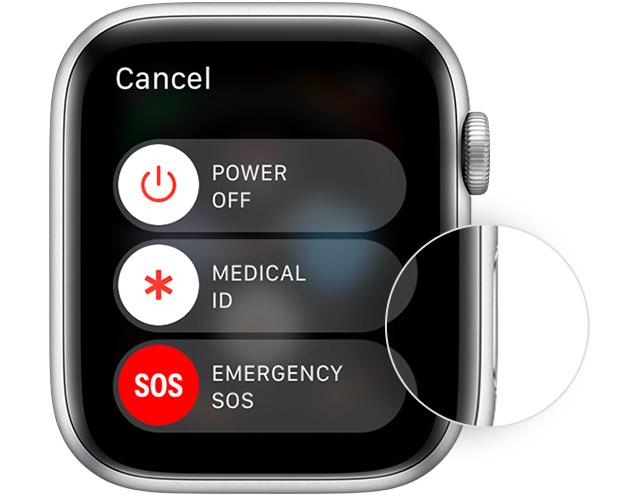
    Press and hold the side button until the three (3) sliders option appear on the screen of your Apple Watch. The options are POWER OFF, MEDICAL ID, EMERGENCY SOS.

    Swipe the POWER OFF button to the right to turn off your Apple Watch.

    NOTE: You cannot turn off your Apple Watch while it is still charging. To put it off, you must first of all disconnect the charger from your Watch before you put it off.

    How To On Your Apple Watch

    To turn on your Apple Watch, all you need to do is to press and hold the side button until the Apple logo appears on your Apple Watch’s screen.

    Once you turn on your Apple Watch, it may take some time before the Watch will be fully turned on. Once it does, you will be prompted to enter your passcode (if you have any).

    How To Force-Restart Your Apple Watch

    On some occasions, the Apple Watch may be facing some difficulties in the updates or some of the apps. This is usually displayed by an Apple logo and a progress wheel below it.

    When this happens, you need to force restart your Apple Watch. To force restart your Apple Watch;

    Press and hold the side button and the Digital Crown simultaneously.

    As soon you see the Apple logo, release both buttons.

    Apart from turning on and off your Apple Watch, you need to know some other important stuff about the Apple Watch.  Below are some of them.

    How To Wake Your Apple Watch Display

    Once you turn on your Apple Watch, you may need to use it to do something. To do this, you need to wake your Apple Watch’s display. There are several ways you can do that and below are some of them.

    Raise your wrist like you are watching the time. Due to the available sensors in the Watch, it will pick up the movement and turn it on.

    Tap the screen of the Watch or you can press the Digital Crown.

    For Apple Watch Series 2 and above, you can turn the Digital Crown upwards and you will see the display glowing gradually.

    Conclusion

    The Apple Watch is one of (if not) the best smartwatches that has ever been made in the world. Most of the other smartwatches in the world try and mimic the Apple Watch.

    As compared to the other types of smartwatches, the Apple Watch is relatively expensive. But if you compare the features of the Apple Watch the others, then you will realize that it is worth that amount.

    I hope this article was helpful? If you have any questions concerning this article, feel free to write it in the comments and I will attend to you as soon as possible.

  • How To Install Themes On Your Google Chrome Browser

    How To Install Themes On Your Google Chrome Browser

    The Google Chrome browser is one of the most used web browsers in the world. Even on some devices, the Google Chrome browser is the default web browser.

    By default, the Google Chrome browser has a fixed design that runs across almost all the versions. If you are someone who loves customizing things to your preference, then the best thing for you will be to install a theme on your Google Chrome browser.

    Installing a theme on the Google Chrome browser does not mean that your browser is going to be faster or it is going to work for you. But, it will give a little bit of beautiful design whenever you are using the Google Chrome browser.

    What Is A Google Chrome Theme?

    According to Google, a theme is a special kind of extension that changes the way your Google Chrome looks. Google Chrome themes are packaged like regular extensions, but they don’t contain JavaScript or HTML code.

    The theme will appear around the border of the Chrome browser when you open a new webpage. Also, it will appear as the background whenever you open a new tab.

    One interesting thing about a Google Chrome theme is that the themes are stored on your Google account. This means that whenever you log into your Google account on any Google Chrome browser on any computer, the same Google Chrome theme will appear.

    How To Install Themes On Your Google Chrome Browser

    1. Open the Google Chrome app on your computer. If you don’t have, you can download the Google Chrome browser on the internet
    2. Click More (the three dots) on the upper right corner of the screen
    3. Click on Settings from the options listed
    4. Click Themes under Appearance in the Settings menu. You can also go to the Google Chrome Web Store Themes to go to the gallery
    5. Click the thumbnails of the theme you like to see a preview
    6. Once you come across the theme you like, click Add to Chrome to add to your Google Chrome browser
    7. Automatically, the theme will be applied to your Google Chrome browser. If you change your mind, just click Undo at the top of the screen
    8. If the theme does not apply to your Chrome browser, close the browser and re-open it

    How To Uninstall A Theme On Your Google Chrome Browser

    1. Open the Google Chrome app on your computer
    2. Click More (the three dots) on the upper right corner of the screen
    3. Click on Settings from the options listed
    4. Click Reset to default under Appearance
    5. Immediately, the theme will be restored to the default Google Chrome classic theme

    How To Make Your Own Custom Theme In Google Chrome

    1. Open the Google Chrome app on your computer. If you don’t have, you can download the Google Chrome browser on the internet
    2. Navigate to ThemeBeta
    3. A numbered list of the steps needed to create a new theme will be displayed on the side menu. Start by giving your custom theme a name
    4. Click Upload an Image and then select a picture from your computer. The selected picture will be previewed in the preview pane on the right
    5. Configure your picture using the controls in the preview pane. You can make the picture repeat, zoom in, zoom out, etc.
    6. Click Generate colors in the numbered list. This is what will edit the toolbars and menus in the theme to your preference
    7. If you want to add more settings, you can use the options in the numbered list
    8. Once you are satisfied with your theme, click Pack and Install. This will download a file containing your customized theme
    9. Chrome may be suspicious of the theme file and will ask you if you want to keep it. Click Keep
    10. Locate the folder where the theme was downloaded to. Simply right-click on the file in the download bar and choose Show in folder (for Windows) or Show in Finder (for Mac)
    11. Open your Chrome browser and type chrome://extensions/ into the URL bar
    12. In the upper-right corner of the page, toggle the Developer mode on
    13. Drag and drop the theme file from the folder into this page
    14. Click Add Theme when asked if you want to Add ‘ThemeBeta.com’?”
    15. After a few seconds, the theme will be applied to your Chrome browser

    That’s it, you have now added your custom theme.

  • How To Create GIFs from YouTube Videos

    How To Create GIFs from YouTube Videos

    Do you want to create a GIF from a YouTube video you just saw? Or have you been wondering whether you can create GIFs from YouTube videos?

    If your answer to either of the questions is YES, then this article is going to be the best you’ve come across so far. This is because as you saw in the title, in this article, I am going to show how to create GIFs from YouTube videos.

    One of the fun things to do is to use GIFs when chatting with your friends and loved ones. Whether you are chatting on WhatsApp, Facebook, or any other social media platform, GIFs are one of the best ways to express something very annoying, funny, etc.

    YouTube is known to be one of the biggest video streaming platforms in the world. There are over a million videos on YouTube and some of them are just more than amazing.

    Whenever you are watching a YouTube video, there might a particular scene that you wished could have been turned into a GIF to share with your friends and loved ones. This might seem very difficult on the outside but after reading this article, this is going to be very difficult for you.

    How To Create GIFs From YouTube Videos

    Just as the popular saying goes, “there are several ways to kill a cat”, there are also several ways of creating GIFs from YouTube videos. But in this article, I am going to show some of the easiest and the best methods you can use for the best result.

    How To Create GIFs From YouTube Videos Using GIFs.com

    1. Open YouTube in a web browser
    2. Find and copy the link to the YouTube video you wish to create the GIF from
    3. Open a new tab and type www.GIFs.com
    4. Paste the link to the YouTube video in the white box on the left side of the page
    5. If you have your own video, you can upload it by clicking the Drag & Drop or Select File button
    6. The system will automatically detect the video. Click the X to make the ad disappear from the image (if there’s any)
    7. Click the timeline below the image to choose the start and end times for the GIF (the longer the video, the larger the size of the GIF)
    8. You can also add a sticker or caption or crop the image and also, add effects to it
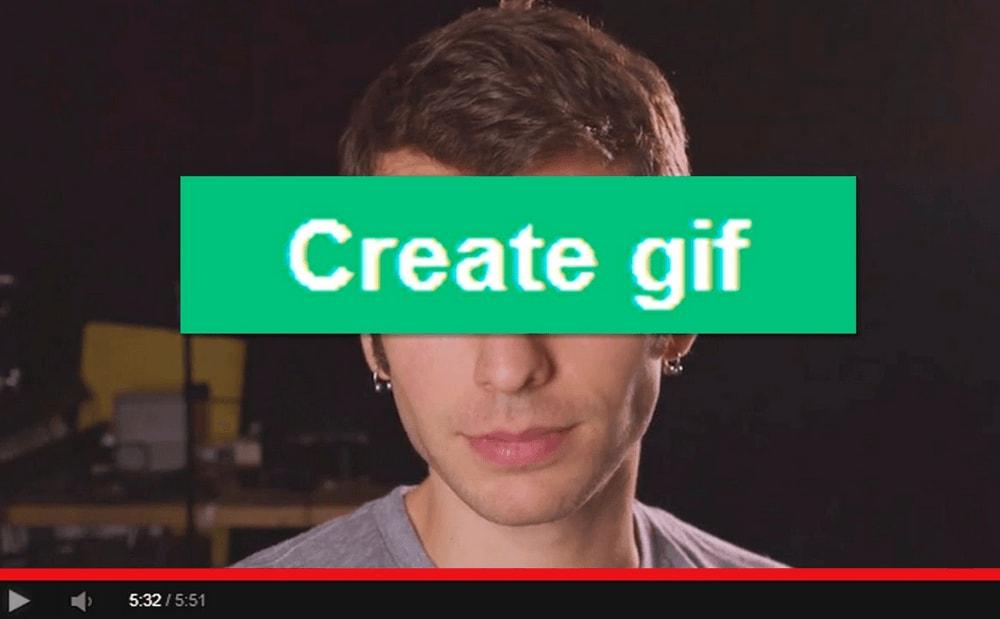
    9. Once you’ve finished, click Create Gif in the upper right corner of the screen
    10. Check if all the details are okay. If they are okay, click Next
    11. Click Download to choose your preferred GIF size

    How To Create GIFs From YouTube Videos Using Giphy

    1. Open YouTube in a web browser
    2. Find and copy the link to the YouTube video you wish to create the GIF from
    3. Open a new tab and type www.Giphy.com
    4. Paste the link you copied in the input box at the bottom of the page
    5. A login prompt will be displayed, click on it and sign up or log in (if you have an account)
    6. Select the start and end times for the GIF
    7. Click Continue
    8. Click Upload to GIPHY to create and publish the GIF
    9. Download the GIF from the links provided and share your GIF with your friends and loved ones

    How To Create GIFs From YouTube Videos Using GIF Run

    1. Go to the website of GIF Run in your web browser
    2. Search for the YouTube video you wish to create your GIF from
    3. Choose the starting point, duration, and click on Create GIF
    4. Click on the download button to download your GIF

    Conclusion

    Now that you know how to create GIFs from YouTube videos, I hope you’ve realized how easy it is. Make sure to feel free and try any of the methods in this article, and choose the one that is easy for you.

    Also, make sure to share this article with your friends and loved ones and let them also know how to create GIFs from YouTube videos.

    Finally, if you have any question (s) about this article, feel free to write it in the comments section below and I will make sure to answer them as soon as I can.

  • Best Apple AirPods Pro Tips and Tricks

    Best Apple AirPods Pro Tips and Tricks

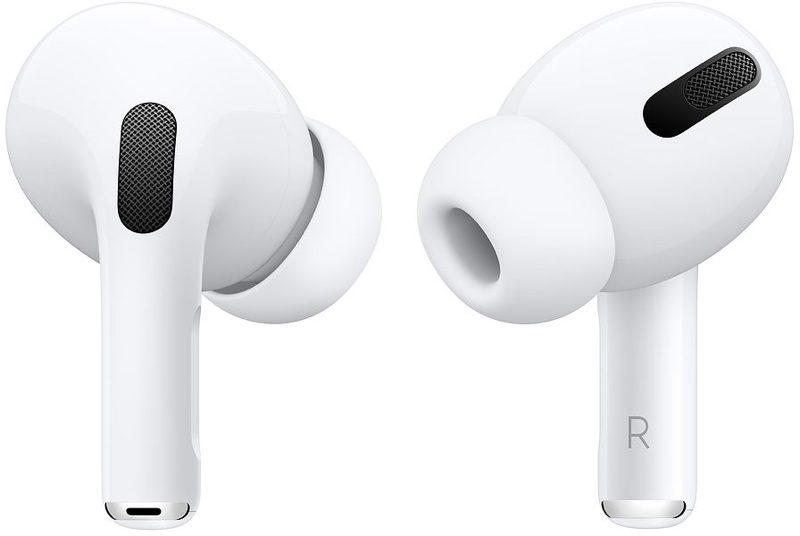
    In October 2019, Apple added the AirPods Pro into their AirPods models. This type of AirPods has a lot of updated features that make it stand out from all the previous models that were already in existence.

    Some of the updated features include noise cancellation, a new design, and a silicone customizable ear tip. None of these were available in the previous models of the Apple AirPods.

    The price tag that was given to the AirPods Pro was very high but people who really wanted it were able to buy it. After some months now, the price has reduced to a little to make it easy for most people to buy it.

    Aside from that, one sad thing is that most people are not aware of some of the various tips and tricks in the AirPods Pro; all they are know is how to connect it to their device and listen to music.

    As such, I have written this article to explain to you some of the best AirPods Pro tips and tricks you need to be aware of. After reading this article to the end, you are going to appreciate the AirPods Pro and make the most of it.

    Change The Name Of Your AirPods Pro

    The first tip on my list is how you can change the name of your AirPods Pro in less than a minute. By default, Apple will give an assigned name to it, but that is not permanent, you can always change it to fit the name you like.

    Simply go to Settings >> Bluetooth and then tap the info icon for your AirPods Pro. Tap on the current name and then revise the existing name or delete and create a new name for it.

    Enable Noise Cancellation

    The first-ever headphones to have an Active Noise Cancellation (ANC) was the Apple AirPods Pro. The AirPods Pro adapts to the shape of your ear and blocks, the noise coming from the outside to enable you to focus on what you are listening to alone.

    The ANC relies on a feature called Ambient EQ,  according to Apple, adjusts the sound signal 200 times a second to optimize audio for your specific ear shape through the use of an internal microphone.

    As such, whenever you turn off the noise cancellations, the Ambient EQ automatically goes off and so, the quality of your sound reduces slightly. Pressing and holding either of the AirPods Pro’s stem will cycle between Transparency and Noise Cancellation.

    Additionally, you can do this on your iPhone or iPad by:

    Open Control Center >> Press and hold the volume bar >> Tap Noise Cancellation in the strip at the bottom of the screen.

    Ear Tip Fit Test

    Unlike the regular AirPods, the AirPods Pro comes with a three-set of replaceable tips for all the ear canal sizes. The sizes range between Small, Medium, and Large (depending on the size of your ear canal).

    This way, you are sure that your AirPods Pro is not going to pull out of your ear while going for a run or while walking on a busy street. By default, the AirPods Pro is fitted with a medium-size tip, but you can change it to your preferred size at any time.

    To do this, all you have to do is simply pull the tips firmly until they detach from the base. After that you can then position the new tips so that the center white circle meets the center black circle on the base of the AirPods, then you push until they are intact.

    If you are wondering how to choose the best size, then you don’t have to worry at all. Simply go to Settings >> Bluetooth >> [Your AirPods info icon] >> Ear Tip Test. Tap Continue and then tap the Play button.

    Short music will be played for you, afterward, you will be told whether to adjust the tip or to change the size of the tip. Follow the advice and then try again. Once you choose the right size or adjust the tip well, you will be told by the app.

    Control Music With Just A Press

    One other amazing trick on the Apple AirPods Pro is the ability to control music with just a press. You can do so by just pressing the stem of either of your AirPods Pro (right or left) by your thumb or forefinger until you hear a click.

    You can single press it if you want to pause/play the song, double press to skip to the next song or triple press to go back to the previous song.

    Conclusion

    The AirPods Pro is indeed one of the best headphones that have ever been made in the world. Not only in its design, but it is endowed with a lot of features that have never been seen in a headphone.

    Some of the tips and tricks have been discussed in this article and there are a whole lot of others. But these ones are some of the easy and simple ones to do.

    In conclusion, I will like to advise you to be very careful when you are removing your AirPods Pro from your case. Because, if you don’t remove it very well, you may end up destroying your AirPods Pro in just a few months after buying it.

  • Top VLC Skins You Can Use To Make Your VLC More Beautiful

    Top VLC Skins You Can Use To Make Your VLC More Beautiful

    The VLC Media Player is one of the best and most popular media players in the world for macOS, Linus, and Windows. The reason why the VLC Media Player is preferred to the other media players is the interactive User Interface (UI).

    Because the developers of the VLC Media Player knew you might be fed up with their boring interface. They developed it in such a way that it supports custom skins, known as VLC skins.

    The custom VLC skins are used to change the appearance of the VLC Media Player to the preference of the user. All you need to do is to download the skin and you good to go with the look of your VLC Media Player.

    There are over thousands of VLC skins available on the internet for VLC media player users. Unfortunately, users with macOS will not able to download and apply the VLC skin on their VLC Media Player.

    Since there are several VLC skins available on the internet, finding the right one could be very difficult and tedious. To release the burden on you, I have compiled a list of some of the best.

    Thus, in this article, I am going to show you the top VLC skins you can use to make your VLC more beautiful.

    Top VLC Skins You Can Use To Make Your VLC More Beautiful

    Slim Beam

    The Slim Beam skin for the VLC Media Player is the ideal fit for persons who love minimal customization. This skin is very clean for the VLC Media Player and provides users with additional customization.

    Unlike most other VLC skins, the Slim Beam skin for the VLC Media Player comes in two (2) different versions depending on what you like. The two (2) available versions are the dark and light versions.

    YT VLC

    YouTube is known to be one of the best video streaming platforms in the world. As such, it generates a huge amount of traffic every day from users around the world.

    Due to that, the developers of the YT VLC skin brought the entire YouTube User Interface (UI) to the VLC Media Player. The developers of the YT VLC skin made it open-source so if you are a developer, you can add your own features to it.

    Unfortunately, the YT VLC skin does not have some features like playlist, Fullscreen, and EQ. Also, this skin doesn’t have a lot of features but is one of the best.

    Alienware Darkstar

    Alienware Darkstar is one of the highly-rated VLC skins in the world; and as such, is one of the popular VLC skins. For people who love science and fiction, this skin is going to be the best fit for you.

    According to the developers, the theme was inspired by the Alienware’s UI, a subsidiary of Dell that builds gaming laptops and PCs. The interface of Alienware is love at first sight.

    Transformers Skin

    Just as the name suggests, Transformers Skin is inspired by the transformers movies. As such, if you are die-hard fun then I will advise you to download this VLC skin.

    By default, the Transformers Skin VLC skin supports the Playlists and Equalizer features.

    Destroy VLC

    Apart from the Alienware Darkstar, the Destroy VLC skin is one of the most downloaded themes on the VLC Skins library. One of the reasons it is one of the downloaded is the elegant look it comes with.

    It has dark player blue accents that have been blended elegantly to suit your preference. As soon as you download this skin, you will thank me for recommending it to you.

    Orion

    For those of us who love our stuff as simple as possible, the Orion skin for VLC Media Player is the preferred choice. This skin is very easy to use and minimal at the same time.

    It has the playlist and equalizer features which even makes it more interesting and fun. Orion comes in a dark version with a blue blended accent.

    Conclusion

    I hope this article was helpful and that you were able to find some of the top VLC skins available on the internet. As usual, we at mfidie.com provide you with nothing but the best in terms of information and as such have given you some of the best recommendations.

    For you to know the best skins to go for, you can try each of the skins included in this article and then choose your preferred one.

  • How To Stop Showing Your Active Status On Facebook Messenger

    How To Stop Showing Your Active Status On Facebook Messenger

    Are you tired of people seeing your active status on Facebook Messenger? Do you want to stop showing your active status on Facebook Messenger?

    Facebook is one of (if not) the most used social media platforms in the world. But the Facebook app itself doesn’t allow you to send messages unless you download the Facebook Messenger app from the Google Play Store or the Apple App Store.

    Facebook Messenger is where most people and business owners communicate with their potential clients and customers. For those of us who don’t own businesses, this is where we chat with our friends, family, and loved ones.

    Sometimes when you are online all you just want to do is to appear as if you are offline in order not to draw attention. When you turn off the active status on your Facebook Messenger, you will appear offline even when you’re online.

    Also, you can choose to appear online for only some specific people you choose. This way, you will be able to chat with only the people you want to and ignore the ones you want to avoid.

    In this article, I am going to show you how to stop showing your active status on Facebook Messenger.

    How To Stop Showing Your Active Status On Facebook Messenger

    To control your active status on Facebook and Facebook Messenger, there are three (3) places you can do that. These are: on the Facebook mobile app (both Android and iOS), Facebook Messenger, and finally Messenger web.

    How To Stop Showing Your Active Status On Facebook Messenger App

    1. Open Facebook Messenger on your phone
    2. Tap your profile icon in the top left corner or top right corner of the screen (depending on the device you’re using)
    3. Click on Active Status just beneath Switch Account
    4. Tap on the toggle next to Show when you’re active to turn it off. If the toggle is on the left, it means it is off and vice versa.

    How To Stop Showing Your Active Status On Messenger Web

    1. Open a web browser and type Messenger.com in the address bar
    2. Click on Settings (the small gear icon) in the top left corner of the screen
    3. Click the Active Contacts settings
    4. Slide the toggle next to your name off. If the toggle is on the left, it means it is off and vice versa.

    How To Stop Showing Your Active Status On The Facebook App

    1. Open the Facebook app on your phone
    2. Tap on the menu icon (the three horizontal lines) on the lower right corner or the upper right corner of the screen
    3. Scroll through the options and select Settings & Privacy
    4. Tap on Settings >> Privacy
    5. Locate Active Status and then tap on it
    6. Tap on the toggle next to Show when you’re active to turn it off. If the toggle is on the left, it means it is off and vice versa.

    Conclusion

    After using either of the methods shown above, you’re active status on the Facebook Messenger app will be complete will off as well as the Facebook app itself. 

    The reason why I added the method for the Facebook app is that, if you turn off your active status only in the Messenger app, when someone is using the Facebook app he/she will see you online and that wouldn’t be good for you.

    Therefore, you can now use both the Facebook app and the Facebook Messenger app without people knowing whether you are active or not. That sounds cool, right? So what are you waiting for, why don’t you try it out now?

    In conclusion, I will urge you to share this article with all your friends on Facebook and let’s all stay offline while online, lol.

  • Spotify Premium Pricing in Ghana and which Plan you should choose

    Spotify Premium Pricing in Ghana and which Plan you should choose

    Did you know that Spotify is finally here in Ghana? Well, if you didn’t know then now you know.

    Spotify, one of the biggest music streaming platforms in the world has finally decided to extend its services to Ghana.

    This wasn’t possible previously and because of that, people had to use VPN and other IP address changer software before they were able to use Spotify. This was very annoying and frustrating for many people.

    But now, those days are long gone and you can use Spotify on your device right here in Ghana without changing the IP address of your device. One thing that makes Spotify stand out from the rest of the music streaming platforms is that, aside from the music, Spotify also has podcasts.

    What this means is that, once you download the Spotify app and you purchase a subscription, you can listen to your favourite music and podcast right in the app. Unlike services like Apple Music where you can only listen to music and Apple Music radio.

    There are millions of music tracks and podcast episodes available on Spotify. Also, there are playlists made available for you to enjoy from your favourite artists from all over the world.

    Additionally, you can browse through the collections of friends, artists, and celebrities, or you can create a radio station and feature some of your favourite music on it. This radio station can be shared with your friends who are also Spotify.

    But the question you might be asking yourself right now is, how much do I have to pay for all these amazing features from Spotify?

    If you have been wondering about that then do not worry because in this article, I am going to show you Spotify premium pricing in Ghana.

    Spotify Premium Pricing in Ghana

    Currently, there are four (4) main Spotify premium packages in Ghana and each package comes with its own features and price. The Student package, Individual package, Duo package, and the Family package.

    The features you will find in each package is worth the amount you will be paying. Interestingly, unlike Apple Music and the other streaming platforms (both video and music), the prices for the Spotify premium packages are in Ghana Cedis (GHS).

    This means that even if the dollar exchange goes up, you will still be paying the same price you use to pay before the dollar went up; that is amazing, right?

    Spotify Student Package

    This package costs GHS 8.50 per month after the free one-month trial ends. This package is meant for eligible University students in Ghana. All that means is that you need to be enrolled in any of the universities in Ghana (both public and private).

    You will be required to prove this by using you’re a class schedule, transcript, registration or tuition receipt. Also, this package can be used by only one (1) account, i.e. it cannot be shared with anyone else.

    The details are as follows:

    • Listen to ad-free music
    • Play anywhere (offline or online)
    • On-demand playback

    Spotify Individual Package

    This package costs GHS 17.00 per month after the free one-month trial ends. This package can be used by anyone at all (there is no special requirement). Also, this package can be used by only one (1) account, i.e. it cannot be shared with anyone else.

    The details are as follows:

    • Listen to ad-free music
    • Play anywhere (offline or online)
    • On-demand playback

    Spotify Duo Package

    This package costs GHS 22.00 per month after the free one-month trial ends. This package is designed for a couple who live under the same roof but have different devices and different music preferences.

    The details are as follows:

    • Two (2) accounts
    • Duo Mix: a playlist for two, regularly updated with music you both enjoy
    • Listen to ad-free music
    • Play anywhere (offline or online)
    • On-demand playback

    Spotify Family Package

    This package costs GHS 27.00 per month after the free one-month trial ends. The package is also designed for a family of not more than six (6) living under the same roof.

    The details are as follows:

    • 6 Premium accounts for family members living under the same roof
    • Family Mix: a playlist for your family, regularly updated with music you all enjoy
    • Block explicit music
    • Listen to ad-free music
    • Play anywhere (offline or online)
    • On-demand playback

    Conclusion

    Spotify premium pricing when compared with the leading music streaming platforms is very cheap. In this article, I have explained to you all the four (4) packages and what it entails.

    Before you decide to make any decision, make sure you under what the package entails and its limitations. If you want to share it with your husband/wife, then you need the Duo package.

    Likewise, if you want to share it with your family members, then you need to subscribe to the Family package and so on. If you face any challenge, feel free to write it in the comments section below and I will be glad to help you out.