Author: Godwin Gabla

  • 4 ways To Know If An MTN Mobile Money Call Or SMS Is Fake

    4 ways To Know If An MTN Mobile Money Call Or SMS Is Fake

    The technological advancement we have all been praying for didn’t come at a cheap cost, after all.

    Following the tremendous growth of the mobile money industry, many scammers have been brewed and this has become a threat to the service in Ghana especially.

    In this article, we shall discuss four ways to point out a fake Mobile Money call or SMS.

    It has become increasingly difficult to differentiate true MTN mobile money notifications from fake ones but with this article, you’re on your way to 98.9% safety.

    Let’s jump right into action now:

    MTN Mobile Money Transaction Codes Contain 10-digits

    Any true MTN mobile money SMS sent by MTN Ghana to your phone after a successful transaction should contain a Transaction code which is not more than 10-digits.

    Most of the crooks who try to dupe others of their hard-earned currency via their mobile money accounts, just type transaction codes as they do not have the power to distribute transaction codes. In doing this, they mostly end up typing fewer or more digits than actually required.

    So, to check whether an MTN Mobile Money message is authentic or not, one of the first things you should do is to check the transaction ID.

    MTN Mobile Money Messages Are Usually Free From Grammatical Errors And Have Same Formats

    The messages you receive from MTN Mobile Money notifications are usually automated messages and so have the same outlook like any other one you may have received in the past.

    The messages are usually free from grammatical errors as they’ve been pre-written by qualified professionals who have ensured up to 99.9% clarity and accuracy.

    One common feature of fake mobile money messages is their trademark clueless grammatical errors spread all over.

    Most of these fake messages do not sound professional and lack the grammatical beauty that comes with the original message.

    So, in order to confirm the authenticity of such messages, you may compare it with any previous message you received from MTN Mobile money. If there is a difference, well, you’ve just saved yourself some stress.

    MTN Ghana Only Calls You With 0244300000

    MTN Ghana, just as any of the other network service providers in Ghana has a specified line for calling customers over queries, promotions or any other issues.

    As such, any calls received from any foreign number aside 0244300000, claiming to be calling from MTN Ghana office is a fake call and shouldn’t be tolerated.

    MTN Ghana can never call any customer with a private number or any other network’s number.

    Your MTN MOMO Balance Should Be Equal To What’s In The SMS

    Anytime you receive money from anywhere via MTN mobile money, your new balance should be the sum of your previous balance and the new amount received. This figure should be the same as what you see in the SMS notification received.

    That’s to say, if you had 512.00 GHS in your account and you received 300GHS from someone, the available balance in your SMS notification should be 812.00 GHS. And when you check your mobile money balance via *170#, you should also get 812.00 GHS.

    If the amount in your SMS notification differs from what you see in your account balance, you have just been saved from some hungry scammers.

    Conclusion

    Do not give your password to anyone you do not trust. Do not transfer any money to anyone who calls you, indicating they have wrongly sent you some money until you can confirm that it’s true.

    In today’s world of endless toil and troubles, the last thing you want to go through is a trauma associated with falling victim to a scam. Be safe and enjoy the fruit of your labour.

    You can share your MTN Mobile money fraud experiences with us in the comment box.
  • 3 Ways To Sign A Digital Document

    3 Ways To Sign A Digital Document

    In a fully technological world, paperwork has drastically decreased and most people prefer to do things digitally now.

    As such, vital documents such as contracts have evolved to becoming electronic files. PDFs and .docx files are now very common than at any time in the lifetime of the world. However, most people are confronted with the problem of signing documents electronically.

    In this article, we shall take you through three trusted and tested ways of signing documents digitally without the use of a light pen.

    Sign On A Plain Paper And Insert Into The Document

    To sign a document using this method, you need to have a black pen and a white piece of paper or any paper which matches the background colour of the document.

    So let’s quickly move through the steps involved.

    1. Sign on the piece of paper with your black pen. (make your signature legible and clean)
    2. Take a photo of your signature via your phone or digital camera.
    3. Send the photo to your computer and save it in a location you can recall.
    4. Open the document you wish to sign and click on the space where you wish to sign (Make sure your cursor is present at the location)
    5. Click on insert tab in the document windows and select picture.
    6. Select the location of your image and click open.
    7. Select your location and click ok.
    8. Resize your image to fit the space provided for your signature.
    9. Save your document.

    Use Paint Application To Sign

    The other way of signing your document digitally is by using the paint application. Though this one is a bit tricky, everything is done digitally and you don’t need so many devices to be able to complete this one.

    So let’s go through the steps involved in this:

    1. Open the paint application on your computer
    2. Select pencil in the brushes column.
    3. With your mouse on a smooth surface, start writing your signature on the canvas given you.
    4. You can use the eraser to clean the portions you’ll like to edit.
    5. When you’re certain of what you’ve done, launch the “snipping tool” on your computer.
    6. Using your mouse, resize the snipping tool to cover the exact image you wish to use as your signature.
    7. Click on save as and choose the location where you wish to save.
    8. Open the document you wish to sign and repeat step (e) to (I) in the previous method.

    Using Adobe Acrobat Reader

    Our final method for signing a document digitally without so much stress is by using Acrobat Reader.

    The Acrobat reader works as an editing tool for PDF files. To use this app for adding a signature to a document, follow the steps below:

    1. Open the PDF file in Adobe Acrobat Reader.
    2. Click on Fill & sign in the tools pane on the right side.
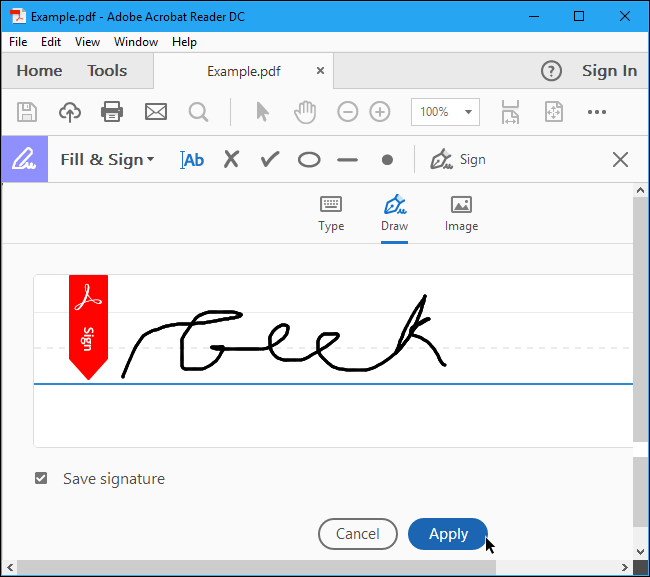
    3. Select sign and select “add signature
    4. You’ll see a Popup on your screen. You’ll be provided with three options which are: Type, draw and image. Select either Type or Draw.
    5. Click “apply” when you’re done. Drag the signature and position it at the right location where you wish to sign.

    Conclusion

    Choose the method which best suits you. One of them should at least work for you. Enjoy your new found way of signing your documents digitally.

  • Four Things To Do When Your Internet Connection Gets Very Slow

    Four Things To Do When Your Internet Connection Gets Very Slow

    One of the most annoying moments anyone can endure is when your phone or laptop wouldn’t connect to the internet, in the middle of something important.

    You’re probably watching your favorite movie online or probably watching a live stream or perhaps, checking out some new sites. Then, all of a sudden, your phone won’t connect to the internet. Or better still, it comes on but with a lot of lagging.

    The obvious question is: What do I do now To restore my connection?

    1. Check your data balance

    One thing you don’t want to overlook when your phone is lagging behind, is the volume of data bundle you have left.

    In most cases, once your data bundle is near finished, you’ll begin to feel your internet speed reducing.

    To check your data, simply dial *124# across all networks.

    2. Perform A Bandwidth Test

    You want to be sure if truly your internet access has slowed down completely or not. So the next thing to do after checking your internet bundle is for you to do a bandwidth test which tests the upload and download speed of your network. This enables you to determine if there’s a more serious problem with your device, the website you tried visiting or if it’s just a network issue. You can perform a bandwidth test on Fast.com, testmy.net and speedtest.net.

    3. Turn Off Your Data Or Wifi

    If after checking your data balance and internet speed , you’re sure that you have enough data and so should not be having issues with your internet, the next thing you should do is to turn off your data or wifi.

    Turn it off for a minute or two and turn it back on again.

    Usually, if your problem is as a result of prolonged use of the network, everything should begin to work fine from here.

    4. Restart Your Device Completely

    If after trying all the above three steps, your internet still crawls like a tortoise, you should consider warm-booting your device.

    If you’re using a laptop or your mobile phone, you should consider restarting at this point.

    Some devices begin to misbehave once they’ve had a certain hour of use cycle without break. And this tends to affect the internet activities of the phone as well.

    So, restarting the phones re-establishes a new connection with your network, which should be the solution you’ve yearned for.

    Note: If all the above don’t work for you, you should consider replacing your router, or change your sim card and if possible, give a call to your Internet Service provider, seeking their help. They should be in position to relieve you of the agony associated with this.

  • 2020 Week 4: Top 5 Cryptocurrencies

    2020 Week 4: Top 5 Cryptocurrencies

    We’ve just finished the fourth week of 2020 and taking baby steps into the fifth week of the year 2020.

    Generally, it still seems to be a positive year for the crypto market. Majority of the top 100 cryptos in the world have made some positive gains in general.

    As we prepare to begin the fifth week, here we bring you a brief analysis of how the top 5 cryptos performed throughout the week.

    1. Bitcoin (BTC)

    Bitcoin undoubtedly still maintains its position as tops on the list of cryptocurrencies in the world.

    It made an entry into the just ended week on Sunday, 19th January 2020 at 8,707.63 USD, with a growth of 11.53 percent.

    It rose steadily and reached its peak on Wednesday morning at 8,789.49USD. As of press time on Sunday 26th January 2020, bitcoin is trading at 8,584.91USD.

    Compared with last week, bitcoin has dropped by a percentage of negative 1.4 percent.

    Despite the slight drop in percentage, it has a market capitalisation of 155.873 Billion Dollars, currently ranking it as the top cryptocurrency for the week.

    2. Ethereum (ETH)

    Ethereum, the second most popular cryptocurrency just behind bitcoin is still leading as the second biggest crypto asset in the fourth week of 2020. The week for Ethereum started quite badly compared to the previous week with an initial entry of 166.97 USD.

    Towards the end of the week, on Friday, 24th January, Ethereum reached its bottom price at 156.75 USD. It however peaked on Wednesday at 170.24 USD.

    As of press time on Sunday, Ethereum sells at 167.80 USD. Unlike Bitcoin, Ethereum saw a slight positive growth of 0.497 Percent. Ethereum currently has a market cap of 18.350 Billion USD and is ranked the second best cryptocurrency.

    3. RIPPLES (XRP)

    Still struggling at the top, Ripples started the week with 0.234USD and has been going on a very wavy drive throughout the week. Its peak was 0.238USD on Tuesday.

    Ripples reached its lowest price of the week on Friday, trading at 0.215 USD. As of press time on Sunday, 26th January, XRP is trading at 0.266USD.

    So in all, XRP concluded the week at 0.266USD with a gain of 13.68 percent and a market capitalisation of 10.069 Billion Dollars.

    4. Bitcoin Cash (BCH)

    Bitcoin cash has maintained its consistency of enjoying some major rise in price from the beginning of the year. However, this week seems to be a different one. BCH entered the week at 338.21USD. Its peak was on Wednesday morning when it earned a price of 347.81 USD. The lowest point however was its entry point on Sunday. As at press time, BCH is selling at 333.87 USD on Sunday. Per the mathematics, BCH has seen a depreciation of negative 1.28 Percent over the week. Its market capitalisation is pegged at 6.301 Billion Dollars.

    5. Bitcoin SV (BSV)

    BSV has shockingly maintained its position in our list right from the previous week.

    Booting off the USD tether from the list of our top 5 Cryptocurrencies, the Bitcoin SV has performed yet another magic. Of course, except that it was not a beautiful story in the end. BSV started the week with 257.32USD. Towards the end of Tuesday, BSH reached its peak price of the week which stands at 315.42USD.

    Its lowest pricing however was on Friday where it traded at 257.59 USD.

    So no much trouble for this coin in terms of performance. As of press time today, Sunday 26th January 2020, BSH is selling at 276.07 USD.

    Having clocked an increase of 7.28 percent and a market cap of 4.986 Billion Dollars, BSH is the final coin on our list for the week.

    Kindly check out our list of top 5 cryptocurrencies based on market capitalization and percentage gains Next week Sunday.

    NB: We do not give advice on crypto investments. Like any other investment program, cryptocurrencies are very risky ventures to invest in. Please do seek the views of an expert before making a decision to invest in cryptocurrencies.

  • How To Invest In The MTN My Own Pension Scheme

    How To Invest In The MTN My Own Pension Scheme

    MTN Ghana has designed a beautiful service for all workers to enjoy a great pension by contributing regularly for a period of 5 years or more.

    With the My Own Pension scheme, users determine how much they wish to contribute and the frequency of the payment as well.

    You can decide to pay daily, weekly or monthly. So, if I decide to pay 1 cedi daily (which is the least), and I choose a weekly Frequency, I’ll pay 5 Ghana cedis weekly through my mobile money account.

    Once the registration is complete, payment is done automatically every 7 days.

    Meaning, if you registered on Tuesday, every Tuesday, the deduction is made from your account.

    If you do not have enough money in your account prior to the next deduction, that payday gets skipped and you wouldn’t be double-charged for your next deduction.

    Also, your investment in the pension scheme is further divided into two equal parts. The first half goes into an investment account which you can withdraw after one year.

    The other half goes into your pensions account which you can withdraw after 5 years. The interest rate on the pension scheme is a little higher than the T.Bill Rate for each year.

    How To Register For The Service

    1. Dial *170#

    2. Enter option 5 for financial services

    3. Enter option 4 for pensions and investment

    4. Enter option 1 for My own pension

    5. Select option 1 to Register

    6. Enter Residential Address

    7. Enter name of Next of kin

    8. Enter phone number of Next of kin

    9. Select Payment Cycle

    10. Enter amount

    11. Enter 4 digit secret codeM

    12. Confirm 4 digit secret code

    NOTE: You can only withdraw from your investment account after one year of contribution. Also, your pension account withdrawals are only available after your fifth year of contributions. You can always check your contributions in your Pensions and Investments account.

  • How To Buy Treasury Bill Through MTN Mobile Money From 5 Cedis And Above

    How To Buy Treasury Bill Through MTN Mobile Money From 5 Cedis And Above

    MTN mobile money has made purchasing of treasury bill a lot easier and more convenient for all.

    Under the financial services option of the MTN Mobile money portal, one could see Treasury Bills listed among other services.

    To access this service on your phone, follow the following steps:

    How to Register for a Treasury Bill Account with MTN Mobile Money

    1. Dial *170#
    2. Press 5 for financial services
    3. Select 4 for pensions and investment
    4. Select 2 for treasury bills
    5. Select 1 to register
    6. Enter your full name and send
    7. Enter your next of Kin’s name
    8. Enter your next of Kin’s phone number

    How to buy Treasury Bill with MTN Mobile Money

    The steps below work only if you have already registered for a treasury bill. To buy a Treasury Bill in Ghana directly from your Mobile Money, follow these steps:

    1. Dial *770#
    2. Enter option 2 for Tbill4all
    3. Follow the next set of prompts to finish up your purchasing

    NOTE: From as low as 5 Ghana cedis, you can purchase a treasury bill. It’s completely affordable and very easy too.

    The Tbill4all service is a collaboration between Ecobank and MTN Mobile Money. However, one does not need to have an account with Ecobank to access this feature as everything is hosted on the MTN mobile money platform.

  • 5 Ways To Use MTN Mobile Money Like a Boss

    5 Ways To Use MTN Mobile Money Like a Boss

    In today’s world where technology is taking over everything including finance and jobs, the least one could do is to show off their inclination to technology.

    Today, mobile money is the new cash in the Ghanaian economy. Almost everyone in Ghana has a mobile money account.

    However, most of such people don’t know of how best to utilize their mobile money wallets to solve some daily problems without having to move from place to place thus, doing things as a boss.

    In this article, we take you through some 5 transactions you can do on your MTN Mobile money wallet while you move about town, feeling like a Boss! You may already have had some knowledge about this but I’m sure you’ll certainly see something new here.

    1. Loan Services

    With MTN Mobile money, loan acquisition has become a lot easier and less stressful as you can acquire loans up to 1,000 GHS from the comfort of your home through your mobile money wallet.

    Recently, there has been the Ahomka Loan from MTN. You should check it out.

    Treasury Bills

    With MTN mobile money, your investment has been made a lot more easier and safer as you don’t have to carry your hard cash to the banking institutions and more for payment into your investment accounts. You can invest in Treasury Bills on Mobile Money that from your phone, in the comfort of your couch while sipping on some chilled sobolo.

    Pension and Investment Scheme

    The desire of everyone in the world is to be able to go on retirement and live the dream life they’ve always hoped for themselves. With your MTN mobile money, this could be a reality for anyone and everyone without so much hustle. You get one of the realest returns on investment for your pension benefits and also, there is a part of the money that you can withdraw yearly to cater for your everyday needs while the other part also grows in your investment account.

    Bill Payment

    The stressful wait in long queues and the hectic trudging through tight traffic to make payments to your service providers including NHIS, ECG, Water Company, Telecom networks and others has come to an end. All thanks to MTN Mobile money, you can make payments for all your subscriptions through your mobile phone without any much hustle. And you get to save yourself sometime to get some more cedis or perhaps, spend time with your loved ones.

    Bank Deposit

    One thing I’ve always dreaded is the pain of traveling all the way to my bank just to deposit money into my account.

    What even annoys me is the fact that everyone looks at you as if you’ve come to take billions of cedis. And you know how it feels when everyone thinks you have it, yet you don’t?

    Yes, thankfully, if you’re like me, you have been saved by MTN Mobile money. You can make deposits into your bank account so easily without any hustle and you get notified when the money hits your account. Isn’t it so interesting?

    Read: How To Deposit Money Into Bank Account Through MTN Mobile Money

    Conclusion

    MTN Mobile Money has indeed made life way easier for us all as we do not have to combine the stress of our workload with some daily activities including those listed above. Kindly explore your MTN Mobile Money portal for other beautiful offers and services.  

  • How To Exchange Your Bitcoin For Mobile Money Through Remitano

    How To Exchange Your Bitcoin For Mobile Money Through Remitano

    Like Jumia, Jiji and tonaton, Remitano.com is the marketplace for all cryptocurrency dealers in Ghana.

    At Remitano, the platform available is an escrow service where buyers and sellers list their cryptocurrencies, their rates and the volume they need or have.

    As such, Remitano does not have direct control over the coins sold on its platform. The only thing they have control over is the sending and receiving of the coins involved.

    Exchanging bitcoin on Remitano is a bit tricky but it’s a lot better as there are a lot of orders for buy and sell at various rates from different people, so one could easily get a rate befitting their needs.

    So here is the process:

    Register For A Remitano Account

    1. Visit Remitano.com and click Login/register

    2. Click on Google under “sign in with”

    3. Enter your email address and enter your email password

    4. You’ll be logged in to your account.

    5. Setup your account by editing your profile.

    6. Deposit the BTC from your BTC holding account Into your Remitano wallet.

    Sell Your Coin To A Waiting Buyer

    1. click on sell now.

    2. From the homepage, you’ll see a list of buyers

    3. Locate the one you wish to sell to and click on sell

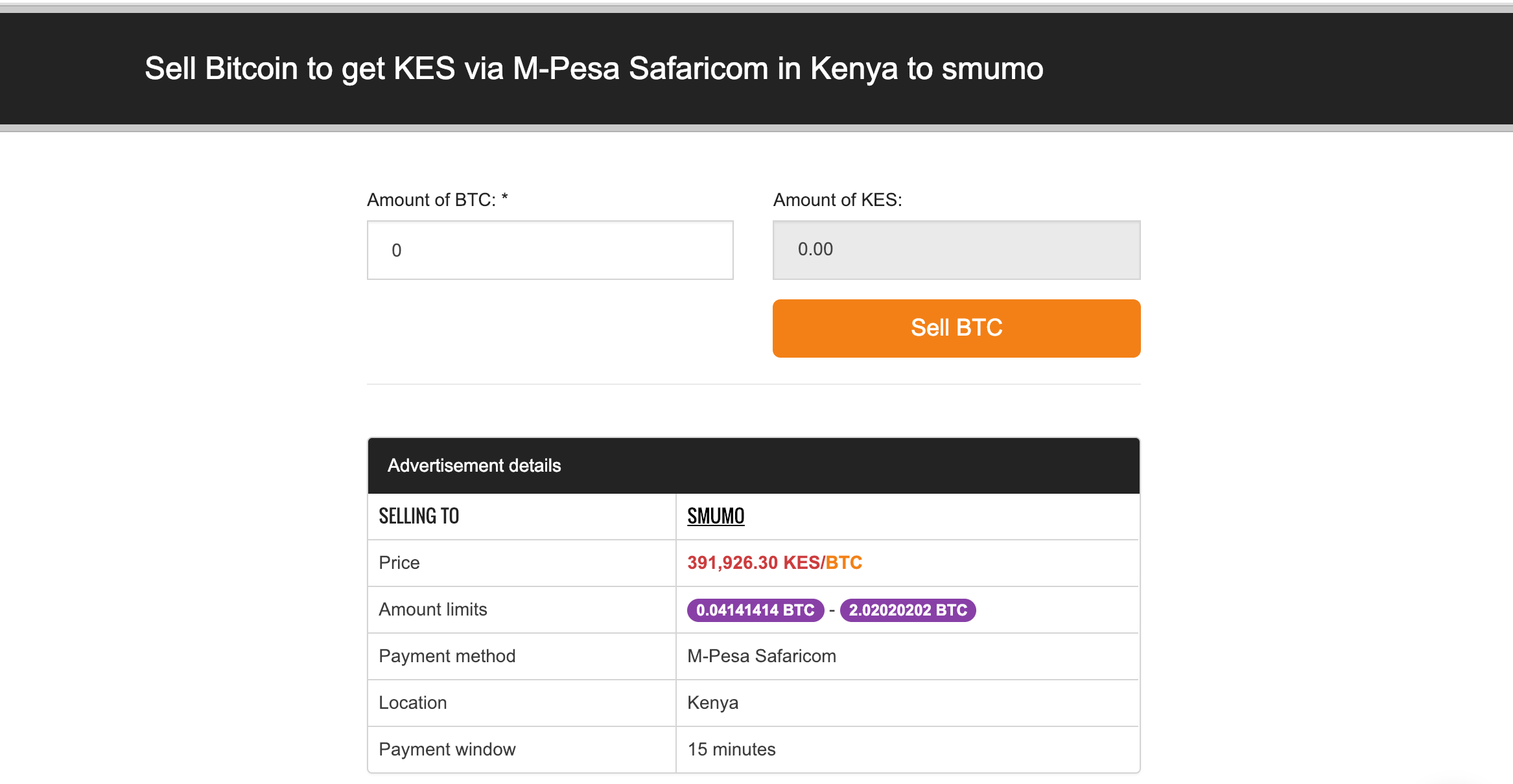
    4. Enter the amount of coin you wish to sell and click Sell BTC to open transaction window.

    Note: “Amount limits” is the minimum and maximum limit that the buyer (ad creator) wants to trade. You can only trade within this limit.

    5. Enter the payment details through which you want the buyer to make payments to you and click “Continue”.

    6. The transaction will automatically switch to “Awaiting payment” mode

    7. Wait for the buyer to pay you through the number you’ve provided. Then click on “I have received payment” to release the bitcoin to the buyer.

    Note: Do no confirm that you’ve received money from a buyer when you haven’t actually received the money in your account. Do well to verify any mobile money message received to be sure that it’s authentic before confirming receipt of the money. You can’t trust people with money these days. So just be careful.

    You can also check out other options here: How To Withdraw Bitcoin Through Your MTN Mobile Money Account

  • How To Withdraw Bitcoin To Mobile Money Account Through Payplux

    How To Withdraw Bitcoin To Mobile Money Account Through Payplux

    Payplux.com is one of the most reliable cryptocurrency exchanges in Ghana.

    Withdrawing your bitcoin through mobile money on Payplux is way very easy.

    To do so, follow the following steps:

    Register For An Account

    To register for an account, visit: Payplux.com and click on “Get started”

    Fill in the spaces provided for your phone number (Preferably your mobile money number), your email address, your full name and preferred password).

    Click on signup and confirm your email.

    Trade Your Bitcoin For Ghana Cedis

    To be able to access the next step of the process, you need to login to your payplux account first.

    Click on Buy & Sell in your account

    Click on sell

    Select the coin you want to sell under the “Selling” tab

    Enter the amount to sell in USD (The rate is just below the box where you write the amount)

    The amount you’ll receive will appear in a box just beneath that.

    If you’re using a mobile device, you’ll see a summary of the transaction at the bottom of your page. If you’re using a PC, it’s on the right side.

    Click on Sell Bitcoin USD (… GHS)

    Select your payment method (Mobile Money)

    Select your network

    And indicate your mobile number

    Click on Pay Now to send bitcoin

    Follow the prompts

    Your order will be confirmed and processed

    You get the money in your mobile money account.

    You May Also Try: How To Exchange Your Bitcoin For Mobile Money Through Remitano


  • How To Prevent Hackers From Accessing Your Facebook Account

    How To Prevent Hackers From Accessing Your Facebook Account

    Safety on the Internet is now a top priority for most users following the thousands of hack cases reported lately.

    One of the key areas of concern to internet users is how to secure their Facebook accounts from the prying eyes of Hackers who fancy using other people’s accounts for fraudulent activities.

    In this article, we shall look at ways of ensuring the safety of your Facebook account.

    Use Super Strong Password

    One of the first things you should do to secure your Facebook account is for you to use a very strong password.

    There goes the question: What is a strong password?

    A strong password should include the following features:

    1. Contain at least one uppercase letter
    2. Contain at least one special character (@,/,(,),£,&)
    3. Contain at least 8 characters in total
    4. Contain at least one number

    Again, your password should be something people can’t guess easily. That’s to say, the following may be bad ideas for a password:

    1. Your phone number
    2. Your date of birth
    3. Your first name
    4. Your surname
    5. Any other password easy to be guessed

    Enabling Second Factor Authentication

    Second Factor Authentication also is known as 2 Factor Authentication or 2FA is a security system used by websites and applications to ensure that users provide at least 2 evidence of ownership before they are allowed access to their accounts.

    Usually, the 2FA includes entering your password and then dialling a unique code you receive through email or text message or via a call.

    So virtually, if you have 2FA enabled on your Facebook account, you, first of all, get to type your email and password as has always been the case when you’re trying to login.

    But, after successfully entering your password, you’ll have to choose another means of authentication which is either email or text message. Depending on the method you choose, you receive a one-time code which you have to enter to access your account.

    Setup A List Of Friends To Contact When You Are Locked Out Of Your Account

    Facebook knows that there may be times when you’re genuinely locked out of your account so their team developed a way of dealing with that situation.

    You can set up a list of trusted friends whom you’ll like Facebook to contact when you’re genuinely locked out of your account. You need at least 3 trusted friends’ account to be able to set this up.

    Remember that this could be a little bit tricky. So only add people you can truly trust and be sure to remember their names.

    Whenever all your entry trials fail, you’ll have to fall on these people for access to your account.

    So, here is how to set it up:

    1. Locate and click on settings and privacy on your Facebook app
    2. Click on settings
    3. Click on Security and Login
    4. At the extreme top of the next window, you shall see “Add trusted friends. Click on that
    5. Click on add friends.
    6. Enter the names of your friends and add them.
    7. Click on done
    8. Enter your password to confirm.

    Your security feature for trusted friends is set and ready to be used.

    NB: You are responsible for choosing someone to be added on this list. Failure to think through it may go against you as anyone you add on this list possesses some amount of power over your account.