Author: Mfidie

  • How to Reset a graphics card

    How to Reset a graphics card

    If you are having trouble with your graphics card, resetting it can be a quick and easy way to troubleshoot the issue. Resetting your graphics card can help fix issues such as glitches, lagging, or distorted images on your screen. Graphics cards are an essential component of any computer system and can be a significant performance booster for gaming, animation and design work. A graphics card reset can help to restore your card to factory settings, allowing you to enjoy peak performance once again. This guide will explain why you need to reset your graphics card and how to do it safely and effectively.

    What is a graphic card

    A graphics card, also known as a video card or graphics processor, is a piece of hardware that processes and renders the images that you see on your computer screen. Graphics cards are responsible for generating and displaying the images on the monitor, and they are an essential component for gaming and other high-performance computing tasks. The main components of a graphics card are the GPU, memory, and cooling system.

    The GPU (graphics processing unit) is the part of the card that processes the data and creates the images on the display. The memory stores the data being processed, and the cooling system helps to keep the GPU from getting too hot. A good graphics card will have a powerful GPU, plenty of memory, and a reliable cooling system.

    Why you need to reset your graphics card

    1. To improve performance.
    2. To fix hardware issues.
    3. To clear out old drivers.
    4. To make sure you’re running the latest version of the driver.
    5. To increase power efficiency.

    How to reset your graphics card

    1. Open the “Start” menu and click “Control Panel.”
    2. Scroll down in the Control Panel window and click “System.”
    3. Click “Device Manager,” which is located in the top-left corner of the System window.
    4. Double-click “Display Drivers” in the Device Manager and right-click on your graphics card.
    5. Select “Uninstall” from the right-click context menu and confirm that you would like to uninstall the driver.
    6. Restart your computer when prompted. Once the computer loads, Windows will automatically detect the new graphics card and will reinstall the drivers.

    Conclusion

    Resetting your graphics card is a great way to restore optimal performance and improve the longevity of your hardware. While it can be a complex process, taking the time to reset your card will pay off in the long run. It’s important to remember to back up any data you may have on your computer prior to resetting your graphics card, as this can be lost during the resetting process. With these tips in mind, you can reset your graphics card with confidence and enjoy improved performance and better longevity for your hardware.

  • How to close apps on Apple TV

    How to close apps on Apple TV

    Apple TV is a digital media player and micro-console developed and sold by Apple Inc. It is a small device with a wide range of features and functions, making it a popular choice for those looking to stream media content directly to their television. Apple TV allows users to access various streaming services, such as Netflix and Hulu, as well as purchase or rent movies and TV shows through iTunes.

    With so many streaming options available, it can be easy to lose track of how many apps you have open. You may need to close apps that are running in the background. This is a simple process, but it’s important to know how to do it so you don’t have unnecessary programs running. This guide wull show you how to quickly and easily close apps on Apple TV.

    How to close apps on Apple tv

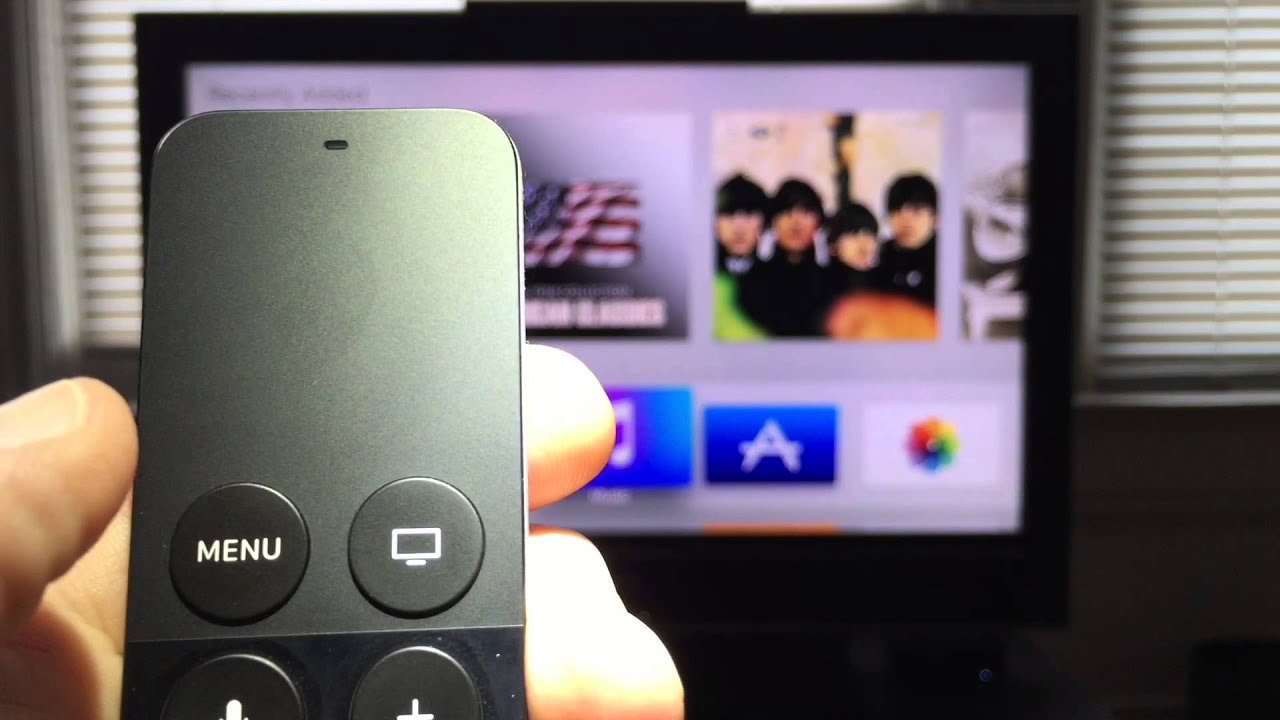
    1. Double-click on the TV/Home button.
    2. Use your Clickpad to scroll through all open apps until you find the app you want to close.
    3. Swipe up across the Clickpad to close the selected app.
    4. Click the Back button until you return to the Home screen.

    How to restart your Apple TV

    Restarting your Apple TV can also be another rare choice for closing apps. If this method is chosen, it might be because, your remote is not functioning or missing. Restarting can fix any issues you were having with uncooperative apps. To restart your Apple TV,

    1. Open the Settings app
    2. Select system
    3. Click Restart.
    4. Make sure NOT to click Reset, doing so will clear all your apps and data.
    5. Try pushing the Power button on your Siri Remote to turn your Apple TV back on.
    6. If your Apple TV is completely frozen and you cannot get it to restart, simply unplug your TV.
    7. Wait for a few moments, and then plug it back in to restart it. 

    Conclusion

    Closing apps on your Apple TV is an essential part of the user experience. It can help prevent unnecessary battery drain, ensure that your data remains safe, and ensure that you are using the most up-to-date version of each app. With just a few simple steps, you can quickly and easily close any app running on your Apple TV, allowing you to focus on the content that matters to you most.

  • How to screen record on iPhone 12

    How to screen record on iPhone 12

    Screen recording is a feature that allows you to record the screen of your iPhone or iPad. This can be used for a variety of purposes such as creating tutorials, recording gameplay, or just capturing an important moment. It’s easy to use and a great way to capture what you’re doing on your device.

    The iPhone 12 offers an incredibly useful feature for capturing whatever is happening on the screen—screen recording. Whether it’s to show off an app, share a tutorial, or just capture a moment in time, screen recording on the iPhone 12 is a simple and easy process.

    How to activate screen record on iPhone 12

    The simplest way to use screen record is finding it on your iphone control center. But most at times, the screen record will not be found and if such happehs, it means you jave to manually add it to be able to comfortably use it.

    1. Open the Settings app on your iPhone 12.
    2. Tap Control Center.
    3. Tap Customize Controls.
    4. Scroll down and tap on the + sign next to Screen Recording.
    5. Screen Record with then be added to your control center.
    6. Tap the back button to return to the Control Center.

    How to screen record on iphone 12

    Now, screen record has been added to your control center. To use it,

    1. Swipe up from the bottom of the screen to open the Control Center.
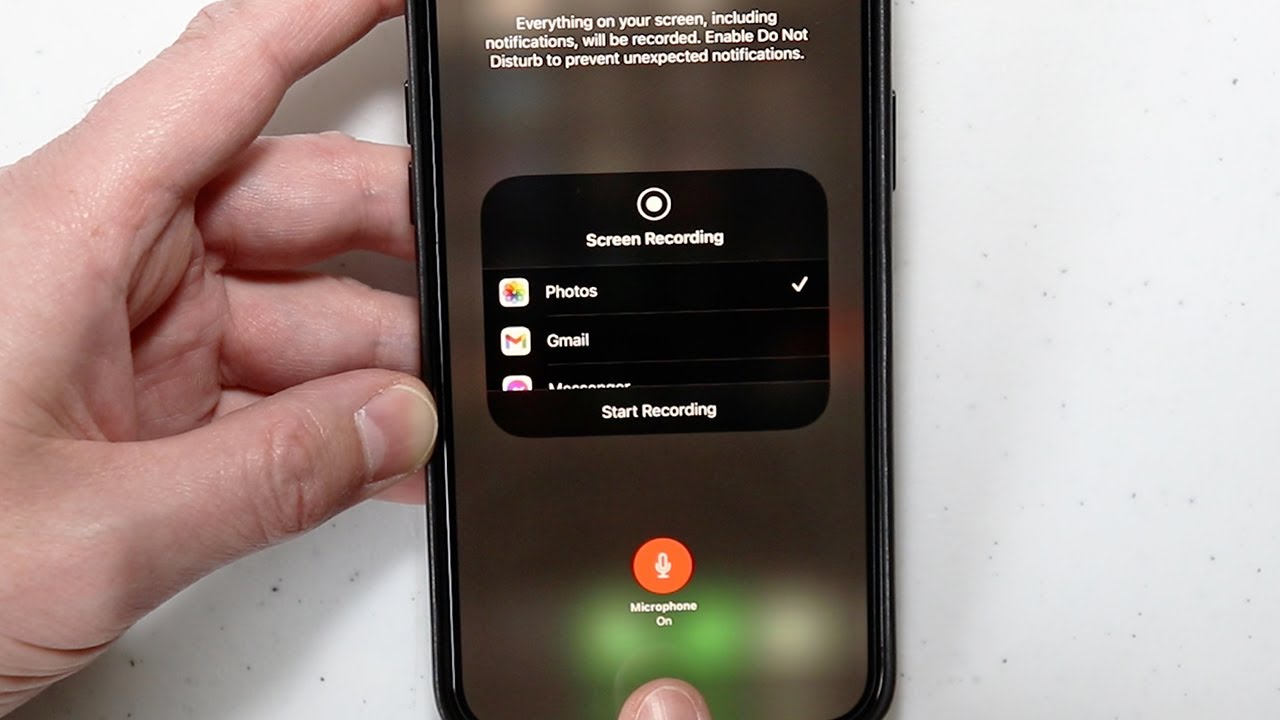
    2. Tap and hold the Screen Recording button.
    3. Select Microphone Audio if you want to record sound with your video.
    4. Tap the Start Recording button to begin recording your iPhone 12’s screen.
    5. When you’re done recording, tap the Stop Recording button in the Control Center.
    6. Thats it!

    Where will the Screen Recording be saved on iPhone 12?

    As soon as you click on the timer to stop screen recording, it will be saved in “Photos” by default. To view your recording, go to “Photos” and hit play. You can share, delete, or edit it as per your requirement.

    Why can’t I screen record on my favourite streaming apps?

    While screen recording can be used to capture everything happening on your iPhone screen, including notifications and calls, you cannot screen record apps like Netfliz, Amazon Prime Video and Disney + due to copyright issues.

    Final words

    Screen recording your iPhone 12 is a great way to capture your best moments and share them with family and friends. With just a few taps, you can record what’s on your screen for any app or game. It’s easy to do and can save you time in the long run if you ever need to troubleshoot an issue or just show someone else how to do something on their phone.

  • How to delete messages on MAC

    How to delete messages on MAC

    If you’re a Mac user, you know how important it is to keep your messages organized and clean. Deleting unnecessary messages can help declutter your inbox and make it easier to find the information you need. This guide will teach you how to delete messages on your Mac, including tips and tricks to help you delete messages quickly and efficiently.

    Why delete messages on MAC?

    Having an organized inbox is essential for staying productive, and it’s especially important to delete unnecessary messages from your Mac. This can help you keep your Mac’s storage space clear and help it run more smoothly. Deleting messages from your Mac also helps to protect your privacy since there may be sensitive information contained in the messages. In all, deleting messages on your Mac can help to keep your device running smoothly and help protect your privacy. By taking the time to delete old and unnecessary messages, you can help ensure that your Mac stays secure and runs efficiently.

    How to delete a message on Mac

    If you want to delete a message within a conversation,

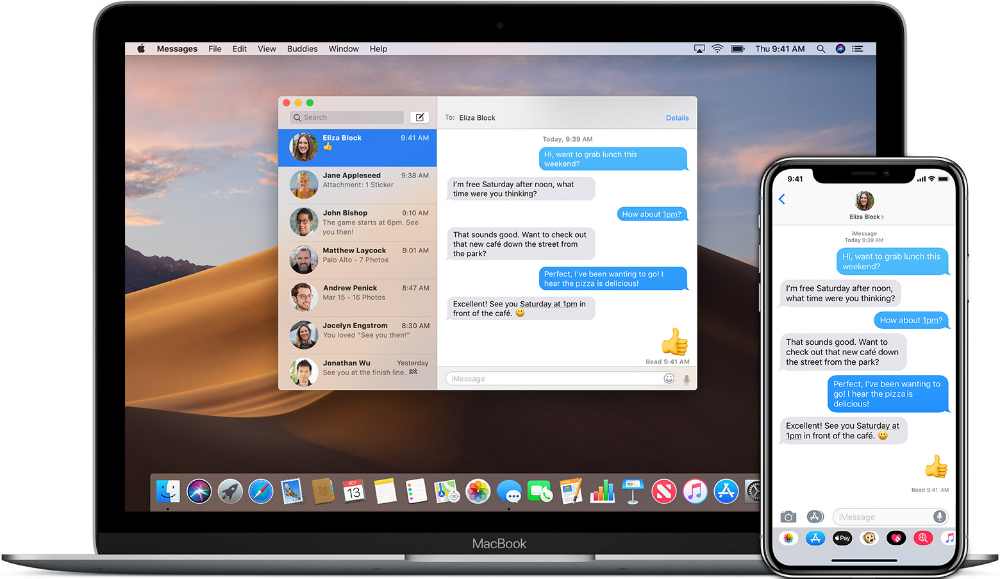
    1. Open the Messages app on your Mac by clicking on the “Messages” app.
    2. Select the conversation containing the message you want to delete in the left pane of the messages window.
    3. Delete a single message by right-clicking the message and selec “Delete.” 

    How to delete an entire conversation

    To delete an entire conversation,

    1. Open the messaging app on your Mac and locate the conversation.
    2. Right click on the selected conversation.
    3. A pop up will appear and then click delete conversation.
    4. A prompt will appear asking if you are sure. Click delete.
    5. Now, the conversation and all of its messages will disappear.

    How to disable iCloud messages sync

    Changing this setting prevents messages from coming to your Mac, leaving it free of the conversations from your iPhone. To stop messages from coming to your Mac,

    1. Open the Messages app on your Mac. 
    2. Click on Messages in the upper left corner of the screen. 
    3. Click on Preferences, then select the iMessage tab. 
    4. Select “iMessages” near the top of the window.
    5. On the left side of the screen, uncheck the box next to Enable Messages in iCloud. 

    Is there a faster way to delete messages on Mac?

    You can also use a shortcut to do this even more quickly. Press Option + Command + K, or you can right-click an empty space in the conversation window and select the Clear Chat Transcript option. You can do this for each conversation on your Mac or Macbook to quickly delete all of the messages.

    Conclusion

    Deleting messages on a MAC is a great way to stay organized, keep your inbox clutter-free and maintain your online privacy. It’s a simple process that takes just a few steps, and can help you keep your MAC clean and free of unnecessary messages. Whether you’re trying to clear up space or simply make sure you’re not collecting any unnecessary information, deleting messages on a MAC is the best way to go.

  • How to move rows in Excel

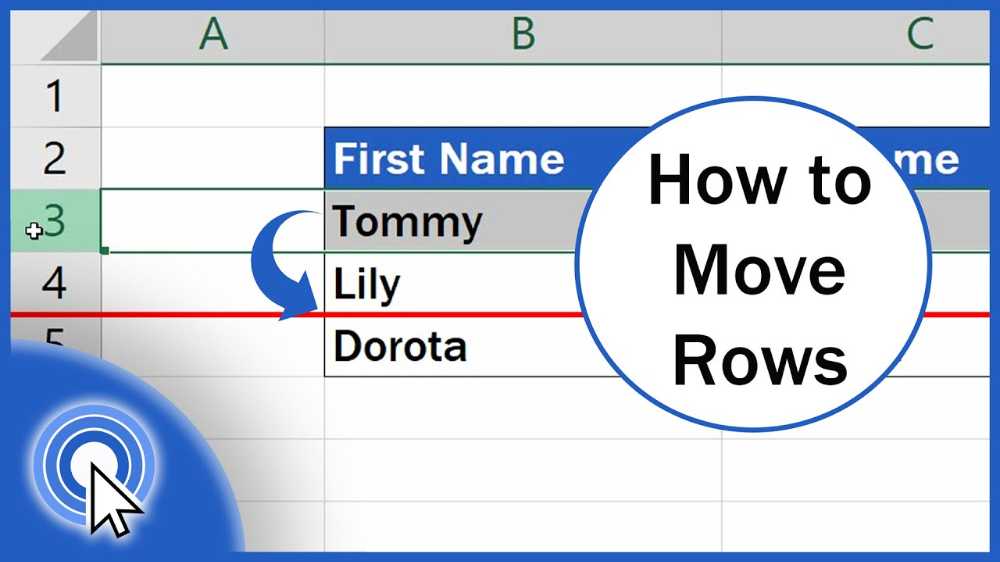
    How to move rows in Excel

    Moving rows in Excel is a simple task that can be completed quickly and easily. By cutting and inserting the row or rows you want to move, you can reorder your data in a way that makes sense for your spreadsheet. With just a few clicks of your mouse, you can easily rearrange your data in whatever way best suits your needneeds.

    What are rows in Excel

    Rows in Excel are horizontal sets of cells. Each row is identified by a number and runs horizontally across the spreadsheet. The columns in Excel are numbered from left to right, starting with column A and going up to column XFD.

    Each row in the spreadsheet contains up to 16,384 cells and can be used to enter data such as text, formulas, dates, and numbers. When rows are used to store data, they can be sorted and filtered to make it easier to find specific information. Rows also allow for simple calculations like addition, subtraction, multiplication, and division. Rows can be used to create charts that can be used to illustrate trends in data.

    How to move a specific highlighted row in Excel

    1. Select the row that you want to move.
    2. Hold the Shift Key from your keyboard.
    3. Move your cursor to the edge of the selection. It would display the move icon (a four directional arrow icon).
    4. Click on the edge (with left mouse button) while still holding the shift key.
    5. Move it to the row where you want this row to be shifted.
    6. Leave the mouse button when you see a bold line right below the row where you want to move this row.
    7. Leave the Shift-key (remember to keep the Shift key pressed till the end).

    How to move an entire row in Excel

    1. Select the entire row that you want to move.
    2. Hold the Shift Key from your keyboard.
    3. Move your cursor to the edge of the selection. It would display the move icon (a four directional arrow icon).
    4. Click on the edge (with left mouse button) while still holding the shift key.
    5. Move it to the row where you want this row to be shifted.
    6. Leave the mouse button when you see a bold line right below the row where you want to move this row.
    7. Leave the Shift-key (remember to keep the Shift key pressed till the end).

    Conclusion

    Moving rows in Excel is a useful skill to have when dealing with large data sets and complex spreadsheets. It can save time and simplify your workflow when dealing with data that needs to be rearranged. Knowing how to move rows in Excel can help you better organize and analyze your data.

    With a few clicks of the mouse, you can quickly move entire rows to different places in the worksheet or even copy and paste them from one sheet to another. Moving rows in Excel requires only basic knowledge of the software and its functions, so give it a try and see how much easier your workflows become!

  • How to turn on flashlight on iphone

    How to turn on flashlight on iphone

    Using the flashlight on your iPhone can come in handy when you need a little extra light. Whether you’re walking home at night or trying to locate something in a dimly lit room, turning on the flashlight on your iPhone is quick and easy. In this article, we will provide step-by-step instructions on how to turn on the flashlight on an iPhone.

    How turn on iphone flashlight

    1. First, unlock your iPhone and make sure you are on the Home screen.
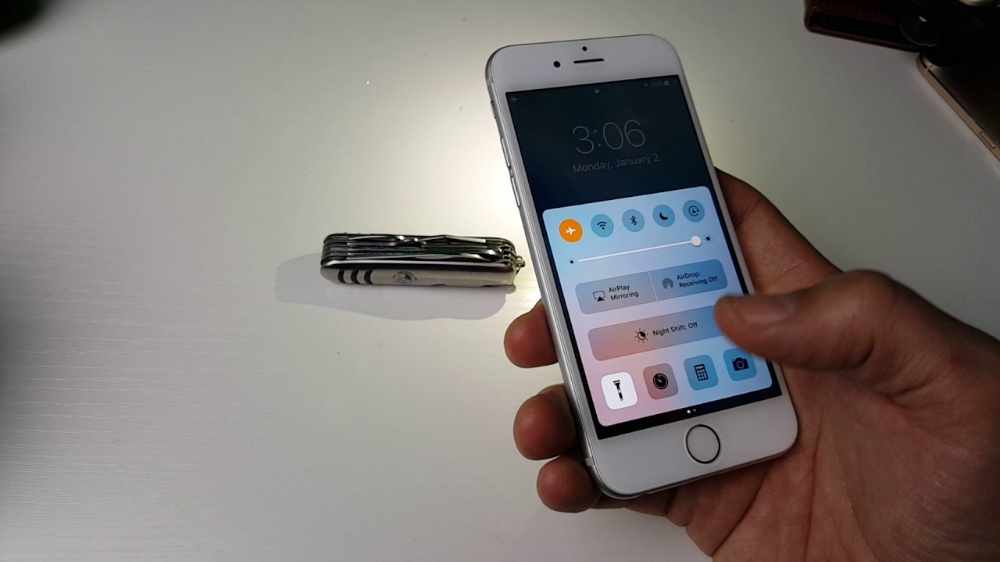
    2. Now, swipe up from the bottom of the screen to bring up the Control Center.
    3. Look for the Flashlight icon (it looks like a flashlight) located in the bottom left corner of the screen.
    4. Tap it once to turn on the flashlight.
    5. To adjust the intensity of the light, press and hold down on the flashlight icon. A scale will appear, which allows you to adjust the intensity of the light.

    How to turn off iPhone flashlight

    1. Open the Control Center by swiping down from the bottom of the screen or top right corner of your iPhone’s screen.
    2. Tap and hold the flashlight icon in the lower left corner.
    3. The flashlight will turn off and the icon will become dimmed.
    4. That’s it!

    Importance of iPhone flashlight

    1. Having a flashlight app on your iPhone means you don’t have to worry about carrying around a separate physical torch when you need extra light in a dark environment.
    2. An iPhone flashlight can be incredibly useful for providing extra visibility when you’re walking alone at night. It can also provide an additional layer of security if you hear suspicious noises in your home or outdoors.
    3. In case of a power outage, the flashlight app on your iPhone can help you find your way around your home and locate important items and other supplies that can come in handy during an emergency.
    4. If you find yourself in an unfamiliar place and don’t have any other source of illumination, the iPhone flashlight app can be a great way to help you find your way out of the darkness.

    Does iPhone flashlight drains too much battery when turned on?

    One of the most important questions people ask when it comes to using the iPhone flashlight is if it drains too much battery when turned on. The answer is NO. The iPhone flashlight doesn’t drain a significant amount of battery power when it’s turned on.

    Conclusion

    The iPhone flashlight is a great tool to have when you need a bit of light in a dark area. It is easy to turn on and off and can be done with just a few taps of your finger. It is also important to keep in mind that it can drain your battery if you forget to turn it off after you are done using it. So make sure to take advantage of this tool when needed.

  • How to see who liked your playlist of Spotify

    How to see who liked your playlist of Spotify

    If you are a Spotify user, you may have noticed that other users can “like” your playlist. But do you know how to find out who has liked your playlist? It’s easier than you think. If you’ve ever created a playlist on Spotify and wondered who has liked it, you’re not alone. Many people use Spotify to share their playlists with friends and family, and it can be hard to keep track of who has actually liked your playlist.

    Luckily, Spotify makes it easy to see who has liked your playlist. With just a few clicks, you can see which of your friends and followers have liked your playlist. This guide will show you how to view the list of those who have liked your playlist.

    What is Spotify playlist

    Spotify is a music streaming platform that allows users to listen to millions of songs, albums, and podcasts from all over the world. It is one of the most popular streaming services, offering both free and premium subscription plans. With Spotify, you can create your own playlists and follow other users’ playlists to discover new music. Also, it has many features such as audio fingerprinting, radio stations, and artist recommendations. It is available on a range of devices including mobile phones, tablets, computers, smart TVs, and gaming consoles.

    How to view your Spotify playlist likes on iPhone

    1. Open “Spotify” on your iPhone.
    2. Tap on “Your Library” in the bottom-right corner of the menu.
    3. Select the “Playlists” tab at the top of the screen.
    4. Tap on the playlist in question to view how many likes it received.
    5. You will see the like count of the playlist under the title, which is on the left side of the screen. 

    How to view your Spotify playlist likes on android

    1. Launch “Spotify” on your Android device.
    2. Select the “Your Library” button on the bottom menu.
    3. Continue to the “Playlists” tab at the top of your screen.
    4. Select the playlist where you want to check the like count.
    5. The like count will be right under your profile picture and username in the middle-left part of the screen.

    How to view your Spotify playlist likes on Windows PC

    1. Launch the “Spotify desktop app” on your Windows.
    2. Log in to your Spotify account and go to the “Playlists” section on the left sidebar.
    3. Find the playlist you want to check and click on it.
    4. The Likes section will be on the far-right side of the app, above the Downloaded button.

    How to view your Spotify playlist likes on MAC

    1. Run the “Spotify desktop app” on your Mac.
    2. Sign in to your account if you haven’t already.
    3. Navigate to the “Playlists” section on the left sidebar.
    4. Click on the playlist.
    5. The total number of likes will be on the middle-right side of the screen. If you were to click on the Likes tab, nothing would happen.

    How to see who liked your playlist on Spotify

    If you want to see someone has liked your playlist on Spotify,

    1. Locate their Spotify account.
    2. Go to their public playlist.
    3. There, you will see their liked playlists in their list of public playlists.
    4. Go to their profile and enlarge their playlist.
    5. You will be shown their favorite playlists, but if they are fans of lots of playlists, yours might not be part of the displayed playlists as Spotify only displays a handful of playlists per user.

    Conclusion

    Spotify is an excellent way to share your favorite music with friends, family, and the rest of the world. Knowing who has liked your playlist can be an important part of connecting with others who share your same tastes in music. With a few simple steps, you can easily view who has liked your playlist on Spotify.

    Whether you want to give them a shout out or just see how many people are listening, it’s nice to know that someone else is enjoying your playlist as much as you do. So make sure to check out your likes and start building up your Spotify community today.

  • How to turn off power reserve on Apple Watch

    How to turn off power reserve on Apple Watch

    If you own an Apple Watch, you may have noticed that your watch will enter a power-saving mode when the battery life begins to run low. This mode is known as Power Reserve and can be disabled if you wish. If you’re wondering how to turn off Power Reserve on your Apple Watch, then this type is the right guide for you.

    What is Power reserve on Apple Watch

    Power Reserve on Apple Watch is a feature that helps conserve battery life by allowing you to manually turn off power to your watch. When enabled, Power Reserve will keep your Apple Watch in an ultra-low power mode that only shows the time and a single indicator for low battery. All other functions will be disabled, and the battery will last significantly longer. You can use Power Reserve when you need to maximize battery life and don’t need the full capabilities of your Apple Watch.

    How to turn off power reserve on Apple Watch

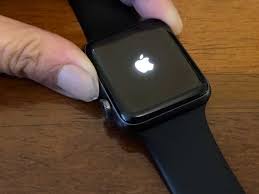
    Turning off power reserve on your Apple wacth is easy. The only way to exit when you are in the power reserve mode is to restart your device. To do that,

    1. Press and hold the Side button for about 10 seconds.
    2. The watch will restart and the Apple logo will appear. 
    3. Keep in mind that if your battery is almost completely empty, you might need to charge the watch before it will restart normally.
    4. The power off reserve will be turned off after restarting your Apple watch.

    How to turn on power reserve on Apple watch

    Now, you may want to turn on your power reserve again after turning it off. Or it has already been off and you now wants to turn it on. Ideally, if your Apple watch battery reaches, 10% you will receive a notification asking you if you want to turn on power reserve. You can then follow suit and turn it on. But if you manually want to turn it on before your batter goes low,

    1. Swipe up from the bottom of the watch. 
    2. Tap the battery percentage remaining button. 
    3. On the battery screen, swipe the Power Reserve button to the right. 
    4. Confirm you want to start Power Reserve by tapping “Proceed.”

    Conclusion

    Power reserve on the Apple Watch is a great way to extend your battery life when it is running low. However, there are times when you may want to turn off the power reserve to gain access to all the features of your watch, the process is easy to do After, your watch will be ready for use and you can enjoy all of its features.

  • How to poke on Facebook

    How to poke on Facebook

    Poking on Facebook is a fun way to interact with your friends and family, but it can be confusing to know how to do it properly. If you’re unsure of the process or want a refresher, this post will help you understand the basics of poking someone on Facebook. We’ll cover the different types of pokes, how to poke someone, and when it’s appropriate to send a poke.

    What is Facebook poke

    Facebook poke is a feature that allows you to send a virtual “poke” to another Facebook user. It’s a way of getting someone’s attention, without actually sending them a message or starting a conversation. It can be used for fun, to say “hello”, or just to let someone know you’re thinking of them. Poking back is optional, and there’s no limit on how many pokes you can send or receive.

    Who can you poke

    When it comes to who can you poke on Facebook, the answer is that you can poke anyone on your friend list, people who follow your public posts, people you’re not connected with but have mutual friends with, and people who have interacted with your public posts. If someone has blocked you on Facebook, they won’t be able to receive your pokes.

    How to find the poke feature

    Finding the poke feature on Facebook is easy and straightforward. You can find the poke feature by;

    1. Going to your profile page
    2. Click on the three-dot menu in the top right-hand corner.
    3. From here, you’ll be able to access the “Poke” option.
    4. You can also visit the profile of someone you want to poke and click on the “Poke” option directly on their profile.
    5. Once you’ve located the Poke button, all you need to do is click on it.

    How to poke on Facebook

    Poke from profile

    1. Log into your Facebook account on a web browser or the mobile app.
    2. Go to the profile of the person you want to poke.
    3. Look for the three dot menu icon next to the Message button and click on it.
    4. From the drop down menu, select “Poke”.
    5. A pop-up window will appear, confirming that you’ve poked the person.
    6. The person you poked will receive a notification. If they poke you back, you will get a notification in your Facebook news feed.

    Poke from timeline

    You can also poke someone from their timeline. Just hover over their cover photo, and you’ll see the “Poke” option in the lower right corner of the page.

    Poke from messenger

    You can also use the Facebook Messenger app to poke someone by;

    1. Tapping on the conversation window with the person.
    2. Then tap on the three dots icon located at the top right corner of the screen
    3. Select “Poke” from the list of options.

    What happens when you poke someone

    When you poke someone on Facebook, they will receive a notification that you have poked them. Depending on their privacy settings, the other person may or may not be able to see who poked them. When they receive the notification, they will have the option to poke back or ignore the poke.

    Different types of poke

    1. Normal Poke

    This is the default type of poke, which simply lets a person know you are thinking about them or want to connect.

    2. Wave Poke

    This type of poke is similar to the normal poke, but it’s a bit more playful and fun. It’s the same as waving hello to someone from afar.

    3. Heart Poke

    This type of poke allows you to send a little bit of love and appreciation to someone.

    4. Gift Poke

    If you want to surprise someone with a special gift, then this type of poke is perfect. The recipient will receive a special icon with a surprise message attached.

    5. Joke Poke

    This type of poke is ideal for sending funny messages to friends and family. When you send this poke, the recipient will receive a funny message along with a unique icon.

    6. Question Poke

    If you have a question for someone, then this type of poke is perfect for sending that query their way. This poke includes an icon and a question prompt.

    Conclusion

    Poking is a great way to remind someone that you’re thinking of them or to just say hello. While poking might seem like an a great activity, be sure to use it wisely. As with all social media activities, remember to respect other people’s privacy. Use your best judgement and make sure that you’re not being too intrusive when poking.

  • How to reset Nest thermostat

    How to reset Nest thermostat

    Having a Nest thermostat in your home can be a great way to help you stay comfortable and conserve energy, but sometimes it may need to be reset. Whether you’ve just moved into a new home with a Nest thermostat or you’re looking for a fresh start with your current thermostat, learning how to reset a Nest thermostat can be useful. In this article, we will walk you through the steps to reset your Nest thermostat and give you some tips on how to get the most out of it.

    What is a Nest thermostat

    Nest thermostat is a smart home device that helps you save energy and stay comfortable by allowing you to control the temperature in your home from anywhere. This programmable thermostat allows you to adjust the temperature of your home by controlling your HVAC system remotely with an app or voice command. The Nest Thermostat is designed to learn your preferences and use advanced algorithms to adjust the temperature in your home accordingly, resulting in lower energy bills and improved comfort.

    Why you should reset your Nest thermostat

    Resetting your Nest thermostat can help you save energy and keep your home comfortable. It can also fix common problems like connectivity issues, inaccurate readings, and incorrect settings. Resetting your Nest thermostat also helps to ensure that your device is up to date with the latest software, making it more efficient.
    When you reset your Nest thermostat, it erases all of your previous settings and restores it back to its original factory state. This allows you to start fresh and make any necessary changes to the device that may have been causing an issue.

    How to reset a Nest thermostat

    1. Navigate to the Settings menu on your Nest thermostat.
    2. Select the Reset option.
    3. Choose the type of reset you’d like to perform. There are two options: Soft Reset and Factory Reset.
    4. For a soft reset, select Yes when asked if you want to continue.
    5. For a factory reset, select Yes when asked if you want to proceed.
    6. Wait for the reset to be complete and follow any additional instructions that may appear on the screen.
    7. After the reset is complete, your Nest thermostat will be returned to its original settings.
    8. A soft reset will reset all of your settings to their original values, but will not delete any data or saved preferences.
    9. A factory reset will erase all data and saved settings, so make sure you know what you’re doing before proceeding with this option.

    Benefits of Nest thermostat

    • Nest thermostats are designed to be energy-efficient and can help you save on your heating and cooling bills. By using an automated temperature control system, the thermostat can adjust itself to maintain comfortable temperatures in your home while minimizing energy consumption.
    • Nest thermostats are designed to keep your home comfortable by providing automated temperature control. With features like automated scheduling, geo-fencing, and remote access, you can rest assured that your home will always be at a comfortable temperature.
    • Nest thermostats are designed to be user-friendly and simple to install. The majority of models feature simple installation steps that can be done with minimal tools and technical knowledge.
    • With a Nest thermostat, you can access and control your thermostat from anywhere with an internet connection. You can even control it through voice commands with a compatible smart device.
    • Nest thermostats can be integrated with a variety of other smart home devices and systems for increased convenience and energy efficiency. For example, some models of Nest thermostats can be integrated with Google Assistant or Alexa so that you can control your thermostat with voice commands.
    • Nest thermostats come equipped with advanced features that make controlling your home’s temperature easier than ever. Some models offer features like automatic away mode, auto-schedule learning, open window detection, and more for enhanced convenience and energy savings.

    Conclusion
    Resetting your Nest thermostat can be a great way to start fresh and make sure that your device is running as it should. It can help improve energy efficiency, reduce energy costs, and improve the comfort of your home. Although resetting your Nest thermostat may seem intimidating, the process is relatively simple.