Author: Mfidie

  • How to Access and Use UPSA Virtual Learning Platform

    How to Access and Use UPSA Virtual Learning Platform

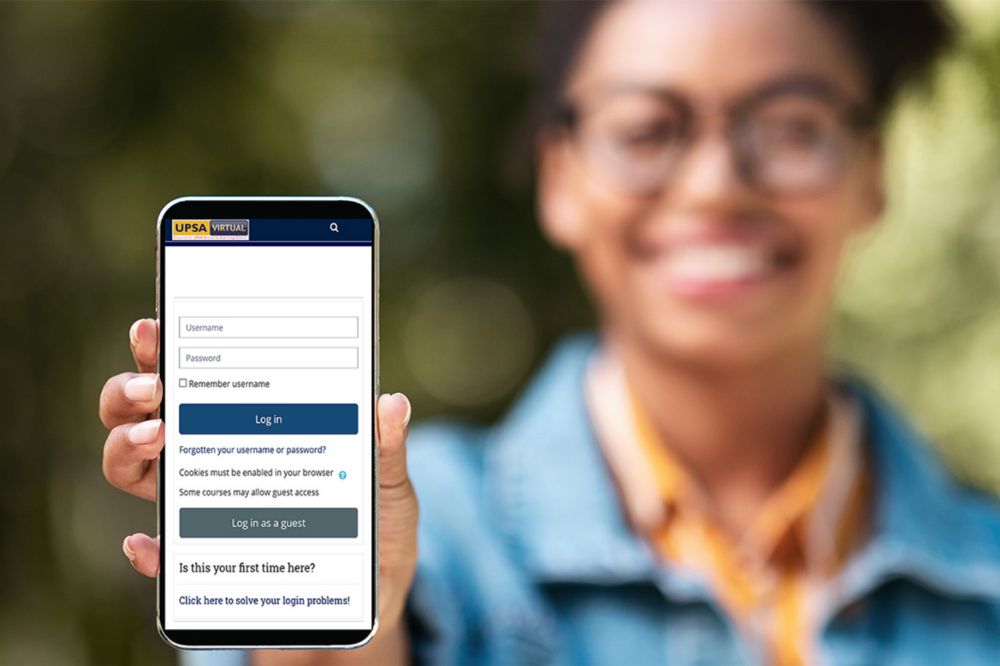
    UPSA Virtual Learning platform is accessible to everyone as long as you have an internet connection and are equipped with any of the following devices: Desktop/Laptop Computer, iPad, iPhone, or Android Tablet. This tutorial will show you how to access and use the UPSA Virtual Learning Platform through your desktop or laptop computer and phone or tablet device.

    About UPSA Virtual Learning Platform

    University of Professional Studies, Accra Virtual Learning Platform is a state-of-the-art, cloud-based learning management system set up by the institutionto help enhance student learning.

    The platform can be accessed from any device with internet connection, providing students of UPSA a flexible method of delivering content and for instructors to manage their coursework.

    How to access UPSA Virtual Learning Platform

    • Enter your Index Number as Username and Google1 as Password. (Google1 is the general password for first time login.
    • After login into your dashboard, you will then be required to change your password.
    • Enter a new password and click save.
    • Congrats! You now have a virtual portal account.

    Steps involved in registering for a course?

    1. Whiles on the dashboard, your left under the Navigation button, click on courses from the drop-down list.
    2. Afterwards click on Undergraduate Programmes and select your Programme Category (ie. Bachelors or Diploma).
    3. Select your Level (ie. Level 100, 200, 300 or 400)
    4. Now, click on the Course Codes available to access the course you want. Example: Click on PBPR308 to display “Media Relations.”
    5. Afterwards enter the Enrolment Key already provided by your respective course Lecturer to open and explore the available resources to read or download.

    What to do if you need help whiles taking a course

    Whiles on a course and you need an assistant, contact your course mates who have been able to access it with ease. You can also contact your immediate course rep or your course lecturer.

    How to recover your portal password when you forget

    Recovering your password means you have forgotten your login details. To recover password,

    1. Visit https://upsasip.com/home/studPassReset and you will be directly taken to the password reset page.
    2. Your new password link will be sent to your UPSA email so make sure your email is activa before beginning.
    3. Enter your index number and select “Reset Password”, a password reset link will be sent to your email.
    4. Open your email inbox and click on the activation link to set your UPSA student password.
    5. Click on the link and enter your new password. Re-enter the password again and click on save.
    6. Make sure your new password is one you can remember to avoid requesting for another password reset.

    Conclusion

    UPSA Virtual Learning portal is a step to help student enhance their learning wherever they find themselves. You dont need to be at the lecture hall to access the virtual portal. All you need is your PC or mobile phone and your internet connection.

  • How to Login and Validate E-SPV Return System in Ghana

    How to Login and Validate E-SPV Return System in Ghana

    Ghana has gone a step further to enforce the E-SPV return system for all taxpayers in the country to help the department of revenue reduce fraudulent taxpayers base in the country.

    Some of these strong measures will also limit tax avoidance which is being used by traditional business owners to underput their competitors and gain larger share of market.

    Wha is E-SPV Return System in Ghana

    The Electronic Salary Payment Voucher (E-SPV) is a special electronic portal system which was introduced by thr Controller and Accountant General Department in Ghana.

    The portal is accessible to all Management Units and Human Resource (HR) officers to validate employees before their salaries are paid by the Controller and Accountant General’s Department.

    Importance of E-SPV Return System in Ghana

    The Controller and Accountant General department compute data from heads of companies and uses that data to pay workers. This was always done manually and has been a difficult task as usual.

    The salary validation process is not an easy thing and requires accuracy and being keen on details, a lot of money may be lost in the process or mishandled.

    For this reason, the government introduced the E-SPV salary validation system to replace the manual and old system used to manage, certify and approve government of Ghana salary payment vouchers, which was challenging and time-consuming.

    How to login and validate E-SPV return system in Ghana

    The login portal is not accessible to anyone. Only the Head of Management Unit, Human Resource Manager are eligible to access the portal in order to validate employees. To log in,

    • Check the status of each employee by choosing either Approve, With Issue or Unknown. Make sure your resolve or state the issues of employees with issues
    • Click on Continue Validation on the Upper Right corner of your screen.
    • A Summary will be displayed to you. Click to Forward PV.

    Conclusion

    Validating salary in Ghana has been a topic on board always due tto how inaccurate and delayed the system has been. But with the introduction of the E-SPV system, all those worries will gradually be a thing of the past. The E-SPV system is here to stay and we must get used to it as early as now.

  • Best Alternatives to Zoom for Video Conferencing

    Best Alternatives to Zoom for Video Conferencing

    Zoom video conferencing is an easy-to-use platform that allows you to video conference with your colleagues and clients without leaving your browser.

    While it’s convenient, Zoom’s lack of security makes it risky to use in certain contexts, such as when you are showing your work to potential clients or meeting with people you don’t know well.

    There are many alternative platforms that offer more security and privacy than Zoom, so here are some of the best ones to consider using instead.

    Zoom conferencing

    Zoom is a cloud-based video conferencing service that offers both free and paid plans. It is one of the most popular video conferencing services available and has gained popularity due to its ease of use and reliability.

    Does video conferencing really matter?

    In today’s business world, video conferencing is an important tool for keeping in touch with clients, employees, and colleagues. It allows you to have face-to-face meetings without having to be in the same room, which can save time and money.

    There are many different video conferencing platforms available, each with its own set of features. Zoom is one of the most popular options, but it’s not the only one.

    Here are some of the best alternatives to Zoom for video conferencing.

    Best alternative to Zoom for video conferencing

    If you’re looking for a video conferencing tool that’s more affordable and private than Zoom, consider using one of these alternatives.

    1. Google hangout meet

    Google hangout/meet video call

    Google Hangouts Meet is a great alternative to Zoom for video conferencing. It’s easy to use and has a lot of the same features as Zoom, including screen sharing and recording. Plus, it’s free for up to 25 participants. If you’re looking for a more affordable option than Zoom, Google Hangouts Meet is a great choice.

    2. Skype

    Skype video call

    Skype is one of the most popular video conferencing platforms out there. It’s known for its reliability and crystal-clear audio and video quality. While Skype offers a great user experience, it’s not the only option out there. There are plenty of other great platforms that offer similar features and functionality.

    3. Facebook Messenger Rooms

    Facebook Messenger Rooms video call

    Facebook Messenger Rooms is a great alternative to Zoom for video conferencing. It’s easy to use and you can connect with up to 50 people at a time. There are no time limits on calls, so you can chat for as long as you want. Best of all, it’s free.

    4. Jitsi Meet

    Jitsi video conference

    If you’re looking for a free, open-source alternative to Zoom for video conferencing, Jitsi Meet is a great option. It’s easy to use and can be accessed directly from your web browser.

    There is no need to create an account. You can just join a meeting by clicking on a link. You’ll also find recording functionality and screen sharing if you want to show people what you’re working on or give them some guidance.

    There are other features that make it ideal for enterprise users too, such as mobile apps so staff can attend meetings remotely and the ability to host large conferences with up to 200 participants at the same time.

    5. Ring cental video

    Ring Central video call

    RingCentral Video is a great alternative to Zoom for video conferencing. It’s easy to use and has a ton of features, making it a great choice for businesses of all sizes. It’s affordable and has a free trial, so you can try it out before you commit.

    Ring Central also offers group chat and file sharing tools that make collaboration easier than ever. Click here to learn more about how you can cut the cord with your video conference software provider.

    6. Signal

    Signal video call

    Signal is a great alternative to Zoom for video conferencing. It’s free, open source, and end-to-end encrypted. Signal also has a desktop app, so you can use it on your computer or laptop. The only downside is that Signal isn’t as widely used as Zoom, so you may not be able to connect with everyone you want to.

    7. Microsoft Teams

    Microsoft Teams video call

    Microsoft Teams is a great alternative to Zoom for video conferencing. It’s easy to use and has a lot of features that make it a great choice for businesses. Some of the features include: file sharing, integration with Office 365, screen sharing, and more.

    8. Chanty

    Chanty video call

    If you’re looking for a great alternative to Zoom for video conferencing, Chanty is a great option. It’s user-friendly and has a lot of features, making it perfect for businesses of all sizes. It’s free for up to 10 users. So if you have just one or two people in your company who want to use video conferencing, this might be the best option for you.

    The only downside is that the free version only allows access on one device at a time; if more than one person wants to use it at once, they’ll need to upgrade their account or do some switching back and forth between devices (and meetings).

    9. GoToMeeting

    GoToMeeting video call

    GoToMeeting is a video conferencing solution that offers high-quality HD video and audio, screen sharing, and group chat features. It’s one of the most popular Zoom alternatives and has been around for many years. plans start at $1 per month per host.

    10. Brosix

    Brosix video call

    Brosix is a secure, enterprise-grade instant messaging and collaboration platform that offers a great alternative to Zoom for video conferencing. Brosix provides end-to-end encryption, meaning that your conversations are completely private and secure. Additionally, Brosix offers a variety of features and tools that make video conferencing easy and enjoyable, such as screen sharing, file sharing, and group chat.

    Conclusion
    In conclusion, there are many great alternatives to Zoom for video conferencing. There are free options as well as paid options. All comes with great user experience. Whichever option you choose, make sure to do your research so that it meets your needs.

  • How to Turn on and Use Snapchat in Dark Mode

    How to Turn on and Use Snapchat in Dark Mode

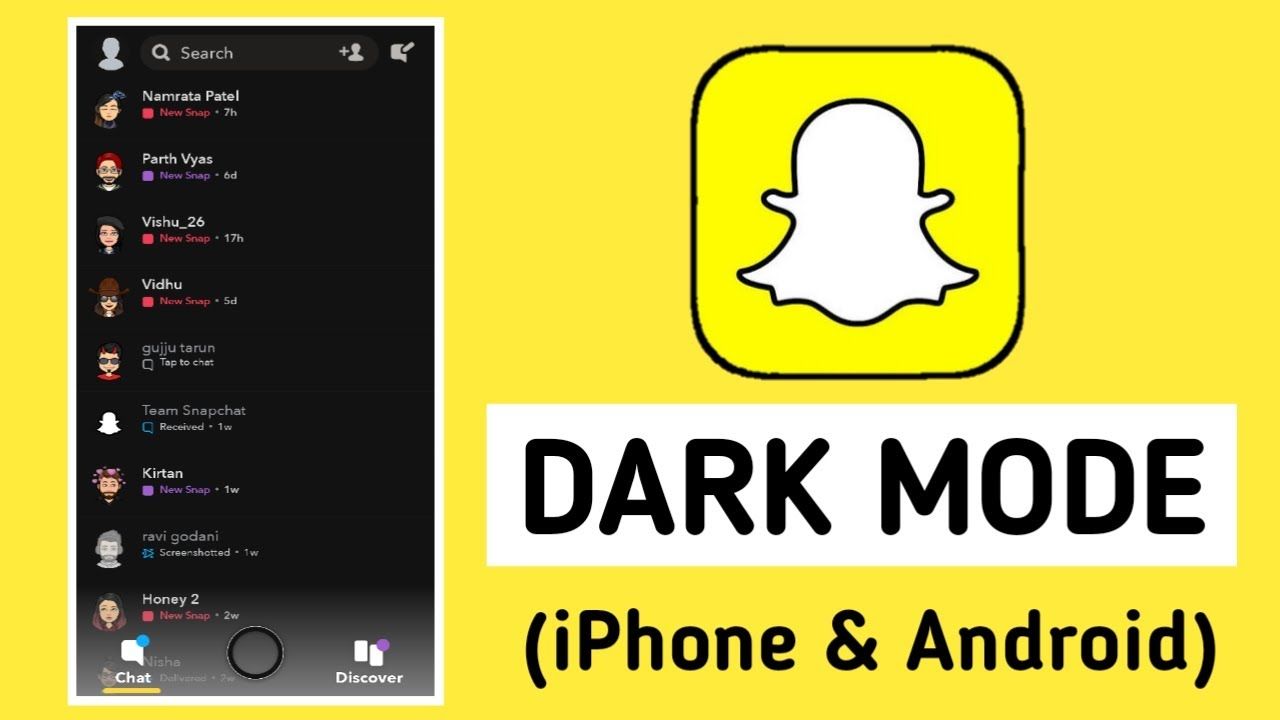
    Snapchat continues to be one of the most popular social media apps available, but it doesn’t come with an obvious dark mode feature like so many other apps. However, there are some ways you can use Snapchat in dark mode that you might not have thought of before and they aren’t even hard to set up.

    In this article, we’ll go over how to turn on and use Snapchat in dark mode.

    How to turn on Dark Mode in Snapchat on Your iPhone

    Turning on dark mode on your iPhone for your Snapchat should not be a big deal for you. With the steps below, you can easily do so and save yourself some hassle.

    • Open Snapchat on your iPhone and tap the Bitmoji icon at the top-left corner to open your Snapchat profile.
    • From the profile page, press the Settings gear icon at the top-right corner of the screen.
    • Under “My Account” settings, tap “App Appearance” to view the option to change the theme of Snapchat.
    • From the “App Appearance” settings, choose “Always dark” to enable dark mode on Snapchat from your iPhone.

    How to turn on Dark Mode in Snapchat on Android

    Just like the iPhone, enabling dark mode for snapchat on Android is also not difficult and if you are finding it so, the steps below will help you out.

    • Open your Android phone’s Settings.
    • Go to the Display & Brightness tab.
    • Tap on the Dark Mode settings option.
    • Click on Dark mode for third-party apps.
    • Select Snapchat and tap on the turn on option on the pop-up menu.
    • Dark mode is enabled on Snapchat.

    Why it is important to turn on dark mode in snapchat

    • Turning on dark mode on Snapchat is a good way of saving battery.

    The amount and speed of how your battery drains will decrease when you turn on dark mode.

    • It prevent you from straining your eyes.

    Your phone when on light mode has a bright light and that makes you strain your eyes in order to be able to use it and that is not helpful.

    • Its less destructive

    Having a dark mode does not destruct people in public especially when you are usiyouSnapchat in public but with the light mode, the brightness of your screen makes it visible for other to turn their necks to look on your phone.

    Conclusion

  • How to Add Multiple Stops on the Uber App

    How to Add Multiple Stops on the Uber App

    The Uber App makes it easy to get around when you need to move from one place to another, but you may have noticed that it only allows you to add one destination at a time.

    The good news is that, you can now add multiple stops as it is now a new feature which has been added by Uber to make trips more convenient with just one tap.

    Why you want to add multiple stops on Uber?

    If you’re running errands or need to make multiple stops, adding additional stops on your Uber ride can be a great time-saver. It also reduces wait times for passengers by reducing the amount of back and forth trips required to complete an errand or pick up different people.

    The process is pretty straightforward, and we are going to walk you through it below:

    How to add multiple stops on Uber App

    How to Add Multiple Stops on the Uber App

    Sometimes your plans change or you need to make a stop along the way. Here’s how to add multiple stops on the Uber App.

    1. Start from the home screen of the Uber app.
    2. Tap Where To? in the top left corner.
    3. Select Multiple Destinations from the bottom of this screen.
    4. Enter in your first destination address (A) and tap Next.
    5. Input your second destination address (B) followed by another address if desired (C).
    6. Tap Save in order to save this trip before requesting it. Tap Cancel at any time to cancel and start over.
    7. Once saved, the next time you open up the Uber app it will show your saved trips and ask which one you want to take. You can select one of them with the button to the right.

    If you’d like to see all available rides at once, press More Destinations. If you would like to continue adding destinations for this trip without going back through the process again, go back into the Multiple destinations option under Where To? and follow steps 1-4 again.

    Conclusion

    If you’re planning a trip with multiple stops, you can use the Uber App to add them in advance. This is a great way to make sure your trip goes smoothly and that you don’t forget any important stops along the way.

  • How to Make Money from Facebook Reels

    How to Make Money from Facebook Reels

    Facebook Reels are growing rapidly in popularity, and as they become more popular, they also become easier to monetize.

    This guide will go over everything you need to know about Facebook Reels and how to make money from them.

    What are Facebook Reels

    Facebook Reels is a new feature on the social media platform that allows users to create and share short video clips.

    Facebook Reels can be up to 15 seconds long and can be edited with filters, music, and other creative effects. While the feature is still fairly new, there are already a few ways that users can make money from their Reels.

    Why Use Facebook Reels?

    If you’re a creative type who’s always looking for new ways to make money, you may be wondering if you can make money from Facebook Reels.

    The answer is yes! Here are five reasons why you should give it a try

    1. You don’t need any previous experience or special skills.
    2. You can do it on your own time and at your own pace.
    3. You don’t need any financial investment.
    4. You get to post the ads yourself instead of having to go through an agency or other third party.
    5. You have the potential to make more than $5 per day.

    Aside the monetary aspect in Facebook rereels, it can also serve as a platform to showcase your video talent, sell your business out and others.

    How to create a Facebook Reel

    Creating a Facebook reel is easy. Just follow these simple steps:

    1. Download the Facebook app on your phone.
    2. Open the app and sign into your account.
    3. Tap on the Create button at the top of the screen.
    4. Select Reels.
    5. Choose a video or photo from your camera roll, or capture something new using the in-app camera.
    6. Select a soundtrack for your video and add text captions if you like.
    7. Add an intro animation that matches the theme of your reel to create some eye-catching visuals for viewers before they watch your content.
    8. Preview what you’ve created so far then publish it!

    How to make money with Facebook Reels

    1. Personal Ads

    If you’re looking to make money with Facebook Reels, one option is to run ads. You can create an ad that targets people who are interested in your Reel content, and then send them to your website or online store.

    You can also use Facebook’s new Sponsored Reels feature to promote your Reels content directly to people who are most likely to be interested in it. With a little creativity, you can make money from Facebook Reels without having to put up any of your own money.

    2. Facebook Ads

    If you are a video content creator with more than 10,000 followers, five videos or more, and 600,000 minutes of views in the past 60 days, then you are eligible to run facebook ads in their Reels.

    However, these new advertising options are currently available in the U.S., Canada, Mexico, and 50 other countries. Just like any other ad service will be, the creator at the end will take a higher portion of the earnings which will possibly be 55% whiles the Meta takes 45%. 

    3. Stars

    The reel is a new addition to the metaverse and thus, there are new ideas coming everyday. Meta as part of their plan of making the reel successful will be allowing viewers to send stars to a content creator while watching their Reels. For every star received, the creator gets one cent from Meta and the more they receive, the more their earning increases.

    4. Reels Bonus Program

    The Reels Play Bonus will be an invite system where every invitee earns a bonus on top of his earnings per 1000 views on his/her video published on reel over a period of a specific time which will be given.

  • How to Order Food from the Bolt Food App

    How to Order Food from the Bolt Food App

    The Bolt food App makes it simple to order meals for delivery or pickup from your favorite local restaurants in less than three minutes.

    Browse a full menu, place an order, and pay all from your phone, tablet, or computer. Here’s how to get started with Bolt food and order food online today.

    About Bolt Food

    Bolt Food is a new app that allows you to order food from your favorite restaurants and have it delivered to your door.

    The app is available for both iOS and Android devices. You can use Bolt Food to order breakfast, lunch, dinner, or snacks. Make an order, and in less than 5 minutes, your food will be at your doorsteps.

    Why Choose Bolt Food?

    Bolt Food is a restaurant delivery service that makes it easy and convenient to get the food you crave.

    With just a few clicks, you can order your favorite dishes from local restaurants and have them delivered right to your door. Plus, with Bolt Food’s affordable prices and flexible delivery options, you can enjoy great food without breaking the bank.

    How to order food from the Bolt food App

    The Bolt food App is a great way to get your favorite foods delivered right to your door. Here’s how to use it:

    1. Download the Bolt Food Android App from Play Store or the Bolt Food iOS App from App Store.
    2. Hit on sign up and create an account by following the necessary procedure.
    3. Enter your location, add a delivery address and choose what you want to eat by scrolling through all of the available menus.
    4. After successfully selecting what you want to eat, choose either pick up or delivery.
    5. Confirm order and make payment.
    6. You will receive a confirmation message and in no time, your food will be ready for pickup.

    How to track your bolt food order

    The great thing about the Bolt food App is that it allows you to track your order from start to finish. Here’s how it works:

    1. When you place your order, you’ll receive a confirmation email with your order number.
    2. You can track your order by logging into your account on the Bolt food App and selecting ‘My Orders‘.
    3. Your driver’s information will be displayed once they’ve accepted your delivery request.
    4. If there are any issues with your order, please contact customer service team for assistance.

    Bolt food contact info

    To contact Bolt food using the app,

    1. Log in to the Bolt Merchant Dashboard.
    2. Select the Support widget.
    3. Choose Chat With Us.
    4. Submit your request and within a short time, you will receive your reply.
  • How to Use Google Translate for Twi

    How to Use Google Translate for Twi

    Google translate with their latest update has added the Ghanaian language “Twi” into their system in addition with other 24 new languages.

    The Twi language is a language spoken by the people of Ghana in the western part of Africa. Over 10 million inhabitants in the country are conversant with the language. For that, its a good move to make language barrier easier for outsiders to communicate online with the Ghanaian community.

    What is Google Translate?

    Google Translate is a free online language translation service that can instantly translate text and web pages into different languages. It supports over 100 languages and can be used on any device with an internet connection.

    How to access Google translate

    Google translate offers a website interface, mobile apps for Android and iOS, and an API that helps developers build browser extensions and software applications.

    There are two ways you can use Google translate for Twi:

    Access google translate directly on Google

    You can access the translate page in two ways. The first way is to go on google chrome or any other web browser. To do that,

    1. Open the prefered web browser.
    2. In the search bar tab, type google translate and press enter.
    3. The google translate interface will be open. Now, click on the language from tab and select the language you want to use.
    4. After, click on the language to tab and search “Twi”.
    5. Now, click translate and your typed text will be translated from the chosen language to Twi.

    Access google translate using the mobile app

    The mobile version of Google translate is the same as the web version. But with the mobile version, the translator feels more closer than ever. Following the same process as the web, you can successfully translate your preferred language to Twi for an easier communication with your Twi friend.

    1. Open the Google translate app on your mobile.
    2. The google translate interface will be open. Now, click on the language from tab and select the language you want to use.
    3. After, click on the language to tab and search “Twi”.
    4. Now, click translate and your typed text will be translated from the chosen language to Twi.
  • Kennedy Digital Satellite: Prices, Shops, Locations and Contact Info

    Kennedy Digital Satellite: Prices, Shops, Locations and Contact Info

    If you’re shopping around to find the best deals on Satellite television, then you need to check out Kennedy Digital Satellite. Kennedy Digital Satellite offers competitive prices on all of their packages, with some of the best HD channels available.

    Customers can visit any one of their many shop locations across the country or call in an order to get hooked up with their services quickly and easily.

    Kennedy Digital Satellite Ghana

    Kennedy Digital Satellite offers a wide range of digital satellite services that provide users with high quality TV viewing experiences at an affordable price. The company has multiple shops located across Ghana, as well as a robust online presence.

    Kennedy Digital Satellite also offers a variety of value-added services, such as installation and maintenance support. For more information on pricing, shop locations or to contact the company, please finish reading this article.

    Available products at Kennedy Digital Satellite

    • Digital Decoders
    • Nasco TVs
    • Projectors
    • Midea devices
    • Samsung devices
    • Phillips devices
    • Chigo devices
    • Strong products
    • Quality products
    • Wisdom products DSTV
    • Canal decoder’s
    • Deep freezes
    • Double and single door fridges
    • Air condition 1.5hp to 2.5
    • Stand fan
    • Ceiling fan
    • Blenders
    • Kettles
    • TVs from 24 inches to 75 inches
    • Electric iron, etc.

    Kennedy Digital Satellite shop locations and branches

    Kennedy Digital satellite is located in Accra and Kumasi and has several branches across the country.

    • Kumasi – Adum family plaza building.
    • Kumasi – Patasi police depo Adom house building.
    • Accra – Weija, Old Barrier Traffic Light.
    • Koforidua – Oteng House 1st Floor.
    • Nkawkaw – Apolo Building Agboboshi Market.
    • Sunyani – Opposite Universal Merchant Bank, Swedum, Odokaw And Sons Building.
    • Takoradi – Antaf Orbit Technology, Collins Avenue Davi Ama Chop.
    • Cape Coast.
    • Takwa.
    • Bogoso.
    • Asankragua.
    • Essiama.
    • Nzema.
    • Anyinasi.
    • Twifo Praso.

    Kennedy Digital Satellite products and prizes

    ProductsPrices
    Satellite Led TV “24 – 54” INCHESGHS 549 – GHS 1799
    65” LED TV Smart/4K DisplayGHS 5099
    Double Door Refrigerator “95 – 450” LTRSGHS 849 – GHS 2599
    Combo Refrigerator “90 – 398” LTRSGHS 799 – GHS 2099
    Table Top Double DoorGHS 749
    Rice cooker 1.8 LTRSGHS 159
    Fufu MachineGHS 349
    Nasco Glass BlenderGHS 129
    Zara Air ConditionerGHS 1399
    Sewing MachineGHS 349
    Washing MachineGHS 1399

    Kennedy Digital Satellite Contact Info

    For more information, you can contact any of the following branches:

    Accra (Weija Old Barrier): 

    0244 385 136

    0243 074 750

    Kumasi (Pataase): 

    0207 653 031

    0244 385 128

    Sunyani:

    0248031976

    Cape Coast:

    0243319456

    You can also email them at: [email protected]

  • How to Order Food from the Glovo App

    How to Order Food from the Glovo App

    With Glovo, food comes straight to you at the tap of your screen. After you’ve found the food you want, all you have to do is order it and then wait for it to arrive.

    About Glovo

    Glovo is a food delivery app that allows you to order food from your favorite restaurants and have it delivered to your doorstep. It is available in Ghana and many other countries.

    The app is easy to use and has a wide selection of restaurants to choose from. You can also track your order in real-time, so you know exactly when it will arrive.

    Why Choose Glovo

    Here are five reasons why you should choose Glovo for your next food delivery:

    1. They offer a wide range of restaurants and cuisines to choose from.
    2. Delivery is fast and efficient.
    3. You can track your order in real-time.
    4. Customer service is responsive and helpful.
    5. It’s a convenient way to get your favorite food without having to leave your home or office.

    How to order food from Glovo using the app

    To be able to order food using the Glovo app,

    1. Open the Glovo app on your phone if you already have it. If you don’t, Download the Glovo Android App from PlayStore or Download the Glovo iOS App from AppStore.
    2. Select Food at the top of the screen.
    3. Choose which type of food you want to order (burgers, pizza, etc).
    4. Add a restaurant or search for one in the list or map provided.
    5. After selecting a restaurant, all its available dishes are shown on screen so that you can choose what you want to eat.
    6. Once you’ve found the dish you want, select it by tapping on it and adding it to your cart.
    7. Enter your address, payment information and delivery time before ordering.
    8. Wait for your food to be delivered.

    How to track your Glovo food order

    Once you’ve placed your order and it’s been accepted by a driver, you’ll be able to track its progress in the app. A notification will also be sent to your phone once the driver is close.

    If for some reason your order can’t be delivered, you’ll be notified and given the option to cancel or choose a new delivery time. And if your order says delivered but you receive no food, then lodge a complain in the app or contact their customer service instantly.

    Glovo branches and locations in Ghana

    In Ghana, Glovo have branches in the Greater Accra and Ashanti region. They deliver in these areas too.

    They are working hard to extend their ranges to different citues and areas across the country.

    Glovo Ghana contact info

    The best way to contact Glovo Ghana is through the mobile app. In your Profile in the app, you’ll see the option to “Contact Support”, which will take you to a list of options to select from.

    Yoi can also contact their administrative office: Monday to Friday 9:00am – 4:0 pm, Kukun, 14 Koi St., Osu, Accra. Call 0541071876.