Author: Emmanuel Boakye Yiadom

  • How to back up your photos to Google Photos

    How to back up your photos to Google Photos

    If your phone storage is running out and you want to free up some space but don’t want to delete your important pictures and videos then one of the best ways is to upload them to Google Photos via the mobile app or PC.

    Maybe you are looking for a place to store all your photos and videos that can be accessed anytime you want, then this is when Google Photos is needed.

    Google Photos gives you a free cloud storage space to keep your important pictures and videos.

    How To Back Up Your Photos And Videos To Google Photos

    1. Download the photos app from Google play store or Apple store.
    2. Open the app and tap on the three horizontal lines to open the menu.
    3. Go to settings and select back up and sync.
    4. Turn ON the backup & sync switch.

    But wait! Do you know you can back up your files from your pc to your Google Photos?

    Maybe one day might be a bad day for you and your hard disk might crash due to some reasons or your PC will be at fault and can’t boot and you needed some files on it badly.

    It has happened to me before, my hard disk crashed whiles I was using this PC and there was nothing I could recover from it because it was not spinning and not showing on any pc again, it was indeed dead.

    All I had to do was to get a new one and move on (that was a long time ago, not now haha).

    Have you asked yourself, what will you do in case you find yourself in such an incident?

    What if you have all your working files and important pictures and all of a sudden your PC is not responding or can’t boot for you to access these files and there is absolutely no way to recover these important files?

    That why it is important to back up your photos and videos to Google Photos so that you can access them anytime, anywhere and on any device as long as you have your Gmail and password.

    How To Back up Your Files From Your PC To Google Photos

    1. If You want to use the Google Photos software then download it here or you can use your browser by visiting photos.google.com, then log in with your Google account.
    2. To upload your important pictures and videos tap on upload on the top right then select upload from computer.
    3. You will see a pop up asking you to choose whether to upload it in High Quality or Original. Select your choice and click on continue to start the backup process.

    What Does Upload In High-Quality Mean?

    When you are uploading a photo to Google photos and you choose “upload in High Quality”, then you will get unlimited storage as the upload don’t count on your free 15GB storage.

    But when you are uploading a photo and its size is above 16MP then it will automatically be compressed.

    What Does Upload In Original Mean?

    Selecting “upload in original” does not compress any image but you have a 15GB limit space unless you are paying for more storage space.

    Conclusion

    If you want a place to store your pictures so that you can access them anytime, anywhere and on any device then the best option is to upload them to Google Photos.

    Google Photos gives you 15GB storage space if you want to upload your pictures using a “High Quality”.

    And you will get unlimited space storage if you upload them using “Original” which will compress any photo you will upload when the size is above 16MP.
  • How To Set Emergency Contacts On Your Phone

    How To Set Emergency Contacts On Your Phone

    Ever wonder what will happen when you are unconscious, maybe in a car accident or unable to respond?

    Assuming you might be that lucky type that will get a rescuer to help you when one of these happen to you.

    But what if the person was able to find your phone on your pocket, then he decided to look through your phone to see if he will know your blood type or go through your contacts and call your family members only to find out your phone is locked?

    Well, I am not saying you should not password-protect your phone, of course, you should, Locking your phone help you in a way that nobody can use your phone without your concern.

    You might say there is an emergency tab on every phone when its locked and that person who will come to your rescue can use that to call for help, you are right but this only allows the person to call the Ghana emergency response centre number (112).

    The good news is that you can add your family and friends contacts under the emergency section so that when you are in a catastrophe and the rescuer wants to contact your relatives it will be easy for him or her.

    How to Set Up Emergency Contacts On Your Phone

    1. Make sure your phone is locked, under your lock screen, you will see an emergency, tap on it.
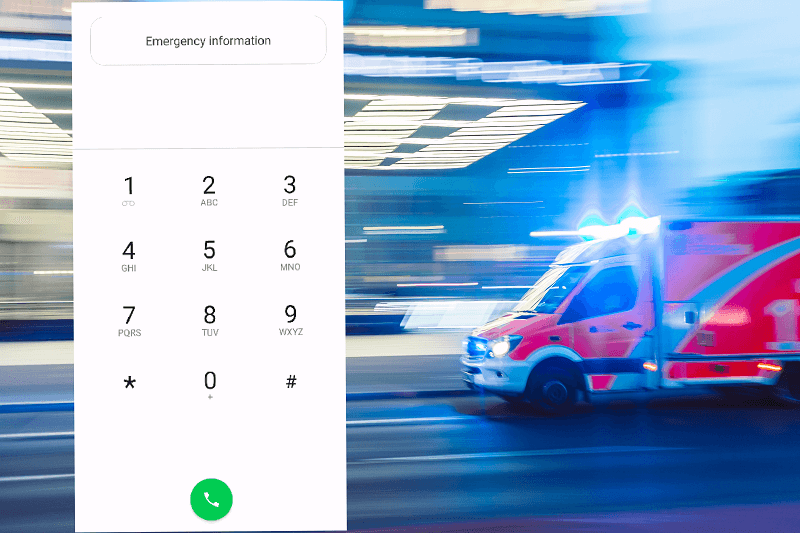
    2. You will be presented with emergency dial keypad, double-tap on emergency information.
    3. You will see a pen at the top right, tap on it to edit your emergency information, most phones will ask you to unlock your phone before you can edit it.
    4. When you finally unlock your phone, under the “emergency contacts” select +Add contact, add your family and friends contacts and make sure to add active numbers as you never know when you might be in such situations.

    You can also add your medical information such as your name, blood type, address, medications and medical notes so that in case you are unconscious or in need of blood, then the person near you at that time can see all those information without unlocking your phone.

    Conclusion

    You can add your family and friends contacts on the emergency information section so that when you are unconscious or in need of blood the rescuer can get the contacts information of your family and friends easily and call them.

    Also, you can add your medical information such as blood type, medical notes, allergies and many more in case you are rushed to the hospital and you are unable to respond.

  • What Happens To Your Computer When You Click On These Buttons: Shut Down, Sleep & Restart?

    What Happens To Your Computer When You Click On These Buttons: Shut Down, Sleep & Restart?

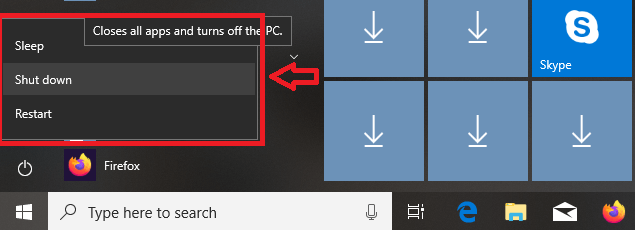
    If you are using a computer and running windows then you apparently know when you press the start menu button you will be presented with sleep, restart and shut down.

    When you click on shut down it turns off the computer as the name describes, restart also shut down the computer but turns on again after some seconds.

    Although clicking on shut down turns off your computer, experts have made it known to us that it won’t completely shut down your computer.

    So What Happens When You Click On Shutdown?

    At first, when we were using older versions of windows, shut down and restart used to perform the same task, but with the latest versions which start from windows 8 and windows 10, these latest versions come with a new feature called fast startup, which helps the computer in continuing from when the user turned off the computer, fast startup is enabled by default on Windows 10.

    When you click on shut down on windows 10, all the programs currently running on your computer stops but doesn’t shut off your computer windows kernel.

    What is the Windows Kernel?

    According to Wikipedia, Windows kernel is the connection between all the software and hardware components of a computer.

    That’s why most at times when you turn on your computer which has windows 10 running you will see “resume from hibernation”.

    What Happens When You Click On Restart?

    Restart, on the other hand, shuts down the computer and ends all the processes including the computer kernel, which means when you restart your computer you get a fresh start, but the downside is that it takes some time to be ready as compared to the shutdown process which has the kernel working at the background.

    How Does Sleep Mode Work?

    Sleep mode pauses all your running programs and turns off your computer screen so that you can continue with what you were doing when you are ready.

    One negative thing about sleep mode is that it uses electricity when it’s activated as it doesn’t turn off your computer.

    Conclusion

    Shutting down your computer don’t completely shut it down as the kernel still works on your computer, anytime you turn it on, it will let you continue from where you left the other time, restarting your computer closes all programs, this process takes long for the screen to be ready as your computer takes time to load whiles sleep mode also pause all the programs currently running and turns off the display.