Author: Shepherd Yaw Morttey

  • Tecno Phantom 8 and Phantom 8 Plus: Expected Specs and Price

    Tecno Phantom 8 and Phantom 8 Plus: Expected Specs and Price

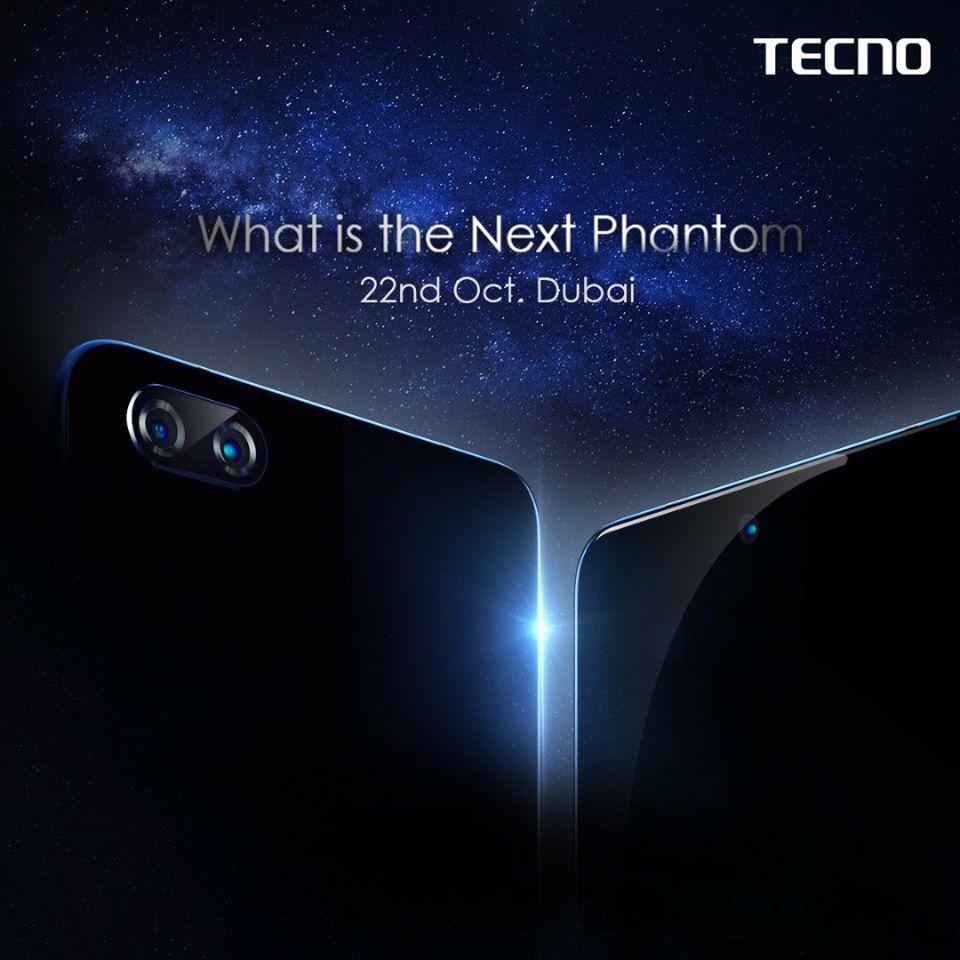
    If you are a big Fan of TECNO mobile, then you should already know by now that they will launch their next flagship in Dubai on 22nd October 2017. Looking at Trends, it is expected that there will be a Phantom 8 and a Phantom 8 Plus. Yes, there will be no Tecno Phantom 7.

    Tecno is probably jumping the “Phantom 7” because there has been a lot of 8’s this year, looking at the Samsung Galaxy S8, as well as the iPhone 8. It definitely makes sense to be at par with the big guys.

    The Tecno Phantom 8 Plus will likely be Tecno's Best Phone ever
    The Tecno Phantom 8 Plus will likely be Tecno’s Best Phone ever

    With the launch of the Phantom and Phantom 8 Plus, let’s look at some of the specs we should be expecting on the two phones.

    Tecno Phantom 8, Rumoured Specs

    • Primary Camera: 13MP + 5MP dual rear cameras
    • Secondary Camera: 8MP front camera
    • Display: 5.5 inches full HD display
    • RAM: 6GB
    • ROM: 32GB or 64GB
    • OS: Android 7 Nougat (Oreo update available OTA)
    • Processor: Helio P25 Octa-core 2.6GHz
    • Battery: 3500mAh battery

    Tecno Phantom 8 Plus, Rumoured Specs

    • Primary Camera: 25MP + 15 2X Telephoto Lens
    • Secondary Camera: 20MP front camera
    • Display: 6.0 inches full HD display
    • RAM: 6GB
    • ROM: 64GB or 128GB
    • OS: Android 7 Nougat (Oreo update available OTA)
    • Processor: Helio X30 Octa-core
    • Battery: 4000mAh battery
    The Tecno Phantom 8 Plus and the Phantom 8 will both be unveiled on the 22nd of October 2017 in Dubai.
    The Tecno Phantom 8 Plus and the Phantom 8 will both be unveiled on the 22nd of October 2017 in Dubai.

    Expected Price of Tecno Phantom 8 and Phantom 8 Plus in Ghana

    The Tecno Phantom 8 is rumoured to be in the region of GHS 1,400 while the Phantom 8 Plus may trade for GHS 1,900.

    Are you ready for the two phones? Well, Tecno will officially unveil them on 22nd October 2017. The wait may soon be over.

  • Unboxing the Mi Band 2 Wearable Activity Tracker by Xiaomi

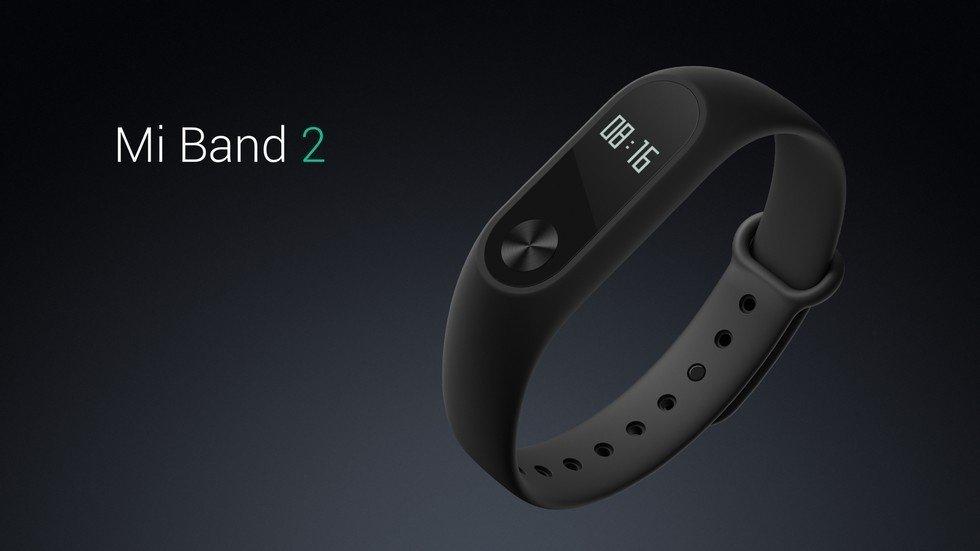
    Unboxing the Mi Band 2 Wearable Activity Tracker by Xiaomi

    I have always been a fan of Xiaomi products and I look at getting their Mi Note 2 pretty soon. Today, however, I have with me the Mi Band 2 and even though I am yet to “really use” it, I feel I should just drop a background on what it is and what it does as well as some photos of the Unboxing. So here you go.

    The Mi Band 2

    The Mi Band 2 is what I would call an “activity tracker” from Xiaomi. Basically, it tracks your latest fitness & sleep tracker. Its body is made from thermoplastic elastomer and aluminum alloy which means that it is not harmful to the skin even for long hours and days.

    Mi Band 2 Unboxing

    So here are the images from the Unboxing of the Mi Band 2.

  • KWESÉ TV Ghana: Channel List; Frequencies, Cost of Decoders and Subscription

    KWESÉ TV Ghana: Channel List; Frequencies, Cost of Decoders and Subscription

    Kwese TV has been officially launched in several African countries, and decoders are now available in countries where the Digital Satellite TV network has been licensed to operate. These countries include Ghana, Zambia, Rwanda, Botswana, Kenya, Lesotho, Nigeria, Swaziland and Uganda.

    When you want to install Kwese Satellite TV in your home, you have two options to choose from.

    You can buy the Decoder (Set-Top TV Box) only or you can buy both the Decoder and the Satellite Dish including installation. It’s up to you to choose what you want
    If you are not a fan of “Do It Yourself” services, the perfect solution for you is to get a Kwese Installer to do the dish installation for you.

    Cost of KWESÉ TV Decoders and Subscription in Ghana

    Hardware and Installation

    Decoder Only: GHS 74

    Decoder, Dish and Installation: GHS 145

    Subscription

    3 Days: GHS 15

    7 Days: GHS 25

    30 Days: GHS 110

    Ways To Watch Kwese TV

    There are currently 3 ways to watch your Kwese:

    On Your TV

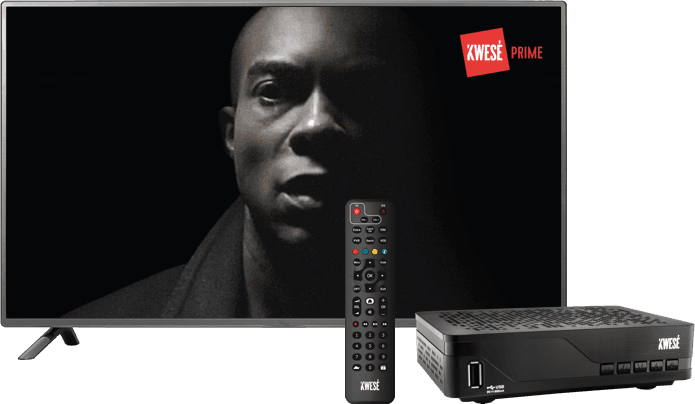
    You can watch Kwese on your TV using the Kwese decoder. The Kwese decoder allows you to watch Live TV, record on a hard drive and catch up at your convenient time. Check the Kwese website for more info on how to get your Kwese decoder in Nigeria.

    On The Go

    Feel free to watch Kwese on the go by using its iOS or Android app, all you have to do is go to the app store and download the app to your smartphone or tablet and you will be able to stream live channels or catch up on other shows.

    Online

    Finally, you could simply connect to the internet using your preferred device and watch directly on the Kwese website.

    List of KWESÉ TV Ghana Channels

    • KWESÉ FREE SPORTS AFRICA
    • KWESÉ FREE SPORTS
    • KWESÉ SPORTS 1
    • KWESÉ SPORTS 2
    • ESPN
    • NBA
    • E SPORTS TV
    • REVOLT
    • TRACE AFRICA
    • TRACE MZIKI
    • TRACE GOSPEL
    • THE BOX AFRICA
    • KWESÉ KNOW
    • VICELAND
    • DTX
    • IDX
    • ODISSEIA
    • DISCOVERY SCIENCE
    • CBS REALITY
    • TRAVEL CHANNEL
    • ANIMAL PLANET
    • FLN
    • DW
    • X2D
    • SKY NEWS
    • BLOOMBERG
    • BBC WORLD NEWS
    • CNN
    • CNBC AFRICA
    • AL JAZEERA
    • AFRICANEWS
    • TVC NEWS
    • FRANCE 24
    • CHANNELS TV
    • POP
    • TOONAMI
    • KWESÉ KIDS
    • CBEEBIES
    • DREAMWORKS
    • JIM JAM
    • CARTOON NETWORK
    • BOOMERANG
    • KWESÉ PRIME
    • KWESÉ STORIES
    • KWESÉ INC
    • KWESÉ MOVIES 1
    • KWESÉ MOVIES 2
    • KWESÉ MOVIES 3
    • AMC
    • AMC SERIES
    • TRUE MOVIES
    • AFRICAN MOVIE CHANNEL
    • FASHION TELEVISION
    • PASSION
    • ZEE BOLLYNOVA
    • ZEE BOLLYMOVIES
    • FLOW
    • EWTN
    • DOVE
    • WION
    • HILLSONG
    • ITV
    • SPURS TV
    • LFCTV
    • CITY TV
    • ARSENAL TV

    Where to Buy Kwese TV Decoders in Ghana

    You can find a dealer to buy your Kwese TV Decoders plus installation here: Kwese TV Dealers

    Kwese TV Frequency Symbol rates, Positions, Polarisation and Biss Keys

    Below are lists of Kwese TV Positions, Frequency Symbol rate, Polarisation, Biss Keys, etc.

    Intelsat20 @68.5east ku band

    Frequency: 12633
    Symbol rate: 16170
    Polarization: V
    Encryption Biss: AA BB CC 31 11 22 33 66

    Bilinterasat @51.5 east cband

    Frequency: 3877
    Polarization: L
    Symbol Rate: 6420
    Encryption Biss: AA BB CC 31 11 22 33 66

    Eutelsat 7A @ 7east

    Frequency: 10720
    Polarization: H
    Symbol Rate: 30000
    encryption: free

    Eutelsat 10east

    Frequency: 3768
    Polarization: H
    Symbol Rate: 7706
    Encryption Biss: AA BB CC 31 11 22 33 66

    22w Kwese viasat

    Frequency: 3726
    Polarization: H
    Symbol Rate: 1000
    Encryption Biss: Free

    Intelsat 22@ 72.1east

    Frequency: 3742
    Polarization: L
    Symbol Rate: 13930

    Contact Kwese TV in Ghana

    You can call Kwese TV on 030 701 0888.

  • 3 TECNO Phones to buy in 2017: Specs, Price and More

    3 TECNO Phones to buy in 2017: Specs, Price and More

    Tecno Mobile is one of the top smartphone manufactures in Ghana. Although a Chinese based company, they produce smartphones, tablets and feature phones that are not “Chinese Like”. Phones that are produced by this company are mostly standard or low-priced compared to their competitors.

    In this post, I look at 3 Tecno phones released in 2017 you could consider purchasing. This ordering is solely based on my own point of view, and as such, you might have a different view (which you should let me know in the comments). I will, however, try to be as objective as possible.

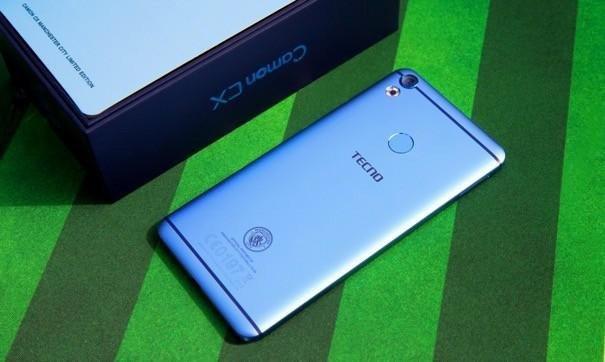
    Tecno Camon CX

    The Tecno Camon CX comes with a 16 megapixels front camera with dual flash and the 16 megapixels back camera with ring flash, the Camon CX runs on Android 7.0 and has a 1.5Ghz octa-core processor.

    Tecno Camon CX Key Specifications

    • Body Build: Metal
    • Operating System: Android 7.0 Nougat with HiOS
    • Network: 2G/3G/4G
    • Screen Size: 5.5 inches
    • Resolution: 1920×1080 pixels Full HD
    • Display: 2.5D display with Gorilla Glass 3
    • Weight: 140g
    • SIM: Dual Micro SIM
    • Processor: 2.0 GHz Octa-core (Helio P10)
    • GPU: Mali 860 GPU
    • Front Camera: Front: 16MP with Flash
    • Back Camera: Dual back 16MP with LED flash
    • Memory: 16GBROM Expandable via MICRO SD up to 128GB
    • RAM: 2GB
    • Connectivity: GPS, WiFi, Bluetooth, USB 2.0
    • Battery Capacity: 3200mAh battery; 9V/2A fast charging
    • Sensors: Accelerometer, Proximity, and Compass Sensor, Temperature sensor, Hall sensor
    • Fingerprint: Yes
    The Tecno Camon CX is for the Slay Kings and Slay Queens too
    The Tecno Camon CX is for the Slay Kings and Slay Queens too

    Tecno Camon CX Price in Ghana

    The TECNO Camon CX is now available at retail outlets near you for the price of GHS 771.00 and you get 1 Gigabyte free Data each month for 6 months on MTN.
    You should go get this phone if you are big on selfies.

    Tecno L9 Plus

    The Tecno L9 Plus Air is only a competition for the Tecno Camon CX when it comes to battery life. It features slightly lower Camera capabilities and a downgrade in the processor as well. The 13 megapixels camera of the Tecno L9 Plus Air is a good way to look at the phone, coupled with an excellent processor, a 1.5GHz octa-core Cortex-A53 CPU, MediaTek MT6753 chipset, Mali-T760 MP4 GPU.

    Tecno L9 plus Key Specification

    • Network: 2G Network / 3G Network
    • Dimensions: 151 x 75.8 x 6.8 mm
    • Display: IPS capacitive touchscreen with 16,000,000 colours, Size 6 inches, 1024 x 600 pixels, 401 pixels per inch (PPI)
    • Memory Card: Card slot 256GBInternal Storage:  16GB
    • Internal Storage:  16GBSoftware: OS Android 7.0 Nougat + HiOS
    • Processors: 1.5GHz octa-core Cortex-A53 CPU, MediaTek MT6753 chipset, Mali-T760 MP4 GPU
    • RAM: 2GB
    • Primary Camera: 13MP, up to 4128 x 3096-pixel pictures, HDR, face and smile detection camera with LED flash
    • Secondary Camera: 5MP, up to 3264 x 2448-pixel pictures
    • Battery Capacity: 5000mAh Li-Ion battery
    The Tecno L9 plus promises a superb user experience
    The Tecno L9 plus promises a superb user experience

    Price of the Tecno L9 Plus in Ghana

    The Tecno L9 Plus Air is going for a cool of GHS 631.00 at any Tecno Office in Ghana.

    Tecno Spark Plus

    The all-new TECNO Spark: a series of smartphones that seem to be aimed at the price-cautious. If you want a Tecno phone this year, but on a budget, The Spark Plus is what you should be looking at.

    TECNO Spark Plus Key Specifications

    • Network: 2G / 3G / 4G
    • Display: 6.0 inches, IPS LCD Touchscreen display — (720 x 1280 px)
    • Software: Android v7.0 (Nougat)
    • Processor: 1.5 GHz Octa-core CPU
    • Memory: 2GB RAM / 16GB ROM
    • Cameras: Front — 5 MP (with flash) / Rear — 13 MP (autofocus, LED flash)
    • Battery: 3400 mAh
    • Other Features: Fingerprint sensor
    The Spark series come in a variety of colours
    The Spark series come in a variety of colours

    Tecno Spark Plus Price in Ghana

    The Tecno Spark is the only phone out of the two phones to be available in Ghana. The Tecno Spark Plus is sold at GHS 530 when available.

  • #TheFutureIsExciting: Vodafone Ghana’s New Brand Positioning Strategy

    #TheFutureIsExciting: Vodafone Ghana’s New Brand Positioning Strategy

    Vodafone yesterday announced a significant evolution of its brand positioning strategy, strapline and visual identity worldwide – the first changes to one of the world’s best-known brands since the introduction of the ‘Power to you’ strapline in 2009. (more…)

  • Nasco Allure / Nasco Allure Plus Smartphones in Ghana: Buy, Swap, Price, Specs

    Nasco Allure / Nasco Allure Plus Smartphones in Ghana: Buy, Swap, Price, Specs

    The Nasco brand has come to stay here in Ghana with a wide range of Electrical home Appliances including Televisions, Fridges, Sound Systems, Microwaves. This time, however, some will argue that NASCO has taken it too far with the introduction of two smartphones onto the Ghanaian Market.

    The Nasco Allure series of smartphones exhibit superiority in specs when compared to the likes of Tecno and Infinix and they seem to be what consumers will all be into. However, their prices show that these are by no means “budget phones”. The Allure was released in April 2017 while the Allure plus was released a month later in May that year.

    Nasco Allure Key Specifications

    • Primary (Rear) Camera: 13MP Rear Camera With LED Flash
    • Secondary (Front) Camera: 20MP Selfie Camera With Selfie Flash
    • Battery: 4000mAH Li-Polymer Battery
    • Security: Fingerprint Shutter
    • Ram: 3GB
    • Storage: 32GB ROM
    • Operating System: Android 7.0, Nougat
    • Display: 5.3″ (13.46cm) HD Display

    Nasco Allure Plus Key Specifications

    • Primary (Rear) Camera: 13MP + 5MP Dual Rear Camera With LED Flash
    • Secondary (Front) Camera: 20MP Selfie Camera With Selfie Flash
    • Battery: 4550mAH Li-Polymer Battery
    • Security: Fingerprint Shutter
    • Ram: 4 GB
    • Storage: 64 GB ROM
    • Operating System: Android 7.0, Nougat
    • Display: 5.3″ (13.46cm) HD Display

    Price of Nasco Allure and Nasco Allure Plus Smartphones in Ghana

    Nasco Allure costs GHS 899 while the Allure Plus goes for GHS 1299.

    Do you think Nasco can be “trusted” in the Smartphone arena? Leave your comments below.

  • Is your Phone Freezing? Learn how to fix a lagging phone now

    Is your Phone Freezing? Learn how to fix a lagging phone now

    It’s not uncommon to see “freezing” or lagging phones after a long time of use. You get a new high-end device like the Samsung S8 or even the budget-friendly Tecno Camon CX or Infinix S2 pro. That joy that comes with owning a new phone is usually associated with downloading all the “fancy apps you have always wanted to use. You start using them and everything is in place. Bingo! Your phone is fresh, neat and fast; what else is there to worry about?

    Phone freezing? Well, it may not be your phone's fault at all.
    Phone freezing? Well, it may not be your phone’s fault at all.

    However, some months on, your phone starts to “freeze” or lag, apps fail to open fast and your camera does not seem to process images on time. It takes more than 15 seconds to launch “normal” applications like WhatsApp. Your once very fast phone seems like it has lost its touch. The phone you were proud of is now the cause of all your frustrations. To sum it all up, let’s just say your phone has become slow!

    I’m sorry to tell you that it’s normal for your Android device to lag. Yes, it happens to all devices especially when you do not “maintain them well”. However, there is some good news. You can actually ebb the effects of your ageing phone and bring it back to the “glory speed” time. In this post, we look at how you can speed up your android phone.

    How to fix a freezing Android Phone / How to Speed up your Android

    Delete apps you don’t use anymore

    You know those apps you do not use, right? Sometimes you see an app somewhere and you get so much interested in it that you quickly download it. Soon after that, they sit quietly on your phone, mostly without any use. But we still keep them. They use resources like your CPU cycles for background services, taking up memory blocks and fragmenting your storage, and generally cluttering the place up. You need to delete them.

    To delete android apps from your device:

    • Open Settings
    • Tap Apps
    • Tap an app
    • Tap UNINSTALL
    • Tap OK

    Finally, you can say bye-bye to all those download apps. you don’t use. This will be a good way to speed up your phone.

    Too many apps can lead to your phone freezing.
    Too many apps can lead to your phone freezing.


    Clear your Phone and SD Card Memory

    It’s no secret that the lesser the space on your device, the higher the tendency that it will lag.

    Clear the cache

    Many Android apps use stored (cached) data to give you a better user experience. Cached data can save a little time (and mobile data), but the files stored in app caches are for convenience and are not strictly necessary. If you need to clear up space on your phone quickly, the app cache is the first place you should look.

    To clear cached data from all apps, go to Settings > Storage and tap Cached data to clear the caches of all the apps on your phone.

    Delete your Downloads (Including WhatsApp Files)

    Delete your downloads

    Your Android phone has a downloads folder where everything you download — photos, videos, documents and other files — is stored. Chances are most of the files in your downloads folder are not files you downloaded for a reason and you do not need them anymore. You should be able to free up some storage space by deleting these unnecessary files.

    Also, check out your downloaded content from WhatsApp. Mostly, they use up a lot of space. Try to delete all of those you don’t need.

    Delete files you have downloaded from WhatsApp to prevent phone freezing.
    Delete files you have downloaded from WhatsApp to prevent phone freezing.

    Factory Reset

    If your phone is overloaded with apps and running slow, and you tried all of the above methods but they are not working for you, then you will need to factory reset your phone. This will clear all your data and make your phone “brand new” in a way. Remember that factory reset does not affect the SD card content.

    How to Factory Reset your Android Device

    • Tap the Settings icon from your home screen or app drawer.
    • Swipe up to scroll down to the bottom of the settings menu.
    • Tap Backup & reset.
    • Tap the Settings icon from your home screen or app drawer.
    • Swipe up to scroll down to the bottom of the settings menu.
    • Tap Backup & reset.
    • Tap Factory data reset.
    • Tap Reset phone.
    • Tap Erase everything.

    The instructions to reset your phone might be slightly different depending on your device.

    No one wants a slow phone

    Always keep apps you need and make sure your clear your cache periodically. Have a trick on keeping your android fast? Are you going to try any of these methods? Let us know in the comment section below and don’t forget to share this with your friends

  • How to Recover Deleted Contacts from Android

    How to Recover Deleted Contacts from Android

    Hello Folk, how are you doing? Today in our blog we will be answering to one of the most frequently asked questions on how to recover deleted contacts from Android phones. Contacts are the most crucial part of our lives because it contains the most important information of our friends, families and colleagues. Without the contacts list, we won’t be able to call or send messages to our dear ones when in need.

    But as all of you know that Android smartphones are quite popular for behaving abnormally in desperate times. Virus attacks, system crash, factory resets or dead Android phones are very common issues with Android phones. As a result, the most obnoxious issue occurs and one of them is data loss. It is true that whenever your phone malfunctions, your important stuff such as contacts, messages, notes, etc. are removed from your Android phone and when that happens it arises a very annoying and frustrating moment.

    That’s why, in this short guide, we explain briefly how to recover deleted contacts from Android phone and save your day. The methods mentioned in this tutorial are fully working and tested on 2017.

    Method #1: Restore Contacts from Google Account

    Android smartphones require you to link your phone with a Google account before you can use its services. One of the best things of attaching a Google account to your Android phone is that it syncs most of your important stuff like contacts and messages and save them to your Google or Google drive account. So, if you have synced your phone with a Google account then use the below steps to recover them back to your phone again.

    Step 1. Open the contacts app and tap on the three-dotted menu icon located on the top right corner.

    Step 2. Tap on “Import/Export” followed by “Import”.

    Step 3. Choose Google and log into Gmail account safely.

    Step 4. Choose import vCard file and hit the OK option.

    Step 5. Select the most relevant vCard file from your Google account and import all the contacts.

    Wait until the contacts are imported successfully and now you may open the contacts app again to discover all the contacts are perfectly imported.

    Cons –

    • No contacts will be imported if you never synced your phone with Google account.
    • Contacts are automatically deleted from Gmail after 30 days.

    Method #2: Recover Contacts with Desktop Recovery Utility

    If you never synced your Android phone with Gmail account then obviously you won’t be able to recover contacts with the above-mentioned method. And it’s sad to tell that there are no other ways to recover your contacts except taking help from a desktop Android data recovery tool.

    Android Data Recovery is a well-known popular data recovery software that helps to restore deleted contacts on Android phones within minutes. It is a life-saving tool that can bring back all the items that you may have accidentally deleted or lost due to a system crash or factory reset or virus attack or any other reason.  Not only it helps to restore contacts but you can actually recover over 40+ types of data including messages, contacts, music, pictures, videos, notes, apps, etc.

    Supported models – Samsung, Motorola, Google, Asus, Sony, HTC and other 2000+ models.

    Step 1. Go to androidphonesoft.com and download the setup file. Then install and run Android Data Recovery program on your Windows or Mac system but first, you will be required to install the software like a regular utility.

    Step 2. Launch the tool to see its main GUI and connect your phone to PC. Make sure to enable USB debugging mode on your Android phone by going to Settings > Developer Options > Enable USB Debugging

    Step 3. Click on “Data Recovery” on the home screen of the tool and choose “Contacts” from the given data list to recover.

    Step 4. Hit the scan button and wait patiently while the software finishes the analyzing process. This may take few moments depending on how much data it is scanning.

    Step 5. All Done! You can preview the deleted contacts and recover them easily by selecting the items and click on “Recover”.

    All the contact information will be saved on your PC and you can later transfer them to your Android phone.

    Conclusion

    In the future, always backup your contacts and other important stuff to PC or any cloud server to avoid any kind of data loss. Android smartphones malfunctions often without any reason and you will end up losing all of your precious data if you are not being cautious. But thanks to Android Data Recovery tool, you at least have an option to get them back even if you accidentally deleted them. We hope this tutorial was useful and if you like it then don’t forget to share it on your social profiles.
  • ALEXpay: Link Bank Account, Send and Receive Cash from all Networks

    ALEXpay: Link Bank Account, Send and Receive Cash from all Networks

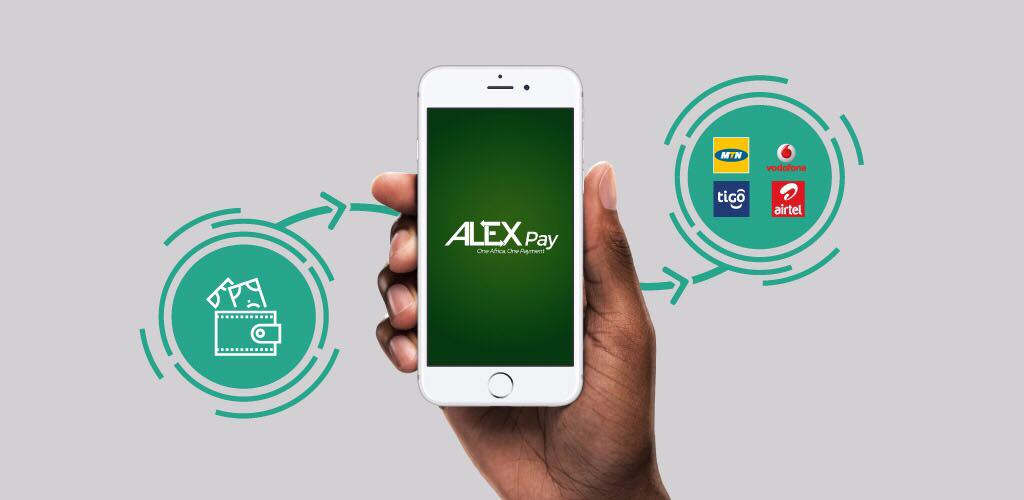
    The Allied exchange Africa, in collaboration with Global Tech Solutions, has launched a platform that allows customers to transfer money from one mobile money account to another on a different network, with or without internet access. Dubbed ‘ALEXpay’, the application seeks to integrate the already existing various mobile money platforms, the traditional banking platforms and other pay networks across the country.

    Pay Smarter with ALEX
    Pay Smarter with ALEX

    What is ALEXpay?

    ALEXpay is an integrated and secure avenue that facilitates unified, reliable, affordable and easily accessible mobile money transactions in Ghana and across Africa. ALEXpay has got two components; the Unstructured Supplementary Service Data (USSD) and the app component. These components can be used on any mobile phone, either being a smartphone or a “yam” phone. The app can be downloaded free for all smartphone users.

    Features of ALEXpay

    Pay and Collect Bills

    ALEXpay offers a simple and convenient way for businesses and individuals to make bill payments. One of such payments is the ever popular DSTV monthly subscription. From the comfort of your home, you can pay for this service.

    Transfer Funds

    A good quality of any payment platform or a platform that deals with payments and receipt is the ease of accessibility. In this regard, the service allows transfer of cash from one Mobile Money Network (say MTN) to another Mobile Money Network (like Airtel Cash) without any hustle. We have seen this before in other applications like MOVE which has been in existence for a while now.

    Receive and Send money via ALEXpay on all networks in Ghana.
    Receive and Send money via ALEXpay on all networks in Ghana.

    Top-Up Airtime

    Need to top up your airtime? Well, ALEXpay is here for that too. No matter which network you register your service on, you can use the ALEX payment platform to buy any kind of credits for any network.

    Integrate Bank Account

    In Ghana, there is a great disconnect between Mobile Money accounts and Bank Accounts. As a result, a lot of people are unable to move money between their bank accounts and mobile money accounts. ALEXpay seems to have a workaround for this. At the time of writing this, I have not been able to test the feature.

    Disburse Bulk Funds (Virtual Wallet)

    Users on ALEXpay can create virtual mobile money accounts that permit inflows (deposits, transfers, credits, billings, etc.) and outflows (withdrawals, transfers, purchases, payments, etc.).


    How to Subscribe to ALEXpay

    To Subscribe to ALEXpay, you need to follow the following steps.

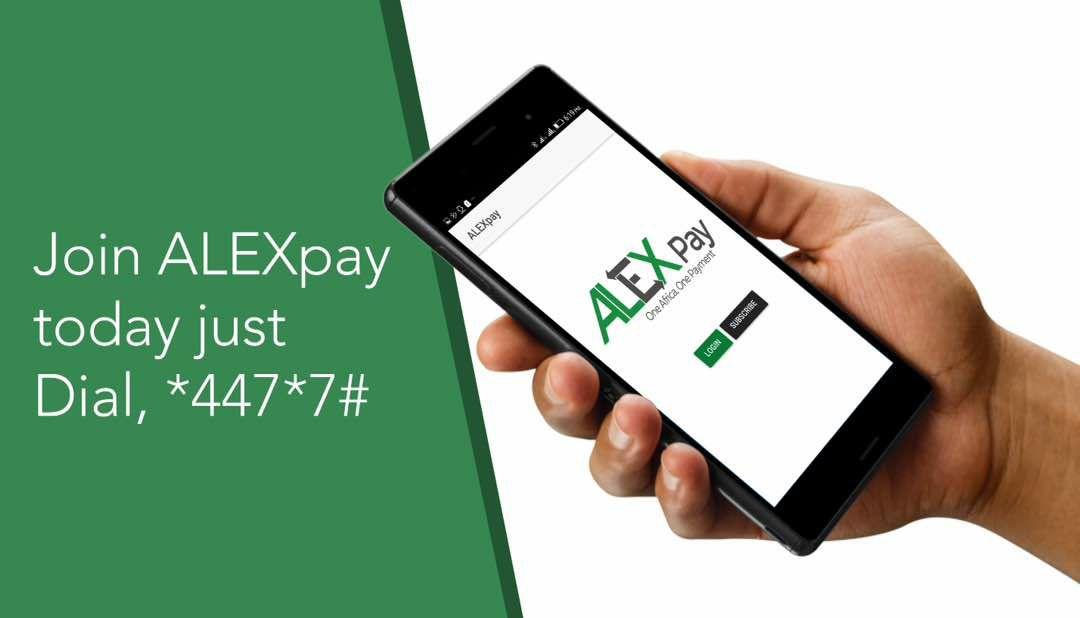
    • On your mobile phone, dial *447*7#
    • Choose Option 1 (Subscribe) and tap confirm
    • You will be then asked to enter your name, Enter your first name and tap confirm
    • After that, Enter your Last Name and tap confirm
    • You will be asked if you have an alternative number or not. If you do have an alternative number, Choose option 1 (Yes) and tap confirm
    • Now enter your Alternative Number
    • After this, you will be met with a screen confirming your subscription details; Choose option 1 (Yes) to confirm that the details are correct.
    • You will receive a message saying you have successfully subscribed to ALEXpay.

    To join ALEXpay, dial *477*7# and follow the prompts.
    To join ALEXpay, dial *477*7# and follow the prompts.

    After subscribing, when you dial the *447*7# shortcode, you will be met with the ALEXPay Interface. Choose “My Account” to change your password from the default 1234.

  • WhatsApp Recall: (Delete for Everyone): “Unsend” messages

    WhatsApp Recall: (Delete for Everyone): “Unsend” messages

    WhatsApp has come to stay and here at Mfidie.com, we make it a point to update you on the latest WhatsApp Updates. Today we look at the most interesting update to hit WhatsApp after the “status” update and the live location sharing. This one is known as the “Recall”,”Unsend” or “Delete for Everyone” feature. Simply put, it helps you to delete messages you sent by mistake (if you are fast enough).

    Why the Recall or Delete for Everyone Feature?

    Sometimes, when using WhatsApp or any other Instant Messaging Application for that matter, you may end up sending a message to a person who is not the intended recipient or sending the wrong message to the right person, which could lead to a long explanation.

    A solution to this problem is having the ability to recall a message that you send to the wrong recipient to save face or an explanation. WhatsApp has a solution to this and it is called Delete for Everyone, and was previously known as unsend or recall but it is available for a few Beta Users of the App.

    According to WABetaInfo, on the Android app (version 2.17.235), they were able to use the Recall feature. The feature is disabled by default by now which means we will have to wait for a server-side update later on when WhatsApp is done testing it on the beta channel.

    How does the WhatsApp Recall or Delete for Everyone Feature work on WhatsApp?

    In preparation for an eventual roll-out of the Recall feature, WhatsApp published a FAQ article detailing the yet-to-be-released feature which divulges interesting features about it. The FAQ is no longer available on WhatsApp’s site but here are some of the points in it.

    • You can only recall a message for up to 5 minutes after sending and once the five minutes are over you will not be able to recall a message.
    • Both you and your recipient must be using the latest version of WhatsApp for Android, iPhone or Windows Phone.
    • Recipients might see the message before you recall them or if the recall is not successful, so do it fast.
    • WhatsApp will notify you if a delete for everyone was not successful.
    • If the sender queries for a recall, you as the recipient will be notified with a “This message was deleted” message.

    How to perform “Delete for Everyone” (WhatsApp Recall) on Android, iOS and Windows

    • On Android, tap and hold the message, tap the delete button and hit “Delete for Everyone”.On iPhone and Windows Phone, just tap and hold the message to highlight it then tap recall.
    • On iPhone and Windows Phone, just tap and hold the message to highlight it then tap “Delete for Everyone”.

    A demonstration of the WhatsApp "Delete for Everyone" feature
    A demonstration of the WhatsApp “Delete for Everyone” feature

    Download WhatsApp Beta to get the feature now

    You can Download the WhatsApp Beta to get the feature now. Click on these:

    1. APK Mirror WhatsApp Beta Download
    2. APK Mirror WhatsApp Beta Download (1 Click)

    If the “1 Click” link does not work, use the first link.

    Have any questions? Leave a comment below and we will get to you.