MTN Data bundles can be exhausting, literally, especially when you want the right data bundle package to run your business or even carry on with your day-day social media activities. Getting the right data package wont only allow to be stress free but also you will save extra cash.
Every one wants to save some extra cash from MTN data bundles, that’s why we have provided the full list of all MTN data bundle and plans as a guide.
By the end of reading this article you will discover the best MTN data bundle packages for suits your business, most affordable MTN data bundles and also learn about cool short codes for accessing these bundles.
Understanding MTN Data Bundles and Plans
MTN Data bundles comes in many forms with each having its procedure and data package formats. MTN data bundles include the Basic Bundles, Zone Bundles, Midnight Bundle, Kokrokoo Bundles, Social Media Bundles, Video Bundles and Turbonet Broadband Bundle.
Let’s take for example the MTN Kokrokoo Bundles. The MTN Kokrokoo data package only provides data for people who are active at dawn and of course save some extra cash doing something big. Also, another example is the MTN Video Bundle, as the name suggests, it only provides huge amount of data for streaming videos like on YouTube.
We shall cover all the MTN data bundles packages listed each with its procedure and available plans.
Let’s get started!
MTN Basic Data Bundles
MTN basic data bundles comes with no expiration date, making it one of the best data packages on MTN. This MTN data bundle package is best for everyday internet consumers and also the best option for those who just want to go online to get something done ASAP!
Below is the plans and procedure to access the MTN Basic data bundle.
Prices
GHS 0.50 (17.79 MB)
GHS 1 (35.57MB)
GHS 3 (349.24MB)
GHS 10 (718.9 MB)
GHS 350 (92.88 GB)
Procedure
Dial *138#
Select option 1 “Proceed to buy bundle”
After the next pop up select “Buy Data Bundle”
Choose to buy for your self or for others in the next pop up.
Select your preferred bundle or enter any amount you wish to buy.
Finally select your mode of payment. (Mobile money or Airtime)
NOTE: As you can see the MTN Basic Bundle packages offer a flexible way of choosing your preferred bundle however it may seem to cost if you want a huge bundle package with no expiry.
MTN Midnight Bundle
If you are a night owl or even enjoy browsing at midnight for some reason, the MTN midnight package is perfect for you. With just a few coins, you can obtain a large amount of data, which is unimaginable with no expiry, of course. There is actually no limit if you can renew large data bundles with just a few coins, right? Below is the plans and the procedure to access the MTN midnight Bundle.
Prices
MTN Midnight bundles offers a flexible price starting as low as GHS 0.01 to GHS 2.99 from which will give you 17.67MB to 5.16GB. It also has a standard rate at GHS 3 which will provide you with 7.25 GB.
Procedure
Dial `*138#
Select option 1 “Proceed to buy bundle”
Select the second option, which is ‘Midnight Bundles’.
Choose to buy for yourself or for others in the next pop up.
Next, you’ll have to choose between two types of bundles:
The ‘Flexi‘ bundle (Option 1), which allows you to pay an amount ranging from GHS 0.1 to GHS 2.99.
The ‘Standard‘ offer (Option 2), which provides you with 7.25gb for a cost of GHS 3.00.
Finally select your mode of payment. (Mobile money or Airtime)
MTN Kokrokoo Bundle
From 5am to 8am, you can talk, browse and download a lot with the MTN Kokrokoo bundle. This bundle package is a great sub for the MTN midnight bundle. Imagine waking up early to get off to work or you are a student wanting to do some quick studies at dawn, this bundle could do lot of work with great timing.
Below is the plans and the procedure to access the MTN Kokrokoo Bundle.
Prices
The MTN Kokrokoo bundles only comes at GHS 1.24 for 400MB Data which does not expire.
Procedure
Dial `*138#
Select option 1 “Proceed to buy bundle”
Select the third option, which is ‘Kokrokoo Bundle’
Choose to buy for yourself or for others in the next pop up.
Finally select your mode of payment. (Mobile money or Airtime)
MTN Social Media Bundles
As data packages drain as a whole the MTN social media Bundles set aside for those who only want to browse on social media apps. The MTN social media data bundle will give users the best choices and plans to browse on their favourite social media platform at affordable and flexible prices too.
Below is the plans and the procedure to access the MTN Kokrokoo Bundle.
Prices
GHS 1 (70.87 MB)
354 MB – GHS 5 (354 MB)
GHS 10 (708.2 MB)
Procedure
Dial `*138#
Select option 1 “Proceed to buy bundle”
Select 99 for more.
Choose Social Media Bundles
Choose option one to make select a standard plan or a flexible plan.
Finally select your mode of payment. (Mobile money or Airtime)
MTN Video Bundles
If you love to watch YouTube videos, MTN offers this option with flexible data plans for streaming your favourite YouTube channel or reels. This bundle will also last pretty long since it will be only used for YouTube.
Below is the data plans and the procedure to access the MTN Video Bundles.
Prices
GHC 1 (136.69 MB)
GHC 5 (678.43 MB)
GHC 10 (1.33 GB)
Procedure
Dial `*138#
Select option 1 “Proceed to buy bundle”
Select 99 for more.
Choose Video Bundles.
Choose option one to make select a standard plan or a flexible plan.
Finally select your mode of payment. (Mobile money or Airtime)
MTN Zone Bundles
If you are a regular MTN data bundle user, you know MTN Zone Bundles rock. With saving your cash, you can access a data plan that will last you through the day. MTN Zone Bundles is available for daily use that is 24 hours. This bundle package suits those who want to get a lot than in a day mostly bloggers, influencers, and also gamers.
The MTN Zone Bundles will be only be available to you if you have an active bundle like the MTN basic bundle so kindly note. Also, data plans range from time to time.
Below is the plans and the procedure to access the MTN Zone Bundles
Prices
Mostly the MTN Zone Bundles starts at GHS 2.09 to GHS 4.99 however prices may range higher or even lower at times so b sure to be an active MTN Zone bundle user.
Procedure
Dial *135#
Choose option 2 “Zone Bundles”
Choose “Data Zone Bundles” in the next pop up, if you have an active bundle, your Zone bundle plans will show up.
Select the plan and pay with airtime only.
MTN Turbonet Broadband Bundles
Best for running businesses, the MTN Turbonet broadband bundles is best for those who want high volumes of data packages to run heavy duties. The MTN Turbonet broadband bundles is only accessible by users of MTN’s Turbonet broadband router.
Below is the plans and the procedure to access the MTN Turbonet broadband bundles.
Prices
GHS 43 (4.3GB)
GHS 87 (8.69GB)
GHS 253 (91.81GB)
GHS 516 (350 GB)
Procedure
Dial *5057# on the number linked to your Turbonet
Choose your preferred data package.
Finally, complete by making payment.
Conclusion
MTN offers a wide range of data bundle plans so choosing the one which will best suit your day will help you avoid losing any unnecessary data lose or cash. From non-expiry bundles to flawless night and day bundles, your choice of data bundles is always up to you. Always recheck this article for any new updates added to the data bundles.
Tecno Telecom Limited, established in July 2006 in Hong Kong, is a comprehensive mobile phone manufacturer specializing in Retail and Distribution, manufacturing, sales, and service.
With years of development, it has now become one of the major mobile phone suppliers in the world and one of the largest mobile phone manufacturers in China. It is therefore no surprise that the Tecno Camon and Spark Series are some of the most sought-after phones in the country.
Today, we bring you the location and contact details of all the Tecno Offices (Branches and Sales Offices) in Ghana. Hopefully, if you need them, you find one close to you.
Branches
Circle VIP Near Odo Rice, Tiptoe Lane 020 2698396, 024 7350549, 050 6193407
Odorkor Traffic Light 0202698378
Head Office Darkuman Near Accra Trotro Station 0202698395, 0244580095
Takoradi Market Circle Near Ecobank 020 2698388
Tamale Inside Quality 1st Bldg. Near Taxi Rank 0202698380
Kumasi Adum, near Topman Shoes 0202698375
Kumasi Adj. Old MELCOM 020 2698385
Koforidua Main 1st Floor Kama Bldg. Near the Market 026 6257776, 0249 221772
The Tecno Ghana Office at Circle, Odo Rise
Sales Centres (Tecno Offices to buy Phones)
The Junction Shopping Center Nungua Barrier 0244498936
Osu Near KFC 0246222980
Darkuman Darkuman Bus Stop 0244498936
Tema Comm. 1, Near Afriwaa 0245569151
Kumasi Near Topman Shoes Paul Sagoe Lane 0202698375
Circle Near Odo Rice Downstairs 0202698381
Circle Near Odo Rice Upstairs 0202698381
Circle Mall Near Ebony 0202698381
Kaneshie Behind the Police Station 0278485130
Osu Shopping Mall 3rd Flr, Osu Shopping Mall, Oxford Street 0246222980
Airtel and Tigo merged to form the all-new AirtelTigo network which is now the second biggest network in Ghana. Subscribers who have not ported their numbers, yet have numbers starting with 026, 056, 027 and 057 are all now under the big AirtelTigo brand.
It is believed that the combined business of AirtelTigo will offer improved coverage and better quality of service to customers in both urban and rural Ghana, enabling wider access to communication solutions for businesses and mobile financial services to the Ghanaian customers.
Today, we look at the shortcodes on the AirtelTigo network.
Shortcodes for AirtelTigo Services
AirtelTigo Shortcode
Service
0266116611/0277101020/0277551000
WhatsApp Support Numbers
100
Customer care line
100
Call centre
108
Voicemail sending
109
Voicemail receiving
*100#
Tigo cash menu
*108# or send Job to code 108
Jobsmobile
*123*3#
To transfer credit to someone.
*123*5#
To request credit from friends or family.
*123#
Tigo gift data. Send data as a gift to your friend.
*124#
Balance Enquiry
*133*10#
Call Credit Bonus
*133*3#
Movietastic
*133*9#
Airtel Money Top Up Bonus
*134*xxx xxx xxxx#
To Recharge Airtime
*187#
Tigo extra time. Get 60 seconds talk time to complete a call or make several Tigo to Tigo calls. Can also call 188.
*188#
Tigo SoS or call 188 to borrow airtime
*333#
Balance Enquiry On Postpaid Contract (Nokia Phones)
*360#
Tigo Blackberry Plans
*400#
To know if your number is registered
*444#
Balance Enquiry On Postpaid Contract (Other Phones)
*500#
Internet packages + unlimited music
*540#
Blackberry service plans
*555*1#
Tigo FreeBonto
*556#
Tigo ringback tones (caller tunes)
*701*NUMBER#
Call Me Back
*702*number#
Notify Me
*703#
Verifying Phone Number
*708*Number*0#
Friends & Family (Remove/Delete Number (S))
*708*Number*1#
Friends & Family (Add Numbers)
*708#
Friends & Family (View List Of Numbers)
*740*1234*027……..*amount#
To transfer credit to friends or loved ones. You can also use *123*3#.
*828#
Manage all your Tigo products in just one place.
*900#
Tigo family care insurance. To deactivate dial *828#.
Please call me service. Send a message with 024x xxx xxx 1 to 1399.
1515
Report Mobile Money fraud. Send a text message to 1515 from your phone with the name of the merchant and date of the incident.
02xxxxxxxx Simbox to 419
Report SIM-Box fraud
*585#
Request internet settings. Send a blank text message (SMS) to 585 from your MTN. Save the settings you received, to your phone. Select MTN DATA as the default access point.
*1390#
Reserve your number for 2 years
*198#
Share credit with friends and family
*138*4#
Supersaver bundles
*506#
To borrow Some Credit
*585#
To check 4G device compatibility
*595#
To exempt (or include) yourself from mobile money interest payments to your account.
*400#
To know if your number is registered
*144*number to recharge for*voucher number#
To recharge airtime for someone
<amount to share/Transfer><leave a space><enter the number><leave space><Type 4 digit pin> TO 1329
To share credits dial *198# reply with 2 and follow the prompts. Just go to messages. Then type in <amount to share/Transfer><leave a space><enter the number><leave space><Type 4 digit pin> and send to 1329.
Send STOP to 1355
Unsubscribe Caller Tunez
109
Voicemail receiving
108
Voicemail sending
*1552#
WeChat monthly data bundle
*138*16#
YouTube bundle. For streaming videos on youtube.
<register><4-digit pin number> send to 1329
Register MTN Me2U to Share Credit with Family and Friends
We hope you found this list useful, and if you ever need any shortcode added, just leave a comment below and we will help you get it!
Frequently Asked Questions about MTN Shortcodes in Ghana
How do I check my MTN registration details?
To check your MTN number registration details dial *400#. You will receive the name the SIM was registered in and the registration document used.
How do I transfer data from MTN to MTN Ghana?
MTN Ghana currently does not allow bundle transfer or sharing due to fraud that happened on their system in early 2016.
How can I browse free on MTN?
Currently, there is no free browsing available for MTN. To learn more about MTN Free browsing, read this.
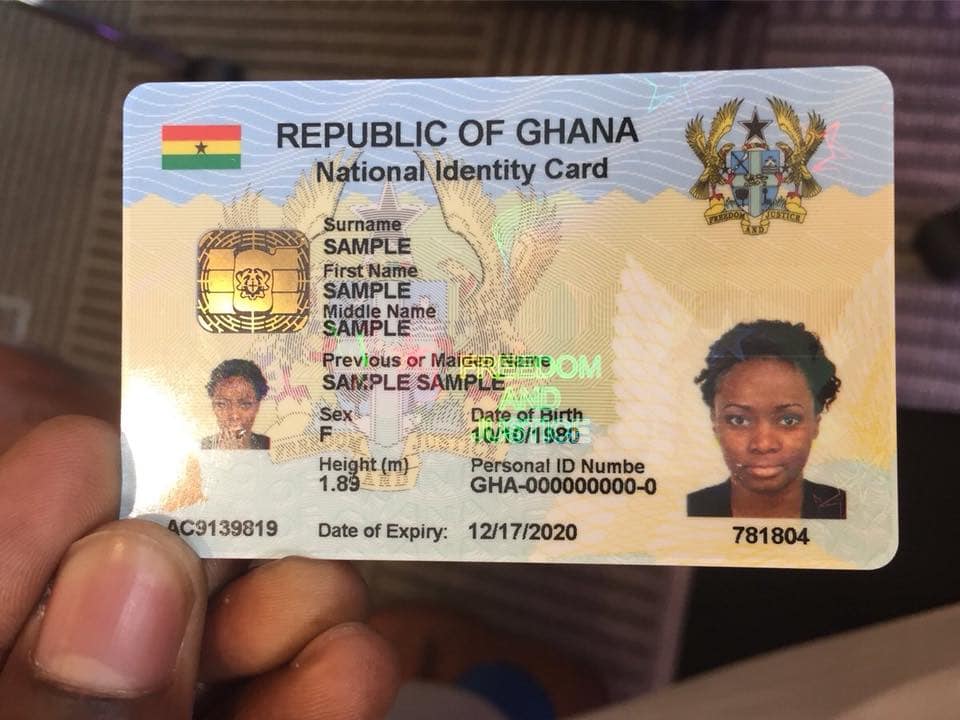
The National Identification Authority is giving Ghanaians the chance to register for the new Ghana Card online from the comfort of their homes.
In a new post on their Facebook page, they shared the link to the new online process for registering/applying for a new Ghana Card.
Although the mass registration is on-going, the NIA is doing the registration of individuals interested in booking an appointment for through their new online portal – https://register.nia.gov.gh/
What is the Ghana Card?
The Ghana Card is a secure and multi-purpose card that will establish the biometric identity of the bonafide holder for verification and authentication of electronic and physical transactions to be conducted in the public and private services space.
How was the Ghana Card Application done before the introduction of the online process?
Before this new way of applying for the Ghana Card, Ghanaians had to go queue at the various centres where mass registration was taking place.
This led to people sleeping at the registration centres and although cards were supposed to be issued instantly, this was almost never the case.
Centres could only register between 60 and 90 Ghanaians a day and this seemed to be very unsustainable.
Some people were asked to wait for a lot of days before receiving their cards and even when the day of the collection came, there was another postponement of the time. A lot of people were generally not happy with the mass registration procedure.
Can you apply for Ghana Card through Mass Registration too?
Yes, Mass Registration for the Ghana Card is still ongoing in parts of Greater Accra and will continue nationwide.
You can keep track on which region and district the registration is taking place at by following your local news.
What do you need to Apply for your Ghana Card Online
All persons that hold Ghanaian citizenship in addition to citizenship of any other foreign country( dual citizen)
Registration covers all persons aged 0 years and above
Registration Requirements
Information needed during online registration include:
Personal Information
Name, Date and Place of birth, Residential address and digital address code.
Information About Parents
Their names, Address dates and places of birth etc.
Biometrics
The fingerprints, iris and photograph would be taken and any other personal details that may be required at the NIA Office
Parental, spousal and next of kin information
Name of spouse. Full name of father. Father’s hometown/district/region Father’s nationality. Full name of mother. Mother’s maiden name Mother’s nationality. Mother’s hometown/district/region. Next of Kin Address of next of Kin. Supplementary Spousal List for those with more than one spouse.
Primary Verification Documents
Individuals would be required to present any of the verification documents (i.e. Birth certificate, certificate of acquired citizenship or valid passport) to help validate the information provided.
Harmonization of data
Applicants with documents or I.D Cards of the following institutions must bring them along for harmonization of data with NIA – DVLA (LICENCE), NHIS, TAX (TIN), PASSPORT, EC (VOTER CARD)
How to Apply for a Ghana Card Online
Visit the Ghana Card online registration portal by clicking this link: https://register.nia.gov.gh/
For first time users, create an account and verify your phone number.
You will receive a text message with a secret code. Enter that secret code to continue to the application dashboard.
When on the dashboard, click on “Start New Application” to be sent to a page to begin the information collection process.
On the next screen, fill in your Surname and Forenames (First Name and Other Names). Enter a full stop in the surname field if you are a foreigner with no surname.
Next, answer the questions relating to your nationality and Citizenship.
You will be asked to enter your height, eye colour and other physical identifiers on the next page. (If you don’t know the accurate value, don’t worry, during your registration, the NIA will measure you for the correct value).
After all the 7 pages of the form have been filled, you will be taken to a declaration page.
You will have to say “YES” to the following:
I Declare that all the information presented for this application is true and correct and that the documents that I have provided for the purpose of this application are genuine.
I understand that if any information that I have provided for this application is false or incorrect, I will be liable to prosecution in accordance with Section 40 of the National Identity Register 2008 Act 750 as well as any other law or regulation which may be in force at the time.
I understand that all the information and documents that I have provided in respect of this application are handled and stored by the NIA and I have the right to have them updated should they change.
I declare that all the information contained in this application has been read, interpreted and explained to me in a language I understand and I perfectly understood and approved same before my hand was guided to make my mark.
After that, you will get the option to download the completed form. You will also receive an email with a link to the completed application form. In your application history page, click the ‘Download Application Form’ button to download your application for print.
Once you have printed the form, visit ANY National Identification Authority (NIA) registration centre with a printed copy of your application form to apply for your FREE Ghana Card. Remember to send all mandatory documents with you to the NIA registration centre.
How long will it take to get the Ghana Card?
Once you have downloaded the form, you can take it to the NIA Registration Centre closest to you and your card will be processed..
This is however subject to the availability of electricity and internet connectivity.
If you don’t have a passport, check out how to apply for one by clicking below.
A lot of people in Ghana currently use Infinix Phones but still don’t know which phones are the latest or where to buy them from. Some people even don’t know what the specs of the latest phones released are. Today, we focus on Infinix phones.
Here is the list of the latest Infinix Phones in Ghana with their specs and prices:
Infinix Note 8
This new Infinix Note 8 is one of the newest models in the Infinix Note Series. The new Note 8 is coming to replace the recently released Infinix Note 7 (released on May 14th, 2020).
Infinix Note 8 Specs Highlight
Infinix Note 8
Specs
Operating System
Android 10 with XOS 7.1
Display
6.95″ IPS LCD capacitive touchscreen
Chipset
Chipset MediaTek Helio G80
Memory
6GB RAM
Storage
128GB ROM (Expandable using micro SD)
Main Camera
64MP + 2MP + 2MP + AI lens
Selfie Camera
16MP + 2MP
Battery
Non-removal 5,200mAh Li-Po with 18W fast charging
Connectivity
Dual SIM with both SIM 1 and 2 supporting both 4G and 3G
Special Features
Fingerprint (side-mounted) Acceleration, proximity, compass, 3.5 Mm headphone jack
Colours
Deepsea Luster, Iceland Fantasy, Silver Diamond
Price
GHS 1159
Infinix Zero 8
The Infinix Zero 8 is Infinix Ghana’s flagship phone of the year, offering superior performance and large storage of 128GB as well as a whopping 8GB of RAM.
It also has an artistic design and big screen to give it a luxury look.
Infinix Zero 8 Specs Highlight
Infinix Zero 8
Specs
Operating System
Android 10
Display
6.85-inch, 2460 x 1080 pixels resolution
Chipset
MediaTek Helio G90T
Memory
8 GB RAM
Storage
128 GB ROM
Main Camera
64 MP Sony IMX686 6P main camera + 8 MP ultra-wide-angle + 2 MP ultra night video lens + 2 MP depth
Selfie Camera
48 MP ultra night mode + 8 MP ultra-wide-angle
Battery
4500 mAh battery, non-removable Li-Po
Connectivity
Dual SIM with VoLTE support SIM1: Supports 4G, 3G SIM2: Supports 4G, 3G
Special Features
Fingerprint Sensor (rear-mounted) Accelerometer Proximity Compass 3.5 mm headphone jack present
Infinix Smart 5
The Infinix Smart 5 comes equipped with a 6.6 HD+ water-drop screen display. In the camera side of things, there is an 8MP selfie camera, which is paired with a dual flash for lightning support.
Infinix Smart 5 Specs Highlight
Infinix Smart 5
Specs
Operating System
Android™ 10 (Go edition) with XOS 6
Display
6.6 inches, IPS LCD capacitive touchscreen, 720 x 1600
Chipset
Cortex A53 processor, Quad-core, 1.3 GHz.
Memory
2 GB RAM
Storage
32 GB ROM
Main Camera
13MP + 2 QVGA sensors
Selfie Camera
8 MP
Battery
5000 mAh battery, non-removable Li-Po
Connectivity
Dual SIM with VoLTE support SIM1: Supports 4G, 3G SIM2: Supports 4G, 3G
Special Features
Fingerprint Sensor (rear-mounted) Accelerometer Proximity Compass 3.5 mm headphone jack present
Infinix Note 7
The Infinix Note 7 is a new device by Infinix to push sweet functions and Android 10 to their fans.
The Note 7 features a hole-punch cutout up in the top left corner. This implementation of the camera is one of the least distracting implementation you’ll see on a device because you can still watch a video and not feel like the camera is in the way.
The Infinix S5, as has already been seen in other markets, also comes with a new and improved design that is not only trendy but also offers a class for those willing to upgrade or join the Infinix family.
The main selling points for this new device are:
The hole punch display or the infinity-o camera cut-out on the 6.6-inch HD+ screen
What makes the Infinix Hot S4 special is that it is the first device from Infinix to have Android 9.0 out of the box.
That’s not the only first for the Infinix S4. The design has a waterdrop-shaped notch at the top of the display and behind it, there is the vertically lined triple rear camera set up.
Infinix Hot S4 Specs Highlight
Dimension: 152.2 x 73 x 7.9 mm
Screen Size: 6.2 inches FHD+ Notch-Display
Selfie Camera: 32 MP, f2.0, 1.6µm AI selfie camera
Main Camera: Triple Camera Setup – 13 MP, f2.0 + 2 MP + 8 MP, f/2.0 Wide Angle
OS: Android™ 9.0(Pie), XOS 4.0 HoneyBee
Network: 2G/3G/4G LTE
Internal: 32 GB/64 GB
RAM: 3 GB/6 GB
Chipset: MediaTek Helio P22
CAP: Li-Ion Non-Removable 4000mAh
Card Slots: 2 nano sim cards + 1 micro SD
Other Features: G-Sensor, Light Sensor, e-Compass, Proximity sensor, Finger Print, Gyroscope, Face ID
The Hot 6 and Hot 6 Pro are successors to the Infinix Hot 5. With the Hot 5, Infinix has provided a true “2018 smartphone”, with the inclusion of a rear dual camera set up and an 18:9 screen ratio.
A quick look at the front of this latest Infinix Phone, which was released in 2018 will show that design-wise, Infinix has been apt – providing smaller bezels for a bigger display.
Infinix Hot 6 Specs Highlight
Display: 6.0-inch, TFT LCD capacitive touchscreen, 1440 X 720 pixels, 18:9 Aspect Ratio
OS: Android 8.1 with XOS Hummingbird 3.3
Processor: Quad-core Qualcomm Snapdragon 425 CPU
Storage and Ram: 16GB with 1GB Ram (up to 128GB with a memory card)
Rear Camera: Dual 13MP + 2MP
Front Camera: 5MP with Flash
Security: Fingerprint Sensor, Face ID
Battery: 4000mAh non-removable Li-Po battery
Infinix Hot 6 Pro Specs Highlight
Display: 6.0-inch, TFT LCD capacitive touchscreen, 1440 X 720 pixels
OS: Android 8.1 with XOS Hummingbird 3.3
18:9 Aspect Ratio
Processor: Quad-core Qualcomm Snapdragon 425 CPU
Storage and Ram: 32GB with 2GB Ram (up to 128GB with a memory card)
The Infinix S3 is powered by 1.4GHz octa-core Qualcomm Snapdragon 430 processor and it comes with 3GB of RAM. This latest 2018 Infinix Phone packs 32GB of internal storage that can be expanded up to 128GB via a microSD card.
The Infinix S3 features a 5.65-inch HD+ display and runs on a Qualcomm Snapdragon 430 SoC clocked at 1.4 GHz.
The Infinix Zero 5 was the last Infinix Phone to be released in 2017. At the time, the device came with first- time upgrades for the Infinix line including a rear dual camera, a huge 6GB RAM, a USB-Type C port and the move to the Mediatek Helio P25 series of processors.
The Infinix Zero 5 comes in 3 Colours: Beaudeux Rex, Sandstone Black and Champagne Gold.
Infinix Zero 5 Key Specifications
Display: 5.98 inch IPS LCD 1920 x 1280 Full HD
Primary Camera: Dual camera (12MP Sony IMX 386, F/2.0) + (13MP f/2.6 telephoto sensor with 2X zoom) with LED flash
Secondary Camera: 16MP f/2.0 with LED flash
Storage (ROM): 64GB
RAM: 6GB RAM
Processor: Octa-core 2.6 GHz Cortex A53 Mediatek Helio P25 16nm with Mali T880 MP2
Operating System: Android 7.0 Nougat XOS 3.0 (Oreo OTA expected soon)
Battery: 4350mAh with fast charge
Connectivity: 3G, 4G LTE
Colours: Champagne Gold, Sandstone Black and Bordeaux Red
Infinix Zero 5 Price in Ghana
The Infinix Zero 5 is available in Ghana at GHS 1299.
Infinix Hot 5
The Infinix HOT 5 is also a 2017 Infinix Phone and a direct heir to the widely successful Infinix HOT 4. The phone is also known as Infinix X559 and served as a push for Infinix to continue to dominate the Smartphone Industry in Africa.
The Infinix HOT5 is available in Ghana, at a recommended retail price of GHS 570. Get a free delivery when you buy from Mfidie.com. Call George on 0546090871 or Atapsa on 0544991140
Infinix Note 4
The Infinix Note 4, successor to the popular Infinix Note 3 was launched in Nigeria on 4th July 2017.
The Infinix Note 4 is designed for the youth to empower and enable them to go beyond.
With the Infinix Note 4 and Note 4 Pro, you’ve got a powerful battery with super fast charge
It is also the 4th device in a series of the Infinix Note Series. What is different about the Note 4 is that it comes with the first of its kind Stylus pen, referred to as an “Xpen”. The “Xpen” offers great functionality for the Infinix Note user, as it allows, the users to take down notes, create shortcuts and also sketch easily on the Note 4.
Infinix Note 4 Key Specifications
Operating System: Android 7.0 Nougat
Display: 5.7” Full HD Sharp screen
RAM: 2GB RAM
ROM: 16GB internal expandable memory
Processor: Octa Core Processor
Dual SIM capability: Micro SIM cards with memory stick slot.
Primary Camera: 13MP auto-focus rear camera with flash
Secondary Camera: 8MP front-facing camera with front soft flash
Battery: 4,300mAh non-removable battery with fast charge
Sensor: Fingerprint identification
Infinix Note 4 Price in Ghana
The Infinix Note 4 is available in Ghana, at a recommended retail price of GHS 670.
Hello, recently, a lot of people have been asking for short-codes for MTN services. I had wanted to compile a whole list of them but I found a couple of them on the internet, and added all of the missing ones.
MTN is the biggest telecommunication network in Ghana, with pension schemes and mobile money services, it doesn’t look like they will leave the number one spot soon.
MTN Ghana continues to lead Ghana’s Telecommunications mobile voice market as at December 2015, according to an NCA report at the time.
Please call me service. Send a message with 024x xxx xxx 1 to 1399.
*124#
Balance enquiry. Check your credit balance.
*567#
MTN Pulse
*5055#
MTN Jara
*567*4#
MTN Mashup Balance
154[0244000000]
MTN pay for me. Dial 154 followed by number without space. This will make the recipient of the call pay for the call.
100
Call Center
*156#
Check your MTN mobile number
*144*number to recharge for*voucher number#
To recharge airtime for someone
1515
Report Mobile Money fraud. Send a text message to 1515 from your phone with the name of the merchant and date of the incident.
*138#
Internet Bundles, SMS bundles
*138*1*3#
Internet monthly bundle. From 300MB – 10GB
*138*1*5#
Internet social bundle. For Accessing Twitter, Facebook and WhatsApp only.
*138*16#
YouTube bundle. For streaming videos on youtube.
*170#
MTN mobile money access code
*138*4#
Super saver bundles
1355
Caller tunez
STOP to 1355
Unsubscribe caller tunez
<register><4-digit pin number> send to 1329
Register Me2U
108
Voicemail sending
109
Voicemail receiving
<amount to share/Transfer><leave a space><enter the number><leave space><Type 4 digit pin> TO 1329
To share credits dial *198# reply with 2 and follow the prompts. Just go to messages. Then type in <amount to share/Transfer><leave a space><enter the number><leave space><Type 4 digit pin> and send to 1329.
*138*1*4#
Internet unlimited bundle
*506#
To borrow Some Credit
*511#
Generate Mobile Money ATM token
*138*1*1#
Internet daily bundle. From 20MB – 350MB
*585#
To check 4G device compatibility
*138*1*2#
Internet weekly bundle. From 25MB – 500MB
*595#
To exempt (or include) yourself from mobile money interest payments to your account.
*140#
Blackberry Plans
*198#
Share credit with friends and family
*1552#
WeChat monthly data bundle
PORT to 600
Number portability
*400#
To know if your number is registered
02xxxxxxxx Simbox to 419
Report SIM-Box fraud
*585#
Request internet settings. Send a blank text message (SMS) to 585 from your MTN. Save the settings you received, to your phone. Select MTN DATA as default access point.
*455#
Accurate weather forecast (8p/SMS)
*1390#
Reserve your number for 2 years
1303
MTN Radio
30037
MTN Farm Direct. Access the best farming tips.
*300*20#
Get cool jokes
MOVIES to 1412
Get Silverbird movie schedule
MTN Free Call 6 months Offer
*550# (New Subscribers)
MTN Free After 1 (MTN Nkomode)
*550# (Option 6)
List / De-activate all MTN Services
*175#
If there is any service you would want a shortcode for but can’t find, it may be on the 2023 list of shortcodes for MTN or just leave a comment below and we will get it for you.
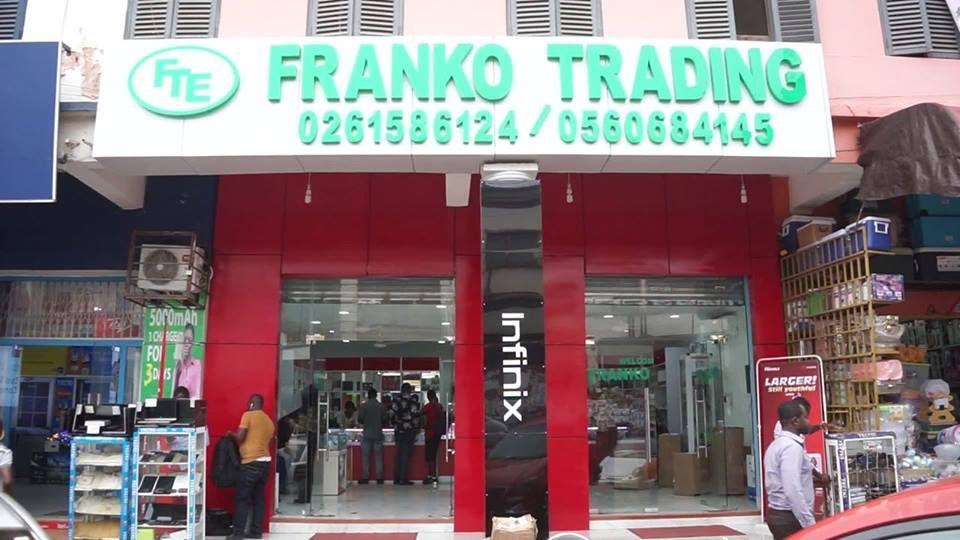
When it comes to buying smartphones and other electronics in Ghana, Franko Trading Enterprise stands out because they have proven times over to deliver quality in an accessible manner.
A lot of Ghanaians are always on the lookout for the latest Tecno, Infinix and Huawei phones. Usually, we know for a fact that we can get them from Franko Phones at a good rate.
Franko Phones, a part of the large Franko Trading is a well-accepted brand nationwide and that’s why we have decided to cover the price of the latest phones in their shops as well as give directions and information on how to find the prominent of their over 40 branches all over Ghana.
If you are looking to contact them via phone or other means, we have also included all contact details.
However, if you want to check the prices or specifications of the latest Tecno, Infinix, and Huawei phones, then a reverse image search tool is the best option. This tool helps you find all the latest mobiles at Franko Trading Enterprise with the help of an image, keyword, or URL.
Let’s get started.
Phones Price List at Franko Trading Phones
There are a lot of phones for sale at Franko that sometimes it is a bit difficult to surf through the whole site and make the right decision.
That is why we have compiled a full list of all the phones available for sale and their prices in Ghana Cedis
Here are the current prices of Mobile Phones as they are sold at Franko Phones:
Phone Model
Price
Huawei Nova 5T
GHS 1888
Huawei P30 Lite
GHS 1350
Huawei Y7 Prime 2019
GHS 830
Huawei Y9 Prime 2019
GHS 1250
Huawei Y9s (128GB/6GB)
GHS 1400
Infinix Hot 8 (32/2)
GHS 605
Infinix Hot 8 (32/3)
GHS 655
Infinix Hot 8 Lite (32/2)
GHS 535
Infinix S5 (128/6)
GHS 1035
Infinix S5 LITE (32/3)
GHS 725
Infinix S5 Lite (64/4)
GHS 885
Infinix Smart 4 (16GB/1GB)
GHS 485
itel 2160
GHS 40
Itel 5081
GHS 65
itel 5606
GHS 50
itel A14
GHS 185
itel A56
GHS 340
itel S15 (32/2GB)
GHS 430
Itel S15 Pro
GHS 515
Nokia 7.2
GHS 1600
Nokia C1
GHS 290
Samsung A01
GHS 595
Samsung A2 Core (16GB)
GHS 435
Samsung A20S
GHS 959
Samsung A51
GHS 1789
Samsung A71
GHS 2499
Samsung E1205
GHS 100
Samsung E1207
GHS 105
Samsung Galaxy Note 10 Plus
GHS 5850
Samsung Galaxy S10 Plus
GHS 4980
Samsung Galaxy S10e
GHS 3800
Samsung Note10Lite
GHS 3099
Samsung S20 Ultra
GHS 6999
Samsung S20+
GHS 5499
Samsung Tab A (2019) 10.1″
GHS 1500
Samsung Tab A8 (8.0″)
GHS 820
Tecno Camon 11 (64/4)
GHS 800
Tecno Camon 12 (64/4)
GHS 830
Tecno Camon 12 Air (32/3)
GHS 730
Tecno Camon 12 Pro (64/6)
GHS 1030
TECNO Camon 15
GHS 965
Tecno Phantom 9
GHS 1360
Tecno Pop 3
GHS 365
Tecno Spark 4 (32/2)
GHS 605
Contact Franko Phones
We always offer you a discount and delivery when you buy directly from Mfidie.com by calling our sales rep on 0245269141 or visiting the Mfidie Shop.
Franko Phones can be reached directly on 0555939311 and 0265593002
Franko Phones Shop Locations
Greater Accra Region
Adabraka Online Shop, Opposite Roxy Bus Stop, Adabraka, Accra – See Directions
Nkrumah Circle Shop 1, Near Odo Rice Building, Circle – Accra
Nkrumah Circle Shop 2, Opposite Odo Rice – Circle, Accra
Osu Oxford Street Shop, Near Vodafone Cyber Cafe, Osu – Accra
Haatso Shop, Haatso Station Near Beige Capital Building, Haatso – Accra
Madina Shop, Madina Old Road Near Blaclays And Hfc Building, Madina – Accra – See Directions
Tema Shop, Comm. 1 Stadium Road Opposite Water Works, Tema – Accra
Ashanti Region
Kumasi Shop 1, Near Ajaba Jewelry Shop, Adum – Kumasi – See Directions
If you are looking to apply for a Ghana Passport, then we are here to guide you through the process. Kindly note that this article is a bit long so that you get all the information you need.
Kindly take your time and read and we have a section to ask questions if you don’t understand anything.
At Mfidie.com, we delight in giving you the right and up-to-date information so that no one cheats you anywhere else.
Ghana’s Online Passport Application system was introduced in 2017; as at 1st March 2020, it is the only process to use to apply for a Ghanaian Passport in the country.
The once very tiring application process took an online turn when the Ministry of Foreign Affairs and Regional Integration launched an online passport application service for Ghanaians to ease the mode of the application while ensuring maximum security for applicants.
Since then, there has been a lot of talk about the process, with some Ghanaian been sceptical about the whole “online application” process.
I personally like the online process because of the integration with Mobile Payment solutions. This means that I don’t have to even go to the bank to buy a pin for the online form. Wonderful!
What do I need to apply for the Ghana Passport Application Online?
Documents to support Identity such as Driver’s Licence, National ID card
Proof of Profession (An introductory letter from the applicant’s employer that is if the applicant is currently employed or a work ID card that bears the applicant’s name, organisation’s name and position. A student ID if the applicant is currently in school. Homemakers/housewives and applicants that are unemployed and those in the non-formal sector of employment like mechanics, hairdressers seamstresses, traders etc. do not need proof. Registered Business Owners and self-employed applicants must produce their business registration certificate as proof)
Renewing Applicants (Biometric)
First page and bio-data page with picture and information page
Valid Visa if the applicant has any in Old Passport
Last page
Proof of Profession if changed
Types of Ghanaian Passport Application and their Prices
There are two types of Application. The first one is the Expedited Application aka “Express” and the other one is the Standard application that takes a longer time to process. Each of these Applications has a 32 booklet page or a 48 booklet page.
Here is how much it costs to get a passport in Ghana:
Application Type
Booklet Pages
Price (GHS)
Standard Application
32
100.00
Standard Application
48
150.00
Expedited Application
32
150.00
Expedited Application
48
200.00
New Prices by the Ministry of Foreign Affairs are effective 1st February 2020.
How to Apply for a Ghanaian Passport Online
Online Passport Application Centres in Ghana
There used to be only 5 Online Passport Application Centres in Ghana. Right now, all 11 application centres in the country take care of online applications.
You can select any of them during the application process and you will go there for your biometrics and receiving of the passport when it is done.
Here is the list of the Passport Application Centres in Ghana to finish your biometric application process and where you can find them:
Passport Application Centre
Location
Accra Premium PAC
Accra Digital Center, Adjacent State Housing Company, Ring Road West, Accra – See Directions
Kumasi Premium PAC
2nd Floor, Thankful Heights Building, Adum, Kumasi – See Directions
Ghana Immigration Head Quarters (Within the Regional Administration)
Sunyani PAC
Adjacent to Jubilee (shares a wall with the Park)
Ho PAC
Regional Administration (Shares building with Immigration)
Tamale PAC
Police Park (Old Library)
Kindly note that the Premium Passport Application centres in Ghana give a faster and VIP experience at an additional cost.
How to get your Ghanaian Passport in 15 days
Starting from this year, 2019, the Government of Ghana has introduced the premium service for Passport to make the process even faster. This was after the passport form was made available for free to download and fill.
To use this passport service, applicants will go through the usual vetting and passport applications. They will fill the form online (as described in this article below).
At the end of the application process, there are two options to choose from. Choose premium application centre
You will be given a date to go to the office. There, you will pay GHS 60 and the process will be underway.
You will receive text confirmation messages from the Ghana Passport Application Centre on the status of your passport.
When you receive the final message, which looks like: “Hello Mfidie, Your passport G2****1 is ready for collection at Premium PAC – Accra Passport Office. The collection time is 9:30 am to 3 pm. Thank you.”, you can go to the Premium Passport Application centre to collect your passport.
In total, you pay the following for passport and processing:
GHS 160 for Standard Application (32 Booklet Page) + Premium PAC
01/03/2020: The online process is now the only way to apply for a Ghana Passport.
31/01/2020: The Ministry of Foreign Affairs and Regional Integration has reviewed upwards, the prices for the various passport services. This article has been updated to reflect that.
24/01/2020: All Passport Application Centres in Ghana now support the online application. The manual way of applying for Ghana Passport will no longer work from 1st March 2020.
23/01/2020: Note: The Passport Application Centre has confirmed that they don’t accept laminated birth certificates.
01/01/2020: There have been lots of reports of delays at the Kinbu Passport Application Centre so it’s best to choose the Premium Centre @ Accra Digital Centre.
13/11/2019: There are now 5 places nationwide to process your online passport. The latest in the list is Kumasi Premium Passport Application centre at Adum.
20/06/2019: There are now 4 places to process your passport application at.
21/03/2019: By paying an additional GHS 50, you can have your passport delivered to your home.
01/11/2018: From November 2018, the offline process of the application for a Ghanaian passport has been partially taken online. This involves downloading the passport application form for free in PDF. You can also transfer PDF to iPhone so you always have it handy.
29/01/19: Banks in Ghana are no longer selling Passport Forms starting from 28th February 2019.
We will continue to update you the process for acquiring the passport form for free. Share this article with your friends who might need it on Facebook and other social media and don’t forget to ask your questions here.
Remember that process required you to pay a processing fee of either GHS 50 or GHS 100.
What is a Passport?
A passport is an official document issued by a government, certifying the holder’s identity and citizenship and entitling them to travel under its protection to and from foreign countries.
Without a passport, it is almost impossible to travel between Countries and or Jurisdictions.
How was the Ghana Passport Application done before the introduction of the online process?
Before the introduction of the Ghana Passport Application Online, applicants had to buy a form and fill. This was a very tedious process because most of the requirements were not easy to understand.
The grim nature of the application process led to a lot of Middle Men. Although some of the Middle Men were genuine, a lot of them were fake and often squandered the money of unsuspecting applicants.
In the worst case, the Middle Men would deliver fake passports to applicants, especially prior to the biometric passport usage in Ghana. Although the Ministry of Foreign Affairs introduced the Bio-metric Passport registration, middlemen and other con men were not deterred. They have continued to “operate” thus far under different stratagems.
Another negative of the former application process was that it led to a lot of queues at the Passport Application Centres which often led to fights and disorganisation with a lot of pressure on passport office workers.
Can you apply for a Ghanaian Passport through the old method too?
No. You have to complete the process via the online process. Starting from 1st March 2020, you can not use the old manual process to apply for a Ghana Passport.
Anyone who tries to sell to you a “physical passport form” is most likely a con man. Beware.
Is the Whole Process of the Online Ghana Passport Application fully Online now?
No! The whole process is not online. After completing the online part of the application, you would book an appointment with the application centre in Accra or any of the Passport Application centres nationwide to complete the process.
The Log In Screen for the Online Ghana Passport Application
If you have questions, kindly click this link and ask: Ghana Online Passport Application Discussion – Tips, Problems, Process and More
Please know that this form is only to serve as a guide and you are not to actually fill it or submit it anywhere. The form lets you know which information is needed.
Where can I pay to Apply for Ghana Passport Online?
There are a lot of options when it comes to paying for the online form. You can use the MTN Mobile Money, Tigo Cash or Vodafone Cash. Find the partner banks too and their mode of payment.
Bank
Available Purchase Channels
EcoBank Ghana
Branches nationwide, Airtel Money, VISA & MasterCard, MTN Mobile Money, Tigo Cash, Vodafone Cash.
GCB Bank
Branches nationwide, Vodafone Cash.
Zenith Bank Ghana
Branches nationwide, Airtel Money, MTN Mobile Money, Tigo Cash, Vodafone Cash, VISA & MasterCard.
Paying for a new or renewal of Ghanaian Passport Online using Mobile Money
If you would want to use Mobile Money to pay for the Passport online:
When Payment comes, choose EcoBank, GCB Bank or Zenith Bank
After that, choose MTN Mobile Money or your preferred network
Enter your number and confirm the payment via your phone
The Portal will now allow you to continue the application process
Information Worth Mentioning About Ghana Passport Application
If you have all the correct documentation that you are supposed to have ready and you upload your information on the online passport application and you have paid your processing fees and there is nothing wrong with your supporting documentation, it is expected that you get your new passport in 10 to 30 days.
What is your experience using the online application process for the Ghana passport? You can click the link below and let us know. Thank you for reading.
If you have questions, kindly click here to ask and we will answer shortly: Ghana Online Passport Application Discussion – Tips, Problems, Process and More
Frequently Asked Questions about Passport Application in Ghana
How much does it cost to get a passport in Ghana?
It cost GHS 100 for the Standard Passport Application online in Ghana. However, the price might increase when you choose a premium, express service or a 48-page passport booklet.
How long does it take to get a Ghanaian passport?
It takes a minimum of 15 days to get a passport in Ghana when it is expedited and submitted at the premium passport application centre.
How can I apply for passport online?
To apply for a Ghana Passport, follow the online steps that have been outlined on the Ministry of Foreign Affairs website or learn more here.
What do I need to get a passport in Ghana?
To apply for a new passport in Ghana, you need your Ghana Birth Certificate or other proof of Ghanaian citizenship, other identity documents, proof of profession and a guarantor.
How do I renew my Ghana Passport online?
Renewing a Ghana passport online is the same process as applying for a new one. However, you the only document you need to present is your old biometric passport.
Starting a blog in Ghana can be a frightening thought, especially when you are not too much of a tech person. In fact, for many people I have met over the last few years, starting a blog was as easy as saying, “Just go to WordPress.com and follow the instructions.”
This well-prepared guide will help you to start and maintain a good blog, even if you have no technical or technological idea whatsoever in blogging. It is written out of over five years in online campaigns and blogging.
The process of starting a blog, although straightforward, can be very complicated and lead to a lot of problems if you do not do it right.
When I started my first blog sometime back, I wish I had someone to tell me to do this or to do that or to explain what permalink meant or what “self-hosted” meant.
Too bad I had to rely on Google every step of the way until I made all the mistakes a beginner would make.
Well, you do not have to make the same mistakes if you are starting a blog.
This article will take you through creating and maintaining a good blog, making your readers happy and satisfying your need to write or inform people.
If you would want help starting your blog, I offer a free WordPress blog setup. But first, read everything on this page to understand what you are getting yourself into.
Got any questions about starting a blog? Leave them in the comment below, and I will reply to every last one of them. All the best.
Is blogging for you?
Before we even start talking about starting a blog, you need to be sure if it is the right thing for you, especially blogging, to make money.
Blogging in itself is a means to let people know what goes on in your mind.
It’s an opportunity to showcase yourself, and your work makes people from far and near read and experience it.
People are at the center of blogging. Therefore if all you want to achieve from blogging is money and you can not relate with people very much, you might have to look away from blogging.
Every blogger should have some characteristics to increase their chances of success.
Here are some abilities you need to possess as a blogger:
A good amount of discipline
If you are looking to blog for a living or as a primary source of income, you should be very disciplined about it.
Discipline comes in the form of being consistent about writing and making sure you put your content first.
A disciplined blogger always sets blogging goals and pushes himself to achieve them promptly.
The most important of these goals is mostly writing engaging content regularly.
Ability to write decently
I don’t mean the ability to write prize-winning literature articles. But the critical thing in blogging is to write (and avoid plagiarism).
You don’t have to write as well as Ama Ata Aidoo, but you should be able to express yourself in your chosen language of blogging.
A good understanding of tenses, grammar and sentence structures is enough to get you started and take you on top.
Just like other things, the more you blog, the better your writing. But first, you need to start from a good point.
A social person
Wait! I don’t mean you need to be the most extroverted person on the planet. However, as a blogger, you should be open to connecting with people and speaking with them.
If it’s challenging to get along with people, you might have a hard time blogging. However, this is a skill you can learn by attending more events and putting yourself out.
Be open to criticism
You have to keep in mind that people are going to judge every content you put out there. Some may encourage you, and some may even hate you.
But in all this, you need to be willing to accept all the criticism that comes your way, whether constructive or not.
But there is another set of “criticism” – trolls. In my early days of blogging, Ameyaw Debrah told me: “… I just ignore them; all of these trolls, you just have to ignore them. Use your time wisely and don’t try to fight them all”. And that’s precisely what you have to do with trolls.
Be a helper
You want to blog to make money, right? That means you should have something to sell. In this case, it is your content.
Whatever you write has to help people or lead them to where to find help. Your content can best be described as your product, and the people are your customers.
Give them the best product, and they will keep coming for more. Business 101, right?
Why Start a blog in Ghana?
There are a million reasons why you should start a blog. If you are a good writer and feel you would want to reach a broad audience, then blogging may just be it – after all, there are over 12 million Internet users in Ghana alone as of January 2020.
Apart from the desire to write, there are many other reasons why you should start a blog. Here are some of them:
Blogging is relatively easy
Yes, you read that part right. Blogging is effortless if you follow the proper steps. For most people, the most challenging part is setting up the blog in the first place.
If you follow this guide step by step, that should not be a problem at all. Don’t forget Plugnom offer a free WordPress blog setup.
Become a published author
If you would want to publish a book, the best way to start is by a blog.
Publishers would always want to work with authors who already have an online presence because it makes it easier for them to sell their books.
A blog also gives you the platform to market your books to your audience.
Blogging Improves your Life
Blogging can help make you a better person in several ways. More basically, blogging helps you to improve your writing and communication skills.
People who blog can express themselves much more than those who don’t.
Blogging can also help you build skills such as interpersonal relationships and good thinking abilities.
For blogs that encourage comments and interaction, the blogger learns to respect the views of others.
Self-promotion and New Opportunities
If you blog in your “official name,” then when you apply for a job or position and your name is googled, your blog will likely show up very much.
Apart from giving you that very much-needed online presence in today’s world, blogging can also help you tell the world what you can do and what your skills are.
If your blog gains a lot of recognition and respect, it will not be too surprising to have someone directly contact you with an offer or job opportunity.
You can make money out of blogging
Yes, you can make money out of blogging but don’t get it all twisted in your brain. You should read the part of this series that talks about making money from your blog.
After deciding on what to blog, you will have to jump into starting your blog.
There are five things you need to start a WordPress blog:
Dedication and time
A domain name idea (this will be the name of your blog i.e., mfidie.com)
A web hosting account (this is where your website lives on the internet)
Good Content
Content Marketing Strategy
How to start a blog in Ghana
Follow the steps below to start a blog in Ghana:
Decide on your blogging niche
Choose a good domain name
Choose a reliable hosting and blogging platform
Set up your blogging software (WordPress)
Start writing content for your blog
Market your blog’s content
Start making money from your blog
The steps are further explained below.
Decide on your blogging niche
It is not easy to decide on what you want to blog about. You would want to look at two things when deciding on what to blog at are your readers and your blogging subject or niche.
First, keep in mind that you are writing for your readers (unless you want to write for yourself only). You need to blog about a topic that will interest your readers and help you gain the kind of readership you want.
Most people will read a blog post if it helps them to solve a problem. Therefore, try to get your blog posts to solve problems, if that is possible.
Also, most readers will want to learn something new. It is no surprise that blogs that do a lot of “how-to” gain more readers. People are willing to learn, and you can help teach them.
Your readers are going to be an integral part of your blog, and you must satisfy them.
Your blog should not be boring for readers as most of them want to be entertained in one way or the other. You should also provide quality content for your readers so that they know you are serious.
The other thing you need to look at when deciding on what to blog is the subject your posts are going to be about. It is true that you can choose to blog about everything and anything at all, but getting a niche is very important if you want to grow and maintain your blog.
Choosing a niche is a bit tricky, but you should choose a niche that is broad. For example, I blog about “Technology in Ghana” and not “Mobile Apps in Ghana.” Choosing a broad niche will help you to get content for your blog.
When you start blogging, you would realize the need to have fresh ideas and to corner yourself to a particular niche like “Life of Ladies in Teshie” would limit the number of posts you can churn out regularly. Another example of a wrong niche is “Christian Events in Accra”.
You could make this a bit broad by saying “Events in Accra” or “Christian Events in Ghana”.
Also, check out other people in the niche that you want to enter. If people are blogging about a subject and they are getting enough content, there is a good chance you would be getting the right amount of content too.
Here are some niches you could consider if you are looking to start a blog with a Ghanaian-focused audience:
How to make money
Health and fitness
Tech news and review
Job search tips
Education blog
Prayer points and Spirituality
Beauty and fashion
Lifestyle
Satire
Sexual education and tips
Sports betting tips
Personal Development
Choose a good domain name
Choosing a domain name is very critical for the success or failure of your blog. Your domain name is how most people are going to know your blog by.
Before starting Mfidie.com, I spent close to 3 days deciding on what to use for a domain name.
Most of the domains I wanted to use were already taken.
When choosing a domain name, you need to be intelligent and careful. You should choose a name that is “generic” enough, yet captures in entirety, or to a full extent, your blogging niche. Here, I would like to state that avoid names that end with “gh”; they are not intelligent.
My friends at 247filla.com and afrowired.com have testified why adding “gh” to your domain name is a bad thing.
For example, I could have chosen “techideasgh.com.” It was available all right, but it wasn’t smart. I chose Mfidie.com because it was original and authentic. “Media” in the Akan language means gadgets, and gadgets are a huge part of the technology bit.
A domain name should be something people will be familiar with. For example, you cannot register modernsecurity.com and say it is for a blog about shoes.
It won’t work.
For a fashion blog, you could go for a meaningful name like classywardrobe.com.
You can always check which domain names are available and which ones are not on whois.net.
If you want to purchase a domain name for a cheap price, check out namecheap.com
Choose a reliable hosting and blogging platform
Web hosting confuses a lot of people. Buying a domain is not all you need to get your website up and running.
To simplify this, let’s just say a domain name, is like the address of your home; web hosting, on the other hand, is the space of your house where you place your furniture and other stuff. Without web hosting, your domain will just be a name without a body.
Web hosting is where your blog’s files are kept, which is always more expensive than the domain. It is essential that you pick the right hosting that can meet the traffic needs of your website.
When I started blogging, I used to entertain shared hosting a lot. Over time, I realised they could not be trusted to a large extent when my traffic increases and were much more expensive.
Nowadays, I am more inclined towards cloud hosting, which you could get from $5 a month.
When it comes to blogging platforms, the lists are endless. I would be biased and tell you straight forward to go for WordPress.
The other options like blogger, drupal, ghost, etc can accomplish a decent blog, but if you want to make it big, then WordPress is the best platform for you.
WordPress is free, has excellent support and allows multiple users. It gives you great control over your blog’s future and allows you to grow your blog however you want it while enabling you to add functionalities like forums, online store, and paid membership.
It is also the most accessible blogging platform to set up as you will find below.
Set up your blogging software (WordPress)
Depending on the hosting that you choose, there are straightforward ways to set up your WordPress software.
Most shared hosting panels will let you enter an admin username, password and email. Make sure you use a unique username and set a strong password.
Next, you will be able to login to your WordPress. At this stage, you can use a free theme to style the site and experiment colours and upload your logo.
You can also set up your categories and tags for WordPress and do basic SEO.
You can opt for a professional WordPress website builder, like Elementor. Enabling you to build a WordPress website without having to code, Elementor offers a variety of templates designed specifically for blogs.
Here is a list of free WordPress plugins you must add to your site for much needed added functionality and features:
Yoast SEO or RankMath
Akismet Anti-Spam
Jetpack
Wordfence Security
UpDraftplus
WP Super Cache
Once your WordPress blog is set up, you can move to plan and writing your content.
If you find it overwhelming to configure the blog by yourself and have it running, you can take advantage of our free WordPress blog setup.
Start writing content for your blog
Once your blog is set up, the next thing you have to do is to write content. This is probably the most challenging part of blogging, and without discipline and passion, you might fall off at this stage or resort to plagiarism (which is worse).
There are various ways to start writing content for your new blog. Let’s go through them.
Know your audience/readers
Depending on your niche, you need to know about the people who are to read your blog. For example, if you are writing an educational blog, there are two different audiences you should write for.
These are parents searching for schools for their kids and the kids searching for the schools themselves.
Knowing who your readers are, it is far easier to come up with great topics that will interest them. Your tone and choice of words also vary depending on who you are writing for.
Take, for instance, Mfidie.com.
This is a tech blog focused on everyday people (who may most likely not be tech-inclined). Since I know my readers may not have the best tech knowledge, I avoid unnecessary jargon in my writeups and go straight to the point in plain relatable English language.
By knowing your audience, you can adjust your topics and writing to fit their interest and earn their love.
Write great topics down
Getting blog post ideas and topics has been one of my major headaches. Sometimes, you feel so worn out that you can’t write because you have no topics to write on.
But that does not have to happen with you.
The first thing to do is look at what other players in your chosen niche are writing about. This could give you the first set of topics you can focus on and write about.
However, remember you need to be original and provide your readers with something they probably have not heard about.
What better way than to ask your readers what they want you to write about? This can be done in the form of questions at the end of some articles.
You could also head to google and type a question related to your niche. All those other suggested questions (usually at the bottom) are topic ideas you can put down and write on.
Get a clean Google Doc or notepad and write all of these topics and ideas when they come to you. Trust me, you may forget some very nice topics if you don’t make writing them down a thing.
Organise your content – make it readable
The whole purpose of blogging is to get views and reads. No one wants to spend time creating a blog and have no views.
Sometimes, the lack of views is so disheartening that it kills the vim that people start their blogging journey with.
The first thing I would say about making your content readable is to sound very natural when writing. Write as if the person you were writing for was standing in front of you. That way, the reader does not feel tired midway.
Also, make sure you keep paragraphs as short as possible. Ideally, for your blog post, no paragraph should have more than three sentences.
One of the most important aspects of organizing your content includes as many visuals (pictures, videos, infographics) as possible. And don’t forget to organise categories and tags too.
Organising your content will make your readers stay longer on your page, and you will have a higher chance of converting your users.
Be consistent
It is imperative to be consistent in your blogging. If you write one article a day, try to maintain that standard. It is better to post once a day every day for one week than to post seven articles in one day.
Consistency signals to your readers and search engines that your blog is active, well updated and continuously has fresh content.
In order words, once you start your blog, keep going.
Market your blog’s content
The next thing after writing content is to get it to the eyes of readers.
If you followed this article carefully, all we have been doing is making sure that the content we put up is meaningful. That way, it is easier to market it.
For instance, if you chose topics that are beneficial for your niche audience and your article provides a certain degree of help, they will be more than willing to click and read more.
Marketing your content means pushing your articles so people can read, find them helpful and reshare.
The most important of this cycle is resharing, because, well, referrals are powerful! People believe and trust information that has been shared by someone they know.
Let’s look at the various ways you can market your blog posts.
Social Media
This is an obvious one. Treat your blog like a person. Set up social media accounts for the blog and invite your family and friends to like and follow the pages.
Every blog should have a presence on at least 3 of the following social media channels:
Facebook
Twitter
Instagram
Pinterest
Telegram
Anytime you publish a new post, make sure you share it on the social media pages. A plugin like Jetpack for WordPress can automate this for you.
Also, make sure you invite your blog readers to follow you on social media so you can still reach them when they are on their favourite social media channels.
With social media, you can make sure your readers won’t forget about you.
WhatsApp
WhatsApp has a different space since it is so popular and not considered traditional social media.
With WhatsApp, you can take advantage of groups, broadcast lists and status to reach more individuals.
Make sure you are not spamming them with unnecessary information, and that’s why you have to join those in line with your niche with the groups.
A post a day for your various WhatsApp groups is enough. Sending more will only reduce the attention that future posts will be receiving.
Family and Friends
In my experience, the support from family and friends when you start blogging is priceless.
You can get a few family and friends also to do all of the sharing you do on WhatsApp and social media to complement your efforts.
Just ask them politely and maybe guide them on how to share and they most probably will do for you.
Don’t forget to appreciate their deeds by saying thank you every time you can,
Start making money
Once you have passed the blog writing phase and have achieved a certain level of the audience, you are not opened to monetising your blog.
A lot of people have asked how to make money blogging in Ghana. The truth is, there are a lot of ways you can make money with your blog, and the options available depend on your niche and the work you are willing to put into it.
Let’s look at some of the ways you can make money with your blog in Ghana.
Providing a service
This is one of the easiest ways to make money from your blog.
For instance, if you write about personal development, you can encourage your readers to book you to talk at their school, church, or personal development themed event.
Tech bloggers who talk about web development can offer to build websites for their readers at a fee.
By providing a service through your blog, you are more likely to be hired because already, there is a connection between you and the reader via the article that brought them to you.
Adsense
Google Adsense helps publishers make money by showing ads on their website. You can apply for Google Adsense, and once you are approved, you can start showing ads on your website.
Google Adsense might sound simple, but it involves a lot of work.
Research has shown that websites that get a fair amount of search traffic are more likely to accept Google’s Adsense programme.
With Adsense, the more traffic you get, the more money you will make. However, do not expect to make a lot from Adsense in Ghana if you do not have more than 5000 pageviews a day due to the low CPC.
Ghanaian advertisers don’t bid high amounts, so the cost of clicking ads is not high.
However, Adsense is an assured revenue stream with traffic and you should highly consider it.
Direct Placements
This is one of my favourite ways of making money.
Direct ad placements just mean companies and small businesses are contacting you to advertise their business on their website.
This works very well for niched blogging. A health blog might receive offers from a dental clinic to put their hospital on the blog for more visibility.
When it comes to direct ad placements, you charge the business or individual that contacts you based on your charges.
Mostly, you take part payment before starting to show the ad.
Top 10 Bloggers in Ghana
According to Avance Media, here are the top 10 bloggers in Ghana as at 2021:
Rashad Kojo Emmanuel – ghpage.com
Chris Handler – ghbase.com
Felix Adomako Mensah – zionfelix.net
Dennis Dwomoh – thedistin.com
Shepherd Yaw Morttey – mfidie.com
Shadrach J. Annang – eventlabgh.com
Ameyaw Debrah – ameyawdebrah.com
Jonathan Appiah-Adu – nanansem.com
Cobby Collins – bestshowbiz.com
Isaac Yawson-Brown – browngh.com
Bonus: Free WordPress blog set up for all Ghanaians by Mfidie.com and Plugnom.com
As part of the activities involved in celebrating our 3rd Anniversary at Mfidie.com, we have collaborated with the bespoke hosting provider, Plugnom, to offer free domain and blog setup once you buy hosting.
You can buy your hosting by checking out the Plugnom Blogger Pack.
https://plugnom.com/blogger-pack/
We believe everyone deserves to let the world see their works and maybe make some money along the way.
What does our free WordPress blog setup offer contain?
Check out the table below:
WordPress Installation
We guide you to install the latest version of WordPress on your server. We make sure the installation meets all the right standards to avoid the most common WordPress Installation problems.
Theme and Design
We help you choose from the wide range of available themes and designs to style your blog. This would give you the freedom to let your blog
Blog Structure
We help you choose a clean blog structure so that readers can easily find their way around your blog.
Search Engine Optimisation
We make your blog friendly to search crawlers so search engines like Google Can easily crawl your website.
Caching
We install plugins that help to make your blog load faster.
Security
We install security plugins to bring the risk that your blog will be hacked to a minimum.
Why do we provide all this for free?
We believe blogging should not be complicated and difficult. Everyone should have a voice online, the way they want it.
Get a good hosting and domain and we will help you set up your blog for free. Yes, Free! Interested? Send an email to [email protected] or Call/WhatsApp Alfred on +233200809182

![Tecno Ghana Branches, Offices and Sales Centres [2024]](https://cms.mfidie.com/wp-content/uploads/2017/06/tecno-offices-ghana-1.jpg)

![Shortcodes for all AirtelTigo Services in Ghana [Updated 2024]](https://cms.mfidie.com/wp-content/uploads/2018/02/airteltigo-ghana.png)
![List of MTN Shortcodes for all Services in Ghana [Updated 2024]](https://cms.mfidie.com/wp-content/uploads/2018/01/mtn-shortcodes.png)



![Latest Infinix Phones in Ghana – Specs & Prices [2024]](https://cms.mfidie.com/wp-content/uploads/2018/10/infinix-hot-6x-price-features-specs-04-min.jpg)



![How to apply & Renew Ghana Passport Online; [Full 2024 Guide]](https://cms.mfidie.com/wp-content/uploads/2017/04/ghana-passport-online.jpg)