Category: Guides

  • How To View Deleted Whatsapp Messages

    How To View Deleted Whatsapp Messages

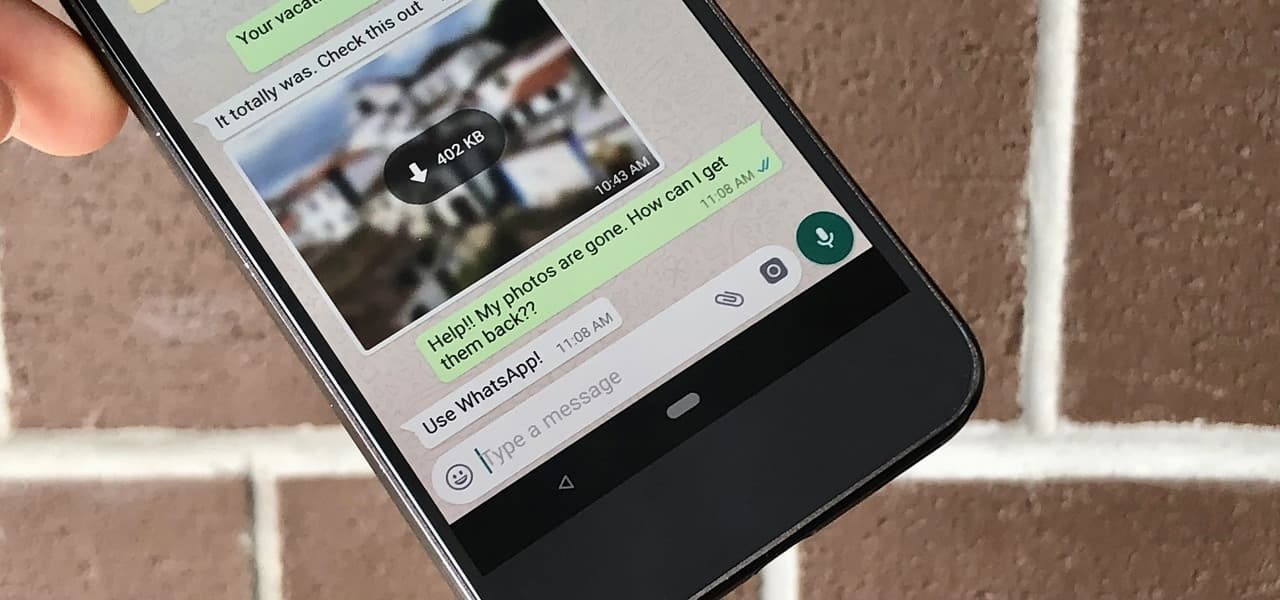
    Are you tired of losing important messages on Whatsapp? Well, you’re in luck! We’ll show you how to view deleted Whatsapp messages using a simple method.

    With billions of users worldwide, Whatsapp has become the go-to instant messaging app. However, the ‘delete for everyone’ feature has caused frustration. But don’t worry, there’s a solution.

    By using the Notification History app on your Android device, you can retrieve and view deleted messages. Follow the steps in this article to take control of your deleted Whatsapp messages.

    Using Notification Log on Android Devices

    To access the Notification Log on your Android device and easily view deleted WhatsApp messages, follow these steps:

    1. Go to your PlayStore and download the ‘Notification History’ app.
    2. Once installed, open the app and allow it to access notifications on various apps, including WhatsApp.
    3. Make sure you grant the app administrator access to your apps.

    From the time of installation, the app will record your notifications. After a WhatsApp message has been deleted by the sender, follow these steps:

    1. Open the ‘Notification History’ app.
    2. Click on WhatsApp from the list to see all WhatsApp notifications.
    3. You’ll be able to view all messages you’ve received on WhatsApp over the past few hours.

    Keep in mind that the app only stores notifications for about four hours, and you can only see up to 100 characters per notification. Unfortunately, this method can’t retrieve messages sent to an already open chat or show images and videos.

    Reading Deleted Messages With Notification History Log App

    To read deleted WhatsApp messages, you can use the Notification History Log app on your Android device. This app allows you to access the notification log and retrieve deleted messages easily.

    Here are some key points to note:

    • The Notification History Log app is available for free on the Google Play Store.
    • After installing the app, you need to grant it permission to access your notifications.
    • The app records all your notifications, including those from WhatsApp.
    • When a message is deleted, you can open the app and find the deleted WhatsApp notification.
    • You can then view the deleted message, copy it to your clipboard, or take a screenshot.
    • It’s important to note that the app only stores notifications for about four hours, so older messages can’t be retrieved.
    • Additionally, the app can only display up to 100 characters per notification, so images and videos can’t be viewed using this method.

    Accessing Deleted Messages With Notisave App

    To access deleted messages with the Notisave app, you can easily retrieve and view WhatsApp notifications that have been deleted from your Android device. Notisave is a useful app that allows you to keep track of all your notifications, including WhatsApp messages. Although this app isn’t available for iPhone users, it’s compatible with Android devices.

    By installing Notisave and granting it the necessary permissions, you can ensure that all your incoming messages, including deleted ones, are stored and accessible through the app. This means that even if a sender deletes a message, you can still view it in the Notisave app.

    It’s a convenient way to keep track of your WhatsApp messages and ensure that you don’t miss any important information.

    Recovering Deleted Messages With Backup

    To recover deleted WhatsApp messages with a backup, you need to follow these steps:

    • Ensure that you have a backup of your WhatsApp messages. This can be done by enabling the backup feature in your WhatsApp settings or using a third-party backup app.
    • Uninstall WhatsApp from your device.
    • Reinstall WhatsApp and verify your phone number.
    • During the verification process, WhatsApp will detect the backup and ask if you want to restore your messages. Select the option to restore.
    • Wait for the restore process to complete. This may take some time depending on the size of your backup.
    • Once the restore is finished, you’ll be able to view all your deleted WhatsApp messages.

    It is important to note that this method will only work if you have a backup of your messages. If you don’t have a backup, it may not be possible to recover deleted messages.

    Limitations and Considerations

    Now let’s delve into the limitations and considerations when it comes to viewing deleted WhatsApp messages.

    While we’ve discussed various methods to retrieve deleted messages, it’s important to understand that these methods have their limitations.

    First, the method we discussed earlier using the Notification Log is only applicable to Android devices. Unfortunately, there’s no similar app available on the Apple App Store, so iPhone users can’t use this method.

    Additionally, the Notification Log can only store notifications for up to four hours, so any deleted messages beyond that time frame can’t be retrieved. Furthermore, this method can only retrieve text messages and doesn’t support the retrieval of images or videos.

    It’s important to keep these limitations in mind when attempting to view deleted WhatsApp messages.

    Conclusion

    In conclusion, with the help of apps like Notification History and Notisave, you can easily view and retrieve deleted Whatsapp messages on your Android device. This eliminates the frustration of losing important information or evidence.

    By following the steps outlined in this article, you can take control of your messaging experience and never have to worry about missing out on deleted messages again.

    Stay informed and keep your conversations secure with these simple solutions.

  • How To Know If Someone Is Recording You On a Phone Call

    How To Know If Someone Is Recording You On a Phone Call

    Are you worried about your privacy during phone calls? Wondering if someone might be secretly recording your conversations?

    In today’s digital age, it’s crucial to be aware of potential privacy breaches. In this article, we’ll explore how you can determine if someone is recording you on a phone call.

    We’ll discuss indicators to watch out for, like beeping tones or a loud beep at the start of the conversation.

    Stay informed and take control of your privacy during phone calls.

    Beeping Tone During Call

    To determine if someone is recording you on a phone call, listen for a frequent beeping tone during the call. In most countries, it’s illegal to record a call without the other person’s permission.

    Mobile phone manufacturers, like iPhone, often include a beeping tone in the call recording function to indicate when a call is being recorded. When the record button is pressed, the other person on the call will hear a mid-volume beep sound that occurs regularly, usually every few seconds. However, this sound may not always indicate recording, especially if the person is in a noisy environment.

    Additionally, this feature may not be available on all mobile phones, especially those using third-party applications for recording calls. Pay close attention to the sound, as it may not be loud, and always remember to ask the other person if you suspect they’re recording the call.

    Loud Beep at Beginning of Call

    You can easily identify if someone is recording you on a phone call by listening for a loud beep at the beginning of the call. This loud beep is typically heard right after the recording feature is activated on the other person’s phone.

    Here are a few things to keep in mind about this beep:

    • Distinct sound: The loud beep is often distinct and can be differentiated from any other background noise.
    • Applicability: This method may not work in all situations, as someone may accidentally press a key while talking to you, creating a similar sound.
    • Feature phones: The loud beep is more commonly associated with feature phones or basic phones, rather than smartphones that use third-party applications for recording calls.

    Recording Indicator on Phone

    As you continue exploring ways to detect if someone is recording you on a phone call, it’s important to consider the presence of a recording indicator on your phone. Some mobile phones, such as iPhones, have a built-in recording indicator that alerts you when a call is being recorded. This indicator can be a small icon or symbol that appears on the screen during a call.

    It serves as a visual cue to let you know that the call is being recorded. However, it’s worth noting that not all phones have this feature, and some third-party applications may not display a recording indicator.

    Therefore, it’s always a good idea to be cautious and ask the person on the other end if they’re recording the call, especially if you suspect that your conversation may be recorded without your consent.

    Suspicious Behavior During Call

    During a phone call, if you notice unusual or deceptive behavior from the person on the other end, it could be a sign that they’re recording the call without your knowledge or consent. Here are some suspicious behaviors to look out for:

    • Background noise: If you hear strange noises or voices in the background, it could indicate that the person isn’t alone and might be recording the call for someone else to listen to.
    • Unusually vague or evasive answers: If the person on the call seems hesitant to answer specific questions or avoids giving direct responses, it could be a red flag that they’re trying to hide something.
    • Constant interruptions or distractions: If the person frequently interrupts the conversation or seems distracted by other things, it could be a tactic to divert your attention while they record the call.

    Remember to be cautious and aware of these behaviors when having important conversations over the phone, especially if you suspect that your call might be recorded without your permission.

    Background Noise or Distortion

    To identify if someone is recording you on a phone call, pay attention to any background noise or distortion that may indicate the presence of a recording device. If you notice any unusual sounds or interference during the call, it could be a sign that the other person is using a recording device.

    Background noise or distortion can be caused by various factors, such as the use of a hidden microphone or the recording device itself. It’s important to listen carefully and trust your instincts. If you suspect that you’re being recorded, you may want to express your concerns to the other person or end the call.

    Unusual Call Quality or Delays

    If you experience unusual call quality or delays, it may indicate that someone is recording you on a phone call. Here are a few signs to look out for:

    • Static or background noise: If you hear static or unusual background noise during the call, it could be a sign that the call is being recorded. Recording devices can sometimes interfere with the call quality and cause these disturbances.
    • Echo or feedback: If you hear your own voice echoing or feedback during the call, it could be a sign that the call is being recorded. Recording devices can sometimes cause these audio issues.
    • Voice distortion or robotic sound: If the person on the other end of the call sounds distorted or robotic, it could be a sign that the call is being recorded. Recording devices can sometimes alter the voice quality.

    Trust Your Instincts

    Pay attention to your gut feelings. When it comes to knowing if someone is recording you on a phone call, trust your instincts. Your intuition can often pick up on subtle cues and signals that something isn’t right.

    If you have a feeling that the other person may be recording your call, don’t ignore it. Trust yourself and take it seriously. Look out for any suspicious behavior or signs mentioned in this article, such as frequent beeping tones or a single loud beep at the beginning of the call.

    If something feels off, trust your instincts and consider addressing your concerns with the other person. Ultimately, your gut feelings can be a valuable guide in protecting your privacy during phone conversations.

    Conclusion

    In most countries, it is illegal for anyone to record another person on a call or track phone calls and texts without seeking the permission of the other person. Being aware of potential privacy breaches during phone calls is crucial in today’s digital age.

    By understanding the indicators of someone recording your call, such as beeping tones or suspicious behavior, you can take steps to protect your privacy.

    Trusting your instincts and being proactive in safeguarding your information is key.

    Stay informed and empowered to ensure your privacy during phone conversations.

  • How to scan your TV for Digital Channels in Ghana

    How to scan your TV for Digital Channels in Ghana

    Are you tired of not finding any channels on your TV? Do you keep encountering the frustrating ‘no signal’ screen? Well, you’re not alone. Many Ghanaians face this issue, but don’t worry, we’ve got you covered.

    In this article, we’ll guide you through the process of scanning your TV for digital channels in Ghana. We’ll provide step-by-step instructions on accessing the settings menu, choosing the right scanning option, and getting your channels back.

    So, keep reading and get ready to enjoy a wide range of digital channels on your TV.

    Benefits of Scanning for Digital Channels

    Scanning for digital channels on your TV in Ghana offers several benefits.

    Firstly, it allows you to access a wider variety of TV channels, including both local and international options. This means you can enjoy a diverse range of content, from news and sports to movies and documentaries.

    Additionally, scanning for digital channels ensures that you have access to high-quality, clear reception, resulting in a better viewing experience. You can say goodbye to fuzzy or pixelated images and enjoy your favorite shows in crystal clear resolution.

    Furthermore, scanning for channels allows you to stay up-to-date with any new channels that may become available in your area. This means you won’t miss out on any exciting programming or entertainment options.

    When to Scan for Channels

    To determine the optimal timing for scanning your TV for digital channels in Ghana, consider factors such as the availability of new channels, any changes in channel frequencies, and the need to restore previously working channels.

    Scanning for channels should not be an everyday thing. However, if there are new TV channels and you want to get them, you will have to scan for them. Also, if you had some channels that were working before but have suddenly stopped working, then rescanning would be the right thing to do to get them back. Some TV channels also change/migrate to other frequencies and it would be necessary to scan your channels to get them back working when these migrations happen.

    It is also good practice to scan your Digital TV channels at least once a month.

    Factors to Consider before scanning your TV:

    • Availability of new channels
    • Changes in channel frequencies
    • Need to restore previously working channels
    • Good practice (scan at least once a month)
    • Automatic addition of new channels (may not require regular scanning)

    Scanning for digital channels is crucial to ensure that you are able to access all the available channels on your TV. By considering the factors mentioned above and scanning your TV at the right time, you can enjoy a wide range of channels and stay up-to-date with the latest content.

    Steps to Scan Your TV for Digital Channels

    Once you have determined the optimal timing for scanning your TV for digital channels in Ghana, follow these steps to quickly and easily scan your channels and start enjoying your favorite free-to-air TV shows.

    1. Using your TV or Digibox remote control, press the ‘Menu’ button and go to the ‘Settings’ menu.
    2. Scroll through the options until you find ‘Channel Scan’ or a similar option like ‘Rescan’ or ‘Auto-tune.’
    3. Select the ‘Auto Tuning’ option and choose your country as Ghana.
    4. Then, choose either ‘DVB-T’ or ‘DVB-T2’ and select ‘Start Scan’ to initiate the process.
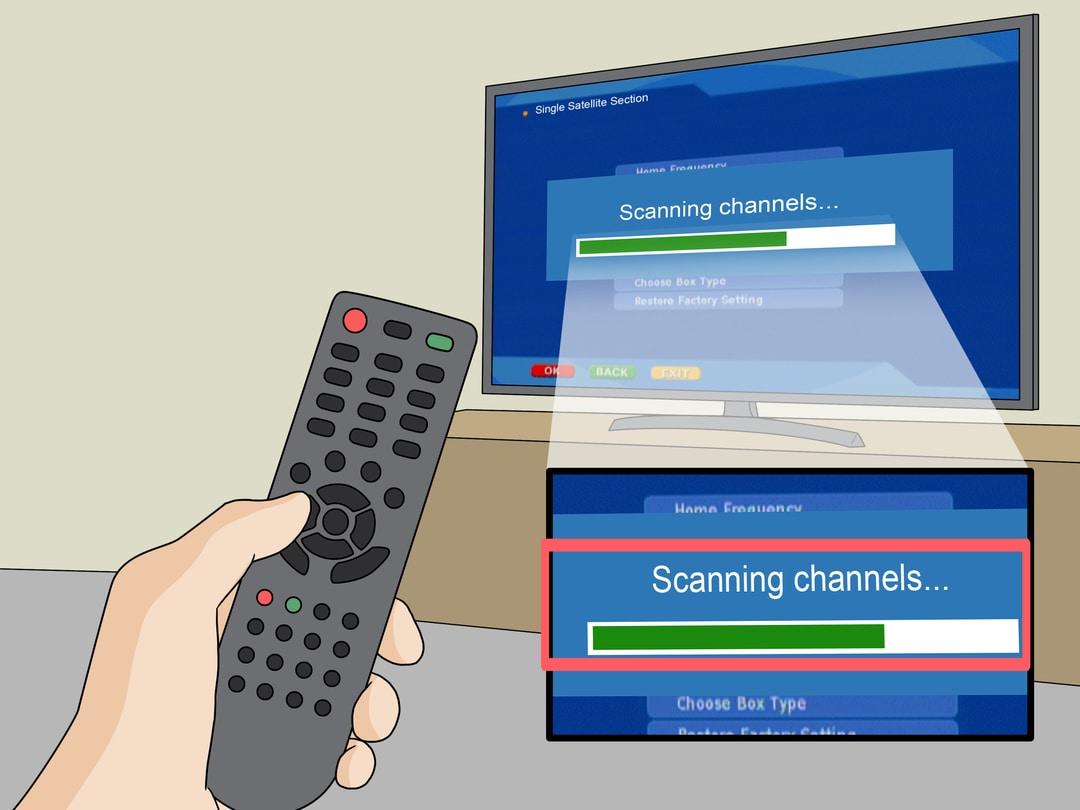
    5. Wait for the scan to finish, which can take between 5 to 15 minutes, and then you can start enjoying your newly scanned channels.

    Choosing the Right Settings for Channel Scanning

    To ensure a successful channel scan, you need to carefully choose the right settings for scanning your TV for digital channels in Ghana. Here are three key settings to consider:

    • Satellite Settings: If you’re using a satellite dish to receive digital channels, make sure to select the correct satellite settings on your TV or digibox. This will ensure that your device is tuned to the right satellite and can receive the channels you want.
    • GOTV Settings: If you’re using a GOTV decoder, check the settings menu for any specific options related to channel scanning. GOTV may have its own unique settings that need to be configured correctly for a successful scan.
    • Channel Settings: Within the channel scanning menu, you may have options to customize the scan process. For example, you can choose whether to scan for digital channels only or include analog channels as well. Adjust these settings based on your preferences and the type of channels you want to receive.

    Understanding Digital TV Frequencies in Ghana

    To understand digital TV frequencies in Ghana, you need to familiarize yourself with the concept of frequency bands.

    Digital TV signals in Ghana are transmitted using two main frequency bands: UHF (Ultra High Frequency) and VHF (Very High Frequency).

    UHF frequencies range from 470 to 890 MHz, while VHF frequencies range from 54 to 216 MHz.

    Different channels are assigned to different frequencies within these bands.

    When scanning for digital channels on your TV or decoder (such as Multi TV, Strong TV, or Nasco), the device will search for available channels within these frequency ranges.

    It’s important to ensure that your antenna is properly connected and positioned to receive the signals.

    Troubleshooting Common Scanning Issues

    If you encounter any common scanning issues while trying to scan your TV for digital channels in Ghana, there are troubleshooting steps you can take to resolve them:

    • Check the connection: Ensure that your TV is properly connected to the antenna and that the antenna is placed in a good position, preferably outdoors.
    • Check the antenna: Make sure that your antenna is compatible with your TV. Different TVs may require different types of antennas, such as a smart TV antenna, for optimal performance.
    • Check the signal strength: Use the signal strength indicator on your TV to determine if the signal is strong enough. If the signal is weak, you may need to reposition the antenna or invest in a signal booster.

    Additional Tips for Getting More Channels on Your Digital TV

    To maximize the number of channels on your digital TV, follow these additional tips.

    First, make sure your antenna is properly positioned and connected to your TV. A good outdoor placement is recommended.

    Next, check for any software updates for your TV or digital decoder, as these updates can sometimes improve channel reception.

    Additionally, try adjusting the antenna’s direction to optimize signal strength.

    If you have a my gotv decoder, nasco TV, Kennedy digital, Amacon, refer to the manufacturer’s instructions for specific tips on getting more channels.

    Finally, consider investing in a signal booster or amplifier to enhance the strength of your TV signal.

    Wrapping Up

    In conclusion, scanning your TV for digital channels in Ghana is a simple process that can greatly enhance your viewing experience. By following the step-by-step instructions provided in this article, you can easily access a wide range of channels and avoid the frustration of encountering the ‘no signal’ screen.

    Don’t miss out on new channels or restore the ones that have stopped working, start scanning your TV today and enjoy a variety of digital channels at your fingertips.

  • How to Search & Find Recently Watched Videos on Facebook

    How to Search & Find Recently Watched Videos on Facebook

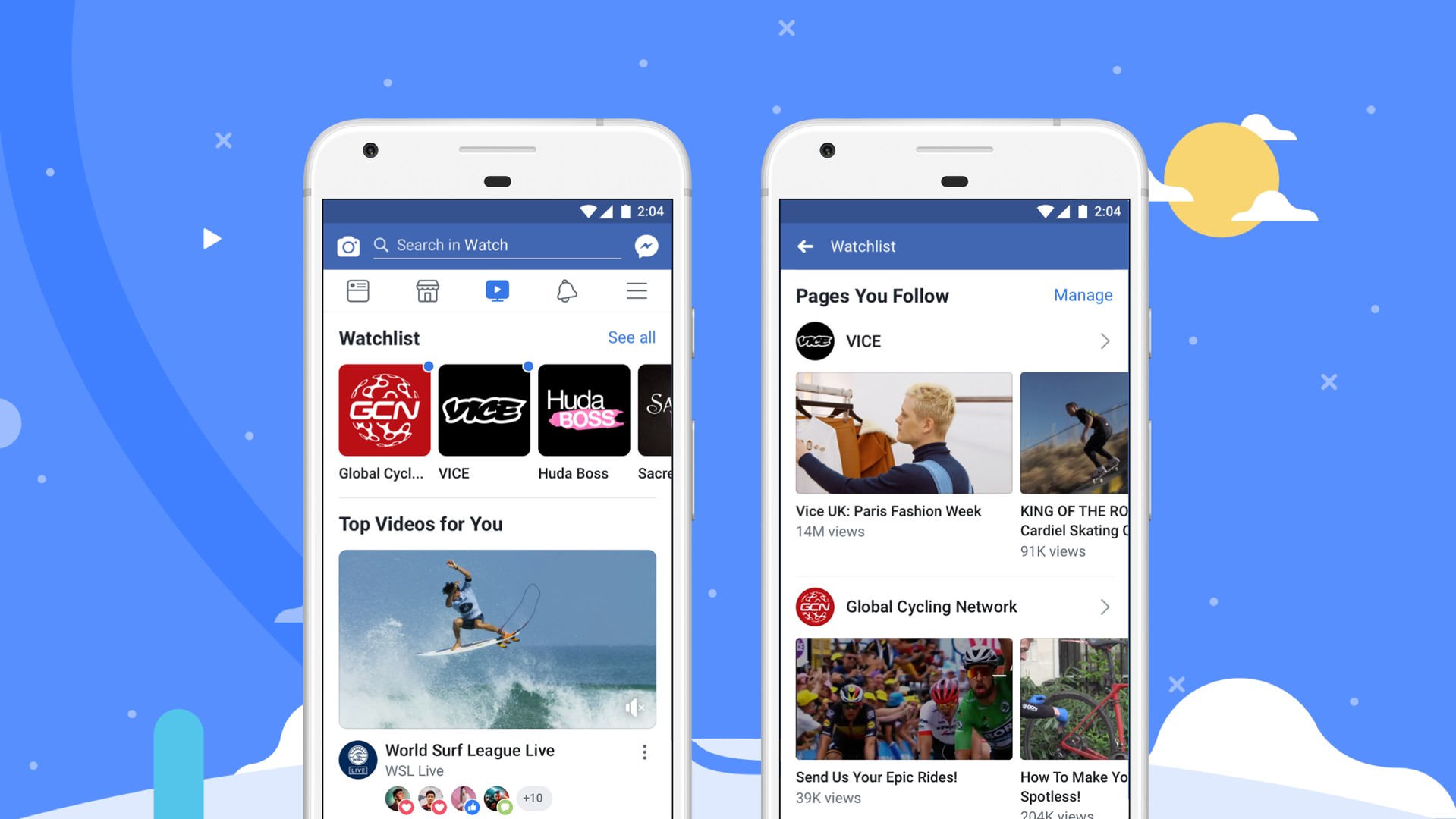
    Facebook, the social media giant, has evolved into a hub for video content. From short clips shared by friends to professional content from creators, there’s a plethora of videos to explore.

    But what if you want to revisit a video you recently watched? Let’s show you how to do just that in this article.

    Accessing Your Watch History on Facebook

    Ever had that moment where you watched an interesting video, only to lose it in the vast sea of your Facebook feed? Here’s how to find it again:

    How to View Recently Watched Videos on Facebook on a PC:

    1. Log in to your Facebook account.
    2. Click on the downward arrow in the top right corner.
    3. Select ‘Activity Log’.
    4. On the left sidebar, click on ‘Videos You’ve Watched’.
    5. Your recently watched videos will be displayed.

    How to View Recently Watched Videos on Facebook on an iOS Device:

    1. Open the Facebook app.
    2. Tap on the three lines icon at the bottom right.
    3. Scroll down and tap on ‘Settings & Privacy’.
    4. Choose ‘Activity Log’.
    5. Tap on ‘Category’ and select ‘Videos You’ve Watched’.

    How to View Recently Watched Videos on Facebook on an Android Device:

    1. Launch the Facebook app.
    2. Tap on the three lines icon at the top right.
    3. Scroll down and select ‘Activity Log’.
    4. Tap on ‘Category’ and choose ‘Videos You’ve Watched’.

    Searching for Specific Videos in Your Watch History

    Remember that hilarious video you watched last week? Here’s how to find it:

    1. Go to your ‘Videos You’ve Watched’ section as mentioned above.
    2. Use the search bar to type in keywords or phrases related to the video.
    3. Browse through the results to find your desired video.

    Managing and Deleting Your Watch History on Facebook

    Privacy is paramount. If you wish to clear your video watch history or manage it:

    1. Navigate to the ‘Videos You’ve Watched’ section.
    2. For individual video removal, click on the three dots icon next to the video and select ‘Delete’.
    3. To clear your entire video watch history, click on ‘Clear Video Watch History’ at the top of the page.

    Tips for Organizing and Optimizing Your Video Viewing on Facebook

    1. Save Videos for Later: Found an interesting video but don’t have time to watch? Click on the three dots icon on the video and select ‘Save Video’.
    2. Customize Video Settings: Adjust autoplay settings, video quality, and more by going to ‘Settings’ > ‘Media and Contacts’.
    3. Engage with Content: Liking, sharing, or commenting on videos will tailor your feed to show more of what you love.

    Wrapping up

    Facebook offers a vast array of video content, and with these simple steps, you can easily navigate, revisit, and manage your video viewing experience.

    So, the next time you’re lost in the Facebook video maze, remember this guide!

  • How to Join Threads & become Popular

    How to Join Threads & become Popular

    What is Threads?

    Threads is a new Instagram app that allows you to connect with your closest friends in a more personal way. It’s designed for sharing quick updates, photos, and videos with the people who matter most to you.

    How to Download and Join Threads

    To download and join Threads, you’ll need to have an existing Instagram account. Once you have an Instagram account, you can download Threads from the Apple App Store or Google Play.

    Once you’ve downloaded Threads, open the app and sign in with your Instagram account. You’ll then be prompted to customize your profile and choose your privacy settings.

    That’s it! You’re now ready to start using Threads.

    How to Become Popular on Threads

    There are a few things you can do to become popular on Threads. Here are a few tips:

    • Post regularly. The more you post, the more likely you are to be seen by other users. Aim to post at least once a day, or even more often if you can.
    • Share interesting content. People are more likely to follow you if you’re sharing interesting and engaging content. This could include photos, videos, links, or even just your thoughts and ideas.
    • Use relevant hashtags. Hashtags are a great way to get your content seen by more people. When you use relevant hashtags, your posts will show up in search results for those hashtags.
    • Interact with other users. Like and comment on other people’s posts, and reply to their comments. This is a great way to get involved in the Threads community and build relationships with other users.

    Conclusion

    Threads is a great way to connect with your closest friends in a more personal way. By following these tips, you can increase your chances of becoming popular on Threads and building a strong following.

  • How to use Google Lens to search for your Skin Conditions

    How to use Google Lens to search for your Skin Conditions

    Google Lens, the image recognition technology by Google, is a tool that has been helping students solve homework problems, aiding in language translation, and now, it’s set up to help you identify skin conditions! Wondering how? Read on.

    What is Google Lens?

    Google Lens is an image-recognition technology developed by Google, designed to bring up relevant information using visual analysis. It is a handy tool that can be accessed via the Google app. By simply uploading a photo or taking a picture through the Lens, you can find visually similar matches to provide insight into your search.

    Using Google Lens to Identify Skin Conditions

    Sometimes, describing certain symptoms can be tough. Particularly, skin conditions like rashes, moles, or other anomalies are hard to explain with words. In such cases, Google Lens can be a saviour. Remember, Google Lens is not a replacement for professional medical advice, but it can certainly help you understand the severity or urgency of your situation.

    Now, let’s break down how you can use this tool to search for your skin condition.

    Step-by-Step Guide to Using Google Lens for Skin Conditions

    Follow this easy guide and you’ll be a Google Lens pro in no time.

    1. Launch the Google App: Start by launching the Google app on your device. Look for the Google Lens icon on the right side of the search bar. It looks like a colourful camera.
    2. Capture or Upload a Picture: Once you’ve opened the Google Lens, you can either take a picture of the skin issue you’re trying to identify or choose a pre-existing picture from your gallery.
    3. Start the Search: After you’ve captured or selected the picture, hit the shutter button to initiate the search. You’ll be shown visual results that match your search.

    You’ll also see possible diagnoses under your picture. Feel free to tap on each one to see more similar pictures and gain more insight.

    Other Uses of Google Lens

    Apart from helping you identify skin conditions, Google Lens is a multi-purpose tool.

    • Language Translation: If you’re travelling to a foreign country and are struggling with the language barrier, Google Lens can be your translator. It can translate street signs, menus and more into over 100 languages.
    • Homework Help: For students, Google Lens can be a go-to tool for homework problems. Stuck on a math, history, or science problem? Just tap the homework filter on Google Lens, take a picture of the problem, and Google Lens will provide the instructions to help you solve it.

    Google Lens is revolutionising the way we use search engines. It’s no longer just about typing in the search bar; now, it’s about visual matches and image recognition. So, the next time you’re trying to identify a skin condition, remember, Google Lens is your friend.

  • Cool Ways to Use Google Lens on Your Phone for Everyday Tasks

    Cool Ways to Use Google Lens on Your Phone for Everyday Tasks

    Google Lens is a powerful visual search tool that can make your life easier in many ways. With Lens, you can search what you see and explore the world around you, from discovering new landmarks to translating street signs in foreign languages. Here are some of the best ways to use Google Lens on your phone for everyday tasks:

    1. Learn About the Things You See

    If you come across a building, landmark, plant, or animal that you don’t recognize, Google Lens can help. Just point your camera at the object, and Lens will provide information about it, along with links to learn more. You can also use Lens to identify plants and animals, and find out if they can grow indoors.

    2. Search for Skin Conditions

    If you have a skin condition that you’re not sure how to describe, Google Lens can help you find visual matches that can inform your search. Just take a picture or upload a photo through Lens, and you’ll get results for similar skin conditions. This feature is currently available in the U.S.

    3. Translate Text into Over 100 Languages

    If you’re traveling to a foreign country and need help with translation, Google Lens can help. Just take a picture of the text you want to translate, and Lens will automatically detect the language and overlay the translation on top of it, directly on your phone screen. This feature works for street signs, menus, and more.

    4. Get Help with Homework Problems

    If you’re stuck on a homework problem in math, history, or science, Google Lens can help you learn how to solve it. Just snap a picture of the problem, and Lens will provide step-by-step instructions to help you. You can also set your preferred language for search results.

    5. Shop for Products You Like

    If you see a product you like, such as a pair of shoes or a backpack, you can use Google Lens to find and buy it. Just take a screenshot and select it in Lens, and you’ll get a list of shoppable matches with links to where you can make a purchase. You can also use Lens to find different versions of the product in different colors or patterns.

    6. Discover Delicious Food Near You

    If you’re looking for nearby restaurants that serve a particular dish, Google Lens can help. Just pull up an image of the dish in Lens and add the words “near me”to your search, and Lens will show you nearby restaurants that serve it.

    7. Unleash Your Creativity with Lens + Bard

    Google Lens is also coming soon to Bard, an experiment that lets you collaborate with generative AI. You can partner with Bard to learn more about something you saw or explore new ideas in a visual way. For example, you can show Bard a photo of a new pair of shoes and ask what they’re called, or ask for ideas on how to style gladiator sandals for a complete summer look.

    Google Lens is a versatile tool that can help you in many ways, from learning about the world around you to solving homework problems and finding products you like. With Lens, you can search what you see and explore new ideas in a more visual way. Try it out today and see how it can make your life easier!

  • Best Affordable Web Hosting Platforms For Newbies

    Best Affordable Web Hosting Platforms For Newbies

    We know how daunting it can be to find the perfect web hosting platform for a new online business.

    That’s why we’ve done the research and compiled a list of the best affordable web hosting platforms for newbies.

    From Bluehost to SiteGround, there are plenty of great options available that won’t break your budget.

    We’ll go over each one in detail so you can make an informed decision about which is right for you.

    Let’s get started!

    Bluehost

    If you’re just getting started with a website, Bluehost is a great option to consider! It’s one of the most popular hosting providers and offers an easy setup for newbies.

    With managed hosting, you don’t need to worry about technical details or software updates — they take care of it all for you. Plus, their customer service team is reliable and helpful if any issues arise.

    Bluehost also has some nice features that make it perfect for beginners. Their user-friendly control panel makes managing your site hassle-free and their automated backups ensure your data is safe in case of any mishaps. They also offer fast loading times which helps keep your visitors on the page longer.

    All in all, Bluehost is a great choice for anyone looking for an affordable and easy way to get started with web hosting.

    Hostinger

    Boasting unbeatable speed and reliability, Hostinger is the perfect pick for those starting out. With an easy setup process and money back guarantee, newbies can rest assured that their website will be up and running in no time.

    Plus, Hostinger offers the best value for money of any web hosting platform on the market. With various plans to choose from, you can select one that suits your budget while still enjoying a reliable and speedy service.

    In addition, the customer support team is available around the clock to help with any technical issues or queries. As such, Hostinger provides all the essential services needed to set up a website without breaking the bank.

    GoDaddy

    GoDaddy offers a comprehensive set of services for those looking to get their website up and running quickly – from setup to support, they have it all.

    With helpful tutorials and an easy setup process, GoDaddy makes it simple for newbies to manage their own websites.

    In addition to providing hosting plans with plenty of storage space and bandwidth, they also offer domain registration services as well as various other helpful tools such as web design software, marketing tools, and even SEO optimization services.

    With these types of resources at your disposal, you can easily create the perfect website that meets your needs without any prior experience or knowledge.

    Plus, the customer service team is always available to provide assistance if you ever encounter any issues or have questions about how best to use their platform.

    All in all, GoDaddy provides an excellent platform for newbies who are just getting started with web hosting.

    DreamHost

    We’re here to discuss the key features of DreamHost – an affordable web hosting platform for newbies. Specifically, we’ll talk about their hosting plans, 24/7 customer support, and free domain name offerings.

    Let’s dive in and explore why DreamHost is a great choice for anyone looking to get their website up and running quickly!

    Affordable Hosting Plans

    Looking for an accessible, reliable way to get your site up and running? Check out our affordable hosting plans!

    There are a variety of options available for newbies just getting started in website building. You can choose from:

    1. Shared hosting – the most affordable option, perfect for first-time site owners with limited budgets
    2. Dedicated hosting – designed to handle heavy traffic and larger sites
    3. VPS hosting – allows you to customize configurations for more complex websites
    4. Cloud hosting – ideal if you need a high level of scalability and flexibility.

    No matter which plan you choose, all plans come with easy-to-use control panels that make managing your account simple and intuitive. Plus, many providers offer free domain names or discounted pricing when signing up for annual plans so you can save money on web hosting costs while still getting great service.

    In addition, many of these companies also provide support services like automated backups, one-click installations, uptime monitoring, security scans and more so you can rest assured knowing your website is secure and always online.

    With the right provider, finding an affordable web host doesn’t have to be complicated or expensive — just shop around and see what fits best for your needs!

    24/7 Customer Support

    We understand the importance of customer support in user experience, and that’s why it’s critical to find a web hosting platform with reliable technical assistance. To help make your decision process easier, we’ve compiled seven of the best affordable web hosting platforms for newbies based on their customer support options.

    Below, you’ll find a detailed table outlining the features each platform offers:

    Platform24/7 SupportPhone SupportLive Chat
    BluehostYesYesNo
    GoDaddyYesYesNo
    HostGatorYesNoYes
    DreamHostNoNoYes

    Free Domain Name

    Finding a web host that offers a free domain name is invaluable for those just starting out, saving them both time and money.

    Purchasing a domain name can be expensive and time consuming, especially when you consider all the hosting fees associated with it.

    With a free domain name, newbies don’t need to worry about researching the best hosting fees or doing an extensive domain search to find the perfect URL; it’s already taken care of.

    Plus, there are usually no strings attached. You get the same features as if you had chosen to purchase your own domain.

    The only downside to getting a free domain name is that they may not always be available in every country or region. Depending on what type of web host you choose, you may also have limited control over how long your free domain is active before needing to renew it.

    Also keep in mind that many times these domains will include some sort of branding from the host itself which could potentially harm your SEO efforts if not managed properly.

    However, for most newbies this won’t be an issue since their primary goal is usually just having their website up and running quickly without spending too much money upfront.

    SiteGround

    You’re just starting out, and SiteGround can be a great first step for you. With its easy setup process, top-notch security features, and affordable pricing plans, SiteGround offers everything a newbie needs to get their feet wet in the web hosting world.

    First of all, the setup process with SiteGround is straightforward and hassle-free. You’ll have your website up and running quickly without having to worry about complicated configuration settings or technical difficulties that could arise from setting up with another provider.

    Plus, if you need help along the way, SiteGround’s customer service team will answer your questions quickly and provide helpful advice.

    Second, when it comes to security features, SiteGround has plenty to offer. They use advanced technologies like server isolation and malware scanning to ensure that your website remains safe from malicious attacks.

    Additionally, they offer SSL certificates for free so that your data is securely transmitted over an encrypted connection at all times.

    Lastly, you won’t have to break the bank with SiteGround’s pricing plans either; their shared hosting packages start at less than $5 a month which makes them one of the most affordable options on the market today!

    So if you’re looking for an easy setup experience with robust security features at an accessible price point – look no further than SiteGround!

    Final Thoughts

    We’ve come to the end of our exploration into some of the best affordable web hosting platforms for newbies. We hope that this has been helpful in your search for a reliable and cost-effective solution.

    Bluehost and Hostinger offer great packages, while GoDaddy, DreamHost, and SiteGround provide more comprehensive solutions with added features.

    At the end of the day, it’s important to find a platform that fits your needs as well as your budget. Whichever you choose, make sure to do thorough research beforehand so you can be sure you’re getting exactly what you need.

    Good luck!

  • Best Content Marketing Tools For Professionals In 2023

    Best Content Marketing Tools For Professionals In 2023

    We’re here to talk about the best content marketing tools for professionals in 2023. Content is an essential part of any business, whether you’re a small start-up or an established company. That’s why it’s important to stay on top of the latest trends and technologies that can help you create, promote, measure, and manage your content in the most effective way possible.

    We’ll look at some of the most popular content marketing tools available today that will help you make the most out of your content strategy in 2023 and beyond. From creating engaging content pieces to getting them seen by your target audience, these tools will ensure that your message reaches those who need it most—and that you get maximum ROI from each piece of content created.

    Whether you’re looking for ways to optimize existing campaigns or build something from scratch, these tools are designed to give professionals the power they need to succeed with their content strategies this year and into 2024. Let’s dive into some of the best content marketing solutions so you can find what works best for you!

    Content Creation Tools

    Whether you’re a freelancer or agency, creating content in 2023 requires the right set of tools to get the job done.

    When it comes to content creation, there are tons of great options available – from video production platforms and creative brainstorming apps, to AI-driven editing and analytics tools.

    With such an abundance of resources, it can be hard to narrow down which ones are best suited for you and your projects.

    When considering what content creation tool is best for you in 2023, look at features like user experience, scalability, affordability and ease of use.

    For example, if you’re looking for a platform that allows you to create videos quickly and easily without sacrificing quality – there’s no shortage of options out there.

    Similarly, if you need help brainstorming ideas or putting together a unique storyboard – there are plenty of great apps that can provide assistance with these tasks as well.

    No matter what type of content creation project you have in mind – chances are good that the right tool exists out there somewhere!

    Content Promotion Tools

    Looking to take content promotion to the next level in 2023? Check out these awesome solutions for getting your content seen.

    Social media and email are two of the most effective ways of promoting content, and with the right tools, you can easily reach a wider audience.

    Social media platforms like Twitter, Facebook, and Instagram offer a great platform for connecting with potential customers and sharing relevant information about your business.

    Email marketing is also a powerful tool for increasing engagement and driving leads to your website or blog. Services like Mailchimp and Constant Contact allow you to craft personalized emails that connect with your target audience in an engaging way.

    Additionally, there are plenty of other options such as SEO optimization, influencer marketing, video creation tools, and more that can help you reach new heights in terms of content marketing success in 2023.

    Content Optimization Tools

    If you’re looking to get the most out of your content in 2023, then check out these awesome optimization tools that’ll take it up a notch!

    From social listening and influencer marketing to keyword research and SEO analysis, these are some of the best optimization tools on the market:

    1. BuzzSumo: An all-in-one tool for content discovery, monitoring, and outreach. It lets you quickly find popular relevant topics and influencers in your industry so you can create better engaging content.
    2. SEMrush: This comprehensive suite of digital marketing tools provides everything from keyword research to competitor analysis so you can optimize your campaigns for maximum success.
    3. Yoast SEO: A powerful plugin for WordPress users that helps them optimize their website pages for higher search engine rankings with easy-to-follow tutorials and suggestions.
    4. Google Trends: A great way to stay ahead of the competition by analyzing search trends over time to identify what’s working now and what will work in the future when it comes to optimizing content strategies.

    These amazing optimization tools will help amplify your message, grow your audience, and take your content efforts to the next level in 2023!

    Content Analysis Tools

    To help you reach your 2023 content goals, check out these awesome analysis tools that’ll give you a better understanding of what’s resonating with your audience.

    AI-driven insights and social media curation can be powerful allies in the battle for better content. By using an AI-driven analytics tool to monitor trends and behavior in real time, you can gain a deeper understanding of how your content is performing on each platform. This will also help you identify new opportunities to test.

    Content analysis tools are also great for helping to identify areas of improvement and focus on optimizing key elements such as headlines, images, layout, and more. Analyzing data from past campaigns will help you refine your strategy. Monitoring performance over time will give you a clearer picture of what works best for different audiences.

    With these insights in hand, it’s easier than ever before to craft content that captures attention and drives engagement.

    Content Management Tools

    For professional content creators, having the right content management tools can make all the difference in achieving their goals. Content management tools allow professionals to stay organized and manage their content more effectively. They help streamline processes so that they can focus on creating quality content quickly and efficiently.

    Popular tools include social media engagement platforms which allow users to track and monitor performance of their posts, as well as content curation software which helps them filter through a vast selection of webpages to find relevant information for their articles or videos.

    Content management tools are also great for collaboration. With modern tools like Slack, Dropbox, and G-suite, it’s easier than ever for teams to communicate, share ideas and work together on projects from anywhere in the world.

    These types of tools also provide feedback mechanisms so that teams can review each other’s work quickly and easily while keeping everyone up-to-date on progress. The better managed a team is with these types of software, the smoother its production process is likely to be – resulting in higher quality output that meets deadlines faster than before.

    Final Thoughts

    We’ve explored the best content marketing tools for professionals in 2023.

    From content creation to optimization, promotion and analysis, these tools have you covered in every step of your content marketing journey.

    With so many options out there, it’s easy to get overwhelmed. But don’t worry – if you take the time to find the right tools for your needs, you’ll be well on your way to success!

    So go ahead and give some of these powerful content marketing tools a try – you won’t regret it!

  • How to Link Your WhatsApp Account on Up to 4 Phones Easily: A Step-by-Step Guide

    How to Link Your WhatsApp Account on Up to 4 Phones Easily: A Step-by-Step Guide

    Greetings, my dear readers! Have you ever found yourself wishing you could access your WhatsApp on multiple smartphones simultaneously? Rejoice, for WhatsApp has answered your call!

    The messaging giant recently rolled out a new feature allowing users to link their WhatsApp accounts to up to four smartphones. Previously, this feature was limited to personal computers and tablets, but now it has expanded to include smartphones too. Without further ado, let’s dive into the steps to make this magic happen!

    Step 1: Update and Install WhatsApp on Your Primary and Companion Devices

    First and foremost, ensure you have the latest version of WhatsApp on your primary device. Visit the Google Play Store or App Store, depending on your device, and update the app. Next, download and install WhatsApp on the secondary device you wish to link.

    Step 2: Be Mindful When Signing Up on the Companion Device

    Once WhatsApp is installed on your companion device, a signup screen will appear. Do not, under any circumstance, enter your WhatsApp number on this screen. If you do, your companion device will replace your old primary device, and you’ll be logged out of the latter. Surely, that’s not what we’re aiming for, is it?

    Step 3: Tap the Link Option on Your Companion Device

    On your companion device’s signup screen, tap the three-dot menu in the top right corner and click on the “Link” option. A QR code will then materialize on the screen.

    Step 4: Scan the QR Code with Your Primary Device

    Now, grab your primary device, tap the three-dot menu, and click on “Linked devices.” Next, select “Link a device.” This process is akin to linking your device to WhatsApp Web. Scan the QR code displayed on your companion device, and presto! Your devices will synchronize contacts and chats, and your companion device will be good to go. To link additional companion devices, simply repeat these steps.

    Important Considerations

    In a blog post, WhatsApp clarified that your primary phone doesn’t need to remain online to use WhatsApp on linked devices. However, if you don’t use your primary phone for over 14 days, your linked devices will be logged out. Furthermore, you’ll require your primary phone to register your WhatsApp account and link new devices.

    Do note that some features, such as viewing live locations, creating and viewing broadcast lists, and adding and deleting status updates, are unavailable on linked devices.

    And there you have it, my friends! By following these straightforward steps, you can now enjoy the convenience of linking your WhatsApp account to multiple smartphones. Gone are the days of juggling phones just to send a message. Happy texting, and until next time!