Category: Apple

  • How to Set Alarm on Apple Watch

    How to Set Alarm on Apple Watch

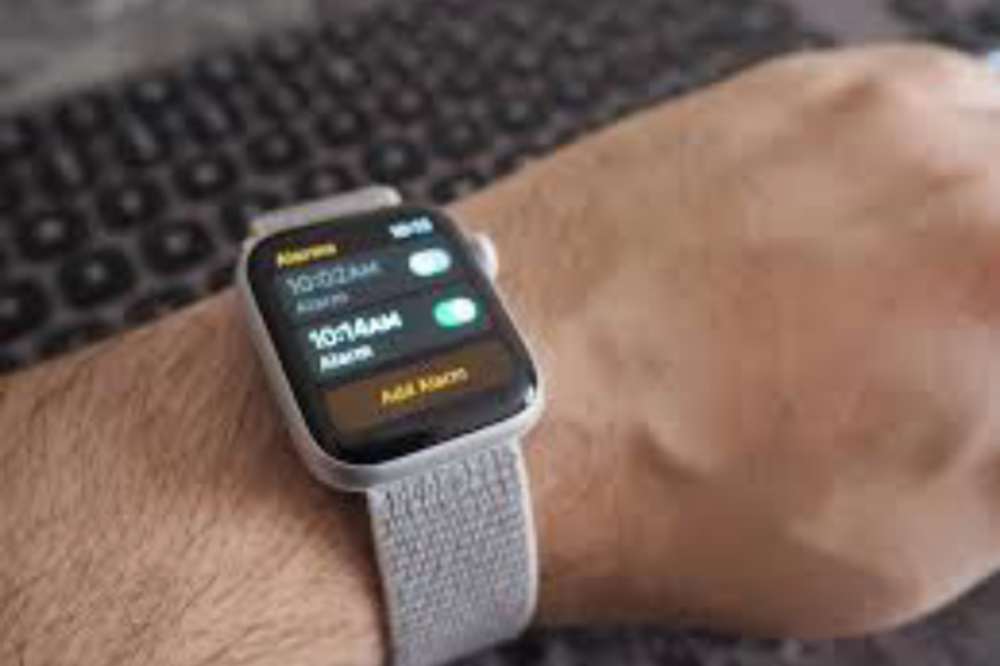
    Set an alarm on the Apple Watch to ensure you always wake up on time. If you own an Apple Watch and have the most recent version of watchOS installed, you can set an alarm that will wake you up in the morning, even if your iPhone isn’t nearby.

    About apple watch

    Apple watch is an iPhone companion, a health and fitness tracker, a messaging device, and also your watch. It runs apps just like your phone. It’s also very stylish and if you have one I’m sure you will love it.

    However, with so many features and purposes, it can get confusing sometimes. But setting alarm for your event and activities reminder shouldn’t be confusing for you.

    How to set up alarm on apple watch

    If you want to set up an alarm on your apple watch, the steps below can be your guide;

    1. Open the alarms app on your apple watch.
    2. Tap on add alarm.
    3. Edit time to your satisfaction by toggling the AM or PM, then tap the hours or minutes.
    4. When you are done editing, tap on done to save your alarm.
    5. Now, tap on the switch to turn on the alarm.
    6. When editing, you can set alarm to repeat, label, and snooze.
    7. If you want alarm to go on without making a noise, you can set your phone to silence and when it’s time, the alarm will vibrate only.

    When you switch on the SNOOZE, your alarm will repeat itself after its done ringing and there has been no action. If you don’t want such to happen, then you have to turn the SNOOZE off.

    How to turn off snooze on apple watch

    When an alarm sounds, you can tap Snooze to wait several minutes before the alarm sounds again. If you don’t want to allow snooze, follow these steps:

    1. Open the alarms app on your apple watch.
    2. Tap on the precised alarm you want to edit in the list of alarms.
    3. Togglw through to locate Snooze and turn it off.

    How to skip a wake up alarm

    In setting your alarm, you may have scheduled them for the week but now, you want to skipup specific day since you don’t need the alarm to remember you of it.

    Then, you have to skip it so it doesn’t affect the other schedules. To skip a wake up alarm,

    1. Open the alarms app on your apple watch.
    2. Tap the alarm that appears under sleep or wake up, then tap skip for tonight.
    3. Thats it!

    How to set same alarms on both iPhone and apple watch

    You may want to set your alarm on both of your iOs devices so it doesn’t disappoint you. Incase the apple watch alarm doesnt go off at the right time, it will go off on the iPhone. But if the apple watch alarm goes off, it won’t ring on the iPhone. To do so,

    1. Set the alarm on your iPhone.
    2. Open the apple watch app on your iPhone.
    3. Tap My Watch
    4. Then tap Clock
    5. In the clock section, turn on Push Alerts from iPhone.
    6. Thats it!

    Conclusion

    Alarm is essential when you are a busy person who always needs to wake up on time for your activities or a forgetful person who always wants to get remembered for something important. Set your alarm on your apple watch and reduce the pressure.
  • How to Download iPhone 14 Wallpapers + Websites With Free Nice Wallpapers

    How to Download iPhone 14 Wallpapers + Websites With Free Nice Wallpapers

    The iPhone 14 is the latest iPhone to be released from Apple, and it comes with many new features. One of those features is the ability to easily download wallpapers from your phone without having to connect to a computer or any other device.

    If you would like to learn how to download iPhone 14 wallpapers, then you need to continue reading.

    About iPhone 14

    Apple recently announced the new iPhone 14 which is the latest and greatest iteration of Apple’s smartphones.

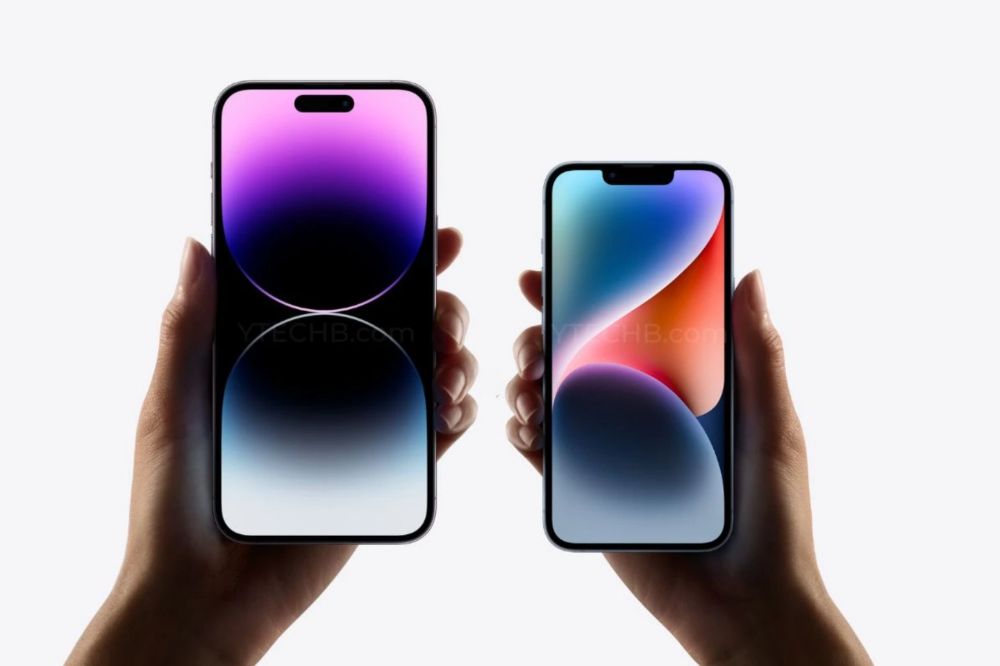
    The Apple company brings a major refresh to its iPhone lineup by launching four models. iPhone 14, iPhone 14 Plus, iPhone 14 Pro, and iPhone 14 Pro Max. And just like every year, the new iPhone 14 and iPhone 14 Pro come with a bunch of gorgeous-looking wallpapers.

    iphone 14 wallpapers

    When the new iPhone comes out, one of the most popular activities is finding and downloading new wallpapers. It can be a little tricky at first, but luckily, there are a few easy steps that will help you find some great images.

    How to download iPhone 14 wallpapers

    You can directly access varieties of live photos of wallpapers to download straight from your phone settings. Follow the steps below;

    1. First, go to your home screen and click on the Settings icon in the bottom right corner of your screen.
    2. Next, click on Wallpaper near the top of the screen.
    3. Scroll through the available options until you find iPhone
    4. Click iPhone
    5. Scroll down until you see Live Photos.
    6. Download any Live Photos that take your fancy.

    Alternatively, there are websites you can also access and download nice wallpapers for your new iPhone 14.

    Websites to download free wallpapers

    1. Unsplash

    On Unsplash website, you can find the best iPhone wallpapers, from black and white background to blue backgrounds. All iPhone wallpapers are free to download. They have the perfect wallpaper for your iPhone lock screen.

    2. Zedge

    Zedge is a website that is well designed with numerous wallpapers for your iPhone. It has wallpapers that you can freely download for your iPhone, Mac, iPad and even desktop.

    3. Pinterest

    Pinterest is one of the popular and best place to think of when you want beautiful wallpapers for your iPhone. You can download amazing wallpapers for your iPhone and iPad on its website.

    4. iPhone Walls

    iPhone walls is a website that has an easy navigation. You can download several images for your phone. It categories has massive wallpapers and I am sure you will surely get your desire.

    5. iDesign iPhone

    iDesign iPhone is a great website to download free iPhone wallpaper. The website has various wallpapers you can download to beautify your phone screen.

    NB: Once you visit any of the website and you finish your download, head over to the downloads folder on your phone and then set it on your phone’s home screen or lock screen and start using it.

    Conclusion

    Wanting a wallpaper for your phone shouldnt be a struggle. With the above websites, you can get as many wallpapers as you want.

  • How to “Right Click” on an iPhone and its uses

    How to “Right Click” on an iPhone and its uses

    If you’re familiar with computers, you may be used to using the right-click on your mouse to do various things with websites, such as looking up a word or checking the URL address.

    Most people don’t know that the iPhone has something similar, and you can use it in some of the same ways as you would on your computer.

    This blog post will cover how to right click on an iPhone, and what some of its uses are in order to get more from your device.

    What is a Right Click?

    On a computer, a right click is the action of pressing the right mouse button.

    This brings up a menu of options that can be performed. On an iPhone, a right click is performed by holding down the home button and then tapping the screen with three fingers.

    This brings up a menu of options that can be performed. The options will vary depending on what app you are using and where you are in the app.

    Why do I need it?

    There are many reasons why you might need to right click on your iPhone. Maybe you want to save an image from the web or move a file from one app to another. Whatever the reason, knowing how to do it can come in handy.

    How to right click on an iphone

    To right click on an iPhone, you need to tap and hold on the screen. This will bring up a menu of options. You can then tap on the option you want. One great use for this is when viewing pictures in your phone.

    If you’re in your photos folder and want to copy an image from one album to another, for example if you wanted to copy it from your phone camera album into your favorites album, all you have to do is go to the picture that you want, tap and hold it until a pop-up appears with three tabs at the top: ‘Open,’ ‘Copy,’ and ‘Cancel.’

    Tap on ‘Copy’ then go to your other album where you want it copied. There will be two tabs at the top of this album: Add and Paste. Tap on Paste and now that photo has been copied over.

    Uses of a Right Click on my iPhone

    A right click on my iPhone can be used for a number of things. I can use it to access the app switcher, force quit apps, take screenshots, activate Siri, and more. Each of these functions can be useful in different situations.

    What kind of devices can I use it on?

    You can use it on any device that has a built-in Apple Pay feature, which includes;

    • iPhone 6s or later
    • iPad Pro
    • iPad (5th generation or later)
    • iPad Air 2 or later
    • iPad mini 3 or later.

    You can also use it on some Android devices that have NFC support. Right clicking gives you additional options beyond what is available with a simple tap. For example, you can access contextual menus, edit text, copy and paste, and more.

    How to use 3D touch feature on your iPhone to right click

    You can use the 3D Touch feature on your iPhone to right-click. This is helpful because it gives you access to more options and features. For example, you can access the Edit menu in apps like Photos and Mail. Plus, you can use 3D Touch to quickly preview links and files. Finally, 3D Touch can be used as a virtual trackpad to move the cursor around on your screen.

  • Will iMessages Appear Blue if the Recipient’s iPhone is Dead or Turned Off?

    Will iMessages Appear Blue if the Recipient’s iPhone is Dead or Turned Off?

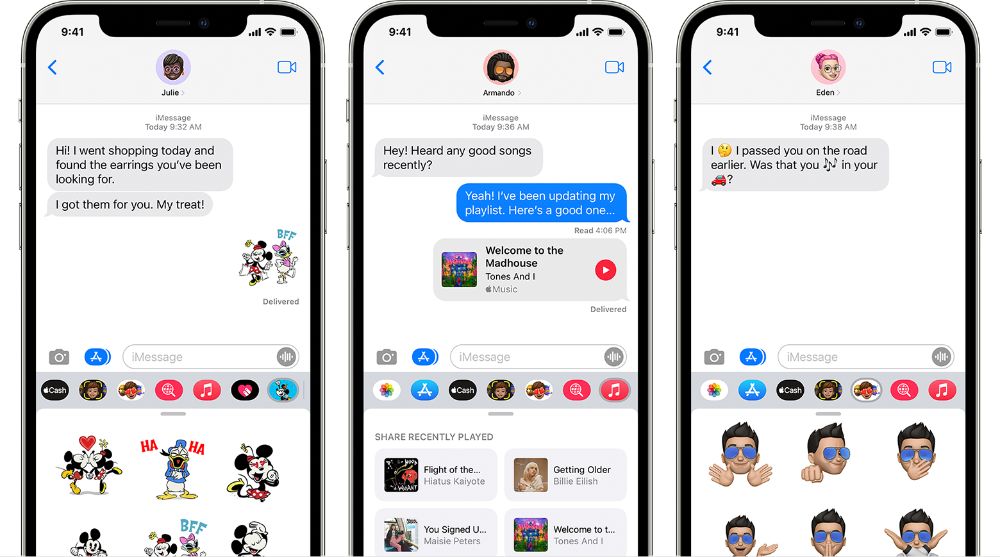
    If you have ever sent an iMessage, you have likely seen the blue bubble next to your contact’s name as well as their name in the iMessage bar on top of your screen when you go to send them a message, even if they’re offline or their iPhone is dead or turned off.

    But do iMessages actually get delivered to the recipient’s device even if they aren’t online or even if their iPhone has no power?

    This article explains how and why this happens, and what it means for you and your contacts.

    What is iMessage?

    iMessage is a messaging service that allows users to send and receive text, photos, videos, and other information through the Messages app on their devices. If you have an iPhone, iPad, or iPod touch with iOS 5 or later, you can use iMessage.

    iMessage is different than SMS and MMS because it uses data rather than cellular minutes to send and receive messages. So, if you’re connected to a Wi-Fi network, you can use iMessage without using your cellular data plan.

    iMessage requirement

    For the messages to appear blue, both sender and receiver need to have iMessage turned on. If one person has iMessage turned off, the messages will be sent as standard text messages and will appear green.

    If your iPhone is dead or turned off, you will not receive any messages until you turn it back on. If you have no service, you will also not receive any messages until you have service again.

    What does it mean if your iMessage shows blue

    When your iPhone sends an iMessage, it will appear blue. This is because blue is the color that Apple has chosen to represent iMessages. If the recipient’s iPhone is turned off or dead, the message will still appear blue on your screen.

    It won’t be delivered until the recipient picks up their phone. The other thing to keep in mind is that a blue read indicator means that you have read the text, but it doesn’t mean they have read it yet. They might not have seen it. You can always ask them when they received the message and whether or not they read it.

    What does it mean if your iMessage shows green

    If you see a green message bubble instead of a blue one, that means the person you’re sending the message to is using a non-Apple device such as an Android phone.

    Messages sent between Apple devices using iMessage appear as blue bubbles. Green bubbles indicate that traditional SMS text messages are being sent.

    Will iMessages shows blue if the receivers iPhone Is dead or turned off?

    If you send an iMessage to someone with an iPhone who doesn’t have an active data connection, the message will appear as a blue bubble. Once the recipient turns on their device and has an active data connection, they will be able to see the message.

    In addition, if the person who receives your message deletes it before they are able to read it, they will not be able to retrieve it. It also goes without saying that deleting messages from your own phone can result in them being lost forever.

    Conclusion

    If you’re wondering whether your recipient will still receive your iMessage even if their iPhone is dead or turned off, the answer is yes. As long as your message is sent through Apple’s servers, it will be delivered to your recipient as soon as they turn their phone back on.

    So next time you need to get in touch with someone, don’t hesitate to send them an iMessage, even if their phone is off.

  • How to take a Screenshot on a Mac with these Easy Steps

    How to take a Screenshot on a Mac with these Easy Steps

    Taking screenshots of your work on your Mac can be really handy, whether you want to capture something that’s happening on your screen or need to save something you’re working on.

    There are tons of different ways to do this, depending on the exact thing you want to screenshot and how you want to use it later.

    Below are quick steps on how to take a screenshot on a Mac in the most common situations.

    1. Open the app you want to capture

    Open the app you want to capture. For example, open Safari and go to the website you want to capture. Or open the document, file, or image you want to capture.

    To do this, click on the app’s icon in the Dock. If you can’t find the app in the Dock, click on Launch pad in the Dock, and then click on the app’s icon.

    2. Press Shift + Command + 3

    When you’re ready to capture your screen, use one of these methods:

    I. Press Command-Shift-3: Hold down these three keys together (Command-Shift-3) until you hear the camera shutter sound.

    II. Hold down Command-Shift while clicking anywhere on your screen: Press these two keys at the same time (Command-Shift) while dragging your mouse to the length your want to capture on your screen. When your are set, leave all keys and you’ll see that part of your screen dim briefly before it returns to normal.

    NB: By default, screenshots are saved on your desktop with the name ”Screen Shot [date][time].png.” You can now use it for whatever you want to use for or move it to anywhere you want move it to.

  • How to Factory Reset an iPhone

    How to Factory Reset an iPhone

    One of the most challenging things about having an iPhone, iPad or iPod touch is the fact that you can’t just go in and change its factory settings.

    For the average user, that might be fine, but if you’re trying to sell your device to someone else or return it to Apple because it’s no longer working, you may need to factory reset it before doing so.

    In this article, i will show you how to factory reset an iPhone in different ways.

    Why do people reset their iPhones?

    There are a few reasons why people might want to reset their iPhones. Maybe they’re experiencing glitches and hope a reset will fix the problem.

    Maybe they’re selling their phone and want to delete all their personal data. Or maybe they just want to start fresh with a clean slate.

    Whatever the reason, below is a step-by-step guide to resetting your iPhone.

    How to factory reset your iPhone

    1. Reset with the home button

    1. Power off your iPhone by holding down the power button for a few seconds.
    2. Once it’s turned off, press and hold the home button for about 10 seconds. You should see the Apple logo appear on the screen.
    3. Once the Apple logo appears, release the home button and wait for your iPhone to restart. It may take a minute or two for it to boot up completely.

    2. Reset without the Home button

    If your Home button isn’t working, you can still factory reset your iPhone without it. Here’s how;

    1. Press and hold the sleep/wake and volume down buttons simultaneously for about 15 seconds.
    2. You’ll see a large Apple logo on the screen with the words Erasing all content and settings.
    3. When the phone has finished erasing everything, you’ll be prompted to enter your passcode. IIt will then restart like normal and ask if you want to set up as new or restore from backup.
    4. Choose whichever option is appropriate for you and follow the next instructions to complete the reset.

    3. Reset with settings

    1. Go to Settings > General > Reset > Erase All Content and Settings. Your phone will restart once the process is complete.
    2. You can also choose what content to delete by going through these steps: Settings > General > Reset > Erase Data (not recommended) or Settings > General > Reset> Erase All Content and Settings (all content).
    3. You may need to enter your passcode if you have one set up.

    4. Reset with iTunes

    1. Connect your iPhone to your computer using a Lightning cable, and launch iTunes.
    2. Once your device appears in iTunes, click on it in the sidebar.
    3. Click the Restore iPhone button in the Summary pane.
    4. A popup will appear asking you to confirm that you want to restore your iPhone to its factory settings. Click Restore to continue.
    5. Once the process is complete, your iPhone will restart and be wiped of all its data and settings. You will need to set up your phone as if it were new.
    6. After setting up your phone’s basic information, sync with iTunes to restore any media from backup.
    7. Once synced, you can re-enable iCloud and other services by going to Settings > Your Name > iCloud or Settings > Your Name > Privacy.
  • Best Ways To Customize iOS 15 on Your iPhone

    Best Ways To Customize iOS 15 on Your iPhone

    Are you bored of your iPhone running iOS 15 having the same look as all the other devices around? Do you want to add some flavour to how your iOS 15 device looks? Continue reading to find out more about iOS 15 customization.

    For a long time, Apple users, especially iPhone users always lost the debate when it came to customization. But after the launch of the iOS 14 in 2020, Apple has now given its users some options when it comes to customizing their devices.

    Since the launch of the iOS 14 in 2020 brought several customization features, many of us taught that the launch of the iOS 15 will also add several customization options but that didn’t happen. Aside from this not happening, it is still possible to customize iOS 15 on your iPhone to make it look more personal than the default.

    To help you do that, this article is going to walk you through some of the best ways to customize iOS 15 on your iPhone. Interestingly, all the methods used in this article are free and do not involve the use of third-party apps or platforms.

    Best Ways To Customize iOS 15 on Your iPhone

    Create and customize your widgets

    Widgets are very useful on iPhones since they help you to gain access to apps and content that you would have had to go through a long process to access. Some of these include news headlines, calendar appointments, the weather, stock market updates, the battery percentage of your device and other connected accessories, etc.

    Widgets have been on Android devices for quite some time now, but they became available on iPhones last year when iOS 14 was launched. On iOS 14, users were able to add and remove widgets, change their layout and size, and move them anywhere on the home screen.

    On iOS 15 however, you can add different kinds of widgets and choose what content you wish to see on each widget.

    To add and edit widget on iOS 15 on your iPhone follow the steps below

    1. Swipe all the way to the left of your screen until you see the widget screen
    2. Swipe down the screen and tap the Edit button
    3. Tap on the minus sign next to the already existing widgets to remove them and tap Done once you are done
    4. You can follow the same procedure to add widgets. This time around instead of tapping on the minus icon you will rather tap on the plus icon

    Once all the widgets are added, you can drag and drop each widget to wherever you want. This will make it easier to check for things like the weather, stock market details, etc. If you want to add a widget to your home screen, tap and hold on to the widget and then drag it to your preferred location on your home screen to make it more easily accessible.

    Move the address bar in Safari from the bottom to the top or vice versa

    Almost every browser in the world has its address bar at the top of the screen and not the bottom. On iOS 15 however, the address bar is located at the bottom of the screen by default giving you more screen space and easy accessibility of buttons.

    This may not be liked by everyone so, if you wish, you can also reverse it back to the top of the screen. To bring back the address bar to the top, open the Safari browser on your iPhone, tap on the Aa button. A new menu will pop up, tap on Show Top Address Bar and the address bar will come back to the top.

    In case you don’t know which one you like you can try both and choose the one that best suits you. Personally, I prefer the bottom address bar and I would love to hear your favourite in the comments section.

    Change the app icons on your iPhone

    By default, every app on the Apple App Store has a unique logo and once the app is installed on an iPhone, it also has an app icon. This is usually the logo of the app installed on the iPhone.

    Before iOS 14 and iOS 15, users were restricted to the default app icons provided but now it is possible to change them to your preference. There are two ways you can change the app icons on your iPhone, you can do so by using a third-party app or using the Shortcuts app.

    How to change the app icons on your iPhone using a third-party app

    1. Download the third-party app from the App Store
    2. Open the app and tap on the icon pack you want, and then press Install
    3. When given a prompt, select Allow
    4. Once the download is complete, open the Settings app on your iPhone
    5. Tap on Profile Downloaded and then tap Install in the Install Profile Page
    6. Enter your iPhone’s passcode
    7. Select Install and then Done
    8. Your app icon has successfully been customized

    Conclusion

    iPhone users unlike Android users are limited when it comes to customizing their devices but gradually, they are making headway. This guide explained some of the best ways to customize iOS 15 on your iPhone in detail.

    Currently, the customizations available are not many but it is our hope that as time goes on, newer updates will be made making it possible to do more customizations on your iPhone. If you know of any other best way to customize iOS 15 you can share them in the comments section below and I will have a look at it.

    How do I customize my iPhone with iOS 15?

    You can customize your iPhone by changing the app icons, editing, and moving widgets, etc. How to do all of these has been explained above.

    How do you focus on iOS 15?

    To focus on iOS 15, open the Settings app and tap on Focus just above Screen Time. Select which focus you want to turn on and toggle it on or off.

    Does alarm work in focus?

    Yes, your alarm will work even when focus is turned on. But only the default iOS alarm will work, no other third-party alarms will work.

  • How To Buy iTunes Card Online in Ghana

    How To Buy iTunes Card Online in Ghana

    Are you looking for how to buy an iTunes card online in Ghana? If your answer is yes, then this article is going to explain to you how to buy an iTunes card online in Ghana.

    Apple is a leading name when it comes to the manufacture of smartphones and other electronic gadgets like the Mac, iMac, iPad, iPod, Apple Watch, etc. Aside from the electronic devices, Apple also manufactures iTunes card which is used for several things.

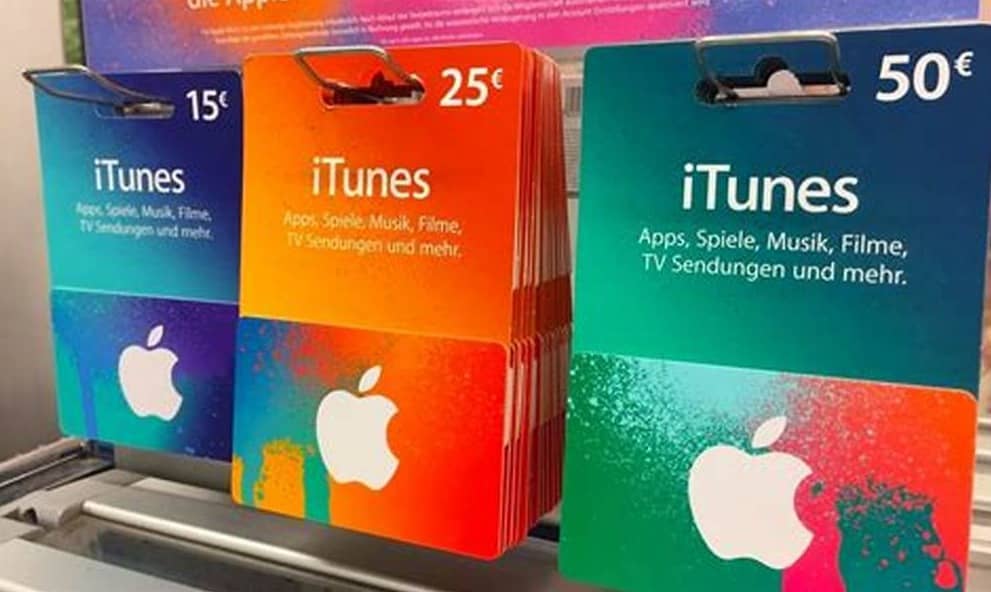
    iTunes cards are solely for the purchase of music from the iTunes app. But the App Store and iTunes card can be used for purchases from the iTunes Store, App Store, Apple Books, or the Apple TV app. iTunes card works like credit and debit cards. Every time you make a purchase from any of the accepted stores, the amount will be deducted from your card until the money in it is finished.

    However, buying an iTunes card in Ghana is sometimes very difficult and the available resources to guide you are almost not in existence. It is for this reason that this article was written to guide you through the process of buying an iTunes card online in Ghana.

    NOTE: The methods used in this guide are 100% legal and do not involve any middlemen. Therefore, this method is safe and has been tried and tested by many people.

    How To Buy iTunes Card Online in Ghana

    There are several ways and sites you can buy an iTunes card in Ghana. Each site has different methods of buying the iTunes card and this article is going to show you how to buy from each of the sites.

    How To Buy iTunes Card Online in Ghana From Telefonika Ghana

    1. Visit Telefonika.com on your device
    2. Click on the Shop icon and then click on the menu icon in the upper left corner of the screen
    3. Type in iTunes card
    4. All the available iTunes cards will be displayed. Usually, the available iTunes cards are the $25, $50, and $100 cards
    5. Click on the iTunes card you want to buy and then click on the cart icon to add it to your cart
    6. Click the cart icon in the top right corner of your screen
    7. The total amount of the iTunes card will be displayed in Ghana cedis
    8. Click on CHECKOUT
    9. Fill in the billing details with your first and last name, street address, town/city, region, phone, and email address in the respective spaces provided
    10. Scroll down and choose your payment method (Direct bank transfer or Slydepay and follow the on-screen instructions to complete your purchase.
    11. Once the transaction is successful, your iTunes card will be sent to you via email.

    How To Buy iTunes Card Online in Ghana From Easy Buy Gh

    1. Visit easybuygh.com
    2. Click on the menu icon in the top right corner and then select Shop
    3. Click on the search icon next to the menu icon and enter iTunes card
    4. A list of all the iTunes cards available will be displayed for you
    5. Click on the one you want to buy and select ADD TO CART
    6. Click on the cart icon and select CHECKOUT
    7. Enter your full name, last name, region, street address, town/city, phone, and email address in their respective spaces
    8. Select your payment method and then click on Place order
    9. Confirm your order and then your iTunes card will be delivered to you

    How To Buy iTunes Card Online in Ghana From Card Delivery

    1. Open a browser and type carddelivery.com
    2. Type iTunes card in the search bar
    3. A list of all the iTunes cards available will be displayed for you with their respective prices in dollars
    4. Under the card, you want to buy, click on Add to Cart
    5. Click on the cart icon and select PROCEED TO CHECKOUT
    6. Enter your email address, full name, mobile number, and password in the spaces provided and click Sign Up afterward. Or click on the Facebook, Twitter, and Google icon to login with Facebook, Twitter, or Google respectively
    7. Click on the cart and enter the details required to confirm the purchase
    8. Once the transaction is successful, your iTunes card will be sent to the email you provided

    Conclusion

    Buying iTunes cards in Ghana can sometimes be difficult but in this article, I have shown some of the best ways to buy them. Apart from the sites listed, there are some other places you use as well like Jumia, Jiji, etc.

    I hope this article was helpful. If it was, then please share it with your friends and loved ones as well. Also, if you have any challenges, please write them in the comments section below and I will be glad to help you out as soon as I can.

    Can I buy an iTunes card in Ghana?

    Yes. By using any of the methods explained in this article, you can buy an iTunes card in Ghana at a very affordable price.

    Which card are they using in Ghana?

    The main cards used in Ghana are Visa, Mastercard, and e-zwich cards. Other than that, other cards like Discover and American Express (AMEX) are not accepted in Ghana.

    Does Ecobank give Visa card?

    Yes, there are several cards offered by Ecobank and one of such cards is the Visa card. Under the Visa card, there are several types provided like Electron, Classic, and Gold – all of which can be used in over 1,600,000 ATMs around the world.

  • How To Change Your Default Music Player on an iPhone

    How To Change Your Default Music Player on an iPhone

    For many years now, many people have been of the view that once you use an Apple product (iPhone to be precise), you are being restricted to some point. Although this is not entirely true, there is some truth in it. For example, if you are an iPhone user, you are only restricted to apps on the Apple App Store and nowhere else.

    Among these, one of the things that iPhone users were limited to do was the inability to change the default music player from the default Apple Music app/player. This had been bothering many iPhone users who preferred other music players like Spotify, Pandora, YouTube Music, etc. until iOS 14.5 was introduced earlier this year.

    If you are an iPhone user, then there are several things you enjoyed from the introduction of iOS 14 in 2020. Personally, some of the new features I enjoyed include the option to set a default browser and email app on your iPhone, all of which were not available in the iOS 13 or the earlier iOS versions.

    This guide, therefore, is going to show you how to change your default music app on your iPhone and everything else related to how you can make the most out of this feature introduced by Apple in iOS 14.

    How To Change Your Default Music Player on an iPhone

    Currently, there is only one way you can change the default music player on your iPhone, i.e. using the Siri command on all iPhones running iOS 14.5 or later.

    How To Change Your Default Music Player on an iPhone Using Siri

    1. Update your iPhone to iOS 14.5 or later
    2. If you are using the newer versions of the iPhone you can ask to play an artist, song, or album. You can do so by saying “Hey Siri, play Madina to the Universe by M.anifest”
    3. If you don’t have the latest versions of the iPhone, you can press and hold the power button (iPhone X and above) or the home button (iPhone 8 Plus and below)
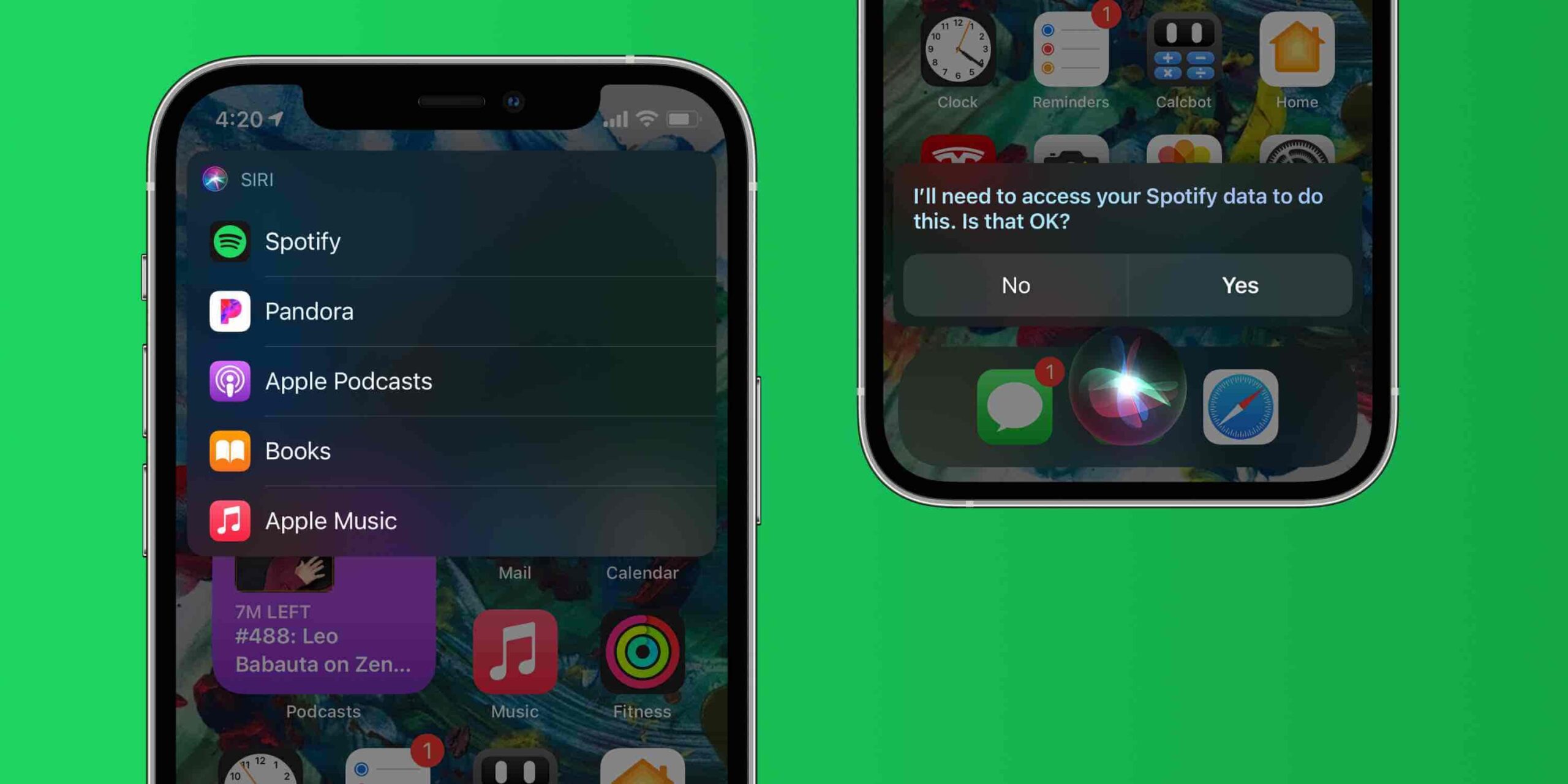
    4. A list of all the music apps you have installed on your iPhone will pop up and Siri will ask “Which app would you like to use”?
    5. From the list of music players shown, choose your preferred music player
    6. When asked, confirm that Siri can access data from your music player
    7. Afterward, Siri will play the music in the app of your choice. For example, if you choose YouTube Music, the music will play in YouTube Music.

    Changing Your Default Music Player on an iPhone Manually?

    As of the time of writing this article, there has not been any official document on how to change the default music player on an iPhone manually. But many iPhone and technology analysts have concluded that this feature will be introduced in the iPhone sooner or later.

    As newer versions are introduced to the iPhone’s iOS, it is likely that Apple will add this feature in some of the newer iOS versions.

    Conclusion

    Up until the introduction of iOS 14.5, iPhone users had to tell Siri which app to play music from the onset. For example, “Hey Siri, play Madina to the Universe by M.anifest in YouTube Music. But after iOS 14.5, this is no longer going to be an issue for iPhone users since they can go ahead and use Siri’s intelligence to change the default music player.

    Although you can now change the default music player on your iPhone, you can still use the old method of asking Siri to play music for you if you wish to use a different music player other than the default player. For example, you can say “Hey Siri, play Petite by NSG in Spotify” and Siri will play Petite by NSG in Spotify.

    In conclusion, this intervention by Apple to allow iPhone users to change the default music app is a good thing since it now lifts the restriction that has been placed on iPhone users. Gradually, Apple is trying to allow its users to modify their devices.

    Can you change the default music player on your iPhone?

    Yes. All you have to do is to ask Siri to play a song or an album and then choose your preferred music player from the apps listed.

    What does it mean to set a default music player on iPhone?

    Simply put, setting a default music player on an iPhone means choosing a music app that will play your music whenever you want to listen to music. Or, whenever you ask Siri to play a song, the default app is where the song will be played.

    What is iPhone’s default music player?

    The Apple Music app is the default music player on the iPhone.

  • How To Use Split Screen on Mac

    How To Use Split Screen on Mac

    The main reason why laptops and computers were made was to make work easier, faster, and efficient. This is the main foundation on which all subsequent computer models have been developed and manufactured.

    There are over a hundred computer manufacturing companies in the world. Lenovo, ASUS, Apple, Toshiba, HP, Dell, Acer, Google, Huawei, LG, Nokia, Panasonic, Samsung, VAIO, Xiaomi, etc. All these brands are unique in their own way and most of them even have their own Operating Systems (OS).

    But today, we are going to look at only one of these brands, Apple which is known mainly for its MacBook and Mac computers. Among all the brands mentioned above, one thing that makes Mac stand out from the rest is the efficiency and Operating System (OS).

    As a result, most people who use their laptops for work purposes prefer Mac to the other mentioned brands. But what happens when you are working with your Mac, and you need to open multiple apps at the same time? Is it going to be a problem?

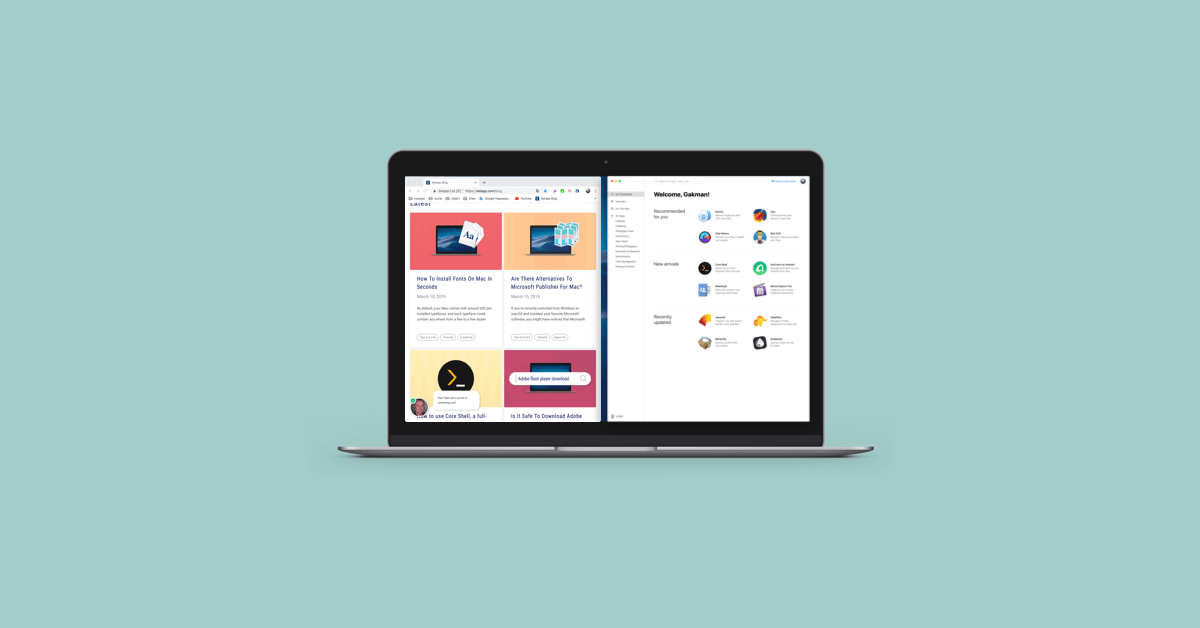
    After reading this article, it is no longer to be difficult for you to open two (2) apps at the same time on your Mac. In this article, I am going to show you how to use Split Screen on Mac.

    The Split View (or split-screen) feature was first introduced in Mac when the macOS Catalina was launched in October 2019. Thus, making macOS Catalina one of the best macOS that has ever been released (it’s debatable though).

    How To Use Split Screen on Mac

    Before you can use Split Screen on Mac, you must use Mac running macOS X El Capitan or later. If your device meets the requirements, then you are good to go.

    How To Use Split Screen on Mac with macOS Catalina or later

    1. Open an app you wish to use while using split screen on your Mac. (Red, yellow, and green buttons will appear at the upper left of the screen)
    2. Place your mouse pointer over the green button and a pop-up menu with three options will be displayed (Enter Full Screen, Tile Window to Left of Screen, Tile Window to Right of Screen).
    3. Click Tile Window to Left of Screen or Tile Window to Right of Screen to shift the window to the left or right of the screen respectively
    4. Next, choose another app from the options available.

    How To Use Split Screen on Mac with macOS Mojave, High Sierra, Sierra, or El Capitan

    1. Open the two apps you wish to use while using split-screen on your Mac
    2. Place your mouse pointer on the green full-screen button at the upper left and hold it
    3. Keep holding and then drag it to the right or left of the screen
    4. Release the button and choose the window on the other side to view the apps in split-screen view

    How To Use Split Screen on Mac Using Mac Mission Control

    1. Open any app window in the full-screen view on your Mac
    2. Launch Mission Control using any of the following methods
    3. On your keyboard, press the F3 key
    4. Press Control and the up arrow at the same time
    5. Swipe up with three or four fingers on the trackpad
    6. Afterward, two thumbnails will be displayed the top of the screen
    7. Drag and drop another app to the full-screen view thumbnail
    8. Automatically, it will enter Split View mode
    9. Finally, click the Split View thumbnail to open the split-screen

    Conclusion

    Split Screen is a cool and amazing feature that was introduced by Apple to help people who work on their Mac increase productivity and efficiency. But on the downside, not all the apps support the split-screen mode.

    Others will not allow you to reduce their window size to 50%, meaning they will take up more space than the other apps. Aside from that, everything is cool, and all you need to do is to follow the steps listed in the article and you are good to go.