Category: Apple

  • iPhone 12 and 12 Mini: Details, Price, Best Deals In Ghana

    iPhone 12 and 12 Mini: Details, Price, Best Deals In Ghana

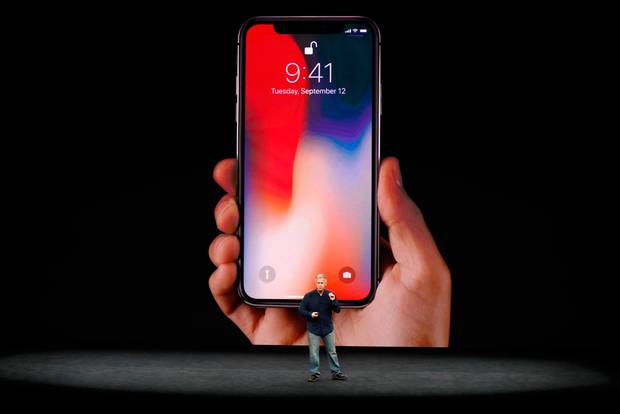
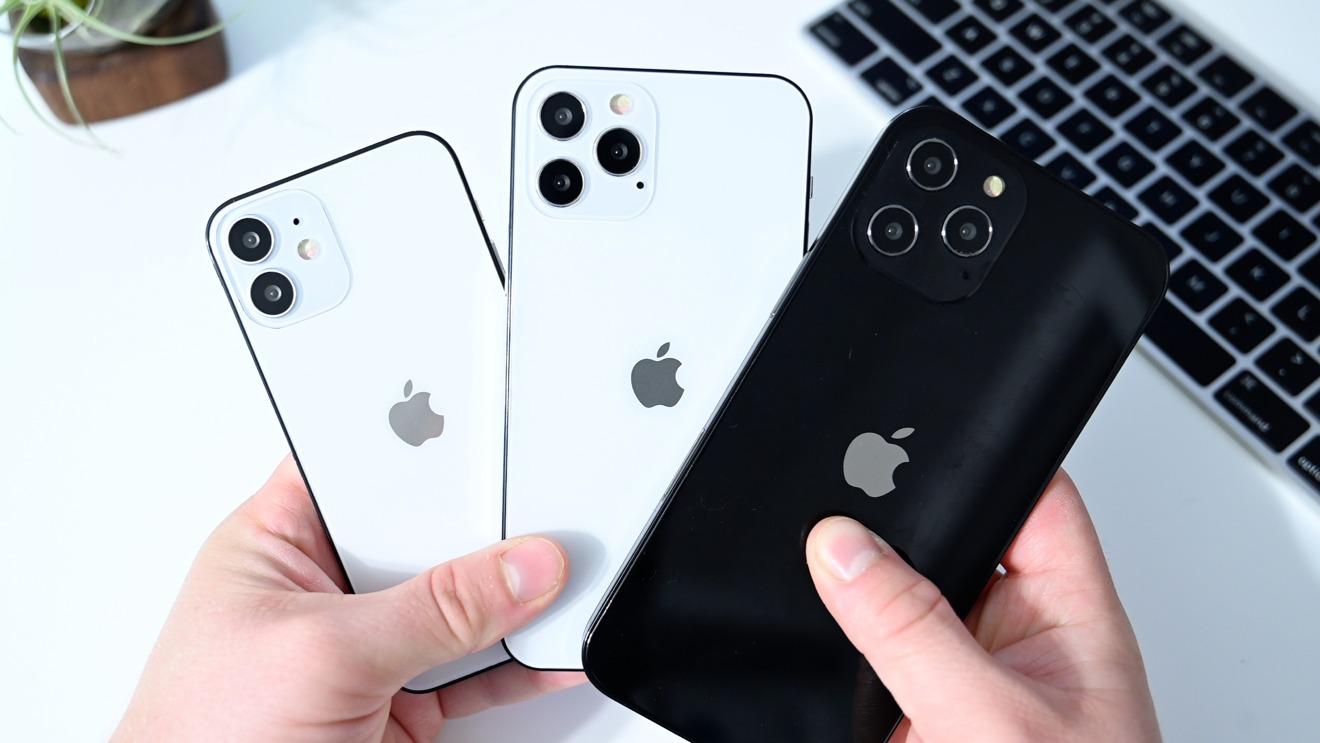
    Apple’s latest addition to the already famous iPhone series includes the iPhone 12 and 12 Mini. While they are yet to be officially released, the phones announced in the early days of October 2020 have become a major talking point for phone lovers, especially iPhone lovers.

    The iPhone 12 and 12 Mini are a wonderful pair of camera giants expected to compete with some of the top-tier phones on the market presently and probably uplift Apple’s iPhone series to the top of present smartphone brands.

    If you are looking for the specifications, price and where to buy the all-new iPhone 12 and 12 Mini in Ghana, then you are at the right place. In this article, we shall discuss all there is to know about these two phones.

    iPhone 12 Specifications

    The Apple iPhone 12 is a good buy for those who value phone speed and quality camera alongside all the other amazing features possessed by the iPhone series.

    Announced in October 2020 and released on the 23rd of that same month, the iPhone 12 has body dimensions of 5.78 x 2.81 x 0.29 inches which makes it quite sizeable but smaller than the iPhone 12 Pro and 12 Pro Max.

    The phone is covered with Corning Gorilla glasses both in front and behind. It has a Super Retina XDR OLED display and a screen resolution of 1170 x 2532 pixels. The iPhone 12 is also scratch-resistant and is Ip68 rated – making it dust and water-resistant.

    This awesome phone runs on the Apple A14 Bionic chipset and the IOS 14.1 Operating system.

    For Processor speed, the iPhone 12 has one of the most powerful processors available on the market now. It runs a Hexa-core processor with two 3.1GHZ cores and four 1.8 GHz cores.

    As usual, the iPhone series does not support external memory cards but its 64GB, 128GB and 256GB memory models and an outstanding 4GB RAM take care of all your storage worries.

    For the camera lovers, here is yours. The iPhone 12 comes with dual Primary cameras all with 12 MP lenses. The secondary camera for selfies also has a single 12MP lens which gives it a higher quality than most phone’s primary camera output.

    What’s disheartening however about the iPhone 12 is the fact that its battery capacity is relatively low. Though iPhones are known for lower battery capacities, the iPhone 12 has a relatively lower size with a capacity of 2,815 mAh.

    iPhone 12 Mini Specifications

    The Apple iPhone 12 mini is the smaller and more mobile version of the iPhone 12. It comes with smaller body size with dimensions covering 5.18 x 2.53 x 0.29 inches.

    It was first announced on 13th October 2020 and is expected to be released on the 13th November 2020. Just like the iPhone 12, the 12 mini is also covered with the Corning Gorilla glass both in front and behind. It also has an aluminium frame to give it that shiny feel and look.

    The phone is also Ip68 rated and has a Super Retina XDR OLED display. It has a screen resolution of 1080 x 2340 pixels.

    The iPhone 12 mini runs on the Apple A14 Bionic chipset just as the iPhone 12. It also operates with a hexacore CPU and runs on IOS 14.1

    Talk of camera quality, the 12 mini is no different from the iPhone 12. It also has dual primary cameras with 12MP Lenses and a secondary camera with a 12MP lens.

    If you are known for using phone continuously and consuming your battery quickly, then the iPhone 12 mini may not be the deal for you. Its battery capacity is far worse than the iPhone 12. The Lithium-ion battery only holds 2227MaH of battery power.

    Both phones have Fast charging 20W, 50% in 30 min, USB power delivery and Qi Fast Wireless charging at 12 Watts.

    iPhone 12 and 12 Mini Price And Where To Buy In Ghana

    If you wish to acquire Apple’s iPhone 12 here in Ghana, you should be looking at spending between GHS 6,300 to GHS 8,500. The price depends on the memory capacity with the least one being the 64GB model. You can either purchase it from online outlets such as Phone Aqua or visit an authorised Apple outlet. For the iPhone 12 Mini, it is yet to be released. However, prices are expected to range between GHS 4,500 to GHS 5,500.

    Conclusion

    Apple’s phones are made with wonderful sleek designs which make them the preferred choice for a large number of smartphone users. Apart from the sleek designs, the iPhone is also known for top-notch security and beautiful camera outputs. The all-new iPhone 12 and 12 Mini are raising the bar for all other high-end smartphones competing for top-rating.

    In this article, we looked at the specifications, price and where to buy the iPhone 12 and 12 mini in Ghana.

    I hope this article was helpful to you. If you have any questions, concerns or comments regarding this article, kindly leave them in the comment box below or get in touch with us.

    Please be sure to share this article with your friends and relatives.
  • How to turn off iPhone Activation Lock without access to the previous owner

    How to turn off iPhone Activation Lock without access to the previous owner

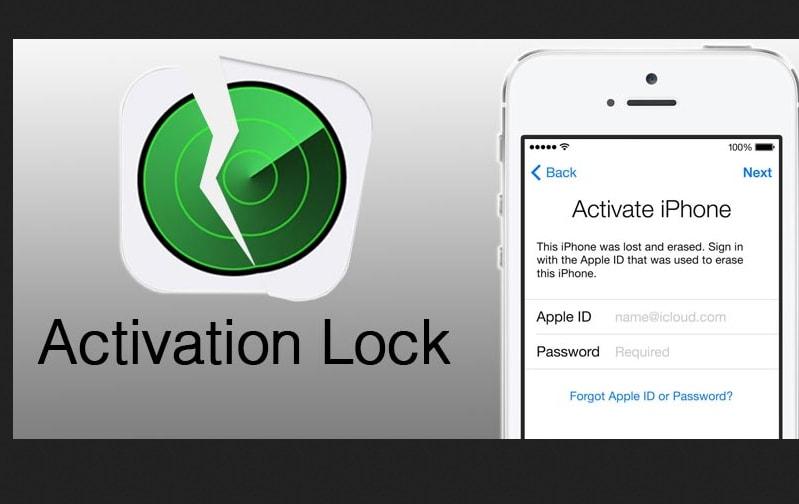
    One of the most difficult things that could happen to you is turning off an Activation Lock on an iPhone without the previous owner.

    When you buy a new or old iPhone, one of the significant things you need to check is whether or not there is an Activation Lock on it. Though the process can be very difficult, I am going to show you some ways you can turn off Activation Lock on an iPhone without access to the previous owner.

    When you reset your iPhone without signing out of your iCloud account, Activation Lock might still be available on the device. To remove this feature you need to have access to the user, but in this article, I am going to show how to do it on your own.

    What is Activation Lock?

    Activation Lock is a security feature that is designed on Apple devices (iPhone, iPad, iPod touch, Apple Watch, and Mac) to keep them secured once they get lost or stolen.

    If Activation Lock is turned on, it will display a message to the user that the device is for you and that he/she should call you on your mobile number. To turn on Activation Lock, you need to open my device (iPhone, iPad, iPod touch, Apple Watch, and Mac) and mark it as lost or stolen.

    How to turn off iPhone Activation Lock without access to the previous owner

    Many methods are available for turning off Activation Lock without access to the owner. But, I am going to show you some of the best ways to go about it.

    • The DNS method uses a loophole in the WiFi DNS and tricks the iPhone into thinking that it has been unlocked. To begin this, you first of all need to factory reset the iPhone and then follow the steps listed below:
    • Set up the iPhone as a new device until you reach the WiFi settings page.
    • Once you reach the WiFi settings page, connect to a WiFi, and then tap on the “i” icon next to the name of the WiFi.
    • Tap on Configure DNS ad turns off the Automatic option.
    • Choose the Manual option at the top and then type one of the following DNS values (depending on where you are located):
      • North America: 104.154.51.7
      • South America: 35.199.88.219
      • Europe: 104.155.28.90
      • Australia and Oceania: 35.189.47.23
      • Asia: 104.155.220.58
      • Elsewhere: 78.100.17.60
    • After you are done entering the DNS values (IP), tap the WiFi button, and reconnect to the WiFi network normally.

    By using DNS bypass

    DNS bypass on iPhone usually works on older versions of iPhones but, if you have the latest version, you can still give it a try. After all, there’s no harm in trying to turn off Activation Lock on your iPhone.

    By using a third-party software

    Apart from the first method, you can also turn off Activation Lock using third-party software. The only thing about these third-party apps is that you may need to jailbreak your iPhone.

    I did a lot of research online and found one of the best software that can help you do this. The name of the software is Tenorshare 4MeKey. The reason why I selected this particular software is that it has all the features that can be used to turn off the Activation Lock and more.

    To use Tenorshare 4MeKey to turn off Activation Lock without access to the previous owner,

    • Download the free Tenorshare 4MeKey on your Windows PC or Mac.
    • Click the Start button, read and accept all the terms and conditions. After, click on Next.
    • The next page will require that you jailbreak the iPhone.
    • For Mac users, the jailbreaking will be downloaded and Tenorshare 4MeKey will jailbreak the iPhone for you.
    • For Windows users, Tenorshare 4MeKey will give a tutorial on how to jailbreak the iPhone yourself.
    • Upon successful completion of the jailbreak, click on Next and your iPhone details will be shown.
    • Check and confirm the details and then click on Start Remove.
    • The removal process will commence and the Activation Lock will be removed from the iPhone.

    By visiting an Apple Shop

    When you buy a refurbished iPhone though rare, there’s a chance that there might be an Activation Lock on it. In situations like that, you can take the documents that show that you bought the iPhone from the Apple shop and submit it together with the iPhone to the shop.

    If the documents you submitted are genuine, they might end up giving you a new iPhone or the Activation Lock will be removed for you.

    Conclusion

    Activation Lock removal can be very difficult but once you follow the methods that I have shown in this article, it shouldn’t be a big problem.

    I hope this article was helpful? If you have any method that you think might work very well, please write it down in the comments section below and it will be added to our subsequent write-ups.

  • How to wipe or reset your iPhone

    How to wipe or reset your iPhone

    Are you planning on selling your iPhone or gifting it to someone? Or are you finding some problems on your iPhone and thinking of wiping or resetting your iPhone? No problem hang on I am going to show you some of the best ways to wipe or reset an iPhone.

     Before you can sell your iPhone to someone, you need to remove all your files and accounts from the iPhone. You cannot sell your iPhone to someone and leave your files and your iCloud accounts on the device.

    In order to do this, you will have to wipe or reset your iPhone and all the settings, files, and iCloud accounts on the device will be removed and restored to factory settings.

    Also, there might be times that you may be having some problems on your iPhone and the solution will be to wipe or reset your iPhone. This method has been used by several people who confirm that it works perfectly.

    How to Back Up your iPhone

    To wipe or reset your iPhone, you first of all need to back up the files and data on your iPhone to the Cloud. This will help you reinstall these documents once you log into a new iPhone or the old one.

    • Open the Settings app on your iPhone.
    • Tap on your name (first option in the Settings window).
    • From the list of options available, select iCloud.
    • Scroll down and tap on iCloud Backup and enable the feature.
    • If you need it urgently, tap on Back Up Now for the iPhone to back up immediately (you need to connect to a WiFi).
    • Additionally, look under the Back Up Now option to find out the last backup date and time.

    How to wipe or reset your iPhone

    There are several ways of wiping your iPhone but I am going to talk about only three (3) of the safest methods.

    How to wipe or reset your iPhone directly using Settings on your iPhone

    • Open the Settings app.
    • Scroll down and tap on General.
    • Swipe to the button of the window and tap on Reset.
    • From the different options displayed, select Erase All Content and Settings.
    • If you have an iCloud backup set up on your iPhone, you will be asked to update it to avoid loss of data. But since we have already done that, we just need to decline the update option.
    • If you have a passcode on your iPhone, you will be asked to enter it and after that tap on Erase iPhone.
    • Enter your Apple ID’s password to confirm your command.
    • After that, all the data, settings, and anything on the iPhone will be totally wiped and you’ll be sent back to the fresh iPhone setup screen.

    How to wipe or reset your iPhone using iTunes

    To wipe your iPhone using iTunes, you need to install iTunes on your PC and then follow the steps listed below.

    • Go to Settings on your iPhone and turn off the Find My iPhone option.
    • Open iTunes on your PC and connect the iPhone to the PC using the original Apple USB cable.
    • Trust the computer on your iPhone and then select your iPhone on the computer.
    • Click on Summary from the options on the screen.
    • Select Restore iPhone and wait for the wiping to complete successfully.

    The effects will be successfully applied on your iPhone.

    How to wipe or reset your iPhone using third-party apps on your PC

    The final method of resetting your iPhone is by the use of third-party applications that are available on the internet. Each application has its own way of resetting your iPhone.

    To find some of these apps, search for “Third-Party Apps that can be used for resetting iPhones” on Google or any search engine. Read through each of the recommended apps and select the one that fits you best.

    Install the app on your PC and follow the instructions laid down by the developers of the app to successfully reset your iPhone.  Please note that most of the apps will involve the use of iPhone USB cables.

    I highly recommend that you use the first two methods stated earlier.

    Conclusion

    Once you have finished reading this article carefully, you should be able to reset your iPhone all on your own without spending money at the repairer’s shop.

    In case you find any difficulty or you have a suggestion, make sure to write it down in the comments section below.

  • How to block text messages (SMS) on your iPhone

    How to block text messages (SMS) on your iPhone

    Do you want to block someone from sending you messages on your iPhone? Have you been receiving spam messages from an unknown person and you have thought of blocking that person?

    In this technology age, some spammers usually send unnecessary messages to unknown numbers all the time. Some of these messages come from unsubscribed mobile network offers while others come from individual spammers.

    A list of spam messages

    Sometimes, we may end up deleting messages from spammers thinking that it will never come again but in the end, they end up coming back again. Therefore to prevent any future unwanted messages, you need to block the sender.

    Most of the time, iPhone users find it very difficult to block text messages (SMS) on their iPhones due to the slight difference between how to block messages in iPhones and Android phones. Blocking text messages (SMS) on iPhones is a lot easy than we think.

    To help you block text messages on your iPhone, I have decided to write this article and guide you on how to block text messages (SMS) on your iPhone.

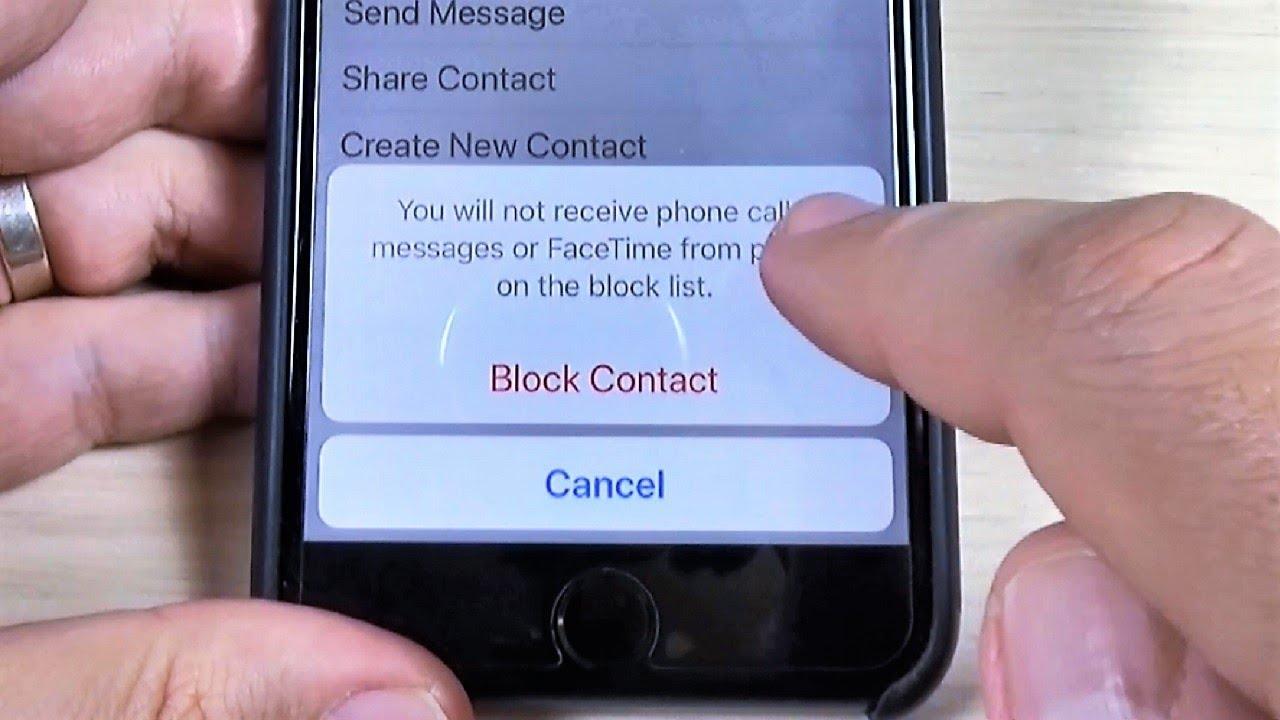
    NOTE: Once you block text messages (SMS) from a certain number, it will also block regular calls and FaceTime calls.

    How to block text messages (SMS) on your iPhone

    Due to the availability of different iOS versions, blocking a text message on iOS 12, iOS 13, and iOS 14 are slightly different from each other. So, I am going to show you how to block text messages on iOS 12, iOS 13, and iOS 14.

    How to block text messages (SMS) on your iPhone with iOS 12

    • Open the Messages app on your iPhone.
    • Tap on a message from the person/number you want to block.
    • Tap on the name of the sender at the top on the screen.
    • Tap the info (“i”) icon.
    • Tap on the arrow to the right of the phone number/name of the contact.
    • Scroll to the bottom and choose Block this Caller.

    How to block text messages (SMS) on your iPhone with iOS 13

    • Open the Messages app on your iPhone.
    • Tap the Contact icon just above the number at the top.
    • Select info below the name of the contact.
    • Tap the arrow to the right of the number.
    • Scroll to the button and tap on Block this caller.

    How to block text messages (SMS) on your iPhone with iOS 14

    • Open the Messages app on your iPhone.
    • Tap the Contact icon just above the number at the top.
    • Select info below the name of the contact.
    • Tap on info again.
    • Scroll to the button and tap on Block this caller.

    How to manage blocked contacts on iOS 12

    • Open the Settings app.
    • Scroll down and tap on Messages.
    • Scroll down again and tap on Blocked.
    • A list of all the blocked contacts will be shown.
    • To remove someone from the blocked list, tap on Edit in the top right corner and click on the red minus sign in front of that particular number.
    • After that click on Unblock and then Done.

    How to manage blocked contacts on iOS 13 and iOS 14

    • Open the Settings app on your iPhone.
    • Swipe down and tap on Phone.
    • Swipe down again and choose Blocked Contacts.
    • A list with all blocked contacts (both SMS and call) will be shown.
    • To remove someone from the blocked list, tap on Edit in the top right corner and click on the red minus sign in front of that particular number.
    • After that click on Unblock and then Done.

    Conclusion

    In this article, I have shown you how to block text messages (SMS) on iOS 12, iOS 13, and iOS 14. Also, I showed you how to manage blocked contacts on all the IOS versions stated above.

    Blocking text messages (SMS) as I said earlier is very easy and fast. So, now that you have read this article make sure to understand it very well and do not hesitate to block unwanted contacts from texting you via SMS.

    Make sure to share this article and also feel free to write your comments and suggestions in the comment section below.

  • Reasons why you should not Jailbreak your iPhone

    Reasons why you should not Jailbreak your iPhone

    Are you tired of the several restrictions imposed on your iPhone by Apple? Then you might be thinking of jailbreaking your iPhone to finally come out of the “jail” imposed on your iPhone by Apple.

    But, do you know that jailbreaking your iPhone causes some serious damages to your iPhone? Before you consider jailbreaking your iPhone, read this article to find out four (4) main reasons why you should not jailbreak your iPhone.

    After reading through this article, you can then decide whether to continue the jailbreak on your iPhone or not. I bet you will never continue with the jailbreak.

    Whenever we are discussing jailbreak, most people think that the issue of jailbreak just started recently. In actual terms, jailbreak began as soon as the first-ever iPhone was released over a decade ago.

    What is Jailbreaking?

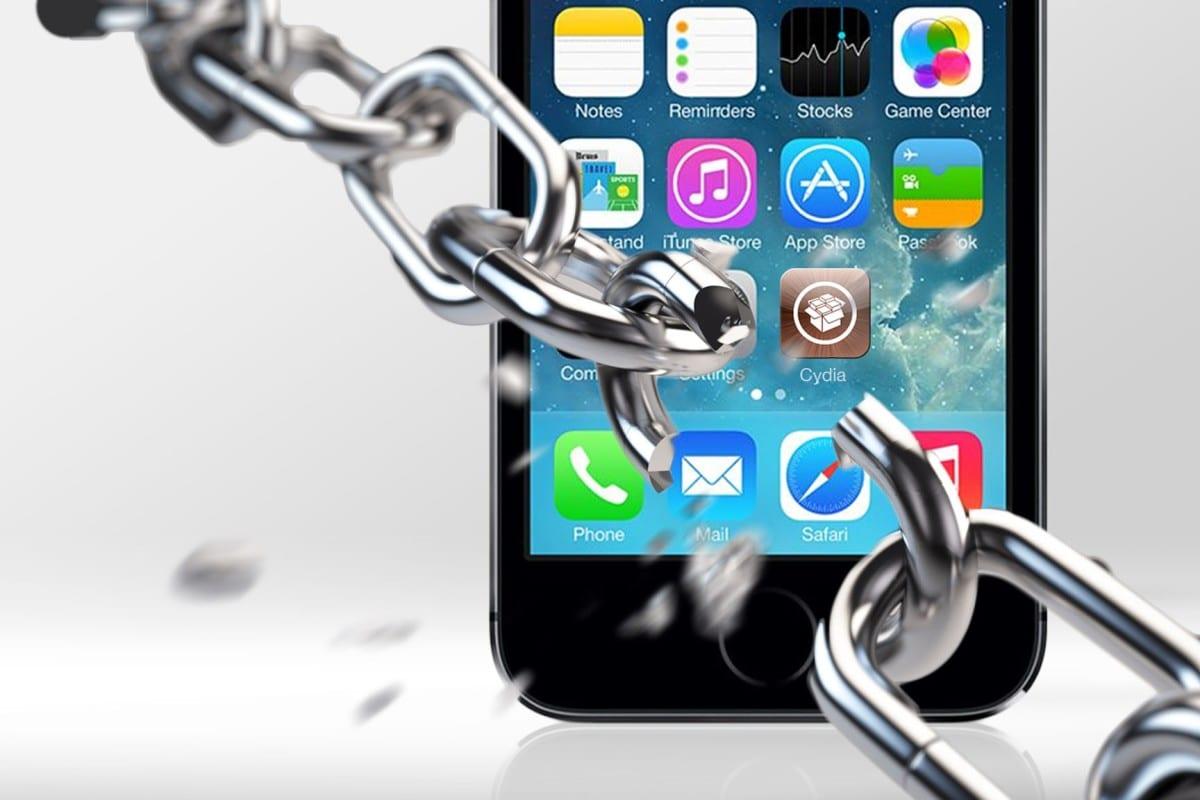
    Basically, jailbreaking is the process of freeing your iPhone from the restrictions that have been imposed by the manufacturers of the iPhone, Apple. Apple’s Operating System is closed-sourced and therefore has some security and safety restrictions attached to it.

    Therefore, jailbreaking your iPhone grants you the access to read, write and even change some default settings on your iPhone’s Operating System (iOS). This will then allow you to install apps, extensions, and a whole lot of other unauthorized files on your iPhone without any restrictions.

    Reasons why you should not Jailbreak your iPhone

    So, why shouldn’t I jailbreak my iPhone after all these benefits that could come from it? Who is not happy to come out of the restrictions that are imposed by Apple?

    Yes, everyone is happy to come of the restrictions imposed by Apple but the reasons why you should not jailbreak your iPhone are as follows:

    Possible termination of the warranty agreement

    Whenever you buy a new Apple device, you get a warranty card that is included in the box. The warranty is an agreement that is made between the buyer and Apple that once the device gets a fault during the stated period, you have the right to send it back to Apple.

    This could include a discount on the repair or even replacement of your Apple device with a new one. Once there’s a jailbreak on your iPhone, there’s a high chance that the iPhone’s warranty could be terminated when you send it to Apple.

    As a result, you may be asked to pay for the entire cost of the repair or might even be rejected access to repairs. Considering the prices of iPhones on the market it’s advisable not to risk this warranty service.

    Inability to apply future software updates

    Due to the unauthorized modifications and patches that are installed on the iPhone, they cause damages to the Operating System of the device, iOS. This can result in the jailbreak iPhone to become permanently damaged once a new iOS update is installed in the device.

    Because of that, there’s one fixed rule when you jailbreak your iPhone; that is to never update your firmware version unless there is an available jailbreak solution for it. The jailbreak solution could take weeks and even months before they are available.

    Your iPhone might get “bricked”

    A jailbroken iPhone

    The term bricked is mostly used by people for non-working conditions on your iPhone and this could range from easy to fix to impossible to fix. This usually happens when your jailbreak process on your iPhone fail.

    A bricked iPhone can sometimes be recovered through DFU mode and iTunes restore but the chances of success are usually little.  This might also cause some software to crash when you try to open them on your iPhone.

    Why risk all the amazing apps on the Apple App Store for these weak apps that will in turn cause some serious damages to your iPhone.

    Your iPhone will no longer be secured

    We know that iPhones are one of the most secured mobile devices in the world as compared to other brands. This is as a result of the closed nature of the Operating System.

    As soon as you jailbreak your iPhone, your iOS security becomes compromised and open to hackers on the internet. Hackers may steal personal and sensitive information from your iPhone and use it for their personal gain.

    Hackers usually do this by introducing malware, spyware and software to your iPhone usually through some unverified apps on the internet.

    Conclusion

    Now that you are familiar with some of the reasons why you should not jailbreak your iPhone it is up to you to decide whether to jailbreak your iPhone or not.

    If you want some features that are not on iPhones, I will strongly suggest that you should get yourself an Android device. This is because the jailbreak will cause you serious problem in future.

    I hope this article was helpful. Please make sure to share with your friends and loved ones and also write your comments and suggestion in the comment section below.

  • What to look out for when buying a new or used iPhone

    What to look out for when buying a new or used iPhone

    Have you ever thought of what to look out for when buying a new or used iPhone? Most people just think about buying an iPhone without considering what they need to look out for before they make a decision whether to buy that particular iPhone or not.

    There have been complaints from several people who have been scammed in one way or the other by purchasing fake iPhones. I recently heard the story of someone who bought a fake iPhone from a trusted retail shop (the name won’t be mentioned in this article).

    As a result, I decided to write this article to guide you through some of the most important things you need to look out for when buying a new or used iPhone. On the downside, most of the points that will be used in this article will be more beneficial to those who are buying used iPhones.

    That notwithstanding, those buying new iPhones could equally benefit from some of the points geared towards those buying used iPhone. The only thing is that you will need to remove the phone from the box it’s in.

    What to look out for when buying a new or used iPhone

    Verify the IMEI number

    The International Equipment Identity (IMEI) number is a unique number given to each iPhone and can be used to identify a valid device and can stop a stolen phone from working. The IMEI number of an iPhone is a 15-digit number that can be visibly seen at the back of every iPhone.

    In order to know whether the body of the iPhone truly matches the iPhone you’re buying, there’s a way you can verify this on your iPhone or the internet. But, I will be teaching you how to do it using the same iPhone.

    To verify that the IMEI number on the body of the iPhone matches the one on the software:

    Go to Settings on your phone > Tap on General > Tap on About > Scroll down to IMEI and crosscheck it with the one at the back of your iPhone. Once the two IMEIs match then it means the body of the iPhone truly matches the software of the iPhone.

    To make it more interesting, all the recent iPhones beginning with the iPhone 6S have their IMEI number on the SIM card tray.

    Check the Health of the Battery

    To me, this is the most important check you need to perform when buying either a new or used iPhone. This is because the battery health is going to determine how long your iPhone is going to last after charging, and that weak battery health means buying a new battery at a fee.

    Except for the iPhone 3G, 4, 4C, 5 …SE, all other iPhones have a way of checking the health of your iPhone’s battery (Beginning with the iPhone 6). The steps involved are listed below:

    • Tap on Settings
    • Tap on Battery
    • Select Battery Health

    The percentage stated in the Maximum Capacity Section of the screen is the health of the iPhone’s battery.

    Since the highest percentage is 100, any other figure around this figure could be worth buying.

    Check out for Water Damage

    Apple and iPhone have shown the world on several occasions that they are indeed one of the leading names when it comes to technology. As such, iPhones have a very unique feature that allows you to check the water damage of the iPhone.

    On the fun side, you don’t need any special knowledge or software to check this because iPhones have a Liquid Contact Indicator (LCI) which changes colour ones there’s a water contact.

    This means that the colour of the indicator will change ones an amount of water enters your iPhone. To perform this check on your iPhone, you simply need to look out for a red or pink (depending on the type of iPhone) colour on the SIM tray slot.

    Below are some of the indications on some of the different classes of iPhone:

    For iPhone 5, 5C, 5S, SE, you will find a red dot on the SIM tray slot.

    iPhone 6, 6 plus, 6S plus, you will find a red mark on the SIM tray slot.

    For iPhone 8 and above, you will find a red line on the SIM tray slot.

    Confirm the iPhone isn’t locked to Ghanaian Carrier

    This process involves checking whether Ghanaian SIM can work on the iPhone. This is not that relevant but it’s advisable to buy an unlocked iPhone rather than buying a locked one which you will unlock or use a Gevey SIM at a charge.

    There are some things you need to look out for. Some of these are already self-explanatory and does not need any explanation. Some of these other things you need to check are:

    • Check whether the Touch ID and the home button are working properly.
    • Test the screen, speakers, microphone, ports, and most importantly the camera.
    • Check whether the storage capacity matches the one on the system. To do this, Go to Settings > General > iPhone Storage and you will find the actual storage capacity of the iPhone.

    Conclusion

    These are some of the important things you need to look out for when buying a new or used iPhone wherever you are in the world. Also, the points included in this article are not the only ones, there are also some other important ones.

    I hope this article was helpful. Feel free to write your comments and suggestions in the comments section below and make sure to share it with everyone.

  • Is the iPhone 6 worth buying in 2020?

    Is the iPhone 6 worth buying in 2020?

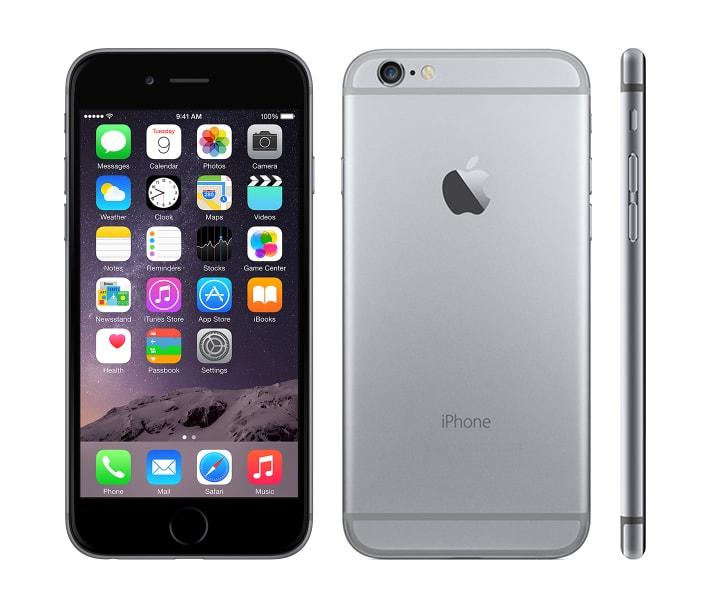
    Is the iPhone 6 worth buying in 2020? Are you thinking of buying an iPhone 6 this year (2020)? If this is the question you have asked yourself then read on and let’s find out whether the iPhone 6 is worth buying in 2020.

    The iPhone 6 was the pacesetter in the Apple iPhone high-tech manufacturing process. The iPhone 6 is 5 years old (released in September 2015) as a request by iPhone users to have a bigger screen, which was available on only Android devices at that time.

    The iPhone 6 made a groundbreaking record at that time, in just a period of three (3) months, Apple sold out over 74 million iPhone 6 devices. This was a 40% increase than that of the previous iPhone, 5s.

    After 5 years, Apple has released not less than 10 new classes of iPhone but, many people are wondering whether the iPhone 6 is worth buying even after the 5 years. Well, the iPhone 6 still has some great features and some downfalls.

    In this article, we are going to look at the features the iPhone 6 has and the downfalls and after that, we will then make our final verdict.

    Some of The Amazing Features of The iPhone 6

    A Good Choice For Music

    If you have the intention of using your iPhone 6 for listening to music then you will never be disappointed with it. All the major music platforms that are used works perfectly on the iPhone 6; Apple Music, Audiomack, Spotify and the rest.

    To make it more interesting, the iPhone 6 supports the AirPods Pro and all the previous editions of AirPods, though some of the features of the AirPods Pro does not work exactly the way it does with the latest versions of the iPhone.

    Camera is Good

    One of the important things almost everyone inspects when buying a new phone is the camera and the picture quality. Because of that, every phone manufacturer always makes sure to upgrade their camera whenever they are producing new mobile phone models.

    The 5-years old iPhone 6 has a very neat camera that can take clear pictures no matter where you are.  Though the iPhone 6’s camera is not as neat as the subsequent iPhones, it can take some neat photos that can be shared either with your friends or on your social media pages.

    LTE Works Perfectly

    In this internet age where internet speed matters more than anything, the iPhone 6 tackles LTE as a pro and will deliver you with your crave for that fast LTE speed on the go.

    As with some of the features, although the iPhone 6 has a very fast LTE speed, it cannot be compared to the latest iPhones on the market. But, the difference between the iPhone 6 and the latest iPhones is not that great.

    Some Downfalls of the iPhone 6

    On the other hand, some of the downfalls of the iPhone 6 are:

    No iOS13 update

    Once the iOS13 was launched, many iPhone 6 users anticipated having that iOS update on their phones. But it came as a big surprise to everyone, the iPhone 6 was not included in the list of iPhones that supported iOS13 and will never be able to support it.

    Because of that, there are several features that cannot be accessed on the iPhone 6, some of which are the new Reminders app, the super awesome dark mode, editing features, etc.

    Poor Battery Life

    For those of us who use their mobile phone every minute, you will be disappointed with the iPhone 6. The only option you have is to carry around a power bank or an alternative battery or power source.

    If you want your iPhone 6 to last longer, then you need to make a lot of sacrifices like turning off your location, turn on lower power mode, and all the other ways of making your battery last longer.

    No Apple Arcade

    Apple Arcade is a video game subscription service available to all iPhone, iPad and Mac users which were launched in March 2019.

    Because the Apple Arcade was launched in 2019, the feature was made available for only iOS13 – supported devices which the iPhone 6 is not a part of. However, there are other alternative games available for on the Apple App Store.

    Conclusion and Final Verdict

    This is the part that we have all been waiting for, the conclusion and the final verdict.

    My final verdict is that the iPhone 6 is a very good iPhone to buy in 2020 if you’re someone who doesn’t use his/her very often. Also, if you’re looking for a cheap iPhone that can serve your basic needs then you can go for the iPhone 6.

    Otherwise, I would advise you to buy some of the newest models of the iPhone, at least one that supports iOS13. The reason why I recommend this is because of the features and the upgrades that these phones have over the iPhone 6.

    Finally, if you have any suggestion feel free to write it down in the comments section and let’s keep the debate going.

  • How to Do a Reverse Image Search on iPhone Using Safari Browser

    How to Do a Reverse Image Search on iPhone Using Safari Browser

    One of the challenges of the internet nowadays especially, with those in the blogging space who deal with photos every day is copyright laws of some photos. To disallow people from using their photos, some websites usually attach a watermark to it.

    But is this an effective method of preventing copyright infringement? The answer is a big NO! Several technologies can be used to remove watermarks from photos.

    If you want to find the origin of a photo or where your photo is being used, the method you need to use is the Reverse Image Search method.

    A reverse image search can be done on your Android, iOS, macOS, or Windows device. But in this article, I am going to show you how to do a reverse image search on iPhone using the Safari browser.

    What is a Reverse Image Search?

    A reverse image search is when you upload a photo or a link to a photo to Google Photos which will look for the origin of the photo. Also, Google will find websites that have that particular image and related images featured on their site.

    Due to the intelligent built-in system, Google Photos automatically detect the subject of the photo and will bring up other websites related to it, for example, a tech blog.

    How to Do a Reverse Image Search on iPhone Using Safari Browser

    To perform a reverse image search on your iPhone using the Safari browser, the only requirement is the have the image or the link to the image on your iPhone. The steps in performing a reverse image search are:

    • Open the Safari browser app on your iPhone.
    • Visit the official Google Images website.
    • On your iPhone screen, tap on the share icon at the bottom of the window.
    • From the pop-down options provided, tap on the “Request Desktop Site” to reload the webpage. (The reason behind this is that the Safari browser does not allow performing a reverse image search while using the mobile site).
    • Click on the camera icon near the search bar to upload the image or enter the link into the search bar and tap on Search.
    • A list of all the websites with the image you inputted and other related photos will show up for you to browse through.

    That’s all it takes to perform a reverse image search on your iPhone using the Safari browser. You can perform this at no charge as many times as you want without any restriction.

    What Are The Importance of Reverse Image Search?

    With this, you can find information about something in a photo because a reserve image search will lead you to a website where you will find more information about that particular photo.

    It also helps to prevent plagiarism because you will know where it has been used before/originated from for you to give credit; thereby preventing plagiarism.

    Finally, a reverse search image will lead to finding similar photos like the one you searched for.

    Conclusion

    This article was written to guide you through the entire process of doing a reverse image search on your iPhone using Safari browser and I hope it served its purpose.

    In this article, I stated some of the benefits of reverse image search and its definition and mainly how to do a reverse image search on iPhone using Safari browser.

    Have you tried a reverse image search on your iPhone before? Feel free to write it down in the comment section below and add your suggestions as well.

  • How to Get More Space on Your iPhone

    How to Get More Space on Your iPhone

    Using an iPhone can be very interesting as it comes with a lot of features that other Android devices don’t have and it’s unique nature from the other mobile phones on the market.

    From my experience, over 90% of my friends want to use an iPhone. But little do they know about how iPhone users suffer especially the cost of data and more importantly the storage space; almost everything on iPhones is to be purchased.

    Unlike most Android phones, iPhones do not support memory cards. Meaning, once you use up your primary storage space, that’s all.

    But, the interesting thing is that there are several ways you can get more space on your iPhone and in this article, we are going to show how to get more space on your iPhone. Some of these ways of getting the space on your iPhone involve making purchases.

    How to Get More Space on Your iPhone

    As discussed earlier, there are several ways of getting more space on your iPhone, some of which comes at a cost. But, this article is going to cover some of the proven and effective methods of getting more space on your iPhone.

    How to Get More Space on Your iPhone Using Recommendation

    This feature is available on all iPhones with iOS 11 or later and gives you recommendations on places where you can save space. This method is going to show you can view all of the recommendations that your device has.

    The most important thing is that the amount of space you get will depend on how you use your iPhone.

    • On your iPhone, open the Settings app
    • Select General
    • Choose the iPhone Storage option
    • Tap on the Show All button on the ride side of Recommendations
    • Select the recommendations from the list to free up space on your iPhone
    • Please note that this option involves deleting some files on your iPhone

    How to Get More Space on Your iPhone By Deleting Apps Manually

    This is the most popular method of getting more space on your iPhone as it is available on almost all iPhones. With this method, you can check the app that is eating up space on your iPhone and then delete them from your iPhone.

    • Go to Settings
    • Tap on General
    • Select iPhone Storage
    • Read through the apps to see the one that occupies more space but is not a priority
    • Tap on the selected app
    • Tap on Delete App
    • Wait for a few seconds for the storage to be updated

    This method is also easy and free but can sometimes be worrying as you might need to delete some apps you love but, you can always go back and download the app from the App Store.

    How to Get More Space on Your iPhone By Deleting Photos and Videos

    Most often, photos and videos occupy most of the storage space on our iPhones without realizing it. If you doubt this then, go to Settings > General > iPhone Storage and then check the space that the Photos app occupies on your phone.

    How to Get More Space on Your iPhone By Deleting Photos and Videos Individually

    • Open the Photos app
    • Open the selected folder
    • Tap on the photo or video you want to delete
    • Tap on the bin on the right bottom corner
    • Click on Delete Photo

    How to Get More Space on Your iPhone By Deleting Multiple Photos and Videos

    You can also delete multiple photos and videos together and the steps are:

    • Open the Photos app
    • Open the selected folder
    • Click on the Settings option on the top right corner on the screen
    • Tap on the photos or videos you want to delete
    • Tap on the bin on the right bottom corner
    • Select Delete X Photos; where X represents the number of photos/videos you are deleting

    How to Get More Space on Your iPhone By Buying More iCloud Storage

    Once you use an iPhone, you will automatically get 5GB free iCloud storage for photos, videos and files.

     But, in case you have tried all the above methods and still need more space on your iPhone for photos, videos and files then this is your last choice.

    With this option, you will buy more iCloud storage space that will be charged from your PayPal or credit/debit card every month.

    The available storage plans and their prices are: 50GB – $0.99, 200GB – $2.99 and 2TB – $9.99; all are billed monthly.

    • Go to Settings
    • Tap on your name
    • Select Manage Storage
    • Tap Buy More Storage or Change Storage Plan (depending on the type of iPhone)
    • Choose your preferred plan
    • Tap on buy and finish the transactions
    • Upon successful transaction, your iCloud storage will be updated.

    Conclusion

    Using an iPhone is fun but the storage space is a problem for most people, so, I recommend that you buy an iPhone with a big primary storage space (above 64GB is ideal).

    Notwithstanding, if you cannot buy iPhones with big storage space, then it advisable to save your photos on the cloud other than iCloud. For example, Google Drive or Dropbox.

    Please leave your comments and suggestions in the comment section below.

  • How to Change iCloud Account on Your iPhone

    How to Change iCloud Account on Your iPhone

    The increased use of Apple devices especially, iPhones has led to huge numbers in the use of Apple’s data transfer tools, like iTunes and iCloud. In 2019, Apple announced that there are about 1.3 billion active iOS devices in the world.

    Due to some one or two things, you might need to change the iCloud account on your iPhone. But the process of changing your iCloud account though simple can be very “tricky” if not done well.

    I once tried to change the iCloud account on my iPhone and ended up doing something else; not because I didn’t know what to do but I didn’t follow the steps very well.

    Your iCloud account is your gateway to everything on your iPhone and without it, there’s nothing you can do on it. An iCloud account just works similarly to Google account on Android phones.

    Before you change your iCloud account, you need to log out of everywhere you have logged in using that particular iCloud account. This might include your iPad, iPod, and all other Apple devices.

    How to Change iCloud Account on Your iPhone

    The steps for changing your iCloud account on your iPhone are very simple and easy and can be done in less than 10 minutes depending on the strength of your internet.

    The steps for changing the iCloud account on your iPhone involves 2 major stages and they are:

    Sign Out of Your current iCloud Account

    This is where you remove the existing iCloud account from your iPhone. Here too there are some few processes and they are:

    Open the Settings app

    The Settings app is the most important app on your iPhone because this is where you make every change to your phone. Therefore, can only change your iCloud account on your iPhone from here.

    Settings User Interface

    Tap on your name at the top of the sidebar

    This will open the Apple ID account page, this includes your iCloud, iTunes, App Store, and Family Sharing information. From here, you can also see a list of the devices on your account.

    Scroll down and tap on Sign Out

    After clicking on this option depending on your default settings, you will be asked to enter the password for the iCloud account you’re removing.

    Select whether to keep a copy of your data or not.

    After entering your password for the selected iCloud account, a pop-up will show with the inscription, “Keep a copy of your data on this iPhone?” you can choose to keep a copy of your Contacts, Calendars, Safari pages and data of other apps.

    Tap on “Sign Out”

    Now that you have chosen the data to save on your iPhone and the ones to delete, you can then tap on the blue “Sign Out” inscription on the right-hand corner of the pop-up.

    Confirm “Sign Out”

    Once you click on “Sign Out”, another pop-up will show asking you are sure of signing out. All you need to do is to tap on the red “Sign Out” option next to “Cancel.”

    Depending on your internet connectivity, it can take some few minutes for your iPhone to finish removing all of your iCloud data from your iPhone.

    Sign In to Your New iCloud Account

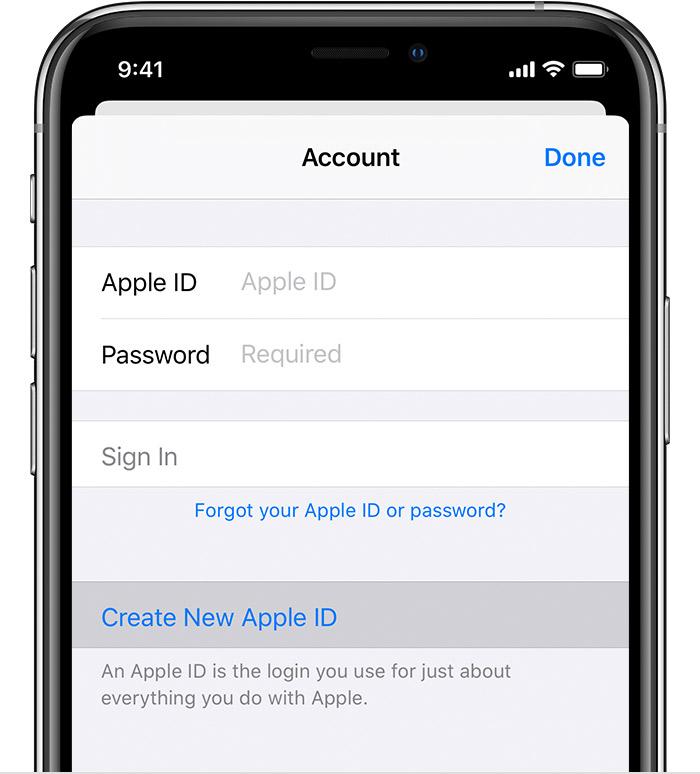
    After signing out of your old iCloud account, you need to log in to your new iCloud account and if you don’t have one too you can create a new one.

    • Go to Settings
    • Tap on “Sign in to your iPhone” and the top of the sidebar
    • Enter your new Apple ID and password
    • Enter the confirmation code sent to the other device signed in with your account (if any)
    • Enter your iPhone’s passcode if you have one

    Also depending on your internet connectivity, it may take a few minutes for all the data on the iCloud account to be transferred to your iPhone. For example, contacts, photos, etc.

    Once you sign in, your account will be automatically linked to iTunes and the App Store.

    Conclusion

    The main things discussed in this article are how to change iCloud on your iPhone and this involves two main stages; signing out of the old account and signing into your new account.

    I hope you find this useful and it serves its purpose for which it was published. And always feel free to drop your comments and your suggestions in the comment section below.