Category: Guides

  • How to unpair and reset Apple Watch

    How to unpair and reset Apple Watch

    Do you want to unpair and reset your Apple Watch? Unpairing and resetting your Apple Watch can be a daunting task for many, but it doesn’t have to be. In this article, we will provide step-by-step instructions on how to easily unpair and reset your Apple Watch. By following our instructions, you’ll be able to safely unpair and reset your Apple Watch so you can start using it as you normally would.

    What is an Apple Watch

    Apple Watch is a revolutionary device that provides a unique and personal way to stay connected with the world. It allows users to access notifications, communicate with friends and family, track their fitness activities, and much more. Apple Watch offers a wide range of features and benefits that can help you stay organized and on top of your daily tasks.

    How to unpair and erase your Apple Watch

    1. Keep your Apple Watch and iPhone close together as you unpair them.
    2. Open the Apple Watch app on your iPhone.
    3. Go to the My Watch tab and tap All Watches.
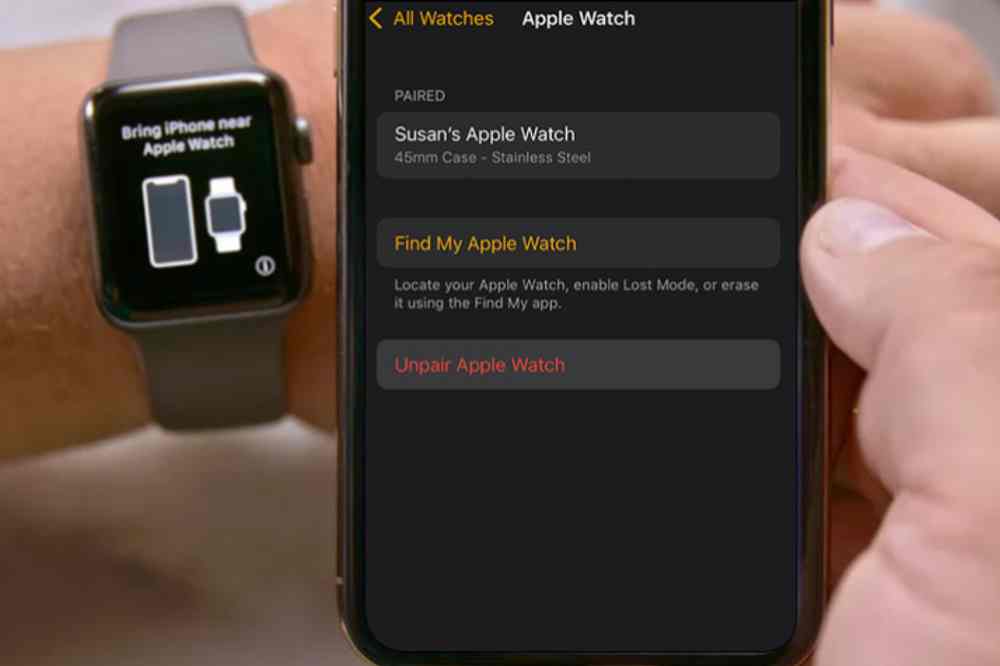
    4. Tap the info button  next to the watch that you want to unpair. 
    5. Tap Unpair Apple Watch
    6. Tap Unpair [your Apple Watch name].
    7. For GPS + Cellular models, choose whether to keep or remove your cellular plan.
    8. Type your Apple ID password to activate disabled link, then tap Unpair. 

    How to reset your Apple Watch

    1. On your Apple Watch, tap Settings > General > Reset > Erase All Content and Settings. 
    2. Type your password if prompted.
    3. For GPS + Cellular models, choose to keep or remove your cellular plan.
    4. If you want to pair your Apple Watch and iPhone again, keep your plan. 
    5. If you don’t want to pair your Apple Watch and iPhone again, remove your plan.
    6. Tap Erase All to confirm. This resets your Apple Watch to the factory settings.

    Conclusion

    Congratulations! You now know how to unpair and reset your Apple Watch. Unpairing and resetting your Apple Watch is an important task that ensures that it remains in optimal working condition.

  • How to restart iPhone 12, 13 and 14 series

    How to restart iPhone 12, 13 and 14 series

    Are you having trouble getting your iPhone 12, 13, or 14 series to turn on? If so, you’re not alone. Fortunately, restarting your device can help you troubleshoot the issue and get your phone back up and running.

    Restarting your device can help solve many common issues, like frozen screens, apps that don’t respond, or battery problems. In this blog post, we’ll provide instructions on how to restart the iPhone 12, 13, and 14 series. With just a few easy steps, you’ll be able to get your device back up and running again in no time.

    Restarting your iPhone 12, 13 and 14 series

    Restarting is a way of resetting the device’s settings and refreshing the system. It can be useful if you are experiencing some sort of issue with your iPhone or if you just want to give your device a fresh start.

    1. First, press and hold down the power button on the right side of your device until the slide to power off bar appears.
    2. Slide the bar across the screen to turn off your device.
    3. Once the device is powered off, press and hold the power button again to turn it back on.
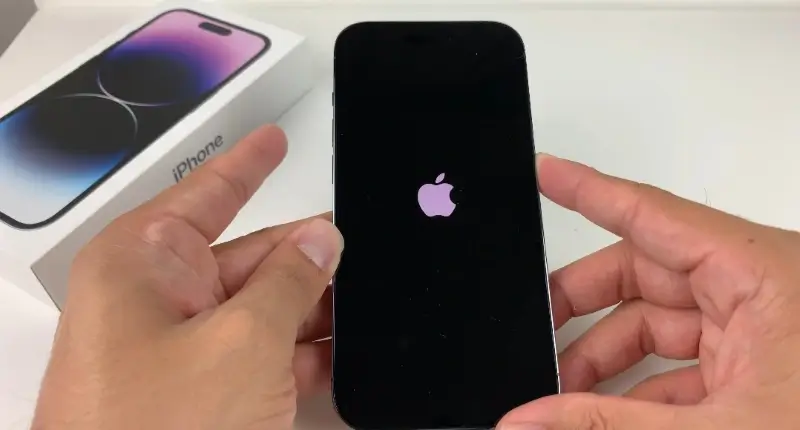
    4. You should see the Apple logo appear shortly after. Once your phone has rebooted, it should be running normally again.

    Forcing a restart on your iPhone

    If you need to force a restart on your iPhone 12, 13, or 14 series, it’s easy to do. Doing this will clear up any glitches you may be experiencing and allow your device to function properly.

    Before we begin, please note that forcing a restart is different from resetting your device, which wipes all the data on it and restores it to factory settings.

    1. To force a restart, press and hold both the side button and the down volume button at the same time for at least ten seconds.
    2. If the Apple logo appears, your device is restarting. The entire process takes about 30 seconds to complete.
    3. When your device has finished restarting, it should be running normally again.

    In some cases, restarting your iPhone may not be enough to solve certain issues. If restarting does not seem to help, you may need to reset your device to its factory settings. Doing this will erase all data from your device and will require you to set it up from scratch again. It is recommended that you backup any important data before resetting your device.

    Backing up your iPhone

    If you need to reset your iPhone 12, 13, or 14 series, the steps are relatively simple. It’s important to backup any data you want to keep before resetting your phone, as all data will be lost during the reboot process.

    Before you get started, make sure you have access to a computer, and that it has the latest version of iTunes installed. Here’s what to do:

    1. Connect your iPhone to your computer with the USB cable.
    2. Open iTunes and select your iPhone in the list of devices.
    3. Click Back Up Now to back up your device.
    4. Once the backup is complete, click the Restore iPhone button.
    5. Follow the on-screen instructions to finish restoring your iPhone.
    6. When prompted, set up your iPhone as a new device.
    7. Once you’ve successfully completed these steps, your iPhone should be restarted and ready for use.
    8. Make sure to double-check your backed up data after the restart to make sure everything is intact.

    Updating your iPhone

    1. Backup your device using iCloud or your computer.
    2. Plug your device into a power source and connect. Go to Settings > General, then tap Software Update.
    3. If you see more than one software update option available, choose the one you want to install.
    4. Tap Install Now. If you see Download and Install instead, tap it to download the update, enter your passcode, then tap Install Now.

    Conclusion

    If you’re having issues with your iPhone 12, 13, or 14 series and need to restart it, the steps are fairly simple. It’s important to remember that restarting your device can help solve some common problems, but it’s not a solution for every issue. If you continue to experience problems with your device after restarting it, we recommend taking it to an authorized Apple service provider for further diagnosis.

  • How to find your hotspot password on Samsung

    How to find your hotspot password on Samsung

    Do you have a Samsung device with a hotspot feature? Are you having trouble connecting to the internet through your device’s hotspot? If so, you may be wondering how to find your hotspot password on Samsung.

    Fortunately, finding your hotspot password on a Samsung device is a relatively simple process that can be completed in just a few steps.

    In this article, we will walk you through the process of finding your hotspot password so that you can easily connect to the internet and access the data you need.

    What is a hotspot

    A hotspot is a physical location where people can access the internet wirelessly. Hotspots provide a convenient way for users to connect to the internet without having to use a wired connection.

    When you activate your mobile device’s hotspot feature, it creates a wireless network that other devices can connect to. To protect your network, you set up a password. This password will be needed by anyone who wants to access your hotspot.

    How to find the Hotspot password on Samsung?

    Samsung devices have built-in options to share the Hotspot quickly. Finding the hotspot password on Samsung is also quite easy. You can locate the hotspot settings using two ways; through the settings or using the control panel. Here are both ways to quickly reach into the hotspot settings.

    Using Settings

    1. Open the device’s Settings.
    2. Tap on Connections.
    3. Scroll down and tap on Mobile Hotspot and Tethering.
    4. Tap on Mobile Hotspot.
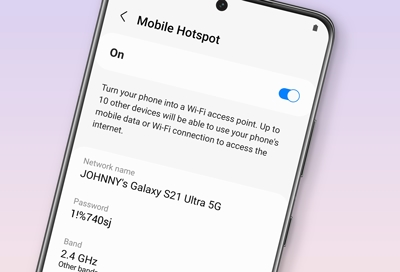
    5. In the next menu, you will see the password and other credentials of your Mobile Hotspot.

    Using Control Panel 

    1. To open the control panel of your device, swipe down from the top.
    2. Locate the Mobile Hotspot.
    3. Long press on the Mobile Hotspot, and it will redirect to the hotspot settings. 
    4. Now, you will find your device’s hotspot password alongside other credentials.

    How to change your Samsung device hotspot name and password

    When you purchase your Samsung phone, it comes with an automatic hotspot name and password. The name is mostly the device brand name and the password is a combination of letters and numbers. The good thing is, you can change all these to your preference so you can be able to remember them whenever necessary.

    1. Open your phone menu and click on Settings.
    2. Go to Connections. 
    3. Click on Mobile Hotspot and Tethering.
    4. Select Mobile Hotspot
    5. To change the name and password or any other credential, Click on Configure
    6. Tap on the Network name to change your hotspot name and Password to change your hotspot passowrd.
    7. Make sure you input a strong password and one you can remember
    8. Hit save once you are done to save your changes.

    Can you conenct Wi-Fi and Hotspot at the same time?

    No. You can’t switch on Wi-Fi and hotspot at the same time. Hotspot provides WiFi connectivity so its impossible to connect all two at the same time on the same device.

    How many devices can be connected to one Hotspot?

    Up to 10 devices can join your network via Hotspot. Also, note that, the more devices you connect to one Hotspot source, the slower it becomes so make sure you connect a device only when it is necessary or in use.

    How do you hotspot on Samsung?

    1. From Settings, tap Connections.
    2. Select Mobile Hotspot and Tethering. 
    3. Tap Mobile Hotspot and select Auto Hotspot.
    4. Tap on the switch next to it to switch to turn it on.

    Conclusion

    Now that you have found your hotspot password on your Samsung device, you can now easily share your internet connection with others. To ensure the security of your network, make sure to keep your password private and change it regularly.

  • How to check your mtn mobile money registration details

    How to check your mtn mobile money registration details

    Are you wondering how to check your mtn mobile money registration details? Perhaps you need to verify your mtn mobile money account due to suspicious transactions, or you are attempting to check your balance from your browser but haven’t been able to do so. This article will help you in checking all important information about your MTN mobile money account.

    As mobile money has become more popular, it has also become more important to know how to check your mobile money registration details. Whether you want to check the amount of your funds or update your profile information, knowing how to do this takes little effort and will make managing your account easier in the long run.

    Is checking your MTN mobile money registration details necessary?

    Yes. By checking your registration details, you can ensure that all the information associated with your account is accurate and up to date. It is also important to remember that, you should always keep your personal information safe.

    That means keeping your password and username secured and not share them with just anyone. This will help protect you from any potential fraud or identity theft.

    How can I re-activate MTN mobile money after registration?

    After your mobile money registration, you are now allowed to use the service. But what will you do to reactivate your account supposing you get locked out?

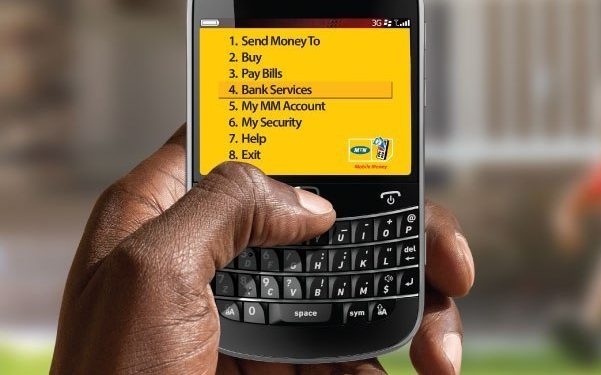
    1. Dial *170#
    2. Choose 6 (my wallet)
    3. Select 5 (change and reset password)
    4. Choose 2 to reset password.
    5. Type in your new password and proceed.

    How to check your mtn mobile money registration details

    To check and verify your MTN mobile money registration details, follow the steps below:

    1. Dial *170#.
    2. Choose option 6 (my wallet).
    3. Select option # (more).
    4. Choose option 10 (name and next of kin).
    5. Your mobile money name and next of kin will be displayed on the screen for you to see.
    6. If you want to change your next of kin, you choose option 1.
    7. If you however want to change everything completely, then you visit any nearby MTN office.

    How do I change my MTN mobile money registration details?

    If after checking your mobile money registration details, you saw any error and you want to change, the best option is to visit any MTN office near you, make a complain to the customer agent and you will be duly assisted.

    Conclusion

    Checking your MTN mobile money registration details is an important part of ensuring the security of your financial transactions. With just a few simple steps, you can easily verify that you have registered with MTN mobile money and keep your financial information safe.

  • How to access and check your E-Payslip online in Ghana

    How to access and check your E-Payslip online in Ghana

    An e-payslip is an electronic equivalent of a paper payslip that your employer would provide you with on payday. It contains all the important information about your salary, such as how much you earned, how much tax was deducted, and how much money was contributed to your savings or pension fund.

    How to register for an E-Payslip account

    NB: If you are a new user registering for a payslip account for the first time, you will need a first-time registration code, which you can get it from your Head of Department. If you already have the code, you then move on to register for an account. To do so,

    1. Visit www.gogpayslip.com
    2. In the next window, you will be required to fill in the requird details.
    3. employees number and confirm it,
    4. enter your preferred password and confirm it,
    5. enter registration code, enter your email address
    6. Enter mobile number and confirm
    7. After entering your mobile number, you will be sent a confirmation code, enter the code to confirm your number.
    8. After filling with the required details, tap register to get an account.

    How to login to your E-Payslip account online

    Before you can be able to login, you might already have an account. If you don’t have, then follow the first procedures to create an account. To login,

    1. Visit www.gogpayslip.com
    2. Hit on continue
    3. In the sign in section, insert your Employe number and type in your password.
    4. Now, tap on My Payslip and getting into your account dashboard.
    5. Scroll through and select the month you want to account for and hit on generate.
    6. Scroll down and hit on print to print your payslip out. You can also save as pdf incase you want to have a copy on your computer.

    Why should I check my Payslip?

    It is a good practice to be checking your payslip on the regular. There can be changes in circumstances at any point in time such as an annual pay rise, a promotion, bonus payment, etc.

    What happens if there is an error on my Payslip

    The best option is to contact the Controller Accountant General Department office in your region, lodge your complaint and get your issue resolved.

    Controller Accountant General’s Department contact details

    Ashanti Regional Office – 0322022903

    Brong Ahafo Regional Office – 0330227269

    Central Regional Office – 0332132551

    Eastern Regional Office – 0342022571

    Greater Accra Regional Office – 0302228721

    Northern Regional Office – 0372022604

    Upper East Regional Office – 0382022213

    Upper West Regional Office – 0392022030

    Volta Regional Office – 0362026271

    Western Regional Office – 0312046007

    For any enquiries or difficulties, you can contact the office of the Controller Accountant General Departmnt to get your issue resolved.

    Conclusion

    The above is a guide on how to access and check your E-Payslip online in Ghana.

  • How to Track a Phone Number in Ghana

    How to Track a Phone Number in Ghana

    Tracking phone numbers in Ghana can be difficult if you don’t know how to do it right. Most people will tell you that Ghana has no phone number tracking service, but that’s not entirely true.

    The majority of Ghanaians will tell you there are no phone numbers listed online, and they aren’t entirely wrong either—you just have to go to the right place to get the information you need.

    Even when you’re not sure you’re looking for, it can be useful to gather as much information as possible about someone you know and suspect may be cheating on you or simply seeing someone else in secret.

    For example, if you are suspicious that your spouse or partner is seeing someone else but they claim they aren’t, it can help to prove or disprove their story by tracking their phone calls or emails over the course of a few days and comparing them with where they claim to have been.

    You can track phone numbers in Ghana using different methods, and you can use it to make sure that your loved ones have access to the right information and equipment when they need it most.

    Whether you’re tracking your own mobile phone number or you are trying to track down someone else’s, this article will help you find the right information quickly and easily.

    Why you might need to track a phone number

    There are many reasons you might need to track a phone number. Perhaps you’re trying to find someone from your past, get an old friend back, or locate family members that have lost contact with one another.

    Maybe you suspect your spouse is having an affair and you want to track their location and who they are talking with on the phone. Maybe you need information for an investigation.

    What information do you need before you start

    Before you can track someone down, you need to know the details.

    1. The first thing you’ll need is their phone number.
    2. You will also want to know if it’s for work or personal use, and if they’re on any social media sites like Facebook or LinkedIn.
    3. Finally, be sure that you have the right spelling of their name and any other pertinent information like their house address, box address, email address, etc.

    Methods that can be used to track a phone number

    Using an app

    There are several mobile or windows apps in the market that can be used to track someone’s location. Apps like GEO finder, Truecaller, Heyfind, Phone locator, etc can be used to do so.

    All you have to do is to download the app, confirm it authenticity by reading reviews, open the app, register with your details and pay for their premium if available to use the app.

    Using Google Map

    Google map is termed as the “Earth representation” because it provides a representation of the earth based on satellite images.

    Using the steps below, you can also use Google map to track mobile phone devices.

    1. On your browser search Google Find My Device
    2. When the search opens, input the gmail login details of the device you want to track.
    3. Input your mobile number.
    4. You will receive a message with URL on your phone.
    5. Click on the URL link to open it on the web browser of your phone.
    6. Allow Google to access your location.
    7. Click on the “Yes” button when the dialog box pops up to let Google Latitude find the location.
    8. Google map will provide you with the location of the cell phone you inserted its details.

    Using catchy spam link

    What if the person has their GPS off? That means most of the tracking methods will not be possible since they all uses GPS to track location. If such happens in your case, then you sure have to use a spamming link to install a GPS on the persons phone without their knowledge.

    The following steps will help you find the current location of the phone by phone number when the GPS is off.

    1. Make a call to see if the persons phone is switched on.
    2. There are websites you can register that will provide you with the spamming link for tracking. Make sure you have registered with one.
    3. You should send the spamming link with a bug or a worm through a text message to the number.
    4. Make sure the text is convincing enough to make the person using the phone to click on it.
    5. After he or she clicks on the link, the bug will auto-install on the device. In order to track your phone, you will need to ensure that the bug access the GPS of the phone and then switch it on.
    6. After that, you can continue with the process of tracking the phone.
    7. Note that this method will only work if the person clicks on the spam link.

    Using Find My phone

    Find my fone can be found in your mobile phone settings. If you have misplaced your phone and you want to find it using another phone or want to track someone on your phone, you can use the Find my phone settings to do so.

    Below is how you can track an iPhone or Android phone using Find My Phone methods:

    iPhone

    1. On your iPhone, open settings.
    2. Choose iCloud.
    3. Switch on Find My Phone tab.
    4. To find your lost phone or to track someone, you must first have the Apple ID of the person’s or your lost device.
    5. Now, provide the needed requirements and tap on Find My Phone.
    6. You should be careful because the target person will receive a notification every time you try to search his or her location.

    Android

    1. On your phone, open settings
    2. Scroll through and locate security settings
    3. Look for “remotely locate this device.”
    4. Switch on “remotely locate this device”
    5. Switch on your phone GPS
    6. You can locate the device by turning on the Android Device Manager
    7. Now, insert the Gmail address of the phone or person you want to track and log in.

    After logging in, Google will inform you of the location of the phone. Also, you will see the history.

    Conclusion

    You should now know how to track a phone number in Ghana. You will be able to get the information you need without any worries or hassles.

  • How to Login to the NSS Portal in Ghana

    How to Login to the NSS Portal in Ghana

    Not everyone knows what the National Service Scheme (NSS) Portal in Ghana is, much less how to login to it. This guide explains what the NSS Portal in Ghana is, what you can do when you’re logged in, and how you can use it to look up information concerning the national service scheme

    About NSS Ghana

    The National Service Scheme (NSS) is a voluntary, non-military national service program that provides work experience and training for citizens of Ghana.

    The program was established by the government of Ghana on October 1, 2009 and it aims at providing opportunities for secondary school leavers who are unemployed or underemployed as well as graduates from tertiary institutions.

    What is NSS Portal in Ghana

    NSS portal is a login portal for National Service Scheme (NSS) personnels and other stakeholders used to access vital information concerning the scheme. The portal can be accessed using the personnels credentials such as email/username and password.

    This guide are for starters whp are setting up their NSS login portal and also for personnel who are already having their portal but have forgotten the login process.

    How to retrieve your pin code via NSS dashboard

    As a registered personnel, you will be provided with a PIN CODE for first time login. You need to activate that PIN CODE in order to get your portal activated. The popular payment method is Mobile Money.

    To check your PIN CODE,

    1. Login to your NSS portal with your email and NSS number as password.
    2. Click on the dashboard menu “Check & Pay For PIN CODE
    3. Enter your Index No. or your School ID No.
    4. Click search
    5. A display of your PIN CODE and personal data will appear.

    How to check and activate your NSS PIN Code before registration

    Now that you have checked your PIN CODE, you need to activate it in order to be able to use your NSS dashboard.

    1. Visit the link portal.nss.gov.gh/check-pin
      on the NSS portal and insert your Index Number/student ID number and Date of Birth in the space provided and “SEARCH”.
    2. A pop up menu of your pin code, full name, Institution, Course of study, and year of enrollment will be provided. Kindly copy the pin code.
    3. The next thing is to use your pin code as a reference in payment for its activation.

    How to activate PIN with MTN Mobile Money

    1. Kindly dial *170#,
    2. Choose option 2 for “PAY BILL”,
    3. Choose General Payments (Option 6),
    4. Enter Payment code as – NSS PINCODE (type NSS, put a space, then type your PIN CODE). The menu will return to your name for confirmation.
    5. Enter the deposit amount.
    6. Enter “NSS” as the reference.
    7. Enter PIN to confirm payment.
    8. You will receive a message to confirm the transaction, then you can proceed to NSS Registration.

    How to login to NSS portal in Ghana

    Now that your PIN CODE has been activated, you can now login to your NSS dashboard using your PIN CODE as password and then change it to your preference. To do so,

    1. Visit portal.nss.gov.gh
    2. Go to the top green icon and click “Sign In
    3. Select the option “Sign In As Personnel
    4. On the login page, enter your username (the email you used during registration)
    5. Enter your PIN CODE as your password
    6. Click on the green “Log In” button to access your dashboard.
    7. On your dashboard, you can then go to your dashboard settings to change your password and use what you will remember.

    How to reset your NSS portal password

    Resetting your password means you have forgotten the current password or you just want to change it to one you can easily remember. To change your portal password,

    1. On your NSS dashboard, click on “Reset Password” on your left-hand side on the screen
    2. Enter your old password
    3. Enter new password
    4. Re-enter your new password
    5. Click on “Update Password”.

    Features of Nss dashboard

    The NSS dashboard has many features that can be used to do several things on your service journey.

    1. Replace lost ID.
    2. Check NSS Posting.
    3. Print NSS posting letter.
    4. Update registration form.
    5. Request for NSS certificate.
    6. View Online Registration Form.
    7. Print NSS Monthly Evaluation Form.
    8. Request changes in name and other details.
    9. Place Order for Items (NSS Life Starter Deals.)
    10. Regional Registration Verification Appointment.

    How to check NSS posting in your NSS portal

    1. Click this link: portal.nss.gov.gh/check-posting.
    2. Enter your User ID and Password.
    3. You will see a page showing where you have been posted to.
    4. If you want to print, click on “print” to print the page.

    How to register for NSS in Ghana?

    To register for NSS, download the NSS application form by logging into NSS dashboard. You can also visit any NSS secretariat nearby for an insightful guide.

    What are the benefits of NSS

    1. NSS helps you to grow individually and also as a group.
    2. It makes you confident, develops leadership skills, and gains knowledge about different people from different walks of life in Ghana and other parts of the world.
    3. You also learn other skills that help you lead a better life in various situations.

    How to NSS monthly evaluation form?

    The evaluation form is what NSS secretariat use to access your NSS allowance. Its necessary to print it out, fill it and submit it to any nearby NSS secretariat for processing. To print it out,

    1. Login to your NSS dashboard.
    2. On the front page of your dashboard, the evaluation form can be seen.
    3. Click on it to access it.
    4. A PDF copy of the form will be displayed.
    5. Click and download the file on your computer.
    6. Print the downloaded evaluation form and have yourself a hard copy.

    Conclusion

    It is very easy and simple to login into the NSS portal for Ghana. Just go on their website and click on Login. You will be able to see a box that requires your username and password. Enter your personal details and you will be granted access.

  • How to Get and use Meetville App on Facebook

    How to Get and use Meetville App on Facebook

    Meetville was created to help you find your perfect match and bring people together. More than 6 million singles are already using Meetville every month, and it has evolved into the world’s largest dating platform with 15+ million users worldwide.

    Signing up with Meetville app on Facebook can help you find new people, dates, friends or even love in your life. It makes easier to get in touch with people you don’t know yet but have something in common with.

    So if you are serious about finding someone to date, then this article will tell you how to get and use Meetville app on Facebook.

    What is Meetville

    Meetville is a social networking app for meeting new people. It’s a new way of dating, where you can meet interesting people from around the world. You can set up your profile, upload photos, search for other members, and start conversations with them.

    The app has several filters that let you narrow down your search by age range or location. You can also search by interests like sports or music to find someone who shares the same passions as you do.

    How to Get and Use Meetville App on Facebook

    The Meetville app is a free dating app that focuses on finding people with shared interests. The app also has a feature called See First which lets you see who has liked you without the other person knowing, so you can decide whether or not they’re worth your time.
    To get the app,

    Go to the Facebook App Store

    Go to the Apps section of Facebook and search for Meetville. From there, you can either click the link or hit “Get” in the top right-hand corner. If you click the link, an install dialog will pop up with a large green button that says “Install Now” Clicking this button will take you through a quick installation process.

    Install the app

    Now, wait for the installation process to successfully complete. Open the app and create an account. Getting started with the app is easy. To start, open up the app and create an account.

    You can enter your name, email address, password, gender, date of birth and location. Once you have created your profile you can choose a username for people to see when they search for you in the app.

    Next, head over to your settings page where you will be able to tweak some personal details such as who can send messages to you or who can see that you’re online.

    Start using the app

    Log in or sign up for a new account. Click on Browse. Select your gender, age, and location. Search for people with similar interests. Click “Like” if you want to follow this person’s profile. You can also chat with people by clicking on the Messages button in the top right corner of their profile page.

    Conclusion

    Meetville is a social network app that provides a platform for meeting people. It was created in 2016 by the founder of Meetic, one of the world’s leading dating sites.

    The app has been downloaded over 300,000 times and is used by 500,000 active users. As a result, Meetville has become one of the top 10 social networks.

  • How to Apply for Fido Loan in Ghana

    How to Apply for Fido Loan in Ghana

    The Fido Loan in Ghana is an innovative and flexible loan designed to provide you with the funding you need, when you need it, all without unnecessary paperwork or a long application process.

    It allows you to access funds that you need for emergencies, to start or grow your business, pay back existing loans or simply buy things that are needed for your family, all within 15 minutes or less.

    The Fido Loan can be used by anyone from small business owners to students and young professionals. All you need is to understand how to apply.

    What is Fido Loan

    Fido Loan is a financial provider that aims to extend credit and provide loans to unbanked populations in Ghana. They offer loans from GHS 100 up to GHS 2,000 with payment terms ranging up to a month.

    Eligibility

    1. Applicant must be 18 years old.
    2. Applicant must have a good credit score.
    3. Applicant must have an income of at least GHS 10 per day.

    What you need to apply

    To apply for Fido Loan in Ghana, you need to;

    1. Have a mobile phone
    2. An active telephone number.
    3. An internet connection
    4. A valid national identification card.
    5. You must also provide your address
    6. Business earnings
    7. What you need the money for
    8. Medium you can use to pay back.

    How to apply for Fido Loan

    1. Visit the google play store on your android device.
    2. In the search bar, type in “Fido Loan” and search.
    3. The Fido Loan app will show up and you hit on download.
    4. Wait for the app to download successfully
    5. Now, open the app and click on “get a loan”
    6. Fill in all the necessary requirements with the correct credentials.
    7. Wait for a while for your application to be processed
    8. After processing, if your application is approved, the requested amount will be disbursed into your MoMo account.

    How to repay your Fido Loan

    To repay your Fido Loan, you can use the same MoMo you used in applying for the loan. You can also use a different MoMo since you will be using your designated code as a reference.

    How to Repay Fido Loan using MTN MoMo

    1. Dial *170#
    2. Select option 2(MoMo pay and Paybill)
    3. Choose option 2 (Paybill)
    4. Select option 5 (General payment)
    5. Enter “Fido” as the payment code.
    6. Enter amount
    7. Enter reference
    8. Enter your MoMo pin to complete payment.

    How to repay Fido Loan using Voda Cash

    1. Dial *110#
    2. Select payment
    3. Select other payment
    4. Enter shortcode 633000
    5. Enter bill number
    6. Enter the amount to pay
    7. Enter voda cash pin to complete the payment

    How to repay Fido Loan using airtel tigo cash

    1. Dial *110#
    2. Select option 6 for savings and loans
    3. Select option 2 for loans and payback loans
    4. Select option 2 to pay back fido loan
    5. Select option 1 to pay fido loan
    6. Enter amount
    7. Enter reference code
    8. Enter Airteltigo pin to complete the payment.

    What happens if you don’t pay your fido loan?

    It is good to pay your loan to enable you to extend your loan wallet in order to b able to borrow a higher amount. Refusing to pay will damage your credit score and makes it difficult to request any loan in the future.

    Conclusion

    Fido Loan in Ghana is a great way to get an emergency loan when you have nowhere or no one else to depend on. Applying is easy and simple. You can apply anywhere and anytime so far as you have the app, an internet connection, and a mobile phone.

  • How to Block Spam Calls on Android and iPhone

    How to Block Spam Calls on Android and iPhone

    With the increasing prevalence of smartphones in everyday life, many people are finding themselves disturbed with spam calls every day. There is even an app called Truecaller that combines several directories into one in order to help people identify spammers and block them.

    Unfortunately, there are also situations where you may want to hear from an unknown caller, so you don’t want to be able to rely on Truecaller or any other app to block all your spam calls.

    Here’s how you can block spam calls on your Android or iPhone devices without using third-party apps like Truecaller.

    What are spam calls

    Spam calls are automated phone calls that are designed to trick you into answering the call so that you can receive a sales pitch or hear unwanted advertising. Many people find these types of calls stressful, annoying, and sometimes even frightening.

    Are spam calls dangerous?

    Spam calls are the worst. Not only do they interrupt your day, but they can be dangerous too. You never know who’s at the other end of the line, so it’s important to stay safe.

    How to detect spam calls

    To detect spam calls, a good first step is to make sure your phone settings allow you to see the phone number of incoming callers. For example, if you are using an iPhone, go into Settings and then Phone.

    From here, scroll down until you see Show My Caller ID. You can turn this setting off if desired. If you are using an Android device, go into Settings > Privacy and Safety > Call Blocking > Block numbers which have not called before.

    How to block spam calls on Android and iPhone

    on iPhone

    1. Go to the Phone app.
    2. Tap on “Recents.”
    3. Find the number you want to block and tap on the blue information icon to the right of the number.
    4. Select “Block this Caller.”

    on Android

    1. Go to the Phone app.
    2. Tap on “Recents.”
    3. Tap on the number you wish to block and then choose the info icon.
    4. Tap the “Block” button.

    Third party apps that can be used to block spam calls

    There are a few third party apps that can be used to block spam. These third party apps will allow the user to create a list of numbers they want blocked, so when that number tries to call them, it will not go through.

    Blokk

    Blokk is one app that can be used for blocking numbers. With this app, you can select a time period during which you would like the phone number blocked. There is also an option for blocking international phone numbers.

    HeyYou

    This app can be used for blocking numbers from around 80 countries. It also has features for muting and recording incoming calls.

    For example, if someone who does not appear in your contacts list calls your phone, you can record their voice with the app before deciding whether or not to answer the call.

    If someone hangs up before you have a chance to answer them, then their voice recording will still be saved in your inbox.

    Truecaller

    Truecaller is used for identifying unknown numbers. This app can be used in conjunction with Blokk or HeyYou. With Truecaller, you can find out who is calling before you decide whether or not to answer their call.

    Another interesting feature about Truecaller is that it has a blacklist where users are able to input numbers they don’t want getting through, effectively blocking these numbers from ever reaching them in real life.

    Conclusion

    There are a number of steps you can take, depending on the type of phone you have, to help reduce or eliminate unwanted spam calls. Above are some tips for making your phone less appealing as a target for spammers.