Category: Guides

  • How to connect/pair a Wii remote

    How to connect/pair a Wii remote

    If you have recently purchased a Wii console, then you may be wondering how to connect/pair the Wii Remote to the console. Pairing the Wii Remote with your Wii console is an easy process that can be completed in a few simple steps. In this article, we will discuss the step-by-step process of connecting/pairing your Wii Remote with your Wii console.

    What is a Wii remote

    A Wii Remote is a wireless controller that was originally developed by Nintendo for their popular Wii console. The Wii Remote, commonly known as the Wiimote, is one of the most recognizable pieces of gaming hardware ever released. It is a lightweight and easy to use controller that makes playing video games more intuitive and fun.

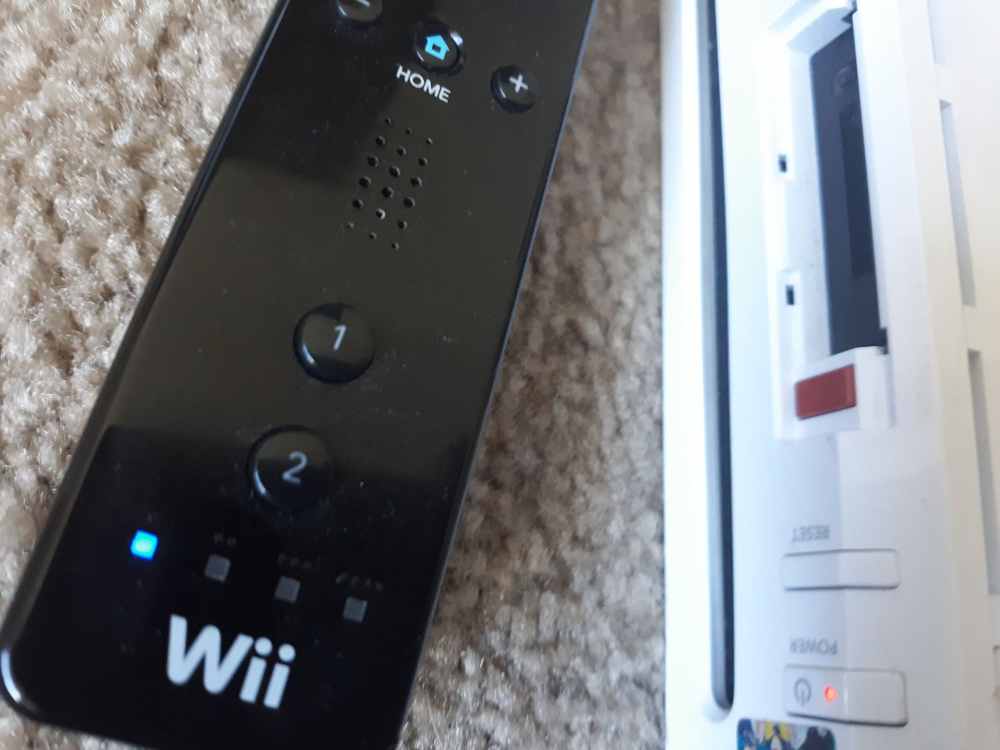
    The Wii Remote features two main buttons – the A button and the B button – as well as a directional pad, Home button, and power button. It also has accelerometers that detect motion and allow users to control games with gestures or movements of their hands and arms. This technology was revolutionary when the Wii was first released and continues to be used in many modern gaming systems.

    In order to use the Wii Remote with your console, you must first connect it using a process known as pairing. Pairing allows the Wii Remote to sync up with the Wii Console and recognize all of the buttons and inputs available. Connecting a Wii Remote is easy and can be done in just a few simple steps.

    Why will someone want to connect to Wii console

    The Nintendo Wii is an incredibly popular gaming console and has been for over a decade. With the Wii, gamers can experience a wide variety of games that feature unique motion controls and more. Whether you’re playing your favorite sports game or Mario Kart, connecting a Wii Remote is essential for a great gaming experience.

    Connecting a Wii Remote to your Wii console is a simple and straightforward process. Not only does it allow you to use the remote for gaming, but it also allows you to use the remote for other applications such as the Internet Channel and Netflix.

    So why would someone want to connect a Wii Remote to their Wii console? Well, it’s pretty simple: it provides a better gaming experience. By connecting the Wii Remote, you’ll be able to play with friends using up to four remotes. You’ll also be able to use motion control in order to make your gaming experience even more immersive.

    In addition, connecting your Wii Remote will also allow you to access new features and applications that you may not have had access to before. For example, if you connect your Wii Remote, you’ll be able to download classic titles from the Virtual Console.
    All in all, connecting a Wii Remote to your Wii console is essential for any gamer who wants to get the most out of their gaming experience.

    With the ability to play with up to four players, use motion controls, and access new features and applications, there are plenty of reasons why someone might want to connect a Wii Remote to their Wii console.

    Items and equipments needed to connect a Wii remote

    Connecting a Wii remote to your console is a relatively easy process that can be completed in just a few simple steps. Before you can get started, however, there are a few items and equipment you will need to have on hand.

    1. A Wii Remote
    2. A Wii Console
    3. Wii Sensor Bar
    4. Batteries for the Wii Remote
    5. Cables

    The first item you will need is the Wii remote. This should come with the original package, but if not, it can be purchased separately. You will also need two AA batteries to power the remote.

    You will also need the Wii sensor bar, which is a small device that connects to the console and detects the Wii remote’s movements. The sensor bar should come with the console, but if not, it can be purchased separately.

    You will need to connect the Wii remote to the console. You can do this by plugging in the Wii Remote’s sync cable into the back of the console.

    Once you have all of these items and equipment ready, you’re ready to begin connecting your Wii remote to your console.

    How to connect/pair a Wii remote

    1. Turn on the Wii console and make sure it is in range of the Wii remote.
    2. Open the battery compartment on the Wii remote and insert the batteries.
    3. Press the “Sync” button on the Wii console and the Wii remote at the same time.
    4. Wait for the Wii remote to connect to the Wii console, which will be indicated by a flashing light on the remote.
    5. Test the Wii remote by pressing buttons and moving it to ensure it is functioning properly.
    6. Once you have successfully synced your remote, you’re ready to start playing.

    Conclusion

    Now you know how to connect/pair a Wii remote to your gaming system. This simple process can enhance your gaming experience and make it much more enjoyable. With the help of the steps above, you can easily connect your Wii remote and start gaming right away. It is worth giving it a try if you haven’t.

  • List of 50 keyboard shortcut keys

    List of 50 keyboard shortcut keys

    Are you looking for ways to become more efficient while using your computer? Using keyboard shortcuts is an efficient way to quickly perform tasks on your computer. Knowing a few keyboard shortcuts can be one of the best ways to boost your productivity.

    In this article, we will provide you with a list of 50 keyboard shortcut keys that you can use to speed up your workflow and get more done in less time. From the most commonly used shortcuts to those you may not know about.

    What are keyboard shortcuts keys

    Shortcut keys are combinations of two or more keys that, when pressed simultaneously, can be used to perform a variety of functions in different programs. Using shortcut keys can help you to increase productivity and save time while working on your computer.

    Not only that, but learning and remembering shortcut keys can also make you look like a tech guru in front of your colleagues.

    Benefits of using keyboard shortcuts

    Keyboard shortcuts are essential tools for working faster on your computer and can save you a great deal of time. With just a few keystrokes, you can quickly access the tools and functions you need.

    1. Using keyboard shortcuts is a great way to streamline your workflow and quickly complete tasks.
    2. It allows you to move around the system without having to use a mouse or other input device.
    3. Keyboard shortcuts are available in almost all programs and applications, so you can benefit from their usage in a variety of ways.
    4. Not only can using keyboard shortcuts save you time, but they also allow you to quickly make changes to documents, adjust settings, and execute commands.
    5. If you are in a hurry and need to quickly find an application, a specific file, or a tool, keyboard shortcuts can get you there faster than ever before.

    50 keyboard shortcuts keys and their functions

    Windows ShortcutFUNCTIONS
    CTRL+ASelect all the items in the current window
    CTRL+CCopy
    CTRL+X Cut
    CTRL+V Paste
    CTRL+Z Undo
    CTRL+F search on the current page
    CTRL+P Prints the current page
    Windows KEY+L Lock the computer
    ALT+TAB Switch between the running programs
    F2 Rename an object
    SHIFT+DELETE Deletes an item immediately (permanently) without moving it into the Recycle Bin.
    Windows KEY+E Opens Windows Explorer
    Windows KEY+D Minimizes all open windows and displays the desktop & vice versa
    ALT+F4 Quit the current program
    ALT+F4 on DesktopShows an option to Restart, Shutdown or Signout
    ALT+ SHIFT+TABSwitch between the running programs in the reverse order
    CTRL+TABSwitch to the next child window (tab) of a current program, such as the tabs in our web browser
    CTRL+ SHIFT+TABwill move through tabs in reverse order.
    CTRL+ drag a fileTo make a copy
    CTRL+SHIFT + drag a fileTo Create shortcuts
    BACKSPACESwitch to the parent folder
    CTRL+ click on the linkTo open the link in new tab
    CTRL+LSelect the current path of the file on Windows Explorer or on Browser
    CTRL+F4 or CTRL+WCloses the current window (tab) of a current program
    CTRL+TOpen a new Tab in Browser
    CTRL + SHIFT+TTo restore previous tabs in the browser
    Type domain name and PRESS CTRL+ENTER Completion of .com address in browser Eg: Type youtube and CTRL+ENTER will load YouTube website.
    CTRL+SHIFT+ESCOpen Windows Task Manager
    CTRL+ALT+DELETEshow the menu of Lock, Switch User, Sign Out, Task Manager
    CTRL+ plus (+)Expands (Zoom IN).
    CTRL+ minus (-)Collapses (Zoom Out).
    ALT+ENTEROpen the properties for the selected object
    Windows KEY+BREAKSystem Properties dialog box
    CTRL+LSelect the current path of the file on Windows Explorer or on Browser
    CTRL+SHIFT+ESCOpen Windows Task Manager
    CTRL+ALT+DELETEshow the menu of Lock, Switch User, Sign Out, Task Manager
    ALT or F10 THEN UNDERLINED Letter In MenuOpens the particular menu
    Windows KEY+M Minimize all
    Windows Key+ SHIFT+ M Undo minimize all
    Windows Key+ P Projection Screen (PROJECT)
    Windows Key+ Arrow key To manage a number of the window in the screen (to divide screen)
    Alt + Space Bar Opens menu which moves, minimize, maximize, close the current windows.
    F4 on Window Explorer  Selects the Go To A Different Folder box and moves down the entries in the box
    Left ALT+left SHIFT+NUM LOCK Toggles MouseKeys on and off on Numeric Keypad
    Windows KEY+R  (Run dialog box) & type cmd command prompt
    Windows KEY+R  (Run dialog box) & type “OSK On-screen Keyboard
    Windows KEY+R (Run dialog box) & type mstsc Remote Desktop Connection
    Windows KEY+R  (Run dialog box) & type “appwiz.cpl” Open “Uninstall” or “Change a program
    Windows KEY+AOpens Action Center on Right of the screen on Windows10
    Windows KEY+WOpens Window Ink Work-space on Right of the screen on Windows10
    Windows KEY+IOpens Windows Setting on Windows10

    Conclusion

    Using keyboard shortcuts is a great way to save time and increase your productivity. We hope that this list of 50 keyboard shortcut keys has given you some ideas of how you can use them to your advantage.

    With so many combinations available, there is sure to be a shortcut key for almost any task. It may take some time to get used to using these keyboard shortcuts, but the time and effort invested will be worth it in the end.

  • How to force quit on a MacBook

    How to force quit on a MacBook

    If your MacBook is running slow or an application isn’t responding, it might be time to force quit the program. Force quitting an application is an easy process and can help you get back on track quickly.

    Knowing how to force quit on a MacBook can help you save time and frustration when dealing with a stuck program. In this article, we will provide a step-by-step guide to force quit on your MacBook. By following these steps, you’ll be able to quickly and easily exit any program that isn’t responding.

    What is force quit on MacBook?

    Force quitting an application on a MacBook is a way to stop the application from running without having to shut down your computer. This is useful if an application stops responding, becomes unresponsive, or is otherwise not functioning properly. Knowing how to force quit on a MacBook can help you get back to working quickly and efficiently.

    Why is my MacBook frozen?

    Sometimes that can happen because you’re running a lot of software or a particularly demanding app. Other times, it can be caused by badly coded software or even malware. Stopping apps that are taking up a lot of processing power can help to stop your Mac from freezing.

    How to force quit on MacBook from the Apple menu

    1. First, identify the app that is unresponsive. If you have multiple apps open, the simplest way to indicate the unresponsive app is to look at the cursor. If the cursor looks normal, the app is still responsive. If the cursor resembles the rainbow spinning wheel, the app is unresponsive.
    2. Once you’ve identified the unresponsive app, locate the taskbar at the top of your screen. In the far left, select the Apple logo to access the dropdown menu.
    3. In the dropdown menu, select “Force Quit”
    4. A new window will pop up with all the applications you have open on your Mac.
    5. Select the application you wish to force quit. If you want to force quit more than one application, use the Command to select multiple.
    6. Next, select Force Quit

    How to force quit on MacBook with a keyboard shortcut

    1. With the keyboard short code, you will not need to manually locate any apple icon and taskbar.
    2. The menu automatically opens for you and then you select the unresponsive application and you click on force quit.
    3. To access the menu, use the keyboard shortcut Option + Command + Esc.

    How to force quit on MacBook using Activity Monitor

    A Mac’s Activity Monitor is an easy way to locate troublesome applications, see how much energy or CPU power they are using, and force them to quit.

    1. First, launch Activity Monitor. You can do this by using the Spotlight feature (Command + Space) or by going to Finder > Applications > Activity Monitor.
    2. Once Activity Monitor is open, find and select the app you want to force quit.
    3. After you’ve selected the app, select the stop icon (resembling an octagon with an “X” in the middle).
    4. A pop-up window will ask if you are sure you want to quit this process. Select “Force Quit” from the list of options. The app will then close.

    What to do if force quit isn’t working on a MacBook

    The force quit feature is the simplest way to shut down faulty applications, but sometimes you can’t even do that. If force quit isn’t an option and your screen is completely frozen, restart your Mac.

    Conclusion

    Force quitting on a MacBook is an essential skill to have in order to keep your computer running smoothly. Whether you’re dealing with a stubborn program or an application that’s consuming too much of your system’s resources, force quitting will give you the opportunity to quickly and easily end the process.

  • How to turn your MAC into Dark Mode

    How to turn your MAC into Dark Mode

    Do you want to add a sleek, modern look to your MAC? The dark mode is the perfect way to transform the appearance of your laptop or computer. Dark mode allows you to switch your device’s interface to a darker color palette and can help reduce eye strain. If you’re looking for a way to update your MAC and make it more stylish, dark mode is the way to go.

    This article will guide you through the steps of how to turn your MAC into dark mode. With these simple steps, you can easily give your MAC a stylish new look.

    How to turn your MAC into Dark Mode

    Enable Dark Mode using the control center

    1. For a super-fast way to enable Dark Mode, head to the Control Center on your Mac.
    2. Select Display and then click Dark Mode.
    3. You can turn off Dark Mode anytime from your Control Center the same way.

    Enable dark mode using Siri

    If you’re used to using Siri on your Mac, that’s another way to enable Dark Mode. Instruct Siri to “Enable” or “Turn on dark mode.”

    Enable dark mode using system preferences

    Another way to turn on Dark Mode is in your System Preferences.

    1. Click the System Preferences icon in your Dock
    2. You can also click on the Apple icon and then click on System Preferences from your menu bar.
    3. Select General and then choose dark next to appear at the very top.
    4. You can turn off dark mode in your system preferences by following the same steps and selecting light next to appearance.

    Enable Dark Mode automatically

    In addition to Light and Dark, you’ll notice that an Auto option is in the General section of System Preferences. This allows you to enable Dark Mode on a convenient schedule automatically. If you select Auto, you can then set the schedule for Dark Mode in the Night Shift settings.

    1. Go to System Preferences
    2. Click on Displays
    3. Click the Night Shift tab at the top.
    4. Use the drop-down box next to Schedule to turn it on from Sunset to Sunrise or set up a Custom schedule.

    How to switch between Light and Dark Modes

    1. You can quickly switch between Light Mode and Dark Mode on your Mac by opening the Control Center in the top-right corner of your screen.
    2. Click Display and select Dark Mode or Light Mode.
    3. Open the Control Center on your Mac.
    4. Click the icon that looks like two slider buttons stacked on top of each other.
    5. You will see this icon in the top-right corner of your screen so that you switch between dark and light anytime you want to.

    NB: If you have not updated your computer to macOS Big Sur, you may not see the Control Center icon on your screen which means, you might not be able to use this method.

    Why you should use dark mode on MacBook?

    Dark Mode on macOS gives you an easy way to eliminate the brightness of apps, menus, the Dock, and other elements on your computer, whether you prefer only to use it when the sun goes down or all the time.

    Conclusion

    Turning on dark mode is easy. It reduces eye strain and makes it easier to work late into the night. Additionally, it reduces the amount of energy used by your device, which helps preserve battery life. The dark colors help improve the overall appearance of your device, making it look stylish and modern.

  • How to print with iPhone

    How to print with iPhone

    Printing documents from a phone can be incredibly convenient, whether you’re in the office or on the go. If you own an iPhone, you can print directly from it without having to transfer your documents to a computer.

    This article will provide step-by-step instructions on how to print directly from your iPhone. With just a few taps, you’ll be able to easily print documents, photos, emails, and more.

    How to print from an iPhone with AirPrint

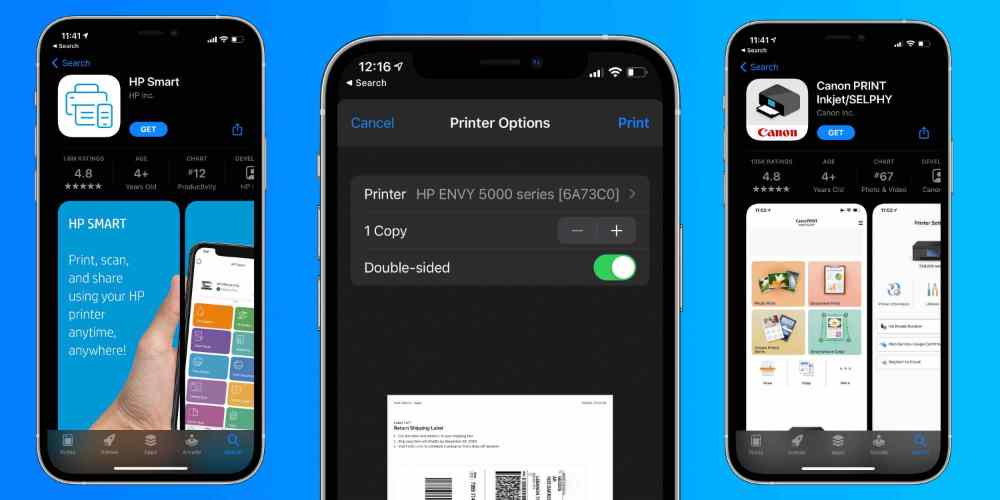
    Most current printers with wireless capabilities have the AirPrint feature, which allows the printer to easily sync up with an iPhone and print directly. To add a printer to your iPhone with AirPrint;

    1. Open the document, image, or webpage you wish to print. This can be located in your email, web browser, Photos app, Files app, or elsewhere.
    2. Locate and hit the Share button, which is the square with an arrow aiming upward out of its center. If you don’t see this button, depending on the app you’re using, you may need to select the icon of three horizontal dots or the icon of an arrow pointing to the left.
    3. In the pop-up, scroll down until you see an icon of a printer next to the word Print.
    4. Tap Printer, and on the next screen, then select the desired printer from the list.
    5. Hit on Print written in blue in the top-right corner of the screen.

    How to print from an iPhone without AirPrint

    Some printers do not have the AirPrint features. But hey, you can still print whatever you want to print so far as the printer has a WIFI connectivity. You just have to download a print app for the printer to your iPhone and there you go. To set up a printer on your iPhone without AirPrint;

    1. Open your printer’s app on your device.
    2. Turn on your printer’s Wi-Fi.
    3. Go into your phone or tablet’s Settings and hit Wi-Fi.
    4. Locate your printer under other networks and tap on it.
    5. Pull up the document, image, or webpage you want to print, then hit the Share icon.
    6. You should now be able to connect the printer through the app and print.

    How to print from an iPhone with a USB cable

    Your printer has neither AirPrint nor WIFI and you still wished you can use it for your printing works from your phone. Well, there is still an option for you if it supports a USB cable insertion which I am sure this time around, it does. All you have to do is to get a USB cable and a USB OTG (on-the-go) adapter that connects your iPhone to the USB cable. To print from an iPhone with a USB cable,

    1. Turn on your printer and connect one end of the USB cord to your printer and the other end to the USB OTG cord. Plug the other end of the USB OTG cord into your iPhone.
    2. A pop-up should appear on your iPhone
    3. Tap OK.
    4. On your iPhone, go to the document you wish to print and tap the Share button.
    5. In the Share menu, select the Print option.
    6. The connected printer should appear next to the Printer on the Printer Options page.
    7. Tap Print in the upper-right corner.

    Can I plug my iPhone directly into a printer?

    Connecting your iPhone to your printer is possible when you have at least a USB cable and an OTG adapter.

    Difference between printer and AirPrint

    AirPrint is an IOS or macOS feature that enables easy printing with a printer that supports an AirPrint feature. A normal printer does not support the AirPrint feature which means you will need to connect to WIFI to be able to download. Another option for a normal printer is by using a USB cable and OTG adapter.

    How do I manually connect my iPhone to my printer?

    To manually connect your iPhone to a printer,

    1. Open Settings
    2. Locate Hardware
    3. Select Printers
    4. Create Printer Station and give it a name.
    5. Tap Printer then selects a printer.
    6. Click Connect AirPrint printer and choose your printer.
    7. If the printer does not support AirPrint, on your WIFI and search for the printer connectivity name and connect.

    Conclusion

    You don’t need to stress about how you can print a file or image on your iPhone, it has now been made easier and simple. Follow the steps above and you will have yourself in a convenient position.

  • How to get free Robux

    How to get free Robux

    Robux is an incredibly popular virtual currency that is used in many of today’s most popular online games and virtual worlds. It can be used to purchase a variety of items, from in-game goodies to real-world products. With Robux, gamers have the power to customize their gaming experience and enjoy a wide range of rewards and bonuses.

    Unfortunately, not everyone has the money to buy Robux. Fortunately, there are a number of ways to get free Robux. This article will provide you with some tips on how to get your hands on free Robux so that you can enjoy all the benefits of this virtual currency.

    First, there are a few websites that offer Robux giveaways and contests. These websites usually require you to register with them and participate in various activities such as surveys and quizzes in order to win Robux.

    Another way to get free Robux is by taking part in specific activities such as playing certain video games or watching certain videos. These activities typically offer Robux as rewards for completing them.

    There are also several websites that offer Robux for sale at discounted prices. If you have some spare cash, these sites can be great sources for cheap Robux. Just remember to do your research before purchasing any Robux from these sites.

    Finally, if you have friends who already have Robux, you can also ask them if they would be willing to give you some of their spare Robux. You may even be able to trade other items for Robux if your friends are willing to accept them.

    With these tips, you should now have no trouble getting your hands on some free Robux. So go ahead and start enjoying all the benefits that come with having this virtual currency.

    What is Robux

    Robux is an incredibly popular online game, with millions of players around the world. It is a sandbox game where you can create and customize your own virtual world and character, as well as engage in a variety of mini-games and activities.

    Is Robux free?

    Unfortunately, unlike a lot of free-to-play games, there aren’t any available codes to grant you free Robux. There are ways you can get Robux for free but even for that, you would have to do something as payment. There are a lot of potential scams providing free Robux codes so be wary of such advertisements when searching for ways to get free Robux in Roblox.

    Free Robux generators and hacks

    When you search for anything related to getting free Robux, you’ll often see websites and ads that claim they have free generators that will automatically create unlimited Robux codes for you for free. There is no such thing as a Robux Generator. If a person, website, or experience tries to tell you there is one, this is a scam and should be reported.

    Best ways to earn free Robux

    The Roblox referral system

    This program allows players to get free Robux in exchange for games and library items. The player will first need to go to the Affiliate Program section and sign up. They will then receive a personal link that can be shared with friends. Every time a new user signs up using this link, the player will get 5% of the Robux the new player uses. It’s a great way to get more Robux passively.

    Robuxmania

    This is a website where players can earn Robux by completing surveys and installing games. This is one of the many Robux Generators online that has received praise across the board from other players. The Robux is then sent to the player’s email as a Roblox login is not required.

    Create your own Roblox game

    One way to get free Robox is to create your own game. Roblox has a free and immersive creation engine that you can use to create games. You can release these games to smartphones, tablets, desktops, consoles, and virtual reality devices.

    Complete Surveys

    You can find a variety of surveys online that reward you with Robux currency when you complete them. While they may take time to complete, they are a great way to accumulate a substantial amount of free Robux currency quickly.

    Promotional Offers

    Many websites offer promotional offers where you can get free Robux currency by signing up for their services or purchasing their products. Be sure to read the fine print before you sign up for anything, as some promotional offers require you to pay a fee or provide personal information.

    Contests and Giveaways

    Occasionally, Robux will hold special contests or giveaways that award players with free Robux currency if they win. Keep an eye out for any upcoming contests or giveaways on the Robux website or social media pages.

    Conclusion

    You now know how to get free Robux. There are many different ways to get them, so be sure to try out all of them. Whether you want to complete surveys or download apps, there is sure to be an option that works for you.

  • How to cancel Paramount Plus subscription

    How to cancel Paramount Plus subscription

    Are you looking to cancel your Paramount Plus subscription? Whether you’re no longer interested in the streaming service or simply can’t afford it anymore, canceling is a simple process. In this article, we’ll walk you through the steps you need to take to cancel your Paramount Plus subscription, so you’ll no longer be charged for the service.

    What is Paramount Plus?

    Paramount Plus is a streaming service that gives subscribers access to a wide variety of TV shows and movies, including original programming. It offers content from major networks like CBS, Paramount Network, Nickelodeon, BET, Comedy Central, and more.

    The subscription also gives users the ability to watch live sports, news, and exclusive events. Paramount Plus allows viewers to customize their viewing experience by providing them with personalized recommendations and allowing them to create up to six profiles.

    How do I cancel my Paramount Plus subscription?

    The method of canceling your Paramount Plus subscription depends on the method you used for subscribing since it’s different for all devices. Generally, you need to go to “subscriptions” from within the account you subscribed with, click on Paramount+, and cancel from there.

    How to cancel a Paramount Plus subscription on the web

    1. Open Paramount Plus in a web browser and sign into the account if you’re not already logged in.
    2. Move your mouse over your account name at the top right and then click Account in the dropdown menu.
    3. In the Subscription & Billing section, click Cancel Subscription, then click Yes, Cancel.

    How to cancel a Paramount Plus subscription on an iPhone or iPad

    1. Open the settings app from your phone menu.
    2. Tap your name at the top corner of your device.
    3. Tap Subscriptions.
    4. In the Active section, tap Paramount+.
    5. Tap Cancel Subscription and then tap Confirm.

    How to cancel a Paramount Plus subscription on Android

    1. On your Android device, start the Google Play app.
    2. Tap your account icon at the top right.
    3. Tap Payment & subscriptions.
    4. Tap Paramount+.
    5. Tap Cancel subscription and follow the directions to cancel your service.  

    How to cancel a Paramount Plus subscription on an Apple TV

    1. On your Apple TV, start the Settings app.
    2. Tap Users & Accounts, then choose your account.
    3. Tap Subscriptions.
    4. In the Active section, tap Paramount+.
    5. Tap Cancel Subscription and then tap Confirm.

    How to cancel a Paramount Plus subscription on a Roku

    1. Using the remote control, go to the home screen.
    2. Select the Paramount Plus channel icon and then press the Star button.
    3. Select Manage Subscriptions.
    4. Choose Cancel Subscription and confirm you want to do this.

    How to cancel a Paramount Plus subscription on Amazon Fire TV

    1. Go to Amazon.com in a web browser.
    2. In the top-right corner, bring up the dropdown menu by hovering over your name and Accounts & Lists, and select Memberships & Subscriptions.
    3. Select Manage Subscription next to Paramount+.
    4. Click the link under Manage Your Prime Video Channels.
    5. Under the Prime Video Channels section, find Paramount+.
    6. Select Cancel Channel and confirm.

    Can I re-subscribe to Paramount Plus if I cancel my subscription?

    Yes, you can re-subscribe at any time, but you will need to go through the billing and payment process all over again.

    How to change your Paramount Plus subscription plan

    If you want to keep Paramount+ but wish to save some extra money, you can adjust your plan accordingly.

    1. From the Account page on the web, click the Edit Plan link next to your active plan.
    2. You can then select a new plan and click Switch Plan to confirm.

    Conclusion

    Canceling your Paramount Plus subscription is a relatively simple process. If you’ve decided that you no longer need the streaming service or want to save some money, you can easily cancel your subscription in just a few steps. You can either do it directly on the Paramount Plus website or through your Google Play or iTunes account.

    When canceling, it’s important to remember that you’ll have immediate access to all of the content you’ve purchased until the end of your billing cycle. However, after that date, you won’t be able to stream any more content from Paramount Plus.

  • How to delete contacts on an iPhone

    How to delete contacts on an iPhone

    In this article, we’ll explain how to delete contacts from your iPhone so you can keep your address book clutter-free. Deleting contacts on an iPhone is a straightforward process, and can be completed in just a few simple steps.

    Keeping your contact list organized and up-to-date is important, and sometimes that means deleting contacts you no longer need. The iPhone’s user-friendly interface makes it easy to remove contacts you no longer need.

    Whether you’re trying to free up storage space or just want to get rid of some outdated contacts, this guide will show you how to delete contacts on an iPhone in just a few steps.

    How to delete contacts on iPhone

    Deleting individual contacts

    1. Open the Contacts app on your iPhone and tap the Contacts tab at the bottom of the screen.
    2. Scroll to the contact you want to delete and tap on their name.
    3. Tap Edit at the top-right corner of the contact’s information page.
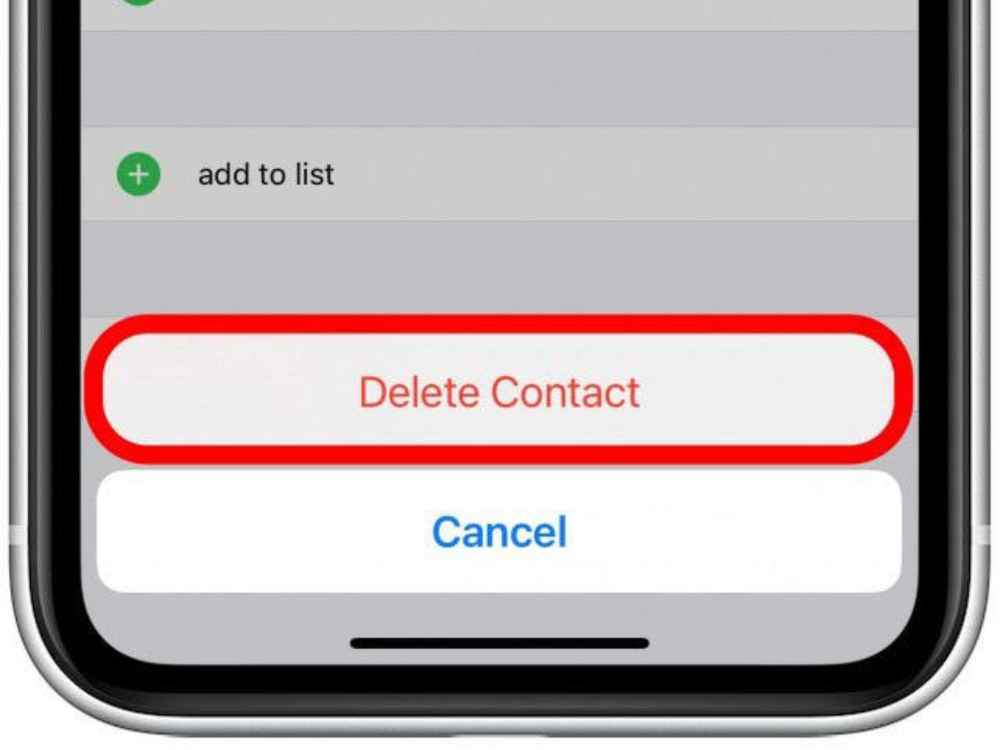
    4. Scroll to the very bottom of the page and hit on Delete Contact to confirm your choice.

    Deleting multiple contacts

    You will need to have a computer to do this and your iCloud account set to save contacts beforehand. To do this,

    1. Head to the iCloud website and sign into your account. You might need to enter a code sent to your iPhone.
    2. Click Contacts.
    3. On the iCloud site, you can also access your saved Photos, Notes, and more.
    4. Find the contacts you want to delete and select them all at once. The way to do this will differ depending on whether you’re using a Mac or PC.
    5. On a Mac, hold Command as you click each contact you want to delete.
    6. On a PC, hold Ctrl as you click each contact you want to delete.
    7. Once you have them all selected, click the gear icon in the bottom-left of the screen, and then Delete.
    8. You’ll be asked to confirm that you want to delete the contacts. Click Delete.

    Deleting all contacts at once

    If you want to get rid of every contact at once, you’ll also need to use your iCloud account.

    1. Open your iPhone’s Settings app and tap your name at the top to open the Apple ID menu.
    2. Tap iCloud.
    3. On the page that opens, check to see if the toggle switch next to Contacts is enabled. If it is, tap it to turn it off.
    4. You’ll be asked what you want to do with your contacts. Select Delete from My iPhone.

    How to block a contact so they can’t call you

    There is this number disturbing you and calling you to the extent that, you get so much annoyed. If you just delete it, this number will keep disturbing you. Now, the best way is to block the contact for a peaceful mind You want to block the number but you don’t know how. Well, it is as easy as you may not seem. To block a contact on your iPhone,

    1. Open the Contacts or Phone app and tap the contact you want to block.
    2. Scroll to the bottom of their information page and select Block this Caller.
    3. Tap Block Contact to confirm your choice.

    Benefits of deleting contacts from your phone

    The ability to delete contacts on your iPhone is a key component of keeping your device organized and running smoothly. By deleting unwanted contacts, you can ensure that the people you really want to keep in touch with are easily accessible and that your device isn’t bogged down by redundant entries.

    Here are some of the key benefits of deleting contacts from your iPhone.

    Free up storage space

    One of the biggest benefits of deleting contacts from your iPhone is that it can help to free up storage space on your device. Over time, contact lists can get crowded with outdated information, which takes up precious memory. By deleting those contacts, you can reclaim some of the storage space that would otherwise be taken up by those entries.

    Easier navigation

    Removing unwanted contacts can also make it easier to navigate your contact list. With fewer entries cluttering up the list, it will be much easier to locate the contacts you need when you need them.

    Increased security

    Deleting contacts from your iPhone can help to keep your personal information more secure. When you delete a contact, all of their information is removed from your device, which means that it won’t be accessible to anyone else if your phone is lost or stolen.

    Conclusion

    Now that you know how to delete contacts on your iPhone, it’s time to put it into practice. Removing unwanted contacts from your iPhone will help you stay organized and make sure you’re connecting with the right people.

  • How to screenshot on a Chromebook

    How to screenshot on a Chromebook

    Taking a screenshot is a great way to save and share information quickly and easily. Whether you are trying to troubleshoot a problem or just want to remember something for later.

    Taking a screenshot on a Chromebook is a good way to capture images or information from your computer screen quickly and easily. Whether you are looking to capture something for personal use or for a school or work project, it is easy to learn how to take screenshots on a Chromebook.

    In this article, we will walk you through the steps of how to take a screenshot on a Chromebook, as well as how to save and share those screenshots.

    What is Chromebook

    A Chromebook is a laptop computer, running the Google Chrome operating system. It is designed for people who use the internet for most of their computing needs, such as web browsing, streaming music and videos, and more.

    How to screenshot on a Chromebook

    Using a keyboard shortcut

    1. On your Chromebook, press the Shift+Ctrl+F5
    2. A menu will appear at the bottom of your screen.
    3. Select screenshot.
    4. Choose the type of screenshot you want. Whether full screenshot, partial screenshot or windows screenshot and click on it.
    5. The screenshot will be automatically taken.

    Using quick settings

    1. Go to quick settings on the bottom right corner of your screen and select Screen Capture.
    2. Open the screen you want to capture.
    3. Go back to the Screen capture tool and select the type of capture you want.
    4. Click on it to snap the screen.

    Where are screenshots saved on Chromebook?

    When you take a screenshot or recording it’s immediately accessible from the Clipboard, which stores the last five things you saved to it. To view what’s available, simply press the Search key button +V.

    Screenshots can also be found in your files. Just open the Files app on your Chromebook and you’ll find your screenshots in the Images folder.

    How to edit your screenshots

    If you want to edit the screenshots you take on your Chromebook, there are several tools available.

    Using Chrome OS screenshot tool

    It is located in the status area of your screen. You can access it by pressing the Ctrl+Shift+Window Switcher keys at the same time. The tool can be used to capture the whole screen, a particular window, or just a portion of the screen. You can also use it to draw on and annotate your screenshots.

    Using online editors such as Pixlr or Sumo Paint

    Both offer a variety of tools for editing and manipulating images, including cropping, resizing, and adding text or graphics. These editors are great for quickly tweaking screenshots or making more complex edits.

    Using an image-editing program such as GIMP or Adobe Photoshop

    if you want to make more in-depth edits, then this tool is the best for you. No matter what tool you use, it’s easy to make your screenshots look great with just a few simple tweaks.

    How do I take a screenshot on a Chromebook without a Windows key?

    Using Physical Buttons. If you own a convertible, tablet-style, or 2-in-1 Chromebook, you can take a screenshot just like you do on a smartphone. That is, press the Power + Volume down buttons at the same time to take a full-screen screenshot.

    Why can’t I take screenshots on my Chromebook?

    All you need to do is press the Ctrl and Show windows keys simultaneously. Unfortunately, your Chromebook may sometimes fail to save your screenshots. When this issue occurs, you will see an alert on your screen saying, “An error occurred, failed to save screenshot.” At this point, restarting your laptop may help you fix the issue.

    Conclusion

    Taking a screenshot on a Chromebook is easy and convenient. With just a few clicks of your keyboard, you can quickly capture an image of whatever is on your screen. By using these simple steps, you can now quickly and easily take screenshots on a Chromebook whenever you need them.

    Screenshots can be incredibly useful for making tutorials, capturing errors, or simply saving a moment in time. Whether you’re a student, a professional, or just someone who wants to have a record of their work, taking screenshots on a Chromebook is an easy and convenient way to do it.

  • How to connect your Airpods to your Mac

    How to connect your Airpods to your Mac

    Do you have a Mac computer and Airpods, but you don’t know how to connect them together? Don’t worry, it’s easier than you think! Connecting your Airpods to your Mac is a simple process that can be completed in just a few easy steps. In this article, we will guide you through the process of connecting your Airpods to your Mac, so you can enjoy all the benefits of listening to music or talking on the phone with your Airpods.

    What is an Airpod

    Airpods are Apple’s popular wireless earbuds that provide an easy and convenient way to listen to music, podcasts, and more. They use Bluetooth technology to connect to your iPhone, iPad, Apple Watch, or Mac, allowing you to listen to audio without being connected by a wire.

    Airpods have become a popular accessory for anyone who wants to enjoy their music and audio with ease. However, many people may be unfamiliar with how to connect their Airpods to their Mac computer. This guide will walk you through the steps on how to quickly and easily pair your Airpods with your Mac.

    Once you’ve set up your Airpods with your iPhone or iPad, they will automatically be available to use with your Mac. Just make sure that your Mac is running macOS Catalina 10.15 or later and that it’s signed in with the same Apple ID as your other devices.

    How to connect Airpods to MAC for the first time

    If your AirPods aren’t already connected to your iPhone, you can connect them directly to your Mac.

    1. With the AirPods in their charging case, open the lid and keep the AirPods inside.
    2. Press and hold the button on the back of the case until the status light starts to flash.
    3. On your Mac, click the Apple icon in the menu bar at the top to open the Apple menu. 
    4. Click System Preferences.
    5. In the System Preferences window, click Bluetooth.
    6. In the list of devices, find the AirPods you want to pair the Mac with, and click Connect.
    7. After the connection is complete, the AirPods will appear at the top of the Devices list, ready to be used.

    How to connect your AirPods to your Mac if you already use them on your iPhone

    Your AirPods are designed to connect to your Mac automatically if you are using the same Apple ID on your Mac and iPhone.

    1. Open your AirPods case.
    2. On your Mac, click the Volume icon in the menu bar at the top of your screen.
    3. In the Output Device section of this menu, select your AirPods.  

    What to do if you are having trouble connecting your Airpods to MAC

    Make sure your Mac is logged into the same Apple ID as your iPhone.

    In the System Preferences window click Apple ID to make sure you’re signed in and using the same ID.

    Make sure Handoff is turned on.

    In the System Preferences window, click General, and make sure there is a check mark next to Allow Handoff between this Mac and your iCloud devices.

    Make sure you can see the volume icon in the menu bar.

    If you don’t see it, you need to turn it on. In the System Preferences window, click Sound and then click the checkbox next to Show volume in menu bar.

    Reasons why your Airpods are refusing to connect to your MAC

    If you are having trouble connecting your AirPods to a Mac, there are a few things you can do:

    Have you charged your Airpods?

    Place the AirPods in their case, plug a USB cable that’s connected to power into the case, and charge them for 1-2 hours.

    Is your MAC updated?

    You need macOS Sierra or later to install the first-generation AirPods, and macOS 10.14.4 or later for second-generation AirPods.

    Have you paired the AirPods to the MAC?

    Find the AirPods in the Bluetooth list on your Mac and click the X button on the right. Then, repeat the pairing process.

    Reset the AirPods

    and hold the button on the back of the AirPods case for at least 15 seconds. Let go of the button when the status light starts to flash amber.

    Reeboot your MAC computer

    Iyour Mac’s Bluetooth connection has run into a problem, restarting your Mac can reset it and hopefully get it working properly again.

    Conclusion

    Connecting your Airpods to your Mac is an easy process. Once connected, you can easily access audio from any device connected to your Mac, such as music players, video players, or online streaming services.