Category: Guides

  • How to Know if Someone is Video Recording You

    How to Know if Someone is Video Recording You

    There are a plethora of different covert methods that someone may use to spy or listen in on you. In your house, business, computer, automobile, or cell phone, there may be concealed cameras or microphones. Fortunately, there are several symptoms of surveillance that might reveal their presence.

    The following are some of the most evident indications that you are being video recorded:

    1. It appears like someone is constantly “bumping into” you in public. They seem to always be aware of your whereabouts and schedule.
    2. Your ex-partner may be aware of more information about your activities, finances, or other matters during a divorce or separation than is appropriate.
    3. Your company rival frequently outbids you or appears to have access to certain trade secrets.

    Other typical indications of monitoring do exist, though. Discover more below.

    Signs of surveillance in your home or office that are often physical

    Microphones and spy cameras are more affordable, widely available, and compact than before. They may thus be hidden and fitted with ease. Installing can be straightforward, but often people are pressed for time and leave behind evidence of their labor. Maybe you’ve already picked up on a few things that don’t seem right.

    Wall plates for the electrical fixtures are somewhat out of place

    Search for indications of a problem. Because people frequently overlook them, areas like light switches, electrical outlets, and smoke alarms are particularly attractive for listening devices. For instance, look for small color changes in the wall plate color or trash on the floor beneath a light. Similarly, keep an eye out for any gaps or misalignment that might be the product of a hasty installation.

    Where the floor and wall converge, inspect your vinyl baseboard

    Your vinyl baseboards changing is another typical symptom of surveillance. Spy equipment frequently needs wiring for power or data transfer. Thus, the suspect must conceal wires.

    The area behind the vinyl baseboard is a popular hangout. In order to find a hidden microphone or wire, first search for a ridge, lump, or discoloration.

    Check the walls and ceilings for discoloration

    A circular area that is no bigger than a penny in diameter is a clue that you are being watched, regardless of how little it may be. Particularly small equipment that lies on the other side of a wall or ceiling, such as pinhole microphones or video cameras, may make an imprint.

    In your home or workplace, a familiar object or sign just seems odd

    In order to avoid detection, eavesdroppers strive to conceal their equipment. For this reason, people frequently choose nondescript fixtures like lights and clock radios.

    This implies that a damaged item is seldom left in the same condition. As a result, check to see whether any are slightly off-center, have an odd semi-reflective surface, or perhaps have a tiny hole. There doesn’t appear to be anything missing, but it appears like your documents or possessions have been disturbed or rummaged through.

    Inadvertently, eavesdroppers frequently believe that things are forgotten while hidden from view. As a result, they don’t worry as much about putting things back in their original places while digging through file cabinets, desk drawers, or dresser drawers. There is every reason to be cautious if anything seems a bit strange and isn’t precisely how you remember it.

    Additional sings of Spying at Your Office or Home

    Beware of suppliers or sellers carrying electronic gifts

    Giving you an alarm clock, radio, desk light, or nearly any other form of the electrical device is a common ploy. Despite the possibility that the gift-giver hid a microphone or camera, you don’t think it was bugged because you know them. Sadly, it doesn’t only apply to electronic presents. In particular, workplace accessories like pens, calculators, and even Post-It dispensers might include surveillance equipment.

    You get a copy of a private chat you had in writing or on tape

    This is unequivocal evidence that you were being watched. In order to let you know they have information on you, eavesdroppers occasionally send copies of private talks.

    You observe utility or cable company cars often performing “maintenance work” in your neighborhood or parking close to your house or place of business but with no one inside.

    As was already noted, eavesdroppers frequently set up shop in service vehicles to watch and listen in on your behavior. Of course, there are occasions when their presence is completely benign. However, if you spot the same track or van more than three times in a short period of time, it can mean you’re being watched. If you want to know if work is needed on your street, you can get in touch with the individual utility company.

    Unusual interference starts to appear on your television. Similar to your radio, surveillance equipment emits signals that might obstruct your TV’s reception, especially on UHF channels.

    You hear a tone on your phone line when it is hung up

    You may have a “slave” eavesdropping device connected to your phone line if you can hear a faint but persistent dull tone. There is a good likelihood that you are being watched in this situation.

    You might hear sounds coming from the handset when your phone is hanging on the hook

    Your phone’s receiver functions as a microphone when you use a hook switch bypass. When they are installed, they make noise when your phone is hung up. The fact that it works within a 20-foot radius of the phone adds another layer of difficulty. Therefore, even when you are not talking on the phone, someone can listen in on what you are saying.

    When you’re on the phone, your line makes strange noises like static, popping, or buzzing

    The use of wiretaps is another indicator of monitoring. A capacitive discharge happens when two conductors are connected to make a phone tap. The phone makes noises as a result of the capacitive discharge.

    Conclusion

    Hearing tones without somebody on the other end is the last indication that you are being watched. Even while it could only be a FAX machine dialing the incorrect number, the problem might also be caused by multiple listening bugs. The others include a harmonica insect, a line extender, an infinite transmitter, and a slave device. We hope this post helps.

  • How to See the Date You Became Friends with Someone on Facebook

    How to See the Date You Became Friends with Someone on Facebook

    The most well-known social networking site where you may establish an account and add contacts is Facebook. When you add someone you know, you can view the photos, videos, status updates, posts they’ve liked and commented on, as well as posts they’ve shared.

    If you’ve had Facebook for a while, you’ve definitely added a ton of friends throughout the years. You may view your friendship with someone since you added them on Facebook by looking at your history with them. You may view all of the posts you’ve shared with them, tagged them in, etc., taking you on a trip down memory lane.

    How to check when you became someone’s facebook friend

    You may use the activity log and the friendship function on a friend’s Facebook page to check when you became friends with someone on Facebook. This will enable you to be able to view the day, month, and year that you each accepted the friend request.

    You may find out how long you’ve been a Facebook friend with someone by using certain methods. The question “remember the date you promised to be their friend?” is one such example of such an approach.

    To find your most recent anniversary with a friend, use the other option, which uses the Activity Log feature. If you use the Friendship feature on your own Facebook page, you can find out when you first became friends, as well as other details like the posts you’ve shared, the friends you’ve connected with, and the pictures you’ve both been tagged in. You can also find out these details by using the Friendship feature on a friend’s page on Facebook.

    How to find out when and in what month you become friends with someone

    1. Search for the person you wish to view on Facebook using a web browser.
    2. Select See Friendship by clicking the three dotted lines next to Message.
    3. Your friend-making month and year will be listed on the left.

    How to Determine the Exact Date You Became Friends

    The month and year you previously located may be used to traverse a calendar and utilize it to identify the precise day, even though this approach is much more time-consuming because you’ll have to scroll through one.

    1. Select Activity Log under your profile.
    2. Choose More from the left column.
    3. Friends can be found in the left column.
    4. On the calendar on the right, choose a year.
    5. You may view the precise day that someone becomes your buddy.

    By using the social engineering Method to find out how long you became friends with someone

    By enquiring about their opinion of your friendship with them.

    You may always ask them if you can’t recall when you became friends with them on Facebook. To keep track of how long they’ve been friends on Facebook, some users set up friend anniversaries on their pages.

    If a friend recalls when you first became friends, you should also create a friend anniversary so you never forget.

    Set up your anniversary as soon as the friend informs you of the date because it will depend on whether or not you can remember accepting their friend request. Facebook will let you know when that date is getting closer by sending you an alert.

    A message will show on your Timeline to remind you that you have been friends for a year once it has been a year since you accepted that specific person’s friend request. On that particular post, you can also see the year that you two became friends.

    Take a look at your initial Messenger message to them.

    You may always check the date you sent someone a Facebook Messenger message to discover when you two became friends.

    Facebook Messenger should now be visible on your smartphone. The home icon may be seen in the bottom left corner; click it to get back to the home screen.

    You may see a list of every user you’ve ever communicated with, arranged by the time you first interacted with them, on the home screen (most recent ones first).

    On this list, look for the name of the person whose earlier messages you want to read, then tap on their name to access their messages.

    The most recent discussion they had with you will be forwarded to you. Moving forward, you will need to scroll down to find the messages you were searching for.

    Downloading your Facebook data is an option if you don’t enjoy scrolling. Here is how;

    1. Access Facebook.
    2. At the bottom of the page, you may download a copy of your data.
    3. After entering your password, wait for Facebook to give you a link to the file’s download.
    4. After entering it once more, wait until the download is finished.
    5. Please extract/unzip the file you downloaded before opening it and entering your login information in the corresponding area. After that, an “index.html” HTML file will appear, which you should open.
    6. When it opens, select the Messages tab to access everything. Hopefully, your PC has the processing power to access every Facebook message you have!

    Take a look at the times you have tagged them in things.

    When a person is specifically mentioned in a Facebook post, a link to their profile is established, allowing everyone to learn more about them. This is known as a tag.

    When posting a text message or leaving a remark, you can add someone by using the @ symbol and their name. If you want to get a general notion of when you first became friends with someone, look through the photographs you’ve tagged them in.

    You must go to their page if you are unsure if you have ever tagged someone. Click on the profile after typing the name of a Facebook friend into the search bar.

    Select “Photographs” to view the photos. This section will display all of the images and videos that this user has been tagged in.

    Since the quantity of information you can see is controlled by the person’s privacy settings, which you have no control over, you might not be able to see all of the photographs.

    You will be able to determine the date, which will show when your Facebook relationship started if you see a familiar photo that you tagged the person in.

    Conclusion

    There are several techniques on Facebook to discover how you met someone. enabling you to remember each year when you first befriended someone There is an anniversary function on Facebook. We hope that these choices will be helpful.

  • How to Backup and Restore Your Contacts on MTN SIM Card

    How to Backup and Restore Your Contacts on MTN SIM Card

    On the MTN Backup Service platform, customers may save (backup) and recover their phone and SIM contacts. These services provided by MTN enable each user to randomly back-up and restore their contact anytime they want.

    Once you sign up for the MTN Backup service, all of your contacts saved on your SIM and phone will be transferred to your MTN online account.

    These contacts remain safe, so the excuse “I’m sorry, I lost your contact” will no longer be an acceptable defense.

    You can retrieve all the contacts and SMS backup on the MTN backup service, which is amazing since anything might go wrong with your phone or SIM, including theft or damage, and you receive a new mobile device.

    The MTN service provider also bi-weekly (every two weeks) automatically backs up all of its subscribers’ contacts in the belief that a person should update his or her contact list at least once every two weeks.

    This, in my opinion, is a great technology. All MTN subscribers can backup up to 200 SIM cards and up to 5000 mobile phone contacts, respectively. 

    Methods for signing up for MTN backup service

    If you have been ignoring the SMS from MTN that asks you if you want to back up your contacts, no problem. However, if you decide that you now want to back up your SIM and phone contacts, I will give you two ways to achieve so. There are essentially two methods for signing up for the service.

    1. Access your SMS menu.
    2. compose a text message with Start in it.
    3. submit it to 307
    4. patiently await an answer from the MTN online account service
    5. On your phone
    6. Access your menu
    7. Decide on MTN Service.
    8. Decide on MTN Backup

    Then watch for a reply message. If you’re still having trouble, call the MTN online customer assistance center at (181) or (18O).

    NOTE: It is important to keep in mind that any type of mobile device may be registered with the MTN backup service, including SMS and Contacts, with the exception of Windows OS users, who can only back up their contacts.

    Restoring a backup contact

    Typically, after you register, you’ll receive an SMS with a piece of login information that includes your username and password, allowing you to access your backup contact.

    You’ll need to enter your login information to log in. You can utilize the Don’t have an account yet or the Forgot your Password options if you accidentally did not get them or are likely to have forgotten them.

    What is the cost of MTN’s backup service?

    The MTN backup service has a fee; at the time of registration, you will be charged GHS 5, and then GHS 2 every two weeks. This price is charged regardless of how many contacts you back up, that is, each time MTN updates the backup service.

    Can I ask MTN to stop providing backups for my contact?

    You can stop using the MTN backup service at any time you choose by sending an SMS with the word STOP or UNSUB to 307. The service is not required.

    Conclusion

    That is all about How to back up and restore your contacts on MTN SIM Card. We hope this post helps you to back up and restore your contact.

  • Why You Can’t Use GBWhatsApp On iPhones

    Why You Can’t Use GBWhatsApp On iPhones

    Security is a top priority for IOS. Considering their consumers first, security is top-notch when it comes to Apple Inc. GBWhatsApp is an unofficial mod of WhatsApp and thus there is no assurance of privacy hence it is not officially supported on iPhones.

    What Is GBWhatsApp?

    GBWhatsApp is a modified version of official WhatsApp that uses the same server. Getting familiar with GBWhatsApp, you will find many amazing features that aren’t available on the official WhatsApp.

    With the use of GBWhatsApp, you’ll find features like change themes, hide last seen, and far more.

    GBWhatsApp is developed for Android and iOS devices by Syrian developer – Omar. This app is often compatible with an iOS device running on iOS 9.0 or higher but isn’t official.

    Officially, you can not use GBWhatsApp on iPhones due to the security concerns but there are so many ways one can have the app on their iPhone.

    How To Download And Install GBWhatsApp on iPhones (Unofficially)

    • Firstly, open your web browser, by default Safari is iPhone’s browser.
    • Now, on the address bar, simply copy and paste the following link https://ipa.othman.cc/ipa/whats2.php on your safari browser.
    • Download the GBWhatsApp for iOS from the download link and wait a few seconds until the download completes.
    • Once the download process successfully completes, one has got to install the downloaded GBWhatsApp on your iPhone.
    • After the installation completes, you need to navigate to Settings > General > Profiles & Device Management on your device.
    • Now, find the profile and trust the developer of GBWhatsApp by tapping on the “Trust”.
    • After that, attend the home screen and tap on the GBWhatsApp icon.
    • When you launch the GBWhatsApp, you’ll see enter your mobile number field. Simply enter your number to proceed.
    • Complete the setup process and experience the amazing features of GBWhatsApp on your iOS device.

    Why You Can’t Use GBWhatsApp On iPhone

    As stated earlier, GBWhatsApp is a modded version of the official WhatsApp application and thus is unofficial. Unlike the official app that you can download from the iStore, GBWhatsApp cannot be downloaded from the same source.

    This is same with Android. Although you can get the app from the above steps since is unofficial you use it at your own risk. For more details, you may have to check some of the below FAQs to satisfy your queries.

    Frequently Asked Questions About GBWhatsApp

    • How can I download GBWhatsApp for IOS?
      Clearly, this question has been answered in this post. You can read the post to download GBWhatsApp for IOS.
    • Is GBWhatsApp available for IOS?
      Yes, GBWhatsApp is available for IOS. Although it is not official you can get it in so many ways. You can try the above-mentioned method to have it on your iPhone.
    • Is GBWhatsApp safe?
      Yes, it’s a completely safe application. You don’t need to jailbreak your device which will void your warranty.
    • How can I download Updates to GBWhatsApp?
      You can download updates to GBWhatsapp by following the same procedure listed in this post. The developer provides updates on his website.

    Conclusion

    Security is a major concern to Apple Inc. They frown on applications that may in one way or the other jeopardies the privacy of their users hence one cannot use GBWhatsApp officially on iPhone. All alternatives are unofficial so you use at your own risk.

  • How to Make a Facebook Name All Lowercase

    How to Make a Facebook Name All Lowercase

    Facebook and its many applications are undoubtedly well-known to you. It used to be quite easy to stand out on Facebook since the social networking site’s user base was so small and distinct, but now that it has expanded, it is more challenging.

    But there are a few easy methods to customize your Facebook profile. One approach to stand out is to list your name with all lowercase letters.

    How to make a Facebook name all lowercase

    1. Enter your Facebook login information. Select “Account” from the drop-down amenu in the top right position. Please choose “Account Settings.”
    2. To the right of “Name,” click the option that says “Change.” The data already present on the form should be highlighted and removed.
    3. Your name will display precisely as you wrote it if you enter your first and last names again in lowercase. Select “Save Changes” from the menu.
    4. To the right of “Name,” click the option that says “Change.”
    5. Your name will display precisely as you wrote it if you enter your first and last names again in lowercase.
    6. Go over the instructions on the new page. Verify your name is shown precisely as you want it to be. Select “Confirm Change” from the menu. Your new name may not become effective for a few days.

    How to make a Facebook Page name all lowercase

    Perhaps you wanted to establish a Facebook page with a name that started with a little letter, but this is against Facebook regulation. If the name of your business or brand begins with a little letter, you can find yourself in this scenario.

    Steeps to make a Facebook page name all lowercase

    1. Establish a page in compliance with Facebook rules.
    2. Switch your Facebook account from English to a different language.
    3. Access your Facebook settings.
    4. Select Language and Region from the Settings menu.
    5. Select a language other than English as your Facebook default language.
    6. Modify the name of your Facebook page and submit it for approval.
    7. Modify the name on your Facebook profile. Send it in for review.
    8. If you’re using Google Chrome and have trouble understanding the material, utilize the translate to English option from the context menu.
    9. In about a minute, the page name will be changed. With this technique, the page name will appear as you type it, with the initial letter in lowercase and all other characters in uppercase.
    10. Make English your default language on Facebook
    11. Go to your Facebook account settings right away and set your default language as the Facebook language.

    Facebook Naming Requirement

    To convey a certain attitude or style, you could choose to create your Facebook profile or page name in full capital letters or lowercase. Facebook forbids the use of all caps in profile or page names and instead encourages users to use their actual names. The process of creating or modifying your Facebook profile or page is made simpler by being aware of Facebook’s name requirements in advance.

    Profile Names

    In your account settings, you may modify your Facebook profile name. When you click the “Save Changes” button after trying to update your name so that it is all capital letters, Facebook quickly changes your first and last name back to ordinary capitalization.

    Requirements for a profile name

    Facebook has additional specifications for profile names. Facebook profile names are limited to a maximum of 15 characters, which excludes punctuation, symbols, numerals, repeated characters, characters from several languages, and repetitive characters.

    Titles, words, or phrases used in place of middle names, as well as any material that is provocative or insulting, are not permitted in names.

    Conclusion

    Follow these instructions to successfully change your Facebook name to lowercase in order to stand out from the crowd

  • Is Putting Your Phone on Charge Overnight Bad for the Battery?

    Is Putting Your Phone on Charge Overnight Bad for the Battery?

    Lithium-ion batteries in today’s smartphones, tablets, and laptops require a lot of charging time. Yet when is the ideal time to power or charge? Is overnight charging an option? Does maintaining a full charge harm the battery?

    There are several myths around technology, such as the idea that a phone with more bars has better service. In order to access “Field Mode” and learn more about nearby networks and cell towers, enter the dialer code *3001#12345# and then hit the call button.

    How does the battery on your smartphone perform? It will eventually become worse, but you don’t want to hurry it along. End the discussion about whether overnight charging will do that.

    Overnight Charging

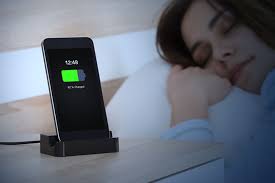
    It’s a widespread misconception to charge your phone too much. The quantity of charge entering your device shouldn’t be a problem as the majority are intelligent enough to stop accepting a charge once full, only topping up as necessary to keep it at 100%.

    The issues arise from the battery overheating, which may result in damage. When charging your phone overnight, it is preferable to take off any cases in order to prevent this. It’s also advisable to place the phone on a firm, flat surface so that the heat can quickly disperse.

    Therefore, charging your phone overnight is quite safe; just be careful that it doesn’t overheat. Nevertheless, you won’t believe how quickly phones can now recharge, so you don’t actually need to keep it charging for 8 hours.

    Using a wireless charger is one way to reduce the charging speed. It will spare you from having to struggle to plug it in and use less energy in the process. 

    How Chargers Operate

    Most of the time, whatever you’re worrying about won’t be a problem for the gadget. For instance, Android is made to manage to multitask for you, so you don’t need to close apps.

    The battery and other internal components of smartphones are protected by built-in safeguards. Overheating is one thing that can harm phones, which is where a lot of the worry about charging overnight comes from.

    The majority of phones charge rapidly the first time you plug them in or set them on a wireless charger. So that you don’t have to wait too long if you only need a little additional juice quickly. When it hits 100%, charging will eventually slow down and stop altogether.

    Naturally, the battery will gradually deplete because the charging process ends at 100%. When it reaches 99% once again, it will swallow a tiny quantity of power to increase to 100% again. Until you turn off the electricity, that cycle continues. Despite practically continual charging, the phone is never overcharged.

    Cycles of charging

    While charging from zero to full may have been beneficial in the past, we must repeat that this is no longer the case. It is best to avoid using up your lithium-ion battery’s restricted number of charge cycles.

    Keep the battery topped off with several little charges rather than a full cycle so that you don’t have to start charging your laptop, phone, or tablet from scratch after letting it entirely die. If you use the battery for full charge cycles, you’ll notice that it suddenly stops accepting as much charge and starts losing it more quickly as it degrades.

    Users of Apple iPhones, for instance, have a function in iOS that will let them know how well their battery is doing and whether it needs to be replaced. The check is located under Settings, Battery, and Battery Health.

    Charging in extreme temperatures

    The majority of gadgets are made to operate in a wide range of temperatures, such as those between 16 and 22 degrees Celsius, but regularly exposing your device to temperatures exceeding 35 degrees might harm it.

    For instance, Apple may briefly turn off your iPhone if it becomes too hot. “Charging the item in high ambient temps might harm it further,” the manufacturer advises. 

    Fortunately, it differs for freezing temperatures, and batteries are much more equipped to withstand the cold. You’ll undoubtedly notice a decrease in battery life; on skiing vacations, cameras are particularly susceptible to this.

    However, the bad performance is often only temporary, and as you return to warmer weather, you should see your battery life returning to normal.

    How to maintain the health of your battery

    You don’t have to wait until your battery is completely dead to charge it. That implies that if you charge from 0% to 100%, you will use up a complete charging cycle. Don’t stress too much about percentages and charge when it suits you.

    Make every effort to keep your phone cool. Tucking your battery beneath your pillow is one of the worst things you can do since heat shortens the battery’s lifespan over time. The same is true if you leave your phone outside in the heat or cold.

    Unplug your phone if you discover it is completely charged when you wake up at night. Although it won’t have much of an impact, it won’t hurt either.

    According to Apple, you shouldn’t entirely charge or totally deplete your device’s battery. “Charge around 50% of the price. If you keep a device with a totally depleted battery, the battery may enter a deep discharge condition and lose its ability to retain a charge.

    On the other hand, if you keep the battery fully charged for a long time, it can lose some capacity and have a shorter lifespan.”

    If you know you won’t be using it for a long, it’s also a good idea to switch it off rather than allowing the battery slowly drains as it sits on the shelf.

    Can a phone battery be overloaded by an overnight charge?

    Protection chips, however, keep track of when the internal lithium-ion battery reaches full capacity in the majority of contemporary products (and in all batteries for current mobile phones). When this occurs, the charging is abruptly terminated. Thus, you cannot in this manner overcharge the battery.

    Depending on the device, it may be crucial to limit the amount of time a battery is charged in order to prevent overloading and battery damage.

    The issue is that the charger will automatically turn on once more and recharge the phone to 100% while it continues decreasing down to 99% capacity. It’s known as trickle charging.

    Will the Battery Get Worse if Charge Overnight?

    Most likely, the battery will deteriorate if the phone is left charging. As we’ve already explained, if you charge your phone overnight, one of two things will probably happen that shorten the battery’s life. Either you are letting it get too hot or you are letting it trickle charge for hours on end.

    Follow these recommendations if you have to charge your phone overnight to prevent any harm:

    1. To prevent it from overheating, charge your phone on a solid, cool surface. Don’t put it under your pillow (or anything that will trap heat).
    2. Before charging, take the case off of your phone.
    3. If you get up during the night, unplug your phone.
    4. Continually use the official charger and charging wire that came with your phone. Since they were created specifically for your phone, they are less likely to have flaws that might harm your battery or slow down charging.

    Make sure the power bank you choose is high-quality and won’t likely harm your battery if you use one.

    Is it necessary to recharge your battery just when it is 0%?

    No. Allowing more recent lithium-ion batteries to deplete to 0% capacity can harm them. Because of the way batteries operate, they will inevitably lose capacity over time.

    Older nickel-cadmium (NiCad) batteries gave rise to this urban legend. If you didn’t completely discharge them, they would build a “memory” that would actually reduce their capacity.

    Lithium-ion batteries should be maintained at 30-80%, according to experts. Ideally, you should keep an eye on the charge of your phone and strive to maintain it within these ranges. It won’t end the world if you slightly under or overshoot.

    Conclusion

    Depending on how you charge your phone, doing so overnight isn’t always a terrible idea. But if you’re not careful, you can shorten the battery’s life, forcing you to purchase a new phone sooner than you had intended.

    Even with the finest maintenance, though, phone batteries typically only last for a few years. So, don’t worry too much if you need to periodically charge your phone overnight.

  • Meaning of ELK-BLEDOM on Your Bluetooth List

    Meaning of ELK-BLEDOM on Your Bluetooth List

    After reading the phrase “elk-bledom” and speculating as to what it may be, are you curious? Fear not; confusion arises in everyone who is unfamiliar with elkbledom, but it is not a significant problem.

    I’m here to assist you to grasp this fascinating subject of elk-bledom in general today. You will get knowledge about the elk definition, bledom’s details, facts, and many other things.

    I will provide you with all pertinent information on the elk beldom Bluetooth. Start reading about elk-bledom now so that you don’t miss a single detail that is provided afterward.

    Elk-bledom on bluetooth: What is it?

    The sort of lighting equipment that supports Bluetooth is called Elk-beldom Bluetooth. It is an LED light strip that can be controlled by Bluetooth and does not require any additional proprietary wireless technology.

    The Bluetooth services on your electronic device, which is compatible with iOS, Android, and other operating systems, make it simple to manage this lighting strip. Once it is turned on and hooked into a power source, its name may be seen. However, you will be pleasantly surprised to get more information about the elk-bledom on Bluetooth.

    What causes Elk-bledom to appear on bluetooth?

    The reasons listed below must apply if your devices still display an elk-bledom-led lighting strip despite the fact that you do not own one.

    You must be utilizing the elk-bledom lights nearby to see someone.

    The wrong Bluetooth device could have unintentionally been preserved to the pairing list.

    Elk-bledom Is a camera?

    Elk Beldom is not a camera, despite the reports that it is. Instead, it is a Bluetooth camera that is used as a spy or covert surveillance camera.

    As many individuals don’t have a Bluetooth lighting setup from the elk-bledom website, this misunderstanding is simply something that they experience.

    They become alarmed upon receiving news that an elk beldom has been added to their Bluetooth connection list.

    How does Elk-bledom function?

    BlueTooth services are used by Elk Bledom to function, although a connection app is required to link the mobile phone and light strips.

    Following the elk-bledom devices being turned on, the phone’s Bluetooth feature should be enabled.

    The link is afterward made with the assistance of the Android software elk-bledom. Following that, all options are available, including those for altering the light’s color, speed, intensity, and a variety of other parameters.

    The process to remove Elk-bledom

    The following are the methods for removing the Bluetooth elk beldom.

    1. Activate your phone’s Bluetooth connection.
    2. Then access Bluetooth services.
    3. Visit the BlueTooth pairing page
    4. Look for the name elk-bledom in the list.
    5. Tap the elk-bledom to choose it.
    6. Selecting the “forget” option
    7. Verify and restart your gadget.

    What does Elk-bledom mean on my bluetooth?

    The likelihood that someone nearby has a smart LED strip lamp plugged in is quite high if you see ELK-BLEDOM in the Bluetooth connection list on any device (such as an iPhone, Android smartphone, PC, Mac, or other).

    Elk Bledom: What kind of device Is It?

    The Bluetooth name for LED strip lights is ELK-BLEDOM. Therefore, if you notice them on the list of visible devices on your Mac or Windows computer, iPhone, iPad, Android smartphone, or tablet, be assured that they are not possibly dangerous and that it is likely that a neighbor has purchased one.

    Is it advisable to always have my bluetooth on?

    Simply said, if you always have Bluetooth enabled on your phone, you run the risk of being hacked, mistreated, and having your privacy compromised. Simple, don’t utilize it is the answer. Alternatively, if necessary, be careful to switch it off as soon as you have ended the connection to the relevant device.

    How can I secure my bluetooth?

    Toggle Settings. Bluetooth should be used. Tap the indicator that is next to the term “Bluetooth” to turn the feature on or off. Tap the arrow next to “Open detection” to switch Bluetooth devices’ visibility on and off.

    How can I determine which gadgets are linked to my bluetooth?

    On an Android phone, the Quick Settings tray should be accessible by sliding down twice from the top of the screen. From there, you can find Bluetooth. If you long-press the icon, you may go directly to the Bluetooth settings and view a list of your associated devices.

    Is Elk bledom harmful?

    ELK-BLEDOM is the actual name of the LED strip lights utilized in Bluetooth. You may be certain that they are not something that might endanger your safety if you see them on the list of visible devices on your iPhone, iPad, Android smartphone, or tablet, as well as on your Mac or Windows PC.

    Conclusion

    Elk-bledom observed on Bluetooth was something I detailed explained to you how to activate the LED elk-bledom strips. From the Bluetooth list, you learned what the term “elk Bledom” meant. Now that you are familiar with the basics of elk-bledom, you won’t be puzzled in the future.

  • How much is Netflix Subscription in Ghana Cedis?

    How much is Netflix Subscription in Ghana Cedis?

    Watching one’s favorite films, television programs, and TV series should be enjoyable for everyone. Since it is unquestionably the largest streaming platform in the world and requires both a subscriber and a sufficient internet data plan in order to access its services.

    Netflix is one of the greatest applications for offering that sort of experience. The list of Netflix Subscription Prices and Plans in Ghana is provided below if you wish to buy one.

    Prices and a list of Netflix subscription options for Ghana

    Choosing a plan that works for you is one of the advantages of being a Netflix subscriber. On the other hand, Netflix has a number of pricing options, and the plan you select will depend on the services you receive. However, you will get full access to infinite streaming regardless of the package you buy.

    Plan Netflix Mobile (GHS 38.46)

    Without a question, the most economical Netflix subscription in Ghana is the Netflix Mobile Plan. This plan usually referred to as a low-budget plan, is the best choice if you’re only buying it for yourself and streaming on one device. The Mobile Plan has a lot of restrictions, such as not allowing simultaneous viewing on several displays or downloading across many devices.

    Only regular video quality—not HD or Ultra HD—is supported under the Mobile Plan. It is a pretty fantastic bundle, though, and you can purchase it on Netflix for GHS 38.46.

    Netflix Basic Plan (GHS 92.95)

    Although it costs less to subscribe to Netflix in Nigeria than its Netflix Mobile Plan counterpart, the Netflix Basic Plan is still a great alternative.

    With this plan, you can only download content to a certain number of phones or tablets and watch content on a single screen at once, but you still have access to an infinite amount of movies and TV series.

    You’ll enjoy the basic plan because it offers HD streaming and lets you watch Netflix on your laptop and TV. Purchasing from Netflix is an excellent idea, and it only costs GHS 92.95.

    Netflix Standard Plan (GHS 115.39)

    If you wish to share your Netflix subscription with a friend or partner, the Netflix Standard Plan is advised. It gives only a few benefits over the basic plan.

    You may simultaneously see on two screens while downloading to as many phones or tablets as you’d like with the Standard package. Additionally, you’ll enjoy unrestricted streaming access to a large selection of films, TV shows, and mobile games.

    For $3,600, you may subscribe to Netflix’s Standard Plan, which includes HD streaming and allows for both laptop and television use.

    Netflix Premium Plan (GHS 141.03)

    With all the features of the Mobile Package, Basic Plan, and Standard Plan as well as more chances to share your account with friends and family, this is perhaps the most comprehensive Netflix membership plan available. You may download on four different phones or tablets and view content simultaneously on four screens with the premium membership.

    The Ultra HD streaming, which lets you view movies in 4K resolution, is this subscription’s finest feature. For just GHS 141.03, you may share your subscription with friends and family and use the Netflix Premium plan on any device.

    How to Change Your Netflix Plan

    Assuming you want to switch from your current Netflix plan or downgrade to a less expensive one, here’s how to accomplish it:

    1. Signing into your Netflix account is the first thing you need to do.
    2. Select Account by clicking on your user profile.
    3. Change it to your preferred Netflix plan.

    You must contact Netflix help if your account does not allow you to update your Netflix plan.

    How to Cancel Your Netflix Subscription

    The procedures following should be followed if you wish to cancel your Netflix subscription:

    1. Signing into your Netflix account is the first thing you need to do.
    2. Select Account by clicking on your user profile.
    3. Next, select Cancel Membership.

    Since you won’t be charged, you can close your account and use it up to the following paying date before it is closed.

    How to pay in Ghana for Netflix

    After deciding on the selected plan that best suits your requirements and financial situation, you must pay for it. You only ever incur a Netflix subscription charge on the day you join up.

    You will require an ATM debit card in Ghana in order to pay for Netflix (MasterCard or Visa Card). As an alternative, you may pay for your Netflix membership in Ghana using a confirmed PayPal account.

    Conclusion

    The cost of a Netflix subscription in Ghana is as follows, and it is quite affordable. In addition, you can subscribe based on your requirements and financial resources. To make the most of your Netflix experience, it’s essential to combine your chosen Netflix plan with a low-cost Netflix internet data bundle.

  • How to use the F: Drive on your Windows Computer

    How to use the F: Drive on your Windows Computer

    We need to understand what a flash drive, or F drive, is. Only users who are currently signed in to the computer may access the F disk drive, which serves as secondary storage or personal space.

    You will always be linked to the F disk on your computer whenever you log in to a computer using the Remote Desktop Tool. You will then have access to all of the files you have saved here.

    The F drive on a computer, laptop or other PC is not a physical drive, but rather a detachable storage device that may be linked through a USB connection. It is quite simple and doesn’t take any technical expertise to connect a computer to this disk.

    What are Drive letters? and how are they generated or named

    Physical drives and/or the partitions made inside them are uniquely identified by drive letters. Drive letters are a component of the Windows nomenclature that, in essence, allow us to identify a certain drive or partition.

    My computer, which is running Windows 10 and has three disks labeled C, D, and E, as you can see in the image below, the alphabetical sequence is followed, starting with the C: drive.

    The newly attached drives continue to be associated with the English alphabetical order, despite the fact that the total number of drives linked to the PC keeps growing.

    The drives C, D, and E in this case are nothing more than several partitions made on a single hard disk plugged into the computer.

    The system drive is commonly identified as C Drive. Alternatively, you might just state that Windows uses the C: Drive. The two drives, D and E, are meant for storing ordered data.

    Now, the issue of A and B is raised. Although these drive letters are strictly designated for floppy drives, they may be manually given to any other drives if necessary. The letters A and B are still reserved by Windows for floppy drives even though floppy disks are no longer in use.

    The total number of disks displayed in the file explorer for a computer with a single physical hard drive depends on the number of partitions that have been made. Let’s say you simply build two partitions on your hard disk; in that case, you will only see Drives C and D.

    Similarly to this, just one Drive C will be created if no partitions are established while installing Windows. However, this is a bad habit to get into since you risk losing sensitive information in the event of an unanticipated operating system malfunction.

    It is generally advised to make at least two or three divisions in order to address this problem. This not only aids in data organization but also guarantees that the data will be protected in the event of an operating system failure, necessitating the installation of Windows again.

    How to use F: Drive on a Computer

    You may either double-click the My Computer icon on your computer’s desktop or access it by clicking on it directly.

    Allow your computer a little time to launch the My Computer window. The Hard Disk Drivers portion of this page will display all of your hard disk drives in alphabetical order. The amount of storage on each disk drive will vary. Next, locate the F drive and double-click it to open it.

    It will now take some time to open the F drive, and then the F drive window will appear. You must double-click on the desired file or folder in order to open it.

    How can F: Drive be formatted in Windows 10?

    1. Obtain a Windows PC and attach your external hard drive to it.
    2. Click Format with a right-click on the external hard disk.
    3. Select a format from the File System menu.
    4. Click Start after selecting the Quick Format checkbox.
    5. When the Format Complete pop-up window displays, click OK.

    How should F: Drive be cleaned?

    Select Accessories from the Start menu. Disk Cleanup may be found under System Tools. Suddenly, a dialog window for disk cleanup emerges. Clear the boxes next to any files you wish to keep and tick the boxes next to the names of any files you want to delete in the Files to Delete list.

    How does computer F: Drive work?

    Only users who are currently signed in to the computer can access the personal or secondary storage on the F disk drive.

    Conclusion

    We hope that these instructions give you a brief understanding of your computer’s  F: Drive and how to properly use it in your routines.

  • What Does Sbcglobal.net Stand for?

    What Does Sbcglobal.net Stand for?

    SBC Global stands for; Southwestern Bell Company. It is a company whose email service is regarded as one of the best. The business has a reputation for providing consumers with premium services and enticing email features. But concurrently, SBCGlobal email subscribers may experience certain technical issues.

    An Overview of SBCglobal

    The biggest and best-known telecommunications company in the world is AT&T. In cooperation with AT&T and SBCGlobal, SBCGlobal.net offers a free email service.

    SBC Communications, formerly known as Southwestern Bell Corporation, is the company that issued these email addresses. All AT&T customers were given access to these email services when SCB merged with AT&T.

    An email address or the email itself may contain the domain name SBCGlobal.net. It is reachable through Yahoo and was a component of att.net.

    In a similar vein, some email addresses still contain the names of firms that have previously merged with AT&T. Included are pacbell.net from Pacific Bell, bellsouth.net from Bell South, and snet.net from Southern New England Telephone. These email addresses all have the same functionality as sbcglobal.net’s email addresses.

    How to log in to your SBC Global account

    To access your SBCglobal email online, you must do three particular actions.

    1. The first step is to visit the Yahoo Att.net login page, which serves as the Yahoo Mail login page in practice.
    2. Visit att.net and click the “sign in” option in the upper right corner as an alternative. This will also lead you to the Yahoo Mail login page’s equivalent, the att.net login page.
    3. Next, input your AT&T ID/Email (which is your SBCglobal.net email address), then the password.
    4. In order to access your SBCglobal.net account, you must either click the “sign in” button or press the “enter” key on your keyboard.

    You must enter your login credentials in order to access your SBCglobal email online.

    As previously noted, you just need to enter your Via&T ID/email (your SBCglobal username) and the matching password to access your SBCglobal email online at Yahoo’s Att.net login page.

    Once you have online access to your SBC Global email, you can:

    You can do a lot of things once you have online access to your SBCglobal email. For any new or old emails, you can check your inbox.

    You may write new emails and send them. Email messages may be written and saved as drafts. Emails can be forwarded to other recipients.

    How can I connect SBCGlobal to AT&T?

    Any search for SBCGlobal will take you to the Yahoo Mail/AT&T.NET log-in page since SBCGlobal is owned by AT&T. You must follow the detailed instructions below in order to link your SBCGlobal to AT&T.

    1. You can get rid of outdated emails
    2. Moreover, you can do any other account administration duties you might come up with.
    3. To start, enter att.net in the address box to get to the att.net login page.
    4. You will be sent to the Yahoo Mail login screen, so take note.
    5. In the upper right corner, click the Sign In button.
    6. Enter your sbcglobal.net email address and password on the next screen. On the Sign In button, click.
    7. Note: Read the section below if you can’t remember your password.

    How Can SBCGlobal.net Password Be Reset?

    Here’s how to reset the password if you can’t remember it.

    1. On your browser, type att.net and hit Enter.
    2. In the top right corner, select the Sign In button.
    3. Click the Forgot Password link by hovering.
    4. On the following screen, complete the required fields, including User ID, last name, and Recaptcha. On the Continue button, click.
    5. Select the option for password recovery from the drop-down menu.
    6. Choose the security questions and respond.
    7. You can establish a new password according to the on-screen directions.
    8. Retype the new password to confirm it.
    9. To save the changes, click the Yes button one last time.

    How to Resolve SBCGlobal Email Login Problems?

    1. Go to Settings on your phone.
    2. After finding the email, select Settings.
    3. Select the SBCGlobal account, then verify that POP is turned on.

    Note: Verify necessary information like inbound.att.net and outbound.att.net for incoming and outgoing emails, respectively.

    1. To turn on the authentication settings, click.
    2. Change the outgoing port to 465 and the arriving port to 995.
    3. You may now view the email without any problems if you open it.

    Conclusion

    All the information we found about SBCGlobal.net was presented to you in this article, which we hope gave you some insight. Check to see if someone you know has a sbcglobal email account to add some interest.