We need to understand what a flash drive, or F drive, is. Only users who are currently signed in to the computer may access the F disk drive, which serves as secondary storage or personal space.
You will always be linked to the F disk on your computer whenever you log in to a computer using the Remote Desktop Tool. You will then have access to all of the files you have saved here.
The F drive on a computer, laptop or other PC is not a physical drive, but rather a detachable storage device that may be linked through a USB connection. It is quite simple and doesn’t take any technical expertise to connect a computer to this disk.
What are Drive letters? and how are they generated or named
Physical drives and/or the partitions made inside them are uniquely identified by drive letters. Drive letters are a component of the Windows nomenclature that, in essence, allow us to identify a certain drive or partition.
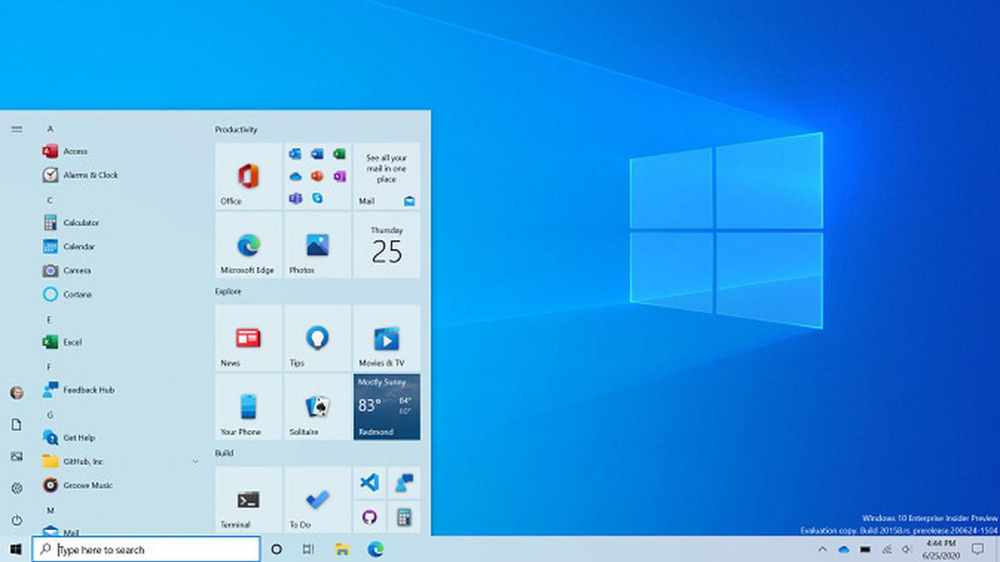
My computer, which is running Windows 10 and has three disks labeled C, D, and E, as you can see in the image below, the alphabetical sequence is followed, starting with the C: drive.
The newly attached drives continue to be associated with the English alphabetical order, despite the fact that the total number of drives linked to the PC keeps growing.
The drives C, D, and E in this case are nothing more than several partitions made on a single hard disk plugged into the computer.
The system drive is commonly identified as C Drive. Alternatively, you might just state that Windows uses the C: Drive. The two drives, D and E, are meant for storing ordered data.
Now, the issue of A and B is raised. Although these drive letters are strictly designated for floppy drives, they may be manually given to any other drives if necessary. The letters A and B are still reserved by Windows for floppy drives even though floppy disks are no longer in use.
The total number of disks displayed in the file explorer for a computer with a single physical hard drive depends on the number of partitions that have been made. Let’s say you simply build two partitions on your hard disk; in that case, you will only see Drives C and D.
Similarly to this, just one Drive C will be created if no partitions are established while installing Windows. However, this is a bad habit to get into since you risk losing sensitive information in the event of an unanticipated operating system malfunction.
It is generally advised to make at least two or three divisions in order to address this problem. This not only aids in data organization but also guarantees that the data will be protected in the event of an operating system failure, necessitating the installation of Windows again.
How to use F: Drive on a Computer
You may either double-click the My Computer icon on your computer’s desktop or access it by clicking on it directly.
Allow your computer a little time to launch the My Computer window. The Hard Disk Drivers portion of this page will display all of your hard disk drives in alphabetical order. The amount of storage on each disk drive will vary. Next, locate the F drive and double-click it to open it.
It will now take some time to open the F drive, and then the F drive window will appear. You must double-click on the desired file or folder in order to open it.
How can F: Drive be formatted in Windows 10?
Obtain a Windows PC and attach your external hard drive to it.
Click Format with a right-click on the external hard disk.
Select a format from the File System menu.
Click Start after selecting the Quick Format checkbox.
When the Format Complete pop-up window displays, click OK.
How should F: Drive be cleaned?
Select Accessories from the Start menu. Disk Cleanup may be found under System Tools. Suddenly, a dialog window for disk cleanup emerges. Clear the boxes next to any files you wish to keep and tick the boxes next to the names of any files you want to delete in the Files to Delete list.
How does computer F: Drive work?
Only users who are currently signed in to the computer can access the personal or secondary storage on the F disk drive.
Conclusion
We hope that these instructions give you a brief understanding of your computer’s F: Drive and how to properly use it in your routines.
SBC Global stands for; Southwestern Bell Company. It is a company whose email service is regarded as one of the best. The business has a reputation for providing consumers with premium services and enticing email features. But concurrently, SBCGlobal email subscribers may experience certain technical issues.
An Overview of SBCglobal
The biggest and best-known telecommunications company in the world is AT&T. In cooperation with AT&T and SBCGlobal, SBCGlobal.net offers a free email service.
SBC Communications, formerly known as Southwestern Bell Corporation, is the company that issued these email addresses. All AT&T customers were given access to these email services when SCB merged with AT&T.
An email address or the email itself may contain the domain name SBCGlobal.net. It is reachable through Yahoo and was a component of att.net.
In a similar vein, some email addresses still contain the names of firms that have previously merged with AT&T. Included are pacbell.net from Pacific Bell, bellsouth.net from Bell South, and snet.net from Southern New England Telephone. These email addresses all have the same functionality as sbcglobal.net’s email addresses.
How to log in to your SBC Global account
To access your SBCglobal email online, you must do three particular actions.
The first step is to visit the Yahoo Att.net login page, which serves as the Yahoo Mail login page in practice.
Visit att.net and click the “sign in” option in the upper right corner as an alternative. This will also lead you to the Yahoo Mail login page’s equivalent, the att.net login page.
Next, input your AT&T ID/Email (which is your SBCglobal.net email address), then the password.
In order to access your SBCglobal.net account, you must either click the “sign in” button or press the “enter” key on your keyboard.
You must enter your login credentials in order to access your SBCglobal email online.
As previously noted, you just need to enter your Via&T ID/email (your SBCglobal username) and the matching password to access your SBCglobal email online at Yahoo’s Att.net login page.
Once you have online access to your SBC Global email, you can:
You can do a lot of things once you have online access to your SBCglobal email. For any new or old emails, you can check your inbox.
You may write new emails and send them. Email messages may be written and saved as drafts. Emails can be forwarded to other recipients.
How can I connect SBCGlobal to AT&T?
Any search for SBCGlobal will take you to the Yahoo Mail/AT&T.NET log-in page since SBCGlobal is owned by AT&T. You must follow the detailed instructions below in order to link your SBCGlobal to AT&T.
You can get rid of outdated emails
Moreover, you can do any other account administration duties you might come up with.
To start, enter att.net in the address box to get to the att.net login page.
You will be sent to the Yahoo Mail login screen, so take note.
In the upper right corner, click the Sign In button.
Enter your sbcglobal.net email address and password on the next screen. On the Sign In button, click.
Note: Read the section below if you can’t remember your password.
How Can SBCGlobal.net Password Be Reset?
Here’s how to reset the password if you can’t remember it.
On your browser, type att.net and hit Enter.
In the top right corner, select the Sign In button.
Click the Forgot Password link by hovering.
On the following screen, complete the required fields, including User ID, last name, and Recaptcha. On the Continue button, click.
Select the option for password recovery from the drop-down menu.
Choose the security questions and respond.
You can establish a new password according to the on-screen directions.
Retype the new password to confirm it.
To save the changes, click the Yes button one last time.
How to Resolve SBCGlobal Email Login Problems?
Go to Settings on your phone.
After finding the email, select Settings.
Select the SBCGlobal account, then verify that POP is turned on.
Note: Verify necessary information like inbound.att.net and outbound.att.net for incoming and outgoing emails, respectively.
To turn on the authentication settings, click.
Change the outgoing port to 465 and the arriving port to 995.
You may now view the email without any problems if you open it.
Conclusion
All the information we found about SBCGlobal.net was presented to you in this article, which we hope gave you some insight. Check to see if someone you know has a sbcglobal email account to add some interest.
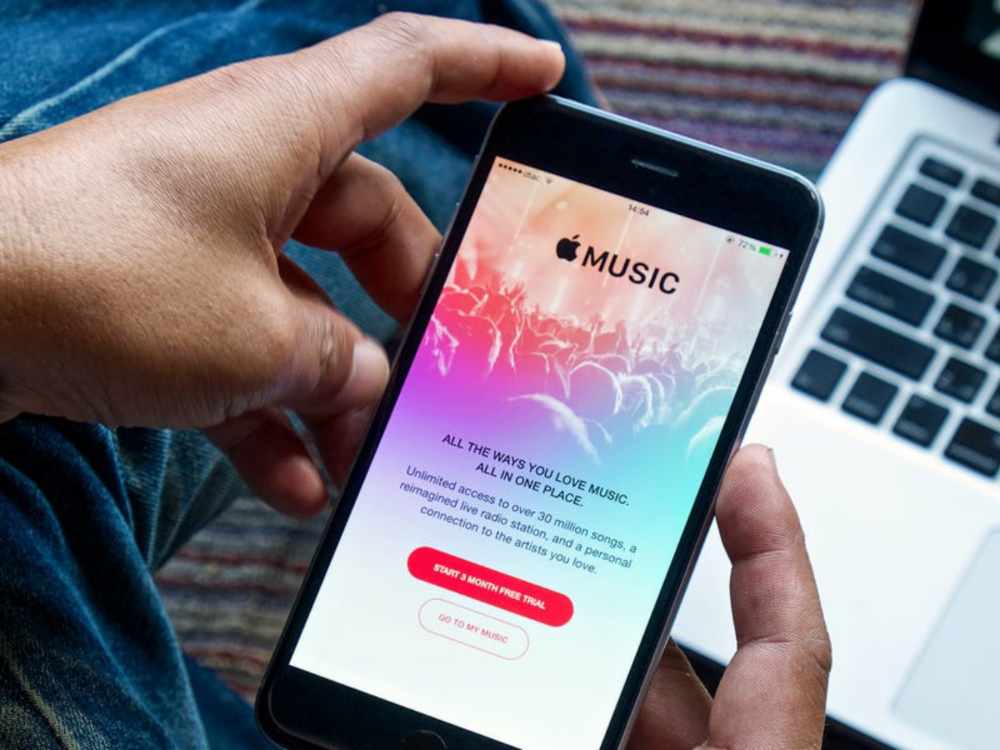
Most iPhone users in Ghana who like digital streaming services like Apple Music have had difficulties attempting to subscribe and listen to their favorite songs on the app throughout the years.
What justifies purchasing music at all? Truth be said, recording and production are expensive. It counts as piracy to download unlicensed music. In addition, visiting shady, unreliable third-party websites puts your phone in danger of malware infection.
Are iTunes and Apple Music the same thing?
But first, let’s get one thing straight. Compared to iTunes, an Apple Music membership is very different. Apple’s online marketplace for buying media is called iTunes (Music, Movies, Ringtones). Everything you buy from the iTunes store is permanently yours. Additionally, you may download it on a Mac, PC, or any iOS device.
However, Apple Music is a subscription service rather than a retail outlet. You pay a single monthly charge as opposed to paying for each song. You can listen to every song in the Apple Music library for that price. Any of these songs may be downloaded or added to playlists in your personal collection for offline listening.
In Ghana, how much does Apple Music cost?
The cost of an Apple Music subscription in Ghana is GHS 153.94 per month, significantly less than the cost in most other countries. The identical service would cost $50, or around GHS 500, in the US.
The best part isn’t even that. Typically, Apple offers discounts to college students on all of its goods and services. Therefore, the standard charge is reduced by 50% for students.
How to confirm your student status with Apple Music
Apple offers the opportunity to authenticate with myUnidays for a discount for university students in Ghana. The restriction is that you must sign in using a.edu (or.edu.gh) email address that is supplied and maintained by your school. Your university is probably covered, and the verification process takes less than 10 minutes.
Hit the submit button at the bottom of the page after providing your name, email address, and any other information that is necessary. Sit back and wait for an email verification link to be sent to your school email since this only takes a few minutes to complete.
How to subscribe to Apple Music in Ghana With and Without Master Card
Enough said. It appears that using some Ghanaian debit cards to purchase music on iTunes is still difficult, especially for banks whose DCC has been disabled (Dynamic Currency Conversion).
It’s for this reason that many of us get angry when we see Payment Declined, especially if our credit card is a MasterCard or VISA. Then comes the stress of having to go back to your financial institution to make things right or pay to request a new card, which occasionally may or may not resolve the problem.
Yes, I know. I experienced this identical emotion as well. However, I discovered a simple technique to resolve this at little to no expense. It stings a lot, especially after trying numerous Ghana credit cards. A third-party program named gomoney is used in this process. Users may pay and share bills, keep track of costs, and transfer and receive money using the online bank known as gomoney.
You may request a virtual credit card once you download the app and register with all of your information. P.S. Before you may obtain the card, you must also give your BVN in order to further validate your account. Before moving on to the next phase, you must also snap a photo of yourself.
In order to protect your account from fraud, boost your transactional limits, and take advantage of all gomoney perks, you must provide these data.
You may request a virtual MasterCard on the app after that is delivered; you can also request a physical MasterCard, but the virtual card request procedure is significantly quicker.
You must enter the OTP (One Time Password) given to the cellphone number you used to register the account after you click Get Virtual Card in order to validate your account. Make careful to rapidly check before the OTP expires because it has a 5-minute validity window; otherwise, you will have to get another OTP.
The money app will let you know when your card should arrive, which should be within an hour at most once that has been properly completed. You can return in an hour and there you have it! Your virtual debit card is prepared and costs 0 Ghana cedis to use.
After that, select See Details to reveal your card information, which you may either capture or write down. Because MasterCard is an authorized biller, you would now use this new virtual card information to subscribe to Apple Music. With this virtual card, you may subscribe to Apple Music with confidence every time.
Depending on the plan you select, you may not need to fund your gomoney account if you’re a first-time user of Apple Music because the service already guarantees a 3-month free trial period before charges are applied when the expiration date is due.
However, if you’re an existing subscriber, you’ll need to transfer funds to your gomoney account number, which is prominently displayed on your profile page on the app, in order to successfully complete your subscription.
Please be aware that if you decide not to continue with the subscription plan, you are able to cancel the subscription before the due date of expiration as well.
How to cancel Apple music
Simply go to Settings
Select “Cancel Membership” under “subscriptions”, if you are concerned that you might forget to cancel your subscription before it renews.
Up until the next due date, you can continue to use your free trial or current subscription.
Conclusion
We hope these instructions aid you to subscribe for Apple music here in Ghana without any hindrance.
With Discord, which was created exclusively for gamers, they can communicate with their team while playing through texting, talking, or even video chatting.
The hard disk won’t require much room to install in PCs or Androids because it takes up less space. Since you can converse in the meantime, your plans can easily overcome the adversaries, allowing you to enjoy the moment with the crew.
A free gaming chat platform is called Discord. It is without a doubt utilized by thousands of gamers worldwide and is quite well-liked. On this app, managing servers is really straightforward and easy. Discord is also fairly simple to use.
Even if this app already has a lot of wonderful and thrilling features, there is always room to add some more useful functions.
A large number of users wish to add bots to the Discord server in order to access more sophisticated functions.
As a matter of fact, not everyone uses Discord in the same way. Consequently, to assist you in personalizing the Discord in accordance with your preferences. Users can add bots to their Discord servers. These bots let you expand the discord’s functionality and customize it to your preferences.
How to discover discord bots
With the help of the well-known chat program Discord, you may communicate with your pals while playing games. For more sophisticated functionality, a lot of users desire to build a bot for the Discord server.
Before starting, it’s important to keep in mind that installing bots through mobile and desktop are essentially the same. Therefore, you may skip the majority of the stages if you are already familiar with this strategy.
As there are several sorts of bots available online, there are numerous ways to add them to the Discord server.
Let’s quickly examine how to locate helpful Discord bots in 2022 before learning how to install bots to a server. There are a few methods to achieve this, but visiting the unofficial Discord bot list website is the quickest and one I use most frequently.
The most popular Discord bots are listed directly on the home page of our website, and you may choose to add them to your server if you’d like.
You may also use the helpful search feature on this website to discover the right bots for your use case. Move on to the next section to discover how to connect Discord bots to your server once you have identified a bot (or several bots) that you wish to add.
In addition, you may visit the websites listed below to get Discord bots for your servers:
GitHub
Carbonitex
Top
What is discord bot
What is the Discord bot? This is a question that has to be answered. Only Discord bots that have more features than a typical user have access to the platform.
Users of Discord have the ability to build their own custom bots that can do any task they like. It can interact with people, run servers, and other behaviors that humans can.
AI-enabled bots may be built to carry out a variety of functions, from introducing new members to summarizing important articles.
Discord has expanded significantly in the two years since it first arrived on the scene in 2015, and although it was designed primarily for gamers, digital marketers are finding ways to leverage it to their advantage.
Why discord dot?
So as to converse! For any variety of purposes, anyone may build a Discord server for free. Generally speaking, you may use it to call or text your buddies together in a group chat.
Post gifs, memes, screenshots, and other content there, or use it to journal your day.
Alternatively, you may use speech channels to make jokes or plot actions while you’re still playing the game. losing a game? Your pals may watch you play while you stream them, and they can offer suggestions or, more likely, just laugh at your poor aim.
Discord is frequently used by game developers and publishers as a platform for giving their communities access to cool gaming content.
On Discord, you may access a game as well as view concept art and fresh images.
Discord dots and its safety
There are many fantastic bots on Discord, however, some of them pose a risk of hacking, data leakage, or spamming.
Tips
Avoid introducing a lot of bots to the server (That is also unknown)
Block a bot if it contacts you and is unknown! (If the bot is well-known and trusted, it is secure.)
If a bot sends you questionable links that you are unaware of, block the bot and report it right away.
Is a bot requesting your contact details such as your phone number and email address? Don’t provide the details since it will be sent straight to the developer of the bot.
When accepting a bot into your server, check the permissions and REMOVE ADMINISTRATOR since doing so might put your server at risk. Perhaps the discord bot is only attempting to upload malware to your server, in which case having administrator access will make it extremely simple for the bot to do so.
Please refrain from inviting any bots without first doing your research on them.
Just consider: Have you ever seen a popular server with random Discord bots? You know, popular servers with nice votes for the bots. Don’t add random bots and verify each one’s review, or make a remark to assist others in selecting the bot.
The best way to add bots to discord
You should be aware that you need to manage server permission on the Discord server you want to add bots to in order to add bots, so read the whole step-by-step tutorial before continuing.
It’s actually pretty simple to add bots to a Discord server. You can continue when you have completed the simple task of logging into your Discord account in the browser. But here’s how to do it if you haven’t yet made a Discord account:
Open the Discord website and log in.
visit the application page right now.
There is a button for a new application there. Just click on the button.
Give this new application a suitable name now, then select “create” from the menu.
You may now add bots to your Discord server with no problems. You should continue and read the detailed step-by-step instructions on adding bots to Discord that are provided below.
I’m assuming that you already have the bots you want to add to your Discord server at this point. If you’re still seeking for Discord bots, check out a few reliable websites to get the best ones.
when you have all of the bots you wish to add to your server. You are now prepared to continue. So, all you have to do to add bots to Discord is get a coffee, settle into your favorite chair, and continue reading. You can find a detailed step-by-step tutorial on creating a Discord bot below.
Navigate to the Discord app website. Register a new account with Discord now. Initially, confirm that the server where you want to add the bots has the manage server rights.
Simply select the Invite option if you are adding bots using the discord bots website. The Add the bot to the server button should be clicked, however, if you are carrying out the identical action from a third-party source.
You will now be taken instantly to an authorization screen. You may choose a server from the drop-down menu right here. Press this button.
Select the server that you want to add the bots to now. One of the easiest but most important stages in adding bots to Discord is this one. Simply choose the appropriate bots and add them to the discord server.
You will now see a button with the word “AUTHORIZE” on it in front of you on the screen. The bots will be added to your Discord server as soon as the permission procedure is complete. Additionally, your Discord server’s sidebar will display it for you.
You must complete all of these steps in order to add bots to your Discord server. You may add bots to the Discord server by simply following the procedures above.
However, I should point out that many Discord bots are also housed on GitHub, which is a crucial fact. Therefore, if you want to add any of the GitHub bots.
You should read the GitHub projects’ wiki, in my opinion. The whole step-by-step installation tutorial for installing the bots on Discord from GitHub may be found there.
A discord server: What is it?
On Discord, servers are the actual locations. Different cultures and buddy groups contributed to their development. Most servers are modest and only open to those who have been invited. A few of the bigger servers are accessible to everyone.
Any user can launch a new server for nothing and invite their friends to join. Voice calls, video calls, text messages, media files, and secret chats in online communities known as “servers” are all ways that people communicate with one another.
Most servers are private, invite-only spaces where communities and groups of friends may stay in touch and hang together, rather than being open to the public.
Additionally, there are opportunities to join bigger, more inclusive organizations, many of which are centered around well-known video games like Minecraft and Fortnite.
People on Discord have total control over who they connect with and how they communicate with others because all chats are opt-in.
How can a discord server be set up?
The process of setting up a server is fairly simple and free. On the very left side of the Discord app, servers are listed. To add a server if you haven’t already, click the ‘Add Server’ button.
By using the instructions and templates that Discord has already created, you may quickly establish your own server.
You may build a server with only a few simple answers about its purpose, whether it will be public (open to everybody) or private (for friends only), and a name. You will have total authority over the server’s configuration.
Right-click on the list of channels on the server’s screen and choose “Invite People” to invite more people.
You are able to directly invite people from your friend list using this. You may also make a URL that anyone who has access to can use to join the server without your direct invitation.
People will be sent to your server in the app when they paste the link into their browser’s URL bar.
You may build voice and text chat channels to let server users communicate with one another separately from the main channel. In this manner, Rocket League players won’t disturb the Fall Guys players.
How to add discord Bot to your server
Once you’ve chosen the Discord bots you want to utilize in your channel, you should check to see if they’re still available by utilizing a bot list online or a straightforward Google search.
Then, pick the server to which you wish to add the bot by looking for the invite or add option. Remember that you may only execute this command on servers where you have administrator or moderator rights.
You should be able to use the bot right away by giving it a set of commands after it has finished uploading to the server.
If a bot is bothering you, you may kick or ban it by right-clicking on it in the server member list.
An alternative way to add a bot to your discord server
When you’re ready to choose a bot, click “View,” which will bring up the bot page.
From here, click the invite button to give the bot an invitation to join your server.
You need to be taken to Discord as soon as you complete this activity.
You may sign in right away if you haven’t already. Choose the server you want the bot to be added to after that.
If you can’t find the server, you probably need authorization from someone else there, perhaps someone with a higher role.
After moving on, a list of actions the bot is capable of performing will be displayed. Click “Authorize” after selecting everything that applies.
You’ll be sent to the bot’s website after you’ve added the bot successfully, at which point you’ll know. This isn’t the last step, though; you still need to assign a bot to a position on your server.
Return to the dashboard and click the topmost server name. Then tap “Roles” under “Settings.” To assign responsibilities to your bots, use the Plus button.
From here, choose “Members,” where you may designate a bot to a certain function.
If you can’t add Bot to your Discord server follow these steps:
If you don’t have the “Manage Server” permission, you might not be able to invite bots to a Discord server.
Using the menu item, navigate to “Server Settings.
Click on Roles
Tap onManage Server,”
You can ask the server administrator for permission to add bots.
But keep in mind that you should only provide this access to those you can trust, not to everyone who joins your server.
Is a public discord server safe?
There are currently countless games with their own Discord servers. They serve as a forum for the community to interact with one another and the developer to communicate with fans and keep them informed about the development of the game.
You may either join by accepting a public invitation or by using the ‘Explore Public Servers’ option to browse the public servers.
Nearly 800,000 people participate in the Official Fortnite Channel, uploading screenshots, seeking groups, and talking about the game.
You must consent to the mentioned regulations before you may converse on any of the servers.
Reading the 14 rules, which prohibit disclosing personal information, harassing others, referring to dangerous websites, and affirming your agreement, is all that is necessary.
You will be able to communicate with the community quite safely if you do that.
Conclusion
That’s all I have to say about adding bots to Discord. Knowing how to add bots to the Discord server, you may do it right now. Now is the time to look up some fantastic bots and add them to the Discord server.
What are you still holding out for? Don’t hesitate to add the great bots that you find handy to your server. The market is flooded with bots that may be added to the Discord server.
On the internet, you may browse for some really cool websites. You can find everything you’re looking for with just the appropriate research.
You will undoubtedly discover some of the greatest and most outstanding bots that are currently on the market.
In short, bots are a great way to personalize your Discord server. The approach mentioned above makes it easy to add bots to Discord.
Therefore, all you need to do to create an incredible discord server is to discover the greatest bots, and then you will have a completely functional awesome discord server.
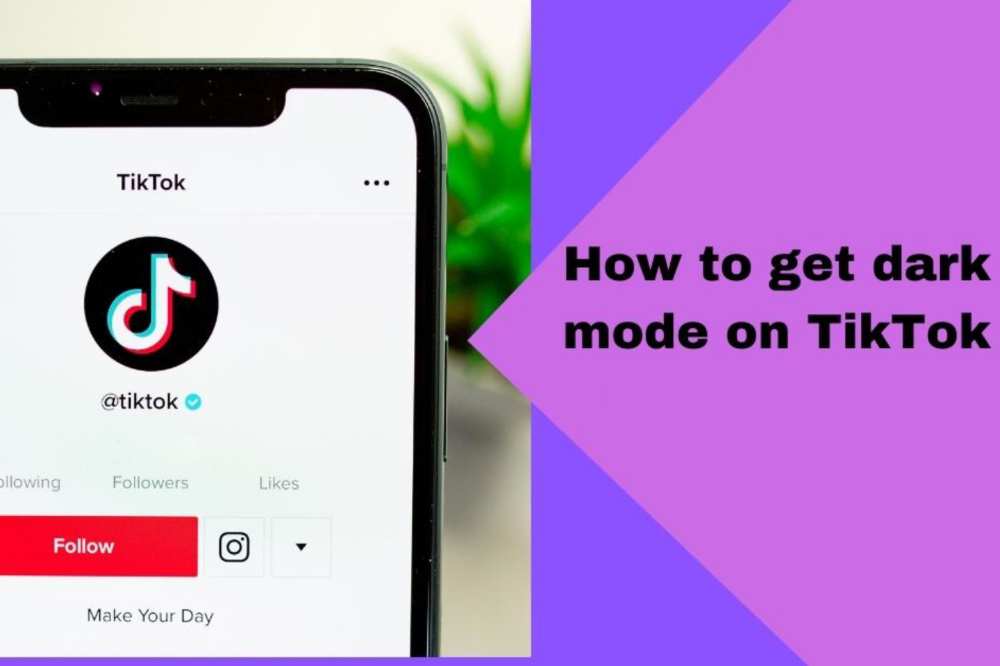
Millions of people utilize the Tiktok platform, which enables them to post feature videos on any topic with their friends or the public at large. Recently, a popular program that allows users to enable dark mode has gained widespread use.
Even if you alter your device’s theme, you will never be able to utilize the dark mode on the original TikTok since it doesn’t have one.
How To Turn On Dark Mode On TikTok
Tiktok makes it incredibly easy to enable and disable dark mode. Additionally, there are two options available.
First is to open the Tiktok app and enable dark mode there immediately.
The second method is to adjust our device’s settings to dark mode, in which case Tiktok will automatically operate.
How To Turn On Dark Mode On TikTok for Android
The procedures listed below may be used to activate dark mode in TikTok for Android.
Users of Android devices can follow the instructions below to make use of this enhanced feature:
To use the most recent features, you must first update the TikTok app.
Open the app and go to your profile after installing the new version (located on the bottom right)
On your profile, tap the three-line menu bar in the upper right corner.
After that, select Settings and Privacy.
On the screen, select the dark mode option by tapping it.
Two options—one for dark mode and the other for bright mode—would be presented to you.
To use this function, tap the circle next to the dark mode.
If the aforementioned approach doesn’t work, you may activate one through the settings on your phone. Once you’ve changed your settings, TikTok will change as necessary.
The steps you must take are as follows:
Go to the settings on your phone.
Select Display and Brightness by tapping it.
Next, select the “dark mode” option and turn it on.
Your device has now entered dark mode.
How To Turn On Dark Mode On TikTok For iPhone
For iPhone and iPad users, TikTok has included a fully working dark mode functionality. Either the program or external settings can access the option. You can take the following actions:
iOS 13 or newer should be installed on your device.
In the bottom right corner of your screen, tap the Me symbol.
Tap the three-line menu bar after that.
Tap on the dark mode button under the Content and Activity area.
Choose the night mode.
The dark mode is now turned on.
By following the instructions below, you may activate the dark mode in your device’s settings as well:
Your iPhone or iPad’s Settings app should be opened.
Select Display and Brightness from the menu.
Two options, dark and light, would be shown in the Appearance section.
Is Tiktok Dark mode compatible with Samsung?
Sadly, Samsung smartphones can only use TikTok’s standard mode at this time. But if you want to use TikTok’s dark mode on your Samsung, you may try utilizing applications like “Night Phone X” or “True Night Mode.”
You may alter the color mode of your phone by using these applications, which are accessible for free. Additionally, you may change the screen’s brightness, which will make it simpler to operate at night.
Conclusion
The most recent attempt by TikTok was to make the app more user-friendly with the use of dark mode. The quality or design of the program will not be impacted by the dark mode on iOS or Android.
You wouldn’t have to be concerned about TikTok making your eyes sore from the blue light. As a result, people may watch their preferred content producers for extended periods of time without risking their physical health.
In a dynamic digital landscape, Instagram keeps thriving. Despite the fact that Instagram has a plethora of features, such as Reels, Stories, limitless filters, etc., commenting on other people’s photos is a terrific way to engage with the Instagram community.
There is one noticeable drawback to the Facebook-owned app. Instagram does not allow for the copying, editing, or even the addition of links to comments.
How to copy comments on Instagram
Perhaps when surfing Instagram you stumbled upon a witty comment or replay that you want to steal and share elsewhere. The copy pop-up won’t show up if you attempt to copy the comment in a conventional manner.
Although it doesn’t accomplish the goal, you can always snap a screenshot of the comment. You can quickly copy comments on Instagram by using the approaches below.
How to copy comments on Instagram on IOS(iPhone)
We’ll first demonstrate how to effectively copy Instagram comments on an iPhone.
On your iPhone, launch Instagram
Visit the post where the remark you wish to copy is located. Wait till later to access the comme
nts thread. Instead, click or press the three-dot menu located in the main post.
Click the Copy button.
Launch the iPhone’s browser of choice, whether it is Safari, Chrome, or another.
Insert the copied link into the address bar, then click Go.
Instagram will prompt you to check in again if you haven’t done so when using a mobile device.
Instagram will launch the article you copied from the original app.
Make the comments area larger. When you try to copy the remark now, no Copy pop-up will appear. Why is that? We are still using the mobile web version of Instagram.
Select Request Desktop Website from the webpage settings option that appears when you tap on the URL bar.
The Instagram desktop version will refresh the page.
If you open the comment thread in portrait mode, no comments will be seen.
When your iPhone is turned to the landscape orientation, post comments will start to show in the side menu.
Long-press the comment you wish to copy, then select Copy from the pop-up menu.
How to copy Comments on Instagram using Android
To replicate Instagram comments this time, we will use the Google Chrome browser, although the methods are nearly identical to the iPhone technique on Android.
Access the post you want to copy the remark from on Instagram on your Android device.
Select the Copy link by tapping the three dots at the top of the screen.
Paste the URL into Google Chrome after opening it. It might be necessary for you to click the link and log in again.
Considering that we are on the Instagram mobile website, you can still not copy the comment. The desktop version should be created.
Select “Desktop site” from the More option at the top.
You will see a desktop UI once Chrome reloads the Instagram page. It’s not necessary to spin the phone here, unlike with the iPhone.
Find the comment you wish to copy by enlarging the comments thread.
Hold down and long-press on the comments to choose all or any of them. You can continue after tapping Copy.
Can I Copy Text from Instagram Stories?
You can’t copy text from Instagram Stories, unfortunately. Similar to YouTube videos, text on Instagram Stories also functions as text. It’s impossible to replicate.
How To Edit Comments On Instagram
Instagram users have the ability to ask questions, suggest recommendations, and voice an opinion. What happens, though, if you discover a typo or a poorly written sentence after you’ve posted? Despite the fact that comments cannot be edited, the workaround still produces the same outcome.
How to edit Comments on Instagram on IOS(iPhone)
Although you can’t directly alter the comments you or another user have made on your postings, you can still succeed in your objective.
If you want to “edit” a remark you’ve made on one of your posts, open the post in a browser, copy the comment, and then paste it into a note app to make changes. Then, repost the revised version, and delete the original.
Follow the instructions below to achieve this on your iPhone.
Start by logging into your Instagram account.
Locate the comment you want to change.
Tap the vertical, three-dotted symbol in the upper right corner.
Choose “Copy Link”
Go to your phone’s browser instead of Instagram.
To go there, paste the URL into the address box.
Click “AA” in the browser’s upper-left corner.
Click “Website Settings” and turn on the toggle for “Request Desktop Website.”
Choose “Done.”
How to edit Comments on Instagram using android
Open the remark in Google Chrome, copy it, then paste it into a note app to “edit” it. Then, repost the edited comment and delete the original.
Use the Instagram app to log in.
Find the comment that needs editing.
Click on the vertical, three-dot symbol in the upper right corner.
Press “Copy Link”
Leaving Instagram, launch Chrome.
To go there, copy the URL and paste it into the address bar.
Click the top right vertical menu with three dots.
Select “Desktop site,” and Instagram’s desktop version will be shown.
Click “Log in” in the top navigation bar to access your account and end the prompts to use t
Click “View all comments” to view them all.
Tap the comment you want to edit and hold to receive the “Select All” and “Copy” options.
After selecting all of the text, click “Copy” and then choose “Select All.” Your phone clipboard will get the copied content.
Can I Edit a Comment I Left on Another Person’s Post?
On Instagram, comments placed on someone else’s post cannot be edited. A remark can be removed, though, and then reposted with changes.
How to Add links to Instagram comments
Instagram’s adamant rejection of allowing any links in a comment section is one peculiarity, though. This is still the standard operating procedure now as it has been since the mobile-only website’s inception. Nevertheless, we’ll mention a few workarounds that will have the same effect by including links in the comments.
Include links in the captions
Include links in your bio and mention them in the comment sections
Using supplemental applications
Using Instagram adverts
Utilizing links in Instagram stories
Incorporate links into your IGTV description.
A key benefit of including links in Instagram comments
Increased traffic. Adding clickable links to your posts and stories encourages users to tap on the link rather than the link in the post description, which requires users to shorten the URL, copy it, and then paste it into their web browser to access.
Conclusion
To replicate Instagram comments on a mobile device, the aforementioned methods might seem excessively laborious. To replicate Instagram comments on an iPhone or an Android device, however, will only take a few minutes once you get the hang of it. Sadly, Instagram doesn’t let you alter a remark once it’s been submitted.
Fortunately, you can utilize a workaround to edit submitted comments and guarantee that each post reads exactly how you desire.
As was already said, there are several more useful ways to upload links to Instagram in addition to clickable ones. You should use all available strategies to promote your Instagram posts and profile. This piece explains
In order to wake up from a brief desk sleep or to help you remember something, you might occasionally wish to set the alarm on your Mac if you spend most of your day in front of it.
There isn’t a precise alarm option available on Mac because macOS doesn’t come with a built-in clock application. However, by employing these techniques, your Mac may easily serve as a reminder and come close to performing the same functions as an alarm.
How to set an Alarm on your MacBook
Using Wake Up Time
On Mac, you may set an alarm using the free program Wake Up Time. Although the software hasn’t been updated in the previous six years, it still functions and is compatible with the most recent macOS Monterey release.
Open Wake Up Time on your Mac and select the appropriate time under Alarm Time.
You have two options: use your keyboard to choose the time or click the little arrows.
Select any alarm tone under Sound. To watch a preview, click the play button.
To activate the alarm, click the circular on/off alarm button located in the bottom left corner.
The “Alarm set” text will appear in the light orange indicator box as soon as it is turned on.
At the predetermined time, the alarm will sound and play a sound to wake you up.
Reminder: If your Mac is awake, the Wake-Up Time alarm software and the other techniques in this guide will function.
Using the Apple Calendar
Mac’s modest calendar event notifications. You’ll see a notification in the upper-right corner and hear a brief sound after one second. This functions more like a timer than an alarm, but it can occasionally be useful.
For instance, you could want a Mac-based reminder to remove food from the oven after two hours while you are working on it. In this situation, using the steps below will allow you to rapidly create a Calendar event with an alert (alarm).
Go to your Mac’s Calendar application. To do this, search for it while pressing command and space.
Click on the Plus button in the top-left corner. In the format specified, type your event information.
For instance, enter at 11:58 AM today and type sees the oven. There will be a calendar event produced. Click alerts in the pop-up window to continue, then select a choice. If necessary, you may add more information.
Another approach is to double-click on the date box you want if you are in the month view.
A popup for a new event will appear. Enter the event name, time, alert, and other information at this point.
Note: If you carefully double-click on the date number, it will open in full-screen mode, which can be useful for certain people.
Using Kuku Klok to set an alarm
A stylish and user-friendly online alarm clock website with a variety of sounds is Kuku Klok. The fact that setting the alarm just requires internet access is better. Following that, the alarm will sound even if your Mac is not online. Use it as follows.
Browse Kukuklok.com on a Mac using any browser.
To set the time, press the + and – buttons or the keyboard’s number keys.
Pick a sound from the right-hand side.
Lastly, choose SET ALARM.
Make sure not to close this tab in your browser.
Using the Reminders software to set alarms
You can make alarm alerts with Mac’s Reminder app, just like you do with the calendar app. This demonstrates how notice and a brief alert sound are similar to calendar events.
On your Mac, open Reminders and select + from the top-right menu.
Enter the desired name, then click the I at the end of the row.
Check and remind me on that day.
Set the time and date you want now. You could also take into account a couple of the other possibilities available.
Conclusion
I think the approaches I just mentioned resolved your inquiry. They are not as practical as the iPhone or iPad alarm. They do, however, function in case you ever need them. Additional queries? Please post your responses in the space below.
Beginning to play any game may be challenging, and Roblox Blox Fruits is no exception. It may be difficult to know where to begin or what steps to take to advance. In our Blox Fruits leveling guide, we may suggest a few ways to help you level up quickly.
The goal of Blox Fruits is clear, complete tasks to level up, develop your talents, and harvest fruit. The Quest-to-Quest game has no shortcuts, and we are unable to provide a cheat code, but we can show you the fastest route.
Leveling Up from 0 to 700
It would be excellent to gather a couple of Logia Fruits before beginning your mission. As long as your opponents aren’t employing any enhancements, you can use them to absorb any damage they do to you from higher-level opponents.
Additionally, keep in mind to place spawning on each island as you go. In this manner, if you pass away, you won’t respawn too far from your objective.
You must jump across islands to reach ever-higher levels. A different difficulty arises on every island. It’s crucial to keep in mind that if you want to complete them quickly, you must stay on that island until you have reached a level that is greater than the one required for the upcoming mission.
Ineffective bosses are the Logia Fruits. Some will have particular abilities, and there will be unique tasks scattered throughout.
Roblox Blox Fruits Leveling Tips
Use codes before you start a game and finish quests often.
Put Attack Before Defense.
Keep in mind island hop
To get 700, complete the following challenges in the sequence of islands and levels:
Head over to the Marine Leader as soon as you can to acquire a quest, for example, if you’re a Marine. Low-level opponents will be your opponents. Do this consistently until you reach level 15.
Jungle Island, Level 15.
Level 35: Pirate Village; the final monster is unbeatable by use of food, swords, or battle.
Desert Island, Level 60–65
Level 90: Snow Island; wait until you are level 105 before taking on the Yeti Boss.
After you’ve vanquished him, head underground to the Ability Teacher’s office. You will benefit from purchasing Skyjump, Flashstep, and the damage boost from him for use in upcoming tasks.
Marine Fortress, which has a unique mission, is at level 120.
Grey Beard arrives in the island’s center every 5 to 6 hours; however, you shouldn’t engage him in combat until you are considerably stronger.
Sky Islands at level 150, where the Skyjumps you purchased will be useful.
Prison Island at level 200; no spawn locations are present. The three rock islands to the left may only be reached by boat. Where you can put it is there.
Colosseum Island, bypass the Toga Warrior quest at level 279
Volcano Island, level 300.
Level 381: Visit the three little isles close to Prison Island. You should arrive in the Underwater City if you enter the portal located between them.
Level 458: Sky Islands. Climb all the way to the top and look for a man named the “Mole.” Complete all of his missions.
Level 535: Sky Islands. Locate the Gan Fall Adventurer by going to the large trees. Complete every task he has to give.
Level 637: Fountain City; until you reach level 700, keep taking out the last enemy, “Cyborg.”
You can enter the next world, where fresh adventures await, after reaching level 700. You should get a better understanding of how the game operates and the necessary skills to go on to the new realm after completing these objectives. Continue in the same manner once there. To improve, explore, pick up new skills, and defeat fresh foes!
Conclusion
We hope our extensive research adds something to your game. You will become a Become the ruler of Blox Fruits with our sufficient knowledge to create your Hero and excel if you use the Tips and Tricks we have compiled. Just be sure to be patient and follow our instructions carefully.
You’ll face more enemies and be able to accept additional tasks in the new realm as you level up. Watch out for difficulties and buried treasures as well.
Online payments can be made for free using PayPal. An extremely secure method of sending or receiving money is provided by the app. Both private and commercial (professional) uses are possible with PayPal.
You may buy things with it as well. Users can set up a merchant account and conduct transactions if they are interested in generating money through a company.
These procedures should be followed if you wish to cease using PayPal and have your credit card information removed from their security systems.
Before you delete or deactivate your PayPal account, bear the following in mind:
Pay off your debts: Before canceling your account, make sure there are no outstanding fees on your end.
Withdraw your funds: Don’t hold onto any of your remaining PayPal balance since once your account is canceled, you won’t be able to get it back.
Copy your transaction history and keep it safe: Make sure you have a paper or snapshot of the whole PayPal transaction you just completed.
Steps for deleting PayPal
These procedures will help you cancel your PayPal account if you want to relocate your transactions somewhere else or if you just no longer use the service.
Sign in using a desktop, a mobile, or a laptop to your PayPal account. Remember that deleting your Paypal account through a mobile device is not possible.
Select the Settings option by clicking the gear icon located in the top-right corner of the screen.
Look under the Account menu for the option to cancel your account.
Following your click, you’ll be prompted to check your PayPal balance. Before deleting your account completely, make sure you have transferred the whole sum.
Type your bank information and any other information prompted.
Choose the option to Close the Account.
The successful deletion of your will account will take place.
Detailed directions on how to delete your PayPal account
1. Go to the PayPal website and sign in to your account once more
Go to www.paypal.com with your preferred web browser. Click Login in the upper right corner, then enter your email address and password before clicking the blue login button.
2. Log in to your PayPal account settings and individual profile
To access your PayPal settings menu, click the gear symbol in the top-right corner.
3. Locate the option to terminate your account.
Though it will already be chosen by default, pick Account from the menu bar at the top. Click Close Your Account under “Account Options.”
4. Verify your decision to delete your account (be certain, since there is no turning back from this point).
The process ends here. If you still wish to cancel your account, PayPal will offer you one more chance. Select “Close Account” from the menu in blue only if you are certain. Make sure you want to do this before clicking since it will permanently cancel your account.
If I owe Paypal, can I still delete my PayPal account?
If you presently have any pending disputes or claims made by you or against you, you cannot terminate your PayPal account. In a similar vein, if you have any active fines on your account, you cannot terminate your PayPal account. Make sure you address such problems first.
Will PayPal erase every transaction I have pending?
Any transactions you have started with PayPal (such as making a deposit or withdrawal) will be immediately canceled if you close your account while they are still in progress. Before you decide to terminate your account with PayPal, be sure all of your business with them is finished!
I deleted everything; can I re-open it again?
Your information will be permanently lost if you decide to delete your account. You must start anew and establish a new account if you ever want to use PayPal again. No past payment or account history will likewise be accessible to you.
Conclusion
With any luck, you now have all the information you require to delete your PayPal account.
Users may share pictures and videos with their followers using Instagram Stories, commonly known as Insta Stories, a feature of the Instagram app. These, however, only exist for 24 hours before being removed, unlike ordinary postings.
However, given how digital the world has become, some people would like to maintain their anonymity online. Recognize that browsing Instagram stories anonymously does not constitute prying into people’s personal lives.
Keep in mind that using the tactics of your Instagram rivals can help you obtain followers and consistently grow your popularity on the network.
This post covers all the essential information regarding reading Instagram stories as well as the tools that can make it easier for you to do so without creating an account.
View Instagram Stories using Third-Party Software without Having an Account
Fortunately, it is possible to access Instagram stories without a user account, but you must use the appropriate third-party application to do it.
In order to assist you with this chore, we have chosen the top applications for viewing Instagram Stories in an incognito manner and provided usage instructions for each.
1. Instagram Story Repost
Even though reposting Stories to your profile is this app’s primary function, it also has the advantage of being one of the top applications for viewing Instagram Stories anonymously.
These Stories may be downloaded to your phone in addition to being watched online. Even the material you submitted falls under this. Repost Story for Instagram is a fantastic choice for individuals who need to save a copy of the posts they upload to this social media platform, in other words!
It’s important to remember that the app does not keep your Instagram lives. Both Android and iPhone users may get this app!
Storiesig is not accessible through an iPhone or an Android app, in contrast to the other ways to see Instagram Stories in an anonymous manner. If you want to browse Stories on your computer anonymously, this is the best choice!
It does operate similarly to the majority of the apps we have discussed so far. You may view the Stories you’ve shared by searching for your handle since you don’t need to link your Instagram account to the website.
You may even download this kind of footage to repost on your own Instagram Stories thanks to the quick and easy approach! Even the Stories highlights may be downloaded via Storiesig.
3. BlindStory
Due to its excellent capabilities, this program is well-liked by users. Some of these features allow users to download Instagram stories and watch them anonymously. Users may perform all of these in HD, and there won’t be any problems with the visual quality. Because it allows users to read material from the folks they follow, this app is simple to use. Furthermore, if you’re seeking for a certain user, it’s simple to do a search for them.
View Instagram Stories using the online tool without Having an Account
Mystalk
In comparison to other outside Instagram profile watchers, Mystalk is a bit unique. There is a tiny possibility that you will receive incorrect results from other websites since their profiles are loaded automatically based on your search parameters, especially if there are several accounts with a similar username.
You may enter your login into Mystalk just like with other services, but you can also select the right profile. You don’t need to be aware of the precise username because of this. Further, utilizing the person’s genuine name will also help you locate them (if they added it to Instagram).
Visit the Mystalk page in your browser after it has opened.
Enter the user name or the first and last name of the individual in the search field and then click the magnifying glass or enter key on your keyboard.
You can select the profile you want to view.
Under the username, you may read the stories in the profile. To find the one you want, scan through them, or look at every single one. In the lower right corner of the tale, click “Download” to save them to your smartphone.
StoriesIG
Using StoriesIG, you may see and download Instagram stories on yet another straightforward and cost-free website. Regardless of your operating system, you may use it on a computer and a mobile device. To utilize it, adhere to these guidelines:
Navigate to the StoriesIG website using your browser.
Enter the “username” of the profile into the search field and then choose “Enter” or the double arrowhead icon to the right to continue. Inspect the username for any special characters.
Below the username is a representation of the number of active articles. If there are any, scroll down to see them. Select “Download” if you want to save them to your device.
You may see and download Instagram Highlights with the help of this tool. Once you’ve found a username, just click “Highlights.”
Dumpor
Another third-party plugin that lets you browse Posts, Reels, Videos, and Stories without signing in or creating an Instagram account is Dumpor Dumpor. In addition, there is a really useful feature of the ability to search using hashtags and locations. Keep up with me.
Navigate to the Dumpor website using your regular browser.
In the search field, type the username.
Numerous profiles will be displayed to you. To find it, click on the link.
Navigate to Show Stories by scrolling down.
Decide the one you want to see next.
Downloading the articles is another feature of Dumpor. To download them, simply choose the green download symbol in the upper right corner.
Can I still access my old Instagram Stories?
After an Instagram Story has expired, it can no longer be seen.
Does Instagram allow users to view the Story of a private account?
The answer is no. If someone has a private account, then only their followers may see their Stories. Without first creating an account and following that individual, you won’t be able to see them.
Can I check how frequently your Instagram story is viewed?
You cannot currently view the number of times an Instagram user has watched your Story.
How safe is it to use third-party software to view Instagram?
Utilizing a private Instagram viewer is generally secure. These websites can still monitor your activities and data, though. People who are concerned about their internet safety should definitely avoid using these tools or do the further study before choosing one.
Third-party websites pretend to allow you to browse submitted by private accounts, but then lead you to other pages that are frequently fraudulent. Even malware that might harm your device are sometimes found on these websites. Other third-party programs may occasionally connect to dangerous websites while displaying advertisements to support the developer.
Conclusion
Generally speaking, we’ve given you some of the greatest applications for watching Instagram stories in secret. Choosing the app that best meets your needs just requires reading this article.