Just like any other video streaming services, Facebook also offers streaming of videos in their service. People can record live videos and even can share already recorded videos on Facebook. Videos in all genres like entertainment shows, music videos, movies, short clips and a lot more.
Facebook specifically has a tab to display only videos. Have you bumped into a video you thought was not worth watching but later realized the importance of the video but could not find it on your timeline? It happens to all of us.
If you are lucky, sometimes it appears when you log back to Facebook but the probability of it not appearing is very high. This is one of the most common issues in the Facebook community. However, in this article, I will show a quicker way to view the history of videos you have watched before on Facebook.
It’s an option under the activity log in your Facebook profile. Below is a simple tutorial to find recently watched videos on Facebook desktop, App or mobile so that you can watch it over and over again.
How To Find Recently Watched Videos On Facebook
As long as the video is played, it doesn’t matter the seconds, it will be listed in your recently watched videos history on your Facebook account. Below are the steps to find your watched videos.
Sign in to your Facebook account.
Click on your profile picture to go to your Facebook Profile
Click on the Activity Log button.
From the left sidebar, under Filters, click on the More link usually right under comments.
Then click on Videos You’ve Watched from the list of filters
The list of videos you have watched will be displayed.
The videos you have watched using your Facebook account will now be displayed. You can find the recently watched at the top of the list in order.
Recently Watched Videos In Facebook App/Mobile
If you are on your smartphone or tablet and you want to see the recently watched videos of your account, follow the below steps.
Open the Facebook app on your mobile or tablet and sign in to your account.
Click on the triplet bar at the far right of your menu, then click on View Profile.
Click on the Activity Log.
At the top of the screen, click on the Category drop-down menu.
Scroll down to find the Videos You’ve Watched filter, and then tap on it.
You should now be able to see your recently watched videos on Facebook app.
Following these steps will allow you to view the videos you watched and skipped over but later needed it.
Conclusion
It’s always a pain when you realize the video you watched and paid little attention to later becomes an important video you need but can’t find it anywhere.
Facebook in its own way new of this problem and decided to keep a log on it for everyone. Now you know where you can find your videos, let’s go get it!
Despite the widespread usage of touchscreen, smartphones, and the advancements, materials used in manufacturing these screens are low in quality. This result in glitches on the screen which is rather an issue than a bug to fix.
We’ve compiled a list of possible solutions in this post that could assist in permanently fixing these glitches.
Let us tell you upfront that the glitch screen issue can be brought on by a number of environmental factors. Regular users like you and I can resolve this by performing a few basic troubleshooting steps.
Also, there may be certain situations where there will be a need to visit the service center, especially if hardware-related problems are the root of the problem.
What exactly is a glitch screen issue?
Firstly, “touch glitches” or glitch screens are used when a portion of your phone’s screen is entirely unresponsive. Also, when your screen reacts to pushes or inputs that you aren’t actually performing.
It is impossible to blame the hardware directly for screen stutters. However, It could not be the hardware of the phone but rather strange settings behavior.
What causes glitch screens?
Environmental factors might lead to glitchy screens.
Hardware problems that prevent the touch screen from functioning.
Glitch Screen Resulting from Bad Drivers.
How to get rid of touchscreen glitches on mobile devices
Reset your device’s settings and keep it current
Make sure your smartphone, whether it runs iOS or Android, is running the most recent version of its software before we move on to more complex remedies like a factory reset or device disassembly.
Resetting all of your settings to default is one final attempt to fix the issue, assuming that you maintain your device updated. Although your data is automatically maintained, this process is essentially identical to a factory reset.
On iOS
Go to settings
Click on general
Go to transfers or reset iPhone
Reset and choose Reset All settings
By doing this, you won’t be deleting any of your data; instead, your device’s settings will merely be reset. Remember that clearing network settings will also disconnect your device from your Wi-Fi, so you will need to manually rejoin it. Resetting the keyboard settings and home screen configuration is also included.
On Android
You will need to do a safe factory reset on Android in order to keep all of your data while clearing all other settings.
Enter the settings
Select the About Phone link.
Choose “Backup and Restore”.
Next, you may select where you want your backup to be kept: locally on your phone, locally on your computer, or on the cloud.
Take apart the screen unit (for advanced users only)
The typical smartphone user is not advised to take this step. It may be possible to resolve the problem by opening up the problematic smartphone, dismantling it, and putting it back together for people who have the necessary technical skills and tools.
Get it serviced
Even while this is a straightforward choice, it’s not likely to be the fastest unless you’re strolling into a store to hand it over for a new one.
You will likely have to pay for repairs if your device is out of warranty and you won’t be given the option of exchanging it.
Glitch screen troubles can occur for a variety of causes, as you have probably already learned. To truly understand what is causing it, you might need to do a number of actions.
The more complex techniques (apart from factory reset options) should only be carried out by a qualified technician if the simpler ones do not work for you.
How to get rid of touch screen glitches on laptops.
On Windows
There are several solutions to the glitch screen difficulties on Windows. You might attempt the below solutions to solve the issue on your own.
If you are using a tablet with a glitch screen, it is suggested that you connect a peripheral keyboard or mouse to assist with the remedy. If your touchscreen laptop starts to function properly after some time, it is advised that you rectify the issue as soon as you can.
Examine the touch screen’s functionality
If you use a laptop or tablet with a touch screen, keep it away from moist or cold areas, fluorescent lights, appliances that might interfere with the touch screen, etc. to prevent ghost touch screens or touch screen problems.
Examine the Hardware
Keep the touchscreen of your tablet or laptop clean at all times by wiping it down. Try a complete shutdown and restart of your touchscreen laptop or tablet to see if the touchscreen functions as intended.
Repair the Drivers
Windows Update’s incorrect driver updates frequently result in computer issues like the “display driver stopped responding and has recovered” error, “driver power state failure,” “laptop won’t wake up from sleep,” and others.
When you experience ghost touch screens or touch screen problems with your laptop, it’s crucial to verify that the related drivers, such as touchscreen drivers, are appropriately loaded.
Change Relevant Settings
If you have problems with your touch screen not working, calibrate it.
Press Win + X to access the Control Panel quickly.
Select Calibrate the screen for pen or touch input under Tablet PC Settings.
Select the Calibrate button.
Next, select Reset (if available).
Use the Windows 10 Troubleshooting Guide
To fix the ghost touchscreen difficulties, you might want to try using Windows 10’s Troubleshooting function. These are the steps:
Launch the Control Panel.
Choose Troubleshooting.
Choose Sound and Hardware
To start a new dialog, choose Hardware and Devices in step
Select Next and Windows 10 will identify and fix the issue on its own.
On Macbook
There are essentially 6 methods to fix Macbook screen glitching. Rather than force restarting your Macbook you can;
Update the macOS
Disable automatic graphics switching
Turning off true tone,
Restarting your mac’s SMC
Resetting NVRAM and PRAM
Restarting your Mac into safe mode
Conclusion
If you find this information useful, bookmark it or send it to others who are experiencing glitch screens. You can post comments below if you have any queries about ghost touch screen difficulties or touch screen not working.
Using its 32 characteristics of compatibility, the dating service EHarmony claims to connect like-minded individuals.
Despite the fact that EHarmony.com is more popular for long-term relationships than hookups. This means you may eventually discover your soulmate and opt to leave the site or simply grow tired of it.
How to deactivate your eHarmony Profile
Instead of deleting your eHarmony account, you might just disable your profile by following the instructions below;
Use your laptop or a mobile device to log onto your eHarmony account.
Select the arrow next to your photo at the top of the screen.
Select the Data & Settings link from the drop-down menu.
Then, under the Profile Visibility area, click the green slider.
Your homepage should now display a banner stating that your profile is presently invisible, and this will render your profile invisible.
After disabling your profile it is still visible to your favorites.
How to Delete your eHarmony account
If you feel there is no longer a need for you to use EHarmony you should probably remove it.
Please be advised that once your profile has been deleted, it cannot be recovered, and you will no longer have access to your messages or matches.
On most dating apps, the deletion procedure may be very difficult, but EHarmony won’t bother you too much and will allow you to quickly delete all of your account information.
Before you delete your eHarmony account if you are still paying for a membership, you must first get in touch with customer support.
To use the contact form for the eHarmony customer service team, click on the link. Please follow the instructions below if you don’t already have one;
Open a web browser on your laptop or mobile device and log into your eHarmony account.
Click the arrow at the top of the screen next to your profile photo.
Click the Data & Settings link found under the drop-down menu.
Select the link that reads, “To permanently remove your profile, click here,” from the Profile Status section.
Next, reaffirm your want to completely erase your profile and your personal information.
Type in your password to confirm that you really do wish to deactivate your eHarmony account.
Finding it Difficult to delete your account?
It’s most likely because your eHarmony membership is still active that you are having trouble deleting your account. You have two options: either postpone account deletion until after your membership expires or ask customer support for help.
Does eHarmony Delete Accounts That Are Inactive?
Even if you didn’t delete your profile, it will likely be deleted from the platform if you haven’t opened it in a while. This is true of most major dating websites like EHarmony, Zoosk, or OkCupid.
EHarmony typically deletes all dating profiles that haven’t been active for more than six months, so if you haven’t accessed yours in a while and can’t get in, they have probably opted to permanently erase your account.
Do these steps work on eharmony app?
On your Apple or Android smartphone as well as your dating website, you can remove your EHarmony account in the same manner as described above.
What happens if I delete my eharmony account?
When you delete your profile on the majority of online dating services, it implies that all of the data it contains (such as images, messages, etc.) is permanently lost and cannot be restored. On eHarmony, your profile is just hidden from view when it is deleted, not actually removed. All of your information will be ready for you if you chose to reactivate your profile later since it is still saved on the site’s servers.
Conclusion
It may be thrilling to find the ideal match through a dating service website and receive the best dating tips to keep your better half pleased. We hope the above processes will be simple and quick for you if you have chosen to terminate and delete your eHarmony account.
Everybody has a smart smartphone these days, and we all carry them with us everywhere we go. Making your phone secure enough to be completely untraceable can sometimes be a challenging thing to do.
You can’t leave the house without carrying a smart device. Whether you want to protect your online identity as you leisurely browse your favorite online store or you want to prevent some people from being able to track your location.
It need not be difficult, though! You may set up your phone to be untraceable in a few quick and easy steps that take very little time.
Why You Should Hide Your Phone’s Location
We’ll look for the reasons why you would wish to do that before we try to figure out how to make the location of your phone untraceable.
Maybe you worry that someone is tracking your whereabouts. Perhaps you want to keep your specific location a secret while you are with your family.
One of the most crucial areas we want to concentrate on is mobile privacy and security. You object to businesses gathering your data and utilizing it for profit or even selling your personal information to other businesses.
The privacy should not have to be sacrificed in order to have the greatest digital life possible. If you don’t want to share your personal information, it could be useful to consider how to make a phone untraceable.
We’ll look at a few techniques that can assist you in reaching the goal of an untraceable sim card or an untraceable phone number, whatever the cause may be for your quest for information on how to make a phone untraceable.
How to make your Phone Location untraceable
We have been using the conventional procedure of dialing 67 before the real number for a very long time. You may hide your phone number with this. This is beneficial when using an untraceable phone number or sim card.
Your ANI, or Automatic Number Identification, information will be distributed via this technique. The phone number will become known to anybody is utilizing the service to find the ANI.
However, you will need to acquire a unique sort of phone or utilize certain specialized settings if you truly want to learn how to make a phone untraceable. Before you continue, let’s be clear that the strategy could or might not be effective in every situation.
1. Get a device with integrated encryption
This alternative can be pricey. You might purchase a device with an incorporated encryption technology if you believe you can afford them. By doing this, you can prevent eavesdropping on your chats and SMS messages.
Such gadgets feature a particular encryption technology that uses a challenging and randomly generated method to encrypt communications beginning or terminating in your device. The messages would be impossible to intercept once they were encrypted.
2. Utilize a piece of software to encrypt communications
Even a third-party program can be used to encrypt the connection. At the user’s request, the program can encrypt calls and texts. Having the best SMS and other personal data is achievable with this.
3. Conceal data via applications
To conceal the data on your phone, utilize the dedicated software. From your phone, you may choose to selectively hide certain data.
You may use the program to encrypt data to prevent it from being accessed by snooping eyes, including data, images, videos, communications, and anything else.
You have access to the most sophisticated degree of encryption with these unique programs. Wickr has been a particularly well-liked example of one such application. Both iOS and Android smartphones may download the software.
You will have access to full encryption of all of your data, including voice calls, through this. The IMEI number of your phone may potentially be altered by it.
4. Turn off the GPS system
When it comes to settings, some devices already have a GPS pre-programmed, while others may have it divided into separate categories (often Location or Privacy Settings).
Disabling GPS is a simple process. However, there is a way to untrace your phone that is much simpler. Your device’s Airplane Mode just has to be turned off if you want to keep your location hidden.
When your phone is in Airplane Mode, all incoming calls, texts, and alerts are muted in addition to the GPS being turned off, further restricting location access.
Your Wi-Fi and cellular data will also be turned off when you disable this feature, preventing them from being able to connect to a network.
5. Manage every app’s permissions
Make sure that all location-based functions are off in your phone’s settings. You may prevent needing to disclose your phone’s position by disabling the GPS activation using this.
The protocol for removing app permissions differs somewhat across Android phones and Apple iPhones due to their various layouts.
iPhone Procedure:
Access the Settings app on your phone.
Scroll down the page until you find the option for Privacy settings.
Pick Location Services in step three. You should now be able to see the programs that are currently utilizing your location after clicking on this.
After that, you may disable the feature whenever you want by just sliding the bar at the very top of the page.
You have complete control over the programs you want to disable using the location services on an iPhone.
Android Procedure:
Open the Settings app on your phone.
Secondly, choose the Location tab.
Choose Google Location Settings in step three. You will then have full access to disable Location Reporting and Location History.
Location Reporting accomplishes what its name implies and “reports” location data with the applications on your phone, whereas Location History keeps pertinent information kept on the phone for usage in the future.
You may also remove all of your prior location data using these options, which can help you make your phone untraceable.
6. Make Use Of A Prepaid Mobile Phone
This is an additional practical strategy for making sure your phone is untraceable. All you have to do is get a prepaid phone from the local electronics shop, one that simply lets you make and receive phone calls.
Make careful not to share any private information, such as your entire name or address, during this specific phone contact, and keep it quick. Ideally, you should also make the phone call in a remote area that isn’t your usual hangout so that mobile phone towers and satellites can’t trace the position of your address.
Conclusion
These are just a few techniques that might help you learn how to make your phone hard to trace. We also want to be clear that using any of the techniques described here to make a phone untraceable should not be done for any unlawful activities.
The information and techniques described here are provided solely for informational reasons and should not be interpreted as a recommendation to engage in any criminal activity.
Similar to the blue screen, Windows users may also experience the irksome pink screen problem. If you own a laptop, you have probably seen one of these screen issues over time. A less common but less well-known problem is a pinking laptop screen.
There are typically ways to remedy a pink screen on a laptop, which can occur for a variety of reasons. This might happen in a number of ways, including problems with your connection cord or your GPU.
Why is the display on my PC going pink?
The dreaded Pink Screen of Death on a Windows PC can be caused by both hardware and software issues.
Loose or damaged connections between the motherboard and the display are the most frequent hardware issue.
Another hardware-related problem is high GPU temperatures, which can occur for a number of reasons, such as dust buildup and overclocking.
Software issues can be caused by outdated or faulty drivers, malware infection, programs that conflict with one another, problematic games, and wrong display settings.
How many error screens are there?
The blue screen of death is the most prevalent of them all. Here are a few more you ought to be aware of:
The “pink death screen”
Death-screen Obscura
The death screen in orange
The death screen in purple
The death screen in red
Death screen in white
Yellow death screen
An easy workaround for a Pink Screen
Most of the time, your problem will have a pretty straightforward solution. So, check over this list of repairs and see if any of them could apply to you before you go out and spend money hiring an expert to help you.
Upgrade your drivers
Restart your laptop or desktop
Stop using hardware acceleration
Cross-check each wire.
True Color from Dell (Dell Users)
Test the Night Light option.
How to properly fix the pink screen error
Drivers update (Graphics)
Most Pink Screen of Death problems is caused by outdated or incorrect graphics drivers. Update your graphics driver to attempt to solve this issue.
You may update the driver by using the following methods.
To access the menu list, first hit Windows + X on your keyboard.
From the menu, choose Device Manager.
To access the list of graphics cards, double-click on Display Adapters.
Next, choose Update Driver Software by performing a right-click on the graphics card. It will query How would you want to find driver software?
Select the option to Browse my computer for driver software if you want your graphics card to update automatically rather than automatically searching for updated drivers.
Finally, adhere to the directions on the screen to install the latest driver.
Use an outdated graphics card driver.
The Pink Screen Error warning that appears on your Windows screen might be caused if you are already running the most recent Nvidia driver.
The previous graphics card driver may be downloaded from the manufacturer’s website after you delete the current ones from Device Manager. Check to see whether the problem is repaired after installing outdated drivers on your PC.
Uninstall recent software from the computer
Your system may not be compatible with or damaged by the software you installed. As a result, remove the software or application if you discover that it caused the Pink Screen of Death.
To remove an application from your computer, adhere to the procedures below:
Initially, start your PC’s Control Panel.
Select Programs and Features by pressing the button.
Look for the application you just installed on your computer, then right-click it.
Next, choose the Uninstall option.
Even after removing any software or application, the system may still have some leftover or undesirable files that might lead to the Pink Screen of Death problem reappearing.
Therefore, confirm that you have entirely eliminated from your system any files associated with that particular program.
Monitor GPU temperature
Because it lowers video card performance, GPU overheating can also result in Pink Screen of Death issues. As a result, you should frequently check the temperature.
The majority of people overclock the components to gain the maximum performance, although doing so might harm the graphics card. Disable overclocking if you see an abnormally high or growing GPU temperature.
To delete overclocking settings, follow these steps:
First access Settings on your computer.
Hit the Update and Security setting button.
Choose Recovery from the menu on your screen’s left sidebar.
Click the Restart now option under the Advanced Startup section.
Then pick the Advanced option under Troubleshoot.
Select UEFI Firmware Setting by clicking it.
Click Restart. BIOS will then launch automatically.
Go to the Performance section after selecting the Advance option.
If the Overclocking option in this section is active, turn it off.
Next, save your modifications and restart your computer as usual.
Remove any external devices.
The Pink Screen of Death issue can be brought on by external peripherals such as a printer, webcam, speakers, flash drive, microphone, media card readers, or external hard drive attached to your computer.
Therefore, turn off your computer and disconnect it from any external devices other from your display, keyboard, and mouse. Start your computer after that to see if the pink screen issue has been fixed.
Repair Service
You may have an issue with your Windows screen if none of the aforementioned fixes for this screen error problem work for you. So, try calling a repair shop or changing the screen.
What is the most recommended solution to fix the pink screen?
It is recommended to use the PC Repair Tool if the pink screen of death problem or other symptoms persists on your Windows 10 computer.
This is a sophisticated repair application that, with a single scan, can identify and resolve a wide range of Windows issues and tenacious computer difficulties.
You can accomplish a lot of things with this, such correct different update issues, fixing damaged Windows system files, addressing DLL faults, and registry mistakes, and preventing virus and malware infection.
In order to improve gaming performance, this corrects faults and makes your Windows PC run like new.
Conclusion
This article is all about the Pink Screen error problem that appears on Windows screens.
Well, the pink screen problem is actually rather annoying, so to solve it, try each of the solutions provided one at a time until you discover one that works for you.
It’s likely that you can use one of our techniques to get beyond Windows 10’s pink screen of death.
The most popular medium for sharing videos is YouTube, a division of Google. Billions of user-generated videos that have been posted through user channels reside there. YouTube attracted an average of 2 billion monthly viewers in 2020 due to its popularity.
The variety of content is one reason why consumers enjoy viewing films here. You may view music videos, vlogs, lessons, live broadcasts, gameplays, and more. However, you can only watch the videos you downloaded in this manner on YouTube’s apps. In other words, you cannot download YouTube videos on a USB stick or any other external device.
To download movies from YouTube to a USB stick without any restrictions, you must utilize third-party software. From there, you may transmit the video file to any other device, such as a USB stick, without any further restrictions.
There are several ways to download a YouTube video clip, but we will only discuss a handful in this post.
How to Download videos from YouTube to flash drive using video downloader
On Windows, macOS, and Linux, OBS Studio is a free and open-source screen recorder. It can immediately store high-quality YouTube video downloads on a USB stick. While downloading a YouTube video, you may use it to add other scenes like pictures, text, a camera, other Windows, etc. MOV, MP4, and FLV are the possible file format.
How to Download YouTube Videos to a USB Flash Drive Using OBS studio
Start the download process by opening the YouTube video. Open OBS Studio after inserting your USB flash drive into the PC.
Select the destination folder as the USB stick file by clicking Settings>Output>Recording path. and press OK.
Then choose Display Computer and Audio Output Capture on the Sources side after adding a scene to the Scenes side.
As soon as everything is prepared, start the YouTube video and select Start Recording. when it is finished, click Stop Recording.
YouTube video has successfully downloaded on a USB stick. To hear the downloaded music, select File>Show Recordings.
How to Use a Browser Extension to Download a YouTube Video to a Flash Drive
You may download YouTube videos to your computer using a variety of YouTube downloader plugins. These YouTube videos may then be copied to your USB flash drive. Additionally, you may do this for free to save a YouTube video on a flash drive.
You may utilize your browser or the Internet to look for a YouTube downloader plugin if you want to use such a program.
The typical procedures for downloading a YouTube video on a flash drive are;
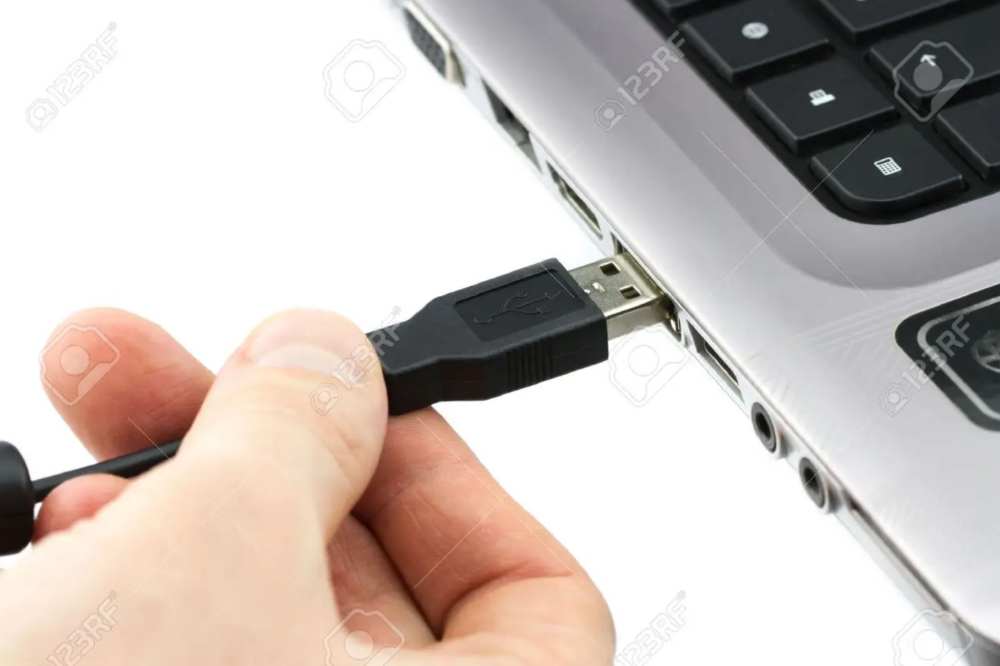
Make sure your computer can detect your flash drive by connecting it.
Include the YouTube Downloader browser plugin. After installation, your browser might need to be restarted.
Visit YouTube.com
Next, locate the video you wish to save and start it up.
To download the YouTube video to your computer, click the “Download” icon that appears beneath the video.
(If you don’t see the download button, you may access the download choices by clicking the extension icon visible in the upper right corner of your browser.)
Navigate to the “Downloads” folder on your PC to find the YouTube video that you just downloaded, then copy it to your flash drive.
How to Use an Online Video Downloader to Copy a YouTube Video to a Flash Drive
You may instantly download YouTube videos from the website by using an online video downloader. Using the URL, you may download a YouTube movie to your flash drive without any further software or programs.
The following are issues with internet video downloaders:
Ad that is obtrusive may bother you.
You can be sent to another webpage or website.
The video can’t be effectively captured by the website.
As a result, you should be cautious while selecting the tool you want to use. Here, I’d like to demonstrate how to use one of the online programs to download a YouTube movie on a flash drive.
Visit YouTube.com and note the URL of the video you wish to download.
Enter the URL into the address bar on the website where you may download videos.
Select “GO.” You could be sent to a different page. If that’s the case, leave that website and return to the video downloader.
At this point, you ought to see all the download options, including those for both audio and video.
Select the preferred choice and click “Download” to download the YouTube video to your PC.
Connect your flash drive to your computer when it is finished, then copy the video to your USB by going to the “Downloads” folder.
Can YouTube Videos Be Copied to a USB?
You may simply copy the video file from the downloaded YouTube videos and put it into the USB flash drive. You can use the techniques listed above if you haven’t downloaded the movie.
Conclusion
You can copy a YouTube video to your flash drive quite easily with the aid of these free tools and software. These programs may all be used to download videos from social networking sites or other online video sources.
Apply one of them to get things done quickly if you also need to download videos from websites such as Twitter, Facebook, and others.
Nowadays, many prefer to listen to music on their phones. Undoubtedly, music improves one’s mood by reducing discomfort and anxiety. Also, many people use it as a means of emotional expression.
On your phone, you may listen to music and share it with your friends. You can transfer music from your computer to your Android IOS phone so that you may listen to your favorite music when you are on the road.
It goes without saying that you cannot carry your computer with you wherever you go, but you can easily take your smartphone. These are the primary causes of music syncing across computers and mobile devices. Here are 6 cost-free methods to achieve that.
Using a USB cable, transfer music from a computer to a Mobile device
The USB cord is still an efficient but outdated way to transfer music from a computer to an Android device.
Yes, a USB cord might be useful to quickly transfer music from a computer to an Android device if you are unable to obtain a third-party data transfer program.
Additionally, this transfer technique just takes a few clicks to complete and doesn’t require an internet connection.
Utilize this cable to connect your Android handset to your PC. Next, choose “Transfer files” from the pop-up windows that appear on your computer’s screen (MTP).
To choose the music files you wish to move to your Android phone, use the Windows File Explorer software and go to the ‘Music’ folder.
Finally, just drag and drop the music files from your computer’s storage to the Android device’s “Music Folder.”
Easy and quick music transfer from PC to Mobile Phone with MobileTrans
Make sure Wondershare MobileTrans data transfer software is downloaded and installed on your Windows or Mac computer before moving on to the procedures.
Connect your Android device to your Mac or Windows computer and run the MobileTrans program. Then, after selecting “Phone transfer,” select “Import to phone” from the list of possibilities.
To upload things like music to your Android smartphone from your computer, choose Music from the left-side menu on the new interface and click “Import.”
After selecting the Music file, click Import once again. Your PC will immediately send the music to your Android device.
As you can see, utilizing the MobileTrans data transfer program to sync music from a PC to an Android device does not require any technical expertise. It is simply only a few clicks!
Without a USB cable, transfer music from a laptop to a phone.
The easiest way to transfer music from a laptop to a phone when you don’t have a USB cord is by utilizing a cloud service or file transfer software.
To successfully transfer files this time around, as opposed to when utilizing a USB cord, your PC will need to be installed with a cloud service or third-party file transfer program.
A. Using Cloud Services like Google Drive or iTunes
Without the use of a USB cable, cloud services like Google Drive, Dropbox, etc., make it simple to sync files from a PC to an Android device. Installing Google Drive on your computer and creating or logging into a Google account is all that is needed to complete the task.
To transfer music from a PC to an Android device using Google Drive, follow the instructions below.
1 First, log into your cloud service (Google drive, drop box or iTunes) account online and choose New from the menu that appears in the top-left corner of your PC’s screen. Then click “File Transfer” to upload each of your selected music files directly from the PC. However, you should select “Folder Upload” if you want to upload a group of music files.
2. Next, download the Google Drive program to your computer and login in with your Google account.
3. Select the Music folders and files by clicking the “Choose Folder” button. At the bottom of the screen, press the Next button.
4 Select “Sync my drive to this computer” from the pop-up that displays on your screen, and then click “OK” to continue. All of your Google Drive files will be downloaded to your PC as a result, and your computer’s music files and folders will be transferred to Google Drive.
5. Open Google Drive on your Android smartphone and sign into your account to browse the uploaded music files and save them to your library when your music files and folders have been successfully uploaded.
B. Using the AirDroid File Transfer App
To download music from a PC to any mobile device without a wire, you may alternatively utilize file transfer programs like AirDroid or a cloud service.
1. If you are on an Android device, download and install AirDroid. then register for an account to continue. (skip if you are using IOS)
2. Next, download the AirDroid app to your PC, set it up, and sign into your account.
3. The program will automatically identify your Android device after you log in to your AirDroid account.
4. Select your Device from the left side of the screen after clicking the “File transfer” button.
5. To upload the music files from your computer, drag and drop them there or click the “Send file” option in the bottom left corner of the screen.
6. Finally, press the “Send” button to quickly send music from your computer to your Android device.
With the help of the device management program AirDroid, users may easily manage files on their Android mobile device from their PC. You can manage your contacts, emails, files, Whatsapp messages, SMS, and more with AirDroid.
How can I move music from my Mac to my Android? via the use of Android file transfer
1: On your Mac computer, download and install the Android file transfer program.
2: Start the Finder app’s Android file transfer and attach your Android handset to the Mac computer using its USB cord.
3: To finish the process, drag and drop the music files you wish to transfer to your Android smartphone.
Conclusion
Any device will function flawlessly with the PC-to-Android music transfer method described on this page. Whether you want to transfer music from your PC to a Samsung, Huawei, Techno, etc. phone is irrelevant. You can use AirDroid, a USB cord, the MobileTrans data program, or cloud service transfers to do the transfer.
Everything is up to you to decide. However, as it is more efficient and enables the quicker transmission of large audio files with only a few clicks, we strongly advise utilizing the MobileTrans data transfer application.
A slideshow on steroids is what you get with Apple’s Keynote. With Apple’s Keynote, your presentations can also include animations, music, and videos in addition to the slides you produce. You may utilize one of Keynote’s “motion” functions to generate “scrolling text”.
What is Apple Keynote?
IOS, iPad, and macOS are Apple’s free presentation tools in keynote It is a component of the work package along with Numbers and Pages. In use, Keynote is comparable to Microsoft PowerPoint. Here, we’ll explain what Apple Keynote is and how you may use it.
A variety of contemporary eye-catching templates and a clean, basic style make producing presentations a delight. Although learning is sometimes incorporated, Keynote’s numerous capabilities provide a great platform for presenting and exploring new material. The features’ ample help text and straightforward design make navigation and creation simple.
Scrolling Techniques in Apple Keynote
Long Scrolling.
Fixed Long Scrolling.
Infinite Scrolling.
Tasteful Parallax Scrolling
Apple Keynote offers a variety of options to help you create this specific effect. To use Apple’s Keynote to scroll through Text follow these steps;
Select “New” from the Keynote menu bar, you may begin adding new slides to your presentation.
From the menu at the top of the Keynote window, choose the “Text Box” option.
Type the words you wish to see in the scrolling credits. To insert spaces between the various text fragments, press “Return.” When needed you can change both text font size and font family.
To remove the content from view, drag the full-text box to the bottom of the page after clicking on its outside border to highlight it.
To access the build tools, first, click the Inspector symbol in the top right corner of the menu bar.
Then click the “Build” button in the top right corner of the Inspector. The Build menu will let you select “Action.”
From the drop-down selection for “Effect,” choose “Move”. By doing this, a second, somewhat more faded version of your text box will show up on your Keynote presentation.
Select the fading text box and move it above the Keynote window off of the screen. Your text box will be moved from the bottom of the window to the top by doing this, as instructed by Keynote.
To slow down the scrolling text, choose “None” from the Inspector’s Acceleration drop-down menu, and then click the “Duration” option until “5.00” is shown.
What is the scrolling Effect?
The ability to scroll within the slide from top to down. This is known as a scrolling animation. Any type of animation can be used, including moving parts, fading effects, and changes in color, size, or shape, among other possibilities.
Shortcut for scrolling Text in Apple Keynote.
Press B to go to the bottom of the screen.
Click T to go to the top of the screen.
Hit the Space bar to scroll down a screen.
Conclusion
Keynote’s text scrolling effect creates an outstanding presentation thanks to its user-friendly interface. This enables collaborative teamwork to produce stunning presentations that include cinematic effects.
Unquestionably, TikTok has developed into a hub for viral online content, especially in the last year, as various communities, trends, and songs have benefited from the app’s enormous user base.
You could be a TikTok creator who is curious in being able to know who shared their TikTok. However, there isn’t a mechanism in place right now to assist you in doing so.
You might wonder if you can identify who specifically shared your video on social media or with a friend because TikTok heavily relies on users sharing videos to increase total app traffic.
On TikTok Pro, you may view your demography and the number of shares if you have a Pro account. Unfortunately, it is not feasible to find out the names of specific accounts that share a video.
Does Tiktok allow you to know who shared your videos?
Unfortunately, even if you have a Tiktok pro account, you won’t get a precise list of everyone who has shared your clips. This occurs because it is against Tiktok’s policies on privacy and protection.
On the other hand, depending on the person’s privacy settings, if you have ever used a Facebook page, you are aware of how simple it is to view the shares of your friends’ accounts.
How can I find out who shared my Tiktok video?
Actually, there is no screen or option that allows you to see who posted a particular video of you. You probably won’t notice all of your friends sharing your material, but you can look into more specific user data.
How can I see how many people have shared my TikTok video?
Finding who shared your tiktok video shouldnt be much of a struggle. To check that,
Log into your account’s settings
Open your Tiktok account and select “Profile Account”
Now, choose the three dots menu.
Change to a Pro account on Tiktok
You may locate it directly in the menu.
Press the instantly changing option.
By doing this, new Tiktok pro account settings will be unlocked.
Go to the analytic area and choose the “Shares” option.
This will show you how your account is broken out.
Can I see if someone post my Tiktok videos
When a video is shared, the app does notify the original poster, but it doesn’t provide any information about the user who shared it. You won’t be able to identify the person who shared your Tiktok, even though you will be aware that it was shared.
NB: It’s worth mentioning that TikTok’s privacy policy does warn that the app may gather and share your personal information with other parties, which might be annoying if you’re trying to find a specific user who uploaded your video.
TikTok does alert users when their films are shared, but it doesn’t provide any information about the user who did it.
Conclusion
Tiktok is an interesting and entertaining app to use. Now, finding out who shared your tiktok video should not be a difficult task if you use the steps above.
One of the social media sites with the highest popularity right now is Instagram. People prefer using it over other social networking platforms because of the advantages and privacy it offers.
You may also go live on Instagram so that your followers can join in and have a live conversation with you.
However, there are situations when you would choose to watch Instagram live in secret without the other person knowing.
In order to watch live videos on Instagram and learn more about Instagram live viewing online, read this post.
Is there a legitimate way to watch Instagram live broadcasts secretly?
NO is the answer. While watching Live videos, there is no way to keep your identify a secret. The video’s broadcaster will be notified that you have seen it. You can watch live Instagram videos, though, using a few workaround techniques.
Can you watch Instagram live videos anonymously by changing your username?
If you want to remain anonymous while viewing the live broadcast, you can alter your username and name.
Go to the Instagram profile area and select “Edit Profile” to alter the username.
After that, delete the current Username and type in the new Username.
Change the Name in the same manner, if you choose.
To save the changes, tap on the Right Tick icon in the upper right corner.
Instagram now allows you to watch live videos without them knowing.
Can I see a video that has been stored as an IGTV video?
The aired video can be saved by Instagram as an IGTV video. After the live broadcast is over, the creator can save the video to IGTV. You may see a video that they have stored as an IGTV video without them knowing.
How can I watch Instagram live on a new account without anyone knowing?
You may make a new, empty account solely to watch these live streams in secret. However, you might need a new email address and cellphone number to validate the account if you want to register a new one.
Access your primary account and wait for the live videos to begin.
You can be informed when the next live video schedule is available, or you might have to check their account frequently.
Open your blank account and unblock that person after the live video has begun.
Then Watch the video in privacy.
Block the user when the movie is over and log out of the account.
Can I watch Instagram live using someone else’s account?
You may also sign into your phone using a friend’s or your family member’ ID. You may watch the video while keeping your identity secret in this way. If your family questions your request for their account or phone number, things might go south. So be prepared with your justification or get ready for lengthy arguments.
Every time a new video is posted, repeat this process. This is the quickest and safest method I could think of to answer my friend’s concern about how to watch Instagram live without them knowing, even if you have to maintain two distinct accounts.
Utilize online services that let you use Instagram anonymously
You may watch Instagram live videos on several websites without the users’ knowledge. The app requests the user’s username before generating a random username for you. The live video may then be seen directly on the website.
However, I do not advise using this technique since, prior to displaying the live video, you will be required to perform a number of chores, such as viewing an advertisement or clicking on random links that take you to spammy websites. Many of us will find this kind of content lock annoying and don’t want it. So it’s best to stay away from such websites. You might use a different approach that was previously described.
Can I watch Instagram Live without a profile?
You must be signed in to an account in order to use Instagram and all of its features. In other words, there isn’t a legitimate method to view Instagram live without a user account. But you can achieve it by using these workarounds.
Here are a few hacks that will allow you to use Instagram without creating an account:
Using someone else’s Instagram account
If you are concerned about privacy, create an account using default information.
Use programs from other parties to access Instagram without creating an account. (not advised; to understand the problems, see the part above.)
Conclusion
It should be noted that there is NO OFFICIAL WAY to view Instagram live videos secretly. However, you may get around the same by using this guide. The above are some of the techniques that are most frequently used to watch Instagram live in secret.