Category: Guides

  • How To Unblock Someone On Facebook On The App and PC

    How To Unblock Someone On Facebook On The App and PC

    Do you want to unblock someone on Facebook? Did you unintentionally block someone on Facebook that you wish to unblock? Have you found out the true identity of someone you blocked that you now want to unblock?

    Facebook is one of (if not the) most used social media platform in the world with over 500 million monthly active users. As a result, many users come from different countries, backgrounds, and races who might get into contact with you.

    Because of this, you might get pissed at someone on Facebook and as such, you may decide to block him/her. When this happens, the person can neither send you a message nor call you.

    Despite blocking someone, there may also be instances where you made a mistake; this could be by blocking the wrong person or the person you blocked has apologized for his/her fault or whatever the reason may be.

    When such a thing happens, the thing you need to do is to unblock the person. You can do this on the Facebook app or your PC. In this article, I am going to show you exactly how to unblock someone on Facebook on the app and PC.

    How to unblock someone on Facebook on the app and PC

    The steps involved in unblocking someone on Facebook is quite easy but yet tricky. As such, I urge you to pay close attention to the steps I am going to outline below.

    Before you decide to unblock someone on Facebook, make sure to keep the Facebook name of the person you want to unblock in your head.

    How To Unblock Someone On Facebook On Your PC

    • Open any web browser you have on your PC.
    • On the address bar, type www.facebook.com and login with your Email/Phone and Password.
    • Once you have successfully signed in, click on the down arrow that is next to the Messenger and the Notification icons.
    • Select Settings from the drop-down menu.
    • From the several options that will show up on your screen look under the Privacy settings.
    • Click on Blocking under the Privacy Settings.
    • Click on Blocked users and wait for a list to show. The list involves all the persons you have blocked since you created your Facebook account in the year XXXX.
    • From the list of Blocked users, find the name of the person you would like to unblock. After finding the name of the person, select the Unblock option that is on the right side of the name.
    • Click on Confirm and wait for the person to be finally removed from your blocked list.

    How To Unblock Someone On Facebook Using The Facebook App

    The Facebook app is available for free download on the Google Play Store and the Apple App Store.

    Due to some slight different layout between Android and iOS, I am going to show you how to unblock someone on Facebook using an Android phone; and how to unblock someone on Facebook using an iPhone.

    How To Unblock Someone On Facebook Using The Facebook App For Android

    • Download the free Facebook app from the Google Play Store.
    • Upon successful installation, log in with your email/phone number and password.
    • On the home screen, tap on the three horizontal lines in the top right of Facebook.
    • Scroll to the bottom part and select Settings.
    • Select Privacy and then tap on Blocking.
    • Tap on the Unblock option next to the name of the person you wish to unblock.
    • Select Unblock once again to confirm the Unblocking and wait for it to complete. After successful completion, the person will be removed from your blocked contacts.

    How To Unblock Someone On Facebook Using The Facebook App For iOS

    • Download the free Facebook app from the Google Play Store.
    • Upon successful installation, log in with your email/phone number and password.
    • Tap on the three horizontal lines at the bottom right corner of the screen.
    • Select Settings from the Settings and Privacy option.
    • Tap on Blocking under the Privacy option.
    • Tap on the Unblock icon next to the name of the person you wish to unblock.
    • Select Unblock once again and wait for the person to be finally removed from your blocked list.

    NOTE: Due to Facebook’s Terms and Conditions, whenever you block someone Facebook automatically unfriends that person. This means that once you are done unblocking the person you need to send him/her a new friend request.

    Conclusion

    In this article, I have shown you how to unblock someone on Facebook using your PC and mobile phone (Android and iOS).

    This guide is self-explanatory but if you face any challenges make sure to drop it down the comment section below and I will attend to every single one of them.

  • How To Watch Movies Together With Your Friends On Facebook Messenger

    How To Watch Movies Together With Your Friends On Facebook Messenger

    Did you know you can watch movies together with your friends on Facebook Messenger? I guess not. Anyways don’t worry because I am going to show you exactly how to watch movies together with your friends on Facebook Messenger.

    Mostly, we have a movie we would like to watch with our friends who don’t live closer to us. Also, the size of some of these movies does not permit us to send them over to our friends who live away from us.

    Even for those who live closer to each other, this coronavirus pandemic has become a barrier for allowing our friends over to our house. As a result, the only way possible is to watch it together with our friends online.

    To make this streaming more fun and have real-life reactions, we are going to use Facebook Messenger’s Watch Together feature.

    What Is Facebook Messenger Watch Together

    Facebook Messenger Watch Together is a new feature introduced by Facebook to make streaming movies together with your friends easier and fun. With this feature, you can see your friend (s) reactions as you watch the movie together.

    According to Facebook, they created “Watch Together to make spending quality time with friends and loved ones feel as close to an in-person experience as possible. Whether it’s watching a trending video, a movie, a sports, highlight, a makeup tutorial, or a Facebook Watch original, the feature allows you to watch your friends’ reactions at the same time.”

    How To Watch Movies Together With Your Friends On Facebook Messenger

    Just as the name suggests, before you begin the entire process, you need to have Facebook Messenger installed on your device. You can download it for free from the Google Play Store or the Apple App Store.

    Once you are done with the installation, follow the procedure below:

    Open the Facebook Messenger App

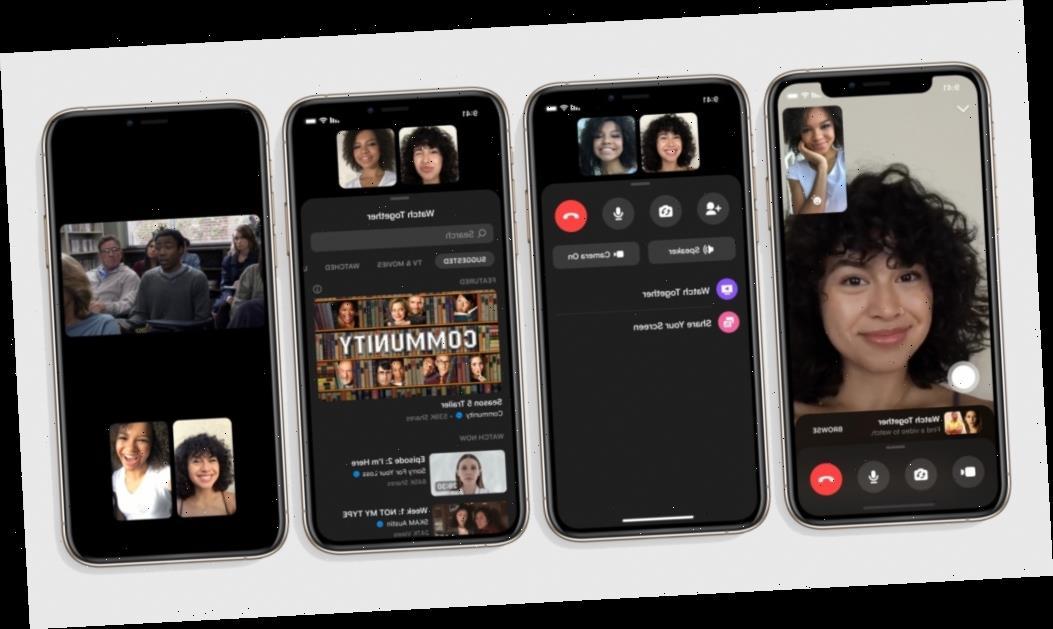
    After opening the Facebook Messenger app, select the person or group chat you would like to watch the movie with. In case you want to invite friends also, you can tap on Create Room and invite your friends over to join.

    Tap on the “Phone” or “Video” icon next to the name of the individual or the group.

    Because you are going to stream the movie together with your friends, you need to call them on “Phone” or “Video”. The best recommendation is by making a video call instead of a voice call.

    Drag the toolbar up for more options.

    As soon as your friend (s) accept the call, you need to drag the toolbar up for more options. This is where you will find all the options you need for the Watch Together.

    Select “Watch Together” from the options available.

    From the list of options that will pop up after dragging the toolbar, select Watch Together to start watching the movie together.

    Select your preferred movie from the Suggested list.

    Facebook automatically suggests movies for you to watch with your friends; these movies can be found in the Suggested list. Scroll through and select the one that you would like to watch with your friends and loved ones.

    • When you are watching the movie, the movie is synced to all the contacts, and pausing it at your end will pause it for all the people in the Watch Together. Likewise, stopping the movie will stop it for everyone.
    • For those in a video call, you can see the members in the Watch Together and the movie you are watching together.

    When you tap on the video, a Search icon and the option to close the video will pop up on top of the screen. If you wish to change the movie, you can do so with the search bar.

    Additionally, persons with phones that support Picture-in-Picture, you can leave the Messenger app and still watch the movie with your friends.

    Conclusion

    Facebook Messenger Watch Together is the perfect way to watch movies together with your friends over the internet with little data charges. Because the streaming is done over the internet, you need to have a stable network to make the streaming smooth, i.e. no buffering.

    This guide was written in the simplest way possible to make reading easier and understandable for everyone. That being said, in case you find any difficulty following the procedure, make sure to write it down in the comments section below.

    Do you have any method that was not talked about in this article, feel free to share it in the comments section below?

  • What Are Some Of The Best Antivirus For Android?

    What Are Some Of The Best Antivirus For Android?

    In a time like this where viruses and malware are rampant on the internet if you are not using one of the best anti-virus apps on your Android smartphone, then you are putting yourself at risk of infection from corrupted apps and other kinds of malware on the internet.

    The good news is that you are not limited in options. The best mobile antivirus app offers not only top-notch malware detection and prevention, but also a range of privacy and anti-theft features, and some of them are even free.

    Some of these apps have the feature to backup your contacts and other data, track your phone or tablet via GPS, snap a picture of a thief who has stolen your phone with the phone’s camera and can even track your phone’s location.

    Most of these security apps come in both a free and paid version. With the paid version, you get extra features for the app. Not all free antivirus apps are the same. When it comes to security, you should know why antivirus is necessary for an android phone.

    In this post, upon researches and personal tests, I will share with you some of the best antivirus software’s you can use, both paid and free.

    The Best Android Antivirus Apps

    Below are the top antivirus applications you can trust. It will be arranged from the best ratings in terms of performance and security.

    Bitdefender Mobile Security

    Bitdefender Mobile Security comes with a USD 15 price per year subscription. This is to say, it is not a freemium app. The software has nearly flawless malware protection, light performance impact, Android wear watch integration, a VPN client and a malicious-website blocker.

    It also has robust privacy-protection tools including an app lock, a Wi-Fi scanner, anti-theft features and data-breach notifications. The software offers a free 14-day trial period which after the 14-day trial you pay for the service.

    The VPN client gives you a free 200 MB data. If you want more data, you would have to subscribe for USD 7 monthly or USD 50 a year. Considering its features, the subscription fee (USD 15) per year, it’s worth the price.

    Avast Mobile Security

    Avast Mobile Security is one of the best Android antivirus apps, offering everything from a privacy adviser to a system optimizer and includes a customizable blacklist.

    Though Avast malware protection is useful, it’s far from perfect. Some features like the Anti-theft and call blocking feature didn’t seem to work at all when tested.

    The Avast Mobile Security app comes with a free version and a Pro version. The downside of the free version is the annoying ads and the constant nags to upgrade.

    The Pro version comes packed with a lot of features including the anti-theft, app lock and technical support.

    Kaspersky Mobile Antivirus

    This security app is known as Kaspersky Internet Security for Android. The application offers nearly-perfect malware protection, a small system impact and a call blocker that work fine.

    There are no ads in the free version, and not much nagging to upgrade to the paid plan. Free users get call filtering, anti-theft functions and a lot more.

    If you are just looking for malware protection, you can’t really leave Kaspersky Mobile Antivirus free tier behind.

    Alternatively, you can get other antivirus apps for android from the list below;

    1. Lookout Security and Antivirus
    2. McAfee Mobile Security
    3. Google Play Protect
    4. 360 Security

    Conclusion

    In the age where virus and malware are fast spreading on the internet, all you need is a powerful antivirus to secure your Android device. In this post, I have shared with you some of the powerful Android antivirus both paid and freemium you can get to secure your device.

  • Good Smartwatches To Use That Run On Android

    Good Smartwatches To Use That Run On Android

    The best Android smartwatch you can boast of is the one that comes with many great features, stylish, and also work well with your Android device. Upon tests carried out on some of the smartwatches, we will share with you some of the key ones that lives up to expectation.

    In this article, we have ranked the best smartwatches based on price, performance, design and how well the watch integrates with Android. Much like picking from the best smartphones under 600 GHS, you are spoiled with choice when it comes to buying a smartwatch to pair with it.

    Every watch on this list is a top choice for Android, and it works flawlessly in hand with it.

    The Best Smartwatches That Run On Android

    Samsung Galaxy Watch 3

    The Samsung Galaxy Watch 3 is the best of the best smartwatch on our list. It’s the best smartwatch you can buy and it’s worth its price. It runs on the Tizen OS and is fully compatible with Android and IOS. It has a dual-core processor with 1.15 GHz and Onboard storage of 8 Gigabyte.

    The Samsung Galaxy Watch 3 compacts with modern-day design with top tier fitness features like GPS and Multi-port tracking. The only downside of the watch is that its a one-day battery watch when it comes to the long-lasting of the battery.

    Apart from its downside, the watch is top-notch for everyone considering the loving features of the watch. The Samsung Galaxy Watch 3 sells at USD 399.99.

    Samsung Galaxy Watch Active 2

    The Samsung Galaxy Watch Active 2 runs on Tizen OS just like the Samsung Galaxy Watch 3. It’s compatible with both Android and IOS. The watch has a dual-core processor with 1.15 GHZ and a battery duration around 2 days.

    The ‘Active’ branding means this is a smartwatch more suitable for workouts and fitness tracking. It’s waterproof so it can be suitable for running, swimming, cycling and among other sporting activities. The smartwatch sells for USD 199.

    Fossil Sport

    Fossil Sport comes with a Quad-core processor of 1.2 GHz and onboard storage of 4 gigabytes. It’s a wear OS and has a battery duration of 2 days. This watch is one of the first watches of the company that can keep pace with the likes of the Samsung Galaxy Watch and apple watch.

    It has a lightweight design with a lot of loving features suitable for a variety of exercise and also has a GPS and an accurate heart monitor included.

    Despite its sporty focus, the design still looks premium for all other activities. Its snapdragon wear 3100 chipset makes it one of the most powerful smartwatches in this list. The Fossil Sport sells for USD 139.99.

    Tic Watch E2

    This smartwatch comes with a Snapdragon Wear 2100 and onboard storage of 4 gigabytes. This is also a Wear OS with a battery duration of 2 days. The Tic Watch E2 is one of the cheapest devices from this list but has some fantastic features considering its price.

    The watch has its manufacturer to be the Chinese Mobvoi company. It has a working in-built GPS and a heart rate monitor. The Tic Watch E2 sells at USD 159.99

    Honor Magic Watch 2

    The Honor Magic Watch is a fitness-focused smartwatch. It comes with a Lite OS with onboard storage of 4 gigabytes. It has a battery duration of 7 days|14 days. It’s compatible with both Android and IOS and has a waterproof feature.

    The smartwatch is great if you want a ton of high-end fitness feature in a watch. The best part of this watch is its 2 weeks battery lifespan that is rare to find with most watches available. The Honor Magic Watch sells for USD 139.99. The price is worth it considering its features.

    Conclusion

    There are a lot of smartphones available on the market, which is sometimes difficult to choose from in terms of Quality. In this post, I have shared with you good smartwatches for Android you can go for.

    In future posts, this article will be updated to include later quality smartwatches being manufactured as time goes on. You can comment on your own choice of smartwatch which serves its purpose in the comment section.

  • 5 Signs That There Is A Spy App On Your Phone

    5 Signs That There Is A Spy App On Your Phone

    Did you know someone can spy on your mobile phone without you noticing it? I am going to show you in this article, 5 signs that there is a spy app on your mobile phone.

    I know people still don’t believe that someone can spy on your mobile phone without you noticing. Well, that can be true or not but as the saying goes, it’s better to be safe than sorry.

    Spy apps were created in the beginning to help persons track their friends and relatives; mostly children and older parents or relatives. But, as technology advanced and people started using technology negatively, spy apps became something else.

    Now, spy apps are used by people to monitor what is happening on the phone of someone. This includes text messages, emails, bank statements, and some personal information that are meant to be kept secret.

    Because of that, it’s better to follow these five signs and perform an inspection on your mobile device to know if there is a chance that someone is spying on your phone.

    5 Signs That There Is A Spy App On Your Phone

    NOTE: Having these signs does not guarantee that there’s a spy app on your phone but it increases that chances that there might be one.

    Increase In Data Usage

    One thing that we seem to give a blind eye to is data usage on our mobile phones. These settings wouldn’t have been placed on the mobile phone if it was not important.

    Data Usage gives you analytics of how your mobile data has been used over a specified period of time and which apps used such amounts of data. Thus, you need to check the data usage for each of the apps you see on your mobile device.

    In case you see an app you have never used before but has used an amount of data on your phone, you need to delete that app as soon as possible. Most of these apps are a replica of original apps, so if you see two apps with the same name, delete all of them.

    Also, perform gradual analysis on your data usage in the frequency you will be cool with; weekly, monthly, or daily. This is because spy apps upload your information onto a server and this involves the use of data.

    Is someone spying on my phone?

    Phone Gets Hot Even When Not In Use

    When you use your phone while charging it or play games with your phone, they get “hot” that is totally normal. But if you observe that your phone gets hot often when they are not in use, then it could mean your phone is being spied on.

    This is also because spy apps run continuously without stopping and this makes your phone battery hotter than usual. First of all, check if your battery is functioning properly before you make your conclusions.

    Battery Drain Quickly

    Spy apps as said earlier, run constantly and this involves using your phone’s battery. Because of that, they drain your battery quickly and rapidly.

    If you see that your battery is lasting very shorter than what it used to be, then it could be a red flag that someone is spying on your phone. Here also, you can check your phone’s battery usage to see if there’s an app that is consuming a higher percentage of your battery.

    Most importantly, check if your battery is functioning properly before you decide on what to do next. For those whose phones allow you to check the battery’s strength, check if the strength is high enough before you conclude that you are being spied on.

    Phone’s Screen Comes On Without You Touching It

    Normally, when your phone is on standby mode, the screen is supposed to go off, except for those that still display the clock and other widgets. Even for those phones, the screen is supposed to fade out.

    When you notice that your phone’s screen automatically comes on even without touching it or getting any alert that is also another red flag. Meaning your phone could be spied on by an unknown person.

    Due to the continuous activities of the spy app, there is always a chance that the screen will automatically turn on, even without you touching it.

    Unknown Screenshots And Recordings

    Finally, when you find unknown screenshots and recordings on your phone, it could also mean your phone is being spied on. Most of the spy apps make screenshots and upload them into their online server, this could include your personal information and chats.

    As a preventive measure, always check the screenshot folder for unknown screenshots and recordings and remove them as soon as possible from your device.

    Conclusion

    We have learned some 5 signs that there is a spy app on your phone. All the steps were listed together with what you could also do to prevent your phone from being spied on.

    Although these methods are not 100% accurate, it is better to perform these checks on your phone gradually than to sit idle and wait for something to happen before you take an initiative.

  • Top 10 UC Browser Add-ons You Should Install Now

    Top 10 UC Browser Add-ons You Should Install Now

    Browser add-ons are extensions that give extra functionality to browsers. Most browsers of our time ads extra add-ons which you can download to perform certain functions.

    The UC Browser add-ons are plugins which enhances the performance of the browser and also adds extra features to the browser. The add-ons of UC browser cannot be run independently. You need the UC browser installed on your phone or computer before you can run them.

    In this post, I will show you, 10 add-ons you need to install on UC Browser. Without wasting much time, let’s kick the ball rolling.

    10 Uc Browser You Shoul To Install

    Find In Page

    You can use the “Find in Page” add-on to search for specific keywords within a webpage. Just click on the “Find in page” add-on from the add-on panel and type the keyword you want to find.

    This add-on is very useful if you want to navigate or find things in a website quickly. I personally use this add-on on UC Browser. It helps me find what I want quicker.

    Facebook Add-on

    Facebook Add-on for Uc Browser can greatly improve your experience when browsing/surfing Facebook. You will be familiar with the advanced features like Faster-browsing mode and Push notifications.

    Video Downloader

    When I installed this UC add-on, I no longer needed an external app to download videos from HTML5 websites like YouTube and the others. I just open my UC Browser, navigate to the video URL and click play.

    Once the video starts to play, you will see a download button at the right-hand side of the video.

    Save Page Add-on

    Most at times, we come across an important post or article from a website that we love to save and come back for reference. This add-on helps you save pages that are important for you and later get back to it.

    Speed Mode Add-on

    With this add-on, you can change webpage display between lite version, mobile version and desktop display. Below are the steps to follow to switch changes;

    • Click speed mode add-on
    • Switch the option
    • Refresh webpage

    Browse Faster Add-on

    As the name suggests, this add-on kills all running background applications eating your phone’s RAM leaving more space for the browser to browse in speed mode with no lags.

    Unzip Add-on

    With this add-on, you can easily extract all RAR and ZIP files immediately after downloading them or anytime you wish to unzip. Previously, I’d use File managers to unzip my files but with this add-on, there is no need for external File managers before you can unzip your files.

    Ads Block Add-On

    Some pop-up ads on most websites are quite annoying. I mean, with just a click on the URL to the websites, you will be introduced to numerous pop-under ads that can even freeze your device.

    With ad blocker add-on, you can block all these pop-under ads with no extra work. Just install the add-on and activate.

    Screenshot Add-on

    Who don’t love screenshots? Everybody does. This tool is very handy. I am quite familiar with this add-on because I use it all the time. I use it to screenshot important information I’d love to keep for future reference

    You can also take a screenshot of your current window and share with friends.

    Clipboard Manager

    We always meet new information on the web. I use this important add-on to store temporal links and files from websites.

    Conclusion

    Add-ons are essential features of most browsers to extends the browser functionality. In this article, we looked at 10 useful add-ons you can install to help your day to day activities.

  • Features To Look Out For When Buying An Android TV Box

    Features To Look Out For When Buying An Android TV Box

    There are hundreds or fairly over thousands of Android TV Boxes out there on the market. Selecting the right one to buy may be difficult since you are faced with a lot of options.

    Lots of these TV boxes are substandard Chinese products, but there are others like the Nvidia Shield and the Mi Tv Box which are actually pretty solid.

    This is not to say, all TV Box produced in China is bad. As a matter of fact, there a lot of people who have used theirs for a year or more that still works great. Personally, I purchased one a year ago from eBay and it’s still working great.

    If you are in any way considering to buy a Tv Box, there are some features you should look out for. This post provides all the needed features you should look out for when buying a Tv Box. Below are the features;

    Reviews

    Before you buy any Tv Box, reading its reviews should be the first important thing to consider. You should always search for reviews of the particular Box from major shopping sites like Amazon or eBay to see what buyers are actually saying about the product.

    This will help you gather facts about the said Box and help you make an informed decision.

    Processing Power And Ram

    You can’t skip this process because Random Access Memory matters a whole lot. Manufacturers may tell you a particular TV Box has a quad-core processor, but it will shock you to realize the clock-speed is only 1.0 GHz.

    When choosing a TV Box, the least RAM you should go for its 2GB. For the processor, you should consider a 1.5 GHz quad-core CPU or higher.

    Storage Options

    Most of the Tv Box comes with 8GB internal out of which the Operating system takes half of it. If you want to keep a large number of downloads, then you have to go for high storage amount Box.

    Importantly, be sure the Box you are going for has support for external storage and be sure is not pegged at 32GB. Your TV box should be able to support at least 64GB microSD card.

    Available USB Ports

    This may sound unimportant to some, but trust me it’s not. Conveniently, your TV box should have at least 2 USB ports. I mean come to think of it, you are most likely going to get a wireless mouse right?

    The Bluetooth receiver already takes a port. So if you have just one USB slot, you cannot use your mouse. You should be able to insert your flash drive without the need to remove another peripheral. This is the reason you need two or more ports.

    Video Display

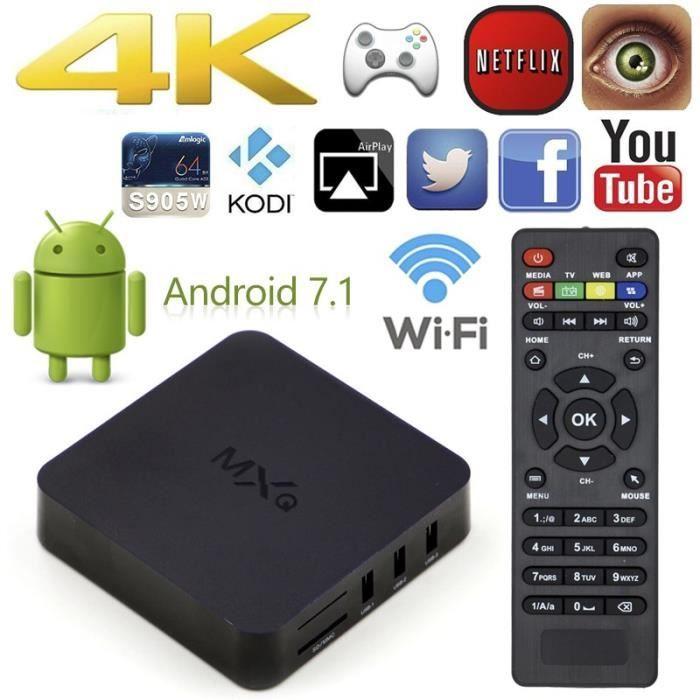
    Video display is an important feature for video lovers. To some of us, 4K is nothing but a term. If you are part of those who it matters to, be sure the Android Tv you are buying supports 4K videos.

    HDMI is the standard and should be included. Features like the dynamic refresh rate and H.265 support should also be considered.

    Operating System Version

    Do not buy an Android Tv box running Android 5.0 Lollipop. Many of them are still in the market, they will never be updated and you may miss out on apps requiring the most recent Android versions.

    Since these Chinese-made Boxes are hardly updated, you should consider choosing a Box with at least Android 7 or up.

    Google Play Support

    This is very important to consider. Unless you want to go through the hassle of installing GAPPS yourself. Make sure the box you are buying has Google Play.

    There are several more features to consider when buying an Android Box, but these are the few important once you should consider at first hand. There are loads of them out there but choosing the right one should not be difficult.

    Conclusion

    Choosing the best TV box to purchase is value for money. If you buy any Box because it’s too cheap, you would regret buying it. In this article, I share with you the features you should consider when choosing an Android TV Box.

  • How To Load Your Sportybet Account

    How To Load Your Sportybet Account

    One leading way of making money online today is through sports betting. With sports betting, you can bet on all forms of sporting events. From soccer to volleyball, handball, boxing, tennis and many other events.

    Due to the powerful nature of this money-making venture and how lucrative it is, there are numerous betting companies available today. However, one of the reliable betting apps in Ghana and Africa as a whole is Sportybet.

    You can check here to Open An Account With Sportybet.

    To be able to stake a bet on any event, you first of all need to top up your Sportybet Account with the amount you wish to stake your bet with. In this article, we shall look at how to top up your Sportybet account with your mobile money wallet.

    Depositing money into your Sportybet account can be done in two ways. You can either pay using the Paybill method or the Online payment method.

    How To Load Your Sportybet Account Through The Paybill Method

    Before we delve into this payment method, be informed that you can only deposit money into your Sportybet account from a Mobile Money number that is already linked with your account. Meaning you cannot use any other Mobile Wallet account to top-up your Sportybet account, apart from the one you registered with.

    So now, let’s go into the process itself.

    1. Dial *711*222# on your mobile wallet number.
    2. Enter the amount you want to deposit into your bet account.
    3. Wait for a moment. You’ll receive a payment prompt on your phone.
    4. Enter your password and approve the payment.
    5. The money will be credited to your Sportybet balance instantly.

    Note: If you do this with a different number apart from the one you registered your Sportybet account with, a new account will be created with the new number and the password sent to that number via text message. So, to avoid this, always make sure to use the same number you created your Sportybet account with.

    How To Top Up Your Sportybet Account Using The Online Payment Method

    If you are unable to use the Paybill method and so you’d like to use the Online Payment method to top up your Sportybet account, then you should follow the steps below:

    1. Login to your Sportybet account using your phone number and password.
    2. Click on ‘My Account’ and select ‘Deposits’ from the list.
    3. Select the payment method you wish to use (MTN, Vodafone, Airteltigo)
    4. Select the ‘Topup now’ button located below.
    5. Open your Mobile Money portal on your phone.

    Approving The Transaction

    On MTN, follow these steps to approve the transaction:

    1. Dial *170#
    2. Enter option 6 for your account
    3. Enter option 3 to see your approvals
    4. Select 1
    5. Enter your password
    6. Enter 1 to approve

    When the payment is successfully completed, you should then click ‘Completed’ in your Sportybet account.

    You can also check out How To Create An Account On Sportybet Ghana

    Conclusion

    Looking for a legitimate way to make money online which requires low capital and can be done anywhere in the world? Sports betting is one answer you’ll keep coming across.

    With Sportybet, you can make thousands of Cedis through Sports betting. But, the first step towards gaining that amount is for you to deposit money into your Bet account and start betting.

    So, in this article, we looked at how to top up or load your Sportybet account to start betting and making money from your bets.

    If you love the content of this article, kindly do well to spread the news to friends and family.

    Kindly share your reservations, comments and questions with us in the comment box below or get in touch with us.

  • How To Withdraw Your Earnings From Sportybet

    How To Withdraw Your Earnings From Sportybet

    Betting is the new economic craze and venture that has taken over the whole world. Kids, adolescents, older folks, employed and unemployed have all jumped on the bandwagon of betting.

    In Ghana, Sportybet is one of the leading bookies for staking your bet online. The golden result for betting is winning some amount of monay based on the odds and your stake. So the big question is; after many days and months of trying, when you finally win your first bet, how do you withdraw the money from your sportybet account?

    If this is your worry, then you are at the right place. In this article, we shall look at the procedure involved in withdrawing your winnings from your Sportybet account.

    But, before we delve into how to withdraw money from your account, let’s look at some things to note about Sportybet winning withdrawals.

    If you don’t have an account yet, you can check out How To Create An Account On Sportybet Ghana

    Notes On Withdrawal

    When withdrawing on Sportybet, there are no fees charged on your withdrawals. So, in effect, you get exactly how much you withdraw in your mobile wallet.

    Withdrawals in Sportybet can only be done via the mobile money account that was used during the account registration.

    Withdrawals below 2,000 GHS are done instantly while those above 2,000 may take some time to be completed.

    Now, let’s talk about the process of withdrawing your hard-earned bet winnings.

    How To Withdraw Your Money From Sportybet

    In order for you to withdraw your bet winnings from your sportybet account, you should follow the following steps:

    1. Open your sportybet account with your username and password. Be sure to enter the right details.
    2. Go to ‘my account’ in the list of menus.
    3. Look for the withdraw button in the list of options that appear and click on it.
    4. Enter the amount you wish to withdraw in the ‘amount’ box.
    5. Click on Withdraw and wait for the transaction to begin.
    6. If you followed all the processes perfectly, you should receive a credit alert on your mobile money account in a few minutes.

    Note: If your winnings are more than 2,000 GHS and you don’t want any delays with the withdrawal, it’s advisable to withdraw in bits. Each bit of withdrawal should be less than 2,000 GHS. If you try to withdraw everything at once, your withdrawal would delay and you may even be required to go to any of their outlets for your money.

    Conclusion

    One of the numerous ways of making money online today is through betting. Sports betting has given many people an easy way of making money from their homes. But the big question is how to withdraw your earnings after successfully winning a bet.

    In this article, we spoke about how to withdraw your earnings from your Sportybet account into your Mobilemoney wallet in Ghana.

    I hope the content of this article was helpful to you. If you have any questions regarding withdrawals from Sportybet account, you can leave it in the comment box below or get in touch with us. Don’t forget to share your comments and reservations as well.

    Kindly do well to share this article. We’d love to have you share with your friends and relatives.

  • How To Get A US Phone Number In Ghana

    How To Get A US Phone Number In Ghana

    Many people think and don’t know, you can get a US number in Ghana to use virtually even without being in the territories of the US. There are some websites verifications that demand a US number before you can be verified to use their services.

    Unfortunately, if you don’t have one, you lose access to the website because you were not verified. A clear example is using Paypal in Ghana. Since Ghana is not accepted by Paypal, there is no way you can create a verified Paypal account.

    Paypal demands you verify your phone number together with your mail before you can be fully active with the service. Since Ghana is not accepted, getting a US number to create the account and use for verification is the best step.

    Not only Paypal, but there are also other online services that do not accept registrations from Ghana and having a US number to receive test SMS and phone calls for verification can help you register on such sites.

    In this post, I will show you how you can get a virtual US number for free to use for verification at free cost. The number can also be used for WhatsApp verification and Facebook.

    Steps To Get A US Number For Free

    TextPlus

    Text plus is a great app for receiving free calls and text SMS from anywhere. Text plus offers free US number for a lifetime. With the free dummy US phone number assigned to you, it can be used to send/receive free calls and text messages from anywhere in the world.

    Follow below steps to get a free US number using Textplus.

    1. Firstly, download the Textplus Android/IOS app from the store.
    2. Open the app and signup. On the signup page, you need to enter these details > Your Name, DOB, Password, Email etc.
    3. After the signup process, what’s left is to set a free US number
    4. On your app dashboard, navigate to the menu icon, click on the button that says ‘Tap to get free Textplus Number ” to get your free US number.
    5. On the next section, you need to select any state and area code.
    6. Now click on Get a Custom Number
    7. That’s all. You have a working US number now.

    Google Voice

    Google Voice offers free second US number for all US citizens. This means, to get a free second US number by Google Voice, you need to be a native of the US. You will need to verify your account with a working US number.

    Without a working US number, your Google Voice number cannot be verified. When applying for the second number, you need to get a friend or family member in the US to verify with their working phone number. An SMS verification will be sent to the number.

    You then need to get the SMS number from your friend or family to verify your account.

    Below are the steps to follow to get a Google voice number.

    1. Type Google Voice in Google search and open the first link to visit the site.
    2. Sign in with your Gmail account
    3. Click on Get Google Voice and click continue. Note, Google voice can be accessed only with PC.
    4. Next, search any local US area and pick any number of your choice by entering the Area code
    5. Verify your Voice number by inserting a working US number for SMS verification
    6. After verification, your Google Voice number will be active. You can use to receive call and SMS for free.

    You can use the Google voice number for site verification like Paypal, WhatsApp and others.

    There were many applications and website offering the services of offering free US numbers, but as of the time writing this post, most of the services are not working. The ones that we found working with no issues are the ones listed here.

    Conclusion

    Getting a US number in Ghana is possible. In this post, I have provided you with the working steps to follow to get a free US number for your site verification.