Category: Guides

  • How to send Confidential Email

    How to send Confidential Email

    Are you afraid of sending your sensitive information or sensitive document via email? Do you have a second thought of what if the wrong person receives the email with your sensitive information? Worry no more, I have a way that can help you.

    Sending your sensitive information or document through email is one of the risky things you could do on the internet; especially, now that there are hackers everywhere.

    Sensitive information could range from your social security number, Taxpayer Identification Number (TIN), or even your bank statements. There are many circumstances that could make you send your sensitive information via email.

    In this article, I am going to show you three (3) main ways you how to send a confidential email in order to minimize the risk of your sensitive information getting hacked or used for something bad.

    What is Confidential Email?

    A confidential email (also known as encrypted email) is an email that has been encrypted or contains restrictions on how the email can be used or viewed.

    In most cases, the encryption is in the form of a password or a question, and it can be opened once the receiver knows the answer to that question.

    There are several ways you can send a confidential email. But this article is going to cover three (3) of the most trusted and verified methods.

    How to Send a Confidential Email via Gmail

    Almost everyone who has an email probably has a Gmail account; and as a result, I decided to bring how to send a confidential email via Gmail first on my list. Gmail is used by over a billion people around the world and is also one of the most hacked email platforms.

    With the Gmail confidentiality mode, you can send messages and attachments with the assurance that your sensitive information is protected from unauthorized access.

    To send a confidential email via Gmail:

    • On your computer, visit Gmail.
    • Click on Compose.
    • Click on Turn on confidential mode. (This can be found in the bottom right of the Gmail compose window).
    • Set an expiration date and passcode for your confidential email. (This setting will impact both the message text and any attachments attached to the email).
    • Click on Save and then Send.

    NOTE: If you choose “NO SMS passcode”, recipients using the Gmail app will be able to open the email directly. Recipients without Gmail will be emailed a passcode to the confidential email.

    If you choose “SMS passcode”, recipients will be texted the passcode to the confidential email via SMS on their mobile phone number (make sure to enter the valid phone number of the recipient). This will apply to both Gmail and non-Gmail users.

    Once you send a confidential email through Gmail, the recipient will be restricted from the permission to forward, copy, print, and download the email or the attachments. Also, due to the expiration date added, the recipient will not be able to access the email once the expiration date is due.

    How to Send a Confidential Email via Outlook mail

    Sending confidential emails via Outlook mail is very simple and straightforward. The steps involved in this are:

    • Open Outlook on your computer.
    • From your draft email message, click File and then Properties.
    • Select Sensitivity from the list and then select Settings.
    • From the Settings menu, select Confidential after that select Close.
    • When you’re done composing your message, select Send.

    The sending of confidential email via Outlook mail is not that much protected as Gmail and I will advise you to try the other alternative methods.

    How to Send a Confidential Email via ProtonMail

    Were you wondering if we have an email platform called ProtonMail? That’s not the case, ProtonMail is not an email platform but rather a third-party app used for sending a confidential email.

    To send confidential email using ProtonMail,

    • Download the ProtonMail app on your Android or iOS device.
    • After installation, open the app, and select your preferred subscription package (free or paid).
    • In your ProtonMail app, open a new draft.
    • Input the recipient’s email address and the message or attachments you want to send.
    • Tap on Encrypt for Outside button below the subject of the email.
    • Set a password for your email and confirm it by re-typing it.
    • Add a hint to the password or call the recipient and give the password to him/her. (It’s advisable to make the hint a question whose answer will be the password, and that only the recipient will be able to answer that).
    • Click on Apply and check to see a green checkmark next to the lock icon.
    • Tap on send.

    Please note that your email sent through ProtonMail has a 28-day validity period.

    Conclusion

    Now that you have learned how to send a confidential email, feel free to try it as often as you can to minimize the risk of your sensitive information being hacked.

    Also, make sure to confirm the details of your recipient and always make sure to type the correct mobile phone number of the recipient when using Gmail because a wrong phone number could cost you a fortune.

  • How To Record Whatsapp Calls On Android And iPhones

    How To Record Whatsapp Calls On Android And iPhones

    Tiktok may be the new video and trends app, Zoom may be the new home for all meetings but Whatsapp still remains what it is. The world’s leading chatting app.

    Be you a child, a teenager or an adult, Whatsapp is one application you use every single day, so long as you have a smartphone.

    Despite the fact that most users prefer to use Whatsapp for text and video chats, quite a number of them still go for the now better Whatsapp Voice Calls.

    Whatsapp voice calls, just like normal phone calls can be for various reasons. For security reasons or for record-keeping sake, you may need to record some of your Whatsapp calls.

    You may also read about How To Secretly Record All Your Phone Calls

    Unfortunately, Mark Zuckerberg and his team haven’t come up with an in-born feature for recording WhatsApp calls.

    However, this shouldn’t be your headache. This article solves this problem perfectly.

    In this article, we shall discuss how to record your Whatsapp calls.

    How To Record Whatsapp Calls On Your Android Phone

    For android users, this ‘all difficult’ task of recording Whatsapp Calls is a little bit easier and more possible.

    Your best bet for recording a Whatsapp call on your android phone is by using the Call Recorder – Cube ACR application.

    Follow the procedure below to learn about how to use the app to record your Whatsapp calls:

    1. Download the Cube ACR Call Recorder application from the google playstore and install it on your phone.
    2. After successfully installing the application on your android phone, you need to grant permissions for the application to access your contacts, record your calls and access other parts of your phone. For those using android versions 10 or higher, you may need to grant the Cube ACR recorder, you have to enable app connector permission in your Accessibility settings menu.
    3. Open your Whatsapp application after granting all the required access and permission to the Cube app. Make a call to any Whatsapp contact you wish to call. If your App is set up properly, you should see the Cube Recorder Widget on your screen. If it isn’t well setup, you would get an error message on your screen.
    4. If you keep getting error messages on your phone, then it’s a problem with your app. To resolve this, open the Cube App and go to recording settings. Under ‘VOIP’ recording settings, turn on ‘Ignore VOIP-Support check’. Then, select ‘Voice Call’ option in the VOIP recording source settings.

    Note: The Cube Recording App only works on some android phones so it is likely that this application may not work on your phone. This shouldn’t be a worry to you. Check here for the list of phones that support this application.

    How To Record Whatsapp Calls On Your Iphone

    Apple is very keen on security and privacy-related issues, especially across its devices.

    As such, it is a bit difficult to perform the Whatsapp Call recording functionality on an iPhone. However, it is not entirely impossible. Actually, there is nothing impossible in the computing world.

    So here, follow these steps to record Whatsapp Calls on your Iphone:

    1. Connect your phone to an Apple Macbook using a lightning cable.
    2. For the first time connections, select ‘Trust this computer’ on your phone.
    3. Launch Quicktime on your Macbook.
    4. Next, choose ‘new audio recording’ under the file menu.
    5. Click on ‘record’ in your Quick Time application window.
    6. Using the iPhone, call your phone via Whatsapp. Then, click on the ‘add user’ icon.
    7. Choose the person whose call you want to record and connect them.
    8. Your call will be recorded automatically after connecting the person.

    When you’re done with the call, stop the recording in your Quick Time window and save the audio on your Macbook.

    Old But Gold

    If these methods used above do not work for your phone, you may have to rely on this strategy which has existed for years.

    To do this, you first of all need to be in a very quiet room where there is little or no noise.

    You must also have an external recorder such as a different phone from the one you’re using to make the Whatsapp call or an audio or mp3 recorder.

    1. Call the person whose call you want to record via Whatsapp.
    2. Once they answer, but the call on handsfree mode and turn on your sound recording device.
    3. Record the whole conversation from a close distance.
    4. Save the file on your recorder and send it to your phone later.

    Conclusion

    There are times when calls must be recorded for personal reasons, security reasons or for record-keeping sake. For any of these reasons, such calls may either be normal phone calls or Voice Over Internet Protocol (VOIP) calls such as Whatsapp calls.

    Interestingly, there are apps readily available on most phones for recording voice calls. However, WhatsApp doesn’t come with the in-built feature of recording calls.

    So, there is a need for reliance on third-party software for this purpose. In this article, we looked at some ways of recording Whatsapp Calls On your iPhone and Android phones.

    We hope this article was helpful to you and that you will share with your friends and relatives.

    Kindly do well to leave your comments, views, questions and reservations in the comment box below.

  • 10 Troubleshooting Tips If Your Internet Is Connected But Not Working

    10 Troubleshooting Tips If Your Internet Is Connected But Not Working

    The internet is the World’s most popular network. It’s a global network of billions of computers and other electronic devices connected to share information. The internet uses the Internet Protocol Suite (IP) to communicate between networks and devices.

    While a lot of people think of the internet as a ‘Wi-Fi’, it’s actually a bridge between your device and the actual internet connection you are using. For example, if you are using a DSL, fiber, or smoked signals, it’s entirely possible for the connection between your computer and the WiFi router to be connected but the internet connection itself may be down.

    There can be different but few reasons why this happens and in this article, we are going to look at the various reasons why your internet connection is not working even though your WiFi is connected. Follow below troubleshooting tips to work around this problem.

    Narrow Down The Offender

    There are a lot of things in the connection between you and the internet as a whole. If any of them malfunctions, then you are likely to be cut off from the internet. So it’s very important to work out where the issue originates.

    This will help you know where exactly to fix on your own or if the problem is within your capabilities to solve. Try to analyze the below factors,

    • Is it a specific website that does not work?
    • Is it only one device on your network that can’t use the internet?
    • Does the router or your modem show the indicator light of a successful connection?

    By analyzing all these, you can cut out a lot of troubleshooting work wasted on matters of the connection that does not even concern the problem of the network you are facing at the moment.

    Restart Your Device

    This is something you should always try out if your internet just stops working but you have enough Data. Whether you are on a computer, tablet, or mobile and others just try restarting your device.

    If you realize you always need to restart your device before re-connecting to the internet, you may have to look into your operating system or firmware updates, since it could be a systematic issue.

    Switch Between WiFi And Ethernet

    Sometimes if WiFi does not work for you, direct Ethernet may work. Switch between them. The same goes for Ethernet over WiFi, switch them, and see what works best for you.

    If both options do not work, look for the general WiFi problems and reset your router.

    DNS Cache Problems

    One quick fix if your internet stops working is to flush the DNS cache. Every time you search for a website in your address bar, your computer sends a request to a Domain Name Server (DNS) to have it translated into the IP (Internet Protocol) address of a specific server.

    Your device’s DNS cache stores the information of every site you have visited before to speed up your internet experience. The issue is that, if something goes wrong with the cache, you will lose access to the site.

    To Flush DNS Cache

    • Open the Start Menu
    • Type CMD and open the command prompt in administrative mode.
    • Type ipconfig/flushdns and hit enter

    This will flush your DNS cache and if that was causing the problem, it will fix it.

    These are but the few network problems you should consider looking at before anything else.

    Conclusion

    There are a lot of things that go on before you are connected to the internet. Once in a while, you will encounter your internet not working whiles your WiFi is successfully connected.

    Check the troubleshooting tips talked about in this article and you might be lucky to have it fixed if the problem falls in the laid out problems.

  • How to turn off iPhone Activation Lock without access to the previous owner

    How to turn off iPhone Activation Lock without access to the previous owner

    One of the most difficult things that could happen to you is turning off an Activation Lock on an iPhone without the previous owner.

    When you buy a new or old iPhone, one of the significant things you need to check is whether or not there is an Activation Lock on it. Though the process can be very difficult, I am going to show you some ways you can turn off Activation Lock on an iPhone without access to the previous owner.

    When you reset your iPhone without signing out of your iCloud account, Activation Lock might still be available on the device. To remove this feature you need to have access to the user, but in this article, I am going to show how to do it on your own.

    What is Activation Lock?

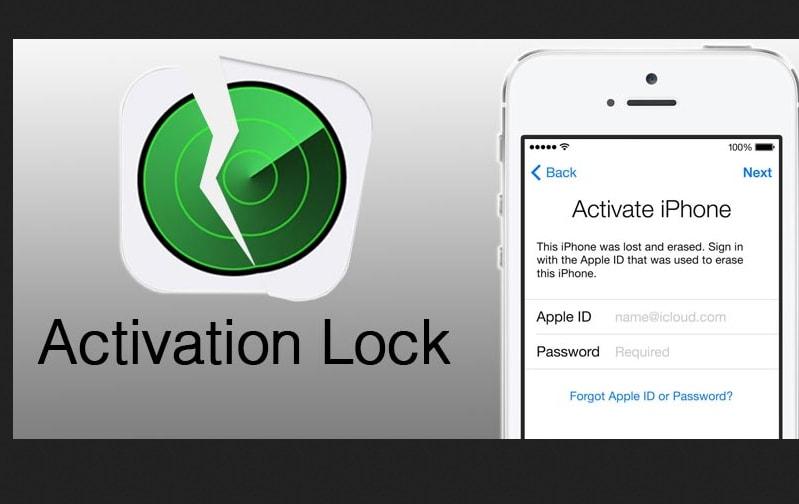
    Activation Lock is a security feature that is designed on Apple devices (iPhone, iPad, iPod touch, Apple Watch, and Mac) to keep them secured once they get lost or stolen.

    If Activation Lock is turned on, it will display a message to the user that the device is for you and that he/she should call you on your mobile number. To turn on Activation Lock, you need to open my device (iPhone, iPad, iPod touch, Apple Watch, and Mac) and mark it as lost or stolen.

    How to turn off iPhone Activation Lock without access to the previous owner

    Many methods are available for turning off Activation Lock without access to the owner. But, I am going to show you some of the best ways to go about it.

    • The DNS method uses a loophole in the WiFi DNS and tricks the iPhone into thinking that it has been unlocked. To begin this, you first of all need to factory reset the iPhone and then follow the steps listed below:
    • Set up the iPhone as a new device until you reach the WiFi settings page.
    • Once you reach the WiFi settings page, connect to a WiFi, and then tap on the “i” icon next to the name of the WiFi.
    • Tap on Configure DNS ad turns off the Automatic option.
    • Choose the Manual option at the top and then type one of the following DNS values (depending on where you are located):
      • North America: 104.154.51.7
      • South America: 35.199.88.219
      • Europe: 104.155.28.90
      • Australia and Oceania: 35.189.47.23
      • Asia: 104.155.220.58
      • Elsewhere: 78.100.17.60
    • After you are done entering the DNS values (IP), tap the WiFi button, and reconnect to the WiFi network normally.

    By using DNS bypass

    DNS bypass on iPhone usually works on older versions of iPhones but, if you have the latest version, you can still give it a try. After all, there’s no harm in trying to turn off Activation Lock on your iPhone.

    By using a third-party software

    Apart from the first method, you can also turn off Activation Lock using third-party software. The only thing about these third-party apps is that you may need to jailbreak your iPhone.

    I did a lot of research online and found one of the best software that can help you do this. The name of the software is Tenorshare 4MeKey. The reason why I selected this particular software is that it has all the features that can be used to turn off the Activation Lock and more.

    To use Tenorshare 4MeKey to turn off Activation Lock without access to the previous owner,

    • Download the free Tenorshare 4MeKey on your Windows PC or Mac.
    • Click the Start button, read and accept all the terms and conditions. After, click on Next.
    • The next page will require that you jailbreak the iPhone.
    • For Mac users, the jailbreaking will be downloaded and Tenorshare 4MeKey will jailbreak the iPhone for you.
    • For Windows users, Tenorshare 4MeKey will give a tutorial on how to jailbreak the iPhone yourself.
    • Upon successful completion of the jailbreak, click on Next and your iPhone details will be shown.
    • Check and confirm the details and then click on Start Remove.
    • The removal process will commence and the Activation Lock will be removed from the iPhone.

    By visiting an Apple Shop

    When you buy a refurbished iPhone though rare, there’s a chance that there might be an Activation Lock on it. In situations like that, you can take the documents that show that you bought the iPhone from the Apple shop and submit it together with the iPhone to the shop.

    If the documents you submitted are genuine, they might end up giving you a new iPhone or the Activation Lock will be removed for you.

    Conclusion

    Activation Lock removal can be very difficult but once you follow the methods that I have shown in this article, it shouldn’t be a big problem.

    I hope this article was helpful? If you have any method that you think might work very well, please write it down in the comments section below and it will be added to our subsequent write-ups.

  • How To Backup Passwords Saved In Mozilla Firefox Browser

    How To Backup Passwords Saved In Mozilla Firefox Browser

    Passwords remain a key privacy and security feature on most websites and applications on the internet today.

    With various platforms requesting different types of passwords for security reasons, one may have a whole lot of passwords to keep in mind.

    This can get extremely difficult especially for people who use tens and hundreds of website accounts with different passwords.

    To safeguard you from the stress, most browsers including Mozilla Firefox, Google Chrome and the others have features to help save your passwords for future use.

    While this feature may sound like a cool solution to the problem of having to handle and keep so many passwords, there are instances where your computer may crash or your browser may develop problems. How then do you get back all those passwords saved in your browser?

    One word that comes to mind in this instance is ‘Backup’! So how do you backup your passwords saved in Mozilla Firefox browser?

    If this is your query, then you are at the right place. This article seeks to teach you how to backup your firefox passwords.

    Before we go into details about how to backup your passwords in Mozilla firefox, let’s look at how to automatically save all passwords on your Mozilla Firefox browser.

    You can also read on How To Run Google Apps In Google Chrome

    How To Save Passwords On Your Mozilla Firefox

    To enable your Mozilla Firefox to save all your passwords in an automated fashion, you have to follow the steps below:

    1. Launch your Mozilla Firefox browser.
    2. Click on the ‘Menu button’ to open the menu list.
    3. Select ‘Logins and Passwords’.
    4. Click on the 3 dots on its right and click on options
    5. Mark ‘Ask to save logins and passwords for websites’ to enable the automatic password saving option.

    Backing Up Your Passwords

    To backup your Firefox passwords for future reference or in order to aid you to export your passwords to a new site is very simple.

    To do so, you must first install the Firefox Password exporter. The exporter is an add-on from the producers of the firefox browser. So if you are wondering how safe it is, the answer is 100%.

    After successfully downloading and installing the Add-on, you can then follow the steps below to backup your passwords.

    1. Restart your Firefox browser after the add-on installation.
    2. Click on tools.
    3. Click on security and select ‘Import/Export password’
    4. To export your passwords, check the box next to ‘encrypt usernames and passwords’ and click on ‘export’ passwords.
    5. Type the name you wish to save your passwords with and select the file type. Either XML or CSV file.
    6. Select the location for saving the file and click on save.

    Now, your backup file is ready as an encrypted file. You can either export it to a new computer or you keep it on a safe drive or location on your computer as a backup just in case your browser malfunctions.

    Conclusion

    Passwords can be very difficult to keep and remember. Even the four-digit codes to our mobile phones and ATM cards, we sometimes forget them. So when it comes to more complex passwords such as the ones we use on various websites, the stakes are high.

    For some good reasons, however, most current internet browsers come with password saving features. However, this is not entirely enough. Your computer could malfunction and your browser can do the same. What happens to your passwords and usernames when such happens?

    In this article, we talked about how to backup your Mozilla Firefox passwords for export. We also spoke about how to set up automatic password saving option on your Firefox browser.

    When backed-up properly and saved in a safe location, you can go to bed every day knowing that you don’t have to worry about keeping your passwords in mind.

    I hope this article was helpful to you and that you find it very interesting. Please do well to share with your friends and family.

    If you have any questions, reservations or comments regarding this article, kindly share them with us in the comment box.

  • How to transfer your contacts from Android to iPhone

    How to transfer your contacts from Android to iPhone

    Do you want to transfer your contacts from your Android device to an iPhone? Read on and find out how you can transfer contacts from Android to iPhone.

    Whenever we buy a new or additional phone, the first thing we are concerned about is how to get the contacts on the other phone. In the olden days when technology was at its minimum before you can do that you needed to re-save the entire contacts on your phone.

    That is not a situation anymore due to technological advancement and upgrades. Now, there are many ways you can transfer contacts from one phone to the other, no matter the type of phone you’re using.

    Mostly, there’s a narration that Android and iOS devices do not interact with each other easily due to the completion that has been established between these two brands. Actually, that is not true to some limits because they interact on certain occasions.

    How to transfer contacts from Android to iPhone

    There are several methods we can use to transfer contacts from Android to iPhone. But, in this article, we are going to look at just a few of the trusted and most effective methods.

    How to transfer contacts from Android to iPhone Using Google Sync

    This is one of the easiest and probably one of the most used methods. To use this method, you need to sync your contacts to your Google account first and then continue with the remaining steps listed below.

    • Open your iPhone (if locked) and open the Settings app.
    • Tap on Passwords and Accounts and enter your Gmail account details and make sure to turn on the Contacts checker.

    That’s all, you are done with transferring contacts from Android to iPhone using Google Sync. The contacts will be automatically updated on your contact list.

    How to transfer contacts from Android to iPhone using the Move to iOS mobile app

    The Move to iOS app is one of the few Apple apps that is made available to Android users on the Google Play Store. The other Apple apps that are available on the Google Play Store are the Beats and Apple Music apps.

    Move to iOS can move contacts, messages, photos, videos, bookmarks, email accounts, etc. from your Android device directly to any iOS device.

    To transfer contacts using this method, you simply need to open the app on your Android device and when are ready, the iOS device will create a WiFi network and find your Android gadget.

    Enter the security code that is attached to the network and the transfer process will begin.

    How to transfer contacts from Android to iPhone using the SIM card

    The most popular method of transferring contacts is by using the SIM card. With this method, you just need to copy the contacts from your Android device to the SIM card and then insert the SIM into the iPhone.

    A brief breakdown of the entire process is as follows:

    • On your Android device, open the Contacts app and then locate the Settings option.
    • From the Settings menu, tap on Import/Export and then Export to SIM card. All the contacts on your Android device will be exported to the SIM card; after that insert the SIM into the iPhone.
    • Turn on your iPhone and open the Settings app.
    • Tap on Contacts and then Import SIM Contacts.

    Your contacts will then be updated and added to the contact lists on your iPhone.

    How to transfer contacts from Android to iPhone using VCF file

    The last method on my list today is by using the VCF file. The entire process is very easy and could be done in less than 2 minutes if done properly.

    • On your Android device, open the Contacts app.
    • Tap on the three dots to open the Settings and then select Import/Export.
    • Choose Export to Storage and a VCF file will be created and saved on your Android device.
    • Send the file over to your iPhone. (The best way is by sending it through email or maybe WhatsApp).
    • Open the file on your iPhone once the transfer is completed and a prompt will be shown asking you to Add All Contacts.
    • Reply to all the subsequent commands and then your contacts will be successfully added on your iPhone.

    Conclusion

    Wrapping up, one of the most interesting things about these methods listed in this article is the fact that they are all easy and most importantly free.

    There’s no fixed number of times you can transfer contacts from your Android device to your iPhone, you can do it for as many times as you want. Therefore, browse through all the methods and select the one that fits you best.

    Kindly share with your friends and loved ones and also write your comments in the comment section below.

  • How To Automatically Update Device Drivers In Windows 10

    How To Automatically Update Device Drivers In Windows 10

    Drivers are an essential part of computers as they tell your software how to work with a piece of hardware. With its importance, you need to make sure your drivers are up to date. There are apps to automatically update your device drivers if you don’t to manually pass through the complicated way.

    These apps have the capabilities to identify your machine and what drivers it needs. They then fetch the required drivers and install them on your machine. The software also creates a backup of your existing drivers in case something goes wrong with the drivers you can rollback.

    In this article, we are going to look at the steps to follow to automatically update device drivers in Windows 10 using software.

    DriverPack Solution (Free)

    DriverPack solution is a handy utility that helps you find and install required system drivers automatically on your computer. It has a large database of drivers from around the world and covers almost all computers.

    Even if you are with Lenovo desktop or Asus Laptop, you can use DriverPack solution to find outdated drivers, backup drivers, and then download and install the required drivers for your system.

    DriverPack solution comes in two versions. The first requires you are connected to the internet as it downloads drivers from the internet when required.

    The second version sums up all drivers you need so that you don’t need to have an internet connection while installing them. This one is a large file as it consists of many driver files.

    How To Enable The Driver Backup Option

    1. Launch the app and tick-mark Start In Expert Mode to access the full interface.
    2. Navigate to Settings in the left sidebar
    3. Scroll down the Settings screen and locate the option that says Create Driver Backup. Turn the toggle On.
    4. You can optionally turn on the Create Restore Points option so that a restore option is created when you update the drivers.

    How To Automatically Update Drivers

    1. Each time the app is launched, it auto-scans for outdated drivers on the system and lets you update them.
    2. On the interface panel, just hit on the Install all button to auto-install the updated drivers on your system.

    SlimDrivers (Free)

    SlimDrivers is another free software which helps you find and install updated drivers on your machine. On the software’s interface, there is a big button letting you press and run the driver update check.

    It also scans for improper drivers incase you mistakenly installed one on your system. This software also allows you to backup your drivers so in case something goes wrong, you can rollover your main drivers.

    One interesting feature of this software is, it allows you to create scan schedules. This lets the app auto-scans for outdated drivers on your system in each scheduled time and lets you automatically update them.

    How To Enable The Driver Backup Option

    1. Launch the app and click on options at the top menu bar.
    2. Navigate to Backup to view your Backup settings.
    3. Tick the Automatically Select All Items box. This will select all your system’s drivers when a backup is to be made.

    How To Schedule Driver Update Checks

    1. Select options in the main menu bar
    2. Navigate to the Schedule tab
    3. Enable the Automatically Check For Driver Update option
    4. Specify when you’d like the app to check for driver updates
    5. Select Save to save your options.

    How To Update Drivers

    1. Navigate to the main interface and select Start Scan.
    2. You will then be able to review and install the available driver updates on your system

    DriverHub (Free)

    Another software that helps you find drivers and updated drivers on your system. It comes with a neatly organized interface that makes using the app easier and enjoyable.

    It keeps a history on all your downloaded drivers for easy reference. It also comes with few customizable options like prompting you to choose a directory of where to keep downloaded files and also allowing you to switch between languages.

    How To Update Drivers

    1. Launch the app
    2. Click on Find Now from the interface
    3. Wait some time for the driver installation.

    When you realize your machine misbehaving after a driver update or install, Click on Recovery from the left bar and select the driver you want to revert, click on Restore.

    Conclusion

    There are a lot of free apps on the internet that can offer the services of driver update and install. These are a few of the apps we have tried and tested that seems to work fine and perfectly.

    Leave a comment on how you have been installing driver update on your computer in the comment section.

  • How To Repair And Play Corrupted Or Damaged Video Files

    How To Repair And Play Corrupted Or Damaged Video Files

    In this era of computers, almost all video has moved from analogue storage on tapes to digital storage on computer hard drives. This is a very good thing, as digital media’s can easily be backed up for future reference.

    The unfortunate occurrences of digital video storage are when a file becomes corrupted and can’t open. Even with this, there are ways to repair and play damaged or corrupted files. In this article, I will show you the ways to follow to repair broken or corrupted video files.

    Note that, not all the techniques used to repair video files work at all times. Don’t lose guard if one of the methods here doesn’t work for you, try different ones to know which works best for you. Below are the steps to follow to recover your video files.

    Check Your Drive

    When trying to repair video files, first try confirming if its the file having a problem but not your hardware. This is worth it because sometimes the problem might not be the file but by your hardware, be it external drive or other external media.

    If you are using an external hard drive that requires a separate power source, try changing the power source and see if that fixes the error. Sometimes, it will be worth checking your drive for errors too.

    If you using a USB drive, try connecting it to a powered USB Hub. Under Voltage mostly cause numerous hard drive to debug errors, it’s worth trying this. USB drives are always prone to damage and could be the main cause of your problems.

    The final step is to, try opening your video files in a different program like VLC media player. Sometimes system updates can cause your default media player not to open certain video files. Using a free external media player like VLC is usually better in opening a wider variety of files.

    Online Video Recovery With Fix.Video

    This is one of the easiest ways to recover broken video files. Fix.video take uploaded corrupted video files and fix them for a small fee. This is better if you want an expert to fix your file.

    Free video recovery services are always available but you will be limited to resolution and max file size, and your video will be tagged with the service watermark.

    Recover Corrupted Video With VLC Media Player

    VLC is undoubtedly the best free video player out there. Among its powerful features, it is also known for converting and repairing video files. VLC’s file conversion process has the useful side-effect of fixing damaged video files. Follow below steps to fix your damaged file,

    1. Open the media menu
    2. Select convert/save
    3. Use the add dialogue box to choose your file
    4. Click convert/save
    5. Choose video -H.264 + Mp3 (Mp4) from the drop-down menu
    6. Click Browse to enter a filename for your converted file
    7. Click Start.

    The conversion will take some time, if successful, your video file will be viewable now. If this step does not work for you, try the below alternative step.

    1. First, make a backup of your video file. This can be done by just copying and pasting your video file.
    2. Change the copied file’s extension to .avi
    3. Open VLC and head to Tools > Preferences
    4. Under input/codecs, navigate to the Files section
    5. Under the Damaged or incomplete AVI file dropdown, choose Always Fix.
    6. Open the video file with the .avi extension.

    This method will instruct the VLC media player to attempt to recover any corrupted AVI files it encounters. This will take some time, just sit back and relax.

    Conclusion

    File damage or corrupt is always a threat to digital storage media’s. Five of ten files can get corrupted with a little bit error at the side of your hardware or media player. With the steps provided in this article, you can fix your corrupted or damaged files.

    Note that, some of the methods listed here might not work for every video file. A hard damaged video file might not work.

  • How To Convert Multiple Images Into PDF

    How To Convert Multiple Images Into PDF

    Images on its own can stand alone, but sometimes you need to combine multiple images to PDF file in order to save or share it. For example, you can snap photos of a group of birds in a garden and use one of the tools we are going to talk about to convert these images into one PDF file.

    PDF files are popular and you can use them on any platform. This is the reason why having the skill to convert JPEG and PNG files into a PDF can become handy.

    In this article, we are going to explore some of the ways you can follow to create a PDF file from multiple images.

    Use The PDF File In Windows

    Microsoft Print to PDF is a native tool in windows. It is a virtual printer easily accessible to all apps that use a print function. Let’s experiment this in an image folder,

    1. Select and place all your images in a folder. For easy reference, I recommend you rename your images. Not necessary though.
    2. Select all the images and then select the Share tab on the toolbar and click on Print.
    3. Choose Microsoft Print to PDF from the list of available printers. Use the right and left button from the navigation keys to scroll through the images
    4. Choose the paper size and quality. By default, A4 is selected.
    5. Select from the pre-designed layouts on the right.
    6. Click the Options link in the lower-right corner of the dialogue box for more options to configure the print.
    7. Tick the Only Show Options That Are Compactible With My Printer from the checkbox if you are going to use your own printer.
    8. Click the Printer Properties link and choose between the Landscape or Portrait orientation
    9. Click the Ok button and return to the Print Pictures dialogue box. Keep the Fit Picture To Frame checked. By default, its always checked.
    10. Click Print to create your PDF file. the choose a location to save your PDF file.

    Use Microsoft Word

    PDF is a feature of Microsoft Office. Microsoft Office can help you export files into PDF without hustle. In the same way, it can help you layout your images in creative ways and then export it as a PDF file. Follow the below steps,

    1. Open word and choose a New Blank document
    2. Go to Ribbon > Insert > Insert Pictures from. Use the menu to insert pictures from your directory or any online source. You can adjust the size of the images using the selection handles. The pictures can be arranged in any way you want.
    3. Press Ctrl + S or click File and choose Save. Then go to File > Export > Create PDF/XPS Document to turn the images into PDF file.

    Use An Online Image To PDF Converter

    The PDF file format is a popular and universal format hence many tools are available that support it. Many tools online, free/paid handles PDF. Below are some of the tools that can convert multiple images to a single PDF document.

    JPG To PDF

    This is a free website for PDF conversion that does not add watermarks to its final conversion. You can drag and drop as many images as you want since the website has no limits to the number of images you provide.

    The images you upload are not compressed by the site, this makes the quality of the image unchangeable. Once your images are uploaded and grouped, click on the COMBINED button to get them all in a single PDF document.

    I Love PDF

    This is a website that converts your JPG images into a single PDF document. After converting the images to PDF files, you can download it to your computer or keep it in cloud storage like Dropbox or Google drive.

    PDF Candy

    This site provides a bunch of tools to handle PDF files. It can convert JPG to PDF files. The site is secured and no files are stored on their website. Every tool available on the website is free for use and there are no restrictions, limitations, or hidden obstacles.

    There is a software that can also be downloaded on your PC to use the services provided on the website Offline.

    Conclusion

    As said earlier, images can stand on their own, but sometimes, some images need to be grouped in a single PDF file to save and share it with friends or family.

    In this article, I took you through the steps to convert multiple images into a single PDF document.

  • How to wipe or reset your iPhone

    How to wipe or reset your iPhone

    Are you planning on selling your iPhone or gifting it to someone? Or are you finding some problems on your iPhone and thinking of wiping or resetting your iPhone? No problem hang on I am going to show you some of the best ways to wipe or reset an iPhone.

     Before you can sell your iPhone to someone, you need to remove all your files and accounts from the iPhone. You cannot sell your iPhone to someone and leave your files and your iCloud accounts on the device.

    In order to do this, you will have to wipe or reset your iPhone and all the settings, files, and iCloud accounts on the device will be removed and restored to factory settings.

    Also, there might be times that you may be having some problems on your iPhone and the solution will be to wipe or reset your iPhone. This method has been used by several people who confirm that it works perfectly.

    How to Back Up your iPhone

    To wipe or reset your iPhone, you first of all need to back up the files and data on your iPhone to the Cloud. This will help you reinstall these documents once you log into a new iPhone or the old one.

    • Open the Settings app on your iPhone.
    • Tap on your name (first option in the Settings window).
    • From the list of options available, select iCloud.
    • Scroll down and tap on iCloud Backup and enable the feature.
    • If you need it urgently, tap on Back Up Now for the iPhone to back up immediately (you need to connect to a WiFi).
    • Additionally, look under the Back Up Now option to find out the last backup date and time.

    How to wipe or reset your iPhone

    There are several ways of wiping your iPhone but I am going to talk about only three (3) of the safest methods.

    How to wipe or reset your iPhone directly using Settings on your iPhone

    • Open the Settings app.
    • Scroll down and tap on General.
    • Swipe to the button of the window and tap on Reset.
    • From the different options displayed, select Erase All Content and Settings.
    • If you have an iCloud backup set up on your iPhone, you will be asked to update it to avoid loss of data. But since we have already done that, we just need to decline the update option.
    • If you have a passcode on your iPhone, you will be asked to enter it and after that tap on Erase iPhone.
    • Enter your Apple ID’s password to confirm your command.
    • After that, all the data, settings, and anything on the iPhone will be totally wiped and you’ll be sent back to the fresh iPhone setup screen.

    How to wipe or reset your iPhone using iTunes

    To wipe your iPhone using iTunes, you need to install iTunes on your PC and then follow the steps listed below.

    • Go to Settings on your iPhone and turn off the Find My iPhone option.
    • Open iTunes on your PC and connect the iPhone to the PC using the original Apple USB cable.
    • Trust the computer on your iPhone and then select your iPhone on the computer.
    • Click on Summary from the options on the screen.
    • Select Restore iPhone and wait for the wiping to complete successfully.

    The effects will be successfully applied on your iPhone.

    How to wipe or reset your iPhone using third-party apps on your PC

    The final method of resetting your iPhone is by the use of third-party applications that are available on the internet. Each application has its own way of resetting your iPhone.

    To find some of these apps, search for “Third-Party Apps that can be used for resetting iPhones” on Google or any search engine. Read through each of the recommended apps and select the one that fits you best.

    Install the app on your PC and follow the instructions laid down by the developers of the app to successfully reset your iPhone.  Please note that most of the apps will involve the use of iPhone USB cables.

    I highly recommend that you use the first two methods stated earlier.

    Conclusion

    Once you have finished reading this article carefully, you should be able to reset your iPhone all on your own without spending money at the repairer’s shop.

    In case you find any difficulty or you have a suggestion, make sure to write it down in the comments section below.