Category: Guides

  • How to block text messages (SMS) on your iPhone

    How to block text messages (SMS) on your iPhone

    Do you want to block someone from sending you messages on your iPhone? Have you been receiving spam messages from an unknown person and you have thought of blocking that person?

    In this technology age, some spammers usually send unnecessary messages to unknown numbers all the time. Some of these messages come from unsubscribed mobile network offers while others come from individual spammers.

    A list of spam messages

    Sometimes, we may end up deleting messages from spammers thinking that it will never come again but in the end, they end up coming back again. Therefore to prevent any future unwanted messages, you need to block the sender.

    Most of the time, iPhone users find it very difficult to block text messages (SMS) on their iPhones due to the slight difference between how to block messages in iPhones and Android phones. Blocking text messages (SMS) on iPhones is a lot easy than we think.

    To help you block text messages on your iPhone, I have decided to write this article and guide you on how to block text messages (SMS) on your iPhone.

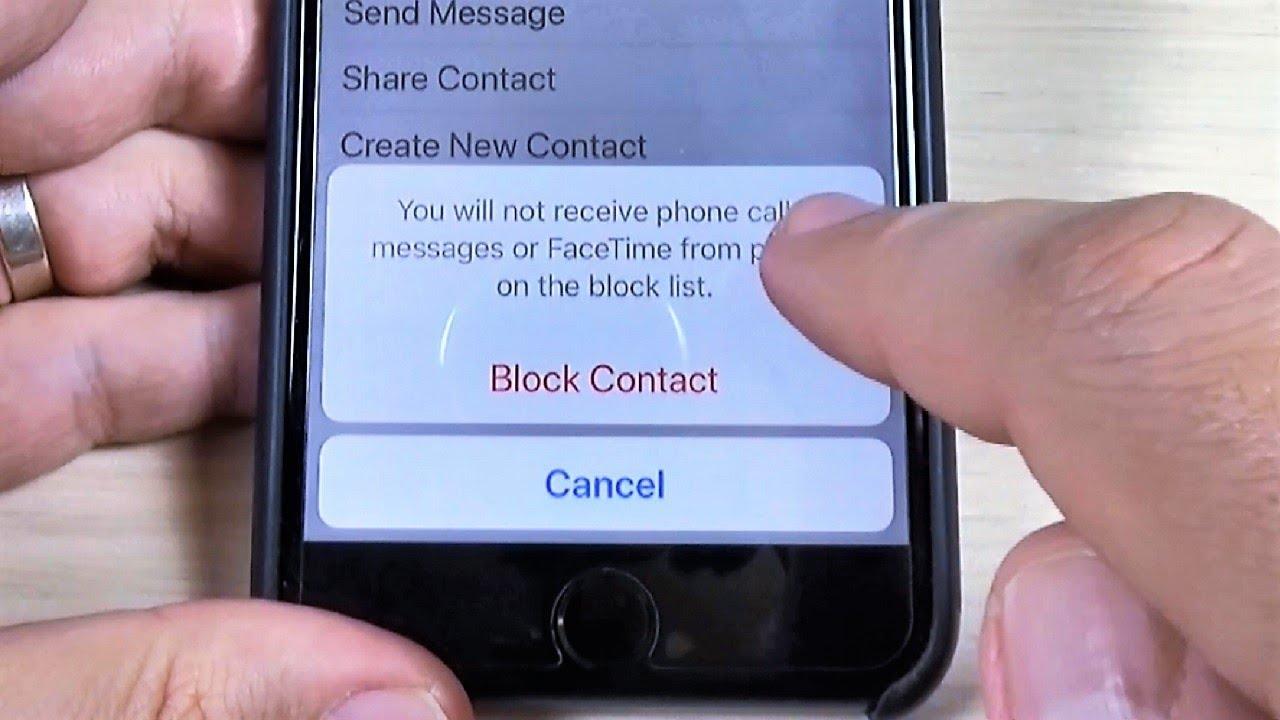
    NOTE: Once you block text messages (SMS) from a certain number, it will also block regular calls and FaceTime calls.

    How to block text messages (SMS) on your iPhone

    Due to the availability of different iOS versions, blocking a text message on iOS 12, iOS 13, and iOS 14 are slightly different from each other. So, I am going to show you how to block text messages on iOS 12, iOS 13, and iOS 14.

    How to block text messages (SMS) on your iPhone with iOS 12

    • Open the Messages app on your iPhone.
    • Tap on a message from the person/number you want to block.
    • Tap on the name of the sender at the top on the screen.
    • Tap the info (“i”) icon.
    • Tap on the arrow to the right of the phone number/name of the contact.
    • Scroll to the bottom and choose Block this Caller.

    How to block text messages (SMS) on your iPhone with iOS 13

    • Open the Messages app on your iPhone.
    • Tap the Contact icon just above the number at the top.
    • Select info below the name of the contact.
    • Tap the arrow to the right of the number.
    • Scroll to the button and tap on Block this caller.

    How to block text messages (SMS) on your iPhone with iOS 14

    • Open the Messages app on your iPhone.
    • Tap the Contact icon just above the number at the top.
    • Select info below the name of the contact.
    • Tap on info again.
    • Scroll to the button and tap on Block this caller.

    How to manage blocked contacts on iOS 12

    • Open the Settings app.
    • Scroll down and tap on Messages.
    • Scroll down again and tap on Blocked.
    • A list of all the blocked contacts will be shown.
    • To remove someone from the blocked list, tap on Edit in the top right corner and click on the red minus sign in front of that particular number.
    • After that click on Unblock and then Done.

    How to manage blocked contacts on iOS 13 and iOS 14

    • Open the Settings app on your iPhone.
    • Swipe down and tap on Phone.
    • Swipe down again and choose Blocked Contacts.
    • A list with all blocked contacts (both SMS and call) will be shown.
    • To remove someone from the blocked list, tap on Edit in the top right corner and click on the red minus sign in front of that particular number.
    • After that click on Unblock and then Done.

    Conclusion

    In this article, I have shown you how to block text messages (SMS) on iOS 12, iOS 13, and iOS 14. Also, I showed you how to manage blocked contacts on all the IOS versions stated above.

    Blocking text messages (SMS) as I said earlier is very easy and fast. So, now that you have read this article make sure to understand it very well and do not hesitate to block unwanted contacts from texting you via SMS.

    Make sure to share this article and also feel free to write your comments and suggestions in the comment section below.

  • How To Mass Delete Messages In iPhone’s Mail App

    How To Mass Delete Messages In iPhone’s Mail App

    Critics normally refer to iPhone users as “prisoners in their own land”. This simply is tied to the fact that IOS binds its users in their own way given them less room to operate with their device freely.

    Apple on the other hand has plenty of valid reasons for keeping its mobile OS behind lock and key, this is generally pretty good for introducing new features as they say.

    Many times, they implement steps that leave users dumbfounded. For example, for some time ago, Apple made it unnecessarily difficult to mass delete messages in its mail app. With the introduction of IOS 9, Apple finally saw the need and baked in a “delete all” feature.

    A year later, with the introduction of IOS 10, Apple removed the “delete all” feature. I mean, if you are someone who receives spam messages to your inbox massively daily, not being able to clean out your inbox in a quick way seems inconvenient.

    Fortunately, there is a little effective workaround that will allow you to quickly delete all of the messages in your mailbox all at once again.

    With the mail app opened, navigate to your inbox, tap the edit button at the top right corner and select any message to put a checkmark beside it.

    After this, tap and hold “Move” from the bottom of the screen with a finger then tap on the message you selected to uncheck it then remove your other finger on the ‘Move” button.

    A new screen will show, where you can select “Trash” to move all of the messages from your inbox to the trash. Its a bit clumsy but it sure beats having to manually delete the message one after the other.

    Fortunately, on recent IOS updates, mass deleting emails can be easier. Below are steps to mass delete on recent updates.

    Deleting Multiple Email Messages On Some Latest IOS

    • Open mail and navigate to your inbox
    • Tap Edit in the upper-right corner, then tap “select all”.
    • Tap Trash or Archive. If only Archive shows on your device, touch and hold Archive to see other options like Trash Selected messages.

    This will mass delete your spam messages in your mail box.

    Delete A Single Email

    • Open the mailbox and navigate to your email
    • Tap Edit in the upper-right corner, then select the email you want to delete.
    • Tap trash or archive.

    Alternatively, you can simply swipe left on a single email to delete. If you want to delete a message from within the email, press and hold the Archive button or the Trash button, then tap on the Archive message or Trash message.

    Conclusion

    IOS users are always bound but there is always a way around some things. Bulk deleting emails was not easy to come by, but in this article, I share with you how to mass delete messages in your IOS mail app.

  • Reasons why you should not Jailbreak your iPhone

    Reasons why you should not Jailbreak your iPhone

    Are you tired of the several restrictions imposed on your iPhone by Apple? Then you might be thinking of jailbreaking your iPhone to finally come out of the “jail” imposed on your iPhone by Apple.

    But, do you know that jailbreaking your iPhone causes some serious damages to your iPhone? Before you consider jailbreaking your iPhone, read this article to find out four (4) main reasons why you should not jailbreak your iPhone.

    After reading through this article, you can then decide whether to continue the jailbreak on your iPhone or not. I bet you will never continue with the jailbreak.

    Whenever we are discussing jailbreak, most people think that the issue of jailbreak just started recently. In actual terms, jailbreak began as soon as the first-ever iPhone was released over a decade ago.

    What is Jailbreaking?

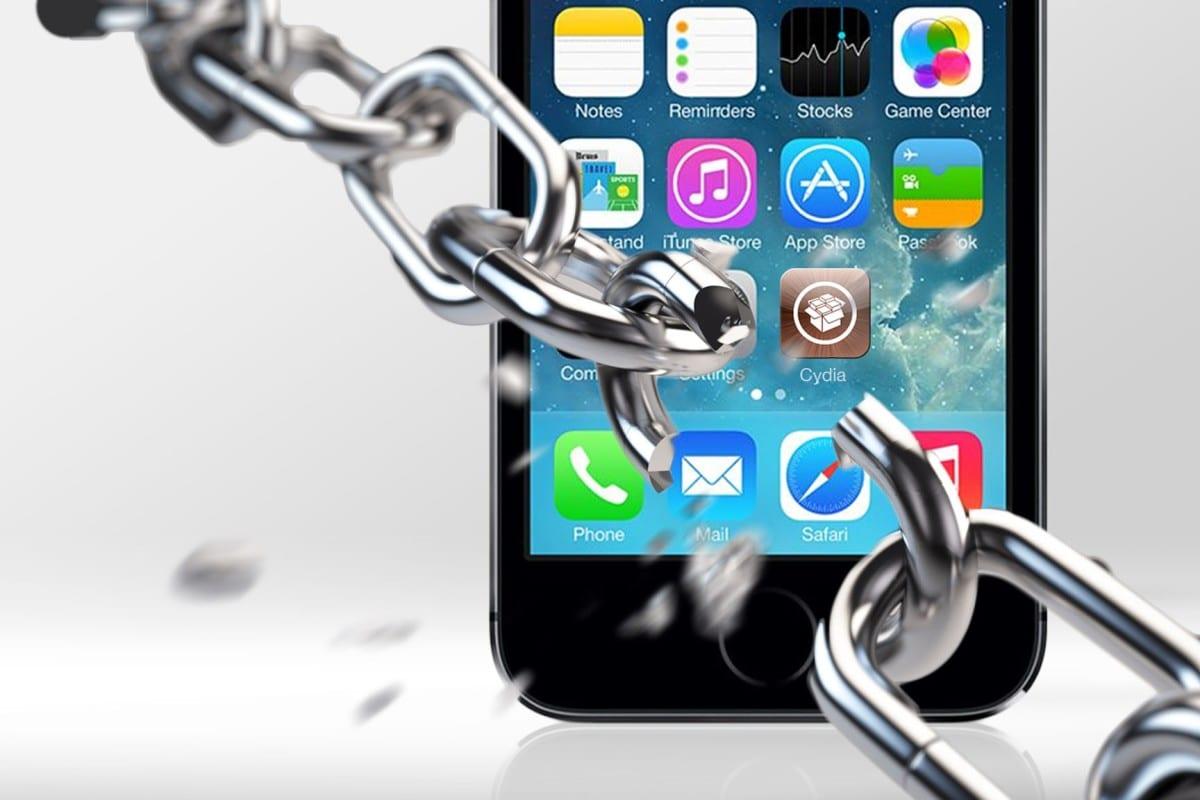
    Basically, jailbreaking is the process of freeing your iPhone from the restrictions that have been imposed by the manufacturers of the iPhone, Apple. Apple’s Operating System is closed-sourced and therefore has some security and safety restrictions attached to it.

    Therefore, jailbreaking your iPhone grants you the access to read, write and even change some default settings on your iPhone’s Operating System (iOS). This will then allow you to install apps, extensions, and a whole lot of other unauthorized files on your iPhone without any restrictions.

    Reasons why you should not Jailbreak your iPhone

    So, why shouldn’t I jailbreak my iPhone after all these benefits that could come from it? Who is not happy to come out of the restrictions that are imposed by Apple?

    Yes, everyone is happy to come of the restrictions imposed by Apple but the reasons why you should not jailbreak your iPhone are as follows:

    Possible termination of the warranty agreement

    Whenever you buy a new Apple device, you get a warranty card that is included in the box. The warranty is an agreement that is made between the buyer and Apple that once the device gets a fault during the stated period, you have the right to send it back to Apple.

    This could include a discount on the repair or even replacement of your Apple device with a new one. Once there’s a jailbreak on your iPhone, there’s a high chance that the iPhone’s warranty could be terminated when you send it to Apple.

    As a result, you may be asked to pay for the entire cost of the repair or might even be rejected access to repairs. Considering the prices of iPhones on the market it’s advisable not to risk this warranty service.

    Inability to apply future software updates

    Due to the unauthorized modifications and patches that are installed on the iPhone, they cause damages to the Operating System of the device, iOS. This can result in the jailbreak iPhone to become permanently damaged once a new iOS update is installed in the device.

    Because of that, there’s one fixed rule when you jailbreak your iPhone; that is to never update your firmware version unless there is an available jailbreak solution for it. The jailbreak solution could take weeks and even months before they are available.

    Your iPhone might get “bricked”

    A jailbroken iPhone

    The term bricked is mostly used by people for non-working conditions on your iPhone and this could range from easy to fix to impossible to fix. This usually happens when your jailbreak process on your iPhone fail.

    A bricked iPhone can sometimes be recovered through DFU mode and iTunes restore but the chances of success are usually little.  This might also cause some software to crash when you try to open them on your iPhone.

    Why risk all the amazing apps on the Apple App Store for these weak apps that will in turn cause some serious damages to your iPhone.

    Your iPhone will no longer be secured

    We know that iPhones are one of the most secured mobile devices in the world as compared to other brands. This is as a result of the closed nature of the Operating System.

    As soon as you jailbreak your iPhone, your iOS security becomes compromised and open to hackers on the internet. Hackers may steal personal and sensitive information from your iPhone and use it for their personal gain.

    Hackers usually do this by introducing malware, spyware and software to your iPhone usually through some unverified apps on the internet.

    Conclusion

    Now that you are familiar with some of the reasons why you should not jailbreak your iPhone it is up to you to decide whether to jailbreak your iPhone or not.

    If you want some features that are not on iPhones, I will strongly suggest that you should get yourself an Android device. This is because the jailbreak will cause you serious problem in future.

    I hope this article was helpful. Please make sure to share with your friends and loved ones and also write your comments and suggestion in the comment section below.

  • 6 Tips For Good Smartphone Photography

    6 Tips For Good Smartphone Photography

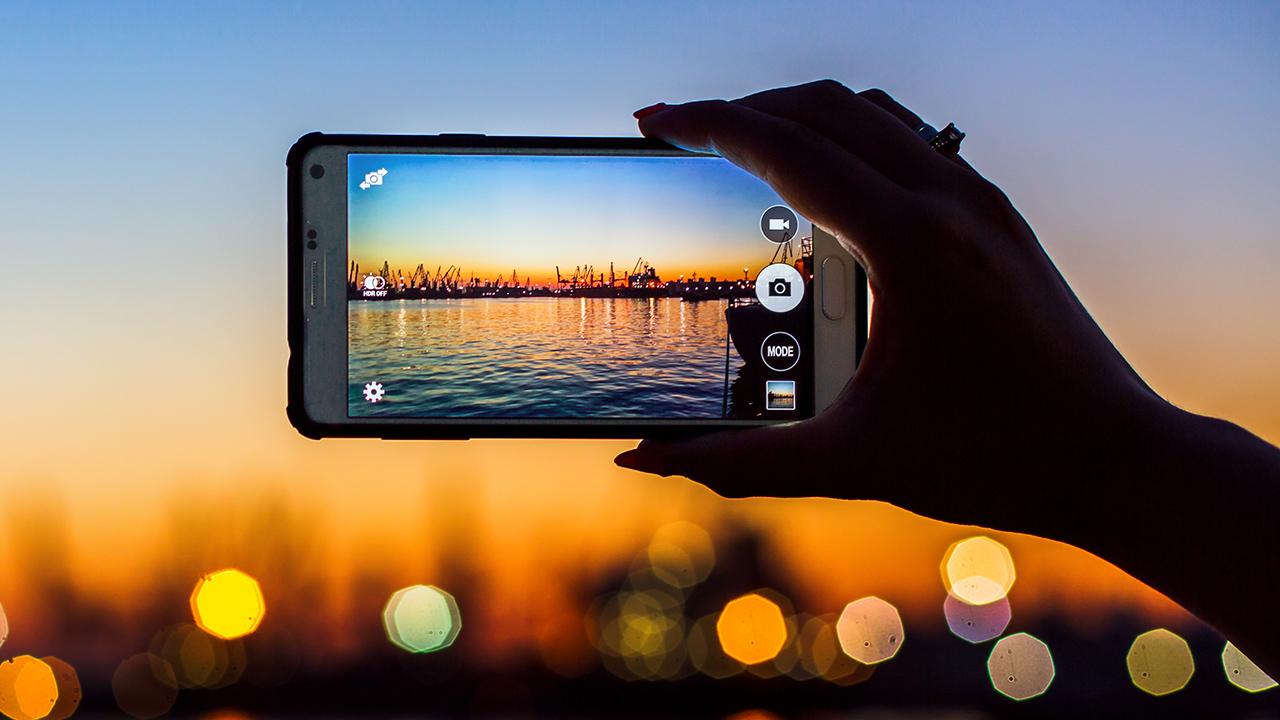
    Smartphone photography is the most commonly used system of photography in our time. This is very common because it is compact, most people have one with them at all times and many can take photos at any place at a time.

    To kick the ball rolling, we are going to look at six tips you can follow for good smartphone photography. With this knowledge in hand, you will be able to produce quality and awesome shots from your mobile camera.

    Auto Mode

    Having knowledge on how your smartphone camera auto mode works will greatly help you take good photos. Study the time it uses high ISOs, when it uses long shutter speeds, and adjust how you take photos accordingly.

    This will help you know when the auto mode struggles, and then you can decide to override the default settings where appropriate.

    Override The Defaults

    Smartphone photography is always better than ever when in default settings mode automatically, but this is not always right. Photography indoors and overcast days can still leave us a lot to desire even with the best camera’s in the markets.

    The white balance and exposure is mostly set to automatic by default. Most smartphones can manually adjust these settings to suit your style. The best manual mode also allows you to adjust the white balance of your camera.

    At the same time, manual modes allow you to change ISO and Shutter speed as well, allowing you to set the motion blur to be present in your photos and how much grain will be visible.

    Longer shutter speeds less than 1/30 of seconds will require study hands if possible must be set on a tripod. ISOs above 800 on the smartphone cameras tend to introduce clearer grain but captures adequate lights than lower ISOs.

    Its advisable to play around these settings to find the best combination for the shots you want to have, importantly, most advanced smartphones coming in now have these comprehensive manual modes.

    If you tweak your camera to centre-weighted metering and it doesn’t provide the right results for you, consider switching to spot-metering. Center-weighted sets the camera to capture the entire image and meters according to what it sees, with a preference on the centre of the image.

    If your subject is off-centre, switch to spot-metering so the area around the spot will be exposed perfectly.

    Use Good Posture

    If you want to reduce blur in your images, the best option is to hold a smartphone camera in a stable way. Position your body in a way there would be no distraction or shaky movement.

    If you need a perfectly stable image, I would recommend using tripod for your shots. The tripods are handily very useful as it can be used for still images. We personally used tripods for some shots and trust you me, you would love the outcome of your images.

    Never Digitally Zoom

    The image above depicts a photo taken while digitally zoomed versus a photo taken without digital zoom. You can see that from the one digitally zoomed, the picture has been enlarged and cropped from the sensor before the photo was captured rendering the image to lose some details.

    When this happens, after the image is taken, there is no way the image can be reframed or edited but with the one without zoom, the image can be reframed and edited using any editing software.

    Some advanced phones of late like the iPhone 11 and 11pro, Samsung s20 and others have 2x optical zoom, it’s best to stick with 1x zoom or 2x as this will give you the full quality of the wide-angle and the zoom respectively.

    Take Multiple Shots

    It’s worth it when you take several shots in quick succession. When taking photos of dynamic or fast-moving objects – like people, pets, car, etc. taking multiple photos will allow you to select the best shot later, without stressing yourself to have a perfect image the first shot.

    Some phones have the feature to combine multiple shots and the best part into a single photo. Play along with what your phone’s camera offer and take the best shots ever.

    Edit

    The final touch of photography is to edit. Editing your photos will give you the sharpness and beauty of the photo taken. Adding small adjustments to your photos will give it the professional look you yearn for.

    You can use photo editing software’s like Lightroom or adobe photoshop to edit your pictures to give it the professional look. Better still, there are a lot of android apps on the store that offers editing services to photos. Play around with the images in the software or editing apps to your satisfactory.

    Conclusion

    Smartphone photography has taken over digital photography in recent times due to the advanced camera’s being attached to the mobile innovations of our time.

    It being compact, and always available to us everywhere at anytime, people easily pick their smartphones and take photographs at any type of event or state.

    In this articles, I have provided six tips you can follow to have good smartphone photography.

  • How to earn money from podcasting

    How to earn money from podcasting

    Do you want to earn some cool money by just Podcasting? Is it even possible to earn enough from Podcasting? The answer to both questions is YES!

    Podcasting when done the right way can generate enough revenue for you to the point that you might even quit your full-time job. There are a lot of people who quit their jobs to focus on podcasts full time.

    In Ghana, there are over thousands of employed graduates and non-graduates at home who are always looking for jobs and how to make money. Funny enough, some of these unemployed persons are graduates with a journalism background.

    I am going to show you how to make money from podcasting. Instead of sitting at home doing nothing and just reading through vacancies online and in newspapers, read this article and find out more.

    Podcasts work exactly like a radio or TV station, where you host a program. But instead of being paid by your employer according to the wage he deems fit, you can start your podcast and earn based on your output and not what someone deems fit for you.

    Radio and TV show hosting is good and fun but you need to work according to what someone has laid down for you. For example, when you are having an interview, you need to ask the questions that your producer has written down for you.

    That is not the case in podcasting. In podcasting, you have the total freedom to do whatever you like and earn from the little effort you put into it.

    How to earn from podcasting

    Running ads on your show

    Whenever we talk about earning from your podcast, the first point that is raised globally is by running ads. Ads running in the process of adding an audio advertisement to an episode or more of your podcast.

    These ads can be acquired by applying for them from a database. If you host your podcast on Anchor’s platform, ads will be available for you as early as when you release your first episode.

    When you run ads on your podcast, you are paid according to CPM (Cost Per Mille). The meaning of CPM is that you earn the discussed amount per thousand listens or streams of your podcast.

    For example, if you run a $15/CPM ad on your podcast, you will be paid $15 for every 1,000 downloads, listens or streams. Therefore once you get 10,000 downloads, you will be paid $150. The CPM will be stated before you run the ad.

    Affiliate marketing

    Affiliate marketing in podcasting is the method by which individuals sell products on their podcast. You do this by adding a unique link to the website or the shop of the product under your show’s description.

    The unique link contains a unique code that tells the shop or the producer that the person bought the product through your podcast. Therefore you will be paid the agreed amount once a person makes a purchase.

    This method is one of the easiest methods of earning from your podcast because you get paid per every single purchase. Meaning that even if your podcast has a small number of listeners you can still earn massively.

    In terms of the payment, affiliate marketing is based on commission and tokens. The amount you earn is determined in terms of a percentage. For example, 15% of the total product price per purchase made through your podcast.

    Podcasting by sponsorship

    The final method of earning from podcasting is by sponsorship. As the name suggests, sponsorship is when someone interested in what you are doing decides to help you with something.

    The “something” in podcasting is usually in the form of money. This could be done by asking your listeners and subscribers to support you with any little amount they have to keep the show going on.

    Also, you can write to local companies and ask for sponsorship from them and reimburse them by advertising them on your show. This method is known in podcasting as direct sponsorship.

    Depending on how well you perform and how you relate with your listeners, you can earn a fortune from just sponsorship alone. To increase your chances of getting something huge, it is advisable to use this method once you see that your subscribers have increased and are also cooperating well.

    Conclusion

    Podcasting is not something that demands much of your time, recording just one hour a week could earn you enough to cover some necessities. There are many people who work their normal jobs in addition to the podcast.

    The methods listed in this article were gathered from experts who have been successful in podcasting and when followed well could be of much help.

    Was this helpful? Write your comments and suggestions in the comments section below and share it with your loved ones.

  • How To Recover Data From A Corrupt Zip File

    How To Recover Data From A Corrupt Zip File

    The ZIP file format is used by essentially everyone online because is the most common and convenient way to store and send multiple files securely.

    Probably, there is a good chance you might come along one that has been corrupted, just a single corrupt bit in one file out of a dozen in the ZIP could prevent your ZIP archiver from opening or extracting its content.

    Different factors can result in corrupt ZIP files including bad drive sectors, malware, incomplete download or transfer, or any other sudden occurrences like power failure or an improper shut down while working with the ZIP file.

    A corrupt ZIP file sometimes may open for you, but some of its original contents might be missing, and attempting to open damaged ZIPs typically causes Windows to prompt you with an error message.

    We made a test by recreating a corrupt ZIP file by archiving an old collection of pictures and deleting parts of the file’s code using a hex editor (Sublimetext).

    In our finding, our total collection dropped from ten photos to two and even the files could not be opened even though it was being displayed in the File Explorer.

    The success rate of you recovering a corrupt ZIP file varies depending on the kind of tool you use, the contents of your ZIP, and the degree to which it has been corrupted.

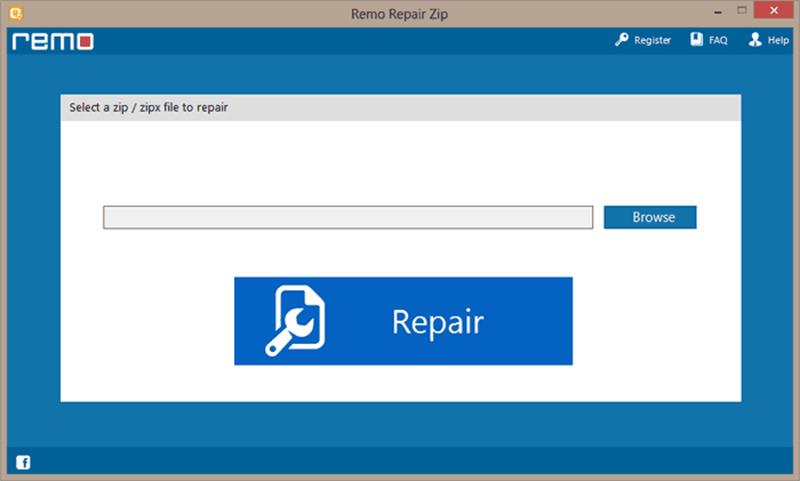
    The popular software to which you might probably have installed already, WinRAR provides a built-in repair tool for damaged ZIP files.

    Open the ZIP file then go to Tools > Repair archive. When we tested with our re-created corrupt ZIP, WinRAR managed to recover six of the ten files from our damaged file.

    However, WinRAR is only free for a set time (40 days). A license must be purchased for $30 before the continued use of the software.

    Other alternate software is WinZip and 7-Zip. Both software doesn’t seem to have integrated repair features but the companies do offer in-depth information pages about corrupt ZIP files.

    Alternate Tools To Recover Corrupt ZIP Files

    There are a couple of tools that can recover corrupt ZIP files. Below are some of the tools you can use,

    • DiskInternals Zip Repair – This can be downloaded for free. When tested, it managed to recover nine out of the ten photos from our recreated corrupt ZIP. The software is dedicated to recovering partially damaged ZIP files and it launches with a wizard-style prompt.
    • Zip2Fix – Has no complicated interface. Beginner recommendation. The software automatically begins to recover corrupted ZIP files when opened and outputs the recovered files in the source folder without any prompt. When tested, it recovered nine files out of the ten just like the DiskInternals Zip Repair.
    • ObjectFix Zip – This made it to the last of our tool recommendation because, when tested, it couldn’t recover any of our files from the corrupted ZIP. I added it because it might work for you.

    Note that, not all corrupted ZIP files can be recovered. Hard damaged files may not be recovered by all the tools mentioned. All tests carried out were on partially damaged ZIP files.

    Conclusion

    We all have come across damaged ZIP files once or more. Most people delete their corrupted ZIPs thinking it can never be repaired. Partially damaged or corrupted Zip files are easy to repair. Before you hit on the delete button, try reading the full article posted here to fix your ZIP file.

  • Visiting Ghana? Here Is Your Tech Guide for 2020

    Visiting Ghana? Here Is Your Tech Guide for 2020

    Ghana is home to about 32 million people, a beautiful country with beautiful people. If you are visiting Ghana as a tourist or you are here for work, we promise you will have a memorable experience.

    There are over 100 ethnic groups in Ghana with English as her official language.

    This guide will help you have a wonderful time in Ghana.

    Fixing up your means of communication

    You will need a sim card for the period of your stay in the country. The major players are Mtn Ghana, Vodafone, and AirteltiGO.

    Whichever one you choose to use, you will need to get the sim card registered. All you need as a visitor to do this is your international passport.

    Picking a Data Plan

    Staying connected to the internet is most likely something you want during your stay. All of the above service providers offer various data/internet plans you can choose from (daily, weekly, monthly).

    You should pick the one with the fastest internet in the location you will be staying in.

    Accommodation

    The popular online platforms; Airbnb and Bookings.com are available in Ghana for you to book nice apartments or hotels for yourself in your preferred location.

    You can get accommodations based on your budget. 

    Transportation

    Just like what you find in developed countries, Ghana is not an exception to ride-hailing technology.

    You can easily commute in the country with Uber, Taxify or the recently launched Dropyn. You can download the apps to get started.

    Ordering food

    This is made easy for you with Jumia Food and Eziban. You can order food online from the convenience of your home through their website or via the mobile app. They deliver to your doorstep at a fee. 

    On Jumia food, you have over 40 restaurants that offer both local and international dishes.

    You can search by food or restaurant on Eziban.

    Health & Emergency

    While we hope that you have a hitch-free experience during your stay, emergencies may arise and you can call 112 for help in Ghana.

    Payment Solution

    Ghana is not left behind in terms of financial technology. Payment solutions are available to allow you to make transactions on the go.

    From grocery shopping to ride-hailing, or food delivery, you don’t have to worry about using cash. 

    Mastercard and VISA are acceptable in Ghana and you can use this for your transactions. MTN mobile money, vodafone cash, and AireltiGO cash are also available to choose from.

    Exchange Rate

    This is one of the most important things when you are visiting a new country. This enables you to budget appropriately for your trip. 

    The exchange rate at the time of writing this is $1 to 5.77 Ghana Cedis. Ensure you check to be sure of the current value to avoid being cheated.

    Tourism

    If you are in Ghana as a tourist, we have some incredible tourist attractions you will love. Some of the places you can check during your stay are;

    • Mole National Park
    • Shai Hills Reserve
    • Bonwire Kente Village
    • Kakum National Park
    • Sirigu Traditional Pottery

    These are places that will leave you with beautiful memories. As always, you can use Google Maps to check out how to get there and read some reviews too.

    Conclusion

    Ghana remains one of the best destinations for tourism in Africa and a visit to Ghana is something to love.

    We hope you will find the guide useful for your trip. Drop your questions in the comment if you think we missed anything.

  • How To Change The Wallpaper and Other Personalization Settings On Windows 10 Non-Activated

    How To Change The Wallpaper and Other Personalization Settings On Windows 10 Non-Activated

    Frequently most people want a new desktop background and changing your wallpapers is one of the primary things you will do after installing a new operating system.

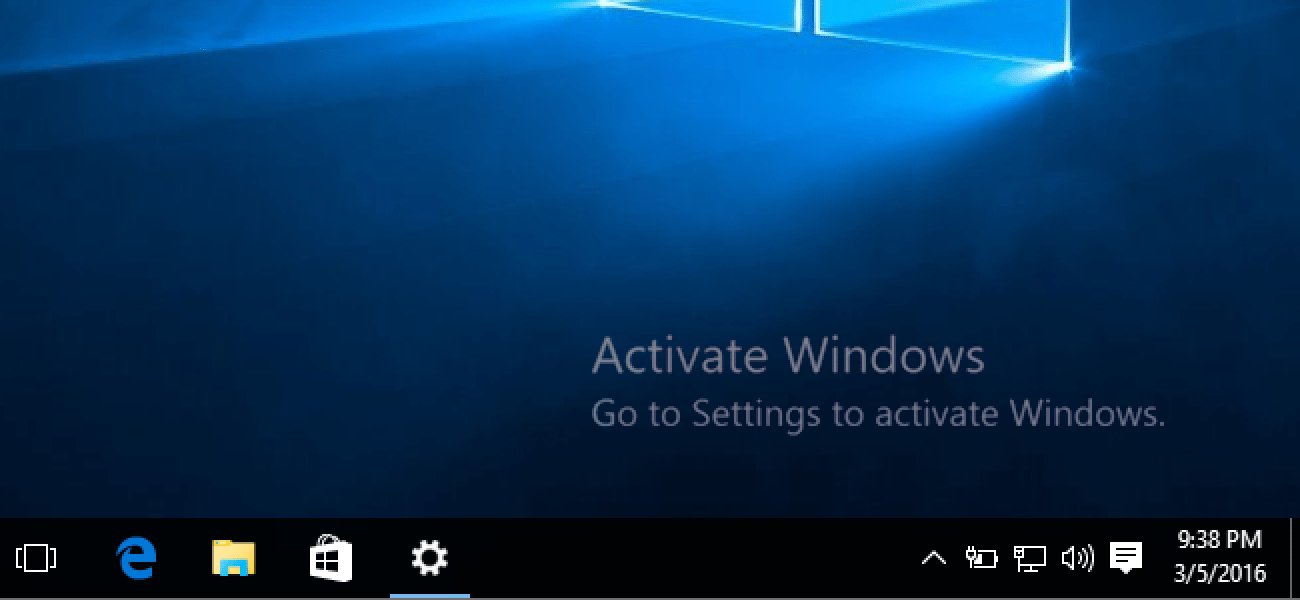
    However, applying customization to un-activated windows is not easy to get along since Microsoft blocks access to the software’s personalization settings without a valid product license or activation.

    Not having access to the Personalization becomes annoying since you cannot customize the Operating System to your liking. Though, most of the Operating Systems can be used for free but for Windows you need to activate before use.

    Possibly, applying a new wallpaper is not impossible, despite some of the menu options being blocked. Right-clicking on any image file in a non-activated windows 10 installation will still give you the option to set the said image as a Desktop Background.

    Other settings like custom sounds and colors can be applied in non-activated Windows 10 too. If you already have a Microsoft account with theme settings synced to it from an activated version of Windows 10, then you can apply those to the non-activated version as you log in for the first time.

    By default, sync is enabled and includes theme settings which can still be opened in the non-activated version, but this option may not simply transfer your wallpaper if its the only thing you have customized on the account, and even the theme settings that are synced may not be the most recent.

    Alternatively, you can also download theme pack files that can be opened on Windows 10 un-activated. Opening and applying a theme in the theme pack will apply any settings in the theme file.

    Automatically, you can rotate through the wallpapers in the archive which in the default un-activated windows has been blocked/disabled in the personalization settings.

    There are some limitations to using theme packs. The inability to tweak one color without changing the theme is not possible. You would have to change the theme to settle on the color that interests you.

    For example, if you love black color in your theme, you have to keep switching the theme until you settle on a theme that comes with the black color.

    Another limitation is, you can not apply the same theme pack twice or set it again in the menu after applying a new theme pack. You can create a custom theme pack from an activated Windows 10 by right-clicking on the theme in the personalization menu and choosing “save theme for sharing” to create a theme pack file.

    After creating theme packs on activated windows, you can then extract the contents to your un-activated windows by changing the file extension to .cab

    If you don’t want to stress yourself or pass through all these hectic methods, you would have to activate your version of Windows by purchasing a product key from Microsoft or buy the full Windows 10.

    Conclusion

    The un-activated version of windows limits customizing the windows to our liking. Setting or changing wallpapers don’t work. In this article, I have provided alternate options you can follow to change the wallpaper on your un-activated Windows.

  • How To Run Google Apps In Google Chrome

    How To Run Google Apps In Google Chrome

    Did you know you can run Android Apps in your Google Chrome browser?. In 2015, Google launched a tool called ARC Welder, which is designed for developers to test their applications in Google Chrome so that the applications can be ported to Chrome OS.

    ARC Welder’s main focus is to make it easy for developers to create more apps for Chrome OS, but Welder can be used to run more Android apps in Chrome.

    It’s very easy to run Android apps in Chrome using ARC Welder, this post will show you how easy it is. You should note that not all apps can run smoothly on Chrome so you would have to test various apps and see what works best for you.

    Installing ARC Welder

    First of all, you need to install the ARC Welder application from the Chrome web store. After installation, you will be able to run ARC Welder from the Chrome apps page.

    One thing about ARC Welder is, you can run it on all your devices that support Chrome and Chrome apps. All desktop operating systems are supported including, Windows 10, macOS, Chrome OS, and Linux.

    From our tests, the tool runs well on all the operating system mentioned so you don’t need to switch to a particular OS before you can use.

    Find Android APK’s

    The ARC Welder is designed to run APK’s, so you will have to search, find, and download the preferred app you want to run. The restriction is, you can’t download the app from the Google Play store so you would have to use a third-party source for your downloads.

    APK Mirror is a third-party site that hosts many android apps. I would recommend APK Mirror as your main APK download source because of its nice design and user-friendly features.

    Older versions of many applications can be downloaded to run with ARC Welder if the current updates don’t work. Alternatively, AndroidAPKsFree can be used for APK downloads if what you search for on APK Mirror is not available.

    Running The Apk In ARC Welder

    After downloading your APK, launch ARC Welder from Chrome and choose a directory for ARC to write temporary files. After this, click to find and add the APK you want to run. This will bring you to a page of configuration options. Leave the options at the default settings.

    Click ‘test’ to launch the app. Note that, ARC Welder can only run one app at a time. You will have to close the current app in the section before opening another.

    We made some tests on a couple of apps and found out some apps worked perfectly while others crush indefinitely when launched. Some key Android apps like Gmail, Maps, and Facebook crash immediately whiles YouTube loads fine at startup but crushes later as it doesn’t have access to Google Play Services.

    Instagram and Snapchat both don’t work at all. Other apps that worked perfectly with ARC Welder are Twitter, Speedtest.net, Accuweather, Slack, and others.

    Games don’t work at all since ARC is not designed to run games in the Chrome browser. You can personally test different APKs and you will definitely find more apps that work perfectly for you.

    Conclusion

    Running apps in browsers have not been easy to come by. In this article, we looked at how you can run Android apps in Google Chrome. No need to install the apps on your Operating System, you can just run them straight in your browser.

  • How to start an online radio/Podcast

    How to start an online radio/Podcast

    Do you want to start an online radio/podcast? Read on and let’s find out together how to start an online radio/podcast without paying anything. YES, it’s completely free.

    Unlike starting a physical radio or podcast where you need to look for a studio, high-end microphone, find a frequency, mixer, and other expensive materials, starting an online radio/podcast does not involve any of these expensive gadgets.

    I began my online podcast with my headphones and my mobile phone and I could reach over 5 different countries in Africa, Europe, Asia and the Americas within two months.

    Although starting an online radio/podcast is very easy and free there are some important things you need to take note; and this article is going to guide you through the entire process of starting an online radio/podcast.

    How to start an online radio/podcast

    There are different ways of starting an online radio/podcast. But the methods that are used in this article are the ones that have been tried and tested by successful persons.

    Select a title and a cover art

    The first thing you need to do when starting an online radio/podcast is to select a title for your show. This is what is going to get your podcast recognized by many people around the world who are looking for content similar to yours.

    After selecting a title for your podcast, you then need to create cover art for your show. According to research, over 60% of podcast listeners select a show based on the cover art. Therefore cover arts are very important when starting a podcast.

    If you are a designer, you can create the cover art yourself. Otherwise, you can give it to a professional designer to create it for you at a small token. The smallest side of the image shouldn’t be less than 500 pixels.

    Choose your podcast format

    Secondly, you need to choose the format for your podcast. The format of your podcast is what will determine how often you will post episodes and what you will record about. To do this, you need to ask yourself some questions.

    What is the format of your podcast?

    The available options you can choose from include: Interview, solo commentary, scripted storytelling, fiction, non-fiction, etc.

    How long will each episode last?

    The duration you select for your podcast mainly depends on the format of your podcast. The most common ones are 10 – 15 minutes, 15 – 30 minutes, 30 – 60 minutes, more than an hour.

    How often will you publish a new episode?

    You can choose to post daily, 2 episodes per week, 1 episode per week, 1 episode each week, etc.

    Choose a hosting site

    This is the most important thing when starting an online radio/podcast because this is going to determine how many people you show will reach and platforms you show will be on.

    The most common hosting platform is Anchor; this is what I will recommend if you are getting started. You can always switch to new hosting platforms if you wish to. The reason why I prefer Anchor is that it shares your podcast with all the major platforms for you.

    Also, the interesting thing is that it is completely free and you get free analytics (this is not available on other platforms). You can download the free Anchor app from the Google Play Store or the Apple App Store.

    Choose the best microphone

    The best microphone is what is going to get your listeners to get stuck when they first listen to your show. No one is going to waste 10 – 15 minutes of their time to listen to “garbage” audio.

    To prevent this, you need to select a good microphone for your podcast. The most used and recommend microphone for your podcast is the Audio Technica 2100. This microphone costs less than $50 when you shop online.

    In case you don’t have the resources to buy the microphone, do not worry, you can find a quiet place in your room and then record with your earpiece or headphones.

    Record and edit your first episode

    After acquiring the microphone, earpiece, or headphone the next thing to do is to record your first episode. To do this, you can create an account on Anchor or use audio recording apps like Audacity, Audio Audition, or Garage Band.

    Once you’re done recording your audio, you can edit using the applications stated above. Additionally, there are websites where you can upload your audio and pay something small for editors to edit for you.

    Publish your first episode on your hosting platform

    Finally, after your audio goes through a thorough editing and pre-hearing the next thing to do is to publish your audio on your hosting platform.

    The entire process of publishing is very simple, all you need to do is to upload your audio and then fill the details after that click on Publish and watch your podcast go live.

    Conclusion

    There you have it, you can now start your online radio/podcast at the comfort of your home without paying anything. After publishing, you can then market your podcast on your social media handles to reach more listeners and subscribers.

    Stay tuned to know how to earn money from your podcast in my subsequent posts.

    Was this helpful? Feel free to write your suggestions in the comments section and I will try my best to update my article with your suggestion.