Category: Guides

  • Top 6 Tech Pranks You Should Know

    Top 6 Tech Pranks You Should Know

    Pranks are entertaining. They are one of the few things in life that if not all, most people enjoy doing. There is probably once in your life that you have pranked someone or you’ve been pranked.

    How was the feeling? Though sometimes we get angry with pranks, the entertaining factor of it cannot be over-looked. If you are a tech-savvy person, there are few tech pranks you can play on your victim’s computer.

    Flip The Computer Display Upside Down

    This is a prank that will keep your victim busy 24/7 working on something he is confused about fixing. I nearly got slapped by my dad when I played this prank on him. Care to try?

    • On Windows – Press Ctrl + Alt + Down Arrow key from the keyboard navigation keys. ( The same combination with the Up arrow will return the Desktop to normalcy ). If for some reasons the keys do not work for you, right-click on the Desktop>Display Settings and change the screen orientation.
    • On Mac – Press and hold Command + Option, whiles holding the keys, go to System Preferences. Navigate to Display whiles still holding the keys, A new menu called Rotation should appear, you can flip the display and press ok to maintain it or you can select Undo to keep your default settings.

    Switch The Keyboard Layout To DVORAK

    The default keyboard layout is QWERTY, but if you want to mess up somebody, this is an alternative. It’s easy but entertaining, all you have to do is enable the DVORAK alternative keyboard layout that most average people are not familiar with.

    Go to the Control Panel > Region and Language > Keyboards > Change Keyboards, then select the Add button and choose the DVORAK layout. After this, use the drop-down above to set the default.

    Set A Cracked Screen Wallpaper

    I received slaps the last time I scared the hell out of someone I pranked. Dare to try? Simple pranks can have just as much impact as complicated once.

    Changing wallpaper is super easy to set up. To make this prank more entertaining, take a screenshot of the victim’s screen and add the cracked glass effect on top of it.

    Move Desktop Icons, Take A screenshot, Set as a Wallpaper

    Take a screenshot of your victim’s current desktop, set it as the desktop wallpaper, then hide the icons and taskbar. Everything will look normal at first glance, but nothing will happen when the mouse is moved around on a click.

    Alternatively, you can take a screenshot of their desktop and set it as a wallpaper. Move some icons around on the desktop and take another screenshot. Repeat the steps until you have scattered icons on the desktop and take another screenshot. Set it as wallpaper and the taskbar and icons.

    Plug A Wireless Mouse/Keyboard And Control A Computer From Afar

    Sound simple and easy but very entertaining. If you are in an office setting with a desktop PC’s, you can just plug a wireless mouse or keyboard receiver at the back of your victims’ computer and control it from your desk.

    The victim will be surprised to see the mouse moving on its own, or the computer typing by itself. To make it interesting, you can type some weird or scary messages on the screen.

    Block Mouse Sensor With A Post-it

    A victim’s mouse sensor can be blocked with a Post-it without their knowledge. Doing this, the mouse will never work leaving the victim frustrated. Until you tell them the reason, they will think their mouse has stopped working all of a sudden or it’s faulty.

    Conclusion

    Pranks in its own way are entertaining and everyone loves to do. Tech pranks are more entertaining and surprising. In this article we looked at the top six pranks you should be familiar with. In the near future, the post will be updated to include a lot more pranks.

  • Okay Google: How To Let Google Assistant Tell You A Story

    Okay Google: How To Let Google Assistant Tell You A Story

    Bedtime stories or normal stories for the road are always good for you and your kids or family. With Google Assistant’s new feature, your smartphone can now read a story to you.

    Google Assistant can now tell you a story via your smartphone. This is a new feature developed by Google in 2017 for google home devices and recently extended to smartphones in 2019.

    What this means is that Google Assistant now has the ability to read pre-written and curated stories by google to you and your kids on your request.

    These stories can either be funny bed-time stories or action-packed high-quality dramatic stories that spark various emotions as you listen.

    If you are a fun of story-time but wouldn’t love to do the reading by yourself, then Google Assistant’s all-new feature is here for you. Let your Google Assistant read some stories to you!

    This article is aimed at teaching you how to let your Google Assistant read or tell you a story.

    But, before we dive into the details of how to let Google Assistant read for you, let’s look briefly at what Google Assistant is and what other features it has.

    What is Google Assistant And What Features Does It Have?

    Google Assistant is an artificial intelligence software created by Google Incorporation to help users take care of daily tasks by communicating with their Google devices or devices running on the Android systems, using voice commands and voice controls.

    What this means is that if you have the Google Assistant on your device, you tend to become friends with that device. And you can communicate with your device using voice commands and your device would respond accordingly and perform the various tasks you assign to it.

    The Google Assistant enables users to set commands such as reminders, answer calls, make calls, play music, search for things online, play movies and many other actions using voice commands.

    Find Out How Your Google Assistant Can Help You Locate Songs Playing Around You

    How To Let Your Google Assistant Read For You

    To let your Google Assistant read for you, you must ensure that you have the Google Assistant feature installed on your smartphone. If you don’t have one yet, you can cop yours here for your android device.

    Then, after installing your Google Assistant on your phone safely, you need to install and update Google Play Books on the same phone. Without Google Play Books on your phone, this feature will not work. The Read A Story feature is connected with the Play Books app so without it, that feature cannot be used on your Google Assistant. You still don’t have the Play Books app yet? Get yours here.

    Now, you are ready to use the Google Assistant’s Tell Me A Story feature on your smartphone with ease.

    Just go ahead, open your Google Assistant application and say ‘Hey Google, tell me a story’ or ‘Okay Google; tell me a story’. Your new Artificial Intelligence buddy should start reading a story to you in a few seconds.

    Note: You can use the Google Assistant application on your IOS devices as well.

    Conclusion

    Sometimes, we feel we could go back to our childhood and have our parents read to us some bedtime stories while we snuggle in bed. Well, for various reasons, this only remains a thought or a want.

    But, Google Assistant has the magic to make that dream a reality for anyone reading this. You only need to install the Google Play Books and Google Assistant on your smartphone to turn your phone into that storytelling buddy you really wish for.

    In this article, we took you through what Google Assistant is, Its features and how you can let your Google Assistant tell you a story right from your smartphone.

    If you have any questions, comments or reservations regarding this article, kindly share them with us in the comment section below.

    Please, don’t forget to share this article with your friends and family. We write because you read and we live to write for your reading pleasure.

  • How To Update Your Windows 10 Laptop

    How To Update Your Windows 10 Laptop

    Whether you are a student using your laptop for studies or a business owner using it for carrying out transactions or just an everyday computer user, you need to keep your laptop in good shape all the time.

    One way to ensure that your laptop is in good standing is by ensuring that your software component is always up-to-date. For older versions of the Windows laptops, it is very easy for anyone to update their windows.

    However, this becomes a little bit difficult with Windows 10. Many people running the Windows 10 operating system on their laptops find it quite difficult to deal with windows update.

    In this article, we shall discuss simple and easy ways to update your windows 10 Laptop without so much hustle.

    Before we go into the details of setting up an update for your windows 10 laptop, let’s first look at the importance of Windows Updates.

    Importance Of Windows Updates

    Updating your windows helps to keep your laptop software component in good shape and form. This is further confirmed by the fact that whenever you update your windows, there is an increase in your laptop security system which includes Virus definition updates, firewall updates and other major security system checks.

    Also, updating your windows means fixing bugs that may previously form part of the original version of your windows. Most times, after software is developed, there are various gaps and loopholes within the software which causes glitches to the end-users. These glitches are fixed by means of updates so if you keep using the basic version of your windows 10 without these updates, you are very likely to be a victim of such glitches in the system.

    Finally, updating your windows regularly means you are connecting your laptop to the latest features available for all Windows computers and you can be able to run the latest software on your computer based on such updates.

    Read here about The Importance Of Upgrading To Windows 10

    How To Updates Your Windows 10 Laptop

    Now, let’s go into the details of setting up your windows 10 laptop update in order to keep your computer in good shape and ready to explore current software trends and computer usage.

    Manually Updating your window

    To manually update your Windows 10 laptop, kindly follow the steps below:

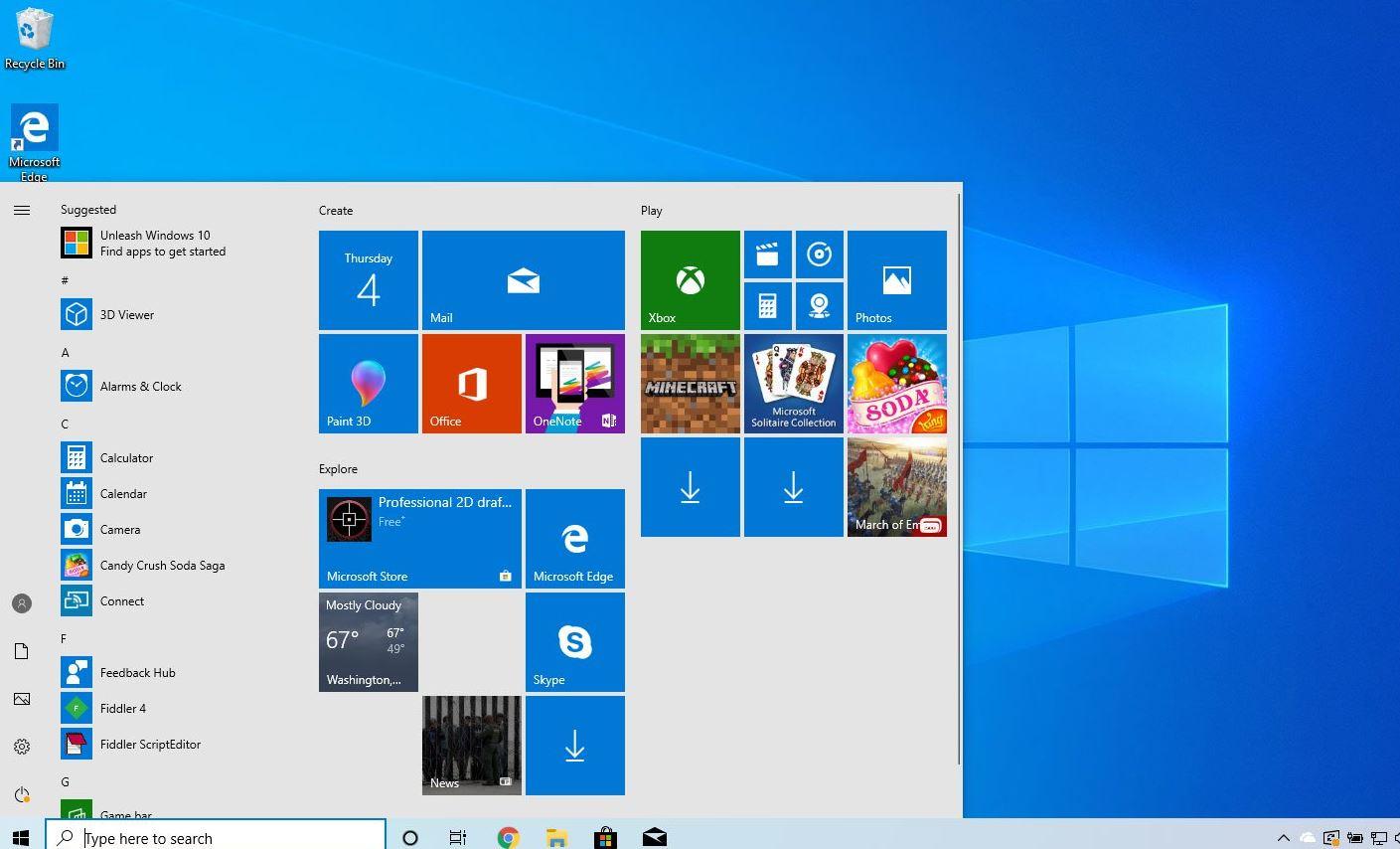
    1. Click on ‘start button’ from the bottom-left corner of your laptop screen.
    2. Search for and click on ‘settings’ (it usually appears as a gear icon)
    3. Scroll through the list on the next page and select ‘ Updates and security’ icon.
    4. On the next page, look on the left sidebar and select ‘Windows update’ from the list.
    5. Click on ‘Check for updates’ from the next list that appears on the right side.

    If there is any update available for your window, it should start downloading after the last step in the list above. However, if your computer is not compatible with the latest windows updates available, you’ll get a notification right on the same page after performing the last step in the list provided in this article. In the notification, you’ll be informed that your computer may not be compatible with the updates and that you will be notified when there is a version for your computer.

    How To Setup Automatic Updates For Your Windows 10 Laptop

    If you want your computer to automatically search for updates and deliver them to you whenever they are available, then you should follow the steps below:

    1. Click on ‘start button’ on the bottom-left corner of your Windows 10 desktop.
    2. Click on ‘settings’ in the list of programs which shows up next.
    3. Click on ‘Updates and security’ from the next page.
    4. Click on ‘Windows Update’
    5. On the next page, click on ‘Advanced Options’.
    6. On the advanced options page, select ‘Automatic’

    Conclusion

    When new windows such as Windows 10 are developed by the software team at Microsoft, they put the system through series of tests over several months to ensure that everything is working perfectly before they finally release it for the general public to use.

    However, efficiency is always less than 100% so there are usually some glitches in the system after it has been released. This is usually reported back to the software firm by users. The engineers then produce solutions for the various problems in what is called ‘updates’. So, if you fail to update your windows, you are missing out on new improvements which usually cover security, drivers, new features and others.

    So, in this article, we spoke about how to update your windows 10 laptop from the comfort of your home without the help of any other person.

    I hope that the steps listed and spoken about in this article were helpful to you in your quest to update your Windows 10 laptop.

    If you have any questions, comments or reservations regarding this article, kindly let us know in the comment box below. We shall respond to them as promptly as possible. You can also contact us for more enquiries.

    Kindly do well to share this article with friends and relatives who may also need it.

  • Find Out How Old You Look With the Instagram Age Filter

    Find Out How Old You Look With the Instagram Age Filter

    Thinking of what to do in this COVID-19 quarantine boredom? Then I’m going to show you how you can reduce some of the boredom and the stress associated with this pandemic.

    We are living in a technological world where we have almost everything at our disposal. In the olden days, before you could take a photo then it means you are celebrating Christmas or a family reunion.

    In those days, you need to call a photographer who will take you the photo and present the hard copy in a month or two. But now, you can take as many as a million photographs on your mobile phone as long you have the storage space.

    That’s fun, right? Continue reading this article to know how to find out how old you look with the Instagram age filter, called “How Old I Look”.

    Instagram in recent times introduced the Disney characters filter which tells you the Disney character that you resemble and the Friends filter which also performs the same function as the Disney characters filter.

    This filter uses the latest face-scanning technology to analyze your face and will in turn tell you the age that corresponds with your face, I’m joking, it’s just for fun. Meaning, the younger face, the younger the age that will be displayed by the filter.

    How to Find Out How Old You Look With the Instagram Age Filter

    • To get started, make sure you have the latest version of Instagram on your device. Otherwise, you can’t use this filter.
    • Search for the profile of the Instagram user under the username @ferdaysss (Creator of the How Old I Look Instagram age filter).
    • Once you are on the profile page of @ferdayss, click on “filters” (this is the icon that looks like a smiley face with sparkles between the main grid and tagged photos), and the “How Old Do I Look” filter will automatically appear at the top.
    • Simply tap on “try it”, and when prompted with the stories screen, just tap and hold the circle button and the filter will proceed to guess your age. (Make sure to keep the phone still and your face fully contained within the frame).
    • If you’ve done this correctly, the filter will automatically assign your age. (If you are lucky, the age could be your actual age; but the probability is very low).
    • Also, you can save the “How Old Do I Look” filter for future guessing, by adding it in your main Stories filter list – simply click the “Add” button on the bottom of the page.

    Who Created The “How Old Do I Look” filter?

    The Instagram age filter is not an official filter from Instagram. It was created by Perdy Ferdinsyah (@ferdaysss) from Bandung, Indonesia. Perdy Ferdinsyah is the founder of Ica Ica Bot, which is an Indonesia social media app.

    Conclusion

    The “How Old Do I Look” filter is not a real face scanner and thus, is not an accurate filter. But, considering the boredom this COVID-19 pandemic has brought on us, this is worth it.

    Feel free to try this filter on your Instagram page and make sure to share this with your friends and loved ones.

    Finally, make sure to share this article with your friends and loved ones and lets breakdown the boredom the COVID-19 has imposed on us.

  • How to Watch Adom TV and Joy Prime on Your Phone

    How to Watch Adom TV and Joy Prime on Your Phone

    Are you stuck somewhere thinking of how to watch your favourite show on Adom TV or Joy Prime? Worry no more, this article is going to show you how to watch Adom TV and Joy Prime on your phone wherever you are.

    Missing your favourite TV programme could be very painful especially when it’s a movie that you are following the story line. Unlike some movies where you can watch recap, some of them are aired only once and missing them for once means you can never watch them again.

    In order to help our cherished readers, we have done a little research on how to watch Adom TV and Joy Prime on your phone. The interesting thing about this is the fact that it’s available for both Android and iOS users.

    How to Watch Adom TV and Joy Prime on Your Phone

    There are several ways you can watch/stream Adom TV and Joy Prime on your phone. But, we are going to cover just a few in this article.

    The ways you can watch Adom TV and Joy Prime on your phone are as follows:

    How to Watch Adom TV and Joy Prime on Your Phone via the MyJoyOnline website

    The first method on our list today is how to watch Adom TV and Joy Prime on your phone via the MyJoyOnline website. Despite the name attached to the website, you can watch all the television stations owned the Multimedia Group Limited, i.e. Adom TV, Joy Prime, and the Joy News Channel on this website.

    To watch Adom TV and Joy Prime via the MyJoyOnline website,

    • Visit the official MyJoyOnline website on your phone.
    • Tap the three (3) horizontal bars on the upper right corner of the screen.
    • Select Live TV/Radio from the pop-up options.
    • To listen to Audio only, tap on the logo of your preferred TV station (Adom TV or Joy Prime) in the circular frame.
    • To watch the video, tap on the logo of your preferred station in the TV-like frame.

    Now enjoy your favourite Adom TV or Joy Prime programme.

    How to Watch Adom TV and Joy Prime on Your Phone via the MyJoyOnline mobile app

    To make it simpler to use, the Multimedia Group has designed a mobile app just like the web version of MyJoyOnline. And to watch Adom TV or Joy Prime through this app,

    • Download the official MyJoyOnline mobile app from the Google Play Store or the Apple App Store.
    • Open the MyJoyOnline app on your device.
    • On the upper left corner of the User Interface, tap on Watch Live TV.
    • Tap on the logo of your preferred TV stations and enjoy live TV on your mobile device.

    How to Watch Adom TV and Joy Prime on Your Phone via the Adom Online mobile app

    This app is similar to the MyJoyOnline mobile app in terms of everything. But the only exception is that, with this app, you can only watch Adom TV and Joy News.

    Apart from that, you can follow the steps listed under How to Watch Adom TV and Joy Prime on Your Phone via the MyJoyOnline mobile app.

    How to Watch Adom TV and Joy Prime on Your Phone via YouTube

    The last method on our list today is how to watch Adom TV and Joy Prime via YouTube.

    YouTube is one of the leading video streaming platforms and for any company to get more viewers, they need to stream their videos on YouTube and Multimedia Group Limited is no exception.

    To watch Adom TV and Joy Prime on your phone,

    • Visit the YouTube official website or download the mobile app.
    • Tap on the search icon and type Adom TV Live or Joy Prime live.
    • Click on the Search Icon and select the relevant option from the search results listed. (But, mostly, it will be the first result).
    • Enjoy your mobile TV broadcast.

    To know whether the broadcast is live or not, check for a red option with the inscription LIVE on the bottom left corner of the logo.

    Conclusion

    The entire streaming process is very quick and user-friendly; even for those who don’t have many ideas about tech.

    NOTE: Though all the methods listed in this article are free, standard internet data charges apply. Therefore, make sure to have a good internet data package from your network provider.

    Now, you’re all set to enjoy your favourite Adom TV and Joy Prime TV program on your mobile phone whenever and wherever for free.

    Please make sure to share this article with your friends and loved ones and make sure to subscribe to our newsletter and follow us on social media to get new articles every day.

  • How to Do a Reverse Image Search on iPhone Using Safari Browser

    How to Do a Reverse Image Search on iPhone Using Safari Browser

    One of the challenges of the internet nowadays especially, with those in the blogging space who deal with photos every day is copyright laws of some photos. To disallow people from using their photos, some websites usually attach a watermark to it.

    But is this an effective method of preventing copyright infringement? The answer is a big NO! Several technologies can be used to remove watermarks from photos.

    If you want to find the origin of a photo or where your photo is being used, the method you need to use is the Reverse Image Search method.

    A reverse image search can be done on your Android, iOS, macOS, or Windows device. But in this article, I am going to show you how to do a reverse image search on iPhone using the Safari browser.

    What is a Reverse Image Search?

    A reverse image search is when you upload a photo or a link to a photo to Google Photos which will look for the origin of the photo. Also, Google will find websites that have that particular image and related images featured on their site.

    Due to the intelligent built-in system, Google Photos automatically detect the subject of the photo and will bring up other websites related to it, for example, a tech blog.

    How to Do a Reverse Image Search on iPhone Using Safari Browser

    To perform a reverse image search on your iPhone using the Safari browser, the only requirement is the have the image or the link to the image on your iPhone. The steps in performing a reverse image search are:

    • Open the Safari browser app on your iPhone.
    • Visit the official Google Images website.
    • On your iPhone screen, tap on the share icon at the bottom of the window.
    • From the pop-down options provided, tap on the “Request Desktop Site” to reload the webpage. (The reason behind this is that the Safari browser does not allow performing a reverse image search while using the mobile site).
    • Click on the camera icon near the search bar to upload the image or enter the link into the search bar and tap on Search.
    • A list of all the websites with the image you inputted and other related photos will show up for you to browse through.

    That’s all it takes to perform a reverse image search on your iPhone using the Safari browser. You can perform this at no charge as many times as you want without any restriction.

    What Are The Importance of Reverse Image Search?

    With this, you can find information about something in a photo because a reserve image search will lead you to a website where you will find more information about that particular photo.

    It also helps to prevent plagiarism because you will know where it has been used before/originated from for you to give credit; thereby preventing plagiarism.

    Finally, a reverse search image will lead to finding similar photos like the one you searched for.

    Conclusion

    This article was written to guide you through the entire process of doing a reverse image search on your iPhone using Safari browser and I hope it served its purpose.

    In this article, I stated some of the benefits of reverse image search and its definition and mainly how to do a reverse image search on iPhone using Safari browser.

    Have you tried a reverse image search on your iPhone before? Feel free to write it down in the comment section below and add your suggestions as well.

  • Working From Home Effectively: Do’s and Don’ts

    Working From Home Effectively: Do’s and Don’ts

    In a blink, the span of life has taken a new twist due to the unforeseen outbreak of the novel Covid-19. Due to this, Local and state government across the world have taken unprecedented steps to slow down the spread of the virus through stay-at-home orders.

    In the wake of technology advancement in our time, at any other period in time, such drastic measures would have certainly crushed down the economy of any country in all of its facets but fortunately, technology is on our side.

    In appreciation to Computers and the internet, now millions of people can effectively work from home while complying with social distancing virtually. Many industries would have faced more dire consequences if not for the technology tools at our disposal.

    Many people now find their selves working from home and it has been challenging to some. In this article, we are going to look at some Dos and Don’ts working from home.

    The DOs In Working From Home

    • Set up a dedicated workspace – Working at home has become part of our daily life. There is still no vaccine for the Novel corona-virus, thus businesses still operate from home and this is not ending anytime soon. I have seen countless photos of people using their kitchen as their workspace at home. A kitchen is a busy place for most families and the odds are you aren’t going to be much productive using the place. A dedicated home office is an ideal place to be productive. Set up space in your bedroom or garage for your workspace.
    • Set boundaries with yourself and family – There are a lot of distractions from families and even yourself personally when at home. Time has changed and now your work is going to proceed from home. You need to set boundaries for families and your self. Schedule time for your work and eliminate any distractions that will keep you unproductive.
    • Invest in accessories that will make your job easier or comfortable – For productivity, your old accessories might need a little maintenance as it has advanced from personal usage to a business purpose. If possible, change old accessories to suit a business-standard.
    • Repurpose old hardware with minimal investment – Breathe new life into a tired system. Consider topping up your RAM and hard drive since you are going to use your personal system to work from home. Keeping old hardware may reduce your work effort or productivity.

    The Don’ts In Working From Home

    • Don’t bother getting dressed to impress – If your job is the one that does not demand video calling, no need to bother the cloth to put on. You can even work with Pajamas on. If it’s the type that demand video calling, you can put on a casual top and you will be good to go. You can check from the image below.
    • Don’t justify you need a new computer or expensive furniture if it isn’t absolutely necessary – Think of what your job actually requires you to do. You don’t need a new computer or furniture’s if your job specification is an online marketer or social media advertiser. You are working virtually from home so expensive furniture is not necessary.
    • You don’t need a faster ISP broadband connection before you can work from home – Many have it in mind, to work from home one need faster broadband. If you have a faster network its a bonus, but you can work from home with any network package. You don’t need a top-tier connection, the mid-range connection is ok to work from home.

    Conclusion

    Working from home is the norm of our lives now. Its something many people are adjusting to due to the unforeseen novel coronavirus that hit the world.

    In this article, I share with you some of the dos and don’ts of working from home effectively.

  • How to Find Information About Someone Online For Free

    How to Find Information About Someone Online For Free

    Thinking of how to find information about your old friend you lost contact with? Or, are you thinking of how to find more information about your new date or partner? If you fit in any of these categories then you’re at the right place.

    In the olden days, finding information about someone was very difficult and sometimes involved spending money. But, due to technology and the use of the internet, finding information about someone is very easy and quick.

    On the up side, most of these methods of finding information about someone online is free and totally cost nothing; and that is our main focus for this article.

    How to Find Information About Someone Online For Free

    There are several ways of finding information about someone online for free. But, in this article, we are going to focus on five (5) of the most effective methods.

    Using Google

    On an average, about 1.2 billion searches are made on Google annually making it one the biggest and most used search engine in the world. Google has a very huge database that pulls resources from almost every website.

    Therefore, one of the very first places to look for information about someone online for free is Google. But, though you might find information about someone on Google, the data cannot be trusted to be accurate or current.

    This is because, Google can look for data as far back as the year 2000, and present it to you as if it is new. That notwithstanding, to get the best search results from Google, it is advisable to put the person’s name in quotation mark for example, “Kofi Kwadwo”.

    Finally, if you know a little more detail about the person, you can add to it. For, “Kofi Kwadwo Mfiidie.com”. This helps Google to narrow down the list of results and provide the more relevant one.

    Using Facebook

    As of the second quarter of 2020, Facebook had 2.7 billion monthly active users all over the world; making it one of the biggest social media platforms in the world.

    Looking at the number of active users, Facebook could be one of the best and effective places to look for information about someone online for free.

    With Facebook, you can find a profile picture of the person you are looking for to verify the person you are looking for and you can also find their occupation as well as where they live.

    To find information about someone on Facebook, type the name of the person in the search bar, and browse through the profile pictures to find the one that matches the personality of your choice.

    Using LinkedIn

    To find information about someone on LinkedIn, all you need to do is to type the full name of the person into the search bar. After the search, a list of persons with the name you inputted will be shown on the screen.

    LinkedIn is a professional social media platform and when you search for information, you will likely find those relating to the occupation of the person, the current job, and his/her position at the company (if applicable).

    Just like Facebook, there’s also a profile picture attached to the name of the person, making it easier to find your preferred person or information.

    Other Social Media Platforms

    After trying Facebook and LinkedIn and you are still not satisfied with the information you have, you can choose to search using other social media platforms.

    Currently, there are over 10 social media platforms and the fact that you couldn’t get information from one doesn’t mean you can’t find it from the others. Some of the other most used social media platforms are Instagram and Twitter.

    Trying out these other social media platforms could yield some relevant results.

    Other Search Engines

    Whenever we say search engines, the first one that comes to mind is Google and a lot of people think that is the only place to find information; that is FALSE! Other search engines also yield good results.

    Some of the search engines are Yahoo and Bing. Just like Google, typing the name and other details of the person will yield a list of results from these search engines.

    Conclusion

    All the methods listed in this article as stated earlier, are free and only require an active internet connection. Therefore, buy a data package from your network provider and enjoy your online information hunt.

    Have you tried using another method of finding information about someone online, aside from the ones listed here? If so, please feel free to write it down in the comments section below.

  • How to Watch Netflix for Free Without an Account

    How to Watch Netflix for Free Without an Account

    Are you tired of paying for movies on Netflix? Or are you thinking of how to watch free movies on Netflix without creating an account? If either of them fits you then you have found luck today.

    Netflix has also rolled out a free streaming option for persons who don’t have an account with Netflix but want to watch shows and movies.

    In this article, I’m going to show you step by step how to watch Netflix for free without an account.

    What Are The Features of the Netflix Free Movies Offer?

    The free movies offer has specific features that standouts from the normal Netflix accounts. However, some of the features of the Netflix free movie offer are:

    • Netflix has offered a free selection of movies and TV shows for non-subscribers.
    • You can only watch the movies and the TV shows from a computer or an Android device. Unfortunately, this offer is not available for iOS users.
    • The free movies and shows are available in over 200 countries and can be watched at any time, anywhere without paying anything.

    How to watch Netflix for Free Without an Account

    Free movies and TV shows portal

    Unlike the regular Netflix account opening process which is a little bit lengthy, to watch Netflix for free without an account, the process is very short and easy.

    • Visit the official Netflix website on your computer or Android device.
    • Scroll to the bottom and tap on the Help Center.
    • Tap on the Search tab and type How to watch free movies and TV shows on Netflix.
    • Automatically, the article on that will pop-up in bold black writings. Tap on it.
    • Click on Read Article.
    • Scroll to the second paragraph and click on the red highlighted link.
    • Select the movie you like and click on Watch Now. Now enjoy your free Netflix.

    What Are The Limitations?

    Though the offer allows you to enjoy free movies and shows, there are some limitations to it and below are some of them.

    • For TV shows and series, you can only watch the first episode. To watch the entire show, you need to create an account and choose your preferred subscription package.
    • There are also ads at the beginning of each movie or TV show.

    How to Alternatively Watch Netflix for Free Without an Account

    Apart from the official way of watching free Netflix movies and TV shows, there are also some alternative ways of doing that.

    The most popular and effective alternative is to download the Netflix Mod Apk that is available for only Android devices.

    With this alternative, all you need to do is to download the Netflix Mod Apk and enjoy your free movies and TV shows.

    However, there are some limitations on this Mod Apk and that is the fact that not all the movies and TV shows are available. Apart from that, every other thing looks good.

    You can download the show/movie and save it on your Android device or choose to stream it online.

    Conclusion

    The period that this offer will be available has not been stated and therefore, I urge everyone to take advantage of it while you still can.

    Please make sure to share and subscribe to our newsletter for new articles daily. Thank you.

  • How To Encrypt Files, Folders, And Drives On Windows 10

    How To Encrypt Files, Folders, And Drives On Windows 10

    Privacy Protection is important to each and every one of us. Protecting our personal files is everyone’s topmost priority. Not all files should be accessible to everyone even our family.

    Encryption is the way to go if you want to prevent any other third party from accessing your data. This article is centred on Windows 10 operating system users.

    As a Windows 10 user, you have numerous option for encrypting information. In this tutorial, I will show you how to encrypt individual files, file folders, and even entire disk drives.

    There are types of encryption that you can use. We are going to talk about all.

    • Individual file encryption
    • Folder encryption
    • Hard drive/ Disk encryption.

    Individual File Encryption

    Individual file encryption refers to encrypting one file at a time. Each file will have its own unique password or key.
    Files you plan to share or store in the cloud is best for individual encryption.

    Windows 10 users can use software’s like 7-zip to encrypt files. Microsoft Office files can also be encrypted individually from within their apps.

    Folder Encryption

    With folder encryption, every data in a folder will be encrypted. Passwords or keys are assigned to the folder but not individual files. Folder encryption is a great organizational tool. For example, you can create a whole folder for your personal data you don’t want to fall in the hands of third parties and encrypt with a key or password.

    Also, you can create folders for people who use your computer and set password or keys for each person so that they can only access those folders when using your computer.

    You should note that encrypting files in a folder doesn’t prevent you from encrypting individual files in a folder.

    Hard Drive Or Disk Encryption

    This type of encryption secures the entire drive at once as the name suggests. To use an encrypted hard drive, you would need the password or key that was used to secure the hard drive.

    Without the password, nothing can be accessed on the drive. If your computer is stolen or misplaced and falls in the hands of bad people, they will need to bypass the encryption to use the device. This makes hard drive encryption a first defence for such situations.

    How To Encrypt Files And Folders In Windows 10

    Your version of Windows 10 will determine the type of encryption to use. For Windows 10 Pro and Enterprise, users have a built-in encryption tool called the Encrypting File System (EFS).

    For other Windows 10 users, third-party apps will be available for use. The recommended software to consider is 7-zip for file and folder encryption.

    Apart from this, Microsoft Office and Adobe Acrobat apps also have a built-in basic file encryption option. We are going to focus on these in this post.

    How To Encrypt Files And Folders Using The Encrypting File System

    As said earlier on, the EMS is available for only the Pro and Enterprise users. It is located as an Advance feature in the Windows File Explorer. If this is used carelessly, you won’t be able to access your files till eternity.

    EFS comes with its own Con’s. Let’s highlight some of the Con’s of EFS below.

    • EFS works on only NTFS formatted drives
    • Once you move EFS encrypted file from an NTFS drive to a Fat32 or extFAT drive, the file automatically decrypts.
    • If you also move EFS files to a netork or sends via an email, the file becomes decrypted.

    Now you know the Cons, you can consider your options on which encryption to use.

    Below are the steps to follow to encrypt a file using EFS.

    1. Open file explorer and navigate to the file or folder you want to encrypt.
    2. Right-click the file or folder.
    3. Navigate to properties
    4. In the general tab of properties, locate and click on the advanced button.
    5. An advanced attributes box will appear. Tick the Encrypt Contents to Secure Data check box.
    6. Click OK.

    Successfully, you have encrypted your file/folder and this will be accessible by only you.

    How To Encrypt Files Or Folders With 7-Zip On Windows 10

    7-Zip is a free software for file compression but can also be used for file and folders encryption. To proceed, you need to have the 7-Zip software installed on your device. After successful installation, follow the below steps.

    • Right-click on the file or folder you want to encrypt.
    • In the shortcut menu that appears, choose 7-zip, the Add to Archive. The Archive menu window will pop-up.
    • Enter the name of the Archive you want to create in the Archive field.
    • Select zip in the Archive format.
    • In the Encryption section, enter a strong password in the password field and confirm the accuracy of the password by re-entering it the next bar.
    • In the Encryption Method list, select AES-256.
    • Select Ok. That’s all, you encrypted your file.

    How To Encrypt Files Using Microsoft Office On Windows

    With this, we are going to use Microsoft Office.

    1. Open the document you want to encrypt with Microsoft Office.
    2. Select file then choose info.
    3. In the popup info window, choose protect.
    4. In the menu that shows, select Encrypt with a password.
    5. Enter the password you want to use in the menu that shows.

    That’s all. Anytime you want to access the document, you will have to open it with the password you used for the encryption.

    How To Encrypt Hard Drives On Windows 10.

    With the hard drive encryption, we are going to use the services of a third party to realize this. The software we are going to use is called Veracrypt. Download and install Veracrypt to proceed with us on this section. Below are the steps to follow to encrypt your entire hard drive.

    • Launch Veracrypt and select System from the menu. Select Encrypt system partition/drive.
    • The Veracrypt Volume Creation wizard appears. Select Normal and click the Next button to proceed.
    • The wizard will ask you whether to encrypt just the Windows System partition or the entire drive. At this juncture, the choice is yours. You can choose the best option that suits you. Choose and click Next to proceed.
    • The number of operating systems will show next. If you are using dual-booting or single boot, you can choose the preferred option of your computer.
    • The Encryption Option window will show next. Choose AES for the encryption algorithm and SHA 256 for the Hash Algorithm. Click the next button to continue.
    • The password window will now show. It is recommended you set a strong password. Click next to advance to the next window.
    • The collecting random window will come next. You will be asked to move your mouse around randomly within the window. You can click the Next button once the meter button of the page is full.
    • The key generated window is the next to show. You need not do anything here. Just press enter to continue.
    • The next step is to create a Verascrypt Rescue Disc (VRD). After creating a VRD, identify the location Verascrypt saves the ZIP image. If you don’t want to create a Rescue disk, you can skip the option.
    • If you skipped, overlook this part. Verascrypt will ask you to create a physical rescue disk for inspection.
    • After a successful application, there will be a Rescue disk verified window.
    • After this, the Wipe Mode window appears. This option doesn’t need any attention. Set it to (none) and proceed.
    • The system encryption preset now appears. This is where Veracrypt checks and see if the encryption will work.
    • If everything went well, your system will restart and there will be a new encrypted window. Anytime you want to access the windows or hard drive, you will need to input the encrypted key or password.

    Conclusion

    Privacy protection is one of the most important things people don’t joke with. Encrypting your files is the least you can do to protect your important data’s.

    In this article, we looked at how to encrypt files or folders or hard drives using built-in applications or third party app. If this post educated you very much, don’t forget to comment your expertise.