Category: Guides

  • How to Get More Space on Your iPhone

    How to Get More Space on Your iPhone

    Using an iPhone can be very interesting as it comes with a lot of features that other Android devices don’t have and it’s unique nature from the other mobile phones on the market.

    From my experience, over 90% of my friends want to use an iPhone. But little do they know about how iPhone users suffer especially the cost of data and more importantly the storage space; almost everything on iPhones is to be purchased.

    Unlike most Android phones, iPhones do not support memory cards. Meaning, once you use up your primary storage space, that’s all.

    But, the interesting thing is that there are several ways you can get more space on your iPhone and in this article, we are going to show how to get more space on your iPhone. Some of these ways of getting the space on your iPhone involve making purchases.

    How to Get More Space on Your iPhone

    As discussed earlier, there are several ways of getting more space on your iPhone, some of which comes at a cost. But, this article is going to cover some of the proven and effective methods of getting more space on your iPhone.

    How to Get More Space on Your iPhone Using Recommendation

    This feature is available on all iPhones with iOS 11 or later and gives you recommendations on places where you can save space. This method is going to show you can view all of the recommendations that your device has.

    The most important thing is that the amount of space you get will depend on how you use your iPhone.

    • On your iPhone, open the Settings app
    • Select General
    • Choose the iPhone Storage option
    • Tap on the Show All button on the ride side of Recommendations
    • Select the recommendations from the list to free up space on your iPhone
    • Please note that this option involves deleting some files on your iPhone

    How to Get More Space on Your iPhone By Deleting Apps Manually

    This is the most popular method of getting more space on your iPhone as it is available on almost all iPhones. With this method, you can check the app that is eating up space on your iPhone and then delete them from your iPhone.

    • Go to Settings
    • Tap on General
    • Select iPhone Storage
    • Read through the apps to see the one that occupies more space but is not a priority
    • Tap on the selected app
    • Tap on Delete App
    • Wait for a few seconds for the storage to be updated

    This method is also easy and free but can sometimes be worrying as you might need to delete some apps you love but, you can always go back and download the app from the App Store.

    How to Get More Space on Your iPhone By Deleting Photos and Videos

    Most often, photos and videos occupy most of the storage space on our iPhones without realizing it. If you doubt this then, go to Settings > General > iPhone Storage and then check the space that the Photos app occupies on your phone.

    How to Get More Space on Your iPhone By Deleting Photos and Videos Individually

    • Open the Photos app
    • Open the selected folder
    • Tap on the photo or video you want to delete
    • Tap on the bin on the right bottom corner
    • Click on Delete Photo

    How to Get More Space on Your iPhone By Deleting Multiple Photos and Videos

    You can also delete multiple photos and videos together and the steps are:

    • Open the Photos app
    • Open the selected folder
    • Click on the Settings option on the top right corner on the screen
    • Tap on the photos or videos you want to delete
    • Tap on the bin on the right bottom corner
    • Select Delete X Photos; where X represents the number of photos/videos you are deleting

    How to Get More Space on Your iPhone By Buying More iCloud Storage

    Once you use an iPhone, you will automatically get 5GB free iCloud storage for photos, videos and files.

     But, in case you have tried all the above methods and still need more space on your iPhone for photos, videos and files then this is your last choice.

    With this option, you will buy more iCloud storage space that will be charged from your PayPal or credit/debit card every month.

    The available storage plans and their prices are: 50GB – $0.99, 200GB – $2.99 and 2TB – $9.99; all are billed monthly.

    • Go to Settings
    • Tap on your name
    • Select Manage Storage
    • Tap Buy More Storage or Change Storage Plan (depending on the type of iPhone)
    • Choose your preferred plan
    • Tap on buy and finish the transactions
    • Upon successful transaction, your iCloud storage will be updated.

    Conclusion

    Using an iPhone is fun but the storage space is a problem for most people, so, I recommend that you buy an iPhone with a big primary storage space (above 64GB is ideal).

    Notwithstanding, if you cannot buy iPhones with big storage space, then it advisable to save your photos on the cloud other than iCloud. For example, Google Drive or Dropbox.

    Please leave your comments and suggestions in the comment section below.

  • How to Download Videos From Twitch

    How to Download Videos From Twitch

    Video games are now the companion for most people at home due to the coronavirus pandemic. Unlike before where we could invite our friends over to play, due to the safety protocols, such activities are all suspended.

    As a result, we either play online with our friends or take photos of us playing and send to them via email, SMS or social media chats. But what if you could live stream yourself playing your game and share it with the rest of the world?

    I know the answer that you’re saying right now is yes and if so, this article is going to show you how to download videos of yourself or other gamers on the Twitch platform.

    What is Twitch?

    Twitch is a live video game streaming platform (app and website). With Twitch, you can watch live stream videos of persons playing video games online. You can also watch playbacks of games played by other people.

    Also, you can live to stream your own video and chat with other gamers. The users can follow channels and games they want to keep track of from all over the world.

    What Are The Risks Associated With Twitch and Their Risk Levels?

    Due to the fact that Twitch is a free platform where people can watch you as you stream your live videos or watch others play their games, many people take advantage of it to do some “crazy” stuff. Below are some of the recorded risks and risk levels.

    • Sexual – Medium
    • Violence and hatred – High
    • Bullying – Medium

    How to Sign Up on Twitch

    There are two (2) main ways of signing up on the Twitch platform. These are the signing up through the website and the mobile app.

    How to Sign Up On Twitch via the Website

    • Visit the Twitch tv official website
    • Select the Sign Up button on the top-right portion of the page
    • Fill out the Sign-Up form and choose your username, password, email or phone and your date of birth

    How to Sign Up On Twitch via the Mobile App

    • Download the Twitch mobile app from the Google Play Store or the Apple App Store
    • Tap On the ”Sign Up” button
    • Fill out the Sign-Up forms and choose your preferred username, password, email or phone and your date of birth
    • Enter the 6-digit OTP (One Time Password) that will be sent via SMS or email; depending on the one you chose

    How to Download Videos From Twitch

    Unfortunately, there’s no way you can download other people’s videos directly from Twitch; you can only download videos you broadcasted yourself. But, fortunately, there’s a way you can download the videos from other third-party platforms.

    How to Download Twitch Videos You Broadcasted

    This is the only way you can download videos directly from Twitch. The steps involved are simple and they are as follows:

    • Visit the official Twitch tv website
    • Log into your account with your logins
    • Select the “Settings” option
    • Click on the “Channel & Video” link
    • Find the “Channel Settings” feature
    • Mark “Automatically archive my broadcasts”
    • Now go back to the homepage
    • Open the Video Manager option
    • Click on the “Download” link under each thumbnail

    How to Download Videos From Twitch via Twitch Leecher

    • Install the Twitch Leecher app
    • Open the tool and copy the link of the desired video into the empty Search button
    • Click on “Search”
    • Your selected video should appear in the tool’s interface
    • Set your preferred resolution (360, 480 or 720p), file name, start and exit points for your download
    • Click on “Download”
    • Open the selected video in the desired folder and enjoy your video on your PC

    How to Download Videos From Twitch via Clipr

    • Visit the official Clipr website
    • Copy the link of your preferred Twitch video and paste it into the box above and click on “Download Twitch VOD”
    • Drag the slider to choose the segment you want to download
    • Select the video quality you would like to download
    • Click the “Download Video” button and you will receive a prompt to click and download the Twitch video

    Conclusion

    The Twitch platform has over a thousand daily videos from gamers all over the world and if you don’t find your preferred game then it’s probably not on the planet. The process of downloading a video from Twitch is very simple as you just need to copy and paste the link of your preferred video.

    Notwithstanding, this article was written with the sole aim of helping you download videos from Twitch and I hope it serves its purpose.

    Whichever method works best for you, please feel free to drop down your comments and suggestion in the comments section below.

  • How To Add Two Or More Twitter Accounts To Your Twitter App

    How To Add Two Or More Twitter Accounts To Your Twitter App

    Have you wished to keep your business and personal lives separate on Twitter? Or, do you want to have another account separate from your personal account away from friends on Twitter? Yeah! you are right- it’s not OK mixing business with personal life or pleasure.

    You can create a second or more account separate from your main account and just switch between them.

    Each account you create needs to have a different username but with the same email address except you want to use multiple email addresses each. It’s simple, just add a dot (.) or any character to the usernames and twitter will see it as different from your main account but with the same mail.

    Account creation can be done by visiting www.twitter.com or you can download the twitter app from the Android Mobile App or IOS.

    Creating Twitter Account On The Web

    For account creation on the web, go to Twitter’s homepage and click on the signup button. Follow the account registration process by entering your name, then proceed to enter your email address or phone number then press enter to go to the next step.

    Twitter will send you a verification message to your email or an SMS to your mobile if you used a number to register. Find and enter the code inside the verification code field. Press enter and set your password from the next screen.

    The next step is adding your photo and bio. If it is a business account, add the business logo to the upload profile field and add the business info in the bio field. Same way if it’s a personal account, add your profile image and a brief biography about you.

    Choose your interests by selecting the interests listed, twitter will then suggest accounts you might want to follow. You can follow as many people you want in this step,

    Twitter auto sets usernames for registered accounts. If the username provided does not interest you, click on the profile icon and select Settings and Privacy. Click on the username at the top of the newly opened window and type your preferred username.

    The username should contain only letters, numbers, and underscores with no spaces and must be up to 15 characters or less. Click the save changes to save the details.

    Adding Two Or More Twitter Accounts On Mobile

    In this section, we will be looking at how to create two or more Twitter accounts using your mobile app.

    Open your Twitter app and tap on your profile icon in the top left corner. On IOS, tap on the ellipsis icon (), while Android users will tap on the small down arrow.

    Tap on the Create New Account, and type in the required details. Now Snc Twitter to your contacts and start following people you would want to follow.

    Using Multiple Account On The Web

    Now you have both accounts set up, both accounts can be switched between. When on the website, you can’t use both accounts in the same browser. If both account are needed at the same time, you would have to open both accounts in two separate browsers.

    Using Multiple Accounts On Mobile

    On mobile, switching between two or more account is very easy. Sign in one account as the app is opened, and tap on your profile account. Now select the ellipsis/down arrow icon.

    Select the ‘add an existing account’ and login to your second account. Now, both accounts will be linked to your phone. Every time you open your Twitter app, you will see both accounts linked and you can switch between them as much as you want.

    Deactivating A Twitter Account

    If you decide you no longer need multiple accounts anymore, there is an option to deactivate. Sign in to the account you no longer need, and click on your profile icon and select ‘Settings and Privacy’.

    Scroll down to the button of the window and press on Deactivate your account. Enter your twitter password to confirm.

    Conclusion

    There are a lot of people who wouldn’t love to mix their personal lives to their business. Having a single Twitter account that blends both business and entertainment is not encouraging thus, the need for multi-twitter accounts.

    In this article, I have elaborated on the steps to have two or more twitter accounts on your twitter mobile app.

  • How To Install Channels On Your Multi TV Decoder

    How To Install Channels On Your Multi TV Decoder

    Multi TV is a privately owned satellite television station in Ghana. Multi TV offers varieties of programs including sports, news, entertainment and education in digital format. The satellite television is owned by Multimedia Group Limited and was established in 2009.

    Multi TV offers more than 20 TV and radio channels and is present in over 5 African countries. Below are some active TV and Radio channels on Multi TV as at 2020.

    TV Channels On Multi TV

    • Joy Prime
    • Adom TV
    • Joy News
    • DW English
    • Fire TV
    • Rock TV
    • Sweet TV
    • OB TV
    • Pent TV
    • TVT
    • Aseda TV
    • Ghana TV
    • Pan African TV
    • Cross TV
    • TV3 Ghana
    • ZTV Ghana
    • Fire TV 2
    • Precious TV
    • Royal TV
    • Kessben TV
    • Angel TV
    • Elijah TV
    • TV Xyz
    • Rhema TV

    Radio Channels On Multi TV

    • Joy 99.7 FM
    • Asempa 94.7 FM
    • Luv 99.5 FM
    • Adom 106.3 FM
    • Hitz 103.9 FM
    • Nhyira 104.5 FM
    • Peace 104.3 FM
    • Citi FM
    • Atlantis Radio
    • Kessben FM
    • Angel 96.1 FM
    • New Mercury 91.5 FM
    • Fox 97.9 FM
    • Radio Lome
    • Radio Kara

    Multi TV Installation Guide

    The direction for the satellite of Multi TV points to East. When fixing your satellite dish, you must ensure that it points to the east since the signal comes from that direction.

    The dish comes with an installation guide. Most at times, people offer the services of the dish installation but most people do it themselves. Multi TV has different decoders.

    In this post, we are going to look at “how to install channels on your Multi TV decoder” on some of the various popular decoders available.

    Syndicated Box Decoder

    1. Press Menu
    2. Navigate to Installation, and press Ok.
    3. Choose manual search and press Ok
    4. Press the green button on the remote to edit the frequency
    5. Select Modify and press OK
    6. Input 12522 and hit Ok
    7. Choose Polarization
    8. Press the Right Button on the OK to change to Vertical and Press OK
    9. Select SYMBOL RATE 27000
    10. Press On the BLUE BUTTON to save and exit OK to start scanning
    11. Move channel down knob to start the search
    12. Press OK to start scanning
    13. Press exit.

    Strong Box Decoder

    1. Press menu and Press on the Right volume button
    2. Input 0000 as password
    3. Select MANUAL SCAN and press OK
    4. Press the RED BUTTON on the remote and select transponder ASTRA 3A/3B
    5. Press the GREEN BUTTON to add TP list
    6. Input frequency 12522
    7. Go to symbol rate and input 27000
    8. Change polarization to V or H to make the bars change to green colour.
    9. Press Ok to scan.
    10. Exit

    Multi TV HD LI/HD Plus

    1. Press the Menu button on your remote
    2. Navigate to Installation
    3. Select MANUAL SEARCH and press OK
    4. Scroll down and select FREQUENCY
    5. Enter a Frequency number
    6. Move down and select SYMBOL RATE
    7. Enter a Symbol rate number
    8. On POLARIZATION, change to (V)
    9. Press Scan
    10. After the scan, you can go back and see the saved channels.

    Digital Combo Decoder Vi/Combo Decoder T2/S2

    1. Press the Menu button on your Remote
    2. Navigate to Installation and Press OK
    3. Go to SATELLITE SETUP and press OK
    4. Select MANUAL SEARCH, scroll down and choose FREQUENCY
    5. Enter a Frequency number
    6. Select SYMBOL RATE
    7. Enter a Symbol rate number
    8. Change Polarization to (V)
    9. Start scanning
    10. Press exit after completion.

    There are a lot Multi TV decoders out there of which I won’t be able to cover all but you can comment the type of decoder you use in the comment section and I will update the post to cover yours in future updates.

    Conclusion

    Scanning and installing of Channels in your Multi TV decoder are as simple as ABC. You don’t need the services of an expert to scan your decoder. In this post, I have taken you through some of the popular decoders available and how to search for channels in them.

  • How To Conserve Your Phone Battery Life To Make It Last

    How To Conserve Your Phone Battery Life To Make It Last

    Smartphones are generally beautiful, fancy and fun to hold and to own. Generally, smartphones provide users with the ability to do thousands of things on their handset without the need for a personal computer.

    From capturing memories with the camera to recording live events and down to playing games and watching movies, smartphones are the toast of the moment.

    However, one major problem we tend to face with the smartphone is the issue of battery life.

    Most smartphones don’t stand the test of time when it comes to battery life. And this can be likened to certain attitudes of users and some features on the various devices.

    If your smartphone is fond of consistently going low at a very quick rate, then this article is for you. We shall discuss some ways of conserving your phone battery life to make it last longer.

    Turn Off Automatic Email Fetching

    Turn Off Automatic Email Fetching

    Some features make us feel very comfortable using our smartphones. However, most of these features secretly eat into our battery and cause it to drain faster.

    One of such features is the email feature. For most phones, emails are set to be automatically crawled or synchronized by the device. So anytime there’s a new mail, the phone taps it instantly and gives you notice that you have an email.

    This may look and sound fun. But, in reality, it eats a huge chunk of your phone’s battery since your device has to check every minute for new mails, thereby making use of your processer which also relies on the battery for power. So, turning off this function is likely to increase your battery life by at least some 10%.

    Reduce Your Screen Brightness

    Do you fancy having your screen light brighter so you can see everything super clearly? If yes, know that your battery suffers anytime you increase your screen brightness.

    Checking your battery usage would inform you that your display uses your battery more than any other thing.

    The core element of your screen display is the brightness. So the higher your brightness, the more battery your display uses.

    It’s only right therefore that you set your screen brightness to the barest minimum which allows you to view things well and not strain your eyes too much.

    Note also that a brighter screen light doesn’t only affect your battery. It also affects your health, specifically your eyes.

    Use Your Phone At Room Temperature

    SmartPhones use Lithium-ion batteries which usually perform well at room temperature.

    When the temperature is too low or too high, it causes the battery to discharge very quickly and you may also notice the phone heating up in such situations.

    It is best to use your phone in an enclosed space with a normal temperature between 0 to 39 degrees Celcius if you want to keep your battery life in perfect shape.

    Even if at some point you have to use your phone under the direct sun, try to reduce the duration to the barest minimum so as to reduce the effect it has on your phone and battery life.

    Reduce Gaming Time And Minimize Watching Videos

    As you may already know, activities that require enough RAM space and so much processer power to run are likely to have so much impact on the battery life.

    Games and videos are some of these memory-intensive and processor-intensive activities you can carry out on your phone.

    The more you play games, especially the 3D and 4D action games on your smartphone, the more energy these games require from your phone in order to enable your processor to run these games smoothly.

    Same way, when you watch movies and videos on your smartphone, it requires the use of a huge chunk of your processor and RAM which then suck more power from your battery – your phone’s energy source.

    So, to save that extra power, avoid playing games on your phone. If you can’t avoid it altogether, then try to reduce it as much as possible.

    Conclusion

    The smartphone is the home for many applications and features which make life easier and smarter for the smart user.

    However, all these features and applications rely on one basic thing which all phones have -battery.

    So, how strong your smartphone is usually depends on how long your battery lasts while being used.

    Sadly, for most people, this is a big issue. Their batteries keep running low at the least chance available.

    In this article, we proferred solutions to the problem of depreciating battery life.

    I hope you found this article to be very helpful and that you’ll share with your friends and family.

    Kindly leave your comments, questions, reservations and any other additions in the comment box below.

  • How to Change Your Car Ownership in Ghana

    How to Change Your Car Ownership in Ghana

    Changing your car ownership in Ghana is very easy and simple. But, without proper guidance, you might fall victim to people who use fraudulent means to extort money from people in the name of helping them change vehicle ownership.

    Due to technological advancement, Ghana has introduced a system where you can now change vehicle ownership on your own without passing through any third party or “goro” boys.

    There are many events that lead to a change of vehicle ownership; selling your car, gifting your car or even failing to settle a financial debt which you used your car as collateral.

    In Ghana, the main agency that is mandated by law to change vehicle ownership is the Driver Vehicle Licensing Authority (DVLA) and any other agency that issues a vehicle ownership is illegal.

    NOTE: From here onwards, the vendor refers to the owner of the car and the buyer refers to the person who is going to become the new owner of the car.

    What Are The Requirements for Changing Car Ownership in Ghana?

    • A signed application letter for change of vehicle by the owner of the car
    • The car to be transferred
    • Two (2) recent coloured passport photos of both the vendor and the buyer
    • Valid national ID of both the vendor and the buyer

    How to Change Your Car Ownership in Ghana

    1. Present the car transfer letter to the DVLA office
    2. Present the vehicle to the DVLA for inspection
    3. Pay the prescribed fee if your car is approved
    4. Present form C and VRC for processing
    5. Obtain roadworthiness certificate for the vehicle

    Now let’s breakdown each process.

    Present the car transfer letter to the DVLA office

    First of all, you need to download and fill a car ownership transfer document from the official DVLA website or you can also obtain a copy from any of the DVLA offices nationwide.

    After you’re done with the filling of the forms, you’re required to submit it to any DVLA office that is closer to you.

    When you’re submitting the forms, you are also expected to add the car transfer letter by the owner of the vehicle and the two (2) passport photos of the vendor and the buyer.

    Present the vehicle to the DVLA for inspection

    When you are submitting your documents to the DVLA office, you are required to send the car along for inspection by the DVLA.

    During the inspection, both the vendor and the buyer are supposed to be present.

    The documents you submitted will be reviewed and cross-checked with the data they have on their official database to see whether they match or not.

    After verification from the authority that the documents you submitted matches the official data in their database, an officer will be sent for custom and garage inspection of your car.

    The inspection of the car is to make sure the person transferring the ownership of the car is the true owner of the car or not.

    Pay the prescribed fee if your car is approved

    The officer will conduct a physical examination of the car that is about to be transferred from the buyer to the vendor.

    The checks will include the condition of the car to see whether it’s worthy to be on the road or not.

    Therefore you need to make sure that the condition of the car is good enough to be on the road before proceeding.

    Once the officer is done with the checking and the car is roadworthy and the details are all good, you will be required to make payments for the processing of the request to continue.

    Present form C and VRC for processing

    After making the necessary payments, you will need to acquire, complete and sign the forms C (Customs) and the VRC (Vehicle Registration Certificate). You will also affix your passport photo to this document.

    Now, after sending the documents for processing, your part will be done and it will now be left with the DVLA to carry on with the rest of the process.

    The time before your request will be granted will depend on the current condition of the car and the history of the car. Therefore, in order to speed up the process, your document should be authentic and accurate.

    Obtain roadworthiness certificate for the vehicle

    Finally, after consideration and reviewing the documents, a new roadworthiness certificate will be obtained irrespective of the status of the present road worthiness validity.

    Conclusion

    So wrapping up, the process of changing car ownership in Ghana is very easy and transparent and therefore there’s no need for you to pay money to any “goro” boy to do it for you.

    Read through the article very well and take note of the processes involved and make sure to share with your friends and loved as it will also help them from being scammed.

    Have you ever changed car ownership in Ghana, please share your experience in the comment section below and if there’s anything I left out please feel free to let me know? Thank you.

  • How to Create a Facebook Avatar That Looks Like You

    How to Create a Facebook Avatar That Looks Like You

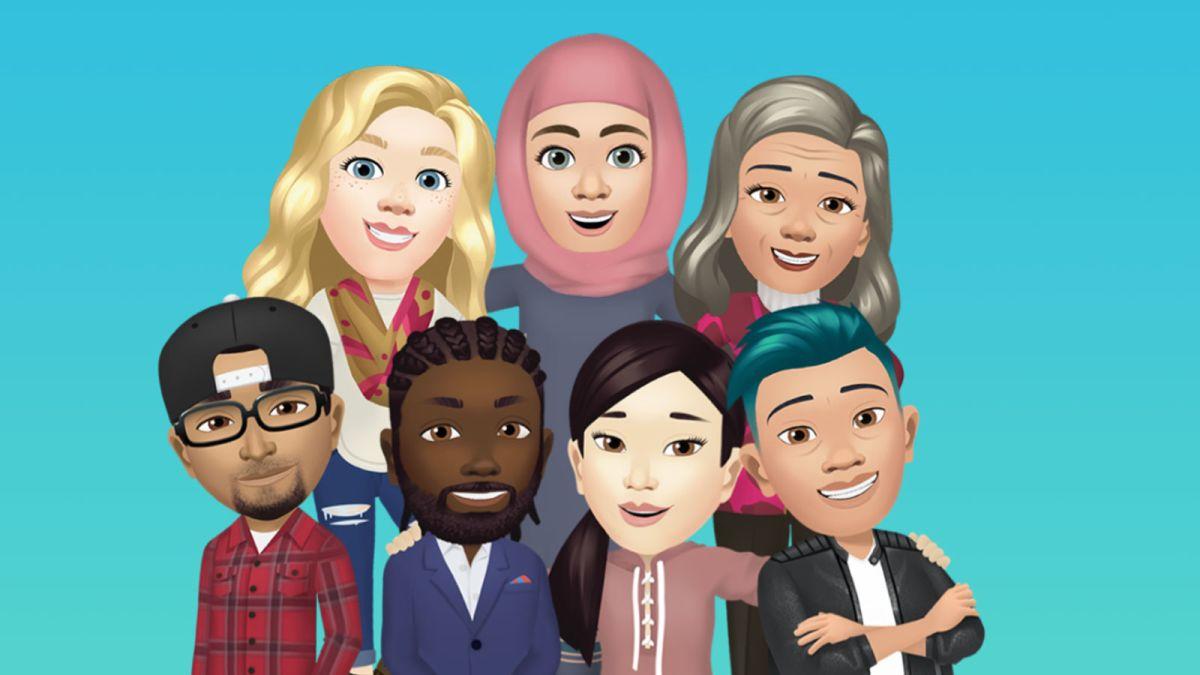
    Facebook has launched a new feature that allows users to create avatars of themselves. Similar to Snapchat’s Bitmoji, the Facebook avatar can be used when making comments, Facebook stories and when chatting in the Facebook Messenger app.

    This feature was initially tested in 2019 in only Australia but after a successful trial phase, the decision to extend to other users of Facebook. Before you can use this feature, please make sure your Facebook is up to date.

    In this article, we are going to show you how to create a Facebook avatar that looks just like you. Unlike Snapchat’s Bitmoji where you needed to download a new app before creating your avatar, the entire avatar creation process takes place in the Facebook app without any additional downloads.

    How to create a Facebook Avatar that looks like you

    Enough of the plenty talk, let’s jump into the creation process. The steps for creating an avatar that looks just like you on Facebook are:

    Open Facebook and tap on the three horizontal bars on the bottom-right corner of your screen

    In case you don’t have the app, download the Facebook app from the Google Play Store or the Apple App Store. The Facebook app is free.

    Scroll down and select “See More”

    Once you click on the three horizontal bar on the bottom-right corner of your Facebook screen, a pop-up menu will show with different options. Some of which include your name and all your Facebook pages.

    You need to scroll down to the bottom part of the Menu and select “See More” which comes before “Help & Support.”

    Select “Avatars”

    After clicking on “See More,” a drop-down menu will show up will fifteen (15) options. All you have to do is to select the second option “Avatars.”

    Click on “Next” and then “Get Started”

    After selecting the “Avatar” icon, click on “Next” to get started.

    Select the skin colour that fits you and then click “Next”

    There are 27 skin tone options available for you to choose from depending on the one that fits you best. After selecting your preferred skin tone, click “Next” to continue.

    Choose your preferred hairstyle for your avatar and then tap on “Color”

    You’ll then be instructed to choose a hairstyle for your avatar. The available options are: Short, Medium or Long with a variety of styles. Upon selection of the hairstyle, then select the colour for the hair.

    Select the “Face” of the avatar

    This is the most important part of the entire avatar creation process. This is where you choose the face shape, complexion and face lines for the avatar.

    Tap on the “Eye” icon and then select the shape and colour of the eyebrow

    From “Face”, the next step is to select the eye for your avatar. You need to select an eye shape, colour and the length of the eyelash. From there, then move on to the “Eyebrows” icon and select the shape and colour of the brow. Optionally, you can add a spectacle.

    Select the Nose and mouth for your avatar

    Now, you need to customize the nose and mouth for your avatar. Choose the shape of the nose, then the shape of the mouth. Optionally, you can also add a lip colour and facial hair for your avatar.

    Select a body shape and the outfit for your avatar

    Finally, you need to select the body shape. Upon successful selection of the body shape, you can then choose the outfit you like best for your avatar. Depending on your preference, you can add a hat, scarf or cat ears to the outfit you selected.

    Tap on the “Next” icon and finally “Done”

    Once you’re done with the customization, tap on the check icon in the top right corner of the screen, then tap on “Next” and finally “Done.”

    Conclusion

    Well, that’s it, you’re all set now. You have your unique Facebook avatar that you can share with your friends loved ones on Facebook. To use your avatar when making any comments, just tap on the smiley face icon next to the gif icon.

    Finally, make sure to share with your friends on Facebook so that we can all make the most out of this new feature.

  • How to Secretly Record all WhatsApp Calls on your Smartphone

    How to Secretly Record all WhatsApp Calls on your Smartphone

    For some people, keeping records matter a lot. It’s no surprise that call recording apps are very popular among smartphone users.

    However, as there is more and Internet-based calling nowadays, it makes sense to record those calls too for those who are so much interested.

    For this, let’s introduce to you an app called Real Call Recorder.

    It is one of the most famous WhatsApp call recorder records. It can also record calls made on Skype, Viber and Tango as well.

    So, if you have any of these apps besides WhatsApp, you can use this single app to records your calls automatically.

    It records both, incoming as well as outgoing WhatsApp calls. So, you’re assured that whether you call someone or someone calls you, you always have its recording available when needed.

    Real Call Recorder stores all the call recording on your phone or SD Card in .mp3 format. With this, it becomes super easy to play call recordings at any time with a single tap.

    Also, this app has the ability to share those recordings on Social Media directly from the app.

    Prominent features:

    1. Ability to listen, replay and delete the recording.
    2. Save on Social Media like Facebook, Twitter, etc.
    3. Directly add as an attachment and send as a mail through GMail.
    4. Stores recording in .mp3 format.

    Download Real Call Recorder

    Visit the Google Play Store and search “Real Call Recorder” or you can click here to download directly.

    How to Record WhatsApp Calls on Android Using Real Call Recorder

    1. Open the app
    2. Select WhatsApp and enable recording.

    Now, whenever you make a WhatsApp call, it will get recorded. You can view it in the Recording List of the Real Call Recorder App.

  • How You Can Enjoy 50% Discount on services with MTN MashUp (MTN Pulse)

    How You Can Enjoy 50% Discount on services with MTN MashUp (MTN Pulse)

    Do you know there’s a way that you can enjoy a free discount on several shops in Ghana just by using MTN MashUp (MTN Pulse)? If no then this article is for you and if YES, this article is for you as well.

    MTN has introduced a new offer for customers who use the MTN MashUp bundle often by giving them free discounts on some selected shops nationwide.

    This loyalty reward package is one of MTN’s COVID-19 relief packages for its customers who have been with them throughout these abnormal times.

    The name of this loyalty package is Pulse Loyalty; as the name suggests, it is mainly aimed towards the customers on the MTN Pulse platform or bundle.

    How Do You Get the Discount Codes?

    Before you can get a discount on the selected stores, you need to generate a discount code from MTN pulse. The following steps show how you can generate the MTN Pulse discount code.

    • Dial *567#
    • Select Pulse Loyalty (option 4)
    • Select your preferred store from the list provided.
    • A congratulatory screen with the code will be shown.

    What is MTN Pulse?

    You can find all about MTN Pulse and all the available offers here: https://mfidie.com/mtn-pulse-mash-up/

    What is MTN Pulse Loyalty?

    MTN Pulse Loyalty promo is a promotion that is run by MTN to reward customers who have subscribed to the MTN MashUp bundle.

    In this promotion, MTN MashUp customers will be given a discount on some selected shops in Ghana. The discount ranges from 5 percent to whooping 50 percent.

    The selected stores and the respective discount percentages are:

    Silverbird Cinema

    The Silverbird Cinema is one of the (if not the) largest movie cinemas in Ghana with over 5 branches spread across the country, mostly at shopping malls. The movies that are shown ranges from local to international movies.

    Under this package, customers enjoy a 50% discount on all tickets they buy from Silverbird Cinema every Monday. This reward package is also called Cinema Mondays due to the fact that it runs only on Mondays.

    Silverbird Cinema has the highest discount code throughout the MTN Pulse Loyalty offer, i.e. 50%

    Potbelly Shack

    Potbelly Shack is a restaurant, bar and cafe’ that produces contemporary cuisines and barbecue. The meals are mainly lunch and dinner, they do not cook breakfast. They offer takeout and dine-in as well.

    Under this package, the exact percentage of discount you get is not stated in the confirmation message that you receive from MTN Pulse.

    Unlike Silverbird Cinema, Potbelly Shack’s discount code is available from Monday – Thursday, making it the only reward package that lasts more than a day. Potbelly Shack can be located at East Legon opposite the Adjiringanor school park or you can visit their website.

    UKBrand Store

    This package is for clothes lovers and those who shop at the various UK Brand stores in Ghana.

    When you buy clothes from UKBrand store every Wednesday using the Pulse Loyalty discount code, you get a 10 percent discount on all your purchases.

    This package also runs on only Wednesdays.

    KFC

    This one is also for the food lovers especially those who buy their food from KFC shops across the country.

    KFC is one of the most popular restaurants in Ghana with several shops spread across Ghana. Their food ranges from rice meals to chicken meals.

    The KFC discount code is worth 5 percent discount. Meaning, whenever you buy food from KFC on Fridays MTN Pulse is paying 5 percent for you leaving you with 95 percent of the total cost of your order.

    Conclusion

    The discounts on some of the stores though not enough is fair enough considering this pandemic and the high cost of items in the country.

    Note that, each store has its own day (s) of validity, therefore if you try to generate a discount code on any other day aside the one assigned to it, it will not be possible.

    So, you need to take note of each store and its validity day (s). In summary:

    Silverbird Cinema is available on Mondays only.

    Potbelly Shack is available from Mondays to Thursdays.

    UKBrand Store is also available on Wednesdays only.

    KFC is available on Fridays only.

    Make sure to make use of this offer and comment on your experience below.

  • How To Send Photos On WhatsApp Without Losing Quality

    How To Send Photos On WhatsApp Without Losing Quality

    Whatsapp is known for reducing the quality of images shared and sent on the platform. Whatsapp is owned by Facebook Inc. and available for both IOS and Android devices.

    Most people have not been paying much attention to this but the majority of its users know about this image quality reduction. Default the app has been made to reduce image quality shared on the platform.

    I had an image with a file size of 1.1 MB after I shared the same image with a friend using the old default method of sending, the image was reduced to 34 Kb of file size. This dropped the quality of the image.

    Sharing or sending an image without losing its quality is very easy. What is needed to be done is to bypass the default of sharing a photo by sending it as a regular file to your contacts.

    In this article, I will show you how to send images on Whatsapp by maintaining the original file size. This process differs on IOS and Android.

    Sending A Photo On Whatsapp By Maintaining Its Quality (Android)

    This method works on all android devices.

    1. Open Whatsapp and navigate to the contact you are sending the image to
    2. Click on the plus icon or paper click. Do not choose a photo.
    3. Choose documents.
    4. Now click on browse documents and navigate to the stored location of the image you want to send. Select the image and send. This will send the image as a document file.

    The receiver will receive the image in a document format and the quality will be the same without compression. To simplify the procedure above, you can also use this enhanced method.

    • Click on the plus icon or paperclip in the chat.
    • Tap on Documents>Browse other Documents>Images>Camera.
    • Select the desired picture and send.

    Sending A Photo On Whatsapp By Maintaining Its Quality (iOS)

    The procedure above differs slightly with IOS users. Below are the steps to send images on Whatsapp without losing its quality on IOS.

    • Open Whatsapp and navigate to the chat you want to send the image
    • Select New Group on the drop-down menu list
    • Select Share
    • Select the image and on the sharing options, save it on iBooks.
    • Now, a shareable PDF file has been created. You can now send the image in PDF and the quality will be maintained without Whatsapp compressing the image as in the old way.

    Sending A Photo On Whatsapp By Maintaining Its Quality (Mac Or PC)

    If you are on Whatsapp web or have downloaded Whatsapp on your PC or Mac, follow below steps to send pictures in high quality.

    1. Open Whatsapp or Whatsapp web on your computer.
    2. Navigate to the particular chat you want the image sent to.
    3. Choose the share button
    4. Select Documents
    5. Choose Browse Document to enable you to navigate through your file manager.
    6. Select the image in the location it’s stored and send.

    Conclusion

    Whatsapp image comprehension is a headache to many who send images on the platform. A high-quality image will be reduced to a minimum size, which affects the quality of the photo.

    In this article, I have shown you that, it is always advisable to send images in a document file if you want to keep its original quality.