When you share a Facebook post with someone other than yourself, Facebook enables the target audience to see the post, respond, leave a remark, and share it with others.
It’s simple to see how many people have shared your post on Facebook, but whether or not you can see the identities of all of those individuals depends on your privacy settings.
There are a few ways to find out who you shared with, and Facebook lets you modify your sharing options to match your privacy requirements.
In this post, we will list out two possible ways to answer the question “How to see who shared your post on Facebook”.
How to See Who Shared Your Post on Facebook
Checking Your Facebook Notification
Once you’ve logged in to Facebook, select the bell symbol on the right side of the blue navigation bar.
After that, anytime you get your post shared, liked or commented, you will be notified on your notification bar.
If you recently posted something, you’ll see all the latest information about it, including comments, likes, and who shared it.
Checking Your Timeline on Facebook
In the cover book of your timeline, you may also see who shared one of your posts. The procedures below might be used to find out who shared your post.
Go to your “Profile Name” and click to access your timeline.
You may view a list of the posts you’ve made on Facebook in reverse chronological order on your timeline.
As a result, your most recent post will be displayed first.
Below the post, you’ll see features for liking, commenting, and sharing.
Check the “to share” section of your Facebook post to see who shared it.
The number of times your post has been shared on Facebook will be updated here.
Simply click “to share” to view the user who shared your content. Also visible is the person’s name.
Can i check who shared a post that Is not mine?
You can also check who shared a post that isn’t yours as long as the respective post is public. To do so,
Go to the page of the person or organization that published that post.
Click on the button indicating the number of shares.
A list will pop up with the names of the people who shared that post.
Is it important to see who shared my Facebook post?
How important who shared your post depends on you. You may have posted something vital on your timeline and you want to see how far it has reached. For that, it will be necessary for you to check its progress and see how far it has gone so thats makesuit important for you to keep tabs
Conclusion
I just showed you how to discover who shared your Facebook post. You may discover who shared your Facebook posts using the methods mentioned above in two straightforward ways.
You might wish to swiftly delete a large number of your Snapchat buddies and are unsure how to go about doing so. You might as well stop using Snapchat and other social networking applications if you don’t have many friends to interact with there.
Speaking with them, making Snapchat calls, and competing with their streak scores are all more enjoyable the more friends you have on Snapchat. Having a lot of Snapchat friends, especially strange ones, is never nice since you’ll receive a lot of unsolicited messages and snaps.
What Normally Occurs When You Delete A Snapchat Friend?
They won’t be able to see any stories or other anything you have posted that is not public after you delete them as a friend. The history of your conversations will also be erased, and they won’t be able to see you on the Snap Map. Unadded friends can still see your public stories if you make them public.
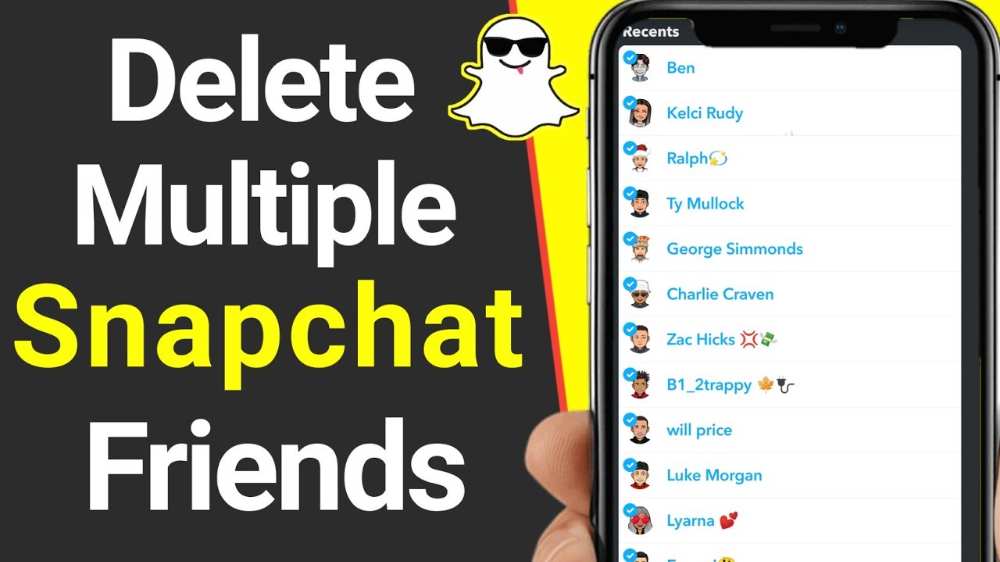
How to delete more than one snapchat friend
A built-in capability to choose multiple friends for the deletion or unadding does not yet exist. You do have a few choices, though:
You have the option of deleting your whole Snapchat account, creating a new account, and adding your old friends again.
Each friend can be eliminated separately (which may take a long time.)
To expedite the entire procedure, utilize a macro tool.
1. Delete your Snapchat account completely
All of your pals will undoubtedly disappear from your Snapchat friends list if you delete your account. Additionally, everything connected to your account—memories, saved stories, chats, Snap Score, and more—is deleted. Your Snapchat account enters a 30-day “deactivation period” after deletion. Everything is permanently destroyed after the 30-day period has passed.
As you wait, you may create a new Snapchat account and add all of your remaining friends. This can wind up being the best option if the information associated with your Snapchat account isn’t crucial to you and you have too many friends to attempt to delete.
First, click the supplied link to launch the Snapchat portal.
The Snapchat site will appear. Open the “Delete My Account” link in the support section.
To continue with account deletion, follow the link.
When it opens, type your Snapchat password and username.
Log in to your account after providing the necessary information.
You will input the OTP given through it and click the “Submit” button after receiving it on the cellphone number associated with your account.
A page titled “Delete Account” will then be shown to you.
Click the “Continue” button after entering your login and password a second time.
All of your friends’ accounts, including yours, will be terminated simultaneously.
2. Remove Friends One by One
We wish to avoid this one since it is tiresome. However, it is usually simplest to just remove fewer than 100 friends the traditional method.
Removing a buddy shouldn’t take longer than 10 seconds if you’re attentive. This implies that you have to be able to cut pals at a rate of at least six every minute, or 180 per hour. You may unfriend someone on Snapchat by doing the following:
By selecting the Bitmoji symbol, navigating to the bottom, and selecting “My Friends,” you may access your friend list.
Locate the buddy you wish to cut off.
For a few moments, hold down on their name until a box appears.
Select “More.”
To remove a friend, click.
On the confirmation box that appears, select “Remove.”
This procedure completed completed in 5 seconds or less if you’re quick, according to a source. This would still be finished in under 2 hours, even if you were to remove a staggering 1,000 individuals. and most likely act as a useful reminder to be pickier about who you choose to include in the future.
Will someone on Snapchat notice if you remove them and then add them back?
There is a potential that they will find out if you remove someone from Snapchat and then add them back. If they don’t find you thereafter using the search feature to look for the newly added friends, they will know that you have unfriended them. They could, however, believe that you blocked them.
Apply a macro
This is a fascinating one. Maybe you’ve never heard of a macro, it’s basically a means to record an activity that you want to repeat continuously on your phone for as long as you like.
You can even speed up some macros so you can simulate taps on the screen more quickly than people are physically capable of doing so!
Therefore, the concept is to record a macro of a buddy being removed. The procedure is then automatically repeated by the macro so you don’t have to.
The program plainly has no notion who you want to keep and who you don’t, which is the sole drawback of this tactic. It can go through your list of friends and delete them one at a time for you, but it cannot ignore those you want to keep.
Even so, this could be a better option than completely deleting your Snapchat account and losing all of the associated data.
How to Make Your Phone a Macro
Currently, only Android phones can use macros (although there is a workaround for iPhones that I’ll cover in a bit).
Since every macro app is unique, discussing the precise programming of each is outside the purview of this tutorial. But some of the most well-liked Android macro applications are as follows:
MacroDroid
AnkuLua
QuickTouch
Automate
E-Robot
NB: Even though everyone on your friends list would be deleted if you delete your account, this should only be done as a last resort. If you need to unfriend a big number of individuals, do it one at a time or with a macro. Even while it is frustrating, if you remain focused, it actually doesn’t take that long.
Conclusion
Despite the fact that Snapchat doesn’t have a built-in feature to delete numerous friends at once, there are a few workarounds
One of the most widely used social media networks nowadays is Snapchat. It is an application that offers users the ability to communicate with one another using images or snaps.
With the aid of this social media platform, many individuals also get to speak with new people. Many people are curious about the fundamental words used on Snapchat. We’ve put together thousands of Snapchat slang and their definitions and meaning today.
About snapchat slangs
Snapchat is an instant-messaging app that lets users send and receive photos, texts and videos (known as Snaps) for up to 10 seconds before they disappear.
Snapchat users have created their own unique language, known as Snapchat Slangs, for easier communication and also include emoticons that convey how someone is feeling at any given time.
We take a look at some of these slangs and emoticons that you might want to keep in mind when using Snapchat or conversing with other Snapchat users.
Snapchat slangs and their meaning
Snapchat Slangs
Meaning of Snapchat Slangs
Atm
At the moment
Amos / Amosc
Add men on snap /Add me on Snapchat
Asl
Age sex location
Asap
As soon as possible
Alr
Alright
Alt
Alternatives
Awl
Always with love
Brb
Be Right Back
Bml
Bless my life
BMS
Break my scale
BTS
Be there soon
CBA
Can’t Be Arsed
CBF
Can’t Be F**k
CC
Carbon copy / Credit Card
CYA
Cover your A**
DM
Direct Message
DTB
Don’t Text Back
DW
Don’t Worry
DWU
Don’t wait up
FFF
Follow for follow
FGF
Formal Girl Friend
FPF
Favorite Person friend
FR / FRFR
For real /For real for real
FT / FTM
Face Time / FaceTime Me
FWB
Friends with benefits
GM
Good Morning
GN / GNS /GNS
Good Night /Good night streak /Good night/ Snapshot
HBU
How About You
HG
Holy Grail
HKD
Hate Kill Destroy
Hon
Honey
Hsub
Husband
HTL
Hit the line
HRU
How are you
IBF
Internet Best Friend
IDK
I don’t know
IDC
I don’t care
IDM
I don’t MInd
ILYSM
I love you soo much
IML
In my life
LGHT
Let’s Get High Tonight
LK
Low Key
LLS
Laughing like shi*t
LMAO
Laughing my A** out
LML
Laughing Mud Loud
LOL
Laughing Out Loud
LOML
Love of my life
SMH
Shaking My Head
WCW
Woman Crush Wednesday
How important are Snapchat slangs?
Snap chat slangs makes chatting simple and easier. It also makes non snap users not to decode what Snapchat users are communicating about, making it interesting and unique among the other social platforms.
Conclusion
With slangs in snapchat, communications become easier. As a snapchat lover, its necessary to know your popular slangs in order not to be behind the new trends.
It might be difficult to begin a new paragraph on Facebook Messenger, especially if you’re accustomed to using your computer’s default text editor. On Facebook Messenger, there is no set method for beginning a new paragraph.
When writing longer texts, paragraphing is a crucial factor to take into account. Paragraphs can help you communicate your ideas more clearly, whether you’re sharing a crucial fact or an engaging tale.
How to start a new paragraph in Facebook Messenger
Method 1
Using your desktop and laptop browser
On your PC’s web browser, go to FB.com or Facebook.com.
Enter your Facebook ID now by giving the necessary information.
Then, from the top menu bar, select the ‘Message’ icon.
You may now pick any of the discussions you want to start from the list.
Choose the recipient of your message accordingly.
As a result, the chat box will show up on the screen.
Enter your message in the message field to begin.
Simply press the “SHIFT+ENTER” keys on your keyboard simultaneously every time you want to add a new paragraph or a line break. In this manner, you will be able to observe that a new line break has been made and the message has not yet been delivered.
In a PC browser, this is the simplest method for adding a new paragraph to Facebook Messages. All you need to do is keep in mind the shortcut key combination “SHIFT+ENTER” to use that.
Another brief hint is that if you need to manually create a new paragraph or a line break in any other programs, you may use this shortcut key combination to do so.
If you haven’t already, sign into your Facebook account first. Start typing your new status update in the relevant area now.
Now, for PC browser users, adding a new line is as easy as pressing the Enter key twice on your PC keyboard. This will create a new paragraph or line break.
Additionally, users using the Facebook app for smartphones can touch the “Done” or “Enter” key on the floating/virtual keyboard on their device’s screen.
Using the Facebook app on mobile phones
If you haven’t done so before, first log into your Facebook account.
In the relevant area, begin by typing your new status update.
In order to add a new line, PC browser users just need to hit the “Enter” key twice on their keyboard.
New line breaks or new paragraphs will be created as a result.
For those who use the Facebook app on their smartphone, you may also touch the “Done” or “Enter” key on the floating/virtual keyboard on the device’s screen.
The result will be the addition of a new paragraph.
Method #2
You can easily add a new paragraph to a status update by clicking the “Enter” key twice on your keyboard if you’re using Facebook’s desktop version. This adds a line break so that you may begin typing the following paragraph after the first one.
If you’re using a mobile browser or the Facebook app on a smart device, the same technique will apply to status updates (smartphone, table).
The “Enter” option does not always start a new paragraph when entering and uploading a remark on Facebook. Instead, it works with the Facebook app on smartphones, tablets, and the majority of mobile browsers.
However, using the “Enter” key will only submit the remark while using Facebook’s desktop application. Thus, you must simultaneously press “Shift” and “Enter” to start a new paragraph.
Conclusion
I’m curious why there isn’t a way to start a new paragraph on Facebook. But everyone is aware that in the future, we will have the opportunity to add a new paragraph and perhaps other techniques to make our content appear more appealing. But until then, we must utilize two keys: shift and enter.
People use their real identities in the Facebook community. Having multiple personal accounts on Facebook is against Community Standards.
With billions of members worldwide, Facebook is the most popular social media platform. Facebook is typically used for socializing and staying in touch with loved ones.
However, as individuals spend more time online, many are wondering if they may create several Pages on Facebook.Why can’t I have two or more accounts on Facebook?
According to Facebook rules, one Facebook account for an individual. Its against their rules when an individual creates two Facebook accounts for his personal use.
Facebook will terminate both of a user’s personal accounts if they find out an individual is running two accounts.
What happens if I create two or more accounts on Facebook?
The fact that managing two Facebook accounts would be difficult is a more practical explanation. Finding the boundary between the two accounts might prove to be a logistical headache.Therefore, it is advisable to utilize Facebook’s privacy settings rather than having to separate the two faces of your life.
Can I Create a different Facebook account for my business?
Using your personal account, you can establish and maintain a page to represent your company, organization, brand, or product on Facebook. Always keep in mind that a personal profile represents an individual person and is intended for non-commercial usage.
How do I manage two or more accounts on Facebook?
It is not uncommon for people to have more than one Facebook account. Managing two or more accounts can be tricky, but there are many ways to do so.
The first way to manage multiple Facebook accounts is to simply run them both from one device. If you’re concerned about sending and receiving messages on multiple accounts, you can log out of all but one account at a time, so that all messages go to your main account.
The second way to manage multiple Facebook accounts is to use third-party applications. There are many apps out there that help you manage and monitor multiple Facebook accounts, including Social Profiles Manager, which has a free plan that allows you to manage up to three different accounts.
Is it possible to share or open a Facebook account jointly with another person?
Yes, it is possible to share or open a Facebook account jointly with another person.
The first step is to go to Settings and then select Apps.
Next, you should deactivate any apps that you do not want the other user to access by clicking on the app and choosing Deactivate App.
Lastly, go back to the home page and select Family from the top menu bar.
If you have added anyone to your Family list, you will see them on the list.
Click Add Member and choose the name of the individual who will have joint access with your account.
The next time this person logs into their own account, they will be able to use both profiles at once as well as post on either profile individually or as both profiles simultaneously.
Conclusion
You can have as many Facebook accounts as you wish to have but keep note that, Facebook does not support such act and as time goes on, your accounts will get deactivated if Facebook finds out the accounts are for an individual.
Snapchat has become one of the most popular social networks around. Its popularity also means that hackers are on the lookout for ways tto gain access to your account for their gains.
In this guide, we will tell you how to protect your Snapchat account from hackers so you can keep your private life as private as possible.
About Snapchat
Snapchat is a social media app that can be accessed through any Apple or Android device. It was created in September 2011 and has been one of the most popular apps since it launched.
With over 100 million daily active users, it allows users to send and receive pictures, videos, and messages. These posts are called snaps.
Users can set a timer on their snaps which will determine the length of time the receiver can view the post before it will disappear. Users can also add text or drawings onto their snaps.
Why protecting your snapchat account is important
In general, Snapchat is a fun way to keep in touch with friends and family. However, there are some reasons why you might want more control over your account.
One reason is that if your account gets hacked, the hacker will have access to all of your data, including those photos and videos you shared.
You won’t be able to access your account again and you will loose it completely. So if you have any vital data, you are at risk of getting it exposed.
How to protect your snapchat account from hackers
Below are some methods you can follow to protect your snapchat account from hackers and keep it as safe as it can be.
Turn on two-factor authentication
Ensuring two-factor authentication is activated on your snapchat account should be a must. Two-step verification let user to access another device or app before they can be logged into their snap making you aware whenever thete is any odd login. It makes logging in less convenient and more secured.
To setup two-factor authentication on your snapchat account,
Log into your Snapchat account and press the ghost icon at the top corner on your profile page.
Click on settings
Scroll throught settings and select “Two-Factor Authentication”.
Click “Continue.”
Select ‘Text Verification’ or ‘Authenticator App’ and then follow the instructions to enable.
Set up a strong password
Another step in protecting your Snapchat account is setting up a strong password. Dont just use any weak password that can be easily guessed.
Follow these tips for creating a difficult-to-crack password:
Use upper and lowercase letters, numbers, and symbols (e.g., Qwerty123 or !@#$%).
Mix it up with at least one letter, number, and symbol (e.g., qwerty123 or R8sE83k).
Be careful with malicious links
Many people rely on their social media accounts for business and personal use. This can make them a target for hackers. To keep your account secure, you should be careful when clicking links or downloading apps to your phone.
You should only download new apps that are recommended by friends and family, never click on links in emails, messages, or posts, and never enter your login information in an email that you weren’t expecting.
Don’t add strangers to your friends list
Keep your account as private as possible by not adding strangers to your friends list, and instead adding people you know or who are your friends on other social media platforms. This will make it more difficult for someone else to hack into your account.
Use the most recent updated version of the app
The app regularly update their system to fix bugs and also their security system. Updating your app to the latest version helps with security and thus, its advisable to do so whenever there is a new update.
Conclusion
Snapchat is a really fun way to stay connected with friends and family. Unfortunately, if you don’t take precautions, your account can be compromised by hackers. To make sure your account stays secure, remember the above steps.
If you’re not active on Snapchat, you may be wondering how you can tell if someone else is actively using this mobile messaging app.
This article will walk you through how to know if someone is active on Snapchat, no matter whether they’re someone you know personally or if they’re just one of the many Snapchat users out there in the world.
Snapchat
Snapchat is a mobile messaging application used to share photos, videos, text, and drawings. It’s free to download the app and free to send messages using it. It has become hugely popular in a very short space of time, especially with young people.
How to know if someone is active on Snapchat
Checking snap maps
There are many ways you can know for sure whether or not someone is active on the app. One way is by checking their snap map, which displays the last time a user has snapped with a person and how far away they are from them. This method isn’t always accurate, but it can be effective in some situations.
If the person has not switched to Ghost mode, then you should be able to see when they last used Snapchat and where they were when they were online. To access the map,
Open the snapchat app and locate Maps at the bottom left corner.
Press on it and tap on search to search for the persons name
After search, a bitmoji will show app indicating the person. Click on that.
Now, look at the bottom and beneath the persons name shows the persons last seen on Snapchat written in a grey like text.
Checking snap chat status
Checking somone chat can also be a way to detect when last they used the app and when last they were active. Snap chat status are mostly seen at the top of the users chat when you open your chat with him/her. You can also check by,
Opening the app and go to the chats screen.
Next, press the settings icon in the top-right corner.
Then it will show you the last time your friends were active on Snapchat.
They are likely still active on the app if the time is recent, if not, the last time they were active will show.
Using snap score
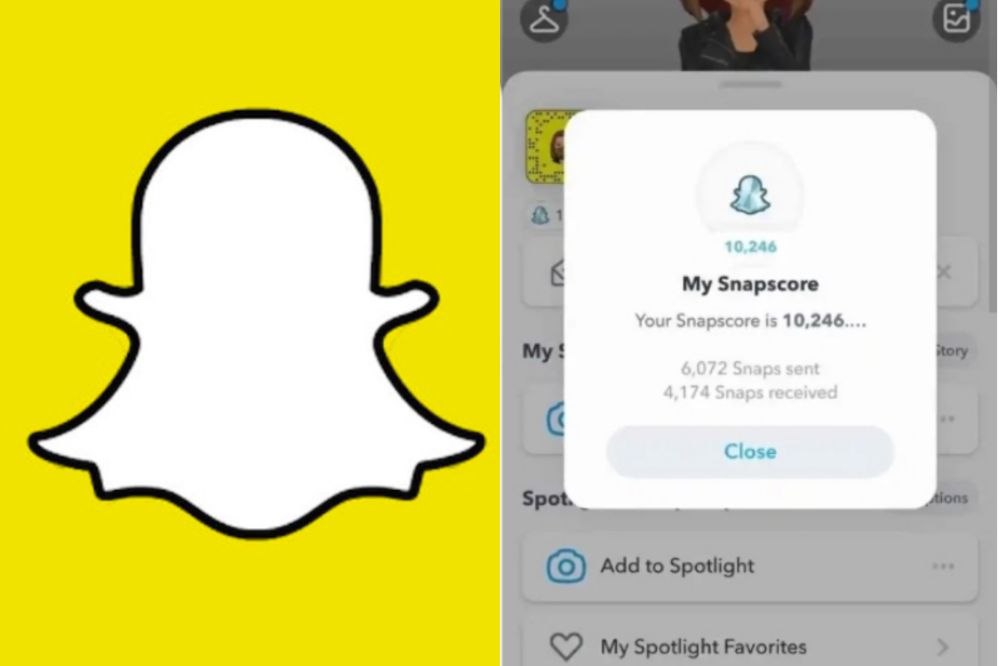
Increasing your snapscore depends on how actively you can use snapchat. So, snapscore can also be a method to determine a users activeness on the app. The higher the score, the more active the user. To check a person’s snapscore,
Open the snapchat app and swipe down from the top of the screen.
In the next pop-up, press the “Settings” icon in the top-right corner of the screen.
Scroll down and press “My score.”
It will show you the Snapchat score of the person you are looking for.
If the score is high, the chances that the person is more active on Snapchat are also high.
Checking their status update
Checking someone status update can also tell you how long they have been on snapchat. At time too, the user can be on snap but will not update their status. For that, if you have made an update yourself, you can check from your views to see if the person has viewed your status and when the person viewed it. To check someone story posts,
Open the app and go to the “Stories” screen.
Look through the updated stories on your wall and check if the person has updated their status.
You can also search the persons name directly to check the last time they made a post.
If there is no post attached to the name, it means there has been no update from the person.
However, you can go back to stories and locate my stories to check if the person has viewed your snap status update. To do that,
Open snapchat and tap on stories.
Locate my stories and press the settings icon in the top-right corner of the screen.
Scroll down and press story views.
It will show you a list of people who have viewed your story.
If you see the person in your views, you can see when the person viewed to know when the person was active on snap.
Why do you need to know if someone is active on snapchat?
You may have come across someone’s snapchat profile but don’t know if they are active. You may have messaged someone but has got no repgot and don’t know if they are active.
You may want to monitor how active your child is on Snapchat. This all and more could be reasons why you want to know how active someone is on Snapchat.
Conclusion
Checking someones activeness on snap shouldn’t be a hard work. With the methods above, you can now have your easy way to do so.
In the world of social media, your online reputation can make or break you in your business and personal life alike. This makes it important to know how to see who has shared your facebook post and how to get others to share your content.
In this article we will talk about some tips that will give you more insight into what other people think of you, as well as help you to get others to share your content with their own friends and family on facebook.
About facebook
Facebook is the world’s most popular social network. What started as a way for college students to connect with each other has grown into an international phenomenon, with more than 1.6 billion monthly active users.
Facebook post sharing
Incase you didn’t know, you can actually see who has shared your post on Facebook. All you need to do is go into the Activity Log and search for your post. It will show up there with the people that have shared it. Lets break it down for you.
How to see who has shared your post on facebook
The steps below will guide you to see who has shared your post on Facebook.
Step 1 – Login to your personal facebook account
Open Facebook app or visit www.facebook.com. Enter your username and password and then click on login to be able to have access to your facebook page.
Step 2 – Click on the ‘Friends’ button
Now you are logged into your Facebook account. At the top right corner, locate the friends button and click on it.
Step 3 – Click on ‘Activity Log’
Click on Activity log in the next pop up menu to show you the activities you have undertaken with your Facebook account so far.
Step 4 – Click on ‘Posts’
Inside the Activity Log shows your post you’ve shared and want to see who have sharedliked or commented on it.
Step 5 – Click on ‘View Sharers’
Now, click on view sharers to see users who have viewed and shared your post. Its now time to show appreciation in order to motivate them to share more of your work. A thank you for sharing my post in their DM will be much worthy.
Step 6 – Check to see if the amount of people sharing is what you expected
Now, you may have a specific person you want to check out whether he/she has shared your post or not. Its time to do so by glancing through the sharers.
Is it necessary for someone to share my facebook post?
Sharing your post helps to keep it more active on news feed. Every seconds on Facebook, people make a post and the more there is a new post, the more yours drops so its important if people shares your post. It helps it to appear in most places making it more active.
Conclusion
Now that you know how to see who has shared your post, it’s time for you to get out there and start reaching people with your message. The sooner you share it, the more chances you’ll have of someone seeing it.
If your Snapchat score is not updating, it can be very frustrating and confusing to tell if you are actually growing or if it just seems like it because of the constant freeze ups and resets.
I have seen many people throw in the towel over this issue, but there are some simple things you can do to fix this problem so that your Snapchat score will start to update normally again.
What is snapscore
Snapscore is a measure of popularity on Snapchat, which is based on the total number of snaps that have been sent by each user. Scores can range from 1-100. The score does not change unless the user deletes their account or stops sending snaps for more than a month.
Where do i find my snapscore
There are a few ways to find your Snapchat score. You can open the app, click the ghost icon on the top left corner, and your profile will pop up. On your profile is your username and beneath it is your snapscore.
How to improve your snapsocre
To iimprove your snapscore, you have to earn snap points. To earn snap points, you have to a frequent user of the app, interact with people regularly, send snaps, watch and post stories, and more. Using the app as much as possible is the best way to increase your snap score on snapchat.
What causes snapscore to freeze?
Several reasons can be considered as to why your snapscore has freezed. Below are some points given on why your snapscore has frozen or can freeze.
Delay in update
When snapchat is updating your snapscore, it can freeze when the score you’ve amazed are plenty and can cause delay. If you wait for some time, you will see the new update and your score getting back to work.
Slow internet connection
Bad or slow Internet connection can also be a reason why your snapscore has freezed. The more you use snap, the more the score updates itself and since it uses Internet connection in doing so, when there is a break in the connection, the score will surely freeze.
Using an outdated version of snapchat
Snapchat brings updates to fix bugs and thus, entreat its users to update their apps whenever there is an update. If you refuse to do so, it can be a reason as to why your snapscore freezes and you don’t get the best out of it. For that, its best your update your app whenever there is the need to.
When there is a server issue
When the snapchat server is down, your snapcore can freeze. Snapchat going down means, it goes with everything included and therefore, it will freeze the score from getting updated.
How to fix frozen snapscore
Your snapcore has frozen and now you want to get it back. Trying all or any of the below can help out if the cause is from the listed.
Fix frozen snapchat score by updating snapchat app.
Fix frozen snapchat score by checking for good internet connection.
Fix frozen snapchat scores by waiting till snapchat server fixes the issue
Fix frozen snapchat scores by contacting the snapchat support eam when needed.
How long does a snapscore freezes for
They is no exact time attributed for how long a snapscore freezes. The score freezes when he issued arises and it gets back to normal when the issue is solved.
Conclusion
A frozen score can be frustrating. Especially when you see that of your friends getting increased but yours still stays where it is. If that is your worry now, then follow the methods above and get yourself sorted.
SnapChat is one of the most popular social media apps on the market and users can set their birth date through their profile settings on the platform, but some users may prefer to change their birthday after initially setting it, and this article will show you how to do so quickly and easily.
Does snapchat allow users to change their birthday?
No matter how old you are, you will only be able to change your birthday a limited number of times, so make sure it looks right to you before you confirm it.
If you are under 18 years old, you will not be able to change your birth year at all, and if you are over 18 years old, you will not be able to change your birth year to make yourself younger than 18.
Why would you want to change your birthday on Snapchat?
Wanting to change your birthday may be as a result of error you committed in your birthday whiles creating your account or you may want to later reduce your age or increase it for your personal reasons.
How to change your birthday on Snapchat
First of all, you will need to launch the Snapchat app on your phone.
After, tap on the profile icon found at the upper left corner on your phone screen.
After your profile opens, locate the settings logo at the upper right side of your account and tap on it.
When you tap on it, you will then be taken to a page where you will find various options to choose from.
Tap on My Account and then, choose Birthday.
Your birthday tab will open and you will see your old birthday date inserted.
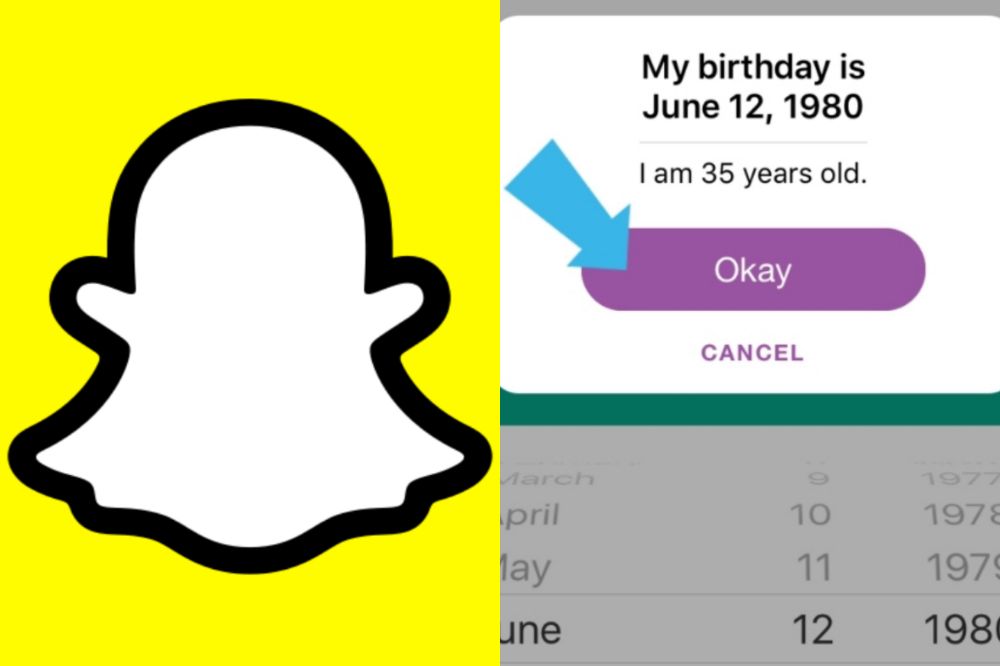
Now, tap and edit them into your prefered satisfaction and press Okay to confirm the changes .
Congrats, you are done changing your snapchat birthday details.
NB: You can enable birthday party after you are done changing your birthday. In doing so, you will get some exciting surprises such as your zodiac sign in your profile when your birthday is due. This will also help friends find and celebrate your birthday, but will not reveal your age to other snapchatters.
Also, you have a maximum number of times you can charge your birthday on snapchat and after that number reaches, you can’t change your snapchat birthday again for the rest of your life.
If I change my birthday on Snapchat, how long will it take for the changes to appear
When you are done changing your birthday using the steps above, wait for 24 hours for the Snapchat administrators to reflect the changes you have made to your birthday on your account.
Conclusion
Changing your snapchat birthday has several reasons and that will be best known to you the user but its worth and you must make sure it is not a regular habit. Following the steps above will help you change your snapchat birthday with ease.