Category: Social Media

  • How to find someone on Facebook using their photo 

    How to find someone on Facebook using their photo 

    Facebook is a social media platform where you connect with your friends all over the world. You can also make new friends from Facebook across the world.

    On Facebook, you can see and interact with friends you’ve not seen physically in a long time. Suppose there’s a friend you’ve not heard from in a while and a Facebook profile you don’t remember, but you want to find that person. There can be just two ways to find that person.

    It’s either you ask other friends to help you out, or you use the person’s picture to find them on Facebook if only you have their picture. Maybe this pic was taken some years back when you were still in contact with him. But if you ask mutual friends around and none of them knows that particular person’s Facebook, then you’d have to search for the profile using their picture on Facebook.

    Currently, there are two known methods to find a person’s Facebook profile using their picture. You can find a person’s profile using the “Google image search,” or sometimes the picture was already downloaded from Facebook some time ago, and every Facebook picture has a numerical ID assigned to it when it’s posted on the media.

    Any image downloaded from Facebook will have that number, so if you know this numerical ID, you can use it to find the source of the picture on Facebook.

    Maybe you’ve seen a really pretty girl’s picture on your friend’s phone, and the gallery folder was “Facebook” you can use this method to find the person’s profile very easily. 

    This is a question that has been asked countless times, so brace yourself as I discuss ways you can find a person’s Facebook profile using their picture in this article. 

    Facebook picture search using “Google image search.”

    With this method, google can scan any image and show you the profile using the image. It can also show you profiles of people using your image without your permission.

    It’s an easy three method step. With this method, you can use a Facebook picture you have downloaded on your device. It’s a simple drag and search method.

    This method can also only be used with a google chrome browser or a Mozilla Firefox browser. Below are steps to follow to search for an image using the “google search image” method. 

    1. Open the google images website.
    2. Locate the picture you want to use on your device.
    3. Tap on the picture and drag it to the google images search page. You’ll see a change in the search box as you drop the image in it.
    4. Google will begin the search after you drop the picture.
    5. Your results of profile or profiles using that image and the websites these profiles are on will appear, and you’ll select. You might see different profiles because, in some cases, some people’s pictures are used without their permission.

    Search With A URL

    You can use the URL method to find a profile using an image on Facebook.

    With this method, you’ll be taking the image from Facebook directly to the google image search page. You can copy its URL and paste it in the google image search box.

    This method is called the “Google reverse image search.”

    1. Open your Facebook app and locate the picture you want to search.
    2. Copy the URL of the image on Facebook
    3. Go to the Google image search page.
    4. Tap on the search by image button
    5. Tap paste image URL
    6. Tap on search by image.
    7. Your results will be displayed by google with the sites and profiles the picture is from.

    Using the “Tineye” method. 

    There’s also another method we can use, which is the “TinEye” method. With the TinEye method, it’s almost like the “google reverse image search.”

    You can copy the URL of the picture and paste it in the TinEye search box, and the list of sites and profiles using that picture will be displayed for you, or upload the picture from your gallery, and search results will be displayed for you. 

    1. First, launch the “TinEye” website.
    2. Upload an image or paste the URL of the image in the search box
    3. Tap enter
    4. You’ll be shown the user of that photo, showing the complete list of the websites using that pic. You’ll be provided links to these websites and sources of the image, which is Facebook. 

    These are among the best and trusted methods to find a Facebook profile using the person’s image. This methods also give you a chance to find people using your pictures on Facebook or any site without your permission. If these methods help you find a person’s profile on Facebook, don’t forget to share this article with your friends. 
  • How to tell if someone has deleted their Snapchat 

    How to tell if someone has deleted their Snapchat 

    Snapchat is a social messaging app where you can connect with people not just around you but all over the world for either business or social purposes.

    On Snapchat, your friends send you videos and pictures of their daily activities and likewise you. This platform helps you connect with new friends worldwide and share fun stuff going on in your lives. One different thing about Snapchat is that nothing you post on the app is permanent. Messages, videos, and pictures you send get deleted right after the viewer sees them. It makes things safer on the platform.

    Sometimes you may be caught up in a moment, and you want to share fun stuff with someone, luckily you won’t wake up with your stuff all around the media thanks to Snapchat features. But like features on every technology, there’s a way around it.

    The app offers you video and photo editing tools that make it possible for you to add the beautiful touch you want to your pictures and videos.

    Some people have heard of Snapchat but haven’t used it before and don’t know what fun one can have. In this article, I will discuss how to use Snapchat and how to tell if someone has blocked you or deleted her Snapchat account. 

    How To Use Snapchat 

    To use Snapchat, first, you need to have a smartphone that supports the app. And it has a front camera. Once you have a smartphone that supports the app, you’re good to go. Follow these steps on how to download and start using Snapchat. 

    • After downloading it, you sign up with your email, date of birth, and name.
    • You’ll be given a Snapchat handle, or you’ll create your handle. That’s how your friends can find you when they want to add you on Snapchat too.
    • Now you’re ready to begin using Snapchat. You can start by taking a picture to edit and share. To do this, you can tap on the camera circle and take a snap using any of the filters you want.
    • After taking the pic, you can use the photo editing tools to picture a new look and share it with your story. This will last for up to 24 hours.

    How To Add Friends On Snapchat

    There are few ways you can add friends on Snapchat. You can either search for the person using their Snapchat handle or add them from being tagged on another person’s snap story.

    You can also tap on your snap profile and hit the friends button to select friends you want to add. You choose to add only people you know or add random people to and add as many as you want.

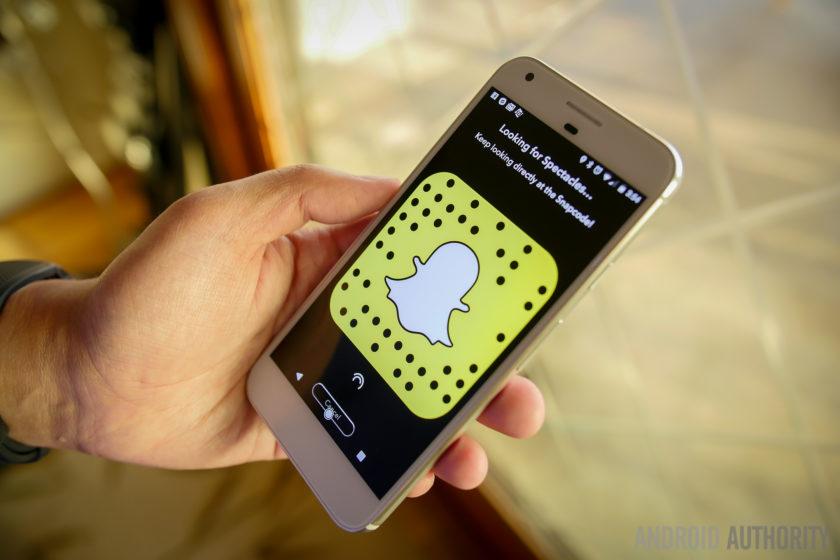
    Another way of adding people is by clicking pictures of the “Snapcode’” that shows up beside their name. Every user has this as a unique feature.

    Once you add your friends, you’ll get to see their snap stories anytime they post on their accounts. One unique part about Snapchat is that whatever you do with a friend’s chat or snap story will be communicated to them. Maybe you might see a picture on their account which you’d love to save but can’t unless you take a screenshot.

    If you do so, the person will be told you’ve taken a screenshot of their snap story. Or, in a chat with the person, screenshots are also reported to them. That’s why you need to take such precautions when using Snapchat. 

    How To Know If Someone has deleted their Snapchat account

    Anyone you add will show on your friends’ list and chats list. So for anyone’s snap name or handle to disappear from your account, then it means you unfriended the person yourself or the person has deleted his account, sometimes you might think the person has blocked, but it might not be. So how do you tell if someone deleted his Snapchat account? 

    Check your current list

    First, you can search through your chats and friends list thoroughly to be sure. Maybe you’ve added a lot of people or texted a lot of people since you last texted the particular person in question, so her name might have gone down the list.

    So to be very sure, scroll down thoroughly if you don’t remember their snap handle, and if you still can’t find it, there’s one last way to be sure they’ve deleted the account and not blocked you.

    You can create a new Snapchat account to check

    You can create a new Snapchat account and not tell anyone about it or add anyone. Search for the person’s username and insert it in the search button. If nothing pops up, then it means the person has deleted their Snapchat and not blocked you.

    Conclusion

    So these are some of the things you should know about Snapchat if you already use the app and don’t these things or you’re yet to check out the app.

    t’s an exciting platform with a lot of fun. Know when it’s appropriate to take a screenshot of other people’s posts and know what to do when you feel like someone has blocked you or deleted their Snapchat account. 

  • Snapchat score: How to calculate & tricks to gain a higher snap score

    Snapchat score: How to calculate & tricks to gain a higher snap score

    Snapchat has become one of the most used social media in the world. A lot of top personalities use it to update their followers on their daily activities.

    They take snaps every day, sharing pictures and videos of themselves. For every social media platform, your number of followers or friends determines your influence on the platform. But for Snapchat, followers are not shown except you’re subscribed to the Snapchat public profile to have subscribers.

    If you’re not on a public profile, you’ll only have your Snapchat score to show your influence on the platform. Your snap score is the result of how you use the app. If you’re someone who doesn’t use the app that much, your snap score will be relatively low. But regular users have a very high snap score. Many people have wondered how the snap score is calculated, but the truth is the Snapchat score algorithm is not known.

    We don’t know how it’s calculated, but we can add a few things with the knowledge we have on Snapchat scores. In this article, we will talk about what the Snapchat score is and a few things to do if you want to increase it. 

    How To Check Your Snapscore

    To check your snap score, you need to open your Snapchat app and make sure it’s your account. Now tap on your profile on the top left right after you open the app. When you tap on the profile, you’ll see your profile and a figure below it. That figure is your Snapchat score. Tap on the figure, and the figure will split in two. The figure on the left is the snap you’ve sent, and the one on the right is the snaps you’ve received. You can also check your friends’ Snapchat score by tapping, and their Snap score will also be at the same place yours is, below the profile. 

    Things To Do If You Want To Increase Your Snap Score

    Send snaps often to your friends

    Your snap score increases by a point every time you send a snap. If you stay away from Snapchat and you return, you’ll get 6 points for coming back. All you have to do is send snaps very often. For every story you post on your Snapchat, you get a point.

     Send different snaps to multiple friends

    You receive a point for each snap you send to a friend. That means if you select ten friends and send three snaps to each of them, you’ll be getting 30 points for that. After you make a snap, it could be a pictured video. Please tap on the yellow button to either post it on your story or send them to your friends. You can choose to post it on your story and send it to your friends. After you tap on the yellow button which says “send to,” select the friends you want to send the snap to and send it to them, send it to your friends.

    Open all unread snaps

    Sometimes you think the snaps your friends are sending you are unnecessary, so you don’t bother to open them. Well, if you want to increase your score, you need to open your snap messages because you receive a point for every snap you open. You can check it out if you doubt it. Open a snap and check your score to see if it increased by one.

    Frequently update your story with snaps

    You receive a point for every snap you post on your story. You get points for the views, too, if you post a snap.

    For this reason, you should post snaps often on your story if you want to increase your snap score.

    Avoid using direct messages to communicate with friends

    You don’t get any points for messages you send or receive. So if you want to communicate with your friends, you can be creative enough to take snaps of your texts and send them to your friends. Remember, the main goal is to increase your snap score, so you have to do all the necessary things to improve it.

    Conclusion

    So basically, there’s no trick to it. All you have to do is use your Snapchat frequently and make snaps. Your snap score is going to increase very much. Send snaps to friends, make snaps of moments you have to create memories.

    The often you make snaps and share, the higher your snap score gets. Avoid all apps and software that tell you they can help you increase your snap score. As I said earlier that the Snapchat score algorithm. 

  • How to save a video from Twitter, Facebook and Instagram

    How to save a video from Twitter, Facebook and Instagram

    Social media provides a platform for a variety of content. Many users share. A lot of craft on these various platforms.

    Video contents like funny comedy skits, football video compilations. Most users like to save these videos on their devices and watch them later or share them on other platforms. But none of these platforms has a save or download video feature.

    This is why software developers have come up with various apps and bots to help download videos on social. Downloading videos on Twitter or Instagram using these apps are very easy and convenient.

    I’ll be discussing a few of these apps and bots and how to download videos on Twitter, Facebook and Instagram using these apps. 

    Use saveFrom.net

    This downloading service is provided by saveFrom.net.

    It’s a tool that helps download videos and photos from Instagram, which works perfectly with any browser, either on a PC or mobile phone. It’s a web service that helps you download videos on YouTube. Below are the steps to take download Instagram videos and photos using SaveFrom.net.

    (a) Copy the URL of the video or photo

    – Open the IG page of the video, reels, IGTV or photo you want to save, copy its URL, and go back to SaveFrom.net.

    (b) paste the URL of the video and run the downloading process. Ensure the URL was pasted on saveFrom.net 

    (c), choose a quality you want to download and click on the download button. 

    Your video will be successfully downloaded. 

    You can also get the saveFrom.net app on the google play store. 

    Friendly for Facebook

    It’s the same as Instagram; with Facebook, you can’t download videos using the normal Facebook app. And this is why the friendly Facebook app was developed to help users download videos easily on Facebook.

    It combines the features of Facebook and Messenger into a single app but mainly downloads videos from Facebook to your gallery.

    Here are steps to help use friendly for Facebook to download videos to your gallery.

    Step 1: Download the Friendly for Facebook App on google play store or App Store. 

    Step 2: Launch the app and add an account. 

    Step 3: It will ask what service you want to connect to. Choose Facebook. 

    Step 4: Sign in to Facebook using your Facebook account details. 

    Step 5: After signing in, you can use this app as the normal Facebook app and browse through your Facebook account. 

    Step 6: As you scroll through your Facebook on the friendly app, if you see a video you want to download, you just simply tap on the cloud-shaped download button in the lower right corner to save it to your phone’s photo and video library. 

    Save video bots on Twitter.

    On Twitter, several bots use web browsers to help download videos to your gallery.

    Examples of these bots are saveMyVideo, get videobot, Sendvideobot, savevidbot, thisvideobot and the list keeps going. They give you a variety of bots to choose from to save your video.

    With these bots, you tag the bot on a video you want to download, and you’ll be sent a link. Tap on the link, and you’ll be directed to a browser. Tap on download, and your video will be saved while you watch it.

    Downloadtwittervideo.com

    This helps you download Twitter videos on any device like your android phone and iPhones, including your MacBook Microsoft PCs.

    This process is very on both PCs and mobile phones. Below are the steps to download videos from Twitter on your android phones, iPhones and PCs using Downloadtwitter.com.

    How to download Twitter videos on your android 

    Step 1: Download the free +Download app on your Android device. This app is required for saving Twitter videos to your device for offline play. 

    Step 2: Open the official Twitter app on your Android device and search for the tweet containing the video you want to share.

    Step 3: Once you find it, tap the share button below the video, and then choose Share Tweet.

    Step 4: The +Download app will appear in the list of apps you can share the video too. Tap +download from the list of apps you can share the link to. The video will download automatically.

    If the video doesn’t start downloading automatically, tap the download button. You might also have to give it permission to store videos on your device; select Allow if you’re asked.

    How to download Twitter videos on iPhones.

    Step 1: Download the free MyMedia app onto your iPhone or iPad.

    Step 2: Open the official Twitter app and search for the tweet containing the video you want to save.

    Step 3: Tap the tweet, so its text and video fill the entire screen. Be careful not to tap any links or hashtags in the tweet.

    Step 4: Under the tweet, next to the heart icon will be another icon that looks like an arrow shooting out of a box. Tap it.

    Step 5: Tap Share Tweet via.

    Step 6: Tap Copy Link. The URL of the tweet will now be saved to your device’s clipboard.

    Step 7: Close the Twitter app and open the MyMedia app.

    Step 8: Tap Browser from the bottom menu

    Step 9: In the field at the top of the app, type www.TWDown.net and tap Go. This essentially loads a website within the MyMedia app.

    Step 10: Scroll down the web page until you see a field that reads Enter Video. Tap this field, so the cursor appears, then tap and briefly hold your finger on it and release to bring up the Paste option.

    Step 11: Tap Paste to paste the tweet’s web address into the field.

    Step 12: Tap the Download button next to the field.

    Step 13: The web page will now reload and provide you with several download links for your video in various sizes and resolutions. Tap the one you want to download.

    Step 14: As soon as you tap a download link, a menu will pop up. Tap Download the File, then type in a name for your saved video.

    Step 15: On the bottom menu, tap Media. You should see your saved video on this screen.

    Step 16: Tap your video’s filename.

    Step 17: A new menu will pop up with a list of options. Tap Save to Camera Roll to save a copy of your Twitter video to your iOS device’s Camera Roll folder. You can now open it in other apps just as you would if you had made the video yourself.

    How to download Twitter videos on PCs

    Step 1: Open a web browser of your choice and go to Twitter.com. You don’t need to log in.

    Step 2: Find the tweet with the video you want to save.

    Step 3: Right-click on the date of the tweet; that’s the permalink.

    Step 4: A menu will appear. Select Copy link address. The web address of the tweet will now be saved to your computer’s clipboard.

    Step 5: Go to DownloadTwitterVideo.com.

    Step 6: In the field on the website, paste the tweet’s web address by right-clicking it with your mouse, selecting Paste, or pressuring Ctrl+V on Windows, Command+V on the Mac.

    Step 7: press enter 

    Step 8: Two buttons will appear with options for your video download. Choose MP4 for a low-resolution version of the video; MP4 HD for a high-resolution version.

    Step 9: Right-click the new button that showed up after selecting the download type. It will say Right-click here and choose ‘Save link as’

    Many of these apps and browsers have been made simple to understand. You can get whatever video on these platforms irrespective of the size and type of format the video is in. So instead of screen recording the videos, which iPhone users do a lot that affects the video quality, you can simply use any of these bots or apps or web browsers to download the video. 

  • MTN Free Facebook: How to Subscribe

    MTN Free Facebook: How to Subscribe

    MTN Free Facebook can be enjoyed daily by all subscribers who are on the MTN Free After 1 promo.

    MTN Ghana’s “Free after 1” aka “MTN Nkomode” promo will continue to run till the end of 2017. The promo enables subscribers to pay GHS 0.25 for their first call and the remaining minutes are free.

    How to Activate MTN Free After 1 and Enjoy MTN Free Facebook

    1. Dial *550# or Send a blank message to 550
    2. When dialing, remember to follow the prompts to activate
    3. Once activated, you will receive a message confirming Subscription
    4. After subscription, make a call that lasts more than 1 minute to either an MTN number or on off-net number
    5. You will then receive 50MB free to browse Facebook

    Kindly remember that if you have a lifestyle data plan on MTN Ghana, it should be used up first before you can enjoy the free 50MB.

    You can only enjoy the MTN Free Facebook after the first minute of the first call in a day. The amount of data you get is 50MB. The data is valid until midnight and making more calls will not result in more data.

    There you go: MTN Free Facebook and the chance to talk more. Don’t forget to read about aYo, Insurance from MTN Ghana.

    Will you subscribe to this? Let us know in the comment below.

  • How To Pin And Unpin A Post On Facebook Page And Why You Should

    How To Pin And Unpin A Post On Facebook Page And Why You Should

    Facebook Pages are business tools used by owners of various businesses and brands to manage the Facebook presence of their brands for marketing, Public Relations and sales purposes.

    A Facebook page several features which enable a business owner to perfectly achieve their objectives.

    One notable feature associated with a Facebook page is the pinning and unpinning of posts.

    To pin a post on a Facebook page is the digital version of sticking an important note on your walls so as to always remember to take action.

    So, a pinned post on a Facebook page appears as the very first post on the page no matter how many new posts are created and they last for as long as they are kept there.

    In this article, we shall look at the steps involved in pinning and unpinning posts on a Facebook page.

    How To Pin A Post On A Facebook Page

    The following steps will guide you in pinning a post to your Facebook page.

    1. Go to your Facebook page (A page you own)
    2. Look for an existing post which needs to be seen more.
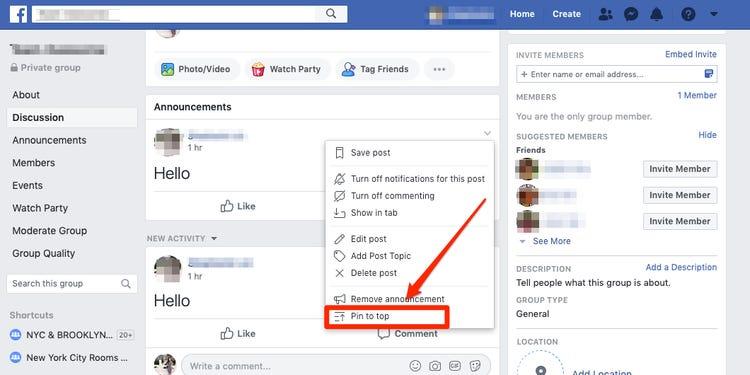
    3. Click on the three dots located on the top right side of the post on both mobile devices and PCs.
    4. Select ‘Pin to top’ from the popup menu.
    5. Your page may refresh and then you’ll see your post on top of the page.

    How To Unpin A Post On A Facebook Page

    Unpinning a post from your Facebook page is relatively easy and requires very few clicks. Follow the instructions below.

    1. Visit your Facebook page.
    2. Locate your pinned post at the top of the page.
    3. On your mobile device of PC, click on the three dots on the extreme right corner of the post.
    4. Select ‘Unpin from the top’
    5. Your post should be unpinned from the top of your page following the previous step.

    Why You Need To Pin Posts To Your Facebook Page

    When people visit a page on Facebook, it is either they have heard of it somewhere else or they saw a post from the page on their newsfeed.

    Whichever reason is responsible for the visit, there is one thing that is being chased and that is ‘more information’.

    So pinning a post to the top of your page provides visitors with a firsthand view of what is currently trending with your business.

    It also enables you to promote an event to a large number of people since everyone who visits your page sees it first.

    People cease this as a source of advertisement. You can make money from people and keep their business flyers pinned to the top of your page. This depends on the number of page views and visitors you get periodically.

    Finally, as a businessman, you may actually be forgetful so pinning posts to your Facebook page may enable you to all very vital information and events that you need to attend to.

    Conclusion

    Pinning and unpinning a post on Facebook can only happen on Pages, groups and events. Your personal Facebook profile or timeline cannot be used for this purpose. Again, it is important for us to know that you can only pin one post at a time.

    If you wish to pin a different post, you’d have to unpin the first one or replace it with the new one. Finally, since you can only pin one post at a time, make sure that you use that space wisely because when used well, you can reach lots of people. If you have any comments or suggestions regarding this post, you can share in the comment box or contact me directly.

  • Facebook Ads Vs Instagram Ads: Which one is best for Brands?

    Facebook Ads Vs Instagram Ads: Which one is best for Brands?

    Ever felt the need to promote your businesses to gain engagement on Instagram or Facebook and increase your visibility but don’t have a large budget? If you are thinking about the same and can’t decide if you should invest in Facebook or Instagram Ads to promote your business, then this article might help you make an informed choice more quickly as we try to compare both down so you can increase engagement on Facebook and Instagram in no time! 

    Types of Ads

    Facebook is still ahead of Instagram when it comes to brand promotion through varied forms of advertisements and provides you greater control as is quite evident from the Facebook Ads Guide. Be it videos, images, collections, carousel, slideshow, lead generation, or canvas Ads, you can do it all with the help of Facebook! 

    Instagram, on the other hand, is relatively new to the game but it is growing exponentially and currently only provides advertisements through photos, videos (IGTV), stories, carousel, and in the explore section. So if you don’t care much about the numbers and don’t have a deadline to gain engagement on Instagram, then you can go with Instagram Ads but if you want to keep a close eye on the metrics, Facebook Ads will be better.

    Pricing 

    There’s no denying the fact that social media advertising campaigns can be a bit pricey. Since Facebook advertising offers a lot of options, several factors can affect the cost you incur while promoting through Facebook Ads. While an average click per post (CPC) for Facebook Ads is somewhere around $1.72, it can fluctuate due to factors like objective, ad quality, and audience.

    Despite the fact that the CPC for Instagram lies between $0.50 – $0.95 while the CPM (cost per impression) can be anything between $2.50-3.50 for campaigns performing well. Instagram pricing is also influenced by a number of factors like the objective of promotion, size and type of audience (larger the group, lesser the price), and the click-through rate (CTR) which is determined by the quality of your advertisements.

    So make sure you plan your campaigns well to get better results in a lesser amount. 

    Engagement

    Facebook boasts of over 2.38 billion active users every month which gives it an edge over Instagram in terms of user base and popularity and that’s one of the major reasons more than 65 million small businesses have created Facebook Pages. Surveys show that nearly 74% of marketers include Facebook in their market strategy to achieve better results.

    Instagram isn’t far behind as it has nearly 1 billion monthly active users which has encouraged over 65% of marketers to include this platform in their marketing strategy to increase sales and expand their business efficiently. With new features being rolled out every month by Instagram, these numbers are likely to soar higher in near future.

    So if you are targeting a mature audience (above 25 years of age) then Facebook Ads might help you generate better leads and results but when it comes to teens and promoting trending yet quirky stuff that might interest youngsters, Instagram is the way to go.

    Analytics and management

    Facebook’s Ad manager acts as a one-stop-shop for all your advertising needs. Be it selecting the right audience, choosing the type of Ads, analyzing the performance of the campaign through reports, or setting up advertisements. 

    For Facebook, the campaign manager allows you to try out various combinations before deciding on the one that you want to use for brand promotion. You can also preview all the available ads and also keep an eye on how well they are being received by the audience once the campaign starts.

    Just like the rest of the functionalities, the Ad Manager provides a simple and straightforward way to promote your posts, without going into too much detail or numbers.

    If you are new to advertising, then Instagram Ads can help you get things done in a breeze and once you’ve got a hang of things, you can take a more detailed approach using Facebook Ads.

    Content

    In the end, it all boils to one thing, content. You need to pay attention to the type of content you post and want to promote. Moreover, you also need to keep your objective in mind so you can pick the right audience which will benefit from your posts and will help you increase engagement on Facebook in an effective manner by buying facebook followers. Make sure your content aligns with your business goals and promotes eye-catching, brief yet sharable content to get better exposure. Promote your best posts which include witty captions and high-quality pictures or videos that are relevant to your business, to get the best results.

    If you tend to post more pictures, then Instagram Ads can prove to be effective but if you’re into writing engaging content, then Facebook Ads will benefit you more. 

    Final Verdict

    In the end, it all boils down to the kind of business you own and your goals. The points listed above clearly show that you can pick either of these to create brand awareness and strengthen your social media presence. You can also fine-tune your budget and use them simultaneously to get higher ROI as Instagram and Facebook Ads can help you gain more clients from all age groups! 

  • How To Know If Someone Has Accessed Your Facebook Account

    How To Know If Someone Has Accessed Your Facebook Account

    Have you ever woken up in the middle of the night to pee or early in the morning to see some unusual posts on your profile?

    Did you ever have to deal with seeing some strange messages sent from your Facebook account? Well, chances are that your account has either been hacked or someone close to you has accessed your Facebook account.

    But frankly, it’s just a matter of chances. These signs are not certain enough to indicate the worst. So, how do you confirm if truly someone has access to your Facebook account?

    In this article, we take you through things you should see before concluding that someone has accessed your Facebook account.

    Some of them may actually shock you. So, just stick around and ejoy your read.

    The Holy Truth About Social Media

    Social media and in fact, any resource on the internet can be hacked. I know it’s hard to accept but once it was built by a human, it can equally be hacked by a human.

    Even cryptocurrency exchanges which are highly encrypted and layered, get hacked all the time. So, social media platforms such as Facebook and likes are also susceptible to hacks.

    So, don’t be so alarmed if this happens to you. A hack to your account will primarily be your fault. But if it’s a platform-wide hack, then the platform could be at fault.

    So, while we delve into the signals to confirm that your account has been hacked, just know that, it’s not impossible for this to happen to you.

    Things To Check To Confirm That Your Facebook Account Is Hacked

    The following actions will guide you to find out if your account has been compromised or logged into by someone else. Follow each of them keenly to be sure of your account’s status.

    Checking For Last Active Uses

    Facebook has a feature that enables its users to discover the most recent times that their accounts were used. This feature indicates, the date, time, location and device on which the account was accessed.

    So, if you want to be sure whether your account has recently been used by someone else, then you should try this feature. The good thing is that it’s available on any of the Facebook platforms – be it on a smartphone or a desktop.

    So, how do you check this?

    On your smartphone, follow the steps below:

    1. Open the Facebook app on your phone
    2. Click on the three horizontal lines located in the top right corner
    3. Scroll to and click on ‘Security and Privacy
    4. Select ‘Security
    5. Under the ‘Security’ menu, select ‘Security and Login’.
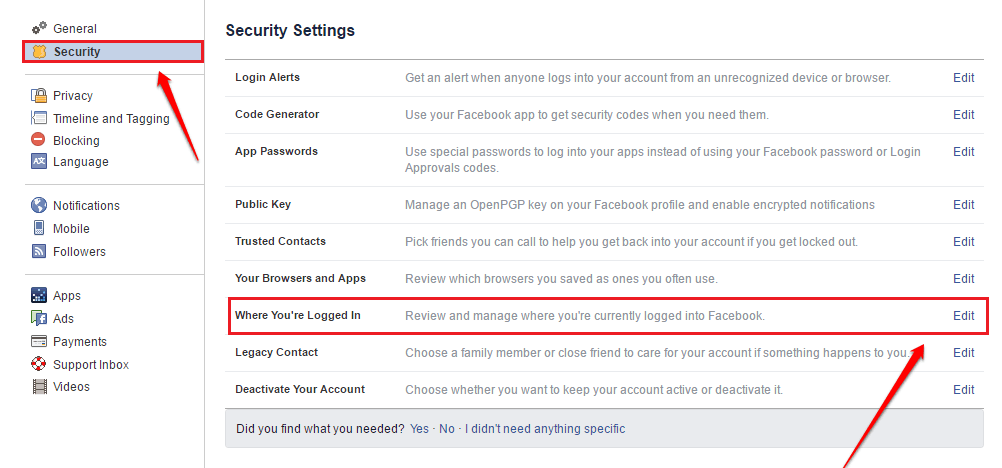
    6. Under the heading ‘Where you’re logged in, you’ll see a list of the devices that logged in currently.
    7. You’ll see your current device at the top with ‘Active now’ written in blue ink
    8. Click on ‘See all’ to see the full login activities on your account.

    If you see any strange device logins on the account from this section, then you must know that someone else is using your Facebook account.

    How To Remove Unknown Logins From Your Facebook Account

    Now, you know the devices that have logged into your Facebook account. But what if there’s one or two which you don’t recognize?

    How do you logout all unknown devices from your Facebook account?

    Follow the steps below on your smartphone:

    1. Open the Facebook app on your phone
    2. Click on the three horizontal lines on the extreme top right corner
    3. Select ‘Settings and Privacy
    4. Click on security
    5. Go to Security and Login
    6. Click on the ‘See all’ button beneath the list of your logged-in devices
    7. Click on ‘Logout of all sessions’

    Once you’re done, you’ll be logged out of all devices that you’ve ever logged in with. And this includes the unrecognized or unknown devices.

    Note that, you’ll still remain logged in on the device you’re using to perform this action. So don’t worry about that.

    Now, once you’ve logged out of all devices, you can successfully change your password to prevent the other person from having access to your account again.

    Conclusion

    The thought of knowing that your Facebook account could be hacked is not just excruciating, it’s also scary. Like, how do you deal with sharing all the messages you’ve had on the platform with someone you don’t even know?

    Many times, when we hear people complain about their accounts being hacked, we get scared and wonder if that can happen to us. If you haven’t activated Second Factor Authentication on your account yet, then your worry is real.

    But not to worry. In this article, we discussed how to check if someone has access to your Facebook account. Do you know of any other ways?

    Let us know in the comment box below.

    If you have any questions, comments or reservations about this article, kindly let us know in the comment box below.

  • How To Stop Showing Your Active Status On Facebook Messenger

    How To Stop Showing Your Active Status On Facebook Messenger

    Are you tired of people seeing your active status on Facebook Messenger? Do you want to stop showing your active status on Facebook Messenger?

    Facebook is one of (if not) the most used social media platforms in the world. But the Facebook app itself doesn’t allow you to send messages unless you download the Facebook Messenger app from the Google Play Store or the Apple App Store.

    Facebook Messenger is where most people and business owners communicate with their potential clients and customers. For those of us who don’t own businesses, this is where we chat with our friends, family, and loved ones.

    Sometimes when you are online all you just want to do is to appear as if you are offline in order not to draw attention. When you turn off the active status on your Facebook Messenger, you will appear offline even when you’re online.

    Also, you can choose to appear online for only some specific people you choose. This way, you will be able to chat with only the people you want to and ignore the ones you want to avoid.

    In this article, I am going to show you how to stop showing your active status on Facebook Messenger.

    How To Stop Showing Your Active Status On Facebook Messenger

    To control your active status on Facebook and Facebook Messenger, there are three (3) places you can do that. These are: on the Facebook mobile app (both Android and iOS), Facebook Messenger, and finally Messenger web.

    How To Stop Showing Your Active Status On Facebook Messenger App

    1. Open Facebook Messenger on your phone
    2. Tap your profile icon in the top left corner or top right corner of the screen (depending on the device you’re using)
    3. Click on Active Status just beneath Switch Account
    4. Tap on the toggle next to Show when you’re active to turn it off. If the toggle is on the left, it means it is off and vice versa.

    How To Stop Showing Your Active Status On Messenger Web

    1. Open a web browser and type Messenger.com in the address bar
    2. Click on Settings (the small gear icon) in the top left corner of the screen
    3. Click the Active Contacts settings
    4. Slide the toggle next to your name off. If the toggle is on the left, it means it is off and vice versa.

    How To Stop Showing Your Active Status On The Facebook App

    1. Open the Facebook app on your phone
    2. Tap on the menu icon (the three horizontal lines) on the lower right corner or the upper right corner of the screen
    3. Scroll through the options and select Settings & Privacy
    4. Tap on Settings >> Privacy
    5. Locate Active Status and then tap on it
    6. Tap on the toggle next to Show when you’re active to turn it off. If the toggle is on the left, it means it is off and vice versa.

    Conclusion

    After using either of the methods shown above, you’re active status on the Facebook Messenger app will be complete will off as well as the Facebook app itself. 

    The reason why I added the method for the Facebook app is that, if you turn off your active status only in the Messenger app, when someone is using the Facebook app he/she will see you online and that wouldn’t be good for you.

    Therefore, you can now use both the Facebook app and the Facebook Messenger app without people knowing whether you are active or not. That sounds cool, right? So what are you waiting for, why don’t you try it out now?

    In conclusion, I will urge you to share this article with all your friends on Facebook and let’s all stay offline while online, lol.

  • How To Identify Fake and Scam Facebook Pages

    How To Identify Fake and Scam Facebook Pages

    How many times haven’t you come across a Facebook page bearing the name of a celebrity or big company asking you to do something for a giveaway?

    How many times haven’t you heard of people getting scammed on Facebook by impersonators?

    The numbers are numerous. But, you probably would still fall victim in such instances. Because you don’t know how to spot a Fake or scam Facebook page.

    Perhaps, you think you know just how to spot them. But how much do you know about them?

    Well, in this article, we take a quick look at some ways to identify and fish out fake Facebook pages.

    Remember, the focus is on Facebook pages and not Facebook accounts or profiles.

    What’s a Fake Facebook Page?

    A fake Facebook page is usually a page created by scammers or unscrupulous people pretending to be other people or companies on the social media platform.

    This is done mostly by scammers or bloggers. The end goal of such pages is either to build trust with unsuspecting people and defraud them of their hard-earned cash in the case of scammers.

    On the part of bloggers, they do this to get more followers for the page and then share their blog posts there to reach a wider audience.

    Either ways, Facebook’s community rules stand against this.

    How To Identify a Fake Facebook Page

    There are some few ways to spot and fish out a scam or fake Facebook page. A few of them are explicated below.

    Unverified Pages

    The first way to spot a fake Facebook page is by checking if the page is verified.

    A verified Facebook page carries a blue tick right in front of the page name.

    Facebook provides room for big companies and celebrities as well as media organizations to be verified with the blue tick.

    Therefore if you see a page bearing the name of a big company or celebrity and has lots of followers without a blue tick, you should think twice when dealing with them.

    Note however that, page verification is done manually. You’ll have to apply for your page to be verified.

    So, if the page owners are not aware of the verification bit, then their page may not be verified.

    To be sure, you can search for pages with the exact name. If you see more than one page with one being verified, there’s a possibility that the rest are fake. Especially if they all have the same logo.

    Check for altered names

    The next step is for you to take a closer look at the page name to confirm if there’s an alteration.

    Mostly, these fake pages are created in the names of known brands or celebrities.

    So, to confirm if the page is legitimate, you should take a closer look at the name.

    Facebook makes it impossible for a page to bear the exact name of an existing one.

    So, if the brand already has an existing legitimate page on Facebook, then the scammers can’t create theirs with the same name.

    They’ll therefore usually add some special alterations to change the name of the page.

    For example; if the original page’s name is VIRGIN AIRLINE, the fake page may bear the name VIRGN AIRLINE or VIRGIN AIRLINE. or VIRGIN AIRLIN or VIGIN AIRLINE.

    Now, these scammers are so smart that they usually change very tiny details about the name so if you don’t take a closer look, you may never know.

    And no, don’t worry about checking the profile picture. It is not a strong point. Many pages can have the same profile pic so that won’t help with the differentiation.

    Pages asking for donations

    one common trait of fake or scam pages is their rampant request for donations.

    It’s just logical that a successful man like Alinko Dango wouldn’t be on Facebook asking you to donate to support a charity cause he is undertaking.

    It’s not impossible for celebrities to undertake such causes but you’ll have to take a closer look at the request, the details as well as the previous factors listed above.

    For example; if you see a call for donation on an officially verified Facebook page belonging to John Dramani Mahama for a noble cause, it’s more likely to be real than if the same thing is posted on a poorly organized Facebook page bearing a similar name.

    If it sounds too good to be true, then it really is

    The final check on this list is facts and posts on these pages.

    If you see anything that sounds abnormal or too good to be true on any of these pages, then it really is fake.

    You should employ logical judgements in such cases. For instance, if the page is asking you to send your bank details and contact so that they can send you some amount of money, you ought to think twice.

    What have you done to deserve that?

    Also, if they’re selling something at an abnormally cheaper rate, you should ask yourself why their price is way cheaper than everyone?

    You should also ask yourself why they insist on payment before delivery.

    There are so many things these pages post which should raise a red flag for you.

    If you observe carefully, you’ll see some of these things and advise yourself appropriately.

    Also, check out How To Stop Websites And Apps From Posting On Your Facebook Timeline

    Conclusion

    Facebook is the world’s leading social media platform with over 2 Billion active monthly users.

    Due to the number of people available on the platform, it provides a comfortable breeding ground for scammers and unscrupulous people to ply their trade with ease.

    Fake Facebook pages are becoming rampant and they are forming the basis for the majority of the scam activities on the platform.

    In this article, we looked at some ways to spot fake Facebook pages.

    We hope you loved the content of this article and that you’ll share it with friends and relatives.

    Kindly share your comments, reservations and comments with us in the comment box below or get in touch with us.