Category: Social Media

  • How To Delete Your Facebook Account

    How To Delete Your Facebook Account

    Do you finally want to end it? Are willing to finally delete your Facebook account permanently. Are you sick and tired of Facebook and its Terms of Use, spam, etc? Do you want to take a break on Facebook for some time and come back later?

    If you have any of the questions, stated above then you are at the right place. This is because in this article, I am going to show you how you can delete your Facebook account, or deactivate your Facebook account.

    Facebook is one of (if not) the most used social media platforms in the world. According to research, Facebook has over 1.69 billion users from all over the world.

    For some of us, we use Facebook to do our daily businesses. Others also use it as a social platform for their own personal or corporate reasons.

    Whatever the reason may be for you to use Facebook, there might be a time where you feel like permanently deleting your account or deactivating it for a while.

    What is the Difference Between Facebook Deactivation and Deletion?

    There are two (2) main ways you can remove your Facebook presence. You can deactivate your account or you can permanently delete your account.

    If you choose to deactivate your Facebook account, it means you temporarily make your Facebook inactive. Anytime you wish to come back on Facebook, you can activate your account back.

    If you choose to delete your Facebook account, it means that you remove your account from Facebook permanently. You can’t undo this command.

    Once you deactivate your account, your Facebook profile will no longer be available. But you can use Facebook Messenger and your name will still appear on your friends’ friends list.

    The reverse happens when you permanently delete your account; all your posts, photos, videos and everything that has connection with your account will no longer be available.

    How To Deactivate Your Facebook Account

    1. Open your browser and visit Facebook on your computer.
    2. Click on the downward-facing arrow in the upper right corner of your screen.
    3. From the drop-down menu, click on Settings.
    4. On the left pane, click on Your Facebook Information and then choose Deactivation and Deletion.
    5. Choose the button next to the Deactivate Account. After, click on Continue to Account Deactivation.
    6. On the next page, choose the reason why you are leaving Facebook. If you wish, you can give an additional explanation.
    7. Choose whether you want to keep on using Messenger or not.
    8. Once you are done, click on Deactivate at the bottom of the page. Once again click Deactivate Now to confirm your decision.
    9. You will automatically be logged out of your Facebook account.

    How To Permanently Delete Your Facebook

    1. Open your browser and visit Facebook on your computer.
    2. Click on the downward-facing arrow in the upper right corner of your screen.
    3. From the drop-down menu, click on Settings.
    4. On the left pane, click on Your Facebook Information and then choose Deactivation and Deletion.
    5. Check the box next to Permanently Delete Account and then click on Continue to Account Deletion.
    6. If you want, you can back up your important data to your device. Once you are done, click on Delete Account.
    7. You will then be asked to enter your Facebook password. Enter it and once you are done, click Continue.
    8. Once again, click on Delete Account to permanently delete your Facebook account.

    Conclusion

    After permanently deleting your Facebook account, Facebook gives you’re a 30-day grace period where you can go back and reactivate your account. If you are unsure about your decision, you have 30 days to reverse your decision.

    I hope you find this article helpful? If you have any questions, comments and suggestions, write it in the comments section below.

  • How To Disconnect Your Instagram Account From Your Facebook Account

    How To Disconnect Your Instagram Account From Your Facebook Account

    Do you want to disconnect or unlink your Instagram account from your Facebook account? Have you created a new Instagram account that you wish to link to your Facebook account?

    Whatever your reasons maybe to disconnect your Instagram account from Facebook this article has got you covered.

    This is because in this article I am going to show you how to disconnect your Instagram account from your Facebook account without causing any harm to either of the accounts.

    Linking your Instagram account to your Facebook account or vice versa has a lot of merits. For example, once you link these two accounts together, you can share your Instagram story on your Facebook story at the same time.

    All these were not available some few years ago, but when Instagram became part of the Facebook family, this feature was added to enhance users’ experience in these two apps.

    With this feature, you are allowed some extra features; you can post your photos from Instagram to Facebook directly from Instagram; it is also easier for your Facebook friends to find your Instagram profile.

    Aside from all these interesting features, if you think there’s the need to unlink these two (2) accounts, then you can follow the outline below.

    How To Disconnect Your Instagram Account From Your Facebook Account

    You and I can agree on the fact that most people access their Facebook and Instagram accounts using their mobile phones. Only a few of us use these apps on our computers on certain occasions or periods.

    Unlike previously, users of Mac and PC cannot disconnect their Instagram account from their Facebook account and as such, they can only do so using their mobile devices.

    So, to disconnect your Instagram account from your Facebook account follow the steps listed below:

    Open the Facebook app on your mobile device.

    Tap on Settings.

    Tap Account, and then tap on Linked Accounts.

    Next, tap Facebook and then Unlink Account (if your device is an iOS device) OR Unlink (Android).

    Tap Yes, and then Unlink to confirm your selection.

    Conclusion

    Disconnecting your Instagram account from your Facebook account is not permanent. Whenever you wish to re-connect your Instagram account to your Facebook account, you can go ahead and do so.

    I hope this article was helpful and that it met the purpose for which it was written. Please read through carefully to understand the concept of disconnecting your Instagram account from your Facebook account.

  • How to Block Political Posts on Facebook

    How to Block Political Posts on Facebook

    If you are allergic to politics just as I am, seeing numerous posts on Facebook about politics equally disgusts you.

    Thankfully, you can change a few settings inside Facebook and clear your timeline away from political posts.

    Not only can you block political posts on Facebook, but you also can report them so Facebook can remove them permanently for you.

    In this article, I will show you how you can block political posts from Facebook. Follow the below steps.

    Snooze to Hide Political Facebook Posts from Friends

    Since we’ll have numerous friends on Facebook, there are always some who are in love with Politics.

    You can block political posts from your friends on Facebook right from your Facebook feed using the following steps.

    • Scroll to the political Facebook post you want to hide.
    • Select the ellipsis icon in the upper right corner of the post.
    • Select Snooze [name of the source] for 30 days.

    As soon as you select snooze, that post and all posts from the person should disappear. It will be replaced by a small box confirming your choice to snooze that person, and an undo button if you change your mind.

    Not only does that political Facebook post leave, but you also won’t see any future posts from the person.

    If you want a more permanent procedure that’ll last beyond 30 days, select Unfollow to stop seeing the person’s posts while remaining friends.

    Unfollow Groups With Political Facebook Posts

    Though many Facebook groups ban political posts, some do not, and they can be an instantaneous source of annoying political Facebook posts. Here’s how you can block these political posts from your Facebook feed.

    • Open the group that you don’t want to see.
    • Select the ellipsis icon in the upper right corner of the group page.
    • Select Unfollow Group.

    Change Facebook Ad Settings to Reduce Political Ads

    You have to disable political ads in Facebook ad settings. Open Facebook from your browser and follow below settings.

    • Select the downward pointing arrow icon in the upper right corner.
    • Select Settings & Privacy.
    • Then Select Settings to view all your account settings.
    • Scroll down and select Ads in the left column to view your Ad Preferences.
    • Select Ad Topics to change which ads you see.
    • Find and select the option for Select Social Issues, Elections or Politics.
    • Select See fewer ads about this topic.

    Report a Misleading Political Facebook Ad

    There is numerous misleading Facebook political ad which you may come across. If you come across one, you can report by,

    • Find the ad that you want to report.
    • Select the ellipsis icon in the upper right of the ad.
    • Click Report ad.
    • Choose the reason why you are reporting the ad.
    • Select the Submit button to send your report to Facebook.

    Once the ad is reported, Facebook automated tool will determine if the ad is misleading and block it afterwards.

    Conclusion

    In this article, I have showed you the steps you can take to reduce political ads on Facebook. If you are one of those that hate politics just like I do, then this post is surely a benefit to you.

  • How to Delete Multiple Tweets, Facebook Posts, and Instagram Posts

    How to Delete Multiple Tweets, Facebook Posts, and Instagram Posts

    Social media is a remarkable modern phenomenon. Some people use it exclusively to remain connected with friends, while others practically Livestream their life on social networks.

    Regardless of what sort of person you’re , at some point you would possibly attempt to limit what others can find out about you online.

    Or even do an entire social media cleanup. That’s where you would possibly face certain difficulties.

    Before we get into that, let’s check out the reasons why you may want to think about deleting your tweets, Facebook posts, and Instagram posts in the slightest level.

    Digital detox, spending a particular period of time without using gadgets or social networks especially, is a popular one.

    Other reasons include applying for employment (your new boss doesn’t necessarily get to see your party pictures or read your tipsy tweets) or starting a new relationship.

    You don’t want your new partner to constantly be reminded of your old relationships.

    Finally, you would possibly just want to do a bit of a private re-branding by getting rid of somewhat embarrassing old photos or updates.

    Whatever your reasons are, here’s the way to delete your social media updates in bulk once and for all.

    How To Delete Multiple Tweets

    As you most likely guessed, Twitter doesn’t have a built-in function to delete multiple tweets at the same time either.

    In order to delete a personal tweet, do the following:

    • Find the post you’d prefer to delete on your timeline.
    • Click on the arrow on the upper right corner of your post.
    • Choose Delete Tweet.

    Use TweetDelete To Delete Multiple Tweets

    If you would like to batch-delete your tweets, you’ll have to be compelled to use an app or a browser extension to do it.

    TweetDelete is a free app which will help you mass delete Tweets. It works in any browser, and you’ll be able to use it on your desktop also on your smartphone.

    Here’s the way to delete your tweets using TweetDelete:
    Go on the TweetDelete website and sign up with your Twitter account.
    Once you’re signed in, click Delete tweets.

    You can choose whether you wish to delete all of your tweets or simply tweets from a particular period of time. You’ll be able to also use a text search tool to filter the posts you’d like to be removed.

    When you’re pleased with all the configurations, click Delete my tweets!
    You can set the app to run a Twitter cleanup regularly if you wish to keep updating your feed.

    If you’ve got over 3,200 tweets that you’d wish to remove, you’ll be able to repeat the method until they’re all gone. There are other tools that can assist you to mass delete your tweets in one go, but most of them you’ve got to purchase.

    Similar to Facebook, we recommend you archive and save your Twitter content before doing a whole clear-out.

    How To Delete Multiple Facebook Posts

    When it involves Facebook, the most obvious option is to delete your posts one at a time. so as to try and do that, do the following:

    • Find the update on your profile that you simply want to delete.
    • Tap the three dots within the upper right corner of the post.
    • Select Delete.

    Alternatively, you’ll be able to delete Facebook posts using Activity Log:

    • Find the Activity Log button in the upper right corner of your profile.
    • Select the category of posts you’d prefer to access from the Filters column.
    • In order to delete a post, click the pencil icon on the right of each post.

    Both options only allow you to delete your Facebook updates one by one.

    How To Delete Multiple Instagram Posts

    Unsurprisingly, the Instagram app doesn’t allow you to delete over one post at a time. more than that, you’ll be able to only delete your posts using the mobile app, not your web browser.

    To delete an Instagram post, do the following:

    • Log into your Instagram account on your smartphone.
    • Find the post you’d prefer to delete. Then click on the three dots in the upper right corner of that post.
    • Choose Delete.

    You can also prefer to Archive your posts rather than deleting them. Unlike deleting, that action is reversible. The post also will retain all the likes and comments if you ever change your mind and need to restore it.

    Conclusion

    If you feel your social handles have been bloated and its time for general cleanup, follow the tutorials discussed in this post to mass delete your posts.

  • 4 Ways You Can Become Popular On Snapchat In Ghana And Nigeria

    4 Ways You Can Become Popular On Snapchat In Ghana And Nigeria

    Social media has become one of the safest places where young people are at ease of doing whatever they like without any parental supervision. There are over a hundred social media platforms available for use.

    One of these popular social media platforms is Snapchat. Snapchat has one of the easiest and user-friendly UI (User Interface) that allows everyone to enjoy contents they like.

    Just as the name suggests, Snapchat is a social media platform where you take photos, videos, and share them with the rest of the world; you just snap and chat. Also, entrepreneurs and other business owners use Snapchat to grow their business and business ideas.

    There are several reasons why you may want to become on Snapchat and whatever your reasons are, I’m here to give you some tips on how you can become popular on Snapchat in Ghana and Nigeria.

    NOTE: The points that are going to be listed are just tips and recommendations.  This means that the fact that you heed these tips doesn’t mean you will become 100%.

    4 Ways You Can Become Popular On Snapchat In Ghana And Nigeria

    As I stated earlier, there are over a million reasons why you may want to become popular on Snapchat. With over 170 million average active users daily, you have a high chance of becoming popular on Snapchat in Ghana and Nigeria.

    Similarly, there are over a million ways you can also become popular on Snapchat in Ghana and Nigeria. But these four (4) ways are the ones that have proven to be working perfectly especially for those who are starting from scratch.

    Post entertaining videos that will gain an impression

    As you might be aware already, videos are one of the best ways you can drag a lot of people to follow you on Snapchat; hence, giving you a high chance of becoming popular.

    But, the fact that you post videos does not mean that a lot of people will watch them or follow you. So, you need to stand out from the rest of the users who post videos.

    To do this, your type of videos should be entertaining and educative at the same time. Also, you need to know when people are active so that you post and also, the type of videos they like best.

    For you to know the type of video people like, post different types of videos and take note of the one that gains more views or likes. Once you can find that, always post those types of videos and you will start gaining followers in no time.

    Post memes that will get people to talk

    Secondly, if you want to become popular on Snapchat in Ghana and Nigeria, you need to post a lot of memes. Memes are text or photos that contains funny picture or messages; mostly about trending issues.

    Recently, a lot of people like reading memes because they are short funny and can be easily shared. This means you need to know the trending issues and post memes that are related to them.

    Once you start posting interesting memes, you will start getting a lot of followers who will share your memes and then drag other users to come and follow you also. This will in return make you popular as the “The King of Memes” or “The Queen of Memes”.

    Copy content ideas from the accounts that are already popular

    According to one of the world’s most successful digital marketers and SEO (Search Engine Optimization) experts Neil Patel, one of the best to become popular on Snapchat is by copying (not stealing) content ideas from those who are already ahead of you.

    Almost everyone has a particular account they look up. All you need to do is to monitor that account and copy ideas from the type of content they post and try to create some unique out of that.

    If you can make something unique out of that, you will soon start coming for the followers from that particular thereby leading to become popular.

    Use Bitmoji and augmented reality to create viral content

    Finally, one other way you can become popular by using Bitmoji and augmented reality to create videos and content that will go viral. Bitmoji is one of the Snapchat tools that allows you to create interesting content.

    With Bitmoji, you can create avatars that look exactly like you based on your preferences. They work just like Facebook avatars and Memoji on iOS devices.

    Bitmoji helps in the use of augmented reality features on Snapchat. Augmented Reality (AU) features on Snapchat are one of the types of content that goes viral on Snapchat.

    Therefore, using both Bitmoji and AR at the same time helps to create contents that go viral easily. And if you can consistently provide these types of content over a period of time, your account will start blowing with followers who will convert you to become a Snapchat celebrity.

    Conclusion

    To wrap up, I urge you to follow the recommendations given above in the article and you might become the next popular person on Snapchat in Ghana and Nigeria.

    Also, if you have any other ways you think can help someone become popular on Snapchat in Ghana and Nigeria; make sure to write it in the comments section below and I will make sure to add it to the article.

  • How To Create An Anonymous Facebook Account in 2021

    How To Create An Anonymous Facebook Account in 2021

    While nothing on the web is actually private, having a public Facebook account comes with extra privacy risks. Every picture you upload, friend requests and event invitations you agree to increase – all of it is monitored by the corporate.

    If you’re done worrying about what that information could potentially be used for, there are a couple of answers apart from deleting your Facebook account permanently.

    You’ll either deactivate your Facebook and switch to Messenger to stay in-tuned together with your friends, or – if you’re not able to stop using the Facebook app – create a replacement anonymous Facebook account.

    Also, you can delete messages from your old account before creating the anonymous account or better still leave the messages in your main account.

    Why Create an Anonymous Facebook Account

    Staying anonymous on Facebook protects your privacy in diverse ways. Should Facebook ever be compromised, you’ll be within the clear if you used a fake name and knowledge when registering your account.

    Meaning you don’t need to worry about your personal data falling into bad hands.

    Another reason to be anonymous is to avoid unwanted attention from your work colleagues or people from school.

    With an anonymous account, you don’t need to add acquaintances and other people you barely know out of politeness and permit them to pay attention to your private life on Facebook.

    At the same time, your friends and other people that you simply actually want to maintain on your friend’s list will still know who you actually are, so you won’t be totally disconnected from the digital world.

    Finally, you would possibly want to make an anonymous Facebook account for professional reasons. For instance , if you’re running a Facebook page for a business and need to be an admin, you’ll need to tie it to your Facebook account.

    How to Make an Anonymous Account on Facebook

    When creating an anonymous Facebook account, remember to make it simple. That’s the simplest strategy for when you want to blend in. Follow the steps below to line up your anonymous Facebook page.

    • Create a Burner Email or telephone number – You’ll need an email address or a telephone number to register a new Facebook account.

      If you employ your personal email address, especially one you have once used to check-in for other websites, they are often tied to your data.

      The simplest course of action is to use a short-lived burner email or phone instead. To create a burner phone number, you can use a service like Google Voice or Burner app. Alternatively, create a new email account without adding any personal details.
    • Create a Facebook Account –

    Now that you simply have a burner telephone number or email address, you’ll use it to register for Facebook.
    Go to Facebook.com and choose to Create a New Account.

    Use a fake first and surname, fill in your email or telephone number, add a fake birthday and gender.

    Confirm to not use any of your real details to avoid accidentally revealing your identity. Select register to verify. You’ll then receive a confirmation email or a text message from Facebook.

    Facebook also will ask permission to access your contacts. Select No to deny access, otherwise, your profile will appear within the People you Know section of other Facebook users.

    • Start Adding Friends – Now that your new Facebook account is confirmed, you’ll add a profile picture or an avatar and begin adding friends.

      Confirm you simply add people that you recognize personally and who are trustworthy. You don’t want your contacts to share the link to your new Facebook page with other users.

      To avoid other users guessing your identity by watching who you’ve got in your friend’s list, set it to non-public in your Facebook settings.

      To try and do that, follow the trail Settings & privacy > Settings > Privacy > How people can find and contact you. Under Who can see your friends list, select Friends or Only me to limit other Facebook users’ access to your friend’s list.

    How to Keep Your Privacy on Facebook

    Once you begin using your private Facebook account, you ought to be mindful of your actions on Facebook to keep your presence on the platform anonymous.

    Apart from simple things like not adding a photograph together with your face as your profile picture, there are other setbacks that you simply can make which will jeopardize your anonymity on Facebook. Here are a couple of tips which will assist you stay truly anonymous.

    Check Your Privacy Settings

    One of the primary things to try to do after you create your anonymous account is to try to do a privacy checkup on Facebook and adjust your privacy settings in order that you’re not discovered by other users.

    Stay Anonymous While on Facebook

    In the privacy settings section, you’ll be able to review who can see your Facebook posts and your friends list, likewise as who can contact you on the platform. this can help you keep your activity on Facebook as private as possible.

    Never Use Your Real Name on Your New Facebook Page

    One of the primary things Facebook will ask you to try and do is to fill in your first and surname . However, after you create the account, you’ll be able to also customize it by editing your id handle (or username) and changing it from random characters to your name or nickname.

    It’s best to avoid using anything that may be linked back to your real identity.

    Keep Your Personal Details Off Your Bio

    When you create a brand new account, Facebook will consistently prompt you to fill in your About section. even if you don’t think the data you’re sharing has relevancy , it’s best to keep any real personal details off your Facebook page to keep it anonymous.

    Conclusion

    Having an anonymous Facebook account could be a great solution for anyone who’s concerned about their online privacy but also isn’t able to quit social media.

    Rather than deleting your Facebook account, you get to maintain it and preserve your digital social life. All without endangering your personal data.

    Do you have an anonymous Facebook account? What does one find the most difficult about maintaining anonymity on Facebook? Share your Facebook experience with us within the comments below.

  • How To Save Snapchat Videos To Camera Roll

    How To Save Snapchat Videos To Camera Roll

    Snapchat may be a great platform for sending discrete, timed videos and photos to friends and family. You’ll share candid scenes and important messages, safe within the knowledge that the content you share can’t be saved unless you permit it.

    Unfortunately, that isn’t always an honest thing, especially if you’re looking to save lots of a Snapchat video yourself. If you would like to understand the way to save Snapchat videos, you’ve got to know there are some limitations.

    This guide has everything you would like to understand about saving Snapchat videos. Also here are so many ways you can follow to grow your Snapchat followers.

    Can You Save Snapchat Videos From Someone Else?

    It is possible to save lots of Snapchat videos, depending on the source. If you created the videos yourself, you’ll export them to your camera roll so you’ll keep them indefinitely and use them outside the platform. This works for both Android and iPhone devices.

    You can also export videos you receive from other users, but as long as they’ve sent the videos as attachments during a Snapchat text chat. You can’t save short, timed, and full-screen Snapchat videos within the app itself.

    You can’t save videos that appear as a part of a user’s Snapchat story too.

    You can only save these videos by taking a screenshot or a screen recording in line with a mobile screen recording app. However, trying to require screenshots or recordings like this may alert the opposite user.

    Snapchat may be a platform for disposable videos, so you ought to use caution if you are trying to save loads of Snapchat videos when you shouldn’t.

    Not only can this alienate your relationships with the video senders, but it’s going to even be viewed as a violation and place you in breach of Snapchat’s terms of service.

    Saving Your Own Snapchat Videos

    If you’ve recorded a video (or take a photo) within the Snapchat app, you’ll be able to easily reserve it before it’s sent on both Android and iPhone devices.

    • To do this, open the Snapchat app and record a video by pressing and holding the Record button within the center of the app’s camera view.
    • To save a Snapchat video you’ve recorded, tap the Download button within the bottom-left corner.
    • The recorded video will now be available in your device’s camera roll for you to use elsewhere.

    How to Save Your Own Snapchat Story Videos

    Snapchat Stories provide an outline of the last 24 hours for that user, showing a curated list of activities, messages, and more. You’ll be able to export these videos, but you’ll only do that before the videos expire unless the videos are set to be saved automatically to your Snapchat Memories section.

    • To save a Snapchat Story video, open the Snapchat app and tap the Bitmoji or Story icon within the top-left corner.
    • In the Stories section of your Snapchat user profile, you’ll prefer to save one Snapchat Story video or a whole day’s worth of Snapchat Story videos directly. To save lots of Story videos from an entire day, tap the three horizontal dots menu icon next to the My Story section.
    • In the bottom menu, tap Save Story to save lots of the videos to your camera roll.
    • If you would like to save lots of a private Snapchat Story video instead, tap the individual video listed under the My Story section in your user profile area to look at it.
    • Tap the hamburger menu icon within the top-right corner to access the settings for that video.
    • To save the Story video, tap the Save button at rock bottom.
    • As with videos you’re taking privately, any videos you save from your Snapchat Story are going to be exported to your device’s camera roll.

    Save Attached Snapchat Videos From Other Users

    If you receive a video as an attachment during a Snapchat text chat, then you’ll be able to save and export it (assuming you’ve got permission to). Doing this may alert the sender, so you ought to only do that if you’ve received permission to do so.

    To save an attached Snapchat video, open the Snapchat chat, then tap and hold the attached video. Within the pop-up menu, tap the Save to Camera Roll choice to export the video. This will save the video to your camera roll for you to use anywhere.

    Save Full Screen Snapchat Videos and Stories

    Unlike added Snapchat videos, you can’t save full-screen Snapchat videos sent from other users. These are standard Snapchat messages that are temporary as intended. Likewise, Snapchat Stories from other users can’t be saved by other users within the Snapchat app itself.

    The only way around this problem is to use a mobile video recorder (or to require a screenshot if you would like to save lots of images instead).

    If you are doing this, the opposite user is going to be immediately alerted, and there isn’t any way around this without breaking Snapchat’s terms of service.

    iPhones have built-in screen recording technology, while Android device owners with Android 9 or less got to install a third-party app like AZ Screen Recorder. Android 10 device owners can use the built-in screen recording feature instead.

    • Android 10 users can begin a screen recording by swiping down their notifications menu and tapping the Screen Recorder icon.
      With this mode active, you’ll then play a received Snapchat video or Snapchat Story to record the content you would like to save before tapping the Screen Recorder icon again to prevent recording.
    • iPhone users need to open the Settings app on their phones to start screen recording. From there, tap center> Customize Controls and tap the + (plus) icon next to the Screen Recording choice to add it to the center menu.
    • With screen recording enabled, open the center by swiping up from the top-right corner (or bottom, depending on your iPhone model). Within the center, tap the white circular icon, then tap Start Recording to start the recording process.
    • Record the received Snapchat video or Snapchat Story, then re-open the Control center. From there, tap the red circular icon again to prevent the recording.
    • As mentioned, Android 9 (and older) users will get to install an app like AZ Screen Recorder to record other user’s Snapchat videos and Stories. Within the AZ Recorder app window, tap the Record icon in the bottom-left to start recording.
    • With the app recording, open the Snapchat Story or video to play and record it. Return to the app, then tap the Record icon again to finish the recording and reserve it to your camera roll.

    Conclusion

    Now that you know how to save Snapchat videos, you can go and save your favorite videos with no hassle. Always be sure to abide by the community guidelines of Snapchat to prevent your account being blocked.

  • How To Unblock Someone On Facebook On The App and PC

    How To Unblock Someone On Facebook On The App and PC

    Do you want to unblock someone on Facebook? Did you unintentionally block someone on Facebook that you wish to unblock? Have you found out the true identity of someone you blocked that you now want to unblock?

    Facebook is one of (if not the) most used social media platform in the world with over 500 million monthly active users. As a result, many users come from different countries, backgrounds, and races who might get into contact with you.

    Because of this, you might get pissed at someone on Facebook and as such, you may decide to block him/her. When this happens, the person can neither send you a message nor call you.

    Despite blocking someone, there may also be instances where you made a mistake; this could be by blocking the wrong person or the person you blocked has apologized for his/her fault or whatever the reason may be.

    When such a thing happens, the thing you need to do is to unblock the person. You can do this on the Facebook app or your PC. In this article, I am going to show you exactly how to unblock someone on Facebook on the app and PC.

    How to unblock someone on Facebook on the app and PC

    The steps involved in unblocking someone on Facebook is quite easy but yet tricky. As such, I urge you to pay close attention to the steps I am going to outline below.

    Before you decide to unblock someone on Facebook, make sure to keep the Facebook name of the person you want to unblock in your head.

    How To Unblock Someone On Facebook On Your PC

    • Open any web browser you have on your PC.
    • On the address bar, type www.facebook.com and login with your Email/Phone and Password.
    • Once you have successfully signed in, click on the down arrow that is next to the Messenger and the Notification icons.
    • Select Settings from the drop-down menu.
    • From the several options that will show up on your screen look under the Privacy settings.
    • Click on Blocking under the Privacy Settings.
    • Click on Blocked users and wait for a list to show. The list involves all the persons you have blocked since you created your Facebook account in the year XXXX.
    • From the list of Blocked users, find the name of the person you would like to unblock. After finding the name of the person, select the Unblock option that is on the right side of the name.
    • Click on Confirm and wait for the person to be finally removed from your blocked list.

    How To Unblock Someone On Facebook Using The Facebook App

    The Facebook app is available for free download on the Google Play Store and the Apple App Store.

    Due to some slight different layout between Android and iOS, I am going to show you how to unblock someone on Facebook using an Android phone; and how to unblock someone on Facebook using an iPhone.

    How To Unblock Someone On Facebook Using The Facebook App For Android

    • Download the free Facebook app from the Google Play Store.
    • Upon successful installation, log in with your email/phone number and password.
    • On the home screen, tap on the three horizontal lines in the top right of Facebook.
    • Scroll to the bottom part and select Settings.
    • Select Privacy and then tap on Blocking.
    • Tap on the Unblock option next to the name of the person you wish to unblock.
    • Select Unblock once again to confirm the Unblocking and wait for it to complete. After successful completion, the person will be removed from your blocked contacts.

    How To Unblock Someone On Facebook Using The Facebook App For iOS

    • Download the free Facebook app from the Google Play Store.
    • Upon successful installation, log in with your email/phone number and password.
    • Tap on the three horizontal lines at the bottom right corner of the screen.
    • Select Settings from the Settings and Privacy option.
    • Tap on Blocking under the Privacy option.
    • Tap on the Unblock icon next to the name of the person you wish to unblock.
    • Select Unblock once again and wait for the person to be finally removed from your blocked list.

    NOTE: Due to Facebook’s Terms and Conditions, whenever you block someone Facebook automatically unfriends that person. This means that once you are done unblocking the person you need to send him/her a new friend request.

    Conclusion

    In this article, I have shown you how to unblock someone on Facebook using your PC and mobile phone (Android and iOS).

    This guide is self-explanatory but if you face any challenges make sure to drop it down the comment section below and I will attend to every single one of them.

  • How To Watch Movies Together With Your Friends On Facebook Messenger

    How To Watch Movies Together With Your Friends On Facebook Messenger

    Did you know you can watch movies together with your friends on Facebook Messenger? I guess not. Anyways don’t worry because I am going to show you exactly how to watch movies together with your friends on Facebook Messenger.

    Mostly, we have a movie we would like to watch with our friends who don’t live closer to us. Also, the size of some of these movies does not permit us to send them over to our friends who live away from us.

    Even for those who live closer to each other, this coronavirus pandemic has become a barrier for allowing our friends over to our house. As a result, the only way possible is to watch it together with our friends online.

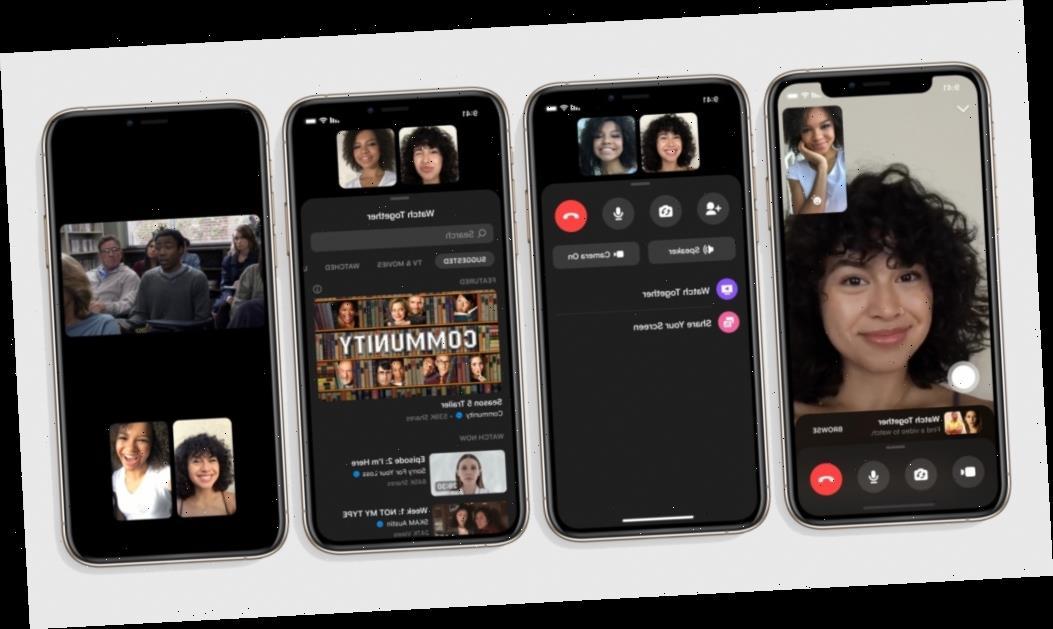
    To make this streaming more fun and have real-life reactions, we are going to use Facebook Messenger’s Watch Together feature.

    What Is Facebook Messenger Watch Together

    Facebook Messenger Watch Together is a new feature introduced by Facebook to make streaming movies together with your friends easier and fun. With this feature, you can see your friend (s) reactions as you watch the movie together.

    According to Facebook, they created “Watch Together to make spending quality time with friends and loved ones feel as close to an in-person experience as possible. Whether it’s watching a trending video, a movie, a sports, highlight, a makeup tutorial, or a Facebook Watch original, the feature allows you to watch your friends’ reactions at the same time.”

    How To Watch Movies Together With Your Friends On Facebook Messenger

    Just as the name suggests, before you begin the entire process, you need to have Facebook Messenger installed on your device. You can download it for free from the Google Play Store or the Apple App Store.

    Once you are done with the installation, follow the procedure below:

    Open the Facebook Messenger App

    After opening the Facebook Messenger app, select the person or group chat you would like to watch the movie with. In case you want to invite friends also, you can tap on Create Room and invite your friends over to join.

    Tap on the “Phone” or “Video” icon next to the name of the individual or the group.

    Because you are going to stream the movie together with your friends, you need to call them on “Phone” or “Video”. The best recommendation is by making a video call instead of a voice call.

    Drag the toolbar up for more options.

    As soon as your friend (s) accept the call, you need to drag the toolbar up for more options. This is where you will find all the options you need for the Watch Together.

    Select “Watch Together” from the options available.

    From the list of options that will pop up after dragging the toolbar, select Watch Together to start watching the movie together.

    Select your preferred movie from the Suggested list.

    Facebook automatically suggests movies for you to watch with your friends; these movies can be found in the Suggested list. Scroll through and select the one that you would like to watch with your friends and loved ones.

    • When you are watching the movie, the movie is synced to all the contacts, and pausing it at your end will pause it for all the people in the Watch Together. Likewise, stopping the movie will stop it for everyone.
    • For those in a video call, you can see the members in the Watch Together and the movie you are watching together.

    When you tap on the video, a Search icon and the option to close the video will pop up on top of the screen. If you wish to change the movie, you can do so with the search bar.

    Additionally, persons with phones that support Picture-in-Picture, you can leave the Messenger app and still watch the movie with your friends.

    Conclusion

    Facebook Messenger Watch Together is the perfect way to watch movies together with your friends over the internet with little data charges. Because the streaming is done over the internet, you need to have a stable network to make the streaming smooth, i.e. no buffering.

    This guide was written in the simplest way possible to make reading easier and understandable for everyone. That being said, in case you find any difficulty following the procedure, make sure to write it down in the comments section below.

    Do you have any method that was not talked about in this article, feel free to share it in the comments section below?

  • How To Permanently Delete Facebook Messages

    How To Permanently Delete Facebook Messages

    Do you want to permanently delete some Facebook messages? Don’t worry, I have you covered on that. In this article, I am going to show you step by step on how to delete Facebook messages.

    There are times that we really need to delete some unwanted and old Facebook messages. Some of these messages are either spam or messages that are out of date.

    The entire process of deleting messages on Facebook permanently is very easy and straightforward. The only requirement needed is an active internet connection and the rest of the process is listed below.

    How To Permanently Delete Facebook Messages

    There are three (3) main methods of permanently deleting Facebook messages. The method you use will depend on the device you are using; Android, iOS or Windows.

    Either ways, you can use the method used for permanently deleting messages on the web to delete it on your Android or iOS device.

    How To Permanently Delete Facebook Messages On Web

    This method is mainly used for deleting messages on computers and devices that does not support the installation of Facebook and Facebook messenger. With this method, the entire process of deleting the message is done on the web.

    To permanently delete Facebook messages on the web:

    • Visit the official Facebook website (www.facebook.com).
    • Log in to your Facebook account with your email/phone and password.
    • Click on the messaging icon and wait for a list of all your recent messages to pop up. At the end of the list, you will find the option to “See all in Messenger”, click on it and wait for all the messages to load in the window.
    • Scroll down and search for the intended conversation or message you would like to delete.
    • If you want to delete an entire conversation, select the conversation and click on the gear icon next to it and look for the “Delete” option.
    • Otherwise, select the conversation and click on the menu icon (the three dots) to delete that particular message.

    How To Permanently Delete Facebook Messages On Android Devices

    There are two ways of permanently deleting messages on your Android device; by using the web and by using Facebook Messenger.

    How To Permanently Delete Facebook Messages On Android Devices Using The Web

    This method follows the same procedure as “How To Permanently Delete Facebook Messages” stated above. Therefore, if you intend on using this method to delete messages on your Android device, follow the steps listed above.

    How To Permanently Delete Facebook Messages On Android Devices Using Facebook Messenger

    • Download the Facebook Messenger app from the Google Play Store. Once it has been installed, launch it.
    • Scroll through the conversations and choose the one you wish to delete. Once you find the conversation you would like to delete, tap and hold and then select on the delete option.
    • If you wish you delete a message in a conversation, open the conversation, scroll through the messages then tap and hold the message you would like to delete.
    • Similar to WhatsApp, if you mistakenly send a message to someone, you can quickly delete it for everyone; i.e. you and the receiver.

    How To Permanently Delete Facebook Messages On Your iOS Device

    Permanently deleting messages on iOS device is very similar to that of Android devices. Before you begin, you need Facebook Messenger.

    • Download the Facebook Messenger app from the Google Play Store. Once it has been installed, launch it.
    • Tap on the home button.
    • Scroll through the conversations and select the one you wish to delete.
    • To delete an entire conversation, swipe left over the conversation and tap on Delete > Delete Conversation.
    • To delete a message, open the conversation > tap and hold the message > tap on more and then select “Remove.”

    Conclusion

    In this article, I have taken my time to explain all the methods involved in permanently deleting Facebook messages and after reading this article carefully, you should be able to do it.

    But, in case you find any difficulty, feel free to write it down in the comments section below and I will attend to you as soon as possible.