Category: Social Media

  • Best Ways To Download Facebook Videos On An Android Phone

    Best Ways To Download Facebook Videos On An Android Phone

    Facebook is the worlds biggest social media network with over 2 billion monthly active users, and it also has naturally become one of the biggest video sites over time. Facebook has so many features and Video is part of it.

    Apparently, Facebook has been lying about its metrics to get more advertisers with the hope to rival YouTube for the time people spend in watching stuff on their phones, tablets, laptops or TV.

    Unlike YouTube, Facebook doesn’t have an offline-view feature. This means you can’t download Facebook videos right on the go. In this article, we are going to look at the various ways you can follow to download Facebook videos for offline view.

    Below are the best ways to follow to download Facebook videos;

    Installing Third-Party Apps

    To download Facebook videos, you need to install third-party video downloader apps. There are different video downloading apps in the Play Store but we are going to look at the once we have personally tried and tested it’s working.

    Download Manager

    This video download manager can download all types of videos including Facebook video files quickly on your android device. It is capable to detect links from your browser automatically, so no need to copy and paste the links to the app.

    When browsing Facebook using the official Facebook app, you need to copy the video link to the Download Manager app.

    Advanced Download Manager

    This video downloader app has received a lot of reviews and ratings due to its well-organized platform and its ability to download all file types to phone.

    It is designed with a multi-threaded technology that makes every download process quicker.

    Get Them All

    Another video downloading software that has been designed by well-trained professionals and it has revolutionized the download process with unprecedented results.

    It allows easy downloading from hundreds of websites including Facebook.

    Video Downloader For Facebook

    This simple to use software facilitates faster video downloading and files can be directly copied to an external storage media like your hard disk or SD card. It supports a wide range of file formats along with various sharing sites.

    Downloading Over The Web

    Follow the steps to download Facebook videos from the web;

    1. Open the Facebook you want to download from the Facebook app or from the website.
    2. On the app, hit share and then tap copy link. On the website, copy the link in the URL bar, or just right-click and copy the video link
    3. Open fbdownload.net in your web browser.
    4. Paste the link where it asks you to, and then click on the download
    5. The next page that loads will ask you to choose the video quality of your choice.
    6. After that, the video will be downloaded and saved to your download folder or your saved files download folder equivalent.

    These are the best ways you can follow to download Facebook videos the easy way.

    Conclusion

    We all love videos. There are times you may be wondering how on earth can you download the video you just watched on Facebook. In this post, I took you through the best ways you can follow to download videos from Facebook. Leave a like if you enjoyed this post.

  • Privacy Settings To Restrict Your Facebook Profile To Only Your Friends

    Privacy Settings To Restrict Your Facebook Profile To Only Your Friends

    Privacy is one of the important things people consider much. There are some who would always want to hide their privacy from the public and restrict themselves to only their friends. I mean who would want to share his age and personal stuff to the public on social media?

    Facebook in default keeps your profile set to the public. This means information like your age range, language and country will always be seen by people who are not even your friends.

    If you are the type that takes privacy seriously as I do, you would want to change your privacy settings to reflect only your friends. In this article, I will show you the steps to restrict your Facebook profile to only your friends.

    Before we kick the ball rolling, some important things about Privacy you need to know.

    Whats Privacy Checkup And How You Can Find It On Facebook

    Privacy checkup takes you through some of your Privacy and Security Settings, to help you make changes to your Privacy in your own accord. To go to Privacy checkup,

    • Click on the down arrow on the far left of the top menu
    • Click Settings and Privacy > Privacy Checkup

    Things You Can Review In Privacy Checkup

    • Who can see what you share. This option guides you through things like, Choosing who can see certain information on your profile. For example, phone number, email, birthday, and relationship status. Updating who can see your future and past post and also reviewing who you have blocked on Facebook.
    • How to keep your Account Secure. This will take you through options like Updating your account password and Turning on alerts to help you know if someone logs into your account from places Facebook don’t recognize.
    • How people can find you on Facebook. Here you can configure who can send you a friend request and also how people look you up on Facebook by your phone number or email address.

    Steps To Restrict Your Privacy To Only Friends

    To restrict your privacy to only your friends, follow below steps,

    1. Sign in to your Facebook account. Click on Account then select Privacy Settings.
    2. Click on Edit your Settings next to How you Connect. Select Friends next to all the fields. Under Who Can Send You Friend Request field, select Friends Of Friends and click done.
    3. Click on the Friends selection box beneath Control Your Default Privacy. Click on Manage Past Post Visibility. Select Limit Old Posts to limit your archived posts to friends only.
    4. Click on Profile and choose Edit Profile. Click on the Basic Information tab then click on the globe next to each individual entry. Select Friends.
    5. Click on the Friends and Family tab, and then click on the globe icon next to each individual item. Choose Friends.
    6. Click on the Education and Work field, and then click on the globe next to each item. Change the settings to Friends. Repeat the process for all the remaining tabs changing the fields to Friends.

    Conclusion

    When it comes to privacy, people are very concerned about it. Not everyone loves to share information about themselves publicly. In this article, we looked at the steps to keep your profile away from strangers.

  • How to Create a Facebook Avatar That Looks Like You

    How to Create a Facebook Avatar That Looks Like You

    Facebook has launched a new feature that allows users to create avatars of themselves. Similar to Snapchat’s Bitmoji, the Facebook avatar can be used when making comments, Facebook stories and when chatting in the Facebook Messenger app.

    This feature was initially tested in 2019 in only Australia but after a successful trial phase, the decision to extend to other users of Facebook. Before you can use this feature, please make sure your Facebook is up to date.

    In this article, we are going to show you how to create a Facebook avatar that looks just like you. Unlike Snapchat’s Bitmoji where you needed to download a new app before creating your avatar, the entire avatar creation process takes place in the Facebook app without any additional downloads.

    How to create a Facebook Avatar that looks like you

    Enough of the plenty talk, let’s jump into the creation process. The steps for creating an avatar that looks just like you on Facebook are:

    Open Facebook and tap on the three horizontal bars on the bottom-right corner of your screen

    In case you don’t have the app, download the Facebook app from the Google Play Store or the Apple App Store. The Facebook app is free.

    Scroll down and select “See More”

    Once you click on the three horizontal bar on the bottom-right corner of your Facebook screen, a pop-up menu will show with different options. Some of which include your name and all your Facebook pages.

    You need to scroll down to the bottom part of the Menu and select “See More” which comes before “Help & Support.”

    Select “Avatars”

    After clicking on “See More,” a drop-down menu will show up will fifteen (15) options. All you have to do is to select the second option “Avatars.”

    Click on “Next” and then “Get Started”

    After selecting the “Avatar” icon, click on “Next” to get started.

    Select the skin colour that fits you and then click “Next”

    There are 27 skin tone options available for you to choose from depending on the one that fits you best. After selecting your preferred skin tone, click “Next” to continue.

    Choose your preferred hairstyle for your avatar and then tap on “Color”

    You’ll then be instructed to choose a hairstyle for your avatar. The available options are: Short, Medium or Long with a variety of styles. Upon selection of the hairstyle, then select the colour for the hair.

    Select the “Face” of the avatar

    This is the most important part of the entire avatar creation process. This is where you choose the face shape, complexion and face lines for the avatar.

    Tap on the “Eye” icon and then select the shape and colour of the eyebrow

    From “Face”, the next step is to select the eye for your avatar. You need to select an eye shape, colour and the length of the eyelash. From there, then move on to the “Eyebrows” icon and select the shape and colour of the brow. Optionally, you can add a spectacle.

    Select the Nose and mouth for your avatar

    Now, you need to customize the nose and mouth for your avatar. Choose the shape of the nose, then the shape of the mouth. Optionally, you can also add a lip colour and facial hair for your avatar.

    Select a body shape and the outfit for your avatar

    Finally, you need to select the body shape. Upon successful selection of the body shape, you can then choose the outfit you like best for your avatar. Depending on your preference, you can add a hat, scarf or cat ears to the outfit you selected.

    Tap on the “Next” icon and finally “Done”

    Once you’re done with the customization, tap on the check icon in the top right corner of the screen, then tap on “Next” and finally “Done.”

    Conclusion

    Well, that’s it, you’re all set now. You have your unique Facebook avatar that you can share with your friends loved ones on Facebook. To use your avatar when making any comments, just tap on the smiley face icon next to the gif icon.

    Finally, make sure to share with your friends on Facebook so that we can all make the most out of this new feature.

  • How To Stop Websites And Apps From Posting On Your Facebook Timeline

    How To Stop Websites And Apps From Posting On Your Facebook Timeline

    For as much as Facebook is a social media platform and therefore involves sharing posts and information globally via the platform, there is still a need for privacy on the world’s biggest social media platform.

    One privacy issue which most people have to battle with on the platform is the manner in which different apps, websites and games tend to post on their timeline without their permission.

    Mostly, these are applications or other third parties which the user has already given a one-time approval to post on their behalf on their timeline. Most people really do this without even realizing because they are in a hurry to enjoy the application or website.

    The bad thing is that most times, some of these posts made on your behalf by these third parties can be negative and hence tarnish your image somehow.

    So, the big question is: how can you undo what you’ve done and prevent these sites from posting on your timeline without your permission?

    In this article, I shall provide you with details on how to prevent applications and websites from posting on your Facebook profile.

    But, before that, let’s look at how you get yourself into that situation in the first place.

    How Do Applications Get Access To Your Timeline?

    The answer to this question is simple and funnily so too. These applications or websites cannot have access to your timeline without your permission.

    So yes, they actually get access to your timeline through your permission. Wondering how?

    How many times have you tried accessing a website and application and you were asked to login with your Facebook details?

    Do you take time to read and review the instructions that accompany such sites when you are logging in with your Facebook account?

    I guess not. Well, there you have it. Usually, when installing such applications or accessing such websites, we do not take time to read the instructions and information that comes with some of these applications and websites.

    Apparently, these sites request various permissions from you. They let you know and then provide the option for you to ‘Continue’ or ‘Agree’. Most people click on the continue or ‘Agree’ button without reading.

    Once you do that, you have given the third party access to your account and they get to post on your behalf.

    So, if you’re wondering how those applications have access to your Facebook timeline, there you have your answer. Be sure to read such instructions in future.

    How To Prevent Apps From Posting On Your Timeline

    To deactivate the ability of third-party applications and websites having access to your Facebook timeline, follow the steps below:

    1. Visit Facebook and login to your account on a desktop browser.
    2. Click the little black triangle on the top right corner of your homepage for a dropdown list.
    3. Click on settings from the list that appears next.
    4. Click on ‘Apps and Websites’ in the menu on the left side of your screen.
    5. Scroll down. Under Apps, Games and Websites, click on ‘edit’
    6. Click on disable.

    Congrats! You are free from unsolicited posts from websites and Applications on your Facebook timeline.

    Note: Once you deactivate this feature, you won’t be able to login to any application or website using your Facebook account anymore. All previously logged in applications would be logged out, and all posts by those applications would also be deleted from your timeline.

    Conclusion

    Privacy and security are one of the major features for safety and protection on the internet. Once your privacy and security have been breached online, you open yourself up to lots of attacks and negative personal image.

    Facebook, the world’s biggest social media platform gives you almost 99.9 per cent safety and privacy for as long as you decide to play by the rules.

    However, there is a tendency of you creating loopholes in your account for other applications and third parties to control your account and post on your behalf.

    In this article, I spoke about why applications post on your timeline without your permission and how to disable that.

    I hope it was a wonderful and helpful read for you. Kindly leave your comments, reservations and questions in the comment box below or contact us.

    Please do well to share this article with friends and relatives.

  • How  To Setup A Facebook Username For Profile Or Page

    How To Setup A Facebook Username For Profile Or Page

    Facebook, like any others social media platform comes with a unique username for each account. This name is completely different from the account name or the display name.

    The only difference here is that apart from the likes of Instagram and Twitter, where it is compulsory for you to set up your username before you open an account, Facebook actually allows you to open and operate an account without creating a username.

    The Facebook username operates in the same way as Twitter Username and Instagram Username, in other words, we call them ‘handle’. The ones that begin with @.

    So for example, if your business name is Setor’s Boutique And Makeup, your username can be set as @setorsboutique. The Username is a unique name created by a page admin or profile owner to enable people to get access to their page or profile faster, from a list of other similar profiles or pages.

    When you search for certain names, be it a business name or a profile name on Facebook, you’d realize that there are hundreds of pages or profiles bearing the same name. How do you spot the difference and know the exact one you are looking for? The answer is Username.

    So, in this article, we shall discuss ways of setting up a username on your Facebook business page or personal profile.

    How To Setup Username On Your Facebook Profile

    To set up a username on your Facebook profile, follow the steps below. Remember however that once you change your username, you cannot go back to the previous one you used.

    1. Login to your account with a desktop device,
    2. On the top-right corner, click on the little black triangle.
    3. From the dropdown list, select ‘settings’.
    4. Click on ‘general’ on the left panel
    5. Beside ‘Username’, click on edit.
    6. Write your new username and click on save changes.

    Note that when changing the Username, Facebook informs you about the availability of the name you intend to use. So if your username has already been used, then you’d have to change it to something else. If it’s available, you’d see it written next to your username.

    How To Setup A Username On Your Facebook Business Page

    Like your personal profile on Facebook, you can give your business page a unique Identity by creating a username which makes you stand out of the crowd. Here are the steps to follow:

    1. Visit the page you wish to create the username for, on a desktop device.
    2. On the left panel of your page, right below the page display photo, you’ll see ‘create username’, that’s if you don’t have one set up already. If you have one already, you’ll see the current username written there.
    3. Click on ‘create username’ if you don’t have one yet. Click on the old username to edit it, if you already have one setup.
    4. Type your preferred username and wait for availability check. Once you confirm that it is available, click on ‘create username’. Your username has been set hence.

    To confirm if your settings worked, go back to your Facebook account and type the exact username you set, with the @ symbol in the search box and run a search. Your page should show up in the top spots of the results.

    Conclusion

    Facebook has over 2 Billion users and over 80 million business pages. It is only a matter of simple logic to understand that there may be tens of profiles bearing the same name as yours on this huge social media network. You can confirm this by quickly running a search for your name on Facebook. You’ll be shocked at the results you get.

    So the big question is; how do you stand out of all these huge numbers of pages showing up when people search for your business page or your personal profile?

    The answer as provided in this article is by setting up a username for your account or business page. So, in this article, we spoke about steps involved in setting up a username for your Facebook profile or business page.

    I hope that this article contains enough information to satisfy your needs regarding setting up Facebook usernames.

    If you find any part of this content worth corrections or you’d like to seek some clarifications on this, kindly leave a comment in the box below or get in touch with us. Please, do well to leave some feedback at all costs since it helps us in producing more quality content for your consumption.

    Finally, kindly share this article with friends and family.

  • How To Hide All Your Past Facebook Posts From The Public

    How To Hide All Your Past Facebook Posts From The Public

    Facebook is undoubtedly one of the biggest websites on the internet today and by far the largest social media platform with billions of monthly users.

    Posts and engagements are some of the things that make Facebook an exciting social media platform for users.

    For many, Facebook is a platform for business, connecting with friends and family as well as making new friends and having fun.

    However, sometimes, people are caught in a situation where they have to do away with some of their past posts on Facebook.

    The immediate method people assume for handling such situations is the total removal or deletion of the said post.

    Yet, there is another method which allows you to still keep a copy of the post while hiding it from other people.

    So, in this article, I shall introduce you to how to hide your Facebook posts from the public.

    But, before we dive into the steps, let’s look at some reasons why someone may want to hide their Facebook posts from the public.

    Reasons Why People Hide Their Facebook Posts from Public

    As days go by, we look back at some things and grim, knowing that we could have done them better perhaps.

    One of such moments may make you want to hide some of your past Facebook posts from the general public.

    So here is a list of reasons why you may want to hide your posts from the public on Facebook:

    • Poorly taken photos from years back which do not befit your current status.
    • Posts from the past which are the exact opposite of the image you have built for yourself on social media today.
    • Posts that do not frame you in good light, considering the new projects you wish to undertake.
    • Posts or images that are likely to be used against you in your future career especially for people seeking entry into public offices.
    • Denigrating comments about people which you’ve realized later.
    • Posts or photos that you want to keep to yourself only but you want to keep on Facebook’s servers.

    Steps for Hiding Your Facebook Posts from the Public

    To hide your posts from the public, you must be sure to log in to your Facebook account first. Either on a mobile device or a PC.

    Then, you can follow the steps below:

    1. Go to your profile or timeline.
    2. Look through your timeline to see the post you wish to hide.
    3. Click on the tiny globe right beside the post date.
    4. You’ll see a drop-down list. Starting from Public down to only me.
    5. Select ‘Only Me’.

    Your post would automatically be hidden from all your contacts and Facebook users once you change the settings to ‘Only Me’.

    Conclusion

    As we grow, we realize that some things we’ve done in the past may not be entirely right and may not befit our current beliefs and status. Unfortunately, as the adage goes, ‘Internet doesn’t forget’. So when you put up a post on Facebook, it stays on there until you cause a change to it.

    Posts made in the past shouldn’t affect what we do tomorrow. At least, not after we have realized that those posts are mistakes.

    This is the main reason why Facebook has an option for you to hide your posts from the public. I hope this article helped guide you to change the privacy settings of your posts on the platform.

    If you loved the contents of this article, kindly share with your friends and contacts.

    Kindly leave your comments, reservations and questions in the comment box below.

  • 10 Facebook Features You Probably Didn’t Know About

    10 Facebook Features You Probably Didn’t Know About

    At the moment, Facebook is the most popular social media on this planet and with over 1.56 billion people logging in every day.

    The platform has billions of users of which we all know me and you are among. you might be an active Facebook user like me or you are not always fond of using Facebook but what if I tell you there are many features that you probably didn’t know existed in the platform?

    What we mostly do every day is login, check our notifications, reply to messages, likes and share pictures, texts and article and then leave the platform.

    Well, you might be missing a lot and that is why I am writing this article to take you through 10 features that you can find on the Facebook platform.

    You Can Save Post And Check It Later

    You might be scrolling through your Facebook feeds and will once come across a post but you will be very busy doing something and will really want to check out that post when you are free, well Facebook has also thought of that and definitely know someone can be in such situation.

    So when you find a post that you want to read or watch later tap on the three dots on the top right of the post and then tap on save. To access your saved posts, on your app you will find saved posts on the main menu and on desktop, you can find saved posts on the left-hand side of your news feeds.

    Know The Data Facebook Has Stored About You

    There have been many allegations on Facebook on how they collect peoples data and use them, well Facebook has this option for people who will want to know the type of data Facebook has stored about them and you can check them out and you can also tell them the data you no longer want them to collect about you.

    Remove Friends Who ‘Post Too Much’ From Your Newsfeed

     We all have a Facebook friend who is always fond of posting pictures and status, sharing stuff which always ends up taking up all our newsfeeds, anytime you see a post from such friend, all you have to do is to click on the three dots on the top right corner of the post and select Unfollow. Facebook is not going to notify the person and you are still going to be friends with him or her.

    Create A Fundraising

    Maybe you will want to raise money for someone in need, maybe there for a kid who needs money for surgery or it can be anything that needs contribution, with Facebook you can set up a fundraising and ask your friends to donate the little that they have. To create a Facebook fundraiser, head over to your newsfeed menu and then select Raise Money, you will then need to fill in the details and then you are good to go.

    Strengthen Your Security

    Well with everyday hacking activities going on, setting up a strong password is recommended but there are people who are working day and night just to get access to your Facebook account and you might one day end up in their trap, you might never know-how.

    The best thing to do is to tighten your security on the Facebook platform, that is making Facebook asking you to confirm if its really you by entering a code.

    Choose Who To Be Your Legacy Contact

    Making someone be your legacy contact means making someone have access to your account in case you are not alive or in a critical condition. To set up a legacy contact what you have to do is to head over to Manage Your Account in the Settings tab.

    Get To Know The Time Spend On The Facebook Platform

    Maybe you have become addicted to Facebook like me and you will want to know the time you spend on the platform every day, to know this go to your Settings & Privacy on the app and select Time Spent On Facebook.

    You will then see the time you spent each day on the app and also if you are finding yourself to be getting too much addicted and will want to limit the way you use the app, you can set reminders and when you use the app and you reach your time limit, the app will notify you.

    Set Up Profile Video

    You can use a video that lasts for 7 seconds as your profile, this makes your profile page unique as anybody who visits your page doe not see a picture but a real video of you.

    Choose Who To See First

    Maybe there are some people you will not want to miss their post or a page that you are so connected the extend that missing a post from that particular page will be like missing something important.

    You can select that special page or person to see first so that anytime there is a post, it will be the first to appear on your newsfeed.

    Have A Watch Party

    Want to watch videos but want to watch your friends? Facebook has a feature called watch party that allows you to watch videos together with your friends.

    Conclusion

    Facebook has a lot of super cool features and in this article, we went through the best Facebook features that you need to know about.

  • How To Recover Deleted Facebook Messages

    How To Recover Deleted Facebook Messages

    Once upon a while, we all make that grievous mistake of deleting a Facebook message or chat altogether.

    In such situations, there are few things you may want to consider. The first one is obviously to ask the other person to send back the messages you’ve lost since they still have it intact.

    The second option you may be considering is for them to take a screenshot of the chat and send to you.

    While the options above may work in some situations, what happens when you don’t want the person to know that you have lost the chat?

    In this article, we shall teach you how to recover a lost Facebook message or chat.

    Follow us keenly as we take a deep dive into this all-important topic.

    Check For Mistakenly Archived Chats

    It is not uncommon for you to mistakenly archive a whole chat especially when you are using the mobile application for Facebook messenger.

    In order to confirm that your messages are not archived but rather permanently deleted, kindly follow the steps below:

    1. Open your facebook messenger on either mobile device or PC.
    2. In the search bar on top of the messenger interface, enter the name of the person you had the chat with.
    3. If the name appears in the search results, then it means you possibly archived the chat and that you didn’t delete it altogether.
    4. To restore the chat, Click on the chat and select ‘Unarchive’
    5. The message should be restored to the primary chats list.
    6. However, if this option doesn’t provide the results expected, then you need to read the next subtitle.

    How To Recover Permanently Deleted Facebook Messages

    If your messages are permanently deleted, then you have a bit of a challenge but that shouldn’t be so much of a worry to you. We have you covered with this solution which requires just some few clicks.

    1. Visit your Facebook account on a desktop or laptop computer.
    2. Go to settings.
    3. Select ‘General Account Settings’.
    4. Select ‘Your Facebook Information’ from the list of items on the left panel.
    5. Select ‘Download your information’ from the list on the right panel.
    6. Uncheck all other file types listed there and select ‘Messages’ only.
    7. Click on ‘Create file’
    8. It will take a while for the files to be made available depending on the volume of messages you have.
    9. When the file is ready, you’ll receive a notification and then you can download it.
    10. You may be required to enter your password in order to download the file.

    Once you download the file, you can open it in your browser to have full access to all your messages including the ones that were deleted.

    Conclusion

    Facebook is one of the most useful social media platforms available presently and it has the largest number of users. The fact that you can recover deleted messages gives Facebook an extra feature for which you should consider it as your number one social media platform.

    You need to understand however that it is important for you to access your facebook profile from a previously known IP Address or Device in order for you to successfully recover your messages using the steps listed above.

    I hope this article was helpful in helping you resolving your problem. If you have any comments or any other ways of solving this problem, let us know. We’d be glad to hear from you.

  • How To Get More Snapchat Followers Fast

    How To Get More Snapchat Followers Fast

    Snapchat is one of the most popular social media apps with over 210 million active users.

    Getting Snapchat followers is quite challenging as compared to other social media platforms like Twitter and Instagram because Snapchat doesn’t have a suggested users list and you cant find trending stories to join.

    On Snapchat, you can’t find hashtags to follow and there is no retweet button that will at least gain you a little exposure.

    But you mostly see people gaining exposure and getting tons of followers, the question is how do they grow their account?

    Well in this article I am going to take you through how to get more Snapchat followers in a fast way using these methods.

    Learn How To Use The Snapchat Features

    Snapchat has so many features and when you first create a Snapchat account, the interface is not all that user-friendly, before thinking of gaining more exposure on Snapchat, you first need to get used to the app, how to navigate, how to use the filters and how to adapt to the interface.

    Share Your Snapcode To Your Family And Friends

    To gain more followers on Snapchat you first need to convince people around you to be interested in following you, convincing the people around you to follow you is a great way in growing your account followers don’t be shy in doing it.

    what you will have to do is create an interesting story and then share to your family and friends telling them it’s your first post and they should follow, like and comment for you, your good friends who are also on Snapchat will love to see what their friend was able to post on the first time joining Snapchat.

    Explore And Engage

    Since Snapchat does not have a tab to find what’s trending and suggested users to add, some third-party apps and sites are helping people connect, one of them which is my favourite is Ghostcodes.

    With ghost codes you can find people by categories, storytellers, cooking, gaming and many more, ghost codes also let you know their interest, what they post about every day, and. When you finally find someone that you will like to follow, click to download their Snapcode and then follow them.

    What ghost code does is that it categorise Snapchat users that will help people to find you and follow you, benefitting from Ghostcodes is not only finding people and following them but to also learn from the existing popular users,  share your thoughts, comment on their stories and building a relationship with them which can lead to collaboration and it helps in gaining exposure.

    Use Your Snapcode As Your Profile Picture On All Your Social Media Accounts

    Using your Snapcode as your profile picture on all your social media accounts is one effective way of telling all your friends and families you are on Snapchat, if someone finds your profile pictures on twitter or Facebook to be your Snapchat Snapcode, the person will try and save it and come and add you on Snapchat.

    Create Engaging Stories/Storyteller

    Gaining exposure on Snapchat is about making people love what you do, always create stories that will lead people wanting more and be consistent in posting to your Snapchat stories.

    Also, try and create a theme for your Snapchat stories, what I mean by a theme is that, make your followers know what to expect on each day. Eg: post inspirational quotes on Monday and then on Tuesday take them to your gaming screen, and then on Wednesday take them to your favourite music videos, your story has to be one place never to miss, doing this will bring you a lot of followers if you are consistent.

    Tip for content writers on how to get more followers on Snapchat: If you are a content writer like me and you want to grow your channel then what you have to do is to write a guest post on popular websites like mfidie.com, and on your author box include your Snapchat username.

    Conclusion

    Snapchat is one social media platform which has proven to be addictive but getting more followers is not as easy as compared to other popular social media platforms we know.

    In this article, we went through the best methods to use in gaining exposure and followers on Snapchat.

  • How To Link And Unlink Your Facebook Account With Instagram

    How To Link And Unlink Your Facebook Account With Instagram

    Facebook and Instagram belong to the same company now since Facebook Inc. acquired the photo-sharing app some years back.

    With this, Facebook and Instagram accounts belonging to the same persons can be connected such that posts shared on Instagram may appear on Facebook and vice versa.

    In this article, we shall look at how to link an individual Facebook account to an Instagram account and how to link a business page to an Instagram business account.

    Linking An Instagram Account To A Facebook Personal Account

    1. Open your Instagram app on your phone
    2. Tap your profile logo
    3. Tap the settings button
    4. Select Account
    5. Tap linked accounts
    6. Select Facebook
    7. Enter your Facebook Login details

    Your account should be linked after this step.

    Unlinking An Instagram Account From A Facebook Personal Account

    1. Open your Instagram app on your phone
    2. Tap your profile logo
    3. Tap the settings button
    4. Select Account
    5. Tap linked accounts
    6. Select Facebook
    7. Tap Unlink (on android) or Unlink Account (on iPhone)

    You may be required to enter your password for this change to take effect.

    Linking An Instagram Account To A Facebook Business Page

    Linking an Instagram account to your Facebook business page is quite different from linking a personal Facebook account to an Instagram account.

    First of all, you need to have a Facebook business page before you can use this method. Also, you may need to convert your Instagram account to a business account as well.

    So, let’s look at the method involved.

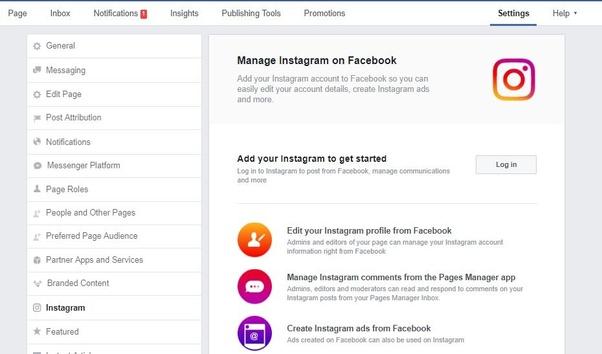
    1. visit your Facebook business page
    2. Go to settings
    3. Select Instagram
    4. Click on ‘Connect Account’
    5. Log in to the Instagram account you want to link

    Your account should be linked from here on. When the account is linked, you’ll see the name of the Instagram account on your Facebook page when you get to stage three of the steps above.

    Unlinking An Instagram Account From A Facebook Business Page

    1. visit your Facebook business page
    2. Go to settings
    3. Select Instagram
    4. Click on ‘Disconnect account’
    5. You may be required to login to your Instagram account for this to take effect.

    How To Setup Your Instagram So That All Posts Show On Your Facebook Page Automatically

    1. Tap the upload button on your Instagram account
    2. Select a photo you’ll love to post
    3. Type your caption
    4. Click on advanced options beneath the sharing buttons
    5. Toggle on the ‘Share your posts to Facebook’ button
    6. You may be required to login to your Facebook account again for this to take effect.

    Conclusion

    Linking your Facebook Account to your Instagram account saves you so much time and stress especially if you are someone who shares the same kind of content on Facebook and Instagram. Also, it gives you the chance to manage all your accounts from one place (Facebook). I hope this guide was helpful to you. Kindly share your views in the comment box below.