Category: Mobile Apps

87425

  • How To Use Truecaller To Find The Identity Of People Calling You

    How To Use Truecaller To Find The Identity Of People Calling You

    Have you had a hard time finding the identity of a caller? Yeah, I know how that can be frustrating. But, I am here to show you how to use Truecaller to find the identity of people calling you.

    Spam calls and calls from unknown numbers are one of the things that worry us in this modern technology age. Due to the easy guessing of numbers and easy access to mobile numbers, spammers make use of that and call strangers regularly.

    Unlike emails where you can easily see the sender’s email address, it is very difficult to find the identity of unknown callers; and that is where the Truecaller app comes in to help you out with that.

    What Is Truecaller?

    Truecaller is the world’s best Caller ID

    Truecaller app is the world’s largest mobile number community which comprises over 150 million registered contacts in its database. The contact is spread across the whole; meaning that Truecaller is in literally most parts of the world.

    To make it more accessible and user-friendly, Truecaller has a simple User Interface that is easy to navigate no matter your tech background. It’s also available for free download for Android, Blackberry, iOS, Windows, Series 40, and a list of other operating systems.

    How To Use Truecaller To Find The Identity Of People Calling You

    There are several methods that can be used to find the identity of a caller using Truecaller. Some of these are automatic while others are manual.

    In this article, I am going to show you some of the proven methods you can use to carry out this action. But before we begin, you need to download the free Truecaller app from the Google Play Store, Apple App Store, or any other source that fits your devices’ operating system.

    How To Use Truecaller To Find The Identity Of People Calling You By Using Truecaler’s Dialer

    This method is very simple and straightforward. But, with this method, you need to hang up the call before you can be able to find the identity of the caller.

    To find the callers identity using the Truecaller dialer, all you need to do is to copy the number of the caller and paste it in the Truecaller dialer.

    Once you are done, try calling the number and the name of the person you are calling will display on top of the mobile number. Also, the name will be in full, for example, Kofi A. Mfidie.

    Please note that the dialer is only available for Android users. This is because Android’s Operating System is an open-source unlike Apple’s closed-source Operating System.

    How To Use Truecaller To Find The Identity Of People Calling You By Using Truecaller Live ID

    Using this method is only going to be possible for Android and Windows users. If you fall within this category, then you can follow the steps below. Also, you need to have a stable internet connection in addition to that.

    To use the Truecaller Live ID option, you just need to type the number of the person and the name of the contact will automatically show up.

    Conclusion

    Depending on the device you are using and the version of Truecaller you are using; sometimes when a person is calling you the name of the caller will automatically show up. But it doesn’t show up, you can use any of the two methods stated above.

    Also, you need to register once you create the account in order to enjoy some of the amazing features. If you want to enjoy more than what the free version offers, you can decide to buy the premium package.

    So, follow the steps listed above and find the identity of that person who is calling you. If you run into any trouble, feel free to write it down in the comments section below.

  • How Entrepreneurs Can Use The Google Primer App To Learn And Grow Their Business

    How Entrepreneurs Can Use The Google Primer App To Learn And Grow Their Business

    The current crisis in the world has led people to work from home and convert their rooms into their office spaces. Currently, the world is facing the coronavirus pandemic and so many people’s life has been affected adversely.

    Life has changed be it the professional front or personal front, and also the way of working. Though there is a crisis, the crisis can be seen as an opportunity in disguise.

    You can use this time of crisis to learn about different skills and expertise. This new skills can be acquired through an App provided by Google called Google Primer.

    In this article, I will take you through how you can use the Google Primer app to learn and grow your business and even mastering new skills.

    Why Skills Are Important

    Skills are extremely important and they prove to be much more valuable than a University or college degree. By gaining marks, you earn a degree and by learning and understanding the concept of any profession, niche or work, you earn a skill or build your talent.

    Skills help you understand the application of the niche of work you are trying to acquire/learn and that creates a better impact practically.

    Google Primer is an app that can help you learn different skills to help you in your line of work in the long-run.

    Why Did Google Primer Start

    Google Primer started in the year 2015 (in the US) and in 2018 (in India, Canada, Australia, Indonesia, and Latin America). the application started keeping in mind target audience who wish to learn about business, marketing and other digital strategies that would help them grow their business in a better way.

    What Is The Google Primer App About

    The app is about teaching digital marketing and other business skills to their users. The application is completely free on the Play Store so as the contents provided.

    The app consists of different skills from which the user can select and start learning at their own convenience. Each lesson in the app is not more than 5 minute and during the class, it gives great interactive and real-life scenarios for the user to understand the concept.

    Google Primer is part of the Grow with Google and Digital Unlocked initiative of the tech giant. Google redesigned the app in 2018 to make it more easily accessible to a large number of people and have a large audience.

    According to information researched from the official website of Google Primer, Google, partnered with marketing and business professionals in order to build the content for the app.

    Overview Of Courses In The Google Primer app

    Each course in the app lasts for a maximum of 5 mins and the course teaches you the basic concept of the skill you wish to learn. In addition to this, the course also accesses your knowledge once you finish learning.

    The app also provides a real-life scenario case and accordingly you need to answer them. The answers you provide will indicate how much you have understood about the particular course or not.

    The Google Primer app is meant for a great use for small and medium business owners and also entrepreneurs who are looking to market their products, services and their brand.

    The advantage of learning through Google Primer is that the entire course is simplified and short. For a basic understanding of marketing concepts and skills and other digital strategies used in business, this app is the best.

    Conclusion

    The Google Primer app can be used by entrepreneurs to learn basic digital or marketing skills in their niche. This is an opportunity for business owners to master on a particular field of work to take their business to a different level.

  • Google Picasa Alternatives For Editing Pictures

    Google Picasa Alternatives For Editing Pictures

    Whatever your age, gender or race, photography is one thing we all have in common. Whether you own an expensive iPhone or a cheap android phone, one thing you use your phone for is photography.

    Though you may not be a professional photographer, smartphones have made us all ‘photographers’. You want to have the best DP amongst your friends and colleagues. You want to show off how elegant you are in the classy photos you post on your social media accounts.

    One application which helps smartphone users to edit their photos for best quality and appearance is Picasa. Over the years, this application has made a lot of ‘rough’ faces look smooth on social media.

    But what if you don’t want to use Picasa? What alternatives are there for you? Worry not. This article gives you a list of Picasa alternatives you can use to edit your photos.

    Google Photos

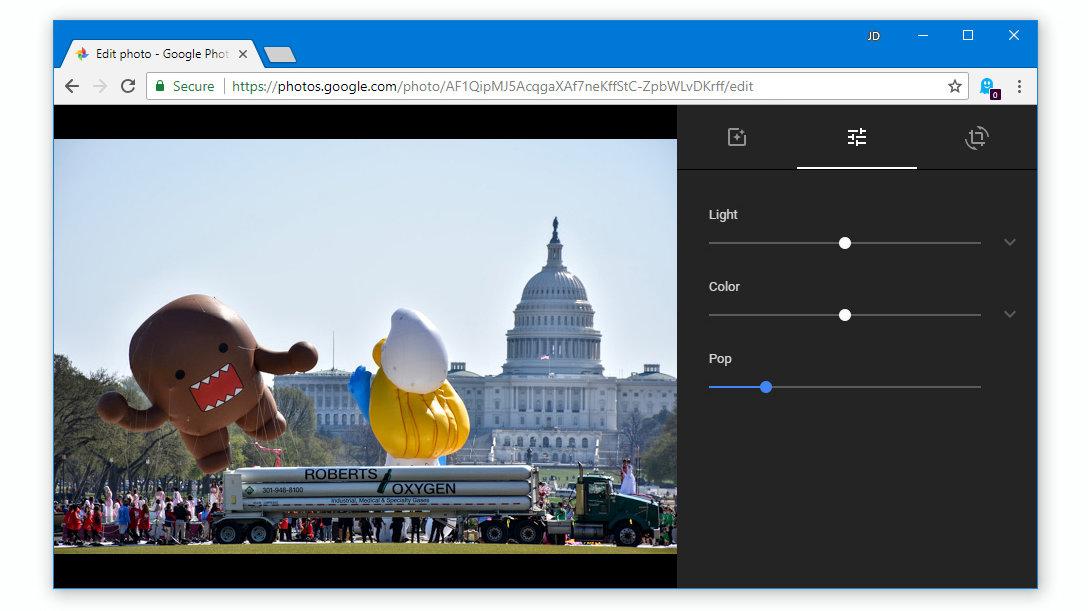
    Your best bet for a direct Picasa replacement should be Google Photos. Google photos is a free tool from Google for organizing and editing photos on their popular android systems. However, the app is also available for IOS users and Windows.

    It is one of the best free photo editing applications available on the internet today. You can use the Google Photos app to change the display of your photos. You can touch the colours, the warmth and texture of your photos. You can also apply filters, crop your photos and rotate your photos using this application.

    What’s more, the application also automatically backs up all your photos to your google account so you can be sure of the safety of your images.

    You can get your Google Photos app for your Android system here. For IOS users, you can get yours here.

    Adobe Lightroom

    The Adobe Lightroom CC is a beautiful and feature-filled software for managing and editing photos across various operating systems.

    The free version of the application enables users to set watermarks, change photo colouration, apply filters and adjust exposure among many other things.

    However, for a premium version which comes at 10 USD per month, users get to sync their photos across various devices and platforms. You can also get other premium features with 10 USD per month.

    This is certainly a good replacement for the popular Google Picasa photo editor. You can get a copy for your android phone here. For IOS users, it is available here.

    Snapseed

    Maybe it’s just coincidence that we are replacing a google product with many other Google products. But yes, Snapseed is another google product for managing and editing photos.

    This is another free application which enables users to change the appearance of old and ugly photos into superfine master crafts of photography.

    Snapseed has tools such as healing brush, crop, curves, colour adjustments, filters and many other tools.

    It is a professional photo editing app that can be used by both pros and newbies. You can get the IOS version here. The android version is available here.

    Picsart

    Very popular software for editing photos, Picsart is the last app on this list. It is definitely a high-end application for editing photos professionally. If you want your photos to look all professional and standout of the numerous photos on the internet, you should think Picsart.

    With Picsart, cloning, cropping, changing a colour grade, adding text to photos and adding filters to your photos has become much easier. You can do all these from one place – your picsart application!

    You can download the IOS version here. For android users, yours is here for free.

    You Can Also Check Applications That Have Nice Filters To Make Your Photo Beautiful.

    Conclusion

    The challenge of social media today is about the best photos. Whether it is a smile challenge on Facebook or a natural face challenge on twitter, you definitely want to show off your best photos.

    The only way to ensure that you get the best results for your social media is by touching up your pics after taking them. One app that comes to mind for this purpose is ‘Picasa’.

    But maybe you want to use some new features and tools to bring some extra touch to your photos, Picasa may not really make the cut for you. So which other applications can you use to edit your photos?

    In this article, we talked about 4 replacement apps for Google Picasa.

    I hope this list was helpful to you. Kindly do well to share with your friends and family.

    If you have any comments, reservations or questions regarding this article, kindly share them in the comment box below or get in touch with us.

  • Camera apps you can use for Android phones for better photo quality

    Camera apps you can use for Android phones for better photo quality

    Due to the increased number of photographs that are taken each day, getting the right camera for your phone is always important. But, what will you do if you are not able to meet some of the requirements you want from your phone?

    The answer to that question is by using camera apps that are available on the Google Play Store for all Android devices. This article is going to show you some of the recommended camera apps you can use for Android phones for better photo quality.

    Camera and photo quality are some of the main features that phone manufacturers focus on every year when making upgrades. But are they able to achieve exactly that? The answer is NO!

    Most of the time they are not able to meet exactly the demands of the user and this is when camera apps come in to enhance the quality of your photos. Some of these camera apps have unique features that are not available on the phone’s original camera.

    Camera apps you can use for Android phones for better photo quality

    A Better Camera

    A Better Camera just like all the camera apps on my list today is a free camera app that is available for download on the Google Play Store. The name of the app, A Better Camera suggests something strong to you and that’s exactly what it does.

    Some of the features of this app support HDR images, multi-shot modes, night mode, video recording, and more interestingly, a 360-degree panorama. Also, there are some extra features such as object removal that remove objects from your photo.

    Camera MX

    One of the oldest camera apps on the Google Play Store is Camera MX and though it is old, it is regularly updated by its developers. This makes it even more fun and good to use for your photos on your Android phone.

    The app has several features; some of which include several shooting modes, and also the ability to create your GIF. Camera MX also has a built-in photo editor that can be used to perform some basic photo editing.

    Google Camera

    Just as the name suggests, this app is an official product of Google Inc. and is the one that is usually found on most Google devices. Google Camera is a “small boy danger” because it has small but powerful features that stand out from the other apps.

    Some of these features include a lens blur mode, slow motion (depending on your device), photospheres, etc. Considering the manufacturer of the app and the feature it has, this app is worth trying.

    Camera 360

    We can never talk about camera apps without talking about Camera 360. The app is known in recent times as a sticker creation camera app with no significant features but that is not the case. It has some cool features.

    Apart from the stickers that it is highly associated with, Camera 360 also has different shot modes, posterior, tilt-shift-blurs, and a list of others. Also, the selfie camera has some pretty cool and nice features as well; especially the skin tone ambiance.

    Snap Camera HDR

    The last camera app on my list today is Snap Camera HDR. This app is perfect for persons who want close to nothing top-notch quality photos. Especially, professional and amateur photographers who use mobile phones for their activities.

    Snap Camera HDR supports 4K video recording, manual camera contents, RAW support, HDR, and some file size options. You can also switch between fun shooting modes, colour effects, borders, etc.

    Conclusion

    Please take your time, read through the different apps recommended in this article, and choose the one you think fits your preference. In case you are confused about what to choose, you can download more than one app and try out both to see the best one.

    Although these apps are free, to enjoy more advanced settings you need to upgrade to the pro versions for a fee (monthly or annually depending on the app).

    Do you know of any other camera apps you can use for Android phones for better photo quality? Feel free to write it down in the comments section below and I will add it to my subsequent articles.

  • 4 Apps That Support Self Destructing Messages

    4 Apps That Support Self Destructing Messages

    Chatting applications have multiplied over the years with numerous newbies joining the tonnes of already existing users, every single day.

    While chat and messaging apps have become an important part of our lives, there is one main thing that has been of major concern to most users.

    Security on the internet is one key thing that the internet infrastructure has not been able to guarantee 100 per cent of. As such, people keep finding ways of ensuring their safety and security online.

    This insecurity is also present in the chat or online messaging world. With what has now become known as ‘receipts’ or in common terms, screenshots pulling up here and there, the security of parties having chats on messaging apps has become an immense concern.

    You could send a message to someone, hoping it’s just between you two and the next thing you know is that the person has shared that information with the whole world via the power of social media.

    Also, kids and other minors may want to avoid people having access to confidential information on their phones, especially in their chat apps.

    With all these and many other instances taken into consideration, the concept of self-destructing messaging apps was introduced.

    Also, Checkout Some Apps On Your Partner’s Phone Which Shows They Are Tracking You.

    What Are Self-Destructing Messaging Apps?

    Self-destructing messaging apps are applications that automatically deletes messages from both the receiver and the sender’s devices upon the expiration of a certain pre-defined time by the sender. So, just like Whatsapp chats where you can delete messages from both devices after sending, in this case, you’ll time the message such that if the time elapses after the recipient had read the message, then it gets deleted on both devices.

    Apps That Support Self-Destructing Messages

    Now, let’s get into details of the various chatting apps that support self-destructing messages.

    Snapchat

    Snapchat is arguably the world’s leading photo and videos sharing app. Millions of people share various photos, texts and videos on this app that has brought about a social media craze over the years.

    For most Snapchat users, the main reason they spend their entire day on the app is that they could send photos and videos to people with the assurance that it’ll be deleted as soon as the recipient views them. This has been the prime reason for the introduction of the app and so users are always excited about it.

    It is only right therefore that Snapchat finds its way as the number one app on our list here.

    Wickr

    Wickr is one unique brand in the messaging industry. It comes with extra security features which make it difficult for any other person apart from the intended recipient to have access to the message sent by the sender.

    Wickr makes use of data encryption or cryptography to encrypt messages from the sender with 5 different security layers which make it impossible for any other person to have access to your message or for it to be forwarded to another contact.

    So wickr is the second app on this list of self-destructing messaging apps. Wickr is mostly used by secret agencies and other security forces in their works but can also be used by individuals as well.

    Bleep

    One of the finest seld-destructing messaging apps available on the internet today is Bleep. Bleep offers a wide range of login methods including mobile number, email and or incognito mode.

    Aside from the self-destruction and end-to-end encryption features available on Bleep, the platform also offers a feature called ‘Whisper’. When you Whisper a message to another person on Bleep, they cannot forward the message nor can they screenshot or do any other thing apart from reading and replying.

    Also, Bleep has an anonymous messaging feature which only shows the Initials of the sender to the recipient.

    Telegram

    Telegram is one of the most-used chat applications in the world currently. Aside from the fact that it enables users to send files, documents and applications unlike most other chat applications, Telegram also has a self-destructing feature.

    Messages sent to users on Telegram can be timed to self-destruct after the recipient has viewed the message.

    This function is available in the Secret Chat feature of Telegram.

    For more security, Telegram uses end-to-end encryption to prevent external bodies and applications from having access to messages sent between users on the platform.

    Conclusion

    Safety and privacy on the internet is one thing most people and security companies have advocated in favour of. Over the years, various people have raised concerns about the safety of data and messages on various chat platforms due to the intrusion of third parties.

    In this article, we looked at four chat applications which support self-destructing messages. These apps are responsible for preventing third-party involvement in chats.

    I hope you find this article interesting and that you would share with your friends and relatives.

    Please do share your comments, reservations and questions about this post in the comment box below or get in touch with us.

  • Top Video Streaming Apps You Can Use to Stream Ghanaian Content on Your Phone

    Top Video Streaming Apps You Can Use to Stream Ghanaian Content on Your Phone

    Due to several circumstances, our daily life and routine can be very packed leaving us with little or no time to enjoy what we love most. Especially, for those who like watching TV and other Ghanaian contents.

    For example, getting home from work could take more than two hours depending on the traffic on the route you choose. In times like that, the stress alone that comes from it will not allow you to enjoy your favourite TV or Ghanaian contents.

    To help our readers who fall into such categories or people who are looking for a place to stream Ghanaian content everywhere on their mobile phone, we decided to write and recommend some of our top video streaming apps you can use to stream Ghanaian content on your phone.

    As interesting as it might sound, all the apps are free to download but some of them involve paying a little token to the owners of that particular application.

    Top Video Streaming Apps You Can Use to Stream Ghanaian Content on Your Phone

    There are several top video streaming apps you can use to stream Ghanaian content on your phone on the internet, Google Play Store, and the Apple App Store. But below are our top and recommended apps.

    YouTube

    YouTube is the biggest and one of the most used video streaming platform in the world. But little do people know about its ability to help Ghanaians stream local content on their mobile app.

    Due to technology, almost all the TV and radio stations in Ghana now stream their broadcast on the internet and YouTube of the most used in Ghana. Popular TV and radio stations like Peace FM, UTV, Adom TV, and others stream their broadcasts on YouTube.

    Meaning, whether you are at home, in the car, at work or anywhere at all, you can watch your favourite TV or radio show on your mobile phone.

    The YouTube app is free and available on the Google Play Store and Apple App Store; and the streaming of the videos is free. But, standard data charges apply.

    You can also download the videos and watch already existing videos and save for offline.

    My Joy Online Mobile App

    The My Joy Online Mobile App is a mobile app developed by Multimedia Group Limited, owners of Adom TV, Joy News and, Joy Prime.

    This is one of the best video streaming apps that you could get for free online. The app is free to download on the Google Play Store and the Apple App Store. There is news from all categories on this application.

    One interesting feature of this app is the addition of all the Multimedia Group Limited’s television stations into this app. Meaning, you can watch a live broadcast of all the television stations under Multimedia Group Limited, i.e. Adom TV, Joy Prime, and Joy News.

    The streaming of videos on this app is completely free, but standard data charges apply.

    2CTV

    The first app on our list today is 2CTV. 2CTV is a television set in your pocket literally, that gives unlimited access to Ghanaian contents on your mobile phone and is powered by Crystal Adaptive Bitrate Switching Technology.

    The 2CTV app provides you with a high-quality picture, sound, and video of your favourite Ghanaian channels right on your mobile phone. Some of these are UTV, Adom TV, Joy Prime, Joy News, 4syte TV, GHOne, TV3, and host of others.

    The app is free to download and you will be allowed to test the video quality before an order for a subscription plan. Unfortunately, this app is available for only Android users.

    The available subscription plans are:

    • Hourly – 50 pesewas
    • Daily – GHS 2
    • Weekly – GHS 10
    • Monthly – GHS 30

    Kumawood App

    This app was developed by movie actors/actresses from “Kumerica” to help spread the works of the Ghanaian local movies (Kumawood) to Ghana and other parts of the world.

    Unlike 2CTV, the Kumawood app is available for both Android and iOS users on the Google Play Store and the Apple App Store respectively.

    The downloading of the app is free, but before you can get started you need to subscribe and register for the streaming service. This is the best app for streaming Ghanaian local movies on your mobile phone.

    The app features local movies, short clips, funny videos, and other amazing stuff you don’t want to miss out on. It is available in almost all the major local dialects like Twi, Ga, Ewe, Dagbani, etc. Therefore making it easy for everyone to access.

    Conclusion

    These are our top video streaming apps you can use to stream Ghanaian content on your phone. But as said earlier, there are other apps also available.

    Please note that the smoothness of your broadcast mainly depends on your internet connectivity and its strength. Therefore, make sure to get a good video bundle from your network provider and enjoy your video stream.

    Please if you think other apps are very useful, feel free to comment in the comments section below and we will add it to our list. Thanks for reading and make sure to like and share.

  • 4 Software That Accounting Students Can Use To Learn

    4 Software That Accounting Students Can Use To Learn

    For almost every educational area of studies or specialization, there are various software designed to help students learn and understand their subject areas better.

    The Accounting course is not left out of this either. In fact, it is one of the courses that has quite a wide number of software available to choose from.

    In this article, we shall talk about four of the best and free software options available online for Accounting Students to download and use to learn.

    Accounting By Edu App

    The Accounting app by Edu Apps is a great way to learn the basic concepts and facts of accounting on your own as a student.

    Whether you are a final year student in an accounting institution preparing for your final exams or you are a fresh student in an accounting school or you are a professional seeking to revise your accounting notes to keep you ahead of trends in your chosen field of expertise, this Accounting Application has all you need and even more.

    it has features which give you a highlight of the introduction to accounting, double entry accounting, profit and loss management, Adjustment entry, Accounting for depreciation, Accounting ratios, Accounting cycles and Equations, and Accounting for accrual and inventory.

    This software is definitely a big addition to the list of accounting software you may want to have on your smartphone as an accounting student. Click here to cop a copy for yourself.

    Debit And Credit -Accounting By John Gillingham

    This is another beautifully-designed Accounting application for students seeking to take their accounting skills and knowledge a notch further. The Debit and Credit Accounting application by John Gillingham is a fun-packed and resource-choked software which enables students to play their way through the major lessons of accounting and its principles.

    The application comes with games, video courses and downloadable resources to equip the world’s future accounting experts with the skills and experience they need to handle the ever-changing need for accounting and its related solutions.

    What’s more interesting about this software is that it is not only appropriate for Accounting students only. It can be used by both students and established accountants who are looking to raise their skills up a notch.

    Click here to get a copy of the application on the Google playstore.

    Financial Accounting Tutorial By Top Of Learning

    While there is a wide range of software for Accounting students to consider having towards the success of their courses of study, there are very few software which park such a wide range of features like this one by Top Of Learning.

    Financial accounting tutorials software is a great professional tool to be added to an Accounting student’s toolbox. It comes with features such as tutorials and downloadable resources covering the areas of Introduction To Accounting, Methods of Accounting, Financial Statements, Asset accounts, Introduction To Bookkeeping, Closing Cut-offs and Controls, Becoming a CPA, Balance sheet and Bank Reconciliations.

    This software is available on the Google Playstore. You can get yours by clicking here.

    CLEP Accounting Exams Prep

    Accounting examinations can be a pain in the neck sometimes. As such, it is a thing for most people to rely on colleagues for pair revisions and preparations ahead of such exams. Well, the CLEP Accounting Exams Prep is more than a companion in times like this.

    This application comes with over 110 Accounting questions and their answers which enable you to revise the most important concepts of accounting and prepare you adequately for the much-awaited and dreaded examination.

    You can switch from the practice mode, test mode or refresher mode to check out the various resources available.

    Some of the main areas covered in this software are Income Statement, Balance Sheet, Statement of Cashflow and other general topics relating to accounting.

    For a copy on the Google Playstore, click here.

    Conclusion

    The Accounting profession is one of the most common professions around today. To make the best out of this profession and beat the competition out there, one must have proven experience and the required grades.

    As such, it is important for students majoring in Accounting to add the best set of software and tools to their list of resources so as to achieve the height they wish to gain.

    In this article, we talked about some four free software to be used by accounting students in their studies.

    I hope the list provided in this article was helpful to you and that you’ll recommend this article to others seeking this very information.

    If you have any reservations, questions or suggestions regarding this article, kindly share with us in the comment box below or contact us.

    Please do share this article with friends and relatives.

  • How to Use PhotoScan by Google To Transform Your Old Photos To Soft Copies

    How to Use PhotoScan by Google To Transform Your Old Photos To Soft Copies

    Do you have that old photo you want to transform to soft copy? If your answer is yes then you are at the right place.

    We all have a particular old photo in our album that we really want to transform to softcopy as a result of modern technological advancements and also social media trends.

    The normal way of doing this is by either scanning it or taking a picture of it using your smartphone. The latter is the most popular method used.

     But, there are many negative effects associated with this method; mainly having to crop the photo or capturing it together with the background it was captured.

    In order to eliminate all these negative effects of using the traditional method, Google introduced PhotoScan by Google.

    What is PhotoScan by Google?

    PhotoScan is a free scanner app from Google Photos that allows you to scan and save your favourite printed photos using your smartphone’s camera.

    The app automatically rotates your captured image, aligns it, and removes the background where it was captured.

    In addition, it also has a built-in editor that helps you edit your photos on your mobile phone.

    Another added advantage is the fact that though PhotoScan was created by Google Photos, your captured photos doesn’t automatically upload to Google Photos but you will need to install the Google Photos app on your phone before you can upload it.

    How to Use PhotoScan by Google To Transform Your Old Photos To Soft Copies

    The entire process works similar to how you take normal photos on your phone. The main steps involved in transforming your old photos to softcopy includes:

    • Download the free PhotoScan by Google app from the Google Play Store or the Apple App Store.
    • Place your phone directly on the photo and press on the capture button.
    • Move your phone around to get the circle over the 4 dots.
    • When the photo has finished processing, tap on the preview at the bottom right corner.
    • Rotate, adjust the corners, or delete the photo.
    • After editing, save the photo.

    Scanning Tips From The Google Team

    The following are some of the scanning tips for capturing a nice photo from the creators of the app, Google:

    • Do not tilt your phone while scanning.
    • To better frame your photo, place on a flat surface with a contrasting background (avoid scanning on a carpet).
    • To scan vertically, hold your phone vertically and to scan horizontally, hold it horizontally.
    • Turn on flash to help remove residual glare, shadows and get better images.
    • If there’s too much glare, move to a less lighting place.
    • Remove photos from shelves or albums; or turn on the flash if the photo is in a glass.

    How Many Pictures Can I Take At A Time?

    As with all cameras, the PhotoScan by Google app can also take one photo at a time. But, there’s no limitation on the number of photos you can take per day.

    Do I Need To Have Google Photos Before Using PhotoScan by Google?

    The answer is NO! Everyone can use PhotScan by Google i.e. whether you have a Google Photos account or not. Though the app was created by the Google Photos team and having it would be an advantage.

    Conclusion

    This free mobile app developed by Google is now going to help us in diverse ways; especially, the time and money you would have spent in case you sent it to your local photo studio.

    How to use this app is very simple and all the important guidelines on how to use the app have been included in this article.

    After reading this article, you can check your photo album and convert your old photo to a softcopy.

    Due to unforeseen circumstances, it’s advisable to always save your photos on the cloud (Google Photos in most android phones and iCloud on all Apple devices). This will keep your photos safe in case the unexpected happens.

    Now that you are done reading go ahead and capture that photo and tag us on all our social media platforms: Facebook, Twitter and Instagram.

  • How To Add Two Or More Twitter Accounts To Your Twitter App

    How To Add Two Or More Twitter Accounts To Your Twitter App

    Have you wished to keep your business and personal lives separate on Twitter? Or, do you want to have another account separate from your personal account away from friends on Twitter? Yeah! you are right- it’s not OK mixing business with personal life or pleasure.

    You can create a second or more account separate from your main account and just switch between them.

    Each account you create needs to have a different username but with the same email address except you want to use multiple email addresses each. It’s simple, just add a dot (.) or any character to the usernames and twitter will see it as different from your main account but with the same mail.

    Account creation can be done by visiting www.twitter.com or you can download the twitter app from the Android Mobile App or IOS.

    Creating Twitter Account On The Web

    For account creation on the web, go to Twitter’s homepage and click on the signup button. Follow the account registration process by entering your name, then proceed to enter your email address or phone number then press enter to go to the next step.

    Twitter will send you a verification message to your email or an SMS to your mobile if you used a number to register. Find and enter the code inside the verification code field. Press enter and set your password from the next screen.

    The next step is adding your photo and bio. If it is a business account, add the business logo to the upload profile field and add the business info in the bio field. Same way if it’s a personal account, add your profile image and a brief biography about you.

    Choose your interests by selecting the interests listed, twitter will then suggest accounts you might want to follow. You can follow as many people you want in this step,

    Twitter auto sets usernames for registered accounts. If the username provided does not interest you, click on the profile icon and select Settings and Privacy. Click on the username at the top of the newly opened window and type your preferred username.

    The username should contain only letters, numbers, and underscores with no spaces and must be up to 15 characters or less. Click the save changes to save the details.

    Adding Two Or More Twitter Accounts On Mobile

    In this section, we will be looking at how to create two or more Twitter accounts using your mobile app.

    Open your Twitter app and tap on your profile icon in the top left corner. On IOS, tap on the ellipsis icon (), while Android users will tap on the small down arrow.

    Tap on the Create New Account, and type in the required details. Now Snc Twitter to your contacts and start following people you would want to follow.

    Using Multiple Account On The Web

    Now you have both accounts set up, both accounts can be switched between. When on the website, you can’t use both accounts in the same browser. If both account are needed at the same time, you would have to open both accounts in two separate browsers.

    Using Multiple Accounts On Mobile

    On mobile, switching between two or more account is very easy. Sign in one account as the app is opened, and tap on your profile account. Now select the ellipsis/down arrow icon.

    Select the ‘add an existing account’ and login to your second account. Now, both accounts will be linked to your phone. Every time you open your Twitter app, you will see both accounts linked and you can switch between them as much as you want.

    Deactivating A Twitter Account

    If you decide you no longer need multiple accounts anymore, there is an option to deactivate. Sign in to the account you no longer need, and click on your profile icon and select ‘Settings and Privacy’.

    Scroll down to the button of the window and press on Deactivate your account. Enter your twitter password to confirm.

    Conclusion

    There are a lot of people who wouldn’t love to mix their personal lives to their business. Having a single Twitter account that blends both business and entertainment is not encouraging thus, the need for multi-twitter accounts.

    In this article, I have elaborated on the steps to have two or more twitter accounts on your twitter mobile app.

  • How To Prevent Someone From Adding You To A Whatsapp Group

    How To Prevent Someone From Adding You To A Whatsapp Group

    WhatsApp has become a core part of our lives, especially for smartphone users.

    Every single day, we spend at least 5 hours averagely using the world’s biggest instant chat application.

    With Billions of people using the application globally, it has become a platform for many businesses and social gatherings to thrive, thanks to its Chat Groups feature.

    Now, as convenient as this feature may look to business owners, associations and general gatherings, it has been hugely abused by many people.

    If you have 50 groups on your Whatsapp account, there is a probability that you were added to more than 70% of those groups without your consent.

    This can be very annoying sometimes, especially with the possibility of you receiving unwanted texts and your storage getting filled up with unnecessary images and videos from such groups.

    For most people, this is one of the reasons they find it difficult enjoying their Whatsapp application.

    This shouldn’t remain a problem without a solution. Looking at the benefits Whatsapp has, it is only a shot in the leg for anyone to decide against using it because of the annoying group messages.

    In this article, I shall take you through the steps for preventing other people from adding you to Whatsapp groups (without your permission).

    Blocking Unknown People From Adding You To Whatsapp Groups

    Avoid Being Added To Whatsapp Groups Randomly

    Though it is generally annoying for anyone to add you to a Whatsapp group without your prior knowledge, it is even more annoying if you don’t know the one responsible for adding you to the group in the first place.

    So here are the steps to take in order to prevent other people (who are not your contacts), from adding you to Whatsapp groups.

    1. In your Whatsapp app window, click on settings.
    2. Look through the list of menus and click on ‘Privacy’
    3. Under the Privacy menu, Select ‘Groups’
    4. In the next window, select ‘My contacts’.

    After successfully setting up this process, you have conditioned your Whatsapp such that only those who are your contacts can add you to Whatsapp groups, with or without your consent.

    Preventing Some Contacts From Adding You To Groups

    While it is true that the most annoying part of being added to a Whatsapp group is if the person adding you is unknown, some contacts just naturally love adding you to groups without seeking your consent. This could be very annoying too especially if you don’t have that sort of relationship with the said contact.

    Well, smile. There’s a way to deal with such people by preventing them from adding you to Whatsapp groups anyhow.

    1. In your Whatsapp app window, click on settings.
    2. Look through the list of menus and click on ‘Privacy’
    3. Under the Privacy menu, Select ‘Groups’
    4. In the next window, select ‘My contacts Except’.
    5. Select the various contacts you want to exempt from adding you to groups and click on ‘Done’.

    That’s all. Very simple and short. You can now enjoy your Whatsapp without worrying that someone from somewhere would add you to a Whatsapp group out of the blues.

    Conclusion

    Using Whatsapp is not only important for businesses and individuals, but it is also important for gatherings and associations for active communication and discussions.

    While this is entirely true, it is rather unfortunate that most people tend to abuse the Whatsapp groups feature provided by the world’s biggest chat platform.

    In this article, we discussed how to solve the problem of being added to Whatsapp groups without your consent, both by your contacts and other unknown people.

    I hope this article was helpful to you. Kindly share your comments, reservations and questions with us in the comment box below or get in touch with us.

    Please do well to share this article with friends and family.