Category: Mobile Apps

87425

  • How To Use Your Phone To Find Any Song That Is Playing Around You

    How To Use Your Phone To Find Any Song That Is Playing Around You

    Very often than not, many of us hear songs on radio, TV or on a device nearby. Sometimes, these songs are very interesting and suit your taste for music but unfortunately, we are unable to identify the songs by their owners or title.

    In situations like this, one thing that comes to mind is an app which can help you search for a song by recording a part of it.

    In this article, we shall take you through three applications that enable you to find any song that is playing around you.

    Shazam

    Shazam is a multi-platform app for identifying music playing on TV, Radio, Cinemas and music devices. Shazam is available for IOS devices and Android devices.

    To use Shazam to search for a song, follow these steps:

    1. Open the app and press the ‘Shazam’ button.
    2. Hold the phone near to the source of the song for about 10 seconds.
    3. A digital fingerprint of the audio recorded by your device is created and, within seconds, matched against Shazam’s database of millions of tracks and TV shows for a result.
    4. If the song is available in the database, details of the songs will be displayed to you. However, if the song doesn’t match any of the songs in the database of Shazam, it will show ‘No results found’.

    Note: In order for shazam to produce the kind of results you want, you need to reduce the background noise of the environment in which the song is being played.

    Soundhound

    Soundhound is one of the most efficient speech- to- meaning applications on the internet today.

    With Soundhound, anyone in the world using both android devices or IOS devices can search for songs or TV programs of their choice by simply recording a part of the song or singing and humming part of the song.

    Soundhound then matches contents of the recorded audio with a list of millions of marked audio in their database.

    Soundhoud has features that enable users to link their soundhound account to their Apple Music or Spotify so as to create an automated playlist based on their Soundhound history.

    MusixMatch

    The last app on this list is MusixMatch. Arguably, MusixMatch is rather a better choice than many of the other song finding apps on the internet.

    This app gives you useful results almost every 9 out of 10 times and provides users with lyrics of songs they search as well.

    The app also has a floating lyrics feature, which lets you see lyrics in real-time as you listen to music.

    In addition to this, once you create an account, you can contribute to lyrics for your favourite songs.

    Musixmatch has a free version which displays ads and a paid or premium version which costs 3 Dollars per month and provides the option of saving your lyrics for offline usage.

    Google Assistant

    One of our readers, Mawuli, pointed out the Google Assistant app, which we had missed in the earlier version of this article.

    Quite, rightly, once you say “Ok Google” and ask what song is playing, the Google Assistant will listen to part of the song (usually 6 seconds or less) and tell you the name of the song playing.

    You could also singly type “What song is this?” in Google Assistant and you will get the same response.

    Conclusion

    From the list provided above, my best tip is MusixMatch as it provides far more than just music identification.

    Also, its accuracy rate is quite high and it is more likely to give you the results you want. Meanwhile, depending on the level of popularity of the song you want, Shazam may be a better choice. The more popular the song is, the better it is for Shazam to identify it.

    Also, there are many other music identification apps you can use. Kindly share with us the ones you have used and how best they worked for you. Let’s hear from you in the comment box.

  • The Best Apps For Locking Softwares On Your Android Phone

    The Best Apps For Locking Softwares On Your Android Phone

    Secrecy and privacy are the keywords behind the need for protecting how people interact with your mobile devices.

    Most times, our phones contain some sensitive pieces of information such as our banking details, important dates, vital passwords and usernames as well as images and applications.

    The need to protect such pieces of information on your phone becomes even more necessary when you realize the number of people that are likely to use your phone with or without your permission.

    If you are a married man or woman, chances are that your spouse my comb through your phone or your children may play with your phone while you’re busy with something else.

    Again, you may lose your phone through theft or by misplacing it. In such instances, whoever the phone gets to may have the privilege of accessing all files and apps on your phone.

    The consequences of all the above-listed situations could be dire to you as an individual and the family as a whole.

    In order to prevent all the above, there is a need for you to lock the apps on your phone.

    In this article, I shall take you through some of the best apps you can use to lock other apps on your android phone.

    Norton App Lock

    For all security-cautious individuals, Norton is a common name in the anti-virus industry. Just as with their antivirus software, Norton App Lock is a perfect App lock for your android device.


    The Applock is built to be ad-free and contains a large range of features.

    What fascinates me about this software is the unrivalled element of spying on intruders.

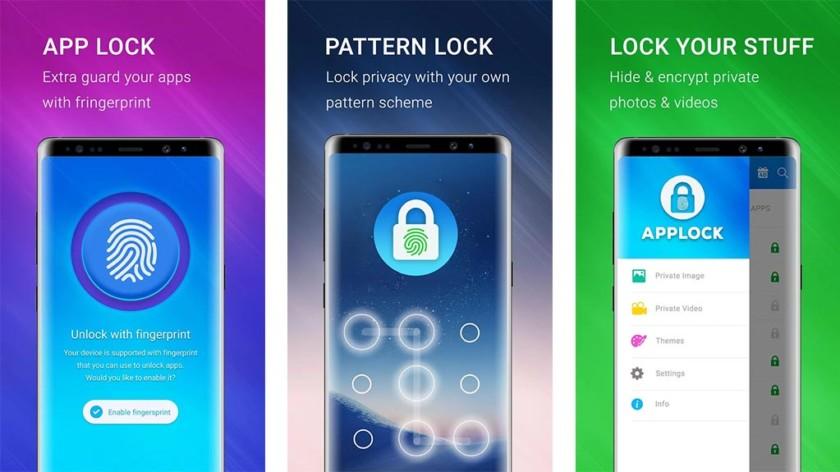
    The app allows you to lock your apps, images and files with password, PIN or fingerprint.

    It also has the ability to secretly record and capture the face of intruders so you could track them when you return to your phone.

    What is more, Norton gives you recommendations for the apps you should lock on your phone. This is based on Artificial Intelligence systems which detect where your sensitive information may be hidden.

    Applock – Fingerprint Unlock

    This app developed by Cheetah Movile is one of the best app locks you can use on your android mobile device today.

    It allows you to use your fingerprint sensor to secure your apps from unauthorised entries.

    You may also create a PIN or use a pattern to lock the phone apps.

    AppLock-Fingerprint Unlock by Cheetah Mobile is a lightweight Android app lock that allows you to use your fingerprint sensor to lock apps. You can also use a pattern or create a numeric PIN to lock phone app.

    One other interesting thing about this app is that it enables you to lock other aspects of your phone such as your Wi-fi, Bluetooth, your phone settings and incoming call logs.

    It also comes with an in-built timer which enables you to set a time within which it’s supposed to lock on idle mode.

    Smart Applock Pro ( App Protect)

    The Smart Applock pro is also a leading name when it comes to app locks for android devices. With an ad-free user interface and being a complete freeware, Smart Applock has some really beautiful features you can use.

    This app allows you to lock your private data, pictures, videos, incoming call logs, phone settings and apps.

    The lock methods include gestures, fingerprint sensor, password, PIN and patterns.

    Also, for its security aspect, the app takes secret photos of individuals who wrongly try to access your phone. It then sends an email to an address you setup during installation.

    MaxLock

    Our fourth and final pick has to be MaxLock.  This app is one of the finest lock apps for those looking to achieve more than just locking their apps and settings.

    With Maxlock, you have improved battery performance and an overall improvement in device health and performance.

    It shrinks data and therefore does not take up too much space as well.

    The MaxLock app allows you to lock your phone settings, photos, videos, apps and other settings.

    Its lock methods include PIN, Password or knock code and pattern.

    The best part of this app, however, is that it enables you to fake the crash of apps that are locked.

    So, when someone tries to open a locked app, it looks as if the phone had frozen or the app had crashed.

    Also, you can hide the lock app by changing its icon and hiding it in a different folder on your device so that nobody realises that you intentionally locked your apps.

    Conclusion

    So, there you have it. A list of apps you can use to lock your android phone from intruders. The apps listed above were carefully selected based on their properties and how safe they may be.

    However, for the sake of your own safety from phishing apps (Apps that look like the apps listed above but are fake), you are required to read the reviews on the play store before you download any of them. I hope this article was helpful to you.

    If you do have any other app you’d like to share with us, kindly indicate it in the comment box. We would love to hear from you. You can also reach out to us via email or call for more information.

  • New WhatsApp Dark Mode: How to Enable on all Android devices and iOS 13

    New WhatsApp Dark Mode: How to Enable on all Android devices and iOS 13

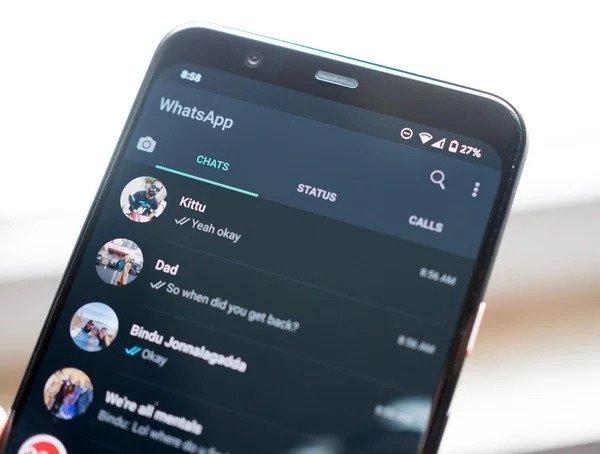
    WhatsApp messenger has finally rolled out it’s long-awaited Dark Mode feature for Android and iOS users across the world.

    The Dark Mode feature, which is WhatsApp’s biggest feature update this year has been in testing for well over a year now.

    With the new update, everyone can update their apps from the Google Play Store and Apple App Store to enjoy the new feature.

    Before the update, most WhatsApp users on Android were using a black-themed modded WhatsApp to mimic what a true dark mode will look like

    The new WhatsApp dark mode has more of a dark grey tone rather than a black background that many had anticipated.

    WhatsApp users on Android 10 and iOS 13 can get the new WhatsApp Dark Mode by enabling the Dark Mode in their system settings.

    Apart from looking nice to most people, Dark Mode gives users the option to change the theme of the app to something that minimises eye fatigue, as opposed to a brighter background.

    This change will be most appreciated in low light areas and in the evenings especially.

    How to enable WhatsApp Dark Mode on Android

    1. Go to the Google Play Store on your phone and install the latest version of WhatsApp
    2. Once the updated WhatsApp version is installed, tap on the three-dot menu icon on the top right and select Settings.
    3. Tap on Chats to go into the chat settings.
    4. Tap on Theme and it will give you an option to choose the theme for the app.
    5. Tap on Dark and you are all set to use WhatsApp Dark Mode.
    6. You will also find a System default option when you tap on Theme which will automatically switch between light and dark mode according to the default system settings.

    This manual method is not available for iOS 13 users.

    WhatsApp Dark Mode is now available for all iOS 13 users.

    Bad news for all iPhone users who do not have iOS 13 as they will not be able to experience WhatsApp’s Dark Mode.

    How to enable WhatsApp Dark Mode on iOS

    • Visit App Store on your iPhone and download the latest version of WhatsApp
    • Go to Settings on the phone and find the Display & Brightness option.
    • Tap on Dark to enable system-wide Dark Mode.
    • Alternatively, you can go to the Control Centre and tap on Dark Mode.

    Conclusion

    WhatsApp’s Dark Mode update is slowly rolling out to all users and will take a few days to reach everyone

    Remember to share with your friends and enjoy the new Dark Mode. If you have any issues, just restart your phone and make sure you don’t have any pending system updates.

  • How to stop Snapchat and Instagram from using all your data bundle

    How to stop Snapchat and Instagram from using all your data bundle

    Let’s stop Snapchat and Instagram from using all of our mobile data.
    Snapchat and Instagram are among the most used apps on most people’s phone.

    On the Play Store alone, there have been at least one billion and one hundred million (1,100,000,000) downloads among these apps. Not to talk about ioS and Windows (Snapchat is still not on the Windows OS).

    We use these apps every day to tell stories in various forms. I am not a big fan of Snapchat, but I do love to watch great stuff on Instagram.

    I have realised a lot of people complain these apps take a lot of their data plan, especially if you are on VodafoneX (and feel you can explore with your “free data”). These two apps are constantly updating their content in the background — whether you are using them or not. You just have to tell them to only be active when you open them up.

    Last time I met my friend Obed, I realised why Snapchat was taking up all of his data. I shared the trick with him and he was highly elated. I thought to share it with all of my readers here too.

    Snapchat

    1. Open Snapchat and tap on your Snapchat profile icon in the middle top of the screen, or swipe down
    2. Tap on the Settings cog in the upper right corner. Under Additional Services, tap on Manage Preferences
    3. Change the Travel Mode to On by making sure it is checked green

    What this does is that it prevents snaps from automatically loading, saving your data.

    If you want to view a friends’ story, you would first need to click on their name to get the snap to load. Some people have also claimed this trick helps to save battery life. I am yet to confirm that though.

    Check images below if you are confused.


    Instagram

    1. Open Instagram and go to your profile by tapping your profile photo on the lower right of the screen
    2. Tap the options in the upper right of your screen to go to the options screen
    3. Scroll down, under settings, tap Cellular Data Use
    4. Choose Use Less Data.

    Check images below if you are getting lost


    Well, let me know in the comments which apps have been using up your data and whether you plan on using these methods. I always love to hear from you.

  • New My Vodafone App: How to Use and Get Free 1 GB Internet Bundle

    New My Vodafone App: How to Use and Get Free 1 GB Internet Bundle

    Vodafone Ghana Network provider is one of the oldest mobile service providers in the country and still among the leading players in Ghana’s telcos.

    Vodafone Ghana for years now has rolled out great services /offers most especially when it comes to the internet data bundle.

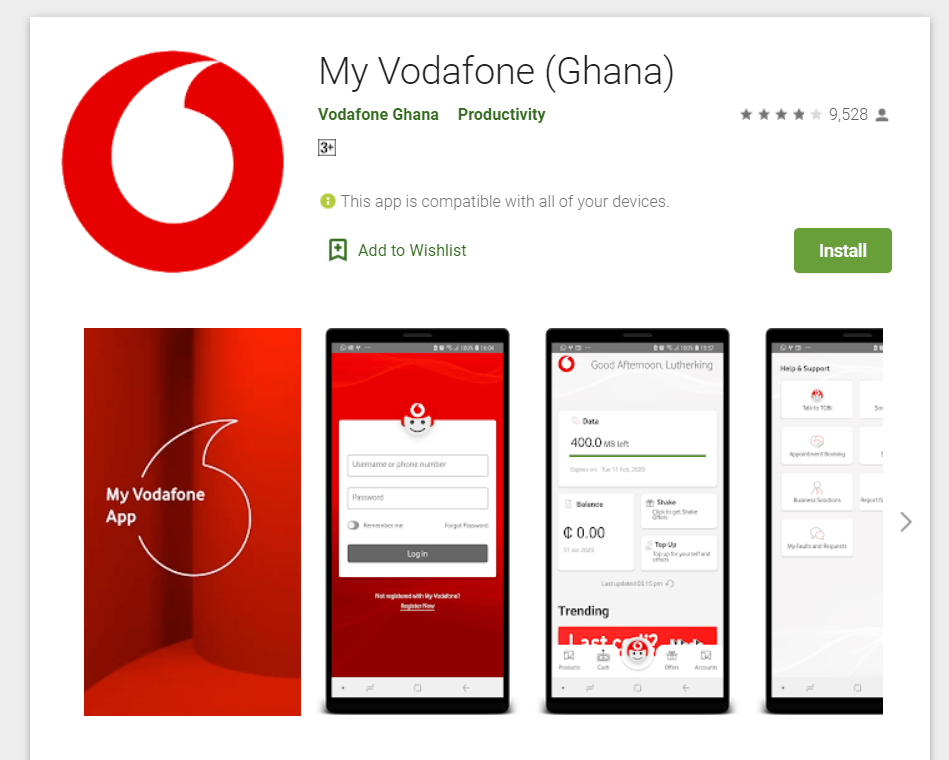
    With the introduction of mobile apps in all sectors of the countries dealings, My Vodafone App was also developed by Vodafone Ghana to help serve the growing mobile app community.

    Like it’s competitors in the Telecommunication industry, Vodafone Ghana Mobile App was developed to help its users check out products and services, Purchase packages, Find a retail store, Manage account, Pay bills and much more.

    The App has been in the system for quite long, offering limited functions. But the latest version (New My Vodafone) comes with new features and functions that every Vodafone user may like to use. Using this app, one can:

    •  Explore and activate new data plans.
    • Top up and transfer airtime.
    • Select favourite voice and data packages.
    • Access bills and payments for Fixed Broadband.
    • Contact helpline through the app.
    • Monitor call minutes, texts and data allowance on-the-go.
    • Locate the nearest Retail Shop with a built-in Store-finder feature.
    • View details on Vodafone’s offer and purchase directly from the app.
    • Activate / Deactivate Value Added Service.
    • Access a wealth of information about our promotions and plans.
    • and many more.

    With its Modern interface, one can now much easier and faster find the things that matter through the app. No need to dial any shortcode before accessing the menus for available offers.  The app also has Vodafone Cash service integrated within, so that one can easily send money to all networks and local bank accounts in Ghana and beyond.

    How to Download Install New My Vodafone App

    Like any other smartphone app, the New My Vodafone App can be downloaded and install from the Google Playstore or Apple’s AppStore.

    Installing this app follows the same steps as installing any other app. Once you’re open your preferred store, (Google Plastore or AppStore), You search for “My Vodafone” then you’ll be displayed with the app. Tap on “Install” if you’re on Android, but iOS users will have to Tap on “Get”.

    Now, wait patiently for the app to download and install. After a successful installation of the app, you can see the app on your App Menus. Tap on “My Vodafone App” to open.

    Once the app is opened, you’ll be taken through the welcome screen. You can skip and go to the Registration page. If this is you’re a first-time user of the app. But existing users will have to log in.

    Registration Page

    To Register on the app, you’ll be asked to provide your:  UserName, Vodafone Mobile Number, Password and Confirm password. Here, a verification code will be sent to your provided Vodafone Number. Enter the code on the next page to finish up the registration process.

    After everything goes right, you’ll now have access to the New My Vodafone interface. From here, you can access all the services mentioned above and other extra features such as Vodafone Tv and Vodafone Cash.

    My Vodafone Modern Interface

    How to Get The Free 1 GB Bundle on The Vodafone App

    Getting the Free Data Bundle on the New Vodafone App follows the same process as that of the older version of the app. All you have to do is to shake.

    Vodafone App has a feature known as “Vodafone Shake”. With this, you’ll have to tap on that feature and then hold tight your phone. Then shake the phone until you complete the Red circle within the Vodafone Shake section.

    Vodafone Shake

    Once the Circle is completed, you’ll automatically be given the free 1GB Data Bundle to use.

    Watch the Video Below to see the Shake It Process and Get the Free 1GB Vodafone Internet Data.

    Please Subscribe to the YouTube Channel Once you are on the Video Page for more useful videos and articles.

    Also, note that the free data is given to only first time users to the My Vodafone App. If you’ve ever claimed the free data using the old app, you’ll have to get a new Vodafone SIM and register before getting the data. Thanks for reading and see you in the next post.

  • How to get the Perfect Valentine Messages for your Partner

    How to get the Perfect Valentine Messages for your Partner

    We look at Valentine messages and resources! February has long been considered as the month of Love.

    There is no facet of our lives that technology doesn’t affect.

    In February 2017, Mfidie.com will put up posts dubbed “#ValentineSpecial” with a focus on technology and our love lives. This was the Second Post in the series. You can read the first part here: #ValentineSpecial: For Lovers – Every Couple should be using this app.

    Today, we look at two resources to get our Valentine message out and clear.

    1. Canva’s Amazing Designs

    Let’s start off with Canva. This web app can help you create beautiful designs for valentines day; whether you want to send to someone or you would want to use as a profile photo.

    When you open the page, sign up with an email or with your Social Media account. You should be presented with a field to choose what you would use canva for. Choose “Personal”. You will then be directed to another screen which will guide you through a tutorial on how to use the app. It only takes 23 seconds to be fully done with the tutorial.

    Canva has a whole lot of layouts, text and font options, elements, shapes, free photos, customisable background and the option to upload your own photo to be used in the design. It is a full free customization online service you can benefit from.

    I managed to create a card on Canva in a minute. It was quite simple and if you are very design-savvy, you should be able to do more. Start designing with Canva now to reflect your best valentine messages.

    Valentine messages example - The card I created on Canva.com
    The card I created on Canva.com

    2. Valentines Day Special App – Valentine Messages and More

    In February, a lot of apps show up claiming to do a lot of things. Well, no one will want to be stuck on Valentine’s day without a good message for their lover.

    And oh, do you even know why valentines day is celebrated?

    I crushed on this cool android app and it is amazing what it has – valentine messages as well as the history of the whole Valentine celebration.

    Screenshots of the Valentines Day Special App containing Valentine Messages
    Screenshots of the Valentines Day Special App

    This app is one of those that “contain everything” related to Valentine. It has a love tester, romantic text messages you can copy, personalise and send, horoscopes as well as activities.

    Valentine will be here soon so it’s important to be fully prepared for it with this app.
    Did I mention this app has tips for single people as well?

    And it’s free. Download the app from here: Valentines Day Special App

  • How To Use MTN App For Mobile Money Transactions In Ghana

    How To Use MTN App For Mobile Money Transactions In Ghana

    When it comes to network stability, best service delivery and customer satisfaction in Ghana, there is no doubt that MTN Ghana is the best.

    This might sound debatable but that’s the fact. With its vast network coverability, and the inclusion of other services such as mobile money, quick loan, and other financial services, MTN Ghana has won the heart of many.

    MTN Ghana has grown to the level where most people depend on it for all their financial transactions. When it comes to Mobile Money service in the country, MTN Ghana is Still the leading player in the market.

    Unlike previous years, where only individuals of a high class can get access to some of the financial services in Ghana.

    Today MTN mobile money has been a life saviour to many. As days pass by, a lot of people have come to love this service and due to that, many new features and innovations have been added to the service including the invention of the MY MTN App.

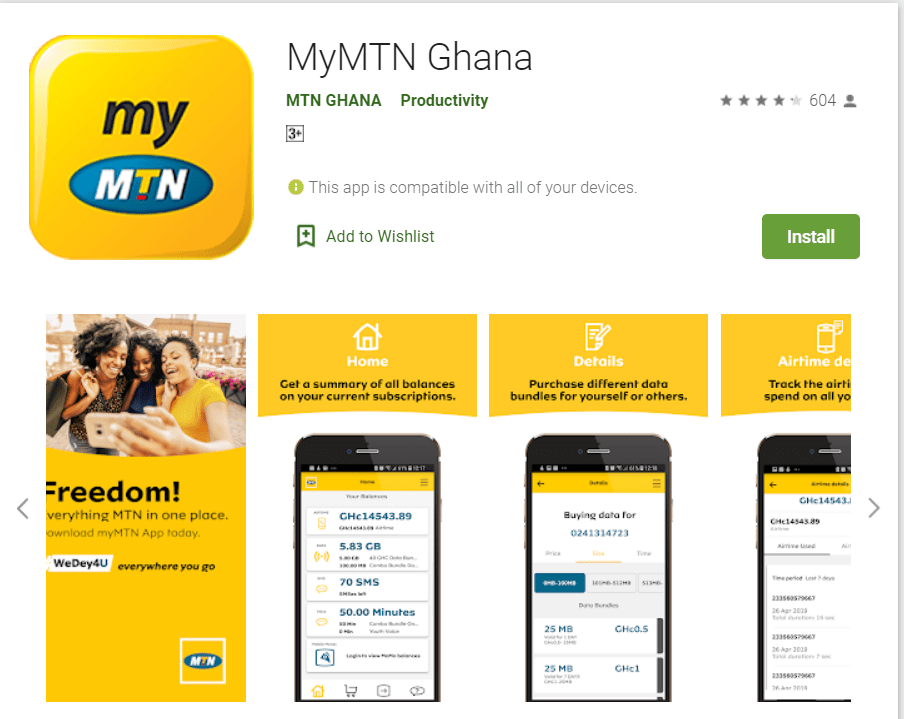
    The MTN App is an app developed to be used by both Android and iOS users. With My MTN App, one can buy airtime, purchase bundles, check balance and much more.

    It gives the MTN Subscribers greater control of their own mobile services so that they can access services and solve issues without having to contact MTN representatives. Using this app, one can also have access to information on all MTN’s products and services at their convenience.

    How to use the MTN App for MOMO Transaction

    As mentioned earlier, the MTN app can be used for many things including Mobile money transactions. But is sad that most people don’t know how to use the app for conducting their day to day activities. If you are one of them, then you can follow the below steps to see how to use the app for MTN mobile money transactions.

    First, you need to be a smartphone user: Android or iOS. Once you get the smartphone ready, you will have to then open your Appstore or Google Playstore to download the app.

    You can download and the app from here if you are on iOS or here if you are on Android.

    After the successful installation of the app, you then open and register on the app using your phone number.  Here, an OTP will be sent to your number.

    Register

    Now enter your password and confirm to finish the registration process. After successful registration, you’ll be given a free 50MB for just installing the app.

    Now is time to use the app for all the service on MTN.

    To transact MOMO on the app, you first open the app once again if it’s closed. Once the app is opened, look at the downright navigation bar you will see the MOMO option.

    Mtn MOMO Menu

    Tap on it to initiate the transaction process.

    Now your phone number will be displayed with a prompt to enter your MOMO pin. Enter the pin to continue.

    Enter MOMO Pin


    After entering the right pin, you’ll again receive another OTP code. Please note, this code is very important. Do not share your code with anyone.

    OTP MOMOEnter the new OTP code and then you’ll be displayed with the MOMO dashboard which contains all the MTN Mobile Money Menus as shown below.

    MOMO Menus

    From here, you can tap on any of the menus to transact on the app.

    Conclusion

    Note that the myMTN App can be used for more services than just MoMo transactions and we will cover them in our next series of articles.

  • Understanding Digital Health: How long do you spend on your phone?

    Understanding Digital Health: How long do you spend on your phone?

    It’s 5:30 am, my alarm just went off, I stop the alarm and use my phone for a good 30 minutes before getting out of bed or even praying. I spend a huge portion of my time on my phone doing research, playing video games and interacting with people. At times, I feel like I spend too much time on it and try to limit it.

    There are many other people who think in the same way and want to reduce the amount of time spent on their phones.  Thankfully there are many apps that can help us manage our time.

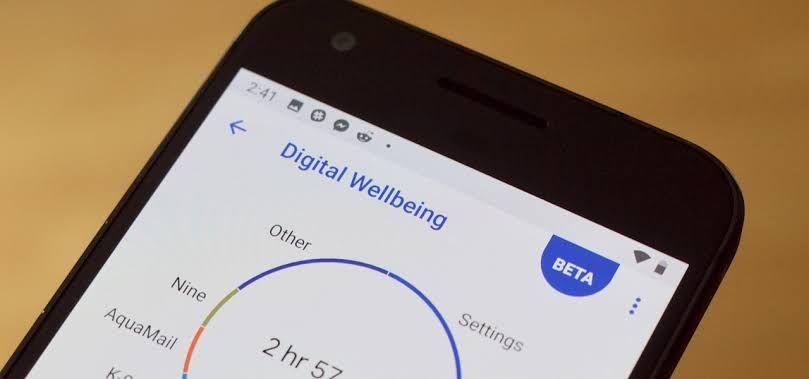
    Digital wellbeing is a system application built into android versions 9 and above. The fact that it is a system app means it has more control than a third party application. Upon booting up a new phone, there is the option to set the maximum number of hours to be spent on the phone.

    There’s also an option to set the preferred number of applications for each specific app as well so if it’s just social media, the maximum number of hours can be set for it. When the set time is reached, the phone goes into total lockdown but it also gives the option to get more time specifically 15 minutes more or unlimited use for the rest of the day.

    Doing this for every application used is really stressful and annoying so the goal is achieved. The number of hours spent on the phone each day is recorded for each application and then summed up in a weekly report.  Everyone concerned about their phone time should set it up and the results would amaze you.

    Flipd, a freemium app which locks down the phone entirely for a set time is. Unlike Digital wellbeing, Flipd blocks all non-essential apps for a set amount of time to help to focus on life but allows you to make calls, send messages, use Google maps and calculator.

    The time options include 30 minutes, 1 hour, 4 hours, 8 hours and 12 hours to allows maximum control. There’s a light option for those who believe in their self-control which creates a page on your phone. If another application is opened, the session is also closed.

    For 190 cedis a year, Flipd provides weekly reports about your stats and keeps the for further reference.  I find it useful to Flipd my phone when I’m about to study and it really helps. When I use Flipd with digital wellbeing, I realized I spent less time on my phone and it really helped.

    If a game or social media app is taking too much time, Freedom is here to help. It is available on the iPhone and it allows you to create blocklists of applications and even schedule the blocklists. The block lists and schedules can be shared among your iPad and Mac. Sadly, it isn’t free, all features are available for a monthly fee of 35-40 cedis a month.

    As our phones take a more central role in our lives, it is necessary to make sure they don’t end up controlling us and these apps do just that.

  • How To Setup 2 Factor-Authentication (2FA) On Your Facebook Account

    How To Setup 2 Factor-Authentication (2FA) On Your Facebook Account

    Second Factor Authentication also is known as 2 Factor Authentication or 2FA is a security system used by websites and applications to ensure that users provide at least 2 evidence of ownership before they are allowed access to their accounts.

    To set up two-factor authentication on your account, go through the following processes:

    1. Go to settings and privacy on your Facebook app or Facebook webpage.

    2. Select Settings

    3. Locate Security And Login under the security heading.

    4. Click on it

    5. Under Two-Factor Authentication, click on “Use Two-Factor Authentication”.

    6. Click on Turn on

    7. Select Your Preferred Method (Mobile Phone or Email.)

    8. Write your mobile number and confirm.

    9. Dial the code sent to your phone for confirmation

    10. You’ll be required to enter your current password for confirmation.

    11. Your 2FA is setup.

    Note: Setting up 2FA requires some level of precision. Be sure to select a method more appropriate to you. Select a method you’re sure of getting regular access to. If you chose text message as your verification method, be sure that the number you used will always be available. Because anytime you have to log in, you’ll need that number for verification.

  • 5 Great Apps To Use For Graphic Designs On Your Smartphone

    5 Great Apps To Use For Graphic Designs On Your Smartphone

    Many people have wondered how they could get some graphic works done by themselves on their smartphones without paying someone else.

    Well, it’s not very difficult to do this. If you’re a writer, a marketer, a blogger or content creator, you probably know how important graphics are to your craft and you definitely need it every other day.

    There are many apps that can help you design your flyers, quotes, social media posts and more on your phone without so much of a hustle. But here, in this article, we shall look at just some 5 of those apps.

    Canva

    Canva

    So the first on our list here is Canva.

    Canva is a very good app which enables you to choose from over 1,000 free templates and designs for the free feature. And millions more for the premium feature. However, the app only operates online. Which means you need internet connectivity to be able to use this app. And also, after the free trial expires, you barely get to enjoy the app as you have to adopt other tricks to be able to save new designs offline on your phone. You can get this app on the google play store or Apple AppStore.

    Snappa

    Snappa

    Just like Canva, snappa is also an easy to use app which works fine for all types of people. Both pros and newbies in the design space can use this app with its drag and drop features which enables you to choose from a wide group of tools and designs to suit your taste.

    However, Snappa’s free plan is somewhat limited. You’ll get five free downloads or shares per month, which should give you a feel for whether you’d like to pay the $10 a month for unlimited downloads.

    Desygner

    Desygner

    Just as the name suggests, desygner is also a web-based application for designing graphics. It’s similar to Canva and Snappa.

    But in terms of looks and design choices, Desygner is similar to Canva. The only difference however is that Canva has more tools and customisation than Desygner does.

    On the other hand, this provides Desygner with a simpler outlook than Canva.

    For those who prefer simplicity, Desygner is your answer. And for those geeks who want to customise it all, you may consider Canva or any other app mentioned here.

    Desygner is free but offers a $6.95 monthly plan for access to more templates and features.

    Adobe Spark

    Adobe Spark

    We all know how powerful Adobe Inc. is in the design and info graphs space. So, aside from their professional graphics tools such as photoshop and the rest, Adobe has something for non-professionals who want to do their own graphics design without so much hustle.

    Basic features are free, while the full lineup is available for $9.99 per month.

    Visme

    Visme

    Visme is an infographic maker that’s basically the Canva of the infographic scene.

    Like Canva, it is as easy as dragging and dropping as well as clicking to get a design finished in Visme.

    It is the finest free software on mobile devices for anyone looking to create eye-catching information graphics for presentation, for their blogs or any other projects.

    Conclusion

    It’s not that difficult to do graphic works on your phone anymore. You can just do most of the work by yourself and save a few more bucks for the future vacation.