Author: Gabriel Agbobli

  • How To Print Your MTN Mobile Money Statement

    How To Print Your MTN Mobile Money Statement

    Do you need your MTN Mobile Money statement for a specific purpose? Or do you want to have a hardcopy of your MTN Mobile Money Statement?

    Whatever your reasons for having to print your MTN Mobile Money statement maybe, then this article is going to fit you perfectly. This is because, in this article, I am going to show you how to print your MTN Mobile Money statement.

    MTN Mobile Money has taken over the fintech industry in Ghana by surprise. Unlike the olden days where people had to go to the bank to create bank accounts, most people now prefer to have a mobile money wallet than an actual bank account.

    For instance, when your relative outside decides to send you money through your mobile money wallet, you can receive it less than five (5) minutes.

    That is very fast and easy as compared to the other methods where you will need to submit your ID and reference code before your money will be withdrawn for you.

    Even on certain occasions where the money you are withdrawing is a little huge, the bank will interrogate you before the money will be released for you. Leading to delays in access to the money sent from abroad.

    What Is A MTN Mobile Money Statement?

    A mobile money statement is a document or file that shows the transactions the has been made on your MTN mobile money wallet. This includes the withdrawals you have made, the transfers, purchases, etc.

    Basically, every transaction that has been made on your wallet will be displayed on your statement. Also, if you are going for a travel visa, you can send your MTN Mobile Money statement as proof of your financial status.

    How To Print Your MTN Mobile Money Statement

    1. Dial *170# on your phone.
    2. Choose option 6 (My wallet).
    3. Select option 5 (Statements).
    4. Choose option 1 (Statement request).
    5. To subscribe to Monthly Statements, choose option 1.
    6. To request a statement immediately, choose option 2.
    7. Enter your current email address. (This is where the statement will be sent to).
    8. Re-enter your email address to confirm.
    9. Enter the start date of request using the format (Day Month Year, i.e. 01 02 2021). The duration cannot be more than two (2) years.
    10. Enter the end date of request using the format (Day Month Year, i.e. 01 02 2021).
    11. Authorize the payment of GHS 0.50 by entering your MTN MoMo PIN and then press 1 to confirm.
    12. A confirmation message will be sent to you via SMS.
    13. Finally, a pdf version of your statement will be sent to you via email.
    14. Copy it on a pen drive and then send it to the printing shop and your statement will be printed for you.

    Conclusion

    The MTN Mobile Money statement is a very important document. Once you get it, you can audit your statement to see whether there has been a suspicious transaction.

    If so, then you need to change your PIN ASAP and consult MTN for investigations to be done. Also, you can visit any MTN office nationwide and your printed statement will be given to you at a little fee.
  • Some Privacy Features Every iOS 14 User Needs To Know

    Some Privacy Features Every iOS 14 User Needs To Know

    Every year, Apple develops a new software or update their existing software (both system software and application software). For example, in 2020 Apple released a new iOS version called iOS 14.

    The new iOS version aside from the several amazing features it has also had some privacy features that everyone who uses iOS 14 needs to be aware of. You can limit permissions that apps have on your device and also turn off location tracking.

    For the past years, Apple has always provided its users with privacy. But, the iOS 14’s privacy is way beyond your imagination; and has never been used on any of iPhone since Apple began to produce iPhones several years ago.

    Please take note that the privacy features I am about to show you is available on only iOS 14. Therefore, if you don’t have iOS 14 on your device make sure to check if your device supports it and once it does, update it to the latest version.

    Some Privacy Features Every iOS 14 User Needs To Know

    Below are some of the privacy features every iOS 14 user needs to know:

    Sharing Approximate Location

    At a point in time, you might need to share your location with someone or an app. Unlike the previous iOS versions, you can share just the approximate location with apps on your iPhone.

    More interestingly, you can manually set this up for each individual app on your iPhone.

    To do this, all you need to do is to go to Settings >> Privacy >> Location Services. You need to make sure that Location Services are turned on.

    After, scroll through the apps and tap on the specific app you wish to share your approximate location with. Choose whether to share While Using or Always. At the next screen, turn off the switch for Precise Location, and the app will now use only the approximate location.

    Access To Your Local Network

    After installing certain apps on your iPhone, when you launch it you might be asked that the app needs access to your local network. Some of these apps need access to interact with your Bluetooth or WiFi devices.

    In case you think that such an app doesn’t need to access your local network, once you launch it and you are asked whether to allow access to the local network, tap on Don’t Allow.

    Also, you can do this for all individual apps on your iPhone. To do this you need to go to Settings >> Privacy >> Local Network and either turn on to allow or turn off to disallow.

    Limit Access To Photos

    Certain apps might need access to your photos for a specific reason. For example, WhatsApp needs access to your photos to enable you to send photos to people and also add photos or videos to your status.

    For any reason, if you feel that you need to limit the access an app has to your photos, you can do so. You can manually do so by going to Settings >> Privacy >> Photos. Select an app, change the setting to Selected Photos, and then select the photos that the app can access.

    Tracking Permissions For App Developers

    When you are using some apps or browsing some sites, your location might be used to send you specific ads based on your location. This may or may not be important but it is better to be on the safer side if you don’t trust an app.

    Thus, iOS 14 has a setting that allows you to receive a prompt whenever an app tries to track you. This setting gives you a fighting chance compared to the older iOS versions.

    To enable this setting, go to Settings >> Privacy >> Tracking >> Allow Apps to Request to Track and turn it on.

    Conclusion

    These are just a few of the several privacy features available on iOS 14. Clearly, you can see that iOS 14 is one of the best iOS versions that has ever been developed by Apple.

    If you have any comments, inquiries, or suggestions, please feel free to write it down in the comments section below.

  • How To Run A Security Checkup On Your Google Account

    How To Run A Security Checkup On Your Google Account

    Do you want to run a security check up on your Google account? Are you concerned about someone using your Google account for something “fishy”?

    In this article, I am going to show you exactly how to run a security check up on your Google account. This checkup will show you how safe your Google account is and whether you need to correct or update some information.

    For most mobile phone users, Google account is what they use for all their apps. From Gmail to Google Photos, YouTube, etc. you need a Google account. Therefore, Google introduced the security checkup option to help you find loopholes in your Google account.

    How To Run A Security Checkup On Your Google Account

    The Security Checkup option shows you places where you might need to manually check and fix things to ensure that your Google account cannot be used by anyone except you.

    1. Open any app or website that requires you to log in with your Google account. Some of these apps include Gmail, Google Docs, Google Calendar, etc.
    2. Sign in with your Google account’s email and password.
    3. Click on your profile photo or the icon in the upper right and select the button for your Google account.
    4. Swipe over the tabs to the Security tab.
    5. Under the Security Issues found, tap on Secure account.
    6. A list of all the security issues will be listed. Click on each of them and complete the task to secure your account.

    ALTERNATIVELY you can visit the Google Security Checkup webpage and follow the same steps listed above to secure your Google account.

    How To Run A Security Checkup On Your Google Account on Android

    For Android users, you can simply perform the security checkup on your phone without opening any webpage or website. This is because almost all Android phones and devices use Google and its services.

    1. On your Android phone, open the Settings app.
    2. Tap on Google Account and then head over to Manage Your Account.
    3. On the next page, swipe over to the Security tab and then tap on Secure account.
    4. The number of issues Google has with your account will be listed along with the issues. Tap on each of them and complete the required task.
    5. After that, your Google account will be secured and you will have the full confidence that your account is protected.

    Conclusion

    From the methods and steps listed above, you can clearly see that running a security checkup on your Google account is very simple and fast.

    Although running a security checkup on your Google account is not mandatory, I will advise you to do so at least once every two months.  In the long run, this will help you protect your Google account against any unforeseen situation.

  • How To Speed Up Google Chrome

    How To Speed Up Google Chrome

    Is your Google Chrome browser very slow? Are you tired of waiting for long periods before a web page loads on your Google Chrome browser? Is your Google Chrome running a little bit slower than it used to?

    If you are asking yourself any of the questions listed above, then you are in the right place. This is because I am coming to show you how you can speed up your Google Chrome browser and make the most out of your browsing.

    On every device, be it iPhone, iPad, tablet, Android, PC, web browsers are one of the most important apps you have on it. Without the browser, you will not be able to do most of the things you need to do on your device.

    From reading and replying emails, streaming movies and videos, having video meetings, etc. all happens on the web browser. So, can you imagine how you would have been able to do all these without the availability of a web browser?

    Among all the web browsers in the world, one of the most used and most popular ones in the Google Chrome browser. Almost every PC has this browser installed on it before they bought the computer or after they bought it.

    The Chrome browser has a lot of amazing features that make it stand out from the rest of the browsers in the world. But, one annoying thing that could ever happen to you is when your Chrome browser begins to slow down.

    This is probably one of the infuriating and annoying things that could happen to you especially when you are in the middle of something very serious and important. Most of the time, we mistook such faults for network issues.

    That should be a thing of the past after you have finished reading this article.

    How To Speed Up Google Chrome

    There are several things you can do to speed up your Google Chrome browser but in this article, I am going to show you some of the best and effective ways of doing that.

    Check Your Internet Speed

    One of the first things you need to do when you notice that your Chrome browser is slow is to check your internet speed. Sometimes the fault might not be from Chrome but it might be from your internet connection.

    You can run a simple speed test on Speedtest.net to see how your internet connection measures up. After checking the speed you may notice that the internet speed is very low than the average internet speed.

    When it happens like that, you need to know that the slowness is from your internet connection and not Chrome. Other than that, then it means the fault is from Chrome, and thus, you can follow the rest of the article.

    Update Your Chrome To The Latest Version

    You then continue by updating your Google Chrome browser to the latest version available on your device. This is because every new version of software fixes the problems the previous version had, and that might be the solution you need.

    Usually, the Google Chrome browser updates itself automatically. But, if it doesn’t then you need to update it yourself and then try it out to see if your problem is solved or not.

    Run A Malware Scan On Your Device

    One thing we often forget is the fact that malware can also slow down a browser. Hence, before you dig deep into Chrome and its settings, you need to run a malware scan on your device.

    You can use any of the trusted anti-malware software or tools to perform this check to make sure that there isn’t any malware running on your device.

    Run The Google Chrome Cleanup Tool

    Last but not least, you can also run the Google Chrome Cleanup Tool to detect whether everything is working well or not. The Chrome Cleanup Tool was developed by Google to detect potentially unwanted programs (PUPs), like extensions, web pages, toolbars, etc. that will not be caught on the malware scan.

    To use this, simply go to Settings >> Advanced >> Reset and clean up >> Clean up computer. Once you run the tool, it will thoroughly examine your browser and detect any software that might be slowing down your Chrome.

    In conclusion, after reading through this article and following the steps listed above, you will be able to surf the internet on your Chrome browser and enjoy fast internet.

  • How To Secretly View People’s WhatsApp Status Without Being Seen

    How To Secretly View People’s WhatsApp Status Without Being Seen

    Do you want to secretly view someone’s WhatsApp without being seen by the person? Well, there are several reasons why you may need to secretly view someone’s WhatsApp status.

    Whatever your reason is, I am going to show how you can view someone’s status without being seen.

    By default, whenever you view someone’s WhatsApp status, your name will be visible to the person who made the status. As a result, you can never be able to spy on someone’s WhatsApp being seen by the person by default.

    But what if you secretly want to see what is on the person’s WhatsApp status? That becomes difficult right?

    From the onset, the developers of WhatsApp knew something like this might happen and as result, developed a solution for this. This feature is available on WhatsApp apps but unless you are taught, you will never notice it.

    There also some other alternatives that can be used to secretly view people’s WhatsApp Status without being seen.

    How To Secretly View People’s WhatsApp Status Without Being Seen

    Because we have two (2) main mobile phone operating systems, Android and iOS, I am going to show you how you can do this on both devices.

    How To Secretly View People’s WhatsApp Status Without Being Seen On iPhones

    This is the official method developed by the developers of WhatsApp. With the method, you are allowed to view WhatsApp statuses without your name appearing on the persons viewed list.

    Also, your contacts will no longer be able to determine whether you have read their messages or not.

    1. Open the WhatsApp app on your iPhone.
    2. Go to Settings >> Account >> Privacy.
    3. Scroll to the bottom and then turn off Read Receipts.
    4. Now, you can go ahead and view any WhatsApp status at all, without being seen.

    Once you view the status, you need to keep your Read Receipt turned off until the status expires. Otherwise, your anonymity will no longer be valid, you will be BUSTED!!!

    How To Secretly View People’s WhatsApp Status Without Being Seen On Android

    1. Open the WhatsApp app on your Android device.
    2. Go to Settings >> Account >> Privacy.
    3. Next, scroll to the bottom and then turn off Read Receipts.
    4. Now, you can go ahead and view any WhatsApp status at all, without being seen.

    Once you view the status, you need to keep your Read Receipt turned off until the status expires. Otherwise, your anonymity will no longer be valid, you will be BUSTED!!!

    Conclusion

    Although there are several other methods of doing this, the one that is official and is less likely to cause harm to your WhatsApp account is the one used in this article. Other than that, you can use third-party apps on your Android device and still end with the same results.

    Do you also have any other method you would like to share? Write it down in the comments section below and I will make sure to add it to this article.

    Finally, subscribe to our newsletter and also follow us on all our social media platforms to get updated whenever we post something new and informative here.

  • How To Use The WhatsApp QR Code

    How To Use The WhatsApp QR Code

    Are you tired of saving new contacts on your phone before you can chat with them on WhatsApp? It feels very stressful right, especially when the person is just standing in front of you?

    WhatsApp is actually one of the best social media platforms in the world. This is because the rate of spam messages is very low as compared to other popular social media like Facebook, Instagram, Snapchat, etc.

    Previously, starting a new conversation with someone on WhatsApp was a little bit tedious. You had to add the contact to your phonebook before you can chat with him/her. But, that is a thing of the past now.

    The new WhatsApp QR Code feature, which is available for both Android and iOS users, allows you to contacts in just a few seconds. With just a single QR Code scan, you can start a chat with whoever you want.

    How Does The WhatsApp QR Code Works?

    The WhatsApp QR Code feature allows you to save a contact, start a conversation, and even add someone to a group by scanning a QR Code. Anyone can add you to their contacts on WhatsApp by simply scanning your WhatsApp.

    This helps you in saving a contact quickly as compared to the previous method where you would have had to save the contact to your phonebook. This has also helped marketers and individuals in starting a conversation very quickly.

    How To Use The WhatsApp QR Code

    There are several ways you can use the WhatsApp QR Code and I am going to show you how you can do almost all of them.

    How To Use The WhatsApp QR Code In Person

    With this method, the two (2) users have to be at the same place (in person) before it can be done.

    1. Open the WhatsApp app on your device and ask the other person to also do the same.
    2. After that, both of you need to go to Settings.
    3. Tap on the QR Code icon displayed next to your name.
    4. Next, tap Scan >> OK.
    5. Hold your phone over the QR Code of the other person to scan.
    6. Tap on Add to Contacts and then start your new conversation on WhatsApp.

    How To Use The WhatsApp QR Code With The WhatsApp Camera

    With this method, one of the users’ needs to open his/her WhatsApp QR Code and then the other will follow the steps listed below.

    1. Open the WhatsApp app on your device.
    2. Once it opens, click on the Camera icon.
    3. Hold your device over the QR Code to scan.
    4. Tap on Add to Contacts and then start your new conversation on WhatsApp.

    How To Use The WhatsApp QR Code From Photos

    1. Open the WhatsApp app on your device and then tap on Settings.
    2. Tap on the QR Code icon displayed next to your name.
    3. Choose the WhatsApp QR Code from your photos at the bottom of the screen.
    4. Tap on Add to Contacts and then start your new conversation on WhatsApp.

    How To Use The WhatsApp QR Code From The New Contact Screen

    1. Open WhatsApp on your device.
    2. Tap on New Chat >> New Contact >> Add via QR Code.
    3. Hold your device over the QR Code or choose from the photos on the bottom of the screen to scan.
    4. Tap on Add to Contacts and then start your new conversation on WhatsApp.

    Conclusion

    In conclusion, I hope you have really learned a lot about how to use the WhatsApp QR Code. If you encounter any problem during the process, write it in the comments section below and I will make sure to attend to every a single one of them.

  • How To Stop Annoying Pop-Ups On Your Android Phone

    How To Stop Annoying Pop-Ups On Your Android Phone

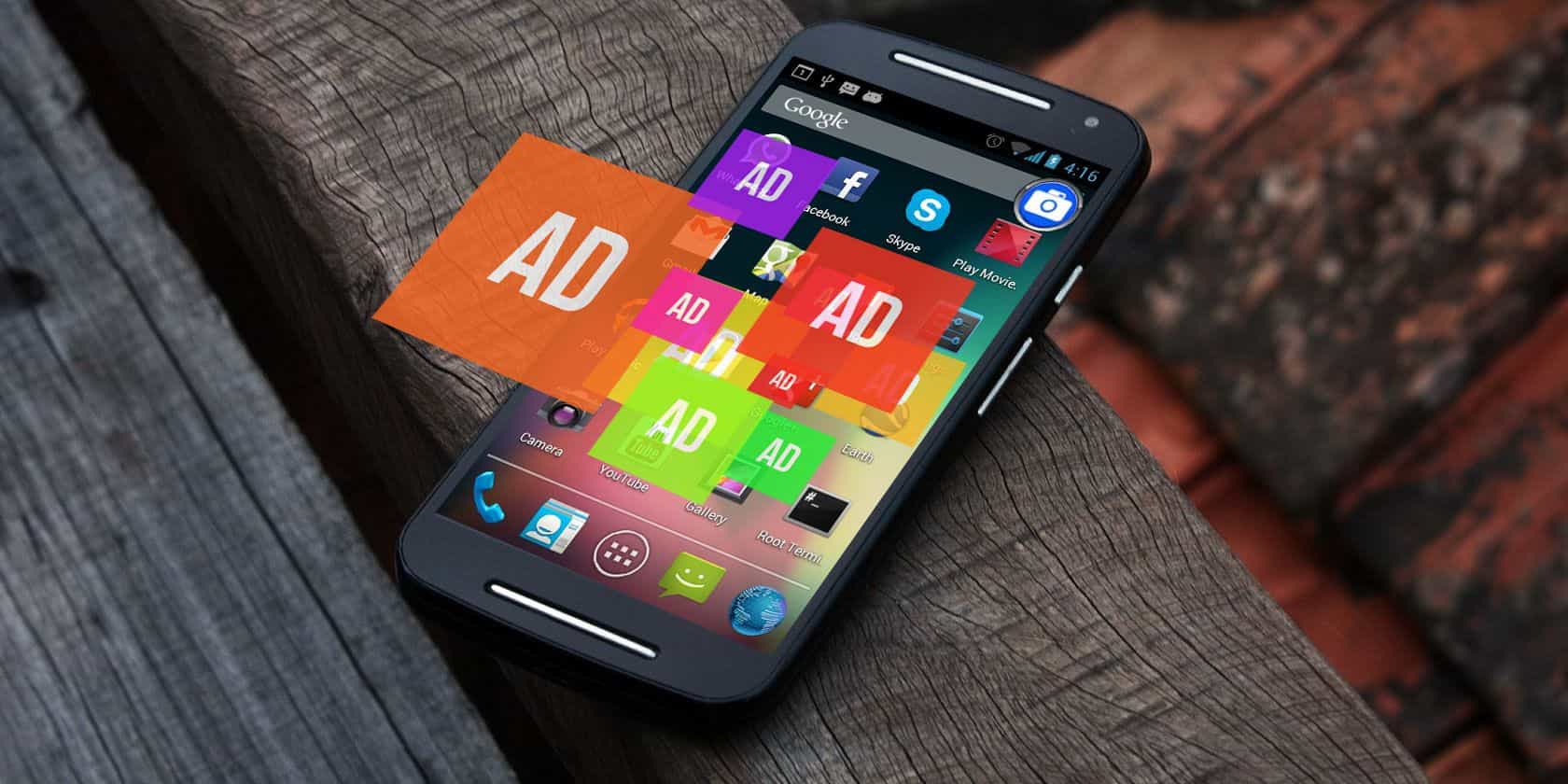
    Do you want to stop annoying pop-ups on your Android phone? In this article, I will show you how to stop annoying pop-ups on your Android phone.

    Every time you get on your Android phone to browse, one of the most annoying things is pop up ads. These ads could ruin your browsing experience and even lead you to end your period of browsing.

    Imagine coming back from your stressful work to settle down and read an article on your Android phone only to realize annoying pop-ups on your phone. That is very annoying, right? Yes, it is and you will no longer encounter this challenge after you read this article.

    Most of the desktop browsers automatically block pop-ups and unwanted ads on your computer. But, that is not the case when it comes to Android phones.

    On Android phones, you need to find a way to deal with this problem. If not, you just need to deal with this problem as long as you use an Android phone.

    That shouldn’t be you because I will recommend a method that you can use it to stop annoying pop-ups on your Android phone.

    How To Stop Annoying Pop-Ups On Your Android Phone

    There are several methods you can use to stop annoying pop-ups on your Android phone. Below are some of the tried and tested methods that you can use to solve this problem.

    How To Stop Annoying Pop-Ups On Your Android Phone via Google Chrome

    Google Chrome is one of the most popular web browsers on Android phones. Almost every new Android smartphone has Google Chrome already installed on it.

    As a result, most Android users use Google Chrome as their default web browser and therefore disabling pop-ups on Chrome can solve the problem for most users. To do this, follow the steps below:

    1. Open the Google Chrome browser on your Android phone.
    2. Tap More (the three vertical dots) at the upper-right corner of the screen.
    3. From the list of options, tap on Settings.
    4. Scroll down to Site Settings.
    5. Tap on Pop-Ups to get to the slider that turns off pop-ups.
    6. Once again tap the slider button to disable the pop-ups feature.

    How To Stop Annoying Pop-Ups On Your Android Phone On Other Android Browsers

    1. Open the web browser on your Android phone.
    2. Open the browser’s settings. On Android phones. It is usually the three dots that are located at the upper-right corner of the screen. The icon varies from one developer to the other.
    3. Once you open the settings, try to locate Advanced.
    4. Tap the box next to Block pop-ups. Once a tick is made, it means you have successfully blocked annoying pop-ups on your Android phone.

    Conclusion

    You can now enjoy browsing on your Android without any annoying pop-ups on your screen. Even if these pop-ups do show, they wouldn’t be as many and as frequent as they used to come.

    Finally, make sure to share this article with your friends, family, and loved ones. Also, follow us on all our social media handles to keep updated on the latest tech trends.

  • How To Reverse Wrong Transactions On Vodafone Cash

    How To Reverse Wrong Transactions On Vodafone Cash

    Among all the African countries, Ghana is one of the leading countries in the FinTech sector. This is mainly as a result of the high number of mobile money services in the country.

    Due to the increase in the awareness of mobile money services, the majority of Ghanaians have now enrolled on the platform.

    Vodafone Cash is also one of the most used mobile money services in Ghana and as a result, there is a high chance of subscribers making some errors. Some of these errors are basic human errors that we can all make.

    For example, sending money to the wrong number as a result of some slight mistake in the inputting of the number. In situations like this, we turn to be frustrated and confused about the next steps we can take.

    Previously, that would have been all, once you make a mistake you can never get your money back. But currently, that is no more a thing to worry about.

    Vodafone Ghana, just like MTN Mobile Money, AirtelTigo Money have a way you can reverse wrong transactions. In this guide, I will show you exactly how to reverse wrong transactions on Vodafone Cash.

    How To Reverse Wrong Transactions On Vodafone Cash

    As soon as you realize you have made a wrong transaction, you need to follow the exact steps listed below.

    1. On your mobile phone, dial *110#
    2. Select option 6 (My Account) from the list of options.
    3. Choose option 7 (Self Service)
    4. Choose option 2 (Self Reversal) and wait for Vodafone to reverse the wrong transaction.

    Conclusion

    You can only reverse wrong transactions that were made from your Vodafone Cash account to another Vodafone cash. Once the recipient is not a Vodafone Cash user, there won’t any way possible for Vodafone to reverse the transaction for you.

    Also, before the money will be reversed into your account, there will be an investigation by Vodafone. Once the investigation concludes, Vodafone will deposit the money back into your account.

    Therefore, the period it will take for you to get your money back into your account depends on the time Vodafone Ghana finishes its investigations.

    I hope this article was helpful and that it served its intended purpose? If you have any questions or suggestions, feel free, and write them in the comments section below.

  • Things You Need To Know Before You Buy Refurbished Electronics

    Things You Need To Know Before You Buy Refurbished Electronics

    Due to the high cost of electronics, the best option is to go to a refurbished one. With the refurbished type of electronics, they have been used before but they have been checked out and re-packaged.

    Although buying a refurbished electronic device saves you money, you might end up buying a “thrash”. In this article, I am going to show you some of the important things you need to know before you refurbished electronics.

    Basically, the main reason why we all end up buying refurbished products is to save money. But, the only problem with refurbished products is that they have been used already, maybe for a long or short period.

    Also, you do not know what happened during that period the device was used by the person and how well that problem or fault has been attended to. As such, you need to be very careful whenever you are buying a refurbished electronic device.

    Things You Need To Know Before You Buy Refurbished Electronics

    Is The Product Refurbished or Open-Box Return?

    Sometimes, the product you are buying is an open-box return and not refurbished. The difference between these two is that, an open-box return is a device that was purchased and opened but was never used by the buyer.

    On the other end, a refurbished product is the one that was purchased and used but was returned or was used and sold, etc. There are several meanings of a refurbished product.

    But with the open-box return, maybe the recipient did not like the packaging or the product they saw inside and then decided to return it. Or they just decided they don’t like the device anymore and decided to return it to the seller.

    Therefore, when you are buying a refurbished electronic device, ask the seller whether the product is an open-box return or refurbished. Mostly the refurbished ones have been crossed examined before selling it; while the open-box is often not cross-checked since they think the product is working perfectly.

    Does The Device Come With All The Stuff You Would Have Gotten If You Were Buying A New Product?

    One other thing you need to know is whether the device comes with all the stuff as if you are buying a new device. For example, if you are buying a refurbished iPhone, you need to know whether it will come together with the lightning cable, headphone, charger, guide, warranty card, etc.

    This is often ignored when we are buying a refurbished electronic device. Once you forget to enquire about it, they end up becoming your personal issues. Because you will have to get the additional stuff at an extra cost.

    The Refurbishing Was Performed By Who?

    Before you make any decision to buy a refurbished electronic device, you need to the person or company that performed the refurb. If the company is a well-known company or it was done by the original manufacturer of the product, you are rest assured that it is genuine.

    Other than that you might end up buying a troubled device instead of a refurbished device. You can also make sure of it by visiting the website of the company that performed the refurb to see whether they performed the refurb indeed.

    Does The Product Have A Warranty?

    Finally, you need to check whether the product you are buying has a warranty attached to it. If it doesn’t have any, I would advise you not to buy the product or device.

    Since the product was used before you bought it, there is a high chance of the device getting a fault in the future. Therefore, the warranty is your only source of assurance that you will get a new device back in case it gets any fault or problem.

    Conclusion

    In this article, I have shown you some of the important things you need to know before you buy a refurbished product. The tips listed here are not the only ones available in the world, but I think these few steps will guide you whenever you decide to buy a refurbished electronic device.

  • How To Remap Your Keyboard Keys

    How To Remap Your Keyboard Keys

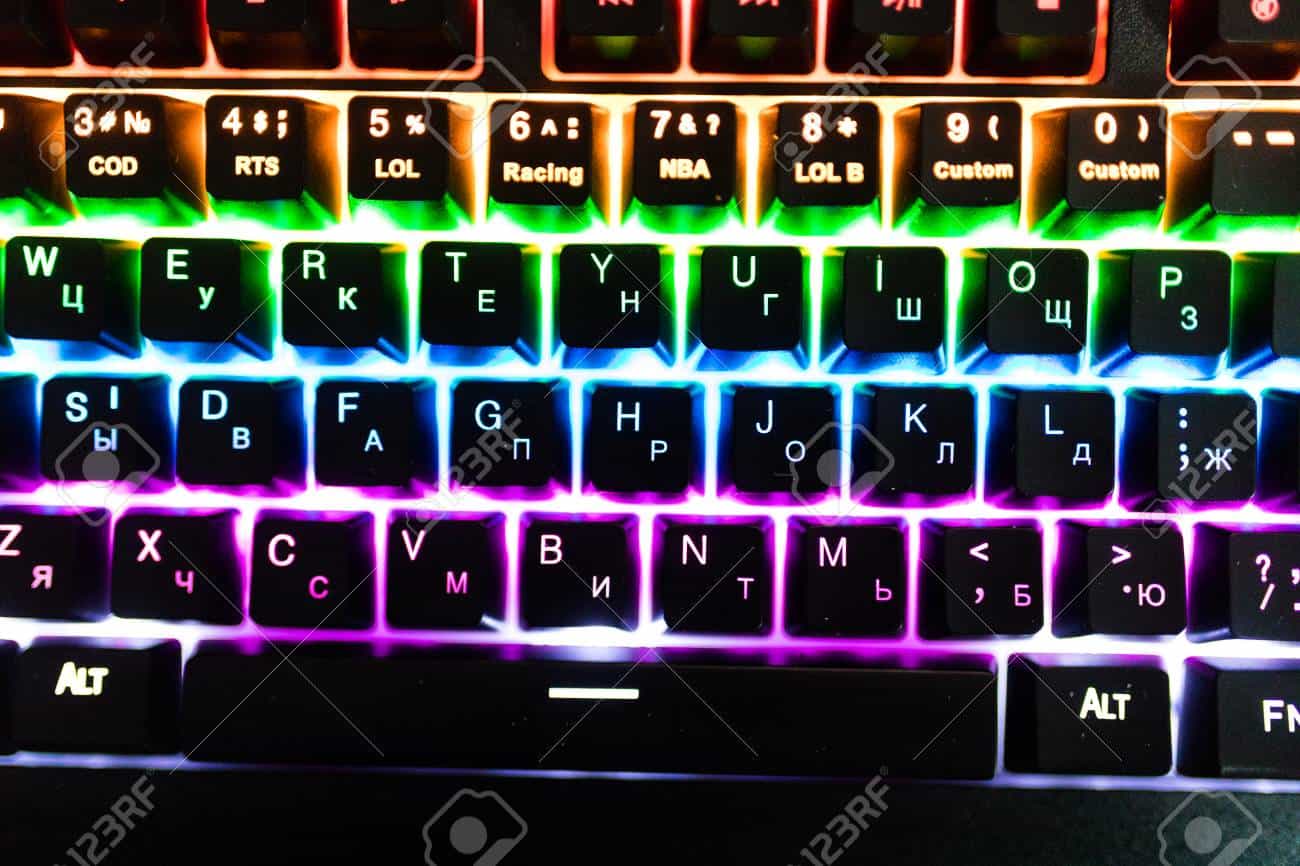
    Are you tired of the same old keyboard keys on your keyboard? If yes then you found the right article because I am going to show you how you can remap your keyboard keys.

    Do you think the CAPS LOCK would have been better somewhere for you to easily press or you think the TAB key should be somewhere else? All these are some of the things you can remap your keyboard keys for, using the steps listed in this article.

    Sometimes we feel that the person who did the keyboard layout didn’t do a good job. But the problem is that you cannot just get up and change the layout of the keys on the keyboard; it doesn’t work that way.

    The only way you can change the layout is by remapping the keys and that is the reason why you are here right now so let’s right into it.

    How To Remap Your Keyboard Keys

    There are several methods that you use to remap your keyboard keys and I am going to show you that in a bit. Please note that the methods we are going to use in this article apply to only Windows users. You can also edit your Android keyboard here.

    How To Remap Your Keyboard Keys Using SharpKeys

    For those of us who just want to remap one key to another, the perfect solution is by using SharpKeys. For example, changing the CAPS key to the TAB key or vice versa.

    SharpKeys is an open-source program that uses the Windows registry. Because SharpKeys writes directly to the Windows registry, it is the best tool to use if you are planning on doing a simple key remapping.

    To use this method, follow the steps listed below:

    1. Download the SharpKeys application and install it on your Windows PC.
    2. Once the app has finished installing on your device, launch it.
    3. After the app has opened, click the Add button and choose the keys from the two columns. The left column is the key you will press and the right column is the action that key will take.
    4. When you are done, click on OK.
    5. If you want to remap any other key, follow the same process listed above.
    6. Once you have finished with all your remapping, click on Write to Registry.
    7. After that, close the application and restart your computer for the changes to start working.

    How To Remap Your Keyboard Keys Using Your Keyboard’s Software

    If your keyboard comes with its own software, it may have some remapping features that you might not be aware of. With some of the software, you can even create multiple key shortcuts.

    1. First of all, download the software from the developer’s website.
    2. Select your keyboard.
    3. Look for the option to create new hotkeys, macros, or actions.
    4. Follow the steps (depending on your keyboard) and complete the process.
    5. Once you are done, restart your PC for the changes to take effect.

    Conclusion

    These are just a few of the several ways you can remap your keyboard keys. With the second method, whenever you find any difficulty, visit the support page of the developer and your questions will be answered.