Author: Gabriel Agbobli

  • How To Reserve Your MTN Number so you never lose it

    How To Reserve Your MTN Number so you never lose it

    Do you have that special MTN number you’d never want to lose? If so then you don’t need to worry at all.

    If you are traveling outside the country for more than three (3) months, then reserving your MTN number is one of the several options available to you. Mostly the first thing that comes to mind is signing up for the roaming service.

    Apart from roaming, MTN Ghana allows subscribed customers to reserve their MTN numbers using their Number Reservation service. Although this service comes at a cost, it is the surest way of keeping that special MTN number of yours.

    What is MTN Number Reservation?

    MTN Number Reservation is the process whereby subscribed MTN customers are allowed to keep their mobile numbers for as long as 24 months (2 years) without being active on the platform.

    This service comes at a very cheap cost compared to the amount that you would have used to buy new SIM cards if your number was deactivated.

    As you might be aware, if your MTN SIM card stays inactive for three (3) to four (4) months, your SIM card and your mobile number for that matter will be deactivated. Once it is deactivated, the number will be given to someone else.

    Because of that, whenever you are traveling outside the country for more than three (3) or four (4) months, you need to reserve your number. Even if you wish not to use your MTN SIM for the same duration, you equally need to reserve your MTN number.

    How To Reserve Your Personal MTN Number

    1. Dial *1390# on your phone
    2. Select option 1 (Reserve my number (Prepaid only))
    3. Choose your preferred reservation period (12 months or 24 months)
    4. Enter your alternate mobile number or email address
    5. Confirm your alternate mobile number or email address by re-entering it
    6. The amount will be charged from your main (airtime) account and the number will be reserved for you

    How To Reserve An MTN Number For Someone

    1. Dial *1390# on your phone
    2. Select option 99 (More)
    3. Choose option 2 (Reserve a number for your family and friends)
    4. Choose your preferred reservation period (12 months or 24 months)
    5. Enter the person’s alternate mobile number or email address
    6. Confirm the person’s alternate mobile number or email address by re-entering it
    7. The amount will be charged from your main (airtime) account and the number will be reserved for you
    8. A confirmation SMS will be sent to the person for he/she to consent to the choice you are making. Once the consent is given, the procedure will take place

    What Are The Reservation Charges?

    There are two (2) main reservation charges, i.e. 12 months and 24 months. The charges for each of these are:

    • 12 months – GHS 15.00
    • 24 months – GHS 25.00

    How To Check When Your Number Reservation Will End

    1. Dial *1390# on your phone
    2. Choose option 99 (More)
    3. Select option 3 (Check expiry date of reserved number)
    4. The expiry date of the number will be displayed for you
    5. Additionally, an SMS will be sent containing the expiry date of your reserved number

    Conclusion

    The MTN Number reservation platform is a very straightforward and easy to follow platform. This means, whether you are a techie or not, you can easily reserve your number.

    Also, the price is very cheap and affordable and you can easily do it yourself as a whole without visiting any MTN office. In this pandemic, this is perfectly good as it will reduce the number of persons who visit their offices each day.

    Please take note of scammers who claim to be from MTN, and demand money from you before they reserve your number for you. Whenever you come across such people, feel free to report them to MTN.

    NOTE: MTN workers never reserves people’s number for them online. Just follow the steps listed above and you are good to go.
  • How To Set Up A New iPhone

    How To Set Up A New iPhone

    Have you decided to buy a new iPhone? Or have you already bought a new iPhone but you are thinking of how to set it up?

    if your answer is yes, then this article is the right fit for you. This is because, in this article, I will show you how to set up a new iPhone or switch to a new iPhone from your old iPhone.

    After buying your new iPhone from the store, one of the most important mandatory things you need to do when you buy a new iPhone is to set it up.  

    Without setting up your iPhone, there’s no way you can be able to use your iPhone. For those who are switching from an old iPhone to a new iPhone, the process is a little straightforward unlike those who are using it for the very first time.

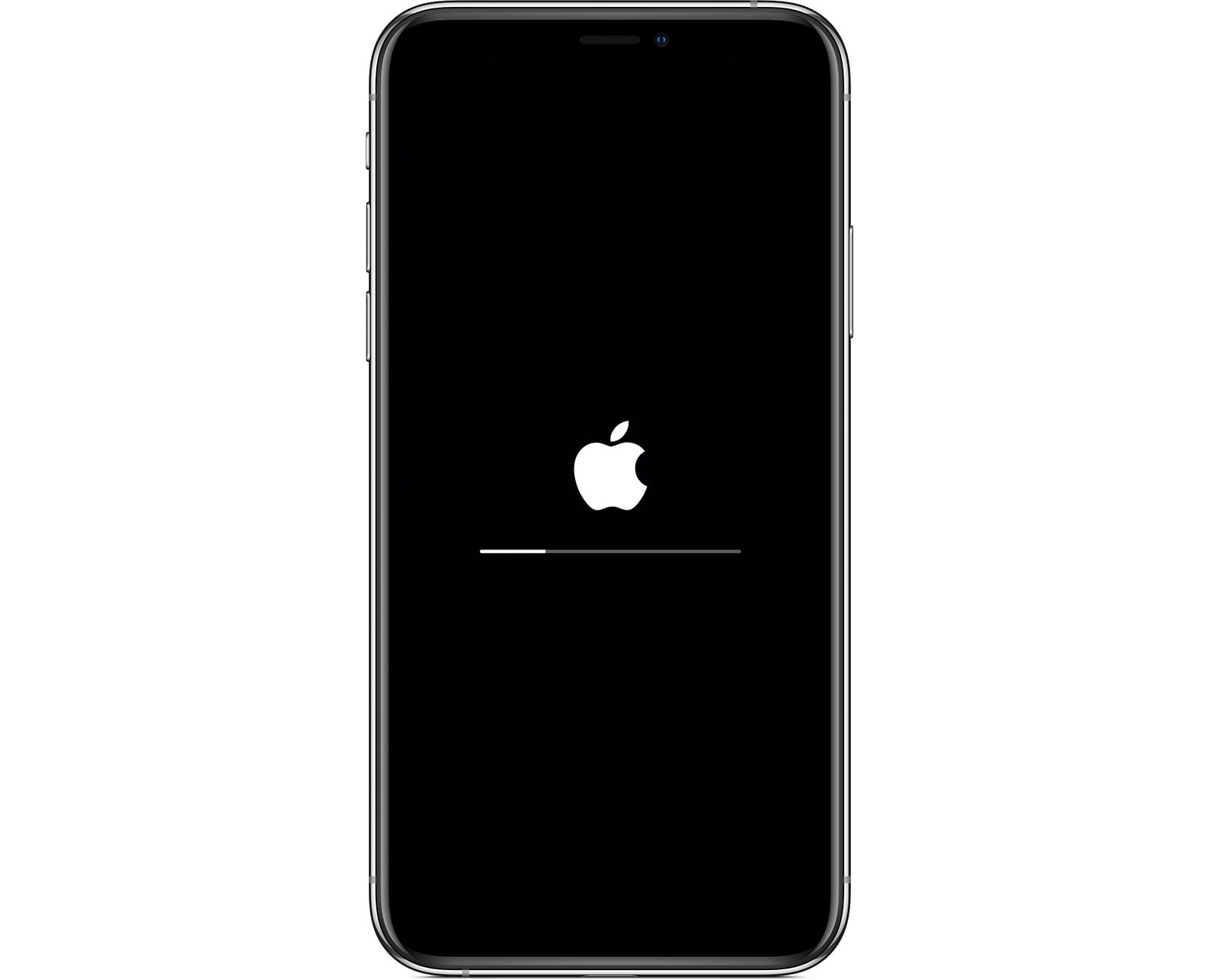
    Once you switch on your new iPhone, the next thing you will see after the Apple logo is the Setup Assistant. It is through the Setup Assistant that you will establish essentials like your Wi-Fi network, your Apple ID and iCloud account, etc.

    It is not compulsory to establish all the essentials, some of them can be skipped and performed later. For example, Face ID or Touch ID (depending on the type of iPhone), the passcode can be skipped during set up and performed later.

    All these may sound like a lot of work to do in a few minutes but in reality, all these are straightforward and can be completed in just a few minutes. Upon completion, you can then make the most out of your new iPhone.

    How To Set Up A New iPhone

    1. Remove your new iPhone from the box and turn it on.
    2. Choose Hello from the different language’s greetings.
    3. When asked, choose your language from the list of languages and then select the region and country you are located at.
    4. Tap on Set Up Manually.
    5. Connect your new iPhone to a Wi-Fi network, cellular network or iTunes to activate your iPhone.
    6. Set up your Face ID or Touch ID or you can skip this step and set it up later.
    7. If you choose to set up the Face ID and the Touch ID, then you need to enter a six-digit or four-digit passcode. This is what you will use to unlock some features in case your Face ID or Touch ID is not working.
    8. If this is your first time using an iPhone, tap on Don’t Transfer Apps & Data.
    9. If you have an old iPhone, choose from Restore from iCloud Backup, Restore from Mac or PC, Transfer Directly from iPhone, or Move Data from Android. if you choose this option, your remaining steps will be different from the one below. All you have to do is to follow the instructions to complete your setup.
    10. Sign in with your Apple ID (if you have) or you can tap on Forgot password or don’t have an Apple ID to create a new one.
    11. You can choose to Turn on automatic updates and set up other devices.
    12. Set up Siri and other services. (Not compulsory)
    13. Set up Screen Time and more display options. (Not compulsory)
    14. After, skipping or setting up all the other options, tap on Get Started to begin using your new iPhone.

    Conclusion

    As stated above, it is not important to set up all the options and features at once. You can always skip some of them and complete them later.

    But for security reasons, I will recommend that you set up either the Face ID or Touch ID. Siri and the other display options can always be done later.

    Now that you know how to set up a new iPhone, make sure to follow the steps closely to avoid errors. Welcome to the new world of iOS. Make sure to check out all our iPhone articles to make the most out of your new iPhone.

  • How To Take Screenshot on iPhone, iPad, Apple Watch, and Mac

    How To Take Screenshot on iPhone, iPad, Apple Watch, and Mac

    Do you want to know how to take screenshots on iPhone, iPad, Apple Watch, and or Mac? I guess the fact that you are here answers the question asked earlier.

    Anyways, if you don’t, there is no need to worry because in the article, I am going to show you how you can take screenshots on iPhone, iPad, Apple Watch, and Mac.

    If your daily work or online life requires information (including photos) then a screenshot is very helpful in many ways. In our daily lives, we come across some important information we just can’t resist saving.

    Unfortunately, we cannot save some of this information directly on our Apple device. Especially for those of us who are fond of buying items online, we always like to save the picture for future reference.

    For example, you cannot save an Instagram photo directly to your Apple device. In situations like this, the best thing we can do is to take screenshots.

    When you take the screenshot, you are even given the chance to edit it to suit your preference in your Photos album on your device.

    Even though screenshots are important, most Apple device users find it very difficult to do. That is why I wrote this article to guide you on how you can do that. If you forget, you can always come back here for reference.

    How To Take Screenshot on iPhone, iPad, Apple Watch, and Mac

    Because we have different Apple devices in the world, we decided to write about almost all the Apple devices. That is, iPhone, iPad, Apple Watch, and Mac and below are the steps to take a screenshot on all the devices:

    How To Take a Screenshot on Your iPhone

    Since iPhones are of different classes and versions, each of them has specific ways of taking screenshots. Below are the steps for each class of iPhone

    How To Take a Screenshot on iPhone Models With Face ID

    1. This class of iPhones starts with the iPhone X. All the iPhones in this class has no home button.
    2. Press the Side Button and the Volume Up button at the same time.
    3. Release both buttons quickly and at the same time.
    4. After you have taken the screenshot, a thumbnail will be displayed in the bottom left corner of the screen. Tap on it and edit it to your preference. If you don’t want to edit it, swipe left to dismiss.

    How To Take a Screenshot on iPhone Models With Touch ID and Side Button

    1. Press the Side Button and the Home button at the same time.
    2. Release both buttons quickly and at the same time.
    3. After you have taken the screenshot, a thumbnail will be displayed in the bottom left corner of the screen. Tap on it and edit it to your preference. If you don’t want to edit it, swipe left to dismiss.

    How To Take Screenshot on iPhone With Touch ID and Top Button

    1. Press the Top Button and the Home button at the same time.
    2. Release both buttons quickly and at the same time.
    3. After you have taken the screenshot, a thumbnail will be displayed in the bottom left corner of the screen. Tap on it and edit it to your preference. If you don’t want to edit it, swipe left to dismiss.

    How To Take a Screenshot on Your iPad

    Similar to iPhones, we have different classes of iPads and we have given you steps for each of them below:

    How To Screenshot on iPad Models Without Home Button

    1. Press the Top Button and the Volume up button at the same time.
    2. Release both buttons quickly and at the same time.
    3. After you have taken the screenshot, a thumbnail will be displayed in the bottom left corner of the screen. Tap on it and edit it to your preference. If you don’t want to edit it, swipe left to dismiss.

    How To Take Screenshot on iPad Models With Home Button

    1. Press the Top Button and the Home button at the same time.
    2. Release both buttons quickly and at the same time.
    3. After you have taken the screenshot, a thumbnail will be displayed in the bottom left corner of the screen. Tap on it and edit it to your preference. If you don’t want to edit it, swipe left to dismiss.

    How To Take Screenshot on Apple Watch

    Unlike iPhones and iPads, before you can take a screenshot on your Apple Watch, you need to turn on the screenshot setting.

    How To Turn On Screenshot Setting On Your Apple Watch

    1. To do so, open the Apple Watch App on your iPhone.
    2. Tap the My Watch tab and then tap on General.
    3. Scroll through to the bottom and Enable Screenshots.

    How To Take Screenshot On Your Apple Watch

    1. Press the Side Button and the Digital Crown at the same time with two fingers.
    2. The screen will flash to confirm that you have successfully taken your screenshot.
    3. The screenshot will be saved in the screenshot album on the Photos app on your iPhone.

    How To Take Screenshot On Mac

    1. With three fingers, press and hold Shift, Command, and 3 keys.
    2. If you see a thumbnail at the bottom of the screen, click on it to edit your screenshot. Other than that, wait for the screenshot to Save to your desktop.

    How To Take A Screenshot Of A Portion Of Your Screen

    1. With three fingers, press and hold Shift, Command, and 3 keys.
    2. Drag the crosshair (square box) to select the area to capture. If you want to move the selection, press and hold the Space bar while dragging.
    3. To take the screenshot, release your mouse or trackpad button.
    4. If you see a thumbnail at the bottom of the screen, click on it to edit your screenshot. Other than that, wait for the screenshot to Save to your desktop.

    In conclusion, you can now take screenshots on any Apple device using the steps provided above in this article. Make sure to try your hands on it anytime you come across an Apple device.

  • How To Delete Your Gmail Account

    How To Delete Your Gmail Account

    Are you tired of using Gmail as your official email account? Or do you want to switch your official email address from Gmail to another email platform?

    Gmail as we are all aware of, is one of (if not) the most used email platforms in the world. As of October 2019, Gmail had 1.5 billion active users from all the countries around the world.

    Most corporate and state companies use Gmail as the preferred email platform. For example, the University of Ghana’s students and staff’s email is powered by Gmail. For example, [email protected].

    Once you make a choice and delete your Gmail account, all your emails and account settings will be permanently erased from the internet. Even if you delete your account, your username will still not be available for anyone to use in the future.

    On the good side, deleting your Gmail account is not going to delete the entire Google account the email address is associated with. Google services like Google Drive, calendar, Google Play, etc. will still be accessible for you.

    All you be asked is to provide an alternative email address you will like to sign in to these services in the future or whenever you may need it.

    How To Delete Your Gmail Account

    Before you decide to delete your Gmail account, make sure you are aware of the risks associated with it and that you have all the important documents and files you may need in the future.

    Once you are certain that you have all that you need, you can then follow the steps below to permanently delete your Gmail account.

    1. Open your web browser and sign in to your Gmail account via Google.com.
    2. On the upper right-hand corner, click on the Grid icon and then select Account.
    3. Under the Account preferences section, click on Delete your account or services.
    4. From the options provided, choose Delete products.
    5. Confirm your choice by entering your Gmail password.
    6. If you want some important data, click Download Data to save it before it gets erased permanently.
    7. On the next page, click the trash icon that is next to Gmail.
    8. Enter an alternate email address. (This email address cannot be a Gmail)
    9. Click on Send Verification Email. (This will be sent to the email address you just entered in the step above).
    10. Open the verification email and then click on the deletion link in the message.
    11. In case you are prompted, log in to the Gmail account you are deleting.
    12. Select “Yes, I want to delete ([email protected])”
    13. Once again click on Delete Gmail and then Done.

    Conclusion

    According to Google, if you use your Gmail through work, school, or other organization, the administrator is the only person who can delete your Gmail account. Thus, you need to contact him/her to delete your account for you.

    After your Google account is deleted, all your account information will be permanently deleted from the internet’s database.

    So, before you decide to delete your account, make sure you are certain of the choice you are making and its related consequences.

  • How To Share Screen On Microsoft Teams

    How To Share Screen On Microsoft Teams

    Do have a virtual presentation with Microsoft Teams? Are you the host of a meeting where you are required to share your screen on Microsoft Teams?

    The novel coronavirus (COVID-19) took the entire world by surprise and within this short period of existence has taught us many things. One of the things that it has taught us is to embrace technology and virtual events.

    Unlike previously where people had to wake up at dawn, be in traffic and then go to work, almost 40% of the businesses in the world has now adapted to “work from home”.

    As a result of that, most companies now have their meeting online and one of the companies that have enjoyed this the most is Microsoft. All over the world, Microsoft’s meeting software, Microsoft Teams is used to host virtual events.

    Aside from using it to host meetings, it is also used to perform virtual presentations. For instance, instead of meeting at the office to discuss the end of year expenses and revenue, you can use the Microsoft Teams app to present this to your team all over the world.

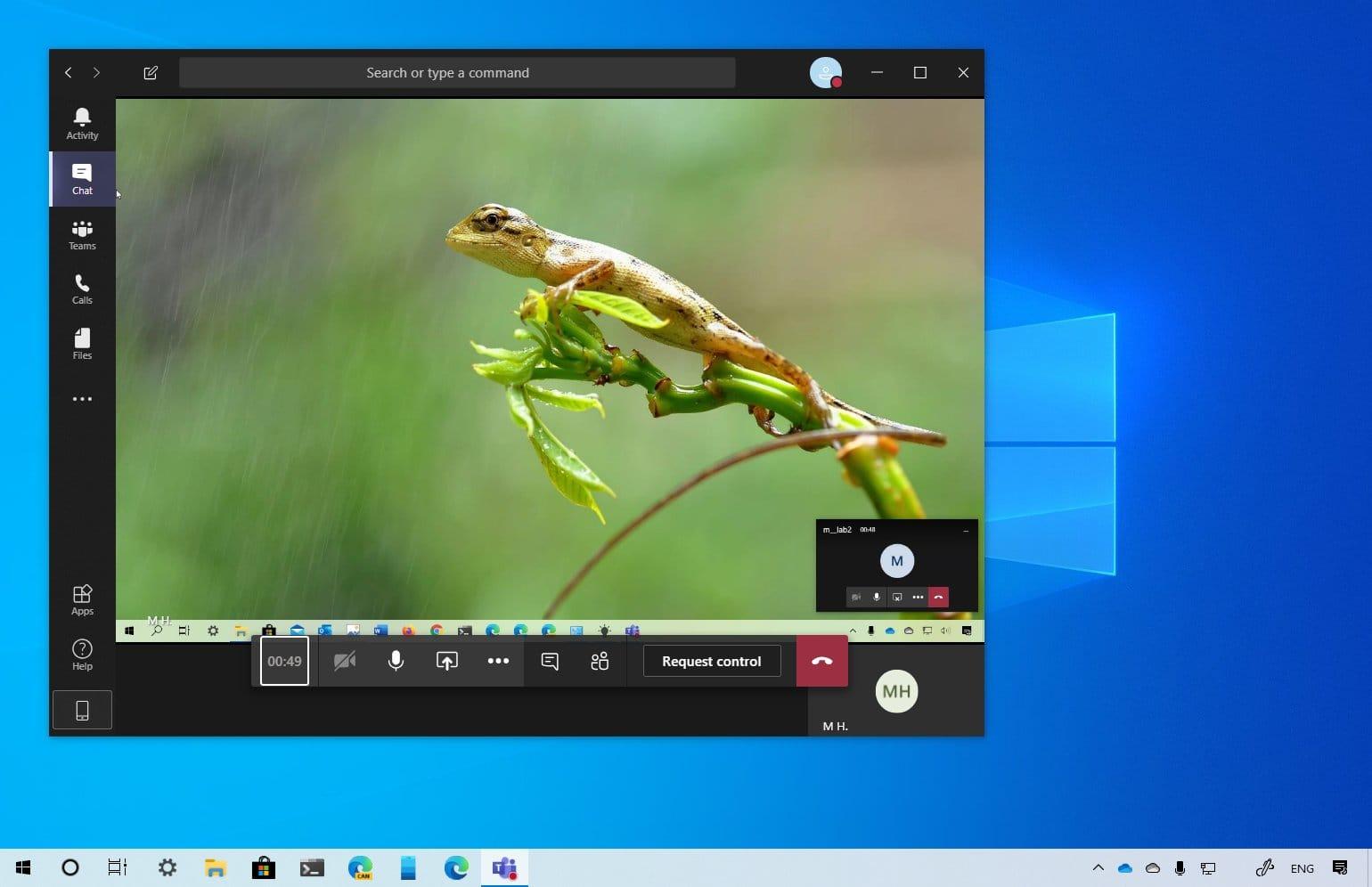
    To be able to do this, you need to enable the share screen on the Microsoft Teams app and then everything on your screen will be seen by all the participants.

    How To Share Screen on Microsoft Teams

    1. First of all, you need to start a meeting on Microsoft Teams.
    2. Move your mouse to the lower middle corner of the screen.
    3. Choose the chat control options.
    4. From the left, click on the third icon with the square box and the arrow.
    5. Finally, choose whether to share the entire screen or a specific window on your screen.

    Conclusion

    During a meeting, you might want to share your screen with the rest of your team. In such situations share screen in the only way, you can be able to do so.

    Have you ever shared your screen on Microsoft Teams? Let us know in the comments section below.

  • How To Split Screen On Mac

    How To Split Screen On Mac

    Are you tired of not being able to split-screen on your Mac? Do you always have to resize or manually move windows before you can use two (2) apps at the same time?

    In case your answer to these two (2) is YES, then I know you are going to find this article very useful. Thus, in this article, I am going to show you how you can split screen among your Mac.

    Split screen is one of the most useful settings you can ever make to your computer, being it Windows, Mac, or Chromebook.

    If you are someone who likes multitasking with their PC, then I think you are going to agree with me. Otherwise, you might challenge me, but I know after reading this article and you practice it you will come back and agree with me.

    Because of the split screen option, you can be able to watch your movie and at the same time reply to your emails or watch a movie and at the same time reply to your Facebook messages.

    For some time now, most Mac users were not aware that they could also use a split screen. But this article is going to prove to you that it is also possible on Mac.

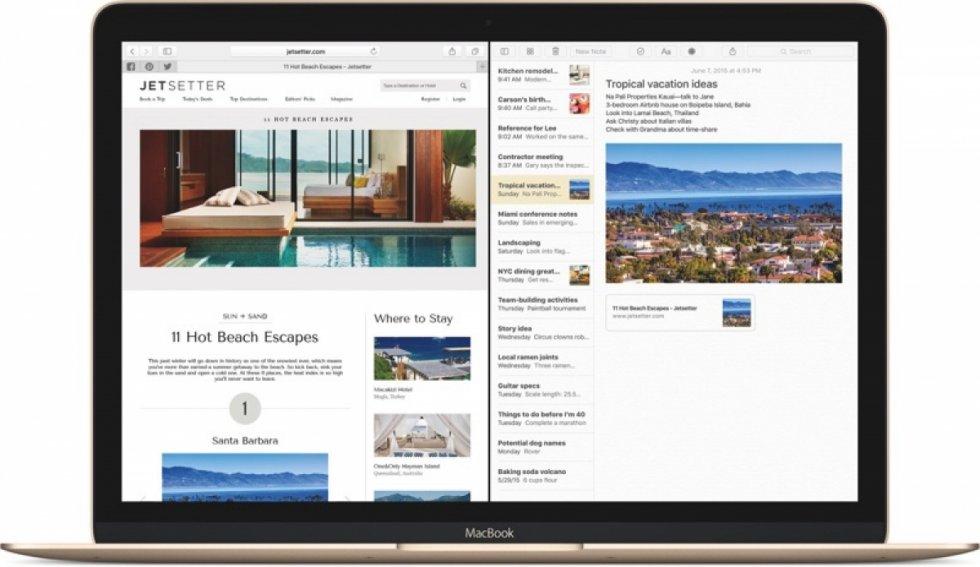
    With the Split View on your Mac, you can be able to fill your Mac’s screen with two (2) apps without having to manually move or resize the windows.

    How To Split Screen On Mac

    As I earlier stated, a split screen is very helpful for persons who love to multitask. Due to the different types of macOS, I have classified the steps into two (2) different categories; depending on your macOS version, follow the steps listed below.

    How To Split Screen On Mac With macOS Catalina or Later

    If you are using macOS Catalina or later:

    1. Hover your pointer over the screen button (the 2 arrows with the green background) in the top-left corner of a window. Alternatively, you can click and hold the button.
    2. From the menu, choose Tile Window to Left of Screen or Tile Window to Right of Screen. Automatically, the window will fill that side of the screen.
    3. Afterward, click a window on the other side of the screen to begin using both windows side by side.

    How To Split Screen On Mac With macOS Mojave, High Sierra, Sierra, or El Capitan

    1. Click and hold the full-screen button (the 2 arrows with the green background) in the top left corner of a window.
    2. Once you hold the window, the window will shrink and you can then choose to drag it to the left or the right side of the screen.
    3. Afterward, release the button and then click on a window on the other side of the screen to enjoy the split screen mode.

    Conclusion

    On certain occasions, the split might not work. In such circumstances, choose the Apple menu (the apple logo) >> System Preferences >> Mission Control, and then make sure that Display has separate Spaces is selected.

    Once you are done, you can then follow the steps listed above and the split screen will start working on your Mac.

    Finally, if you face any challenge, free to write it in the comments section below and I will attend to it as soon as possible.

  • How To Use Picture in Picture Mode on iPhone

    How To Use Picture in Picture Mode on iPhone

    Are you tired of not being able to multitask on your iPhone? Have you always wanted to use the Picture in Picture mode on your iPhone?

    If you have any of the questions above, then you have found the right article. In this article, I am going to show you exactly how to use Picture in Picture mode on your iPhone.

    One thing that iPhone users have always wanted was a way to multitask on their iPhones. This was very frustrating and annoying at the same time.

    This is because some of iPhone’s Android competitors were able to use the Picture in Picture feature but iPhone didn’t have this feature.

    As a result, Apple added a Picture in Picture mode to the iPad when the iPad OS 13 was released. Later somewhere in 2020 when the iOS 14 was released, Apple added the Picture in Picture feature on iPhones.

    The Picture in Picture works with applications that play video contents. But, when you are using third-party apps, the app needs to have support for this feature.

    How To Turn On The Picture in Picture Mode on Your iPhone

    Before you can also use the Picture in Picture, you need to turn on the Picture in Picture feature on your iPhone. To do so, follow the steps below:

    1. Open the Settings app on your iPhone.
    2. Tap on General.
    3. From the list of available options, tap on Picture in Picture.
    4. Next, you need to make sure that Start PiP Automatically is turned on. If not, make sure to do that.

    How To Use The Picture in Picture Mode on iPhone

    To use the Picture in Picture mode on your iPhone, you need to make sure that your iPhone can support iOS 14. If it can, then you need to upgrade it to the latest version.

    Next, you need to make sure that the app you are about to use also accepts Picture in Picture. If so, then follow the steps listed below:

    1. To begin with, open a video player application on your iPhone. For example, Apple TV or Twitch.
    2. Start playing a video in the application. For example, if you are using the Apple TV tap on a movie or show.
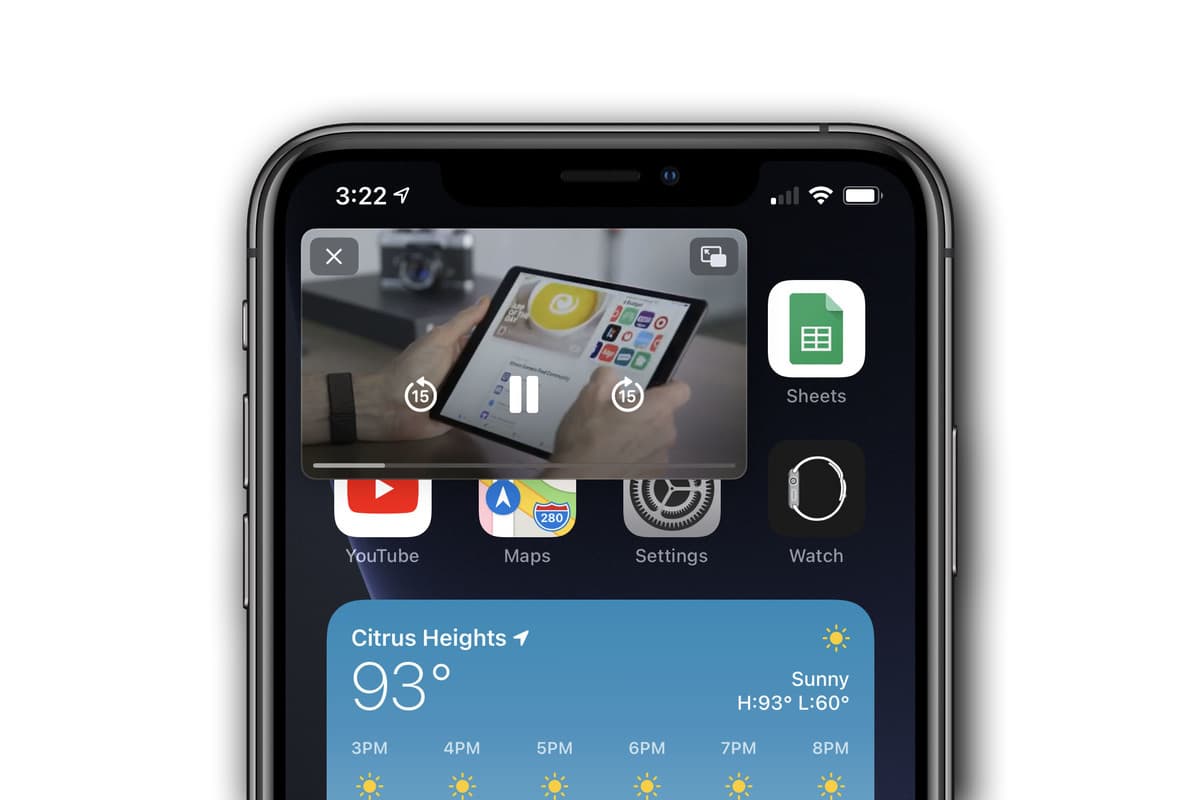
    3. Next, tap on the Picture in Picture logo on the upper part of the screen. (This depends on the application. For some of the apps, you can just press the home button or swipe on to go home and it will automatically start playing).
    4. Once you swipe to go home or press the home button, the video will start playing on a floating screen.
    5. Now, you can do whatever you want to do while the video is still playing.

    Conclusion

    As you can clearly see, the process of using the Picture in Picture mode on your iPhone is very easy and very helpful. With this feature, you can now be replying to your emails while watching favourite movie or TV show.

    Interestingly, all the methods and steps you need to be able to access this feature has been outlined in this article. Read through and you will be able to use the Picture in Picture feature on your iPhone.

    Aside from that, if you face ant challenge while trying to use the method stated in this article, make sure to write it in the comments section below.

  • How To Enable Picture-in-Picture in Firefox

    How To Enable Picture-in-Picture in Firefox

    Are you someone who often uses Firefox? Do you want to enable Picture-in-Picture in the Firefox browser?

    Persons who often use the Mozilla Firefox browser will agree with me that, there is nothing more annoying than pausing a video just to reply to a message or an email.

    In such situations, the best method you can use is to enable the picture-in-picture mode on the Firefox browser. Once enabled, you can move the floating window wherever you want it on your desktop screen and then enjoy whatever you want to do.

    Reasons Why You Should Use Picture-in-Picture in Firefox

    If you work on your PC often, especially in this COVID-19 era where almost all businesses have migrated to work from home then multitasking is very necessary.

    Multitasking is done in several ways and one of the easiest ways you can do this by using Picture-in-Picture. With this method, you can open a video on your Firefox browser and then watch it on your screen while working on your PC.

    All you have to do is to enable it and then you can move the floating window to anywhere on your computer’s screen. Whenever you want, you can pause and resume your video.

    How To Enable Picture-in-Picture in Firefox

    By default, Picture-in-Picture is a setting that can found in the Firefox desktop version. This means that you cannot be able to use the method below if you are not using the desktop version of the Firefox browser.

    How To Enable Picture-in-Picture in Firefox On Windows

    1. Open the Firefox browser on your PC.
    2. Click on the Settings button (the three-line menu) in the upper-right corner of the screen.
    3. Click on Options or Tools >> Options from the menu.
    4. Click on General on the left and then scroll down and select Browsing.
    5. Finally, check the box for Enable Picture-in-Picture Video Controls.

    How To Enable Picture-in-Picture in Firefox On Mac

    1. Open the Firefox browser on your Mac.
    2. Click on the three-line menu button in the upper right of the toolbar.
    3. Choose Preferences or Firefox >> Preferences from the menu bar.
    4. Click on General on the left and then scroll down and select Browsing.
    5. Finally, check the box for Enable Picture-in-Picture Video Controls.

    Conclusion

    After enabling the Picture-in-Picture feature on your PC or Mac, you then, need to know how to use it.

    To use it, open any video on your PC or Mac, for example, YouTube and then hover your cursor over the video and then click on the PiP icon.

    Anytime you want to disable the Picture-in-Picture mode on your PC, or Mac, you can follow the same steps listed above, and when you get to the final step uncheck Enable Picture-in-Picture Video Controls.

  • How To Set up Family Sharing on Your Apple Device

    How To Set up Family Sharing on Your Apple Device

    Thinking of setting up family sharing on your apple device? Do you want to set up family sharing on your Apple device with your family members? Do you even know what family sharing is at all?

    If your answer to any of the questions asked above is YES, then this article is the best fit for you. This is because in this article, I will show you everything you need to know about Family Sharing and how to set it up on your Apple device.

    What is Family Sharing?

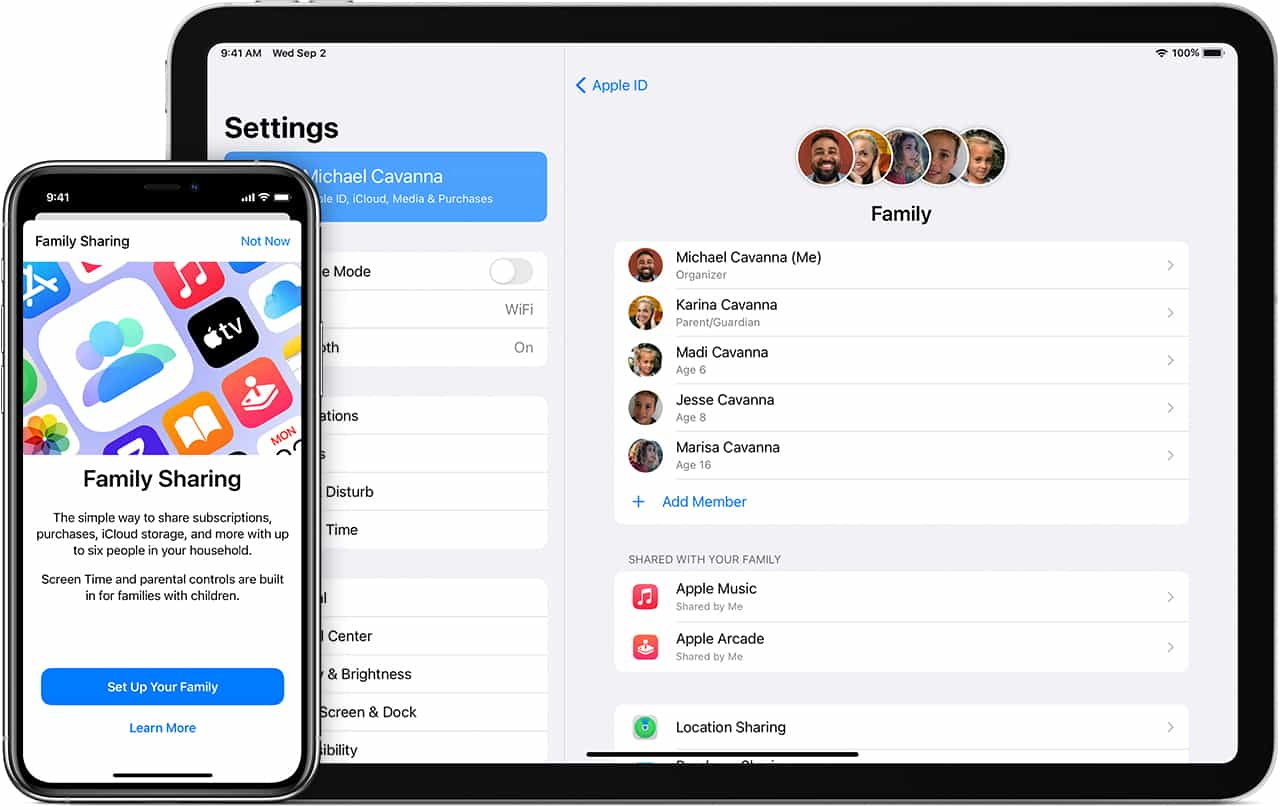
    Family Sharing is a feature that allows you and up to five (5) other family members to share access to some Apple services. Some of the services that can be shared are Apple Music, Apple TV+, Apple News +, Apple Arcade, iCloud storage plan, Apple Books, iTunes, and a family photo album.

    Also, if one person loses his/her iPhone, any member in the family sharing can locate where the device is at any time.

    To begin with, one person in the family i.e. the organizer, invites all the family members in the group. Once the remaining members join, they automatically gain access to the subscriptions and contents.

    Interestingly, each member’s private photos, files, and documents cannot be seen by any other member in the group. Thereby, giving total privacy to all the family members in the group.

    How To Set Up Family Sharing On iPhone, iPad, or iPod Touch

    As stated earlier, to begin, one member of the family needs to start the family group. That person is assigned the name, Organizer by Apple.

    Open the Settings app on your device and then tap on your name.

    Scroll a little to the bottom and then tap on Set Up Family Sharing.

    Next, tap on Get Started.

    After that, choose the first feature you’d like to share with your family.

    Follow the on-screen instructions to set up your family and afterward, invite your family members.

    How To Set Up Family Sharing On Your Mac

    Choose Apple menu (Apple logo) >> System Preferences and then click on Family Sharing.

    Next, confirm the Apple ID that you want to use for the Family Sharing. Also, make sure that Share My Purchases is also selected.

    Follow the on-screen instructions to complete the process.

    How To Invite Family Members Into Your Family Group

    Now after setting up the family sharing you can invite your family members to join. To do so, you need to follow the steps below.

    How To Invite Family Members Into Your Family Group on iPhone, iPad, or iPod Touch

    Open the Settings app on your device and then tap on your name >> Family Sharing.

    Tap on Add Member.

    Enter your family member’s name or email address and then follow the onscreen instructions.

    Finally, you choose whether to send the invite via Messages or in person. Afterward, follow the onscreen instructions.

    How To Invite Family Members Into Your Family Group On Mac

    Choose Apple menu (Apple logo) >> System Preferences.

    Click on Family Sharing.

    Click on Add Family Member. Afterward, follow the onscreen instructions to complete the process.

    Conclusion

    For persons with multiple Apple IDs in the iTunes and App Store, you can invite each of the Apple IDs to enable you to share purchases from your other Apple IDs with your family members.

    After the invitation, you can go to the family sharing menu and check whether the person has accepted the invite or not.

    In terms of any challenge, feel free to write it down in the comments section below.

  • Huawei Y7a (2021): Specs, Price, Features & Best Deals

    Huawei Y7a (2021): Specs, Price, Features & Best Deals

    2020 was one of the years that would go down in the history books as one that people will never forget in their lives. While other companies were cutting off their workers and shutting down, the mobile phone business was instead making the most out of it.

    One of such companies that were busy manufacturing mobile phones was Huawei. You cannot talk about mobile phone production in Ghana without talking about Huawei.

    Some of the mobile phones that were produced in 2020 by Huawei include the Huawei Y7p and the Huawei Y8s.

    On October 21st, 2020, Huawei added the Huawei Y7a smartphone to its mobile phone stock. Read on to know all the specs and features that the Huawei Y7a has and why you should get one for yourself.

    Huawei Y7a Specs

    Huawei Y7aSpecs
    Operating SystemAndroid 10, EMUI 10.1, no Google Play Services
    Display6.67 “ LCD (IPS)
    ChipsetKirin 710A (14 nm)
    Memory4GB RAM
    Storage64GB, 128GB
    Main CameraQuad Setup 48 MP, f/1.8, 26mm (wide), 8 MP, f/2.4, 1200 (ultrawide), 2 MP, f/2.4, (macro), 2 MP, f/2.4, depth
    Selfie Camera8 MP, f/2.0, (wide)
    BatteryLi-Po 5000 mAh, non-removable + Fast charging 22.5W
    ConnectivityDual SIM (Nano-SIM, dual stand-by)
    Special FeaturesSide-mounted Fingerprint, accelerometer, proximity, gravity, compass 3.55mm headphone jack
    ColoursCrush Green, Blush Gold, Midnight Black

    What is found in the box of Huawei Y7a?

    The following will be found in the box of the Huawei Y7a:

    • 1 Huawei Y7a
    • 1 charger
    • 1 Type-C USB cable
    • 1 Eject pin
    • 1 Protective case
    • 1 TP protective film
    • Quick start guide and other documents

    Huawei Y7a Features

    Design

    The Huawei Y7a promises to be a love at first sight smartphone. This is as a result of the refined craftsmanship and exquisite coating. This elegant look combined with the amazing curved edges gives you that comfortable touch in your hands.

    The available three dynamic colours i.e. Crush Green, Blush Gold, Midnight Black even makes the smartphone worth buying. The width of the Huawei Y7a is 76.88 mm, 165.65 mm, and a depth of 9.26 mm, making it one of the sleekest smartphones released in 2020.

    5000 mAh Battery

    One most important thing to look at when you are buying a brand new smartphone is the battery capacity. And the Huawei Y7a comes with a 5000mAh non-removable Li-Po battery.

    Also equipped with it is the 22.5 W Huawei SuperCharge allowing you to charge your smartphone in just a few hours. With your Y7a, you can watch videos for another 2 hours with just 10 minutes of charging.

    If you are a mobile phone geek, then you probably know that the Y7a has one of the biggest battery capacities. You can play your games and watch your videos on your Y7a with just a little charge.

    But, it is advisable that you carry your charger along when you are going for long distances.

    Display

    In the display department, the Huawei Y7a has a 6.67 inches screen that has a rounded corner design. It also has an FHD + 2400 x 1080 display resolution with 16.7 million colours.

    It also has a screen-to-body ratio of 90.3% allowing you to see everything in clear pictures and colour. If you use your smartphone to do lectures and other zoom conferences, then you have enough space to do just that.

    Camera

    Almost all the Android smartphones that were released in 2020 have a quad-camera setup and the Y7a is no exception. Instead of the usual 2 side-by-side layouts, the Huawei Y7a has a vertical layout, meaning all the four (4) cameras are laid out vertically.

    The rear camera has a 48 MP with f/1.8 aperture + 8 MP with an f/1.8 aperture, 26mm (wide), 8 MP with f/2.4 aperture, 1200 (Ultra-Wide), 2 MP with an aperture of f/2.4, (macro), and 2 MP with an aperture of f/2.4, depth.

    The front camera also has an 8 MP camera with an aperture of f/2.0.  

    The 48 MP high-resolution camera helps you capture your best unforgettable moments with your smartphone in clear and precise pictures. Whether you love taking landscapes or portraits, you are assured of super clear picture quality.

    Also, due to the intelligent AI algorithms, you are allowed to explore the beauty of every scene in low-light. If you are a night party type, then you are really going to appreciate the Huawei Y7a.

    Price of the Huawei Y7a in Ghana

     The Huawei Y7a is available to buy in Ghana starting from 12th February 2021. Here are the shops you can get from and their prices.

    StorePriceContact
    Mfidie Shop (Nationwide Delivery)GHS 11190546090871
    Jumia Ghana (Nationwide Delivery)GHS 11190544991140