Author: Gabriel Agbobli

  • How To Uninstall or Disable Extensions in Google Chrome

    How To Uninstall or Disable Extensions in Google Chrome

    Thinking of how to uninstall or disable extensions on your Google Chrome browser? Do you have some old extensions you no longer use and wish to uninstall from your Google Chrome?

    If YES, then you’ve found the right article and also at the right time. In this article, I am going to show you how to uninstall or disable extensions in Google Chrome.

    Extensions are one of the most things that you could add to your Google Chrome browser. Google Chrome browser extensions are similar to WordPress plugins.

    What Is A Web Browser Extension?

    According to Wikipedia, a web browser extension is a small software module for customizing a web browser. Most of the browsers for which Google Chrome is not an exception, allows a variety of extensions.

    Some of these extensions are used mainly for user interface modifications, ad blocking, and sometimes cookie management.

    The first-ever web browser to introduce web browser extensions was the Internet Explorer when version 4 was released in 1999. It was followed by Firefox in 2004 and then later in 2009, Opera began supporting it.

    A year later, in 2010, Google Chrome started supporting extensions and has done so to date.

    Although extensions are very useful and helpful, sometimes they cause some problems to your browser. For instance, the browser might start becoming slow and may even start freezing.

    In situations like that, you can, first of all, speed your Google Chrome browser. After speeding your browser and it still doesn’t stop then you can choose to disable the extension.

    How To Uninstall or Disable Extensions in Google Chrome

    1. Open the Google Chrome browser on your computer.
    2. At the upper right part of the screen, click on More (the three dots) >> More tools >> Extensions.
    3. Scroll through the extensions and when you find the extension you want to uninstall, click on Remove.
    4. Once again, click on Remove to confirm your decision.

    Conclusion

    After you have uninstalled the extension, you can always install it again when the need arises.

    Also, there over 100,000 extensions in the world, and not all of them are genuine. Therefore, you need to make sure that the extension you are downloading is genuine.

    To do so, always check whether the name of the developer is the right one and if not, do not attempt to install in on your Google Chrome browser.

  • How To Disable or Delete Your Instagram Account

    How To Disable or Delete Your Instagram Account

    Do you feel unsafe on Instagram? Have been spammed on several occasions on Instagram? Do you want to disable your Instagram account for a while? Do you wish to permanently move away from Instagram?

    Does any of these questions bother you? Then, you are in the right place. Because in this guide, I am going to show you how you can disable or delete your Instagram account.

    Instagram, a company under the parent company Facebook is also one of the most used social media platforms in the world. Mostly, people use Instagram to view photos and videos, while others use it to do their business.

    At a point in time, you might feel that Instagram is not the right social platform for you or you might want to take a break on Instagram.

    No matter your reason for wanting to disable or delete your Instagram account, this article has you covered.

    What Is The Difference Between Temporarily Disabling and Deleting Your Instagram Account

    If you choose to permanently disable your Instagram account, it means you temporarily make your Instagram account inactive. Anytime you wish to come back on Instagram, you can activate your account back.

    If you choose to delete your Instagram account, it means that you remove your account from Instagram permanently. You can’t undo this command.

    Once you deactivate your account, your Instagram profile will no longer be available. But you will still appear on your follower’s list.

    The reverse happens when you permanently delete your account; all your posts, photos, videos,, and everything that has a connection with your Instagram account will no longer be available.

    How To Temporarily Disable Your Instagram Account

    You can only disable your Instagram account from a computer or mobile browser. Any browser at all can do this job. The Instagram app does not permit you to temporarily disable your Instagram account.

    1. Log in to Instagram.com from your computer or mobile’s browser.
    2. Click on your profile photo in the upper right corner of the screen.
    3. From the options, click on Profile and then Edit Profile.
    4. Scroll to the bottom and then click on Temporarily disable my account in the bottom right.
    5. Choose the reason why you are temporarily disabling your account from the list of choices provided.
    6. When asked, enter your Instagram password.
    7. After everything, click on Temporarily Disable Account to complete the process.

    How To Permanently Delete Your Instagram Account

    1. Log in to Instagram.com from your computer or mobile’s browser.
    2. Click on your profile photo in the upper right corner of the screen.
    3. From the options, click on Profile and then Edit Profile.
    4. Scroll to the bottom and then click on Permanently delete my account.
    5. Choose the reason why you are permanently deleting your account from the list of choices provided.
    6. When asked, enter your Instagram password.
    7. After everything, click on Permanently delete my account to complete the process.

    Conclusion

    Before you delete your Instagram account, you can download a copy of your account information. This includes some of the important data you might need.

    You can begin by disabling your account, once you notice that is not the right choice for you then you can proceed to permanently delete your account.

  • How To Change The Default Language On Google Chrome

    How To Change The Default Language On Google Chrome

    Do you wish to change the default language on Google Chrome? Has your Google Chrome’s language been changed from English to another language?

    Google Chrome is one of the most used web browsers in the world, has been in existence for a long time. The reason why most people enjoying using Chrome is its easy and interactive user interface.

    But, there might be a situation where you may wish to change the default language of your Google Chrome browser.

    For instance, if you buy your laptop from France and you have Chrome already installed on it, there is a high chance that the default language is French.

    In such situations, the only solution will be for you to change the default language from French to English. If you don’t how to do it how are you going to do this?

    That is the reason why I wrote this article to guide you on how to change the default language on Google Chrome.

    How To Change The Default Language On Google Chrome

    How To Change The Default Language On Google Chrome On Your Computer

    1. On your computer, open the Google Chrome application.
    2. Click on More (the three (3) dots at the upper right corner of the screen) and then Settings.
    3. Click Advanced at the bottom part of the Advanced menu.
    4. Next, click on Language under the “Languages” section.
    5. Click on More (the three dots) next to your preferred language. If the language is not listed, click on Add Languages to add it.
    6. Next, click on Display Google Chrome in this language.
    7. Restart Chrome for the changes to apply.

    How To Change The Default Language On Google Chrome On Android

    1. Open the Google Chrome app on your Android device.
    2. Tap on More (the three (3) dots at the upper right corner of the screen) and then Settings.
    3. Tap Advanced at the bottom part of the Advanced menu.
    4. Next, tap on Language under the “Languages” section.
    5. Tap Add a language and then select your preferred language.
    6. Close the Chrome app and reopen it again.

    Conclusion

    You might be wondering why I didn’t add how to change the default language for Chrome on iOS and Mac. The reason behind this is that you cannot change the default language of Google Chrome on your iPhone or Mac.

    All you need to do is to change the language of your device and it will automatically apply to your Google Chrome application on the device.

    I hope this article was helpful? Share your feedback with us in the comments section below and we will try to improve on it.

  • How To Protect Your Microsoft Word Document

    How To Protect Your Microsoft Word Document

    Do you want to lock your Microsoft Word document? This article is going to guide you on how to protect your Microsoft Word document and limit its access.

    If you are someone who uses Microsoft Office Suite very often then you have probably thought of how to protect your Word document.

    This happens especially when you often type sensitive information and as such, you want to limit its access to specific people.

    Maybe you want to make sure that only you and a few other people can read and edit the document. Also, you may want to restrict the types of modifications that someone can make to the document.

    Either way, you protecting your Word document is the best and only solution you can use. This and other features are all available on Microsoft Word so far as you know the tools you will use.

    Microsoft has added to their latest Word software, the options to make the document read-only, password protection, digital signatures, and editing restrictions.

    All these options are available on the Microsoft Word 2010, 2013, 2016, and later. But, in this article, we are going to use the Microsoft 365 (you use the same method for all the other versions). There may only be some slight differences.

    How To Protect Your Microsoft Word Document

    As stated earlier, there are several ways you can protect your Microsoft Word document. Below are some of the important ways you can protect your MS Word document.

    How To Protect Your Microsoft Word Document Using Read-Only Mode

    When you use this option, Word displays a message to limit the access of any other person other than you to make any changes to your document. The only thing they are permitted to do is to read the document ONLY.

    1. After you have finished typing your document, click on the File tab on the upper left corner of your screen.
    2. Click on Info and then Protect Document.
    3. From the options in the Protect Document menu, choose Always Open Read-Only.
    4. After that, save the document, close it, and then open it again.

    How To Protect Your Microsoft Word Document Using Password Encryption

    Just as the name sounds, if you choose this method you encrypt your Word document with a password.

    Therefore, if anyone wants to access the document, he/she will be asked to enter the password you placed on the document.

    Follow the steps below to encrypt your Word document with password:

    1. After you have finished typing your document, click on the File tab in the upper left corner of your screen.
    2. Click on Info and then Protect Document.
    3. Next, choose the Encrypt with Password option.
    4. You will then receive a prompt to create a password for the document.
    5. Type your password and then press ENTER.
    6. After that, save the document, close it, and then open it again and you will be required to enter the encrypted password.

    How To Protect Your Microsoft Word Document Using The Restrict Format Editing Option

    If you use this method, you will limit the access that people will have to edit your document.

    1. After you have finished typing your document, click on the File tab in the upper left corner of your screen.
    2. Click on Info and then Protect Document.
    3. From the Protect Document menu, select Restrict Editing.
    4. The document will then display a Restrict Editing pane on the document for formatting and editing restrictions.
    5. From here, you can give people permission to read your document, select what parts they can edit, and choose how they do it.
    6. Next, check the box next to Limit formatting to a selection of styles.
    7. Click Settings and you will see the Formatting Restrictions window. This window shows all the style changes that are allowed by default.
    8. Choose Recommended Minimum. Once you are done, click OK to close the Formatting Restrictions window.
    9. Save the document for the changes to take effect.

    Conclusion

    After reading this article very well, you should be able to protect your word document using the different options listed in this article.

    Although all the options protect your document, some of them have higher security than the rest. To me, the best way to protect your document is by using the Password Encryption method.

    What is your preferred method? Share it with us in the comments section below.

  • How To Delete Your Facebook Account

    How To Delete Your Facebook Account

    Do you finally want to end it? Are willing to finally delete your Facebook account permanently. Are you sick and tired of Facebook and its Terms of Use, spam, etc? Do you want to take a break on Facebook for some time and come back later?

    If you have any of the questions, stated above then you are at the right place. This is because in this article, I am going to show you how you can delete your Facebook account, or deactivate your Facebook account.

    Facebook is one of (if not) the most used social media platforms in the world. According to research, Facebook has over 1.69 billion users from all over the world.

    For some of us, we use Facebook to do our daily businesses. Others also use it as a social platform for their own personal or corporate reasons.

    Whatever the reason may be for you to use Facebook, there might be a time where you feel like permanently deleting your account or deactivating it for a while.

    What is the Difference Between Facebook Deactivation and Deletion?

    There are two (2) main ways you can remove your Facebook presence. You can deactivate your account or you can permanently delete your account.

    If you choose to deactivate your Facebook account, it means you temporarily make your Facebook inactive. Anytime you wish to come back on Facebook, you can activate your account back.

    If you choose to delete your Facebook account, it means that you remove your account from Facebook permanently. You can’t undo this command.

    Once you deactivate your account, your Facebook profile will no longer be available. But you can use Facebook Messenger and your name will still appear on your friends’ friends list.

    The reverse happens when you permanently delete your account; all your posts, photos, videos and everything that has connection with your account will no longer be available.

    How To Deactivate Your Facebook Account

    1. Open your browser and visit Facebook on your computer.
    2. Click on the downward-facing arrow in the upper right corner of your screen.
    3. From the drop-down menu, click on Settings.
    4. On the left pane, click on Your Facebook Information and then choose Deactivation and Deletion.
    5. Choose the button next to the Deactivate Account. After, click on Continue to Account Deactivation.
    6. On the next page, choose the reason why you are leaving Facebook. If you wish, you can give an additional explanation.
    7. Choose whether you want to keep on using Messenger or not.
    8. Once you are done, click on Deactivate at the bottom of the page. Once again click Deactivate Now to confirm your decision.
    9. You will automatically be logged out of your Facebook account.

    How To Permanently Delete Your Facebook

    1. Open your browser and visit Facebook on your computer.
    2. Click on the downward-facing arrow in the upper right corner of your screen.
    3. From the drop-down menu, click on Settings.
    4. On the left pane, click on Your Facebook Information and then choose Deactivation and Deletion.
    5. Check the box next to Permanently Delete Account and then click on Continue to Account Deletion.
    6. If you want, you can back up your important data to your device. Once you are done, click on Delete Account.
    7. You will then be asked to enter your Facebook password. Enter it and once you are done, click Continue.
    8. Once again, click on Delete Account to permanently delete your Facebook account.

    Conclusion

    After permanently deleting your Facebook account, Facebook gives you’re a 30-day grace period where you can go back and reactivate your account. If you are unsure about your decision, you have 30 days to reverse your decision.

    I hope you find this article helpful? If you have any questions, comments and suggestions, write it in the comments section below.

  • How To Use Apple Music On Android

    How To Use Apple Music On Android

    Are you an Android user who wants to use Apple Music? Were you once an Apple user who has now migrated to Android and was wondering how to use Apple Music on your Android device?

    If your answer is YES, then this article is the perfect one for you. In this article, I am going to show you everything you need to know on how to use Apple Music on Android.

    One digital myth that has lived with us for a long time now is the fact that only iOS users can use Apple Music. This myth is very false and is never true.

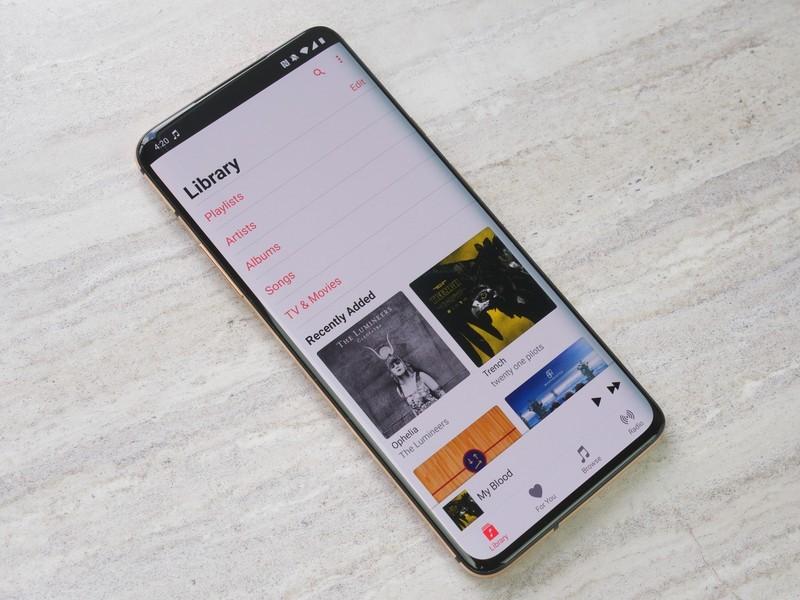
    Users of Android phones and tablets can also subscribe to Apple Music to enjoy their favourite music on Android devices. All the Apple Music access that iOS users have is also accessible to Android users.

    The Apple Music app is available for Android users on the Google Play Store or can be downloaded from Apple. The only requirement is that your device needs to have Android 4.3 (Jelly Bean) or later.

    How To Sign Up For Apple Music on Android

    Before you can sign up for Apple Music on your Android device, you need to have an Apple ID. If you don’t have one, you can visit Apple’s website to create a new one for free.

    Once you get your Apple ID, follow the steps below to sign up for your Apple Music on Android.

    Download and install the Apple Music app on your Android device. After the installation, launch the app.

    On the next screen, you should see a message that says Welcome to Apple Music. If it doesn’t appear, tap on For You.

    Tap the free trial offer. And then select a subscription type, Individual, Student, or Family.

    If you already have an existing Apple ID, tap on Use Existing Apple ID and enter you Apple ID and password.

    If you don’t have an Apple ID account, tap Create New Apple ID, then follow the next steps.

    Add a valid payment method and then tap on Join. The payment options are PayPal, Credit/Debit Card.

    Accept the Terms and Conditions.

    You are all set, you can now enjoy your favourite music on Apple Music.

    What Are The Available Apple Music Subscriptions?

    There are three (3) main Apple Music subscription packages and the price depends on the number of people you can share with. Below are the available Apple Music subscription packages:

    Student ($4.99/month) – this package for all University/College students around the world. This package can be used by only one person. You will be required to confirm your student status.

    Individual ($9.99/month) – this package is for any ordinary individual. This package can be used by only one person.

    Family ($14.99/month) – this package is for people who have activated Family Sharing on their devices. This package can be shared with up to 6 individuals.

    Conclusion

    You can use the free trial offer for 3 months free of charge. You will only be charged after the 3 months have elapsed.

    Once you are charged for the month, you can download and stream unlimited music. There’s no fixed number of music you can download during the month.

    The price may seem a little expensive but the quality of the music you have on Apple Music will definitely show you that it is worth every penny you spend.

  • How To Use iCloud Online

    How To Use iCloud Online

    Do you want to use iCloud features online without opening the app? If you don’t have an iPhone, iPad, iPod, Mac, or any other Apple device, you can still use iCloud on the web.

    On the web version of iCloud, you are provided with all the apps, that you would have had access to if you had opened it on your Apple device.

    As we all know, iCloud is Apple’s cloud storage service and as such, it lets you back up and syncs your email, calendar, photos, contacts, keynote, and other items. iCloud works with iPhone, iPad, Mac, and even PC.

    Using the iCloud web version, you can find, view, and even manage files that have been backed up on your Apple ID. You can also use the web version of iCloud to locate your missing iPhone.

    If you have official emails, you wish to view on the web, you can equally use the iCloud web version for it. You can also see and view your calendar and photos, reminders, etc.

    How To Use iCloud Online

    1. On your web browser, go to iCloud.com
    2. Sign in with your Apple ID and password.
    3. Enter the two-factor verification code sent to your device.
    4. iCloud will automatically display your iCloud page. This includes applications and tools.
    5. The applications and services that will be displayed are Mail, Contacts, Calendar, Photos, iCloud Drive, Notes, Reminders, Pages, Numbers, Keynote, Find Friends, Find iPhone.
    6. Also, a link to your Account Settings will appear on the screen. You can click on any of the applications to enjoy all the features it has.

    Before you can use these features, you need to make sure that you’re syncing the data on your iPhone to iCloud.

    To sync the data from these apps to your iCloud simply follow the steps below:

    1. Open the Settings app on your iPhone.
    2. Click on your name on the top of the page, and then tap on iCloud.
    3. Under apps using iCloud, turn on the button for the apps whose data you’d like to sync to your iCloud.

    What Web Browsers Can You Use To Access iCloud Online

    To enjoy the most out of the iCloud web version, your web browser should be accepted by Apple to access iCloud online.

    You use the latest versions of Safari, Firefox, Google Chrome, Internet Explorer, and Opera browsers. If you have any of these browsers, you can use iCloud online and you will make the most out of it.

    Conclusion

    In this article, I have explained to you how you can use iCloud and its features online. You can set reminders, view your photos, read and reply to emails, view your calendar, contacts, etc.

    You can use the method above on any device that has an internet connection and can connect to the internet. If your device can do this, then you are good to follow the methods stated above.

    If you encounter any challenges, you can write them in the comments section below and I will attend to every single one of them.

  • How To Use Parental Controls On Your Children’s iPhone and iPad

    How To Use Parental Controls On Your Children’s iPhone and iPad

    Have you given your child an iPhone or iPad? Are you concerned about the type of content and tasks they perform on their device? If your answer is yes, then this article is the right fit for you.

    As a call for protecting children’s security online, this article is going to show you how to use parental controls on your children’s iPhone and iPad.

    As soon you set up the new iPhone or iPad for your kid, the next thing you need to do is to enable Family Sharing. Without Family Sharing, there’s no way you will be able to use parental controls on your child’s device.

    The internet is now not safe especially for kids in this new digital era. As such, the best thing you can do to keep your children safe on the internet is by enabling parental controls on your child’s device.

    If you enable this feature, you can monitor what type of content or information that your child can have access to whenever they use the internet.

    How To Use Parental Controls On Your Children’s iPhone and iPad

    There are several ways you can use parental controls on your children’s iPad and iPhone. Below are some of the several ways you can use parental controls to secure your children’s iPhone or iPad.

    How To Use Location Services To Secure Your Children’s iPhone and iPad

    Before you use this feature, you need to make sure that you have enabled family sharing on both your device and your child’s device.

    Once you enable this feature, the Parent/Guardian can view the location of each family member without the family member sharing their locations. This means that you will be able to monitor wherever your child is without asking for his/her location.

    1. Open the Settings app on your child’s iPhone.
    2. Tap on the name of the account at the top of the screen.
    3. From the options provided, tap on Find My.
    4. Afterward, turn on the option next to Share My Location.

    How To Use Parental Controls To Set Content & Privacy Settings

    1. Open the Settings app and then tap on Screen Time.
    2. Tap on Continue and then choose whether the iPhone is for you or your child. If it is for your child, follow the prompts until you are asked to enter your Screen Time passcode.
    3. Tap on Content & Privacy Restrictions. When asked, enter your passcode and then turn on Content & Privacy.

    How To Use Parental Controls To Prevent iTunes & App Store Purchases

    1. Open the Settings app and then tap on Screen Time.
    2. Tap on Content & Privacy Restrictions. When asked, enter your passcode.
    3. Next, tap on iTunes & App Store Purchases.
    4. Choose your preferred setting and set it to Don’t Allow.

    Conclusion

    These are just a few ways of securing your child’s iPhone or iPad using parental restrictions. There are other ways you can do the same thing, but these are the important ways.

    If you have any other way, you can share it in the comment section below.

  • How To Delete Your Twitter Account

    How To Delete Your Twitter Account

    Are you feeling bored on Twitter? Do you want to take a break on Twitter? Are you tired of Twitter? Are you done with Twitter? Do you want to permanently delete your Twitter account?

    Does any of the questions stated above apply to you? Then in In this article, I am going to show you everything you need to know about how to delete your Twitter account.

    There are several reasons why you might want to delete your Twitter account and all the data related to it. Whatever your reason may be, I’ve got you covered in this article.

    Just like Facebook, you choose whether to delete your Twitter account permanently or deactivate it for some time. Before you decide on whether to delete or deactivate your account, read on to know the difference between the two.

    Difference Between Twitter Account Deactivation and Permanent Deletion

    If you choose to deactivate your Twitter account, it means you temporarily make your Twitter inactive. Anytime you wish to come back on Twitter, you can activate your account back.

    If you choose to delete your Twitter account, it means that you remove your account from Twitter permanently. You can’t undo this command.

    Once you deactivate your account, your Twitter profile will no longer be available. But you will still appear on your follower’s list.

    The reverse happens when you permanently delete your account; all your posts, photos, videos, and everything that has a connection with your Twitter account will no longer be available.

    How To Delete Your Twitter Account Permanently

    Unlike Facebook, on Twitter, you can the method for deleting your account permanently and deactivating your account is the same. The only the difference is that, after the 30-day grace period, your account will permanently delete.

    There are two (2) ways you can delete your Twitter account; i.e. on the web and the Twitter app.

    How To Delete Your Twitter Account Permanently On The Web

    1. On your web browser, visit Twitter’s official website.
    2. Log in to your account with your Twitter username/phone/mobile number and password.
    3. On the main page, click on the three (3) dots icon on the left sidebar. After, click on Settings and Privacy.
    4. Choose Deactivate your account from the list of options.
    5. Some information will be displayed, read through, and then click on Deactivate.
    6. A confirmation message will be shown for you to enter your Twitter password to confirm your choice.
    7. After entering your password, once again click on Deactivate to confirm your choice.

    How To Delete Your Twitter Account Permanently On The Twitter Mobile App

    1. Log in to your Twitter account on the official Twitter app.
    2. Tap on your profile picture and choose Settings and privacy from the menu.
    3. Tap on Account under your username.
    4. Next, tap on Deactivate your account.
    5. Some information will be displayed, read through, and then click on Deactivate.
    6. A confirmation message will be shown for you to enter your Twitter password to confirm your choice.
    7. After entering your password, once again click on Deactivate to confirm your choice.

    Conclusion

    After deactivating your account, your username and email address will remain tied to your account. Hence, you cannot use it to create any new account.

    Instead, after the 30-days grace period, you can then use it to create a new account from the scratch.

    After 30 days, all your posts, tweets, and photos will be permanently deleted from Twitter and your account will no longer be available.

    For more questions, comments, and suggestions, write in the comments section below and I will attend every single one of them.

  • How To Disconnect Your Instagram Account From Your Facebook Account

    How To Disconnect Your Instagram Account From Your Facebook Account

    Do you want to disconnect or unlink your Instagram account from your Facebook account? Have you created a new Instagram account that you wish to link to your Facebook account?

    Whatever your reasons maybe to disconnect your Instagram account from Facebook this article has got you covered.

    This is because in this article I am going to show you how to disconnect your Instagram account from your Facebook account without causing any harm to either of the accounts.

    Linking your Instagram account to your Facebook account or vice versa has a lot of merits. For example, once you link these two accounts together, you can share your Instagram story on your Facebook story at the same time.

    All these were not available some few years ago, but when Instagram became part of the Facebook family, this feature was added to enhance users’ experience in these two apps.

    With this feature, you are allowed some extra features; you can post your photos from Instagram to Facebook directly from Instagram; it is also easier for your Facebook friends to find your Instagram profile.

    Aside from all these interesting features, if you think there’s the need to unlink these two (2) accounts, then you can follow the outline below.

    How To Disconnect Your Instagram Account From Your Facebook Account

    You and I can agree on the fact that most people access their Facebook and Instagram accounts using their mobile phones. Only a few of us use these apps on our computers on certain occasions or periods.

    Unlike previously, users of Mac and PC cannot disconnect their Instagram account from their Facebook account and as such, they can only do so using their mobile devices.

    So, to disconnect your Instagram account from your Facebook account follow the steps listed below:

    Open the Facebook app on your mobile device.

    Tap on Settings.

    Tap Account, and then tap on Linked Accounts.

    Next, tap Facebook and then Unlink Account (if your device is an iOS device) OR Unlink (Android).

    Tap Yes, and then Unlink to confirm your selection.

    Conclusion

    Disconnecting your Instagram account from your Facebook account is not permanent. Whenever you wish to re-connect your Instagram account to your Facebook account, you can go ahead and do so.

    I hope this article was helpful and that it met the purpose for which it was written. Please read through carefully to understand the concept of disconnecting your Instagram account from your Facebook account.