Author: Gabriel Agbobli

  • How To Register For Netflix In Ghana

    How To Register For Netflix In Ghana

    Undoubtedly, Netflix is the biggest all-movie and TV show streaming platform in the world (this is open for debate). Although not all countries are allowed to view the same contents as others, each country is given its own unique types of movies.

    Unlike the other platforms that exclude Ghanaians like PayPal (read on how to create a PayPal account in Ghana here), Ghanaians can sign up and stream Netflix right here in Ghana.

    That’s right. You can read on to know how to register for Netflix in Ghana in just a few minutes.

    What is Netflix?

    Wait, this you just say what is Netflix? Yes, I did. I know many of you might be wondering who doesn’t know what Netflix is but, that’s our mission here at mfidie.com; and that is to make technology accessible to the everyday person.

    Basically, Netflix is a paid premium movie streaming platform that provides registered users with original and uncopied movies, series, and TV shows that are free from copyright infringement.

    Once you sign up, you choose your preferred subscription package (can be changed later), you will then have fun while enjoying your favourite movies. If you find a show or movie you like, you can download it and then watch it later even if you are offline.

    How To Register For Netflix In Ghana

    To register for your Netflix account in Ghana, follow the steps listed below:

    1. Open a browser and visit the Netflix Ghana website (netflix.com/gh).
    2. Click on SIGN UP.
    3. Type in your email address and your preferred password.
    4. Choose your preferred subscription plan. The available subscription plans are:
      • BASIC ($7.99/month): The basic plan includes HD streaming with 480p resolution, and can be viewed on only one (1) device at a time.
      • STANDARD ($9.99/month): This plan on the other hand includes a better video quality with 1080p resolution and can be streamed on two (2) devices at a time.
      • PREMIUM ($11.99/month): Finally, the premium plan has the best video quality among them all with a 4K+HDR resolution and can be streamed on 4 devices at the same time.
    5. Once you are done selecting your preferred plan, click Continue, and enter your payment information.
    6. If you are using your credit/debit card, enter your card information and click on Start Membership.
    7. If you are using PayPal, click continue to PayPal, then enter your PayPal information.
    8. Finally, if you are using a Netflix Gift Card, enter your gift card code and enter your zip code and then click Redeem Gift Card.
    9. Next, enter your phone number and click Continue.
    10. Choose a device(s) you will stream your movies or shows on. (This solely depends on the plan you choose).
    11. That’s it, you are all set now. You can now enter your email/phone and then password to log in and enjoy your Netflix experience.

    Conclusion

    Now that you know how to register for Netflix in Ghana, feel free to try it out, and please note that the first 30 days are free. But you will be charged once you sign up.

    If you encounter any challenges, please do not hesitate to write them in the comments section below, and I will attend to you as soon as possible.
  • How To Actually Hide The Hidden Photos Album On Your iPhone

    How To Actually Hide The Hidden Photos Album On Your iPhone

    Do you really want to hide the hidden photo album on your iPhone? Continue reading because in this article I am going to show you how to actually hide the hidden photos album on your iPhone.

    The hidden photos album on iPhones has for the past years been just a folder that can be easily assessed by anyone. Although the name of the folder is “Hidden Photos”, the folder can easily be found in the list of folders.

    Because of that, Apple has made it possible to now hide the “Hidden Photos” if you have an iPhone with iOS14 and above. If your device has/can be updated to iOS14 and above, then you can follow the rest of the article.

    In case your device doesn’t support iOS14 and above, you can still read through and then later follow the steps when you get an iPhone that supports iOS14 and above.

    How To Hide A Photo in iOS 14

    how to actually hide the hidden photos album on iphone

    You can’t just hide an empty Hidden Photos album; you need to add photos to the album.

    This is simply known as hiding a photo. This is because, whenever you hide a photo, it automatically goes into the Hidden Photos album.

    To hide a photo, follow the steps below:

    • On your iPhone, open the Photos app.
    • Scroll through and tap on the picture/video you want to hide.
    • You can also tap on the Select option in the upper right corner and then tap on multiple photos/videos.
    • Tap on the Share button in the lower-left corner.
    • Scroll through the options and tap on Hide.
    • You will then need to confirm your selection by tapping on Hide Photo.

    How To Actually Hide The Hidden Photos Album On Your iPhone

    There are several reasons why you may want to hide your photos. Maybe they may not be appropriate for your kids or you just feel like hiding it.

    Whatever the reasons are, once you really want to hide the hidden photos album, you can follow the steps listed below.

    • Open the Settings app on your iPhone.
    • Scroll through the apps and tap on Photos.
    • Scroll down and toggle the Hidden Album off.

    The Hidden Photos album will now appear in the Utilities section of your Photos app.

    How To Show The Hidden Photos Album

    In case you now want to show the hidden photos album, you can follow the steps below:

    • Open the Settings app on your iPhone.
    • Scroll through the apps and tap on Photos.
    • Scroll down and toggle the Hidden Album off.
  • How To Decide Whether To Repair Or Replace Your Phone

    How To Decide Whether To Repair Or Replace Your Phone

    Are you finding it difficult to decide on whether to repair or replace your faulty smartphone? Don’t worry, I am going to help you decide on whether to repair or replace your faulty smartphone.

    One of the several intra-personal conflicts we have is the decision to repair or replace our mobile phones. Although people don’t see it as such, it is very serious and can even stress you up.

    There are some minor damages that even a young child knows that this one needs repair not replacement. Sometimes also, there are some serious damages that the obvious solution is by replacing it.

    Sometimes, the signs and factors are not too clear for you to decide on whether to repair or replace your phone. This is where I am going to help you decide on which one to go for.

    Should I Repair Or Replace My Faulty Smartphone?

    There are some three (3) main questions you need to ask yourself before you decide on taking any decision.

    What is the problem with my smartphone?

    This is one of the most important questions you need to ask yourself. What is the problem with your smartphone; is it your speaker, battery, etc.

    First of all, you need to personally check to see if there’s any fault, if you can’t you can then send it to a trusted repair service to check it out for you.

    What is the cost of repair against the cost of replacement?

    Just as the name suggests, you need to get a quote from both the repair service (Smartfix) and the shop you will like to buy the new phone from.

    If the replacement will cost just a little above the repair, I suggest you go for that one. Also, if the repair costs much lesser than the replacement, then I suggest you go for the repair.

    How long does my phone have a warranty?

    For every new smartphone you buy, there’s a warranty in the box. Some last two (2) years and some last more or less than that.

    If you have a fault with your smartphone, you can check your warranty to see if it is still valid. If it is you can send it to them for either a free repair or a discounted repair. If you are lucky, you could even get a brand new phone.

    How To Decide Whether To Repair Your Phone

    Some features show that you need to repair your phone. Below are some of the main factors:

    • You just want the latest model for no reason.
    • You ran out of storage (this depends on how you use your storage and what you use it for).
    • Just a little screen crack.
    • You just don’t know how to use your phone.

    You can clearly see that all the points raised above are just minor issues that could be resolved by repairing your faulty smartphone.

    How To Decide Whether To Replace Your Phone

    These are some of the features that show that you need to replace your phone.

    • The damage to your phone is beyond repair.
    • You need an upgrade for an important reason.
    • You definitely don’t know how to use the phone.
    • Your battery cannot be replaced with an original one.
    • You have repaired your phone more than 3 times since you bought it.

    Also, you can clearly see that these signs show that you need to replace your smartphone.

    In conclusion, I want you to sit down and analyze these reasons and decide if it will favour you in the long term, not the short term.

  • How To Get Healthy With Your Apple Watch

    How To Get Healthy With Your Apple Watch

    Apple Watches are one of the smartest wearable technologies that have ever been manufactured in the world. This tiny watch can perform some things that some human beings would have found difficult to do.

    Among some of these attributes given to the Apple Watch is its ability to help you keep healthy. Healthy?? Yeah, you read it right, that tiny thing on your hand can help you stay healthy.

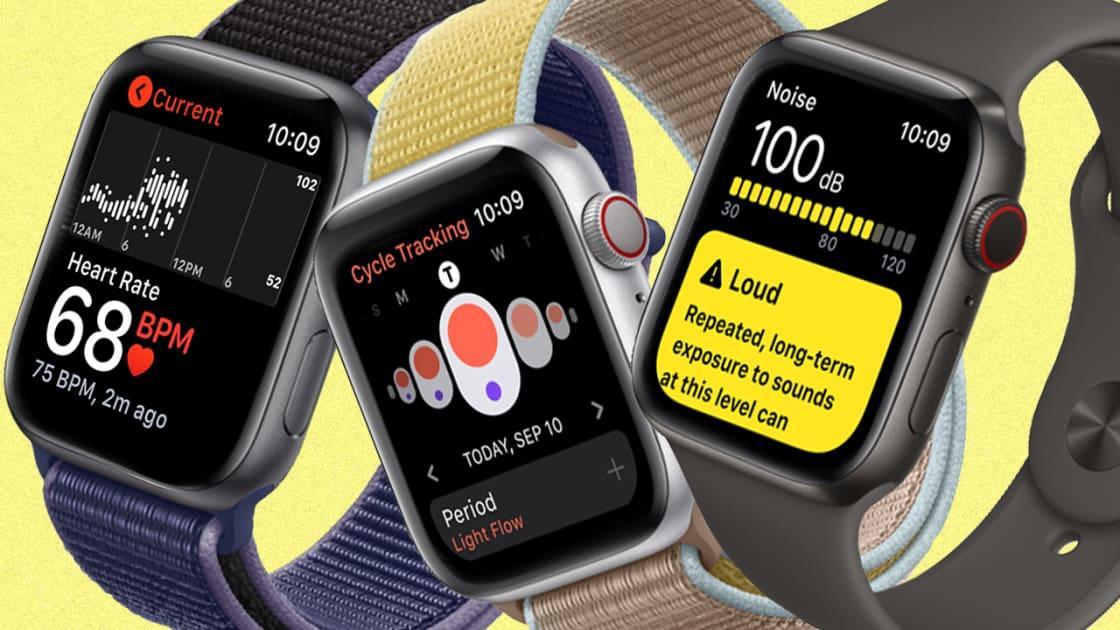
    The Apple Watch can monitor your heart rate and some other vital health information; some of which could cause some serious health conditions when not look at properly.

    But how exactly does this happen, well I am going to show you exactly how to get healthy with your Apple Watch.

    The Apple Watch Series 4, 5, and 6 comes along with an ECG app that can take an Electrocardiogram of your heart rhythm. On normal, you need to visit the hospital and pay some amount of money before you can receive an ECG.

    How To Get Healthy With Your Apple Watch

    Monitor your heart rate

    The Apple Watch comes along with an already existing Heart Rate app which can be used to measure your heart rate.

    Also found in the app is the feature to display your current, your resting, your average, and specific heart rates. If the feature in the Heart Rate app is not enough, you also download other third-party apps to check your heart rate.

    Track your menstrual cycle

    Also installed on your Apple Watch is the Cycle Tracking app which is used to check menstrual cycles. Before you can use this app, you need to set it up. To set up your cycle, open the Health app on your iPhone and tap on Browse > Cycle > Tracking >Get Started.

    Once you are done setting it up, you then need to enter the day you had your last period, the duration it lasts, and the length each of your cycle’s last. The app will then perform the calculations and alert you when it’s due. Other controllable options are Period Prediction, Period Notification, Log Fertility, Log Sexual Activity, etc.

    Wash your hands for 20 seconds

    This feature is not supposed to shock you because of the times we live in now. As the popular saying goes: “we don’t live in normal times”. If you have Apple watchOS 7 and above, Apple has added this feature to help you protect yourself against this virus.

    The timer detects when you are washing your hands under running water and then gives you the timer. You can simply go to Settings and turn Handwashing Timer on.

    Measure your blood oxygen level

    This feature is available on Apple Watch Series 6 and watchOS 7 and later. The app measures to see if the amount of oxygen entering your brain is enough or not.

    This feature can be turned on by opening the Apple Watch app on your iPhone, tap on the Settings option for Blood Oxygen, from there turn on Blood Oxygen Measurements.

    Conclusion

    With the above things you can do with your Apple Watch, there is no doubt that the Apple Watch is one of the smartest watches in the world.

    If you have other ways of getting healthy with your Apple Watch, feel free to write it in the comments section below and I will add it to it. Also, make sure to share this post with your friends and loved ones.

  • 3 Ways Of Preventing Your Phone’s Screen From Scratching

    3 Ways Of Preventing Your Phone’s Screen From Scratching

    Do you know that there are some easy ways you can save yourself the stress of buying new screens for your iPhone each time?

    Well, if you didn’t know, that’s not a big deal because I am going to show you 3 effective tips to prevent your iPhone screen from getting scratched. Thus, saving you the cost of buying new screen replacements each time.

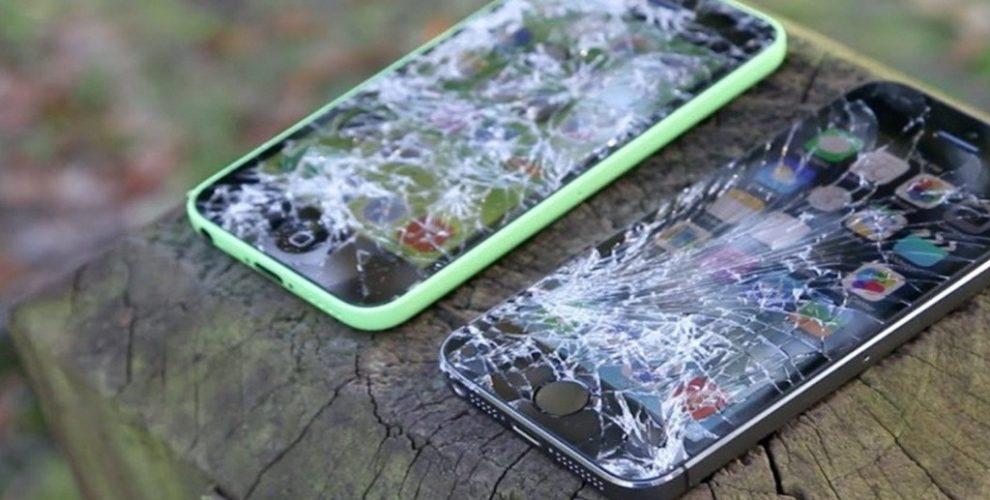
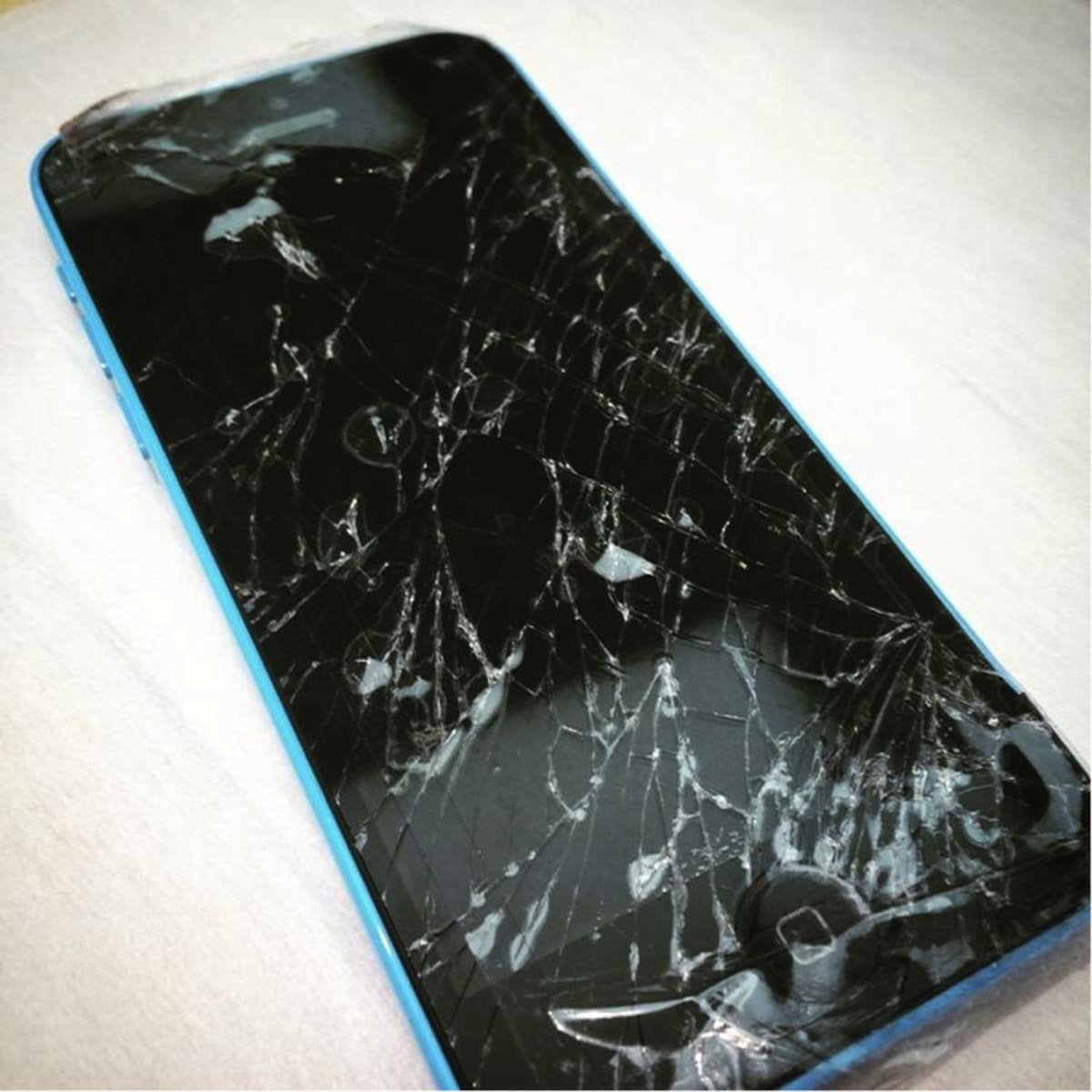
    Mobile screens are very fragile and because of that they usually break easily and once they are not taken care of carefully, easily you can visit the phone repair shop very often.

    3 Ways Of Preventing Your Phone’s Screen From Scratching

    1. Use screen protectors

    As you might already aware, screen protectors are one of the most effective ways of preventing your iPhone’s screen from getting scratched. Mostly, people do not feel the need to just spend something small to buy screen protectors for their phones.

    Screen protectors are protective coverings that take the scratch that was supposed to be on the original iPhone screen, thus keeping the screen safe from scratches. Also, they come at very cheap and affordable prices.

    2. Use liquid armour

    Liquid armours are also similar to screen protectors. But, unlike screen protectors, screen armours are sprayed on the screen and allowed for some time before cleaning it off. The recommended time to allow the solution to dry is 24 hours.

    The advantage that liquid armours have over the screen protectors are the fact that screen protectors usually leave bubbles under the screen making it not that comfortable when using it.

    Liquid armours protect your iPhone’s screen from scratches and makes the screen neat after several fingerprints on it.

    3. Practice personal safety measures

    Finally, the best way to keep your iPhone’s screen safe from scratches is by practicing personal safety. This simply means that you should watch how you handle your phone and where you put them.

    You need to keep your phone away from coins and other sharp materials that can easily scratch the screen of the phone. Also, when you handle your phone, make sure to have a firm grip on it when you are in a busy place.

    For example, when you are in the market someone could easily hit you for your iPhone to fall. Thus, firm grips become very important.

    Conclusion

    All these tips given below are not 100% effective, but if you practice them, you will be on the safer side. Because, as the saying goes, it’s better to be safe than sorry.

  • How to Use iMessage On Your iPhone And iPad Without a SIM And Phone Number

    How to Use iMessage On Your iPhone And iPad Without a SIM And Phone Number

    Are you thinking of how to use iMessage on your iPhone and iPad without a SIM and phone number?

    One of the questions I have been getting from most people is how to use iMessage on your iPhone and iPad without a SIM and phone number. Well, I am going to show you the detailed method of doing that in a bit.

    iMessage is the easiest and cost-efficient way of sending text messages to your friends and loved ones who have iPhones and iPads. Unlike normal text messages that charge from your main account, iMessage uses internet data instead.

    For parents who would like their children to use iMessage without paying for a SIM card for them, this article is going to be really helpful. Now enough of the plenty talk, let’s get right into it.

    How to Use iMessage On Your iPhone And iPad Without a SIM And Phone Number

    Before we begin, you need to have an active Apple ID and internet connection. The Apple ID is what you are going to be identified within iMessage. Once you have all these follow the steps listed below:

    • Add an iCloud account to your iPhone or iPad (if you haven’t done that already). To do this, you can go to Settings and you will be asked to Add account, follow the on-screen prompts and sign in with your Apple ID and Password.
    • Open the Settings app on your iPhone or iPad.
    • Scroll to the bottom and select Messages. After that, make sure the toggle next to iMessage is turned on.
    • Tap on Send & Receive. If your iMessage was initially set up using a phone number, you will find it together with your Apple ID. From here, tap on your Apple ID under the ‘You can receive messages to and reply from’ option.
    • If no Apple ID shows up under the ‘You can receive messages to and reply from’ option, tap on Use your Apple ID for iMessage and then select your Apple ID.
    • Go to the Message app and try sending an iMessage to see if it works. If you followed the steps very well, it will work perfectly.

    Conclusion

    There you have it, you can send and receive iMessages directly to your iPhone or iPad without any SIM or phone number. But, as I stated earlier, you need to connect your device to WiFi before you can send and receive iMessages.

    Now that you are all set, have fun chatting with your friends and loved ones on your iPhone or iPad using iMessage, play iMessage games, etc.

  • Best Apple Repair And Service Centres in Ghana

    Best Apple Repair And Service Centres in Ghana

    Are you looking for the best Apple repair and service centres in Ghana? If your answer is yes, I am going to show some of the best Apple repair and service centres in Ghana.

    Unlike Android, Windows, and other devices where you can get any repairer to fix it for you, Apple devices are a little complicated and when they end up in the hands of the wrong person, they could permanently destroy your device.

    Because of that, we have decided to bring you some of the best and certified Apple repair and service centres in Ghana. The list is trusted and genuine service centres that have been tried and tested by people all over Ghana.

    As a result, there’s no fear or whatsoever if you want to get Apple device repaired by any of the service centres listed below.

    Best Apple Repair And Service Centres in Ghana

    Smartfix Technologies

    The number one service centre on our list today is Smartfix Technologies. Smartfix is the largest and on-demand Apple repair service centre in Ghana. All the workers at Smartfix are certified Apple technicians with years of experience.

    Smartfix works just like uber; this is because you can sit at the comfort of your home and order for Smartfix to come for your device at your house. After they are done with the repairs, they will also come and deliver the device to you.

    What else is more interesting than sitting at home and get your Apple device fixed for you at a very cheaper cost? Aside from all that, the workers of Smartfix are very friendly and will provide you with all the information you need from them.

    iStore

    Just as the name suggests, iStore is an Apple store that was launched in 2009 to serve all the Apple needs of Ghanaians. They sell all the Apple products; ranging from iPhone, Apple Watch, iPad, Mac, AirPods, Apple TV sets and a whole lot.

    Also to that, they fix all Apple products as well at an affordable rate. They can be found at the Accra and Kumasi shopping malls.

    Apple Service Center

    Apple service center is the last (but not least) Apple service centre on our list today. They are located at Madina in the Greater Accra Region of Ghana.

    Their services involve fixing all malfunctioning Apple products you have at a cool price. You can visit them if you live around Madina and its surrounding towns.

    In conclusion, these are the trusted Apple service centres in Ghana, and if you have visited any of them before you can share your experience in the comments section below.

  • How To Make A Memoji On Apple Watch

    How To Make A Memoji On Apple Watch

    Do you want to make a memoji on your Apple Watch? This guide will show you how to make a memoji on your Apple Watch.

    Apple Watches are one of the smartest mobile watches in the world and as such, performs many smart things. You can use your Apple Watch to listen to music, get healthy, make appointments, and a whole lot of other interesting things that even some mobile phones cannot perform.

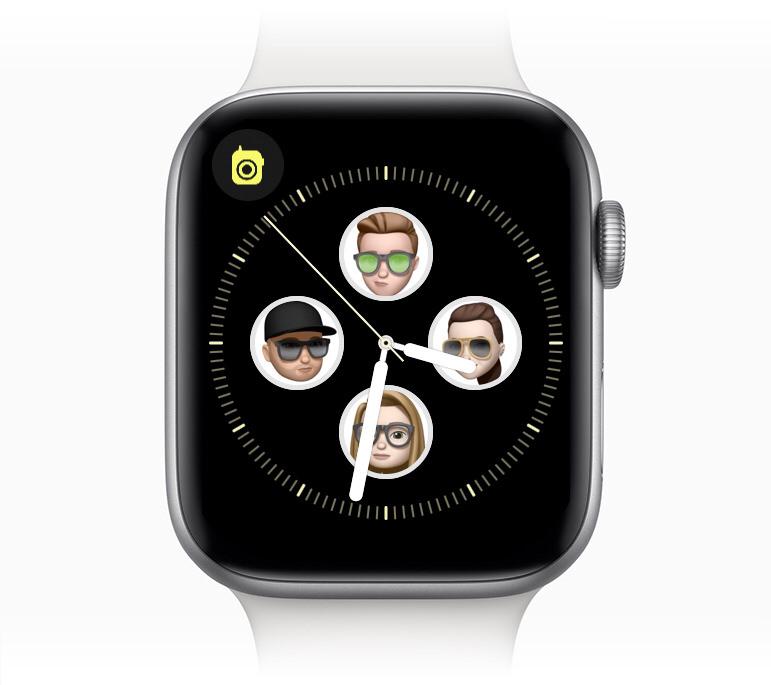
    One of the other things that the Apple Watch can do is make a memoji. For Apple WatchOS 7 above, you can create a memoji that looks exactly like you on your Apple Watch without using your iPhone.

    Initially, the Memoji app was available only on iPhones but Apple introduced it on the Apple watchOS 7 and above.

    What Are Memoji?

    Memoji are small avatars you can create to use your voice and replicates your facial expressions. Memoji is similar to Snapchat’s Bitmoji and Samsung’s AR Emoji.

    These Memoji can look exactly like you (or a version of you with, say, black skin, black hair, rasta, man bun, afro, or a cowboy hat, etc). You can send your Memoji on Messages, WhatsApp, FaceTime, etc.

    How to Make a Memoji on Apple Watch

    To make a memoji on your Apple Watch, follow the steps below:

    • On your Apple Watch, open the Memoji app. This app looks like a Memoji.
    • If you have created a Memoji before, you can tap on it to edit.
    • If it’s your first time you are creating a Memoji or you have created one already, tap on the “+” icon.
    • Tap “Skin” and then use the Digital Crown to choose your preferred skin colour. After that, swipe up to select the additional options.
    • Once the Skin setting matches the one you like, tap on the Skin label at the top to go back to the rest of the settings.
    • Continue through the list to customize the entire Memoji, following the same instructions that you used to customize the skin. You can tap the Memoji on the display to view different expressions, and also use pinch gestures to zoom in and out.
    • When you’re done with the customization, tap on “Done” to add the Memoji to your list of Memojis in the app.

    How to Delete a Memoji on Apple Watch

    In case you have an existing Memoji that you want to delete, you can follow the steps below to delete your Memoji on your Apple Watch.

    • Open the Memoji app on your Apple Watch.
    • Use a swipe gesture or the Digital Crown to see the Memoji you want to delete. (Depending on the number of Memoji you have).
    • Tap on the Memoji you want to delete.
    • Use a swipe gesture or the Digital Crown to scroll to the bottom of the options.
    • Tap on Delete and then Delete again to confirm your deletion of the Memoji.

    Conclusion

    Some other options are available for you. You can duplicate your Memoji, set it as the face of your Watch, etc. Once you are done, you can use it whenever you are using Message, FaceTime, and the other social media platforms that accept Memoji.

  • How to Change The Default Web Browser on iPhone & iPad

    How to Change The Default Web Browser on iPhone & iPad

    Are you tired of using Safari over and over again as your default web browser on your iPhone or iPad? Then, I am going to show you exactly how to change the default web browser on iPhone & iPad from Safari to Chrome, Mozilla, or vice versa.

    For a long time, Safari has been the default web browser on iPhones and iPads. Although you could download other web browsers from the App Store, it wasn’t possible to make them your default browser.

    This meant that, before you could open an automatic redirect link from an app in any other browser other than Safari, you had to copy the link from Safari and paste it in the browser you wanted to open the link with.

    It was annoying and frustrating, but thankfully, if you have an iPhone or iPad running iOS 14 or iPadOS 14, or above respectively, you can change your default web browser. This has come to relieve the worries you would have faced a few years and months ago.

    Now you can look on the Apple App Store on your iPhone or iPad and look for any web browser you want to use as your default browser and it will be possible.

    How to Change The Default Web Browser on iPhone & iPad

    First of all, before you proceed with anything, you need to make sure that you have downloaded the web browser you would like to use as your default browser. These browsers are mainly, Chrome, Firefox, and Edge. Also, make sure that the browser has been updated to the latest version.

    • On your iPad or iPhone, open the Settings app. If you have a lot of apps and cannot find it, use the search bar and type Settings.
    • Scroll through to locate the browser you’d like to use as your default browser. Once you locate it, tap on it.
    • In the app’s settings, tap on Default Browser App.
    • A list of all installed web browsers will be shown. Tap on the browser you want to make your default browser and see if a blue check sign appears next to it.
    • Once it is done, tap the Back button and exit Settings.
    • Open an app and try to open a link to see if it will open in the new browser you have set as your default browser.

    NOTE: This works on iOS 14, iPadOS 14, and above ONLY.

    Conclusion

    Well, Apple has now attended to the cry of their users and has removed the monopoly power that Safari had on the iPhone and iPad.

    This guide has been written to help everyone, whether you know a lot about tech or not. But, if you face any challenge, feel free to write it down in the comments section below.

  • How To Measure Someone’s height On iPhone 12 Pro & 12 Pro Max

    How To Measure Someone’s height On iPhone 12 Pro & 12 Pro Max

    Do you know you can measure the height of someone on iPhone 12 Pro and 12 Pro Max? This article will show you exactly how to measure the height of someone on iPhone 12 Pro and 12 Pro Max.

    Whenever there’s a new Apple product release, you know that something new is going to be introduced into the world.

    Unlike some mobile phone brands that only add just one or two new things to the already existing models, Apple tries to add something significant to the already existing brands.

    The iPhone 12 Pro and iPhone 12 Pro Max which was launched not long ago, has added something significant to the already existing iPhone brands. With these two new models, you can use the already existing Measure app to measure the height of someone from the ground to hair or wherever you want it to end.

    It does this by using the iPhone’s camera and the new LiDAR (Light Detection and Ranging) scanner. Not only are the LiDAR sensors available on the iPhone 12 Pro and 12 Pro Max but it is also available on the iPad Pro (2020 models).

    The Measure app on iPhone’s can be used to measure shapes and figures, but only the 2020 iPad Pro models and iPhone 12 Pro and 12 Pro Max can be used to measure the height of a human being.

    How To Measure The Height Of Someone On iPhone 12 Pro & 12 Pro Max

    Measuring the height of someone is very easy and can be done in less than 5 minutes. Because the Measure app is already installed on your iPhone, there’s no need to download anything new.

    You can jump right into it by following the steps listed below:

    • On your iPhone 12 Pro or 12 Pro Max, open the Measure app.
    • Find the person you want to measure his or her height inside the viewfinder of the camera. Depending on how you want it, the person can be seated or standing. But to get the most of it you can try both and chose the one that you like most.
    • If you want the full measurement, position the iPhone so that the person you want to measure appears from the head to toe on the screen.
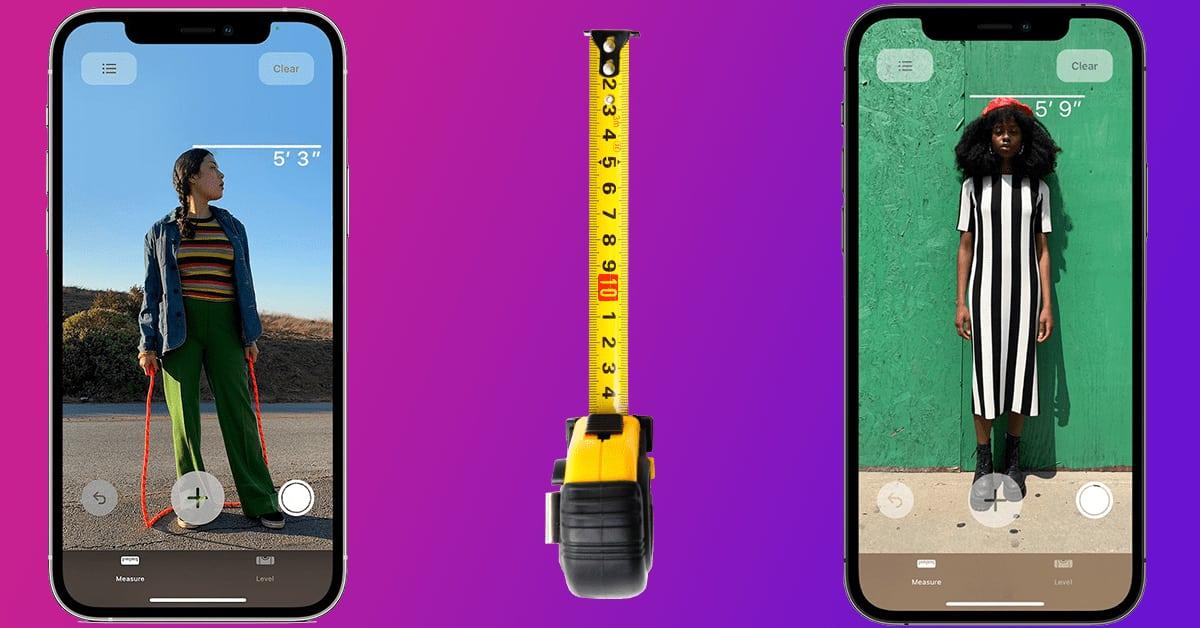
    • Wait for a few seconds and the height of the person will be written under the line that will appear on the head of the person.
    • To snap a photo of the measurement, tap on the shutter icon ( the Take Picture button) located on the right of the central “+” button.
    • To save the photo, tap the screenshot in the lower-left corner, tap Done, then choose Save to Photos or Save to Files.
    • In case you want to take a new measurement, turn your iPhone away from the person for some few seconds to reset the height

    Conclusion

    That’s it, you are all set now to measure the height of anyone using the steps provided to you above. These steps are simple and quick and you can use it as many times as you want without any restrictions.

    Now that you know how to measure the height of someone on iPhone, have fun while measuring the heights of different people on your device.