Author: Gabriel Agbobli

  • How To Sign Up For Apple One On Your iPhone, iPad Or Mac

    How To Sign Up For Apple One On Your iPhone, iPad Or Mac

    Wouldn’t it be great if you could just buy one package and enjoy almost all the Apple Subscriptions? I am going to show you how to sign up for Apple One on your iPhone, iPad, or Mac.

    One of the most annoying things with Apple products is the purchasing of subscriptions. This could range from Apple TV, Apple Music, iCloud Storage Plan, etc.

    Because of these challenges that users face every day, Apple decided to bring Apple One to solve the problems.

    What is Apple One?

    The question you might be asking yourself is what at all is Apple One? Well, let me explain to you what Apple One is entire.

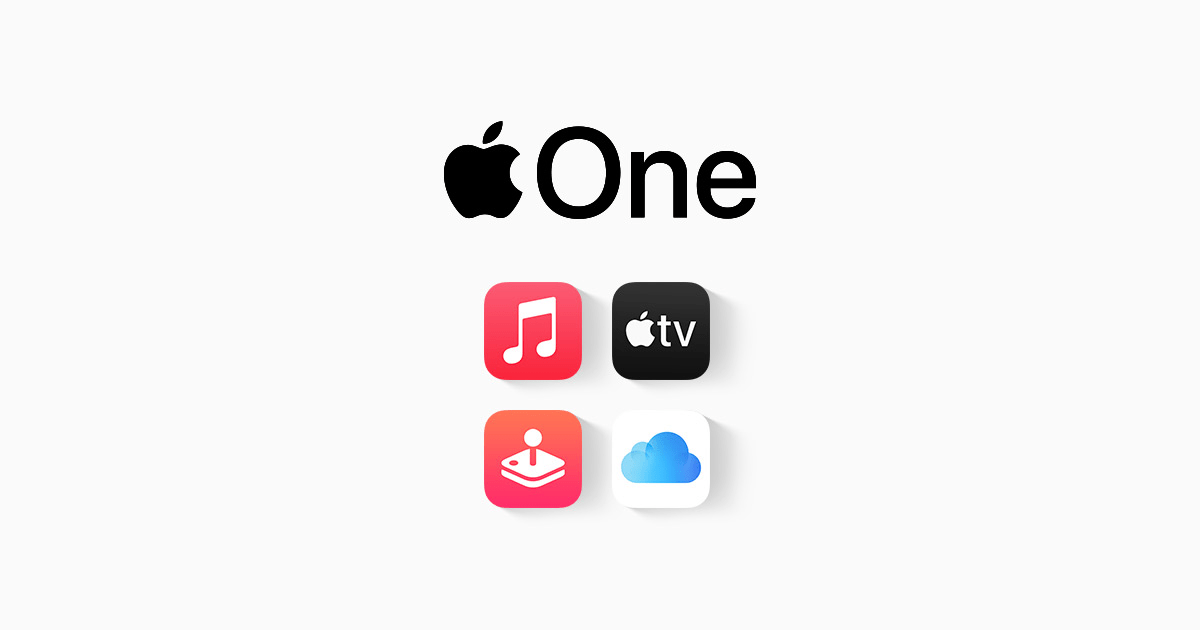
    Apple One is a subscription plan launched by Apple to solve the problems of users buying individual Apple subscription packages. With Apple One, you just buy one Apple One package and you will enjoy almost all the Apple subscription packages.

    The packages (products) you will get depend on the Apple One subscription package that you buy. In addition to getting all your Apple products in one place, you also enjoy some amount off; comparing it to when you buy the packages individually.

    What Are The Available Apple One Plans?

    Apple One Available Plans

    There are three (3) available Apple One plans depending on what you want and if you can afford it or not. These three (3) packages are:

    Individual ($14.95/month)

    The Individual plan includes Apple Arcade, Apple Music, Apple TV+, and 50GB of iCloud storage available for only one user. The Individual plan saves you $6/month if compared to the normal Apple packages.

    Family ($19.95/month)

    This plan includes Apple Arcade, Apple Music, Apple TV+, and 200GB of iCloud storage which can be shared with six (6) users. The Family plan saves you $8/month if compared to the normal Apple packages.

    Premier ($29.95/month)

    The last plan is the premier plan and it includes Apple Arcade, Apple Music, Apple Fitness+, Apple News+, Apple TV+ and 2TB of iCloud storage and can be shared among six (6) users. This plan saves you $25/month compared to the normal package.

    In addition to it, you enjoy a one-month free trial after which you will be charged. You can cancel anytime you want.

    How To Sign Up For Apple One On Your iPhone, iPad, Or Mac

    The steps involved in registering are easy and quick and you can follow the steps below.

    How To Sign Up For Apple One On Your iPhone Or iPad

    1. On your iPhone or iPad, open the Settings app.
    2. Tap on the Apple ID at the top of the Settings page.
    3. Scroll through and tap on Subscriptions.
    4. On the Apple Services page, tap on Apple One.
    5. Choose your preferred Apple One subscription plan.
    6. Next, tap on Start Free Trial.
    7. On the Apple Pay page, double click the side button to confirm your subscription.

    How To Sign Up For Apple One On Mac

    1. On your Mac, go to System Preferences and then Click on your Apple ID.
    2. Select Media & Purchases.
    3. Click the Manage button next to Subscriptions.
    4. The App Store will automatically launch, click on Apple One.
    5. Choose your preferred Apple One subscription plan and complete the registration.

    NOTE: You can also, visit the official Apple One page to register for Apple One on either iPhone, iPad, or Mac.

  • How To Use Netflix Party For Virtual Movie Night

    How To Use Netflix Party For Virtual Movie Night

    Do you want to want to host a virtual movie night? Did you know you can host a virtual movie night and invite people from all over the world? I am going to show you how to use Netflix Party to host a virtual movie night.

    In the olden days, before you can watch a movie, you needed to go to the community center or theatre. But now, you can sit in the comfort of your home and enjoy your favourite movie or TV show.

    When we were in secondary school, one of the best entertainment activities was the movie night; especially when they put off the light and all the attention was on the movie. Well, now you can even sit in Ghana and host a virtual movie night with your friends.

    What is Netflix Party (Teleparty)?

    Netflix Party (also known as Teleparty) is a new way to watch TV with your friends online. Netflix-party is used to stream Netflix movies together with your friends.

    Basically, Netflix Party is a browser extension; meaning you cannot use on mobile phones or tablets only laptops or PC. It allows up to a maximum of 50 people watch a Netflix movies together at the same time.

    How To Use Netflix Party For Virtual Movie Night

    how to use netflix party for virtual movie night
    • Download and install the free Netflix-party extension to your browser. Note that Netflix Party is only available for Google Chrome and Opera browsers.
    • Once the installation is done, click on the puzzle icon on the top right corner of your browser.
    • Select Netflix Party and click on the pin icon next to the logo.
    • Open Netflix on the same browser and choose the movie you want to host for the virtual party and wait for the Netflix Party logo to turn red.
    • Click on it and select “Start the party”. If you want to host the show alone, you can also select it from here.
    • Copy and send the URL that pops up to the people you want to invite to the movie night.
    • Ask them to also, install the Netflix Party extension on their web browser. Once they are done, ask them to log into their Netflix account.
    • Then, ask them to open the link you sent them. (Using the same browser the installed the extension on).
    • Once they open the link they will automatically join the virtual movie night you are hosting.
    • To make it even more interesting, you can also send messages. During playbacks, there will be a gray box with the Netflix Party logo, this is where you can chat with the attendees.

    Conclusion

    That is all, you are now set for your virtual Netflix movie night. Please note that all the people you invite are supposed to have an active Netflix account with a subscription. Otherwise, they cannot join the event.

    This guide contains all you need to know on how to start your Netflix Party virtual night from scratch. If you come across any issues make sure to write it in the comments section below and I will attend to every single one of them.

  • Infinix Note 8 (2020): Price, Specs, Features, Where To Buy & Best Deals

    Infinix Note 8 (2020): Price, Specs, Features, Where To Buy & Best Deals

    Infinix has become one of the leading names in the mobile phone manufacturing industry. Every time they surprise their fans with something new to update the previous model.

    This new Infinix Note 8 is one of the newest models in the Infinix Note Series. The new Note 8 is coming to replace the recently released Infinix Note 7 (released on May 14th, 2020).

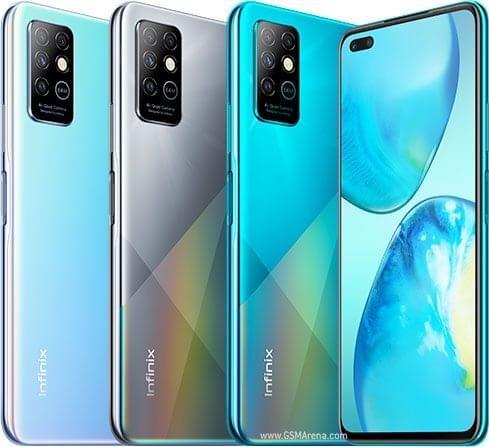
    The Note 8 comes features that come with quad rear cameras that are powered by MediaTek Helio G80 SoC. Also, it features a hole-punch display, with dual selfie cameras.

    In terms of battery, the Note 8 has a 5200 mAh battery to serve as the powerhouse.

    Infinix Note 8 Specs

    Infinix Note 8Specs
    Operating SystemAndroid 10 with XOS 7.1
    Display6.95″ IPS LCD capacitive touchscreen
    ChipsetChipset MediaTek Helio G80
    Memory6GB RAM
    Storage128GB ROM (Expandable using micro SD)
    Main Camera64MP + 2MP + 2MP + AI lens
    Selfie Camera16MP + 2MP
    BatteryNon-removal 5,200mAh Li-Po with 18W fast charging
    ConnectivityDual SIM with both SIM 1 and 2 supporting both 4G and 3G
    Special FeaturesFingerprint (side-mounted) Acceleration, proximity, compass, 3.5 Mm headphone jack
    ColoursDeepsea Luster, Iceland Fantasy, Silver Diamond
    PriceGHS 1159

    What is found in the box?

    Once you open the Infinix Note 8 box, you will find the following:

    • 1 Infinix Note 8
    • 18W power brick and Type-C cable
    • a set of earphones
    • 1 Sim ejector tool
    • a plastic case
    • a screen protector
    • warranty, user guide and information booklets

    Features of the Infinix Note 8

    Camera

    The new Infinix Note 8 has a total of six (6) cameras; four (4) of these can be found at the back and the remaining two in front.

    The two (2) front cameras are accommodated by the punch hole cutout. The two cameras have a 16MP selfie and another depth sensor for portraits.

    On the other side, the main camera has a 64MP ultra-high resolution lens giving it one of the neatest pictures no matter the time of the day.

    Design

    On the front, you have a 6.95” HD IPS LCD view with a 20.9:5 aspect ratio. On the top left corner, you will find a punch-hole cutout which houses the 16MP camera with dual flash and speaker.

    The Infinix branding will also be found at the back together with the 64MP quad-camera with quad flash.

    On the left you have the left, you have the 3-in-1 tray that houses the two SIM cards and the microSD. The right side also has the volume button and the power button which also doubles as the fingerprint sensor.

    Because the power button is on the side, the top of the phone has nothing; while the bottom part has the USB Type-C cable, the 3.5mm headphone jack, speaker, and microphone.

    Storage

    In terms of storage, the Note 8 has 6GB RAM and 128 GB internal memory which can be expanded using a microSD.

    You should be able to save all of your photos, WhatsApp Status and Music on the phone for a very long time without deleting.

    Fingerprint and Face Unlock

    Infinix Note 8’s fingerprint works very fast and accurate. The face unlock also works very well in all lighting (whether light or dark); it can also unlock with the side view.

    Gaming

    Due to the 6.95” HD LCD screen, playing games on this phone is very fun and interesting. It uses Mali-G52 GPU (Graphics Processing Unit).

    Your games should generally load faster and play more smoother. You should also enjoy an immersive experience when playing games.

    Battery

    Infinix Note Series is known for their long-lasting batteries and the Note 8 is no exception; with a Li-Po 5200 mAh, non-removable battery. It also has an 18W fast charging that can charge the battery from 0 to 100% in just about 2 hours.

    Pricing and Availability of the Infinix Note 8

    Price of Infinix Note 8 in Ghana

    The new Infinix Note 8 is selling at retail shops in Ghana at an RRP of GHS 1159. 

    Below is a list of shops in Ghana you can buy the Infinix Note 8 from:

    StorePriceContact
    Mfidie Store (Nationwide Delivery)GHS 9690546090871
    Franko Phones (No Delivery)GHS 969Contact Store

    Price of Infinix Note 8 in Nigeria

    The Infinix Note 8 is selling in Nigeria at around NGN 78,300 in all major shops.

  • Health technologies that have changed the world

    Health technologies that have changed the world

    Technology has indeed had its fair effect on the world. Technology has changed education, business, finance, health, employment, etc. Do you know that without technology, there wouldn’t have existed several equipment that help the health sector today?

    This article is going to show you some health technologies that have changed the world. Without some of these technologies, I can’t imagine how the health sector was going to be like.

    The COVID-19 pandemic has revealed to us that technology is a very important tool when it comes to health issues. For instance, the process of testing for COVID-19 in Ghana is 100% technology based.

    Can you imagine how it would have been done without technology? Considering the huge numbers of samples that are tested daily, without technology the duration to confirm a positive sample would have taken over three times the time the PCR test takes.

    Now enough of the plenty talk, let’s get into the subject this article.

    Health technologies that have changed the world

    X-ray imaging

    Can you imagine how fractures would have been detected without X-ray imaging technology? The duration takes to get the results for an X-ray test is less than an hour. There’s no way that human beings would have been able to detect fractures within this short period.

    According to research, the German Physicist, Wilhelm Conrad discovered X-rays accidentally while he was studying electric current passing through a gas of extremely low pressure.

    After he accidentally discovered them, he didn’t know much about them and then decided to name it X (usually used to represent unknown variables in Mathematics).

    His discovery led to the manufacture of X-ray machines and the use of X-ray imaging technology to make the health sector a very safe place. This invention is used in almost every country in the world.

    CT Scanner and Magnetic Resonance Imaging (MRI)

    After Wilhelm discovered X-rays, curious doctors wanted to know more about how to find out what is going on within a person without cutting the person open. This research and curiosity led to the discovery of the CT Scanner.

    The CT scanner was invented by Dr. Godfrey Hounsfield and received a Noble Prize for Medicine in 1979; was used to display multiple layers within multiple X-ray images.

    After the invention of CT Scanners, Dr. Raymond Damadian invented a technique to differentiate between normal and cancerous cells using a technology called magnetic resonance imaging (MRI).

    Currently, this technology is used by the Confederation of African Football (CAF) to confirm the ages of football players who play below the senior national teams. It is used to check whether the person’s age matches with some specific medical information the machine shows.

    Ventilator

    Medical Ventilators are machines that act as bellows to move air in and out of the lungs. A mask or helmet is fitted to the patient to get more air in and out of the lungs but if the condition is serious breathing tubes will be applied.

    This is the medical tool that has been used the most during this COVID-19 pandemic because it sustains critically ill persons by providing them with enough oxygen to breathe. You can imagine what would have happened without this equipment in this pandemic.

    Molecular Breast Imaging

    Breast cancer is one of the leading causes of death in women. As a result, scientists invented a technology called molecular breast imaging to scan the breast of, especially women to check for signs of cancer.

    The process involves the use of a radioactive tracer and a special camera to find breast cancer in the breast of the patient.

    In a few years to come, this method could be the leading method of detecting breast cancer in women and could in turn reduce the high rate of women dying as a result of breast cancer.

    Prosthetics

    Medical technologies could not be talked of without talking about prosthetics. This invention has been the savior of most disabled persons who thought their lives has come to an end.

    Now, those who used crutches, wheelchair, and walking supports can carry out their normal routine with little or no restriction at all.

    Conclusion

    As stated earlier, these technologies have indeed changed the world in one way or the other and the world cannot imagine itself without these technologies.

    Was this helpful? Fee; free to write down your comments and suggestions on the comment section below.

  • How to Listen To Music On Your Apple Watch

    How to Listen To Music On Your Apple Watch

    Do you want to listen to music on your Apple Watch? Did you know you can listen to music on your Watch even without your iPhone? In this guide, I am going to show you how to listen to music on your Watch.

    Apple Watches are one of the smartest digital watches in the world. Since they were first manufactured some years ago, they have been able to gain public attention.

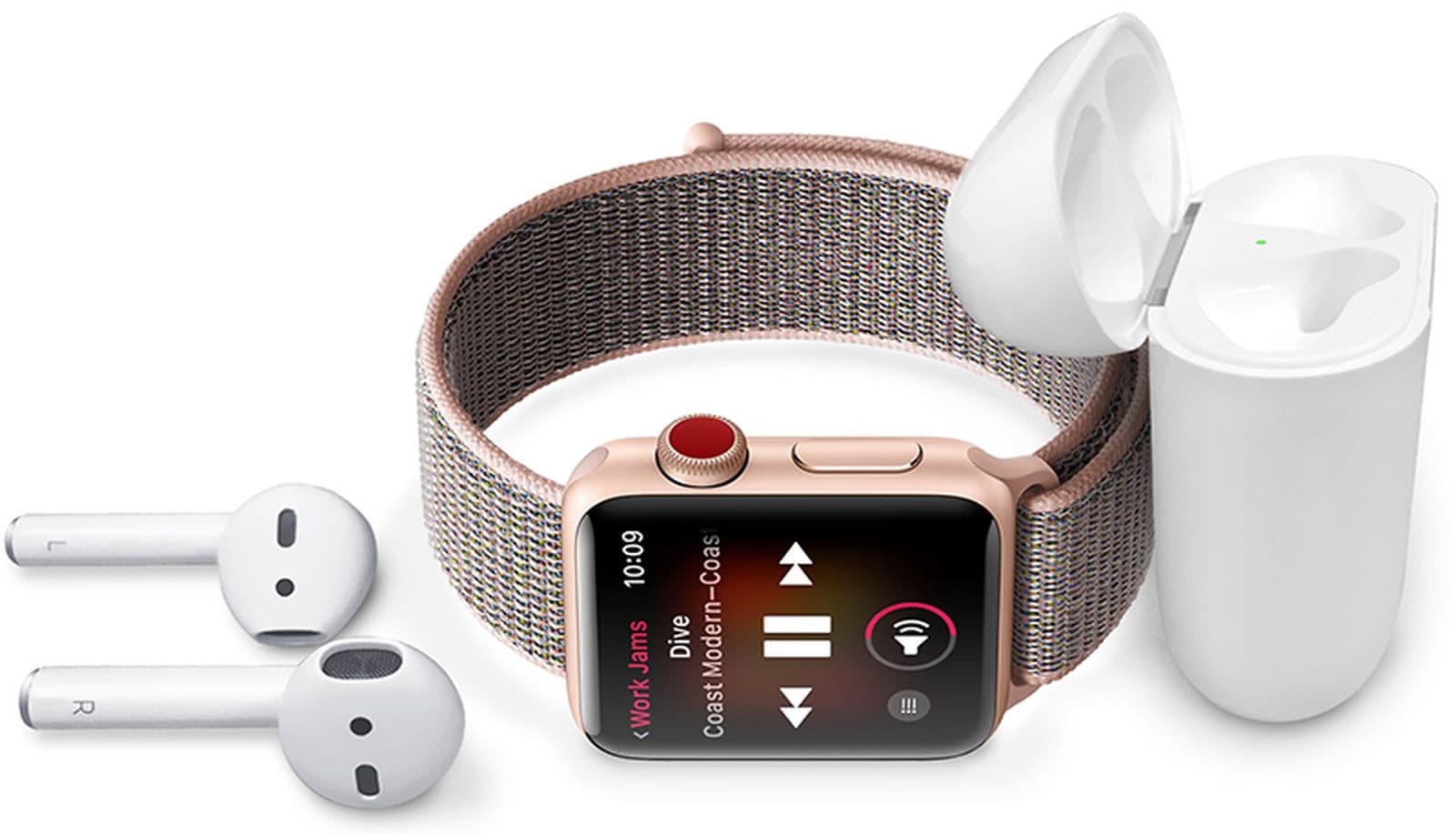
    If you are a user of any Apple Watch Series 3 and above, with/without an active internet connection you can listen to music on it; if when your iPhone is not around you.

    You can also listen to Apple Podcasts and audiobooks on your Watch. The only requirement is that you need to connect your watch to a Bluetooth headphone or speaker.

    If you want to stream the music on your watch, you need to have active cellular internet or Wi-Fi. But if you want to listen without an internet connection, you need to sync your music from your iPhone to your Watch.

    How To Sync Music From Your iPhone To Your Apple Watch

    To carry out this, you need to put your Apple Watch on charge and also bring your iPhone closer to the Watch.

    • On your iPhone, go open the Settings app. Tap on Bluetooth and turn it on.
    • On your iPhone, open the Apple Watch app and then tap on the My Watch tab.
    • Scroll through and tap on Music.
    • On the screen click on the “+” icon to add music to your watch. Similarly, you can tap on the ““ icon to remove music from your library.
    • Check through the tracklist and click the “+” icon next to it to add it to the library. You can also add Albums to your library.
    • NOTE: Make sure you have downloaded the music on your iPhone if you can’t find it in the list.

    How to Listen To Music On Your Apple Watch

    As stated earlier, you can listen to music on your Apple Watch in two main ways.

    By using the internet and by using no internet.

    How to Listen To Music On Your Apple Watch Using Internet

    • Connect your Apple Watch to your Bluetooth headphone or speaker.
    • Open the Music app on your Apple Watch, search for the music and tap on play.

    How to Listen To Music On Your Apple Watch Without Internet

    To do this, you, first of all, need to sync the music from your iPhone to your Apple Watch. Once you are done, connect the Apple Watch to your Bluetooth headphone or speaker.

    • Open the music app on your Apple Watch.
    • Scroll through the music and tap on the one, you like and enjoy your music right from your Apple Watch.
    • If you want to control your music, you can use the Play/Pause and Previous/Next button.
    • Additionally, you can change the volume of the music by turning the Digital Crown on your Apple Watch.

    Conclusion

    In this guide, I have explained all you need to know about how you can listen to music on your Apple Watch. Now that you have this guide enjoy your music right from your Apple Watch.

  • Fufu Blender and Fufu Pounder Machines in Ghana: Price & Details

    Fufu Blender and Fufu Pounder Machines in Ghana: Price & Details

    Do you want to buy a fufu blender and fufu pounder machine in Ghana?

    Well, there are a lot of fufu blender and pounders on the market but after doing my research, I found four (4) of the best fufu blenders and pounders; together with their details and prices.

    Fufu is one of the most popular foods in Ghana; both the Akans and non-Akans enjoy eating it. Whenever a foreigner visits Ghana, the food he/she wants to eat is fufu.

    But, among all the accolades that fufu has, the only disadvantage it has is the long process involved in preparing it. You first of all need to cook the cassava/yam and after that pound it for some time before your fufu will be ready.

    Because of this, a lot of people have had to stop eating their favourite food and this is not good. Because of that, several engineers and manufacturers have decided to make a machine that could make the preparation of fufu easy and quick.

    These machines exist all over the market but I am going to show you the top four (4) recommended models on the market. I have also added the price and a brief detail about each of them.

    Please NOTE that the types stated here are not all the brands available on the market but these are the ones that we can give you in-depth details about. This will help you when deciding on which type of machine you should buy.

    Fufu Blender and Fufu Pounder Machines in Ghana: Price & Details

    Rico YP-103 Fufu/Yam Pounder

    Price: GHS 535.00

    • 700-watt powerful motor.
    • It can pound both yam and cassava.
    • Comes with a free grinder attached.
    • The grinder can be used to grind coffee, nuts, and spices.
    • It has a water-proof body.
    • Portable for both domestic and small commercial use.

    Vizio 413 FMW Yam/Fufu Multifunctional Food Pounder

    Price: GHS 299.00

    • 750-watt power motor.
    • It also has a water-proof body.
    • It can pound both yam and cassava.
    • It is very portable and can be used for both indoor and outdoor (commercial) use.
    • It is very efficient, long-lasting, and durable.

    Mikachi 413 FMW Yam/Fufu Multifunction Food Pounder

    Price: GHS 295.00

    • It has a 750-watts power motor.
    • Water-proof body.
    • It is easy to handle.
    • It has a standby indicator.
    • It is durable, efficient, and lasts longer.
    • It can pound both yam and cassava.

    Commercial Electric Fufu Pounding Machine

    Price: GHS 2,350.00

    • The Electric Commercial Fufu machine often called the Fufu Machine is produced in Ghana by LM MACHINES. It is one of the best machines used for making fufu.
    • The pounder gives smooth and bump-free fufu that can be served with any desired soup or sauce on any occasion.
    • It is a three-prong plug which mates with any standard three-prong wall outlets to minimize any possibility of electrical shock.
    • The unit requires a standard 200-220V/50HZ electrical outlet.
    • The unit should always be plugged into its own individual electrical outlet anytime it’s being used.
    • The fufu machine consists of a hat fixed to guide and avoid fufu coming out to be contaminated or split among the operator.
    • The main motor of the machine is covered with a metal plate to avoid little particles from entering to cause any damage.
    • The machine is designed to be able to sit on the plain ground with no balancing, this enables the user to be able to fix the machine properly at their own location.

    Conclusion

    Now you have a fair idea of the top-recommended fufu pounders and blenders on the market. As you can see, the last one has more description than all of the other three.

    This is because the last brand is meant for commercial use and not individual use. Therefore, if you are thinking of starting a restaurant I advise that you go for the last one; otherwise, choose any of the first three (3).

    Please feel free to write your comments and suggestions in the comments section below and I will attend to all of them.

  • How To Watch Netflix in Picture in Picture on iPhone And Android

    How To Watch Netflix in Picture in Picture on iPhone And Android

    Do you want to watch Netflix in Picture in Picture on iPhone and Android device? Do you want to watch your favorite Netflix show without interrupting your WhatsApp chat?

    This life we live in is very complicated and in times like that what we do is multitasking. From cooking while talking to husband/wife to reading your books and chatting on your phone, we all perform multitasking.

    Similarly, our mobile phones have been programmed in such a way that we can also perform multitasking. Is it not annoying to pause your favorite Netflix movie just to go and reply to a WhatsApp message?

    With the method I am going to show you, you will be able to watch your Netflix movie and perform other tasks at the same time. This method works for both Android and iPhones (iOS14 and above).

    Before you can watch Netflix using the picture-in-picture feature, you first of all need to make that picture-in-picture is enabled.

    How To Turn On Picture in Picture On Your iPhone

    The Picture in Picture feature has been something that iPhone users have talked about it for a long time. But recently, Apple added it to their newer iPhones and iOS versions, i.e. iOS14 and above.

    • Open the Settings app on your iPhone.
    • Tap on General.
    • From the list of options, tap on Picture in Picture.
    • Make sure “Start PiP Automatically” has been turned on. If not make sure to turn it on.

    How To Turn on Picture in Picture On Your Android Phone

    If you have used Android phones for a while, you will probably be aware that this feature has been available on Android phones for a while. The most work with different types of video player applications.

    Currently, Picture in Picture works on Android version 8.0 and above ONLY.

    • On your Android device, open the Settings app.
    • Tap on Apps & Notifications.
    • Expand “Advanced” and tap Special app access.
    • From the next window, tap Netflix and make sure to toggle on “Allow picture-in-picture”.

    How To Watch Netflix in Picture in Picture on iPhone

    How to watch Netflix in Picture in Picture on iPhone

    The entire process of watching Netflix in Picture in Picture on iPhone is very easy and simple; even for those without tech knowledge.

    • To do this, first of all, follow the steps on “How To Turn On Picture in Picture On Your iPhone”.
    • Once you are done, open the Netflix app on your iPhone.
    • Search for your favorite movie or TV show and allow it to start playing.
    • Swipe up to go home.
    • Once you are on the home screen, you will see your Netflix movie or TV show playing in the floating window.
    • You can now watch your Netflix movie and perform whatever task you want to perform at the same time.

    How To Watch Netflix in Picture in Picture on Android phones

    • Similarly, to watch Netflix in Picture in Picture on your Android phone, you first need to follow “How To Turn on Picture in Picture On Your Android Phone”.
    • After that, open the Netflix app on your phone.
    • Search for your favorite movie or TV show and allow it to start playing.
    • While the movie or TV show is playing on Netflix, simply tap on the button and Netflix will switch to Picture in Picture mode.

    Conclusion

    Netflix is known as one of the best movie streaming platforms in the world and as such, it contains almost all the top movies on the planet. Read through this article and enjoy your Netflix movie while performing some other important tasks.

    Was this article helpful? Please feel free to write your comments and suggestions in the comments section below and I will make sure to attend to each one of them.

  • How To Use WeTransfer To Send Large Files For Free

    How To Use WeTransfer To Send Large Files For Free

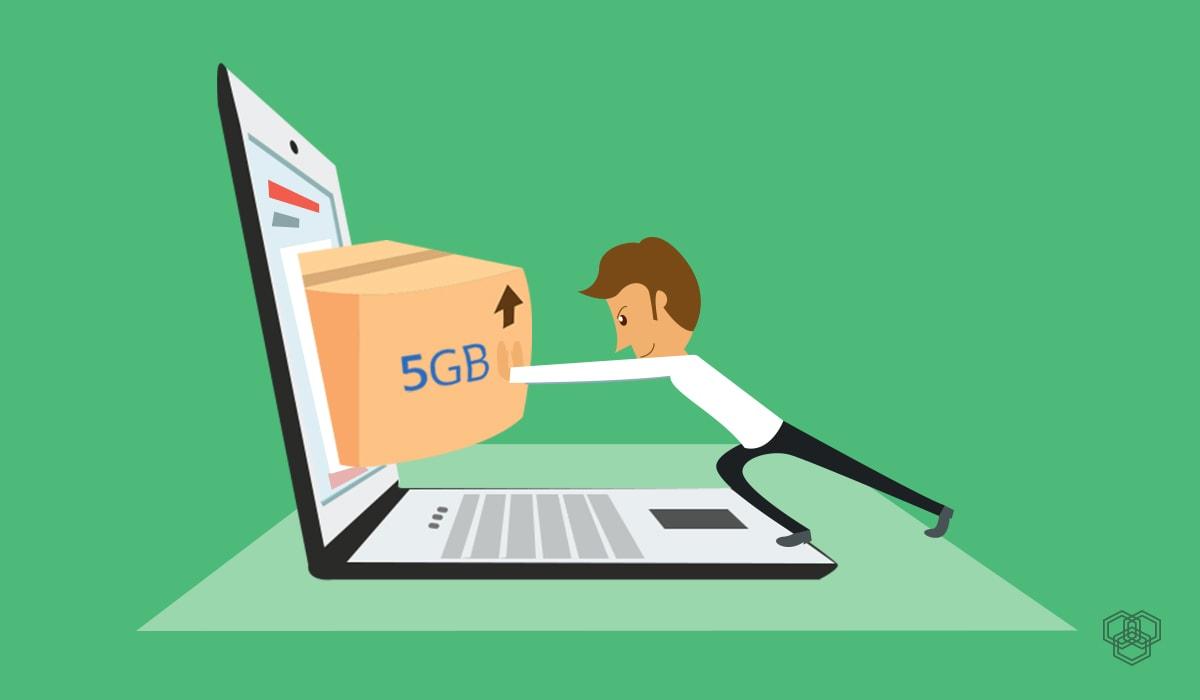
    Are you wondering how to send a large file to your friend? Don’t worry because in this guide I am going to show you how to use WeTransfer to send large files for free. Yes! It’s absolutely free.

    We often find it difficult to transfer large files to our friends over the internet. Social media platforms like Telegram allows the sending of large files, but they have limitations.

    These limitations are the barriers that do not allow us to be able to transfer large files to our friends. For example, if you have a file that is worth 1GB, you cannot send it to whoever needs it.

    Normal email accounts permit only a little storage space (not even up to 1GB in most cases).

    This is the reason why you need WeTransfer to be able to send large files for free.

    What is WeTransfer?

    WeTransfer is an online platform that was created to help users transfer large files through email. Files that wouldn’t have been possible using the traditional email accounts; Gmail, Yahoo, Outlook, iCloud, etc.

    The files you can transfer can be of any format; doc, pdf, mp4a, mp3, Xls, ppt, etc. With the free service, you can share files up to 2GB. There’s also a premium package with premium features and a high transfer size limit.

    Once you send the file, both you and the recipient will receive an email detailing the transfer of the file and the link to it. Additionally, you can share the links with any other person in whatever means you may deem fit.

    Also, there’s no transfer location barrier.  As a result, you can be in Ghana and transfer a file to someone in the United Kingdom at absolutely no cost. You can now see why I am recommending WeTransfer to you.

    How To Use WeTransfer To Send Large Files For Free

    To get started, keep the file you are about to send in an easy to access folder, preferably ‘Desktop’. After that, follow the steps listed below.

    • First of all, open your web browser on your device.
    • Visit the official WeTransfer website.
    • Click on the Add Files option and locate the location of the file you intend to transfer to your friend, relative, or recipient.
    • Type in the Email address of the recipient.
    • Click on Your Email to add your email address. (This is what the confirmation message will be sent to upon successful completion).
    • If you wish to share a note with the recipient, you can additional do it in the message bar.
    • For those using the Premium version (Pro), you can click on the three dots below the message bar to adjust your Pro settings.
    • For those using the free version also, you can click on the three dots to change the way the transfer is going to be like.
    • After, check to see if all the details provided are correct. If they are all correct, then click on Transfer.
    • Upon successful completion of the transfer, an email will be sent to your email address and the recipient’s email address.

    How to Download the File Transferred From WeTransfer

    • Open the email you received from WeTransfer.
    • Read through and copy the link attached to the email.
    • Open a web browser and paste the link. After, press Enter and wait for the page to load.
    • Click on Download to save the file on your device.
    • Open the folder you saved the file and access it.

    Conclusion

    That’s all it takes to send large files for free using WeTransfer. I hope you enjoyed reading this article.

    Although the transfer size limit is not that much, it is very good if you compare it with the other alternatives. WeTransfer is indeed one of the best big file transfer platforms in the world.

    It is often used by gamers to upload large game files and then share the links for everyone to be able to access the file anytime.  Similarly, you can upload a large file and then share the link with your friends and loved ones.

    In case you find any trouble while trying to transfer your file, feel free to write it down in the comments section below and I will attend to you in a few minutes.

  • How To Use Truecaller To Find The Identity Of People Calling You

    How To Use Truecaller To Find The Identity Of People Calling You

    Have you had a hard time finding the identity of a caller? Yeah, I know how that can be frustrating. But, I am here to show you how to use Truecaller to find the identity of people calling you.

    Spam calls and calls from unknown numbers are one of the things that worry us in this modern technology age. Due to the easy guessing of numbers and easy access to mobile numbers, spammers make use of that and call strangers regularly.

    Unlike emails where you can easily see the sender’s email address, it is very difficult to find the identity of unknown callers; and that is where the Truecaller app comes in to help you out with that.

    What Is Truecaller?

    Truecaller is the world’s best Caller ID

    Truecaller app is the world’s largest mobile number community which comprises over 150 million registered contacts in its database. The contact is spread across the whole; meaning that Truecaller is in literally most parts of the world.

    To make it more accessible and user-friendly, Truecaller has a simple User Interface that is easy to navigate no matter your tech background. It’s also available for free download for Android, Blackberry, iOS, Windows, Series 40, and a list of other operating systems.

    How To Use Truecaller To Find The Identity Of People Calling You

    There are several methods that can be used to find the identity of a caller using Truecaller. Some of these are automatic while others are manual.

    In this article, I am going to show you some of the proven methods you can use to carry out this action. But before we begin, you need to download the free Truecaller app from the Google Play Store, Apple App Store, or any other source that fits your devices’ operating system.

    How To Use Truecaller To Find The Identity Of People Calling You By Using Truecaler’s Dialer

    This method is very simple and straightforward. But, with this method, you need to hang up the call before you can be able to find the identity of the caller.

    To find the callers identity using the Truecaller dialer, all you need to do is to copy the number of the caller and paste it in the Truecaller dialer.

    Once you are done, try calling the number and the name of the person you are calling will display on top of the mobile number. Also, the name will be in full, for example, Kofi A. Mfidie.

    Please note that the dialer is only available for Android users. This is because Android’s Operating System is an open-source unlike Apple’s closed-source Operating System.

    How To Use Truecaller To Find The Identity Of People Calling You By Using Truecaller Live ID

    Using this method is only going to be possible for Android and Windows users. If you fall within this category, then you can follow the steps below. Also, you need to have a stable internet connection in addition to that.

    To use the Truecaller Live ID option, you just need to type the number of the person and the name of the contact will automatically show up.

    Conclusion

    Depending on the device you are using and the version of Truecaller you are using; sometimes when a person is calling you the name of the caller will automatically show up. But it doesn’t show up, you can use any of the two methods stated above.

    Also, you need to register once you create the account in order to enjoy some of the amazing features. If you want to enjoy more than what the free version offers, you can decide to buy the premium package.

    So, follow the steps listed above and find the identity of that person who is calling you. If you run into any trouble, feel free to write it down in the comments section below.

  • How To Unblock Someone On Facebook On The App and PC

    How To Unblock Someone On Facebook On The App and PC

    Do you want to unblock someone on Facebook? Did you unintentionally block someone on Facebook that you wish to unblock? Have you found out the true identity of someone you blocked that you now want to unblock?

    Facebook is one of (if not the) most used social media platform in the world with over 500 million monthly active users. As a result, many users come from different countries, backgrounds, and races who might get into contact with you.

    Because of this, you might get pissed at someone on Facebook and as such, you may decide to block him/her. When this happens, the person can neither send you a message nor call you.

    Despite blocking someone, there may also be instances where you made a mistake; this could be by blocking the wrong person or the person you blocked has apologized for his/her fault or whatever the reason may be.

    When such a thing happens, the thing you need to do is to unblock the person. You can do this on the Facebook app or your PC. In this article, I am going to show you exactly how to unblock someone on Facebook on the app and PC.

    How to unblock someone on Facebook on the app and PC

    The steps involved in unblocking someone on Facebook is quite easy but yet tricky. As such, I urge you to pay close attention to the steps I am going to outline below.

    Before you decide to unblock someone on Facebook, make sure to keep the Facebook name of the person you want to unblock in your head.

    How To Unblock Someone On Facebook On Your PC

    • Open any web browser you have on your PC.
    • On the address bar, type www.facebook.com and login with your Email/Phone and Password.
    • Once you have successfully signed in, click on the down arrow that is next to the Messenger and the Notification icons.
    • Select Settings from the drop-down menu.
    • From the several options that will show up on your screen look under the Privacy settings.
    • Click on Blocking under the Privacy Settings.
    • Click on Blocked users and wait for a list to show. The list involves all the persons you have blocked since you created your Facebook account in the year XXXX.
    • From the list of Blocked users, find the name of the person you would like to unblock. After finding the name of the person, select the Unblock option that is on the right side of the name.
    • Click on Confirm and wait for the person to be finally removed from your blocked list.

    How To Unblock Someone On Facebook Using The Facebook App

    The Facebook app is available for free download on the Google Play Store and the Apple App Store.

    Due to some slight different layout between Android and iOS, I am going to show you how to unblock someone on Facebook using an Android phone; and how to unblock someone on Facebook using an iPhone.

    How To Unblock Someone On Facebook Using The Facebook App For Android

    • Download the free Facebook app from the Google Play Store.
    • Upon successful installation, log in with your email/phone number and password.
    • On the home screen, tap on the three horizontal lines in the top right of Facebook.
    • Scroll to the bottom part and select Settings.
    • Select Privacy and then tap on Blocking.
    • Tap on the Unblock option next to the name of the person you wish to unblock.
    • Select Unblock once again to confirm the Unblocking and wait for it to complete. After successful completion, the person will be removed from your blocked contacts.

    How To Unblock Someone On Facebook Using The Facebook App For iOS

    • Download the free Facebook app from the Google Play Store.
    • Upon successful installation, log in with your email/phone number and password.
    • Tap on the three horizontal lines at the bottom right corner of the screen.
    • Select Settings from the Settings and Privacy option.
    • Tap on Blocking under the Privacy option.
    • Tap on the Unblock icon next to the name of the person you wish to unblock.
    • Select Unblock once again and wait for the person to be finally removed from your blocked list.

    NOTE: Due to Facebook’s Terms and Conditions, whenever you block someone Facebook automatically unfriends that person. This means that once you are done unblocking the person you need to send him/her a new friend request.

    Conclusion

    In this article, I have shown you how to unblock someone on Facebook using your PC and mobile phone (Android and iOS).

    This guide is self-explanatory but if you face any challenges make sure to drop it down the comment section below and I will attend to every single one of them.