Author: Shepherd Yaw Morttey

  • MTN Ghana launches unlimited fibre packages for home internet users

    MTN Ghana launches unlimited fibre packages for home internet users

    MTN Ghana has introduced new Unlimited Fibre packages for home internet users, offering speed-based plans with no data caps. The move comes as more Ghanaians rely on home broadband for work, school, and entertainment.

    What the new packages offer

    The new plans are built around speed tiers rather than data limits. Subscribers choose a package based on the internet speed they need, and they can use as much data as they want within that speed bracket. This is a shift from traditional capped plans where users pay for a fixed amount of data.

    MTN says the packages are designed to give households faster connectivity, greater flexibility, and better value. The exact speed tiers and pricing have not been detailed in the announcement, but the focus is on providing unlimited usage at consistent speeds.

    Why this matters for Ghanaian households

    Home internet demand has grown significantly in Ghana over the past few years. More people work remotely, attend online classes, stream videos, and run small businesses from home. Capped data plans often force users to monitor their usage or buy top-ups when they run out. Unlimited packages remove that worry.

    For families with multiple users, unlimited fibre can mean smoother video calls, faster downloads, and less buffering during peak hours. It also simplifies budgeting since the monthly cost is fixed regardless of how much data is consumed.

    Fibre internet is generally more stable and faster than mobile broadband, making it suitable for heavy usage. However, fibre availability is still limited to areas with the necessary infrastructure. MTN has been expanding its fibre network in Ghana, but not all neighbourhoods are covered yet.

    What to consider before signing up

    Before choosing a plan, users should check if fibre is available in their area. MTN’s website or customer service can confirm coverage. Also, while the packages are unlimited, speeds may be deprioritized after a certain usage threshold, depending on the plan. It is worth asking about fair usage policies.

    Speed-based plans mean that the faster the speed tier, the higher the monthly fee. Households should assess their typical internet needs. A family that streams 4K video and plays online games may need a higher speed tier than one that mainly browses and emails.

    Installation of fibre requires a technician visit and may involve a one-time fee. Existing MTN fibre customers may be able to switch to the new plans, but it is best to confirm with the provider.

    The launch of unlimited fibre packages is a positive step for home internet in Ghana. It gives consumers more choice and removes the stress of data limits. As competition among internet service providers remains strong, users can expect more innovations in pricing and service quality.

    For now, anyone considering a home fibre connection should compare MTN’s new unlimited packages with other available options to find the best fit for their household.

  • KAIPTC launches AI cyber security project to protect Ghana and Africa from digital threats

    KAIPTC launches AI cyber security project to protect Ghana and Africa from digital threats

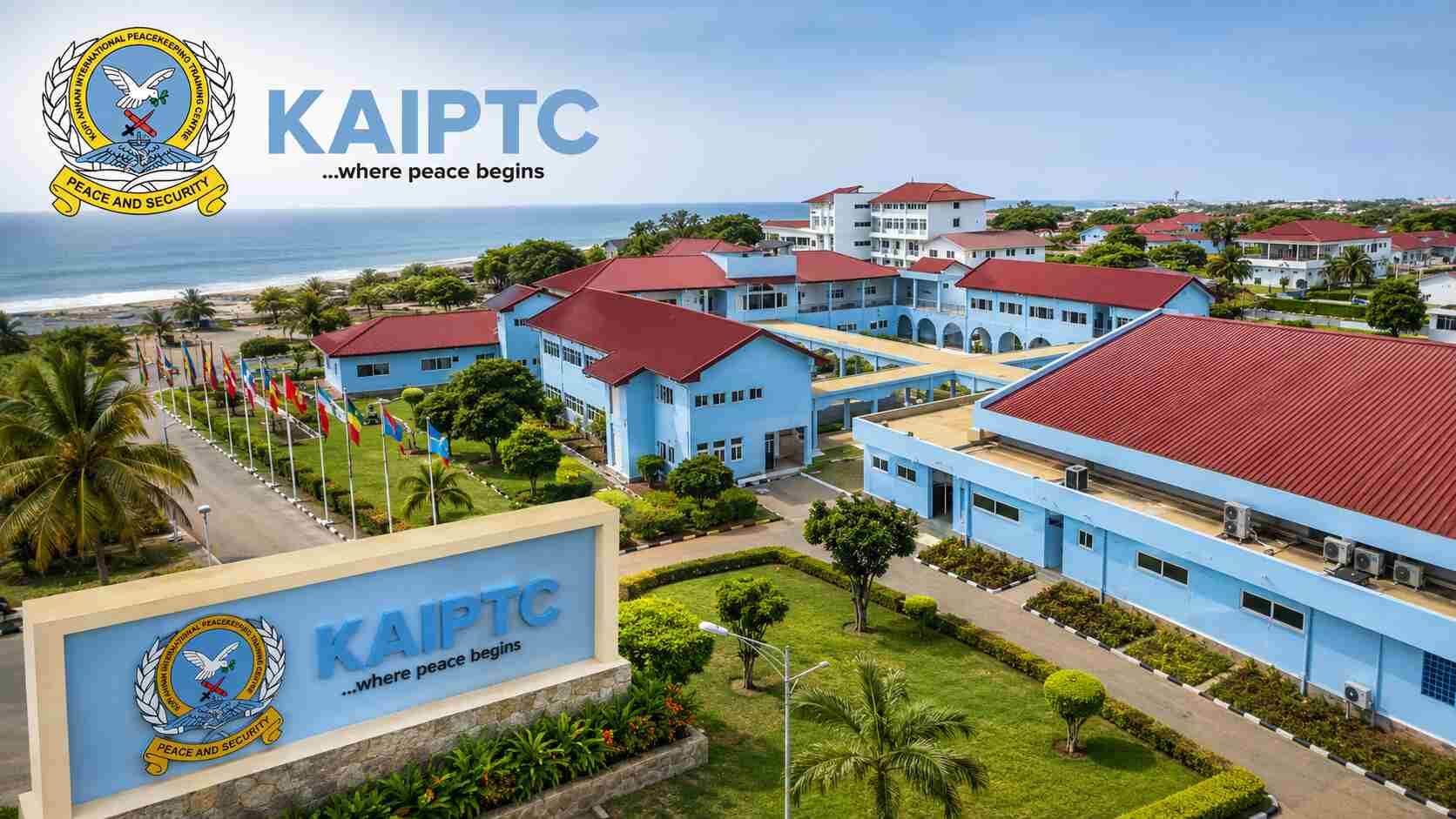
    Cyber attacks are becoming more common across Africa, and Ghana is not immune. From mobile money fraud to ransomware targeting businesses, the threats are real and growing. That is why the Kofi Annan International Peacekeeping Training Centre (KAIPTC) in Accra has launched a new project that uses artificial intelligence to strengthen cyber security on the continent.

    The project, announced recently, aims to tackle a range of digital dangers including fraud, ransomware, and other cyber threats. For ordinary Ghanaians, this could mean safer mobile money transactions, more secure online banking, and better protection for personal data when using e-services.

    Why AI for cyber security?

    Traditional cyber security methods often rely on known patterns of attacks. But cyber criminals are constantly changing their tactics. AI can help by learning from new threats in real time and spotting suspicious activity before it causes harm. For example, an AI system might detect unusual transactions on a mobile money platform and block them instantly, preventing fraud.

    The KAIPTC project is designed to build capacity across Africa, not just in Ghana. This is important because cyber threats do not respect borders. A scammer operating from one country can target victims in another. By working at a continental level, the project aims to create a stronger defence network.

    What this means for mobile money and e-services

    Mobile money is a lifeline for millions of Ghanaians. Services like MTN MoMo, Vodafone Cash, and AirtelTigo Money are used for everything from paying bills to receiving salaries. But as usage grows, so does the risk of fraud. Common scams include phishing messages that trick users into sharing their PINs, or fake agents who steal money.

    The AI cyber security project could help reduce these risks. By analysing patterns of fraud, AI tools can identify suspicious behaviour and alert service providers. This means faster response times and fewer successful attacks. For users, it could translate into more confidence when using digital financial services.

    Similarly, e-services like online shopping, government portals, and health platforms stand to benefit. Many Ghanaians now use digital platforms for essential services, and a security breach can have serious consequences. The KAIPTC project aims to make these platforms safer for everyone.

    Challenges and next steps

    While the project is promising, it is not a magic bullet. AI systems require large amounts of data to work effectively, and they need to be constantly updated. There is also the challenge of skills. Ghana and other African countries need more cyber security experts who understand AI. The KAIPTC project includes a training component to address this gap.

    Another challenge is awareness. Even the best AI system cannot protect users who fall for simple scams. Education remains critical. Users need to know how to spot phishing attempts, why they should never share their PIN, and how to report suspicious activity.

    The project is still in its early stages, and details about timelines and specific partners have not been fully disclosed. However, the launch signals a serious commitment to tackling cyber threats using modern technology.

    For now, Ghanaians can take simple steps to protect themselves: use strong passwords, enable two-factor authentication where available, and be cautious of unsolicited messages asking for personal information. As the KAIPTC project develops, it may bring new tools and resources that make digital life safer for everyone.

  • MTN Ghana names Richard Acheampong to lead home services division

    MTN Ghana names Richard Acheampong to lead home services division

    MTN Ghana has announced the appointment of Richard Acheampong as its new Chief Home Officer, effective 1 November 2025. The role signals the telecom operator’s continued focus on expanding its home connectivity and fixed broadband services in Ghana.

    What the Chief Home Officer role means

    The Chief Home Officer position is relatively new for MTN Ghana. It is responsible for overseeing the company’s home services portfolio, which includes fixed broadband, fibre-to-the-home, and other residential connectivity products. As more Ghanaians work, study, and entertain themselves from home, reliable internet access has become a necessity rather than a luxury.

    Acheampong will be expected to drive the growth of MTN’s home internet subscriber base and improve service quality for existing customers. His appointment comes at a time when demand for high-speed home internet is rising across urban and peri-urban areas in Ghana.

    Who is Richard Acheampong?

    Richard Acheampong is not new to MTN Ghana. He has held several leadership roles within the company, most recently as General Manager for Sales and Distribution. His experience in managing sales channels and customer reach will be valuable in expanding home service adoption.

    Before joining MTN, Acheampong worked in the banking and telecommunications sectors, giving him a broad understanding of both customer needs and operational challenges. His background suggests he is well placed to bridge the gap between technical service delivery and customer experience.

    Why this matters for Ghanaian consumers

    For everyday MTN customers, the appointment may translate into better home internet packages, improved customer support, and faster installations. MTN has been investing in fibre infrastructure in Accra, Kumasi, and other major cities, but coverage gaps remain. A dedicated executive focused on home services could accelerate network expansion and address pain points such as downtime and slow repair times.

    Small businesses that operate from home may also benefit. Reliable broadband is essential for e-commerce, remote work, and digital services. If Acheampong’s team can deliver consistent quality, it could help more Ghanaians participate in the digital economy.

    What to watch next

    While the appointment is effective from November 2025, it is worth watching whether MTN Ghana announces new home internet products or promotions in the coming months. Competitors like Vodafone Ghana and Telecel Ghana are also expanding their fixed broadband offerings, so MTN will need to stay competitive on price and speed.

    For now, the move shows that MTN Ghana is treating home connectivity as a strategic priority. Customers should expect clearer communication about home service plans and possibly faster response times for faults and installations.

    As Acheampong steps into the role, the real test will be whether he can turn strategy into tangible improvements for the millions of Ghanaians who rely on MTN for their daily internet connection.

  • NITA Opens Early Talks on Ghana’s Electronic Document Wallet Project

    NITA Opens Early Talks on Ghana’s Electronic Document Wallet Project

    The National Information Technology Agency (NITA) has announced an Early Market Engagement (EME) exercise for the proposed Ghana Electronic Document Wallet (GEDW) Ecosystem. The virtual session is scheduled for Thursday, 25 June 2026, and is open to participants from both the public and private sectors.

    This is not a procurement or bidding event. Instead, it is an opportunity for NITA to gather input from potential users, technology providers, and other interested parties before finalizing the design and implementation of the system. The goal is to ensure the GEDW meets the needs of Ghanaians and aligns with existing digital infrastructure.

    What Is the Ghana Electronic Document Wallet?

    The GEDW is envisioned as a national digital platform that allows individuals and businesses to store, manage, and share official documents electronically. Think of it as a secure digital folder for things like birth certificates, driver’s licenses, academic certificates, tax clearance certificates, and business registration documents.

    Instead of carrying physical copies or submitting paper documents every time you need to prove your identity or qualifications, the wallet would let you access and share verified digital versions from your phone or computer. This could simplify processes like applying for a loan, registering a business, enrolling in school, or verifying credentials for a job.

    For the system to work, it needs to be trusted. That means strong security, clear rules about who can access what, and integration with the government databases that already hold this information. NITA’s early engagement is a step toward building that trust by involving stakeholders before the system is built.

    Who Should Participate and Why It Matters

    NITA is casting a wide net. The invitation covers government ministries, departments, and agencies (MDAs), as well as private sector organizations, tech companies, financial institutions, and civil society groups. Even individual citizens who are interested in digital identity and data security may find value in attending.

    For businesses, especially those in fintech, banking, and insurance, the GEDW could reduce the cost and time spent verifying customer documents. Instead of manually checking paper certificates or relying on third-party verification services, a business could request a document directly from the user’s wallet and instantly confirm its authenticity.

    For ordinary Ghanaians, the wallet could mean fewer trips to government offices, less paperwork, and faster service. It could also reduce the risk of losing important documents or having them damaged. However, the success of such a system depends on how well it addresses concerns about privacy, data protection, and accessibility — especially for people without smartphones or reliable internet.

    The EME is a chance for stakeholders to raise these issues and suggest practical solutions. NITA has not yet published a detailed agenda or list of discussion topics, but participants can expect to learn about the proposed architecture, security measures, and potential use cases.

    What to Expect from the Virtual Engagement

    The event will be held online, which makes it easier for people across the country to join. NITA has not specified the platform or how to register, but interested parties should monitor NITA’s official channels for details. Given that the date is still some time away, there is room for preparation.

    During the session, NITA is likely to present the current thinking on the GEDW and then open the floor for questions, suggestions, and concerns. This is not a one-way briefing; the agency wants active participation. For stakeholders, this is a chance to influence a project that could reshape how Ghana handles official documents for years to come.

    If you represent an organization that deals with document verification, digital identity, or data management, this is a worthwhile event to attend. Even if you are an individual with expertise or strong opinions on digital governance, your voice could help shape a system that serves everyone better.

    As Ghana pushes forward with digital transformation initiatives like the Ghana Card and paperless port systems, the Electronic Document Wallet could become another pillar of the country’s digital infrastructure. But it will only work if it is built with input from the people who will actually use it. NITA’s early engagement is a promising start.

  • MTN Ghana CEO: Fibre cable cuts now biggest threat to network quality

    MTN Ghana CEO: Fibre cable cuts now biggest threat to network quality

    For many Ghanaians, a dropped call or slow internet has become frustratingly common. Now, MTN Ghana’s CEO Stephen Blewett has publicly identified the main culprit: deliberate damage to fibre-optic cables. In a recent statement, Blewett described the problem as the company’s “primary operational hurdle” and revealed that 157 network sites have been disrupted due to cable cuts.

    The scale of the problem

    Fibre-optic cables are the backbone of modern telecommunications. They carry huge amounts of data that make mobile money, video calls, and internet browsing possible. When these cables are cut — often by construction work, road digging, or vandalism — entire communities can lose connectivity.

    According to Blewett, the 157 affected sites represent a significant portion of MTN’s infrastructure. Each cut not only disrupts service for thousands of users but also requires costly repairs and rerouting of traffic. The CEO stressed that this is not a minor issue but a crisis that is “actively degrading the digital lives of millions of Ghanaians.”

    Who is affected and why it matters

    MTN Ghana is the country’s largest mobile network operator, serving millions of subscribers. When its fibre network is damaged, the impact is felt across the economy. Businesses that rely on stable internet for transactions, students attending online classes, and families using mobile money all experience interruptions.

    Fibre cuts also affect the reliability of services like MoMo (Mobile Money), which has become essential for daily payments and savings. For many Ghanaians without bank accounts, a disrupted network means they cannot send or receive money when they need to.

    The problem is not unique to MTN. Other operators face similar challenges, but as the market leader, MTN’s struggles have the widest consequences.

    What is being done

    Blewett did not announce new solutions in detail, but he made it clear that MTN is treating the issue as a top priority. The company is likely increasing patrols of fibre routes, working with local authorities to prevent accidental cuts, and investing in backup systems to reroute traffic when cuts occur.

    However, the CEO’s public statement suggests that current efforts are not enough. The 157 disrupted sites indicate that the problem is widespread and persistent. For customers, this means that until a more permanent solution is found, intermittent service issues may continue.

    What customers can do

    While the responsibility for protecting fibre cables lies mainly with network operators and government agencies, users can take some steps to minimise the impact on their own connectivity:

    • Report cuts promptly: If you notice a damaged cable or ongoing construction near fibre lines, report it to MTN’s customer service. Quick reporting can speed up repairs.
    • Use multiple networks: If your work or business depends on reliable internet, consider having a backup SIM from another operator. This can help you stay connected when MTN’s network is down.
    • Stay informed: Follow MTN Ghana’s official social media channels for updates on outages. The company sometimes provides estimated restoration times.

    Looking ahead

    The fibre cable crisis is a reminder that Ghana’s digital infrastructure is still vulnerable. As more people come online and demand for data grows, the need for robust, protected networks becomes even more urgent. Blewett’s frank admission may push for greater collaboration between telecom companies, city authorities, and the public to safeguard the cables that keep the country connected.

    For now, MTN users should expect that service disruptions may happen from time to time — but knowing the cause can help manage expectations and encourage everyone to play a part in protecting the network.

  • Ghana Launches National Research Fund: What It Means for Tech Innovators

    Ghana Launches National Research Fund: What It Means for Tech Innovators

    Ghana has officially launched a National Research Fund aimed at supporting research and development across various sectors, including technology. For startups, developers, and researchers in the country, this could open new doors for funding and collaboration.

    What the Fund Offers

    The National Research Fund is designed to provide financial support for research projects that have the potential to drive innovation and economic growth. While specific details about the fund size, application process, and eligibility criteria are still emerging, the initiative signals a government commitment to strengthening Ghana’s research ecosystem.

    For tech startups, this means there may be opportunities to secure grants for product development, proof-of-concept studies, or applied research that addresses local challenges. Developers and engineers working on novel solutions in areas like agriculture, health, finance, or education could find the fund relevant to their work.

    Who Should Pay Attention

    This fund is particularly important for early-stage tech ventures that often struggle to access capital for research-intensive activities. Unlike typical startup funding that focuses on scaling, research grants can support the foundational work needed to build robust, locally relevant technologies.

    Researchers at universities and research institutions may also benefit, especially those collaborating with industry partners to commercialize their findings. The fund could help bridge the gap between academic research and market-ready products.

    Practical Steps for Interested Applicants

    While the official guidelines are not yet fully public, potential applicants can start preparing now:

    • Identify a clear problem: Focus on challenges that are specific to Ghana or the West African region. Projects with strong local relevance are more likely to be considered.
    • Build a strong team: Collaboration between tech experts, domain specialists, and researchers can strengthen proposals.
    • Prepare a basic research outline: Even without full details, having a well-defined research question, methodology, and expected outcomes will save time when applications open.
    • Monitor official channels: Keep an eye on announcements from the Ministry of Education or the National Research Fund secretariat for updates on application windows and criteria.

    What This Means for Ghana’s Tech Ecosystem

    The creation of a dedicated research fund is a positive step for Ghana’s innovation landscape. It acknowledges that research is a critical driver of technological progress and economic diversification. For too long, many promising ideas in Ghana have stalled due to lack of early-stage research funding. This fund could help change that.

    However, the success of the fund will depend on how accessible it is to small teams and how efficiently the disbursement process works. Startups and researchers should stay informed and be ready to apply as soon as the details are released.

    For now, the National Research Fund represents a new opportunity for Ghanaian innovators to turn their ideas into impactful solutions. Those who prepare early will be in the best position to take advantage.

  • MTN Ghana completes mobile money separation, sets stage for fintech growth

    MTN Ghana completes mobile money separation, sets stage for fintech growth

    MTN Ghana has officially completed the structural separation of its mobile money business, a move that could reshape the country’s fintech landscape. The separation, announced by Scancom PLC (MTN Ghana), means the mobile money operations will now operate as a distinct entity within the group, separate from the core telecom business.

    This development is not just a corporate restructuring. It has practical implications for millions of Ghanaians who rely on mobile money for daily transactions, savings, and even loans. By ring-fencing the mobile money unit, MTN Ghana aims to improve governance, risk management, and focus on financial services — potentially leading to better products and more innovation.

    What the separation means for users

    For the average mobile money user, the change may not be immediately visible. You will still use the same MoMo wallet, dial the same short codes, and visit the same agents. However, behind the scenes, the separation creates a clearer structure for how mobile money is managed and regulated.

    One key benefit is that the mobile money business can now pursue partnerships and investments more nimbly, without being tied to telecom-specific constraints. This could mean faster introduction of new features like savings products, insurance, or credit services tailored to Ghanaian users. It also makes it easier for regulators like the Bank of Ghana to oversee mobile money as a financial service rather than a telecom add-on.

    Another important angle is financial inclusion. Mobile money has been a gateway to banking for many Ghanaians who lack access to traditional bank branches. A separate fintech-focused entity could double down on reaching underserved populations, especially in rural areas where agent networks are already strong.

    Regulatory and industry implications

    The separation aligns with global trends where telecom operators spin off their mobile money units to comply with regulatory requirements and unlock value. In Ghana, the Bank of Ghana has been pushing for stricter oversight of mobile money operators, including requirements for separate accounting and governance. MTN Ghana’s move positions it well to meet these expectations.

    For the broader fintech ecosystem, this could be a positive signal. A dedicated mobile money entity may be more open to collaborating with local fintech startups, sharing APIs, or co-creating solutions. It also reduces the risk that mobile money profits are used to cross-subsidize other telecom operations, which some critics have raised concerns about.

    However, there are still questions. How will the separated entity be structured? Will it have its own board and management? What about the role of agents — will they now deal with two different companies? MTN Ghana has not yet released detailed operational plans, so stakeholders will be watching closely.

    What to watch next

    With the separation complete, the next steps will be critical. MTN Ghana may seek a separate license for the mobile money business, which could open the door for outside investment or even a future listing. The company has previously indicated interest in expanding fintech services beyond payments, including lending and savings.

    For competitors like Vodafone Cash and AirtelTigo Money, the separation raises the bar. They may need to consider similar moves to stay competitive and compliant. For consumers, the hope is that increased focus on fintech leads to lower fees, better service, and more innovative products.

    In the meantime, if you use MoMo, you don’t need to do anything. Your wallet and transactions remain unchanged. But over the coming months, expect to hear more about new services and partnerships that could make mobile money even more useful in your daily life.

  • UBA Ghana Hosts First Fintech Conference: What It Means for Digital Banking

    UBA Ghana Hosts First Fintech Conference: What It Means for Digital Banking

    UBA Ghana is stepping into the fintech conversation in a bigger way. The bank has announced its first-ever fintech conference, an event that brings together industry players, regulators, and technology enthusiasts to discuss the future of digital banking and payments in Ghana.

    The conference, themed “Banking Beyond Borders,” is set to explore how financial technology is reshaping the way Ghanaians save, send, and spend money. With mobile money already deeply embedded in daily life, the event aims to look at what comes next — from cross-border payments to digital lending and beyond.

    Why a Fintech Conference Matters Now

    Ghana’s financial services landscape has changed rapidly over the past few years. Mobile money transactions now run into billions of cedis monthly, and more people are using banking apps, payment cards, and digital wallets. Yet many still face barriers: high transaction costs, limited access to credit, and difficulties sending money across borders.

    UBA Ghana’s conference is an attempt to address these gaps head-on. By gathering stakeholders from banks, fintech startups, telecom companies, and regulatory bodies, the event creates a platform for collaboration. For the average Ghanaian, this could mean better products, lower fees, and more convenient services down the line.

    The bank has not released the full agenda or list of speakers yet. But the focus on “beyond borders” suggests that cross-border payments and financial inclusion for the unbanked will be key topics. Given that many Ghanaians rely on remittances from abroad, any innovation in this area could have a direct impact on households.

    What Attendees Can Expect

    While specific details are still limited, the conference is expected to feature panel discussions, presentations, and networking sessions. Participants will likely hear from experts on topics such as:

    • Digital payment trends in Ghana and across Africa
    • Regulatory frameworks that support fintech growth
    • How banks and fintechs can partner to reach more customers
    • The role of data and artificial intelligence in financial services

    For fintech founders and developers, the event offers a chance to connect with potential partners and investors. For consumers, the outcomes could shape the next generation of banking products — from app-based loans to seamless international transfers.

    UBA Ghana has not announced a date or venue for the conference yet. Those interested in attending or participating should watch the bank’s official channels for updates.

    What This Means for Ghana’s Fintech Ecosystem

    UBA is one of the largest banks in Africa, with a strong presence in Ghana. By hosting a fintech conference, the bank signals that it sees technology as central to its future strategy. This move also reflects a broader trend: traditional banks are no longer just competing with each other. They are also competing with mobile money operators, payment startups, and even tech companies entering finance.

    For Ghana’s fintech ecosystem, more collaboration between banks and startups is generally a positive sign. It can lead to faster innovation, better regulation, and more choices for consumers. However, challenges remain. Many fintechs struggle with funding, regulatory hurdles, and building trust with users. Events like this conference can help address some of those issues by opening dialogue.

    If you are a business owner, a developer, or simply someone interested in how money moves in Ghana, this conference is worth paying attention to. The conversations that happen there could influence the financial tools you use in the coming years.

    For now, the key takeaway is this: UBA Ghana is investing in fintech conversations, and that is a signal that digital banking in Ghana is only going to get more interesting. Keep an eye out for the event date and details — and if you can, plan to attend.

  • Google Street View Ghana Gets Its Biggest Update in Nearly a Decade

    Google Street View Ghana Gets Its Biggest Update in Nearly a Decade

    If you have used Google Maps to navigate Ghana in recent years, you may have noticed that Street View imagery was often outdated or missing in many areas. That has changed. Google has just pushed its largest Street View update for Ghana in almost ten years, bringing fresh imagery to several cities and popular locations across the country.

    What the Update Covers

    The update adds Street View coverage for new areas and refreshes existing imagery in places like Accra, Kumasi, and other major towns. Landmarks, roads, and neighbourhoods that were previously unavailable or showed old scenes now have more recent views. This means you can virtually walk through parts of Ghana that were not accessible on Street View before.

    For example, if you wanted to check the route to a new restaurant or see what a hotel looks like from the street, the updated imagery gives you a better idea of the current environment. The refresh also includes improved image quality in some locations, making details like street signs and building fronts clearer.

    Why This Matters for Navigation and Tourism

    Street View is not just a fun tool for exploring. It has practical uses for everyday navigation. When you are trying to find a place in an unfamiliar area, seeing the actual street and buildings helps you recognise landmarks and avoid wrong turns. For delivery drivers, ride-hailing operators, and logistics companies, accurate Street View imagery can reduce confusion and save time.

    For tourism, the update is a boost. Potential visitors can now preview destinations more realistically. A hotel, a museum, or a beach resort that was previously a blank spot on the map can now be explored virtually. This helps tourists plan trips and gives local businesses a way to showcase their surroundings. The update also supports Ghana’s efforts to promote domestic and international tourism by making the country more visible on a global platform.

    Real estate is another area that benefits. People looking to rent or buy property can use Street View to inspect neighbourhoods without travelling there first. This is especially useful for those relocating within Ghana or from abroad.

    What Has Not Changed

    While the update is significant, it does not cover every corner of the country. Rural areas and smaller towns may still have limited or no Street View imagery. Google has not announced plans for further updates, so some regions remain without coverage. Also, the imagery is not live — it was captured at some point in the past, so you may still see scenes that are a few months or even a year old. For the most part, however, the new data is far more current than what was available before.

    If you want to see the updated areas, open Google Maps on your phone or computer, drop the yellow Pegman icon onto a road in Accra, Kumasi, or other updated locations, and explore. The difference in quality and coverage is noticeable.

    What to Keep in Mind

    Street View relies on cars or other vehicles equipped with cameras driving through streets. That means some narrow roads, pedestrian-only areas, or places with poor road conditions may still be missing. Google has not specified exactly which cities or landmarks were added, so you may need to check specific areas yourself. The update is rolling out gradually, so not all users may see the new imagery immediately.

    For now, this is a welcome improvement for anyone who uses Google Maps in Ghana. Whether you are a driver, a traveller, a business owner, or just curious about what your neighbourhood looks like from above, the refreshed Street View gives you a better window into the country.

  • Enza Secures Payments License from Bank of Ghana, Plans Summer Launch

    Enza Secures Payments License from Bank of Ghana, Plans Summer Launch

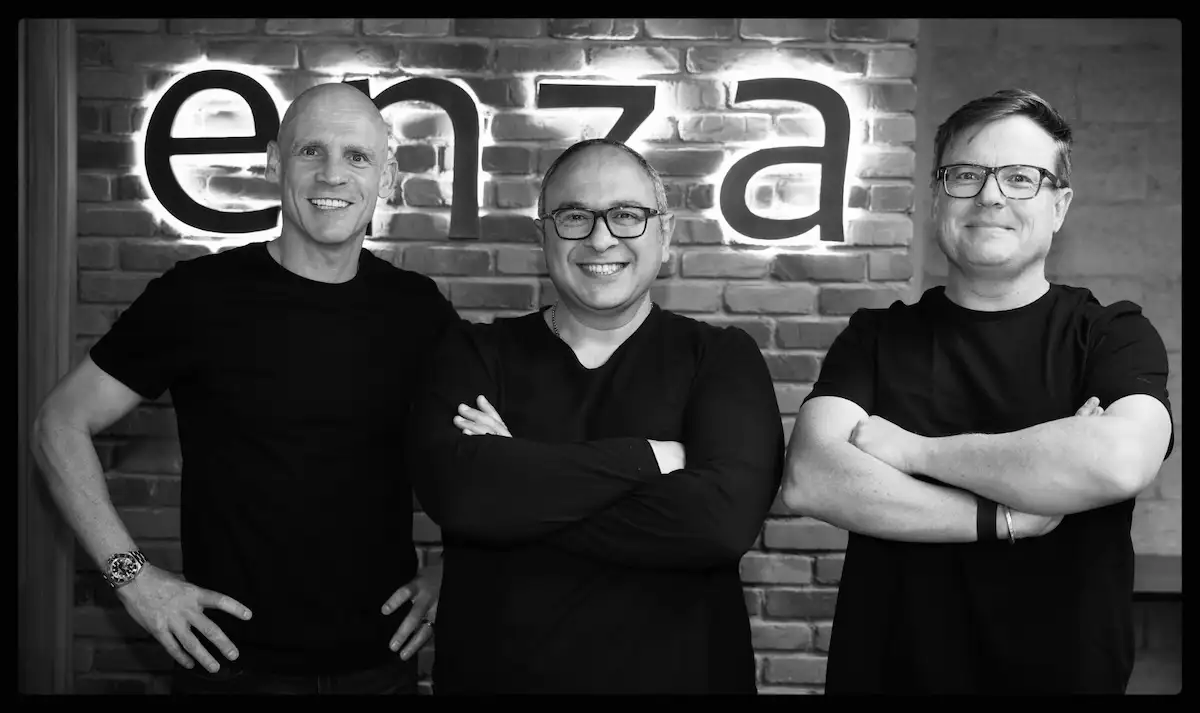
    Fintech infrastructure company Enza has been awarded a payments license by the Bank of Ghana, marking its entry into one of Africa’s most closely watched digital payments markets. The company is now targeting a summer launch for its services in the country.

    What the License Means for Enza and Ghana

    The license allows Enza to operate as a payments service provider in Ghana, a market where mobile money and digital payments have seen rapid growth. For Enza, this approval is a key regulatory step that enables it to offer its infrastructure solutions to businesses and financial institutions in the country.

    Ghana’s digital payments ecosystem has been expanding, driven by mobile money adoption and increasing smartphone usage. The Bank of Ghana has been active in regulating the space, issuing licenses to both local and international players to ensure compliance and consumer protection.

    Enza joins a growing list of international fintech firms that have secured licenses to operate in Ghana. The company’s focus on infrastructure means it is likely to provide backend services that help other businesses offer payment solutions, rather than directly serving consumers.

    What to Expect from Enza’s Summer Launch

    Enza has not yet disclosed specific products or services it will offer at launch. However, as a payments infrastructure company, its offerings may include payment processing, API-based solutions, or tools for businesses to integrate digital payments into their platforms.

    The summer launch timeline suggests that Enza is in the final stages of setting up its operations in Ghana. Businesses and developers looking for payment infrastructure options may want to watch for Enza’s announcements in the coming months.

    For Ghana’s fintech sector, the entry of another infrastructure player could mean more choices for businesses seeking reliable payment systems. It also signals continued international interest in Ghana’s digital economy.

    What This Means for Ghana’s Fintech Ecosystem

    Ghana has become a competitive market for digital payments, with mobile money operators, banks, and fintechs all vying for users. The Bank of Ghana’s licensing regime has helped create a structured environment where licensed players can operate with clear rules.

    Enza’s license is a vote of confidence in Ghana’s regulatory framework and market potential. For local businesses, more infrastructure providers could lead to better pricing, more innovation, and improved reliability in payment services.

    However, the company will face established competitors and will need to differentiate its offerings. The summer launch will be an important milestone to watch.

    As Enza prepares to go live, Ghanaian businesses and fintech observers will be keen to see what specific solutions the company brings to the market and how it plans to compete in a crowded space.