Category: Guides

  • How To Earn an MBA From The Comfort of Your Home in 13 Months

    How To Earn an MBA From The Comfort of Your Home in 13 Months

    In 2020, the coronavirus pandemic taught the entire world, the need to invest more in e-learning platforms. For universities and institutions that had e-learning platforms already, the COVID-19 pandemic did not really interrupt their academic delivery, but for the rest, it had some negative effects on them.

    It is because of these unforeseen circumstances that I am going to show you how you can sit in the comfort of your home and earn a Master of Business Administration (MBA) degree from the comfort of your home anywhere you are in the world in less than 2 years.

    The dream of most university students all over the world is to get a cheap and flexible master’s degree upon completion of their undergraduate studies, but due to financial constraints and some other personal reasons, these undergraduates are not able to find a suitable master’s degree.

    There is nothing more stressful than working during weekdays and going to school on weekends for a master’s degree program. Even during the week, there are some assignments and projects you need to submit to your supervisor.

    Even though there is an option for students to enroll in full-time master’s degrees, this option means the student will not be able to work while schooling. Except for the government and some private institutions that provide paid school leave for their workers, some companies will have to terminate the contract with the worker if he or she intends to enroll in full-time studies.

    Because of the termination of the contracts, the students will have to pay for their fees and fend for themselves without any job and this is very frustrating and stressful. To avoid the option of terminating your contract or quitting your job for a master’s degree, Quantic School of Business and Technology provides students with a self-paced Master of Business Administration (MBA) degree.

    What is Quantic School of Business and Technology?

    Quantic School of Business and Technology is a registered tertiary institution located in Washington in the United States that provides 100% virtual master’s degree programs to students all over the world. QSBT is also accredited by the Distance Education Accreditation Commission (DEAC).

    QSBT provides two (2) main types of master’s degrees, Master of Business Administration (MBA) (for entry-level professionals) and the Executive Master of Business Administration (eMBA) for mid-level business professionals.

    Compared to the other universities in the world, Quantic School of Business and Technology has a shorter program duration (13 months), high acceptance rate (no matter your race or background), high scholarship acceptance, low tuition fee, and mobile-first curriculum.

    How To Earn an MBA From The Comfort of Your Home in 13 Months

    1. Visit www.quantic.edu/mba
    2. Scroll to the button of the page and click on APPLY TO THE MBA
    3. Enter your full name, email address, and your preferred password in the spaces provided
    4. Fill in all the required information and choose your preferred scholarship package
    5. Submit your application afterward
    6. Upon successful completion of the application, a confirmation message will be sent to the email provided
    7. All applications will be reviewed after the deadline and if you qualify, you will be scheduled for a virtual interview to learn more about the program and your skills
    8. After the interview and you meet the requirements, your admission offer will be sent to your email together with the scholarship package (either full or partial)
    9. Otherwise, you will have to pay the fees stated in your admission letter
    10. Follow the next steps stated in your admission letter and enjoy your MBA from the comfort of your home
    11. Continue learning and earn your globally acknowledged MBA certificate in 13 months’ time

    What Can You Do While Waiting for Your Admission Offer?

    After you submit your application, there are several things you can do to prepare your mind for your MBA. Quantic School of Business and Technology (QSBT) provides every applicant with free six (6) business foundation courses to prepare them ahead of their application decision.

    The six courses include Customer Discovery, Finance: Time Value of Money, Marketing Fundamentals, Microeconomics I: Supply and Demand, Accounting I: Fundamentals, and One-Variable Statistics. Complete courses to earn certificates and downloadable summaries.

    Quantic Online MBA Curriculum

    During the 13-months period, these are the courses you will study for your MBA at Quantic School of Business and Technology (QSBT).

    • Markets & Economics (6 courses)
    • Accounting (6 courses)
    • Data & Decisions (8 courses)
    • Leading Organizations (7 courses)
    • Marketing and Pricing (8 courses)
    • Strategy (6 courses)
    • Supply Chain & Operations (5 courses)
    • Finance (7 courses)
    • Entrepreneurship (4 courses)

    Conclusion

    Earning an MBA has never been this simple, instead of buying forms at the bank and a whole long process, you can simply follow the steps below to apply for free and if you meet the requirements, you can enjoy up to 100% scholarship.

    If you need expert help and guidance during your application, you can feel free to contact me and I will be glad to help you out. Please share with all your friends, so that they can also enjoy this amazing package.

  • Full Guide on How to Recover Deleted iMessages on Mac

    Full Guide on How to Recover Deleted iMessages on Mac

    When it comes to sending text messages, there are several messaging apps available on the internet. But unlike Android users who have several alternatives, Apple users are often limited to iMessage.

    iMessage, Apple’s very own free messaging platform where Apple users, i.e., iPhone, iPad, and Mac users send different forms of media with other Apple users. Some of the media include text, pictures, and even videos.

    Just like every other messaging platform, you are like to unintentionally delete some messages you need without reading them. That is one of the most frustrating and annoying things that could happen to you.

    But, if you are using a Mac, then this article is a full guide on how to recover deleted iMessages on Mac for free.

    There are several methods you can use to recover deleted iMessages on Mac. Some of them are free and the others are paid, but you and I both agree that our monies need to be invested in some profitable places rather than spending it to recover deleted iMessages. That’s why in this article I am going to show you the free methods you can use to recover your deleted iMessages.

    How To Recover Deleted iMessages on Mac Using iPhone or iPad

    Mostly, people who use mac either have an iPhone or iPad, and if you are one of such people then follow this method to recover the iMessages you deleted on your mac. The reason why this method is the easiest is that, once you link your Apple devices together, all your iMessages will be synced to all the other devices.

    1. Open the Messages app on your iPhone or iPad
    2. Scroll through to see if the messages you deleted on your mac are still available on your iPhone or iPad
    3. You can use the search bar to search for the conversation you are looking for
    4. You can then resend the message to someone else for it not to be deleted or you can screenshot it for future reference

    NOTE: This method might work or might not work. This is because sometimes when you delete the iMessage on your Mac, will automatically delete it on all the other devices.  But it is worth trying.

    How To Recover Deleted iMessages on Mac Using Time Machine

    Time Machine is an automatic backup system built into Mac computers while helps to easily recover files on your Mac. Time Machine makes a complete copy of all the files on your Mac at specific time intervals and luckily, iMessages are also backed up on Time Machine.

    Depending on the date you deleted the messages, you might have to restore a bunch of old unwanted files, but you can delete them after you get the message you are looking for.

    1. Log out of iMessage on your Mac and close the app
    2. Open Time Machine on your Mac
    3. Open the Finder and click on the Go menu in the Finder
    4. Find the Library section and click on Messages
    5. Locate a file with the name chat.db and a date that is before the date the message you deleted
    6. Choose that file and click Restore

    This will restore all your old iMessages and you should find the message you are looking for in there

    How To Recover Deleted iMessages on Mac Using iCloud

    Before you use this method, you need to make sure that your iPhone or iPad was backed up before you deleted your iMessage. Otherwise, you will just erase all the content on your iPhone for nothing.

    So, if the message you are looking for is not a “high priority” do not risk using this method.

    1. Open the Settings app on your iPhone or iPad >> General
    2. Swipe to the bottom and choose Reset and then tap Erase All Content and Settings
    3. Set up your device as a new device and when asked how you want to transfer apps and data to this iPhone, select Restore from iCloud Backup
    4. Choose the backup that was created before your iMessages were deleted from the list of Backups and wait for it to be restored
    5. Afterward, you can open the Messages app and you will find your iMessage right there waiting for you

    Conclusion

    When you mistakenly deleted iMessages on your Mac, do not press the panic button. Using any of the methods shown in this guide, you should be good to go.

    Have you fallen victim to not being able to recover deleted iMessages on your Mac? How was your experience like, feel free to share it in the comments section below?

  • How To Set Emergency Contacts on Your Phone And Why You Need It

    How To Set Emergency Contacts on Your Phone And Why You Need It

    Can you predict what will happen when you step out of your house to go about your normal daily activities? Life is full of uncertainties, and no one can tell what will happen in even the next five (5) minutes, not even scientists or pastors.

    Because of such situations, having an emergency contact on your phone is very important and crucial in case of an emergency. This emergency can either be an accident (whether an automobile or not), bad fall, panic attack, seizure, or cardiac arrest.

    In case of either of these emergencies, talking to someone who is reachable and has a fair idea of your health status can go a long way to save you. When choosing the person for your emergency contact, you must make sure that he/she has a fair idea about you; including the drugs you are taking, your allergies, and even the sicknesses and surgeries you have undergone in the past.

    Also, since almost every smartphone owner has some sort of security protecting his/her device, in case of an emergency no one can be able to unlock your phone and look through your contact list. Thus, having emergency contact on your phone makes it easier and faster to reach your relatives.

    How To Set Emergency Contacts on Your Phone

    There are different types of smartphones in the world and they are usually classified according to their Operating System (OS). The classifications are Android and Apple (iOS).

    How To Set Emergency Contacts on an iPhone

    1. Open the Health app on your iPhone
    2. Tap on Medical ID (at the bottom right corner of the screen) or tap on your Apple avatar and then Medical ID (for those iOS15 Beta)
    3. Tap Edit in the upper right corner
    4. Enter your medical information under the respective headings
    5. Tap Add Emergency Contacts under Emergency Contacts
    6. Choose a contact from your contacts list
    7. Select your relationship then tap Done
    8. Finally, turn on Show When Locked and this will allow anyone to see this information whether unlocking your iPhone

    How To Set Emergency Contacts on Android Method 1

    1. Open the Settings app on your phone
    2. Swipe to the bottom and tap on About phone >> Emergency Information or Users & accounts >> Emergency information
    3. Tap on the pencil icon to edit your medical information and add emergency contacts

    How To Set Emergency Contacts on Android Method 2

    1. Press the power button to lock your Android phone
    2. Tap on the emergency button on the lower left of the screen
    3. Double-tap on Emergency Information and follow the prompts to unlock your phone
    4. Enter your medical information
    5. Tap Contacts to add emergency contacts from your list of contacts. Add as many as you want; the more you add the better
    6. Finish with the others and you are good to go.

    How To Set Emergency Contacts on Samsung

    1. Open the Contacts app on your Samsung phone
    2. Tap on your name at the upper part of the screen
    3. Scroll through till you get to the emergency section
    4. Enter the medical information under their respective headings and tap Save when you are done
    5. Select Emergency contacts to add up to three (3) contacts from your contact list

    Why Do You Need An Emergency Contact on Your Phone?

    Many people, especially those from our part of the world have little or no idea about the ability to add an emergency contact on their devices. For those who are aware, some of them do not see the need to have an emergency contact on their phone.

    Below are some of the important reasons why you need to have an emergency contact on your phone:

    • It can save your life in an emergency situation: When you have an emergency contact on your phone, in case of any emergency, people who are close to you will be called and all the necessary information can be obtained from them. This will go a long way to save your life.
    • It works without the person unlocking your phone: Once an emergency contact is set on your phone, anyone can access the emergency contact on your phone without having to unlock your phone. This way, all your confidential information and documents are kept intact.
    • It helps you be easily identified in case of an emergency: In some hospitals in certain countries, patients without health insurance are not treated because they lack the assurance that he/she will be able to pay the medical bills. If you have an emergency contact, he/she can vouch that you have insurance and reveal your identity to the Emergency Medical Technicians (EMT).

    Conclusion

    After reading this article, I am certain that you will immediately add emergency contacts to your phone. I have shown you different methods of how you can go about it, if one doesn’t work for your device, try the other method and it will work for your device.

  • Telefonika Ghana: Shops, Phone Prices, and Contacts

    Telefonika Ghana: Shops, Phone Prices, and Contacts

    When it comes to the leading names in the sales of electronic devices, Telefonika is undoubtedly one of the best shops in Ghana. With over 10 branches spread throughout the country, Telefonika provides its customers with the best technology gadgets.

    Over the years, Telefonika has slowly built the relationship between their customers from all over the country. Unlike some of the other electronic shops that sell only smartphones, Telefonika sells smartphones, smartwatches, GoPro, headphones, PlayStation, Nintendo, Gift cards, and even phone cases and accessories.

    Whenever new smartphones are released, a lot of people find it difficult to get their hands on them in Ghana, but Telefonika customers are always aware that, they can get some at any of the Telefonika branches spread throughout the country.

    In this article, I am going to show you everything you need to know about Telefonika Ghana, the shop locations, phone prices, and their contact details. Now let’s jump right into it.

    Phones Price List at Telefonika Ghana

    New smartphones are released almost every month and if we are talking about all of them then we are not going to finish today. Unlike Apple whose main goal is to launch their new iPhones once a year, other popular brands like Samsung, Huawei, Tecno, Infinix, Xiaomi, etc are constantly working on new products to bring to the market.

    Due to this long list of different smartphones available on the market, surfing through the Telefonika Ghana shop to choose the one that suits your preference and budget can be sometimes difficult. Therefore, we have compiled a list of some of the popular smartphones on sale at Telefonika and their prices (in GHS) at the time of writing this article.

    Phone ModelPrice
    Huawei Nova 7iGHS 1519
    Apple iPhone 12 MiniGHS 5790 – 6190
    Apple iPhone 12  (1SIM)GHS 5790 – 6990
    Apple iPhone 12 Pro (1SIM)GHS 7690 – 9690
    Apple iPhone 12 Pro Max (1SIM)GHS 8090 – 11500
    Apple iPhone 11 ProGHS 6790 – 7990
    Infinix Hot 10 PlayGHS 669 – 749
    Infinix Hot 10GHS 599
    Infinix Note 10GHS 909 – 999
    Infinix X612 Smart HD 2021GHS 489
    Infinix X652B S5 LiteGHS 819
    Infinix X657 Smart 5GHS 529
    Infinix X689C Hot 10TGHS 768 – 858
    Infinix X660 S5 ProGHS 1019 – 1229
    Infinix P652B Hot 10iGHS 599
    Inifinix X683 Note 8iGHS 859 – 959
    Samsung Galaxy A02sGHS 699
    Samsung Galaxy A12GHS 899 – 999
    Samsung Galaxy A22GHS 1149 – 1259
    Samsung Galaxy A3 CoreGHS 419
    Samsung Galaxy A72GHS 2599
    Samsung Galaxy Note 20 Ultra 256GBGHS 6299
    Samsung Galaxy S21 5GGHS 5199
    Samsung Galaxy S21 Pro 5GGHS 6499
    Samsung Galaxy S21 UltraGHS 7999
    Tecno Camon 16sGHS 790
    Tecno Camon 17GHS 955 – 1125
    Tecno Camon 17 ProGHS 1640
    Tecno Camon 17PGHS 1280
    Tecno Phantom XGHS 2795
    Tecno Pop 2 FGHS 350
    Tecno Pop 4 ProGHS 503
    Tecno Pop 5GHS 440
    Tecno PovaGHS 1079
    Tecno Spark 5 ProGHS 705
    Tecno Spark 7GHS 625 – 705
    Tecno Spark 7PGHS 755 – 902
    Tecno Spark Go 2020GHS 555
    Nokia 1.4GHS 650
    Nokia C1GHS 375
    Nokia C10GHS 459
    Nokia C20GHS 550
    Nokia C3GHS 660
    ASUS Rog Phone 3GHS 4790
    ASUS Rog Phone 5 SGHS 8190
    Lenovo Legion Phone ProGHS 4290
    OnePlus 9GHS 4750
    OnePlus 9 ProGHS 6490
    OnePlus NordGHS 3290
    ZTE Nubia Red Magic 5SGHS 3990
    Vivo V21GHS 2299
    Vivo Y12sGHS 799
    Vivo Y1sGHS 599
    Vivo Y20sGHS 1299
    Vivo Y51GHS 1499

    Telefonika Ghana Headquarters Contact

    If you need any information or clarity from Telefonika Ghana, you can contact them via phone at +233 540 104 881 or via email at [email protected]. You can locate them at 6 Oshie Street, Osu-Ako-Adjei.

    Telefonika Ghana Branches and Contact Details

    Accra Mall – +233 244 220 222

    Junction Mall – +233 570 777 777

    Achimota Mall – +233 249 848 484

    West Hills Mall – +233 541 111 122

    Palace Mall (Palms Square) – +233 540 104 846

    Kumasi Mall – +233 244 711 555

    Takoradi Mall – +233 555 000 009

    Kumasi Ahodwo – +233 540 111 864

    Osu – +233 540 111 856

    Tema – +233 540 111 857

    Labone – +233 552 668 582

  • Top 5 Watch Repair Companies in Ghana for Quality Service

    Top 5 Watch Repair Companies in Ghana for Quality Service

    One of the growing industries in the world that are normally underrated is the repair industry. This does not only apply to the watch repair company but also to the TV, radio, and even mobile phone repair industry.

    Even though the industry is highly renowned, it remains a profitable and crucial part of the development of every country’s growth. The benefits of this industry are enormous and getting into it requires some information.

    But anyway, that is not the purpose of this article. Because in this article, I am going to show you some of the top 5 watch repair companies in Ghana.

    The watch repair industry in Ghana is also under-appreciated. This is mainly due to the high influence of foreign watch manufacturing companies like Rolex, Patek Philippe, Omega, Cartier, and all the other watch companies you could ever think of.

    All these companies have been researched on and reviewed and you rest assured of nothing but the best when it comes to watch repairs in Ghana.

    Top 5 Watch Repair Companies in Ghana

    There are several watch repairs companies that can be found in Ghana. But below are some of the most tried and tested watch repair companies in Ghana.

    These are the top 5 watch repair companies in Ghana:

    1. Hourhand Watch Co.

    Hourhand Watch Co. is one of the leading names when it comes to the watch industry in Ghana. Over the years, they have served many Ghanaians with their all-around watch needs.

    They are mainly known to be one of the best companies when it comes to watch and clock repairs. All the watches are repaired by trained and certified technicians who have hands-on experience in watch repairs.

    They have repaired and continue to repair and maintain all the top brand and luxury watch brands.

    Also, they sell both foreign and locally manufactured watches (made by themselves) in their shops at a very cool price.

    Apart from the watches, they also sell watch straps for almost every watch that exists in the world (with specific orders available). Also, you can also contact them if you have a particular need pertaining to any watch or clock that needs repair. 

    You can locate Hourhand Watch Co. at Greda Estate, Accra, or visit their Facebook page for more details. You can also contact them via phone at +233556547064.

    2. Swatch Ghana

    Swatch Ghana is a Swiss watch shop in Ghana that sells all the quality watches that are made in Switzerland right here in Ghana. Since Swatch is an international company, they make sure all their watches are authentic and up to standard.

    Not only do they sell watches, but when it comes to the repair of quality Swiss watches and other foreign-made watches, Swatch Ghana is your go-to. Their team of technical repairers makes sure to work on your watch to make it look as fresh as new; all at an affordable price.

    Therefore if you are looking for a place where you can repair your watch and have one of the best customer services then Swatch Ghana should be in your go-to list.

    Swatch Ghana can be located at Accra Mall Spintex Road, Kpeshie, Greater Accra Shop G08 or you can check their website.

    3. Tissot Watches

    Tissot Watches is like a parent company that operates in several parts of the world. They sell and repair almost every watch, no matter the type of issue you watch has.

    Currently, Tissot Watches operates through a partner company in Ghana, i.e., Swatch Ghana. This means that all the watch repairers are provided with extensive training on how to fix your watch for you based on Tissot Watches’ international standards.

    You can locate Tissot Watches at any of the Swatch Ghana branches in the country.

    4. Caveman Watches

    For a long time now, foreign brands of watches have been the most popular ones. From the Rolexes to the Cartier, to the Casios, all these are foreign-based companies. Caveman Watches is a Ghanaian watch manufacturing and repair company.

    Since they manufacture their own watches, they have technical repairs that are taken through the manufacturing process and therefore have hands-on experience on the repair of such watches. They don’t only fix Caveman Watches, but also other brands of watches as well.

    If you want to speak with Caveman Watches, you can locate them at 81 East Legon – Trasacco Estate Road, Accra, or, you can contact them on 055 751 6744.

    5. Leo Watches

    The last (but not least) watch repair company in Ghana is Leo Watches. Located at Tip Toe Lane in Circle, Accra, Leo Watches repairs almost all the popular watch brands.

    Their customer service is one of the best and they provide their services at an affordable price for the average Ghanaian watch owner. For more info, you can call them on 054 139 9266.

    Conclusion

    These are some of the best top watch repair companies in Ghana. You can view through and interact with all of them to choose the one that suits your budget.

    Do you know of any other watch repair company that was not added? Feel free to write it in the comments section below and I will make sure to check it out and possibly add it to the list.

    Finally, make sure to share this article with all your watch-loving friends and relatives and let them be aware of these companies.

  • Beginner Guide: How to Install Apps on Apple Watch

    Beginner Guide: How to Install Apps on Apple Watch

    Apart from the high cost of Apple products, they are known all over the world to be one of the best electronic device manufacturing companies. One of their devices that people enjoy is the Apple watch which is now in the sixth series.

    Although change is a good thing, switching from Android to iOS or watchOS for the first time can be a little challenging. you are a beginner who just got his or her first Apple Watch or Apple device, then this guide will show you how to install apps on your Apple Watch.

    The Apple App Store is one of the safest application stores in the world. This is mainly because of the closed-source nature of almost all Apple devices which does not permit the installation of apps outside the App Store.

    As a result, all the apps found on the App Store have been thoroughly checked and verified by Apple to prevent malicious developers from bringing malware and viruses. The App Store is also not much different from the Google Play Store that is found on Android devices but there are some slight differences.

    Installing an app on an Apple Watch on the other hand can sometimes be difficult for people who have been using iOS for a while now. But it is actually very easy and can be completed in just a few taps or click. All these issues and others relating to how to install apps on your Apple Watch will be tackled completely in this article.

    How to Install Apps on Apple Watch

    As stated earlier, installing apps on Apple Watch is very easy but to avoid jargon, I am going to break it down for you to understand easily. Follow the steps below and you will be good to go:

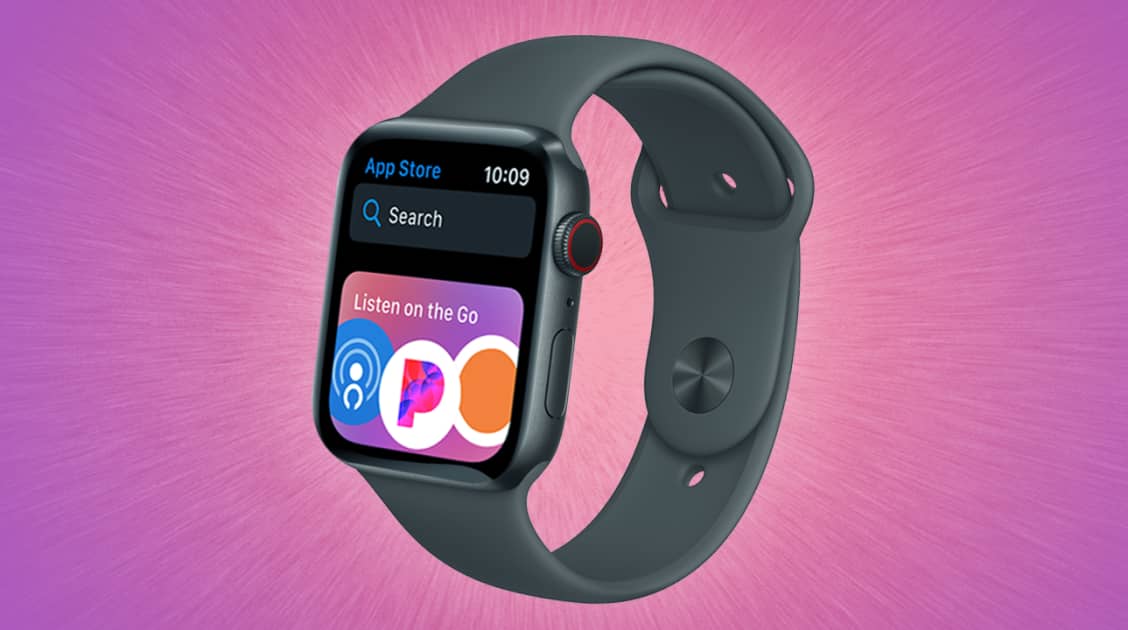
    1. Tap on the App Store icon on the menu of your Apple Watch
    2. Tap on Search and type in the name of the app, you want to install using Scribble or Dictation
    3. Alternatively, if you want to look for other amazing apps, you can scroll down and select from Apple’s list of top apps for your watch
    4. Tap on the desired app. This will show the descriptions of the app
    5. Next, tap on Get or Price (if it’s paid)
    6. Double click on the right-side button on the confirmation that pops up

    How To Install Apps You Already Have on Your iPhone to Your Apple Watch

    1. Open the Watch app on your iPhone
    2. Tap on General under My Watch. Afterward, tap on turn off Automatic App Install
    3. Scroll down to Available Apps
    4. Tap Install next to the apps you wish to install and wait for the installation to complete

    NOTE: Only apps that are supported by the Apple Watch and its watchOS version can be installed using this particular method.

    Now that you have installed these apps on your Apple Watch, you can choose whether you want to update them manually or want it to be done automatically. Below is how you can use either of these methods.

    How To Automatically Update Apps on Apple Watch

    1. Tap on Settings from the home screen of your Apple Watch
    2. Tap on App Store
    3. Switch the toggle next to Automatic Updates to enable it

    This will automatically download new versions of your apps when they are available for your Apple Watch.

    How To Manually Update Apps on Apple Watch

    1. Tap on Settings from the home screen of your Apple Watch
    2. Tap on App Store
    3. Switch the toggle next to Automatic Updates off to enable it

    This means you will have to manually download new versions of your apps when they are available for your Apple Watch.

    Conclusion

    Apple Watches are one of the best smartwatches in the world because of the various types of tasks you can do with them. This includes checking your heart rate, electrocardiogram (ECG), playing music, etc.

    With all these benefits, it is fair to say that the prices attached to them are a little bit worth the device. If you have the funds, you can give it a try and you will enjoy the several benefits you get from it.

    In this article, I have explained to you how you can install apps on your Apple Watch in the simplest ways possible. That notwithstanding, if you have any challenge feel free to write it in the comments section below and I will make sure to check it out ASAP.

  • How to Use Apple Maps in A Browser on Android and Windows

    How to Use Apple Maps in A Browser on Android and Windows

    Reading maps in the ancient years was something that only geographers and map experts could do. From just a little look, they could tell where they were at any point in time and also move to anywhere they wanted to go without getting missing.

    That is no longer the case in this 21st century, where everything is moving to the technological space. Now, maps can be found on almost every smart device, from mobile phones, tablets, laptops, desktops, smartwatches, etc.

    Thus, there is no longer the need for geographers and map experts, even a little child can now use the map with little or no supervision from their parents or guardians. That’s so cool, right?

    There are several digital maps in the world, but one of the most popular used map applications is the Apple Maps. This app can be found on all Apple devices that have ever been made, from iPhones, iPads, to MacBooks.

    Although this is good, people who do not use any of these Apple devices find it difficult to have access to App Maps on their devices. Even though there are different types of maps that can be used by such people, most of them find Apple Maps more interesting and following the release of the Beta version of iOS15, there are even more features coming in the Apple Maps, therefore, they simply can’t use any other digital map.

    If you are a non-Apple device user, then you are aware of the inability to use most of Apple’s applications even though there are some that can be used on Android devices, like Apple Music. Thanks to DuckDuckGo, Android and Windows users can now use Apple Maps on all their devices, and it’s completely FREE.

    How to Use Apple Maps in a Browser on Windows

    For you to be able to use Apple Maps in a browser on Windows, you first need to have an active web browser installed on your device. I recommend that you use Google Chrome, Safari, Firefox, or Microsoft Edge.

    Once the installation is completed, then follow the steps below:

    1. Open the web browser on your device and type in DuckDuckGo.com in the address bar and hit enter
    2. Enter your location (where you are going) in the search bar and click on the magnifying glass icon
    3. Choose Maps from the options that appear below the search bar
    4. Click on the Directions tab to get driving or walking distance from your current location

    NOTE: You need to turn on your location in the settings of your PC for the map to pick your current location.

     How to Use Apple Maps in a Browser on Android

    Similar to Windows, before you can use Apple Maps on your Android device, you need to have a web browser installed. Usually, most Android devices come with Google Chrome already installed on them, but you can also download any other browser of your choice.

    After that, follow the steps below:

    1. Open the web browser on your device and type in DuckDuckGo.com in the address bar and hit enter
    2. Enter your location (where you are going) in the search bar and click on the magnifying glass icon
    3. Choose Maps from the options that appear below the search bar
    4. Click on the Directions tab to get driving or walking distance from your current location

    NOTE: You need to turn on your location in the settings of your PC for the map to pick your current location. Also, since you are not using iOS, the navigation will automatically be redirected to either Google Maps or any other maps app on your device.

    Restrictions on Using Apple Maps in a Browser on Windows and Android

    While using the Apple Maps in a browser on your Windows or Android device, there are some restrictions. These limitations are:

    1. You cannot use Navigation
    2. You cannot plan a route
    3. There is no traffic or public transport support

    Currently, all these features are available in the original Apple Maps app, but they are not featured in the browser version. But it is my hope that in some months or years to come, these features will be available on the browser version as well.

    Conclusion

    Apple Maps is a very popular map app in the world. Using it on an Android or Windows device can sometimes be difficult but this article has shown you how to go about it easily.

    Follow each of the steps listed carefully and you will enjoy Apple Maps on your Android or Windows device for free.

  • Is It Possible To Backup And Restore GBWhatsApp Backup With Google Drive?

    Is It Possible To Backup And Restore GBWhatsApp Backup With Google Drive?

    Nothing is really impossible when it comes to Information Technology. Normally, it’s impossible for one to back up chats on GBWhatsApp to Google Drive but there is always light at the end of every tunnel.

    Am sure you are concerned about creating a backup of your GBWhatsaApp chats to your Google drive. In this article, I will shed light on how to backup chats from GbwhatsApp to Google Drive so keep following.

    To begin with, officially GBWhatsApp does not support Google drive back up but with the trick provided in this article, you will be able to backup GBWhatsapp to drive.

    How To Backup GBWhatsApp To Google Drive

    First of all, you need to create a backup by following the steps below;

    • Open GBWhatsApp and click on the menu icon. The menu icon is the 3 dot key that can be seen at the far right upper corner of your screen.
    • Select Settings and navigate to chats.
    • Scroll down and click on Chat backup.
    • A backup that is familiar with the official WhatsApp will be created and stored on your local drive.

    Now the backup is done, download and install the official WhatsApp from Play Store. Note that, you don’t need to uninstall the GBwhatsApp from your phone because it lets you have 2 or more WhatsApp on your phone.

    After the installation of the official WhatsApp on your phone, don’t open the app yet. Proceed to the next step.

    How To Move The GBWhatsApp Data To The Official WhatsApp data

    What we are going to do is move the backed up data from the GBWhatsApp directory to the WhatsApp directory. To do that;

    • Open any file manager on your phone and navigate to the GBWhatsApp directory.
    • Once in the GB folder, select database.
    • The backup you made will be in the database folder with file name ‘msgstore.db.crypt12’.
    • Copy the backup and move it to the official WhatsApp directory
    • Once in the WhatsApp directory, select Database and paste the copied backup.

    You have successfully moved the GBWhatsApp database to the official WhatsApp database.

    Now it’s time to open the official WhatsApp you installed from Play Store. Open WhatsApp and input the same number you activated with GBWhatsApp.

    Verify the number and proceed to restore chat from backup when asked. Now all your chats will be available on the official WhatsApp.

    Backup GBWhatsApp Chat To Google Drive Using WhatsApp

    • Open WhatsApp
    • Tap more options or the three dot menu. > settings > chats > chat backups > backup to Google drive.

    This will back up your chat to Google drive. Note that this is the GBWHatsApp chats we backed up that has been backed to drive. For restoring, you can use the same procedure to restore the chat backup.

    Conclusion

    As said earlier on, nothing is impossible when it comes to I.T. Backing up on GBWhatsApp to Google drive has been difficult and unsupportive but in this article, I have shed light in an alternative way you can back up your chats to Google drive.

  • How to Lock Incognito Tabs with Face ID in Chrome for iPhone

    How to Lock Incognito Tabs with Face ID in Chrome for iPhone

    All iPhone users with supported devices (from X and above) can now lock their incognito tabs with Face ID in Chrome. Beta testers have already had this feature since February but now it is available for use by everyone.

    iPhones are known to be one of the most secured smartphones in the world. Not only because of the closed-source operating system but also because of the high accuracy of their devices’ security lock, such as fingerprint and Face ID.

    If you are someone who loves to browse privately, without your browsing being seen, then you have already discovered the incognito mode in the Google Chrome browser. This is helpful until you leave your phone unlocked or leave it with someone who has access to your device’s PIN code.

    When this happens, whoever opens the Incognito tab in your Google Chrome browser will have access to the tabs you’ve opened. This means the Incognito mode is not private after all.

    As a result of circumstances like these, Google has now included the feature whereby you can use your iPhone’s Face ID to lock your Incognito tabs in Chrome. This way, anytime you open the Incognito tab, you will be required to unlock it with Face ID. Thus, only you will have access to all the tabs you opened in Incognito.

    Due to the requirement of a Face ID, this feature works on only iPhones X, XS, XR, XS Max, 11, 11 Pro, 11 Pro Max, 12 Mini, 12, 12 Pro, and 12 Pro Max.

    What is Incognito Mode?

    Do you know the word Privacy? If your answer is yes, then that is Incognito. Incognito is a feature on Google Chrome that allows you to browse in private (like the Private tab in Safari). When browsing using Incognito, Chrome creates a temporary session that is isolated from the browser’s main session and user data.

    As a result, all the websites and pages you visit while in Incognito mode are immediately deleted from the browser’s server. Hence, they cannot be found in your browser’s history.

    Even though your data is not saved, there is some information that can still be visible. Some of which include Your IP address, Your identity when you sign into a web service, like Gmail, etc, and the activity you use on such web service.

    Some of the information that cannot be seen are Your browsing history, your cookies and site data, the information you entered in forms, permissions you give websites, etc.

    How to Lock Incognito Tabs with Face ID in Chrome for iPhone

    1. Update your Chrome to the latest version (Chrome 92)
    2. After installation, open the Chrome browser
    3. Click on the menu icon (three dots) in the bottom right corner and then tap Settings
    4. Scroll to the bottom and tap on Privacy
    5. Tap Lock Incognito tabs when you close Chrome
    6. That’s it, whenever you open the Incognito tab on your iPhone, you will be required to unlock it with Face ID.

    How to Turn Off Unlocking Incognito with Face ID on iPhone

    1. Open the Chrome browser
    2. Click on the menu icon (three dots) in the bottom right corner and then tap Settings
    3. Scroll to the bottom and tap on Privacy
    4. Tap Lock Incognito tabs when you close Chrome and toggle the switch off
    5. Now, whenever you open your Incognito tab, you will not be required to use your Face ID to unlock it.

    Conclusion

    This guide has shown how you can now enjoy maximum security in your browsing by locking your Incognito tab with your Face ID. The steps listed here are easy and straightforward.

    All you have to do is to read and follow the steps. That notwithstanding, if you face any challenge while trying it, please feel free to write it in the comments section and I will help you out as soon as I can. Also, don’t forget to share with your friends and loved ones.

  • How to print and frame your pictures & canvas paintings in Ghana

    How to print and frame your pictures & canvas paintings in Ghana

    Do you know that you can now print and frame your picture and canvas paintings and have them delivered to your home in Ghana? Yes, you heard me right; you can absolutely sit in the comfort of your home and get your framed picture or canvas paintings delivered to you just the way you designed it.

    In the olden days, pictures were taken on special occasions, especially those of us who lived in the rural areas. As for those whose parents were rich or had their personal cameras, they had the opportunity to take photos as and when they had the chance to spend time with their families.

    Now, all these have changed due to the availability of cameras on smartphones and cameras. Thus, you can now take a photo with your smartphone or tablet whenever you want without paying anything.

    But if there’s one thing that hasn’t changed, then it is the frames we put our pictures in. Picture frames are not only meant to make our pictures look good but also to protect our pictures from other substances like dust, water, and even fire.

    Although frames are nice, it is very hard to find a place where you can get quality and also affordable frames for your photos and even canvas paintings. That shouldn’t be a problem for you anymore because not only will this article show you where to do that, but also show you how to get them delivered to your home right here in Ghana.

    How to print and frame Your pictures & canvas paintings and have them delivered to your home in Ghana

    Depending on what you want from Picture Frames Hub, there are different ways you can go about it. There are four (4) main features options available for you. There are Frames, Canvases, Pre-Framed Pictures, Pre-Made Canvases.

    How to print and frame your pictures and have them delivered to your home in Ghana

    1. Open your browser and type in www.pictureframeshub.com
    2. Click on the menu icon and then click on FRAMES
    3. Scroll through the available frames and click on the one, you wish to use for your photo (the prices are also listed under them)
    4. Choose the orientation of your photo (Landscape or Portrait)
    5. From the sizes available, select the one you like
    6. Click on Upload Your Picture to upload your picture
    7. Scroll to the bottom and check the price, preview of your photo (in the frame) and then click on Add to Cart and then checkout

    How to print your canvas and have them delivered to your home in Ghana

    1. Open your browser and type in www.pictureframeshub.com
    2. Click on the menu icon and then click on CANVASES
    3. Scroll through and choose your preferred choice
    4. Choose the orientation of your photo (Landscape or Portrait)
    5. From the sizes available, select the one you like
    6. Click on Upload Your Picture to upload your picture
    7. Scroll to the bottom and check the price, preview of your photo (in the frame) and then click on Add to Cart and then checkout

    How to buy pre-framed pictures and have them delivered to your home in Ghana

    1. Open your browser and type in www.pictureframeshub.com
    2. Click on the menu icon and then click on PRE-FRAMED PICTURES
    3. Scroll through and choose your preferred pre-framed picture
    4. Choose your preferred size and click on Add to Cart
    5. Proceed to checkout and enter the relevant information

    How to buy pre-framed canvases and have them delivered to your home in Ghana

    1. Open your browser and type in www.pictureframeshub.com
    2. Click on the menu icon and then click on PRE-FRAMED CANVASES
    3. Scroll through and choose your preferred pre-framed picture
    4. Choose your preferred size and click on Add to Cart
    5. Proceed to checkout and enter the relevant information

    Conclusion

    Picture Frames Hub makes it easy to sit at the comfort of your home and order your picture frames and canvas and get them delivered to you. During checkout, the phone number you use will be the same number your tracking code will be sent to.

    If you want to track your order, visit Picture Frames Hub’s official website and click on the menu icon and then TRACK YOUR ORDER, enter the order code, and then you will be able to find the progress of your order.

    For more information, you can get in touch with Picture Frames hub on 0206652744 or [email protected].