Category: Guides

  • Important Short Codes for MTN, Tigo, Vodafone, Airtel and Glo in Ghana

    Important Short Codes for MTN, Tigo, Vodafone, Airtel and Glo in Ghana

    At any point in time, you may need a shortcode for services on MTN, Tigo, Vodafone, Airtel, or Glo. Today, Mfidie.com brings you the most important and most requested USSD shortcodes for all the networks in Ghana.

    Airtel Ghana Shortcodes

    Airtel GhanaShortcode
    Check your airtel mobile number*703#
    Customer Care100
    Borrow Data *554#
    Instant Data Recharge *126 *Scratch Card PIN#
    Call Me Back *701*NUMBER#
    Caller Tunes Send START To 6060
    Blackberry Plans *440#
    Airtel Money *500#
    Check Your Number *703#
    Check Number Registration *400#
    Number Portability send PORT To 600

    Glo Ghana Shortcodes

    Glo GhanaShortcode
    Know your Glo mobile number1244
    Customer Care 121 or 100
    Service Information *124*2#
    Bonus Balance Enquiry *124*1#
    Tariff Information *124*3#
    Data Bundle Activation *127#
    Borrow Airtime *5321#
    Family & Friends*125*1#
    Check Number Registration*400#
    Number PortabilitySend PORT To 600

    MTN Ghana Shortcodes

    MTN GhanaShortcode
    Check MTN network mobile number*156#
    Customer Care100
    MTN Pulse *567#
    Internet/SMS Bundles *138#
    To Borrow Credit *506#
    MTN Nkomode (Free After 1 Minute) *550# (Option 6)
    Caller Tunez Dial 1355
    Unsubscribe Caller Tunez Send STOP to 1355
    Mobile Money Acces Code *170#
    Check Number Registration *400#
    Blackberry Plans *140#
    Reserve Your Number For 2 Years *1390#
    Share Credit With Friends *198#
    Number Portability Send PORT to 600

    Tigo Ghana Shortcodes

    Tigo GhanaShortcode
    Check your Tigo Network Mobile Number*505*4*2#
    Customer Care100
    Manage All Tigo Products *828#
    Borrow Airtime *188#
    Tigo Products & Services *505#
    Internet Packages & Unlimited Music *500#
    Blackberry Plans *360#
    Send Data To Friends *123#
    Tigo Free Bonto *555 *1#
    Tigo My Way *477#
    Check Number Registration *400#
    Number PortabilitySend PORT To 600

    Vodafone Ghana Shortcodes

    Vodafone GhanaShortcode
    Check Vodafone mobile number*127#
    Customer Care100
    Browser Packages *125#
    Caller Tunez Dial 585
    Data Bundle Menu *700#
    Credit Transfer to Another Number *516#
    Borrow Credit *505#
    Vodafone Red Offers *200#
    Blackberry Plans *500#
    Check Number Registration *400#
    Number PortabilitySend PORT To 600

    Have any questions? Leave them in the comments below and we will respond shortly.

  • Choosing your email/username: Clever email addresses to try

    Choosing your email/username: Clever email addresses to try

    Having a unique and straightforward username is an excellent flex. There are millions of people on the internet creating emails every day. Your email needs to be very distinctive.

    An email address is what people will reach out to you as either a business or an average person. For an email to be excellent and straightforward, you can use your pet name. When creating an email, you need to make sure that people can easily remember it. It shouldn’t be so complex. Have you ever just mentioned someone’s email without having to check first? I’m not sure you’ve ever, except yours.

    And that’s the problem. People make their emails so complex and not relatable so much that it becomes so difficult to think of memorizing just in case. With some emails, others make it so simple that you wouldn’t even need to remember it. You’ll say it because you recall how simple it was when the person first mentioned it to you.

    Creating a perfect email address is very necessary to and make a good impression. In this time of digitization getting your desired email address is a bit tough because sometimes some sites suggest emails for you, and you’re not given a chance to create yours. A lot of people use emails in the world.

    Some even have multiple emails for business purposes. According to statista.com, it was calculated that there were almost 4.1 billion active email users in the world (in 2014), and this number is expected to rise to 5.1 billion by the end of 2020. Getting a unique email is almost impossible, but one can try.

    It’s essential to create a unique email. We often try to make emails, and we get told that email is already in use by someone else. But with that being said, you can still work around it to get very clever unique emails for yourself. In this article, I’ll be suggesting innovative ways to come up with special emails. Let’s begin.

    Clever Tips On How To Create Unique Emails

    The three parts of an email are the 

    1. name (business or personal)
    2. The @ symbol
    3. The service provider is also called the domain. Example Gmail, Yahoo Mail, AOL, and Outlook.com.

    Service Providers

    Choosing your preferred service provider should be your first step. Service providers like Gmail, Yahoo Mail, Outlook, AOL, and Mail.com are widely used worldwide and free.

    Those days people used to use Yahoo Mail because it was accessible, but due to google being a default browser on many phones, they automatically provide their service to clients. You can choose between any of these providers.

    You can choose to be a bit more stylish, so you’ll decide to go for AOL because there’s not much hype around it like Gmail and Yahoo. Let’s say you want to create an email, and you use “[email protected],” but you’re told it’s already in use by someone else.

    Trust me, the possibility that If you use “[email protected]” will not be in use by someone is very high. 

    Creative tips on how to choose an email

    In this step, you’ll be shown the best formats to use in creating emails. Gmail does not allow the use of underscore(_) and hyphens(-) but only dots(.) and numbers. Whereas Yahoo and AOL enable the use of only underscores while Outlook allows both underscores and hyphens. So the service provider you’ll choose depends on how you want your email.

    Such an email like “abdul24.gemi@…” can be used with all the service providers, but abdul24_gemi@… can only be used with Yahoo and AOL. You can start creating an email by using the first name and last name format or last name and first name.

    For example, “AbdulAli@….”. You can now consider adding any punctuations or numbers. For instance, [email protected] or [email protected]. You can also use your name initials to create it. For example, the first letter of your first name followed by your last name or the initial of your last name followed by your last name. For instance, [email protected] or [email protected].

    If it’s a business email, you can also use your profession or the name of your business. 

    Below are clever email address formats and suggestions one can try. Your emails need to have a unique touch. 

    1. A person with the name “Vanessa Morgan” can have an email like [email protected] or [email protected]. I suggest this format for people with many letters in their words to make the email short and simple.
    2. Also, a name like “Morttey Shepherd Yaw” can have an email in this format.. [email protected] or [email protected].
    3. If you don’t want to use numbers too, sometimes numbers make your emails clumsy. So to keep it simple without any numerics, you can create an email from “Morttey Shepherd Yaw” as [email protected] or [email protected].

    Such emails are straightforward to remember if someone wants to send you an email, and there’s nothing to refer to be sure. They can remember [email protected]

    These days, everything on the internet is out of stock, whatever idea you got, don’t be surprised if someone else has got a similar or same one. We live in a big but tiny world where everything is so relatable. 

  • How To Use Microsoft Edge to Solve Math Problems

    How To Use Microsoft Edge to Solve Math Problems

    Finding a place to learn Mathematics online is not difficult; there are several free sites you can visit to learn any Math topic. But have you ever wondered where you can solve those Math problems that seem to bother you?

    In almost every part of the world, one of the subjects that seem to bother students very often is Mathematics, from the basic level throughout to the tertiary level. Usually, this is not the fault of the students neither is it the fault of the teacher but it is because of our perception towards the subject, Mathematics.

    Because of some of the challenges, some of us face in Mathematics, Microsoft and the developers of Microsoft Edge have added a new feature that helps to solve Math problems. It is called the Math Solver.

    What is Microsoft Edge’s Math Solver?

    Microsoft Edge’s Math Solver is a new feature developed by Microsoft on the Microsoft Edge browser that captures mathematical problems from an image and then solves them for you for FREE. If you have been using Windows for a long time, you will realize that this feature is not something new.

    But the new thing is that, unlike previously, now the Math Solver has been integrated into the Microsoft Edge browser’s 91 updates. This means you can simply solve your math problems without switching windows, that’s cool, right?

    Additionally, if you search for any mathematical concept on Bing using Microsoft Edge, the Math Solver will automatically pop up. And with this, you can even draw your question, and wait for Microsoft to do the rest for you.

    Some of the math problems that can be solved with the Microsoft Ede Math Solver include:

    Pre-Algebra: Least Common Multiple (LCM), Greatest Common Factor (GCF), Mixed Fractions, Radicals, Exponents

    Algebra: Inequalities, Systems of equations (simultaneous equations), Matrices, Linear and Quadratic Equations, etc

    Trigonometry: Basic trig functions, Trigonometric equations, Trigonometric graphs

    Calculus: Differentiation, Finding limits, and Integration

    How To Add Math Solver to the Microsoft Edge Toolbar

    Before you use the Math Solver, there are some simple steps you need to follow to add the Math Solver to your Edge toolbar. This will aid you in solving your math problems quickly, without going through any hassle.

    1. Update your Microsoft Edge browser to the latest version (without this, it won’t work)
    2. Open the Microsoft Edge browser
    3. Click on the More icon (3 dots) on the upper right corner of the screen. Or you can use the shortcut Alt+F
    4. Click on Settings from the menu
    5. Select Appearance on the left side of the screen and then scroll to the button and toggle on Show Math Solver
    6. Afterward, the Math Solver icon will appear on your Edge’s toolbar

    Now that you’ve added the Math Solver icon to the toolbar, let’s jump into how you can use the Math Solver.

    How To Use Microsoft Edge to Solve Math Problems

    There are several ways you can use the Microsoft Edge browser to solve Math problems. In this article, I am going to show you two (2) important ways.

    How To Use Microsoft Edge to Solve Math Problems by Typing in the Question

    1. Click on the Math Solver icon in the Edge toolbar
    2. There are several tabs. Tab 1 has the numbers and the four (4) basic operations; Tab 2 allows you to input log, fractions, inequalities, radicals, etc; Tab 3 contains all the trigonometric functions; Tab 4 is for statistics like mean, mode, LCM, GCF, etc; Tab 5 has alphabets that can be used as variables. There is also a tab for Matrices.
    3. Click on the tab and type in your question. You can also use your keyboard if you prefer and click Solve afterward.

    You will then see a detailed solution to your question.

    How To Use Microsoft Edge to Solve Math Problems by Highlighting the Question

    This method works for questions that are in picture format or in a document. If you have anything like that, then follow the steps below:

    1. Open the image or the document containing the question in your Edge browser
    2. Click on Select Math problem in the Math Solver pane
    3. A pop-up screen will be displayed for you to highlight the question
    4. Drag and resize the selection box around the question
    5. Click on Solve and wait for Microsoft Math Solver to handle the rest for you.

    Conclusion

    After reading this article, solving a math problem should no longer be a difficulty for you. Although the Math Solver can solve Math questions, there are some advanced questions outside the highlighted areas that cannot be solved.

    Also, you need to connect your device to an active internet source before using the Math solver, otherwise, it won’t work.

  • How to install Windows 3.1 on an iPad

    How to install Windows 3.1 on an iPad

    Do you love both Windows and Apple at the same time? Do you miss your olden days Windows 3.1 when you were using your desktop machine?  If you do, then continue reading this article to find out how you can revisit that moment right on your iPad.

    Windows 3.1, one of the earliest versions of the Windows operating system was released on the 6th of April 1992 (this is a long time right ?). Probably most of us were not having our own PCs by then.

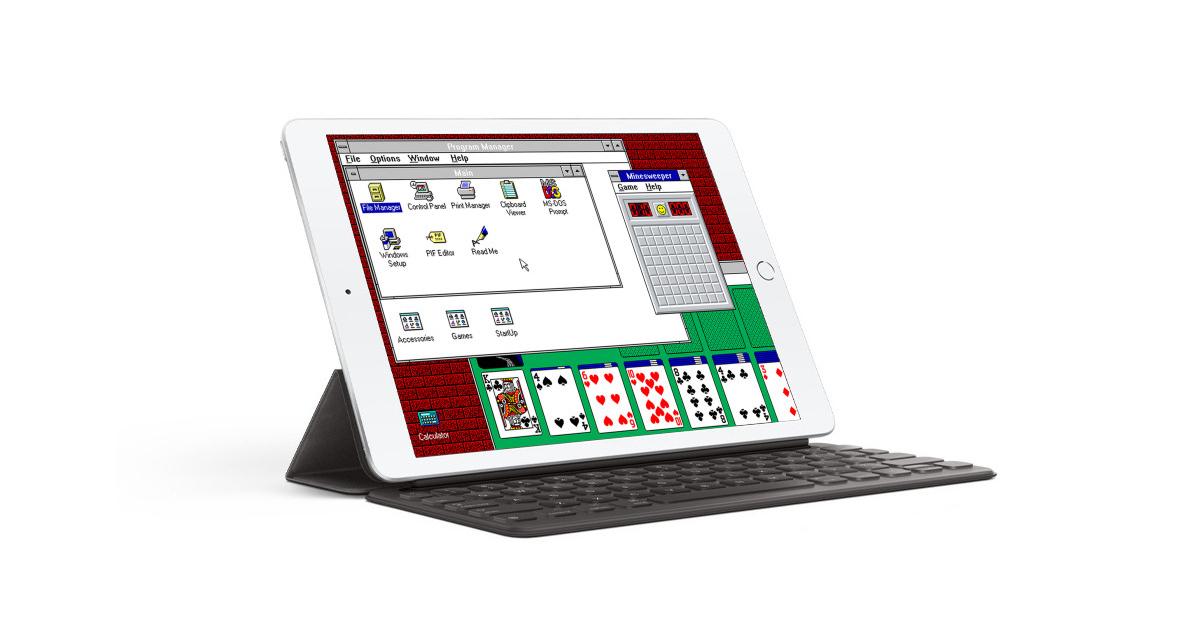
    But thanks to iDOS you can be able to re-live this moment right on your iPad or iPad Pro. With iDOS, you are given the chance to install Windows 3.1 and enjoy all the amazing details that come with it.

    A Brief About Windows 3.1

    Windows 3.1 is a series of 16-bit operating environments produced by Microsoft for use on personal computers, released on April 6, 1992. The series began with Windows 3.1, which was first sold in April 1992 as a successor to Windows 3.0. Subsequent versions were released between 1992 and 1993, notably Windows 3.11 until the series was superseded by the Windows 9X series starting in 1995 with Windows 95. During its lifespan, Windows 3.1 introduced several enhancements to the still MS-DOS-based platform, including improved system stability, expanded support for multimedia, True type fonts, and workgroup networking.

    On December 31, 2001, Microsoft declared Windows 3.1 obsolete and stopped providing support and updates for the system. However, OEM licensing for Windows for Workgroups 3.11 on embedded systems continued to be available (despite the OS no longer being officially supported) until November 1, 2008.

     How To Install Windows 3.1 on iPad

    The process of installing the Windows 3.1 OS on an iPad is a little bit tricky, therefore you need to read this article very carefully otherwise you will not understand the process properly.

    NOTE: THE IDOS APP COMES AT A PRICE ($4.99)

    1. Download and install the iDOS app on your iPad

    On your iPad, go to the App Store and search for iDOS 2. Once you are done with the installation, run the app, and check your Files app to see if it has created a new folder under the name iDOS in the On My iPad.

    2. Set up your Bluetooth accessories (Mouse, Pen, Keyboard)

    To enable you to enjoy Windows 3.1 on your iPad to the fullest, it would be better if you connect Bluetooth accessories to your iPad. This will make you feel the reality of the interface. But if you don’t have any Bluetooth accessories, feel free to go on to the next step.

    3. Prepare the setup files for the Windows 3.1

    With this step, it depends on the type of PC you have. Go to the internet and search for the setup files for Windows 3.1.

    4.Copy the setup files from the PC to the iPad

    You can use whatever transfer method to transfer the setup files from the PC to your iPad. Upon successful completion, make sure to copy all the files into the iDOS folder in the Files app. (If you need help make sure to let me know in the comments section below).

    5. Install Windows 3.1. in iDOS 2

    Launch iDOS 2 app and type in w3setup\setup at the C:\> and then press Enter. A welcome screen will be shown, press Enter again >> Select Express Setup and wait for the setup files to finish copying.

    Once it is done, the installation screen will be displayed, wait for the installation to finish. When the installation is done, click on Exit Setup.

    6. Quit iDOS 2 and restart the app to start enjoying Windows 3.1 right on your iPad

    Conclusion

    The main purpose of this article is to help you enjoy what the earlier version of Windows looked like. Although the steps seem confusing, once you follow the steps listed in the article, you will be able to do it.

    In conclusion, if you come across any challenge please feel free to write it down in the comments section below, and will check it out as soon as I can. Also, make sure to share this with all your friends and Windows OS lovers.

  • How to find someone on Facebook using their photo 

    How to find someone on Facebook using their photo 

    Facebook is a social media platform where you connect with your friends all over the world. You can also make new friends from Facebook across the world.

    On Facebook, you can see and interact with friends you’ve not seen physically in a long time. Suppose there’s a friend you’ve not heard from in a while and a Facebook profile you don’t remember, but you want to find that person. There can be just two ways to find that person.

    It’s either you ask other friends to help you out, or you use the person’s picture to find them on Facebook if only you have their picture. Maybe this pic was taken some years back when you were still in contact with him. But if you ask mutual friends around and none of them knows that particular person’s Facebook, then you’d have to search for the profile using their picture on Facebook.

    Currently, there are two known methods to find a person’s Facebook profile using their picture. You can find a person’s profile using the “Google image search,” or sometimes the picture was already downloaded from Facebook some time ago, and every Facebook picture has a numerical ID assigned to it when it’s posted on the media.

    Any image downloaded from Facebook will have that number, so if you know this numerical ID, you can use it to find the source of the picture on Facebook.

    Maybe you’ve seen a really pretty girl’s picture on your friend’s phone, and the gallery folder was “Facebook” you can use this method to find the person’s profile very easily. 

    This is a question that has been asked countless times, so brace yourself as I discuss ways you can find a person’s Facebook profile using their picture in this article. 

    Facebook picture search using “Google image search.”

    With this method, google can scan any image and show you the profile using the image. It can also show you profiles of people using your image without your permission.

    It’s an easy three method step. With this method, you can use a Facebook picture you have downloaded on your device. It’s a simple drag and search method.

    This method can also only be used with a google chrome browser or a Mozilla Firefox browser. Below are steps to follow to search for an image using the “google search image” method. 

    1. Open the google images website.
    2. Locate the picture you want to use on your device.
    3. Tap on the picture and drag it to the google images search page. You’ll see a change in the search box as you drop the image in it.
    4. Google will begin the search after you drop the picture.
    5. Your results of profile or profiles using that image and the websites these profiles are on will appear, and you’ll select. You might see different profiles because, in some cases, some people’s pictures are used without their permission.

    Search With A URL

    You can use the URL method to find a profile using an image on Facebook.

    With this method, you’ll be taking the image from Facebook directly to the google image search page. You can copy its URL and paste it in the google image search box.

    This method is called the “Google reverse image search.”

    1. Open your Facebook app and locate the picture you want to search.
    2. Copy the URL of the image on Facebook
    3. Go to the Google image search page.
    4. Tap on the search by image button
    5. Tap paste image URL
    6. Tap on search by image.
    7. Your results will be displayed by google with the sites and profiles the picture is from.

    Using the “Tineye” method. 

    There’s also another method we can use, which is the “TinEye” method. With the TinEye method, it’s almost like the “google reverse image search.”

    You can copy the URL of the picture and paste it in the TinEye search box, and the list of sites and profiles using that picture will be displayed for you, or upload the picture from your gallery, and search results will be displayed for you. 

    1. First, launch the “TinEye” website.
    2. Upload an image or paste the URL of the image in the search box
    3. Tap enter
    4. You’ll be shown the user of that photo, showing the complete list of the websites using that pic. You’ll be provided links to these websites and sources of the image, which is Facebook. 

    These are among the best and trusted methods to find a Facebook profile using the person’s image. This methods also give you a chance to find people using your pictures on Facebook or any site without your permission. If these methods help you find a person’s profile on Facebook, don’t forget to share this article with your friends. 

  • A quick guide on how To Create YouTube Shorts

    A quick guide on how To Create YouTube Shorts

    Have you seen Shorts anytime you open the YouTube app on your device? Have you been wondering what the meaning of YouTube Shorts; how does it operate, and how you can create your own YouTube shorts?

    If you have, then worry no more. In this video, I will explain everything you need to know about YouTube Shorts and how to create your own YouTube Shorts.

    For some time now, TikTok has taken over the social media space. Almost everyone, including young, middle-aged, and older people, has TikTok installed on their devices. This is mainly because the videos are free to watch and download. Thus, you can watch the videos and download them on your device for future viewing.

    This is very different from all the other popular social media platforms where you have to go through lengthy processes to download videos – most of them being illegal or unethical.

    Due to the pressure placed by TikTok on the other video applications, YouTube has also created its very own “TikTok-like” feature called the “YouTube Shorts.” If you are very observant, then you will have already spotted this in your YouTube app. But what at all is YouTube Shorts?

    What is YouTube Shorts?

    Shorts is a new video streaming feature introduced by YouTube to allow viewers to enjoy short videos while using the YouTube app. This system functions as a “social media” platform for short videos, similar to TikTok and Instagram Reels.

    On the regular YouTube platform, video creators had to use quality cameras to record and upload their videos if they ever thought of gaining followers. Although this isn’t a big issue, people who were using their smartphones to create videos on YouTube were not gaining much traffic compared to those with High-Quality HD cameras.

    But with the new Shorts platform, video creators can now use their smartphones to record up to 60 seconds of video content right from the YouTube app. In terms of editing, some free-to-use tools will help you edit your videos; and interestingly, you don’t need to be “techy” to use the editing tools.

    How To Create YouTube Shorts

    1. Open the YouTube app on your iPad, iPhone, or Android device
    2. Tap on the Create (+) button in the bottom toolbar of the page. (Between Shorts and Subscriptions)
    3. Tap Create a Short from the menu
      • Some of the options that will appear in this menu include
      • Add Music: this option is used to choose the music you will play during the video.
      • Flip: This is used to switch between front and rear cameras.
      • Speed: you can use this to adjust the speed of the video from the min 0.3X to 3.0X
      • Timer: this is used to set a time to start recording so that you can place your phone somewhere and stand somewhere else.
      • Short Length: use this to change the length of the video between 15 and 60 seconds.
      • Gallery: use this to choose or add a video from your phone’s gallery.
      • Record: press and hold this button to record your video.
    4. Once you are done with the recording, tap on the checkmark
    5. After this, you will be taken to the editing page. Here you will find Alignment, Text background, Brush, Text Size, and Text color icons.
    6. Next, tap on Adjust to edit the music and when you are done tap DONE.
    7. If you included text, tap on Timeline to tell when the text should appear on the screen. Afterwards, tap DONE >> NEXT
    8. Finally, add the Title of the shorts, choose visibility, and select whether it is meant for kids or not. Lastly, tap on UPLOAD and wait for your Shorts to be uploaded

    Conclusion

    As simple as that, you have now successfully uploaded your first ever YouTube Shorts in less than 5 minutes. That is less than ten times the time you would have spent uploading a video on YouTube.

    At the moment, the platform is in its BETA stage, and we cannot tell whether you can monetize your Shorts or not. But, as soon as the entire platform is launched, we will update you on future developments.

  • Tricks to get more matches on tinder right now

    Tricks to get more matches on tinder right now

    Dating sites are amazing and exciting platforms, honestly, but it’s no news that they can be exhausting in some aspects, though – aspects like getting more matches.

    Sometimes you match with people you find very attractive and wish you match them, but you might wait for a long time or sometimes forever because they might never match you. Sometimes it’s not because they don’t like you.

    It might simply be because your profile was never even on her feeds to swipe. You might think it’s impossible to take care of that problem. What if I tell you there’s a way to get more matches on tinder and swipe right on the people who have swiped right for you too.

    There are a few tricks to it. After telling you these tricks, you would realize that they were all just right in front of you. 

    You need to be very creative with your profile

    Every human has a specific type they get attracted to. The words you put on your profile should be inviting. You can choose to be creative with a poem or lyrics of a song.

    The words you say are going to draw the person. As a lady, you can put something like “ I’m gonna love you anyway, babe” on your profile. That’s going to get whoever is going to see your profile intrigued, so he’s going to swipe right and love to see more of you.

    You might get a swipe from any man who sees your profile with a line. One of the tricks I encourage every guy to use when it comes to words is very simple. As men, we all know women love attention and love to be around their men a lot.

    So to make a lady on tinder feel like you’re worth a chance, you need to tell her something she wants to hear. So as a man on fuel, you should put “I love clingy women” on your profile. What’s else would a woman love more than the fact that her man loves the fact that she loves attention.

    These are simple tricks for both men and women on tinder to use and get more matches. 

    Work on your appearance in your pictures

    Looks matter a lot on dating platforms. People need to like what they see.

    You should make an effort to put on a smile on your pictures. You look nice when you smile. So smile in your pictures. Also, you need to “kill” with the dressing.

    Don’t go and do any mismatch dressing. Nothing too extra. You shouldn’t make it look like you’re trying too much but make sure you post a picture in which you dressed well.

    This is because people easily lose interest when it comes to cases of dressing. Women should also try not to make too much effort to post where they show more cleavages of their bodies. Having pictures showing cleavages on your phones is normal, but posting them on your dating platform profile might end up doing a lot of damage.

    This is because some men might see you for just your body if you show them that. But you smile in a picture not showing any cleavages; their attention is going to be on your pretty smiling face and will swipe right to see more of it.

    Your picture should tell a lot. It should make the person feel like, ohh, he’s rasta is nice, or he has a nice beard. Or post a picture of you and your pets. What do you know?

    There might be a few people who also love pets and will love to swipe right for the love of your pets. 

    You can try tinder premium

    Tinder premium comes with a lot of enjoyment.

    You can see who swiped right for you, and if you’re interested, you can also swipe right for that person. On tinder premium, you can swipe right to as many people as you want and change your location to any you want, and swipe people from anywhere you want. 

    Link your Facebook Account

    The Facebook algorithm is also a very good trick. It’s very easy, as all account syncs work. Let’s say you like an “amine or cartoons” page on Facebook.

    Tinder will match you with people who also like the “anime” page. Yeah, so the person might be like, “oh, you love animes too? That’s so cool,” and that’s how your conversation will start after the match. 

    Use the app frequently

    Making an effort to use the app more also helps in getting more matches. You can’t expect that you open the app casually sometimes when you’re bored.

    You need to try and be frequent on the app and swipe more on people you find attractive. You can’t expect to get more matches when you come online a few times and swipe just a couple of times and be done. 

    Conclusion

    Tinder is an interesting dating platform that I urge anyone trying to find some love online to try out. It doesn’t end at trying out the platform.

    Getting more matches also matters a lot. Working on your profile and appearance in your pictures is most important. If you feel all this is a lot for you, you can try out tinder premium and enjoy a VIP experience where you can see who swiped right for you and swipe right for them too if you like them. 

  • How To Message Someone on YouTube

    How To Message Someone on YouTube

    We all enjoy watching video content on YouTube, even though we might find the ads annoying. Once in a while, we wish to contact the individuals behind some of the YouTube channels we have subscribed to.

    Have you been willing to send someone a direct message (DM) on YouTube?  If you have then you will agree with me that YouTube no longer has a messaging service where you can send someone a message.

    But does it mean that there is no way around it? The answer is an absolute NO! Even though YouTube does not have a messaging app, there are several alternative ways you can go about it.

    If you have ever wanted to message someone on YouTube, then continue reading this article to find out how you can message someone on YouTube.

    YouTube as we all know is one of the biggest video streaming platforms in the world. According to YouTube themselves, there are over 2 billion logged-in users who visit YouTube each month, and every day people watch over a billion hours of videos. With this stat, you and I can agree that YouTube is the biggest video streaming platform in the world.

    Because of the large number of active users on the platform, and no messaging app it is very difficult to chat with someone. But the need for you to chat with someone might be very necessary for some situations. In situations like that, there are a few ways, you can go about it.

    How To Message Someone on YouTube

    There are two (2) main methods you can use to send someone on YouTube a message. And they are:

    By searching for the person’s email address attached to his or her channel

    By sending a message through the social media account attached to the channel

    This might sound difficult, but relax, I am going to show you how you can go about both of the methods listed above.

    How To Message Someone on YouTube by Using the Email

    With this method, what you have to do first is to search for the user’s email address. After that, then you can send him/her your message via email. To search for a YouTube user’s email address, follow the steps below:

    1. Visit YouTube on your PC or request the web version (if you are using your smartphone). Do not open the YouTube app
    2. Enter the channel name of the person in the search bar above the page and then press Enter
    3. Click on the channel name and then ABOUT
    4. From the ABOUT tab, click on Details and then View Email Address. If the person has added his/her email address, you should be able to see it and then copy it
    5. Open your email provider and paste the email address in the address bar
    6. Type your desired message and then hit Send

    You are done, your message will now be successfully delivered to the YouTube user’s email address, and you should expect your reply in a few days.

    How To Send Someone A Message on YouTube By Using the Social Media

    If the person has not listed his/her email in the Details page of their YouTube channel, then there is another alternative you can try. You can also check the Links tab to see all the links that have been attached by the channel owner.

    With this method, you will use the social media account of the YouTuber and then send him/her a DM or find their email address there. To see this, you must check the description of the person’s video or watch his/her video to find if the social media links have been attached.

    Once you find the link there, you can then proceed to send a DM. Mostly, the DMs do not get replied to early. So, if you need the person urgently, then search the social media bio to see if the person has added his/her email. This is because emails usually get replied to quickly.

    Conclusion

    YouTube has many active users, as such getting in touch with video creators is sometimes difficult. This article has outlined some of the methods you can try to send a message to a YouTuber.

    Read and try both methods and once you find the one that works best for you then you stick with that.

  • How to Use MTN Mobile Money to buy Apps on Google Play Store

    How to Use MTN Mobile Money to buy Apps on Google Play Store

    Technology continues to be more beneficial to the everyday person when it offers seamless integration.

    Here in Ghana, MTN Mobile Money remains one of the biggest payment options. Therefore, whenever the service expands to accommodate more payment options, it feels good.

    Since 2018, MTN Mobile Money has integrated with Google Payments so that you can purchase apps and other Google Products and Services via mobile money.

    In a country where a lot of individuals do not have a bank account, and with the difficulty of getting credit cards and debit cards to work for online transactions, the push to integrate mobile money with Google Payments on mobile is laudable.

    To enjoy the service, you must have your MTN Mobile Money registered SIM in the phone you are registering on, and make sure you are in your preferred Google Account.

    How to Use MTN MoMo to make payments on Google Play Store

    1. Open the Google Play Store app on your Android device by tapping the Play Store icon
    2. Tap the menu icon to the left and select Account
    3. Tap Payment Methods
    4. Choose MTN Mobile Money
    5. An SMS confirmation will be sent, wait for it. (You will not be charged for the SMS)
    6. After confirmation, fill in your Name, Street Address and City
    7. Click Save to complete the process
    8. Once done, you can now start buying apps and games on the Play Store.

    Find below screenshots of the process:

    Kindly note that you only need to complete this process once and after that, you will be able to buy apps and games from the Play Store as long as you have enough funds in your MTN MoMo account.

    For those who can not access the settings in the Google Play Store, just go your android phone’s main Settings, go to Accounts, open Google Settings, choose Account Preferences and add Payment Methods.

    It should work just fine if you have your MTN Sim inserted.

    Conclusion

    It is very easy now to buy your favourite apps or make your App Subscriptions via MTN Mobile Money.

    The feature is currently not available to Apple and Windows users (those who are left). Hopefully, it is integrated into the App Store in the future.

    If you have any questions about the feature, kindly ask in the comments section below and we will reply you.

  • How to tell if someone has deleted their Snapchat 

    How to tell if someone has deleted their Snapchat 

    Snapchat is a social messaging app where you can connect with people not just around you but all over the world for either business or social purposes.

    On Snapchat, your friends send you videos and pictures of their daily activities and likewise you. This platform helps you connect with new friends worldwide and share fun stuff going on in your lives. One different thing about Snapchat is that nothing you post on the app is permanent. Messages, videos, and pictures you send get deleted right after the viewer sees them. It makes things safer on the platform.

    Sometimes you may be caught up in a moment, and you want to share fun stuff with someone, luckily you won’t wake up with your stuff all around the media thanks to Snapchat features. But like features on every technology, there’s a way around it.

    The app offers you video and photo editing tools that make it possible for you to add the beautiful touch you want to your pictures and videos.

    Some people have heard of Snapchat but haven’t used it before and don’t know what fun one can have. In this article, I will discuss how to use Snapchat and how to tell if someone has blocked you or deleted her Snapchat account. 

    How To Use Snapchat 

    To use Snapchat, first, you need to have a smartphone that supports the app. And it has a front camera. Once you have a smartphone that supports the app, you’re good to go. Follow these steps on how to download and start using Snapchat. 

    • After downloading it, you sign up with your email, date of birth, and name.
    • You’ll be given a Snapchat handle, or you’ll create your handle. That’s how your friends can find you when they want to add you on Snapchat too.
    • Now you’re ready to begin using Snapchat. You can start by taking a picture to edit and share. To do this, you can tap on the camera circle and take a snap using any of the filters you want.
    • After taking the pic, you can use the photo editing tools to picture a new look and share it with your story. This will last for up to 24 hours.

    How To Add Friends On Snapchat

    There are few ways you can add friends on Snapchat. You can either search for the person using their Snapchat handle or add them from being tagged on another person’s snap story.

    You can also tap on your snap profile and hit the friends button to select friends you want to add. You choose to add only people you know or add random people to and add as many as you want.

    Another way of adding people is by clicking pictures of the “Snapcode’” that shows up beside their name. Every user has this as a unique feature.

    Once you add your friends, you’ll get to see their snap stories anytime they post on their accounts. One unique part about Snapchat is that whatever you do with a friend’s chat or snap story will be communicated to them. Maybe you might see a picture on their account which you’d love to save but can’t unless you take a screenshot.

    If you do so, the person will be told you’ve taken a screenshot of their snap story. Or, in a chat with the person, screenshots are also reported to them. That’s why you need to take such precautions when using Snapchat. 

    How To Know If Someone has deleted their Snapchat account

    Anyone you add will show on your friends’ list and chats list. So for anyone’s snap name or handle to disappear from your account, then it means you unfriended the person yourself or the person has deleted his account, sometimes you might think the person has blocked, but it might not be. So how do you tell if someone deleted his Snapchat account? 

    Check your current list

    First, you can search through your chats and friends list thoroughly to be sure. Maybe you’ve added a lot of people or texted a lot of people since you last texted the particular person in question, so her name might have gone down the list.

    So to be very sure, scroll down thoroughly if you don’t remember their snap handle, and if you still can’t find it, there’s one last way to be sure they’ve deleted the account and not blocked you.

    You can create a new Snapchat account to check

    You can create a new Snapchat account and not tell anyone about it or add anyone. Search for the person’s username and insert it in the search button. If nothing pops up, then it means the person has deleted their Snapchat and not blocked you.

    Conclusion

    So these are some of the things you should know about Snapchat if you already use the app and don’t these things or you’re yet to check out the app.

    t’s an exciting platform with a lot of fun. Know when it’s appropriate to take a screenshot of other people’s posts and know what to do when you feel like someone has blocked you or deleted their Snapchat account.