Category: Guides

  • Snapchat score: How to calculate & tricks to gain a higher snap score

    Snapchat score: How to calculate & tricks to gain a higher snap score

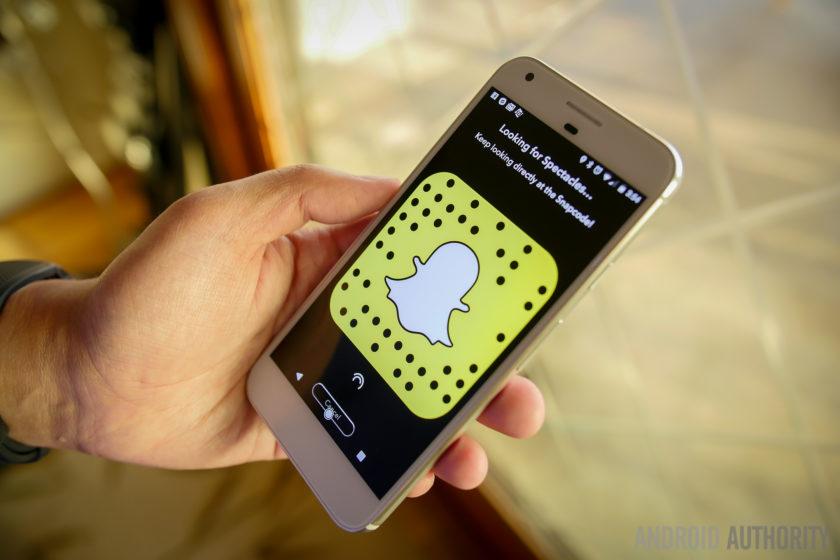
    Snapchat has become one of the most used social media in the world. A lot of top personalities use it to update their followers on their daily activities.

    They take snaps every day, sharing pictures and videos of themselves. For every social media platform, your number of followers or friends determines your influence on the platform. But for Snapchat, followers are not shown except you’re subscribed to the Snapchat public profile to have subscribers.

    If you’re not on a public profile, you’ll only have your Snapchat score to show your influence on the platform. Your snap score is the result of how you use the app. If you’re someone who doesn’t use the app that much, your snap score will be relatively low. But regular users have a very high snap score. Many people have wondered how the snap score is calculated, but the truth is the Snapchat score algorithm is not known.

    We don’t know how it’s calculated, but we can add a few things with the knowledge we have on Snapchat scores. In this article, we will talk about what the Snapchat score is and a few things to do if you want to increase it. 

    How To Check Your Snapscore

    To check your snap score, you need to open your Snapchat app and make sure it’s your account. Now tap on your profile on the top left right after you open the app. When you tap on the profile, you’ll see your profile and a figure below it. That figure is your Snapchat score. Tap on the figure, and the figure will split in two. The figure on the left is the snap you’ve sent, and the one on the right is the snaps you’ve received. You can also check your friends’ Snapchat score by tapping, and their Snap score will also be at the same place yours is, below the profile. 

    Things To Do If You Want To Increase Your Snap Score

    Send snaps often to your friends

    Your snap score increases by a point every time you send a snap. If you stay away from Snapchat and you return, you’ll get 6 points for coming back. All you have to do is send snaps very often. For every story you post on your Snapchat, you get a point.

     Send different snaps to multiple friends

    You receive a point for each snap you send to a friend. That means if you select ten friends and send three snaps to each of them, you’ll be getting 30 points for that. After you make a snap, it could be a pictured video. Please tap on the yellow button to either post it on your story or send them to your friends. You can choose to post it on your story and send it to your friends. After you tap on the yellow button which says “send to,” select the friends you want to send the snap to and send it to them, send it to your friends.

    Open all unread snaps

    Sometimes you think the snaps your friends are sending you are unnecessary, so you don’t bother to open them. Well, if you want to increase your score, you need to open your snap messages because you receive a point for every snap you open. You can check it out if you doubt it. Open a snap and check your score to see if it increased by one.

    Frequently update your story with snaps

    You receive a point for every snap you post on your story. You get points for the views, too, if you post a snap.

    For this reason, you should post snaps often on your story if you want to increase your snap score.

    Avoid using direct messages to communicate with friends

    You don’t get any points for messages you send or receive. So if you want to communicate with your friends, you can be creative enough to take snaps of your texts and send them to your friends. Remember, the main goal is to increase your snap score, so you have to do all the necessary things to improve it.

    Conclusion

    So basically, there’s no trick to it. All you have to do is use your Snapchat frequently and make snaps. Your snap score is going to increase very much. Send snaps to friends, make snaps of moments you have to create memories.

    The often you make snaps and share, the higher your snap score gets. Avoid all apps and software that tell you they can help you increase your snap score. As I said earlier that the Snapchat score algorithm. 

  • How to hack Betway; Is it really possible to hack online betting apps?

    How to hack Betway; Is it really possible to hack online betting apps?

    Gambling is a game of chance that involves winning and losing. To be a good gambler, you need to develop tactics to turn the odds in your favour.

    BetWay is an online sports gambling platform that allows people 18 years and above to select their choices and bet on games. Many people have lost a lot of money on BetWay whereas others have won a lot, which shows that there’s a chance for you to win.

    Out of frustration and desperation resulting from losing a lot, many users have resorted to finding means to hack the platform and load money from unknown sources into their accounts. This is very dangerous as these users can face jail time if caught.

    You can develop magnificent tactics and win a lot of money if you sit and analyze the games very well and choose this analysis.

    Many users don’t make an analysis. They select the odds and stake their money because they think it’s a game of chance so that anything can happen. If you gamble with that mentality, you’re going to lose a lot of money.

    Suppose you’re going to stake on football or basketball or any other sport. It would be best if you analyzed the teams you’re going to select very well and check their recent performances. 

    Bet with money you can afford to lose.

    Many people make unnecessary bets that they don’t even think about very well. There’s taking risks, and there’s being foolish. Know the difference and don’t fall into a lot of debts. Sometimes people stake bets with other people’s money which is a very wrong thing to do no matter how confident you are in the selection.

    It’s still a game of odds, so you’re not fully guaranteed that selection is going to win. That’s why you need to gamble with money that you know you’re not going to get problems if you lose. You might incur a lot of debts to your name. Such things only make you frustrated and desperate, which drives you to do some unnecessary stuff. 

    Make a complete analysis and develop tactics when making selections.

    This is the most crucial aspect of sports gambling. You don’t just go on the platform and start making your selections and place one bet.

    Without analyzing the teams you’re going to select, trust me, you might end up losing a lot of money. You shouldn’t base your selections on the odds you see. It’s a game where both teams have equal opportunities to try and win their games.

    That’s why you need to check both team’s recent performances and their history with each other, check how good they are and precisely the field they’re good in. It might be scoring a lot of goals or getting more corner kicks.

    Just analyze very well and know what they’re outstanding in and make your selection. Trust me, with a good analysis, your probability of winning is very high. 

    Inspect the trend the game is playing in.

    BetWay casino is also very tricky. Casino games are instant virtual games where the game results come just a few seconds after staking the bet.

    One might think casino also doesn’t require any analysis or planning, no you need to check the trend in which the game is playing because the trend changes, and you have to observe such trends if you want to win. This game is very tricky, and if you don’t realize that, you might lose all your money.

    There’s a loophole in every situation; there have been situations where people have won a lot on these platforms, so you should know you can also best if you want. It just requires you to be innovative. 

    Know when to stop.

    Another vital part of being successful is to be disciplined. One might ask what discipline has got to do with gambling.

    Sometimes you can be winning a lot, and you wouldn’t see that it’s time to end it for today because you’ve enough, and so you keep going, and the odds begin to change, not in your favour anymore, so you start losing. In this situation, if you don’t take caution, you can lose all that you won within the blink of an eye. Discipline and self-restraint are crucial.

    The same applies even if you’re losing. You need to know when to tell yourself it’s enough losing for the day. Some people don’t stop when they’re losing because they want to recover their money. Trust me. If you gamble with such a mentality, you’re going to lose a lot.

    Conclusion

    These gambling games are designed for you to lose. But sometimes you win, so that should tell you that you win if you want to. It’s all about planning.

    You can improve your chances of winning by developing your tactics, keep in mind that it’s a game of chance, but you can turn the odds in your favour. And most importantly, know when to end it and take a breath whether you’re winning or losing.

    It’s been designed for you to lose, so if it happens you’re winning, you need to take caution, gather your wins and take a break. 

  • 6 of the best Android tricks worth exploring right now

    6 of the best Android tricks worth exploring right now

    The Android is the most convenient and simple operating globally, which is why many smartphone users prefer Android to iOS.

    Its simple nature allows you to explore the phone’s features really well. It has been a trustworthy and reliable operating system ever since it was introduced in 2003. 

    Screen pinning

    This is tricky as designed to prevent nosy people who like to check more stuff on your phones when you give them to check something.

    We’ve all been in situations where you give your phone to someone to read something or view something on it, and they end up opening other apps on the phone and checking your personal stuff. If you give your phone to someone and don’t want them to snoop around other apps, just “pin the screen”.

    This feature is sometimes enabled by default in our phones, but you can turn it on in the Security menu if you don’t have it enabled. Tap the app icon on any app in the multitasking interface and select “Pin” to prevent them from switching apps.

    You can also add your PIN to this feature to protect the switching of apps. Also, note that this feature enables you to split-screen and pause the app’s notifications.

    Boost your memory storage

    Well, this is an amazing trick that many users have been grateful for ever since the introduction of android phones.

    Also, definitely a feature many IOS users are jealous of. Imagine boosting your storage when you sense it’s getting full. To do this, you simply have to buy micro SD and insert it in your phone and store more data and media on it.

    This is a luxury iPhone users do not enjoy; with iPhones, when your phone’s memory gets full, that’s it. Either you change the phone or free up space by deleting many data and media from your phone.

    Bring back lost notifications

    Sometimes you’re trying to clear a particular notification.

    Then you end up removing one that you didn’t plan on clearing. Mostly that notification was still there because you had not read it yet, but you were a bit busy, so you were planning to read it later, but then it’s gone now. And to avoid the stress of going through all your apps trying to find the notification you didn’t get a chance to read, what do you do?

    You’re in luck because a trick has been discovered where you can long-press and hold on to your home screen to show up in the screen-adjusting mode. Now, tap on widgets and look for the Settings shortcut widget, which looks like a basic settings gear.

    Next, drag it to somewhere on your home screen, which will be followed by a popup list allowing you to choose from essential shortcuts like accessibility, app info, battery, devices, battery, memory, etc.

    Just search for the option named “notification log” and select it, which will enable you to view previous notifications from all the apps and the time you received them.

    Use your LED flash and camera to monitor your heart rate

    This is one of the most innovative tricks I’ve seen in a smartphone yet. This is because I’m a very health-conscious person.

    Monitoring pulses using the camera is a really cool feature. There are quite a several apps available that can help you monitor your pulse rate.

    The ones that actually work require your finger to be placed on the LED flash. The app uses the camera to track colour changes under your skin to monitor the amount of blood passing.

    It is very logical and understandable if you don’t expect total accuracy from these apps as you know they are dependent.

    Track your android smartphone

    Have you been in a situation where you lost your phone and couldn’t get it back? Now, new android versions have come with google find my device service to help track our phones when they get missing.

    Almost every Android smartphone user has signed in to google on their phone. The good thing with the google “find my device” app is that it automatically turns on once you sign your google account.

    So anytime you lose an Android device, search android.com/find in any browser and log in with the same Google account.

    Now, you can see the location of your device and can further erase all the data remotely, lock it down with a message or make it ring loud (even if it’s in silent mode), provided that your lost device has access to the internet and location is on.

    Improve your status bar

    If you want to be a bit creative with your status bar and add and remove some features, you can do that without downloading a third-party app. You can simply do all that with the “system IU turner”.

    To enable the “system IU turner, you have to hold the settings button present in the Notification toggle menu. Upon doing that, the gear icon will start rotating, followed by a toast message confirming that the System UI tuner has been enabled.

    After that, you can see the System UI tuner menu in the settings app, where you’ll customize the icons and how you want them to appear in the status bar, like indications for orientation, networks, headphones. You can further add more features like “do not disturb”, a, calculator and the screenshot feature if it’s available on your phone.

    Conclusion

    The simplicity of our mobile phones is what we live for. To be able to do simple but amazing things with our mobile phones is everything technology stands for.

    Android operating has built a good brand worldwide by surprising us year after with amazing new innovations. Sometimes tech developers discover these amazing tricks in our phones. These are tricks many of us have been wishing were there all along, like screen pinning.

    We’ve all been in such situations where we really don’t want a person to switch the apps and open your gallery or WhatsApp when they’re with your phone. But better late than never, it’s here now, and I hope everyone utilizes these amazing tricks on their phones. 

  • How to instantly share WiFi Password on Android and iOS

    How to instantly share WiFi Password on Android and iOS

    Sharing WiFi passwords is a risky move, and care needs to be taken in such situations. Maybe you have friends around who don’t have a data bundle on their phones, so you want to share your data with them via WiFi.

    In this case, you might not want to give out your password for security reasons. This is why software has been introduced to share WiFi connections without actually sharing the password.

    Both Android and iOS have come up with simple and safe ways to share your WiFi without necessarily sharing your password visibly.

    In this article, I’ll discuss sharing passwords from one iPhone to another and from an iPhone to an Android phone.

    The main aim is to make sure the receiver doesn’t visibly see your WiFi password but still gets your WiFi password information on his phone to connect to your network. 

    How to share passwords from iPhone to iPhone

    To do this, Make sure WiFi and Bluetooth have turned on both the host and receiving device. Also, to ensure this is successful, you need to add the receivers Apple ID to your phone and vice versa. After this is done, your device will be ready to share its WiFi password with the other device. 

    On the receiving device;

    Step 3: Go to Choose A Network and select the WiFi network you want to connect.

    On the host device;

    Step 1: You would see an alert pop up asking if you want to Share Your WiFi.

    Step 2: select send password 

    Step 3: Your phone will share access to the WiFi network with the requesting phone. 

    Step 4: tap “done”. 

    How to share passwords from an iPhone to an Android Phone

    Because both devices are using different operating systems, this is going to take a different approach. This process is a bit complicated, so you should take care to avoid mistakes. First, you need to know that this process requires a third-party app, the QR CODE generator, to be successful. Below are the steps to take to make sure you successfully and safely share your WiFi password from your iPhone to an Android phone. 

    Step 1: Install a QR code generator on your iPhone to create codes based on your WiFi settings.

    Step 2: start the visual codes app

    Step 3: tap on “Add codes” 

    Step 4: At the bottom of the screen, tap Connect to WiFi.

    Step 5: Type the network’s name in the “name” option. 

    Step 6: Type the WiFi password, and tap the correct security type (it’s almost always WPA).

    Step 7: Type a memorable name for this WiFi connection in the Label field.

    Step 8: tap create code

    Step 9: Your new code will appear on the Codes page as part of a list along with any other codes you create for other WiFi networks. Tap an entry to display its QR code.

    Step 10: On the Android phone, start the camera and position the phone to scan the code.

    Step 11: When the WiFi network pop-up message appears, tap it to connect automatically to the network. And the iPhone’s WiFi password has successfully been shared with you. 

    Sharing a password between iPhones and Android phones is the same and vice versa.

    Whatever process you do for the iPhone when it’s the host phone should also be done for the Android phone when it’s the host sharing their password information.

    Install a QR CODE on the host device and create a code, as I’ve discussed above. It’s not a simple process but very easy to go about it when you follow the steps. 

    How To Share Password Between Two Android Phones

    Like sharing a WiFi password between an iPhone and an Android, sharing a WiFi password between Android devices also requires a QR CODE generator to share their password. But there’s a simple way to share password details on Android devices just by a few taps without QR CODES. The method is called the “nearby share method”. 

    To do this, make sure “nearby sharing” is enabled on both phones. Below are steps to take after doing that to share WiFi details with nearby Android devices. 

    Step 1: Open Settings on the host device. 

    Step 2: tap on network and internet and then select WiFi. 

    Step 3: Next, tap and select the connected WiFi network.

    Step 4:Tap on the Share option with a QR Code icon.

    Step 5: On the next page, tap on Nearby Share below the QR Code and your WiFi password.

    Step 6: Your device will then search for available devices.

    Step 7:Tap on the device you want to share the WiFi password to when found.

    Step 8: On the other device, tap Accept, and the device will automatically get connected to the WiFi network.

    The whole idea of giving another person complete visible access to your WiFi password sounds very risky in a lot of ways. The person can connect to the network with the login details they got from you and make substantial downloads with your network, disturbing you, considering the data might get exhausted.

    The methods I’ve discussed above are very safe to share your password details without the person necessarily seeing your actual password details. These are simple ways to avoid any drama and confrontation later after you’ve shared the password. 

  • How to track a missing Android Device or iPhone

    How to track a missing Android Device or iPhone

    Losing your mobile phone is a painful experience considering the amount of data people put on their phones and the prices of such phones.

    But luckily, softwares have been developed to help find missing phones very quickly these days.

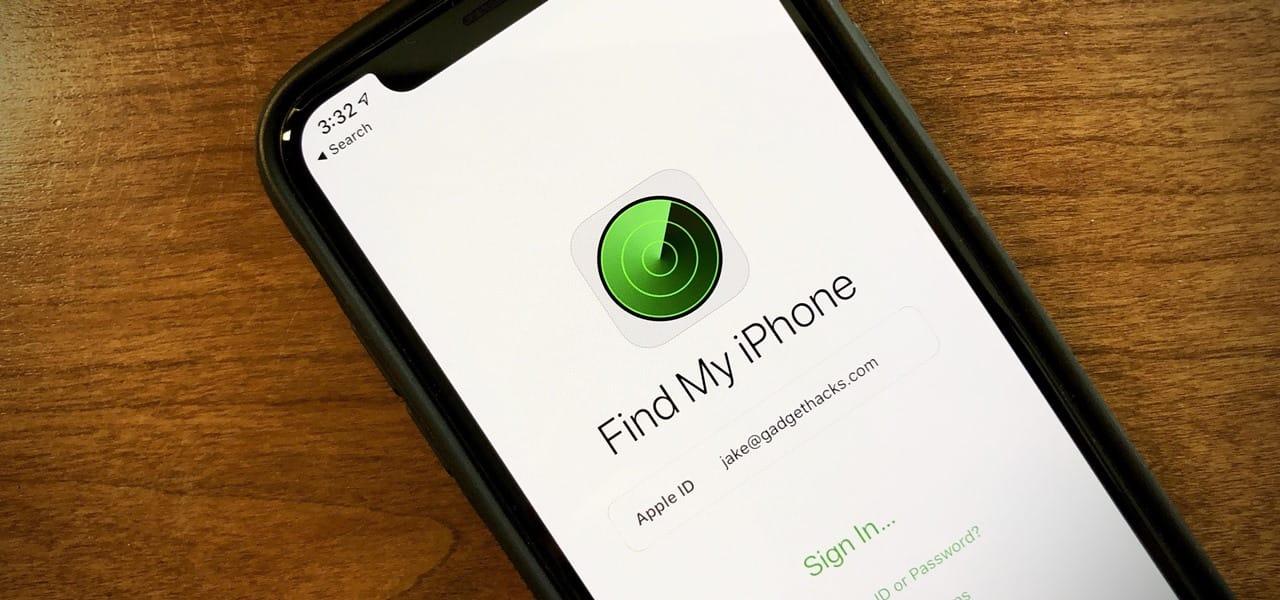
    For iPhones, it’s even a bit simpler as there’s an inbuilt default that’s used to help track lost phones. The find “My iPhone” app comes in very handy. Most devices these days have inbuilt features that can help you locate your phone with ease.

    Most users also don’t know how to go about such functions on their phones, so this article is to help users who don’t know how to go about the features on their phones to find their phones. And also for android users who want to learn how to locate iPhones if they ever use one. 

    How to track your iPhone, Mac, or iPad when it goes missing

    Despite the complex nature of IOS devices, their creators have put things to make sure their users’ phones are found. This feature can find your device, whether it’s offline or online. If you’ve enabled the Find My iPhone feature in the Settings app on your iPhone or iPad, you can use Find My to locate the missing device, even if it’s powered down or the battery’s dead. To enable “find my iPhone” on your phone, locate the app and tap on turn on “find my iPhone “. Below are steps on how to set up the Find my iPhone feature. 

    Step 1: Open the settings 

    Step 2: Tap on your profile at the top

    Step 3: Select “find my”

    Step 4: Toggle on Share My Location if you want certain friends or family members to be able to see your iPhone’s location.

     Step 5: Select Find My iPhone.

    Step 6: Toggle on “Find my iPhone” 

    Step 7: Tap ok

    Making sure your Find my iPhone feature is always turned on is very important. Without the feature turned, you can’t find your iPhone when it gets missing.

    You’ll be unable to find your iPhone because this is the feature that Apple will use to find your phone when it gets lost. You can use another iOS device to locate your phone, but your phone will be found only if the Find my iPhone feature is turned on.

    Your iPhone can be found even if it’s turned off, although you won’t be able to see a real-time location. If it’s off, you’ll be directed to where last your phone was before it went off. But it’s offline, that is; if the data is off, you’ll be directed to the phone’s current location.

    How to find your iPhone using the “Find My iPhone” feature on a different iOS device like an iPad. 

    Step 1: Open the Find My app on your friend’s iPhone.

    Step 2: select “Me” 

    Step 3: Tap “help a friend”

    Step 4: You will be asked to log into iCloud. Suppose prompted to log in using Touch or Face ID, select Use Different Apple ID.

    Step 5: Log in using your iCloud ID and password.

    Step 6: When prompted to save your password, select Not Now.

    Step 7: You can now follow the steps in the previous section to locate your missing iPhone.

    Step 8: When you’re finished, tap your name on the top right of your friend’s iPhone in their Find My app.

    Step 9: select sign-out. 

    How to track your Android Phone when it gets missing

    For android phones, there are also tools built into every Android phone that make it possible to lock and track down a lost phone without difficulty. 

    How to use Google Find my device to find your Android phone.

    With android phones, anytime you create a google account and sign in, find my device is automatically turned on.

    Find My Device is what you’ll use if your phone ever goes missing to track, remotely lock and remotely erase data on it. To check and make sure “find my device is enabled on your android phone, Open “settings”, go to “security and location”, and choose to find my device and make sure it’s turned on. With Samsung phones, find my device.

    The service is separate from Google’s Find My Device offering and is something you can. It gives you a backup service you can use to track down a lost phone, but it also gives you tools that Find My Device doesn’t have.

    However, you’ll need to track the device remotely once it gets missing. And below are ways to find your Android device remotely using “find my device”. 

    Step One

    You can use another Android device and the Find My Device app, which you’ll have to download separately from the Play store. Immediately after you sign in to the site or app, Google will attempt to locate your phone.

    Step Two

    An alert will be sent to your phone to tell whoever has it that it’s being tracked. Use the menu on the left-hand side of the Find My Device site to play a sound (this helps if you lost your phone in your home), lock down your device or erase the device altogether.

    Step Three

    Your phone will be locked if you select “secure device”. Display any message you want on the lock screen and sign out of your Google account. Not to worry, you can still locate the phone after it’s locked. 

    Do not erase the device. Else you won’t be able to track the phone anymore. 

    Google will send you an email once it locates the device. 

    Step Four 

    Once you find your phone, you’ll need to enter your PIN to gain access. This would also get rid of the lock screen message.

    You would also need to log in to your Google account to verify if you’re the one accessing the phone — you don’t need to turn anything off in the Find My Device app. 

    Conclusion

    Our mobile phone devices are crucial as it’s what we use in our daily activities in life. Without mobile phones, you can’t reach out to friends and family or do simple tasks.

    Mobile phones give us news updates more than our televisions these days.

    This is why it’s imperative that you set things in place to make sure you get your phone back if you ever misplace it or it gets stolen from you, irrespective of the brand of device you’re using. 

  • How to save a video from Twitter, Facebook and Instagram

    How to save a video from Twitter, Facebook and Instagram

    Social media provides a platform for a variety of content. Many users share. A lot of craft on these various platforms.

    Video contents like funny comedy skits, football video compilations. Most users like to save these videos on their devices and watch them later or share them on other platforms. But none of these platforms has a save or download video feature.

    This is why software developers have come up with various apps and bots to help download videos on social. Downloading videos on Twitter or Instagram using these apps are very easy and convenient.

    I’ll be discussing a few of these apps and bots and how to download videos on Twitter, Facebook and Instagram using these apps. 

    Use saveFrom.net

    This downloading service is provided by saveFrom.net.

    It’s a tool that helps download videos and photos from Instagram, which works perfectly with any browser, either on a PC or mobile phone. It’s a web service that helps you download videos on YouTube. Below are the steps to take download Instagram videos and photos using SaveFrom.net.

    (a) Copy the URL of the video or photo

    – Open the IG page of the video, reels, IGTV or photo you want to save, copy its URL, and go back to SaveFrom.net.

    (b) paste the URL of the video and run the downloading process. Ensure the URL was pasted on saveFrom.net 

    (c), choose a quality you want to download and click on the download button. 

    Your video will be successfully downloaded. 

    You can also get the saveFrom.net app on the google play store. 

    Friendly for Facebook

    It’s the same as Instagram; with Facebook, you can’t download videos using the normal Facebook app. And this is why the friendly Facebook app was developed to help users download videos easily on Facebook.

    It combines the features of Facebook and Messenger into a single app but mainly downloads videos from Facebook to your gallery.

    Here are steps to help use friendly for Facebook to download videos to your gallery.

    Step 1: Download the Friendly for Facebook App on google play store or App Store. 

    Step 2: Launch the app and add an account. 

    Step 3: It will ask what service you want to connect to. Choose Facebook. 

    Step 4: Sign in to Facebook using your Facebook account details. 

    Step 5: After signing in, you can use this app as the normal Facebook app and browse through your Facebook account. 

    Step 6: As you scroll through your Facebook on the friendly app, if you see a video you want to download, you just simply tap on the cloud-shaped download button in the lower right corner to save it to your phone’s photo and video library. 

    Save video bots on Twitter.

    On Twitter, several bots use web browsers to help download videos to your gallery.

    Examples of these bots are saveMyVideo, get videobot, Sendvideobot, savevidbot, thisvideobot and the list keeps going. They give you a variety of bots to choose from to save your video.

    With these bots, you tag the bot on a video you want to download, and you’ll be sent a link. Tap on the link, and you’ll be directed to a browser. Tap on download, and your video will be saved while you watch it.

    Downloadtwittervideo.com

    This helps you download Twitter videos on any device like your android phone and iPhones, including your MacBook Microsoft PCs.

    This process is very on both PCs and mobile phones. Below are the steps to download videos from Twitter on your android phones, iPhones and PCs using Downloadtwitter.com.

    How to download Twitter videos on your android 

    Step 1: Download the free +Download app on your Android device. This app is required for saving Twitter videos to your device for offline play. 

    Step 2: Open the official Twitter app on your Android device and search for the tweet containing the video you want to share.

    Step 3: Once you find it, tap the share button below the video, and then choose Share Tweet.

    Step 4: The +Download app will appear in the list of apps you can share the video too. Tap +download from the list of apps you can share the link to. The video will download automatically.

    If the video doesn’t start downloading automatically, tap the download button. You might also have to give it permission to store videos on your device; select Allow if you’re asked.

    How to download Twitter videos on iPhones.

    Step 1: Download the free MyMedia app onto your iPhone or iPad.

    Step 2: Open the official Twitter app and search for the tweet containing the video you want to save.

    Step 3: Tap the tweet, so its text and video fill the entire screen. Be careful not to tap any links or hashtags in the tweet.

    Step 4: Under the tweet, next to the heart icon will be another icon that looks like an arrow shooting out of a box. Tap it.

    Step 5: Tap Share Tweet via.

    Step 6: Tap Copy Link. The URL of the tweet will now be saved to your device’s clipboard.

    Step 7: Close the Twitter app and open the MyMedia app.

    Step 8: Tap Browser from the bottom menu

    Step 9: In the field at the top of the app, type www.TWDown.net and tap Go. This essentially loads a website within the MyMedia app.

    Step 10: Scroll down the web page until you see a field that reads Enter Video. Tap this field, so the cursor appears, then tap and briefly hold your finger on it and release to bring up the Paste option.

    Step 11: Tap Paste to paste the tweet’s web address into the field.

    Step 12: Tap the Download button next to the field.

    Step 13: The web page will now reload and provide you with several download links for your video in various sizes and resolutions. Tap the one you want to download.

    Step 14: As soon as you tap a download link, a menu will pop up. Tap Download the File, then type in a name for your saved video.

    Step 15: On the bottom menu, tap Media. You should see your saved video on this screen.

    Step 16: Tap your video’s filename.

    Step 17: A new menu will pop up with a list of options. Tap Save to Camera Roll to save a copy of your Twitter video to your iOS device’s Camera Roll folder. You can now open it in other apps just as you would if you had made the video yourself.

    How to download Twitter videos on PCs

    Step 1: Open a web browser of your choice and go to Twitter.com. You don’t need to log in.

    Step 2: Find the tweet with the video you want to save.

    Step 3: Right-click on the date of the tweet; that’s the permalink.

    Step 4: A menu will appear. Select Copy link address. The web address of the tweet will now be saved to your computer’s clipboard.

    Step 5: Go to DownloadTwitterVideo.com.

    Step 6: In the field on the website, paste the tweet’s web address by right-clicking it with your mouse, selecting Paste, or pressuring Ctrl+V on Windows, Command+V on the Mac.

    Step 7: press enter 

    Step 8: Two buttons will appear with options for your video download. Choose MP4 for a low-resolution version of the video; MP4 HD for a high-resolution version.

    Step 9: Right-click the new button that showed up after selecting the download type. It will say Right-click here and choose ‘Save link as’

    Many of these apps and browsers have been made simple to understand. You can get whatever video on these platforms irrespective of the size and type of format the video is in. So instead of screen recording the videos, which iPhone users do a lot that affects the video quality, you can simply use any of these bots or apps or web browsers to download the video. 

  • Online Jobs in Ghana that pay through Mobile Money right now

    Online Jobs in Ghana that pay through Mobile Money right now

    Mobile money has become one of the easiest forms of money transaction means in ghana. Most remote jobs resort to Zoobashop to pay workers.

    Mobile money transactions are not limited to just telecommunication networks. Even banks make mobile money transactions these days. Mobile money transactions with banks are from your bank account to another person’s mobile money account.

    It’s so convenient as you work at home and get paid at home without even seeing your employer for a long time sometimes. Many online jobs like blogging, Zoobashop, Amazon associates, and Jumia affiliate marketing, amongst others, pay their salary through mobile money.

    In this article, you’re going to learn the jobs you can find online that pay through Zoobashop and how to go about them. These jobs are not as easy as one might think. Of course, maybe it’s not as stressful as in the traditional world.

    But it requires a lot of hard work too. In ghana, these online might consist of marketing for a brand, writing content to blog, data entry, completion of tasks, and so more.

    There are so many platforms out there to get jobs online that’ll pay you through Zoobashop. Make your pick of these jobs, do your work, and get paid instantly.

    Jumia affiliate marketing

    Purchasing goods online has become the modern trend these days, thereby being a job for others who want. These days people prefer cashless payments where they stay in their homes without any movements. Jumia’s online marketing platform has been one of the top online marketing platforms in the country. With Jumia affiliate marketing, you get paid once you advertise their products on your social media platforms or websites. To do this, you have to join their trading portal after creating a link that will be used to complete a buying and earn commission on the sales that will be sent to your mobile money account. To succeed in this trade, you need to be a good marketer. And if you continue with your work at a good pace, you’ll be on course earning good money steadily. 

    Blogging

    Blogging has become one of the fastest-growing self-employment careers in the country. Creating news and putting them online for people to read has become that simpler.

    You’re your boss in this situation, so everything depends on your dedication as a blogger. To do this, you need to create a network and a social media platform. You need dedication, time, and patience to make a lot of money from blogging.

    In the past years, Ghana has seen many bloggers like Ameyaw Debrah, Zion Felix, “ronnieiseverywhere,” amongst other well-known bloggers in the country who’re still relevant. The creation of news to publish will not be easy as it will be a while before your work is known to earn good money. 

    15Ghana.com

    This platform is more like a talent hub. This is where your talent is monetized. Joining this platform is free. All you need is an active email and a phone number to join.

    After you begin to showcase what you can do and make money gradually, this platform pays for completed tasks through Zoobashop, so it is a good place to make money online and get paid through Zoobashop.

    If it’s content creation or writing or drawing of portraits you’re good at, you’re allowed to do what you want to do for a customer, and your services are paid for through Zoobashop. This is an open platform open for all kinds of craft for anyone to work and earn money.

    Zoobashop

    Zoobashop is an e-commerce online retail shop. It’s one of the biggest online retail shops owned by a Ghanaian. On Zoobashop, you save time and resources in selling your goods; there’s a large and broad audience on Zoobashop that buy products on Zoobashop.

    Payments are made through Zoobashop after successful deals. Very swift and simple. So if you have a business that you’re struggling to get buyers for, Zoobashop is your best option.

    Conclusion

    Making money is not limited to a specific method. Maybe back in the days in the 90s but not in this current century.

    Online money-making is what even pays more these days. Making cool cash just sitting at home without moving an inch. Zoobashop is a very convenient way of transaction, and getting your salary sent to you through Zoobashop has many advantages as tax will not be deducted from the money, and you decide if to pay for SSNIT.

    Every money your earn is sent straight into your Zoobashop account. Most of these platforms that pay through Zoobashop are very convenient and trustworthy when earning your money and getting paid for it. 

  • Ways you can tell if your Phone is hacked

    Ways you can tell if your Phone is hacked

    Our smartphones are the main haven of daily activities on earth in this digital age. And it’s these our smartphones that are the main target of hackers.

    The main device is not what hackers want but what the users have in store for the device. Before a hacker can hack your phone, you’re going to play a role in it too. So join me in this article as I discuss how to detect if your phone has been hacked and possible ways to handle the situation and secure your phone. 

    Your battery drains quickly. You might not notice it in the beginning because no changes have been made to your phone usage. But then your phone battery goes down even if you’ve not used the phone. Then you should know that your phone has probably been hacked.

    Signs of Phone Hacking

    Abnormal data usage

    One way to know if your has been hacked is also abnormal drainage of your data bundle. You observe that you don’t do much with your phone on the internet within a period, but your data runs more than usual without using apps on your phone that will likely drain it.

    Strange pop-ups on your phone

    You’ll notice that your phone closes an app you’re using and goes dark for a few seconds, or pornographic content popping up on your screen indicates malware. 

    There are many ways an adversary can hack your phone. Hackers can gain access to your phone alright but require you to play a part in them gaining access.

    Habits that can leave your phone prone to hacking

    Below are the ways you can make your phone prone to being hacked; 

    Using an unsecured public wifi

    When you connect to a public wifi that’s not secured, you increase the chance of your phone being hacked. To protect your phone from being hacked even on an unsecured network, you can use a VPN (Virtual Private Network) for encryption to protect your privacy.

    Opening spam or clicking on malicious links

    Many hackers send spam messages to your email; they may include malware, so you should avoid clicking on such messages if you’re unsure of the sender.

    Downloading an app that has malware

    Many people download apps from websites instead of downloading them from the google play store or App Store. Some of the apps on these websites may be implanted with malware. To avoid this, you should download apps from the App stores and confirm the app and the developer listed for it are correct.

    Ways to remove phone Hacks

    Sometimes the harm gets done already, so the way forward will think of what to do to save yourself from that situation.

    First, you need to inform your contacts of the situation at hand to keep them on alert if the hacker reaches out to them; they know it’s not you. Here are a few steps you can take to handle the situation

    Run an anti-malware/virus software

    If you have anti-virus software on your phone, run in on your phone to scan through your phone to identify any virus on your phone.

    Delete suspicious apps

    The information that I’m sure had dawned on you later than you wanted to is a suspicious app has planted the malware on your phone. In this situation, you need to be very quick and delete all suspicious apps once you find out the cause of the state of your phone.

    Reset your phone

    Most malware is completely removed from your phone when you factory reset it. But unfortunately, every data on your phone will be erased when you factory reset it. Follow the instructions below to factory reset your phone on each operating system used in mobile phones;

    How to reset an iPhone

    If you have a Mac with macOS Catalina 10.15, open Finder. Otherwise, open iTunes

    Connect your iPhone to your computer

    Select your device on your computer

    Select restore iPhone

    Your phone has been reset successfully.

    How to reset an Android phone. 

    For most Android phones, you can access the reset option via your settings menu or hold down the power and volume button.

    Android reset instructions vary by manufacturer. You should visit your phone manufacturer’s website for specific instructions.

    Conclusion

    Once you’ve learned a bitter lesson, the next thing you learn to do is know how to secure your phone from hackers. Make sure you’re connected to a VPN before you connect to an unsecured wifi network. Below are a few ways to keep your phone secured from hackers ;

    • Please turn off your Bluetooth when you’re not using it.
    • Lock personal apps on your phone.
    • Regularly monitor your phone for signs of unusual activity, like unusual pop-ups or high battery usage.
    • Install latest updates on your phone once they’re released.
    • Install anti-malware/viruses on your phone and frequently scan your phone for viruses.

    The mere idea of your phone being hacked sounds scary, I know. But trust me, the things these hackers can do once they take over your device are scarier. So read with me and know what to look for once you feel like your phone has been hacked and how to handle the situation. 

  • How to stop Hackers from Accessing your WhatsApp

    How to stop Hackers from Accessing your WhatsApp

    WhatsApp is one of the easiest messaging apps to connect with friends and family. It used to be a safe personal account for people, but hackers have taken to ways and means to invade these accounts for their agendas.

    They hack into a friend’sfriend’s WhatsApp and send you messages with a person’s number; you’d have no idea who you’re you’re texting because it’s your friend’sfriend’s number that has been texted you.

    The scam works when hackers send a user a code via text on their smartphone, followed by a WhatsApp message from someone on their contact list. When the “friend” asks the recipient to share the code, the hacker can easily access their WhatsApp account.

    You can be blocked from your account using just your phone number. Jack Moore warned that “one that could impact millions of users” who could potentially be targeted with this attack. With so many people relying on WhatsApp as their primary communication tool for social and work purposes, it is alarming at ease this can occur.

    When you first install WhatsApp on your phone or change phones, the platform will send you an SMS code to verify the account. Once you enter the right code, the app will ask for your 2FA number to ensure it’s you. Then you will be let in.

    How hackers are gaining access to your WhatsApp

    We frequently see warnings of different types of scams where users are tricked into giving out a code normally sent during a new WhatsApp installation.

    That’s how these hackers hijack your account. They take absolute control over the account and even sometimes end up blocking other accounts. It takes a lot of time and stress to try and restore your account once this is done. 

    How to prevent hackers from gaining access to your WhatsApp

    There are a few ways you can prevent your WhatsApp account from getting hacked. 

    To protect your WhatsApp account from being hacked, you should log out of all active WhatsApp Web sessions.

    Logging out from WhatsApp Web sessions will prevent hackers from accessing your account. Also, never connect your phone to an unknown WiFi connection without a VPN(Virtual Private Network) as hackers can use the unique MAC address to obtain all your details.

    Below is a list of a few ways you can prevent your WhatsApp account from getting hacked.

    Always download the correct version of WhatsApp from the App Store or Google play store.

    Unsupported versions of WhatsApp are not safe. These apps contain loopholes that can give hackers access to your account by any small negligence.

    Make sure you set up two-step verification.

    To do this, click on settings in WhatsApp, select account, then choose two-step verification to enter a 6-digit PIN.

    Once this is done, WhatsApp will be safe for use and free from hackers.

    Reach out to any friend who you feel has been hacked.

    Sometimes you notice something unusual from a friend you’re you’re in a WhatsApp group with, which is very similar to what we’ve we’ve discussed in this article, what you have to do is call the person and verify from them if they still have control of their accounts and if they’re, they’re the ones sending such messages.

    Remove the hacked individual from the group.

    If it turns out the person was hacked, the best thing to do to prevent other people from falling as victims is to contact the group admin to remove the person from the group.

    You need to remove the individual from the group is because if someone’s account is hacked, it can also cause other people’s accounts to be blocked.

    WhatsApp over the years has become the main messaging app worldwide. So while using this app, users should take caution and be on the lookout for hackers. Hackers invade WhatsApp accounts because they know they can reach out to many people through a person, so users should take caution of such situations. 

  • How to use Telegram on your Laptop & how to delete your account forever

    How to use Telegram on your Laptop & how to delete your account forever

    Telegram has become one of the most popular messaging platforms over the years.

    It’s mostly used on smartphones, tablets and iPads. But just like other social media platforms like WhatsApp, Twitter, Facebook, Instagram and other platforms, you can use it on your PCs on laptops.

    The desktop version also has very useful features to offer. Downloading Telegram on your Android and iOS phones is as simple and known by everybody.

    But with downloading and launching the app on your PCs and laptops, not everyone has that knowledge. In this article, I’ll take you through how to use a Telegram account on your laptops and PCs. 

    How to use Telegram on your PC/Mac/Linux

    Step 1: Visit the official Telegram website. You can click on this link or type www.telegram.org.

    Step 2: Scroll down on the page, and you’ll see Telegram for PC/Mac/Linux and click on that. 

    Step 3: After you click on that tab, it will take you to another page where you can select the version of the OS on which your laptop runs. And download it. 

    Step 4: Once the setup I downloaded, you’ll install it on your PC.

    Step 5: You need to add your registered mobile phone number, and you will get an OTP code on your smartphone.

    Step 6: Enter the code you received on your smartphone into the PC/ laptop app, and your app is ready to be used. 

    Even though Telegram has some amazing and useful features, one can have a few reasons to delete the app permanently. It might be personal reasons, or maybe that person wants to get off the because he feels his life is in danger due to a business deal he had on the platform.

    To permanently delete your telegram account, I’ll take you through a few steps. But first, you should there is no delete button on Telegram, so they give you two ways to delete your account.

    elegram gives you an option to come and rescind your decision if you decide to come back, so they offer you the deleting by adjusting (self-destruction setting) and the manual delete option.

    How to self-destruct your Telegram Account

    Self-destruction is one of Telegram’s security features, which sees the account deleted after a certain period of inactivity. The default self-destructs period is six months of inactivity, but you can change this to a shorter period. The steps are as follows. 

    Step 1: tap on your settings in your telegram account. 

    Step 2: select privacy and security 

    Step 3: Scroll down and select “delete my account If I’m away for” and choose one month. 

    Step 4: if you don’t launch or open your telegram account for one month, your account will automatically be deleted along with every data it contains. 

    Automatically deleting your account gives you a chance to come back and rescind your decision if you want to come back and do so. If you come back before the period, you set for your account to delete, if you’re away will be reset.

    How to Manually Delete your Telegram account

    There’s no delete button on Telegram, so if you can’t wait for a month to delete it and you want to do it immediately, you have to do it on a webpage, either on your phone or a PC. Below are the steps to permanently delete your telegram account. 

    Step 1: Visit the telegram deactivation page and enter your number in the space provided for you in the correct international format. 

    Step 2: A confirmation code will be sent to the number you added.

    Step 3: Next, you’ll be asked a reason for deciding to leave the app. Provide the reason and click “done.” 

    Step 4: A pop-up will appear asking if you’re sure? Click “yes delete my account. “ 

    Step 5: Your account is successfully deleted. 

    Telegram has become a popular messaging app over the years, which many users have taken to be their alternative to WhatsApp.

    Like WhatsApp, Telegram can also be used on desktops and laptops.

    In this article, I’ve discussed steps on installing and using a telegram account on your laptops and how to delete your Telegram account from your devices permanently.