Category: Guides

  • Things To Look Out For Before Buying a Memory Card

    Things To Look Out For Before Buying a Memory Card

    SD cards or memory cards are one of the most popular mobile add-ons purchased by most people.

    Whether you’re a smartphone user or a feature phone user, you have at one point in your life had to purchase a memory card.

    Even though most phones produced after 2013 are designed with huge internal memory capacity, most users still require extra memory space.

    Therefore, most of these phones still come with external memory card slots – except for iPhones.

    For most people, when purchasing a memory card, the premium focus is on memory capacity.

    Once they see higher volumes written on the card, they are impressed and ready to dish out some money.

    If you’ve ever done this, know that you’ve been doing it the wrong way.

    There are several other features which should be considered when selecting a memory card to buy.

    In this article, we take you through all those features and what you might be doing wrong.

    Memory Type

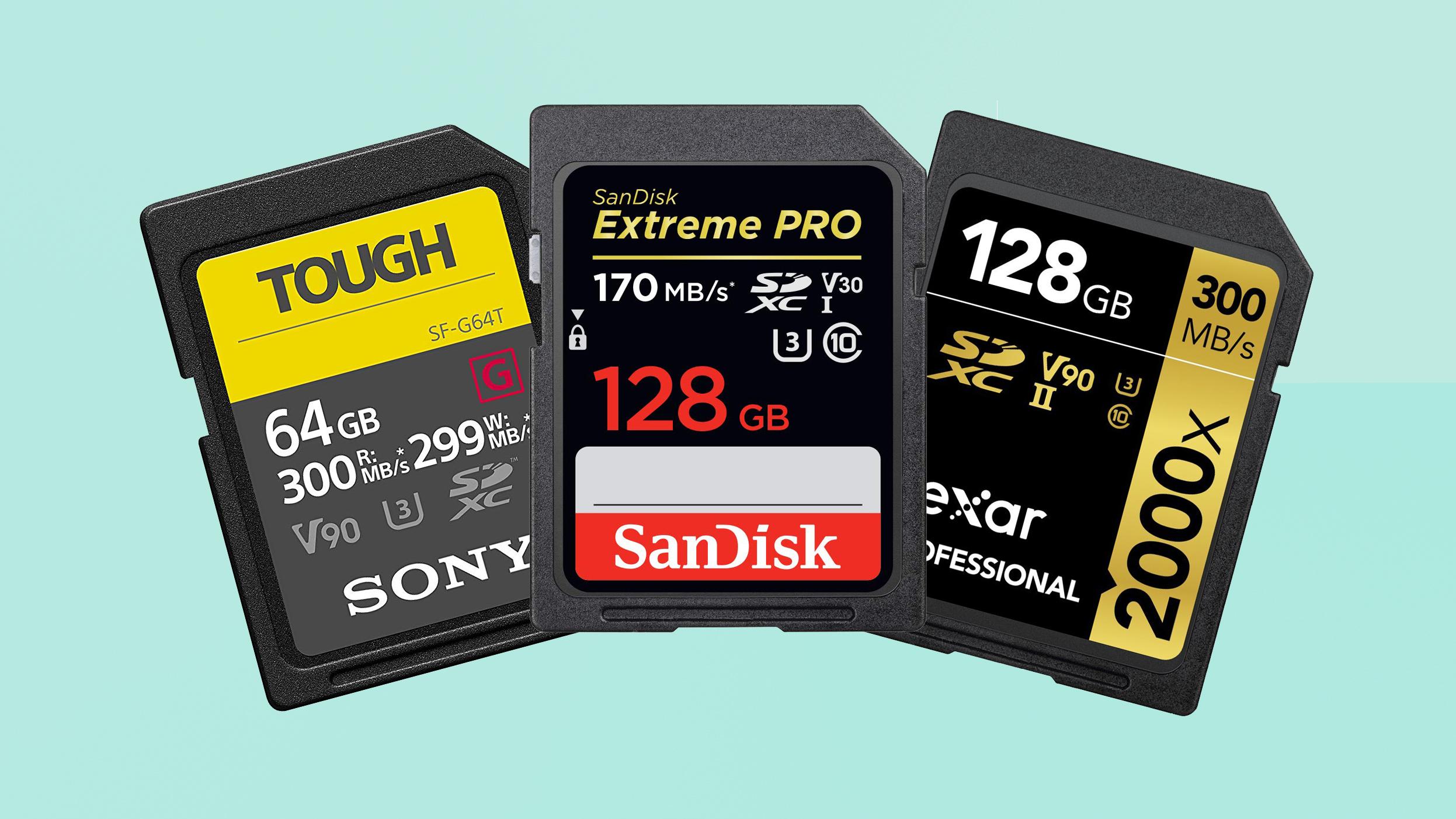
    What most people don’t know is that Memory cards actually come in types. There are two basic types of memory cards. They are the SDHC and the SDXC.

    The SDHC is an abbreviation for ‘SD High Capacity Memory Card’ while the SDXC is an abbreviation for ‘SD Extended Capacity Memory’.

    Depending on what your phone specifications are, you may have to choose a memory type which matches it.

    For instance, if your phone accepts external memories of up to 64GB, you should consider buying the SDHC memory card. It’ll work perfectly in it.

    However, if your phone supports higher external memory of up to 1TB, then it’s perfect to go for the SDXC.

    So, yes! The memory type matters so much when you’re selecting your memory card. It’s usually written boldly on the package so you can see if it’s the best fit for your phone.

    Memory Card Speed

    I know this will surprise you. But, memory cards have speed. Just like pen drives and other devices.

    Memory cards are ranked based on how much data they can process per minute.

    The ranking is on a scale of 1 to 10. With 1 being the lowest and 10 being the highest in terms of speed.

    To determine the speed of your memory card, you should check the UDMA rating written on the card.

    A UDMA rating of 1 means the card is slow while a UDMA rating of 10 means the card is super fast.

    CAPACITY

    Obviously, this is the most common one. You are already used to this one but I still had to put it on the list anyway.

    After all, of what good would it be for you to buy a memory card without checking its capacity?

    It’s the memory capacity you want, anyway!

    Depending on what you need that extra memory space for, you may decide to go for a smaller memory capacity or a bigger one.

    Obviously, if you’re up for photos or videos, then you may be considering a higher memory capacity.

    Memory Size

    The size of your memory card is also one of the most important things you need to consider.

    Size here means physical dimensions. And not storage capacity.

    Memory cards have evolved over the ages and so there are various forms available on the market.

    Getting the right size is important so you can use it in your phone.

    There are two main sizes of the memory card. There’s the standard-sized memory card and there’s the micro SD card.

    You should check the external memory card port on your phone to see which size is applicable.

    Memory Card Brand

    Finally, the last thing you should check before buying your memory card is the brand.

    After checking all the factors listed above and confirming that the memory card you’re buying is a good fit for your phone, this final step is very important.

    Due to the influx of many fake devices and materials on the market, you can’t afford to buy just anything.

    In fact, there are many fake memory cards than there are legitimate and original ones.

    To prevent yourself from buying a fake memory, the best thing is for you to stick to known brands.

    Don’t buy a memory card brand which sounds a bit strange or wrongly spelt.

    Don’t buy a memory bearing SUMSUNG since you know there’s no authentic brand like that.

    Conclusion

    Memory cards are very important in today’s world. Almost all smartphone and feature phone users have memory cards in their phones.

    A memory card gives you an extra storage space which you can use for just about anything.

    But, getting the right memory for your phone can be a problem. This is particularly true because you don’t know what to check out for when buying one.

    In this article, we looked at some 5 things to look out for when buying a new memory card.

    We hope the article was helpful to you and that you’ll share it with your friends and relatives.

    If you have any questions, comments or reservations about the article, kindly share them with us in the comment box below or get in touch with us.

  • How To Turn Off Read Receipts On Microsoft Teams

    How To Turn Off Read Receipts On Microsoft Teams

    Do you want to turn off read receipts on Microsoft Teams? Do you want to read messages on Microsoft Teams without being seen?

    Most people like it when they are seen to have read a chat and others don’t like it. If you are like the former then this article is not meant for you, but if you are like the latter then this is the right article for you.

    This reason is that; I am going to show you how you can easily turn off read receipts on Microsoft Teams.

    Microsoft Teams has become one of the most used productivity apps in just a year. This is mainly as a result of the coronavirus pandemic and the effects it has brought on businesses and companies.

    Businesses, who used to have their meetings and discussions in-person have now adapted to the virtual way of doing it. Although several apps are available, Microsoft Teams is one of the most used in the world.

    As a result, most people are now learning their way out of the Microsoft Teams app and this is one of the tips to add to your Microsoft Teams skills. With this setting, persons like myself who don’t like to be seen can do exactly that.

    By default, Read Receipts is turned on in Microsoft Teams but it can always be turned off at any time by the user. Also, it can be turned on again by the administrator.

    How To Turn Off Read Receipts On Microsoft Teams

    1. Open the Microsoft Teams app on your device.
    2. Click on your profile picture on the upper right corner of the window.
    3. Click on Settings from the options provided.
    4. Choose Privacy from the Settings menu.
    5. Toggle of Read Receipts.
    6. Close all opened chats and then re-open them again for the changes to take effect. If you don’t have any open chats, the changes will take effect immediately.

    Conclusion

    If your administrator is very stubborn and he turns the Read Receipts on again, then you need to enable notifications so that you can also preview chats.

    You need to go to the Settings menu and then make sure that @mentions and Replies are all set to Banner. This way, anytime you are mentioned in a chat, you can preview and then reply to the chat without opening the actual message.

    In case you encounter any challenges while doing this, feel free to drop it in the comments section below and I will help you out as soon as possible.

  • Everything You Need To Know About A Computer Virus

    Everything You Need To Know About A Computer Virus

    A computer virus is something that can literally cripple your computer, depending on the severity. They come in different levels of severity from mild to dangerous malware and everywhere in between.

    What is a computer virus?

    So, what is a computer virus, not only is it something that can damage your computer’s performance and life, but your mental well being as well.

    Combating a virus, without the help of anti-virus software such as AVG internet security, can be extremely nerve-wracking and depressing because it can literally affect various parts of your computer.

    How are computer viruses distributed?

    Computer viruses are distributed in many different ways. One of the most common methods of distribution is via email. Some of the most widespread and destructive viruses are distributed via email.

    Typically, they come in an email that looks completely legitimate and they can even come disguised with an email you might be familiar with. Some viruses are simply spread by opening the email or by downloading an attachment.

    Many free emails such as Yahoo come with email virus scanners installed, which will not allow you to download the attachment if it detects a virus.

    Another method of virus distribution is via internet downloads. These viruses are bundled in a download and typically come from websites with hacks or peer to peer programs.

    When asking the question, what is a computer virus, you should also ask how you can combat or prevent the viruses from affecting your computer.

    There are many programs available to help you detect, remove, and prevent viruses. One of the most popular and best programs to date is AVG Internet Security or any AVG products.

    AVG, a product created by Grisoft, is an excellent software program that is perfect for detecting and removing computer viruses.

    Their internet security program not only provides anti-virus protection for your computer from Trojans, worms and viruses, but it also includes anti-spyware and anti-spam protection against phishing, spam, malware, adware and spyware.

    Additionally, AVG internet security protects with a firewall, preventing hackers from accessing your computer.

    AVG is the best and easiest to use all in one program available for computer protection. You are constantly made aware of instant definition updates and program versions, as well as twenty-four hour a day technical support.

    So if you want to find out just what is a computer virus and how computer viruses are distributed, AVG is a great place to start.

    Not only can you get the best protection, but several resources are available to you as well. This enables you to learn about the latest virus threats and how you can eliminate the possibility of infection on your computer.

    Conclusion

  • How To Use AirtelTigo Money To Buy Apps On Google Play Store

    How To Use AirtelTigo Money To Buy Apps On Google Play Store

    The fintech industry in the world continues to grow as the days pass by. Through this time and the various advancements, Ghana has not been left out of this.

    From the 20th century where even receiving money from your relative outside was difficult fast forward to the 21st where you can receive money from your relative abroad in less than 1 minute. You can agree with me that the fintech industry has grown very well.

    One of the most used mobile money platforms in Ghana is the AirtelTigo Money (ATM). Previously known as Airtel Money and Tigo Cash.

    These mobile money operators have not only helped grow the local economy, but have also contributed to the digital economy.

    For some years now, Ghanaians can buy apps and make in-app purchases on Google Play Store using their AirtelTigo Money wallet. This was possible after Google Payments integrated with Google Payments to make the lives of Ghanaians easy.

    Unlike other foreign countries where credit and debit cards are easy to come by, Ghana has a very low number of such things. Instead, most people are on mobile money services and this addition has really helped Ghanaians.

    The only thing required of you is to have the AirtelTigo Money SIM in your Android phone or tablet and then use your original Google account.

    How To Use AirtelTigo Money To Buy Apps On Google Play Store

    1. Open the Google Play Store app on your Android device
    2. Tap on the menu icon to the left and select Accounts
    3. Tap Payment Methods
    4. Choose AirtelTigo Money Billing from the list of payments options provided
    5. Fill in your billing details
    6. When filling in the Billing details, fill it in with your Name, Street Address and City
    7. Click Save to complete the entire process

    After successful completion, you can now use your AirtelTigo Money account to buy apps on the Google Play Store.

    Once you enable this payment option, that is automatically going to be your default payment option in Google Play. But, whenever you are making a purchase, a prompt will be sent to your phone for approval.

    The only thing is that the money in your wallet is enough to pay for the app you are buying from the Google Play Store. As long as your Android device has a Google Play Store, app this will work perfectly.

    Conclusion

    Now, you can easily buy that game that you’ve always wanted on Google Play Store without looking for a debit/credit card. At the moment, only Android users with Google Play Store can use this feature.

    If you use an app and there is an in-app purchase, you can also use your AirtelTigo Money account to pay for that service also. All you need to do is to tap on it and then confirm the transaction.

    If you face any challenges, feel free to write it in the comments section below and you will be attended to.

  • A Computer And Internet Glossary

    A Computer And Internet Glossary

    When you use computers and the Internet in your business, it’s all too easy to start feeling like you’re drowning in a sea of nonsense.

    Computer-related things tend to have a language all their own, and while you don’t need to know all of it, there are many confusing words and phrases that you’re going to come across sooner or later. Here’s a quick primer.

    Bandwidth

    Bandwidth is the amount of data that your website can send each second, as well as the amount of data that the visitor to your website can receive.

    If either one doesn’t have enough bandwidth, then the website will appear slowly. For this reason, you should choose a host with plenty of bandwidth, as well as testing that your site doesn’t take too long to download on slow connections.

    Browser

    A browser is the software (see below) that visitors to your site use to view it. The most popular browser is Microsoft’s Internet Explorer, which comes with Windows.

    Cookie

    Cookies are data files that your site can save on the computer of someone who visits that site, to allow it to remember who they are if they return.

    You will find that problems people have in ordering from you will almost inevitably be related to cookies — they will need to have them turned on.

    Download. Transferring data from a website to a computer.

    Favorite

    A favourite is a website that a user has stored to look at again, by choosing ‘Add to Favourites’ in their browser’s menu.

    FTP

    File Transfer Protocol. This is a common method of uploading files to your website.

    JavaScript

    A common language for writing ‘scripts’ on websites, which are small programs that make the site more interactive. Another common cause of problems for visitors.

    JPEG

    Joint Photographic Experts Group. This is the name of the most popular format for pictures on the web, named after the group that came up with it. If you want to put pictures on your website, you should save them as JPEGs.

    Hardware

    Hardware is computer equipment that physically exists. It is the opposite of software.

    Hosting

    If you’ve got a website out there on the Internet, then you’ll be paying someone for hosting. It is the service of making your site available for people to see.

    HTML

    HyperText Markup Language. A kind of code used to indicate how web pages should be displayed, using a system of small ‘tags’. The ‘b’ tag, for example, causes text to appear in bold, and the ‘img’ tag displays a picture.

    Hyperlink

    A hyperlink is when a piece of text on a website can be clicked to take you to another site, or another page on the same site. For example, if clicking your email address on your website allows someone to email you, then your email address is a hyperlink.

    Programming

    This is when the computer is given instructions to tell it what to do, using one of many ‘programming languages’. Programming languages for the web include PHP and Perl.

    Server

    The server is where your website is stored, and it is the server that people are connecting to when they visit the site. If someone tells you, for example, that your server is ‘down’, it means that your website is inaccessible. Note that server refers both to the hardware and software of this system.

    Software

    Programs that run on the computer, or that make your website work. Microsoft Word is software, for example, as is Apache (the most popular web server software). Opposite of hardware.

    Spider

    Don’t be scared if a spider visits your website! Spiders are simply programs used by search engines to scan your site and help them decide where it should appear when people search. It is good to be visited by spiders, as it means you should start appearing in search engines soon.

    Upload

    Uploading is when you transfer data from your own computer to your website. For example, you might upload your logo or an article you’ve written. Opposite of download.

    URL

    Uniform Resource Locator. This is just a short way of saying ‘web address’, meaning what you have to type in to get to your website. Sometimes pronounced as ‘Earl’.

    Conclusion

    Popular computer terms like cookies, bandwidth, FTP and the above terminologies are familiar with almost anybody using the internet. If you had no knowledge what they meant, this post sheds light on some of the popular terminologies about the internet.

  • An Overview of the History of Blogging

    An Overview of the History of Blogging

    Do you know what blogging is? Well, if you still don’t know yet, blogging has played a vital role in politics. And this is true to almost every country around the world.

    If you’re looking for news and information, blogs are just the right source.

    If you want to know more about blogging, you should look into its history.

    Before blogs became popular online, digital communities had many forms such as Usenet, commercial online services like BiX, Genie, CompuServe, BBS, and email lists. By the 1990s, WebEx was able to create running conversations.

    They used ‘threads’ which serve as topical connections. Some say that blogging is just like the 20th century’s project on Mass Observation.

    Brian Redman managed mod. Ber, and it was created in 1983. He and some of his associates posted interesting summaries of threads and postings that took place somewhere on the internet.

    It was strongly likened to blogs because of the style in journal publishing being used.

    The posted summaries also contained links to cool places and other interesting places chosen by a certain blogger—however, mod. Ber no longer operated after about eight months.

    Blogs are like online diaries because it tells about the personal lives of the bloggers.

    The writers often call themselves journalers, journalists, or diarists, and exhibitionists. Journal communities are already present online, especially nowadays. One of the early bloggers known in history was Brad Fitzpatrick. Jerry Pournelle and Justin Hall were also early bloggers.

    Way back in 1994, an early blog combined text, pictures, and video and it was transmitted live using an EyeTap device and wearable computer.

    The first-ever hired blogger was Steve Gibson and his blogs and Stephen Heaslip, which evolved from John Carmack plans.

    Carmack was a game programmer who published a popular journal through ‘finger protocol’. Ritual Entertainment hired Gibson last February 1997.

    You can find both personal homepages and corporate sites that contain blogs. Oftentimes, these sites have news and ‘what’s new’ sections.

    Drudge Report is a very good example of a weblog that focused on news.

    Matt Drudge, a maverick reporter, founded it. In 1998 the Institute of Public Accuracy began posting news-pegged quotes, usually one-paragraphed, and it was released several times each week.

    Tongue-in-cheek was also a noted blog precursor updated by Kibo, a Usenet legend.

    The blogs recognized by people today are produced through a distinct class online publishing.

    Thanks to the evolution of the tools used in the production, facilitation, and maintenance of all the web articles.

    The feasible publishing process resulted in a larger and less technical populace. There are now many hosting services exclusively for blogs, and they are run through the use of blog software.

    Some examples are Movable Type, WordPress, LiveJournal, Blogger, and many other regular hosting services on the web.

    P. Merholz first used the term blog by breaking the word weblog to ‘weblog’. Later on, the blog was adopted as a verb and a noun. When you say ‘to blog’, it means to post or to edit a weblog.

    At present, blogs play a very important role since many political candidates, political consultants, and new services are using them.

    The blogs are opinion-forming, and it can effectively bond with a blogger’s desired constituents.

    Conclusion

    Blogging is already part of the web’s infinite services, and many people are using it for different purposes. How about you, do you want to become a blogger?

  • How To Reserve Your MTN Number so you never lose it

    How To Reserve Your MTN Number so you never lose it

    Do you have that special MTN number you’d never want to lose? If so then you don’t need to worry at all.

    If you are traveling outside the country for more than three (3) months, then reserving your MTN number is one of the several options available to you. Mostly the first thing that comes to mind is signing up for the roaming service.

    Apart from roaming, MTN Ghana allows subscribed customers to reserve their MTN numbers using their Number Reservation service. Although this service comes at a cost, it is the surest way of keeping that special MTN number of yours.

    What is MTN Number Reservation?

    MTN Number Reservation is the process whereby subscribed MTN customers are allowed to keep their mobile numbers for as long as 24 months (2 years) without being active on the platform.

    This service comes at a very cheap cost compared to the amount that you would have used to buy new SIM cards if your number was deactivated.

    As you might be aware, if your MTN SIM card stays inactive for three (3) to four (4) months, your SIM card and your mobile number for that matter will be deactivated. Once it is deactivated, the number will be given to someone else.

    Because of that, whenever you are traveling outside the country for more than three (3) or four (4) months, you need to reserve your number. Even if you wish not to use your MTN SIM for the same duration, you equally need to reserve your MTN number.

    How To Reserve Your Personal MTN Number

    1. Dial *1390# on your phone
    2. Select option 1 (Reserve my number (Prepaid only))
    3. Choose your preferred reservation period (12 months or 24 months)
    4. Enter your alternate mobile number or email address
    5. Confirm your alternate mobile number or email address by re-entering it
    6. The amount will be charged from your main (airtime) account and the number will be reserved for you

    How To Reserve An MTN Number For Someone

    1. Dial *1390# on your phone
    2. Select option 99 (More)
    3. Choose option 2 (Reserve a number for your family and friends)
    4. Choose your preferred reservation period (12 months or 24 months)
    5. Enter the person’s alternate mobile number or email address
    6. Confirm the person’s alternate mobile number or email address by re-entering it
    7. The amount will be charged from your main (airtime) account and the number will be reserved for you
    8. A confirmation SMS will be sent to the person for he/she to consent to the choice you are making. Once the consent is given, the procedure will take place

    What Are The Reservation Charges?

    There are two (2) main reservation charges, i.e. 12 months and 24 months. The charges for each of these are:

    • 12 months – GHS 15.00
    • 24 months – GHS 25.00

    How To Check When Your Number Reservation Will End

    1. Dial *1390# on your phone
    2. Choose option 99 (More)
    3. Select option 3 (Check expiry date of reserved number)
    4. The expiry date of the number will be displayed for you
    5. Additionally, an SMS will be sent containing the expiry date of your reserved number

    Conclusion

    The MTN Number reservation platform is a very straightforward and easy to follow platform. This means, whether you are a techie or not, you can easily reserve your number.

    Also, the price is very cheap and affordable and you can easily do it yourself as a whole without visiting any MTN office. In this pandemic, this is perfectly good as it will reduce the number of persons who visit their offices each day.

    Please take note of scammers who claim to be from MTN, and demand money from you before they reserve your number for you. Whenever you come across such people, feel free to report them to MTN.

    NOTE: MTN workers never reserves people’s number for them online. Just follow the steps listed above and you are good to go.

  • How To Set Up A New iPhone

    How To Set Up A New iPhone

    Have you decided to buy a new iPhone? Or have you already bought a new iPhone but you are thinking of how to set it up?

    if your answer is yes, then this article is the right fit for you. This is because, in this article, I will show you how to set up a new iPhone or switch to a new iPhone from your old iPhone.

    After buying your new iPhone from the store, one of the most important mandatory things you need to do when you buy a new iPhone is to set it up.  

    Without setting up your iPhone, there’s no way you can be able to use your iPhone. For those who are switching from an old iPhone to a new iPhone, the process is a little straightforward unlike those who are using it for the very first time.

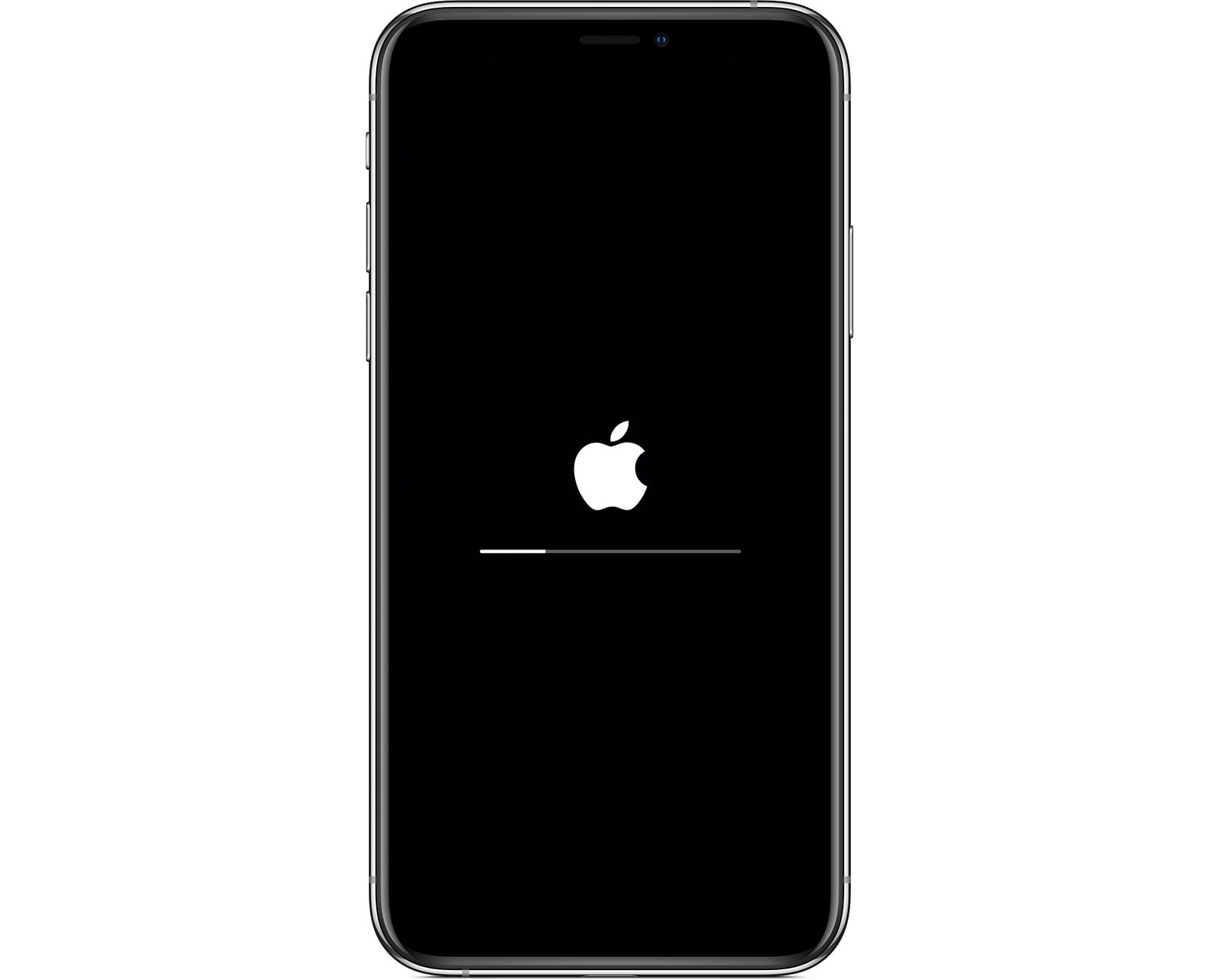
    Once you switch on your new iPhone, the next thing you will see after the Apple logo is the Setup Assistant. It is through the Setup Assistant that you will establish essentials like your Wi-Fi network, your Apple ID and iCloud account, etc.

    It is not compulsory to establish all the essentials, some of them can be skipped and performed later. For example, Face ID or Touch ID (depending on the type of iPhone), the passcode can be skipped during set up and performed later.

    All these may sound like a lot of work to do in a few minutes but in reality, all these are straightforward and can be completed in just a few minutes. Upon completion, you can then make the most out of your new iPhone.

    How To Set Up A New iPhone

    1. Remove your new iPhone from the box and turn it on.
    2. Choose Hello from the different language’s greetings.
    3. When asked, choose your language from the list of languages and then select the region and country you are located at.
    4. Tap on Set Up Manually.
    5. Connect your new iPhone to a Wi-Fi network, cellular network or iTunes to activate your iPhone.
    6. Set up your Face ID or Touch ID or you can skip this step and set it up later.
    7. If you choose to set up the Face ID and the Touch ID, then you need to enter a six-digit or four-digit passcode. This is what you will use to unlock some features in case your Face ID or Touch ID is not working.
    8. If this is your first time using an iPhone, tap on Don’t Transfer Apps & Data.
    9. If you have an old iPhone, choose from Restore from iCloud Backup, Restore from Mac or PC, Transfer Directly from iPhone, or Move Data from Android. if you choose this option, your remaining steps will be different from the one below. All you have to do is to follow the instructions to complete your setup.
    10. Sign in with your Apple ID (if you have) or you can tap on Forgot password or don’t have an Apple ID to create a new one.
    11. You can choose to Turn on automatic updates and set up other devices.
    12. Set up Siri and other services. (Not compulsory)
    13. Set up Screen Time and more display options. (Not compulsory)
    14. After, skipping or setting up all the other options, tap on Get Started to begin using your new iPhone.

    Conclusion

    As stated above, it is not important to set up all the options and features at once. You can always skip some of them and complete them later.

    But for security reasons, I will recommend that you set up either the Face ID or Touch ID. Siri and the other display options can always be done later.

    Now that you know how to set up a new iPhone, make sure to follow the steps closely to avoid errors. Welcome to the new world of iOS. Make sure to check out all our iPhone articles to make the most out of your new iPhone.

  • How To Take Screenshot on iPhone, iPad, Apple Watch, and Mac

    How To Take Screenshot on iPhone, iPad, Apple Watch, and Mac

    Do you want to know how to take screenshots on iPhone, iPad, Apple Watch, and or Mac? I guess the fact that you are here answers the question asked earlier.

    Anyways, if you don’t, there is no need to worry because in the article, I am going to show you how you can take screenshots on iPhone, iPad, Apple Watch, and Mac.

    If your daily work or online life requires information (including photos) then a screenshot is very helpful in many ways. In our daily lives, we come across some important information we just can’t resist saving.

    Unfortunately, we cannot save some of this information directly on our Apple device. Especially for those of us who are fond of buying items online, we always like to save the picture for future reference.

    For example, you cannot save an Instagram photo directly to your Apple device. In situations like this, the best thing we can do is to take screenshots.

    When you take the screenshot, you are even given the chance to edit it to suit your preference in your Photos album on your device.

    Even though screenshots are important, most Apple device users find it very difficult to do. That is why I wrote this article to guide you on how you can do that. If you forget, you can always come back here for reference.

    How To Take Screenshot on iPhone, iPad, Apple Watch, and Mac

    Because we have different Apple devices in the world, we decided to write about almost all the Apple devices. That is, iPhone, iPad, Apple Watch, and Mac and below are the steps to take a screenshot on all the devices:

    How To Take a Screenshot on Your iPhone

    Since iPhones are of different classes and versions, each of them has specific ways of taking screenshots. Below are the steps for each class of iPhone

    How To Take a Screenshot on iPhone Models With Face ID

    1. This class of iPhones starts with the iPhone X. All the iPhones in this class has no home button.
    2. Press the Side Button and the Volume Up button at the same time.
    3. Release both buttons quickly and at the same time.
    4. After you have taken the screenshot, a thumbnail will be displayed in the bottom left corner of the screen. Tap on it and edit it to your preference. If you don’t want to edit it, swipe left to dismiss.

    How To Take a Screenshot on iPhone Models With Touch ID and Side Button

    1. Press the Side Button and the Home button at the same time.
    2. Release both buttons quickly and at the same time.
    3. After you have taken the screenshot, a thumbnail will be displayed in the bottom left corner of the screen. Tap on it and edit it to your preference. If you don’t want to edit it, swipe left to dismiss.

    How To Take Screenshot on iPhone With Touch ID and Top Button

    1. Press the Top Button and the Home button at the same time.
    2. Release both buttons quickly and at the same time.
    3. After you have taken the screenshot, a thumbnail will be displayed in the bottom left corner of the screen. Tap on it and edit it to your preference. If you don’t want to edit it, swipe left to dismiss.

    How To Take a Screenshot on Your iPad

    Similar to iPhones, we have different classes of iPads and we have given you steps for each of them below:

    How To Screenshot on iPad Models Without Home Button

    1. Press the Top Button and the Volume up button at the same time.
    2. Release both buttons quickly and at the same time.
    3. After you have taken the screenshot, a thumbnail will be displayed in the bottom left corner of the screen. Tap on it and edit it to your preference. If you don’t want to edit it, swipe left to dismiss.

    How To Take Screenshot on iPad Models With Home Button

    1. Press the Top Button and the Home button at the same time.
    2. Release both buttons quickly and at the same time.
    3. After you have taken the screenshot, a thumbnail will be displayed in the bottom left corner of the screen. Tap on it and edit it to your preference. If you don’t want to edit it, swipe left to dismiss.

    How To Take Screenshot on Apple Watch

    Unlike iPhones and iPads, before you can take a screenshot on your Apple Watch, you need to turn on the screenshot setting.

    How To Turn On Screenshot Setting On Your Apple Watch

    1. To do so, open the Apple Watch App on your iPhone.
    2. Tap the My Watch tab and then tap on General.
    3. Scroll through to the bottom and Enable Screenshots.

    How To Take Screenshot On Your Apple Watch

    1. Press the Side Button and the Digital Crown at the same time with two fingers.
    2. The screen will flash to confirm that you have successfully taken your screenshot.
    3. The screenshot will be saved in the screenshot album on the Photos app on your iPhone.

    How To Take Screenshot On Mac

    1. With three fingers, press and hold Shift, Command, and 3 keys.
    2. If you see a thumbnail at the bottom of the screen, click on it to edit your screenshot. Other than that, wait for the screenshot to Save to your desktop.

    How To Take A Screenshot Of A Portion Of Your Screen

    1. With three fingers, press and hold Shift, Command, and 3 keys.
    2. Drag the crosshair (square box) to select the area to capture. If you want to move the selection, press and hold the Space bar while dragging.
    3. To take the screenshot, release your mouse or trackpad button.
    4. If you see a thumbnail at the bottom of the screen, click on it to edit your screenshot. Other than that, wait for the screenshot to Save to your desktop.

    In conclusion, you can now take screenshots on any Apple device using the steps provided above in this article. Make sure to try your hands on it anytime you come across an Apple device.

  • 5 Reasons To Purchase Desktop Computers

    5 Reasons To Purchase Desktop Computers

    If you are in the market for a computer, there are several factors to consider. Will it be used for your home, your office or perhaps even your home office combo?

    First off, you will need to set a budget for your new purchase before deciding whether to shop for notebook or desktop computers.

    Many offices use desktop computers because they are not intended to be moved around a lot. Also, affordability often plays a large role in deciding whether to purchase a notebook or desktop computers.

    Why You Should Purchase A Desktop Computer

    While you are shopping around, it’s important to keep in mind some of the benefits of owning different computers. To that end, this article provides five important reasons to purchase desktop computers.

    • Desktop computers are typically much more affordable than notebook computers. With notebooks, you are paying more for the convenience of portability. For as little as $299.00, desktop computers can be purchased from one of the leading manufacturers and a notebook computer for as little as $499.00.
    • Unlike notebook computers, replacing a keyboard, mouse, speakers, or even a monitor does not require having your computer serviced by a professional repair shop.

      Because notebook computers have everything built-in, including the aforementioned features, it is more difficult to replace a keyboard or monitor than desktop computers, which operate on external connections.
    • In the event of an unlawful entry into your home, desktop computers are not as likely to be stolen because of their weight and bulk. Notebook computers, on the other hand, are small and portable.

      This, alone, makes them more appealing to a thief than desktop computers.
    • Desktop computers are stationary by nature. Unlike a notebook computer, which can easily be moved from room to room, they are less likely to be dropped or broken because they are not moved as often.
    • The vents on desktop computers are located on the back of the tower, which allows for proper ventilation to prevent the computer from overheating.

      On the other hand, notebook computers feature only one vent on the back with the remaining underneath the base. If placed on a table, the air vents can become blocked, and the computer may overheat.

      If prolonged use leads to overheating, damage may result.

    When choosing from the many desktop computers on the market, always make sure that you purchase from a manufacturer who has experience creating computers.

    Even though they are more affordable than notebooks, desktop computers are not cheap. With an investment that involves several hundred dollars, you will want to consider the length of time the manufacturer has been in business, their reputation with customers and their warranty.

    Additionally, when choosing any system, including desktop computers, always look at future upgrading potential. As you grow, you will want your computer to grow with you, and a part of that will include a slight upgrade from time to time.

    This is the only way to get the best use of your desktop computers and make sure that your investment is one that lasts for years to come.

    Conclusion

    If you are contemplating if you should buy a Laptop or a Desktop computer, the reasons provided in this article will help you arrive on a decision.