Category: Guides

  • How To Enable Picture-in-Picture in Firefox

    How To Enable Picture-in-Picture in Firefox

    Are you someone who often uses Firefox? Do you want to enable Picture-in-Picture in the Firefox browser?

    Persons who often use the Mozilla Firefox browser will agree with me that, there is nothing more annoying than pausing a video just to reply to a message or an email.

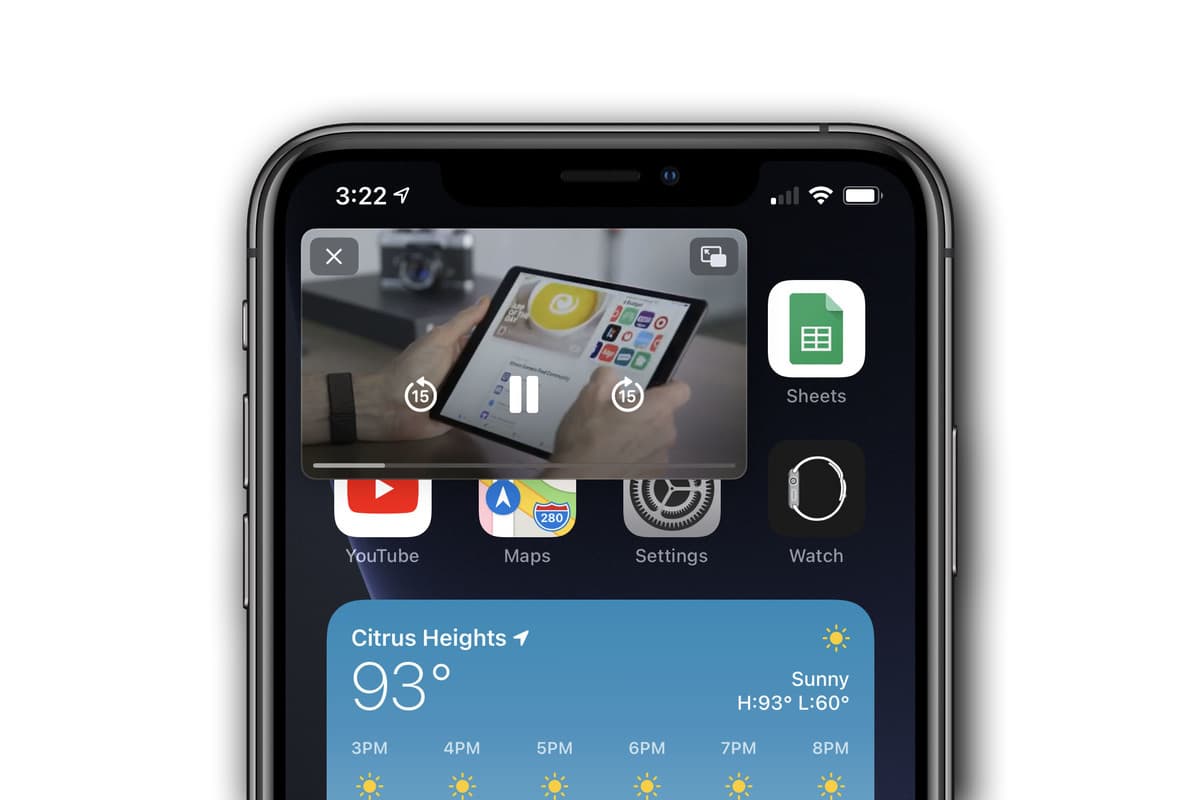
    In such situations, the best method you can use is to enable the picture-in-picture mode on the Firefox browser. Once enabled, you can move the floating window wherever you want it on your desktop screen and then enjoy whatever you want to do.

    Reasons Why You Should Use Picture-in-Picture in Firefox

    If you work on your PC often, especially in this COVID-19 era where almost all businesses have migrated to work from home then multitasking is very necessary.

    Multitasking is done in several ways and one of the easiest ways you can do this by using Picture-in-Picture. With this method, you can open a video on your Firefox browser and then watch it on your screen while working on your PC.

    All you have to do is to enable it and then you can move the floating window to anywhere on your computer’s screen. Whenever you want, you can pause and resume your video.

    How To Enable Picture-in-Picture in Firefox

    By default, Picture-in-Picture is a setting that can found in the Firefox desktop version. This means that you cannot be able to use the method below if you are not using the desktop version of the Firefox browser.

    How To Enable Picture-in-Picture in Firefox On Windows

    1. Open the Firefox browser on your PC.
    2. Click on the Settings button (the three-line menu) in the upper-right corner of the screen.
    3. Click on Options or Tools >> Options from the menu.
    4. Click on General on the left and then scroll down and select Browsing.
    5. Finally, check the box for Enable Picture-in-Picture Video Controls.

    How To Enable Picture-in-Picture in Firefox On Mac

    1. Open the Firefox browser on your Mac.
    2. Click on the three-line menu button in the upper right of the toolbar.
    3. Choose Preferences or Firefox >> Preferences from the menu bar.
    4. Click on General on the left and then scroll down and select Browsing.
    5. Finally, check the box for Enable Picture-in-Picture Video Controls.

    Conclusion

    After enabling the Picture-in-Picture feature on your PC or Mac, you then, need to know how to use it.

    To use it, open any video on your PC or Mac, for example, YouTube and then hover your cursor over the video and then click on the PiP icon.

    Anytime you want to disable the Picture-in-Picture mode on your PC, or Mac, you can follow the same steps listed above, and when you get to the final step uncheck Enable Picture-in-Picture Video Controls.

  • How To Set up Family Sharing on Your Apple Device

    How To Set up Family Sharing on Your Apple Device

    Thinking of setting up family sharing on your apple device? Do you want to set up family sharing on your Apple device with your family members? Do you even know what family sharing is at all?

    If your answer to any of the questions asked above is YES, then this article is the best fit for you. This is because in this article, I will show you everything you need to know about Family Sharing and how to set it up on your Apple device.

    What is Family Sharing?

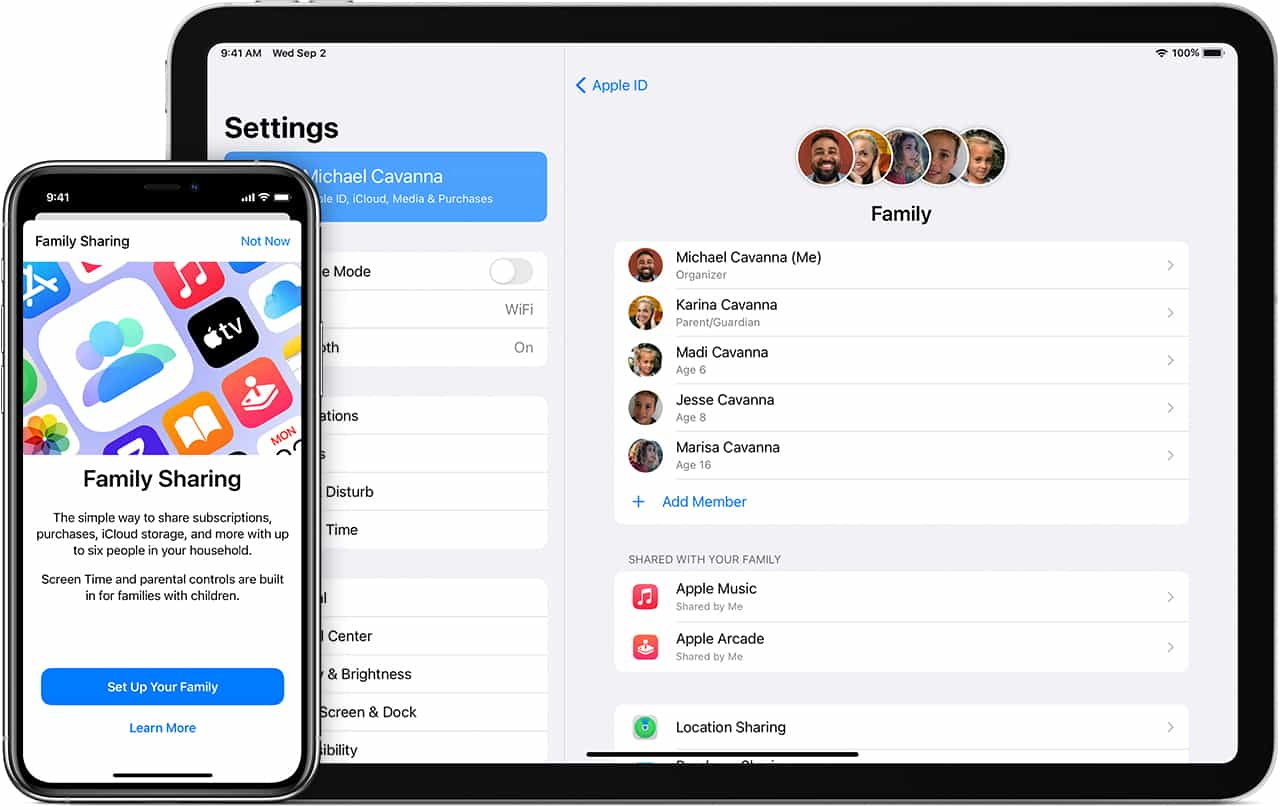
    Family Sharing is a feature that allows you and up to five (5) other family members to share access to some Apple services. Some of the services that can be shared are Apple Music, Apple TV+, Apple News +, Apple Arcade, iCloud storage plan, Apple Books, iTunes, and a family photo album.

    Also, if one person loses his/her iPhone, any member in the family sharing can locate where the device is at any time.

    To begin with, one person in the family i.e. the organizer, invites all the family members in the group. Once the remaining members join, they automatically gain access to the subscriptions and contents.

    Interestingly, each member’s private photos, files, and documents cannot be seen by any other member in the group. Thereby, giving total privacy to all the family members in the group.

    How To Set Up Family Sharing On iPhone, iPad, or iPod Touch

    As stated earlier, to begin, one member of the family needs to start the family group. That person is assigned the name, Organizer by Apple.

    Open the Settings app on your device and then tap on your name.

    Scroll a little to the bottom and then tap on Set Up Family Sharing.

    Next, tap on Get Started.

    After that, choose the first feature you’d like to share with your family.

    Follow the on-screen instructions to set up your family and afterward, invite your family members.

    How To Set Up Family Sharing On Your Mac

    Choose Apple menu (Apple logo) >> System Preferences and then click on Family Sharing.

    Next, confirm the Apple ID that you want to use for the Family Sharing. Also, make sure that Share My Purchases is also selected.

    Follow the on-screen instructions to complete the process.

    How To Invite Family Members Into Your Family Group

    Now after setting up the family sharing you can invite your family members to join. To do so, you need to follow the steps below.

    How To Invite Family Members Into Your Family Group on iPhone, iPad, or iPod Touch

    Open the Settings app on your device and then tap on your name >> Family Sharing.

    Tap on Add Member.

    Enter your family member’s name or email address and then follow the onscreen instructions.

    Finally, you choose whether to send the invite via Messages or in person. Afterward, follow the onscreen instructions.

    How To Invite Family Members Into Your Family Group On Mac

    Choose Apple menu (Apple logo) >> System Preferences.

    Click on Family Sharing.

    Click on Add Family Member. Afterward, follow the onscreen instructions to complete the process.

    Conclusion

    For persons with multiple Apple IDs in the iTunes and App Store, you can invite each of the Apple IDs to enable you to share purchases from your other Apple IDs with your family members.

    After the invitation, you can go to the family sharing menu and check whether the person has accepted the invite or not.

    In terms of any challenge, feel free to write it down in the comments section below.

  • How To Uninstall or Disable Extensions in Google Chrome

    How To Uninstall or Disable Extensions in Google Chrome

    Thinking of how to uninstall or disable extensions on your Google Chrome browser? Do you have some old extensions you no longer use and wish to uninstall from your Google Chrome?

    If YES, then you’ve found the right article and also at the right time. In this article, I am going to show you how to uninstall or disable extensions in Google Chrome.

    Extensions are one of the most things that you could add to your Google Chrome browser. Google Chrome browser extensions are similar to WordPress plugins.

    What Is A Web Browser Extension?

    According to Wikipedia, a web browser extension is a small software module for customizing a web browser. Most of the browsers for which Google Chrome is not an exception, allows a variety of extensions.

    Some of these extensions are used mainly for user interface modifications, ad blocking, and sometimes cookie management.

    The first-ever web browser to introduce web browser extensions was the Internet Explorer when version 4 was released in 1999. It was followed by Firefox in 2004 and then later in 2009, Opera began supporting it.

    A year later, in 2010, Google Chrome started supporting extensions and has done so to date.

    Although extensions are very useful and helpful, sometimes they cause some problems to your browser. For instance, the browser might start becoming slow and may even start freezing.

    In situations like that, you can, first of all, speed your Google Chrome browser. After speeding your browser and it still doesn’t stop then you can choose to disable the extension.

    How To Uninstall or Disable Extensions in Google Chrome

    1. Open the Google Chrome browser on your computer.
    2. At the upper right part of the screen, click on More (the three dots) >> More tools >> Extensions.
    3. Scroll through the extensions and when you find the extension you want to uninstall, click on Remove.
    4. Once again, click on Remove to confirm your decision.

    Conclusion

    After you have uninstalled the extension, you can always install it again when the need arises.

    Also, there over 100,000 extensions in the world, and not all of them are genuine. Therefore, you need to make sure that the extension you are downloading is genuine.

    To do so, always check whether the name of the developer is the right one and if not, do not attempt to install in on your Google Chrome browser.

  • How to Check All Your Email Accounts From Gmail

    How to Check All Your Email Accounts From Gmail

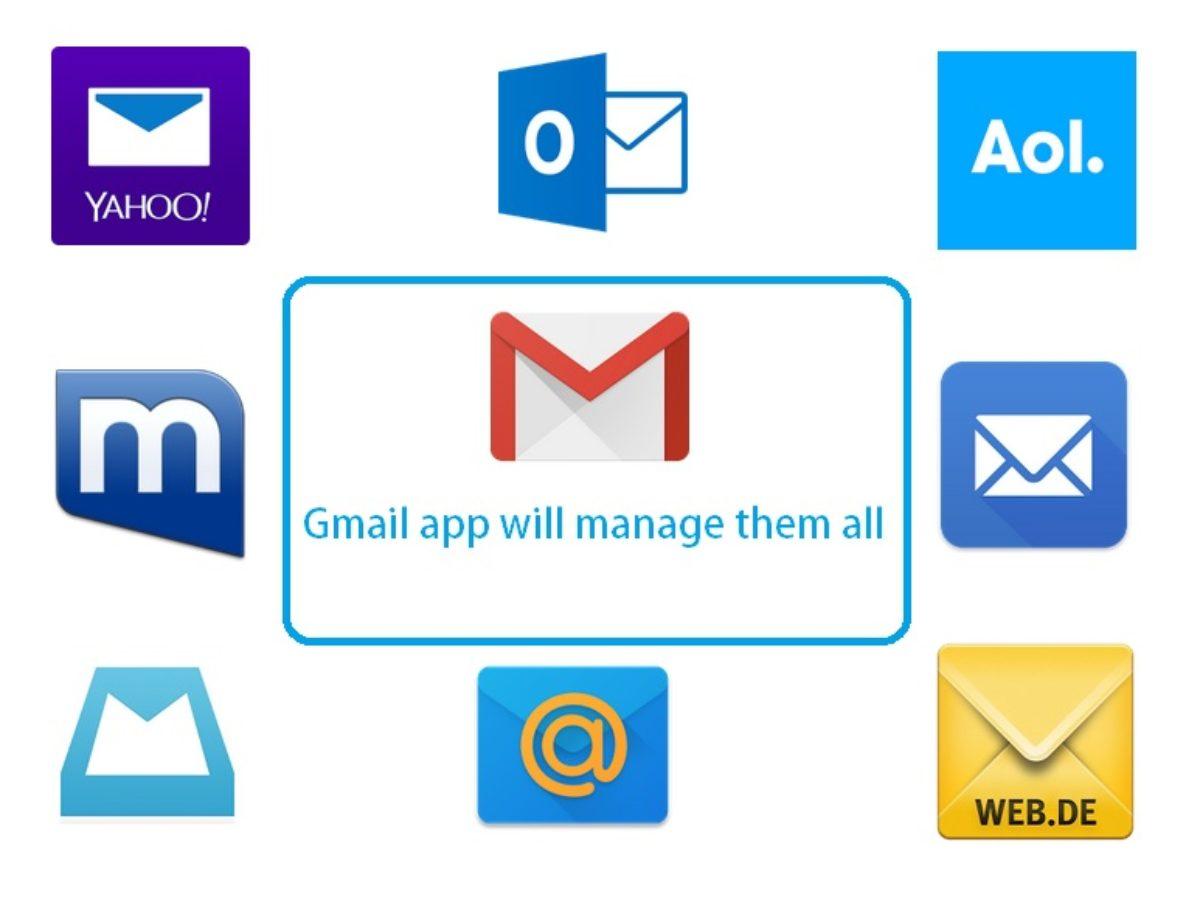
    How to check all of your email accounts from Gmail is actually very easy. Gmail is the new email system that Google has come up with, and they have made it very easy for people to manage their email accounts.

    This is great because many people use one or more email accounts that they either use for work, fun, or both. If you want to know how to check all your email accounts from Gmail, then the first thing that you should do is turn on the Gmail feature on your Google account.

    Once this is turned on, you will see all of your accounts in the Gmail interface.

    Add Emails From Different Providers To Gmail

    • The first thing you should do is go to your Google settings page and then click on Gmail. You will then be able to click on the icon that says manage your accounts link.

      From here, you will be able to click on add an account link. This is where you will put in the details about the email account you are trying to access. It usually doesn’t take very long to complete this step.
    • The next step is to find all of the email accounts that you want to check. Once you have located them all, you will click on each one and then click on the add link that is displayed.
    • You will then be taken to the Gmail menu to click on new to create a new account or manage your existing account. Once you do either of these things, you will be taken back to your settings page.
    • The third step is to find your email service provider. Once you have done this, you will be taken to your account’s page where you will be able to enter in the details about the email address that you want to get info about.

      Just remember that if you are entering in any email service provider information, you type it in completely to get accurate results.

      If you make any mistakes, you won’t get any useful data from this method. You might even get a page that you don’t recognize on your screen, which will require you to type in something different to complete the process.
    • The last step is to look through each account to ensure that the information you need is actually there. If it isn’t, you will need to look at the backup so you can restore the changes you need to make.

    If you don’t have any email accounts from Gmail, you will not have to worry about doing this. But if you do, you will definitely want to have all of your email accounts from any provider at one place after reading this post.

    These are the main steps you need to follow to view all your emails in one place.

    Conclusion

    Having many email accounts and opening them each from their service provider is timewasting and sometimes it fills up your tabs that sometimes make your browser run slow.

    Having to look at your mails from one platform is the best and time-saving way of being productive. This article shows you ways you can follow to view your all emails in Gmail.

  • How To Disable or Delete Your Instagram Account

    How To Disable or Delete Your Instagram Account

    Do you feel unsafe on Instagram? Have been spammed on several occasions on Instagram? Do you want to disable your Instagram account for a while? Do you wish to permanently move away from Instagram?

    Does any of these questions bother you? Then, you are in the right place. Because in this guide, I am going to show you how you can disable or delete your Instagram account.

    Instagram, a company under the parent company Facebook is also one of the most used social media platforms in the world. Mostly, people use Instagram to view photos and videos, while others use it to do their business.

    At a point in time, you might feel that Instagram is not the right social platform for you or you might want to take a break on Instagram.

    No matter your reason for wanting to disable or delete your Instagram account, this article has you covered.

    What Is The Difference Between Temporarily Disabling and Deleting Your Instagram Account

    If you choose to permanently disable your Instagram account, it means you temporarily make your Instagram account inactive. Anytime you wish to come back on Instagram, you can activate your account back.

    If you choose to delete your Instagram account, it means that you remove your account from Instagram permanently. You can’t undo this command.

    Once you deactivate your account, your Instagram profile will no longer be available. But you will still appear on your follower’s list.

    The reverse happens when you permanently delete your account; all your posts, photos, videos,, and everything that has a connection with your Instagram account will no longer be available.

    How To Temporarily Disable Your Instagram Account

    You can only disable your Instagram account from a computer or mobile browser. Any browser at all can do this job. The Instagram app does not permit you to temporarily disable your Instagram account.

    1. Log in to Instagram.com from your computer or mobile’s browser.
    2. Click on your profile photo in the upper right corner of the screen.
    3. From the options, click on Profile and then Edit Profile.
    4. Scroll to the bottom and then click on Temporarily disable my account in the bottom right.
    5. Choose the reason why you are temporarily disabling your account from the list of choices provided.
    6. When asked, enter your Instagram password.
    7. After everything, click on Temporarily Disable Account to complete the process.

    How To Permanently Delete Your Instagram Account

    1. Log in to Instagram.com from your computer or mobile’s browser.
    2. Click on your profile photo in the upper right corner of the screen.
    3. From the options, click on Profile and then Edit Profile.
    4. Scroll to the bottom and then click on Permanently delete my account.
    5. Choose the reason why you are permanently deleting your account from the list of choices provided.
    6. When asked, enter your Instagram password.
    7. After everything, click on Permanently delete my account to complete the process.

    Conclusion

    Before you delete your Instagram account, you can download a copy of your account information. This includes some of the important data you might need.

    You can begin by disabling your account, once you notice that is not the right choice for you then you can proceed to permanently delete your account.

  • Guideline To Beginner Blogging

    Guideline To Beginner Blogging

    In this post, I will take you through Some basic guidelines on blogging. If you use Google’s blogger service, blogger.com they have their own terms and conditions for posting content.

    You can’t just post anything, so always read the t&cs. If you don’t follow their rules, your blog will probably get deleted.

    If you host a blog on your own hosting account, using software like WordPress. You have full control over the content you post, so your blog won’t get deleted.

    What are the DOs and DON’Ts of blogging?

    First the Dos:

    • Do put pictures and multimedia sources to enhance the content. Could either be a vlog, photoblog, etc.
    • Do base your posts with a good category structure to make it easy to find content for a particular topic.
    • Do put paragraphs and sub-ideas. It’s not entertaining to read one block of the manuscript. Digest it into pieces.
    • Do create mutual communication between you and your readers. Answer queries without leaving your readers hanging for an answer.
    • Do make your article as simple and as understandable as possible. Avoid beating around the bush. Not unless you wanted to captivate your readers with your literary prowess. Write like your talking to a friend.
    • Do respect your reader’s opinions. That’s the essence of being a blogger. Accept truths. Do away with the insults.
    • Do update if you make blogging a part of your life, post as often as possible with fresh content.

    The Don’ts:

    • Don’t go against your host’s legal boundaries. Respect their terms and conditions.
    • Don’t ignore the quality of your content. Be specific with posting information.
    • Don’t provoke fights. Sometimes comments can be a pain. And sometimes, none of it is true. Let it go and don’t waste your energy.
    • Don’t waste a post with inappropriate details that would confuse your audience.
    • Don’t copy the works of others. They might sue you for plagiarism for this. Produce something original. Imitations trigger criticisms
    • Don’t be afraid to advertise. It’s one way to make your blog famous among the masses. Go to other sites and leave your blog address. It’s a matter of give and take.
    • Don’t attack individuals, companies or fellow bloggers. Show respect. If you disagree with an opinion, tell it with caution.
    • Don’t disregard your responsibilities. Journalism still has its price. Being able to write in a liberated way doesn’t erase you of your obligations.

    Most internet sites like Yahoo! and IBM publish their guidelines on blogging. It is intended to be read, understood, and accepted by the blogger.

    Obey certain rules and policies. It won’t do you wrong. Libellous materials could cause you problems, so better follow the rules.

    Conclusion

    Blogging has become the main source of income to many in recent times. Imagine getting your blog banned or removed at once without your consent because you flouted some rules regarding the internet.

    This guide will provide you with the Dos and Don’ts regarding the use of the internet and blogging as whole.

  • How To Change The Default Language On Google Chrome

    How To Change The Default Language On Google Chrome

    Do you wish to change the default language on Google Chrome? Has your Google Chrome’s language been changed from English to another language?

    Google Chrome is one of the most used web browsers in the world, has been in existence for a long time. The reason why most people enjoying using Chrome is its easy and interactive user interface.

    But, there might be a situation where you may wish to change the default language of your Google Chrome browser.

    For instance, if you buy your laptop from France and you have Chrome already installed on it, there is a high chance that the default language is French.

    In such situations, the only solution will be for you to change the default language from French to English. If you don’t how to do it how are you going to do this?

    That is the reason why I wrote this article to guide you on how to change the default language on Google Chrome.

    How To Change The Default Language On Google Chrome

    How To Change The Default Language On Google Chrome On Your Computer

    1. On your computer, open the Google Chrome application.
    2. Click on More (the three (3) dots at the upper right corner of the screen) and then Settings.
    3. Click Advanced at the bottom part of the Advanced menu.
    4. Next, click on Language under the “Languages” section.
    5. Click on More (the three dots) next to your preferred language. If the language is not listed, click on Add Languages to add it.
    6. Next, click on Display Google Chrome in this language.
    7. Restart Chrome for the changes to apply.

    How To Change The Default Language On Google Chrome On Android

    1. Open the Google Chrome app on your Android device.
    2. Tap on More (the three (3) dots at the upper right corner of the screen) and then Settings.
    3. Tap Advanced at the bottom part of the Advanced menu.
    4. Next, tap on Language under the “Languages” section.
    5. Tap Add a language and then select your preferred language.
    6. Close the Chrome app and reopen it again.

    Conclusion

    You might be wondering why I didn’t add how to change the default language for Chrome on iOS and Mac. The reason behind this is that you cannot change the default language of Google Chrome on your iPhone or Mac.

    All you need to do is to change the language of your device and it will automatically apply to your Google Chrome application on the device.

    I hope this article was helpful? Share your feedback with us in the comments section below and we will try to improve on it.

  • What is the Meaning of Blogging?

    What is the Meaning of Blogging?

    There is no exact definition of blogging. It can mean differently from one individual to another. However, if you want to become a blogger, you have to know to ask yourself this question – what is the meaning of blogging?

    If you start your dream of becoming a blogger without defining it first, you will not succeed and not only that, you will not be able to meet all your objectives, and you might not target the appropriate market.

    To understand blogging’s meaning, you have to know the common reasons why many people are into blogging.

    Reasons Why People Blog

    For Fun

    One of the most common reasons is for fun. People who only want to have fun through blogging defines this activity as their way of sharing their personal life, their pet’s life, or whatever’s going on that they find interesting.

    For Financial Gain

    Many individuals also blog for monetary reasons; you see, blogging can earn you money, especially if you know how to blog properly.

    Can you imagine earning about $20,000 each month through blogging? Well, that’s true.

    This may be one reason why bloggers for money continue to increase every year. These bloggers define blogging as a way of making money; quite different from the first one.

    For Credibility

    Some individuals define blogging as a way of establishing credibility. Many people who are knowledgeable in a certain area often establish their credibility by making blogs online.

    In fact, by doing so, you can make a brand of yourself and be known as one of the best bloggers in the world.

    Networking

    You can meet a lot of people through blogging. You can build contacts, meet new individuals, and create new business ventures. You can get fresh ideas that you can turn into a business of some sort.

    A person who blogs with this reason in mind defines blogging to create networks.

    Now you know the common reasons why people blog. Blogging then can be defined as a way to have fun, make money, establish credibility, and create networks. So you see, blogging can be defined in many ways.

    When you’re again asked for the meaning of blogging, you can define it according to your personal definition.

    So what’s your reason for making blogs? Identify it before you even make a career out of blogging.

    If you want to become a full-time blogger, you can definitely earn a lot of money. In this case, the meaning of blogging to you is a way to make huge money, even within the comforts of your home.

    Thanks to the internet because now people have an alternative way of making money.

    Blogging is getting popular year after year, and you can find a lot of bloggers online.

    With so many bloggers on the net, you have to be competitive enough, and you should be able to make blogs that can be of great interest to other people.

    Aside from that, you have to blog frequently because there is no room for sporadic bloggers online.

    If you want to become a well-known blogger, follow these things and your blogs can stay in-demand.

    Conclusion

    What is the meaning of blogging? Only you can answer that, especially if you’re a blogger. Start learning to make blogs now, and find a good place online.

    You can either do it for fun, for money, for credibility, or building networks.

  • How To Protect Your Microsoft Word Document

    How To Protect Your Microsoft Word Document

    Do you want to lock your Microsoft Word document? This article is going to guide you on how to protect your Microsoft Word document and limit its access.

    If you are someone who uses Microsoft Office Suite very often then you have probably thought of how to protect your Word document.

    This happens especially when you often type sensitive information and as such, you want to limit its access to specific people.

    Maybe you want to make sure that only you and a few other people can read and edit the document. Also, you may want to restrict the types of modifications that someone can make to the document.

    Either way, you protecting your Word document is the best and only solution you can use. This and other features are all available on Microsoft Word so far as you know the tools you will use.

    Microsoft has added to their latest Word software, the options to make the document read-only, password protection, digital signatures, and editing restrictions.

    All these options are available on the Microsoft Word 2010, 2013, 2016, and later. But, in this article, we are going to use the Microsoft 365 (you use the same method for all the other versions). There may only be some slight differences.

    How To Protect Your Microsoft Word Document

    As stated earlier, there are several ways you can protect your Microsoft Word document. Below are some of the important ways you can protect your MS Word document.

    How To Protect Your Microsoft Word Document Using Read-Only Mode

    When you use this option, Word displays a message to limit the access of any other person other than you to make any changes to your document. The only thing they are permitted to do is to read the document ONLY.

    1. After you have finished typing your document, click on the File tab on the upper left corner of your screen.
    2. Click on Info and then Protect Document.
    3. From the options in the Protect Document menu, choose Always Open Read-Only.
    4. After that, save the document, close it, and then open it again.

    How To Protect Your Microsoft Word Document Using Password Encryption

    Just as the name sounds, if you choose this method you encrypt your Word document with a password.

    Therefore, if anyone wants to access the document, he/she will be asked to enter the password you placed on the document.

    Follow the steps below to encrypt your Word document with password:

    1. After you have finished typing your document, click on the File tab in the upper left corner of your screen.
    2. Click on Info and then Protect Document.
    3. Next, choose the Encrypt with Password option.
    4. You will then receive a prompt to create a password for the document.
    5. Type your password and then press ENTER.
    6. After that, save the document, close it, and then open it again and you will be required to enter the encrypted password.

    How To Protect Your Microsoft Word Document Using The Restrict Format Editing Option

    If you use this method, you will limit the access that people will have to edit your document.

    1. After you have finished typing your document, click on the File tab in the upper left corner of your screen.
    2. Click on Info and then Protect Document.
    3. From the Protect Document menu, select Restrict Editing.
    4. The document will then display a Restrict Editing pane on the document for formatting and editing restrictions.
    5. From here, you can give people permission to read your document, select what parts they can edit, and choose how they do it.
    6. Next, check the box next to Limit formatting to a selection of styles.
    7. Click Settings and you will see the Formatting Restrictions window. This window shows all the style changes that are allowed by default.
    8. Choose Recommended Minimum. Once you are done, click OK to close the Formatting Restrictions window.
    9. Save the document for the changes to take effect.

    Conclusion

    After reading this article very well, you should be able to protect your word document using the different options listed in this article.

    Although all the options protect your document, some of them have higher security than the rest. To me, the best way to protect your document is by using the Password Encryption method.

    What is your preferred method? Share it with us in the comments section below.

  • How To Delete Your Facebook Account

    How To Delete Your Facebook Account

    Do you finally want to end it? Are willing to finally delete your Facebook account permanently. Are you sick and tired of Facebook and its Terms of Use, spam, etc? Do you want to take a break on Facebook for some time and come back later?

    If you have any of the questions, stated above then you are at the right place. This is because in this article, I am going to show you how you can delete your Facebook account, or deactivate your Facebook account.

    Facebook is one of (if not) the most used social media platforms in the world. According to research, Facebook has over 1.69 billion users from all over the world.

    For some of us, we use Facebook to do our daily businesses. Others also use it as a social platform for their own personal or corporate reasons.

    Whatever the reason may be for you to use Facebook, there might be a time where you feel like permanently deleting your account or deactivating it for a while.

    What is the Difference Between Facebook Deactivation and Deletion?

    There are two (2) main ways you can remove your Facebook presence. You can deactivate your account or you can permanently delete your account.

    If you choose to deactivate your Facebook account, it means you temporarily make your Facebook inactive. Anytime you wish to come back on Facebook, you can activate your account back.

    If you choose to delete your Facebook account, it means that you remove your account from Facebook permanently. You can’t undo this command.

    Once you deactivate your account, your Facebook profile will no longer be available. But you can use Facebook Messenger and your name will still appear on your friends’ friends list.

    The reverse happens when you permanently delete your account; all your posts, photos, videos and everything that has connection with your account will no longer be available.

    How To Deactivate Your Facebook Account

    1. Open your browser and visit Facebook on your computer.
    2. Click on the downward-facing arrow in the upper right corner of your screen.
    3. From the drop-down menu, click on Settings.
    4. On the left pane, click on Your Facebook Information and then choose Deactivation and Deletion.
    5. Choose the button next to the Deactivate Account. After, click on Continue to Account Deactivation.
    6. On the next page, choose the reason why you are leaving Facebook. If you wish, you can give an additional explanation.
    7. Choose whether you want to keep on using Messenger or not.
    8. Once you are done, click on Deactivate at the bottom of the page. Once again click Deactivate Now to confirm your decision.
    9. You will automatically be logged out of your Facebook account.

    How To Permanently Delete Your Facebook

    1. Open your browser and visit Facebook on your computer.
    2. Click on the downward-facing arrow in the upper right corner of your screen.
    3. From the drop-down menu, click on Settings.
    4. On the left pane, click on Your Facebook Information and then choose Deactivation and Deletion.
    5. Check the box next to Permanently Delete Account and then click on Continue to Account Deletion.
    6. If you want, you can back up your important data to your device. Once you are done, click on Delete Account.
    7. You will then be asked to enter your Facebook password. Enter it and once you are done, click Continue.
    8. Once again, click on Delete Account to permanently delete your Facebook account.

    Conclusion

    After permanently deleting your Facebook account, Facebook gives you’re a 30-day grace period where you can go back and reactivate your account. If you are unsure about your decision, you have 30 days to reverse your decision.

    I hope you find this article helpful? If you have any questions, comments and suggestions, write it in the comments section below.