Category: Guides

  • How To Use Apple Music On Android

    How To Use Apple Music On Android

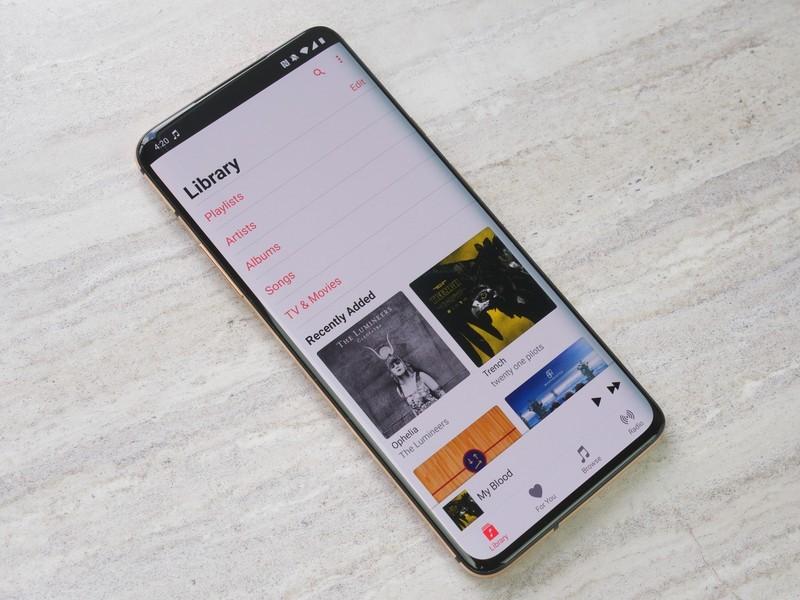
    Are you an Android user who wants to use Apple Music? Were you once an Apple user who has now migrated to Android and was wondering how to use Apple Music on your Android device?

    If your answer is YES, then this article is the perfect one for you. In this article, I am going to show you everything you need to know on how to use Apple Music on Android.

    One digital myth that has lived with us for a long time now is the fact that only iOS users can use Apple Music. This myth is very false and is never true.

    Users of Android phones and tablets can also subscribe to Apple Music to enjoy their favourite music on Android devices. All the Apple Music access that iOS users have is also accessible to Android users.

    The Apple Music app is available for Android users on the Google Play Store or can be downloaded from Apple. The only requirement is that your device needs to have Android 4.3 (Jelly Bean) or later.

    How To Sign Up For Apple Music on Android

    Before you can sign up for Apple Music on your Android device, you need to have an Apple ID. If you don’t have one, you can visit Apple’s website to create a new one for free.

    Once you get your Apple ID, follow the steps below to sign up for your Apple Music on Android.

    Download and install the Apple Music app on your Android device. After the installation, launch the app.

    On the next screen, you should see a message that says Welcome to Apple Music. If it doesn’t appear, tap on For You.

    Tap the free trial offer. And then select a subscription type, Individual, Student, or Family.

    If you already have an existing Apple ID, tap on Use Existing Apple ID and enter you Apple ID and password.

    If you don’t have an Apple ID account, tap Create New Apple ID, then follow the next steps.

    Add a valid payment method and then tap on Join. The payment options are PayPal, Credit/Debit Card.

    Accept the Terms and Conditions.

    You are all set, you can now enjoy your favourite music on Apple Music.

    What Are The Available Apple Music Subscriptions?

    There are three (3) main Apple Music subscription packages and the price depends on the number of people you can share with. Below are the available Apple Music subscription packages:

    Student ($4.99/month) – this package for all University/College students around the world. This package can be used by only one person. You will be required to confirm your student status.

    Individual ($9.99/month) – this package is for any ordinary individual. This package can be used by only one person.

    Family ($14.99/month) – this package is for people who have activated Family Sharing on their devices. This package can be shared with up to 6 individuals.

    Conclusion

    You can use the free trial offer for 3 months free of charge. You will only be charged after the 3 months have elapsed.

    Once you are charged for the month, you can download and stream unlimited music. There’s no fixed number of music you can download during the month.

    The price may seem a little expensive but the quality of the music you have on Apple Music will definitely show you that it is worth every penny you spend.

  • How To Use iCloud Online

    How To Use iCloud Online

    Do you want to use iCloud features online without opening the app? If you don’t have an iPhone, iPad, iPod, Mac, or any other Apple device, you can still use iCloud on the web.

    On the web version of iCloud, you are provided with all the apps, that you would have had access to if you had opened it on your Apple device.

    As we all know, iCloud is Apple’s cloud storage service and as such, it lets you back up and syncs your email, calendar, photos, contacts, keynote, and other items. iCloud works with iPhone, iPad, Mac, and even PC.

    Using the iCloud web version, you can find, view, and even manage files that have been backed up on your Apple ID. You can also use the web version of iCloud to locate your missing iPhone.

    If you have official emails, you wish to view on the web, you can equally use the iCloud web version for it. You can also see and view your calendar and photos, reminders, etc.

    How To Use iCloud Online

    1. On your web browser, go to iCloud.com
    2. Sign in with your Apple ID and password.
    3. Enter the two-factor verification code sent to your device.
    4. iCloud will automatically display your iCloud page. This includes applications and tools.
    5. The applications and services that will be displayed are Mail, Contacts, Calendar, Photos, iCloud Drive, Notes, Reminders, Pages, Numbers, Keynote, Find Friends, Find iPhone.
    6. Also, a link to your Account Settings will appear on the screen. You can click on any of the applications to enjoy all the features it has.

    Before you can use these features, you need to make sure that you’re syncing the data on your iPhone to iCloud.

    To sync the data from these apps to your iCloud simply follow the steps below:

    1. Open the Settings app on your iPhone.
    2. Click on your name on the top of the page, and then tap on iCloud.
    3. Under apps using iCloud, turn on the button for the apps whose data you’d like to sync to your iCloud.

    What Web Browsers Can You Use To Access iCloud Online

    To enjoy the most out of the iCloud web version, your web browser should be accepted by Apple to access iCloud online.

    You use the latest versions of Safari, Firefox, Google Chrome, Internet Explorer, and Opera browsers. If you have any of these browsers, you can use iCloud online and you will make the most out of it.

    Conclusion

    In this article, I have explained to you how you can use iCloud and its features online. You can set reminders, view your photos, read and reply to emails, view your calendar, contacts, etc.

    You can use the method above on any device that has an internet connection and can connect to the internet. If your device can do this, then you are good to follow the methods stated above.

    If you encounter any challenges, you can write them in the comments section below and I will attend to every single one of them.

  • How To Use Parental Controls On Your Children’s iPhone and iPad

    How To Use Parental Controls On Your Children’s iPhone and iPad

    Have you given your child an iPhone or iPad? Are you concerned about the type of content and tasks they perform on their device? If your answer is yes, then this article is the right fit for you.

    As a call for protecting children’s security online, this article is going to show you how to use parental controls on your children’s iPhone and iPad.

    As soon you set up the new iPhone or iPad for your kid, the next thing you need to do is to enable Family Sharing. Without Family Sharing, there’s no way you will be able to use parental controls on your child’s device.

    The internet is now not safe especially for kids in this new digital era. As such, the best thing you can do to keep your children safe on the internet is by enabling parental controls on your child’s device.

    If you enable this feature, you can monitor what type of content or information that your child can have access to whenever they use the internet.

    How To Use Parental Controls On Your Children’s iPhone and iPad

    There are several ways you can use parental controls on your children’s iPad and iPhone. Below are some of the several ways you can use parental controls to secure your children’s iPhone or iPad.

    How To Use Location Services To Secure Your Children’s iPhone and iPad

    Before you use this feature, you need to make sure that you have enabled family sharing on both your device and your child’s device.

    Once you enable this feature, the Parent/Guardian can view the location of each family member without the family member sharing their locations. This means that you will be able to monitor wherever your child is without asking for his/her location.

    1. Open the Settings app on your child’s iPhone.
    2. Tap on the name of the account at the top of the screen.
    3. From the options provided, tap on Find My.
    4. Afterward, turn on the option next to Share My Location.

    How To Use Parental Controls To Set Content & Privacy Settings

    1. Open the Settings app and then tap on Screen Time.
    2. Tap on Continue and then choose whether the iPhone is for you or your child. If it is for your child, follow the prompts until you are asked to enter your Screen Time passcode.
    3. Tap on Content & Privacy Restrictions. When asked, enter your passcode and then turn on Content & Privacy.

    How To Use Parental Controls To Prevent iTunes & App Store Purchases

    1. Open the Settings app and then tap on Screen Time.
    2. Tap on Content & Privacy Restrictions. When asked, enter your passcode.
    3. Next, tap on iTunes & App Store Purchases.
    4. Choose your preferred setting and set it to Don’t Allow.

    Conclusion

    These are just a few ways of securing your child’s iPhone or iPad using parental restrictions. There are other ways you can do the same thing, but these are the important ways.

    If you have any other way, you can share it in the comment section below.

  • How To Delete Your Twitter Account

    How To Delete Your Twitter Account

    Are you feeling bored on Twitter? Do you want to take a break on Twitter? Are you tired of Twitter? Are you done with Twitter? Do you want to permanently delete your Twitter account?

    Does any of the questions stated above apply to you? Then in In this article, I am going to show you everything you need to know about how to delete your Twitter account.

    There are several reasons why you might want to delete your Twitter account and all the data related to it. Whatever your reason may be, I’ve got you covered in this article.

    Just like Facebook, you choose whether to delete your Twitter account permanently or deactivate it for some time. Before you decide on whether to delete or deactivate your account, read on to know the difference between the two.

    Difference Between Twitter Account Deactivation and Permanent Deletion

    If you choose to deactivate your Twitter account, it means you temporarily make your Twitter inactive. Anytime you wish to come back on Twitter, you can activate your account back.

    If you choose to delete your Twitter account, it means that you remove your account from Twitter permanently. You can’t undo this command.

    Once you deactivate your account, your Twitter profile will no longer be available. But you will still appear on your follower’s list.

    The reverse happens when you permanently delete your account; all your posts, photos, videos, and everything that has a connection with your Twitter account will no longer be available.

    How To Delete Your Twitter Account Permanently

    Unlike Facebook, on Twitter, you can the method for deleting your account permanently and deactivating your account is the same. The only the difference is that, after the 30-day grace period, your account will permanently delete.

    There are two (2) ways you can delete your Twitter account; i.e. on the web and the Twitter app.

    How To Delete Your Twitter Account Permanently On The Web

    1. On your web browser, visit Twitter’s official website.
    2. Log in to your account with your Twitter username/phone/mobile number and password.
    3. On the main page, click on the three (3) dots icon on the left sidebar. After, click on Settings and Privacy.
    4. Choose Deactivate your account from the list of options.
    5. Some information will be displayed, read through, and then click on Deactivate.
    6. A confirmation message will be shown for you to enter your Twitter password to confirm your choice.
    7. After entering your password, once again click on Deactivate to confirm your choice.

    How To Delete Your Twitter Account Permanently On The Twitter Mobile App

    1. Log in to your Twitter account on the official Twitter app.
    2. Tap on your profile picture and choose Settings and privacy from the menu.
    3. Tap on Account under your username.
    4. Next, tap on Deactivate your account.
    5. Some information will be displayed, read through, and then click on Deactivate.
    6. A confirmation message will be shown for you to enter your Twitter password to confirm your choice.
    7. After entering your password, once again click on Deactivate to confirm your choice.

    Conclusion

    After deactivating your account, your username and email address will remain tied to your account. Hence, you cannot use it to create any new account.

    Instead, after the 30-days grace period, you can then use it to create a new account from the scratch.

    After 30 days, all your posts, tweets, and photos will be permanently deleted from Twitter and your account will no longer be available.

    For more questions, comments, and suggestions, write in the comments section below and I will attend every single one of them.

  • 3 Ways to Get Rid of Viruses and Spyware From Your PC

    3 Ways to Get Rid of Viruses and Spyware From Your PC

    This article will discuss 3 ways to get rid of viruses and spyware from your computer.

    These simple methods are easy to follow and can be done even by a novice computer user.

    These simple & effective methods have proven to be effective for most people, including me. If you too want to try one or more of these methods, please follow the instructions below carefully.

    All methods discussed below are effective in removing spyware and adware from your system.

    Clean Install

    This is probably the easiest & fastest method to use when you want to remove infections from your system.

    In this method, you need to perform a clean install of your operating system.

    To clean install, you need to go into the control panel of your PC and select ‘manage’ in the drop-down menu. Next, click on the option ‘installation manager’ and click ‘OK’.

    After that, your computer system will be installed with a new build of its software.

    Viruses and Spywares Scan & Repair

    Similar to the first method, all you need to do is to perform a complete scan of your computer system.

    To perform scan and repair, you should first download a good anti-virus program. After downloading a good program, you should install it onto your PC.

    Now, open the program and allow it to perform a complete scan of your computer.

    Viruses and Spyware Removal by using an Antivirus Program

    When your program does a complete scan of your system, it will list down all the infected program files on your computer.

    You can proceed to remove these files manually by using anti-virus software. You can either use a program such as AVG antivirus or McAfee.

    By selecting the ‘scan’ option, you will view all the infected program files, which will allow you to delete them.

    To Add To

    Use a Registry Cleaner: If your computer is slow performing, it might be caused by a corrupt registry.

    To fix this problem, you can use a registry cleaner. This method works by scanning your computer for any unwanted files.

    It also removes programs that are not properly installed. By using this method, your PC will run faster and your system will be free from errors.

    All these methods to get rid of viruses and spyware from your PC are very easy to use and effective.

    It is important to note that whichever method you use, you must back up your system before making any changes. This will ensure that you will not face any problems after you have made the changes.

    Conclusion

    In this article, I have provided 4 methods to deal with viruses and spyware on your computer. If you found this article helpful, don’t forget to share.

  • How To Disconnect Your Instagram Account From Your Facebook Account

    How To Disconnect Your Instagram Account From Your Facebook Account

    Do you want to disconnect or unlink your Instagram account from your Facebook account? Have you created a new Instagram account that you wish to link to your Facebook account?

    Whatever your reasons maybe to disconnect your Instagram account from Facebook this article has got you covered.

    This is because in this article I am going to show you how to disconnect your Instagram account from your Facebook account without causing any harm to either of the accounts.

    Linking your Instagram account to your Facebook account or vice versa has a lot of merits. For example, once you link these two accounts together, you can share your Instagram story on your Facebook story at the same time.

    All these were not available some few years ago, but when Instagram became part of the Facebook family, this feature was added to enhance users’ experience in these two apps.

    With this feature, you are allowed some extra features; you can post your photos from Instagram to Facebook directly from Instagram; it is also easier for your Facebook friends to find your Instagram profile.

    Aside from all these interesting features, if you think there’s the need to unlink these two (2) accounts, then you can follow the outline below.

    How To Disconnect Your Instagram Account From Your Facebook Account

    You and I can agree on the fact that most people access their Facebook and Instagram accounts using their mobile phones. Only a few of us use these apps on our computers on certain occasions or periods.

    Unlike previously, users of Mac and PC cannot disconnect their Instagram account from their Facebook account and as such, they can only do so using their mobile devices.

    So, to disconnect your Instagram account from your Facebook account follow the steps listed below:

    Open the Facebook app on your mobile device.

    Tap on Settings.

    Tap Account, and then tap on Linked Accounts.

    Next, tap Facebook and then Unlink Account (if your device is an iOS device) OR Unlink (Android).

    Tap Yes, and then Unlink to confirm your selection.

    Conclusion

    Disconnecting your Instagram account from your Facebook account is not permanent. Whenever you wish to re-connect your Instagram account to your Facebook account, you can go ahead and do so.

    I hope this article was helpful and that it met the purpose for which it was written. Please read through carefully to understand the concept of disconnecting your Instagram account from your Facebook account.

  • 3 Fan Wikis Which You Should Definitely Take a Look At

    3 Fan Wikis Which You Should Definitely Take a Look At

    The internet has undergone many transformations since the general public began to use it in earnest. The most important revolution may have been creating open tools that make it easy for anyone to contribute.

    Wikipedia is perhaps the most effective example of this. It’s an encyclopedia written by the people, for the people, which has produced a surprisingly authoritative online text.

    Wikis like Wikipedia democratize knowledge and, through crowds’ wisdom, self-corrects its content as people scrutinize and resolve conflicts.

    Now imagine that incredible community power applied to something a bit less serious?

    That’s where the fan Wiki finds its niche. Driven by massive communities of passionate fans, these fan wikis are dedicated to many of the world’s hottest (or obscure) cultural properties.

    The contributors are deadly serious about documenting almost everything anyone wants to grasp about fandom, and there are many things we can’t imagine anyone desperate to know besides.

    Wookieepedia

    Star Wars is one amongst the biggest fandoms in the world. It’s hard to imagine anyone on the world not at least knowing the name “Star Wars”.

    However, Star Wars fandom’s depths go far beyond just the mainline movies that make billions for Disney.

    There’s an in-depth universe of books, games, comics and more.

    Wookieepedia is the complete documentation of Star Wars and goes into immense detail. Star Wars is infamous because almost every on-screen object, robot, alien and human have detailed backstories.

    Memory Alpha

    Star Wars could be making huge bucks currently, but Star Trek has just as much deep lore and additional content that isn’t either a television program or movie.

    It may not have nearly as large a collectable market. Still, Star Trek geeks love nothing quite poring over starship schematics and the fictional history of Gene Roddenberry’s utopian Federation.

    Memory Alpha is the largest and most comprehensive collection of canonical Star Trek lore and data on the net. Note the word “canonical”; there’s actually a separate site referred to as Memory Beta, the custodian of non-canonical Star Trek information.

    Memory Alpha may be a must-visit fan wiki site for anyone who wants to deepen their Trekkie credentials.

    WoWWiki

    Unless you’ve been living on the moon, you’ve probably heard of World of Warcraft. The game remains massively popular today, and it seems as if it’ll never die.

    While developer Blizzard has tried to form it as easy for brand new players to enter the fray, the truth is that WoW is insanely dense with lore and also the learning curve remains pretty steep.

    Which is why the community-driven fan wiki named WoWWiki is such a useful resource.

    Whether you want to understand more about the game without playing it or are attempting to find your feet as a new player, heck, even veterans of WoW will find lots of things they didn’t know.

    WoWWiki is completely massive. With over 300,000 pages and 100,000 articles on offer, there’s no reason to be worried that you’ll need to ask other players for answers.

    If you do want to have a chat with the community, WoWWiki features a section with forums and discussions that make an already comprehensive resource even more so.

    There are many pretender MMOs out today, but they still haven’t matched the breadth or depth that WoW offers.

    Conclusion

    Wikis are the right example of how countless people that don’t know one another can come together to create something amazing.

    The only thing driving these fans together is their passion, donating millions of personal-hours just so that a large number of people can have the most obscure fandom-related information at our fingertips.

    We salute them and hope that these marvelous fan wikis never die.

  • How to Fix Wi-Fi on MacOS and Macbook Pro

    How to Fix Wi-Fi on MacOS and Macbook Pro

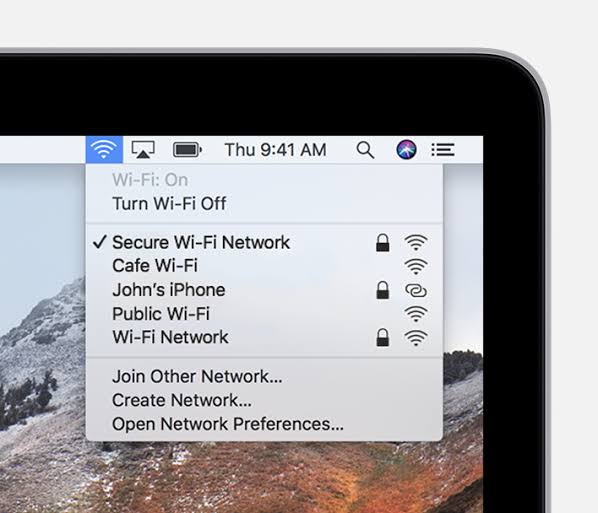
    A stable Wi-Fi connection is crucial to a smooth Mac experience while sometimes MacBook Wi-Fi won’t Turn-on.

    MacBook like any computer is vulnerable to losing its Wi-Fi connections so if you have reset your router and found out other devices are connecting to it while your Mac still refusing to connect then it’s certain that the issue from the Mac.

    How To Fix MacBook & Mac Wi-fi Won’t Turn-On

    How To Fix Wi-fi Keep Switching-off After Wake

    A common problem for Mac users where the Wi-Fi disconnects after waking from sleep. The possible solution:

    • Go to “Apple Menu”.
    • Click “System preferences”.
    • Click “Network”.
    • At the left-hand panel, click “Wi-Fi”.
    • Next “Advanced”.
    • At the bottom right-hand corner on the next screen. Select “Every Network” in the list using “Command + A” and use the minus icon to remove them all, then ”OK”.
    • In the Main Network, the window clicks the “locations drop-down” and the “Plus icon” and give a new location name of your choice.
    • Click “Done” to use this location from now on.
    • Finally, reconnect your home Wi-Fi network to stopped disconnecting upon sleep-wake.

    Here’s something simple you can try that might just solve everything.

    A lot of Mac or MacBook Pro users have reported that disconnecting certain USB 3 and USB C devices have solved their MacBook Wi-Fi won’t Turn-On problems.

    How To Fix Wi-fi Won’t Turn-On By Disconnecting USB and Wireless Signal Devices

    First, try is to disconnect your USB devices one by one and see if the Wi-Fi comes back.

    This happens because certain USB devices emit wireless signals that can interfere with the Wi-Fi while devices like USB Hubs especially have been known to disable the Wi-Fi which is sort of like how you plug an Ethernet cable and it automatically disables Wi-Fi.

    How To Fix Wi-fi Won’t Turn-On By Resetting the NVRAM, PRAM and SMC

    If you having connection issues after running the Mac OS update, just start by restarting the Mac to see if the MacBook Wi-Fi won’t Turn-On is resolved. Otherwise, try resetting;

    • PRAM: Parameter Random Access Memory.
    • NVRAM: Non-volatile Random Access Memory and
    • SMC: System Management Controller.

    Resetting the PRAM & NVRAM

    These are the portions of your Mac that control basic operations critical for your basic system function.

    MacBook Wi-Fi won't Turn-on
    • Press and hold the power button to completely shut it off (hard disks, fans need to stop spinning and the screen needs to go dark).
    • Power on your Mac, immediately after you hear the start-up sound.
    • Press and hold the ”command + option + P + R keys”.
    • keep holding them down until you hear the start-up sound again and until you see the Apple logo.
    • Release the keys and the PRAM NVRAM will have been reset.

    Resetting the SMC process heavily depending on whether your Mac is a desktop or MacBook (also if it has a removable battery or not).

    Conclusion

    The Mac WiFi issues are the common and popular issues for it users. It is an everyday problem a lot of Mac users have complained because their Mac WiFi won’t work while their friend’s Mac works perfectly well.

  • How to buy anything on Jumia Ghana and pay with MTN Mobile Money

    How to buy anything on Jumia Ghana and pay with MTN Mobile Money

    Shopping in Ghana has been made a lot easier with the introduction of Jumia. Today, anyone can buy anything from electronic gadgets to clothing online and get it delivered to them from overseas or here in Ghana at a very affordable price.

    However, as simple as this is, many people are unable to buy things on Jumia because they fear they may have to use credit cards (which is a major concern for Ghanaians).

    Fortunately, Jumia has made it rather easy for you to buy things and pay with your mobile money wallet.

    How to make an order on Jumia and pay with MTN Mobile Money

    Create A Jumia Account

    1. Visit Jumia.com.gh or download the app on iOS AppStore or Google play store.
    2. Create a User account by clicking on register/create account.
    3. Fill all the necessary forms and be sure to indicate a correct shipping address (Your postal address in this case), as that will be the means by which you receive your goods.

    Access Your Account And Place Order

    1. Login to your user account (using your email address and password)
    2. Select your preferred items and add them to your cart
    3. Click on your shopping cart at the top of your app/website
    4. Click on complete order at the bottom
    5. Check your shipping address and be sure it’s the right one. If not, click on change and effect the changes.
    6. Select your delivery method (pickup at the shop or home delivery)
    7. Click on Proceed To Payment
    8. Select your payment method (Jumia pay/ Mobile Money)
    9. Enter and apply voucher code (If applicable)

    Paying With Jumia Pay

    1. Click on proceed to summary
    2. Change your payment method if you wish to or click on Confirm if everything is okay.
    3. You’ll be taken to Jumia pay page where you get to set up a payment profile.
    4. Click on pay now and check your phone for a prompt to authorise payment. If you do not see any prompts, check the next step below:

    How to approve Mobile Money payment to Jumia Ghana

    After you checkout with Jumia Pay, you will have to confirm the Mobile Money payment. Sometimes this comes as a prompt. In the situation where there is no prompt, follow the steps below:

    1. Dial *170#
    2. Select option 6 (My Wallet)
    3. Choose 3 ( my approvals)
    4. Enter your pin code to proceed
    5. Look for the Jumia transaction and proceed with the prompts to authorize it.

    You’ll receive a text message and email confirming the transaction.

    Conclusion

    Finally, your purchase is successful and you are ready to receive your order when it’s available. Remember that delivery takes between 2-6 weeks sometimes.

  • How to Securely Encrypt a USB Flash Drive

    How to Securely Encrypt a USB Flash Drive

    There are so many ways of encrypting USB flash drives. Encrypting your Flash drive is one sure way of protecting your data on the flash drive.

    This article will provide you with three different ways you can follow to encrypt your flash drive.

    Securely Encrypt a USB Flash Drive with VeraCrypt is an excellent and relatively painless way to secure any USB drive.

    Most people use VeraCrypt to secure their data on their computer. However, there is also an option to secure data across the board.

    Encrypting a USB drive is an excellent method to avoid sensitive personal data falling into the wrong hands through security breaches and data leaks.

    If you are interested in learning how to encrypt a USB drive securely, this article will show you how easy. Three methods can be used to safely and easily encrypt USB drives.

    Method 1

    The first method used on a majority of VeraCrypt products is to use the built-in “sha1” blocker. With this blocker, it is easy to obtain a Secure Memory Format (SSF) file from the drive.

    This file is used to create a mirror image of the flash drive, making it impossible for anyone to access any personal or confidential information from the drive.

    Once you have this image, then transfer the contents of the secure memory drive onto another device such as a flash drive or CD.

    Method 2

    The second method is to use the built-in “hidm” (hidgestart) feature within VeraCrypt.

    When this feature is activated, it allows you to run various virtual environments. You can do this by enabling the “Virtualization Manager” which is located within the main menu of Vera Crypt.

    Once enabled, you will then be able to select various environments from within the main menu.

    From here all you have to do is select a secure drive and then select the image that you wish to transfer over to your computer. You can then follow the directions given to you by the Virtualization Manager.

    This is the safest way in which to learn how to encrypt USB flash drives securely. There is no need to give up any personal or confidential information by providing a CD or any other media.

    Furthermore, you also do not need to worry about whether or not the data on the drive will be encrypted or not.

    It will be, because Virtualization will take care of that for you.

    Of course, the downside of Virtualization is that it does not save any additional space on your primary hard drive. Therefore you will still need to have some free space to use when copying your files to your new USB drive.

    This is especially true if you intend on using several different USB drives once you know how to copy them securely. If you only plan on using one USB flash drive, then there is no need to worry about this.

    However, if you are going to use many, you may want to consider the benefits of virtualisation seriously.

    Of course it is no secret that in order to secure data you need to protect it.

    Method 3

    This is where Virtualization comes into play. The Virtualization software allows you to create a secured area on your computer that will act just like any other drive except it is hidden from the rest of the world.

    Anyone who has had experience with virtual environments knows that VDI’s (virtual desktops) are excellent ways of protecting data. In fact, it is possible to hide data from outsiders just as securely as you would hide it from yourself.

    Of course, there are other ways of how to encrypt a USB flash drive as well securely.

    One of the most popular ways is to use software that automatically compresses the data before sending it over USB.

    Encryption is then done as the data is sent. Again, this is achieved as the data is encrypted and then converted to a.bmp file before being sent.

    This method is not only highly effective but also very easy. All that is needed is the installation of the software and then a USB connection to your computer.

    Conclusion

    Of course, there are free methods of how to encrypt a USB flash drive as well securely. However, if you are really concerned about keeping your information safe, you may want to consider spending just a little bit of money and getting an encrypted USB drive.

    There are numerous sites online that offer free encryption software and other ways of securing your data.