Category: Guides

  • How To Change Airpod Name

    How To Change Airpod Name

    Are you looking to change the name of your AirPods? Did you know that changing the name of your AirPods is easy and only takes a few steps? If so, then this article is perfect for you! In it, we’ll provide a step-by-step guide on how to change the name of your AirPods. Whether you want to give them an original moniker or just make them easier to identify among other devices, our guide will show you exactly what to do. So let’s get started!

    Do you own an Apple device like an iPhone or iPad? Then follow these simple instructions and you’ll be able to rename your AirPods in no time. First, open up your Settings app and then select Bluetooth from the list. From there, tap on the information icon next to the entry for ‘Airpods’ and then type in whatever new name you’d like for them. Once done, hit ‘Done’ and voila – your AirPod’s have been renamed!

    Finally, if none of that worked out for some reason, fear not – all hope isn’t lost yet. You can also use your Mac computer (running macOS 10.14 Mojave or higher) to quickly rename your AirPods too. To do this, simply open System Preferences > Bluetooth > Select Your AirPods > Click Rename > Type in a New Name. And with that, you’re ready to go!
    So don’t wait any longer – start renaming those AirPods now!

    Overview Of Airpods

    An overview of AirPods provides a look at Apple’s revolutionary wireless headphones. Equipped with powerful features, innovative design and superior functionalities, these earbuds have quickly become the go-to choice for many users. The sleek and compact design makes them portable and comfortable to wear, while their wide compatibility range means they can be used with most devices.

    When it comes to features, AirPods offer an impressive array of options such as voice recognition technology for Siri support, advanced noise cancellation capabilities, long battery life and much more. Additionally, their special charging case lets you recharge both buds simultaneously in just 15 minutes.

    The overall design of the AirPods is also noteworthy thanks to its lightweight construction combined with seamless integration into iOS devices with no additional setup required. It’s easy to see why AirPods are rapidly becoming one of the top choices among music lovers everywhere. With so many great features packed into such a small package, it’s clear that this product has revolutionized the way we listen to audio on the go. Taking all this into consideration, let’s move onto connecting your airpods to a device…

    Connecting Airpods To A Device

    Connecting your AirPods to a device is surprisingly easy. With the simple pairing process, you can have them set up in just a few minutes. To begin, open the settings menu on your device and select “Bluetooth” from the list of options. This will activate Bluetooth and give it permission to search for nearby devices. Once you see your AirPods appear under available devices, simply tap them to start the connection process.

    The next step involves confirming that you are attempting to pair with your own AirPods by entering an authentication code which should be provided with your purchase or found printed on the back of their case. After entering this code, the two devices will connect almost instantly and audio playback should begin shortly afterward.

    Now that we’ve gone over how to easily connect your AirPods to any compatible device, let’s move onto discussing how to customize their name for improved recognition among other bluetooth-enabled gadgets.

    Opening The Settings Menu

    To get the ball rolling, you’ll need to open up your AirPods’ settings menu. This is where any customization and preferences can be adjusted so you can make sure that your device works just for you. To do this, simply go back into the Bluetooth settings on your device and select your AirPods from the list of connected devices. Once selected, a new window will appear which contains all available options related to those specific earphones.

    It should now become easy to spot the ‘Name’ option in the main menu as it stands out among other choices like equalizer or noise cancellation. Depending on what type of device you are using, getting access to this menu may require a few additional steps but nothing too complicated. For example, some users may have to scroll down until they see an icon labeled ‘AirPod Settings’ before being able to locate the right command.

    Once inside the appropriate location, all that remains is selecting ‘Name’, typing in whatever moniker suits you best and confirming with a tap – after that; recognition between other gadgets should begin almost immediately with no further intervention required! Moving forward then let’s take a look at how we can easily find this particular setting within our AirPod’s extensive sub-menu.

    Finding The ‘Name’ Option

    Now that we know how to access the settings menu, it’s time to find the option to rename our AirPods. The ‘Name’ command should be relatively easy to spot as it stands out among other choices like equalizer or noise cancellation. Depending on what type of device you’re using, getting access to this menu may require a few additional steps but nothing too complicated.

    For instance, some users may have to scroll down until they see an icon labeled ‘AirPod Settings’ before being able to locate the right command. Once inside the appropriate location all that remains is selecting ‘Name’, typing in whatever moniker suits you best and confirming with a tap – after which recognition between other gadgets should begin almost immediately without further intervention required!

    With this knowledge, altering your wireless earphones’ naming conventions has never been easier; no more hassle when connecting them to another device or having multiple pairs registered under different titles. Now let’s move onto entering a new name for your AirPods – surefire way of avoiding any confusion going forward!

    Entering A New Name

    Unveiling a new identity for your AirPods can be almost as exciting as buying them in the first place. Like opening up a secret box of possibilities, entering the desired name and setting it in stone brings forth an entire realm of options.

    To begin with, utilizing this newfound freedom to rename our wireless earphones is akin to painting on a blank canvas – what better way to fully customize one’s listening experience? With that said, let’s dive into how we go about making sure those changes are not only successful but also long-lasting:

    • Entering the Name: First off, after selecting ‘Name’ from within the settings menu you’ll want to make sure that whatever moniker you pick doesn’t exceed 10 characters. This is important since anything beyond this limit will cause issues when attempting recognition between other devices. Furthermore, try picking something memorable like your favorite animal or color – this should help avoid any confusion down the line!
    • Special Characters: In addition to length restrictions, special characters (like numbers or symbols) may not be supported depending on which gadget you’re connecting with so double check before finalizing your selection.

    With all these considerations taken care of and the perfect name chosen accordingly now comes the time to save it and put it into action; no more need for extra steps everytime wanting to link up different gadgets!

    Saving The New Name

    Now that the perfect name has been chosen, we can move on to saving and applying it. This process is quite straightforward but there are a few steps one must take in order to confirm what they’ve entered.

    First off, once you’ve double-checked your entry click ‘Rename’ at the bottom of the screen – this will cause any changes made to be saved automatically. However, before moving onto another device or disconnecting altogether make sure ‘Save’ appears beside your new moniker – if not then try entering it again as something may have gone wrong with recognition.

    Lastly, after checking everything looks correct go ahead and hit ‘Apply’ – this should signify that all settings were successfully updated and ready for use! With that out of the way let’s now look into making sure these modifications hold up over time by verifying our change…

    Verifying The Change

    Having applied the name change, it’s now time to confirm that our modifications are accurate and up-to-date. To make sure everything is in order, we can take a few simple steps to verify our airpod name alteration.

    Firstly, when you’re done with the renaming process double check your new moniker appears on both devices by reconnecting them back together – this should ensure they’ve been updated correctly and any changes made have stuck around. Secondly, if necessary undertake a quick ‘name check’ of your own through searching for either device individually or both at once – this will help troubleshoot any issues and make sure no unexpected discrepancies appear between what’s saved locally versus stored online.

    Lastly, after ensuring all settings look correct try disconnecting then reconnecting again to see whether the update has taken effect – if not then repeat the previous step as something may have gone wrong during recognition earlier on. Now that these basics have been covered let’s move onto advanced renaming options…

    Advanced Renaming Options

    It’s possible to customize your airpod renaming beyond the basics we’ve just discussed. If you’re looking for some more unique name changing options, there are quite a few creative customization tips that can help bring out the best in your wireless earbuds. From funny nicknames to puns, there’s no shortage of ways to make your listening experience all the more personalised and enjoyable.

    For starters, try thinking of ideas based on music or movies – this is an easy way to come up with fun names that reflect what you like and enjoy most. Secondly, if you own multiple sets consider naming them after family members or close friends – this adds another layer of sentimentality when it comes to connecting with others over audio. Lastly, why not get inspiration from characters in books or online sources? Whether it be alliterations or acronyms they offer plenty of scope for inventiveness when crafting those special airpod customizations.

    With these helpful hints in mind, let’s now take a look at troubleshooting tips…

    Troubleshooting Tips

    If your airpods aren’t working as expected, there are several troubleshooting tips to help you out. The first step is to reset them and try pairing again – just press and hold the setup button on the back of each airpod for at least 15 seconds until the LED light flashes white. This will disconnect them from any other devices they’re connected too, allowing you to start fresh with a new connection.

    You might also need to check if your device settings are up-to-date; ensure that Bluetooth is enabled and make sure there’s no interference in the area by moving away from any electronics or metal objects nearby. If none of these steps work, consider performing a complete restore via iTunes or iCloud – this should clear all existing connections and allow you to rename your airpods without any glitches.

    Lastly, it’s worth noting that some users have reported having trouble connecting their AirPods after renaming them – so be sure to test out the new name before making it permanent! With all these helpful hints in mind, let’s take a look at best practices for naming your AirPods…

    Best Practices For Naming Airpods

    When it comes to naming your AirPods, there are a few best practices you should keep in mind. First and foremost, make sure the name is unique so that it doesn’t conflict with any of your other devices or those of someone nearby. Additionally, try to avoid using special characters or spaces when creating the new title – this can cause confusion for some systems. Here’s a list of tips for airpod renaming:

    • Choose something memorable: Names like “My Left Earbud” and “Righty McRightface” might be funny but they won’t help you differentiate between multiple pairs of AirPods. Try to find a name that stands out but also describes the device accurately (e.g., “Rose Gold Earpods”).

    • Personalize it: If you own more than one pair of AirPods, give each set its own distinct name (e.g., “Mom’s Airpods” & “Dad’s Airpods”) so that you don’t get them mixed up down the line.

    • Keep it short: Long names will likely cause issues when trying to connect, so aim for something concise yet descriptive (e.g., “Work Earphones”).

    By following these guidelines and double-checking before making any changes permanent, you’ll have no trouble coming up with an appropriate title for your beloved earbuds!

    Conclusion

    In conclusion, AirPods have become a must-have accessory for anyone who loves to listen to music or take calls while on the go. Renaming your AirPods is an easy way to personalize and identify them from other sets of headphones. With just a few clicks, users can quickly change their AirPod’s name with no hassle at all.

    The fact that Apple has sold over 500 million pairs of AirPods should be enough evidence of how popular these wireless earbuds are today. This statistic alone shows how many people enjoy the convenience and comfort of having high-quality earphones without any wires getting in their way.

    Renaming your AirPods doesn’t just make them easier to find – it also helps you show off your style and express yourself through the names you choose. Whether you want to stick with something simple like “Lefty” and “Righty” or get creative by giving them unique nicknames, renaming your AirPods is sure to put a smile on my face every time I reach for them!

  • How To Cancel Youtube TV

    How To Cancel Youtube TV

    Are you trying to cancel your YouTube TV subscription? Canceling a streaming service can be tricky, especially if you’re not familiar with the process. Don’t worry – we’ll help walk you through it! In this article, we’ll explain step-by-step how to cancel your YouTube TV subscription quickly and easily. We’ll also provide answers to some of the most common questions about cancelling YouTube TV subscriptions so that you know exactly what to expect. Ready for a stress-free way to end your subscription? Let’s get started!

    Overview Of Youtube Tv

    Are you looking for a streaming service that allows you to enjoy the best of cable TV without the hassle? YouTube TV may be just what you need. With this revolutionary television experience, you can access your favorite shows and channels from anywhere in the world. In this overview of YouTube TV, we will discuss its features, benefits, cost and packages.

    One of the main advantages of YouTube TV is its selection of content. You’ll have access to over 85+ channels ranging from popular networks like ABC and CBS to niche services like NFL RedZone or NBA League Pass. Plus, with Cloud DVR storage space included, there’s no limit to how many programs you can watch at any given time.

    Another benefit of YouTube TV is that it comes with an affordable monthly subscription rate. The basic package costs only $64.99 per month which gives you access to all available channels as well as unlimited recording capabilities. If you want more options than what’s offered by the standard plan, there are several other packages available including sports and movie add-ons so that you can customize your viewing experience even further.

    With all these great features and benefits, YouTube TV is an excellent choice for those who want to cut the cord and get away from traditional cable subscriptions but still enjoy their favorite shows and movies on demand. Now let’s take a look at how easy it is to navigate the YouTube TV site!

    Navigating The Youtube Tv Site

    Navigating the YouTube TV site is easy and intuitive. The interface is designed to be user-friendly so that you can find what you’re looking for quickly and easily. Here are three tips on how to make the most of the YouTube TV navigation experience:

    1. Familiarize yourself with the layout – Take some time to explore different sections of the homepage and get used to where everything is located. This will help you find your way around more easily in the future.
    2. Utilize search options – If you know what show or movie you’d like to watch, simply type it into the search bar at the top of each page and start browsing through results right away!
    3. Make use of recommendations – YouTube TV also provides personalized content recommendations based on your viewing habits which makes discovering new shows even simpler.

    Overall, navigating YouTube TV can be a breeze once you become familiar with its features and usage patterns. With these tips in mind, exploring all that this streaming service has to offer should be an enjoyable experience!

    Cancelling Through Your Account Settings

    Cancelling a YouTube TV account is straightforward and can be done in just a few clicks. According to the company, nearly 40 million people across the United States use YouTube TV every day, making it one of the most popular streaming services available. If you’re looking to cancel your subscription for any reason, here’s what you need to do:

    • Log into your account on the official website or app
    • Go to ‘Account Settings’
    • Click ‘Cancel Subscription’
    • Confirm that you would like to end your membership with YouTube TV
    • Your cancellation will take effect at the end of your current billing cycle

    It’s important to note that cancelling your subscription does not delete your account – all of your data and records are still intact if you ever decide to reactivate it. To do this, simply log back into your account settings and click ‘Reactivate Subscription’. Once confirmed, you’ll have access again right away!

    If you’d prefer an alternative option, pausing or temporarily suspending your membership might be more suitable. This allows users to enjoy all the benefits of a subscription without having to commit long-term. We’ll explore how this works in more detail in our next section.

    How To Pause Or Cancel A Subscription

    Pausing or cancelling a YouTube TV subscription can be a great option for those who don’t feel ready to commit long-term. It allows users to take advantage of the service while still having the flexibility to come back whenever they want. Here’s how it works:

    First, log into your account on the official website or app and navigate to ‘Account Settings’. Then click ‘Pause Subscription’ – this will temporarily suspend your membership until you’re ready to reactivate it again. You’ll have access to all of its features but won’t be charged anymore in the meantime. Alternatively, if you’d like to cancel entirely, just select ‘Cancel Subscription’. This will end your current billing cycle right away.

    The cancellation policy for YouTube TV is pretty simple – there are no refunds for cancelled subscriptions regardless of when it was paused or ended. However, any unused portion from prior payments will still remain active until their expiration date determined by the company.

    TIP: Remember that pausing or cancelling your subscription does not delete your profile information – so you can always come back later without losing any data!

    Refund Policy For Cancelled Subscriptions

    When it comes to cancelling a YouTube TV subscription, there is no formal refund policy in place. That said, any unused portion from prior payments will still remain active until their expiration date determined by the company. For example, if you cancelled your subscription halfway through a month and had already paid for that period in advance, then you would be able to continue using the service until the end of that billing cycle without being charged again.

    It’s important to note that refunds are not typically given when cancelling a subscription because companies have limited control over past payments – they cannot directly reverse those charges on behalf of consumers. However, certain exceptions may apply depending on individual circumstances so don’t hesitate to reach out to customer support if necessary. They might be able to provide additional assistance or insight into potential options available!

    In spite of this lack of refunds for cancelled subscriptions, customers should keep in mind that pausing or canceling does not delete their profile information – meaning they can always come back later without losing anything saved before. This provides an additional layer of flexibility for those who want try something different or take a break but aren’t ready to commit long-term yet. With all these considerations taken into account, it’s easy to see why YouTube TV remains one of the most popular streaming services today. Moving forward, let’s explore some alternatives to YouTube TV as well.

    Alternatives To Youtube Tv

    If you’re looking for an alternative to YouTube TV, there are plenty of other online streaming services out there. From Netflix and Hulu to SlingTV and fuboTV, these platforms offer different features and plans that could better suit your needs. Here’s a quick look at some of the most popular streaming services available:

    1. Netflix: This is one of the oldest streaming services on the web with thousands of movies and shows ready to watch at any time. It also has a wide selection of original programming exclusive to the platform.
    2. Hulu: Another classic service, offering over 50 channels plus access to its library of hit series like The Handmaid’s Tale or Castle Rock. With this subscription, users can even download select content onto their device for offline viewing!
    3. SlingTV: A great option if you want live TV without having to pay hefty cable fees – they offer packages starting from $25/mo with up to 40+ channels included in each plan.
    4. FuboTV: For those who love sports but don’t want cable bills piling up – this streaming service offers over 100+ channels dedicated entirely towards sporting events worldwide!

    With so many options available nowadays, it’s never been easier (or cheaper) to find a custom-tailored streaming solution best suited for individual preferences or budget constraints. No matter what kind of video entertainment someone may be seeking – whether it’s movies, shows, sports or anything else – chances are high that there is a suitable tv streaming device or service out there which meets their needs perfectly! Having explored alternatives to YouTube TV, let’s now talk about contacting customer support should any issues arise along the way during setup or use…

    Contacting Customer Support

    When it comes to canceling YouTube TV, the process can be a bit tricky. Thankfully, there are customer support options available for those who need help with their account cancellation or refunds. If you’re looking to cancel your subscription, contact YouTube TV’s customer service team first and they’ll guide you through the steps needed. From there, they may also provide you with information on their refund policy should that be applicable in your case as well.

    The best way to get in touch with YouTube TV’s customer support is either through email or live chat – both of which have proven effective when dealing with any issues related to subscriptions or cancellations. Additionally, customers might find useful answers by browsing the company’s FAQ page online where many common questions are answered in detail. Lastly, if all else fails then calling into their helpline directly could prove helpful too!

    No matter what route one takes to communicate with YouTube TV customer service personnel, chances are high that most queries will eventually be addressed adequately and efficiently. With this knowledge in hand, let’s turn our attention towards how deleting one’s YouTube TV account works…

    How To Delete Your Youtube Tv Account

    Parting ways with YouTube TV doesn’t have to be a complicated process. If you’ve had enough of the streaming service, deleting your account is as easy as pie! All that’s needed is a few clicks and you’ll be on your way. To begin the process, open up the YouTube app or website and log in using your credentials. From there, select ‘Settings’ from the menu options available at the bottom right-hand corner of the page. This will bring up an array of different tabs – click on ‘Subscriptions’ for further instructions regarding cancellation.

    Once inside this tab, simply click on ‘Cancel Subscription.’ You’ll then be presented with several confirmation windows before finally reaching one which reads “You’ve successfully cancelled your subscription.” That’s it! Your account has now been deleted and all associated payment methods removed – no need to worry about being billed again in future months either. As an added bonus, if you ever wish to reactivate your subscription later down the line, doing so is equally simple too!

    Now that we know how to delete our accounts, let’s look at some tips that can make canceling and reactivating even easier…

    Tips For Cancelling And Reactivating Your Account

    When it comes to managing your YouTube TV subscription, there are a few things you should keep in mind. First and foremost is the ability to pause or cancel your subscription at any time. To do this, simply go into the ‘Subscription’ section of the app and select either ‘Pause Subscription’ or ‘Cancel Subscription.’ If you opt for pausing, make sure you understand the terms that apply before taking action – some subscriptions may not be eligible for pause-and-play options.

    Reactivating an account can also be done with ease. Once again, head over to the same page as before and click on ‘Manage Your Subscriptions.’ Here, you’ll find all available subscription options which allow customers to reactivate their accounts whenever they want. For those who are unsure about canceling completely just yet, take advantage of these opportunities! Finally, remember to read through any cancellation policies prior to making changes – understanding what’s included in each plan beforehand will help avoid any confusion down the line.

    Summary

    In short, YouTube TV offers a variety of subscription options for customers to choose from. These include the ability to pause and reactivate accounts at any time, as well an option to cancel subscriptions completely if desired. It’s important to read through all policies before making changes, though – understanding what each plan entails beforehand will help avoid confusion down the road.

    Ultimately, it’s easy to manage your YouTube TV subscription in whichever way you prefer. Whether that means pausing or canceling your account altogether is up to you; just make sure that you understand the terms associated with each decision prior to taking action. With this knowledge in hand, managing your YouTube TV subscription can be quick and hassle-free!

    Conclusion

    In conclusion, cancelling YouTube TV is a straightforward process that can be completed in just a few steps. By navigating the YouTube TV site and accessing your account settings, you’ll easily be able to pause or cancel a subscription if needed. For those who are unsatisfied with their service, it’s important to note that there is a refund policy for cancelled services. Additionally, customers have the option of deleting their entire account if they see fit.

    For example, Amy found her monthly subscription costs were not worth what she was receiving through the streaming service so she decided to cancel her account. She went onto YouTube TV and accessed her Account Settings before confirming the cancellation of her subscription. After doing this, she received an email from customer support verifying that her request had been processed and that she would receive any applicable refunds soon after.

    Overall, cancelling your YouTube TV account doesn’t have to be difficult or time-consuming as long as you know where to look and how to access your account settings. It is also helpful to keep in mind any relevant policies about refunds when dealing with cancellations or reactivating accounts in order to ensure a smooth transition out of – or back into – using YouTube TV’s services.

  • How to use Apple Pay on Amazon

    How to use Apple Pay on Amazon

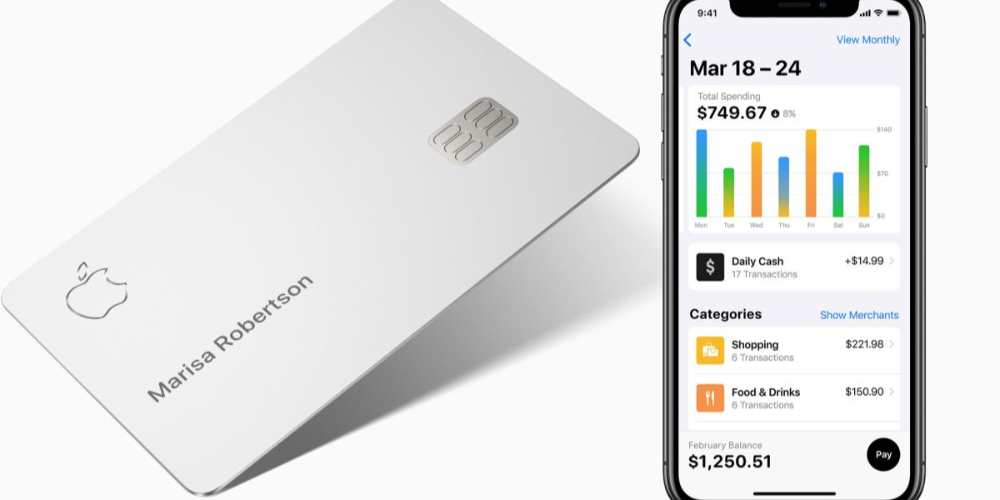
    If you’re wondering what stores take Apple Pay, there’s a list. But what about online vendors? Does Amazon accept Apple Pay? Amazon now accepts digital wallet payments from Apple Pay, Visa Checkout, and Masterpass, but it’s up to individual vendors to enable the feature. Until we can use Apple Pay on Amazon easily, we’ll need a workaround for now and that will be using other apple payment systems such as the apple card and others.

    What is Apple Pay

    Apple Pay is a convenient and secure payment service that allows you to pay with your Apple devices. With Apple Pay, you can securely store your credit, debit, or prepaid cards in the Wallet app on your iPhone, iPad, Apple Watch, or Mac and make payments quickly and securely. Apple Pay is accepted in more than 40 countries and regions around the world.

    What is Amazon

    Amazon is an American multinational technology company that specializes in e-commerce, cloud computing, digital streaming, and artificial intelligence. Founded in 1994 by Jeff Bezos, Amazon is one of the largest online marketplaces and has become a household name across the globe. On Amazon, you can find almost anything from books to electronics, clothes, food, movies, and more. It also offers services like Amazon Prime, which provides access to exclusive discounts and faster shipping options.

    Can you use Apple Pay on Amazon

    Amazon does not seamlessly integrate Apple Pay directly into its checkout system like other shopping sites. But you can use other Apple payment method such as apple card to make payments on Amazon.

    How to use Apple card on Amazon

    1. Open Amazon on your Windows or Mac computer.
    2. Click the dropdown arrow next to “Account & Lists” in the top toolbar. This appears directly next to the search feature, below a greeting with your name. 
    3. Click “Your Account.”
    4. Select “Payment options” from the “Ordering and shopping preferences” list on the next page.
    5. Click “Change” next to your current payment method, followed by “Add a credit or debit card.”
    6. A pop-up will appear, click it to add a saved card or to enter your card information.

    Benefit of using Apple payment methods on Amazon

    1. Enhanced security
    2. Easy to use
    3. Convenience
    4. Faster checkouts
    5. Widely accepted
    6. No extra fees

    Conclusion

    Using Apple payment methods on Amazon is a great way to make online shopping more secure and convenient. They are secure and fast payment method that makes it easy to buy goods online with just the touch of your finger. You don’t have to worry about entering in your credit card information or having to remember your passwords. You also get the added benefit of being able to use the rewards and discounts you have on your Apple device. Using Apple payment methods on Amazon can be an enjoyable and safe experience for everyone.

  • How to delete friends on Snapchat

    How to delete friends on Snapchat

    If you’ve decided that you no longer want a certain friend on your Snapchat, it’s easy to delete them. All you have to do is follow these simple steps and the friend will be gone from your list. Whether you need more space, don’t feel like interacting with them anymore, or just want to take a break from someone, its easier taking them off.

    Keeping up with friends on Snapchat is fun and easy, but there may come a time when you want to delete a friend from your Snapchat account. If you’re wondering how to delete friends on Snapchat, then we will walk you through the steps you need to take in order to remove a friend from your Snapchat list.

    How to delete friends on Snapchat

    1. Tap the Snapchat icon on your iPhone or Android’s home screen to open the app. 
    2. Swipe left to go to your Friends list and locate the name of the user you want to remove. 
    3. Tap and hold the name of the friend you want to delete until a list of options appears.
    4. At the bottom of the menu, tap More to reveal additional options. 
    5. Tap Remove Friend to remove the user from your list.
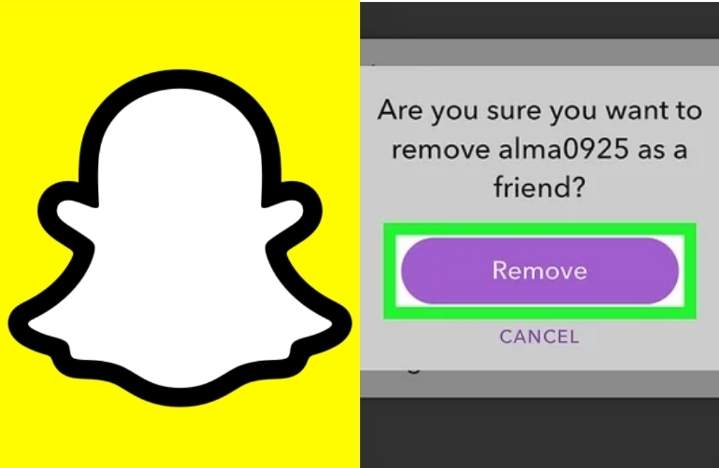
    6. A pop-up will then ask you to confirm that you want to remove the user in question. Click Remove to confirm. 

    How to block friends on Snapchat

    It can get to an extent that, you only not want to delete a contact but want to forever remove the user from your list and prevent them from ever contacting you. To do so, then you have to block the user. Blocing will prevent them from messaging ever again and vice versa until you decides to unblock them. To block a contact,

    1. Tap the Snapchat icon on your iPhone or Android’s home screen to open the app. 
    2. Swipe left to go to your Friends list and locate the name of the user you want to remove. 
    3. Tap and hold the name of the friend you want to delete until a list of options appears.
    4. At the bottom of the menu, tap More to reveal additional options. 
    5. Tap the red Block option, which should be the second option down from the top. 
    6. A pop-up will then ask you to confirm that you want to remove the user in question. Click Block to confirm. 
    7. This will remove the user from your Friends list and block them, so that they are unable to contact you and vice versa. 

    When you remove a friend on Snapchat do they know?

    Snapchat doesn’t sell you out to the person you unfriended. They are not notified, and they won’t know for sure what has happened to them until they start digging around or try to send you a Snap.

    What is the difference between blocking and removing on Snapchat

    Blocking makes it so that people can’t even see your publicly shared content, while removing friends would not.

    Final words

    It should be noted that if you also want to  block someone, you can do so by following steps one through four above. Then, instead of tapping Remove Friend, tap the red Block option, which should be the second option down from the top. 

  • How to Reset a graphics card

    How to Reset a graphics card

    If you are having trouble with your graphics card, resetting it can be a quick and easy way to troubleshoot the issue. Resetting your graphics card can help fix issues such as glitches, lagging, or distorted images on your screen. Graphics cards are an essential component of any computer system and can be a significant performance booster for gaming, animation and design work. A graphics card reset can help to restore your card to factory settings, allowing you to enjoy peak performance once again. This guide will explain why you need to reset your graphics card and how to do it safely and effectively.

    What is a graphic card

    A graphics card, also known as a video card or graphics processor, is a piece of hardware that processes and renders the images that you see on your computer screen. Graphics cards are responsible for generating and displaying the images on the monitor, and they are an essential component for gaming and other high-performance computing tasks. The main components of a graphics card are the GPU, memory, and cooling system.

    The GPU (graphics processing unit) is the part of the card that processes the data and creates the images on the display. The memory stores the data being processed, and the cooling system helps to keep the GPU from getting too hot. A good graphics card will have a powerful GPU, plenty of memory, and a reliable cooling system.

    Why you need to reset your graphics card

    1. To improve performance.
    2. To fix hardware issues.
    3. To clear out old drivers.
    4. To make sure you’re running the latest version of the driver.
    5. To increase power efficiency.

    How to reset your graphics card

    1. Open the “Start” menu and click “Control Panel.”
    2. Scroll down in the Control Panel window and click “System.”
    3. Click “Device Manager,” which is located in the top-left corner of the System window.
    4. Double-click “Display Drivers” in the Device Manager and right-click on your graphics card.
    5. Select “Uninstall” from the right-click context menu and confirm that you would like to uninstall the driver.
    6. Restart your computer when prompted. Once the computer loads, Windows will automatically detect the new graphics card and will reinstall the drivers.

    Conclusion

    Resetting your graphics card is a great way to restore optimal performance and improve the longevity of your hardware. While it can be a complex process, taking the time to reset your card will pay off in the long run. It’s important to remember to back up any data you may have on your computer prior to resetting your graphics card, as this can be lost during the resetting process. With these tips in mind, you can reset your graphics card with confidence and enjoy improved performance and better longevity for your hardware.

  • How to close apps on Apple TV

    How to close apps on Apple TV

    Apple TV is a digital media player and micro-console developed and sold by Apple Inc. It is a small device with a wide range of features and functions, making it a popular choice for those looking to stream media content directly to their television. Apple TV allows users to access various streaming services, such as Netflix and Hulu, as well as purchase or rent movies and TV shows through iTunes.

    With so many streaming options available, it can be easy to lose track of how many apps you have open. You may need to close apps that are running in the background. This is a simple process, but it’s important to know how to do it so you don’t have unnecessary programs running. This guide wull show you how to quickly and easily close apps on Apple TV.

    How to close apps on Apple tv

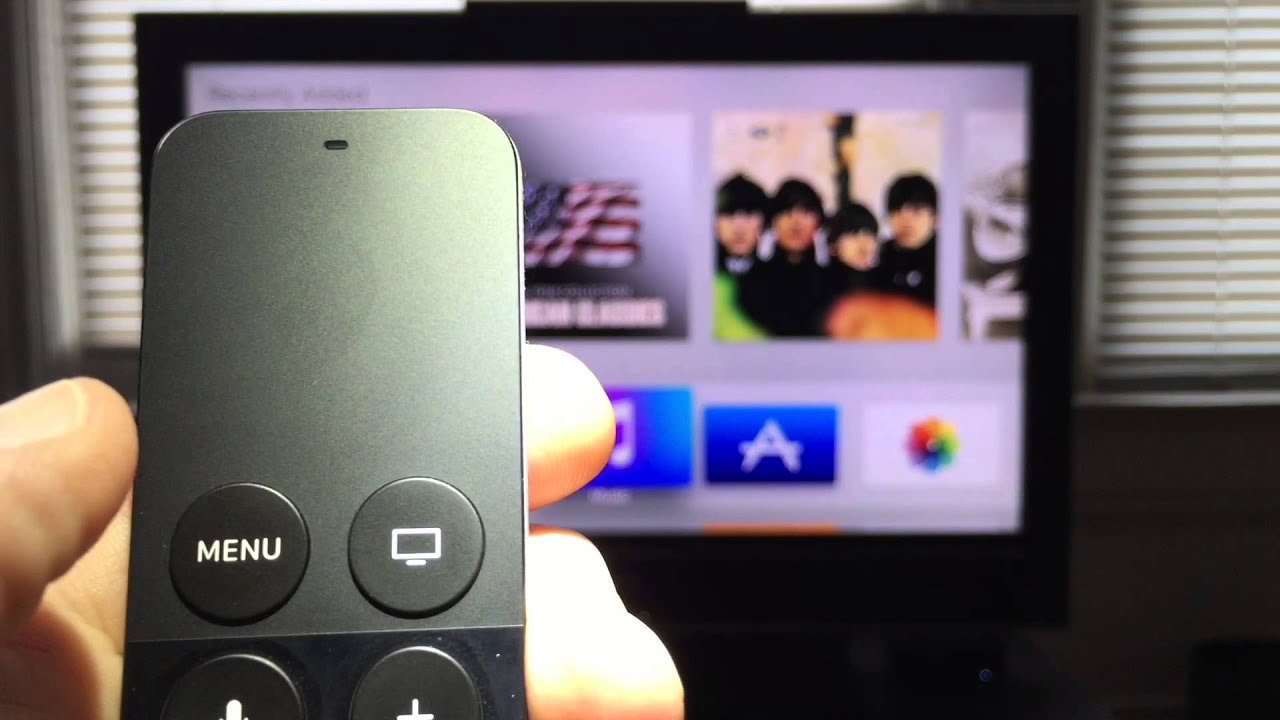
    1. Double-click on the TV/Home button.
    2. Use your Clickpad to scroll through all open apps until you find the app you want to close.
    3. Swipe up across the Clickpad to close the selected app.
    4. Click the Back button until you return to the Home screen.

    How to restart your Apple TV

    Restarting your Apple TV can also be another rare choice for closing apps. If this method is chosen, it might be because, your remote is not functioning or missing. Restarting can fix any issues you were having with uncooperative apps. To restart your Apple TV,

    1. Open the Settings app
    2. Select system
    3. Click Restart.
    4. Make sure NOT to click Reset, doing so will clear all your apps and data.
    5. Try pushing the Power button on your Siri Remote to turn your Apple TV back on.
    6. If your Apple TV is completely frozen and you cannot get it to restart, simply unplug your TV.
    7. Wait for a few moments, and then plug it back in to restart it. 

    Conclusion

    Closing apps on your Apple TV is an essential part of the user experience. It can help prevent unnecessary battery drain, ensure that your data remains safe, and ensure that you are using the most up-to-date version of each app. With just a few simple steps, you can quickly and easily close any app running on your Apple TV, allowing you to focus on the content that matters to you most.

  • How to screen record on iPhone 12

    How to screen record on iPhone 12

    Screen recording is a feature that allows you to record the screen of your iPhone or iPad. This can be used for a variety of purposes such as creating tutorials, recording gameplay, or just capturing an important moment. It’s easy to use and a great way to capture what you’re doing on your device.

    The iPhone 12 offers an incredibly useful feature for capturing whatever is happening on the screen—screen recording. Whether it’s to show off an app, share a tutorial, or just capture a moment in time, screen recording on the iPhone 12 is a simple and easy process.

    How to activate screen record on iPhone 12

    The simplest way to use screen record is finding it on your iphone control center. But most at times, the screen record will not be found and if such happehs, it means you jave to manually add it to be able to comfortably use it.

    1. Open the Settings app on your iPhone 12.
    2. Tap Control Center.
    3. Tap Customize Controls.
    4. Scroll down and tap on the + sign next to Screen Recording.
    5. Screen Record with then be added to your control center.
    6. Tap the back button to return to the Control Center.

    How to screen record on iphone 12

    Now, screen record has been added to your control center. To use it,

    1. Swipe up from the bottom of the screen to open the Control Center.
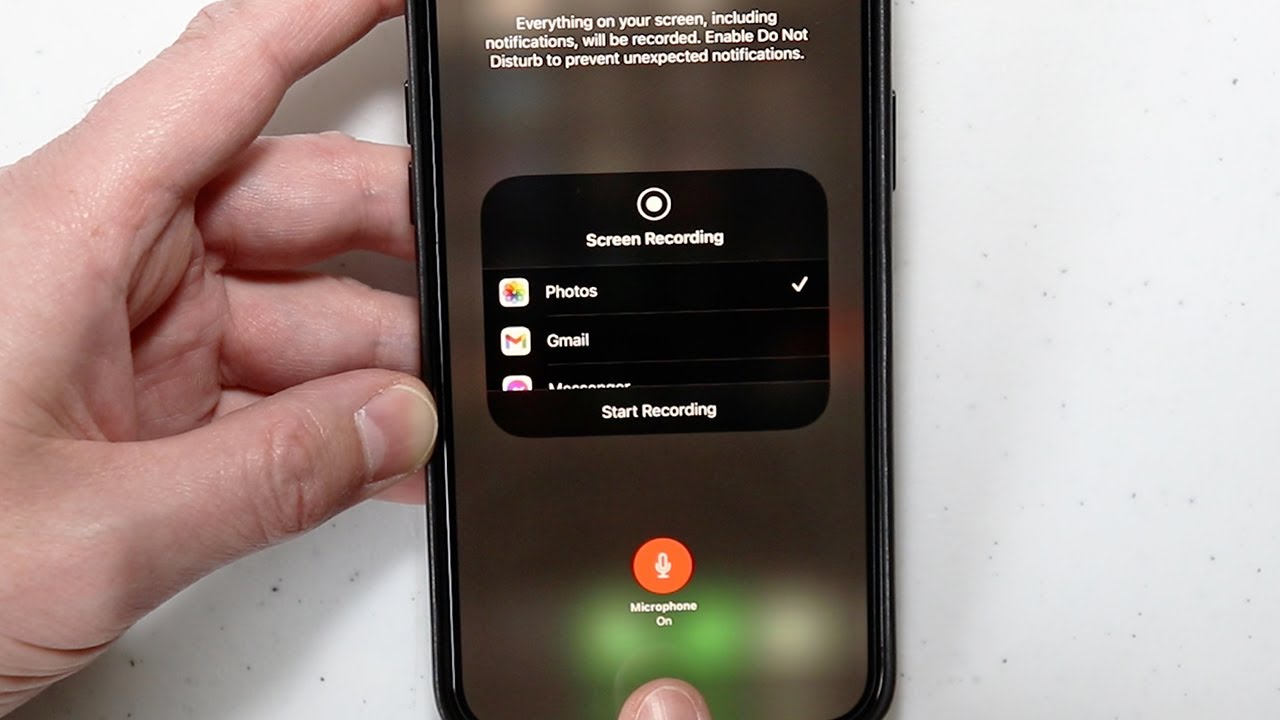
    2. Tap and hold the Screen Recording button.
    3. Select Microphone Audio if you want to record sound with your video.
    4. Tap the Start Recording button to begin recording your iPhone 12’s screen.
    5. When you’re done recording, tap the Stop Recording button in the Control Center.
    6. Thats it!

    Where will the Screen Recording be saved on iPhone 12?

    As soon as you click on the timer to stop screen recording, it will be saved in “Photos” by default. To view your recording, go to “Photos” and hit play. You can share, delete, or edit it as per your requirement.

    Why can’t I screen record on my favourite streaming apps?

    While screen recording can be used to capture everything happening on your iPhone screen, including notifications and calls, you cannot screen record apps like Netfliz, Amazon Prime Video and Disney + due to copyright issues.

    Final words

    Screen recording your iPhone 12 is a great way to capture your best moments and share them with family and friends. With just a few taps, you can record what’s on your screen for any app or game. It’s easy to do and can save you time in the long run if you ever need to troubleshoot an issue or just show someone else how to do something on their phone.

  • How to delete messages on MAC

    How to delete messages on MAC

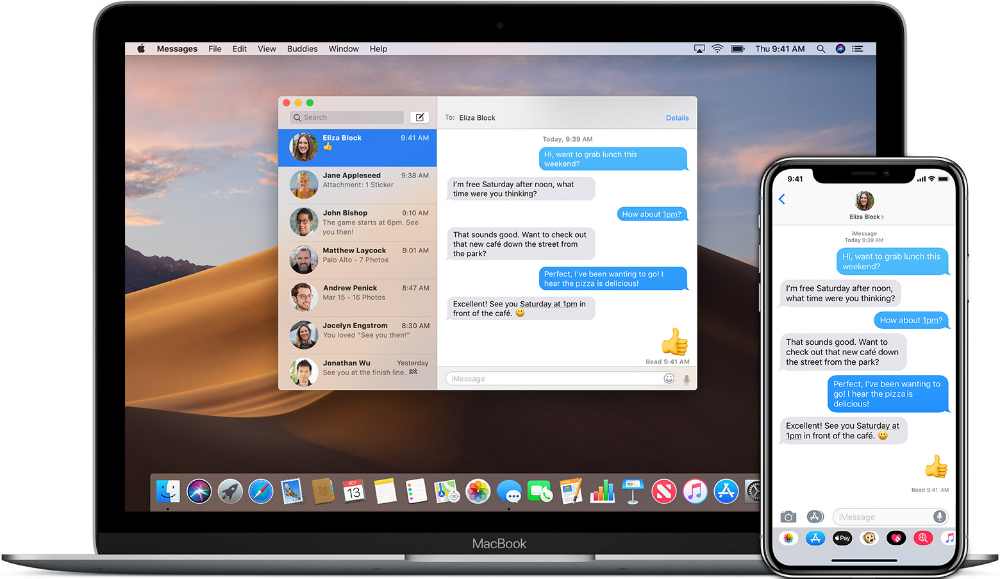
    If you’re a Mac user, you know how important it is to keep your messages organized and clean. Deleting unnecessary messages can help declutter your inbox and make it easier to find the information you need. This guide will teach you how to delete messages on your Mac, including tips and tricks to help you delete messages quickly and efficiently.

    Why delete messages on MAC?

    Having an organized inbox is essential for staying productive, and it’s especially important to delete unnecessary messages from your Mac. This can help you keep your Mac’s storage space clear and help it run more smoothly. Deleting messages from your Mac also helps to protect your privacy since there may be sensitive information contained in the messages. In all, deleting messages on your Mac can help to keep your device running smoothly and help protect your privacy. By taking the time to delete old and unnecessary messages, you can help ensure that your Mac stays secure and runs efficiently.

    How to delete a message on Mac

    If you want to delete a message within a conversation,

    1. Open the Messages app on your Mac by clicking on the “Messages” app.
    2. Select the conversation containing the message you want to delete in the left pane of the messages window.
    3. Delete a single message by right-clicking the message and selec “Delete.” 

    How to delete an entire conversation

    To delete an entire conversation,

    1. Open the messaging app on your Mac and locate the conversation.
    2. Right click on the selected conversation.
    3. A pop up will appear and then click delete conversation.
    4. A prompt will appear asking if you are sure. Click delete.
    5. Now, the conversation and all of its messages will disappear.

    How to disable iCloud messages sync

    Changing this setting prevents messages from coming to your Mac, leaving it free of the conversations from your iPhone. To stop messages from coming to your Mac,

    1. Open the Messages app on your Mac. 
    2. Click on Messages in the upper left corner of the screen. 
    3. Click on Preferences, then select the iMessage tab. 
    4. Select “iMessages” near the top of the window.
    5. On the left side of the screen, uncheck the box next to Enable Messages in iCloud. 

    Is there a faster way to delete messages on Mac?

    You can also use a shortcut to do this even more quickly. Press Option + Command + K, or you can right-click an empty space in the conversation window and select the Clear Chat Transcript option. You can do this for each conversation on your Mac or Macbook to quickly delete all of the messages.

    Conclusion

    Deleting messages on a MAC is a great way to stay organized, keep your inbox clutter-free and maintain your online privacy. It’s a simple process that takes just a few steps, and can help you keep your MAC clean and free of unnecessary messages. Whether you’re trying to clear up space or simply make sure you’re not collecting any unnecessary information, deleting messages on a MAC is the best way to go.

  • How to move rows in Excel

    How to move rows in Excel

    Moving rows in Excel is a simple task that can be completed quickly and easily. By cutting and inserting the row or rows you want to move, you can reorder your data in a way that makes sense for your spreadsheet. With just a few clicks of your mouse, you can easily rearrange your data in whatever way best suits your needneeds.

    What are rows in Excel

    Rows in Excel are horizontal sets of cells. Each row is identified by a number and runs horizontally across the spreadsheet. The columns in Excel are numbered from left to right, starting with column A and going up to column XFD.

    Each row in the spreadsheet contains up to 16,384 cells and can be used to enter data such as text, formulas, dates, and numbers. When rows are used to store data, they can be sorted and filtered to make it easier to find specific information. Rows also allow for simple calculations like addition, subtraction, multiplication, and division. Rows can be used to create charts that can be used to illustrate trends in data.

    How to move a specific highlighted row in Excel

    1. Select the row that you want to move.
    2. Hold the Shift Key from your keyboard.
    3. Move your cursor to the edge of the selection. It would display the move icon (a four directional arrow icon).
    4. Click on the edge (with left mouse button) while still holding the shift key.
    5. Move it to the row where you want this row to be shifted.
    6. Leave the mouse button when you see a bold line right below the row where you want to move this row.
    7. Leave the Shift-key (remember to keep the Shift key pressed till the end).

    How to move an entire row in Excel

    1. Select the entire row that you want to move.
    2. Hold the Shift Key from your keyboard.
    3. Move your cursor to the edge of the selection. It would display the move icon (a four directional arrow icon).
    4. Click on the edge (with left mouse button) while still holding the shift key.
    5. Move it to the row where you want this row to be shifted.
    6. Leave the mouse button when you see a bold line right below the row where you want to move this row.
    7. Leave the Shift-key (remember to keep the Shift key pressed till the end).

    Conclusion

    Moving rows in Excel is a useful skill to have when dealing with large data sets and complex spreadsheets. It can save time and simplify your workflow when dealing with data that needs to be rearranged. Knowing how to move rows in Excel can help you better organize and analyze your data.

    With a few clicks of the mouse, you can quickly move entire rows to different places in the worksheet or even copy and paste them from one sheet to another. Moving rows in Excel requires only basic knowledge of the software and its functions, so give it a try and see how much easier your workflows become!

  • How to turn on flashlight on iphone

    How to turn on flashlight on iphone

    Using the flashlight on your iPhone can come in handy when you need a little extra light. Whether you’re walking home at night or trying to locate something in a dimly lit room, turning on the flashlight on your iPhone is quick and easy. In this article, we will provide step-by-step instructions on how to turn on the flashlight on an iPhone.

    How turn on iphone flashlight

    1. First, unlock your iPhone and make sure you are on the Home screen.
    2. Now, swipe up from the bottom of the screen to bring up the Control Center.
    3. Look for the Flashlight icon (it looks like a flashlight) located in the bottom left corner of the screen.
    4. Tap it once to turn on the flashlight.
    5. To adjust the intensity of the light, press and hold down on the flashlight icon. A scale will appear, which allows you to adjust the intensity of the light.

    How to turn off iPhone flashlight

    1. Open the Control Center by swiping down from the bottom of the screen or top right corner of your iPhone’s screen.
    2. Tap and hold the flashlight icon in the lower left corner.
    3. The flashlight will turn off and the icon will become dimmed.
    4. That’s it!

    Importance of iPhone flashlight

    1. Having a flashlight app on your iPhone means you don’t have to worry about carrying around a separate physical torch when you need extra light in a dark environment.
    2. An iPhone flashlight can be incredibly useful for providing extra visibility when you’re walking alone at night. It can also provide an additional layer of security if you hear suspicious noises in your home or outdoors.
    3. In case of a power outage, the flashlight app on your iPhone can help you find your way around your home and locate important items and other supplies that can come in handy during an emergency.
    4. If you find yourself in an unfamiliar place and don’t have any other source of illumination, the iPhone flashlight app can be a great way to help you find your way out of the darkness.

    Does iPhone flashlight drains too much battery when turned on?

    One of the most important questions people ask when it comes to using the iPhone flashlight is if it drains too much battery when turned on. The answer is NO. The iPhone flashlight doesn’t drain a significant amount of battery power when it’s turned on.

    Conclusion

    The iPhone flashlight is a great tool to have when you need a bit of light in a dark area. It is easy to turn on and off and can be done with just a few taps of your finger. It is also important to keep in mind that it can drain your battery if you forget to turn it off after you are done using it. So make sure to take advantage of this tool when needed.