Category: Guides

  • How to see who liked your playlist of Spotify

    How to see who liked your playlist of Spotify

    If you are a Spotify user, you may have noticed that other users can “like” your playlist. But do you know how to find out who has liked your playlist? It’s easier than you think. If you’ve ever created a playlist on Spotify and wondered who has liked it, you’re not alone. Many people use Spotify to share their playlists with friends and family, and it can be hard to keep track of who has actually liked your playlist.

    Luckily, Spotify makes it easy to see who has liked your playlist. With just a few clicks, you can see which of your friends and followers have liked your playlist. This guide will show you how to view the list of those who have liked your playlist.

    What is Spotify playlist

    Spotify is a music streaming platform that allows users to listen to millions of songs, albums, and podcasts from all over the world. It is one of the most popular streaming services, offering both free and premium subscription plans. With Spotify, you can create your own playlists and follow other users’ playlists to discover new music. Also, it has many features such as audio fingerprinting, radio stations, and artist recommendations. It is available on a range of devices including mobile phones, tablets, computers, smart TVs, and gaming consoles.

    How to view your Spotify playlist likes on iPhone

    1. Open “Spotify” on your iPhone.
    2. Tap on “Your Library” in the bottom-right corner of the menu.
    3. Select the “Playlists” tab at the top of the screen.
    4. Tap on the playlist in question to view how many likes it received.
    5. You will see the like count of the playlist under the title, which is on the left side of the screen. 

    How to view your Spotify playlist likes on android

    1. Launch “Spotify” on your Android device.
    2. Select the “Your Library” button on the bottom menu.
    3. Continue to the “Playlists” tab at the top of your screen.
    4. Select the playlist where you want to check the like count.
    5. The like count will be right under your profile picture and username in the middle-left part of the screen.

    How to view your Spotify playlist likes on Windows PC

    1. Launch the “Spotify desktop app” on your Windows.
    2. Log in to your Spotify account and go to the “Playlists” section on the left sidebar.
    3. Find the playlist you want to check and click on it.
    4. The Likes section will be on the far-right side of the app, above the Downloaded button.

    How to view your Spotify playlist likes on MAC

    1. Run the “Spotify desktop app” on your Mac.
    2. Sign in to your account if you haven’t already.
    3. Navigate to the “Playlists” section on the left sidebar.
    4. Click on the playlist.
    5. The total number of likes will be on the middle-right side of the screen. If you were to click on the Likes tab, nothing would happen.

    How to see who liked your playlist on Spotify

    If you want to see someone has liked your playlist on Spotify,

    1. Locate their Spotify account.
    2. Go to their public playlist.
    3. There, you will see their liked playlists in their list of public playlists.
    4. Go to their profile and enlarge their playlist.
    5. You will be shown their favorite playlists, but if they are fans of lots of playlists, yours might not be part of the displayed playlists as Spotify only displays a handful of playlists per user.

    Conclusion

    Spotify is an excellent way to share your favorite music with friends, family, and the rest of the world. Knowing who has liked your playlist can be an important part of connecting with others who share your same tastes in music. With a few simple steps, you can easily view who has liked your playlist on Spotify.

    Whether you want to give them a shout out or just see how many people are listening, it’s nice to know that someone else is enjoying your playlist as much as you do. So make sure to check out your likes and start building up your Spotify community today.

  • How to turn off power reserve on Apple Watch

    How to turn off power reserve on Apple Watch

    If you own an Apple Watch, you may have noticed that your watch will enter a power-saving mode when the battery life begins to run low. This mode is known as Power Reserve and can be disabled if you wish. If you’re wondering how to turn off Power Reserve on your Apple Watch, then this type is the right guide for you.

    What is Power reserve on Apple Watch

    Power Reserve on Apple Watch is a feature that helps conserve battery life by allowing you to manually turn off power to your watch. When enabled, Power Reserve will keep your Apple Watch in an ultra-low power mode that only shows the time and a single indicator for low battery. All other functions will be disabled, and the battery will last significantly longer. You can use Power Reserve when you need to maximize battery life and don’t need the full capabilities of your Apple Watch.

    How to turn off power reserve on Apple Watch

    Turning off power reserve on your Apple wacth is easy. The only way to exit when you are in the power reserve mode is to restart your device. To do that,

    1. Press and hold the Side button for about 10 seconds.
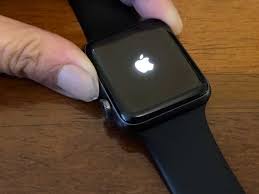
    2. The watch will restart and the Apple logo will appear. 
    3. Keep in mind that if your battery is almost completely empty, you might need to charge the watch before it will restart normally.
    4. The power off reserve will be turned off after restarting your Apple watch.

    How to turn on power reserve on Apple watch

    Now, you may want to turn on your power reserve again after turning it off. Or it has already been off and you now wants to turn it on. Ideally, if your Apple watch battery reaches, 10% you will receive a notification asking you if you want to turn on power reserve. You can then follow suit and turn it on. But if you manually want to turn it on before your batter goes low,

    1. Swipe up from the bottom of the watch. 
    2. Tap the battery percentage remaining button. 
    3. On the battery screen, swipe the Power Reserve button to the right. 
    4. Confirm you want to start Power Reserve by tapping “Proceed.”

    Conclusion

    Power reserve on the Apple Watch is a great way to extend your battery life when it is running low. However, there are times when you may want to turn off the power reserve to gain access to all the features of your watch, the process is easy to do After, your watch will be ready for use and you can enjoy all of its features.

  • How to poke on Facebook

    How to poke on Facebook

    Poking on Facebook is a fun way to interact with your friends and family, but it can be confusing to know how to do it properly. If you’re unsure of the process or want a refresher, this post will help you understand the basics of poking someone on Facebook. We’ll cover the different types of pokes, how to poke someone, and when it’s appropriate to send a poke.

    What is Facebook poke

    Facebook poke is a feature that allows you to send a virtual “poke” to another Facebook user. It’s a way of getting someone’s attention, without actually sending them a message or starting a conversation. It can be used for fun, to say “hello”, or just to let someone know you’re thinking of them. Poking back is optional, and there’s no limit on how many pokes you can send or receive.

    Who can you poke

    When it comes to who can you poke on Facebook, the answer is that you can poke anyone on your friend list, people who follow your public posts, people you’re not connected with but have mutual friends with, and people who have interacted with your public posts. If someone has blocked you on Facebook, they won’t be able to receive your pokes.

    How to find the poke feature

    Finding the poke feature on Facebook is easy and straightforward. You can find the poke feature by;

    1. Going to your profile page
    2. Click on the three-dot menu in the top right-hand corner.
    3. From here, you’ll be able to access the “Poke” option.
    4. You can also visit the profile of someone you want to poke and click on the “Poke” option directly on their profile.
    5. Once you’ve located the Poke button, all you need to do is click on it.

    How to poke on Facebook

    Poke from profile

    1. Log into your Facebook account on a web browser or the mobile app.
    2. Go to the profile of the person you want to poke.
    3. Look for the three dot menu icon next to the Message button and click on it.
    4. From the drop down menu, select “Poke”.
    5. A pop-up window will appear, confirming that you’ve poked the person.
    6. The person you poked will receive a notification. If they poke you back, you will get a notification in your Facebook news feed.

    Poke from timeline

    You can also poke someone from their timeline. Just hover over their cover photo, and you’ll see the “Poke” option in the lower right corner of the page.

    Poke from messenger

    You can also use the Facebook Messenger app to poke someone by;

    1. Tapping on the conversation window with the person.
    2. Then tap on the three dots icon located at the top right corner of the screen
    3. Select “Poke” from the list of options.

    What happens when you poke someone

    When you poke someone on Facebook, they will receive a notification that you have poked them. Depending on their privacy settings, the other person may or may not be able to see who poked them. When they receive the notification, they will have the option to poke back or ignore the poke.

    Different types of poke

    1. Normal Poke

    This is the default type of poke, which simply lets a person know you are thinking about them or want to connect.

    2. Wave Poke

    This type of poke is similar to the normal poke, but it’s a bit more playful and fun. It’s the same as waving hello to someone from afar.

    3. Heart Poke

    This type of poke allows you to send a little bit of love and appreciation to someone.

    4. Gift Poke

    If you want to surprise someone with a special gift, then this type of poke is perfect. The recipient will receive a special icon with a surprise message attached.

    5. Joke Poke

    This type of poke is ideal for sending funny messages to friends and family. When you send this poke, the recipient will receive a funny message along with a unique icon.

    6. Question Poke

    If you have a question for someone, then this type of poke is perfect for sending that query their way. This poke includes an icon and a question prompt.

    Conclusion

    Poking is a great way to remind someone that you’re thinking of them or to just say hello. While poking might seem like an a great activity, be sure to use it wisely. As with all social media activities, remember to respect other people’s privacy. Use your best judgement and make sure that you’re not being too intrusive when poking.

  • How to reset Nest thermostat

    How to reset Nest thermostat

    Having a Nest thermostat in your home can be a great way to help you stay comfortable and conserve energy, but sometimes it may need to be reset. Whether you’ve just moved into a new home with a Nest thermostat or you’re looking for a fresh start with your current thermostat, learning how to reset a Nest thermostat can be useful. In this article, we will walk you through the steps to reset your Nest thermostat and give you some tips on how to get the most out of it.

    What is a Nest thermostat

    Nest thermostat is a smart home device that helps you save energy and stay comfortable by allowing you to control the temperature in your home from anywhere. This programmable thermostat allows you to adjust the temperature of your home by controlling your HVAC system remotely with an app or voice command. The Nest Thermostat is designed to learn your preferences and use advanced algorithms to adjust the temperature in your home accordingly, resulting in lower energy bills and improved comfort.

    Why you should reset your Nest thermostat

    Resetting your Nest thermostat can help you save energy and keep your home comfortable. It can also fix common problems like connectivity issues, inaccurate readings, and incorrect settings. Resetting your Nest thermostat also helps to ensure that your device is up to date with the latest software, making it more efficient.
    When you reset your Nest thermostat, it erases all of your previous settings and restores it back to its original factory state. This allows you to start fresh and make any necessary changes to the device that may have been causing an issue.

    How to reset a Nest thermostat

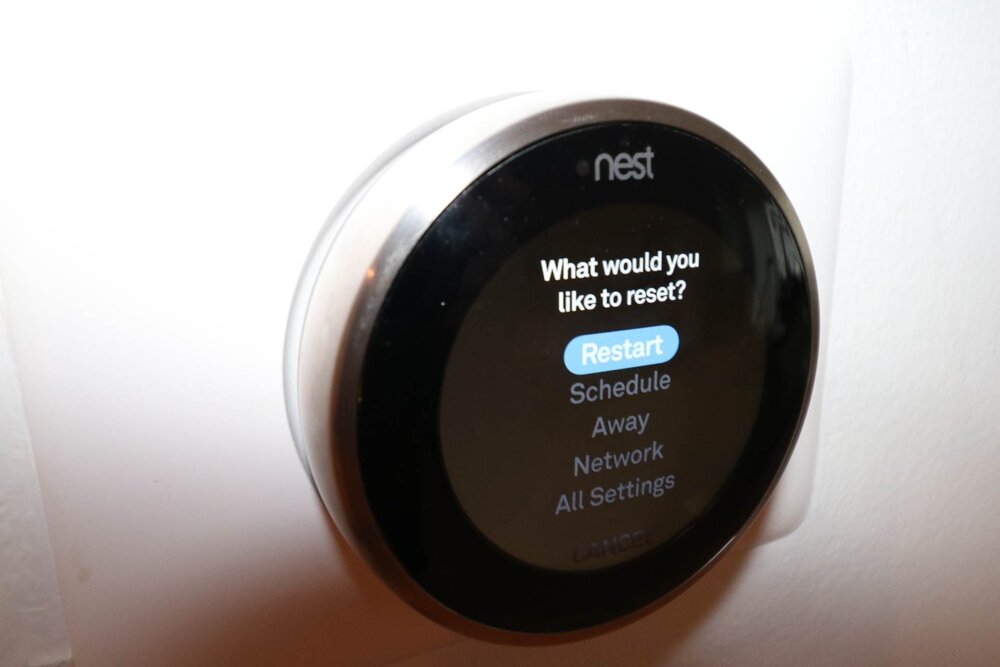
    1. Navigate to the Settings menu on your Nest thermostat.
    2. Select the Reset option.
    3. Choose the type of reset you’d like to perform. There are two options: Soft Reset and Factory Reset.
    4. For a soft reset, select Yes when asked if you want to continue.
    5. For a factory reset, select Yes when asked if you want to proceed.
    6. Wait for the reset to be complete and follow any additional instructions that may appear on the screen.
    7. After the reset is complete, your Nest thermostat will be returned to its original settings.
    8. A soft reset will reset all of your settings to their original values, but will not delete any data or saved preferences.
    9. A factory reset will erase all data and saved settings, so make sure you know what you’re doing before proceeding with this option.

    Benefits of Nest thermostat

    • Nest thermostats are designed to be energy-efficient and can help you save on your heating and cooling bills. By using an automated temperature control system, the thermostat can adjust itself to maintain comfortable temperatures in your home while minimizing energy consumption.
    • Nest thermostats are designed to keep your home comfortable by providing automated temperature control. With features like automated scheduling, geo-fencing, and remote access, you can rest assured that your home will always be at a comfortable temperature.
    • Nest thermostats are designed to be user-friendly and simple to install. The majority of models feature simple installation steps that can be done with minimal tools and technical knowledge.
    • With a Nest thermostat, you can access and control your thermostat from anywhere with an internet connection. You can even control it through voice commands with a compatible smart device.
    • Nest thermostats can be integrated with a variety of other smart home devices and systems for increased convenience and energy efficiency. For example, some models of Nest thermostats can be integrated with Google Assistant or Alexa so that you can control your thermostat with voice commands.
    • Nest thermostats come equipped with advanced features that make controlling your home’s temperature easier than ever. Some models offer features like automatic away mode, auto-schedule learning, open window detection, and more for enhanced convenience and energy savings.

    Conclusion
    Resetting your Nest thermostat can be a great way to start fresh and make sure that your device is running as it should. It can help improve energy efficiency, reduce energy costs, and improve the comfort of your home. Although resetting your Nest thermostat may seem intimidating, the process is relatively simple.

  • How to change your Airpods name

    How to change your Airpods name

    If you’ve recently purchased a pair of AirPods, you may be wondering how to customize them to your liking. One way to personalize your AirPods is to change their name. Changing the name of your AirPods makes it easier to locate them on a list of Bluetooth devices when connecting them to another device. The process of changing your AirPods’ name is easy and simple.

    Why you might want to change your airpod name

    Changing the name of your AirPods can be a great way to personalize your listening experience and make them easier to find when pairing. With a few clicks, you can have your AirPods with a name that fits your personality, making it easier to identify them in crowded spaces like airports and coffee shops. Also, changing the name of your AirPods can also be useful if you are part of a family or friends that uses multiple sets of AirPods, allowing you to distinguish yours from others.

    How to change your airpod name on iphone and ipad

    1. Take your AirPods out of their case and switch it on.
    2. Open the Settings app on your iPhone or iPad and select Bluetooth. 
    3. Tap the blue “i” icon next to your AirPods name in the list of devices. 
    4. Tap on the Name field to clear the old name and type a new name.
    5. Hit Done in the bottom-right corner of the the keypad once you’ve added a new name. 
    6. Now when you search your AirPods in your list of devices, you’ll see them in your name name.

    How to change your Airpod name on MacOS

    1. Open System Preferences on your Mac by clicking on the Apple symbol on the top left corner on your screen
    2. In System Preferences, click Bluetooth. 
    3. Switch on your Airpods and connect it to your Mac.
    4. On the Devices section of the Bluetooth page, right-click the name of your AirPods and select Rename in the drop-down menu.
    5. To right-click on a Mac, hold down the Control key while you click. 
    6. Enter a new name and click Rename again to confirm your change. 

    How to change your Airpod name on android devices

    1. Open Settings and locate Bluetooth on your device.
    2. Turn on your Bluetooth and wait until the paired devices list shows up.
    3. Press the gear icon next to your AirPods’ name.
    4. Tap the “Rename” option and give a new name to your buds.
    5. Hit Rename.
    6. Type in the new name and you are done.

    How to change your Airpod name on Windows PC

    1. Open your Control Panel from the Windows menu.
    2. Select “Devices and Printers.”
    3. Find your AirPods on the list of Bluetooth devices.
    4. Right-click them and select “Properties.”
    5. Switch to the “Bluetooth” tab.
    6. Edit the name of your device.
    7. Hit “Apply,” then “OK.”

    Conclusion

    Changing the name of your airpods is a great way to customize your device and make it easier to find. You may have forgotten what you originally named them, or you may want to give them a fun new name. Follow the steps above and make it easy.

  • How to turn off WiFi calling

    How to turn off WiFi calling

    For many people, WiFi calling is a great convenience that allows them to make phone calls and texts over a wireless internet connection instead of a traditional phone line. However, some people may want to turn off their WiFi calling for various reasons. In this article, we will provide a step-by-step guide on how to turn off WiFi calling on both Android and iOS devices.

    What is WiFi calling

    Wi-Fi Calling is a feature on many modern smartphones that allows you to make and receive calls over Wi-Fi networks instead of using traditional cellular networks. This can be especially helpful if you live in an area with poor cell coverage or have a weak cellular signal. However, some people may not want to use this feature, so it’s important to know how to turn it off.

    How to disable WiFi calling on iPhone and iPad

    1. Open your iPhone and then go to settings options from the Menu bar.
    2. Scroll down and click Cellular
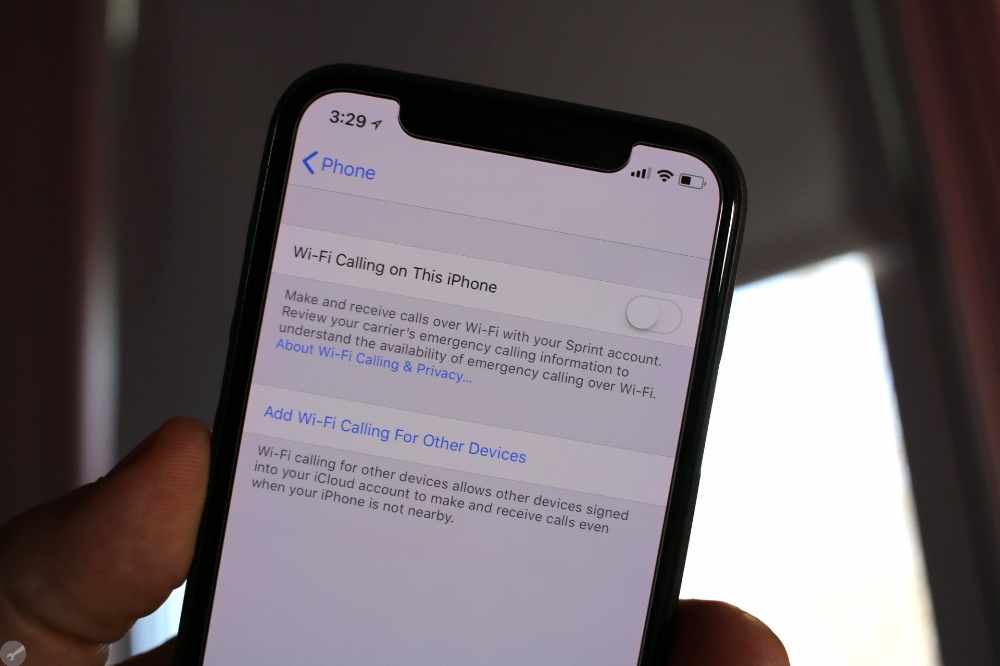
    3. Look for the Wi Fi Calling Feature.
    4. You can either see this option from the Calls menu bar under Settings
    5. Click on the Green button and let it to off to make it disable for Wi Fi Calling
    6. If it does not show green bar next to it, then it means it is already off.
    7. That’s it, the Wi Fi calling on your iOS device now disabled.

    How to disable WiFi calling on Android devices

    1. Click on the Setting icon from Menu
    2. Now click on Network and then click on SIM card settings options.
    3. Once the settings open, click on the SIM card for which to disable WiFi Calling
    4. Now scroll down and move to the WiFi Calling option in the same settings page
    5. Click on to disable and then save the same with the confirm button.
    6. That’s it, the calling on Android devices disabled.

    How to disable WiFi calling on Samsung phones

    Samsung devices has different settings compared to other android devices. So, switching off wifi settings may have a different and simpler process.

    1. From your phone’s settings app, select Connections, which should be at the top of your settings menu.
    2. You should see Wi-Fi calling as an option in the following menu, with a toggle switch right next to it.
    3. If it’s blue, that means Wi-Fi calling is currently turned on; disabling Wi-Fi calling will turn the toggle switch gray.
    4. Thats it.

    Conclusion

    WiFi calling is a great way to keep in touch with your friends and family, even when you don’t have access to a reliable cellular signal. However, if you don’t need or want to use WiFi calling, it’s important to know how to disable the feature. On iPhones, you can disable WiFi calling through the Settings app. Android users will need to look in their system settings, while Samsung users should look in their connection settings. With these simple steps, you can easily turn off WiFi calling and ensure that your phone is using the best available network connection.

  • How to ping Apple watch

    How to ping Apple watch

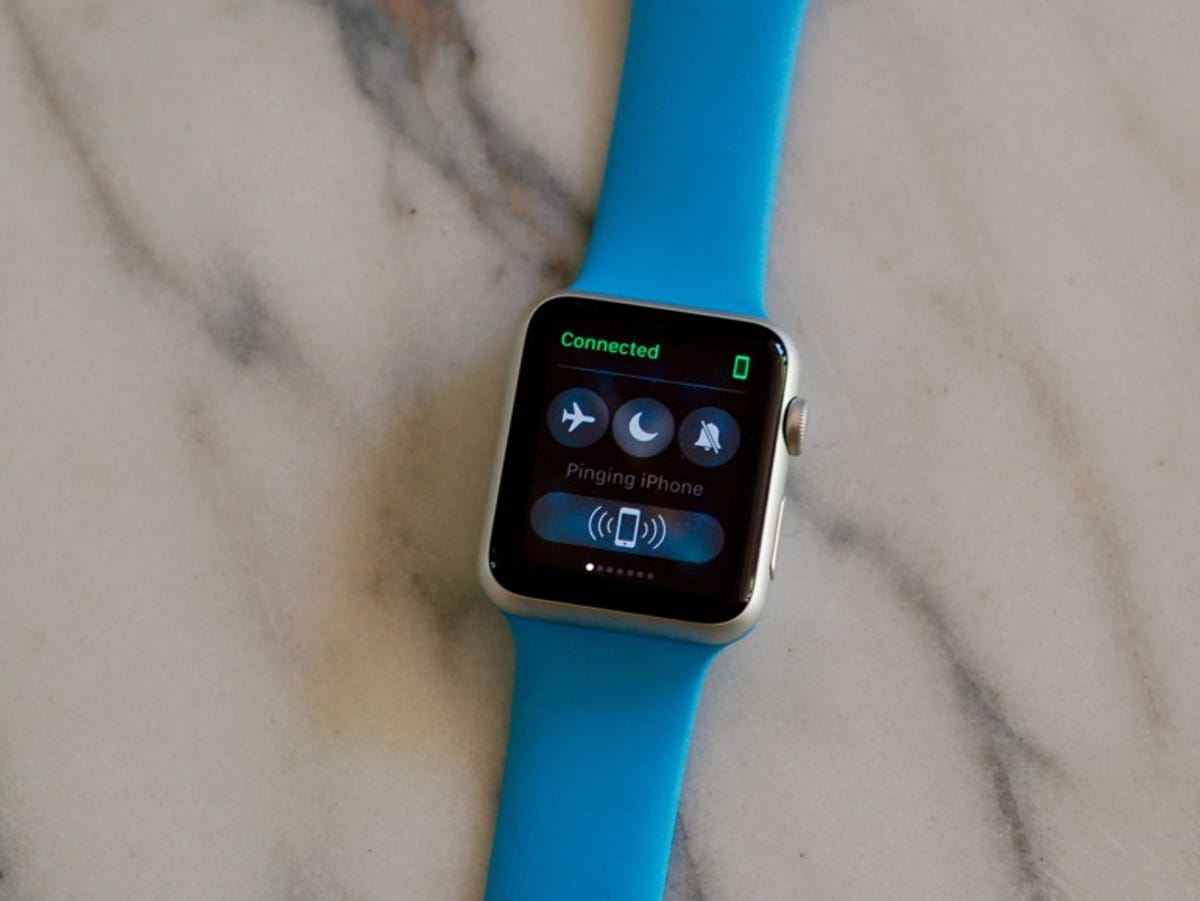
    The Apple Watch is a great device that offers many features, but sometimes it can be difficult to locate if you’ve misplaced it. But, the Apple Watch has a handy “ping” feature that makes it easy to track down your watch. Pinging is a great way to easily locate your apple watch when you don’t know where you’ve left it. Whether you left it in another room or simply can’t remember where you put it, pinging your Apple Watch can help you find it quickly and easily.

    What is Apple watch ping

    Apple Watch ping is a feature of Apple Watch which allows you to locate your watch from any other apple device. It works by playing a sound on the Apple Watch, even if it is in silent mode. This can be very useful for when you lose your Apple Watch or if you just need to locate it in a room full of people. It’s also helpful if you’re out and about and your Apple Watch isn’t nearby.

    Why should you ping your apple watch?

    It is a great way to locate a lost Apple Watch. If you misplaced it somewhere around your house or office.

    • It can also be used to keep track of the whereabouts of your watch if you travel a lot.
    • Pinging your watch can also help you in situations where you’ve misplaced your phone and need to know where it is.
    • You can also use the ping feature to let someone else know you’re nearby.
    • Pinging your watch can be a useful tool for those who work in places with large crowds and noisy environments.

    Pinging your Apple watch

    To be able ping your apple watch using your iPhone, you need to first enable “Find my iphone” in your settings. To do that,

    1. Go to the Settings app.
    2. Tap on your name.
    3. Select “iCloud.
    4. Swipe down and tap Find My iPhone.
    5. Toggle on Find My iPhone.

    How to ping Apple watch

    Now Find my iPhone is on and you can easily ping your iPhone. To do that,

    1. Launch the “Watch app on your iPhone.
    2. Select your Apple Watch.
    3. Tap on (i) next to the Apple Watch.
    4. Toggle on Find My Apple Watch.
    5. Then turn on, Turn On Send Last Location.

    Why can’t I find my apple watch after pinging

    It can be frustrating if you cannot locate your Apple Watch after pinging. There are several reasons why you may not be able to find your Apple Watch after you have pinged it.

    • You may not find your Apple Watch is because it is not in range of your iPhone. If your Apple Watch is out of range, then it will not be able to receive the ping and you won’t be able to locate it. Make sure that your Apple Watch is within Bluetooth range of your iPhone before attempting to ping it.
    • Make sure that your Apple Watch is not in Do Not Disturb mode. This means that any sound or alert won’t be emitted from your watch, making it impossible for you to locate it. To check that this isn’t the case, go to the Settings on your Apple Watch and select “Do Not Disturb”.
    • If you recently changed the sounds on your Apple Watch then this could also affect its ability to be located. This is because the ping is dependent on the sound associated with the alert, so if this has changed then the ping won’t be loud enough for you to hear. To fix this, go to the Sounds settings on your Apple Watch and make sure that the sound is still set up correctly.
    • If you are using multiple Apple Watches then it could be possible that you are trying to ping the wrong one. Make sure that you double check that you are pinging the correct device before giving up on trying to find it.

    Conclusion

    Pinging your Apple Watch can be an effective way to locate it if it is lost or misplaced. It can also be used to find out if it is too far away from your phone or if you just want to make sure it’s on you. Pinging your Apple Watch is easy and only takes a few steps. Make sure you have the “Find My” app on your iPhone, then open the app and tap “Play Sound” to send out a ping to your Apple Watch.

  • How to cut a video on iPhone

    How to cut a video on iPhone

    Trimming or cutting a video on your iPhone is a quick and easy way to create personalized content. Whether you’re creating a short clip to share with friends, or a professional-level edit for a project, trimming and cutting videos on an iPhone can help you customize and enhance your content. For basic tasks like trimming or shortening videos and cutting out unwanted clips, you don’t need fancy editing software. In fact, most simple video editing tasks can be done in either the Photos app or iMovie.

    How to cut a video on iphone in the Photos app

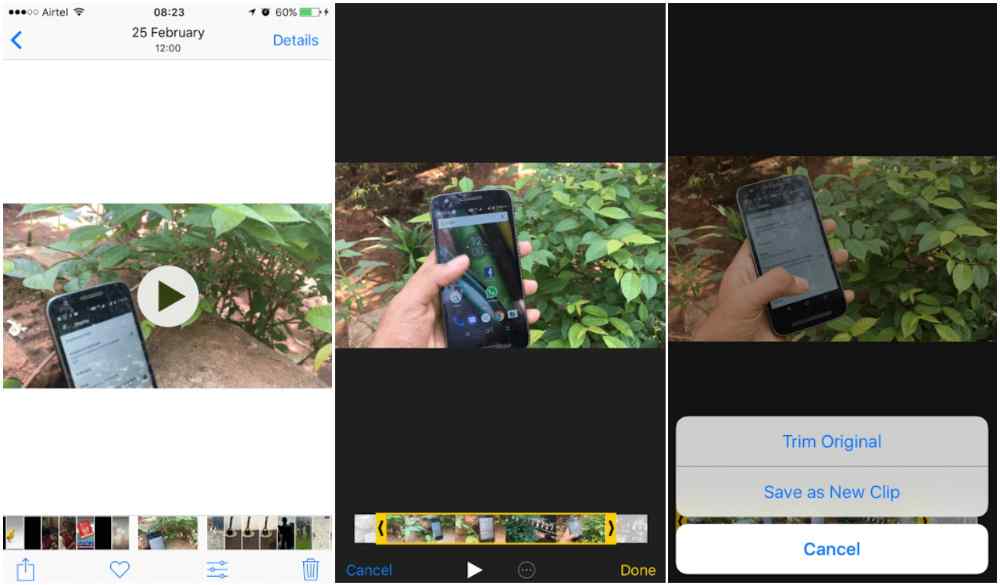
    The Photos app is not an advanced video editing tool, but it does allow for some easy video edits. To use it to cut or trim a video,

    1. Open the video you want to edit in the Photos app.
    2. Tap Edit.
    3. Tap the video camera icon at the bottom of the screen.
    4. See the slider underneath the video? Hold your finger on either of the arrows and slide them inward to effectively shorten your video clip.
    5. When you’re finished, tap Done.
    6. A pop-up menu will appear. Choose Save Video or Save Video as New Clip, depending on your preferences.

    How to cut and trim video clips using iMovie

    iMovie is a powerful app that can be used to cut or trim a video on iphone. It can also be use to split and rearrange a video. The phone app cant be used for all this but with iMovie, you can do a lot on your video. You first visit the apple store and download the iMovie app. After that, if you want to use it to cut or trim a video,

    1. Open iMovie on your iPhone and select or add the video clip that you want to cut.
    2. Your video will appear with the timeline underneath.
    3. You will see a vertical whiteline called the playhead and that is where the editing will take place.
    4. Use your finger to move the playhead to the spot where you want to cut your video.
    5. Tap the playhead, then tap cut at the bottom of the screen.
    6. iMovie will create a cut between the two newly created clips.
    7. Hold your finger on the clip you want to move and drag it to the left or the right on your movie timeline. When you have it in the proper position, take your finger off the clip.
    8. Tap Done to save your video in iMovie.
    9. Tap the upload icon to save your video to your photo library.

    Other apps that can be used to cut or trim your videos on iphone

    1. iMovie

    This is the official Apple video editing app for iPhones and iPads.

    2. Splice

    Splice is a powerful video editing app created by the folks at GoPro that can be use for cutting and trimming your iPhone videos.

    3. Video Crop

    Video Crop is a free video trimmer app that allows you to quickly crop, trim and edit videos on your iPhone or iPad.

    4. Videoshop

    Videoshop is a popular video editing app that offers a wide range of features, including the ability to trim or cut videos.

    5. InShot

    InShot is an all-in-one video editor and photo editor that can be used to trim, merge, rotate and flip videos on your iPhone or iPad.

    6. Adobe Premiere Rush

    If you’re looking for a more powerful video editing experience on your iPhone or iPad, Adobe Premiere Rush might be the perfect choice.

    Conclusion

    Cutting a video on your iPhone is a great way to make the perfect clip for sharing with friends and family. With just a few simple steps, you can easily trim down longer videos or create snippets of any length. By taking advantage of the built-in trimming feature on your iPhone, you can create amazing and memorable clips from any video.

  • How to reset notes password

    How to reset notes password

    Notes password is a feature that Apple has included in its devices to help keep your notes secure. This password is used when you open the Notes app on your iPhone, iPad, or Mac. It’s an extra layer of security to protect your data from unauthorized access. With this password set, anyone who tries to open your notes will be asked to enter the correct password before they can gain access to your content.

    If you have a password on your Notes, it can be easy to forget your password if you don’t use it regularly. If this is the case, you may be wondering how to reset your Notes password. Forgetting your password to Notes can be frustrating, especially when you need to access an important document or file. But, resetting your Notes password is a straightforward process that requires minimal effort.

    How to reset your notes password on your Iphone

    1. Open the Setting menu of your iPhone or iPad.
    2. Find Notes and Click to open it.
    3. Hit on ‘Password’
    4. Click on ‘Reset Password” button (highlighted with red colour)
    5. Enter your Apple ID Password on the next screen.
    6. Tap “Reset Password” from the pop-up option.
    7. On the reset password screen, enter your new password, verify by typing the same password again.
    8. Click on ‘Done’ to save the reset password information.

    How to Change Notes Password on iPhone and iPad?

    In the event you want to change your notes password for any reason, follow the steps below;

    1. Open Setting menu
    2. Go to Notes
    3. Click on Password
    4. Tap on ‘Change Password’
    5. On the change password screen, enter your old password, type the new password, enter the new password again.
    6. Hit ‘Done to save changes.
    7. This will update all your notes with the recently changed password on which you have applied the lock feature.

    Importance of notes password

    1. Notes password helps protect your personal information and data from being accessed by unauthorized persons. It ensures that only those who know the password can access the notes content.
    2. Keeping a notes password helps to keep your data safe from online threats and malicious attempts to access it.
    3. Having a notes password allows you to easily remember it so that you don’t have to go through the hassle of remembering various passwords for each application.
    4. Having a notes password prevents unauthorized access to your notes which might be stored on a device or in the cloud. This helps keep your data safe and secure from potential breaches or hacking attempts.

    Conclusion

    Forgetting your notes password can be a real hassle. It’s important to keep your notes safe and secure, so creating a strong password is a must. Resetting your notes password is easy. Just follow the simple steps outlined above, and you’ll have a new password in no time.

  • How to turn off auto lock on iPhone

    How to turn off auto lock on iPhone

    When you get a brand-new iPhone, the default Auto Lock settings are 30 seconds. That means after half a minute of inactivity, your phone will dim down and automatically lock the screen. This feature is designed to protect your data and keep it secure, but if you are like many users, you may find it annoying and unnecessary. Fortunately, there is a way to turn off the auto lock feature on your iPhone, and this article will show you how.

    Changing auto lock time on iOS 6 and below

    If your iPhone runs on an older operating system, follow the steps below to turn off Auto-Lock.

    1. Open the “Settings” on your iPhone
    2. Go to “General.”
    3. Select the “Auto Lock” option.
    4. Select “Never.”
    5. You will see a small blue checkmark next to that option that confirms your selection.
    6. If you don’t want to completely turn off, you can increase the minutes, which might work best for some people.

    Changing auto lock time on iOS 7 and above

    The process of turning off Auto Lock on newer iPhone operating systems is similar, it only involves one change.

    1. Open the “Settings” on your phone.
    2. Select “Display & Brightness” option.
    3. Tap “Auto Lock.”
    4. Select “Never” from the list of options.
    5. If you don’t want to completely turn off, you can increase the minutes, which might work best for some people.

    How to fix auto lock troubleshooting

    When your iPhone battery is running low, the auto lock settings cannot be changed. The device’s Low Power Mode automatically turns on and pulls back the Auto Lock feature to the default settings. But it can be changed by turning off the Low Power Mode.

    1. Go to “Settings” on your iPhone
    2. Select “Battery.”
    3. Next to the “Low Power Mode,” move the toggle button to off.
    4. Once that is done, you can go back to “Settings”.
    5. Select “Display & Brightness.” for older ios version and “General” for newer versions.
    6. Tap on “Auto Lock” and select “Never.”

    Conclusion

    With the simple steps outlined above, you should now know how to easily turn off auto lock on your iPhone. Remember to always secure your device by setting a passcode, as this is the best way to ensure that your data remains safe.