Category: Guides

  • How To Create an Account & Deposit On 1XBET Using Mobile Money

    How To Create an Account & Deposit On 1XBET Using Mobile Money

    There are many betting companies in Ghana and when we are to talk about the best betting companies in Ghana, then 1XBET is one company we can’t end the conversation without adding.

    They were the official partner of the 2019 African cup of nations and a partner for Tottenham Hotspur.

    The company was founded in 2007 and have been in all of over Europe and then later expanded their reach to Africa, on 28th December 2018 1XBET started operating in Ghana.

    1XBET boasts of having over 400,000 users and on their site, you can bet on football, golf,  athletics, skiing and many more.

    In this article, I am going to take you through how to deposit on 1XBET using MTN mobile money but before that, I want to take you through how to sign up for 1XBET account if you are not having an account, if you already have an account then you can skip this step to the next step.

    How To Set Up 1XBET Account

    Signing Up Using The 1XBET Website

    1. Visit www.1XBET.com and click on Registration
    2. You can choose to register with your phone number or by e-mail, by number you will type in your phone number and then click on Send SMS to receive a confirmation code and then type in to sign up.

    If you choose to register by e-mail then you will be required to fill in your region, city, first and last name, email and your password.

    After successfully signing up, now it is time to deposit money into your 1XBET account and start betting

    How To Deposit On 1XBET Using MTN Mobile Money

    Depositing Using 1XBET Website

    1. On your dashboard tap on Deposit at the top right corner or click on your profile and tap on Deposit on the drop-down menu that will appear.
    2. Since this tutorial is about MTN mobile money, scroll to Mobile Payments and then tap on MTN Ghana push.
    3. Type in the amount you want to deposit to your 1XBET account, type in your number in the international format eg (+2330549xxxxxx) and then tap on confirm.
    4. Within seconds you will get a push notification asking you to approve the amount you requested from your mobile money account, type in your pin to confirm.

    If you don’t receive the notification, then you will have to approve the transaction yourself, to do this follow these steps:

    • Dial *170#
    • Select My Wallet
    • My Approvals
    • Enter your pin to access your Approval list
    • Choose a pending transaction
    • Now input 1 to approve the transaction, withing minutes you should see your money in your 1XBET account.

    Depositing Using 1XBET Mobile App

    1. On your app tap on the three horizontal lines at the top left corner
    2. On the Mobile Payment tab click on Top Up Account and then choose MTN Ghana Push
    3. Now specify the amount you will want to deposit and don’t forget to make your number international format starting with your country code and then press on confirm after that approve the push notification transaction.

    Conclusion

    Aside 1XBET being one of the best betting company in Ghana here, it has also made it easy to deposit money and withdraw, one thing I love about 1XBET is they have the highest odds as compared to the other betting companies I’ve used before.

    Is 1XBET also your favourite? Or there is one betting company that I am missing? Let me know in the comment section below.

  • How To Use WorldRemit To Send Money To MTN Mobile Money Accounts

    How To Use WorldRemit To Send Money To MTN Mobile Money Accounts

    Gone were the days sending money was not a simple thing to do, to send money you will have to walk miles to the bank, join the queue and wait for it to be your turn and then send.

    Same applies to when money has been sent to you and you want to withdraw, you will have to go with your national identification card (voters card, passport, Ghana card).

    Thanks to WorldRemit, now you can send and receive money across the globe at the comfort of your home.

    What is WorldRemit?

    WorldRemit Is an online money transfer service used in sending and receiving money to foreign countries, it was founded in 2010 and has over 3 million users across the globe.

    WorldRemit is currently working in 150 countries and luckily Ghana happens to be part.

    Maybe you have a relative who is staying abroad and will want to send you money but does not know how to send the money straight to your mobile money wallet.

    In this article I am going to take you through How To Use WorldRemit To Send Money To MTN Mobile Money Accounts within minutes.

    Before getting started make sure the recipient has a mobile money account.

    How to money to MTN Mobile Money Accounts using the WorldRemit Mobile App

    1. Download WorldRemit On your Google Play Store or Apple App store
    2. Open the app and press Get Started, now tap on Sign Up
    3. On the signup page choose your country, and then type in your full name, email address and your password
    4. You will then be asked to set up a pin that will be required anytime you open the app, you can also choose to use face recognition or touch ID
    5. Now on your dashboard click on Start Now
    6. Select the country you will want to send the money to
    7. Now type in the amount you want to send and you will immediately see the exchange rate and the fee
    8. Choose how you would like your recipient to receive the money, at this stage choose mobile money
    9. Type in your recipient mobile money number, name and then details and click on Next
    10. Now choose your payment method either to pay using bank transfer or credit card.

    How to money to MTN Mobile Money Accounts using the WorldRemit Website

    1. Visit WorldRemit.com
    2. Click on sign up, choose your country, first, last and middle name and then your email and password.
    3. On your dashboard choose the country you want to send money to and then hit Get Started.
    4. Choose mobile money
    5. Now enter the amount you want to send and you will see WorldRemit let you know the cost of your transfer, fees and the exchange rate.
    6. Now input the details of the person you are sending the money to, which include the recipient’s mobile number, country, first, middle and last name, address, city, after that press Next.
    7. Now you will then have to pay for the transfer, you can choose to pay using bank transfer or your credit card.

    Conclusion

    WorldRemit has made it easy to send and receive money at the comfort of your home, with WorldRemit, your relative can send you mobile straight to your mobile money account without the need to visit the bank.

  • How To View Your Location History (everywhere you’ve been) Through Google Maps

    How To View Your Location History (everywhere you’ve been) Through Google Maps

    Google maps is one app that has been of may help to me and you. With the help of google map, you can navigate to any place even without asking anybody for the location.

    This is largely due to the fact that almost anybody can add a place to Google Maps.

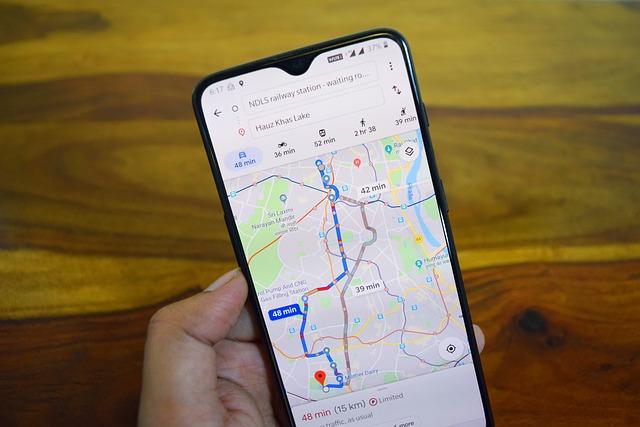
    Google Maps is a web mapping service developed by Google and it offers aerial photography, street maps views of streets, real-time traffic conditions and many more.

    With Google maps, you can view the distance from one place to another. Also, you can look at a certain area, how that place looks like.

    I remember when a friend of mine got employed at a restaurant which was new to me, he always tells me to visit him or visit to see how that place looks like, I was finding it very hard to get free time and visit him.

    I then came up with a plan to make him believe I have visited that place and that I know where it is and how that place looks like,

    What I did was I opened my Google Maps app, searched the name of the restaurant and took pictures of the aerial view and then sent him, he believed I have really gone to that place but honestly, I had never step my foot on that place before.

    This story has at least give u a tip that you can see how places look like even at the comfort of your home.

    Google Maps take the history of your destinations and routes you take. You might be like me who is always found travelling to new places and also using Google Maps on every trip I take.

    You might want to see the places you’ve been to throughout the week, month or years, Google Maps got you covered on that.

    In this article, I am going to take you through how to view your location history through Google Maps

    How To View Your Location History Through Google Maps

    1. Open the Google Maps app
    2. Tap on your profile on the top right
    3. Select Your Timeline: The app will then prompt you telling you this is going to let you rediscover the places you’ve been to and the routes you have travelled in your timeline, hit let’s Go to proceed
    4. You can then swipe left or right to select either to see the places you have visited, cities day and even world.
    5. Select the one you want to see the history and Google will show you all the places you’ve been to.

    Google Maps saving our locations helps us know the places we’ve been to but what if you don’t like Google having a record of your navigation history?

    Even though Google has stated that your history is only seen by you, some people might want to delete their navigation history

    To do this

    1. Tap on your profile on the top right
    2. Scroll down to Your Data In Maps
    3. Now on your Location and History select See & Delete Activity.
    4. You will then be taken to the places you have visited and then tap on each location you want to delete and select Remove All Visits.

    Conclusion

    With the help of Google Maps, you can now see history of the places you’ve been to, in this article we went through how to view your location history and also how to delete them if you don’t want.

  • How To Download YouTube Videos And Watch Them Offline

    How To Download YouTube Videos And Watch Them Offline

    Youtube is one platform we all can’t live without, in fact, that is the headquarters of videos.

    I remember reading an article that the author was talking about 4 platforms that you can learn everything and be a professional all by yourself and Youtube was number one and there is no doubt about that.

    If you are not paying for a service like Netflix and you are into videos, then YouTube will definitely be your thing.

    Youtube, as we all know, is a platform to watch videos on different categories, be it tutorials, DIY’s (do it yourself videos), football videos, cooking tips, join live videos and many more.

    Youtube has made it easy for anyone to access the platform and also upload videos and get paid on the viewers that you will get.

    There might be so many reasons that somebody might want to download video from youtube and watch them offline.

    Maybe you have gotten access to a Wi-Fi connection and you have a limited time to spend at that area.

    One might also have a bundle that is due to expire and will want to download videos from youtube and then watch them offline.

    In this article, I am going to take you through How to download YouTube videos and watch them offline

    Saving It For Offline Viewing On The Youtube App

    In 2014 Youtube launched the offline download feature that allows you to download videos on your android and iOS device so that you can watch them later in the app. Not all videos are available to download offline.

    To save videos for offline viewing

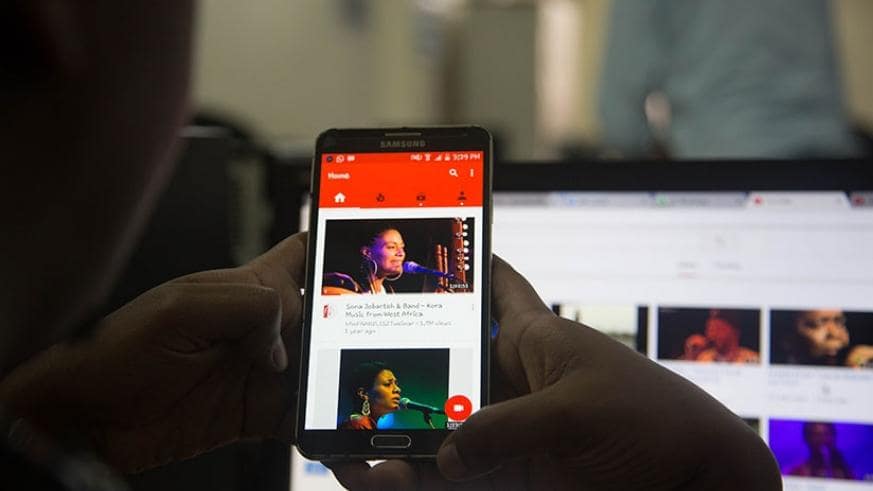
    First make sure you have the updated version of your youtube app, after that launch the app and open the video you want to download for offline viewing.

    Under the video click on the Add To Offline and then choose the video quality that you want to download be it Low, Medium and HD quality.

    After a successful download, kindly take note that the video will only be accessible on your youtube app.

    To find the videos you have download, on your youtube app, go to your homepage and select the Account tab, there you will find your saved videos, these videos can be watched even without data on.

    Downloading Videos Offline To Your Phone Or Computer Storage

    Not everybody will want to download videos on youtube offline and not have access to it without the app, some people have PC and they will also want to download youtube videos on their hard disk drive and then watch them anytime.

    Here are the steps to download youtube videos to your phone or computer storage

    1. Visit youtube.com and search for the video you want to download
    2. As the video is playing head your mouse pointer to the address bar and edit the address by adding SS before the Youtube…..
    3. Now press enter and it will take you to the video download page, select the resolution of the videos you want to download and after that click on download to get the video on your phone or pc storage.

    Also, take note that with this method you can download any video on Youtube as compared to saving it offline for offline viewing method which is only available for mobile phones.

    Conclusion

    Youtube has made it easy to download videos and watch them offline by using your their mobile app, others who want to have youtube videos on their pc and laptops too can download videos from youtube by adding ss before the youtube in the address bar.

  • How To Post Photos To Instagram From Your Laptop

    How To Post Photos To Instagram From Your Laptop

    A lot of people find it difficult when it comes to uploading a photo to Instagram using their computer because Instagram was specifically designed for mobile users.

    Like the Google Photos service, posting to Instagram is also possible on a laptop.

    You might have a very nice picture on your computer that you would want to post to Instagram, edit it and post it without the need to transfer it to your phone to post, but you will not find the upload button on the web interface on your computer.

    This has lead people to think that it’s not possible to post a picture to Instagram using your computer.

    In this article, I am going to take you through how to post photos to Instagram using your laptop with browsers and emulator.

    Vivaldi Browser

    Vivaldi browser is one of the best browsers in terms of making you use Instagram on your computer, what this browser does is that it run the mobile version of Instagram in a web panel.

    Here Is How To Upload Photos To Instagram On Your Computer Using Vivaldi

    On your Vivaldi browser visit instagram.com and then on the left-hand side click on the Add Web Panel, what you will see is that the new panel will be filled with Instagram address automatically, now click on the plus icon again.

    You will now have the Instagram mobile version on the sidebar of your browser, which you can also browse other websites as it stays there.

    Now to upload to Instagram, tap on the plus icon and then choose the photo from your computer, edit it by cropping, or adding filters to your photo then you upload it when done.

    Using Google Chrome Browser

    1. On your browser login to your Instagram account and visit your profile
    2. Right-click on an empty space or area and select Inspect, new codes will pop up, don’t be scared as that’s your Instagram HTML desktop page code.
    3. On the code tab, you will see a mobile icon right behind the arrow icon, press on it
    4. You will then be presented to your Instagram mobile version, now under your profile click on the plus icon.
    5. Now choose the photo you want to upload to Instagram and then select open.
    6. You will then be taken to the editing page like when you are using your phone, now edit it how you want it but choosing the filter and cropping, after you are done click on Next to post your photo to Instagram.

    Using the Bluestack App Player

    Bluestack is a mobile emulator that is used to run android apps on a laptop or PC. At least before we continue you already know what Bluestack can do when the Instagram web interface won’t let you upload a picture from your computer, Bluestack is definitely going to run as an app on your computer for you to upload your pictures from your computer.

    How To Post Photos To Instagram From Your Computer Using Bluestack App Player

    1. Download and install the Bluestack emulator.
    2. Log in using your Google account.
    3. Now on your dashboard, you will see Google Play store, open the play store app and search for Instagram, install it as it will appear like the app on your phone where you can watch stories, message and many more.
    4. Now sign in into Instagram and then start uploading pictures from your computer.

    To upload pictures, click on the plus icon and then select Gallery, from there choose from pick from windows,  now locate to the folder you have your picture, select it and then upload it.

    Conclusion

    Now posting photos to Instagram from your computer is no more a hard thing to do again as in this articles we went through how to do that using various browsers and Bluestack App Player.

  • How To Turn Your Smartphone Into A Professional Camera

    How To Turn Your Smartphone Into A Professional Camera

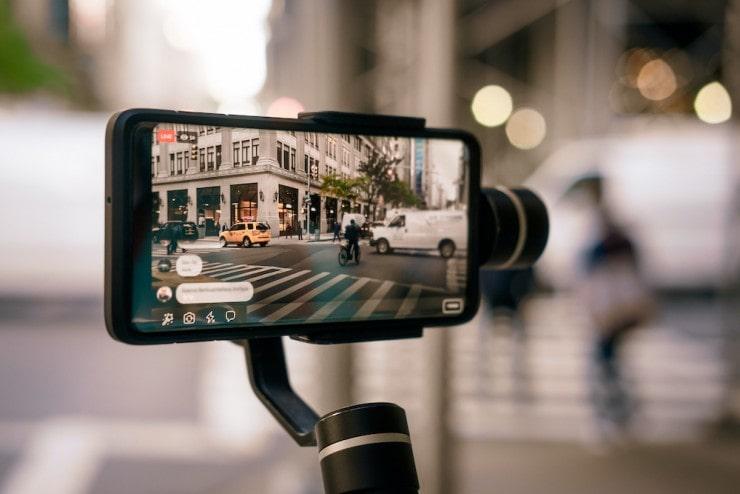
    Popular smartphones companies are every day bringing new phones to the market with improved camera pixels.

    You will all agree with me that anytime a phone company is launching its new phone, the new camera quality feature is one thing they will not leave without talking about, in fact, some even show the features of their camera telling its pixel in the new phone before even showing some other features that can be found in the phone. (more…)

  • How to activate and use WhatsApp Web to chat on your laptop

    How to activate and use WhatsApp Web to chat on your laptop

    WhatsApp Is one of the most popular messaging apps with over 2 billion users worldwide. The app uses the internet to send and receive a message.

    When setting it up you will use your number and the app will sync all your contacts and then you can send text and voice messages, make voice and video calls, share images, pictures and documents all using your internet connection.

    A lot of users wanted to access the app on their computers and not only on their phones, but WhatsApp also listened to its users.

    In 2015, WhatsApp launched the web version of WhatsApp called WhatsApp web which allowed users to run WhatsApp on their computer, WhatsApp then later in 2016 launched the desktop app that you can install on your computer.

    Whatsapp desktop and WhatsApp web is the extension of your WhatsApp account on your phone, when connected you can send and receive a message on your computer which is going to reflect on your phone.

    How To Activate And Use WhatsApp Web To Chat On Your Laptop

    Before using WhatsApp Web, you will first need a phone or tablet with your WhatsApp account activated and make sure to update your WhatsApp to the latest version, also your phone camera has to be working.

    You will then need your laptop and a browser that supports WhatsApp web: Google chrome browser, Mozilla Firefox, Safari and Opera, kindly take note that WhatsApp web does not support Internet Explorer.

    Also, make sure you have an active internet connection both of your phone and your laptop.

    Connecting your phone and computer

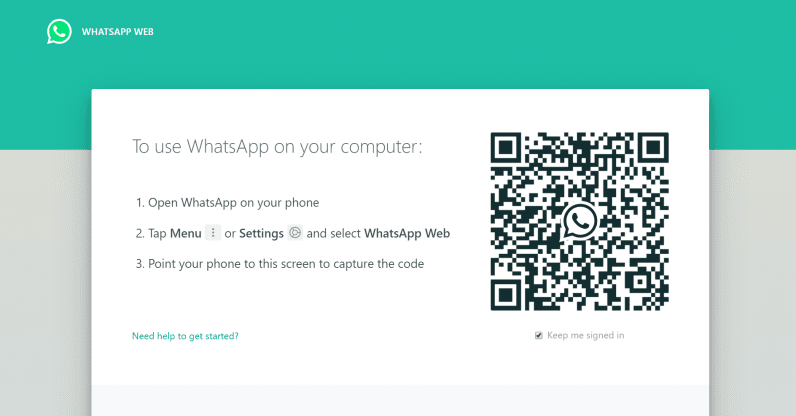
    Visit web.whatsapp.com, the interface looks simple, you will be presented with a QR code to scan and an option to tick as to whether to keep you signed in or not.

    Now on your phone, you will need to open the WhatsApp web, here is how to open the WhatsApp web function on android and iPhone

    Android – tap on the three dots at the top right and then select the Whatsapp web.

    On iPhone – tap on the Settings button and then tap on Whatsapp web.

    The app on your phone will open a camera window, what you have to do is to head over to your laptop and point your phone camera to the QR code that was shown to you on the WhatsApp web page.

    Within seconds after validating, you will then see your Chats on the web app screen now you can send and receive messages right from your laptop.

    Conclusion

    Whatsapp has made it easy to access all your chats on the browser, maybe you might be busy working on your laptop and at the same time want to have a chat with someone on Whatsapp, now you can sync your chats and then chat on your laptop without the need to touch your phone.

  • How To Hide Photo And Video Files On Android Phone

    How To Hide Photo And Video Files On Android Phone

    We all take pictures and videos and due to some reasons we don’t want people to see it.

    Maybe our pictures or videos might contain sensitive information that has to be only accessible to us and when it is seen by bad eyes it can cause harm (more…)

  • How To Get More Snapchat Followers Fast

    How To Get More Snapchat Followers Fast

    Snapchat is one of the most popular social media apps with over 210 million active users.

    Getting Snapchat followers is quite challenging as compared to other social media platforms like Twitter and Instagram because Snapchat doesn’t have a suggested users list and you cant find trending stories to join.

    On Snapchat, you can’t find hashtags to follow and there is no retweet button that will at least gain you a little exposure.

    But you mostly see people gaining exposure and getting tons of followers, the question is how do they grow their account?

    Well in this article I am going to take you through how to get more Snapchat followers in a fast way using these methods.

    Learn How To Use The Snapchat Features

    Snapchat has so many features and when you first create a Snapchat account, the interface is not all that user-friendly, before thinking of gaining more exposure on Snapchat, you first need to get used to the app, how to navigate, how to use the filters and how to adapt to the interface.

    Share Your Snapcode To Your Family And Friends

    To gain more followers on Snapchat you first need to convince people around you to be interested in following you, convincing the people around you to follow you is a great way in growing your account followers don’t be shy in doing it.

    what you will have to do is create an interesting story and then share to your family and friends telling them it’s your first post and they should follow, like and comment for you, your good friends who are also on Snapchat will love to see what their friend was able to post on the first time joining Snapchat.

    Explore And Engage

    Since Snapchat does not have a tab to find what’s trending and suggested users to add, some third-party apps and sites are helping people connect, one of them which is my favourite is Ghostcodes.

    With ghost codes you can find people by categories, storytellers, cooking, gaming and many more, ghost codes also let you know their interest, what they post about every day, and. When you finally find someone that you will like to follow, click to download their Snapcode and then follow them.

    What ghost code does is that it categorise Snapchat users that will help people to find you and follow you, benefitting from Ghostcodes is not only finding people and following them but to also learn from the existing popular users,  share your thoughts, comment on their stories and building a relationship with them which can lead to collaboration and it helps in gaining exposure.

    Use Your Snapcode As Your Profile Picture On All Your Social Media Accounts

    Using your Snapcode as your profile picture on all your social media accounts is one effective way of telling all your friends and families you are on Snapchat, if someone finds your profile pictures on twitter or Facebook to be your Snapchat Snapcode, the person will try and save it and come and add you on Snapchat.

    Create Engaging Stories/Storyteller

    Gaining exposure on Snapchat is about making people love what you do, always create stories that will lead people wanting more and be consistent in posting to your Snapchat stories.

    Also, try and create a theme for your Snapchat stories, what I mean by a theme is that, make your followers know what to expect on each day. Eg: post inspirational quotes on Monday and then on Tuesday take them to your gaming screen, and then on Wednesday take them to your favourite music videos, your story has to be one place never to miss, doing this will bring you a lot of followers if you are consistent.

    Tip for content writers on how to get more followers on Snapchat: If you are a content writer like me and you want to grow your channel then what you have to do is to write a guest post on popular websites like mfidie.com, and on your author box include your Snapchat username.

    Conclusion

    Snapchat is one social media platform which has proven to be addictive but getting more followers is not as easy as compared to other popular social media platforms we know.

    In this article, we went through the best methods to use in gaining exposure and followers on Snapchat.

  • How to send Bulk SMS in Ghana with different providers, Prices and More

    How to send Bulk SMS in Ghana with different providers, Prices and More

    You might own a company that you would want to send a bulk SMS to your customers briefing them on a new product, discount or promotions.

    If you have been wondering how your school was able to send SMS to all of its students including you all at ones, then now you know it was made using bulk SMS.

    Or as an individual, you want to send a message to 4 to 50 people and sending it one by one will be one of the most difficult jobs to do. This is when you can use bulk messaging.

    Bulk messaging is the spreading of large numbers of SMS to your targeted cell phones be it customers, employees, students, organization and many more.

    In Ghana there are a lot of bulk SMS services that you can use, each has its pricing system, in this article, I am going to take you through the best Bulk SMS Service Providers in Ghana and their pricing

    Mnotify.com

    Mnotify is the leading SMS bulk service provider with over 5 million monthly transactions, cheapest cost and real-time monitoring on your bulk SMS sent.

    Their website boasts of popular institutions clients such as Kwame Nkrumah university of science and technology, pension trust, Utrust savings and loans, latex foam and many more using their service.

    How To Send Bulk SMS Using Mnotify

    1. Visit mnotify.com and click on sign up.
    2. Fill in your details such as first and last name, phone number, sender ID, email address, country, password and then hit on Create Account.
    3. Type in the code sent to your mobile number to activate your account, you will be asked to select your category. Eg: Education, NGO, church service and many more.
    4. On your dashboard select Send Messages and then select group messaging.
    5. Type in your message, message ID, import and select contacts and then click on send or schedule.

    Mnotify Pricing

    Amount Price Per SMS Total SMS
    GHS 10 0.035 286
    GHS 20 0.033 606
    GHS 50 0.031 1613
    GHS 100 0.031 3226
    GHS 200 0.029 6897
    GHS 500 0.028 17857
    GHS 1000 0.027 37037
    GHS 2000 0.027 74074

    SMSonlinegh.com

    Smsonlinegh is one of the most popular messaging services in Ghana right now they are one of the fastest and reliable bulk SMS service ever discovered in Ghana.

    How To Send Bulk SMS Using SMSonlinegh

    1. Visit smsonlinegh.com
    2. Create an account with your full name, phone number, email address region, account type and your password and hit sign up, a confirmation code will be sent to you, use it to activate your account.
    3. Now to send bulk SMS you first need to go to My Contacts to either add contacts or upload the contacts.
    4. Select send SMS and type in your Sender ID and personalize your message.
    5. Choose to add receipts and then add or select contacts to send the bulk SMS to.
    6. Now click on SEND or you can SCHEDULE the SMS.

    SMSonlinegh Pricing

    No. Quantity Range Unit Price
    1 143 – 999 GHS 0.0348
    2 1,000 – 4,999 GHS 0.0332
    3 5,000 – 9,999 GHS 0.0316
    4 10,000 – 99,999 GHS 0.0298
    5 100,000 – 499,999 GHS 0.0278
    6 500,000 – 1,000,000 GHS 0.0268

    Wigalsolutions.com

    Wigalsolutions runs the unbeatable and lowest bulk SMS in Ghana, one thing I like about Wigal solutions is that you can also send voice SMS to your loved one and they have easy to use shortcodes service to make broadcasts.

    How To Send Bulk SMS Using Wigal Solutions

    1. Visit wigalsolutions.com and click on sign up
    2. Fill in your details such as full name, username, email mobile number and your password and then click on sign up.
    3. Confirm the code sent to your phone or email to activate your account
    4. Select bulk messaging – send bulk SMS.
    5. Choose or import your contacts and then type in your sender ID and the message type and then choose to send immediately or send instant.

    Wigal solutions Pricing

    Basic Plan

    Amount Validity Period No. of SMS
    GHS 5 20 Days, 180 SMS
    GHS 10 30 Days 372 SMS
    GHS 20 30 Days 771 SMS
    GHS 50 45 Days 1,950 SMS

    Premium Plan

    Amount Validity Period No. of SMS
    GHS 100 45 Days 4,104 SMS
    GHS 100 15 Days 4,587 SMS
    GHS 200 45 Days 8,208 SMS
    GHS 200 15 Days 9,174 SMS
    GHS 300 45 Days 12,312 SMS
    GHS 300 15 Days 13,760 SMS
    GHS 500 45 Days 20,519 SMS
    GHS 500 15 Days 22,933 SMS


    Platinum Plan

    Amount Validity Period No. of SMS
    GHS 1,000 30 Days 47,620 SMS
    GHS 1,000 15 Days 55,961 SMS
    GHS 2,000 30 Days 95,239 SMS
    GHS 2,000 15 Days 101,922 SMS
    GHS 3,000 30 Days 150,000 SMS
    GHS 3,000 15 Days 152,882 SMS

    Hubtel.com

    Hubtel is not just an SMS bulk service provider but also with Hubtel you can send money to the bank, buy airtime, internet data, do mobile money and many more.

    The company claims to be the first to deployed Ghana’s first bulk SMS gateway for commercial use and working with all networks in Ghana with superior pricing.

    How to send bulk SMS using Hubtel

    1. Visit Hubtel.com
    2. On their website click on Send Bulk SMS
    3. Enter your telephone number and confirm the code that will be sent to your number.
    4. Now you will be taken to your Hubtel dashboard, to send bulk SMS click on Messaging and click on Activate to activate bulk SMS service.
    5. Type in your campaign name, sender ID and then your message body.
    6. Now add receipts phone numbers and then choose to send now or send later.

    Hubtel Pricing

    Bundle Price No. of SMS Validity Cost Rate
    GHS 10 380 30 days 10.00 0.02603
    GHS 50 2,020 30 days 50.00 0.02479
    GHS 100 4,235 30 days 100.00 0.02361
    GHS 500 22,230 30 days 500.00 0.02249
    GHS 1,000 46,700 30 days 1,000.00 0.02142
    GHS 3,000 147,000 30 days 3,000.00 0.02040
    GHS 3,000 130,000 90 days 3,000.00 0.02318
    GHS 5,000 257,400 30 days 5,000.00 0.01943
    GHS 5,000 226,500 90 days 5,000.00 0.02208
    GHS 10,000 540,500 30 days 10,000.00 0.01850
    GHS 10,000 475,584 90 days 10,000.00 0.02103

    Conclusion

    There are many bulk SMS providers in Ghana here, in this article, we went through the best SMS bulk providers, in terms or rates and the pricing.