Category: Guides

  • How To Prevent Your Android Phone From Overheating

    How To Prevent Your Android Phone From Overheating

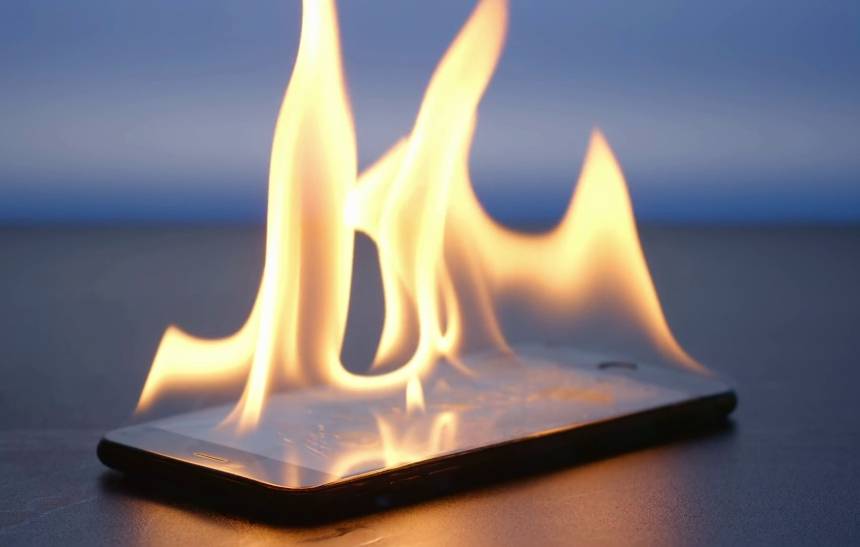
    Imagine getting yourself a new phone and after using it for some days/weeks you will start to feel your phone heating after using it for some time.

    This will lead you to wonder if you have bought a fake phone. Maybe your phone is not new but you have seen it heating nowadays.

    This can damage your phone battery by making it drain fast or melt your phone processing unit when your phone heats at a certain high temperature.

    Many people find themselves putting their phones inside refrigerators as they believe putting their phone inside refrigerator cools down the phone, on this note what I am going to tell you is that putting your phone inside a refrigerator is not a recommended idea as an extreme change in temperature is bad for your phone.

    What Causes Your Android Phone To Overheat?

    • Faulty charger cable
    • Phone having direct contact with sunlight
    • Android bug issue
    • Having many background apps running
    • Malware
    • Using your camera for a longer time

    Now let me break it down for you

    Faulty Charger Cable

    Using a faulty charging cable can make your phone heat up as the battery will not be able to charge well leading it to heat.

    Phone Having Direct Contact With The Sun

    Anything that gets in direct contact with heat gets hot, so your phone getting exposed to the direct sun heat is going to make your phone heat.

    Android  Bug Issues

    Sometimes seeing your phone getting hot can not be as a result of how you’ve used your phone but a bug that has been running on your phone which needs to be updated.

    Having Many Backgrounds Apps Runnin

    You will all agree with me that when we open too many apps that is when we see our phones slowing down, running many apps at the same time does not only slow down your phone but also it heats your phone.

    Malware

    Malicious apps can slow down your phone since it has been installed to cause harm to your phone OS by taking over your CPU and memory.

    Using Your Phone Camera For A Long Time

    Some phones mostly heat when you are taking longer videos as it uses your brightness and flashlight at the same time.

    How To Prevent Your Android Phone From Overheating

    Replace Your Charging Cable

    Anytime you find your phone to be heating when charging your phone, its either the fault is from your cable or battery, so changing your cable will either solve the problem or let you see if the heating is because of your battery that is about to be damaged.

    Avoid Exposing Your Phone To The Sun

    Sun itself produces heat, so anytime you expose your phone to the sun, then your phone is going to heat, also make sure to put your phone in a cool place as your phone adjusts itself with the temperature of the environment it finds itself in.

    Update Your Phone OS

    Sometimes bugs are the cause of phones heating, most phones make an update when its users complain or they find out some bugs.

    Close Unused Apps Running Background

    You might not be using an app but do you know it will be running at the background? This drains your phone battery and some apps lead your phone to overheat.

    If you still find your phone to be heating after following the above steps mentioned, then its time to try these methods:

    • Reduce phone brightness
    • Set up a battery saver as it manages how your apps should perform on your phone
    • Clean your phone junk files
    • Avoid turning on Bluetooth, GPS and Wi-Fi when it is not in use.

    Conclusion

    There are so many factors that can lead to phone overheating, in this article we went through what causes android phones to overheat and how to prevent the android phone from heating.

  • 4 Online Courses You Can Take During This Corona Lockdown

    4 Online Courses You Can Take During This Corona Lockdown

    With the onset of the coronavirus and its long-lasting effects on our lives comes the phenomenon of total and partial lockdowns.

    While some countries are in full lockdown with strict law enforcement throughout the nation, some other countries are also in partial lockdown.

    Well, despite the effect this may have on the quality of life, this could be an opportunity to take some courses while we await the end of this worldwide counter.

    This article focuses on four online courses you can take during the lockdown. (more…)

  • How To Keep Your Whatsapp Chat Private And Safe

    How To Keep Your Whatsapp Chat Private And Safe

    Whatsapp is arguably the world largest instant messaging application with millions of people across the globe using the app every day since its inception about some 8 years ago.

    With Whatsapp becoming part of our everyday lives, it has become paramount to many people, the need to keep their chats private and safe at all times.

    There are times you have visitors around and you forget to take your phone with you while you’re stepping out. You step out and realise that you’ve left your phone with the visitor and that they could go through your chats and see something unpleasant or some top secret.

    This doesn’t have to happen to anyone.

    In this article, we shall look at practical ways of ensuring that your Whatsapp chats are kept private and secure at all times.

    Manage Your Whatsapp Images And Videos

    One of the main ways of ensuring that your Whatsapp chats are safe and secure is for you to manage your Whatsapp images and videos such as your Whatsapp images do not appear in your gallery instantly.

    There are two ways to do this. We shall look at both ways shortly.

    For iPhone Users

    • Go to your Iphone’s privacy settings
    • Click on ‘photos’
    • Click to ‘uncheck’ the Whatsapp button.

    This way, images from Whatsapp will not be directly displayed in your gallery when opened.

    For Android Users

    For you to achieve a positive result with this method as an android user, you must, first of all, have a file explorer installed on your phone.

    • Open your file explorer
    • Go to WhatsApp
    • Locate the folders named ‘Images’ and ‘Videos’
    • Create a file named ‘No Media’ in each of the locations listed above.
    • Your phone should skip all images from your Whatsapp chats and refuse to display them directly in your albums.

    Locking Your Whatsapp Chats

    More than anything else, this is the best way to ensure that your Whatsapp chats are secure and private.

    Even though Whatsapp does not have an inbuilt system for locking your chats and the app itself, there are other apps you can use to lock your Whatsapp chats.

    You can read about some of those here: The Best Apps For Locking Softwares On Your Android Phone.

    Avoid Using Whatsapp Web/ Always sign out after use

    The website version of the Whatsapp instant messenger may sound like a replacement for anyone who is hoping to use their PC to chat on Whatsapp.

    However, information available to us indicates that the Whatsapp web portal is one of the most vulnerable components of the application.

    With Whatsapp web, you need an active Whatsapp account on a mobile phone. During the registration process for Whatsapp Web, you’ll be required to scan a code from your smartphone.

    And any other time you wish to login on Whatsapp web, the only passport you need is for your phone to be connected to the internet and for you to open Whatsapp on your mobile device.

    Meaning, Whatsapp web is a duplication of Whatsapp application itself.

    So anyone who has access to your browser can read your chats while you are chatting live on your phone and this is not good for security and privacy reasons.

    So, to prevent this, you need to avoid using Whatsapp web and download the PC application for Whatsapp, in case you want to use it on your laptop.

    Conclusion

    Whatsapp is a very helpful instant messaging app which I believe almost everyone with a smartphone uses today. To prevent yourself from being exposed to intrusions and safety threats, you should use the method suggested above.

    If you think there are other ways of achieving this goal, different from what is written in this article, kindly let us know in the comment box. We would love to hear from you.

  • How To search For The Source Of A Photo Using Google Reverse Image Search

    How To search For The Source Of A Photo Using Google Reverse Image Search

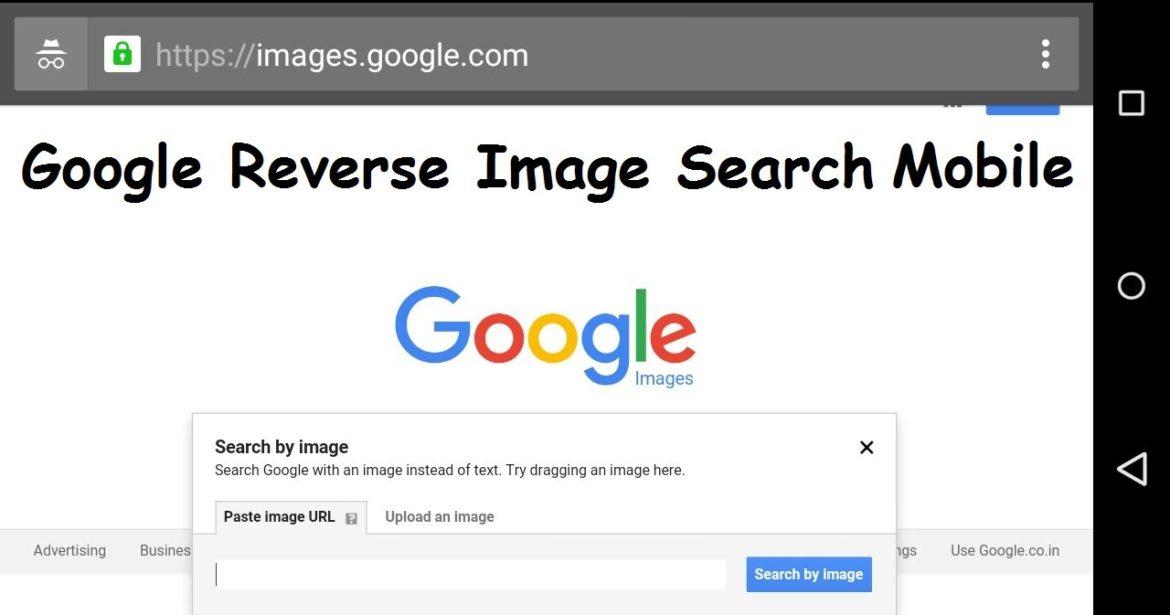
    There are many times when we see images online especially in groups and on various sites that we wish to verify the source of those images. Before now, most of us only wish there was a way we could achieve that. (more…)

  • How To Save Things Online So You Can Check Them Out Later

    How To Save Things Online So You Can Check Them Out Later

    You might be busy maybe working or doing something important and then you will come across a very interesting video or article that caught your attention but you can not stop what you are doing to watch or read. What most people do is find a way to save it so that they can watch later (click here to avail best usave broadband deals).

    We will all attest to the fact that we have come across a very interesting video or article that we wanted to read but was busy at that time and scrolled off only later to come and search for it and find out that it’s not there again.

    I remember there was a time that it was few days to my best friend birthday, I saw a very interesting birthday video that I thought sending to him on his special day would be great, as I was about to save it my hands accidentally scrolled and refreshed the feeds and this video was nowhere to be found again, I search and searched and I couldn’t find this interesting video.

    Maybe it has also happened to you before, in this article, I am going to enlighten you on How to save things online so you can check them out later

    DM It To Yourself

    Create a group on WhatsApp and then take it as your personal notes, WhatsApp won’t let you create a group without adding anybody so what you need to do is to create by adding one number and after successfully creating this group then you remove the person, this will make you the only person in the group and then start using this group to store moments that you will want to read later.

    So when you come across a very interesting article or video, then you share to WhatsApp and select your personal group to access it later.

    Save To Read Later Using Chrome

    You can save a video or a website when you are reading or watching it on your chrome browser. Simply open the link of that article and then tap on the three dots on the top right behind the address bar and select the download icon to save the page for offline viewing.

    After saving a page for offline viewing, you can come and read later even without internet.

    Screenshot

    Taking a screenshot of a funny photo or a quote is one of the common things you will always find me doing, screenshotting it saves your time and make you continue with what you were doing, when you are finally free then you can visit your gallery to see what you captured.

    Conclusion

    After going through this article I believe you are never going to miss a link or funny video or photo because you will know how to save it and later watch or view it.

  • How To Use DHL To Send And Receive Parcels In Ghana And Their Shipping Rates

    How To Use DHL To Send And Receive Parcels In Ghana And Their Shipping Rates

    DHL is a service used in sending and receiving of courier, Parcel and express mail. It was founded in 1969 and has since become the worlds largest logistics company currently operating in over 220 countries. (more…)

  • How To Find Someone On Social Media Using Just Their Name

    How To Find Someone On Social Media Using Just Their Name

    Social media is certainly a brilliant and sure way to get in touch with friends, mates and relatives all over the world. (more…)

  • How To Download Netflix Videos And Watch Them Offline

    How To Download Netflix Videos And Watch Them Offline

    So I wrote an article on best movies to watch in Ghana on Netflix while stuck at home and on second thought I have decided to guide you guys on how to download your favourite movies on Netflix and watch them offline.

    There are so many reasons that will make one want to download movies on Netflix and watch later.

    Maybe you are about to travel and you know you are not going to get a good internet connection there to stream your favourite movies and tv show.

    Or you are about to board a plane to a different country and you want to have movies that you can watch whiles on the plane as you are going to have a long journey.

    One will also want to download movies on Netflix and watch offline due to his or her internet bundle which is about to finish or get wiped off.

    Netflix has made it possible for its users to be able to download movies and watch offline on its android, iOS and Windows apps.

    Here Is A Step By Step Guide On How To Download Netflix Movies And Watch Them Offline On Netflix

    1. The first thing you need to do is to update your app.
    2. Choose your prefered video quality, Netflix offers two download qualities which are Standard and High. Downloading movies in standard mode takes lesser space whiles High mode uses more space and it takes much time as it downloads in HD. To choose your prefered download mode head over to App Settings, under download click on video quality and select your preferred quality.
    3. To download a movie go to the Available For Downloads section to find all the movies that you can download and watch offline.
    4. Now click on your favourite movie that you want to download and under the watching screen click on the arrow icon to start downloading the movie for offline viewing. If you are using the android app, the app will ask you to choose the destination for the video you are about to download for offline viewing, you can insert a micro SD card and download the movies to that storage.
    5. When you finish downloading, your downloaded videos will appear in the ”My Downloads” section which can be found under the Home Section.

    Kindly take note that not all videos are available for download on Netflix.

    So how do you get to download movies that are not available for download?

    Well, there are some methods you can work around to get all these movies you want, to do this you have to begin watching the movie you would like to watch offline and do a screen recording.

    On the phone, you can use various screen recording apps like Creen recorder, HD screen recorder, AZ screen recorder and many more

    And on your computer, you can use tools like Camtasia, Bandicam, Icecream screen recorder and many more (some free and paid).

    Conclusion

    To download videos for offline viewing, you need to first update your Netflix app, choose the download quality and then head to the movies that are available for download, select your favourite and then when watching click on the arrow button to start downloading for offline viewing.

  • How To Book a Passion Air Flight Online

    How To Book a Passion Air Flight Online

    Passion Air has been one of the cheapest and most comfortable local flights available in Ghana for about 3 years running.

    Whether you’re looking to fly from Accra to Kumasi or Accra to Tamale or vice versa, Passionair has got a special package to offer you.

    In this article, we shall look at how to book a flight on Passionair from the comfort of your home, so as to be able to enjoy some of the wonderful offers this company has.

    Some of the routes travelled by Passionair include Accra to Kumasi, Accra To Tamale, Tamale To Accra and Kumasi to Accra. There are four booking options associated with each flight you book; Promotion pack, Bronze Pack, Silver pack and Gold pack.

    Each of the options come with a slight difference in price with the promotion pack being the least among them.

    How To Book a Passion Air Flight Online

    If you would want to book a Passion Air Flight online, use the procedure below:

    1. Visit flypassionair.com
    2. Click on “Book a flight” and enter your departure and arrival airport
    3. Choose the date(s) for your flight and remember to check if it is a return flight
    4. Select the number of individuals you are booking the flight for
    5. Click on “flight search”
    6. Select the flight of your choice from the list of results
    7. Click on “continue” and enter the details for each passenger
    8. Next, click on choose seat to decide which seat number you want. (Remember this will be an extra cost for each seat number you select)
    9. Under the payment methods, select your preferred method, Mobile Money, Credit Card or pay later and make the payment
    10. You’ll see your reservation number and other details on your screen. Your flight is booked!

    How to Contact Passion Air

    If you have any issues with your flight booking or you simply have questions, you can contact Passion Air directly using the following medium:

    Phone Call: Toll-Free via 0800 221 221.

    Accra Head Office:

    221 Augustus Akiwumi Street
    Airport West
    P.O. Box CT 920, Cantonments
    Accra, Ghana.

    Tamale Airport Office:

    Departure Hall,
    Tamale Airport.

    Tamale Sales Desk Office:
    ADB Kaladan Branch
    Opposite Kaladan Park, Tamale.

    Email: [email protected] for more information and enquiries or [email protected] for complaints.

    Conclusion

    With this easy guide, you should be able to book your Passionair flight from the comfort of your home and be assured of a comfortable flight.

    Be informed also that when you choose the pay later option, you have to make payment for your ticket before the date quoted on your flight reservation page or your flight would be cancelled altogether and you’ll have to rebook again.

    I hope this article was helpful to you and your colleagues in your quest to book flights within Ghana. Kindly share your comments with us.

  • How To Link And Unlink Your Facebook Account With Instagram

    How To Link And Unlink Your Facebook Account With Instagram

    Facebook and Instagram belong to the same company now since Facebook Inc. acquired the photo-sharing app some years back.

    With this, Facebook and Instagram accounts belonging to the same persons can be connected such that posts shared on Instagram may appear on Facebook and vice versa.

    In this article, we shall look at how to link an individual Facebook account to an Instagram account and how to link a business page to an Instagram business account.

    Linking An Instagram Account To A Facebook Personal Account

    1. Open your Instagram app on your phone
    2. Tap your profile logo
    3. Tap the settings button
    4. Select Account
    5. Tap linked accounts
    6. Select Facebook
    7. Enter your Facebook Login details

    Your account should be linked after this step.

    Unlinking An Instagram Account From A Facebook Personal Account

    1. Open your Instagram app on your phone
    2. Tap your profile logo
    3. Tap the settings button
    4. Select Account
    5. Tap linked accounts
    6. Select Facebook
    7. Tap Unlink (on android) or Unlink Account (on iPhone)

    You may be required to enter your password for this change to take effect.

    Linking An Instagram Account To A Facebook Business Page

    Linking an Instagram account to your Facebook business page is quite different from linking a personal Facebook account to an Instagram account.

    First of all, you need to have a Facebook business page before you can use this method. Also, you may need to convert your Instagram account to a business account as well.

    So, let’s look at the method involved.

    1. visit your Facebook business page
    2. Go to settings
    3. Select Instagram
    4. Click on ‘Connect Account’
    5. Log in to the Instagram account you want to link

    Your account should be linked from here on. When the account is linked, you’ll see the name of the Instagram account on your Facebook page when you get to stage three of the steps above.

    Unlinking An Instagram Account From A Facebook Business Page

    1. visit your Facebook business page
    2. Go to settings
    3. Select Instagram
    4. Click on ‘Disconnect account’
    5. You may be required to login to your Instagram account for this to take effect.

    How To Setup Your Instagram So That All Posts Show On Your Facebook Page Automatically

    1. Tap the upload button on your Instagram account
    2. Select a photo you’ll love to post
    3. Type your caption
    4. Click on advanced options beneath the sharing buttons
    5. Toggle on the ‘Share your posts to Facebook’ button
    6. You may be required to login to your Facebook account again for this to take effect.

    Conclusion

    Linking your Facebook Account to your Instagram account saves you so much time and stress especially if you are someone who shares the same kind of content on Facebook and Instagram. Also, it gives you the chance to manage all your accounts from one place (Facebook). I hope this guide was helpful to you. Kindly share your views in the comment box below.