Category: Guides

  • How To Generate Your Personal Or Business WhatsApp Link to get more customers

    How To Generate Your Personal Or Business WhatsApp Link to get more customers

    Every day in and day out we use WhatsApp this popular messaging app has made it known to us that there are over 65 billion messages sent on the app each day meaning this app is more than popular.

    The app was released in May 2009 and it allows users to send and receive messages, make voice notes and video calls and conference calls share locations, images and documents.

    Google decided to buy WhatsApp for $10 billion but WhatsApp rejected the offer and then Facebook joined the race and on February 19, 2014, Facebook bought the popular messaging app for $19 billion.

    The reason why many people fell in love with this mobile app is how you can use to send and receive messages fast and also this app does not take too much data as compared to the other social media apps we know.

    Also for people who hate seeing ads, this app does not make ads on the app, the app started as a paid app and later rolled it out for free for people to use because the main aim of the developers was to make people send and receive messages without paying for it using the internet.

    Not forgetting about your messages on if it can be hacked or not, the good news is that WhatsApp messages are encrypted and there is no way someone or hackers can get access to your messages if you don’t give your phone to that person.

    WhatsApp didn’t end that there, they continued adding more features to make the app very appealing to use, features like status and group videos were added and also sharing of location was also added.

    One thing about WhatsApp is that to chat with somebody, you must first have the person’s number to chat with. 

    But what if you have a business and many people want to chat with you and you cant give your number or add their number one by one? As an individual, many people will want to chat with you maybe for help or guidance and you cant give your number to each one of them one by one.

    That is why in this article I am going to guide you on how to generate your personal or business WhatsApp link 

    How To Generate Your Business Whatsapp Link Using Whatsapp Business App

    Maybe you have installed WhatsApp business and has been using it to chat with your customers and also you want to share your chat link to your customers so that anybody can have a direct chat with you without having to store your number then follow these steps.

    1. On your WhatsApp business app, tap on the three vertical lines and click on Settings
    2. Select Business Settings
    3. Tap on Short Link
    4. You will see your WhatsApp link, now copy it and share it to anybody, when someone clicks on that link, he or she can directly chat with you without having to store your number. You can also set a default message, anybody who will click on the link to chat with you, that message will appear for the person to continue writing or send that message to start chatting with you.

    How To Generate Your Personal Whatsapp Link

    To generate your WhatsApp link all that you have to do is to type the web address https://wa.me/number/ so if your number is +233244419419, then your WhatsApp link will be https://wa.me/233244419419.

    Final Words

    Now its easier to chat with someone without the need to store the person’s number. In this article, we went through how to generate your WhatsApp chat link and also WhatsApp business link for people to chat with you easily. 

  • How To Access WAEC Pasco (Past Questions And Answers) On Your Phone

    How To Access WAEC Pasco (Past Questions And Answers) On Your Phone

    I remember back in Senior High School (SHS) times when it was time for us to write our West African Examination exams. What you would find me doing was gathering all the past questions on each of the subjects that I am about to write about and solving them.

    I will be walking and visiting people asking them to give me their past questions books so that I can bring it to “prep” and solve some on the subjects that I don’t have its past questions.

    If you are about to write your final exams then definitely you are going to learn and solve past questions because many people believe WAEC doesn’t bring new questions, they re-edit the old past questions and then set it up for us to write.

    So when the date for exams to commence is approaching, those who have WAEC past questions are the bosses and if you don’t have these past questions books, no matter what the person who has these books will tell you to do for him or her, you will definitely do it because you need it to learn and solve some of the questions so that you can pass the exams.

    Worry no more because now with the help of uLesson app you can access WAEC past questions and answers on your phone.

    First Of All What Is uLesson App?

    uLesson is a mobile application created for students to access educational materials and studies.
    The platform has a lot of material, including videos tutorials, quizzes, and past questions for people who are about to write their final exams like O Level, NECO, UTME and WASSCE.

    How To Access WAEC Pasco (Past Questions And Answers) On Your Phone

    1. Download the uLesson app from Google Play Store or the Apple App Store.
    2. Type in your phone number and within minutes a 6 pin code will be sent to you. Type in the code to log in.
    3. Now set up your account by creating a new user by typing in details about you such as your name, School location, Date of Birth, guardian’s detail and Class and when you are done filling the forms, press Continue.
    4. You will be successfully logged in and you will be taken to your dashboard, on your dashboard you can find many lessons but since we want to practice WAEC past questions, look through and tap on “Practice WAEC Exams”.
    5. Now select the subject and the year you want to practice it’s past questions and then tap on Continue.
    6. The questions will pop up and then the timer will start.

    Conclusion

    Now it’s easier to access WAEC past questions without the need to look for books, now on your phone you can have all the past questions on all the subjects using the uLesson app.
    In this article, we went through what the uLesson app is and how to access WAEC past questions on this awesome app.

  • 10 Facebook Features You Probably Didn’t Know About

    10 Facebook Features You Probably Didn’t Know About

    At the moment, Facebook is the most popular social media on this planet and with over 1.56 billion people logging in every day.

    The platform has billions of users of which we all know me and you are among. you might be an active Facebook user like me or you are not always fond of using Facebook but what if I tell you there are many features that you probably didn’t know existed in the platform?

    What we mostly do every day is login, check our notifications, reply to messages, likes and share pictures, texts and article and then leave the platform.

    Well, you might be missing a lot and that is why I am writing this article to take you through 10 features that you can find on the Facebook platform.

    You Can Save Post And Check It Later

    You might be scrolling through your Facebook feeds and will once come across a post but you will be very busy doing something and will really want to check out that post when you are free, well Facebook has also thought of that and definitely know someone can be in such situation.

    So when you find a post that you want to read or watch later tap on the three dots on the top right of the post and then tap on save. To access your saved posts, on your app you will find saved posts on the main menu and on desktop, you can find saved posts on the left-hand side of your news feeds.

    Know The Data Facebook Has Stored About You

    There have been many allegations on Facebook on how they collect peoples data and use them, well Facebook has this option for people who will want to know the type of data Facebook has stored about them and you can check them out and you can also tell them the data you no longer want them to collect about you.

    Remove Friends Who ‘Post Too Much’ From Your Newsfeed

     We all have a Facebook friend who is always fond of posting pictures and status, sharing stuff which always ends up taking up all our newsfeeds, anytime you see a post from such friend, all you have to do is to click on the three dots on the top right corner of the post and select Unfollow. Facebook is not going to notify the person and you are still going to be friends with him or her.

    Create A Fundraising

    Maybe you will want to raise money for someone in need, maybe there for a kid who needs money for surgery or it can be anything that needs contribution, with Facebook you can set up a fundraising and ask your friends to donate the little that they have. To create a Facebook fundraiser, head over to your newsfeed menu and then select Raise Money, you will then need to fill in the details and then you are good to go.

    Strengthen Your Security

    Well with everyday hacking activities going on, setting up a strong password is recommended but there are people who are working day and night just to get access to your Facebook account and you might one day end up in their trap, you might never know-how.

    The best thing to do is to tighten your security on the Facebook platform, that is making Facebook asking you to confirm if its really you by entering a code.

    Choose Who To Be Your Legacy Contact

    Making someone be your legacy contact means making someone have access to your account in case you are not alive or in a critical condition. To set up a legacy contact what you have to do is to head over to Manage Your Account in the Settings tab.

    Get To Know The Time Spend On The Facebook Platform

    Maybe you have become addicted to Facebook like me and you will want to know the time you spend on the platform every day, to know this go to your Settings & Privacy on the app and select Time Spent On Facebook.

    You will then see the time you spent each day on the app and also if you are finding yourself to be getting too much addicted and will want to limit the way you use the app, you can set reminders and when you use the app and you reach your time limit, the app will notify you.

    Set Up Profile Video

    You can use a video that lasts for 7 seconds as your profile, this makes your profile page unique as anybody who visits your page doe not see a picture but a real video of you.

    Choose Who To See First

    Maybe there are some people you will not want to miss their post or a page that you are so connected the extend that missing a post from that particular page will be like missing something important.

    You can select that special page or person to see first so that anytime there is a post, it will be the first to appear on your newsfeed.

    Have A Watch Party

    Want to watch videos but want to watch your friends? Facebook has a feature called watch party that allows you to watch videos together with your friends.

    Conclusion

    Facebook has a lot of super cool features and in this article, we went through the best Facebook features that you need to know about.

  • How to get & link UBA AfriCard or FAB Prepaid Card to PayPal in Ghana

    How to get & link UBA AfriCard or FAB Prepaid Card to PayPal in Ghana

    Ghana is blacklisted by PayPal and that’s why we go through a lot of steps to get a PayPal account.

    However, the good thing is that you don’t need to go through a lot of stress to withdraw your hard-earned money that is in your PayPal account.

    In fact, a lot of the people who will tell you it is difficult simply to want to take advantage of your quest to get your money fast and offer you very low rates for your money.

    I have been withdrawing money from my PayPal account since late 2017 when I first had my UBA AfriCard.

    Apart from that, it is now very easy to withdraw from PayPal because the First Atlantic Bank (FAB) Prepaid Card takes less than 5 minutes to get in any of their branches.

    To withdraw your money from PayPal in Ghana, you need the following:

    1. UBA AfriCard / First Atlantic Bank Prepaid Card / Access Bank Prepaid
    2. PayPal Account (You can learn how to create one here)

    Please note that you can link a wide variety of cards to your PayPal account but the three cards listed above are the only ones you can withdraw from.

    How to get First Atlantic Bank Prepaid Card for PayPal in Ghana

    Although we recommend using UBA AfriCard, you can also use the FAB Prepaid Card (which is easier to get) or the Access Bank Prepaid Card (same requirements as UBA AfriCard).

    To get an FAB Prepaid Card you need to take your valid ID Card and a minimum deposit of GHS 20 to the nearest First Atlantic Bank branch.

    They will walk you through the process at the bank and you should have your card in less than 30 minutes.

    How to get a UBA AfriCard in Ghana

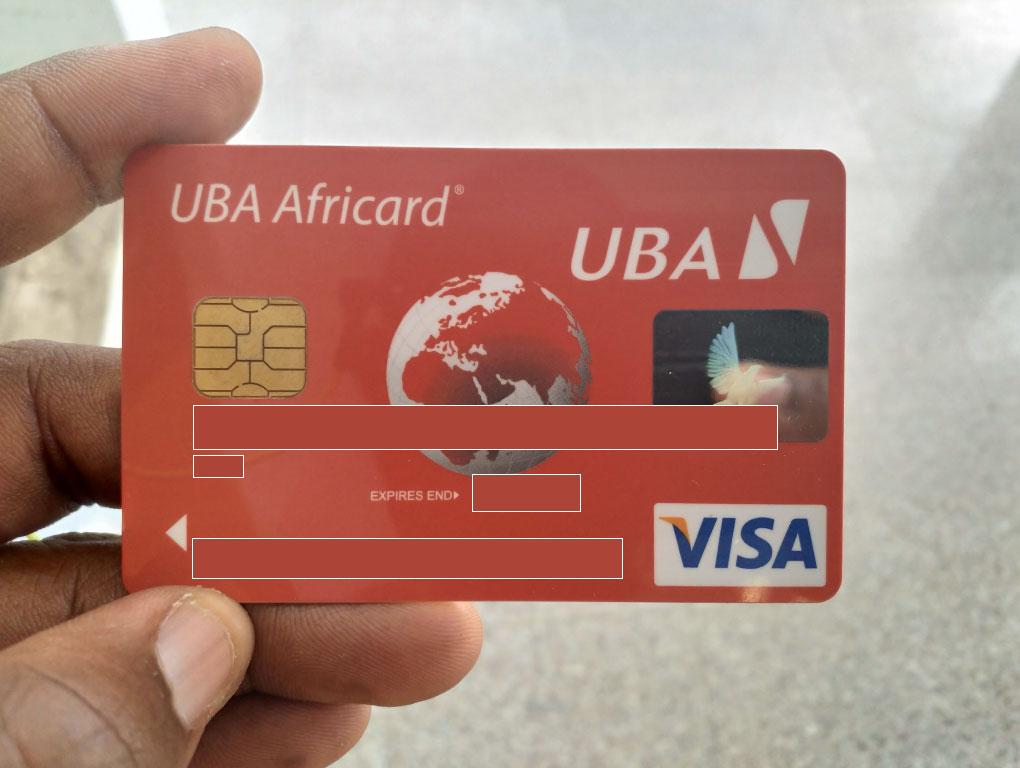
    The UBA AfriCard is one of the best debit prepaid cards in Ghana and West Africa as a whole. It works with most ATMs, POS and online transactions.

    I have personally used the card in more than 3 countries and it still works perfectly well. And this is the same card that I got from UBA Ghana.

    When you walk to the UBA Bank branch for the AfriCard, you will be asked to provide the following details:

    • Tax Identification Number – TIN
    • Valid National ID
    • Initial Deposit – around GHS 50

    Once you have them, here is how to get your UBA AfriCard instantly:

    1. Walk to the nearest UBA Branch
    2. Ask at the enquiries desk that you will want to get a UBA AfriCard
    3. You may be encouraged to open a bank account there but this is not really important
    4. When getting the card, deposit GHS 50 on it
    5. After that, the Bank will get you the card and give you instructions on how to use it.

    Please note that the steps to get the UBA AfriCard is the same for getting a new Access Bank Prepaid Card.

    How to add your UBA AfriCard (or any other card) to your PayPal Account

    1. Log in to Paypal using this link: paypal.com/ls by using your email and password.
    2. In the notification area, at the top right-hand corner. Click on it, You will be requested to link a Credit Card (Master Card/Visa Card).
    3. You will be directed to a page to input your card details, in that case, input your UBA Visa Card Details or the details of the particular card you are using (FAB or Access Bank).
    4. Next, Click on the Continue tab after entering your Card details
    5. When done, a small fee will be debited from your Card by Paypal like a Dollar or so, then sent back again to confirm the authenticity of the Card
    6. After that, a page will appear where you will be asked to enter a confirmation page to fully verify your account
    7. Now, check your mobile phone or email, a text message confirmation of the Paypal transaction is sent to the mobile number you used in obtaining your Visa Card
    8. Now you get a combination of numbers and words. The numbers in front of the word CODE in the combination is what you will input in the verification field
    9. After you have entered the code, your account is all set up to start receiving and sending money even while in Ghana

    Conclusion

    If you need any help getting a UBA AfriCard or withdrawing your paypal funds here in Ghana, try to drop a question and we will get back to you on it.

  • How To Change The Name On Your Google Or Gmail Account

    How To Change The Name On Your Google Or Gmail Account

    There are times that you have either had a change of name or you wish to change the name associated with your email account for any other reason specific to yourself.

    Most people find it difficult doing this and so they go to the extent of creating new email accounts altogether. So, you realise someone has about three different addresses and it all has to do with the names they had used in signing up for those accounts.

    In this article, I shall teach you how to change the name associated with your existing Gmail address without having to create a new account altogether.

    Now, before we move on to the steps involved, there are a few things you need to understand.

    Your email address is the whole address that you give to people when you expect them to send you an email. For example; [email protected]

    Your email username is the name that appears before the @ symbol. So in the address used above, the username is Kofigo.

    You cannot change these two details explained above. You can’t change your email address or username. You can only change the name associated with your account or your account name.

    Your account name is the name that others see when you send an email to them. Also, you can usually see it when you click on your profile photo in your Gmail app or window.

    How To Change Your Gmail Account Name

    First of all, you must be sure not to have changed your name in the past few days. If you changed your name very often in the past few days, you won’t be successful with the process. Also, make sure that you are using a desktop or laptop computer to do this. It doesn’t work on the mobile app.

    1. Visit gmail.com on your PC
    2. Click on the Settings icon on the top right corner of your Gmail window.
    3. Select ‘settings’ from the list
    4. Look through the various tabs and select the ‘Accounts and Import’ tab.
    5. Under ‘Send email as’, click on ‘edit info’
    6. Type the new name you wish to use as your account name.
    7. Click on ‘save changes’

    In case you get feedback indicating that you can’t access the setting, it either means you have changed your name so many times in recent times or your account is being administered by a company and the company doesn’t allow you to change the name on your account.

    Conclusion

    Changing your Gmail account name may not be something you have to do regularly or you may never have to do it at all in your life. But when the need arises, you should be able to do that easily without much stress.

    I hope this article was helpful in giving you all that is required to change your google mail account name. If you have any questions or comments regarding this, kindly leave them in the comment box beneath the post.

  • How To Change Netflix Audio Language And Subtitle Language

    How To Change Netflix Audio Language And Subtitle Language

    Many movies on Netflix are not originally made in the English Language. This usually makes it difficult for users to be able to watch and understand such movies.

    In times like that, one thing which comes to mind is Subtitles. Unfortunately, some subtitles are not originally written in the English Language.

    In this article, we shall teach you how to change the audio language and subtitle language of a Netflix movie to aid in easy comprehension. Follow the subsequent title keenly.

    How To Change Subtitle Language Of Your Netflix Account

    In order to change the subtitle language of your Netflix account in order for you to best understand movies that are not primarily in your language, follow the steps below:

    1. Log in to your Netflix account.
    2. Select ‘Manage profile’.
    3. Select the profile you wish to change the language for.
    4. Under the language box, click on the language visible.
    5. Select from the dropdown list of languages the one that you prefer.
    6. Try playing a movie from your account to see if the subtitle appears in the language you selected in the previous step.

    If you are unable to see subtitles in your language from the dropdown list, it means there are no subtitles for your language on Netflix. The video streaming site tries as much as possible to provide subtitles in as many languages as possible but can however not cover all languages so if your language is not listed, you have to find another language to use.

    Also, some movies may naturally come with no subtitles at all and so do not require you to change your language since there’s no subtitle at all available.

    Note:

    The instructions that are given above only work on the desktop version of Netflix so try and log in from a Desktop PC or Laptop.

    How To Change The Subtitle Language And Audio Language For A Movie You Are Watching

    Aside from setting the subtitle language for your entire Netflix account, you can set the language for a specific show or movie you are watching.

    1. Log in to your Netflix account.
    2. Select the movie you wish to watch.
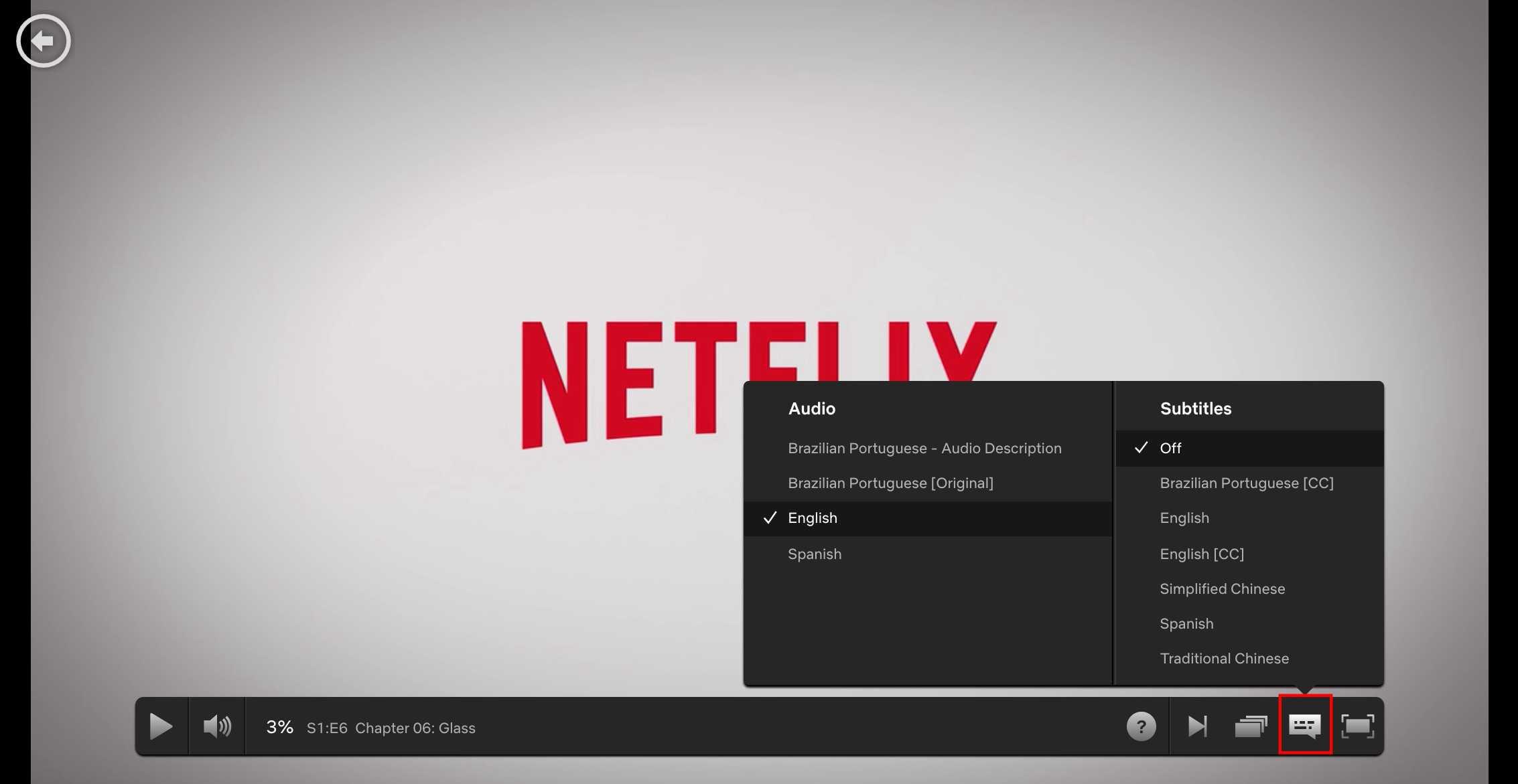
    3. Select the dialogue box that appears before the ‘enlarge screen’ button.
    4. You can then select from the ‘Audio’ or Subtitles column, the language you prefer.

    Note: Not every movie or series or Tv show has multiple languages available. Some are only recorded in a single language and so when you go through the process above for such shows, you’ll see no languages under the ‘Audio column’. However, if the show is recorded in several languages, you should see the list of languages under the ‘Audio’ column.

    Conclusion

    Netflix is obviously a user-centred video streaming platform which tries to give its users enough on-platform comfort while serving the best of entertainment. Not having your movie play in a language you understand or not having a subtitle in a language you understand definitely erodes the very values Netflix seeks to project on its platform. That’s why these options are available for users of the platform. I hope this article was helpful in making you change your Netflix Subtitle language and audio language. Kindly leave us a comment in the comment box.

  • How To Hide Your Whatsapp Online Status On Android And iOS

    How To Hide Your Whatsapp Online Status On Android And iOS

    Security and privacy are two terms that go hand in hand especially as far as the internet is concerned.

    The WhatsApp instant messaging platform is undoubtedly the biggest instant messaging platform in the world with millions of users active every moment.

    While Whatsapp has so many advantages that come at absolutely no cost, some people could actually abuse some of its functionalities in trying to track your actions.

    One of the features of WhatsApp which can be used against you by others is your online presence (online status.)

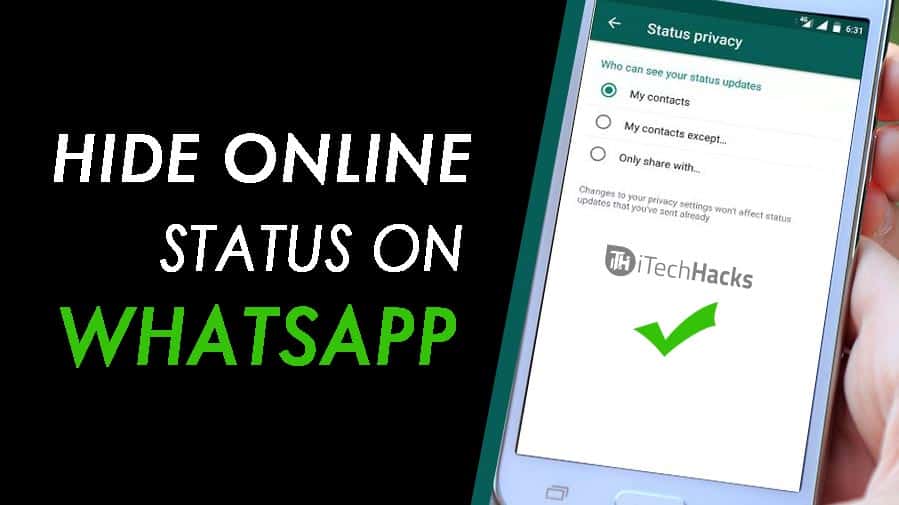
    In this article, we shall focus on how to turn off your online status on both Android and IOS devices.

    How To Turn off Your Online Status On Your Android Device

    To turn off this feature, you have to launch the Whatsapp application and follow the instruction below:

    1. Click on the three dots on the top right corner of your WhatsApp chat page.
    2. Click on Settings in the list that appears next.
    3. From the settings menu, look through and select Account.
    4. Click ‘Privacy’ in the next list that appears.
    5. From the popup list, select ‘Last Seen’
    6. From the popup list that appears next, select ‘Nobody’.

    NB: You can select my contacts in order to decide which people from your contact list should not see your online status.

    How To Turn Off Your Online Status on IOS Device

    Turning off your whatsapp online status on Iphone or any other IOS device is quite different from the method we’ve seen under the previous heading.

    In order to put this feature off, follow the steps below:

    1. Launch your WhatsApp application
    2. On the chats page, select ‘Settings’ on the right bottom corner.
    3. Select ‘Account’ from the list that appears on the next page.
    4. On the next page, select ‘Privacy’.
    5. From the next list, select ‘Last seen’
    6. A popup list would appear for you. Select ‘Nobody’ from the list

    Conclusion

    Turning off your whatsapp status generally prevents people from identifying when you are online and when you are offline. At all times, when people check your account, they see no sign of you being online. This protects you from those who may be spying on you. However, this setting is a double-edged knife. For as long as people do not get to see your online status, you do not get to see theirs either. Meaning if you set your online status to ‘Nobody’, you shall also see nobody’s online status. So if you wish to see some people’s status and keep others in the dark, then you may want to use the ‘My Contacts’ option when you get to the last phase of the steps listed above. That way, you can select those whom you wish to share your online status with.

    If you have any reservations or questions regarding this post, please do not forget to let us know in the comment box below the post. We are more than happy to be of help to you.

  • How To Recover Deleted Facebook Messages

    How To Recover Deleted Facebook Messages

    Once upon a while, we all make that grievous mistake of deleting a Facebook message or chat altogether.

    In such situations, there are few things you may want to consider. The first one is obviously to ask the other person to send back the messages you’ve lost since they still have it intact.

    The second option you may be considering is for them to take a screenshot of the chat and send to you.

    While the options above may work in some situations, what happens when you don’t want the person to know that you have lost the chat?

    In this article, we shall teach you how to recover a lost Facebook message or chat.

    Follow us keenly as we take a deep dive into this all-important topic.

    Check For Mistakenly Archived Chats

    It is not uncommon for you to mistakenly archive a whole chat especially when you are using the mobile application for Facebook messenger.

    In order to confirm that your messages are not archived but rather permanently deleted, kindly follow the steps below:

    1. Open your facebook messenger on either mobile device or PC.
    2. In the search bar on top of the messenger interface, enter the name of the person you had the chat with.
    3. If the name appears in the search results, then it means you possibly archived the chat and that you didn’t delete it altogether.
    4. To restore the chat, Click on the chat and select ‘Unarchive’
    5. The message should be restored to the primary chats list.
    6. However, if this option doesn’t provide the results expected, then you need to read the next subtitle.

    How To Recover Permanently Deleted Facebook Messages

    If your messages are permanently deleted, then you have a bit of a challenge but that shouldn’t be so much of a worry to you. We have you covered with this solution which requires just some few clicks.

    1. Visit your Facebook account on a desktop or laptop computer.
    2. Go to settings.
    3. Select ‘General Account Settings’.
    4. Select ‘Your Facebook Information’ from the list of items on the left panel.
    5. Select ‘Download your information’ from the list on the right panel.
    6. Uncheck all other file types listed there and select ‘Messages’ only.
    7. Click on ‘Create file’
    8. It will take a while for the files to be made available depending on the volume of messages you have.
    9. When the file is ready, you’ll receive a notification and then you can download it.
    10. You may be required to enter your password in order to download the file.

    Once you download the file, you can open it in your browser to have full access to all your messages including the ones that were deleted.

    Conclusion

    Facebook is one of the most useful social media platforms available presently and it has the largest number of users. The fact that you can recover deleted messages gives Facebook an extra feature for which you should consider it as your number one social media platform.

    You need to understand however that it is important for you to access your facebook profile from a previously known IP Address or Device in order for you to successfully recover your messages using the steps listed above.

    I hope this article was helpful in helping you resolving your problem. If you have any comments or any other ways of solving this problem, let us know. We’d be glad to hear from you.

  • Step By Step Guide On How To Change Your YouTube Email Address

    Step By Step Guide On How To Change Your YouTube Email Address

    YouTube is a video sharing platform that has a lot of tutorials on any category you can think of. YouTube to me is like a university because you can find a lot more tutorials on this platform and you can master it by following the tutorials carefully.

    The platform was created by 3 formal Paypal employees namely Chad Hurley, Jawed Karim and Steve Chen in February 2005 and in November 2006 Google bought the platform for $1.65 billion.

    YouTube allows users to create a channel on their platform, upload videos, view videos and also subscribe to other users channels.

    The type of videos that can be found there is video clips, TV shows, music videos, audio music movies trailers short and documentary films, live videos, video blogging and many more.

    According to Alexa Rank, YouTube ranks number 2 on the most popular websites worldwide, and there are over 1,000,000,000 videos views per day on the platform with more than 1.9 billion unique visitors to YouTube each month.

    Aside from watching funny videos or educational videos and many more categories all for free, you can also make money with YouTube.

    If you already have a Gmail account, then you already have a YouTube account as with YouTube when you have a Gmail account there is no sign up required.

    You might want to change your email address due to some reasons like maybe your Gmail account has been compromised or you want to have a new Gmail account that you can use only for some specific apps and websites.

    Maybe you might be using your YouTube account for a while and will want to change your YouTube email address and wondering if it can be possible to do that because you are interested in the kinds of videos YouTube suggests to you every day and will not want to lose these kinds of new videos

    YouTube is quite good on those suggestions, eg: you might one day watch a video on how to prepare Jollof Rice and the next time you visit YouTube again, the platform will suggest to you another cooking video tutorials which are related to the previous video you watched and that is one thing I love about this platform.

    How To Change Your YouTube Account Email Address

    1. Open your web browser and visit youtube.com
    2. If you have already signed in your Gmail account on that browser you will see your YouTube account page opened, if you are not, then sign in to your Gmail account and you will be taken to your YouTube account.
    3. Now click on your profile on the top right corner.
    4. From the drop-down menu select Settings.
    5. On your Account section click on View Or Change Your Account Settings.
    6. You will be directed to a new Google Account page, on the top left click on Personal Info.
    7. On your Contact Info section, click on your email.
    8. You will be directed to a new page, select Advance.
    9. Click on Contact Email and select Add Other Email, proceed by typing In the new email address you want to use on your YouTube account and after that click on Add.
    10. You will receive a confirmation on your newly added email address, confirm it and this will help you to unlink your previous YouTube account, you will be directed to the confirmation page where you can remove your previous Google Account.
    11. You will then be asked to add your new email ID and password to update the changing of the email address, within minutes you will then receive a mail on all the info on your newly linked YouTube Account.

    Conclusion

    Many reasons can lead to someone changing his or her YouTube email address, in this article we went through a step by step guide on how to change your email address.

  • Apps to install to help find your Android device if you lose it

    Apps to install to help find your Android device if you lose it

    Phones have become part of our lives, according to research, people spend an average of 3 hours and 15 minutes using their phones each day.

    The phone is what we use to do everything today like checking up on our friends, visiting various social media channels to find what’s trending and making calls.

    Well, you can make some of them with your pc or laptop but phone as we call it is a mobile, meaning you can take it anywhere and that’s why the phone is nowadays used in making everything, even nowadays phones perform many tasks that were only meant for pc or laptops, so many people don’t even prefer using computers again unless it’s something critical that needs a desktop screen.

    Losing your phone is one of the painful things that will ever happen to you, if you are like me who have lost his phone before, you will agree with me after finding out your phone is lost, your mood and everything changes, sometimes you won’t even feel like you are hungry even when you have not eaten the whole day (this happened to me when I lost my phone).

    What makes losing your phone one painful thing to ever feel is not only about the price of the phone but also the data that you have on that phone.

    You might be like me who mostly work using phone or you might have some pictures or files that are more sensitive or important to you in a way that nobody should have access to it.

    Losing a phone can happen to anyone so it is better to have some sort of anti-theft apps, so if you don’t want to go through what I went through then this article is for you as in this article, I am going to take you through Apps you can install on your Android Phone to find it when someone steals it or it goes missing.

    Google already has a built-in app that you can use to track your phone, we are also going to go through other best third-party apps that perform the same task after a briefing about the Google inbuilt app.

    Google Find My Phone

    As stated earlier, this is an inbuilt app for android devices, this app does not only let you track your stolen or misplaced phone but it can also let you remotely lock your phone, wipe all your data in your phone, sign out all your accounts on that phone remotely.

    How To Activate Find My Phone?

    This app is activated by default on all android phones, but to be sure its activated visit Settings > Google > Security you will see Find My Phone there, tap on it and you will see it activated, if it’s not, then turn it on.

    How To Find Your Phone When It Gets Stolen Or You Misplaced It Using Find My Device

    There are two ways to find your phone using find my device and they are using the web by visiting www.android.com/find or downloading the find my phone app on Google Play Store.

    Anti-Theft Alarm

    The anti-Theft alarm is one of my favourite apps used in tracking your phone or letting you get your stolen phone back, this app has so many features but before telling you the other feature let me tell you the feature I use most on this app.

    This app has a feature called Charger Detection Mode, what it does is that when you put your phone on charge then you activate this feature and when someone unplugs your phone, it will start making noise.

    Maybe you will be at a crowded place and your phone will be on the verge of dying, you might want to charge your phone but will be afraid that someone might unplug it and steal it, this is when this feature comes into use, as soon as someone unplugs your phone the phone will start to make a siren noise and to deactivate this noise, the person will have to type in your password or verify your fingerprint which we all know he can’t do that.

    Another feature is called Motion Detection Mode, when you place your phone somewhere and you don’t want anybody to touch it, then you activate this feature when someone touches your phone and your phone moves, it will start making noise until the password or fingerprint is verified.

    The app has a Sim Detection Mode, which will alert you when you change your sim card, and also a feature called Proximity Detection Mode, which also start ringing when your phone is removed from your pocket, I mostly activate this feature when I am going to a crowded place, when someone tries to steal your phone from your pocket, then this app will start ringing and there is no way the thief can steal your phone.

    The app works even when your phone is on silent, I must say this app is a must-have app.

    Avast Mobile Security

    This app has so many features such as scanning your apps for threats, app locking, hiding your sensitive media files, however, we are only interested in the anti-theft feature and that’s what we are going to talk about.

    The app has an anti-theft feature that has so many features in it, you can lock your phone as soon as it detects a sim change, also remotely lock your device until your pin is entered, and also you can take pictures of the environment that your phone is located without the thief finding out.

     You can also remotely let it ring and to deactivate the sound, the thief will have to type in your password.

    This app is free but to benefit from the anti-theft features you will need to subscribe.

    Conclusion

    Losing your phone out of the blue is one of the painful experience that will ever happen to you, in this article we went through third-party apps that you can install to avoid getting your phone stolen and apps that you can use to get your misplaced or stolen phone back.

    Which one are you trying installing first and why that one?

    Let me know in the comment section below.