Category: Guides

  • How To Watch DStv On Your Android Or iOS Phone In Ghana

    How To Watch DStv On Your Android Or iOS Phone In Ghana

    With the help of DStv (digital Satelite television), you can catch up all the sports games going on around the world.

    Dstv is a service that was launched in 1995 and currently has over 18.9 million subscribers whom the majority of these subscribers are from Ghana, Congo, South Africa, Namibia, Kenya, Angola, Zimbabwe, Zambia, Uganda, Mauritius, Mozambique, Malawi, Tanzania, Lesotho, Ethiopia, Togo, Congo, Gabon, Swaziland and Botswana.

    You get to watch many movies across channels around the world, thanks to DSTV now you can even watch a movie or a television program with someone you know abroad, both of you can access the same TV station and watch it together.

    To use DStv all you will have to do is to visit any of their office or any office that sells their products and buy yourself a DStv decoder, and then one specialist will come and make the installation for you (if you don’t know how to do the installation and I know you don’t know how to do the installation because you just bought one).

    So at first, you could only watch programs on the DStv only on televisions, finally the wait for those of us that always find ourselves away from home and are always with our phone.

    Now you can watch DStv on your mobile phone thanks to a new app that DStv has launched called Dstv Now. And you can watch live Tv on up to 4 devices, but only two can be active at the same time.

    In this article, I am going to take you through how to watch DStv on your android or iPhone so without wasting much time let us dive right into it…

    What You Will Need To Use The DSTV Now App

    • A premium subscription
    • The DStv Now App
    • A DSTV Connect ID (you can register it easily, you will only need your smart card number to register)
    • An internet package

    How To Watch DStv On Your Android Or iOS Phone In Ghana

    1. Visit the Google Play store or the Apple App Store and search for DStv Now and install the app.the app shouldn’t take long to download because it is a 16MB app size.
    2. Now hit on Sign Up Now.
    3. Enter your email address, telephone number, and then set up a new password and then press on Create New Account.
    4. Now enter your Smart Card Number or customer number.
    5. You will then be presented to create your profile by typing in your name and selecting an image.
    6. You can then go ahead and catch up with all your favourite movies, shows and Tv programmes

    Conclusion

    Now you can watch programmes on DStv at anywhere you may find yourself, in this article, we went through how to watch DStv programmes on your phone.

  • Tonaton.com Guide: How to Register, Sell, Advertise, Download App & Make Money

    Tonaton.com Guide: How to Register, Sell, Advertise, Download App & Make Money

    Tonaton is one of the most popular and hottest eCommerce websites in Ghana right now. This platform has made buying and selling easy for us all.

    You will agree with me that before Tonaton, selling your product is was of the most difficult things to do, you will have to walk around the streets, tell your friends for them to also advertise for you and if you are lucky enough you might get someone who is interested.

    One awkward thing about this is the buyer will come with any price he or she wants (if you are fond of selling your used things you would understand what I am trying to narrate).

    Same applies to when you want to buy something, there was no way to get what you want unless you visit the central market near you to get it, even without knowing the price.

    Thanks to Tonaton, now you can sit at the comfort at your home, visit their website and then search for anything you want to buy, you will see the pictures of what you want to buy, price, brand new or slightly used and you can get to call the seller and make negotiations if he or she can bring it to you or you will both meet at a certain place.

    On their platform, you can sell and buy things like electronics, clothing, pets and animals search for jobs in Ghana, vehicles and many more.

    In this article I am going to take you through how to sell on Tonaton, buy, download their app and at the same time make money

    How To Register On Tonaton

    1. Visit www.tonaton.com 
    2. Click on Sign In
    3. If you are a new user like then under the sign in tab, you will see Sign Up, you will then be given an option to sign up using Facebook or your Gmail account.
    4. Proceed by typing in your name, email address and then confirm your password.

    How To Sell And Make Money On Tonaton

    After successful signup, on your home page, you will see Post Your AD on the top right, click on it.

    Tonaton have two options on the AD posting tab,

    • Sell Something: in this category, you will choose when you want to sell an item or service, offer a job for rent or post a job vacancy
    • Look for something: you will choose this option when you are looking for a property to rent or looking for something to buy. Now choose the one you want to do.

    Select the category of the product you want to buy and its subcategory (Eg: if you selected that you are selling a product and choose Vehicles, you will choose a subcategory which can be cars or motorcycles).

    Now select your City and the town you reside in.

    Fill up the details of the product you are selling and add 5 pictures of that product, the price and your details including your number and when you are done hit on Post AD.

    How To Advertise On Tonaton

    Maybe you need money urgently and you posted an AD but you want it to reach many audiences so that somebody can buy it early for you, Tonaton has an option for you to advertise to that it will reach many audiences fast for you.

    To promote your AD, after posting your AD, click on the ‘Promote AD’ Button and then make the necessary payment, now wait and see people calling you in their numbers to make a negotiation.

    How To Download The Tonaton App

    Do you know Tonaton has a mobile app on both Google Play Store and Apple Store?

    1. To download their mobile app simply head over to your app store (depending on the phone you are using).
    2. Search for Tonaton.
    3. Now install it, you can log in on the app and start selling and buying using the app. 

    Conclusion

    Now selling and buying has been easy thanks to Tonaton, in this article we went through Tonaton, how to sell, buy, advertise and make money.

  • How To Scan NASCO Satellite TV For Free To Air Channels In Ghana

    How To Scan NASCO Satellite TV For Free To Air Channels In Ghana

    Africa’s leading producer and exporter of Television sets is Nasco. With millions of TV sets sold so far, Nasco stands tall among the top Television brands in Ghana, Africa and indeed the world as a whole.

    Be it Smart Tv, Digital TV or Satellite TV, Nasco has something for all pockets.

    Nasco TV sets have in fact become toasts of many rooms both for the young and old.

    In this article, our focus is on how to scan your Nasco Satellite TV for Free to Air Channels across the globe.

    What Are Free To Air Channels?

    Free to Air Channels also called FTA channels are TV or Radio channels which do not require any subscription fee or any form of payment before viewers are allowed to watch.

    These channels are broadcasted without any encryption or lock and so can be accessed by any TV set that has the right models or receiving elements to access the kinds of channels involved.

    Some of the popular Free-to-air channels available in Ghana are TV3, Net 2 TV, GTV, Metro TV, Joy Prime, Adom TV, TV Africa, Crystal TV and many others.

    Requirements For Accessing Free To Air Channels

    Even though Free to Air channels are free of charge and do not require any payment or subscription in order for the user to enjoy these channels, there are some requirements that all receiving TV sets must meet before having access to these channels for free.

    For digital channels, your Nasco television must have the normal two poles antennae that can either be placed on top of the TV and connected to the back or held up outside on a pole.

    For Satellite channels, your Nasco television must have a satellite dish installed and connected.

    Without these requirements, you can have your Nasco Television beautifully installed on your wall or on your TV stand but you may never get to use it for the purpose you bought it – to watch channels.

    How To Scan For Digital Channels On Nasco TV Sets

    To scan for Digital Channels on your Nasco TV Set, please make sure that your antennae are correctly connected to the jack at the back of your TV. Once you are certain about this, follow the steps below judiciously:

    1. Press the ‘Menu’ key on your remote
    2. Scroll through the menu using the left and right arrow. Then, select ‘Channel Settings.
    3. Press the enter key on your remote
    4. Select the down arrow to select ‘DTV Manual Tuning’
    5. Press Enter to open DTV Manual Tuning Submenu
    6. Select ‘All Channels’ and press enter
    7. When your scan is done, press ‘Menu’ to return or press exit.

    How To Scan For Satellite Channels On Nasco TV

    Scanning for Satellite Channels on your Nasco TV is very easy and doesn’t take so many steps to execute. Meanwhile, before you follow the steps below, make sure that an accredited dish installer has already installed your satellite dish and has connected it to your TV.

    If that is already done, then you can follow the steps below to scan for new satellite TV Channels.

    1. Press ‘Menu’ on your remote control.
    2. Use the left and right arrow to select ‘Channel settings’ from the main menu and press Enter.
    3. Use the Up and Down buttons on your remote to select ‘Auto-Tuning’ and press Enter.
    4. Press the Ok button to search and save all Tv and Radio channels from the current TV source which is satellite channels automatically.

    Conclusion

    With the daily introduction of new television stations both locally and internationally, there is the need for owners of television sets especially Nasco TV owners to regularly scan for these new channels.

    I believe this article was helpful in guiding you to scan for new digital and Satellite TV channels on your Nasco TV.

    If you have any reservations, comments or enquiries, kindly leave them in the comment box below or get in touch with us.

  • Ways To Take Care Of Your Laptop’s Battery For A Longer Lifespan

    Ways To Take Care Of Your Laptop’s Battery For A Longer Lifespan

    A laptop is one gadget that is a must-have for everyone, as a student, you need this laptop for school, as a worker for work and so on. When it comes to we the gamers too same.

    One thing that makes people prefer a laptop over a desktop is the ability to charge its battery and still be able to use it when there is no electricity, and also the ability to move it to anywhere you want to go.

    Many people complain of their laptop battery not lasting long, this makes using a laptop boring as you will want to visit a place and then do a certain task on your laptop only to reach there and start working and then find out your battery cant last for you to finish your work.

    If you have already bought a new laptop or you already have a laptop then I have some tips to give you so that you will not have problem with your battery draining fast and also expand your battery lifespan.

    So without wasting much time let us get started.

    How To Take Care Of Your Laptop’s Battery For A Longer Lifespan

    Turn Off Brightness

    Before even going on with the effects of brightness on your battery, first of all, turning on your screen brightness causes harm to your eye.
    Also, brightness is one factor that drains the battery, so lowering screen brightness does not only helps your battery last long but also it saves you from getting any eye problem.

    Don’t Always Keep Your Battery Plugged In

    This is one mistake most of us do, we always tend to keep our laptop plugged in always.

    Laptops that are always plugged tends to have lesser number of cycles (a cycle is when your battery drain and then you charge – that’s is one cycle) than those who always keep their batteries between 20% and 80%.

    So you don’t always have to be charging your battery fully always.

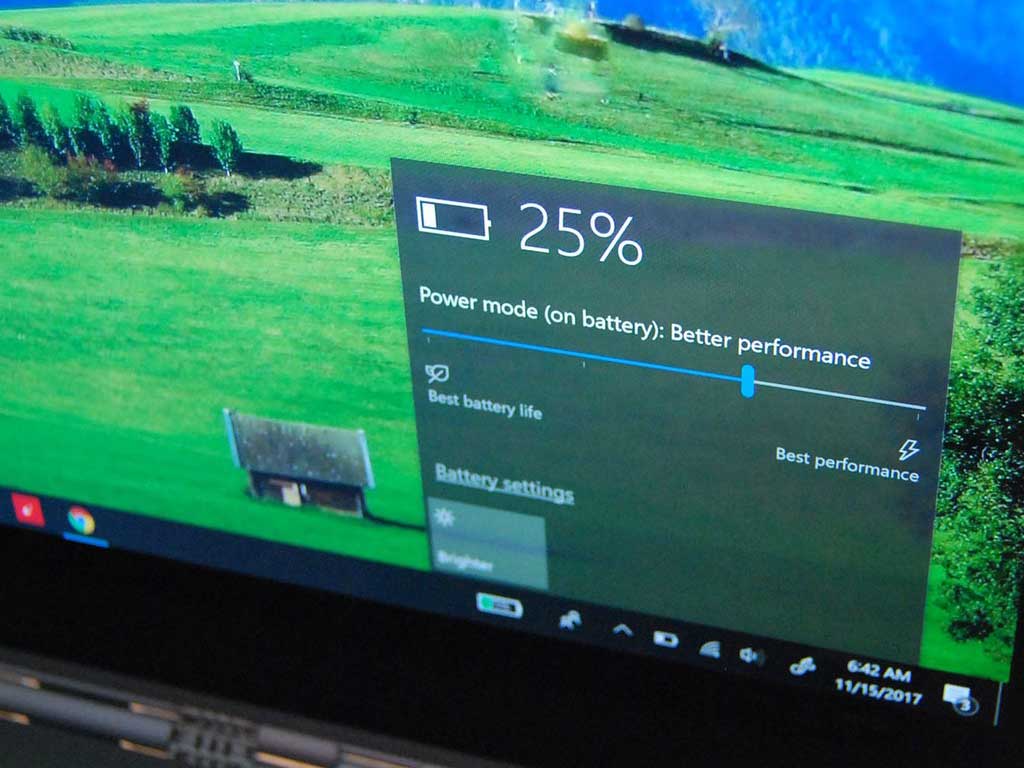
    Always Activate Battery Saver Mode

    What benefits does activating battery saver mode gives to your battery life? Anytime your laptop is on battery saver mode, it limits the works that the computer has to do if you are not using your laptop for gaming, editing videos or making many tasks, then activating battery saver mode will help your battery and on the performance, since you are not doing any hard task, you won’t see any changes you will not see any changes.

    So if you are not doing any task that requires a lot of power then always try as much as possible to activate battery saver.

    Don’t Always Wait For The Battery To Die Before Charging

    Always making your laptop battery die before charging is one thing that affects the battery life, it is recommended to charge your battery when it is on 20% column as this extends your battery lifespan.

    Keep Your Laptop Out Of Hot And Cold Environment

    Your laptop needs to be kept in a neutral environment, exposing it to an environment that has excessive hotter or colder temperature causes your laptop battery to work harder which makes the battery drain faster and also shortens your battery lifespan.

    Unplug Peripherals When Not In Use

    External hard disks and webcams also drain battery life when even not in use, they get connected and ready to work using the battery power when plugged in.

    So to avoid your battery draining fast, always make sure no cables are connected to your laptop when they are not In use.

    Conclusion

    Having a laptop with a healthy battery is one of the best feelings, it increase productivity, if you are a gamer, it always helps you play for a long time without light. To avoid destroying or shortening your batteries life span, in this article we went through how to take care of your laptop battery to extend its lifespan.

  • How to add any place to Google Maps in Ghana

    How to add any place to Google Maps in Ghana

    Google Maps is one of the most popular applications on the Android platform. It’s not surprising that Google (who literally “own” android) will push the app to users, especially as Google feels it is an important component of every smartphone.

    Well, I think maps are important and I use them frequently. Over the years, Google Maps has seen tremendous change and improvements, making it continually useful.

    One advantage of adding a place to Google Maps is that it can be found on all services that utilise Google Maps’ API. These services include Uber, Taxify and even the GhanaPostGPS.

    Generally, maps are very incomplete if they are not able to tell what can be found at the specific places and Google – in the quest to make maps reliable, gives users the option to add places to their maps (with verification).

    Here in Ghana, a lot of places cannot be found on the map but with this feature of Google Maps, you can add all your favourite public places to help others.

    The ability to add or remove places from Google Maps was only available to “Map Makers”. Map Makers would soon close and be moved to Google Maps. Hurray!

    How to add a Place to Google Maps

    Check that you have GPS enabled in your settings.

    For the best results, set the GPS settings to high accuracy. This can be done by going to your android Phone’s Settings > Location and Security. When this is done, open the Google Maps application (it should be the updated version), then tap on the menu button (three horizontal lines)

    "Check

    You should be near the place you want to add to the maps.

    Zoom in to the blue dot. That represents your current location. As in step one, click the menu button and then Click on “Add a missing place”.

    A new menu comes up where you fill the details of the place. In this Tutorial, I add Access Bank, Airport Branch to Google Maps. In order to get the street address, tap the “current location” sign.

    It should automatically update to where you are. Alternatively, tap on “Mark Location on Map” and map the appropriate location.

    You should be near the place you want to add to the maps. Zoom in to the blue dot. That represents your current location. As in step one, click the menu button and then Click on "Add a missing place". A new menu comes up where you fill the details of the place. In this Tutorial, I add Access Bank, Airport Branch to Google Maps. In order to get the street address, tap the "current location" sign. It should automatically update to where you are. Alternatively, tap on "Mark Location on Map" and map the appropriate location.
    You should be near the place you want to add to the maps. Zoom in to the blue dot. That represents your current location. As in step one, click the menu button and then Click on “Add a missing place”. A new menu comes up where you fill the details of the place. In this Tutorial, I add Access Bank, Airport Branch to Google Maps. In order to get the street address, tap the “current location” sign. It should automatically update to where you are. Alternatively, tap on “Mark Location on Map” and map the appropriate location.

    Fill all details including category and the hours open.

    To get the place you are adding verified, it is always best to add a photo, which you can capture straight from Google Maps or by selecting a photo from your gallery.

    Adding a photo helps Google prove that the location being added is a real one.

    Fill all details including category and the hours open. To get the place you are adding verified, it is always best to add a photo, which you can capture straight from Google Maps or by selecting a photo from your gallery.
    Fill all details including category and the hours open. To get the place you are adding verified, it is always best to add a photo, which you can capture straight from Google Maps or by selecting a photo from your gallery.

    When you are done, submit by tapping the submit button.

    If you did everything right, you should receive a notification on-screen saying “Thank you for Improving Google Maps”.

    You should also receive an email when Google verifies that you have actually added a genuine place.

    Sometimes, Google may run its own verification so the email you receive will only state that your entry is under review.

    When you are done, submit by tapping the submit button. If you did everything right, you should receive a notification on screen saying "Thank you for Improving Google Maps". You should also receive an email when Google verifies that you have actually added a genuine place.
    When you are done, submit by tapping the submit button. If you did everything right, you should receive a notification on-screen saying “Thank you for Improving Google Maps”. You should also receive an email when Google verifies that you have actually added a genuine place.

    What else can you do in Google Maps?

    Well, let us know in the comment box how you have been using Google Maps and if you intend to add any places soon.

    Don’t forget to check out all the Businesses and Locations that are not allowed to be added on Google Maps.

  • How to avoid being a Victim of MTN Mobile Money Fraud (Safety Tips)

    How to avoid being a Victim of MTN Mobile Money Fraud (Safety Tips)

    MTN Mobile Money is undoubtedly the biggest mobile payment solution available in Ghana today.

    What started as a small convenient way of conducting business transactions has rapidly changed into a platform capable of doing a bit more. Every new day, people are registering on the MTN Mobile Money platform.

    As it is with any service, with the benefits, come the bad guys, who are looking for ways to make money the easiest way.

    A lot of people have shared experiences with people who have been frauded on MTN Mobile Money to the extent that some believe it is an inside job at MTN.

    However, we are not here to go into those details. Today, we look at safety tips to guide us so that we are not caught up in the den of the fraudsters.

    Here are safety tips on how to guard yourself against MTN Mobile Money Fraud:

    Keep your MTN Mobile Money PIN Private

    Yes, this is the number one tip. Your Mobile Money PIN is for just you and you are not obliged to share it with anyone. Most people have claimed that personnel from MTN called to ask for their Mobile Money PIN.

    Man distressed after giving out his MTN Mobile Money PIN and suffering stress.
    Never give out your MTN Mobile Money Fraud

    From statements that MTN has released over the years, it is clear that Mobile Money agents and MTN workers are not to ask you for your PIN to initiate any transaction on your behalf.

    As a matter of security, you are not to share your PIN with your Family and Friends. Even if you do, you are to change it immediately.

    Keeping your PIN private will help to safeguard you against many of the fraud stories we hear concerning MTN MoMo.

    Choose a strong PIN for your Mobile Money account

    I believe hackers have not gotten way smarter over the years, it’s just people becoming more foolish and relaxed over security issues.

    When it comes to Mobile Money PINS, the situation is no different.

    You find people using their year of birth or the current year or a sequence. Researchers at the data analysis firm Data Genetics have advised people to avoid birthdate, 1234 and 8068. However, you should also avoid a sequence like 2345, 6699, 2244, 9876 etc.

    You should use a PIN that would be difficult for people to guess, but easy to remember. If you currently have a weak PIN, you can change it.

    How to Change MTN Mobile Money Pin

    1. Dial the MTN Mobile Money short code *170#
    2. Select Wallet
    3. Choose Change MM PIN
    4. Enter your old PIN
    5. Enter your new PIN to set and confirm

    Verify Phone Calls and Messages purportedly from MTN

    Almost all of the Mobile Money fraud stories that I have heard usually stem from either a phone call or a text message or both.

    Keep in mind that MTN will send Mobile Money SMS via the nameMobileMoney. Any message from suspicious phone numbers regarding your mobile money account is probably fake. They mostly follow up with instructions, which you should never pay heed to.

    Beware of scam calls asking you to send MTN mobile money to their accounts to receive cash prizes or asking for your account details.

    Whenever in doubt, don’t hesitate to call MTN customer service number 100. Most importantly, why do you think you have won a promo when you never participated in one?

    Confirm transactions and don’t hand your phone over to Mobile Money agents

    About confirmations, when you make a deposit at any MTN mobile money merchant shop or agent, make sure you receive a confirmation text before you leave.

    Check to be sure the text received is from MobileMoney and has the correct amount stated.

    Also, when withdrawing money, confirm that the name of the MoMo Merchant is what is actually displayed before you enter your pin to confirm the transaction.

    Mobile Money agent with phone in hand
    Confirm all transactions before approving them.

    You shouldn’t give your mobile phone to agents to do a transaction on your behalf. If you give your phone to an agent to initiate a transaction on your behalf, you expose yourself to being defrauded.

    However, for those who don’t know how to read or write, this may not be possible. Such people should try to go to the agent with someone they trust or work with only “trusted Mobile Money agents”, although this is not entirely fool-proof.

    Finally, if you suspect any fraudulent activity on your wallet, the best thing is to Call MTN on 100 or visit their nearest Customer Service Centre to make the report or use the online portal. Like MTN Ghana has said in their numerous ” Anti Mobile Money Fraud” campaigns, “Don’t be a MUGU.”

    Have you ever fallen victim to mobile money fraud or do you know someone who has been frauded via MTN Mobile Money? Share your experience.

  • How to check your COVID-19 risk status online in Ghana with the Serenity Health Bot

    How to check your COVID-19 risk status online in Ghana with the Serenity Health Bot

    Ever since the outbreak of COVID-19 in Ghana, numerous health and tech individuals and organisations have been looking at the best way to help with the situation.

    Ghana’s Nyaho Medical Centre has collaborated with ClearSpace labs, an AI Research & Development company to launch a COVID-19 assessment tool called Serenity Health.

    Serenity Health was developed to help the Ghanaians assess their COVID-19 risk, connect with health teams and testing locations as well as give access to daily follow-ups on the coronavirus pandemic.

    When you use the assessment tool, you will be able to make decisions about seeking appropriate medical care at certified locations in Ghana.

    There have been other apps relating to the coronavirus in Ghana like tracing app by the Ghana Institute of Surveyors.

    Let’s look at how you can use the Serenity Health COVID-19 assessment tool to check your risk level of having the coronavirus.

    How to check your Coronavirus (COVID-19) Risk Status in Ghana

    1. Visit the COVID-19 assessment site here: https://serenity.health/covid19
    2. Click on the “Click Here to Start Assessment” button
    3. A pop up comes to ask for location access. You can disable location as this does not affect the results
    4. Agree to the terms and conditions of the website
    5. Answer the questions that the Chatbot pops up as correctly as you can
    6. You will then receive an assessment response which could be either high risk or low risk

    Apart from the assessment that the website provides, it also gives you the chance to schedule an appointment or have a health professional call you (which is very useful).

    Don’t forget to share with your friends so they can all test too.

    And remember to stay home and practice social distancing. Let’s fight COVID-19 together.

  • 9 Proven Ways to Make Your Android or iPhone’s Battery Last Longer

    9 Proven Ways to Make Your Android or iPhone’s Battery Last Longer

    Battery life has always been a problem for electronic devices, from the days of the Walkman, MP3 and now Smartphones.

    It is no surprise that nowadays, a lot of people look at the battery capacity of phones before making a purchasing decision. Battery life is limited, and however you look at it, you still need ways to save your battery.

    Here are a handful of tips and tricks you can use for your Apple or Android device that will make your phone battery last longer.

    How to Make Your Phone’s Battery Last Longer

    Check battery usage

    In your settings, you can see a breakdown of what apps are using your battery the most. Often, it’s only one or two apps that are taking up most of your battery, and everything else consumes just a small percentage.

    Some apps that you use every day are actually killing your battery faster than you know. The big one is Facebook. This app actually uses a surprising amount of energy merely by refreshing in the background.

    Turn down brightness

    Chances are your brightness is much higher than it needs to be. Try turning it way down until it’s at a dim setting that is still usable. When checking my own battery use, “Screen” is right there at the top of the list.

    Turn off Location Services

    Make sure you turn off your Location setting whenever you aren’t using it. Some apps to be aware of that use Location are Maps (of course), Pokemon Go (for such a fun game, it mercilessly kills your battery), Uber, and anything else that requires GPS navigation.

    Ease up on the camera

    If you’re taking pictures or videos all day, that’s likely where your battery is going. Using the camera on your phone kills your battery fast, and using the flash doesn’t help either. Beware of any image chatting apps like Skype and Hangouts, or social media like Instagram and Snapchat.

    Power Saving Mode

    Apple has Low Power Mode on its iPhones and iPads, and Android has Battery Saving Mode. These settings reduce the performance of your phone but will make your phone last significantly longer.

    Android even has Ultra Power Saving mode, which will make your phone last much, much longer. But it’s kind of a drastic measure.

    Turn off vibrations

    If you don’t need your phone to vibrate for messages just turn it off instead of letting notifications shake your battery to death.

    Use Battery saving apps

    Apps like Battery Doctor (iOS, Android) or DU Battery Saver (Android) help you pinpoint apps that are draining your battery.

    From within the app, you can adjust settings like Location, Bluetooth, and screen brightness in order to conserve battery.

    Turn off auto downloads

    On Apple, go to settings, select iTunes and App Store, scroll down to Automatic Downloads, and toggle all of the options off. On Android, go to the Play Store settings, and tap on Auto-update apps.

    You’ll be given the option to turn auto-updates on or off, or you can choose to only have auto-updates occur over Wi-Fi, which will also save battery.

    Uninstall unnecessary apps

    Routinely go through all of your apps and uninstall any that you don’t use. These apps could be using up a small amount of battery throughout the day, which can really add up over time.

    If you follow these tips, you can keep your phone’s battery life from perpetually living in the danger zone between a low battery and a dead phone. Hope they help.

    Conclusion

    Do you know of any other battery-saving techniques? Let us know in the comments section below. Want to buy a new phone? Check out our latest collection.

  • How To Send Mobile Money From the USA To Ghana using SendWave

    How To Send Mobile Money From the USA To Ghana using SendWave

    There are many Ghanaians living in the Diaspora especially in the United States Of America.

    For most of these people, they have family and friends down in Ghana whom they often have to send money to overtime.

    The most successful money transfer channel within Ghana is the Mobile Money system.

    Therefore, the question of how to send money from the USA to Ghana through Mobile Money has been asked severally.

    If you have relatives living in the US or you work for people there, then you have had to ask yourself this question at some point.

    Well, in this article, we shall answer your question to the latter.

    Using Sendwave To Send Money From the USA To Ghana

    With Sendwave, you can send money from the US, Canada, France, UK, France, Italy, Spain and Ireland to Mobile Wallets in Kenya, Tanzania, Ghana, Uganda and Senegal.

    Follow the steps below to use Sendwave in sending money to any of the African countries listed above.

    Signup For An Account

    1. Download the Sendwave App from the Apple app store or Google Playstore.
    2. Sign up for an account by providing your name, your email address, your phone number, your password and your debit card details as linked with your debit account.

    How to Send Money from the USA to Ghana via SendWave

    After signing up for an account, you need to start sending money to your Ghanaian relative. Follow the steps below to start sending cash.

    1. Login to your account.
    2. Select ‘Send Money’
    3. Select ‘Ghana’ from the list of destination countries
    4. Select your means of transfer ‘MTN Mobile Money or AirtelTigo Cash’
    5. Enter the mobile number of the recipient
    6. Enter the amount you want to send in Dollars.
    7. The amount would be converted into cedis for you.
    8. Confirm the transaction by checking the recipient’s number and name.
    9. The transaction takes less than a minute to reflect in the recipient’s wallet in Ghana.
    10. They can withdraw from any mobile money agent.

    Sendwave Fees

    In terms of fees, Sendwave does not charge direct fees on their transfers. Which means if you are sending 50 Dollars to Ghana, the recipient will receive 50 dollars equivalent exactly.

    However, they make their money from tweaking the exchange rate. If the mid-market rate of USD to GHC is 5.50, Wave may actually use a rate of 5.70 or 5.80.

    Sending Limits And How To Remove Them

    For security reasons and policy reasons as is the case with many banking and finance companies and applications, Sendwave has limitations on initial transfers.

    So for new users, they can send up to 999$ or 999 Euros per day and 2999$ per month.

    However, you can extend your limits to 2500$ per day and 12,000$ per month.

    To achieve this though, you have to follow the following steps:

    1. Go to Settings on your app.
    2. Select ‘Raise Limits’.
    3. Upload your official government Identity card (eg. Passport, ID Card, Drivers’ License)
    4. If your card is approved, your limits would be extended automatically.

    Conclusion

    Sending and receiving money from and to the US and other foreign countries has been a problem over the years.

    However, the gradual introduction of newer payment methods has made it possible for anyone anywhere in the world to send and receive money without so much stress and hustle.

    With Sendwave especially, receiving money from North America and some parts of Europe in Africa has become very easy and exciting.

    You should this application on your next transaction. If you have any other alternatives or questions regarding this post, kindly indicate them in the comment box below.

  • How To Get A Free Domain Name For One Year or more

    How To Get A Free Domain Name For One Year or more

    Owning and managing your own website is not only exciting but it also comes with a deserving volume of respect and pride.

    Whether you are looking to start your new blog, have a website where you can post your portfolio or you are looking to have a website where you can sell your products or services, one thing that comes to mind is Domain.

    Your domain name is the unique name that defines your website and so there is virtually not a website without a domain name.

    Interestingly, aside from the fact that you have to pay for hosting and website designs, not to talk of some plugins and themes, you mostly have to pay for your domain name too.

    This, therefore, makes it extremely difficult for some people to create and own websites – which should not be the case at all.

    In this article, we shall show you how to get a free domain name for 1 year.

    Using Namesco Free Domain Name

    With Namesco, you can get a free .co.uk domain for one year. The steps for using this service are also very simple for everyone to use.

    Kindly follow the steps below:

    1. Visit Namesco.co.uk
    2. Once the page loads, click on ‘Domain Name Search’
    3. Type your preferred domain name. Example: Kofidazzie.co.uk
    4. Click on ‘search’ to see if it’s available.
    5. If you are okay with your domain name, then click on ‘Proceed to basket’. If you are not okay with the name, you can try other alternatives.
    6. You’ll be given two options, to either upload your own website or use a website builder to Do it yourself. Select the Website builder option. Don’t worry about the amount you see next to it.
    7. Click on proceed to checkout or basket.
    8. On the next page, you’ll see two items listed. Next to the Website Builder, you’ll see an amount written. Don’t worry, click on the red X near it. By doing so, you’re removing the website builder option from your purchase.
    9. Your total amount will change to ‘Free’ at the bottom.
    10. Click on Create account and then you can register your domain name for free!

    Using Wix Website Builder

    One sure way of getting a free domain name for your website is using the Wix Website Builder.

    With this easy-to-use and multiple-clicks website building tool, you can get your free wix subdomain for your website.

    However, your domain name would look something like this: Dannykofi.wix.com

    Now, let’s look at how to get your free wix free subdomain today.

    1. Visit wix.com
    2. Sign up for an account
    3. Once you’re logged in, click on ‘Design website’
    4. On top of the new page, you’ll see ‘Upgrade’, click on it.
    5. Select from the list of hosting packages on the next page, the one that fits your business plan and financial stand.
    6. Enter your payment details on the next page and checkout.
    7. On the next page, you may select any add-ons you wish to use.
    8. Make a payment on the next page.
    9. You can then search for your new domain on the next page. If it is available, you get to register it for free and set up your website on it.

    Note: The payment you made is for hosting and any other add-ons. Your domain name is free of charge.

    Using Plugnom

    Plugnom.com is an affordable Web Hosting Service provider in Ghana. Once you sign up to any of their yearly host plans, you get a free domain.

    Conclusion

    Owning your own website doesn’t have to be stressful after all. You can skips the hurdle of buying your domain name by following the options given out in this article.

    We hope that this article helps you to get your next domain name for free so you can build that website you so desire to build.

    If you know of any other options for getting a free domain name, kindly let us know in the comment box below.